UPDF
UPDF
 UPDF for Windows
 UPDF for Mac
 UPDF for iPhone/iPad
 UPDF for Android
 Nomostar
 UPDF AI Online
 UPDF Sign
 IvyCraft
 Edit PDF
 Annotate PDF
 Create PDF
 PDF Form
 Edit links
 Convert PDF
 OCR
OCR PDF to Word
 PDF to Image
 PDF to Excel
 Organize PDF
 Merge PDF
 Split PDF
 Crop PDF
 Rotate PDF
 Protect PDF
 Sign PDF
 Redact PDF
 Sanitize PDF
 Remove Security
 Read PDF
 UPDF Cloud
 Compress PDF
 Print PDF
 Batch Process
 About UPDF AI
 UPDF AI Solutions
 AI User Guide
 FAQ about UPDF AI
 Summarize PDF
 Translate PDF
 Chat with PDF
 Chat with AI
 Chat with image
 PDF to Mind Map
 Explain PDF
 PDF AI Tools
 Image AI Tools
 AI Chat Tools
 AI Writing Tools
 AI Study Tools
 AI Working Tools
 Other AI Tools
 AI Bookmark Generation
 AI Bookmark Summary
 AI Watermark Generation
 AI Background Generation
 AI Sticker Generation
 AI Stamp Generation
 AI Editing Suite
 UPDF Copilot
 AI Page Management
 AI Semantic Search
 PDF to Word
 PDF to Excel
 PDF to PowerPoint
 Enterprise Solution
 Enterprise Sign
 Enterprise AI
 Enterprise Plan
 Enterprise User Guide
 Enterprise Webinar
 IT
IT Education
 Construction
 Financial Service
 Healthcare
 Insurance
 Legal
Legal Manufacturing
 Government
 Researchers & PhDs
 Solopreneurs & Freelancers
 Lawyers & Legal Professionals
 Real Estate Agents & Brokers
 Education Solution
 Customer Stories
 User Guide
 UPDF Tricks
 FAQs
FAQs UPDF Reviews
 Download Center
 Blog
Blog Newsroom
 Tech Spec
 Updates
 UPDF vs. Adobe Acrobat
 UPDF vs. Foxit
 UPDF vs. PDF Expert

The fact is, PDF is the most popular document format in the digital world. This is because of the accessibility it provides when sharing documents as part of the collaboration. However, for various reasons, you may need to rotate your PDF to maintain your document's quality and style. But how to rotate PDFs on Mac?
This article will discuss simple and easy steps to convert PDFs without hassles. Meanwhile, you will learn about an innovative AI PDF tool to get started with.
Part 1: How to Rotate a PDF Page on Mac Flawlessly
Are you searching the internet for locating best yet reliable tool for managing your PDF documents? UPDF for Mac is your trusted solution in this regard. In addition, with this tool, you can convert your PDFs into different file formats or even combine multiple PDFs into a single PDF file. The availability of UPDF Cloud allows users to back up their files or collaborate through real-time synchronization.
You can even read your PDFs in dark mode at night, as it won't strain your eye. With the available OCR feature, you can convert scanned PDF files into editable and searchable PDFs. You can also edit the PDF text, images, and links or apply annotations like comments, underlines, etc.
Ideally, you can also organize your PDF pages. But how to rotate a PDF on Mac? Find here two different methods to get things done. Both ways will display simple and easy steps to proceed with. First of all, get UPDF on your Mac computer by clicking the button below.
Windows • macOS • iOS • Android 100% secure
Method 1: Rotate PDF on Mac through Page Organization Toolbar
By using UPDF, it's possible to organize the pages of your PDF documents. Thus, you can also rotate pages at any angle you want. One of the ways to rotate pages is via the "Organize Pages" function. To use the Organize tool rotate function, follow these steps:
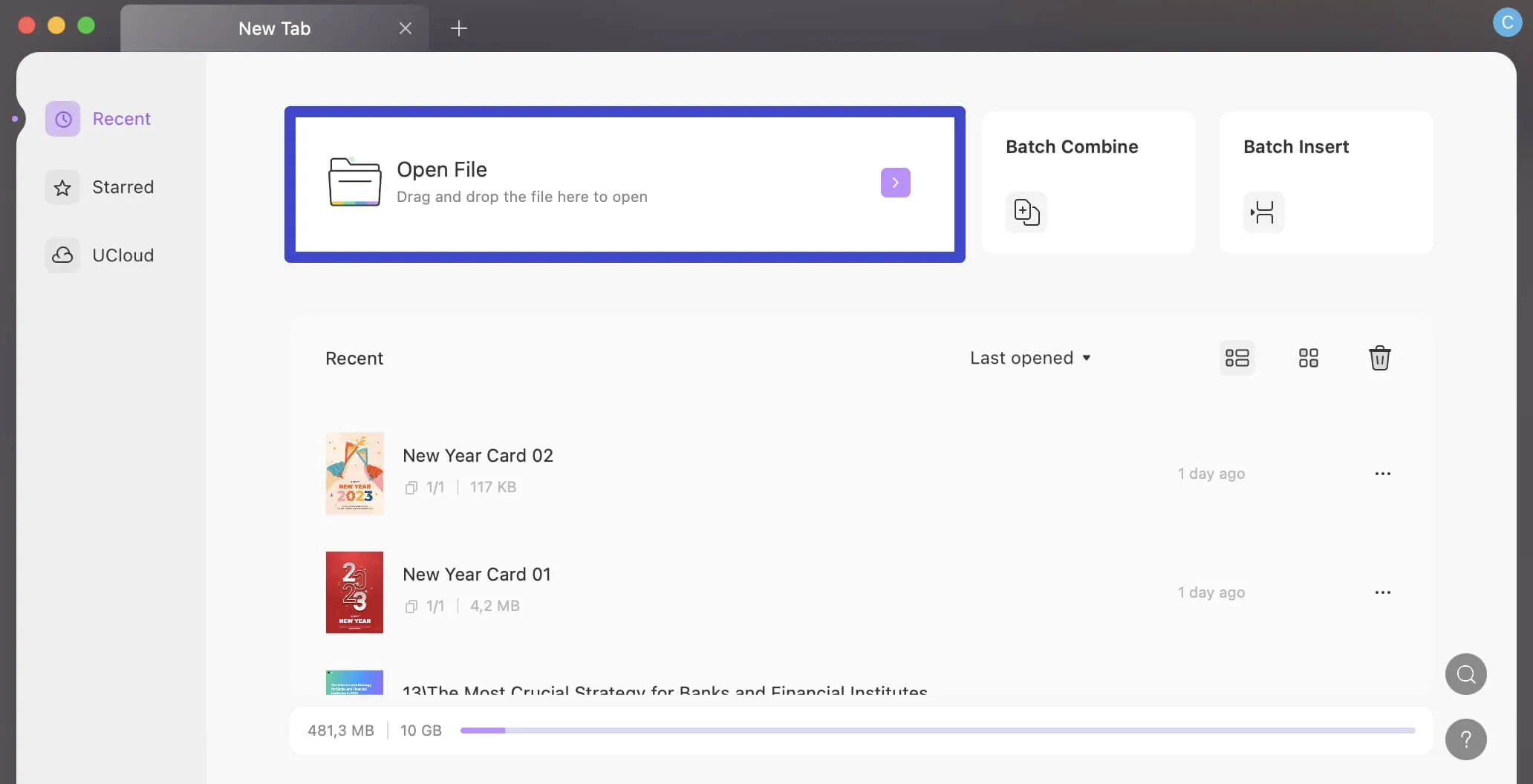
Step 1: Import the Desired PDF Document
Once UPDF is launched on your macOS, press the "Open File" button, and you will be able to import your desired PDF document. As a result, your document would get displayed in the UPDF according to your viewing setting.
Step 2: Rotate a PDF Page on Mac
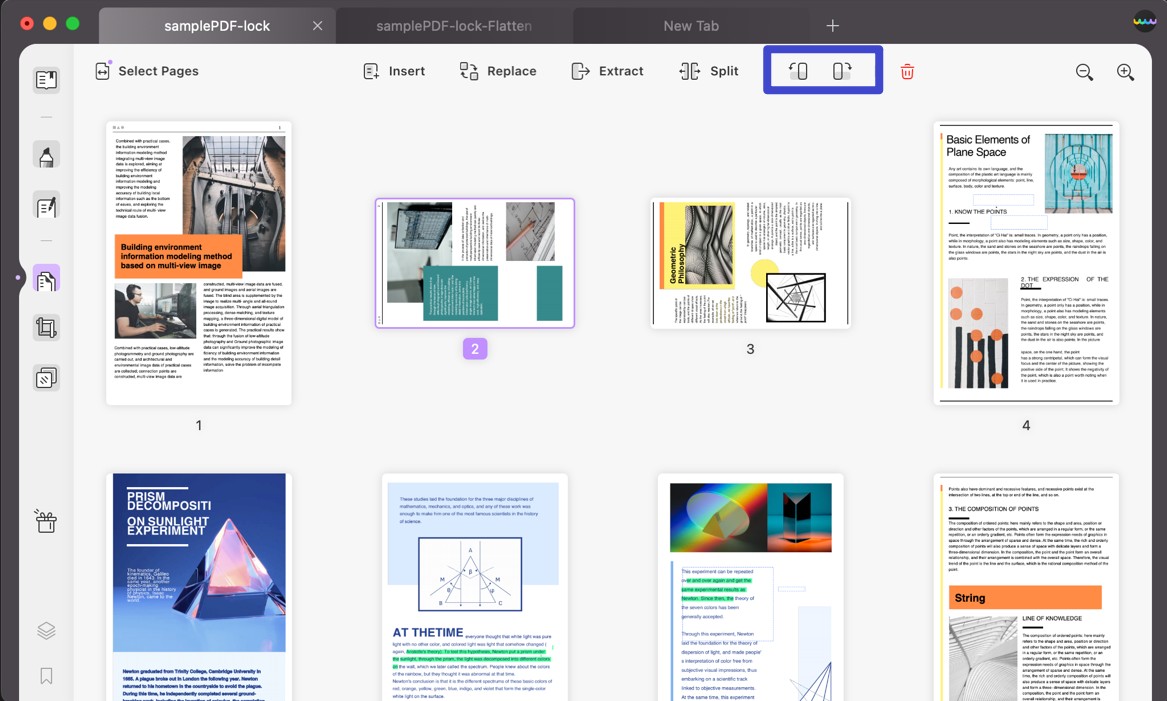
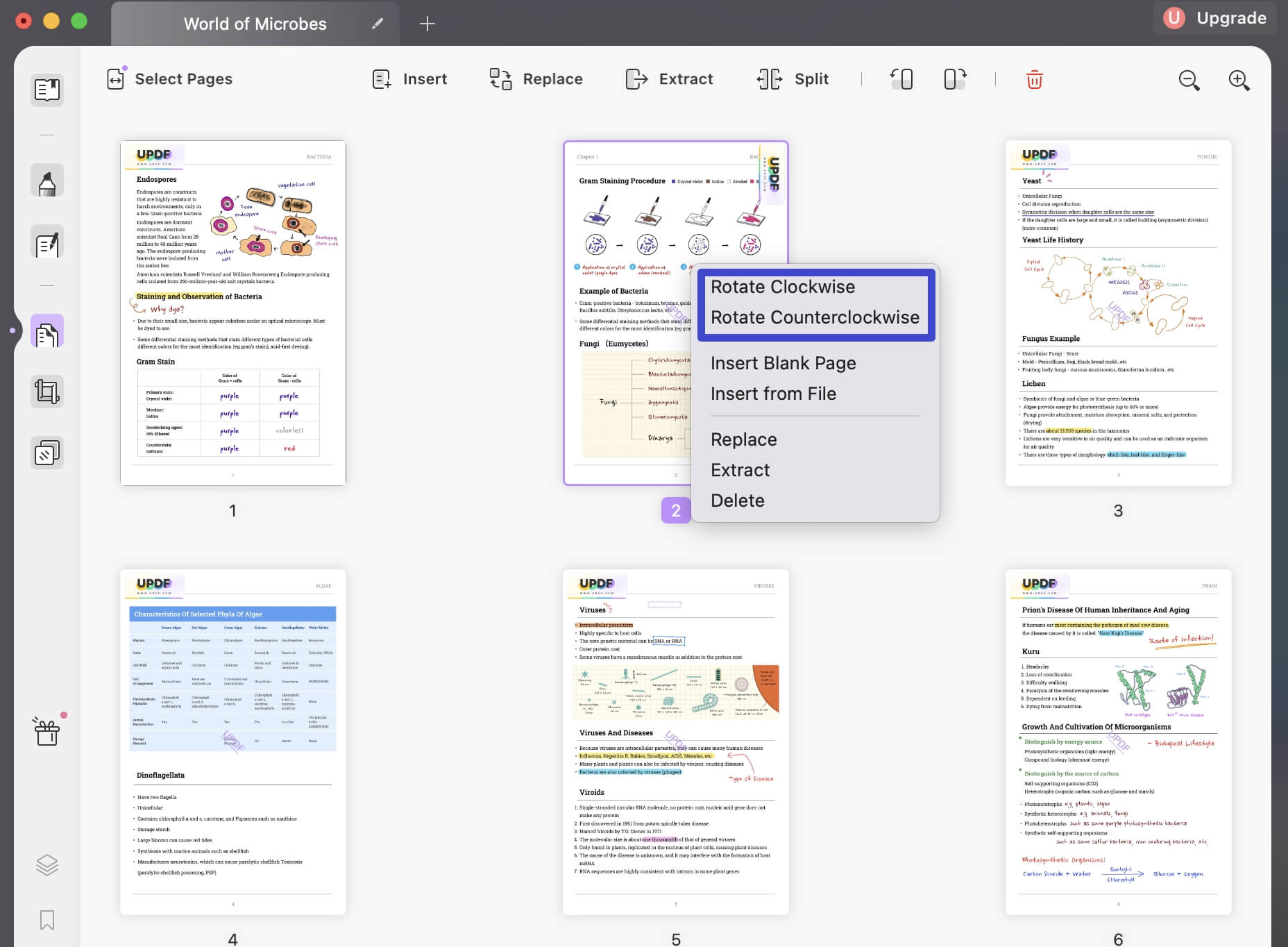
Click the "Organize Pages" icon from the left side toolbar, displaying all existing pages in the document in horizontal order. Select the page you want to rotate and press the "Rotate Counterclockwise" or "Rotate Clockwise" icon from the top toolbar.
Method 2: Rotate PDF on Mac by Right-Clicking
While your PDF is in reader mode, you can read and adjust your document orientation according to your reading comfort. To apply rotation to PDF document from the reader, follow these simple steps:
Instructions: After importing your PDF document, right-click on your screen, and a drop-down menu with different options will appear in front of you. Then, you can apply "Rotate Counterclockwise" or "Rotate Clockwise" as needed.
Windows • macOS • iOS • Android 100% secure
Part 2: How to Rotate All Pages in PDF on Mac
PDF rotation refers to the process of changing the orientation of pages within a PDF document. Meanwhile, within PDF rotation, you can alter the layout of your document by tilting pages at different angles. What if you want to rotate all pages of your PDF? Surely, it will take a lot of time if you rotate every page separately.
With UPDF, you can rotate the entire PDF in one go. But how to rotate all pages in PDF on Mac with UPDF? For this purpose, follow these straightforward step-by-step instructions:
Step 1: Proceed to Organize Pages After Importing
When you're done importing your PDF document into the UPDF, move ahead to click the "Organize Pages" tool from the toolbar on the left side of the screen.
Step 2: Select All Pages Category to Rotate
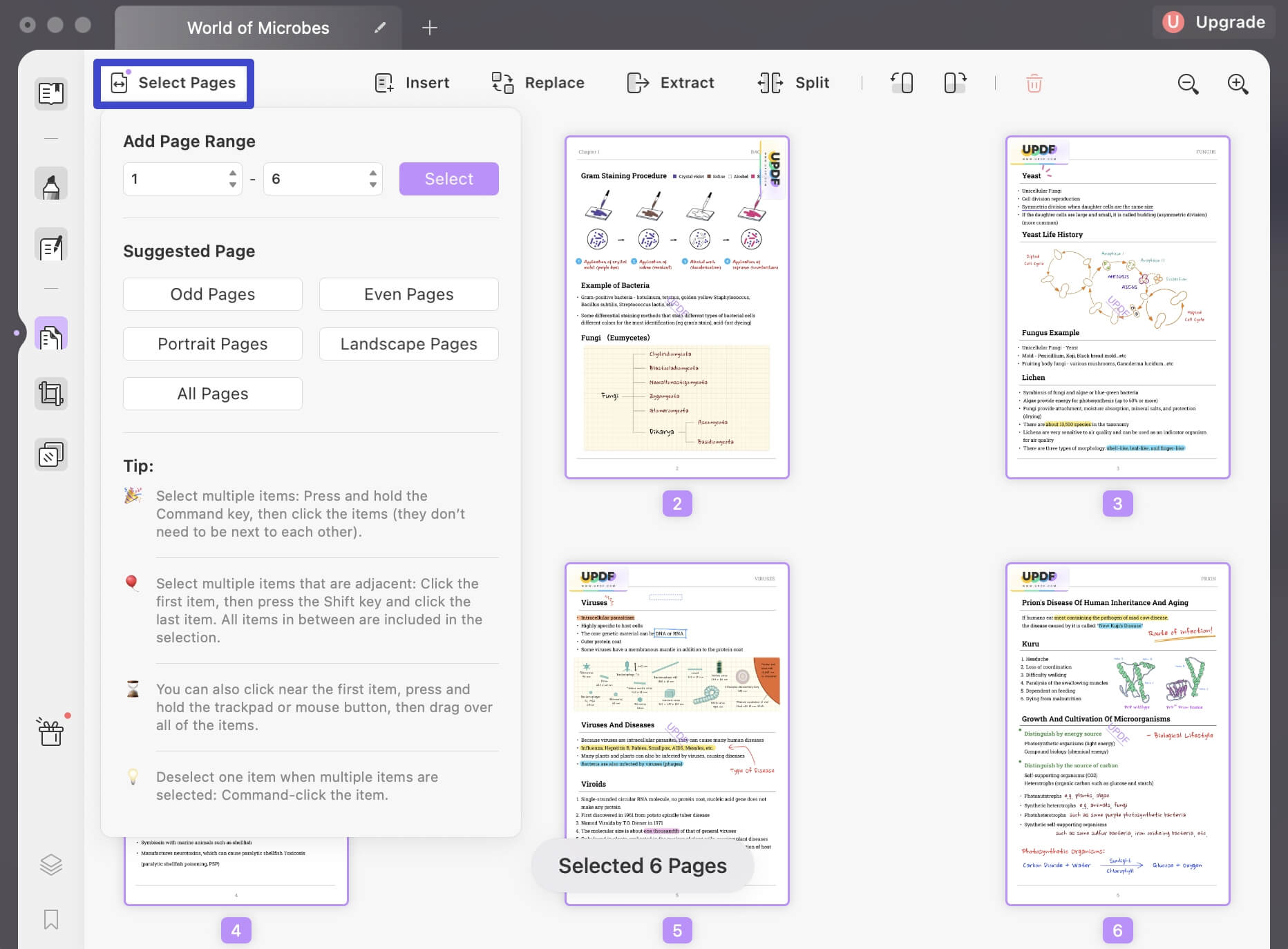
Click on "Select Pages" from the top-left corner, and a panel is displayed in front of you. From the "Suggested Page" category, choose the "All Pages" option, or you can even press "Command + A" from the keyboard. As a result, all PDF pages will get selected, and you can continue to press the "Rotate Counterclockwise" or "Rotate Clockwise" icons from the Organize mode toolbar.
Windows • macOS • iOS • Android 100% secure
Each page should open in the orientation that makes its content easiest to read. A helpful next reference is the following demonstration of rotating PDFs in UPDF.
Part 3: Why Do You Need to Flip a PDF on Mac?
PDF is considered an official document format used in various industries and sectors. However, due to issues in page orientation and other reasons, you may need to flip a PDF on Mac. But why is PDF rotation important?
- Correcting Orientation: In most cases, scanned documents or images may be in the wrong orientation. This makes it difficult to read or work with the content. By rotating the PDF, you can adjust the orientation so that the PDF is easily readable.
- Aligning Page Layout: If your PDF comprises a mixture of portrait and landscape pages, rotating certain pages can help maintain a consistent look. Thus, a cohesive layout is preserved when viewing or printing the document.
- Preparing for Presentation: When preparing presentations, you may want to rotate certain PDF pages to ensure they are displayed correctly on the screen during a slideshow. This is essential to provide a perfect presentation preview.
- Editing and Annotation: When you need to edit or annotate a PDF, it's often easier to work with the document in the correct orientation. Therefore, rotating PDF pages can make adding comments, highlights, or editable changes more convenient.
Part 4: FAQs on How to Rotate a PDF on Mac?
1. How to rotate a PDF on Mac with Preview?
To rotate a PDF on Mac with Preview, open your PDF first in the Preview app. Select your desired page and click the "Rotate" button from the screen's top for a 90-degree rotation. If you want to rotate all pages of the PDF, hold shift and select pages, after which you can press "Rotate."
2. How to rotate a PDF on Mac with Adobe Acrobat?
After importing your PDF in Adobe Acrobat, move into the "Organize Pages" tool. This will display your PDF in the preview screen. Continue to press the Clockwise and Anti-Clockwise icons to rotate the PDF page as needed.
3. How do I rotate a PDF on Mac without Adobe?
Through UPDF, you can easily rotate your PDF without needing Adobe Acrobat. For this purpose, you need to follow the simple steps discussed in Part 1 of this article. Moreover, UPDF is a better option than Adobe Acrobat because it is cost-effective and more user-friendly because of its unique UI/UX design.
Conclusion
To maintain a document layout with the correct orientation, sometimes you need to rotate PDF on Mac. After all, with the necessary rotation, your PDF will look more professional and interesting. In this article, you learned about different ways on how to flip PDF on Mac. You also discovered an amazing PDF editing tool, which is UPDF. This all-in-one tool allows you to do any task related to PDF documents and you will regret not having it. Download it now by clicking the button below.
Windows • macOS • iOS • Android 100% secure







 Enola Miller
 Enrica Taylor