 UPDF
UPDF
 UPDF for Windows
 UPDF for Mac
 UPDF for iPhone/iPad
 UPDF for Android
 Nomostar
 UPDF AI Online
 UPDF Sign
 IvyCraft
 Edit PDF
 Annotate PDF
 Create PDF
 PDF Form
 Edit links
 Convert PDF
 OCR
OCR PDF to Word
 PDF to Image
 PDF to Excel
 Organize PDF
 Merge PDF
 Split PDF
 Crop PDF
 Rotate PDF
 Protect PDF
 Sign PDF
 Redact PDF
 Sanitize PDF
 Remove Security
 Read PDF
 UPDF Cloud
 Compress PDF
 Print PDF
 Batch Process
 About UPDF AI
 UPDF AI Solutions
 AI User Guide
 FAQ about UPDF AI
 Summarize PDF
 Translate PDF
 Chat with PDF
 Chat with AI
 Chat with image
 PDF to Mind Map
 Explain PDF
 PDF AI Tools
 Image AI Tools
 AI Chat Tools
 AI Writing Tools
 AI Study Tools
 AI Working Tools
 Other AI Tools
 AI Bookmark Generation
 AI Bookmark Summary
 AI Watermark Generation
 AI Background Generation
 AI Sticker Generation
 AI Stamp Generation
 AI Editing Suite
 UPDF Copilot
 AI Page Management
 AI Semantic Search
 PDF to Word
 PDF to Excel
 PDF to PowerPoint
 Enterprise Solution
 Enterprise Sign
 Enterprise AI
 Enterprise Plan
 Enterprise User Guide
 Enterprise Webinar
 IT
IT Education
 Construction
 Financial Service
 Healthcare
 Insurance
 Legal
Legal Manufacturing
 Government
 Researchers & PhDs
 Solopreneurs & Freelancers
 Lawyers & Legal Professionals
 Real Estate Agents & Brokers
 Education Solution
 Customer Stories
 User Guide
 UPDF Tricks
 FAQs
FAQs UPDF Reviews
 Download Center
 Blog
Blog Newsroom
 Tech Spec
 Updates
 UPDF vs. Adobe Acrobat
 UPDF vs. Foxit
 UPDF vs. PDF Expert

Whether you need to submit a formal business proposal or hand in a final school essay, knowing how to save google doc as pdf via tools like UPDF or native cloud options is an essential office skill. However, many users transitioning from traditional desktop software often get lost navigating Google's web-first interface. As many users frustratingly vent on Reddit:
"I just switched to Google Docs from MS Word and instinctively looked for a 'Save As' button. I've been digging through the menus for 10 minutes and can't find a way to export it. How do I change a file type from doc to pdf here?"
"It works perfectly on my laptop, but I suddenly need to send a copy to a client while on the road. I've been tapping around the mobile app's main screen and literally cannot find where the option to save google doc as pdf on phone is hidden..."
If you're tired of fighting with hidden menus or worried that cloud conversion will randomly mess up your fonts and hyperlinks, skipping the browser guesswork with a dedicated local editor is often the most stress-free shortcut.
Windows • macOS • iOS • Android 100% secure
1. How to Save a Google Doc as a PDF on Desktop
How to Save a Google Doc as a PDF on Desktop (Native Method)
Best for:
- Standard office scenarios where you only have a single document to handle, and the file doesn't require strict formatting locks, complex multi-page tables, or non-standard custom fonts that might distort during online cloud rendering.
Not for:
- Processing heavy backlogs of hundreds of separate files or correcting broken hyperlinks post-download.
On desktop, Google Docs has a built-in download option that creates a clean PDF copy. Follow these instructions below to save your open Google Doc directly as a PDF:
- Open the Menu: Inside your active Google Docs file workspace, locate and click the File option situated in the upper-left corner tool strip.
- Trigger the Export: Hover over the Download branch from the contextual dropdown menu.
- Select Target Format: Click PDF Document (.pdf). Google Docs will create a PDF copy and download it through your browser.
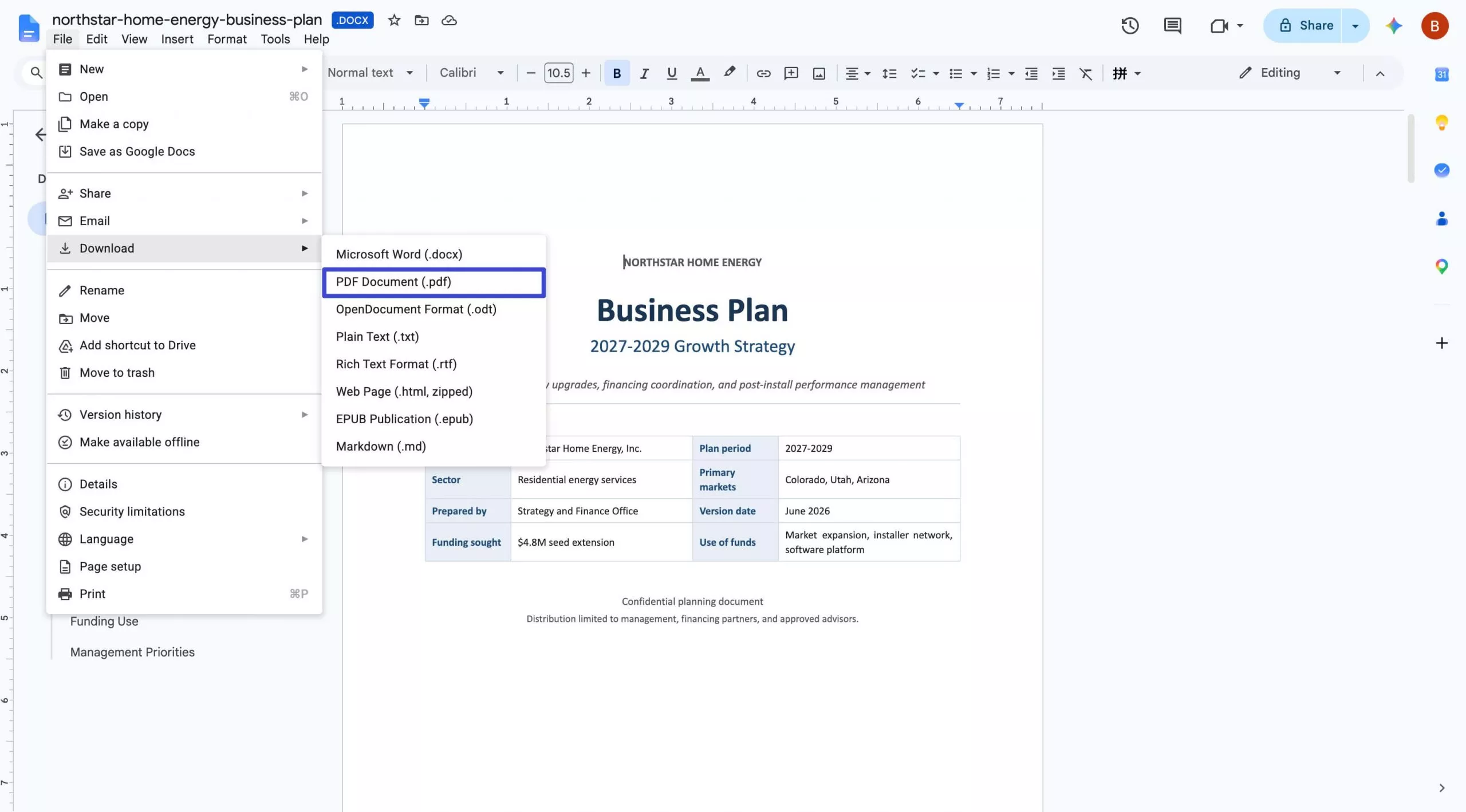
The PDF normally appears in your browser's Downloads folder unless the browser is set to ask where each file should be saved. Open the downloaded PDF before sharing it and check the page breaks, images, fonts, and links.
How to Email a Google Doc as a PDF
Best for:
- Sending quick pitches or academic papers to recipients without wasting local hard drive space on temporary downloads.
Not for:
- Scenarios where you need to archive the PDF file locally or run data redaction beforehand.
If your ultimate goal is to email the file, you don't actually need to download it first. You can seamlessly route it as a fixed attachment directly through the cloud console:
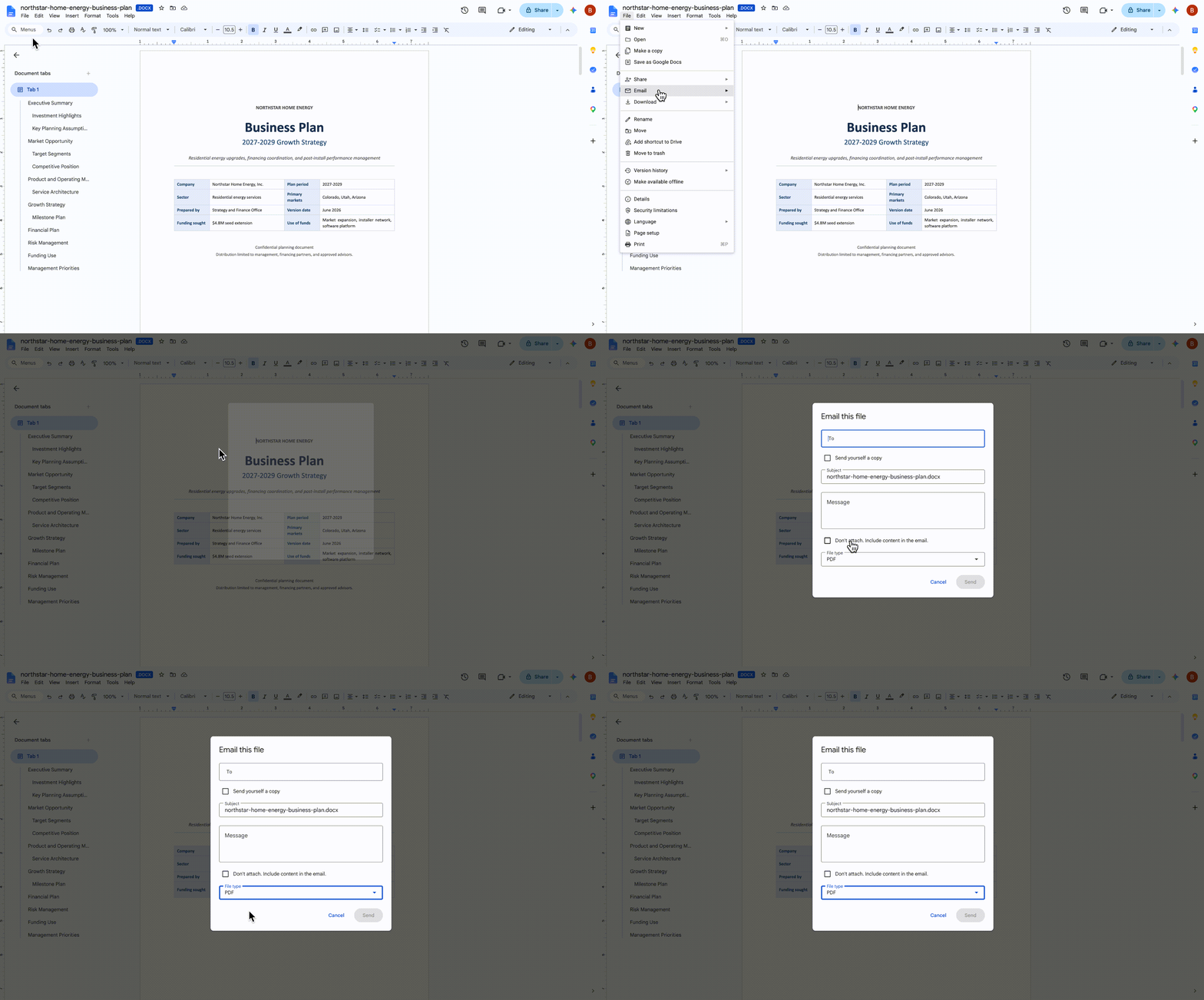
- Access Email Tool: In the Google Docs interface menu bar, click the File button, select Email, and click Email this file.
- Lock PDF Format: In the pop-up configuration window, ensure the file format dropdown selector at the bottom left is strictly set to PDF.
- Dispatch: Input the recipient's email address, type your text note, and click Send to dispatch the document as an attached PDF asset.
Sometimes, you might need to reverse this workflow and bring a static document back to the cloud for editing; in that case, check out our practical guide on how to convert PDF to Google Docs flawlessly.
2. Native Mobile Method: Saving on iPhone & Android
Best for:
- On-the-go mobile workflows—such as during a commute, travel, or an urgent huddle—where you need to swiftly convert a cloud document using your smartphone and instantly fire it off to your team via messaging apps.
Not for:
- Complex multi-page documents that require precise margin edits, running OCR scans, or embedded media validation.
For Android Users:
Learning this Android workflow prevents last-minute stress when teachers, clients, or teammates request immediate files. Follow these steps to complete the process on your device:
- Open Document Options: Launch the Google Docs application on your phone, open your target file, and tap the Three-Dots (More) icon in the top right corner of the screen.
- Enter Share Work tray: Scroll down the menu list pane and select the Share and export option.
- Execute the PDF Render: Tap Save as, select the radio button next to PDF Document (.pdf), and press OK to generate a local copy on your smartphone system.
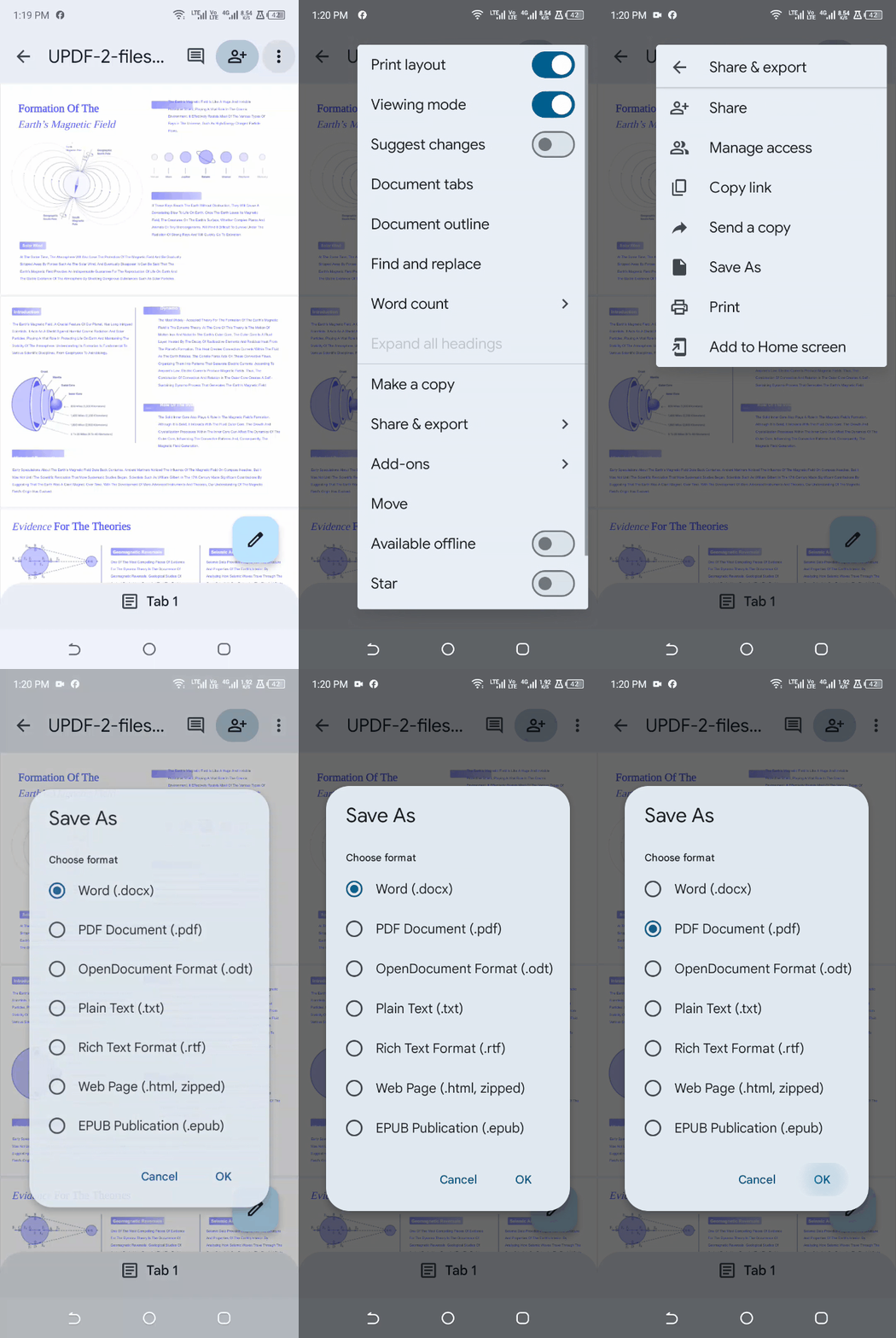
If you cannot see Save as, make sure the document is open in the Google Docs app rather than only being previewed in Google Drive. Download and print controls may also be unavailable when the document owner has restricted them.
For iPhone Users:
The iPhone and iPad versions of Google Docs use the Send a copy option instead of the Android Save as option.
- Open the Google Docs app and select the document you want to export.
- Tap the three-dot More icon in the upper-right corner.
- Select Share & export, and then tap Send a copy.
- Choose PDF and tap OK.
- When the iOS share sheet appears, tap Save to Files.
- Select a folder in iCloud Drive or On My iPhone, and then tap Save.
If you need more help locating the exported file, see our detailed guide to saving a Google Doc to Files on iPhone.
Use Print to PDF When Google Docs Will Not Download
A long or image-heavy Google Doc may occasionally fail to download through File > Download. Google recommends using the print dialog as an alternative for large documents.
- Open the Google Doc in a desktop browser.
- Select File > Print.
- Open the Destination menu and choose Save as PDF.
- Review the page range, paper size, margins, scale, and orientation.
- Click Save and choose a destination folder.
Use this as a fallback rather than the default method. Because the print settings can affect pagination, open the saved PDF and check tables, images, headers, footers, and page breaks before sending it.
3. Advanced Workflow: Batch Processing & Post-Conversion Polish with UPDF
How to Batch Convert Multiple Google Docs to PDF Efficiently
Best for:
- High-frequency, professional scenarios where you need to bulk-convert a large stack of documents downloaded from the cloud at once, or when you need to perform secondary post-conversion fixes on broken hyperlinks and layout misalignments.
Not for:
- Users on highly restricted workspace machines that prohibit local software applications.
Handling each export one by one wastes time and increases the chance of layout shifts. When dealing with massive backlogs of cloud items, utilizing UPDF's local batch processing engine cuts down delivery time significantly:
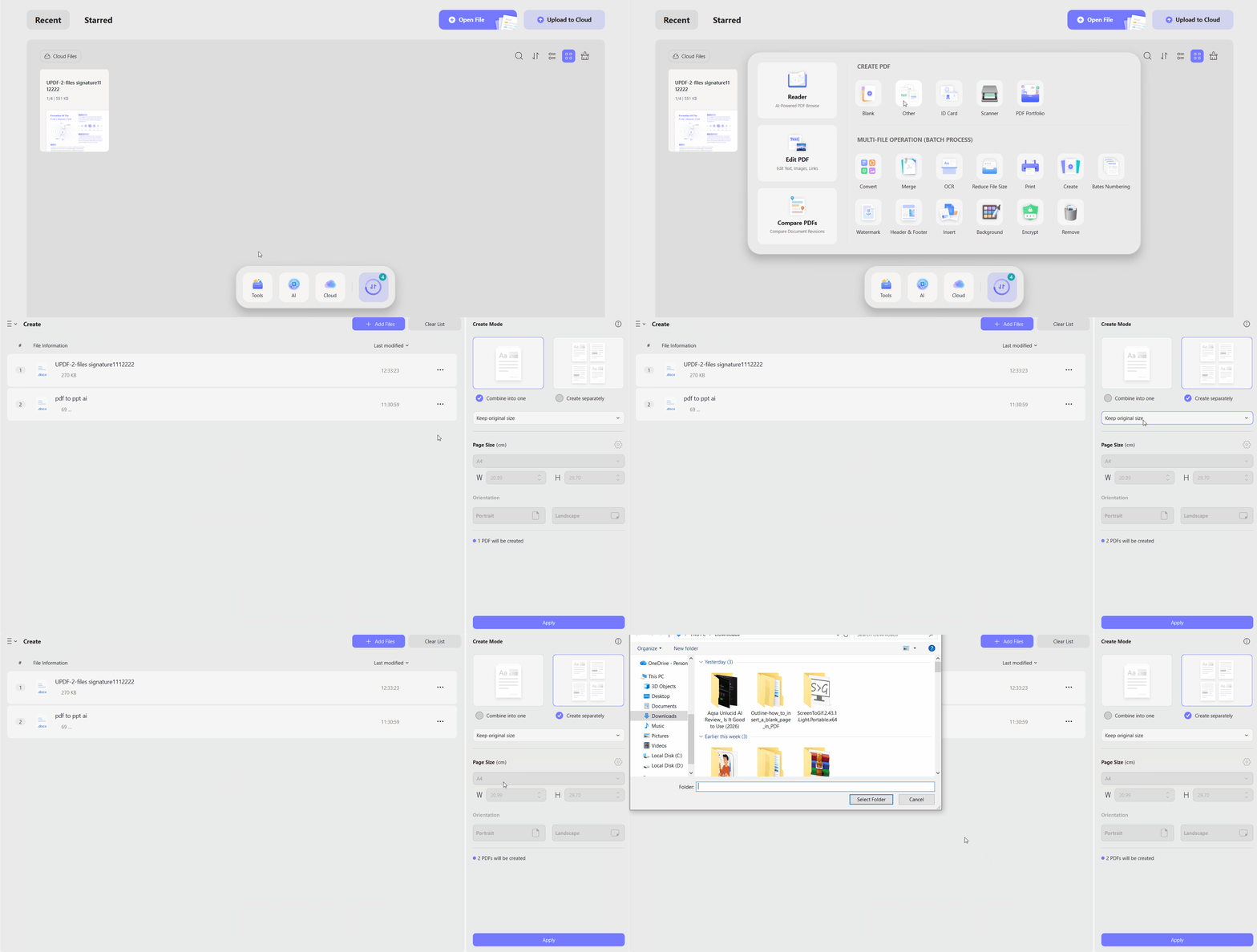
- Acquire Source Files: Download your multiple target files from Google Docs in bulk as
.docxfiles onto your local hard drive. - Launch Create Console: Open UPDF on your machine, press the "Tools" option on the homepage, and press the "Other" option. After that, click the "Create Multiple PDF Files" option.
- Add Files: Next, click the "Add Files" button to import multiple Docs files.
- Load and Compile: Once imported, choose a "Create Mode" mode and press the "Apply" button to create a combined PDF or separate PDFs of each Docs file.
Tip – Fixing Broken Hyperlinks & Formatting Tweak
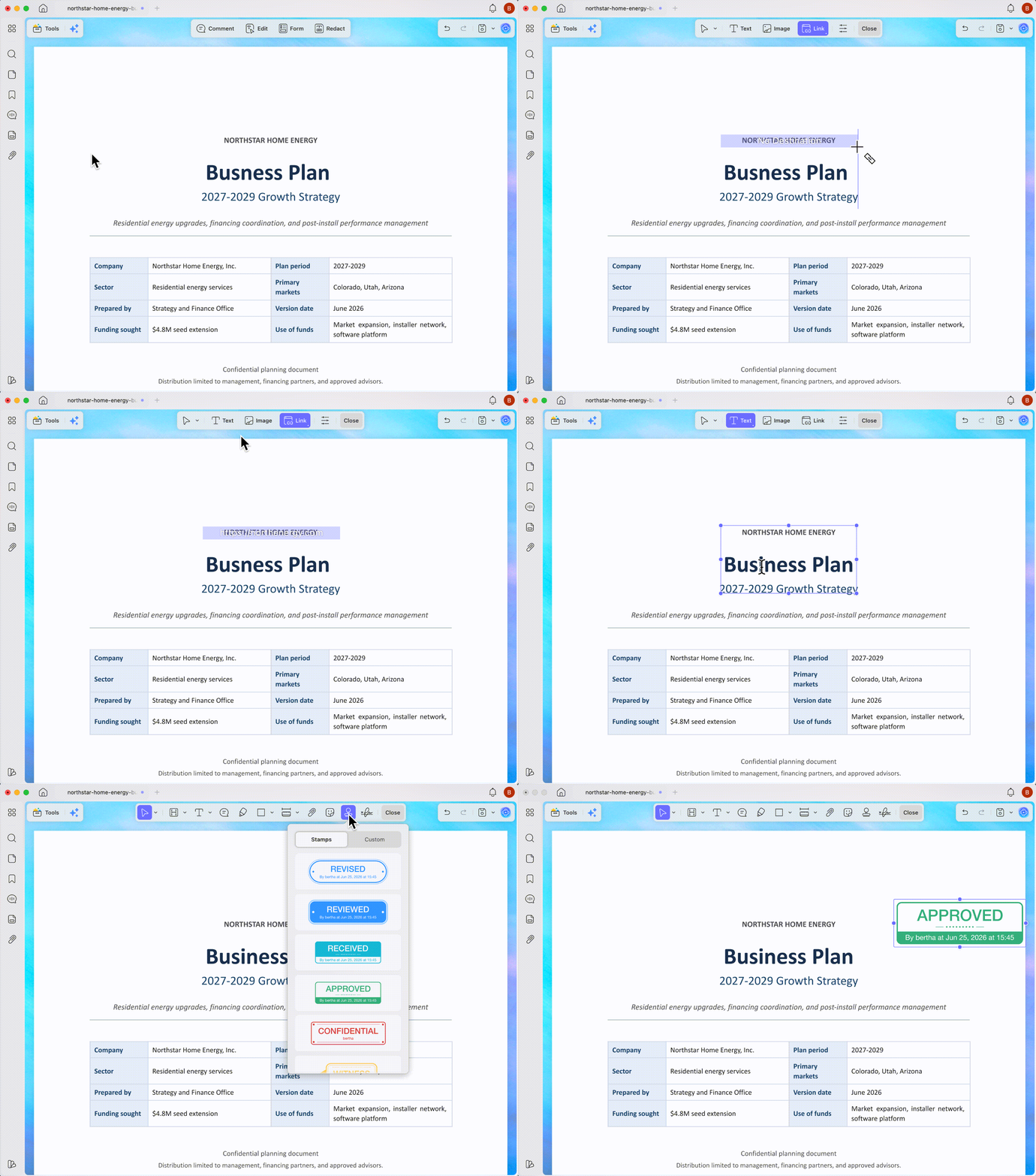
Beyond simply fixing links and handling bulk conversions, handling official documents means you might need to finalize them for a team review. In these high-frequency scenarios, you can rely on UPDF AI to instantly summarize long-form reports, use Annotate tools to stamp review notes, or apply Redact to securely black out sensitive pricing before sending.
Windows • macOS • iOS • Android 100% secure
4. Frequently Asked Questions
Why can’t I find “Save As” in Google Docs?
Google Docs saves changes automatically, so it does not use the traditional Save As command found in desktop word processors. To create a PDF copy, select File > Download > PDF Document (.pdf).
Where is a Google Doc PDF saved?
On desktop, the PDF normally appears in the browser’s Downloads folder. On iPhone or iPad, it is saved in the Files location you select. On Android, use the available save or share controls after creating the PDF.
Once I successfully make a Google Doc a PDF, how do I change it back or into other formats?
Once you learn how to make a google doc a pdf, the layout is locked for secure sharing. If a recipient later requests data analysis or a web-friendly version, you will need to reverse the format. For instance, if your file contains financial tables, learn how to convert PDF bank statements to Excel
. Alternatively, if you need to publish the text online, you can refer to our guide on converting PDF to HTML web pages to keep your documents fluid across different roles.
Why won’t my Google Doc download as a PDF?
The document may be too large, the browser may have interrupted the download, or the owner may have disabled downloading and printing. For a large document, try File > Print > Save as PDF. If the controls are unavailable because of permissions, ask the owner for access.
How do I keep the formatting when converting a Google Doc to PDF?
Review the document in print layout before exporting it. Check page breaks, table width, image placement, fonts, headers, and footers. After downloading the PDF, open it and verify the layout before sharing it.
Can I save a view-only Google Doc as a PDF?
Only when the document owner allows viewers to download or print the file. If those options are disabled, request permission from the owner instead of trying to bypass the restriction.
Conclusion
Whether you prefer utilizing the desktop browser's "File > Download" loop or relying on the mobile app's "Share & export" menu, understanding how to save google doc as pdf is a straightforward baseline workflow.
For daily, single-file tasks, the built-in native export and direct email tools are perfectly adequate. However, if you are handling massive backlogs of downloaded files, or need an ecosystem where you can immediately edit text, fix hyperlinks, and run AI summaries post-conversion, a local editor like UPDF serves as a much more robust professional toolkit.
Windows • macOS • iOS • Android 100% secure




 Enola Miller
 Enrica Taylor
 Enid Brown