 UPDF
UPDF
 UPDF for Windows
 UPDF for Mac
 UPDF for iPhone/iPad
 UPDF for Android
 Nomostar
 UPDF AI Online
 UPDF Sign
 IvyCraft
 Edit PDF
 Annotate PDF
 Create PDF
 PDF Form
 Edit links
 Convert PDF
 OCR
OCR PDF to Word
 PDF to Image
 PDF to Excel
 Organize PDF
 Merge PDF
 Split PDF
 Crop PDF
 Rotate PDF
 Protect PDF
 Sign PDF
 Redact PDF
 Sanitize PDF
 Remove Security
 Read PDF
 UPDF Cloud
 Compress PDF
 Print PDF
 Batch Process
 About UPDF AI
 UPDF AI Solutions
 AI User Guide
 FAQ about UPDF AI
 Summarize PDF
 Translate PDF
 Chat with PDF
 Chat with AI
 Chat with image
 PDF to Mind Map
 Explain PDF
 PDF AI Tools
 Image AI Tools
 AI Chat Tools
 AI Writing Tools
 AI Study Tools
 AI Working Tools
 Other AI Tools
 AI Bookmark Generation
 AI Bookmark Summary
 AI Watermark Generation
 AI Background Generation
 AI Sticker Generation
 AI Stamp Generation
 AI Editing Suite
 UPDF Copilot
 AI Page Management
 AI Semantic Search
 PDF to Word
 PDF to Excel
 PDF to PowerPoint
 Enterprise Solution
 Enterprise Sign
 Enterprise AI
 Enterprise Plan
 Enterprise User Guide
 Enterprise Webinar
 IT
IT Education
 Construction
 Financial Service
 Healthcare
 Insurance
 Legal
Legal Manufacturing
 Government
 Researchers & PhDs
 Solopreneurs & Freelancers
 Lawyers & Legal Professionals
 Real Estate Agents & Brokers
 Education Solution
 Customer Stories
 User Guide
 UPDF Tricks
 FAQs
FAQs UPDF Reviews
 Download Center
 Blog
Blog Newsroom
 Tech Spec
 Updates
 UPDF vs. Adobe Acrobat
 UPDF vs. Foxit
 UPDF vs. PDF Expert

Quick answer:
Level the scan with the UPDF Rotation Angle slider. For automatic angle detection, use Sejda or Acrobat. Rotate sideways pages first, then run OCR if you need editable text.
I usually notice a skewed PDF after OCR goes wrong: the scan looks readable, but the recognized text breaks into odd boxes, missing characters, or slightly shifted lines. The hidden distinction is this: deskewing changes the page image; OCR adds or rebuilds a text layer. If you want a clean editable PDF, straighten the scan first, then run OCR. For the full editing workflow after deskewing, keep this pillar guide open: how to make a PDF editable.
One honest note before the methods: UPDF is not a one-click automatic deskew detector. Its real UPDF workflow is manual: open the scan, switch to Image PDF, and drag the Rotation Angle slider until the text sits level. That makes it strong for sensitive files because the PDF stays on your device. If you need automatic angle detection, use Sejda or Adobe Acrobat instead.
Part 1. Choose the Right Deskew Method
| Your situation | Best method | Why |
|---|---|---|
| You need to straighten a private scan without uploading it | UPDF manual Rotation Angle slider | Local workflow with exact visual control. |
| You want automatic angle detection in a browser | Sejda Deskew PDF | Fast for non-sensitive files and mixed batches. |
| You already pay for Acrobat | Adobe Acrobat Scan & OCR | Built-in Deskew setting inside scanned PDF enhancement. |
| The page is crooked and you need editable text afterward | Deskew first, then OCR in UPDF | Straight pages produce better OCR and cleaner editing. |
| You are on iPhone, iPad, or Android | Mobile scan cleanup + OCR | Mobile can rescan, crop, rotate 90 degrees, and OCR, but it does not replace the desktop slider. |
Part 2. Deskew vs. Rotate vs. OCR
| Action | What it fixes | What it does not fix |
|---|---|---|
| Rotate | A page facing sideways or upside down in 90-degree steps | A page leaning by 2 or 3 degrees |
| Deskew | Small angle tilt across the page image | OCR errors, blur, shadows, or page warping |
| Crop | Scanner edges, phone background, or black corner triangles after rotation | The text line angle inside the page |
| OCR | Searchable, selectable, or editable text | The visual angle of the scanned image |
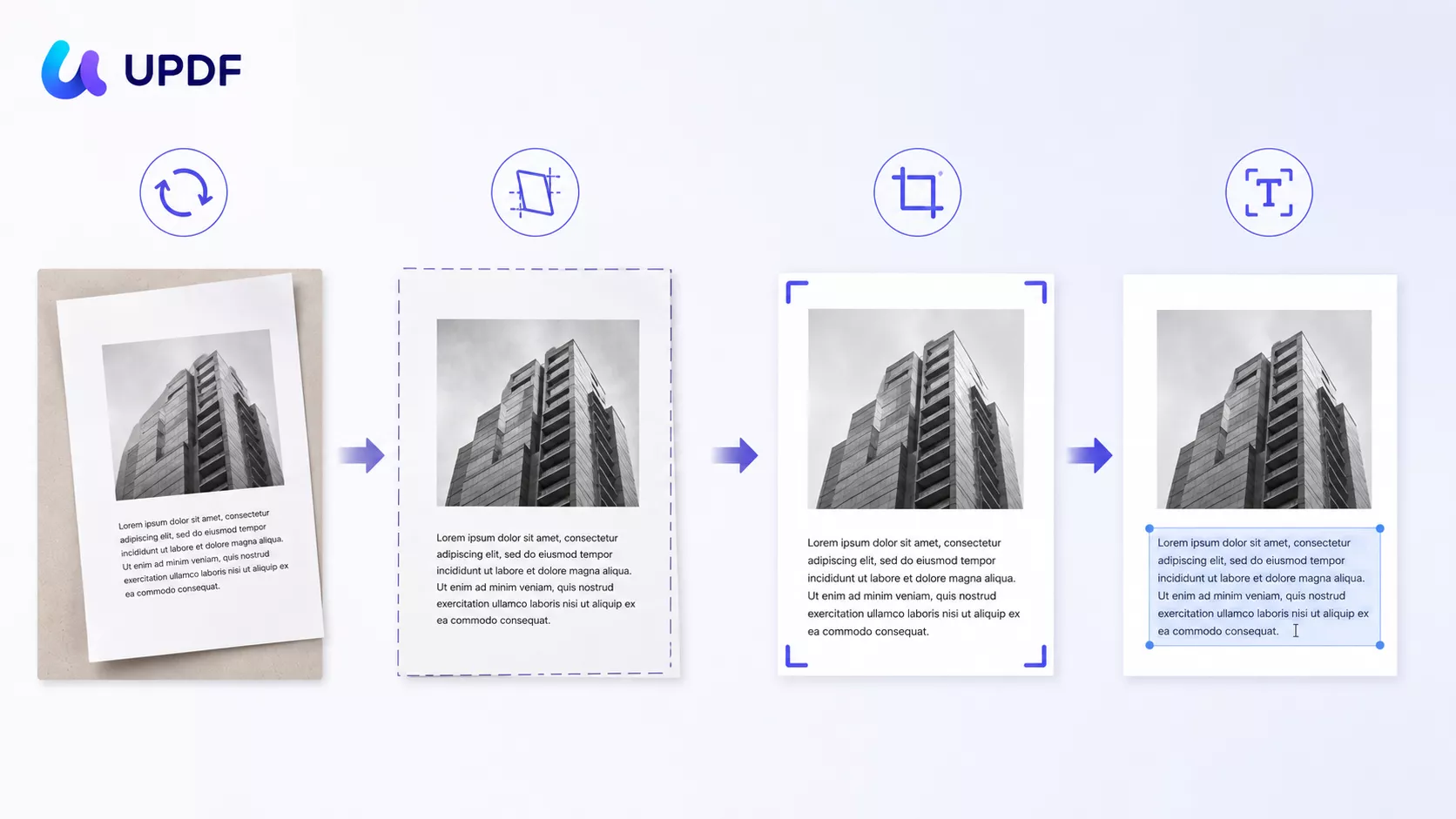
Think of rotation as turning a sheet of paper, deskew as nudging a slightly crooked frame until it hangs level, crop as trimming the border, and OCR as placing a transparent text layer over the image. Use them in that order when needed: rotate, deskew, crop, then OCR.
Part 3. How to Deskew a PDF with UPDF on Windows or Mac
Use UPDF when you want full control and do not want to upload the file. UPDF's sibling guide shows a manual deskew route through Image PDF mode and the Rotation Angle slider. Because this is a manual angle adjustment, it is best for files where you can visually judge the page tilt.
Best for:
- contracts, invoices, IDs, salary letters, receipts, and other scans you want to keep local.
Not for:
- a 200-page archive where every page has a different angle and you need automatic detection.
Step 1. Open the scanned PDF in UPDF on Windows or Mac. If you need to install it first, download UPDF for free and open a copy of the file.
Windows • macOS • iOS • Android 100% secure
Step 2. Click the dropdown arrow in the upper-right corner of the UPDF window.
Step 3. Select Image PDF from the dropdown toolbar.
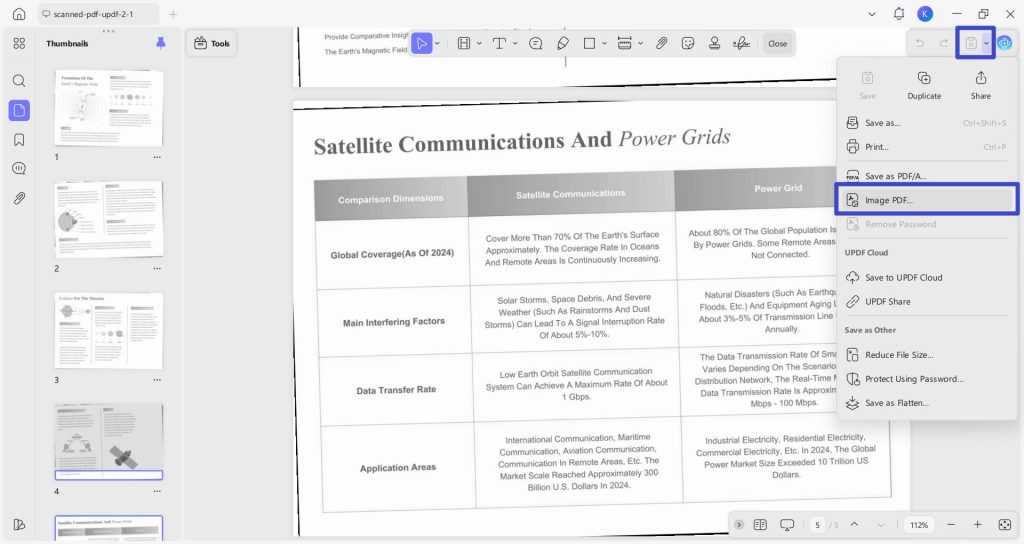
Step 4. Drag the Rotation Angle slider left or right until the text lines look level. Make small adjustments first; most crooked scans are only a few degrees off.
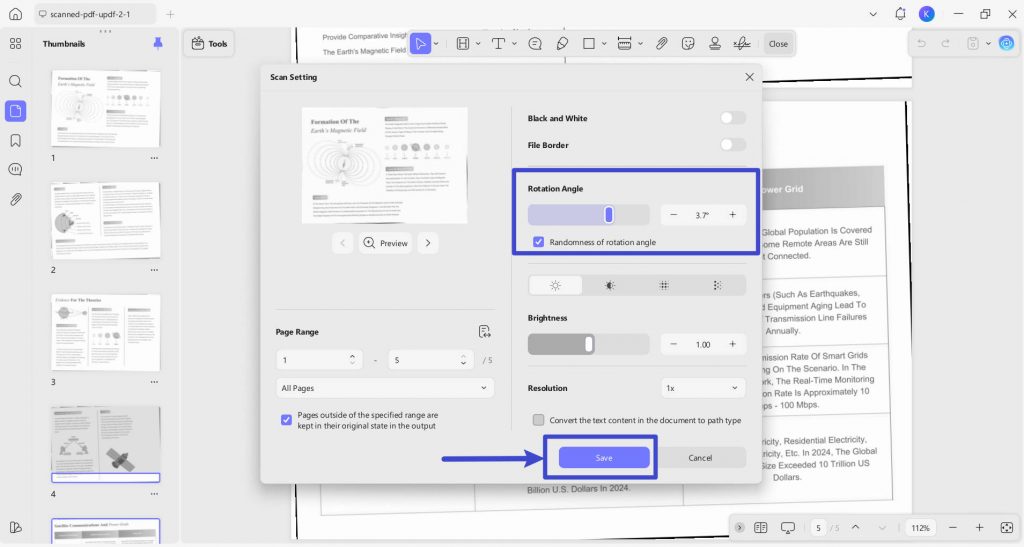
Step 5. Save the corrected PDF. Use Save As Other if you want to preserve the original scan as an untouched backup.
UPDF's advantage here is privacy and control. Automatic deskew tools are convenient, but they can over-correct pages that contain tables, stamps, mixed orientations, or unusual margins. With UPDF, you decide when the page is actually level before moving on to OCR.
Download UPDF for free to try manual PDF deskew on your file. Installation is free, and Pro features are available when you need watermark-free export, batch OCR, or advanced tools.
Windows • macOS • iOS • Android 100% secure
Part 4. Straightened the Scan? Make It Editable or Searchable with UPDF OCR
Deskewing fixes how the scanned page looks. It does not make the text editable by itself. Once the page is straight, use UPDF OCR to make the file searchable, selectable, or editable. UPDF's OCR supports 38+ languages, and you can select more than one language for a mixed-language scan. This is also the most natural place to continue to the pillar workflow: make the PDF editable.
Best for:
- users who need to correct text, copy paragraphs, search a scanned packet, or convert the cleaned PDF later.
Not for:
- using OCR as a fake deskew method. OCR may rebuild or re-layout text, but it is not the same as visually straightening the original scan.
On Windows or Supported Mac Builds
UPDF's OCR is available on Windows and on Mac with an Apple chip in the official website version. If OCR does not appear on your Mac build, update UPDF from the official site or use the desktop where OCR is available.
Step 1. Open the straightened PDF in UPDF.
Step 2. Go to the left-side Tools panel and choose OCR.
Step 3. Select the document language. If the scan contains more than one supported language, choose each matching language before conversion.
Step 4. Choose the OCR result type:
| OCR mode | Use it when |
|---|---|
| Editable PDF | You need to edit recognized text after OCR. |
| Searchable PDF Only | You want to preserve the scan's look while adding searchable/selectable text. |
| Text and Pictures Only | You want a cleaner re-laid-out file and do not need the original scan appearance preserved. |
Step 5. Set the page range, click Convert, and open the output file.
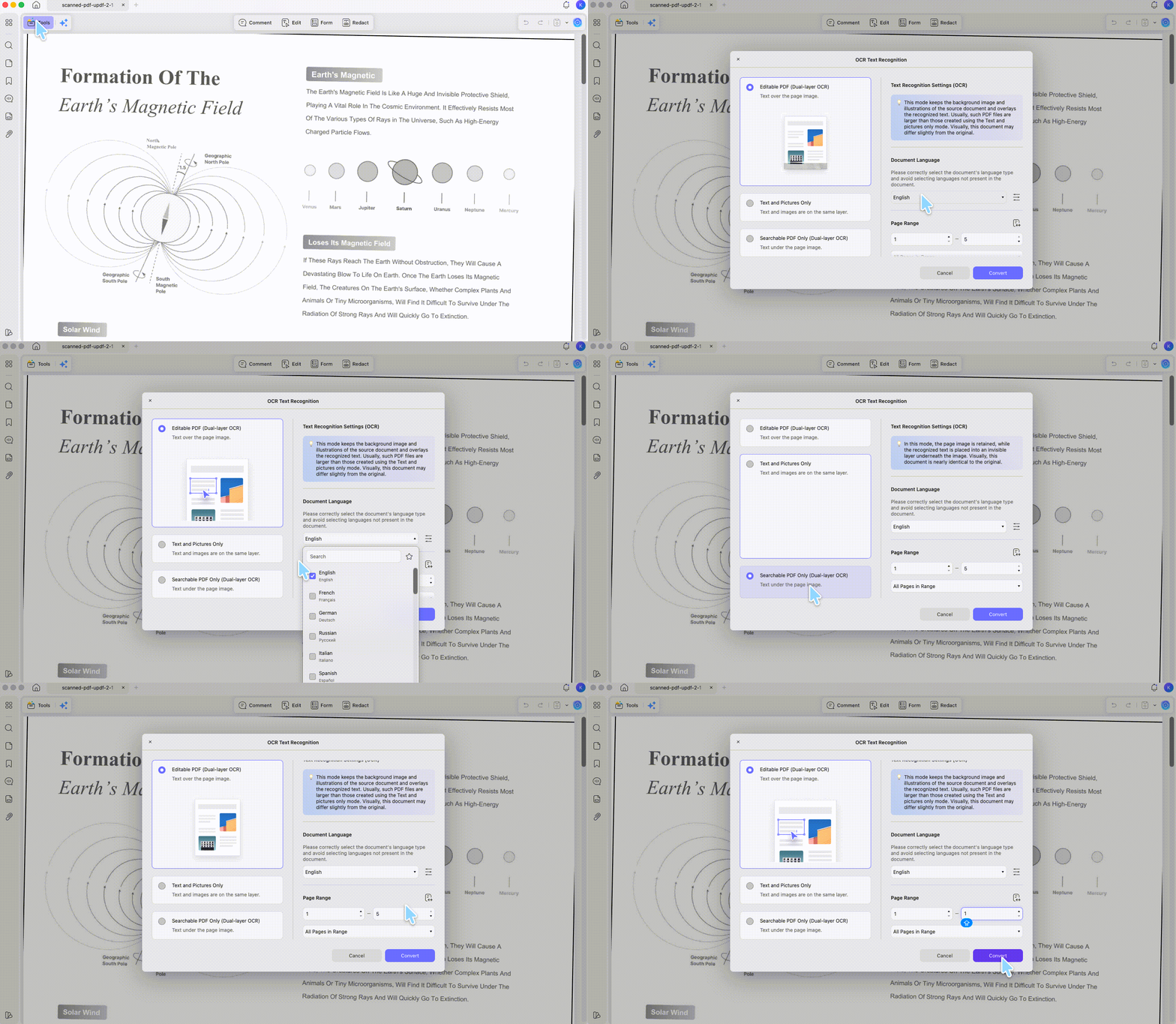
Step 6. Test the result by selecting a sentence. If you chose Editable PDF, click Edit in the top toolbar to correct any OCR mistakes.
OCR is recognition, not magic. Deskewing first helps because upright, level text is easier to recognize than a tilted phone photo.
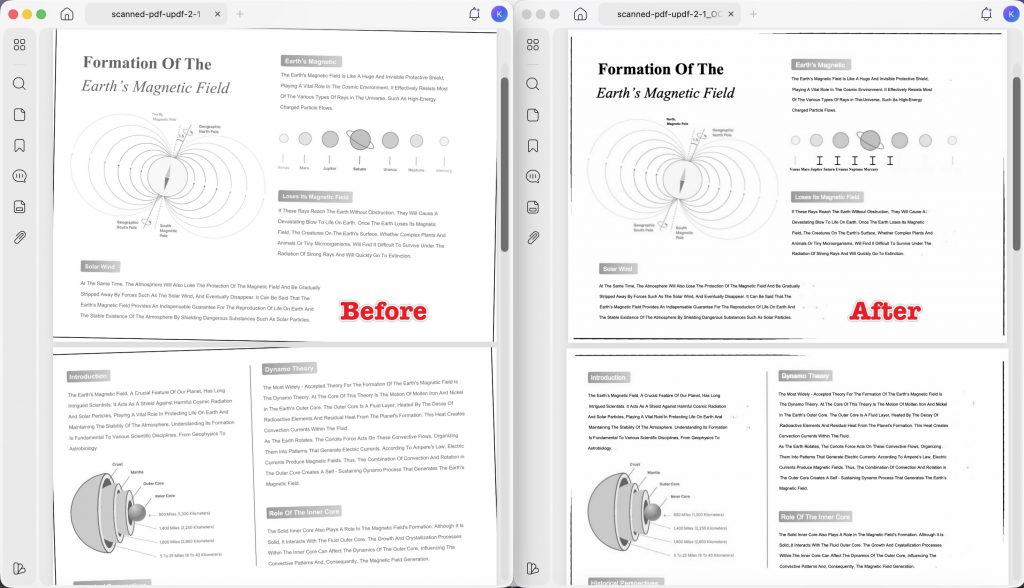
On iPhone, iPad, and Android
UPDF mobile can create, edit, OCR, convert, annotate, and organize PDFs, but do not assume it has the same Rotation Angle slider as desktop. Use mobile for the parts it can do well: rescan, crop, rotate 90-degree page orientation, and OCR.
Step 1. If you still have the paper document, rescan it with the phone parallel to the page. Avoid shooting from one side, because that creates perspective distortion rather than simple skew.
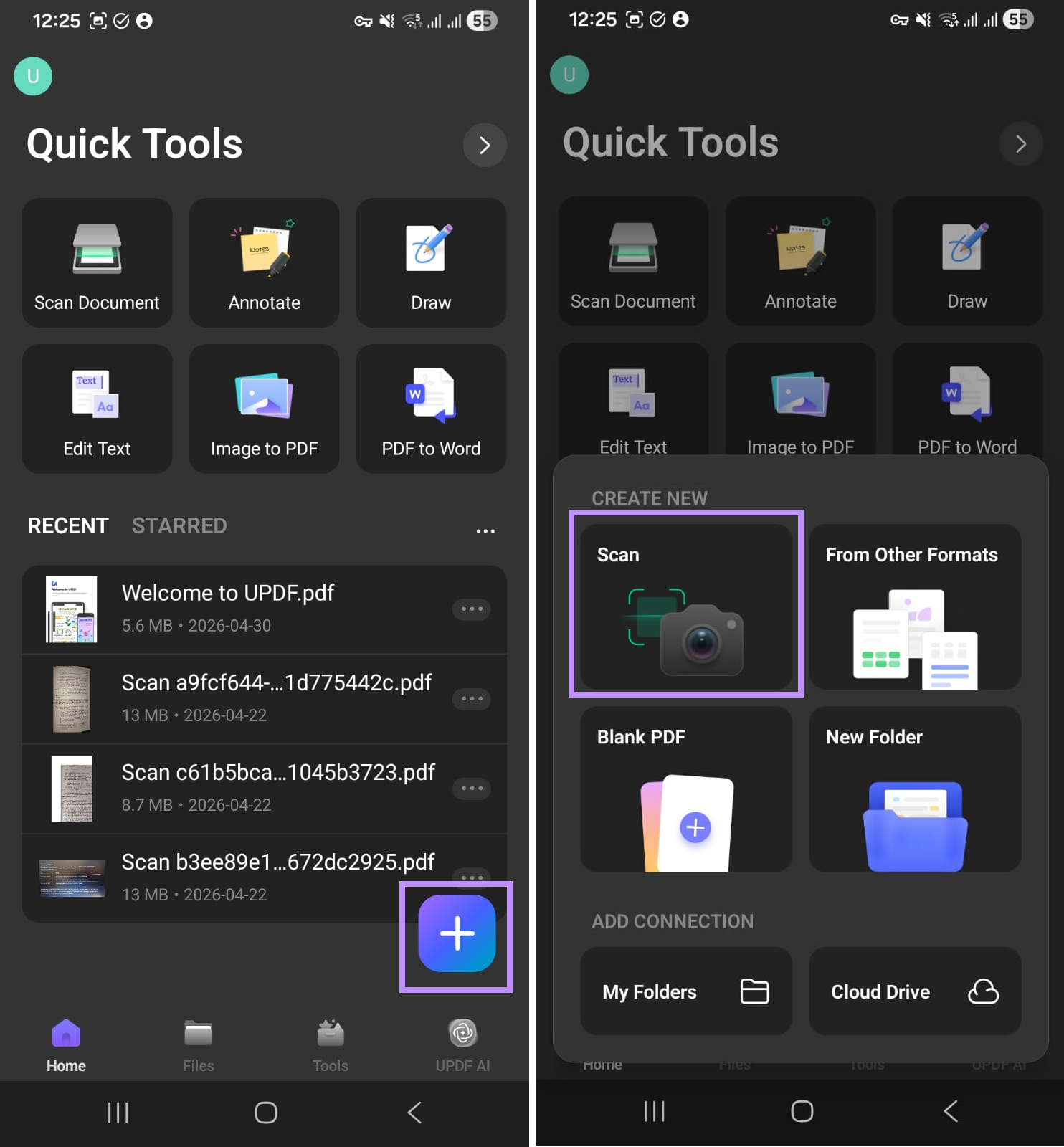
You can also watch the video tutorial below.
Step 2. Before saving the scan, review the capture. Crop away the table or background, rotate the page if it is sideways, and apply a readable filter if needed.
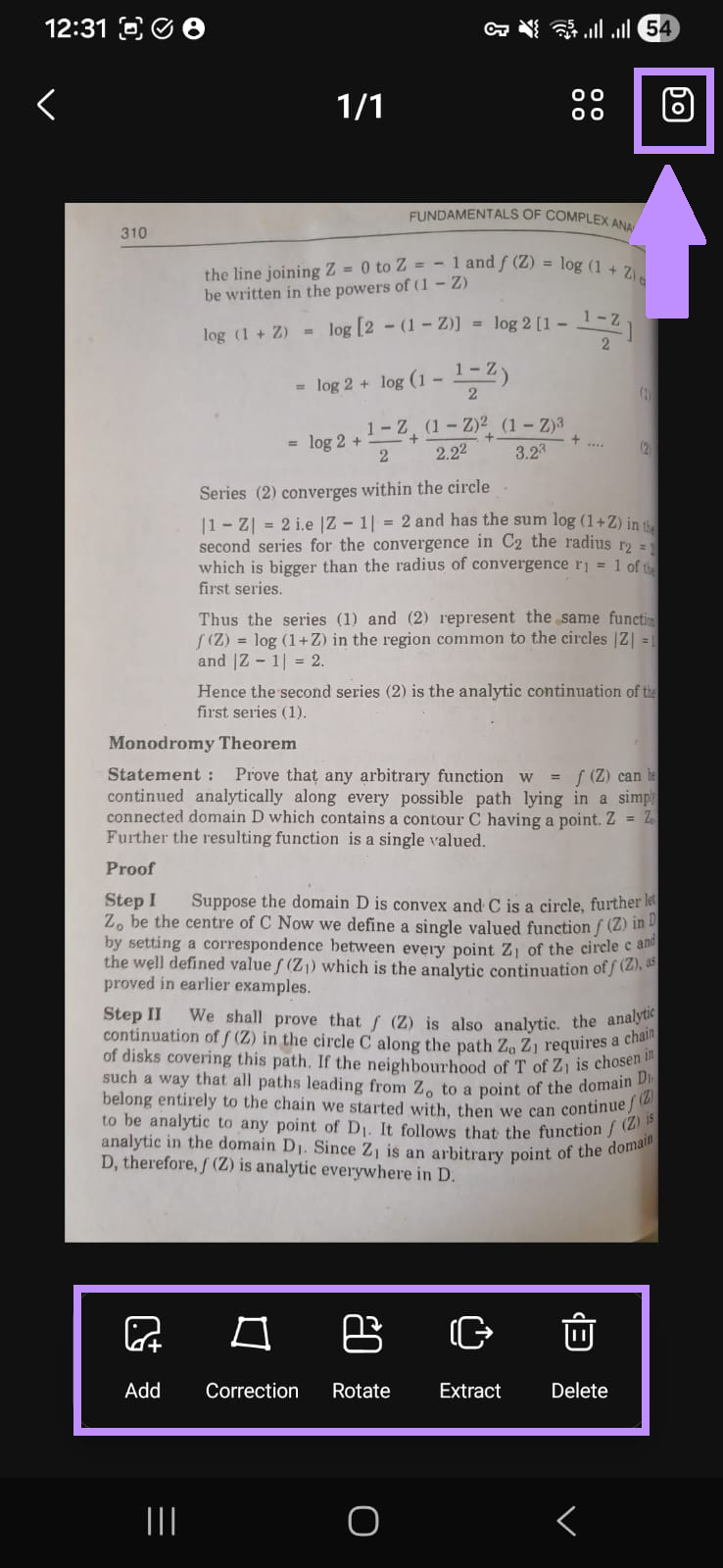
Step 3. If the PDF already exists, import it into UPDF on iPhone, iPad, or Android.
Step 4. Use OCR on mobile when the page is readable enough. For a scan where you care about exact visual fidelity, send the file to desktop and use the UPDF Image PDF slider first.
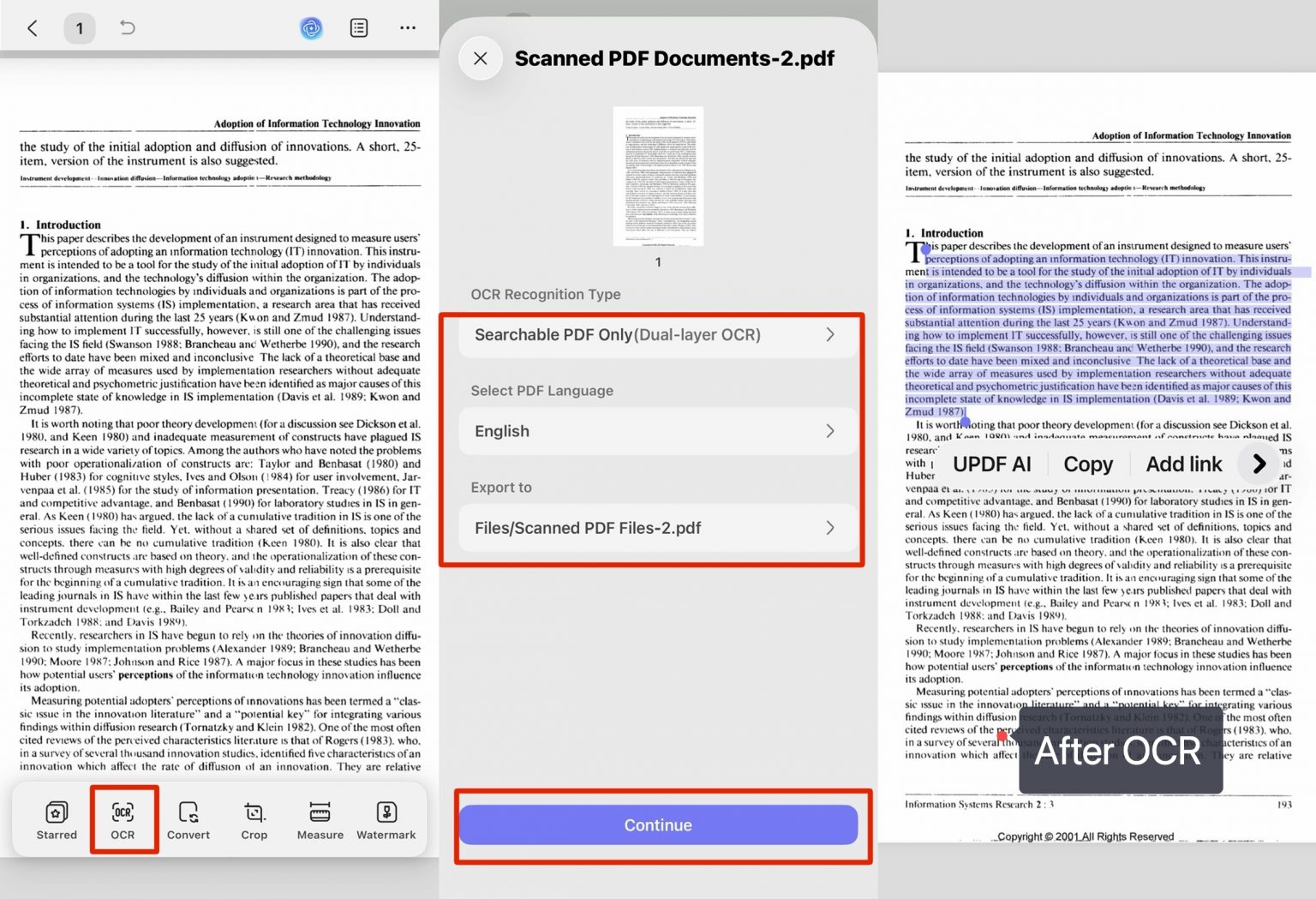
Step 5. Open the OCR result and proofread names, totals, dates, ID numbers, and contract clauses. OCR quality depends heavily on the input scan.
Mobile matters because many skewed PDFs are created on phones. But the honest distinction stays the same: mobile cleanup can prevent skew, and OCR can rebuild text; the desktop slider is the UPDF method for manually straightening the scanned page image.
Part 5. How to Deskew a PDF Online Automatically with Sejda
Use Sejda when the file is not sensitive and you want the tool to detect the angle automatically. Sejda's Deskew PDF page supports automatic deskew and manual page-by-page adjustment with small angle controls.
Best for:
- class notes, public handouts, scanned manuals, and non-confidential batches.
Not for:
- contracts, IDs, financial files, medical records, or internal business documents you should not upload to a third-party server.
Step 1. Open Sejda Deskew PDF.
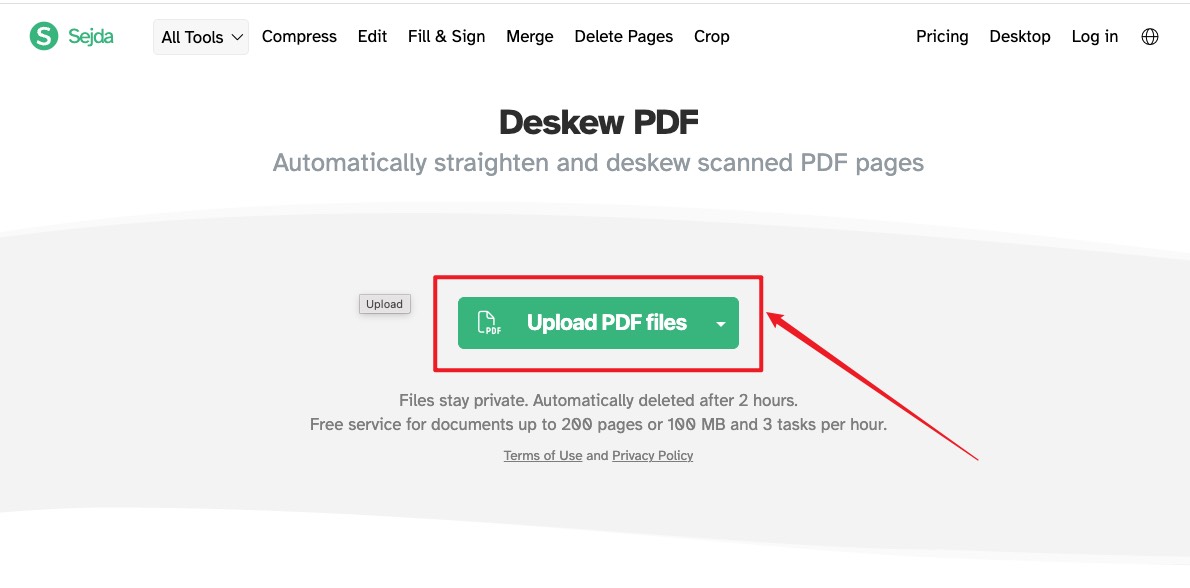
Step 2. Upload the scanned PDF from your computer, cloud drive, or a web address.
Step 3. Choose Automatic if you want Sejda to detect and straighten skewed pages.
Step 4. Choose Manually page by page if only some pages are skewed or if you want to review each correction. Use the rotation slider or the small angle buttons to fine-tune the result.
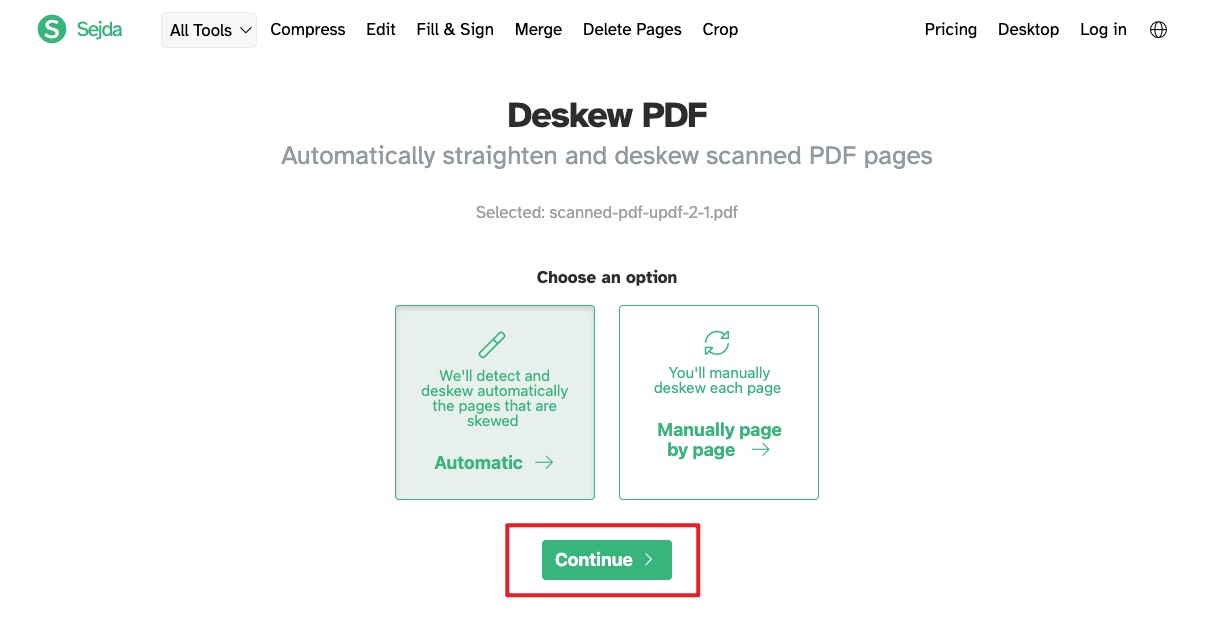
Step 5. Click Deskew PDF and download the corrected file.
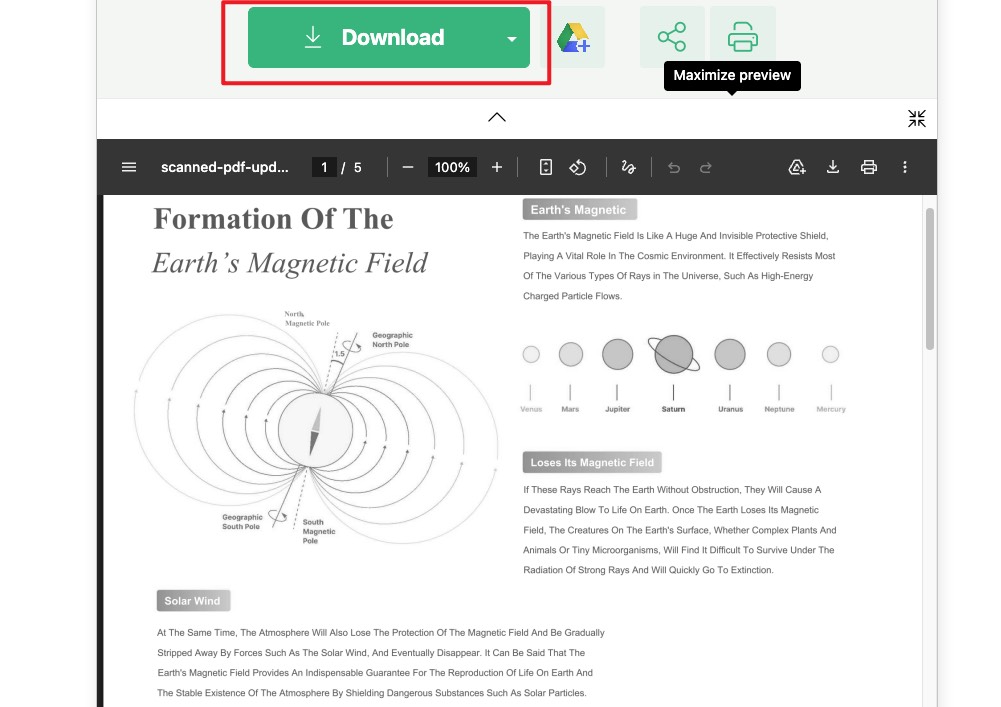
Step 6. Open the output in UPDF if you still need OCR, editing, annotation, or conversion.
Sejda states that files are automatically deleted after 2 hours, and its free service supports documents up to 200 pages or 100 MB with 3 tasks per hour. That is convenient for ordinary files, but local desktop processing is still the safer default for sensitive documents.
Part 6. How to Deskew a PDF in Adobe Acrobat
Adobe Acrobat can automatically straighten tilted scanned pages through its scanned PDF settings. Use it if you already have Acrobat Pro or your workflow is already built around Adobe.
Best for:
- Acrobat subscribers who want automatic deskew, OCR, and scan enhancement in one desktop workflow.
Not for:
- users who only need to straighten occasional scans and do not want another subscription. Adobe currently lists Acrobat Pro at about US$239.88/year (US$19.99/mo, annual billed monthly).
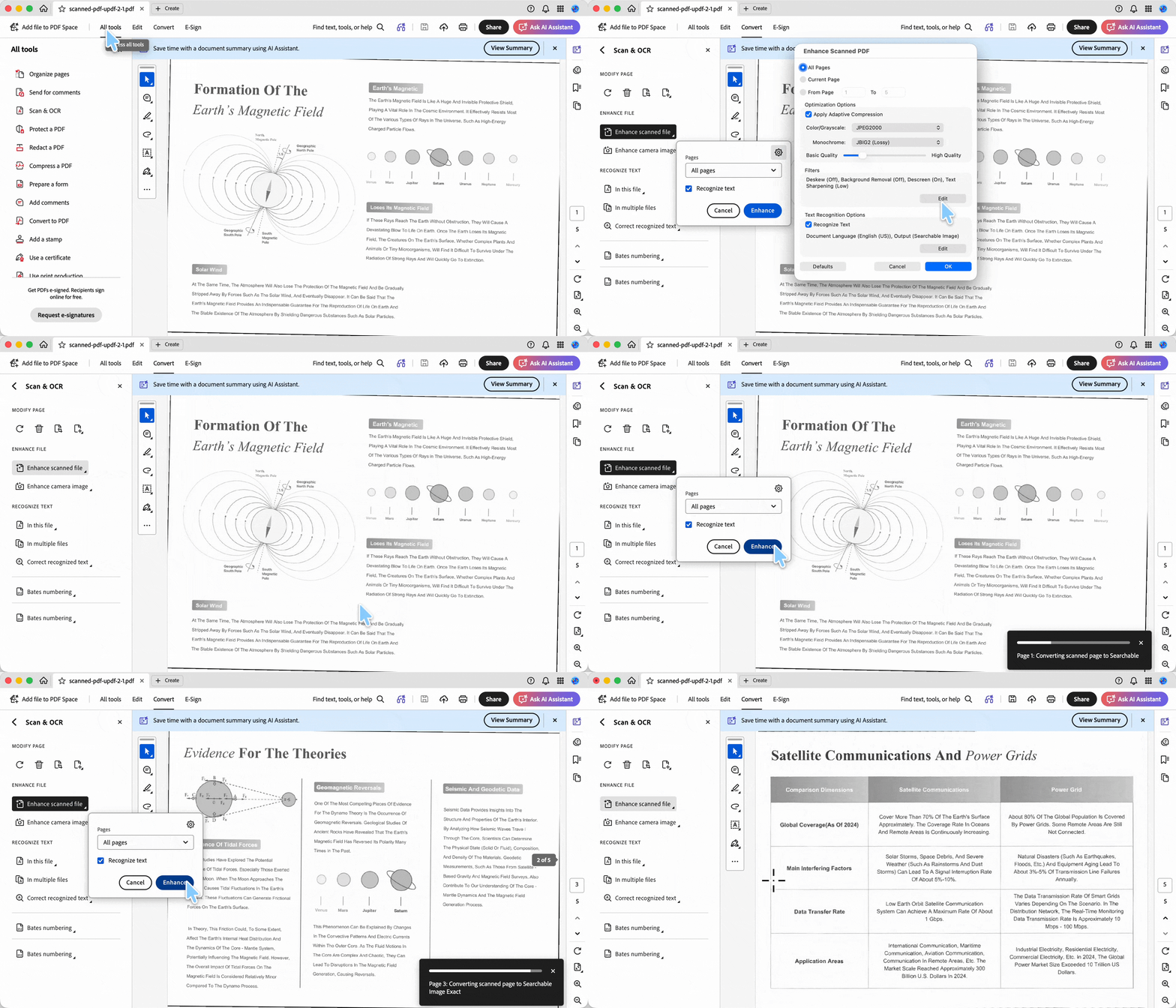
Step 1. Open the scanned PDF in Adobe Acrobat on desktop.
Step 2. Choose All tools > Scan & OCR.
Step 3. Select Enhance scanned file.
Step 4. Open Enhance scanned file settings. In the Filters section, click Edit and enable Deskew.
Step 5. Adjust related settings if needed, such as background removal, descreen, compression, or text sharpening.
Step 6. Enable Recognize Text if you also want OCR, then choose the language and output type.
Step 7. Click OK, then click Enhance and review the output.
Adobe is useful for automatic deskew, but do not make it the default recommendation for everyone. For private files and occasional manual corrections, UPDF's local slider workflow is lighter; for non-sensitive automatic deskew, Sejda is faster.
Part 7. Method Comparison
| Method | Deskew type | Platform | Privacy | Cost | Main limit |
|---|---|---|---|---|---|
| UPDF Image PDF + Rotation Angle | Manual micro-angle correction | Windows, Mac desktop | File stays local | Free to try; Pro $64.99/yr or $94.99 one-time | No automatic angle detection; you adjust by eye. |
| UPDF mobile cleanup + OCR | Rescan/crop/rotate/OCR workflow | iPhone, iPad, Android | File can stay in app workflow | Same UPDF account/license path | Not the same as desktop Image PDF slider. |
| Sejda Deskew PDF | Automatic or manual page-by-page | Web | Upload required | Free tier | 200 pages / 100 MB / 3 tasks per hour; privacy trade-off. |
| Adobe Acrobat | Automatic Deskew in scan enhancement | Windows, Mac desktop | Local desktop workflow | About US$239.88/year (US$19.99/mo, annual billed monthly) | Requires a paid Acrobat subscription. |
If the page image itself must stay faithful to the original, use a deskew method before OCR. If you only need a clean editable result and the original scan appearance does not matter, OCR modes like Text and Pictures Only may be useful, but call that re-layout, not deskew.
UPDF is free to try, but export without a trial watermark and batch OCR require Pro. That is why it is useful to test the manual deskew and OCR flow on a copy first, then upgrade only if you need clean export or heavier OCR work.
Part 8. Edge Cases When Deskew Still Fails
"I used OCR, but the page image is still crooked."
OCR adds or rebuilds text. It does not rotate the original scan image. Use UPDF's Image PDF Rotation Angle slider, Sejda, or Acrobat Deskew first, then run OCR.
"Text and Pictures Only made the page look straight, but the layout changed."
That OCR mode can drop the original scan background and rebuild text/images into a cleaner layout. This can help readability, but it is not layout-preserving deskew. Use Searchable PDF Only after deskewing if the original appearance matters.
"The slider straightened the text but left black triangles in the corners."
Rotating a rectangular page exposes empty background at the corners. Crop the page after deskewing, or keep the corrected copy if the corners do not affect reading or OCR.
"The page looks like a trapezoid, not just tilted."
A trapezoid shape comes from perspective distortion, usually from photographing the page at an angle. A deskew slider can correct line angle, but it cannot fully rebuild the page geometry. Rescan with the phone parallel to the document.
"The file will not save after I straighten it."
The PDF may be password-protected or restricted from editing/organizing pages. Enter the owner password or remove restrictions only if you own the file or are authorized to modify it, then save a corrected copy.
Part 9. FAQ
1. What scan quality should I use before OCR?
Use a clean, upright scan. Adobe's scanned PDF settings recommend 300 dpi for grayscale or color documents and 600 dpi for black-and-white documents when optimizing scans.
2. Does OCR straighten a PDF?
No. OCR recognizes text; deskew straightens the page image. Run OCR after deskewing if you want editable or searchable text.
3. Can I deskew a PDF on iPhone or Android?
Partly. You can rescan, crop, rotate sideways pages, and run OCR on mobile. For fine-angle Image PDF deskew with the Rotation Angle slider, use desktop UPDF.
Conclusion
Deskewing a PDF starts with the right diagnosis. If the page is only sideways, rotate it. If the text leans by a few degrees, deskew it. If you need editable text, run OCR after the page is straight.
For UPDF users, the honest deskew method is the desktop Image PDF workflow with the Rotation Angle slider: manual, local, and precise. After that, use UPDF OCR to make the straightened scan editable or searchable, or continue through the full make a PDF editable workflow. Use Sejda when you want automatic online deskew for non-sensitive files, and use Adobe Acrobat when you already pay for Acrobat's scan enhancement tools.
Download UPDF for free to manually deskew a scanned PDF and then OCR it. Installation is free, and Pro features are available when you need watermark-free export, batch OCR, or advanced tools.
Windows • macOS • iOS • Android 100% secure





 Enola Miller
 Lizzy Lozano
 Engelbert White