Home » Edit PDF » 9 Best PDF Background Changers for Native and Scanned Files (2026)
Quick answer:
The best PDF background changer depends on your file: UPDF or Adobe Acrobat for native PDFs, and an OCR-rebuild or scan-cleanup tool for scanned documents. Which of these two problems are you actually facing?
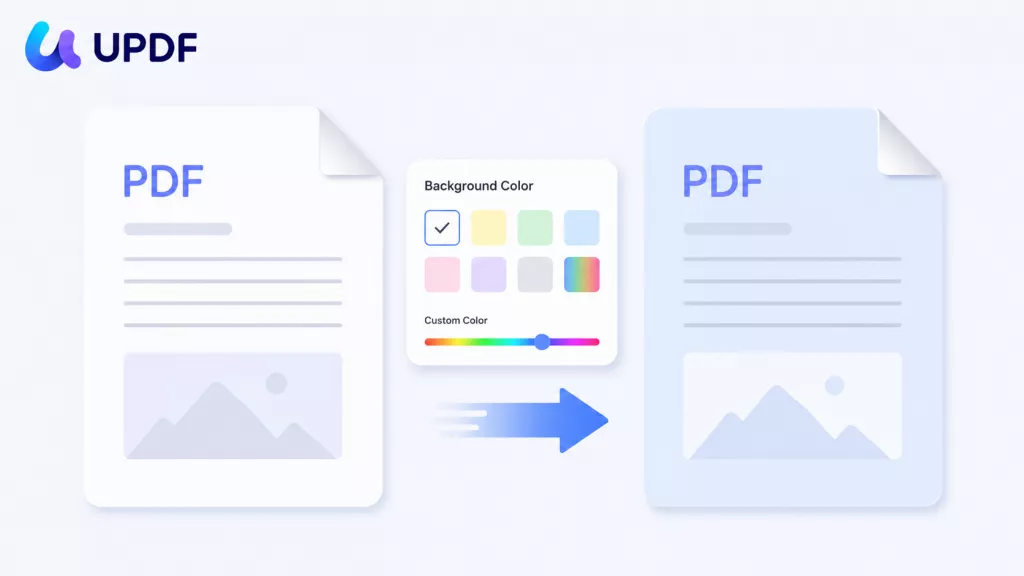
Problem A — Native PDF (made from Word, PowerPoint, Canva, InDesign): the background is a color or image layer, and you want to change it — swap white for beige on a proposal, add a brand color, or remove a colored page background before printing. A PDF editor can change that background layer while leaving the text intact. If your goal is a clean white page, follow this guide to convert a PDF background to white online or offline before making other edits.
Problem B — Scanned PDF (a photo of paper: a form, an old contract, a receipt): the "background" — gray paper, yellow stains, shadow lines — is baked into the image pixels, not a layer. A normal "change background" click does nothing to it, and this is where most roundups send you to a tool that can't help.
Most articles list five interchangeable tools and never mention this split. This guide compares tools across both problems — the best editors for native backgrounds, and the dedicated cleanup tools that actually work on scans. For the editing engine behind most native tasks, see our guide to the best PDF editor.
Part 1. Why Scanned Backgrounds Are a Different Problem
Problem A is easy: a native background is a structured object — solid color, image, or a separate page layer — so any capable editor swaps it cleanly while the text stays vector-sharp.
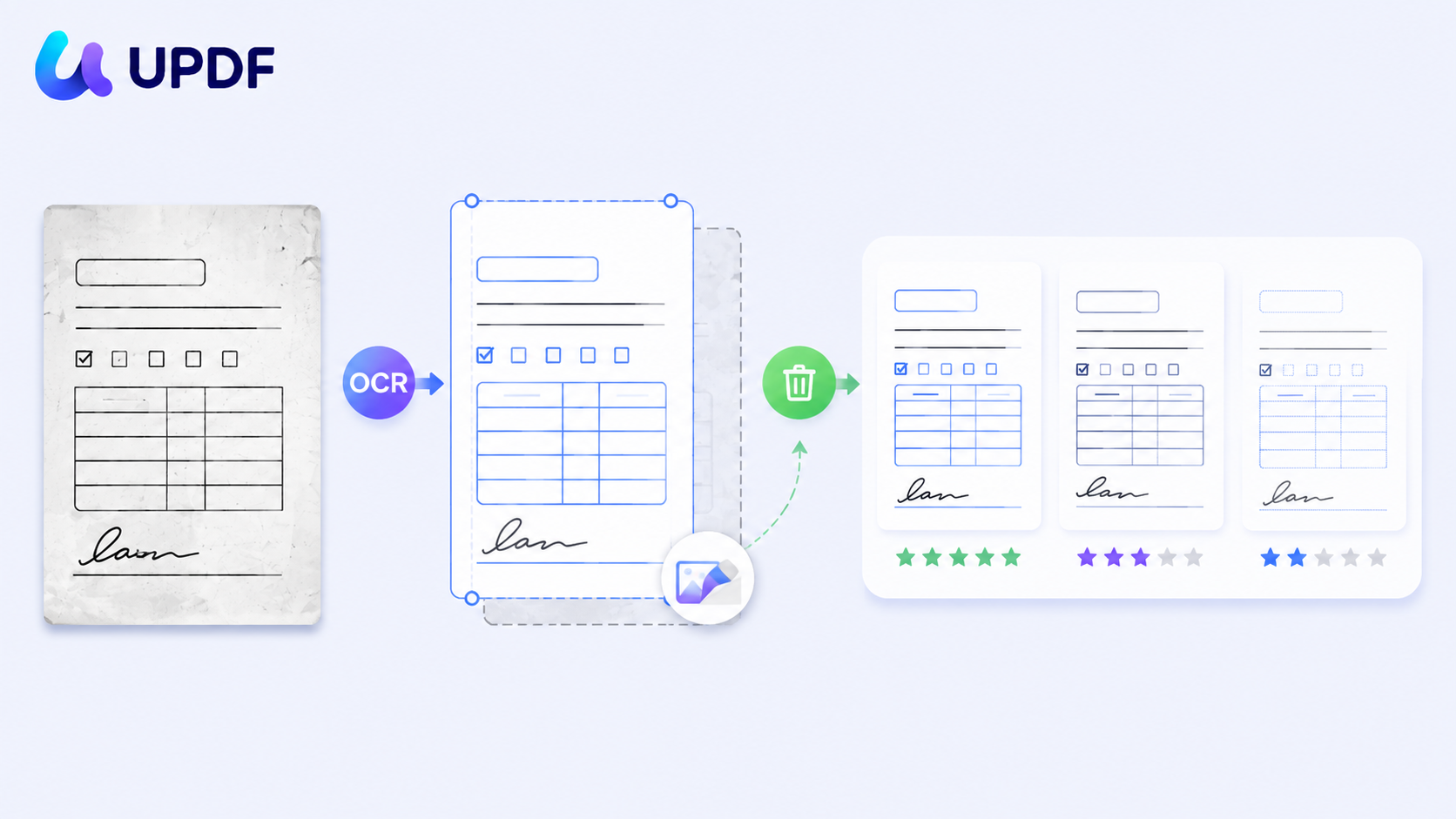
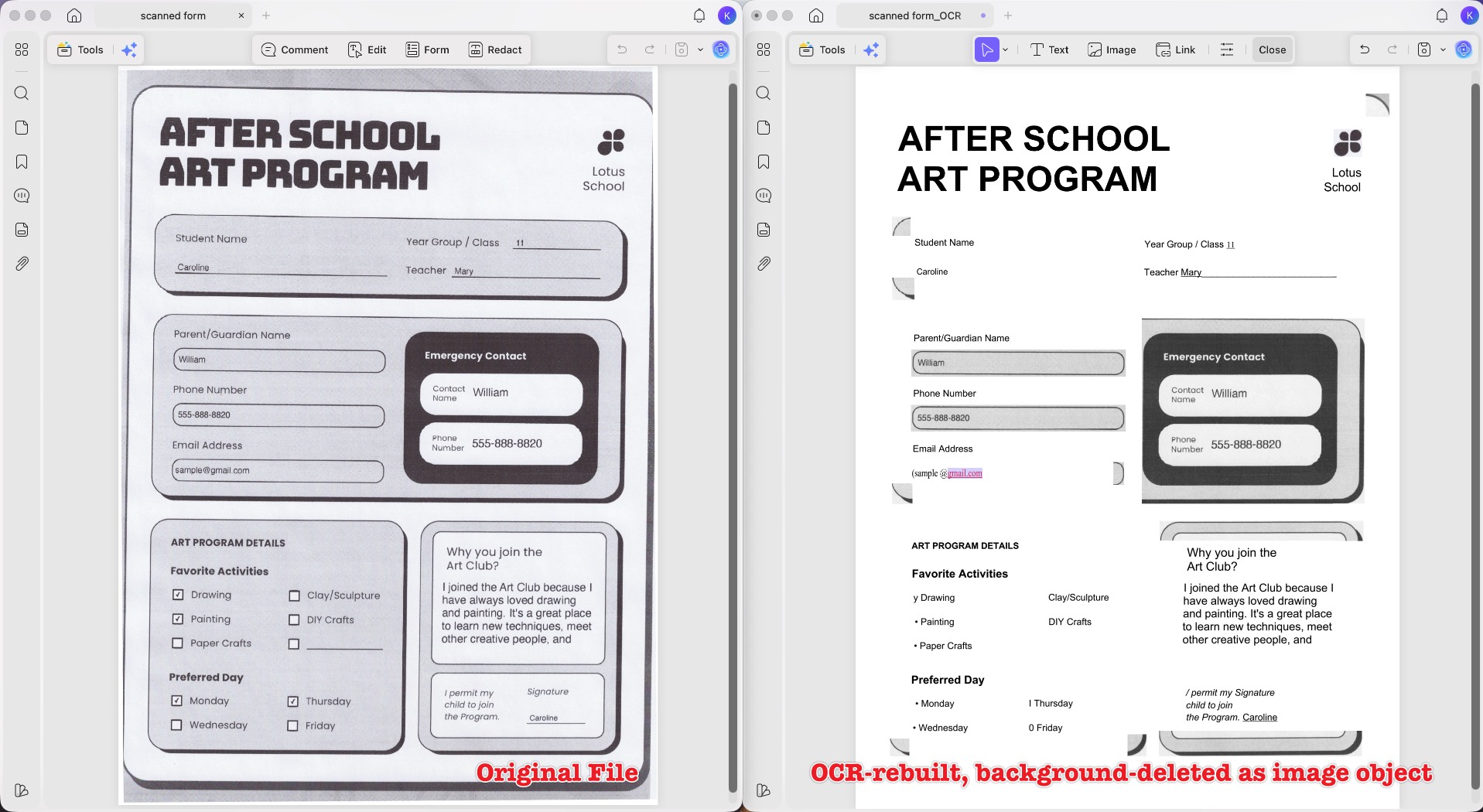
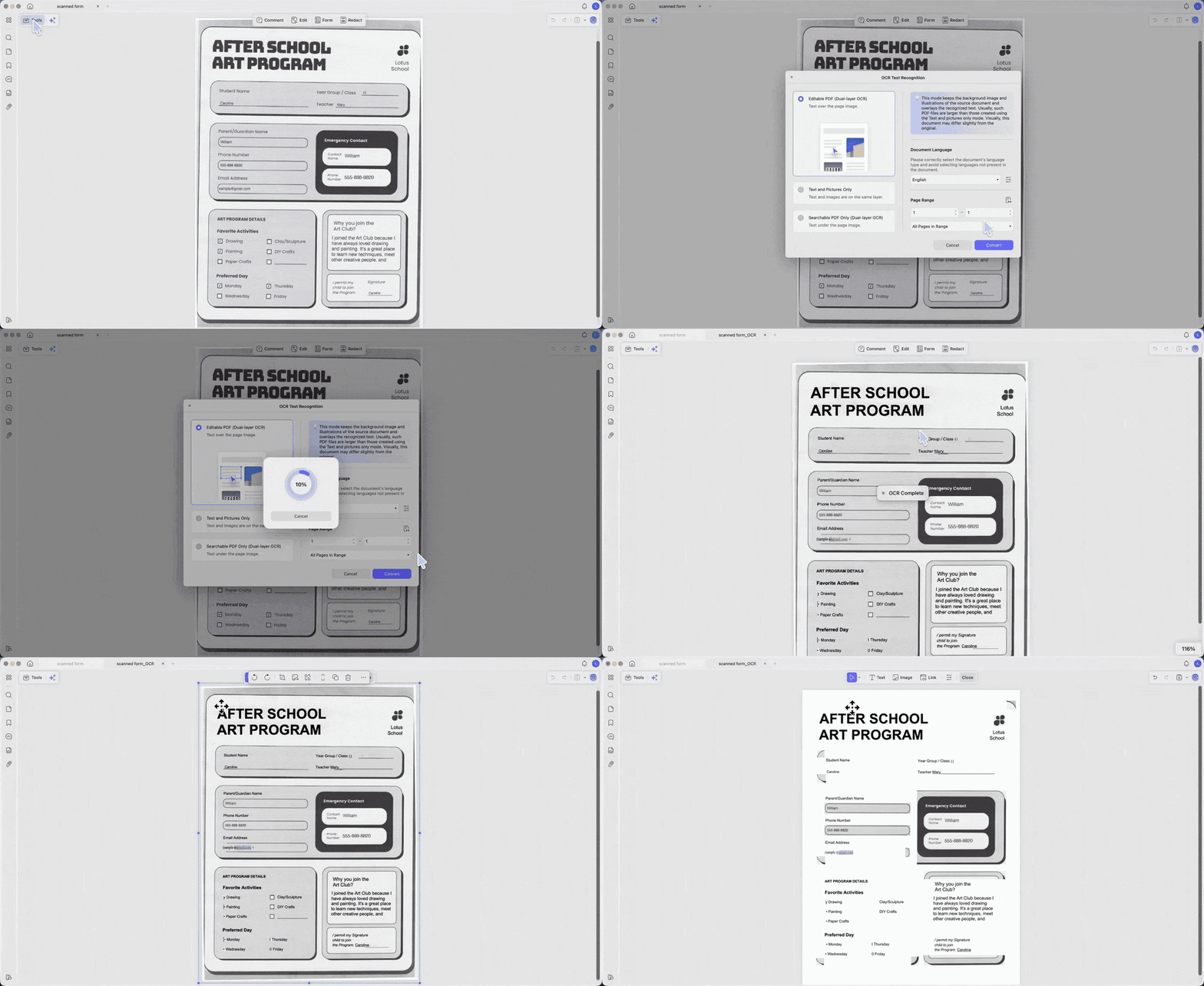
Problem B is where people lose hours. On a scan, the paper texture and shadows are pixels sitting in the same image as the text. Placing a white background behind that image changes nothing, because the scan is opaque and sits on top. To truly clean it, the page has to be rebuilt into editable objects — run OCR to reconstruct the page, then delete the reconstructed background as an image object — or clean the underlying image in a document-image tool. Different engines rebuild complex layouts (rounded form boxes, checkboxes, faint signatures) with different accuracy, so results vary by tool and by file.
Part 2. Match Your Scenario to the Right Approach
Your scenario
What you actually need
File type
Where to look
White pages tire your eyes during long reading
A reading theme (night/sepia), not a file change
Either
Reader theme — see Edge Cases
Colored/black background drains ink when printing
Change background to white before printing
Native
Native tools below
Proposal or resume looks too plain
Add a brand color or image background
Native
Native tools below
Scanned form has a gray/patterned background breaking OCR
Rebuild with OCR or clean the image to white
Scanned
Scan-cleanup tools below
Old scan is yellowed with shadow lines
Whiten and denoise the image
Scanned
Scan-cleanup tools below
Part 3: Best Tools for Native PDF Backgrounds
These change a real background layer in a digital PDF — color, image, or another PDF — without touching the text. Scan the overview first, then read the detail on whichever fits.
Tool
Best for
Key strength
Main limitation
UPDF
Users who want native background changes and a real path for scans
Color, image, PDF, and AI-generated backgrounds; also rebuilds scans via OCR
AI generation uses credits; OCR result varies with scan quality
Adobe Acrobat Pro
Precise positioning, rotation, background from PDF/JPEG/BMP
Granular controls; multi-page targeting
$239.88/yr (annual, prepaid); no perpetual license
LightPDF
Simple color/image changes across web, desktop, mobile
Add, update, remove in one panel; front/behind placement
Web free tier is limited; paid plan for full use
Soda PDF
Occasional edits on desktop or in the browser
Color and image options; Windows app and online
Online edits upload to a server
WorkinTool
A fast one-off color swap on a small file
Free; 200+ color presets; no install
0.5 MB per-file cap; no images; no complex removal
1. UPDF — Strong all-rounder that also handles scans in one app
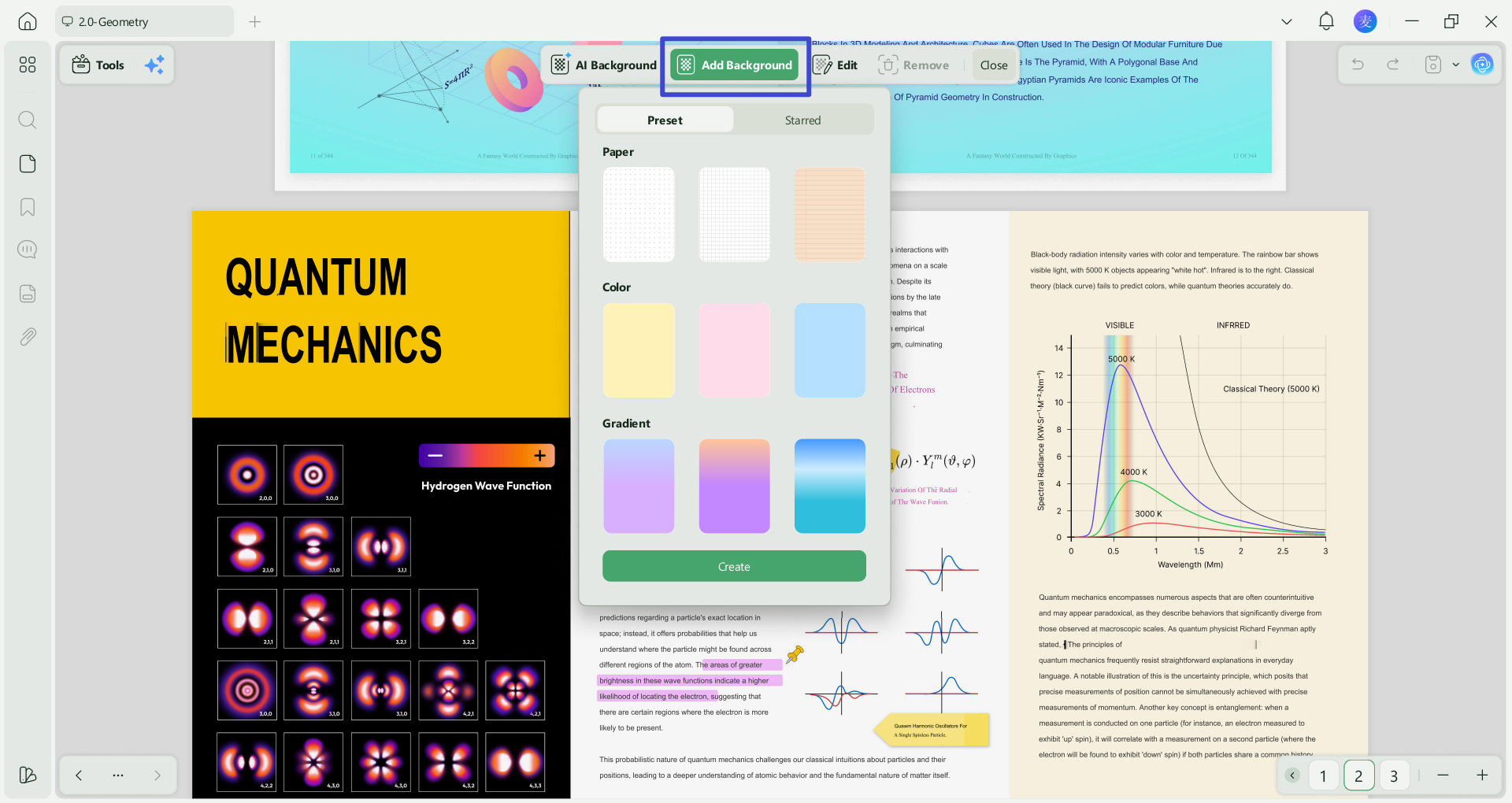
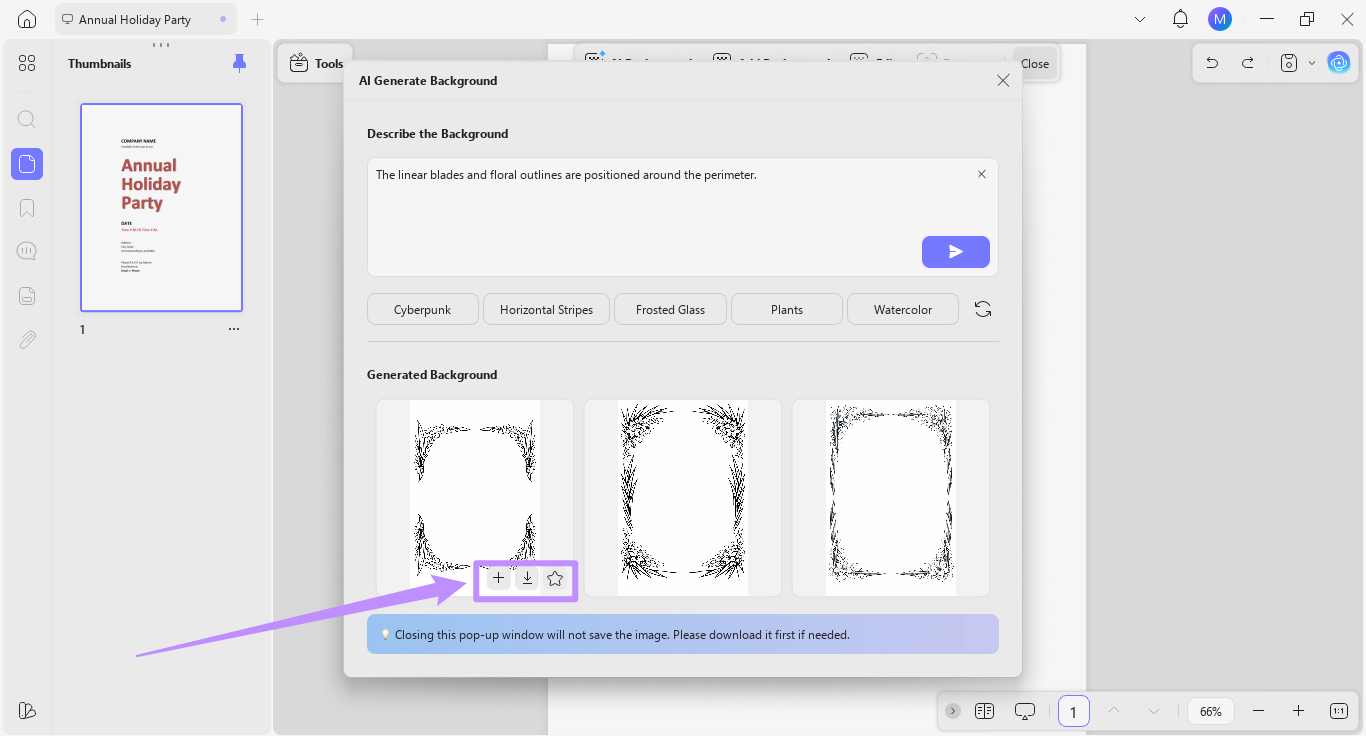
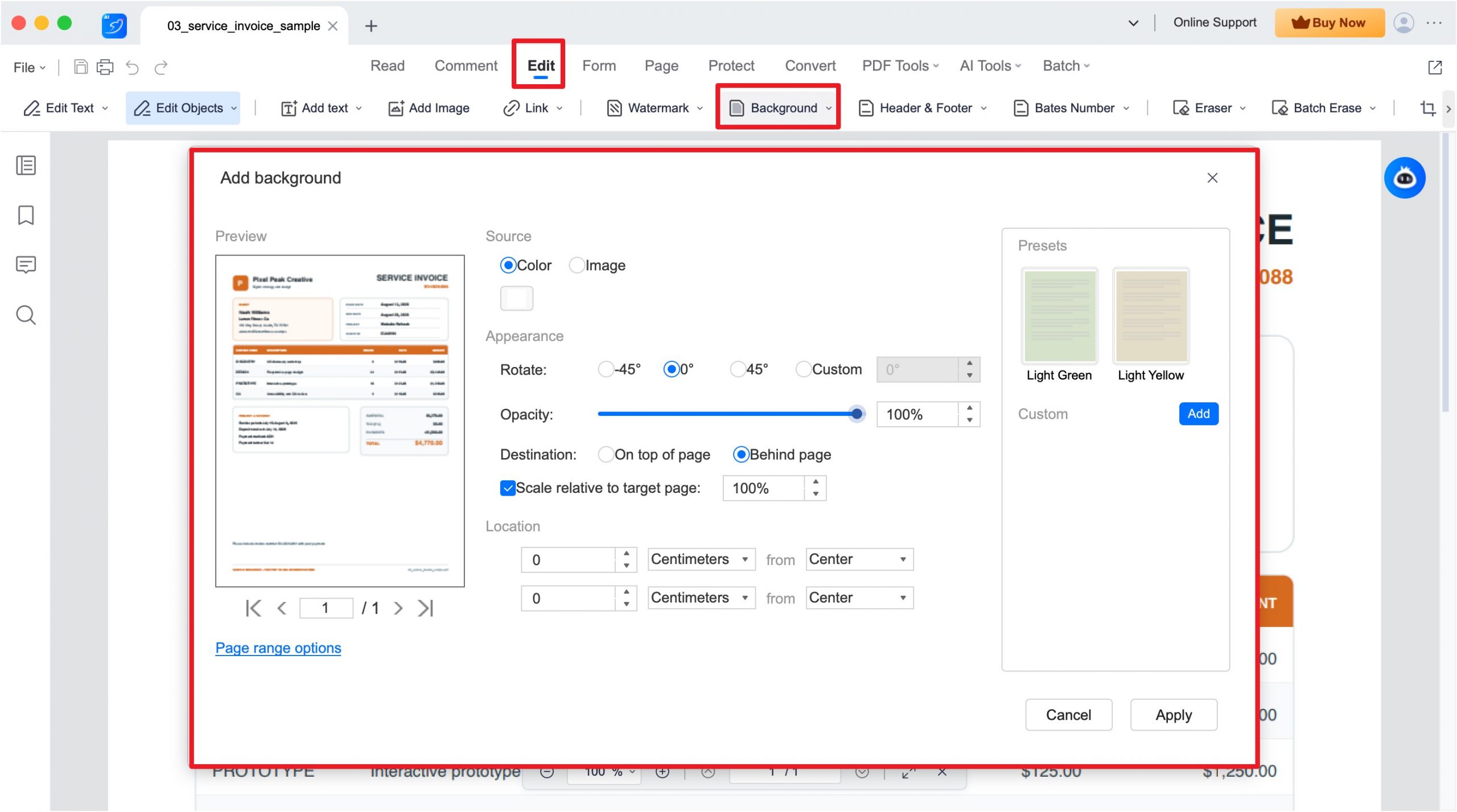
UPDF covers a wide range of background jobs in a single app. For native PDFs, it adds a solid color, an image, or another PDF as a background, with opacity, scale, and page-range controls so text stays readable. When you don't have a suitable image on hand, its AI background generator turns a text prompt into three high-resolution images (each generation uses AI credits from your plan) that you can apply directly — useful for covers or proposals that need a branded look without stock-image hunting.
UPDF doesn't stop at native files. Because it bundles OCR and object-level editing in the same app, a scanned page can be rebuilt with OCR and then have its background deleted as an image object — the workflow scans actually require (covered in Part 4) — so both file types are handled without switching to a separate program. Reconstruction quality depends on scan quality and layout complexity, as it does with any OCR engine.
Windows • macOS • iOS • Android 100% secure
Best for:
users who want native background changes (color, image, AI-generated) and a realistic path for scanned files, across Windows, Mac, iOS, and Android.
Skip if:
you only need a single one-off color swap on one small file and don't want to install anything.
Free access & price: UPDF's free tier changes backgrounds on native PDFs and lets you test the OCR path (5 free uses); exported files carry a trial watermark until you upgrade. Pro Individual is US$49.99/year and Pro Lifetime is US$79.99 one-time, both covering all PDF tools on two desktops and two mobile devices.
2. Adobe Acrobat Pro — Precise native controls, heavy and costly
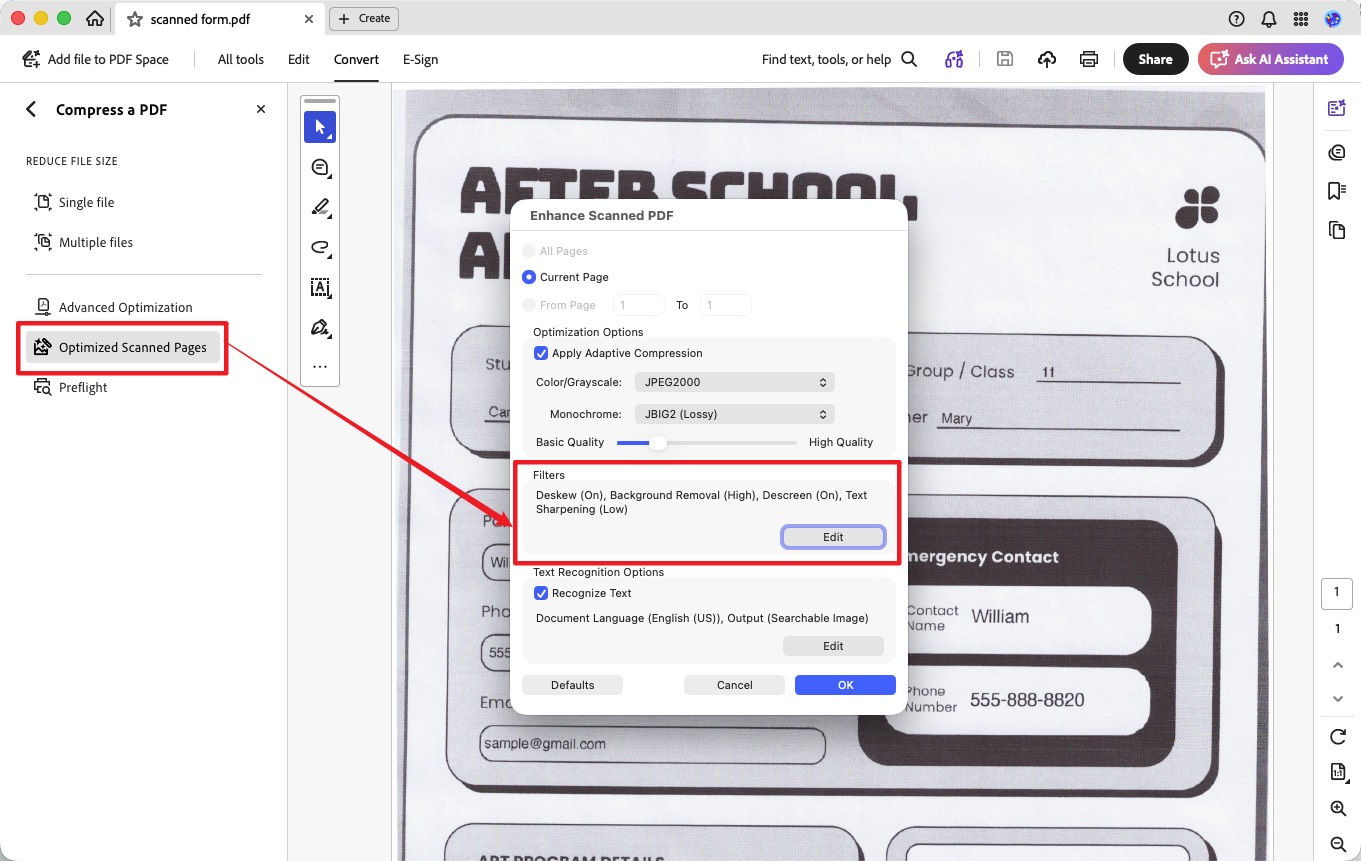
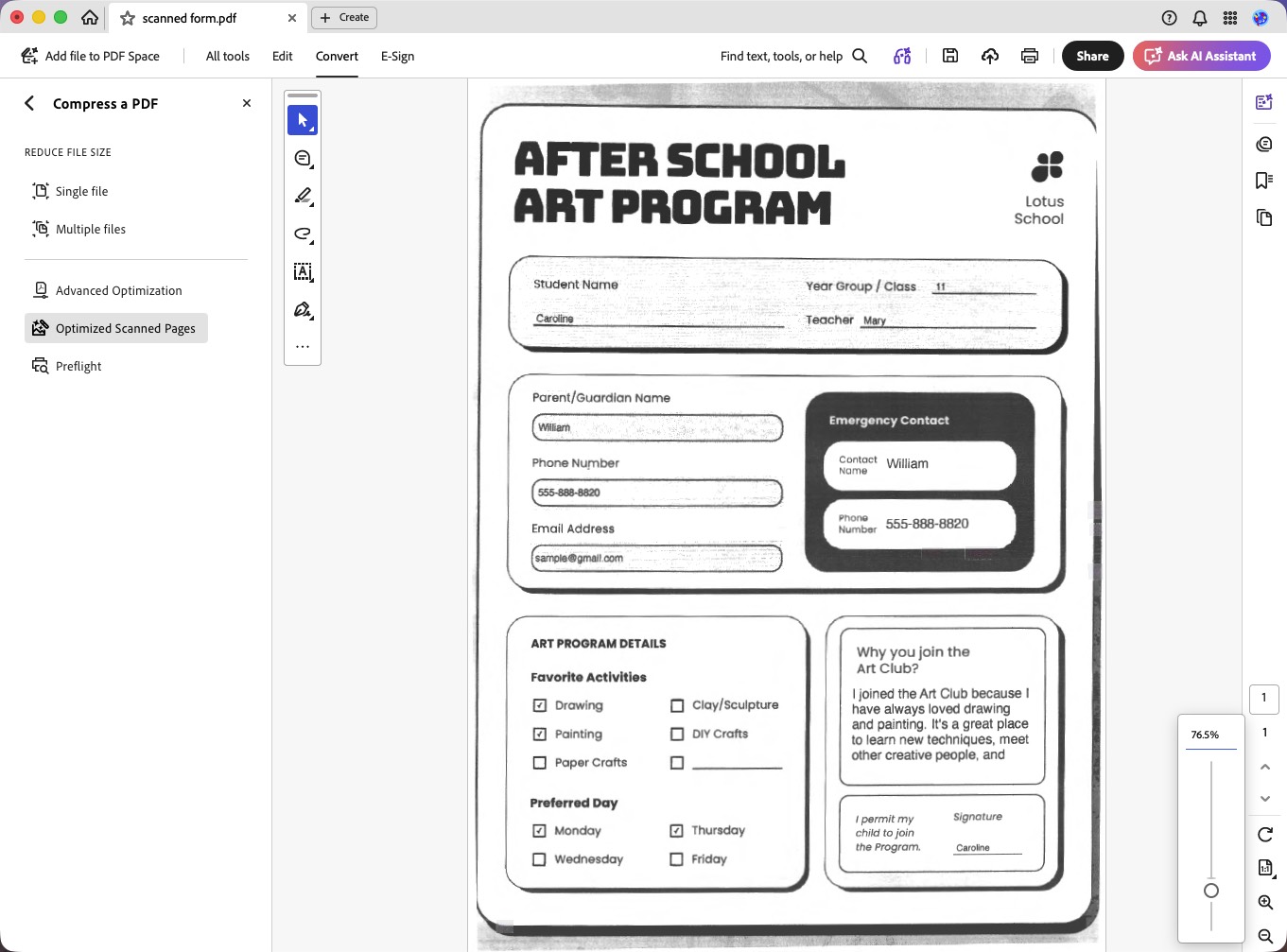
Adobe Acrobat Pro offers granular native-background controls: add a color or a background file, with rotation, opacity, scale, and multi-page targeting. Note that Acrobat accepts only PDF, JPEG, or BMP as a background source — a Word or PowerPoint file has to be converted first. Its scanned-file cleanup lives in a separate place — the Enhance Scanned PDF filters (Descreen + Background Removal) under Optimize Scanned Pages — not in the background feature (see Part 4).
Best for:
users already inside Adobe's ecosystem who need precise native positioning and rotation.
Skip if:
you want a quick color change or low ongoing cost — the individual Pro plan is US$239.88/year (annual, prepaid; monthly options cost more). Adobe no longer sells a true perpetual license, though it offers Acrobat Pro 2024 as a one-time-purchase, non-subscription version licensed for three years.
3. LightPDF — Simple color and image backgrounds
LightPDF changes native-PDF backgrounds easily: add color or image backgrounds, adjust scale and opacity, rotate to a custom angle, and place the background in front of or behind the page. It's available on web, Windows, Mac, iOS, and Android, and now also includes OCR and a scan-enhancement tool, so it isn't strictly a native-only editor. The free tier is limited to the web app; full use requires a paid plan.
Best for:
straightforward native color/image changes across web, desktop, and mobile.
Skip if:
you need heavy-duty scan cleanup on complex forms — dedicated tools below still do that better.
4. Soda PDF — Browser-based color and image backgrounds
Soda PDF changes native backgrounds in a Windows desktop app or an online version: browse an image or pick a color, set scaling, apply to custom page ranges, and export in several formats. The desktop app isn't available for macOS, so Mac users go through Soda PDF Online, which uploads files to a server first.
Best for:
occasional native background edits, whether you prefer the Windows desktop app or the browser.
Skip if:
you're on a Mac and want local processing — Soda PDF Desktop isn't available for macOS, so Mac users are limited to Soda PDF Online, which uploads files to a server (a poor fit for confidential documents). Also skip it for cleaning a scan.
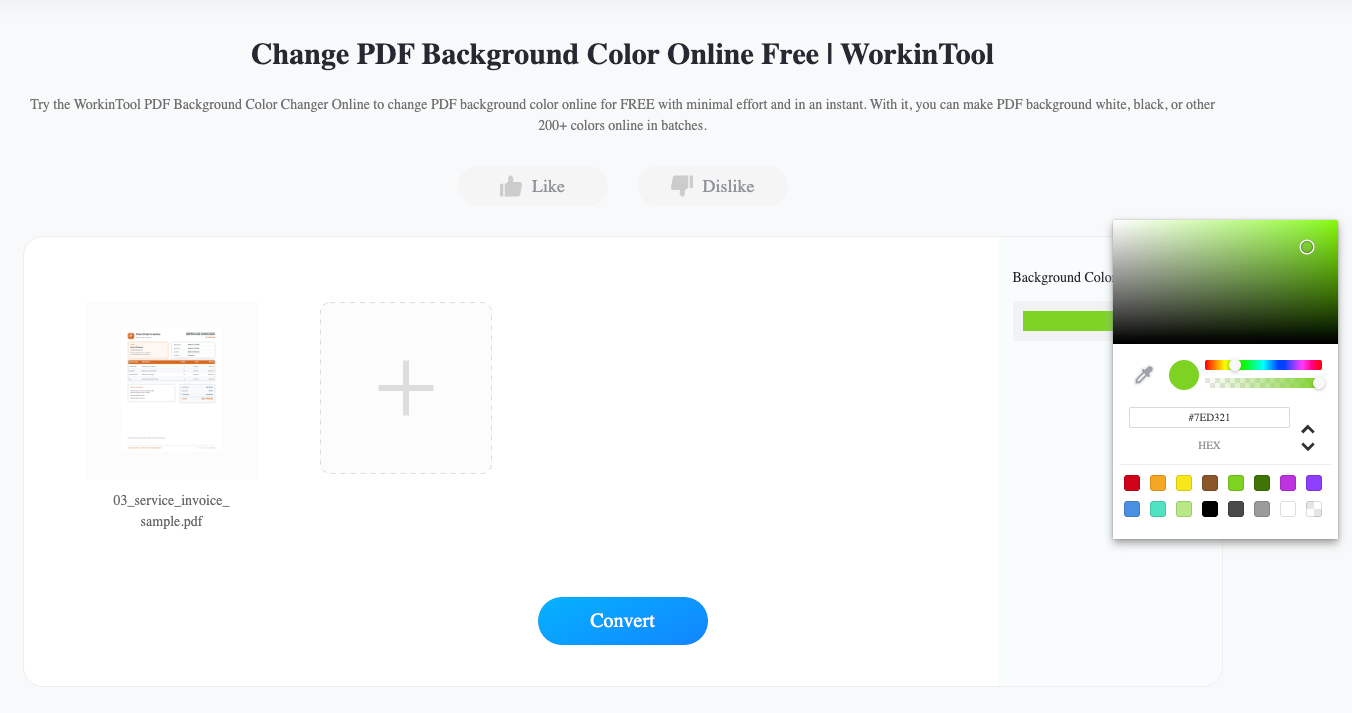
5. WorkinTool — One-click online color swaps for small files
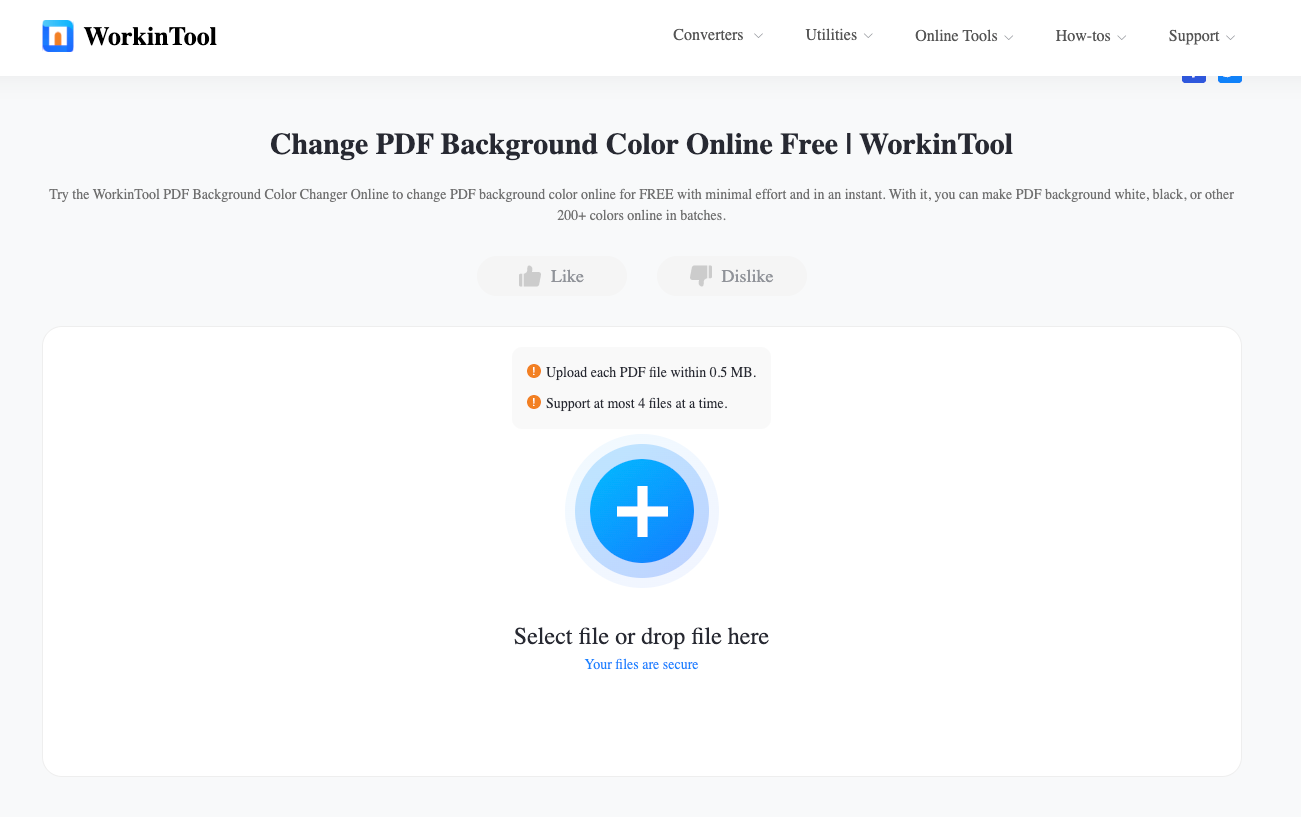
WorkinTool changes background color online with 200+ presets and no install. It's the fastest route for a single quick color change, but caps each uploaded file at 0.5 MB (up to four files at a time) and can't add images or replace an existing complex background. A pro Windows version lifts the online size limit.
Best for:
a fast, free, one-time background color change on a small native PDF.
Skip if:
your file is over 0.5 MB (use its desktop version), you need an image background, or you're cleaning a scan.
Part 4: Best Tools for Cleaning Scanned Backgrounds
None of the native tools above will clean a scan on its own — the background isn't a layer. There are two working routes: rebuild the page with OCR (so the background becomes a deletable object) or clean the underlying image in a document-image tool. Scan the overview, then read the detail below.
Tool
Best for
Key strength
Main limitation
Phone scan apps (Adobe Scan, Nomostar, Apple Notes)
When you still have the paper
Whitens and deskews at capture; fast and free
Needs the original document; some sync to the cloud
UPDF (OCR rebuild)
Cleaning a scan without leaving your PDF editor
OCR rebuild + delete background as image, one app, desktop & mobile
6. Re-scan at the source — the fastest fix when you still have the paper
The best cleanup is the one you never do. Modern phone scanning apps apply automatic white-balance and edge detection that many flatbed scanners skip, often producing a clean white page in seconds.
Adobe Scan (iOS/Android): auto-crops, deskews, and lifts gray backgrounds in real time. Note that scans sync to Adobe cloud storage by default, and some export/compress options require paid Acrobat.
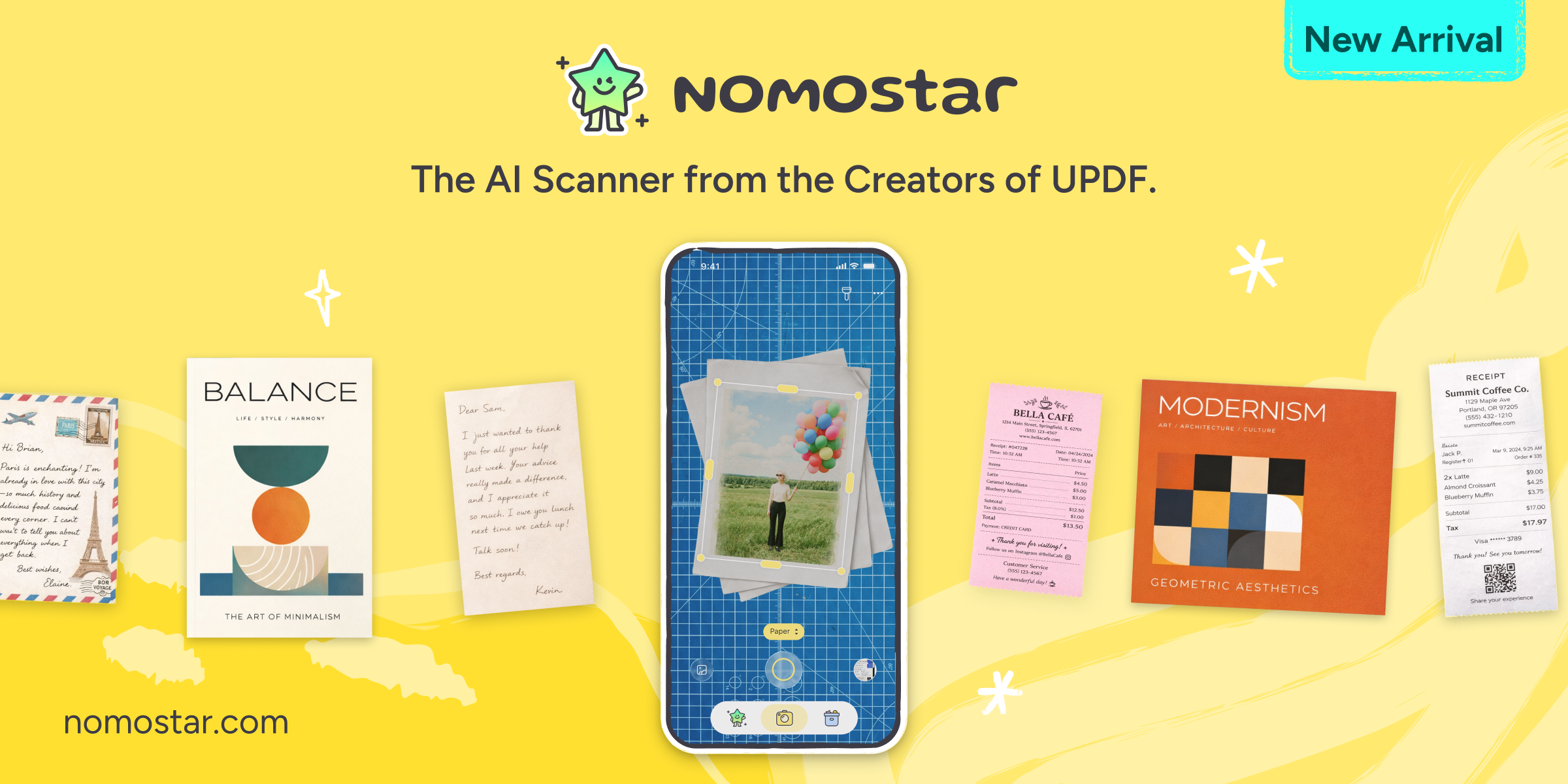
Nomostar (iOS/Android): smart edge detection auto-crops, deskews, and corrects perspective into clean PDFs, with OCR built in. Files are stored locally by default unless you choose to upload, which suits confidential paperwork. It's made by Superace, the developer behind UPDF.
Apple Notes → Scan Documents: built into iOS, aggressive background removal for text-heavy pages, and captures on-device.
Best for:
any case where the original paper document is still on hand.
Skip if:
the paper is gone and you only have the scanned file — go to the next tools. Also check each app's cloud-sync setting before scanning confidential documents.
7. UPDF (OCR rebuild) — clean a scan without leaving your PDF editor
When you only have the scanned file, UPDF's OCR can rebuild the page into editable objects; you then switch to Edit mode and delete the reconstructed background as an image object. This keeps everything in one app instead of round-tripping through separate scan software, and it's the most accessible route for a typical office user who already edits PDFs.
Windows • macOS • iOS • Android 100% secure
Best for:
users who want to clean a scan and keep working in the same PDF app, on desktop or mobile.
Skip if:
you're processing hundreds of pages that need automated batch cleanup — a dedicated image tool is faster at scale.
8. ScanTailor — free, batch, purpose-built for dirty scans
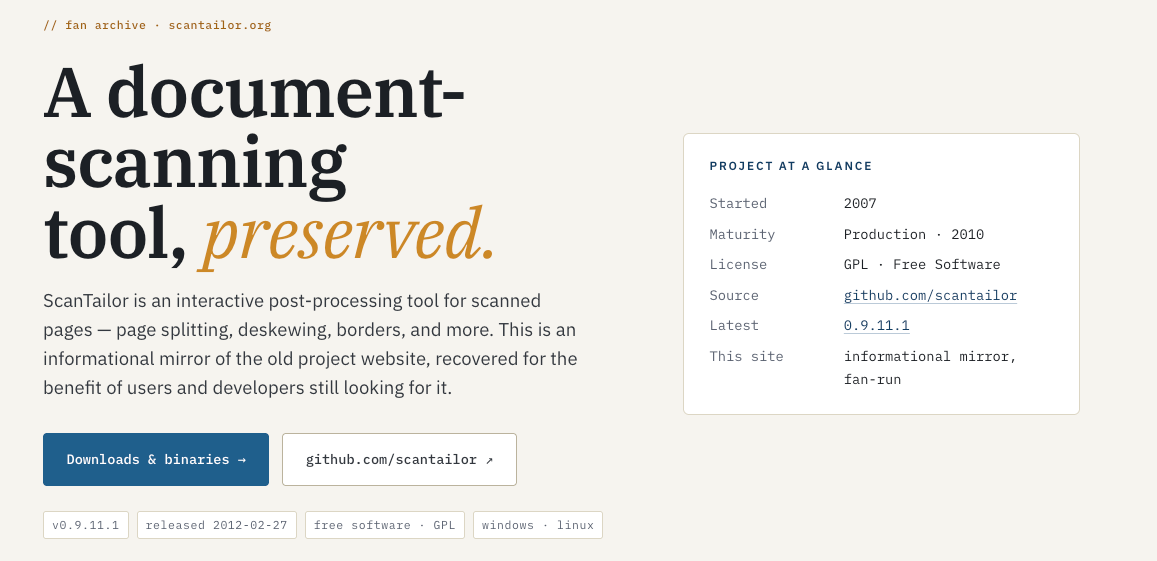
ScanTailor is free, open-source software (GPL-3.0) built specifically for document scans: automatic deskew, content selection, margin normalization, and white/black-point stretching that turns gray paper into pure white. It shines on large batches — books, forms, archives. The actively maintained fork most people use is ScanTailor Advanced; note that OCR and multi-page PDF output are outside its scope and handled separately.
Best for:
batch-cleaning many scanned pages to crisp black-on-white at zero cost.
Skip if:
you want a one-click experience or a searchable-PDF output in the same step (ScanTailor outputs images; OCR is a separate pass).
9. ABBYY FineReader — professional cleanup plus OCR in one
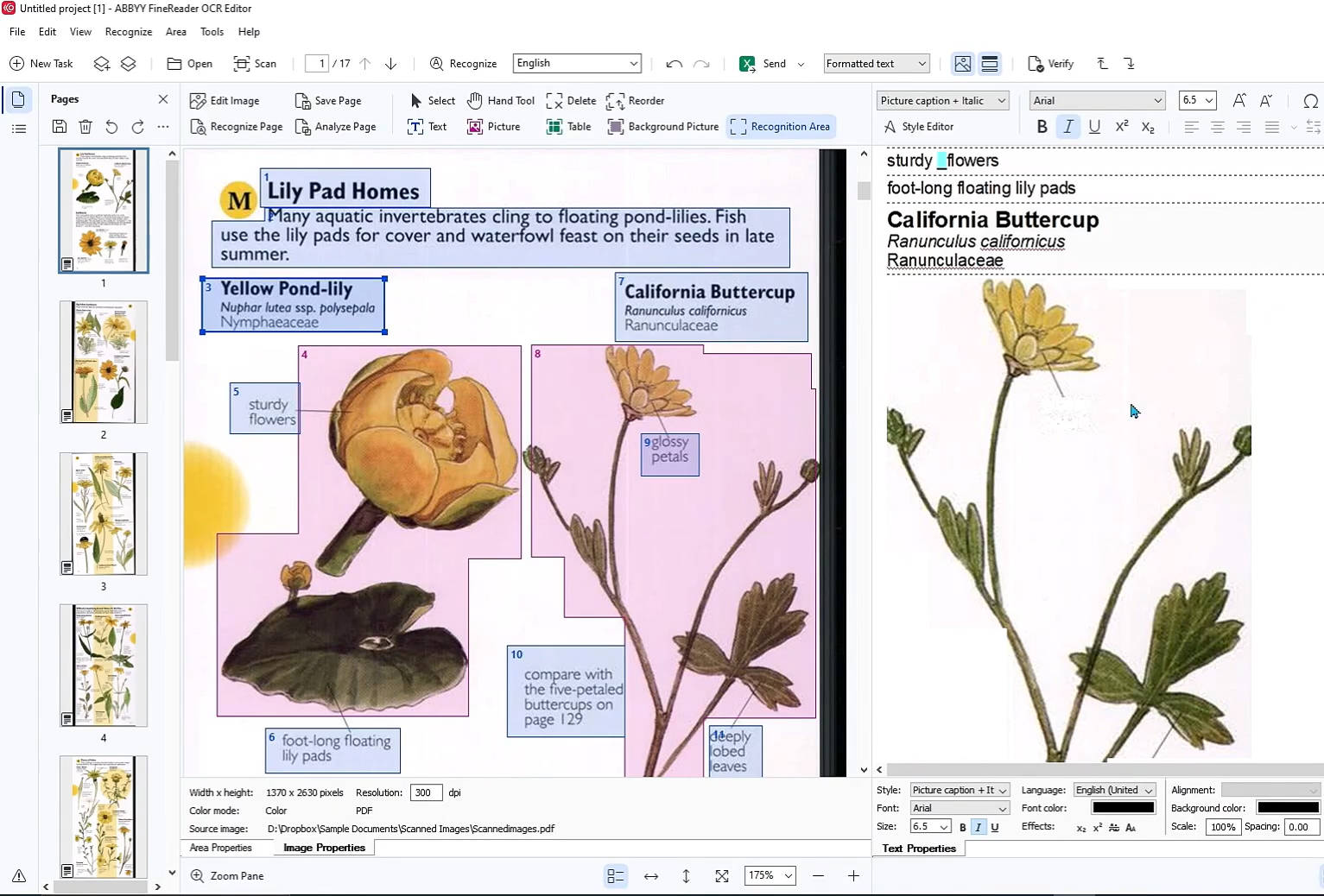
ABBYY FineReader pairs advanced image preprocessing (descreening, background whitening, noise removal, adaptive binarization) with professional OCR, so a messy scan comes out clean and searchable. It's a well-regarded option for complex forms and multi-language documents — at a price. Windows Standard runs about $99/year and Corporate about $165/year.
Best for:
complex forms or archives where you need cleanup and a searchable PDF in one paid tool.
Skip if:
you only need an occasional cleanup and don't want a professional-tier license.
Also worth knowing
Adobe Acrobat Pro — Enhance Scanned PDF: if you already own Acrobat, its Enhance filters (Descreen + Background Removal, adaptive contrast) handle light gray casts on single files without entering OCR editing — but heavy gray form backgrounds can leave residue.
Photoshop / GIMP: manual Levels (Ctrl+L) with the white-point eyedropper on the gray background forces it to white. Precise, but one-file-at-a-time and skill-dependent — best reserved for a single stubborn page.
Part 5. Comparison Table: What Each Tool Actually Does
Tool
Native background
Scanned cleanup
Processing
Cost (US, Aug 2026)
UPDF
Color, image, PDF, AI-generated
✓ (OCR rebuild + delete image)
Local (Win/Mac/iOS/Android)
Free (watermark on export); $49.99/yr or $79.99 lifetime
Adobe Acrobat Pro
Color; PDF/JPEG/BMP source; rotation
Partial (Enhance Scanned filters)
Local (Win/Mac)
$239.88/yr (annual, prepaid); 3-yr one-time Pro 2024, no perpetual
LightPDF
Color, image
✓ (OCR + scan enhance)
Web / desktop / mobile
Web free tier limited; paid plan (see official page)
Soda PDF
Color, image
✗
Windows app or online (upload)
Free tier limited; paid plan
WorkinTool
Color only (200+ presets)
✗
Online (upload) or Windows app
Free (0.5 MB/file online)
Phone scan apps
✗
✓ (at capture)
On device; some sync to cloud
Free (some export features paid)
ScanTailor
✗
✓ (batch, image output)
Local
Free (open source, GPL-3.0)
ABBYY FineReader
✗
✓ (cleanup + OCR)
Local
~$99/yr Standard; ~$165/yr Corporate
Photoshop / GIMP
✗
✓ (manual, per file)
Local
Paid / Free
Part 6. Edge Cases: When "Change Background" Doesn't Do What You Expect
"I changed the background to white but my scanned PDF is still gray." You're looking at an image, not a layer. The editor placed a white layer behind an opaque scan, so nothing changed. Rebuild the page with OCR and delete the gray background as an image object, or re-capture the original with a phone scanning app.
"The 'Remove Background' button left broken lines and stray shapes on my form." On a scan, one-click removal can't tell paper from faint content like form borders, checkboxes, or light signatures, so it erases unevenly. Use the OCR-rebuild path or a document-image tool instead — and expect very complex layouts may still need manual touch-up.
Check that the text remains readable as you adjust the appearance of the page. For a practical example of removing a PDF background, watch the walkthrough below.
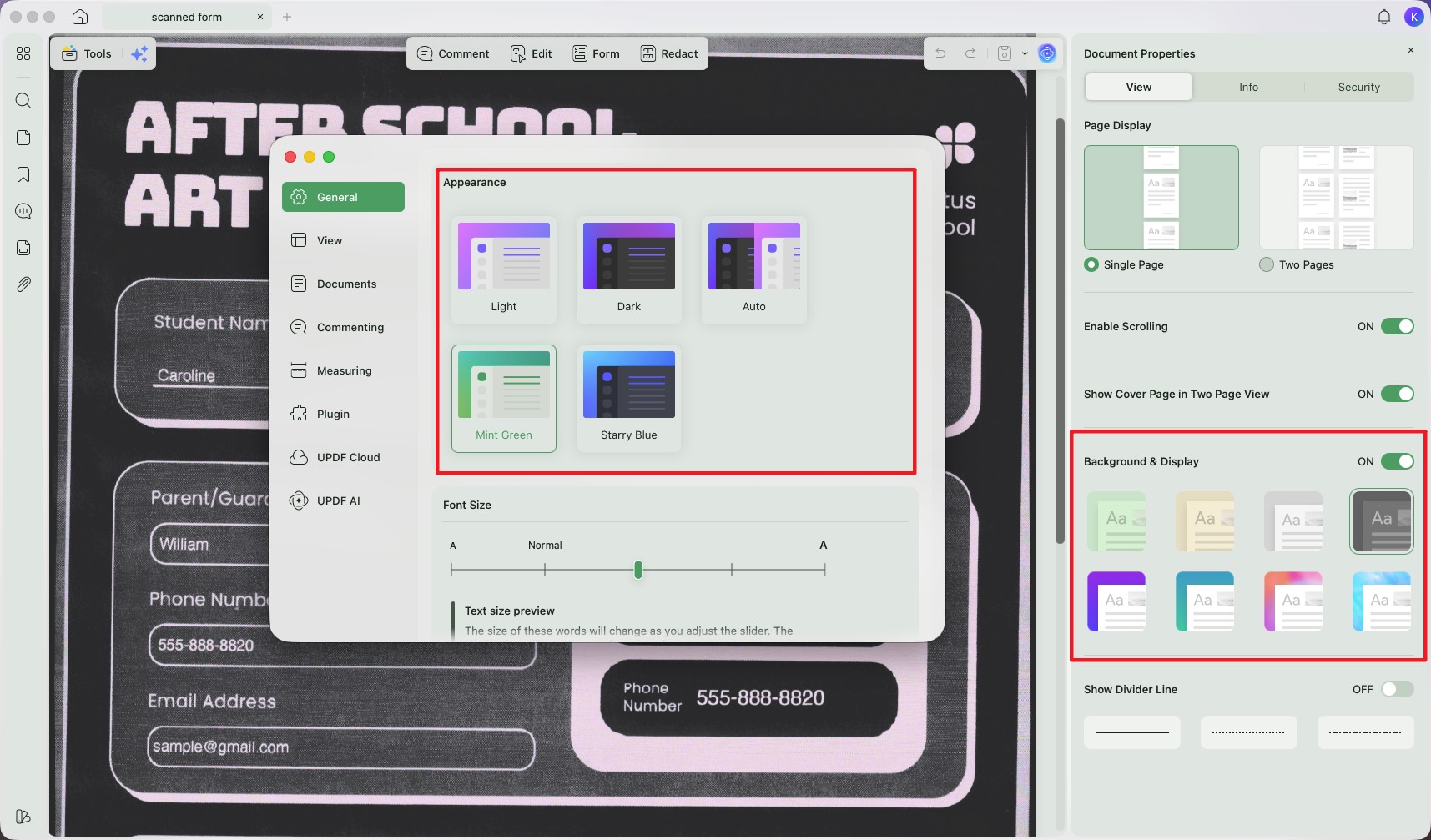
"I just want a dark/beige reading background without altering the file." That's a reading theme, not a background change. Most readers, including UPDF, switch the viewing theme without modifying the document — better than baking a color in, which would affect printing and sharing.
Windows • macOS • iOS • Android 100% secure
"My colored background prints as a solid dark block and drains ink." Colored and image backgrounds render poorly on many office printers. For anything headed to print, set the background to white or a very light tint and preview first.
Part 7. Frequently Asked Questions
1. How do I change a PDF background to white for printing?
For a native PDF, set the background color to white (#FFFFFF) in your editor. For a scanned PDF, whitening must happen at the image level — re-scan with a phone app, or run OCR and remove the gray background — since a white layer behind an opaque scan won't show.
2. Is it safe to change a PDF background online?
Only for non-confidential files. Online tools upload your document to a server. For contracts, IDs, invoices, or medical forms, use a desktop tool that processes locally so the file never leaves your device.
3. Will changing the background affect text quality?
On native PDFs, no — text stays vector-sharp. On scanned PDFs, aggressive removal can thin faint text or break thin lines, so review at 100% zoom before saving.
Conclusion
The right PDF background changer comes down to one question you now know to ask: is the file native or scanned? For native PDFs, UPDF and Adobe Acrobat Pro give reliable color, image, and page-range controls — with UPDF's AI Background generator adding branded backdrops from a prompt — while LightPDF, Soda PDF, and WorkinTool handle quick color swaps. For scanned files, no background changer alone will clean the page: you need an OCR rebuild or a document-image tool like ScanTailor or ABBYY. UPDF is convenient here because it combines native background editing and the OCR-rebuild path in a single app, so many users can stay in one tool across both file types.
Download UPDF for free to try changing a native PDF background — or rebuilding and cleaning a scanned one — on your own file; installation is free, and Pro features are available when you need export or advanced tools.
 UPDF
UPDF
 UPDF for Windows
 UPDF for Mac
 UPDF for iPhone/iPad
 UPDF for Android
 Nomostar
 UPDF AI Online
 UPDF Sign
 IvyCraft
 Edit PDF
 Annotate PDF
 Create PDF
 PDF Form
 Edit links
 Convert PDF
 OCR
OCR PDF to Word
 PDF to Image
 PDF to Excel
 Organize PDF
 Merge PDF
 Split PDF
 Crop PDF
 Rotate PDF
 Protect PDF
 Sign PDF
 Redact PDF
 Sanitize PDF
 Remove Security
 Read PDF
 UPDF Cloud
 Compress PDF
 Print PDF
 Batch Process
 About UPDF AI
 UPDF AI Solutions
 AI User Guide
 FAQ about UPDF AI
 Summarize PDF
 Translate PDF
 Chat with PDF
 Chat with AI
 Chat with image
 PDF to Mind Map
 Explain PDF
 PDF AI Tools
 Image AI Tools
 AI Chat Tools
 AI Writing Tools
 AI Study Tools
 AI Working Tools
 Other AI Tools
 AI Bookmark Generation
 AI Bookmark Summary
 AI Watermark Generation
 AI Background Generation
 AI Sticker Generation
 AI Stamp Generation
 AI Editing Suite
 UPDF Copilot
 AI Page Management
 AI Semantic Search
 PDF to Word
 PDF to Excel
 PDF to PowerPoint
 Enterprise Solution
 Enterprise Sign
 Enterprise AI
 Enterprise Plan
 Enterprise User Guide
 Enterprise Webinar
 IT
IT Education
 Construction
 Financial Service
 Healthcare
 Insurance
 Legal
Legal Manufacturing
 Government
 Researchers & PhDs
 Solopreneurs & Freelancers
 Lawyers & Legal Professionals
 Real Estate Agents & Brokers
 Education Solution
 Customer Stories
 User Guide
 UPDF Tricks
 FAQs
FAQs UPDF Reviews
 Download Center
 Blog
Blog Newsroom
 Tech Spec
 Updates
 UPDF vs. Adobe Acrobat
 UPDF vs. Foxit
 UPDF vs. PDF Expert








 Enid Brown
 Lizzy Lozano
 Enrica Taylor