UPDF
UPDF
 UPDF for Windows
 UPDF for Mac
 UPDF for iPhone/iPad
 UPDF for Android
 Nomostar
 UPDF AI Online
 UPDF Sign
 IvyCraft
 Edit PDF
 Annotate PDF
 Create PDF
 PDF Form
 Edit links
 Convert PDF
 OCR
OCR PDF to Word
 PDF to Image
 PDF to Excel
 Organize PDF
 Merge PDF
 Split PDF
 Crop PDF
 Rotate PDF
 Protect PDF
 Sign PDF
 Redact PDF
 Sanitize PDF
 Remove Security
 Read PDF
 UPDF Cloud
 Compress PDF
 Print PDF
 Batch Process
 About UPDF AI
 UPDF AI Solutions
 AI User Guide
 FAQ about UPDF AI
 Summarize PDF
 Translate PDF
 Chat with PDF
 Chat with AI
 Chat with image
 PDF to Mind Map
 Explain PDF
 PDF AI Tools
 Image AI Tools
 AI Chat Tools
 AI Writing Tools
 AI Study Tools
 AI Working Tools
 Other AI Tools
 AI Bookmark Generation
 AI Bookmark Summary
 AI Watermark Generation
 AI Background Generation
 AI Sticker Generation
 AI Stamp Generation
 AI Editing Suite
 UPDF Copilot
 AI Page Management
 AI Semantic Search
 PDF to Word
 PDF to Excel
 PDF to PowerPoint
 Enterprise Solution
 Enterprise Sign
 Enterprise AI
 Enterprise Plan
 Enterprise User Guide
 Enterprise Webinar
 IT
IT Education
 Construction
 Financial Service
 Healthcare
 Insurance
 Legal
Legal Manufacturing
 Government
 Researchers & PhDs
 Solopreneurs & Freelancers
 Lawyers & Legal Professionals
 Real Estate Agents & Brokers
 Education Solution
 Customer Stories
 User Guide
 UPDF Tricks
 FAQs
FAQs UPDF Reviews
 Download Center
 Blog
Blog Newsroom
 Tech Spec
 Updates
 UPDF vs. Adobe Acrobat
 UPDF vs. Foxit
 UPDF vs. PDF Expert

Quick answer:
Here's the distinction most guides skip: the filename is what your operating system shows in a folder, while the title is a metadata field baked inside the PDF. When a PDF exported from Word shows "Document1" in a browser tab even though you renamed the file, you're looking at a stale title, not a filename problem. Renaming the file does nothing to it. This guide covers four ways to fix the title itself — with the original source file, without it, from a phone, and by resetting it at the source — across Windows, Mac, iOS, and Android.
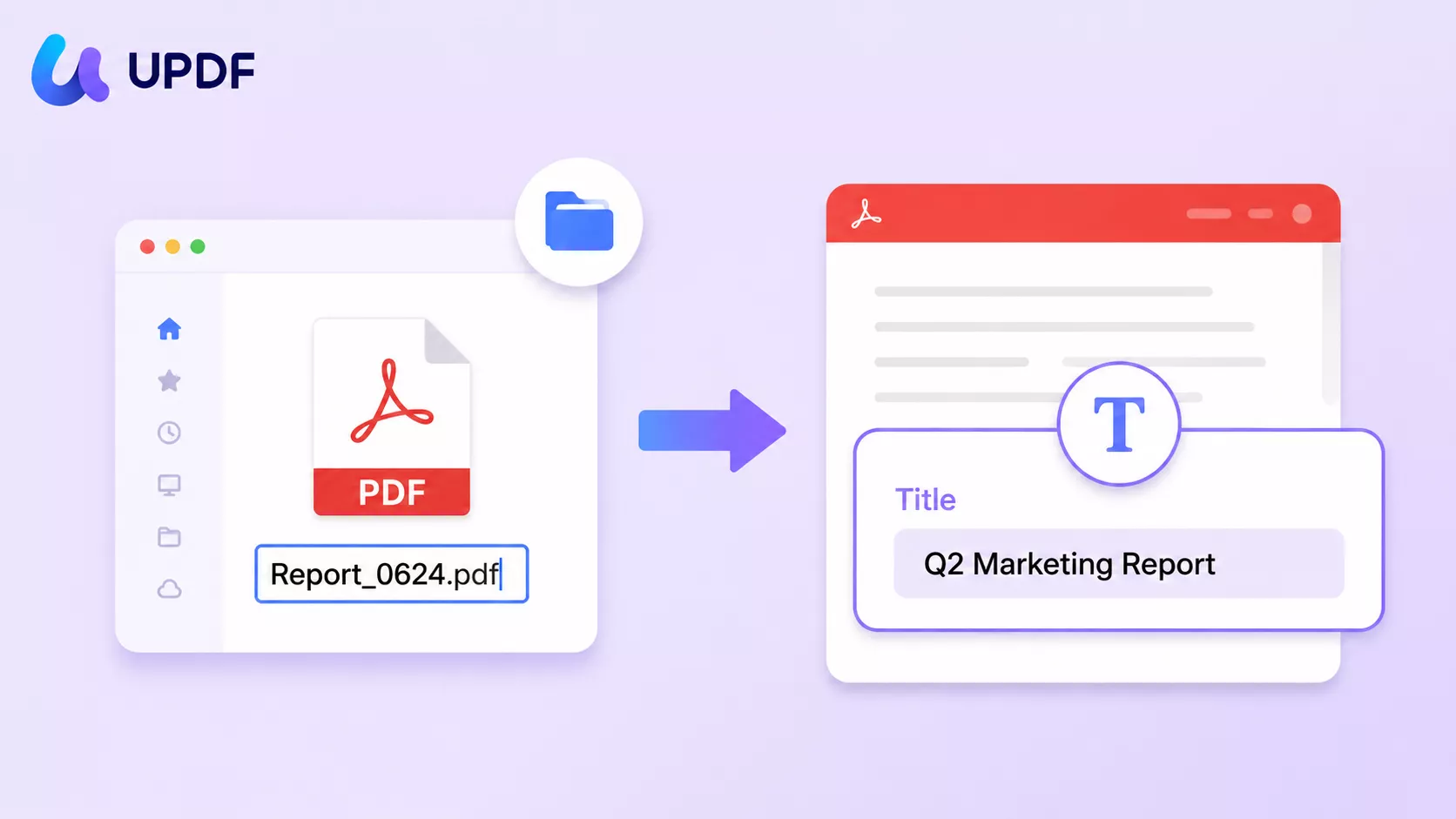
If you're editing more than the title, this is one task inside the broader workflow of how to edit a PDF. For example, when sharing a client proposal named Q4-Proposal.pdf, check the Title and Author fields separately before sending it; the folder name cannot reveal an outdated author. For the other document fields, see how to edit PDF metadata.
Part 1. Which Method Fits Your Situation
| Your situation | Method | Best for |
|---|---|---|
| You have the PDF, no matter where it came from | Edit the title in UPDF Document Properties (Part 2) | The fastest fix; works even when the source file is gone |
| You still have the Word/Pages/LibreOffice source | Change the title at the source and re-export (Part 3) | Keeping the source document and the PDF in sync |
| The PDF is on your phone | Edit on desktop via UPDF Cloud, or fix the visible title text on mobile (Part 4) | People who only have the file on iOS/Android |
| You want to compare tools | Adobe Acrobat (Part 5) | Existing Acrobat subscribers |
Part 2. Change a PDF Title in Properties (Windows & Mac)
This is the method that works in the widest range of cases: it edits the title directly inside the PDF, so you don't need the program that created the file.
Step 1. Open the document in UPDF — if you don't have it yet, download UPDF for free and install it in under a minute — then click Open File and select your PDF.
Windows • macOS • iOS • Android 100% secure
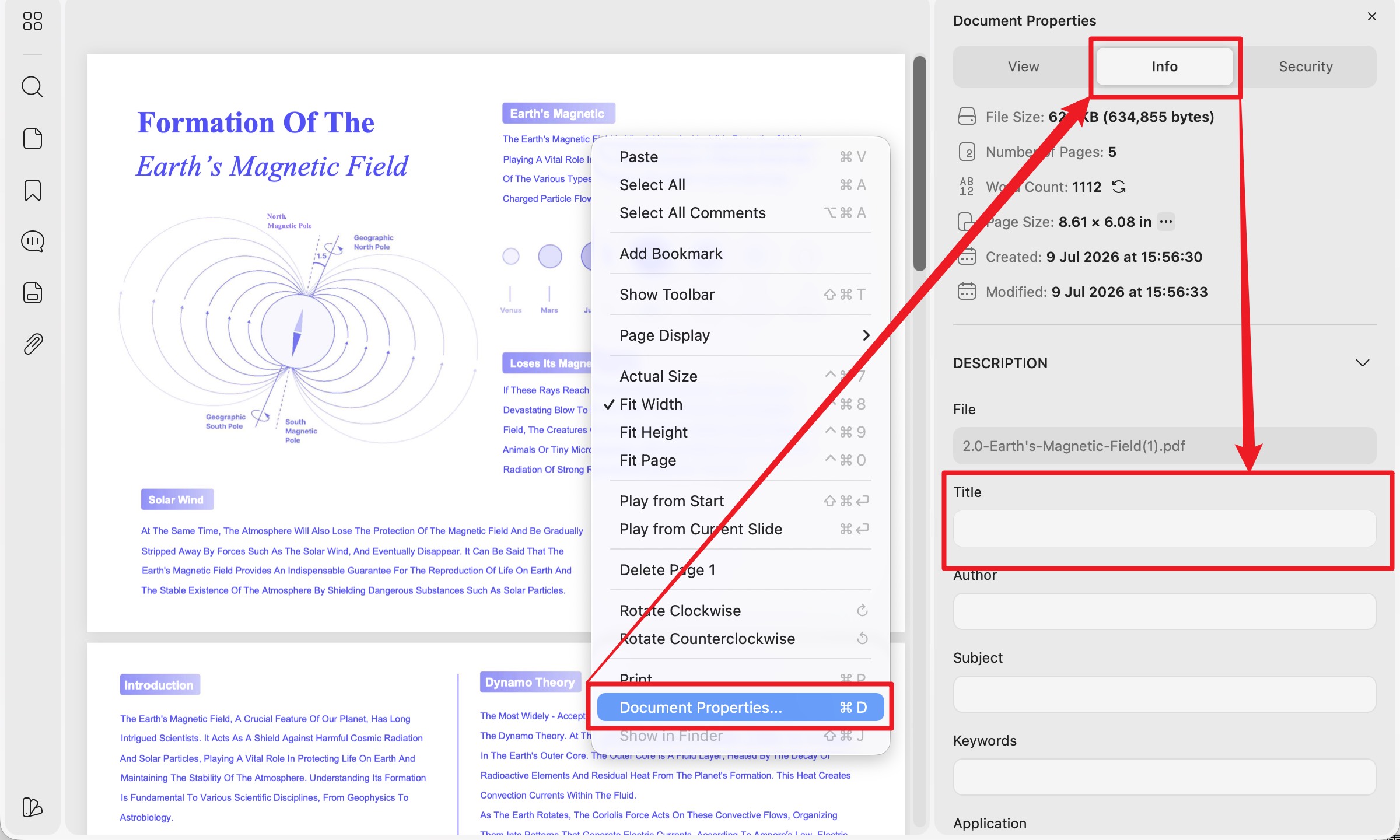
Step 2. Right-click anywhere on the page and select Document Properties. (Keyboard shortcut: Ctrl + D on Windows, Cmd + D on Mac.)
Step 3. Click the Info tab. You'll see the editable metadata fields: Title, Author, Subject, and Keywords.
Step 4. Clear the old Title and type the new one. While you're here, you can correct the Author or add Keywords, which help the file surface in document searches.
Step 5. Close the Properties window and save. Click Save, or use Save → Save As Other if you want to keep the original untouched and write a renamed copy.
Best for:
- any PDF you already have on a Windows or Mac computer, including files whose source document is long gone.
Not for:
- files locked with a permissions (owner) password — the Info fields will be greyed out until the password is removed, which you can only do if you're authorized to edit the file.
UPDF changes the title for free; on the free plan, saving adds a trial watermark to the export. A watermark-free save is included in UPDF Pro, which runs US$49.99/year or US$79.99 for a lifetime license.
Download UPDF for free to try changing a PDF title on your own file — installation is free, and Pro features are available when you need watermark-free export or advanced tools.
Windows • macOS • iOS • Android 100% secure
Part 3. Change the Title at the Source, Then Re-Export
If the PDF was exported from Word (or Pages, LibreOffice, Google Docs, etc.) and you still have that source document, you can correct the title upstream so the source and the PDF stay consistent. The steps differ between Windows and Mac versions of Word, so they're split below.
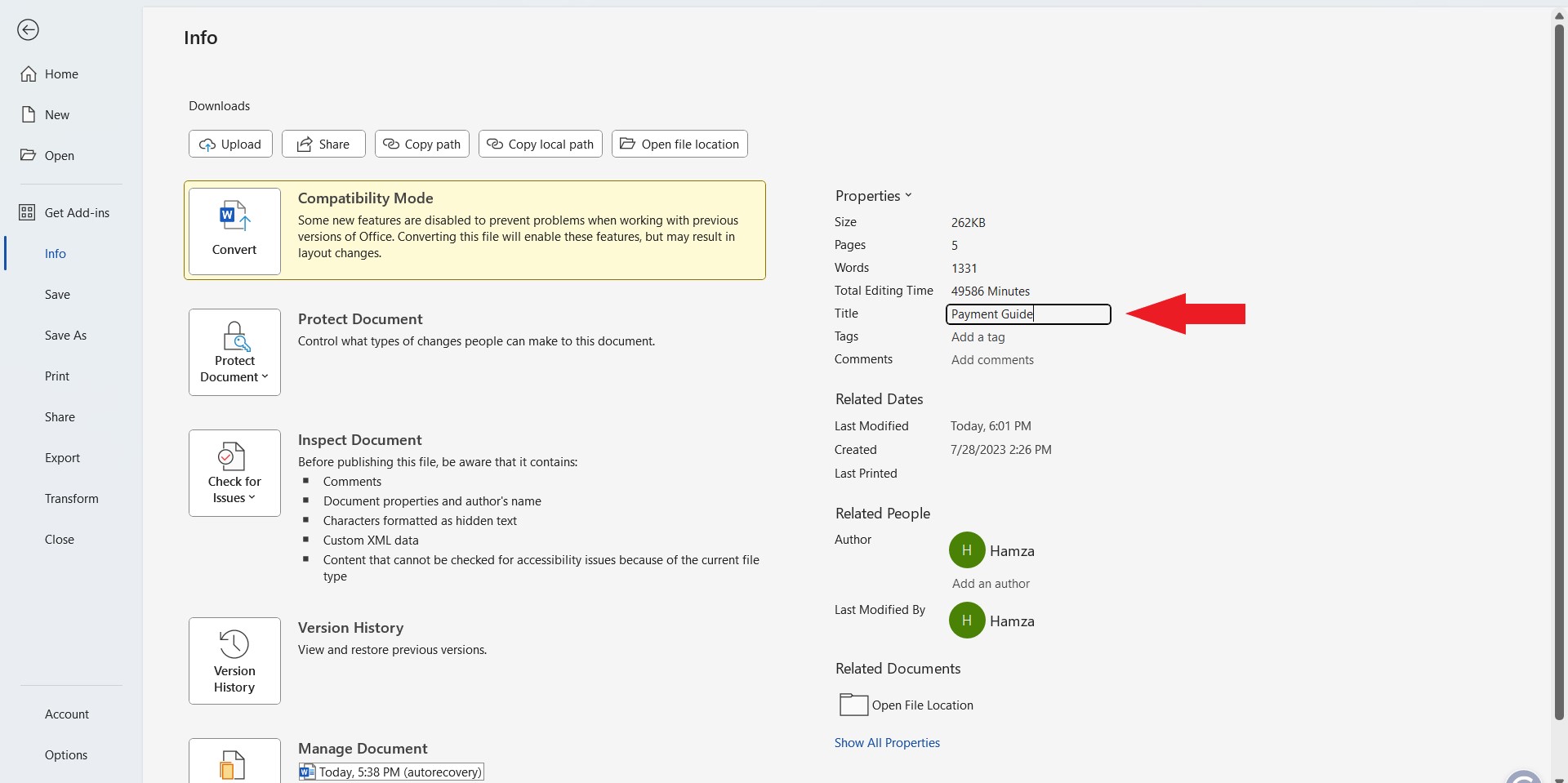
On Windows (Microsoft Word):
Step 1. Open the source document in Word.
Step 2. Click File → Info.
Step 3. Under Properties on the right, find Title and type the correct text. (If Title isn't visible, click Show All Properties at the bottom.)
Step 4. Re-export: File → Save As → choose PDF. The new PDF carries the corrected title.
On Mac (Microsoft Word):
Step 1. Open the source document in Word.
Step 2. Click File → Properties, then open the Summary tab.
Step 3. Type the correct text in the Title field and click OK.
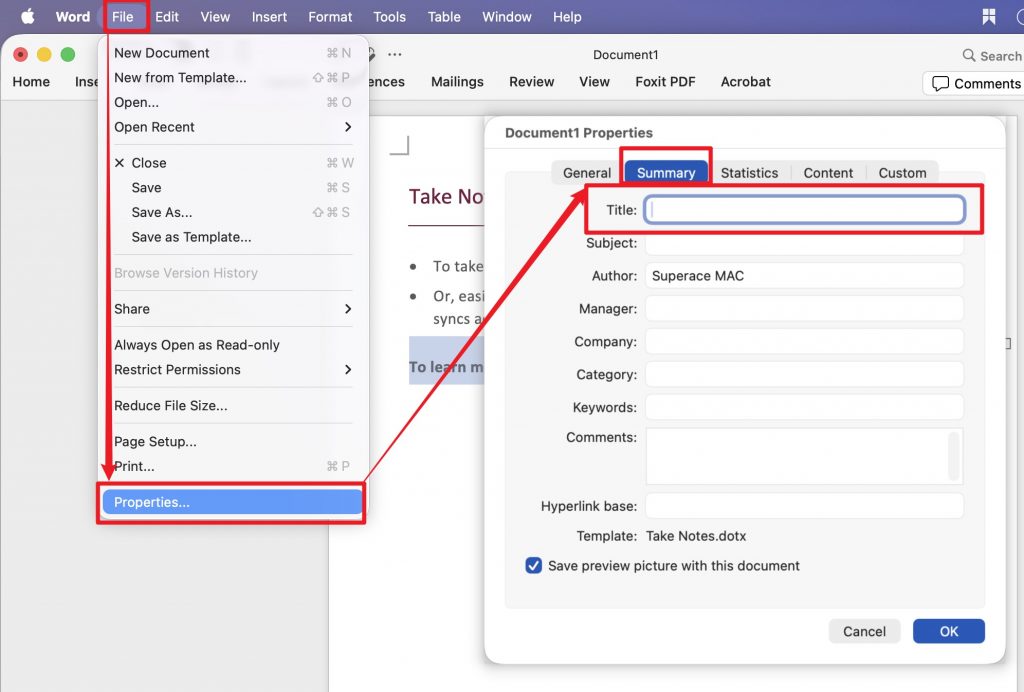
Step 4. Re-export: File → Save As → choose PDF. The new PDF inherits the Title from the document properties. (Alternatively, use File → Print → the PDF button → Save as PDF if you want to set the title only for the exported copy.)
Best for:
- documents you're still actively editing, where you want the source file's metadata and the PDF's to match.
Not for:
- a PDF you received from someone else or downloaded — you won't have the source document, so use Part 2 instead.
Part 4. Change a PDF Title From Your Phone
Here's the honest platform picture, because it's where most articles get mobile wrong. On iOS and Android, the UPDF mobile apps are full PDF editors — text, images, links, OCR, conversion, annotation — but they don't expose a per-file Properties → Info metadata panel the way the desktop apps do. So there are two realistic mobile routes, depending on what you actually need to change.
The information behind the file is worth checking as well as the visible pages. You can start with the video below for an introduction to editing PDF content in UPDF.
Route A — Edit the real title metadata (via UPDF Cloud)
Because one UPDF account works across all four platforms, the title field is best edited on desktop even when the file lives on your phone.
Step 1. In the UPDF mobile app, open the file and upload it to UPDF Cloud (or import it there).
Windows • macOS • iOS • Android 100% secure
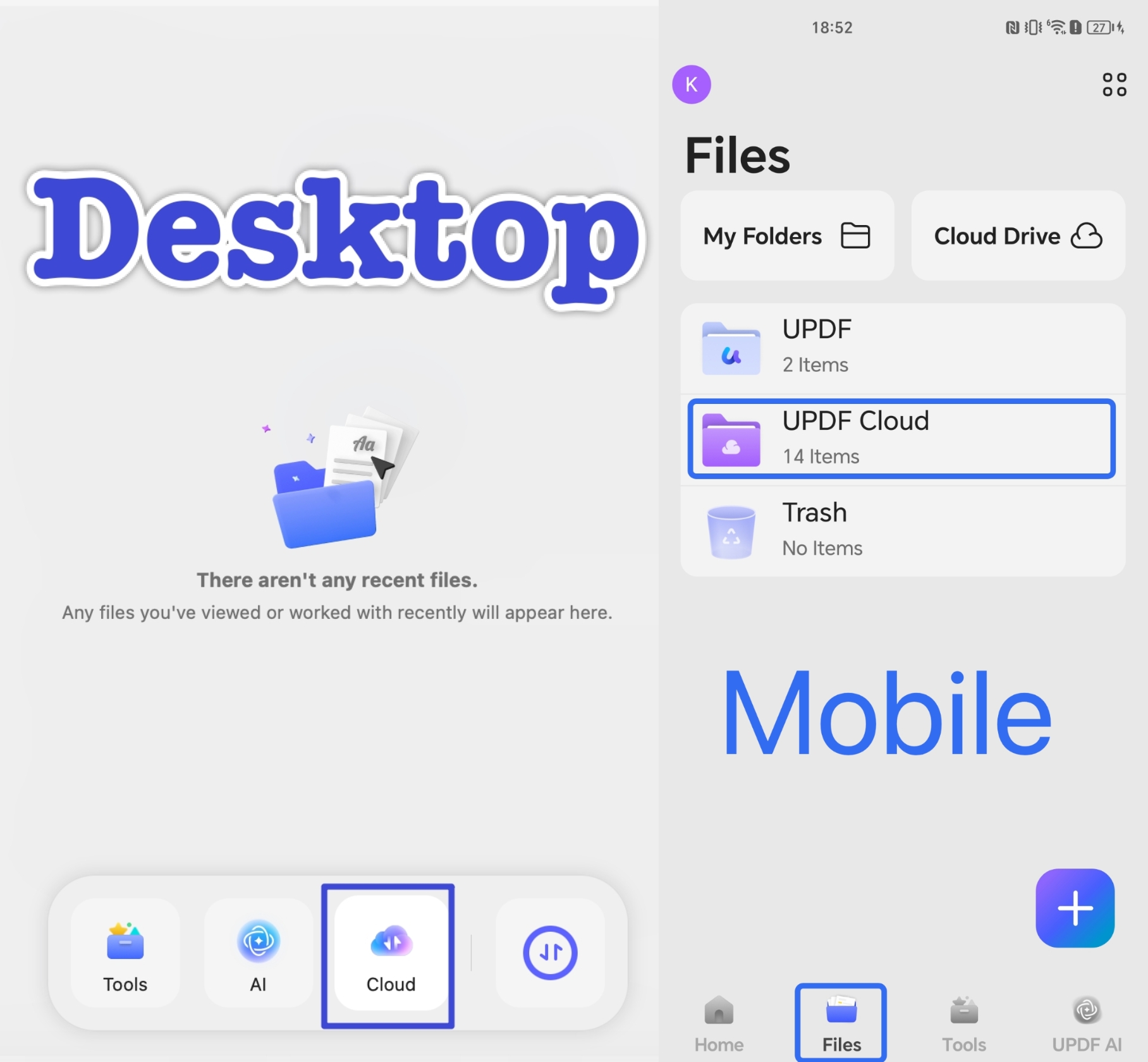
Step 2. On your Windows or Mac computer, sign in to the same UPDF account and open that file from UPDF Cloud.
Step 3. Follow Part 2 — right-click → Properties → Info → edit the Title → save. The updated file syncs back to your phone.
Best for:
- correcting the actual title metadata a browser tab or screen reader reads, when you don't have a computer in front of you right now but will soon.
Route B — Fix a title that's printed on the page (on mobile)
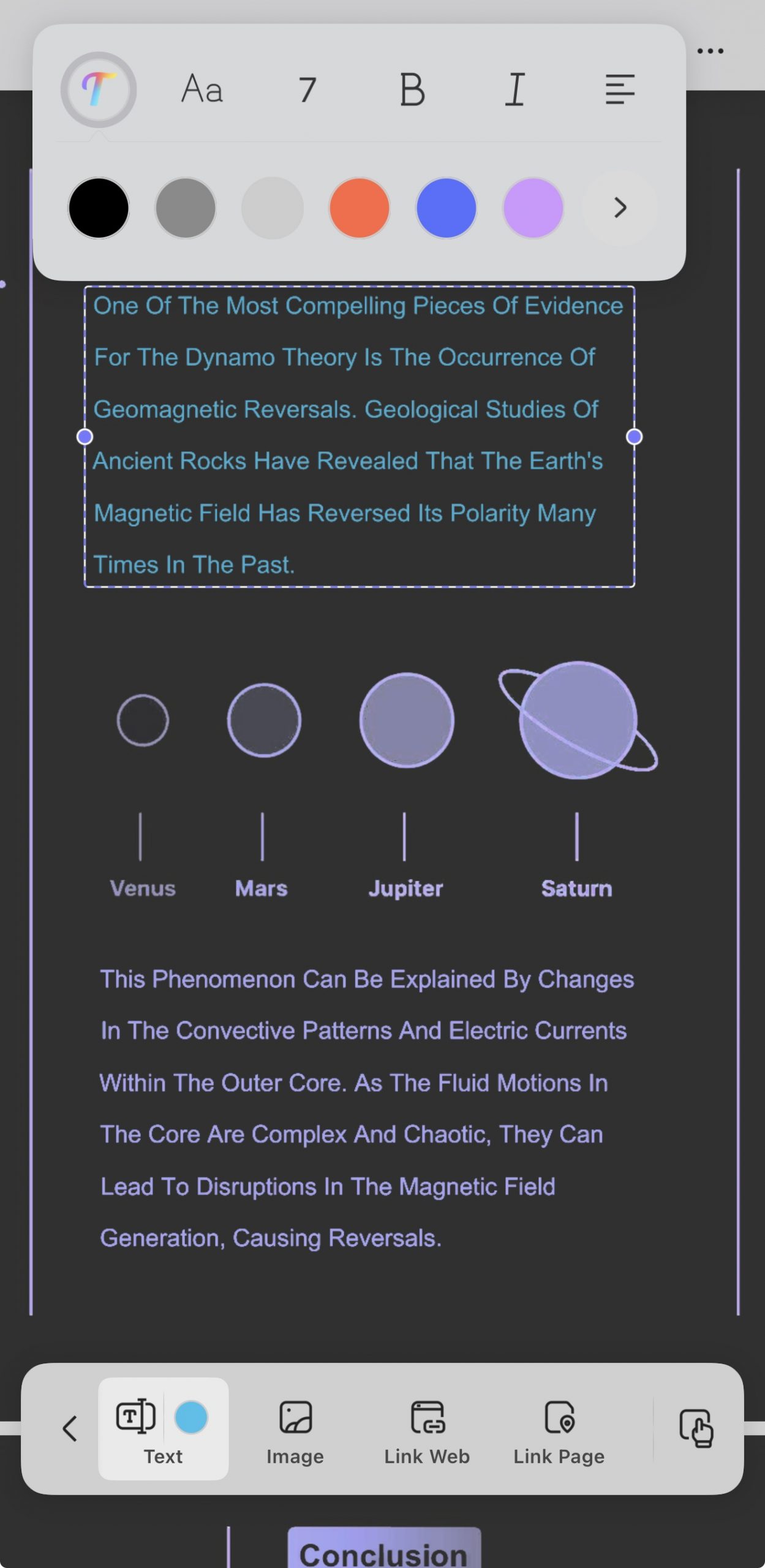
Sometimes what people call "the title" is the visible heading text at the top of page 1, not the metadata field. That you can edit directly on your phone.
On iOS/Android: open the PDF, tap the Edit icon, then tap the heading text to change it, and save from the … menu.
Best for:
- correcting a visible title printed on the document itself.
Not for:
- the metadata title — editing on-page text doesn't touch the file's Info/Title field, so a browser tab or screen reader will still show the old metadata title until you use Route A.
Part 5. Change a PDF Title in Adobe Acrobat
Adobe Acrobat can edit the title too, but only in the paid Acrobat Pro tier — the free Reader can't.
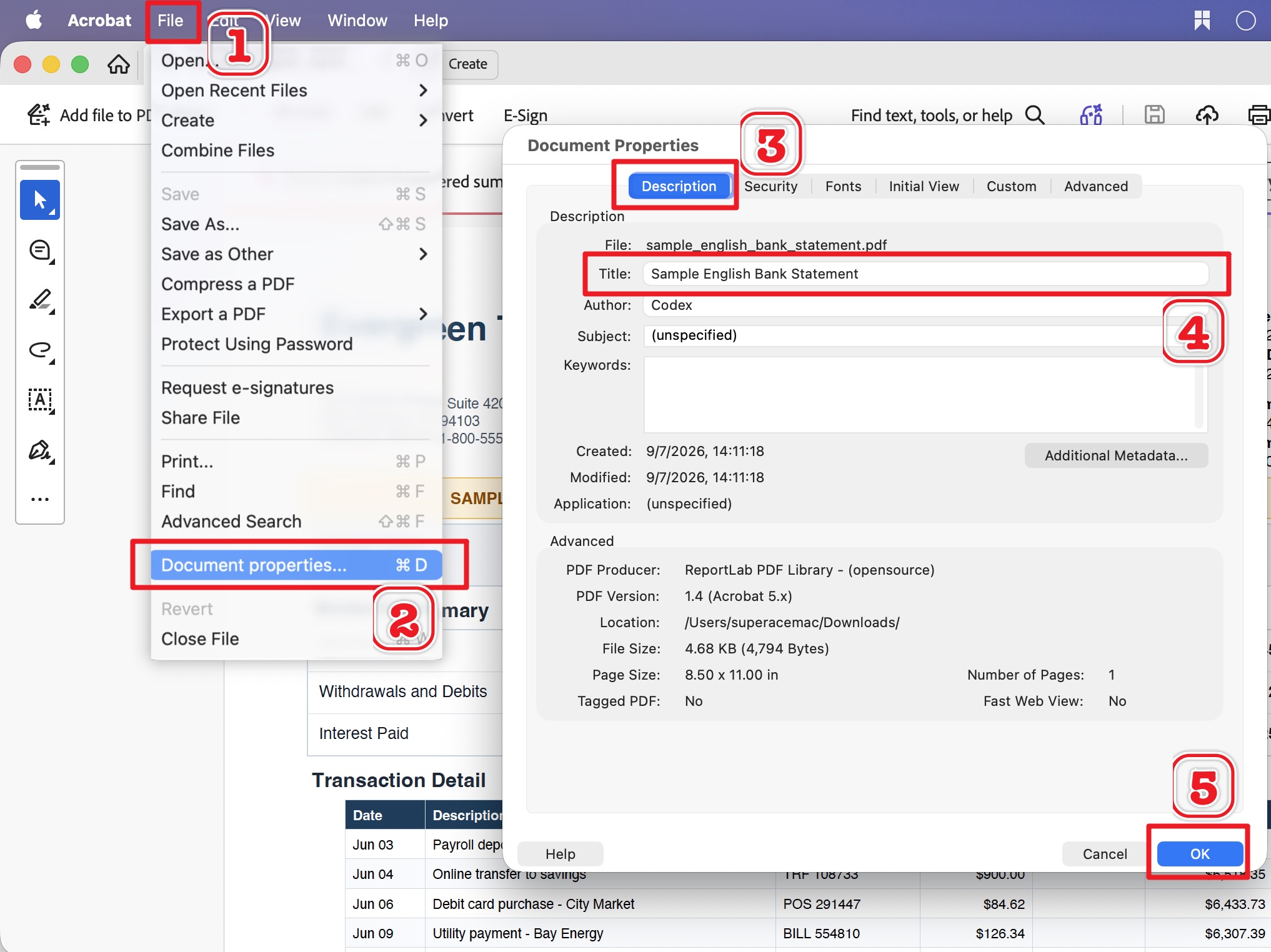
Step 1. Open the PDF in Acrobat.
Step 2. Go to File → Document properties (or Ctrl/Cmd + D).
Step 3. On the Description tab, edit the Title field, then click OK and save.
Best for:
- people who already pay for an Acrobat Pro subscription.
Not for:
- anyone on the free tier — Adobe Acrobat Pro is US$239.88/year (billed monthly at $19.99), and Adobe no longer sells a true perpetual license, only a fixed-term desktop plan. For a one-time task, that's a steep barrier compared with a free-to-try editor.
Part 6. Filename vs. Title vs. Header — What's the Difference?
These three get confused constantly, and picking the wrong one is why a "fixed" title keeps coming back wrong:
- Filename — the label your operating system shows in a folder (
report.pdf). Lives outside the file; renaming it changes nothing inside the PDF. - Title — a metadata field stored inside the PDF. This is what a browser tab, a screen reader, and a library catalog display.
- Header / on-page heading — the visible text printed at the top of a page. Part of the document's content, not its metadata.
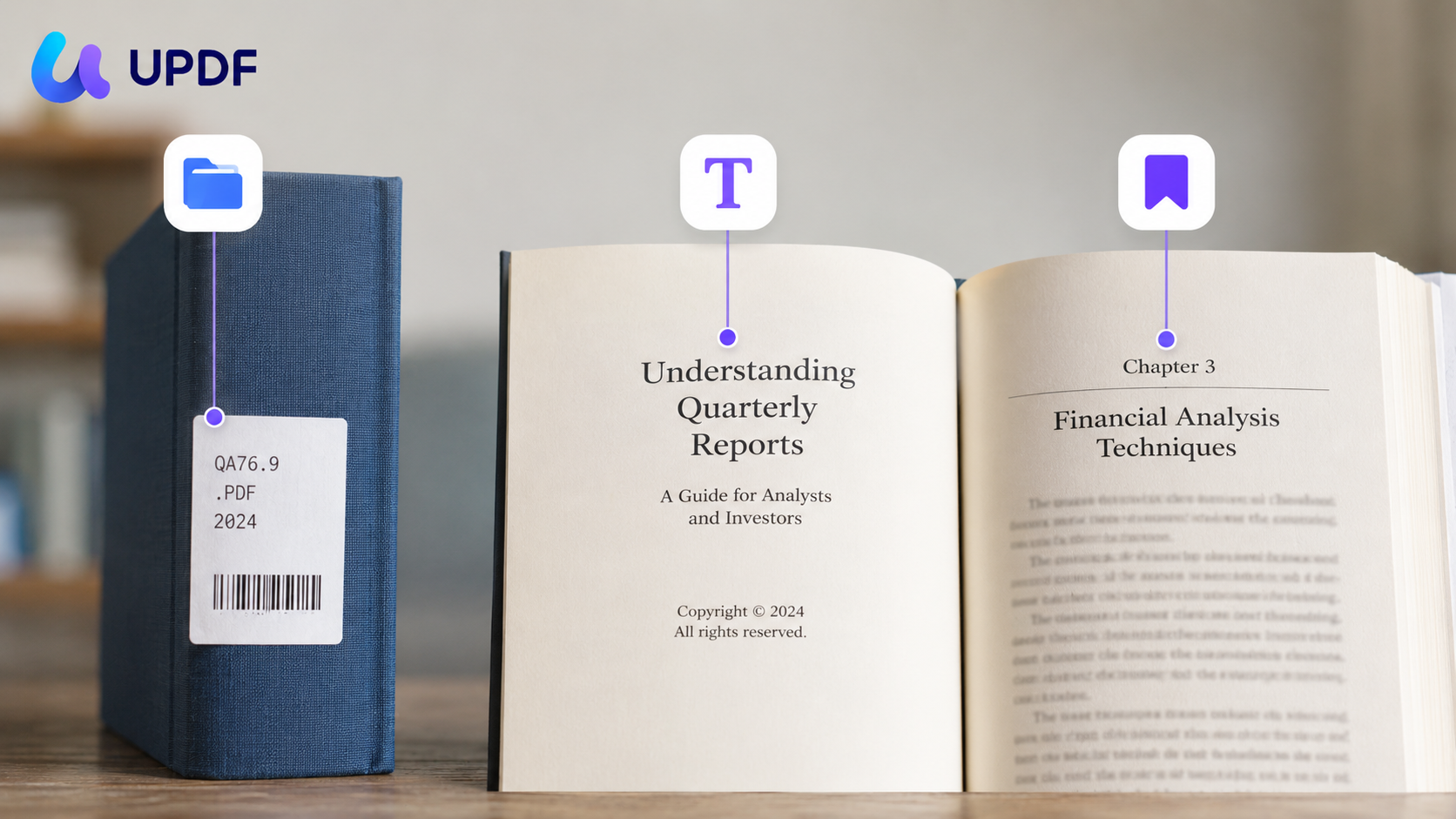
Think of it like a book: the filename is the label on the spine sticker a librarian adds, the title is what's printed on the copyright page that catalogs use, and the header is the chapter heading on the page you're reading. Change the one your problem actually points to.
Why the metadata title matters beyond tidiness: under WCAG 2.4.2 (Page Titled), a document needs a title that describes its topic, and the PDF accessibility standard PDF/UA (ISO 14289) requires that title to be exposed to assistive technologies. That's the mechanism behind the fact that a screen reader announces the PDF's title instead of its filename — so an accurate title is an accessibility requirement, not just a nicety.
Part 7. Method Comparison
| Method | Needs source file? | Platforms | Free? | Limitation |
|---|---|---|---|---|
| UPDF Document Properties (Part 2) | ✗ | Windows, Mac | Yes; watermark on free export | Blocked by a permissions password until removed |
| Source file re-export (Part 3) | ✓ | Any with Word/Pages/etc. | Depends on that software | Useless if you don't have the source |
| UPDF Cloud → desktop (Part 4A) | ✗ | Phone + a computer | ✓ watermark on free export | Needs access to a desktop at some point |
| On-page text edit (Part 4B) | ✗ | iOS, Android | ✓ watermark on free export | Doesn't change the metadata title |
| Adobe Acrobat (Part 5) | ✗ | Windows, Mac | ✗ — Pro only | US$239.88/yr; no perpetual license |
Part 8. Edge Cases
- The Info fields are greyed out and won't accept typing. The PDF has a permissions (owner) password restricting edits. You'll need to remove that restriction first, and only do so on a file you own or are authorized to edit.
- You re-exported from Word but the PDF title didn't update. Word only writes the Title into the PDF if the Title property was set before export. Set it in File → Info first, then export — re-saving alone won't inject it.
- Two files look identical but one has the right title. The title is invisible in normal reading view. Open Properties → Info on each to see which carries the correct metadata before you send the wrong one.
Part 9. FAQ
1. How do I remove the title and author from a PDF entirely?
Open the PDF in UPDF, right-click → Document Properties → Info, delete the text in the Title and Author fields, and save. Empty fields mean the file carries no title or author metadata.
2. Does changing the PDF title rename the file on my computer?
No. The title is metadata inside the PDF; the filename is separate. To change both, edit the title in Properties and rename the file in your folder — they're two independent actions.
3. Can I batch-change titles across many PDFs at once?
The per-file Properties method handles one document at a time. For a large set, it's faster to correct titles at the source before exporting, or handle them individually — there's no bulk title-metadata editor in the standard workflow.
4. Is the PDF title the same as the bookmark or heading on page one?
No. The title is a metadata field; a heading is visible page content and a bookmark is a navigation entry. They can all differ, and editing one doesn't change the others.
Conclusion
Changing a PDF title comes down to one principle: edit the layer your problem actually lives in — the metadata title inside the file, not the filename outside it or the heading printed on the page. For nearly every case, opening the PDF in UPDF and editing the Info fields under Properties is the fastest route, and it works even when the original source document is gone. When the file is only on your phone, UPDF Cloud lets you make that same edit from a desktop and sync it back.
Download UPDF for free to try changing a PDF title on your file — installation is free, and Pro features are available when you need watermark-free export or advanced tools.
Windows • macOS • iOS • Android 100% secure









 Enid Brown
 Enola Davis
 Enrica Taylor