 UPDF
UPDF
 UPDF for Windows
 UPDF for Mac
 UPDF for iPhone/iPad
 UPDF for Android
 Nomostar
 UPDF AI Online
 UPDF Sign
 IvyCraft
 Edit PDF
 Annotate PDF
 Create PDF
 PDF Form
 Edit links
 Convert PDF
 OCR
OCR PDF to Word
 PDF to Image
 PDF to Excel
 Organize PDF
 Merge PDF
 Split PDF
 Crop PDF
 Rotate PDF
 Protect PDF
 Sign PDF
 Redact PDF
 Sanitize PDF
 Remove Security
 Read PDF
 UPDF Cloud
 Compress PDF
 Print PDF
 Batch Process
 About UPDF AI
 UPDF AI Solutions
 AI User Guide
 FAQ about UPDF AI
 Summarize PDF
 Translate PDF
 Chat with PDF
 Chat with AI
 Chat with image
 PDF to Mind Map
 Explain PDF
 PDF AI Tools
 Image AI Tools
 AI Chat Tools
 AI Writing Tools
 AI Study Tools
 AI Working Tools
 Other AI Tools
 AI Bookmark Generation
 AI Bookmark Summary
 AI Watermark Generation
 AI Background Generation
 AI Sticker Generation
 AI Stamp Generation
 AI Editing Suite
 UPDF Copilot
 AI Page Management
 AI Semantic Search
 PDF to Word
 PDF to Excel
 PDF to PowerPoint
 Enterprise Solution
 Enterprise Sign
 Enterprise AI
 Enterprise Plan
 Enterprise User Guide
 Enterprise Webinar
 IT
IT Education
 Construction
 Financial Service
 Healthcare
 Insurance
 Legal
Legal Manufacturing
 Government
 Researchers & PhDs
 Solopreneurs & Freelancers
 Lawyers & Legal Professionals
 Real Estate Agents & Brokers
 Education Solution
 Customer Stories
 User Guide
 UPDF Tricks
 FAQs
FAQs UPDF Reviews
 Download Center
 Blog
Blog Newsroom
 Tech Spec
 Updates
 UPDF vs. Adobe Acrobat
 UPDF vs. Foxit
 UPDF vs. PDF Expert

Need to highlight a PDF in Chrome? You may not need to install an extension. Chrome’s built-in PDF viewer now lets you select text, apply one of 10 highlight colors, add notes, and draw directly on a PDF. However, its color palette cannot be customized, and it does not support clean rectangular area highlighting over images, diagrams, or other non-text content.
In this guide, you will learn how to use Chrome’s built-in PDF highlighter and compare five Chrome extensions for syncing, organizing, sharing, or exporting highlights. We will also introduce UPDF for users who need custom colors, precise area highlighting on Mac, and more complete PDF annotation management.
How to Highlight a PDF in Chrome Without an Extension
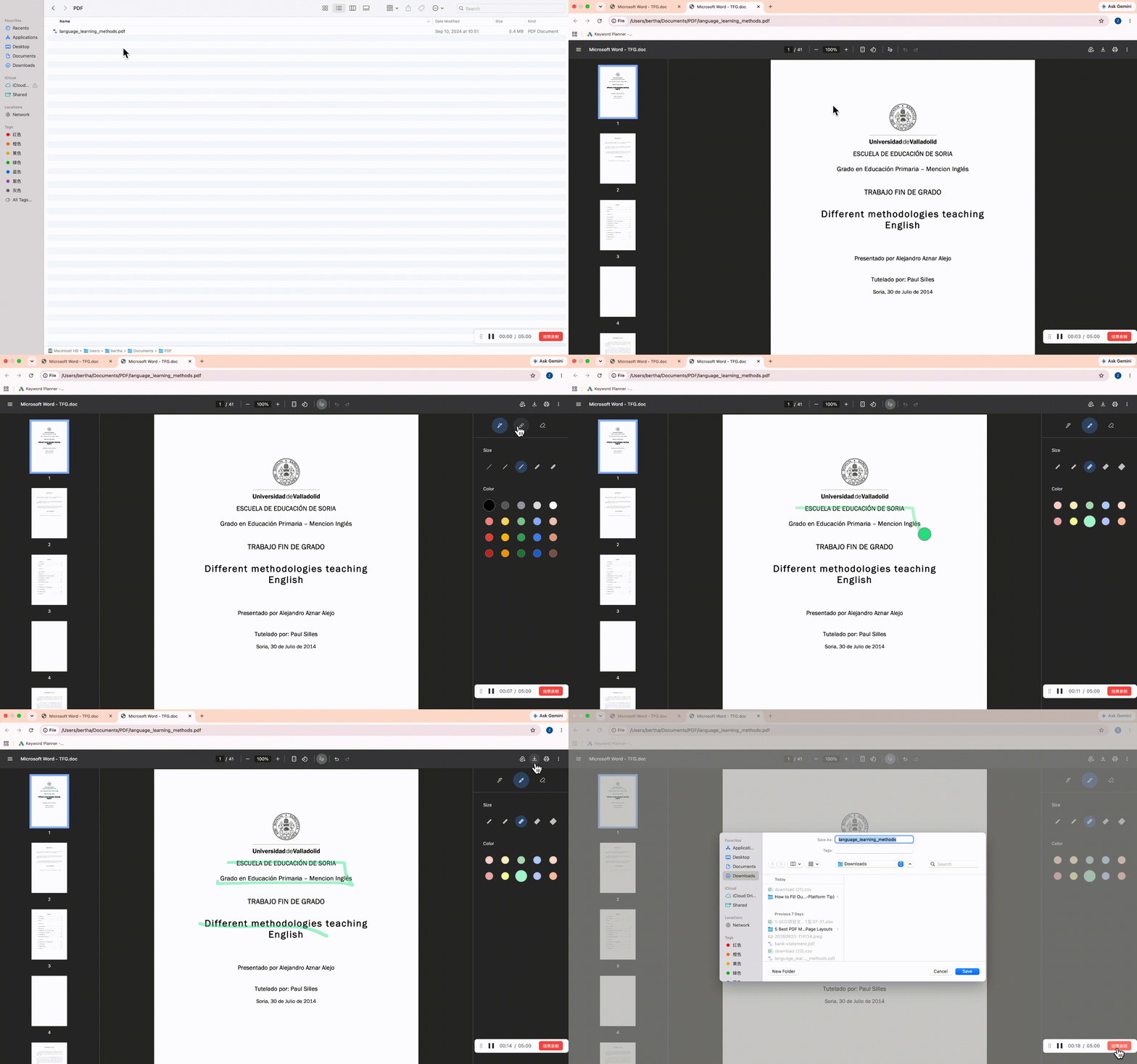
Recent versions of Chrome include a built-in PDF annotation tool, so you can highlight selectable text without installing an extension. It is suitable for quick reading, studying, and reviewing documents directly in the browser.
Step 1: Open the PDF in Chrome. If it opens in another PDF application, right-click the file and select Open With > Google Chrome.
Step 2: Select the text you want to mark. Choose Highlight from the floating toolbar or annotation controls.
Step 3: Select one of the 10 available highlight colors. You can also add a note if you want to record why the passage is important.
Step 4: Save or download the annotated PDF to retain your changes.
| Chrome's built-in PDF highlighter | Supported? |
| Highlight selectable text | Yes |
| Choose from preset colors | Yes, 10 colors |
| Create a custom highlight color | No |
| Add notes to highlighted text | Yes |
| Draw on a PDF | Yes |
| Apply clean rectangular highlights to images or blank areas | No |
| Install an extension | Not required |
Chrome can mark non-text content with its drawing tool, but the result is freehand and may look uneven. It does not provide a precise rectangular area-highlighting tool for diagrams, screenshots, charts, or scanned content. Users who need custom colors or clean area highlights can consider the UPDF method introduced later in this guide.
Chrome's built-in tool is sufficient for occasional text highlighting. A PDF highlighter Chrome extension may still be useful if you want to sync highlights between devices, organize research into folders, annotate both PDFs and web pages, share notes with a team, or export highlights to a note-taking platform.
The five options below focus on different workflows, so the best choice depends on what you want to do with the highlights after creating them.
5 PDF Highlighter Chrome Extensions
Here are our top 5 picks organized according to their features, pros, cons, and customer ratings. With this detailed comparison, you can easily pick out one that brings you the best value. Before diving into the following highlighters, you can check the comparison table first in order to choose the one that fits you the best:
| Extension | Best for | Highlights PDFs and web pages | Syncs highlights | Export options | Works offline |
| Weava | Academic research | Yes | Yes | Verify before publishing | Verify |
| Web Highlights | Saving and organizing web research | Yes | Yes | Notion, HTML and more | Verify |
| Glasp | Knowledge sharing | Yes | Yes | Note-taking workflows | Verify |
| Hypothesis | Public or private collaborative annotation | Yes | Yes | Verify | Verify |
| Kami | Education and classroom collaboration | Yes | Yes | Verify | Verify |
1. Weava Highlighter
Weava Highlighter Chrome Extension is the best free extension to highlight PDFs on Chrome and other websites while reading them. While it works with most websites, it may not work with a few with conflicting code.
Weava not only allows you to create annotations for every highlight but automatically creates them for you to make the process of highlighting your PDF documents quicker. Moreover, once you highlight a source, it is saved, and whenever you access it for the next time, all your highlights will be there for you to quickly review the document unless the source code has changed.

Features
- Stores your notes in the cloud to access anywhere
- Organize your PDF work on folders and sub-folders for easy finding
- Works on every website that has compatible code
Pros:
- Supports highlighting Websites and PDF
- Make annotations for highlights
- Supports keyboard shortcuts for quick activation and deactivation
Cons:
- Highlight color customization is only available in the premium version
- Does not currently support highlighting PDF content in some third-party software like Google Classroom.
Customer Ratings: 4 Stars
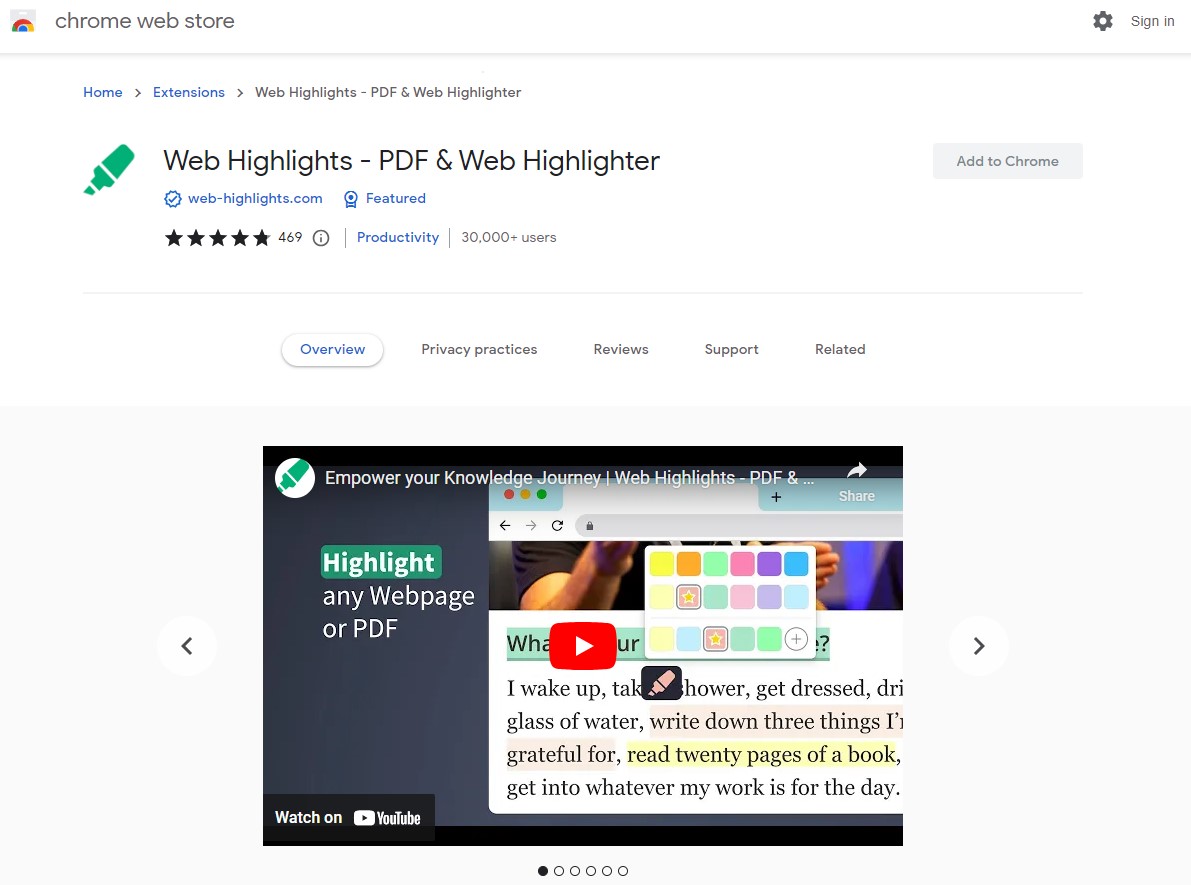
2. Web Highlights
Our next pick for a PDF highlighting extension for Chrome is Web Highlights. It is designed to improve productivity and does not require any registration to begin using. It brings all the basic PDF highlighting features like using different colors, taking notes with highlights, or searching for highlights in PDF documents. Moreover, PDF highlighting supports offline usage here, meaning that you can work without an internet connection.
Whenever you highlight something here, your document and highlights are kept private. Those are only visible to you unless you share them with someone else. The extension itself brings privacy by ensuring that your page content or highlight data is not used, transferred, or sold to anyone.
Features
- Allows you to save pages as bookmarks for quick revision
- Supports exporting to HTML, PDF, Notes, Kindle, Notion, etc.
- Share your notes and collaborate with others
Pros:
- Highlighting works on mobile and desktop web app
- Supports keyboard shortcuts for efficient highlighting
- Highlight websites and PDFs with multiple colors
Cons:
- Only recalls highlights if the URL for the page remains the same
- Sorts highlight in web page name that can be slightly confusing.
Customer Ratings: 4.9 Stars
3. Glasp
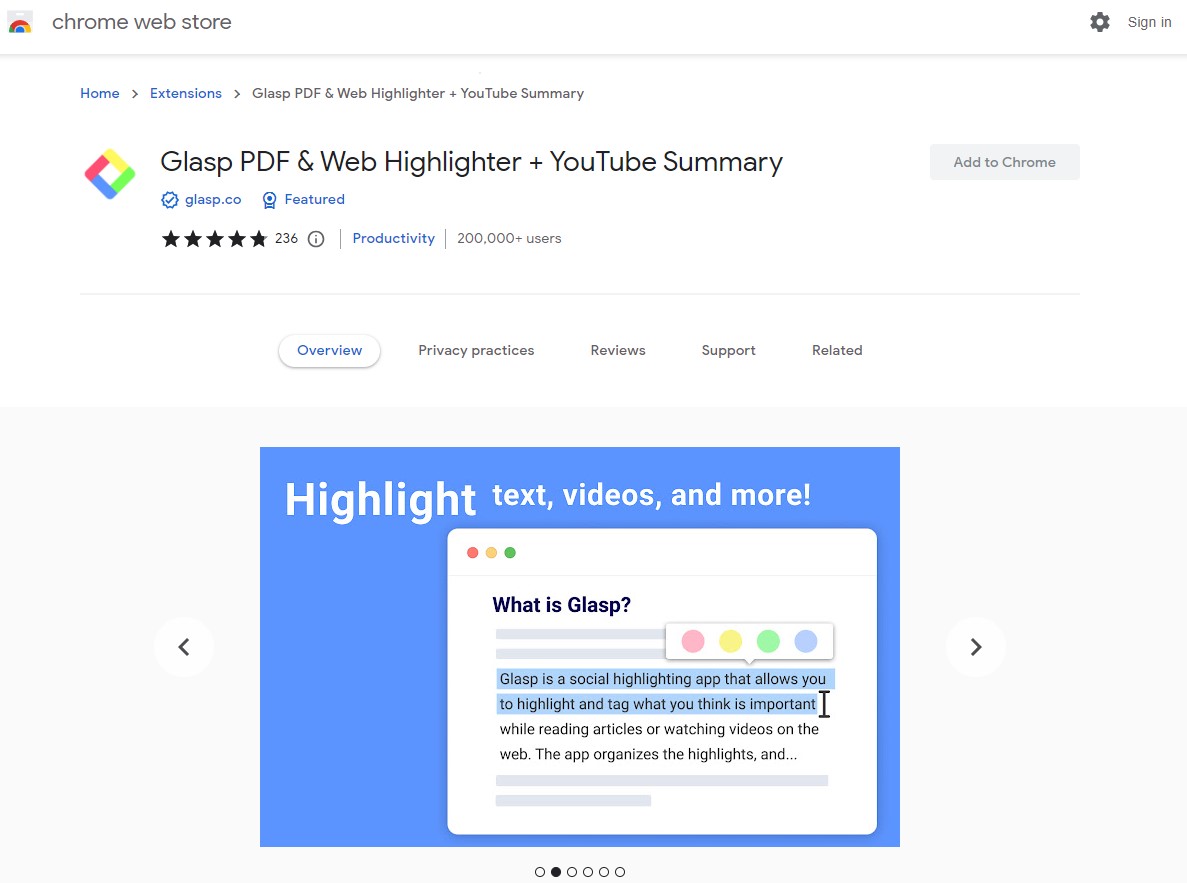
Glasp is a note-taking tool designed with AI capabilities in it. It can help you highlight PDF documents and web pages inside the Chrome browser without requiring any third-party software on your device. Highlights stay on the PDF or page for later use, and you can share your highlights with others to help collaboration.
It first lets you highlight your PDF content and then brings multiple features like linking, tagging, annotating, etc. The sidebar is one of its best interface features, making version tracking and collaboration simple.
Features
- Glasp can generate a summary of content based on your annotations
- You can add tags and links to your content
- Summarizes whole YouTube videos, web articles, and PDFs with AI.
Pros:
- Highlight PDF and Web with different colors
- Supports adding annotations to your highlights to make notes
- Highlight content and directly copy all highlights to your note-taking application.
Cons:
- Most good PDF highlighting features are restricted to premium users only.
- Summaries cannot be the most accurate at times
Customer Ratings: 4.9 Stars
4. Hypothesis
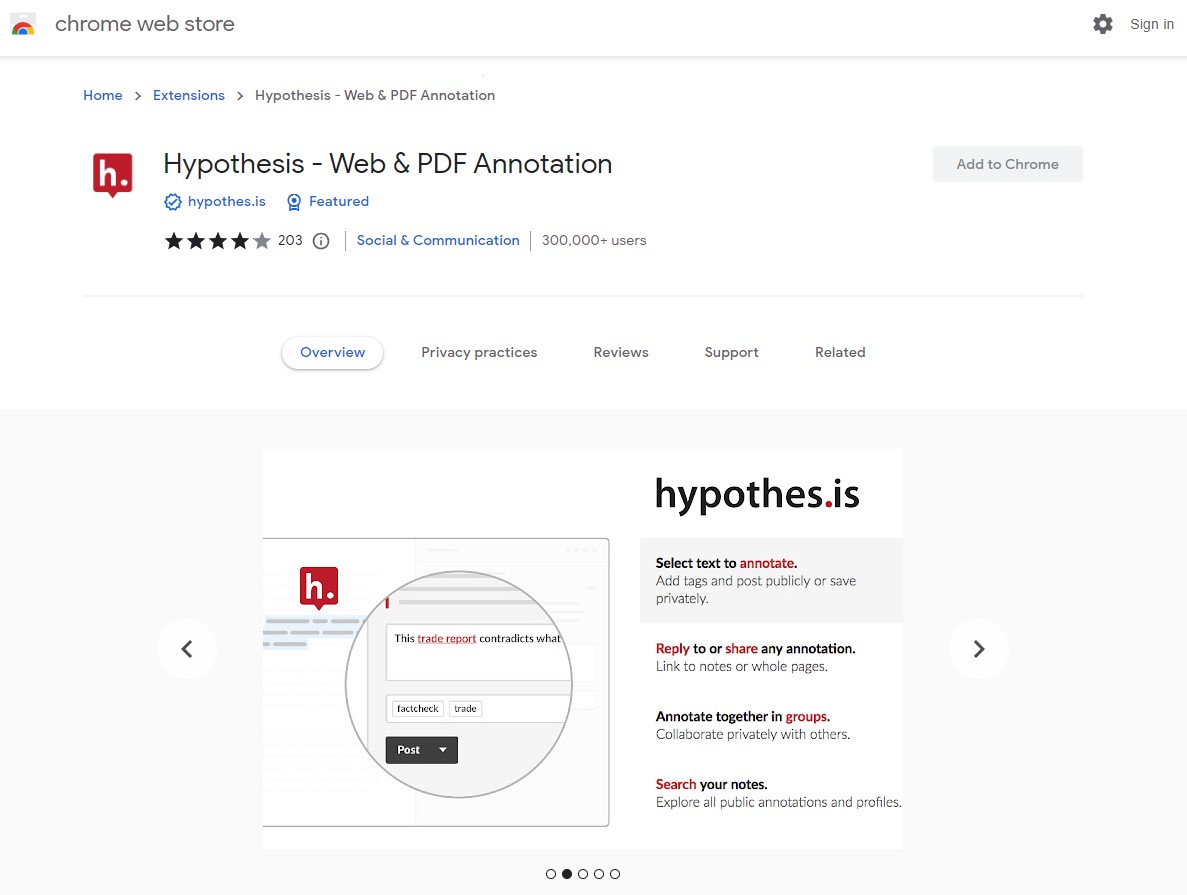
Hypotheses is an annotation Chrome extension that supports annotating both PDFs and Web pages. It brings simple and easy highlighting features with no complex functionalities. However, it excels at offering complex annotation features through its idea of social annotation, which may not be the best choice for some use cases.
With this extension, users can organize their research and take notes, including all the highlights, with the option to make it visible to themselves only or to the public. However, this mode for sharing highlights to the public may not be the most secure option to work on crucial documents.
Features
- Supports discussions via collaboration features
- You can separately take personal notes from PDFs and web pages
- Works on Web pages and EPUBs in addition to PDF
Pros:
- Simplest PDF highlighting experience with multiple colors
- Highlights can be accompanied by threaded conversions, information tags, and resource links
- Options for highlighting content for private view only or public view are helpful in use cases like online classes and meetings.
Cons:
- A simple highlighting job may require you to sign in, so productivity issues.
- All your highlights are accessible to others, which raises privacy concerns.
Customer Ratings: 4 Stars
5. Kami
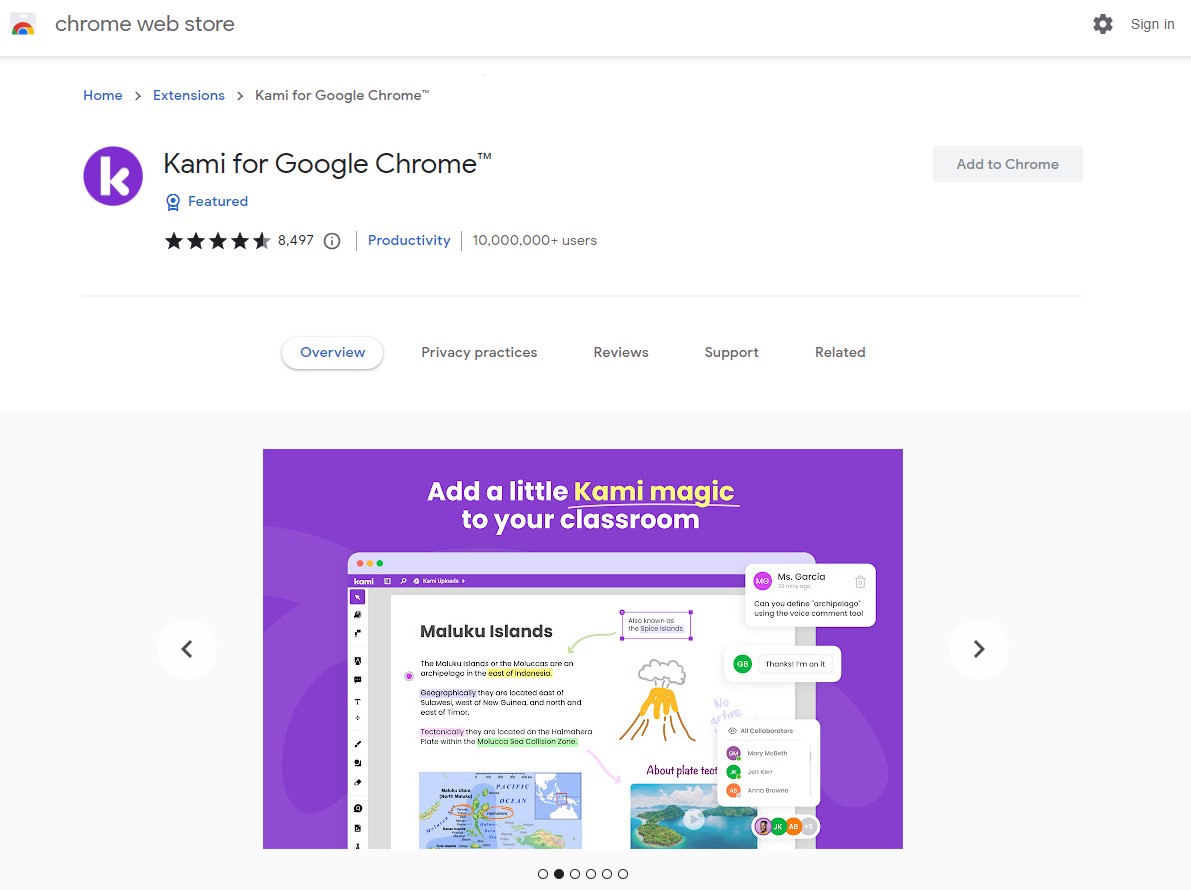
Our last pick here is Kami, which is a well-known PDF annotating Chrome extension with a lot of highlighting features. While you can highlight PDF text with customizable styles and colors, it supports other features like underlining and striking text. Moreover, it allows you to add sticky notes and comments to your PDF document highlights.
To make reviewing highlighted content easier, you can record voice annotations with Kami and conveniently collaborate with others since it seamlessly integrates with several online storage and collaboration tools. Kami also allows you to highlight PDFs offline and re-access your offline highlights for the same document.
Features
- Add freehand sketches to your PDF or use rulers
- Add media content from online or offline sources
- It comes with accessibility tools, including voice typing, read-aloud, etc.
Pros:
- Highlight and annotate with collaboration in real-time
- Share information resources with highlights using Kami Whiteboard
- Highlight PDFs, Docs, PPTs, images, and spreadsheets.
Cons:
- Not completely focused on highlighting, it brings more annotation features, which can be confusing.
- Highlighting and annotating features for different users are in one app, which can be overwhelming.
Customer Ratings: 4.6 Stars
A More Precise Way to Highlight and Annotate PDFs: UPDF
Best for:
- Custom-colored highlights, area highlighting, and managing multiple types of PDF annotations in one place.
Chrome is convenient for quickly highlighting selectable text, but its 10 preset colors cannot be customized, and its drawing tool cannot create a clean, even highlight over a chart, image, or scanned section. If these limitations affect your workflow, UPDF provides more precise PDF highlighting and annotation tools on Windows, Mac, iOS, and Android.
With UPDF, you can select Highlight, Strikethrough, Underline, or Squiggly depending on how you want to review the text. For example, a student can highlight key evidence, use underlining for definitions, and apply strikethrough to information that should be removed or revised. Instead of being limited to a fixed set of colors, you can choose a custom color from the color palette and build a consistent color-coding system for different subjects or review statuses. If you need detailed instructions, see how to strikethrough text in a PDF.
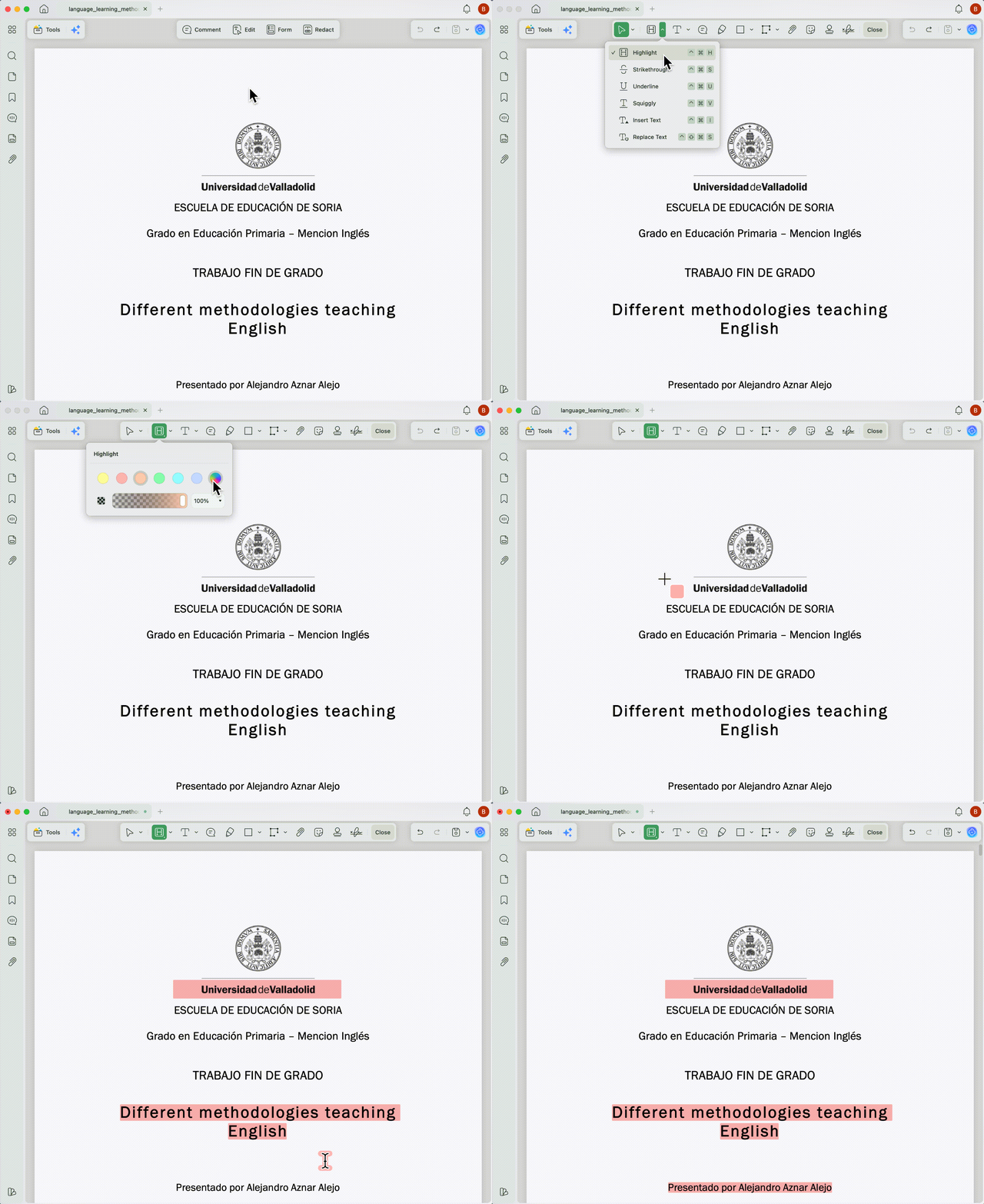
UPDF for Mac also supports area highlighting. You can apply an even block of color over a diagram, chart, screenshot, scanned paragraph, or another non-text area instead of trying to cover it with irregular freehand strokes. This is especially useful when reviewing visual reports, design drafts, scanned study materials, and image-based PDFs.
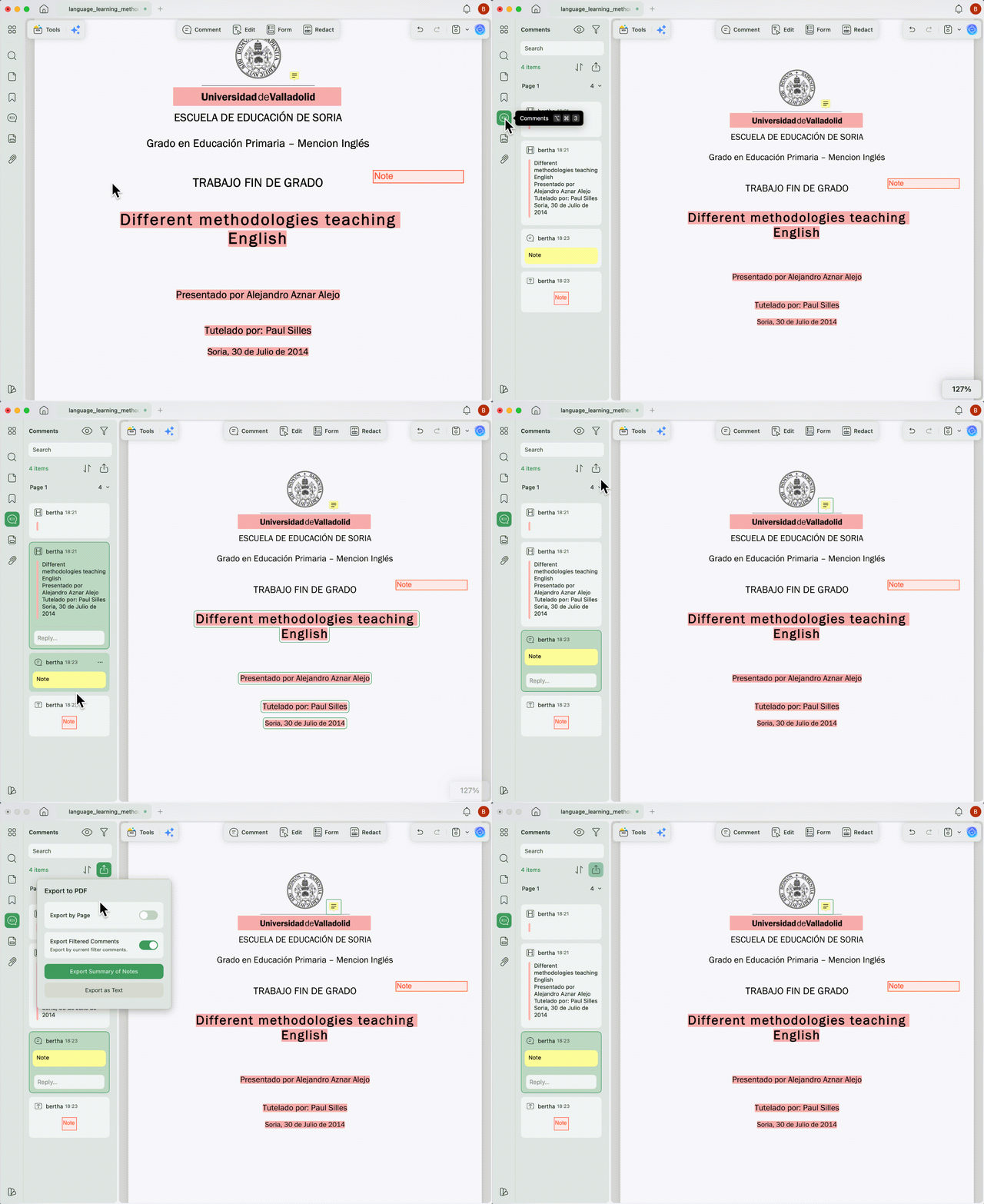
All added highlights and other annotations can be reviewed in the Comments list. Clicking an item takes you directly to its location in the PDF, which saves time when revisiting a long research paper, contract, or report. If the document contains different types of comments, you can also export the annotations separately for review, record keeping, or sharing with a colleague without manually searching every page.
Beyond highlighting, UPDF can edit PDF text and images, organize pages, convert and OCR PDFs, protect documents, fill forms, and use AI to summarize or explain content, so you do not need separate tools for the rest of the PDF workflow.
If you need more control than Chrome or a browser extension provides, download UPDF and try its PDF highlighting and annotation tools for free.
Windows • macOS • iOS • Android 100% secure
You can also read the complete guide on how to annotate a PDF to learn about notes, shapes, stamps, drawings, and other markup options.
What If Chrome's PDF Highlighting Tool Does Not Work?
The highlight option does not appear
Make sure Chrome is updated and that the PDF is open in Chrome’s built-in PDF viewer rather than a third-party extension or another PDF application.
The text cannot be selected
The PDF may be scanned or image-based. Chrome can recognize text in some scanned documents, but results depend on the file. For image areas or layouts that cannot be selected cleanly, use an area-highlighting or OCR-capable PDF tool.
See this guide to learn how to highlight PDF text, images, and scanned documents.
A Chrome extension cannot access a local PDF
Open the extension’s settings and check whether Allow access to file URLs is enabled. Only grant this permission to extensions you trust.
The highlight is missing after reopening the PDF
Check whether the changes were saved to a downloaded copy of the PDF or only stored in the extension’s account. Some browser extensions organize highlights separately instead of embedding them in the PDF itself.
FAQ
What is the best PDF highlighter for Chrome?
Chrome’s built-in viewer is suitable for quick text highlighting without an extension. Weava, Web Highlights, Glasp, Hypothesis, and Kami serve different research and collaboration needs. For more advanced PDF-native annotation, custom colors, comment management, and area highlighting on Mac, UPDF is a more complete option. You can compare additional options in this guide to the best PDF highlighters.
Can Chrome highlight an image or non-text area in a PDF?
Chrome does not currently provide a precise rectangular area-highlighting tool. You can use its drawing tool to mark the area manually, but the result may be uneven. UPDF for Mac supports area highlighting for images, charts, scanned passages, and other non-text content.
Can I customize the PDF highlight color in Chrome?
Chrome currently provides 10 preset highlight colors, but it does not allow you to create a custom color. UPDF includes a color palette for choosing custom highlight colors.
How do I delete highlights from a PDF?
Select the existing highlight and use the delete or remove option available in the PDF viewer or annotation tool. The exact controls differ between Chrome, extensions, and PDF editors. Follow this guide if you need step-by-step instructions to remove highlights from a PDF.
Are Chrome PDF highlights saved automatically?
Do not assume that every tool saves highlights in the same way. Chrome may require you to download or save the annotated PDF, while some extensions store highlights in an online account. Save the file and reopen it before closing an important review session.
Final Thoughts
Chrome now provides a convenient built-in option for highlighting selectable PDF text, adding notes, and drawing without installing an extension. Its 10 preset colors are sufficient for quick reviews, while Chrome extensions are more suitable for users who want cloud sync, organized research, collaboration, or integrations with note-taking platforms.
If your PDF workflow requires custom highlight colors, different text-markup styles, precise area highlighting on Mac, or a Comments list for locating and exporting annotations, UPDF offers greater control. Download UPDF and try these PDF annotation tools for free.
Windows • macOS • iOS • Android 100% secure






 Enola Miller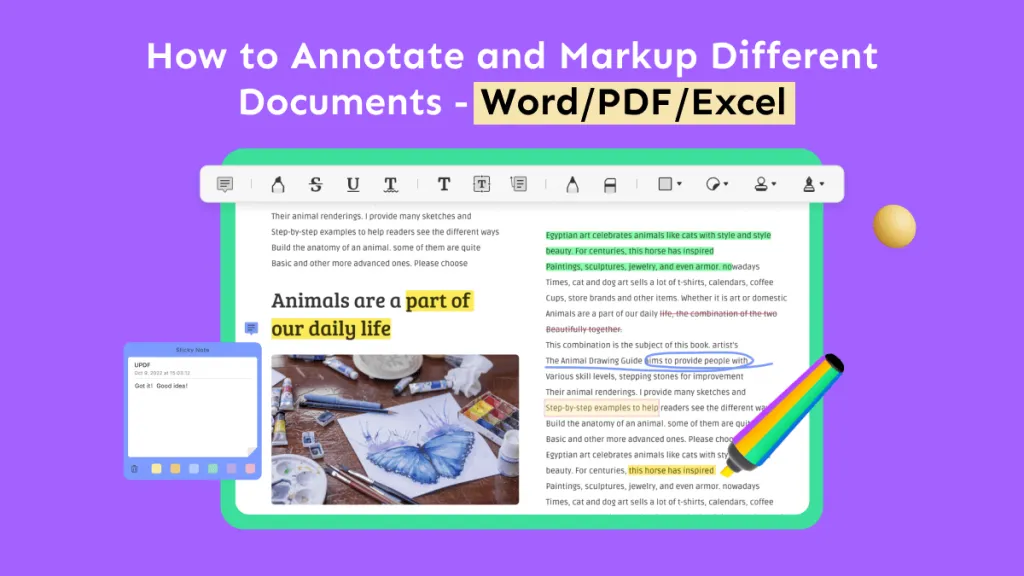
 Engelbert White
 Enola Davis