 UPDF
UPDF
 UPDF for Windows
 UPDF for Mac
 UPDF for iPhone/iPad
 UPDF for Android
 Nomostar
 UPDF AI Online
 UPDF Sign
 IvyCraft
 Edit PDF
 Annotate PDF
 Create PDF
 PDF Form
 Edit links
 Convert PDF
 OCR
OCR PDF to Word
 PDF to Image
 PDF to Excel
 Organize PDF
 Merge PDF
 Split PDF
 Crop PDF
 Rotate PDF
 Protect PDF
 Sign PDF
 Redact PDF
 Sanitize PDF
 Remove Security
 Read PDF
 UPDF Cloud
 Compress PDF
 Print PDF
 Batch Process
 About UPDF AI
 UPDF AI Solutions
 AI User Guide
 FAQ about UPDF AI
 Summarize PDF
 Translate PDF
 Chat with PDF
 Chat with AI
 Chat with image
 PDF to Mind Map
 Explain PDF
 PDF AI Tools
 Image AI Tools
 AI Chat Tools
 AI Writing Tools
 AI Study Tools
 AI Working Tools
 Other AI Tools
 AI Bookmark Generation
 AI Bookmark Summary
 AI Watermark Generation
 AI Background Generation
 AI Sticker Generation
 AI Stamp Generation
 AI Editing Suite
 UPDF Copilot
 AI Page Management
 AI Semantic Search
 PDF to Word
 PDF to Excel
 PDF to PowerPoint
 Enterprise Solution
 Enterprise Sign
 Enterprise AI
 Enterprise Plan
 Enterprise User Guide
 Enterprise Webinar
 IT
IT Education
 Construction
 Financial Service
 Healthcare
 Insurance
 Legal
Legal Manufacturing
 Government
 Researchers & PhDs
 Solopreneurs & Freelancers
 Lawyers & Legal Professionals
 Real Estate Agents & Brokers
 Education Solution
 Customer Stories
 User Guide
 UPDF Tricks
 FAQs
FAQs UPDF Reviews
 Download Center
 Blog
Blog Newsroom
 Tech Spec
 Updates
 UPDF vs. Adobe Acrobat
 UPDF vs. Foxit
 UPDF vs. PDF Expert

When handling finances or online orders, you need to sort multiple invoices and receipts. Without a clear payment status, you'll have to manually verify each document.
This creates mental clutter and can really affect your productivity. Using a PAID stamp for PDF gives you a visual cue to understand the payment status at a glance.
But how do you create or add it to your document? In this article, you will learn the most effective ways to create and design PAID stamps for PDFs. Most notably, using UPDF to create custom paid stamps enhances effectiveness and uniqueness.
Windows • macOS • iOS • Android 100% secure
Part 1: Everything about PAID Stamp for PDF You Should Know
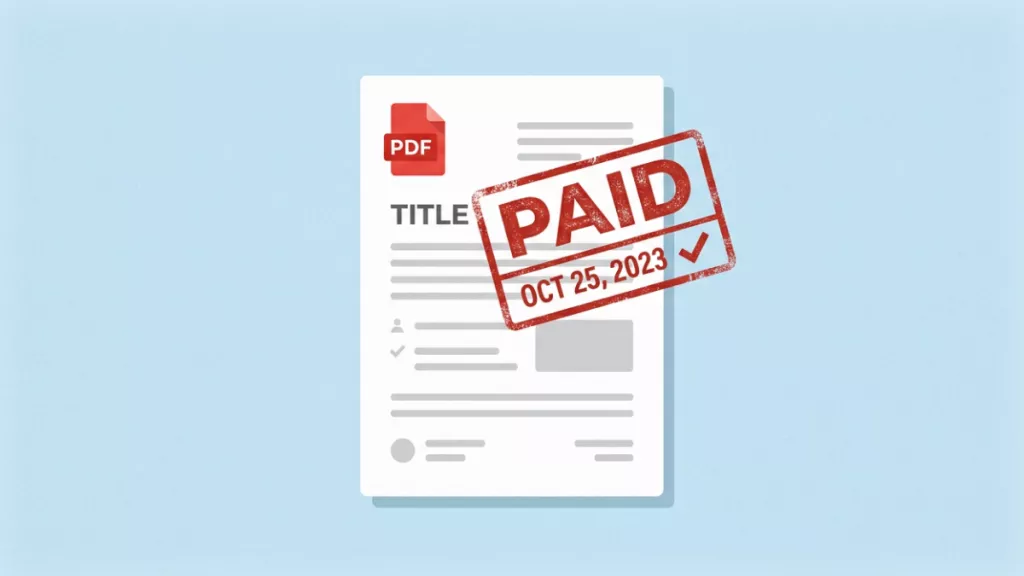
A PAID stamp is a visual indicator added to a PDF document to confirm that a payment has been received or an invoice has been settled. Unlike a signature , which represents a person's binding agreement and can be used as legal evidence, a stamp has no legal authority as it is only used for informational purposes.
Common Styles of PAID Stamps
A PAID stamp for PDF documents can be of various types, such as:
- Text Stamp: This type of stamp shows only the word "PAID" in bold text directly on the document.
- Dynamic Stamp: Unlike static text stamps, a dynamic stamp automatically includes and updates data such as payment date and the amount paid.
- Image Stamp: This type of stamp usually includes realistic, real-world stamp styles, such as a traditional rubber stamp in a circular or rectangular shape.
- Watermark-Style Stamp: This version of the PAID stamp is placed behind the document's content using a semi-transparent background.
"PAID" Stamp Design Suggestions
Here are some design tips to make your stamps feel professional and authoritative.
- Text Content: Always write "PAID" in all caps to ensure anyone can recognize it quickly.
- Color: Create contrast with the PDF's background and use colors intentionally, like dark blue, which can convey completion and approval.
- Font: Choose a bold, sans-serif font such as Arial or Impact to help the fonts stay legible even at smaller sizes.
- Positioning: Place the stamp in the top-right corner to ensure the rest of the page content remains visible. Or, apply it diagonally across the center to make it prominent.
- Transparency: For text and image stamps, use 100% opacity to keep them noticeable. You can lower the opacity for the watermark-style stamp, but no less than 50%.
- Date Information: Always include date information so it can be referred to confirm exactly when a payment was recorded in audits or legal disputes.
Part 2: How to Add PAID Stamp for PDF
To add stamps to PDF, you can use stamp tools in a dedicated PDF editor software, create them using design tools, or use AI to generate them from scratch.
Let’s review the tools that make it possible.
Method 1: Professional PDF Editor Software (Most Recommended)
A professional PDF editor gives you complete freedom in creating your own personalized stamps. UPDF is the most reliable tool for this. It allows you to custom-create PAID stamps from existing templates, AI text prompts, or built-in presets. Moreover, you can add watermark-based PAID stamps to multiple documents at once. Created paid stamp can be downloaded and reused, and each image is a 1024*1024 high-resolution poster.
Consistent visual labels help readers understand how a document should be handled. For a closer look at the tools, the next video covers editing PDF content in UPDF.
So, download and install it on your devices. Then, follow the steps below to add PAID stamps.
Windows • macOS • iOS • Android 100% secure
Tool 1: Quickly Add Using Preset Stamps
1. Open UPDF and click “Open File” to import your desired PDF document.
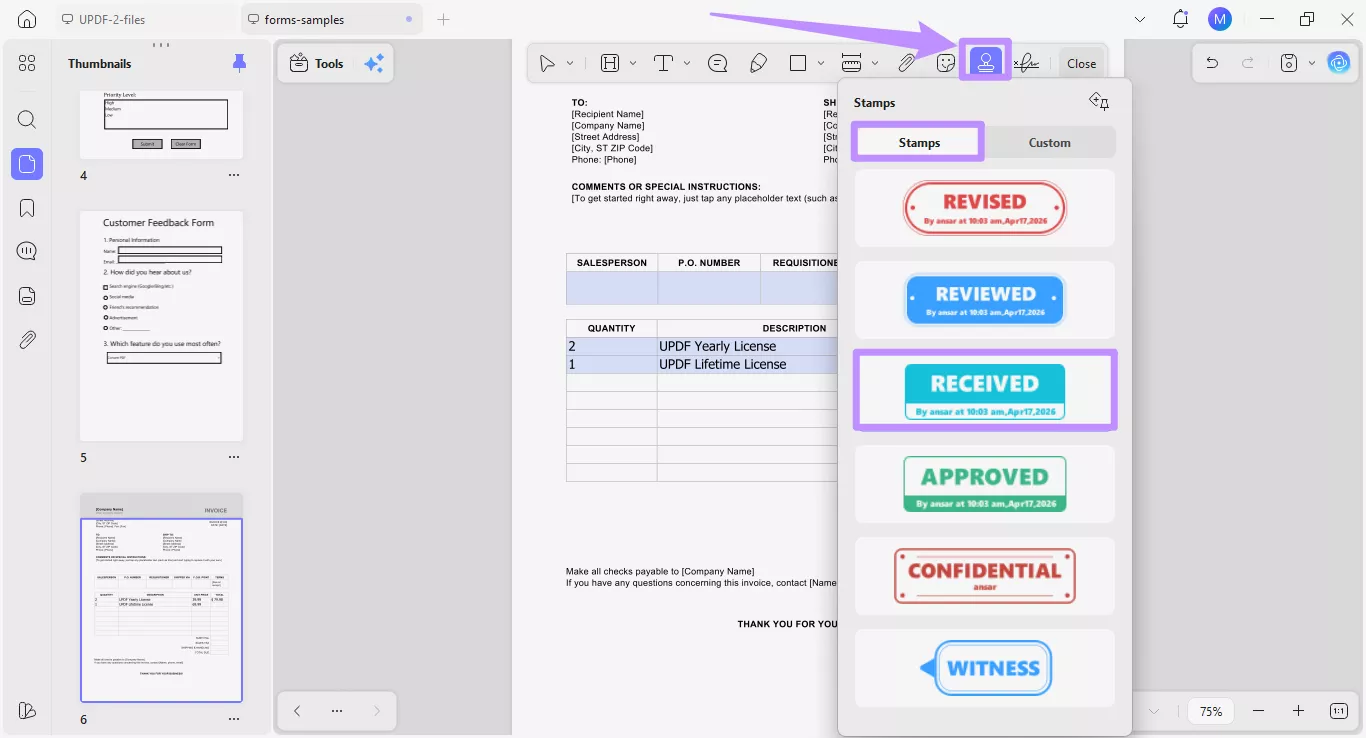
2. Select “Stamps” from the top toolbar. Under the “Stamps” tab, choose any preset, such as “Received”, to indicate successful payment.
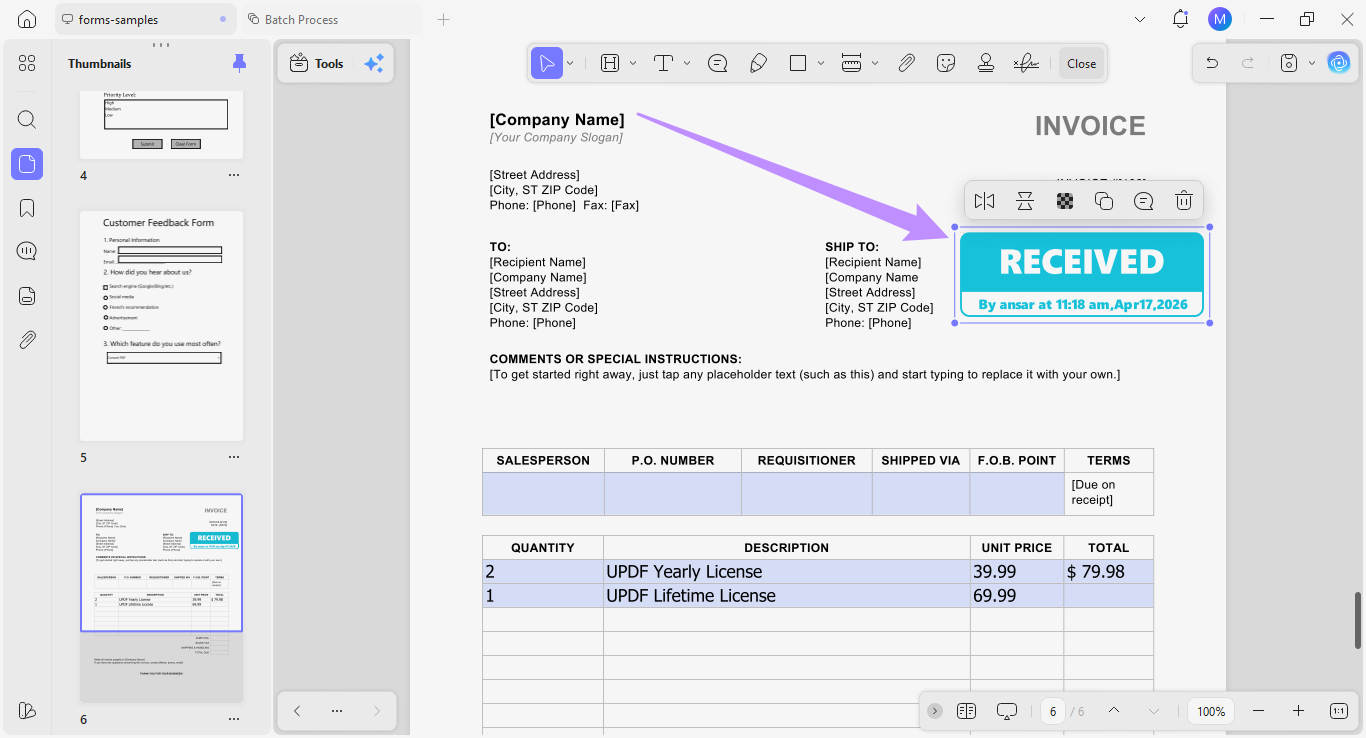
3. Now, click anywhere on the page to place the stamp.
Tool 2: Create a Custom "PAID" Text Stamp (Recommended)
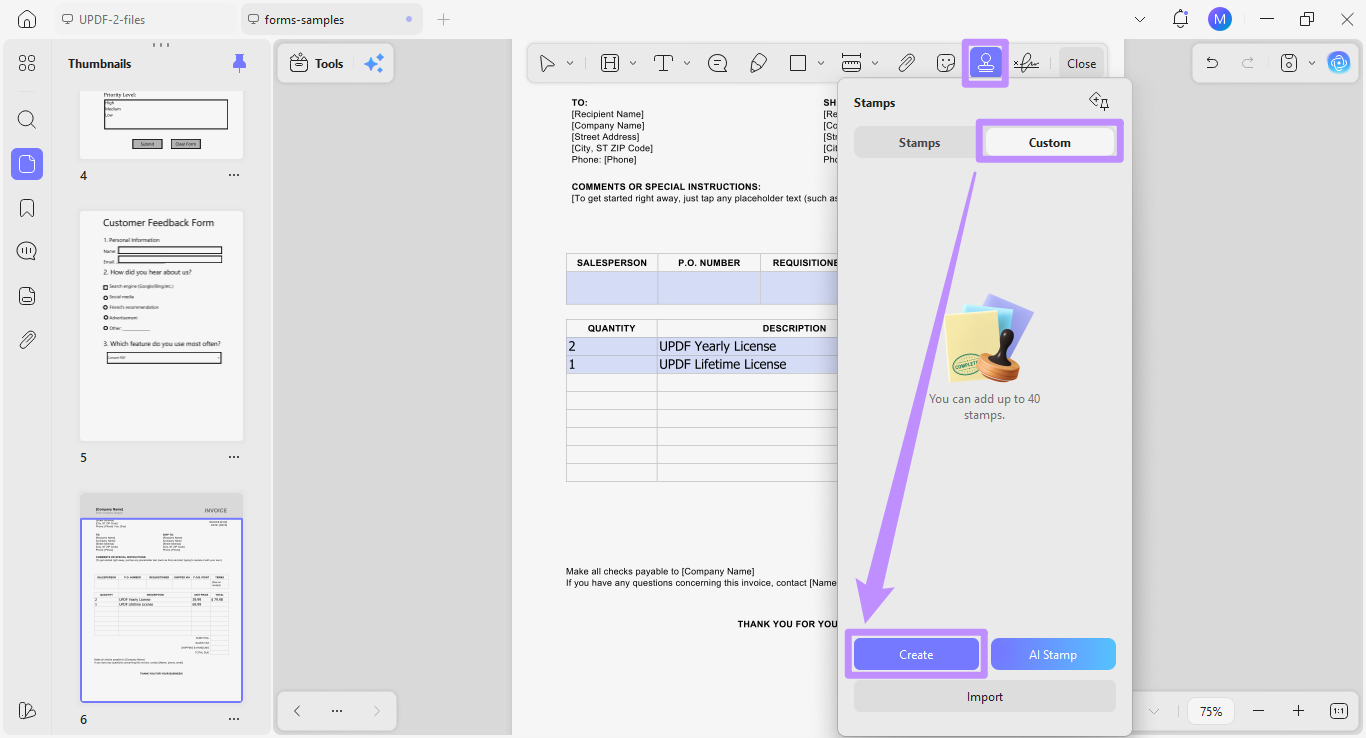
1. Select the “Stamp” tool and choose the “Custom” tab. Then, click “Create” at the bottom. You can also click “Import” to upload a paid stamp image for PDF.
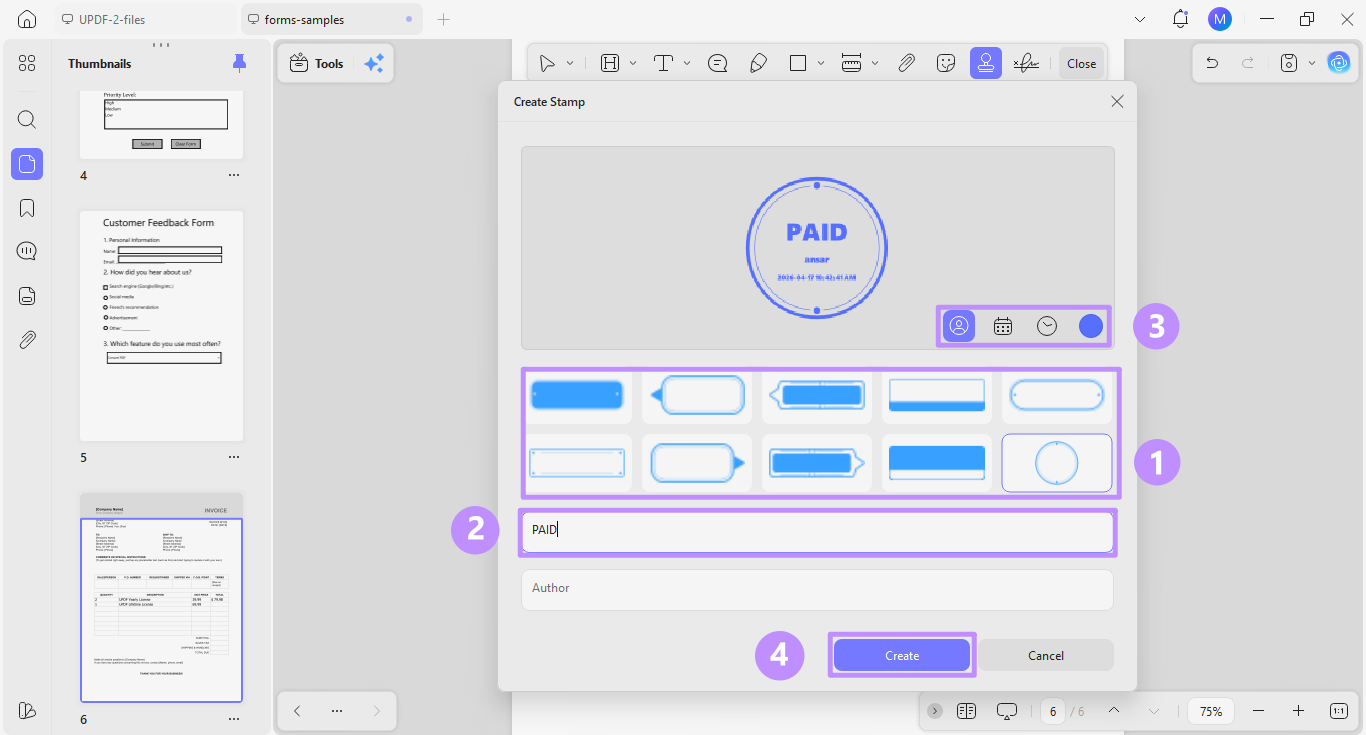
2. Select a template and type “PAID” in the text field. Then, customize the stamp Color, Author, Date, and Time details. Finally, click “Create” to place the stamp on the document.
Tool 3: AI-Generated Professional Seals (Exclusive Feature)
1. Go to “Stamps” and then “Custom.” Then select “AI Stamp” at the bottom.
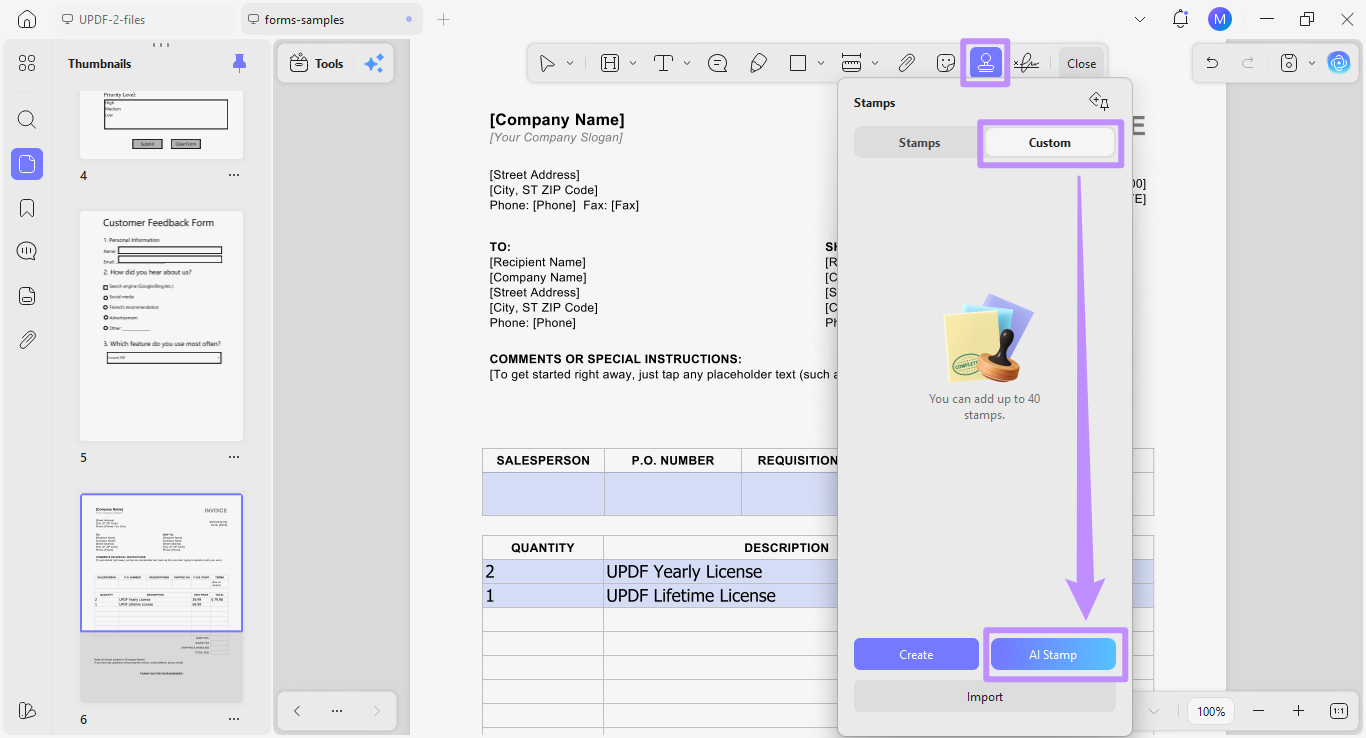
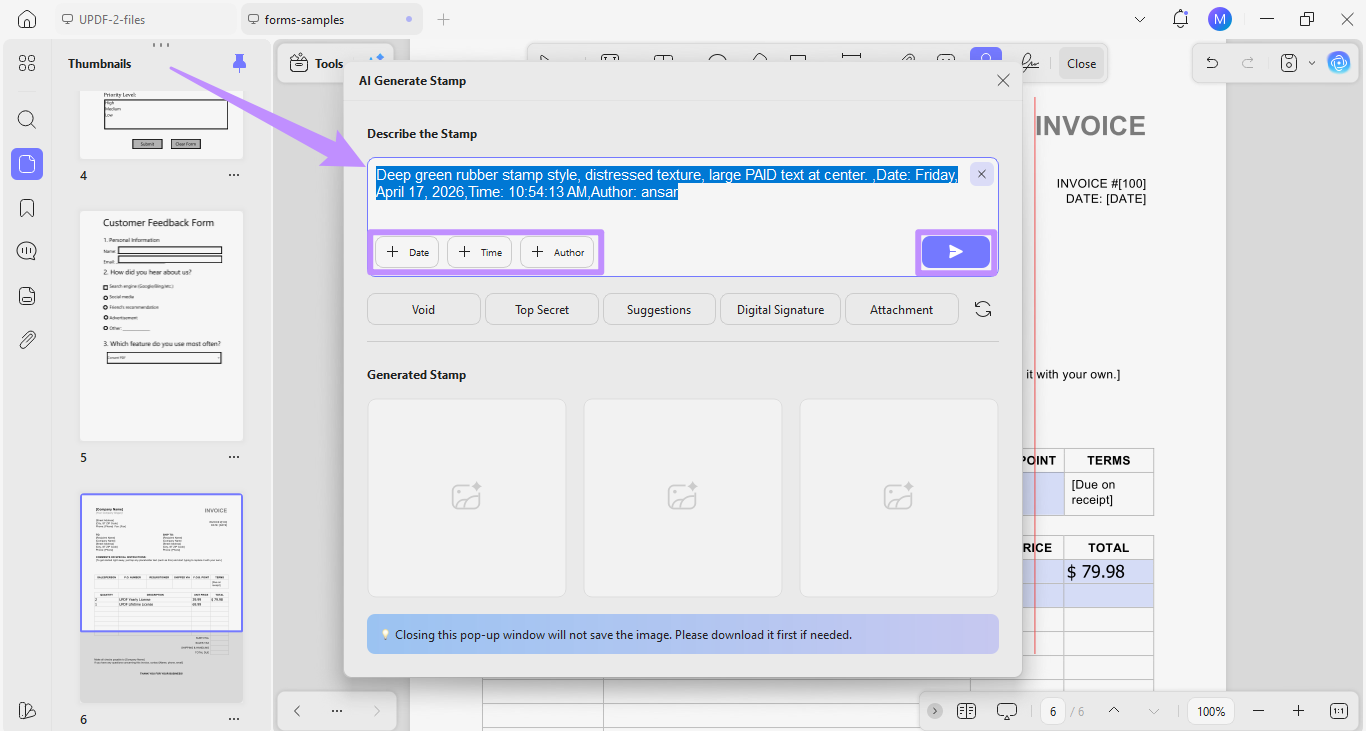
2. Write a prompt in the text field, such as “Deep green rubber stamp style, distressed texture, large PAID text at center.”
3. Click on the Date, Time, and Author buttons to add relevant information. Then click “Send.”
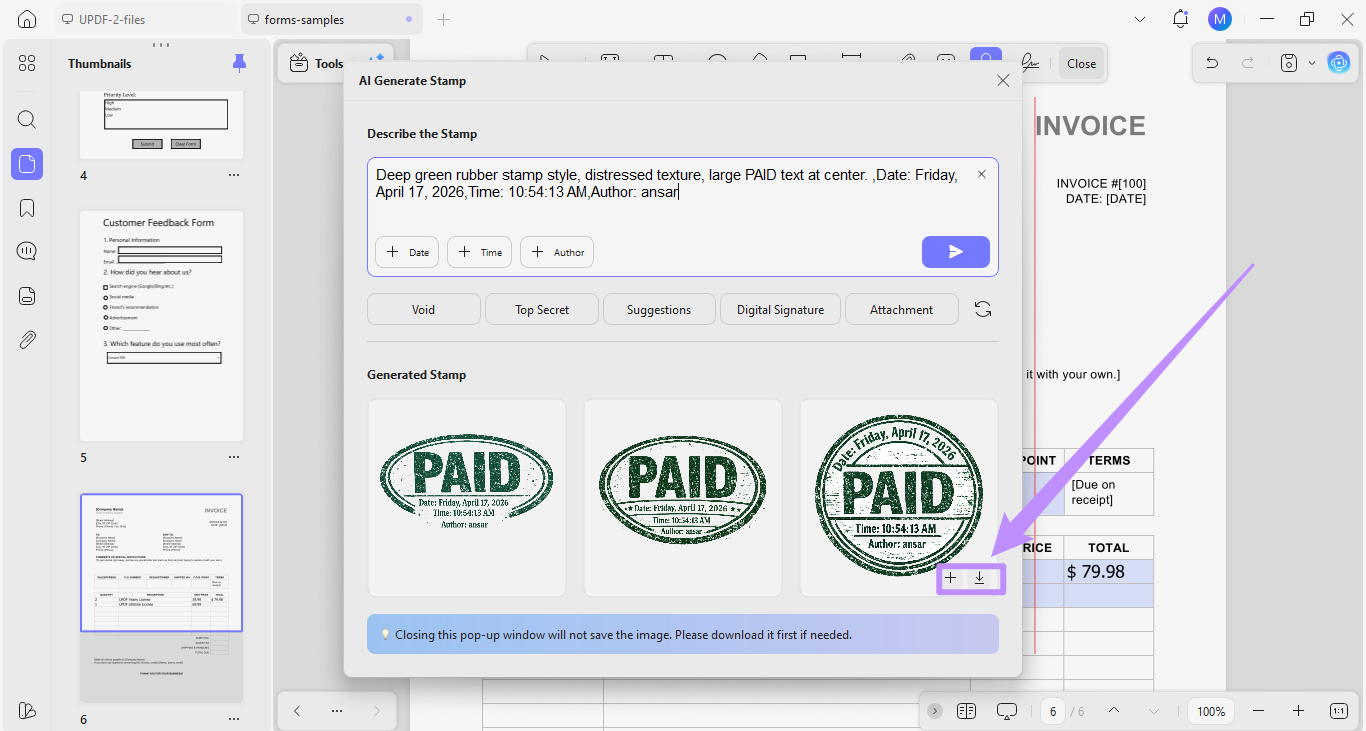
4. The AI will generate three different stamps from your description. Select the one you like and click the “+” button to add it to the PDF. Or, click “Download” to store it on your device.
Tool 4: Batch Add "PAID" Watermarks (Suitable for Large Volumes of Files)
1. Click “Tools” from the Home screen and choose “Watermark.”
2. Click “Add Files” to import your PDFs. Then, click “Create” from the right and choose “Text Watermark.” Alternatively, select “File Watermark” to upload the watermark as an image or PDF.
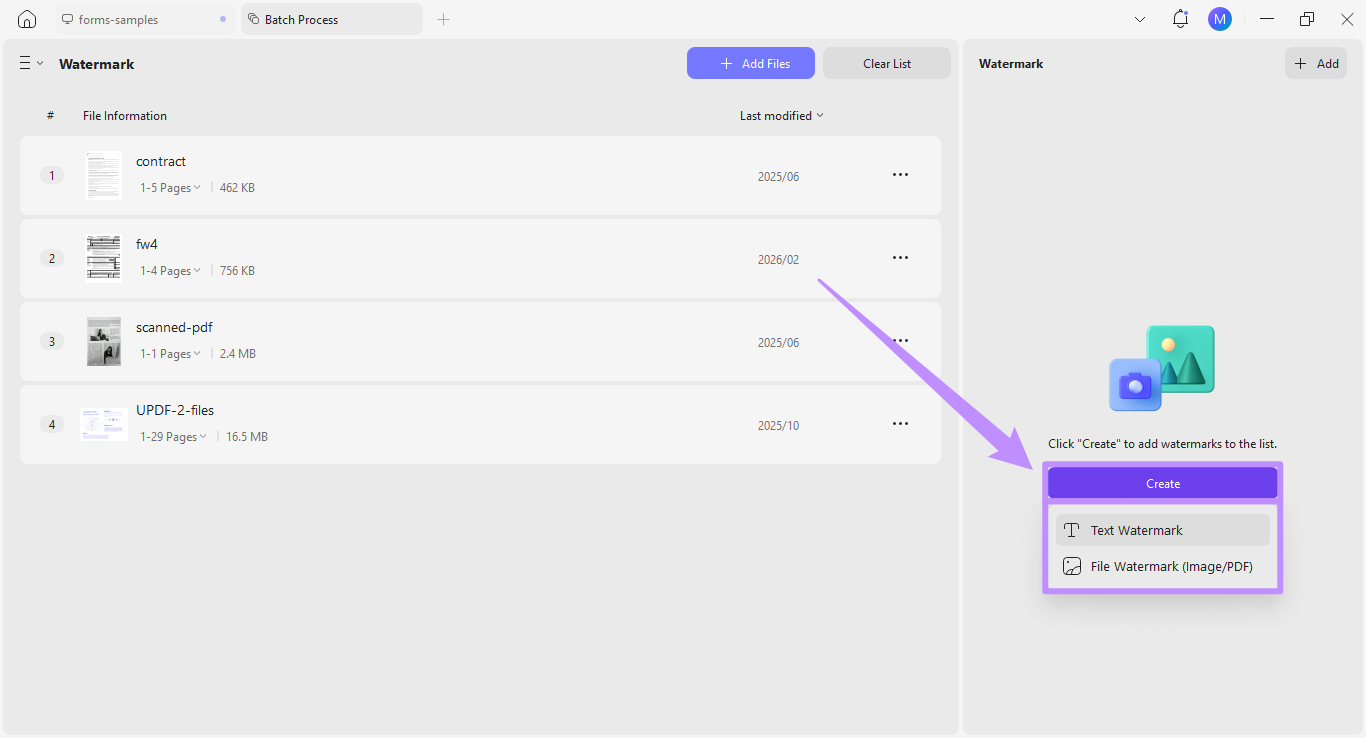
3. For the text watermark, type “PAID” in the text field. Then customize its font, style, alignment, color, rotation, and opacity.
4. Choose a “Single” or “Grid” layout and click on “Settings” to set the position, size, and layer.
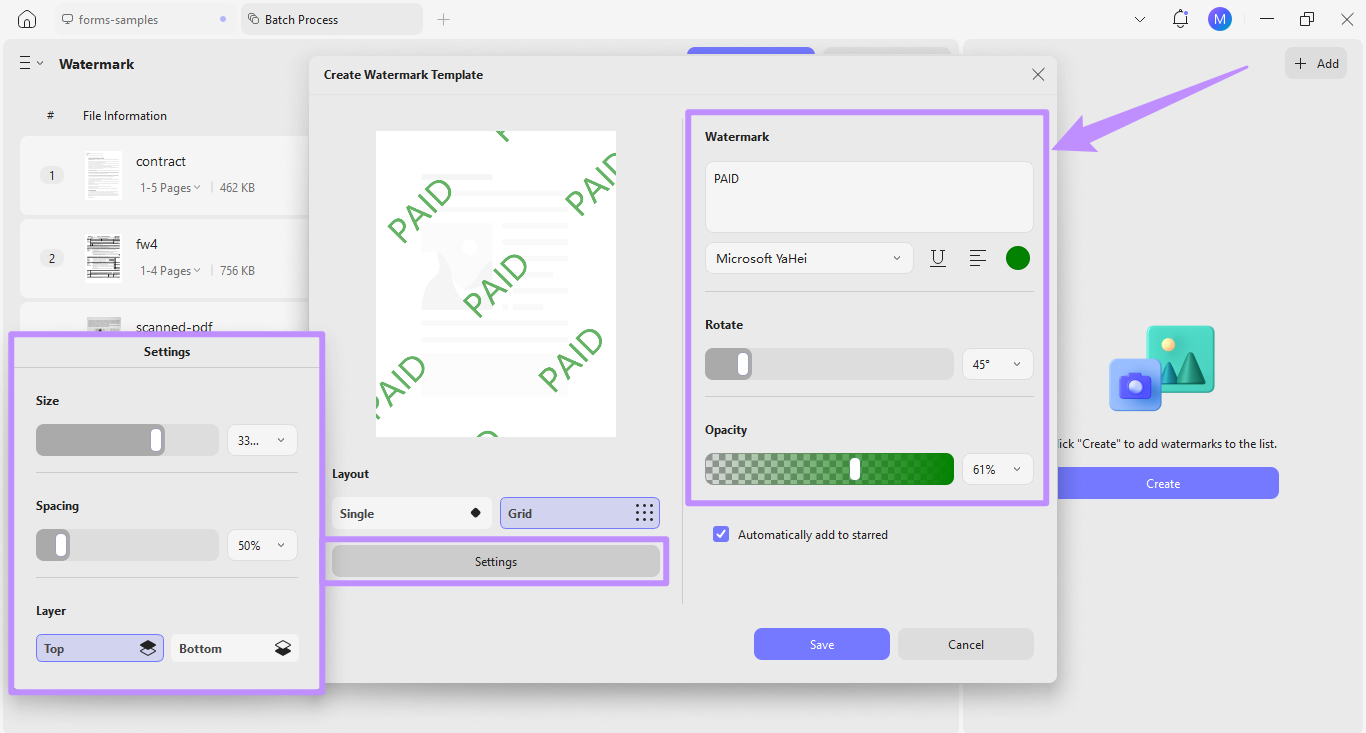
5. Finally, click “Save” and then “Apply” to save all watermarked PDFs.
UPDF's Comparative Advantages Over Other Tools:
Let’s review how UPDF’s stamp tool stands out from other options like Adobe Acrobat and online tools.
| UPDF | Adobe Acrobat | Online Tools | |
| AI Stamp Generation | ✔ | × | × |
| Batch Process | ✔ | ✔ | Limited |
| Supported Platform | Windows, Mac, iOS, Android | Windows, Mac, iOS, Android | Browsers |
| Pricing Mode | Subscription-based + one-time | Subscription-based only | Freemium, daily limits |
| Privacy | SSL/TLS-based HTTPS encryption, GDPR compliant | SSL/TLS-based HTTPS, compliant with ISO 27001, GDPR, CCPA, and EU-U.S. Privacy Shield | Cloud-based, Most comply with privacy laws |
Windows • macOS • iOS • Android 100% secure
Method 2: Make a Paid Stamp for PDF Online (Free Included)
Another option is to use browser-based PDF platforms to stamp PDFs online. Here are the best options available.
| Feature | Smallpdf | Sejda | iLovePDF |
| Stamp Support | Image stamps, Watermark-based stamp | Watermark-based text and image stamps | Watermark-based text and image stamps |
| Free Usage Limits | 2 tasks per day across all tools | 3 tasks per hour, 200 pages, 50 MB file size | Mostly free, Limited daily use unspecified |
| Privacy Statement | Operates on cloud, files deleted after 1 hour; ISO 27001 certified, GDPR, CCPA, eIDAS compliant | Operates on cloud, files deleted after 2 hours, EEA-compliant | Operates on cloud, files not stored, ISO 27001 certified, GDPR and eIDAS compliant |
Method 3: Generate a Paid Stamp for PDF in Mobile Apps
Smartphone users can add PAID stamps using mobile apps on iOS and Android. Here are some reliable options.
| Feature | StampDoc | PDFW | PDFgear |
| Stamp Support Methods | Custom text; circular, square, or angled image stamps | Custom seals, personal/date stamps, binding stamps | Presets, custom stamps from drawing, text, and images |
| Platforms | iOS, Android | iOS | iOS, Android |
| Target Audience | Professionals, lawyers, doctors, engineers, and freelancers needing to sign and seal PDFs | Professionals needing to stamp and sign documents, manage forms, contracts, etc | Anyone handling PDFs on the go for work, study, or personal use |
FAQs
Q1. Can AI-generated seals be used for commercial purposes?
Yes, most AI-generated seals can be used commercially. However, review the tool’s terms of service before using the seals, as different platforms have different licensing rules.
Q2. How do I modify or delete an added stamp?
To delete a stamp in UPDF, click it and select "Delete" from the toolbar. To modify, go to “Stamp” and then “Custom.” Then click “Create” to set up a new stamp with your preferred style, text, date, and time.
Q3. Where should the "PAID" stamp be placed on the PDF?
Ideally, the “PAID” stamp should be placed in the top-right corner so it does not hide important details. If the design is thin enough, you can place it diagonally across the center as well.
Conclusion
To sum up, a PAID stamp for PDF indicates the document status visually. You can add it using a PDF software, online platforms, or mobile apps. Among all, UPDF offers the most comprehensive tools to create and add stamps.
Plus, you can test all tools completely free before committing. If you handle PDFs regularly, you can upgrade to the Pro Lifetime plan. This option is designed for long-term use and offers exceptionally high return on investment.
Windows • macOS • iOS • Android 100% secure






 Engelbert White
 Nls Jansen
 Lizzy Lozano
 Enola Miller
 Enrica Taylor