 UPDF
 UPDF for Windows
 UPDF for Mac
 UPDF for iPhone/iPad
 UPDF for Android
 Nomostar
 UPDF AI Online
 UPDF Sign
 IvyCraft
 Edit PDF
 Annotate PDF
 Create PDF
 PDF Form
 Edit links
 Convert PDF
 OCR
 PDF to Word
 PDF to Image
 PDF to Excel
 Organize PDF
 Merge PDF
 Split PDF
 Crop PDF
 Rotate PDF
 Protect PDF
 Sign PDF
 Redact PDF
 Sanitize PDF
 Remove Security
 Read PDF
 UPDF Cloud
 Compress PDF
 Print PDF
 Batch Process

 About UPDF AI
 UPDF AI Solutions
 AI User Guide
 FAQ about UPDF AI
 Summarize PDF
 Translate PDF
 Chat with PDF
 Chat with AI
 Chat with image
 PDF to Mind Map
 Explain PDF
 PDF AI Tools
 Image AI Tools
 AI Chat Tools
 AI Writing Tools
 AI Study Tools
 AI Working Tools
 Other AI Tools
 AI Bookmark Generation
 AI Bookmark Summary
 AI Watermark Generation
 AI Background Generation
 AI Sticker Generation
 AI Stamp Generation
 AI Editing Suite
 UPDF Copilot
 AI Page Management
 AI Semantic Search
 PDF to Word
 PDF to Excel
 PDF to PowerPoint
 Enterprise Solution
 Enterprise Sign
 Enterprise AI
 Enterprise Plan
 Enterprise User Guide
 Enterprise Webinar
 IT
 Education
 Construction
 Financial Service
 Healthcare
 Insurance
 Legal
 Manufacturing
 Government
 Researchers & PhDs
 Solopreneurs & Freelancers
 Lawyers & Legal Professionals
 Real Estate Agents & Brokers
 Education Solution
 Customer Stories
 User Guide
 UPDF Tricks
 FAQs
 UPDF Reviews
 Download Center
 Blog
 Newsroom
 Tech Spec
 Updates
 UPDF vs. Adobe Acrobat
 UPDF vs. Foxit
 UPDF vs. PDF Expert


Quick answer: Readdle does not currently offer an official PDF Expert app for Android. Its official product pages describe PDF Expert for Mac, iPhone, and iPad. If you need an Android PDF editor, choose an alternative based on the specific tasks you use in PDF Expert—reading, annotation, text and image editing, page management, signing, cloud access, and price.
A similarly named app or APK is not necessarily made by Readdle, so check the developer, official website, permissions, and privacy policy before installing it. For readers who want a cross-platform option, UPDF for Android covers the main PDF workflows in one app. You can download it below and test it with one non-sensitive file while using this guide to compare your requirements.
Windows • macOS • iOS • Android 100% secure
Part 1. Is PDF Expert Available for Android?
No. Readdle’s official PDF Expert website calls it a PDF editor for iPhone, iPad, and Mac, and the official download page provides Mac and App Store options rather than an Android download. This is the clearest way to verify platform availability; do not rely on an app name alone.
This distinction matters because Android stores and third-party APK sites may show apps with “PDF Expert” in the title. They can be unrelated products with different developers, features, update policies, subscriptions, and data practices. We do not recommend labeling an unrelated app a scam without verified evidence, but we do recommend checking the publisher and avoiding unofficial APKs.
Part 2. What to Look for in a PDF Expert Android Alternative
Start with the workflow you are replacing. A lightweight reader may be enough for viewing and highlighting, while contract, school, or business work often requires editing, page management, signing, and reliable file transfer.
- Core PDF tools: Check whether the Android app can edit existing text and images—not only add text boxes—then test annotations, page organization, forms, signatures, search, and compression.
- Saved output: Confirm that edits and annotations remain inside the PDF and can be reopened in another app. Save a copy before testing an important document.
- Cross-device access: If you also work on a computer or iPhone, check whether the same account or license covers those platforms and whether cloud sync is optional.
- Privacy: Review the app’s publisher, permissions, privacy policy, and whether a feature uploads files. Avoid testing sensitive documents in an unfamiliar app.
- Free limits and price: Identify which actions are free, which require upgrading, and whether the plan covers all your devices. Use the official pricing page rather than an old quoted price.
Part 3. PDF Expert vs. UPDF for Android
PDF Expert remains a capable Apple-focused editor, but it cannot be installed as an official Android app. UPDF fills the Android gap while also supporting Windows, Mac, and iOS. The table below compares the practical difference without assuming that every user needs the same tool.
| Capability | PDF Expert | UPDF |
| Official Android app | No | Yes |
| Supported platforms | Mac, iPhone, and iPad | Android, Windows, Mac, iPhone, and iPad |
| Read and annotate PDFs | Yes, on supported Apple devices | Yes, including highlights, markup, notes, shapes, stamps, and stickers on Android |
| Edit PDF text and images | Yes, on supported Apple devices | Yes, directly on Android |
| Organize pages | Yes, on supported Apple devices | Insert, extract, delete, rotate, copy, and share pages on Android |
| Sign PDFs | Yes, on supported Apple devices | Handwritten and image-based signatures on Android |
| Cross-platform access | One account across Apple devices | One license can be used across Android, Windows, Mac, and iOS |
For Android users, UPDF’s advantage is continuity: you can open a PDF, edit existing text or images, annotate it, rearrange pages, compress the file, and add a signature without moving between several apps. Its interface is designed for touch controls, and UPDF Cloud can make selected documents available on other supported devices.

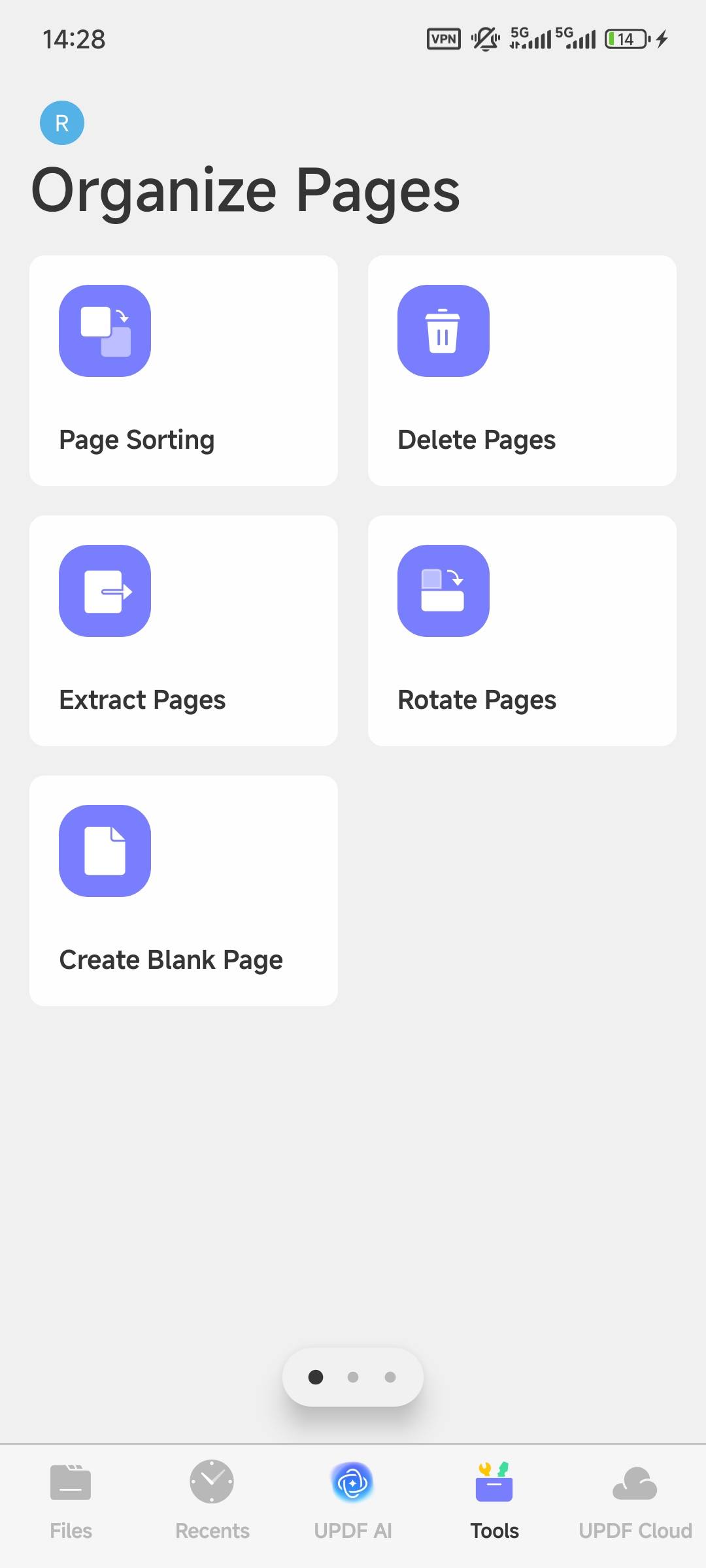
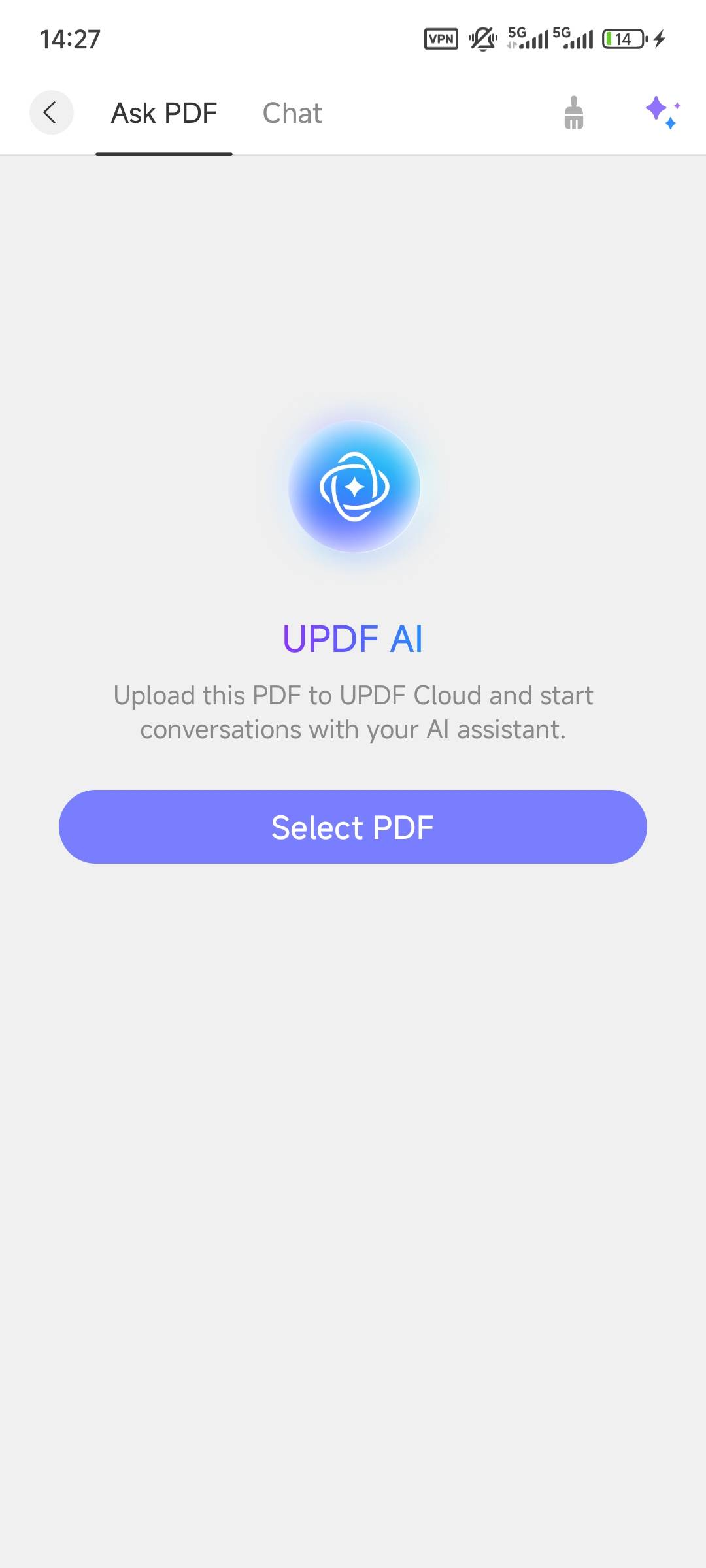
Key UPDF for Android Workflows
- Edit PDFs: Modify existing text and images, or add new text and pictures from your phone. This is useful when a typo or image must be corrected rather than covered with an annotation.
- Annotate and review: Highlight, underline, strike through, draw, and add text boxes, callouts, sticky notes, shapes, stamps, or stickers. See the wider PDF annotation tools available across UPDF.
- Organize pages: Insert, extract, delete, rotate, copy, and share individual pages when a long PDF needs restructuring.
- Sign on a phone: Add handwritten or image-based signatures, adjust their appearance, and reuse saved signatures. Follow the Android PDF signing guide for the exact steps.
- Compress and share: Reduce a large PDF before sending it by email or messaging app, then share the result from Android.
- Cloud access: Store selected documents in UPDF Cloud to continue working across supported devices.
- AI assistance: Summarize, explain, translate, or ask questions about PDF content when you need to understand a document rather than only edit it.
The video below demonstrates the Android interface and core workflow. The exact layout may change as the app is updated, but the main editing, annotation, organization, and AI concepts remain applicable.
UPDF can be downloaded and tried for free. If the Android workflow fits your needs, compare the current individual plans on the UPDF pricing page; one license supports Windows, Mac, iOS, and Android.
Part 4. How to Move PDF Expert Files to Android
You do not need an Android version of PDF Expert merely to move a standard PDF. The safest method is to export or share a copy from the Apple device to a neutral storage location, then open that copy on Android.
- Step 1: In PDF Expert on the iPhone, iPad, or Mac, open the document and save or share a copy. If the file contains important annotations or signatures, keep the original until you verify the transferred copy.
- Step 2: Send the PDF through Google Drive, OneDrive, Dropbox, email, a computer, or another storage location that both devices can access. iCloud Drive can also work through a browser or intermediate computer, but it is less convenient on Android.
- Step 3: Download the PDF to the Android device and open it in UPDF or another trusted PDF app.
- Step 4: Check comments, drawings, form values, signatures, page order, and fonts. If something is missing, return to the Apple device and create a flattened copy for viewing, while retaining the editable original.
Migration tip: Embedded PDF annotations usually travel with the file, but app-specific sync folders, saved signature libraries, and subscription entitlements do not automatically transfer between unrelated apps. Move the documents—not the app’s private data—and verify every important file.
Part 5. How to Work with PDFs in UPDF for Android
After transferring a file, the following workflow covers the tasks most people expect from a PDF Expert alternative:
- Open the PDF: Launch UPDF on Android and import the document from local storage or a supported cloud location.
- Choose the task: Use Edit for existing text and images, Comment for markup and notes, Organize Pages for page-level changes, or Signature for handwritten and image-based signing.
- Review before saving: Zoom in on changed text, confirm page order, and check that comments or signatures appear where intended.
- Save a copy: Keep the original until the edited version has been reopened successfully. Then share, print, or upload the result as needed.
If you frequently switch between Android and a computer, save selected files to UPDF Cloud rather than repeatedly sending email attachments. This reduces version confusion and makes it easier to continue work on another supported platform.
Part 6. PDF Expert Android FAQs
Is there an official PDF Expert app for Android?
No. Readdle's official PDF Expert pages list Mac, iPhone, and iPad, but not Android. An Android app using a similar name is not automatically the Readdle product.
Can I download a PDF Expert Android APK?
Readdle does not offer an official PDF Expert APK for Android. Avoid unofficial APK files or lookalike apps because their publisher, permissions, updates, and privacy practices may be different.
How can I move PDF Expert files from iPhone or iPad to Android?
Save or share the PDF from PDF Expert to a neutral location such as iCloud Drive, Google Drive, OneDrive, Dropbox, or a computer. Then download the file on Android and open it in your chosen PDF app. Keep a backup and verify annotations and signatures before deleting the original.
What is a practical PDF Expert alternative for Android?
UPDF is a practical option when you need one Android app to read, annotate, edit, organize, compress, sign, and sync PDFs. Test the free version with your own document before deciding whether to upgrade.
Conclusion
There is no official PDF Expert for Android from Readdle. The practical choice is therefore not to search for an unofficial APK, but to select an Android PDF app that matches the tasks you actually need. UPDF is a strong cross-platform alternative when you want to edit, annotate, organize, compress, sign, and sync PDFs from an Android phone. Download it below, test one representative file, and verify the saved result before moving your full workflow.
Windows • macOS • iOS • Android 100% secure






 Delia Meyer
 Enola Miller
 Enola Davis

 Lizzy Lozano