 UPDF
UPDF
 UPDF for Windows
 UPDF for Mac
 UPDF for iPhone/iPad
 UPDF for Android
 Nomostar
 UPDF AI Online
 UPDF Sign
 IvyCraft
 Edit PDF
 Annotate PDF
 Create PDF
 PDF Form
 Edit links
 Convert PDF
 OCR
OCR PDF to Word
 PDF to Image
 PDF to Excel
 Organize PDF
 Merge PDF
 Split PDF
 Crop PDF
 Rotate PDF
 Protect PDF
 Sign PDF
 Redact PDF
 Sanitize PDF
 Remove Security
 Read PDF
 UPDF Cloud
 Compress PDF
 Print PDF
 Batch Process
 About UPDF AI
 UPDF AI Solutions
 AI User Guide
 FAQ about UPDF AI
 Summarize PDF
 Translate PDF
 Chat with PDF
 Chat with AI
 Chat with image
 PDF to Mind Map
 Explain PDF
 PDF AI Tools
 Image AI Tools
 AI Chat Tools
 AI Writing Tools
 AI Study Tools
 AI Working Tools
 Other AI Tools
 AI Bookmark Generation
 AI Bookmark Summary
 AI Watermark Generation
 AI Background Generation
 AI Sticker Generation
 AI Stamp Generation
 AI Editing Suite
 UPDF Copilot
 AI Page Management
 AI Semantic Search
 PDF to Word
 PDF to Excel
 PDF to PowerPoint
 Enterprise Solution
 Enterprise Sign
 Enterprise AI
 Enterprise Plan
 Enterprise User Guide
 Enterprise Webinar
 IT
IT Education
 Construction
 Financial Service
 Healthcare
 Insurance
 Legal
Legal Manufacturing
 Government
 Researchers & PhDs
 Solopreneurs & Freelancers
 Lawyers & Legal Professionals
 Real Estate Agents & Brokers
 Education Solution
 Customer Stories
 User Guide
 UPDF Tricks
 FAQs
FAQs UPDF Reviews
 Download Center
 Blog
Blog Newsroom
 Tech Spec
 Updates
 UPDF vs. Adobe Acrobat
 UPDF vs. Foxit
 UPDF vs. PDF Expert

Do you need to know how to count pages in multiple PDF files?
Perhaps it's part of your billing process, tallying up the number of pages you've worked on for a client. Or maybe you just need to check how much paper you'll need to print a batch of documents.
Whether you're looking for a straightforward browser method, or you're confident working with JavaScript in Acrobat DC, we've got you covered. Read on to learn how to count pages across several different PDF documents.
Method 1. A Universal Way To Count Pages in Multiple PDF Files for Free (Works for Windows, Mac, iOS and Android Devices)
If you want to know how to count pages with Adobe Acrobat DC, you can skip to Adobe Acrobat DC. But as we all know, that way requires a level of technical confidence that not everyone has. If you're not comfortable using JavaScript, then this simpler method is perfect for you.
UPDF covers all your PDF editing needs. It works as a bulk PDF page counter, and UPDF features some helpful unique tools that others don't include. There's no need for coding or any technical knowledge at all. Just download UPDF for free and try it today.
Windows • macOS • iOS • Android 100% secure
To use UPDF to count the pages in multiple PDF files, follow these easy steps:
- Open UPDF on your device and open your PDF on the platform. Now, proceed to the "Tools" option at the home interface and choose "Merge" from MULTI-FILE OPERATION menu.
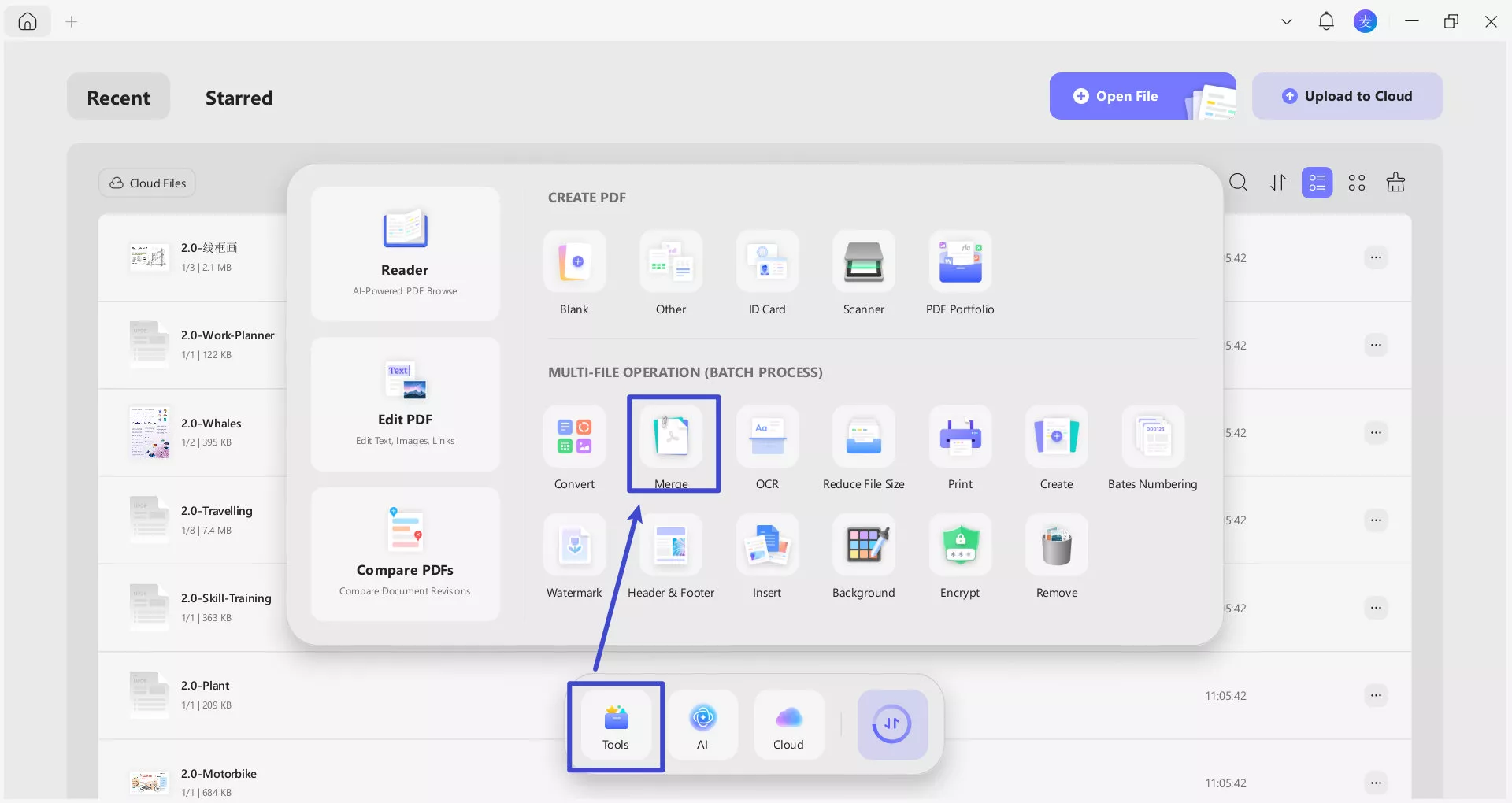
- Add the PDFs you're working with. You can do this by dragging the files into UPDF, or by searching for them.
- Click "Apply" to merge them into a single file, and then choose a folder to save it to.
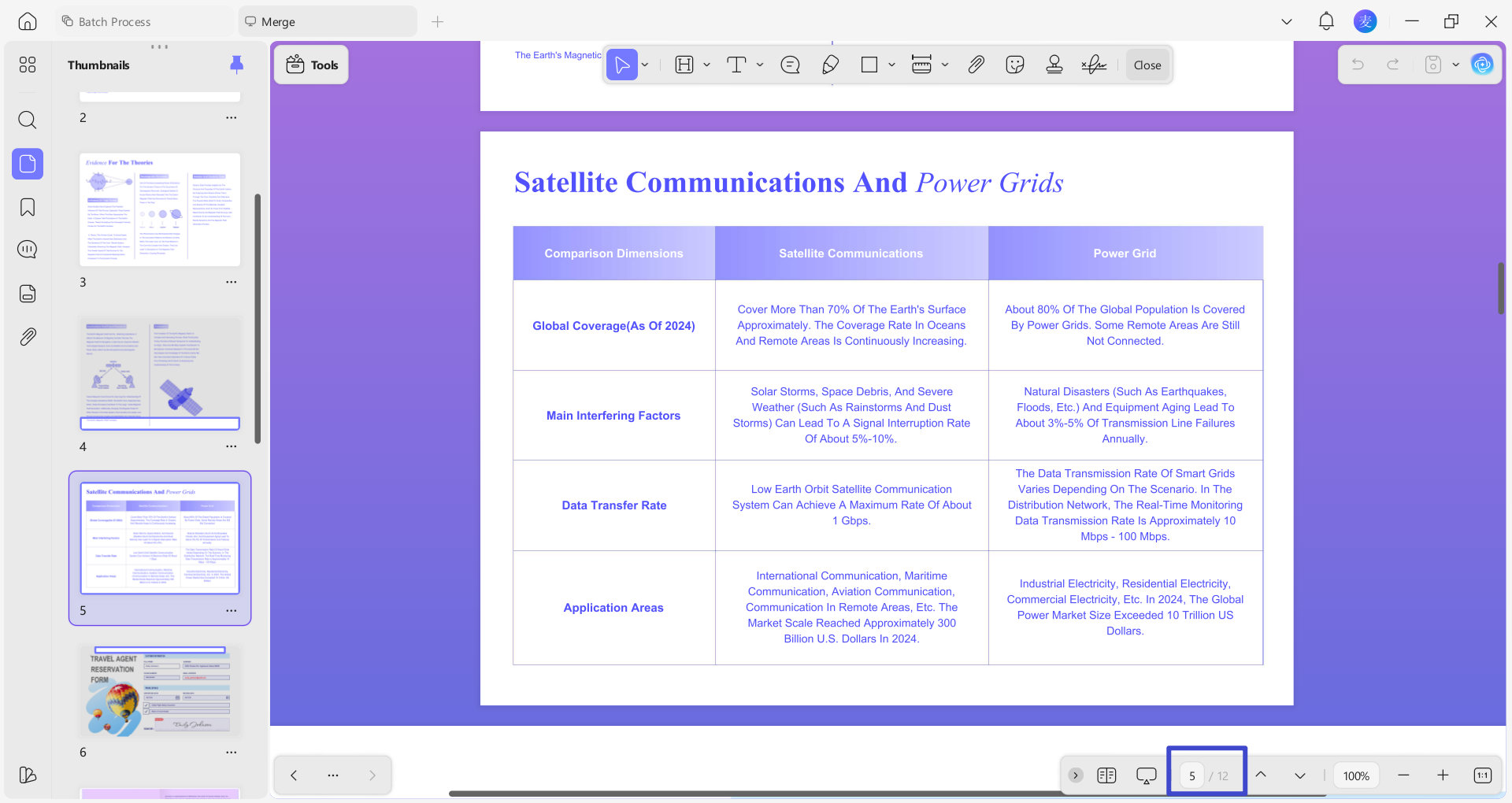
- Now open that merged file in UPDF, and check the page count at the bottom of your screen.
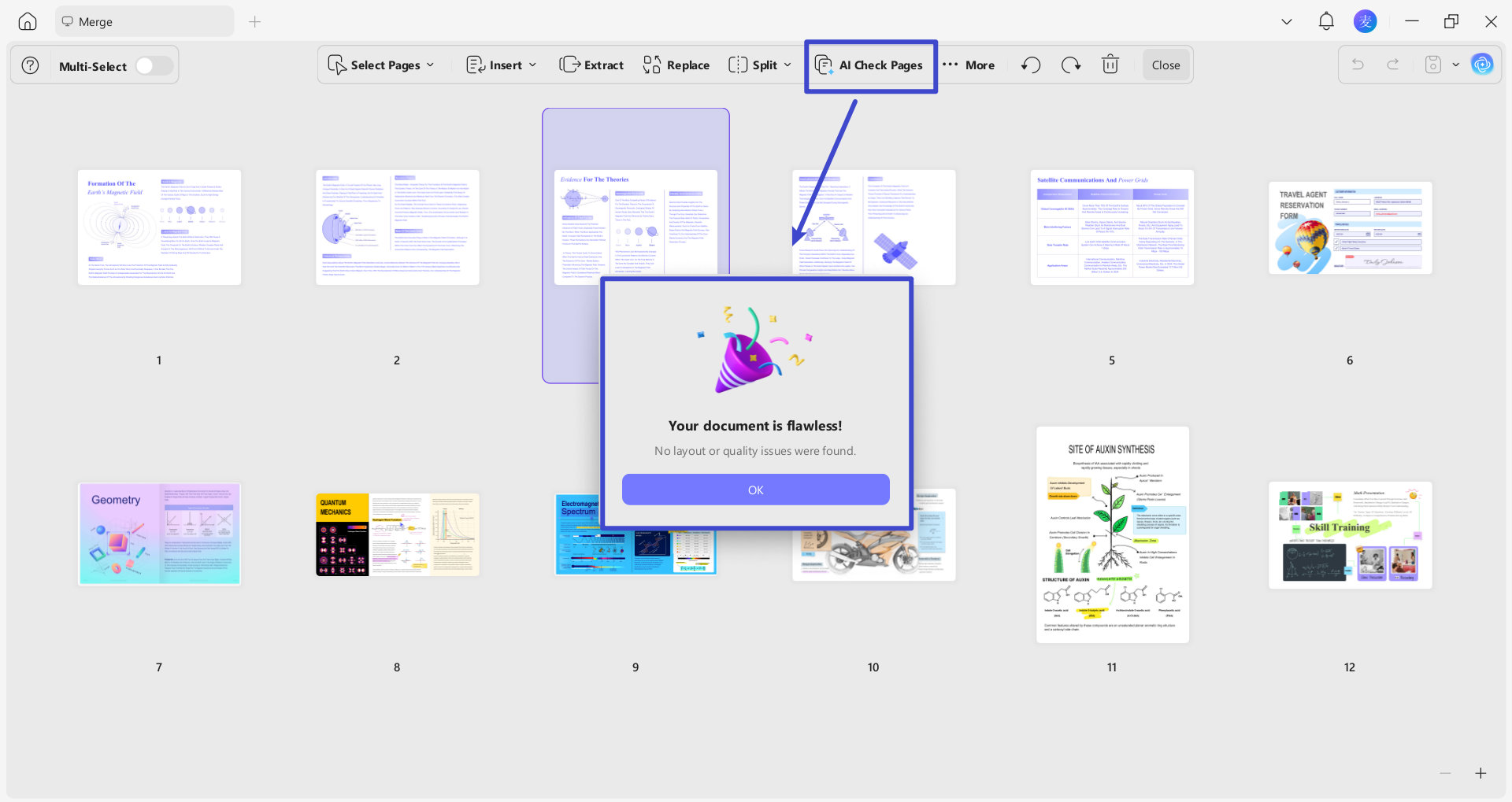
Additionally, you can check, detect and manage the pages of documents without manual effort. Now, UPDF AI 2.5 supports AI Page Management, one of the newest AI agents launched by UDPF. It can automatically detect the disordered, blank, misplaced, or redundant pages.
- Click the "AI Check Pages" as follow, you can get an accurate report of your document's pages in just one second.
In all, UPDF can do far more than just count pages across many documents. Follows are UPDF other powerful features assisting in your study or work.
UPDF features a powerful AI assistant to streamline your workflow. It can summarize long texts so you can read them more quickly. Or ask it to help you understand complicated charts, putting the data into a format you can interpret more easily.
Especially with UPDF AI 2.5 and its latest features, you'll find work easier and more efficient than ever. Right now, you have $10 off to enjoy this wonderful tool, but act fast, this offer may end on May 7th.
Click the video below to know more about UPDF 2.5.
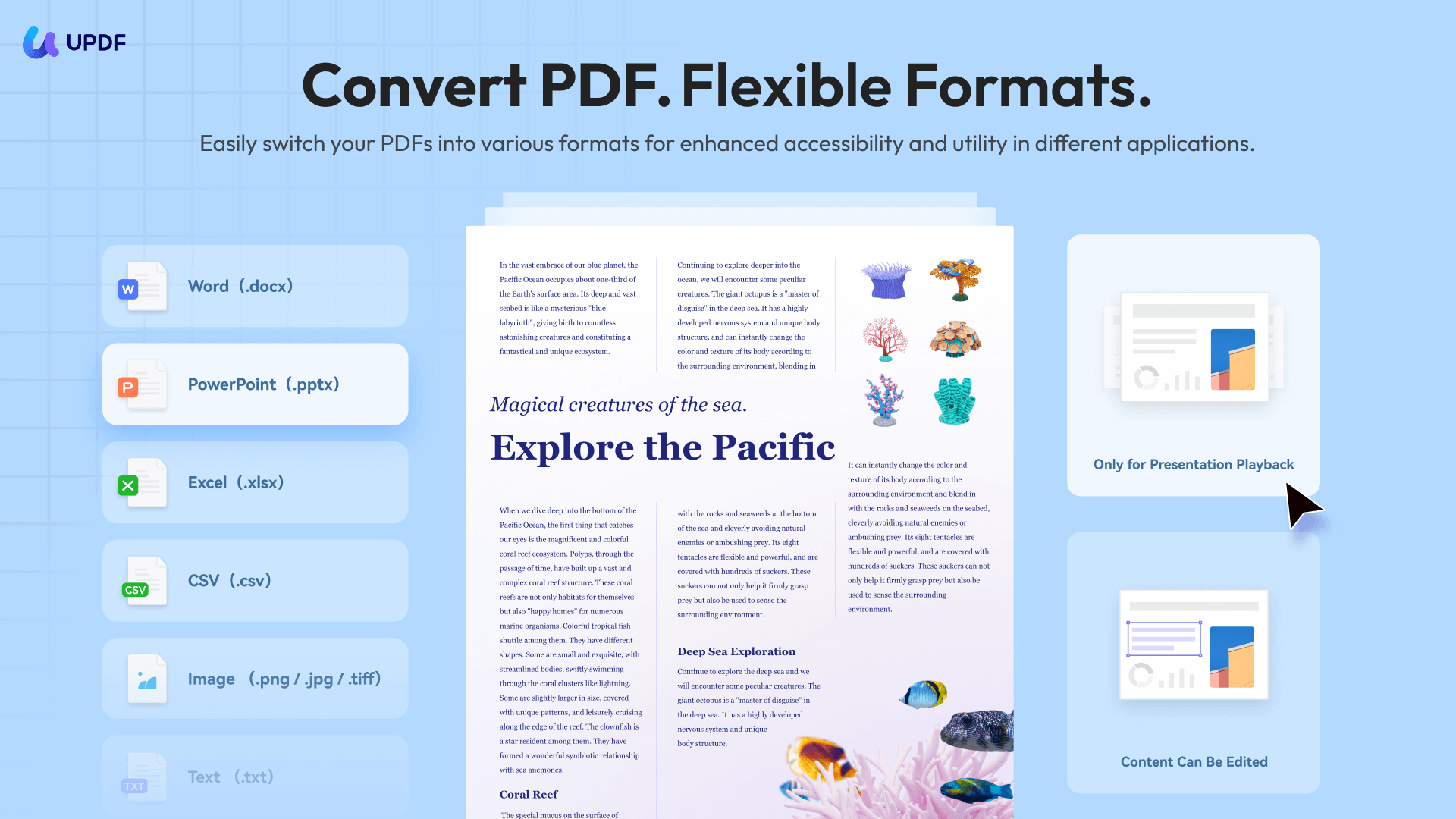
Convert files at the touch of a button, easily switching from one format to another. If you need to convert from Excel or Word into PDF, it's a simple process, and it's just as easy to convert from those formats into PDF.
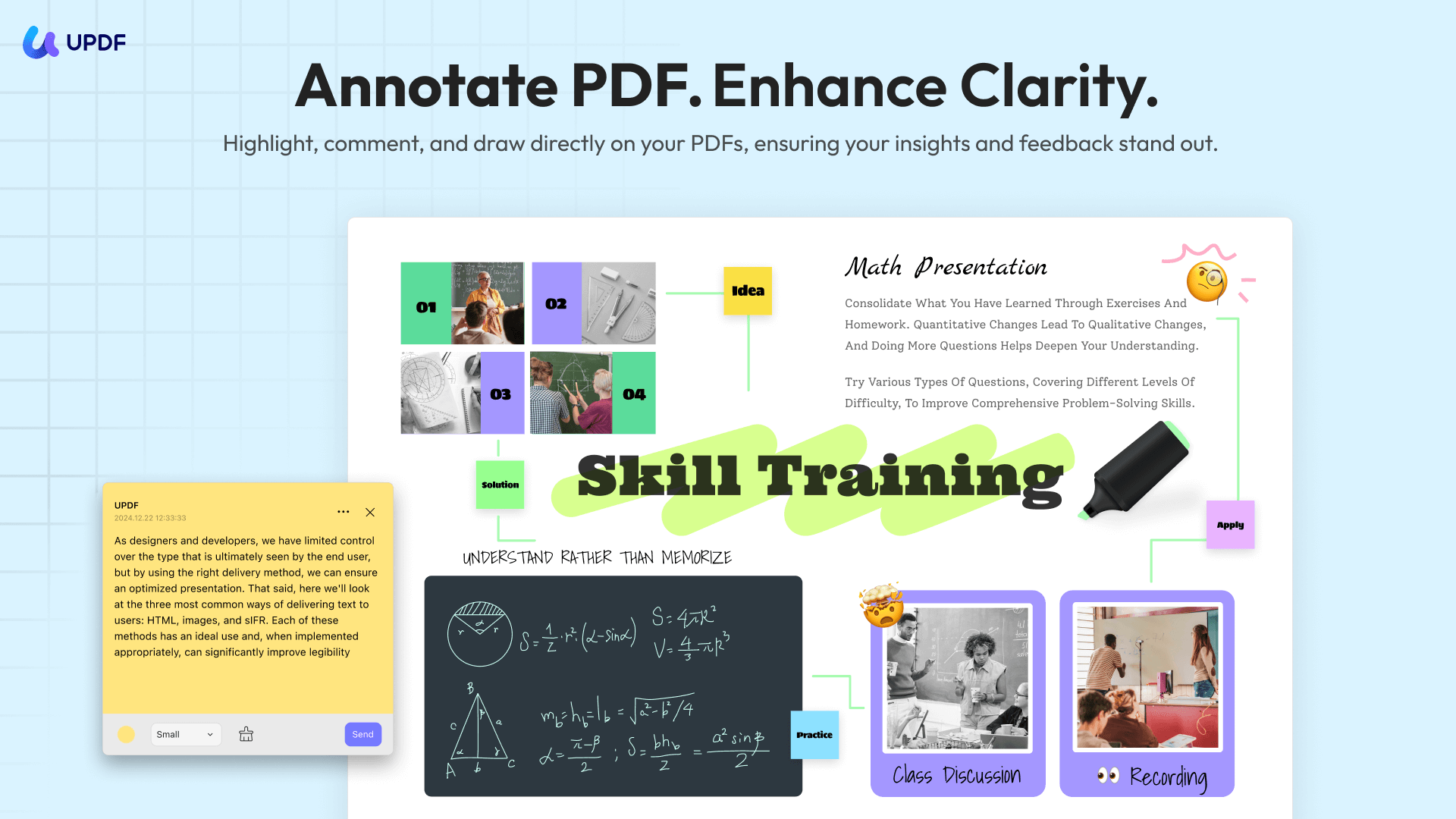
Use it for annotating PDF files. Add highlights and sticky notes just as you would if taking notes on a paper document. Or use it to add a signature in your own handwriting to any file.
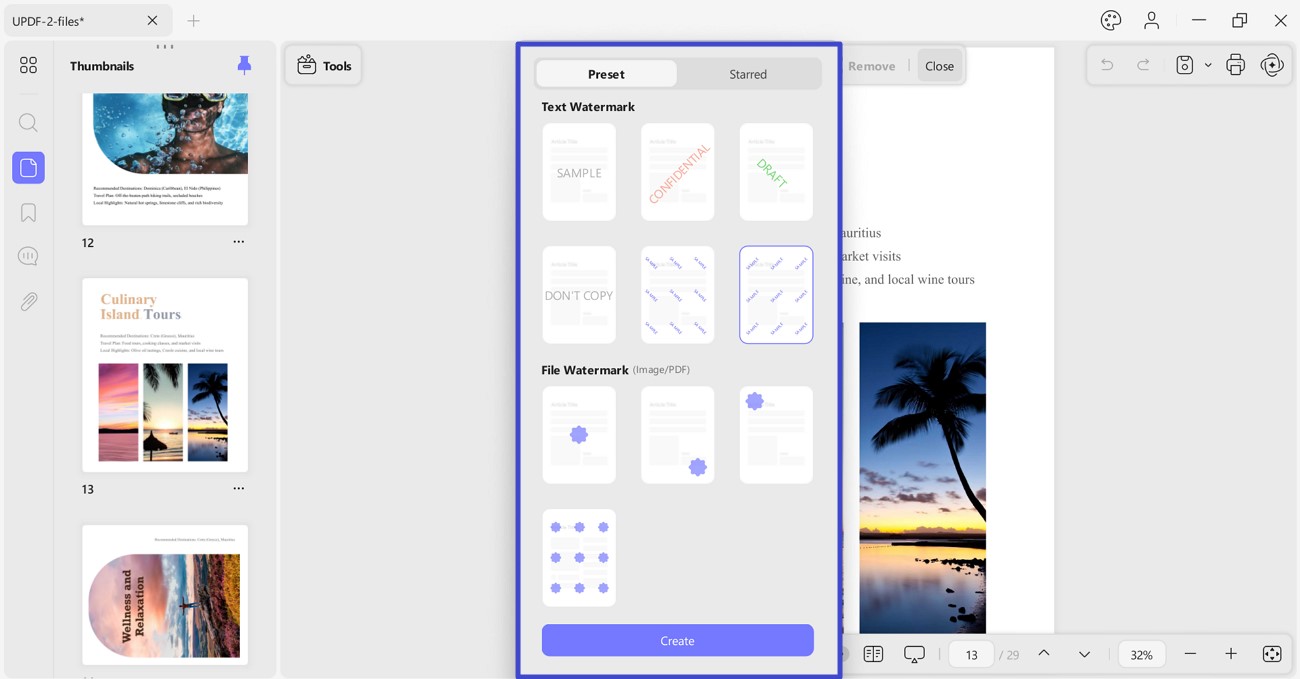
With UPDF you have a fast, simple way to edit and organise your PDFs. Add watermarks to protect your work, change page order by dragging and dropping, or change the background colour.
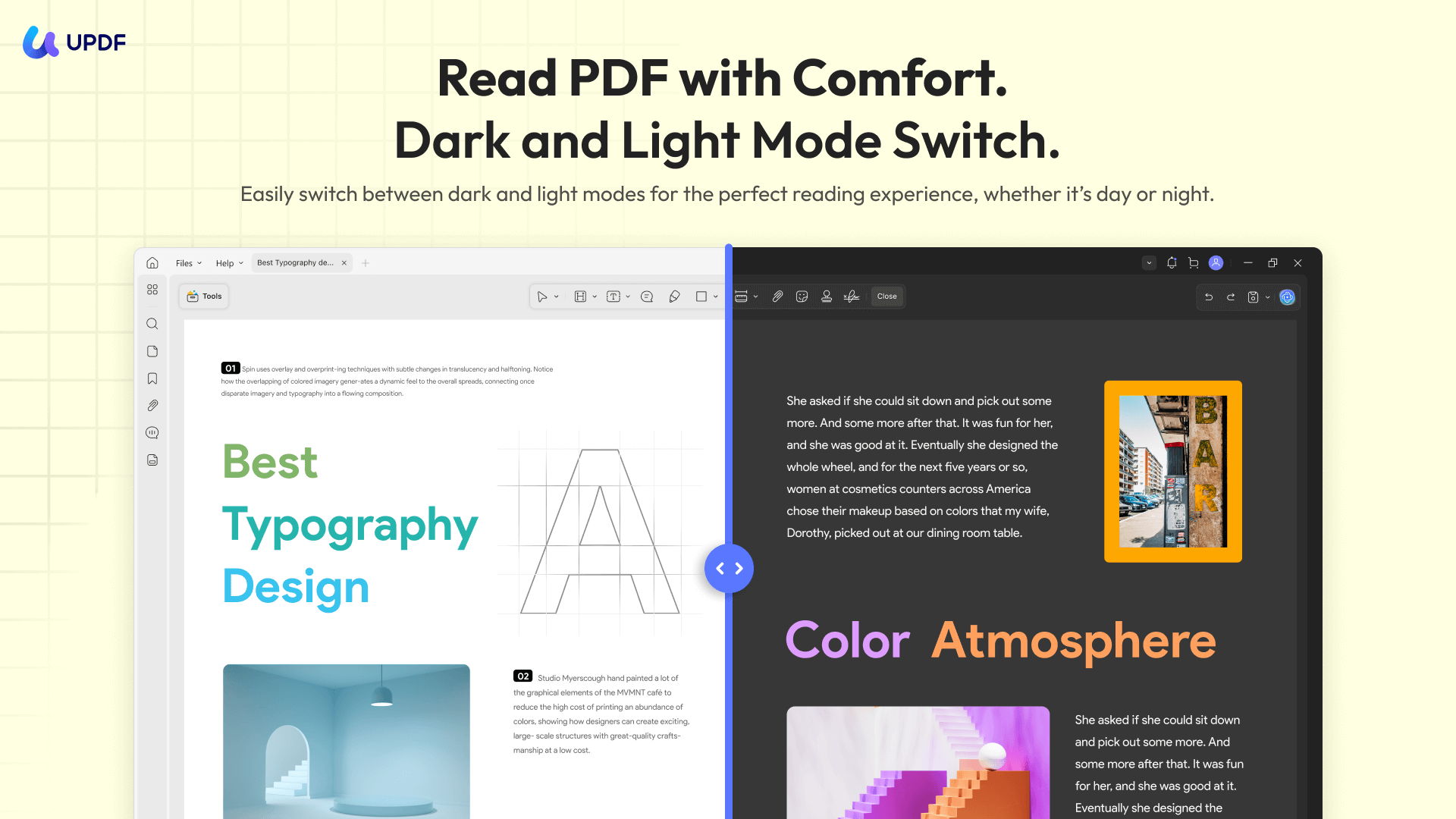
UPDF offers a smooth reading experience that allows you to set your preferred page layout. You can add bookmarks to help you navigate long documents, or use dark mode to make screen-based work easier on your eyes.
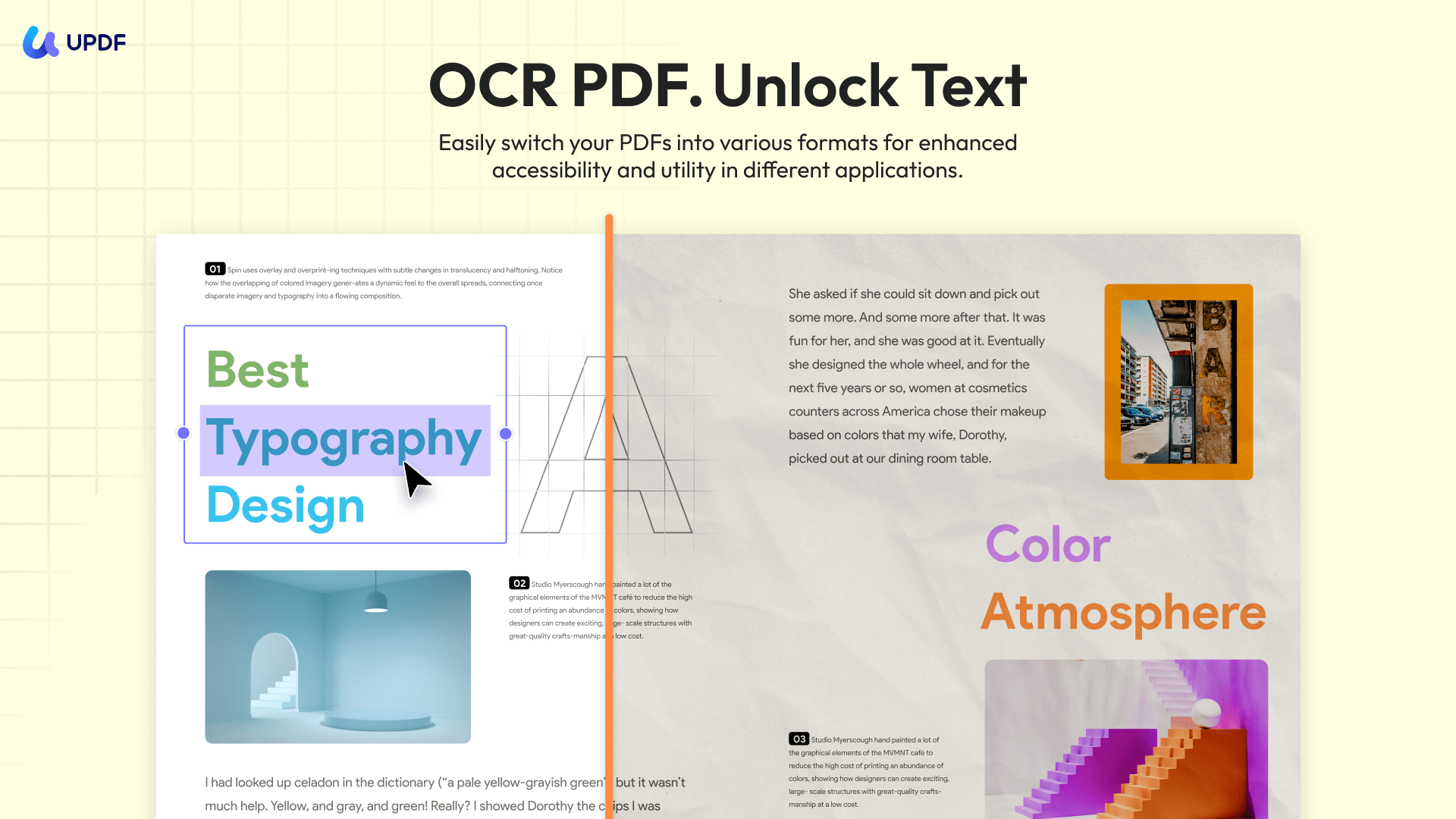
The OCR feature recognises text in scanned images or photos, converting it to a searchable text format. It can detect text in more than 38 languages and it even supports bilingual documents.
Would you like to see how UPDF can help your workflow? Click here for the free download and test it out today.
Windows • macOS • iOS • Android 100% secure
Discount Notice
Method 2. How To Count Pages in Multiple PDFs at Once With Adobe Acrobat DC
If you have a licence for Adobe Acrobat DC then you can use JavaScript to count the pages in your PDFs. It's a little on the technical side, but if you follow the steps below it will be fine.
- Open Acrobat DC and go to Tools > Action Wizard.

- Make an action using this JavaScript code:
if (global.pagesCounter==null) global.pagesCounter=0;
global.pagesCounter+=this.numPages; - Call the action "Count Pages" and save it.
- Next, use the following code to create a Custom Command:
if (global.pagesCounter==null) app.alert("You must first run the \"Count Pages\" Action.");
else {app.alert("Number of pages counted: " + global.pagesCounter,3); delete global.pagesCounter;} - To count pages in multiple PDFs, you simply need to run the Count Pages action on the files or folders you want to count. If you run it on a folder, it automatically includes any subfolders inside it. However, exercise caution when doing this, because it will also convert any non-PDF files in the folder into PDFs.
- Display the page count by clicking on the custom command.
Method 3. Another Way To Count Pages in Multiple PDF Files (Time-Consuming)
This final option shows you how to count pages in multiple PDF files without an additional tool. It's a simple method that works in all the major browsers (Chrome, Firefox, Safari, Edge, etc.) It's definitely slower than the methods outlined above. It's also tricky to make sure you haven't missed a document making your page count inaccurate.
Despite that, it's an effective workaround for counting up pages across several documents. You don't need any special software because it works in whatever browser you normally use.
- Open each PDF in a separate tab of your web browser.
- Navigate to each file in turn and make a note of the page count.
- Tally up the pages in each file.

A basic, low-tech way to get a combined page today for several PDFs.
Frequently Asked Questions About Counting Pages in Multiple PDFs
1. What program counts the number of pages in a PDF?
UPDF offers an easy way to count the pages in a PDF. Simply opening the file will display the page count clearly at the top of the page. It also shows the page count in the 'Recent' list on opening UPDF, so you don't need to open your most recently used documents to check. If you need to count pages in multiple PDFs, you can achieve that quickly by merging them into a single document and checking the combined page count.
2. How can I tell how many pages a PDF has without opening it?
The first method in this article shows you how to count the pages in a PDF without opening it. In brief, you use the Action Wizard to create an action with a custom command using the two JavaScript snippets detailed above. Then it's a simple matter of running the action on the files or folders you want to count.
3. How do you count pages in multiple Word documents?
You can do this through Windows File Explorer. Add all the Word documents you want to check into a single folder to make the process easier.
1. Open the folder and click "View" on the ribbon menu.
2. Then click "Details" on the menu that pops up.
3. Right-click on "Name" in the heading bar and then select "More".
4. Scroll down the alphabetical list, tick the "Pages" option, and click "OK".
5. You'll see a new column on the right-hand side giving the page count of each document.
6. Then simply add those numbers to get the total page count.
Conclusion
So, now you know how to count pages in multiple PDF files. You've got three bulk PDF page counter options ranging from the more technical Acrobat method to the simple but slow browser method.
For a tool that counts pages across multiple PDFs quickly and easily, you can't get better than UPDF. The straightforward merge feature lets you see the page count without having to add it up yourself, and without having to mess around with code.
See for yourself how easy it is. Get started by downloading UPDF today.
Windows • macOS • iOS • Android 100% secure







 Enid Brown
 Enola Miller

