 UPDF
 UPDF for Windows
 UPDF for Mac
 UPDF for iPhone/iPad
 UPDF for Android
 Nomostar
 UPDF AI Online
 UPDF Sign
 IvyCraft
 Edit PDF
 Annotate PDF
 Create PDF
 PDF Form
 Edit links
 Convert PDF
 OCR
 PDF to Word
 PDF to Image
 PDF to Excel
 Organize PDF
 Merge PDF
 Split PDF
 Crop PDF
 Rotate PDF
 Protect PDF
 Sign PDF
 Redact PDF
 Sanitize PDF
 Remove Security
 Read PDF
 UPDF Cloud
 Compress PDF
 Print PDF
 Batch Process
 About UPDF AI
 UPDF AI Solutions
 AI User Guide
 FAQ about UPDF AI
 Summarize PDF
 Translate PDF
 Chat with PDF
 Chat with AI
 Chat with image
 PDF to Mind Map
 Explain PDF
 PDF AI Tools
 Image AI Tools
 AI Chat Tools
 AI Writing Tools
 AI Study Tools
 AI Working Tools
 Other AI Tools
 AI Bookmark Generation
 AI Bookmark Summary
 AI Watermark Generation
 AI Background Generation
 AI Sticker Generation
 AI Stamp Generation
 AI Editing Suite
 UPDF Copilot
 AI Page Management
 AI Semantic Search
 PDF to Word
 PDF to Excel
 PDF to PowerPoint
 Enterprise Solution
 Enterprise Sign
 Enterprise AI
 Enterprise Plan
 Enterprise User Guide
 Enterprise Webinar
 IT
 Education
 Construction
 Financial Service
 Healthcare
 Insurance
 Legal
 Manufacturing
 Government
 Researchers & PhDs
 Solopreneurs & Freelancers
 Lawyers & Legal Professionals
 Real Estate Agents & Brokers
 Education Solution
 Customer Stories
 User Guide
 UPDF Tricks
 FAQs
 UPDF Reviews
 Download Center
 Blog
 Newsroom
 Tech Spec
 Updates
 UPDF vs. Adobe Acrobat
 UPDF vs. Foxit
 UPDF vs. PDF Expert


If you only need to open an occasional PDF on iPad, Apple Preview may already be enough. If you regularly read textbooks, annotate with Apple Pencil, fill forms, edit content, run OCR, or continue the same document on a computer, a dedicated PDF viewer for iPad will save more time.
We compared six iPad PDF apps by reading comfort, Apple Pencil support, annotation, form handling, text-to-speech, editing, OCR, file management, platform coverage, and free limitations. UPDF remains our strongest all-in-one recommendation, while Apple Preview is the best place to start for a completely free built-in workflow.
Using These PDF Viewers on iPadOS 27
All six options below can be evaluated on current iPads running iPadOS 27. Apple Preview is built into the system, while third-party apps add different combinations of Apple Pencil markup, editing, OCR, cloud sync, and cross-platform access. Tool names and placement may vary slightly by app version.
| PDF Viewer | Best For | Apple Pencil | Edit/OCR | Offline Reading | Main Limitation |
|---|---|---|---|---|---|
| UPDF | Complete PDF workflow across platforms | Yes | Both | Yes | Some advanced tools require Pro |
| Apple Preview | Free built-in reading and markup | Yes | Basic editing; no full OCR workflow | Yes | Apple-only and fewer advanced PDF tools |
| PDF Viewer by Nutrient | Reading and annotation | Yes | Plan-dependent | Yes | Advanced tools require Pro |
| Adobe Acrobat Reader | Adobe ecosystem users | Yes | Paid tools | Yes | Subscription for many advanced features |
| GoodReader | Large file libraries and file management | Yes | Limited | Yes | Paid app; some tools require Pro Pack |
| PDF Expert | Polished Apple-only PDF work | Yes | Paid tools | Yes | Premium subscription for advanced features |
6 Best PDF Viewers for iPad
The right app depends on whether you need basic viewing, handwritten study notes, professional document editing, or cross-device work. Each option below follows the same format so you can compare it quickly.
1. UPDF - Best All-in-One PDF Viewer for iPad
Best for: Students, researchers, professionals, and mixed-device users who want to move beyond free viewing without stitching together separate apps for annotation, editing, OCR, conversion, signing, and file management.
UPDF for iPhone and iPad is free for opening and reading PDFs, but its real advantage is workflow continuity. You can begin with a scanned handout, highlight it with Apple Pencil, run OCR, edit the recognized text, summarize or translate difficult passages, fill and sign the finished document, and then continue on Windows or Mac with the same license.
This is where UPDF stands apart from Apple Preview and several Apple-only readers: it combines a comfortable iPad reading experience with deeper document processing and cross-platform access. Its latest 3.0 experience further supports the idea of taking a document from first draft to final signature in one workspace.
Download UPDF free to test the reading and Apple Pencil workflow with your own PDF.
Windows • macOS • iOS • Android 100% secure
🛍️ Get the limited-time Black Friday deal — save up to 48% and receive a free lifetime PDF Password Remover for Windows.
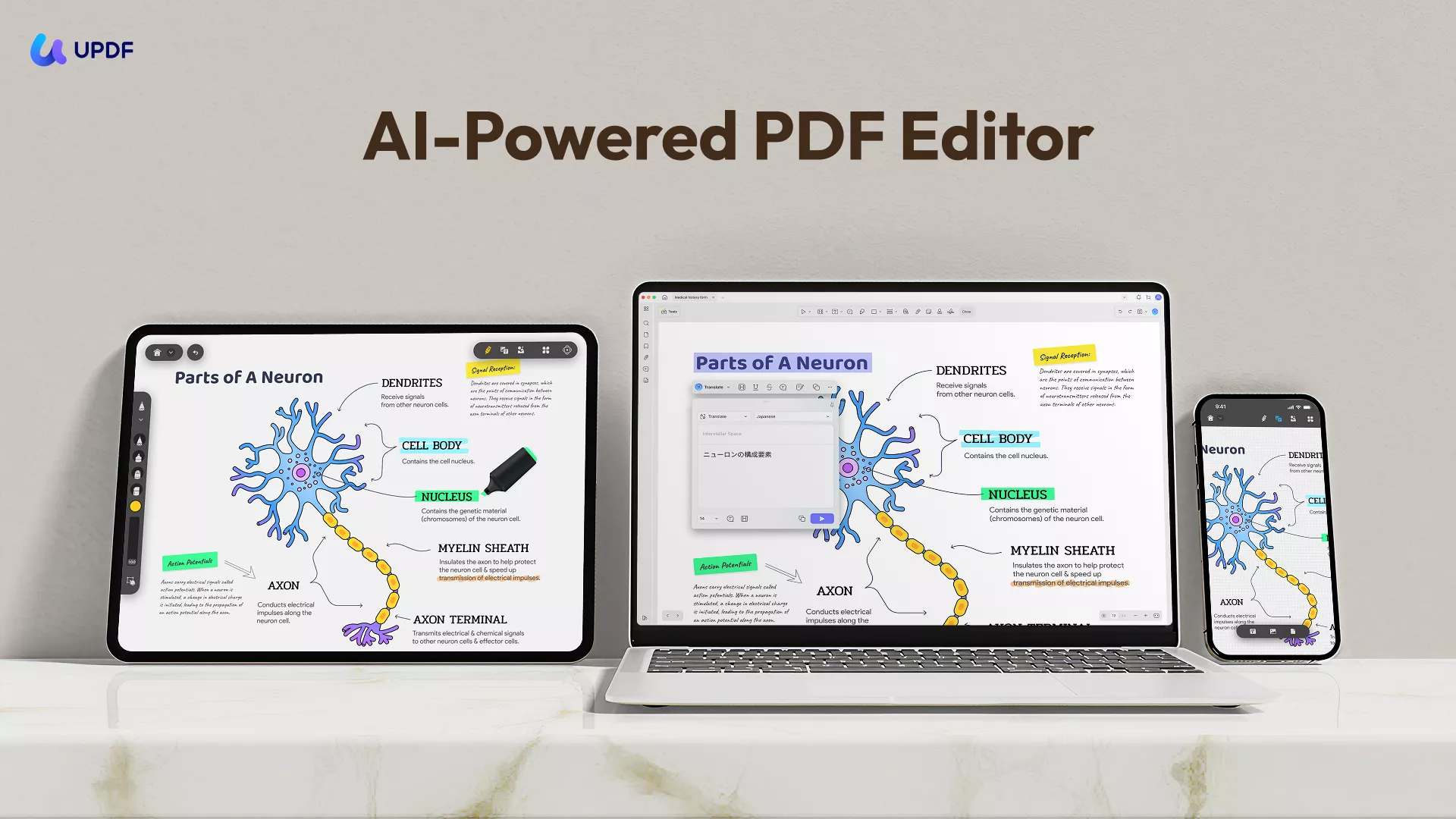
The video below demonstrates the core PDF reading workflow in UPDF. The interface may look slightly different in the latest version, but the main viewing and navigation concepts remain similar.
Highlights
- Comfortable long-form reading: flexible page views, continuous navigation, search, bookmarks, dark mode, eye-care backgrounds, split view, and text-to-speech.
- Apple Pencil annotation: highlight, underline, strike through, draw, add notes, shapes, stamps, signatures, and other markups. See the complete iPad PDF annotation app comparison.
- Edit instead of only marking up: change PDF text, images, and links directly on iPad.
- Handle scanned documents: scan paper, run OCR on supported languages, then search, edit, translate, or convert the result.
- AI-assisted reading: summarize, explain, translate, and chat with long documents without repeatedly switching apps.
- Finish the workflow: manage pages, compress, convert, fill forms, sign, protect, and share PDFs.
- Use one license across systems: work on iPad, iPhone, Windows, Mac, and Android, with UPDF Cloud available for file access between devices.
Limitations
Basic PDF reading is free, while unlimited advanced editing, OCR, conversion, AI usage, and other premium workflows depend on the selected plan.
2. Apple Preview - Best Free Built-In PDF Viewer for iPad
Best for: iPad users who want to open, search, fill, sign, and mark up PDFs without downloading another app or paying for a subscription.
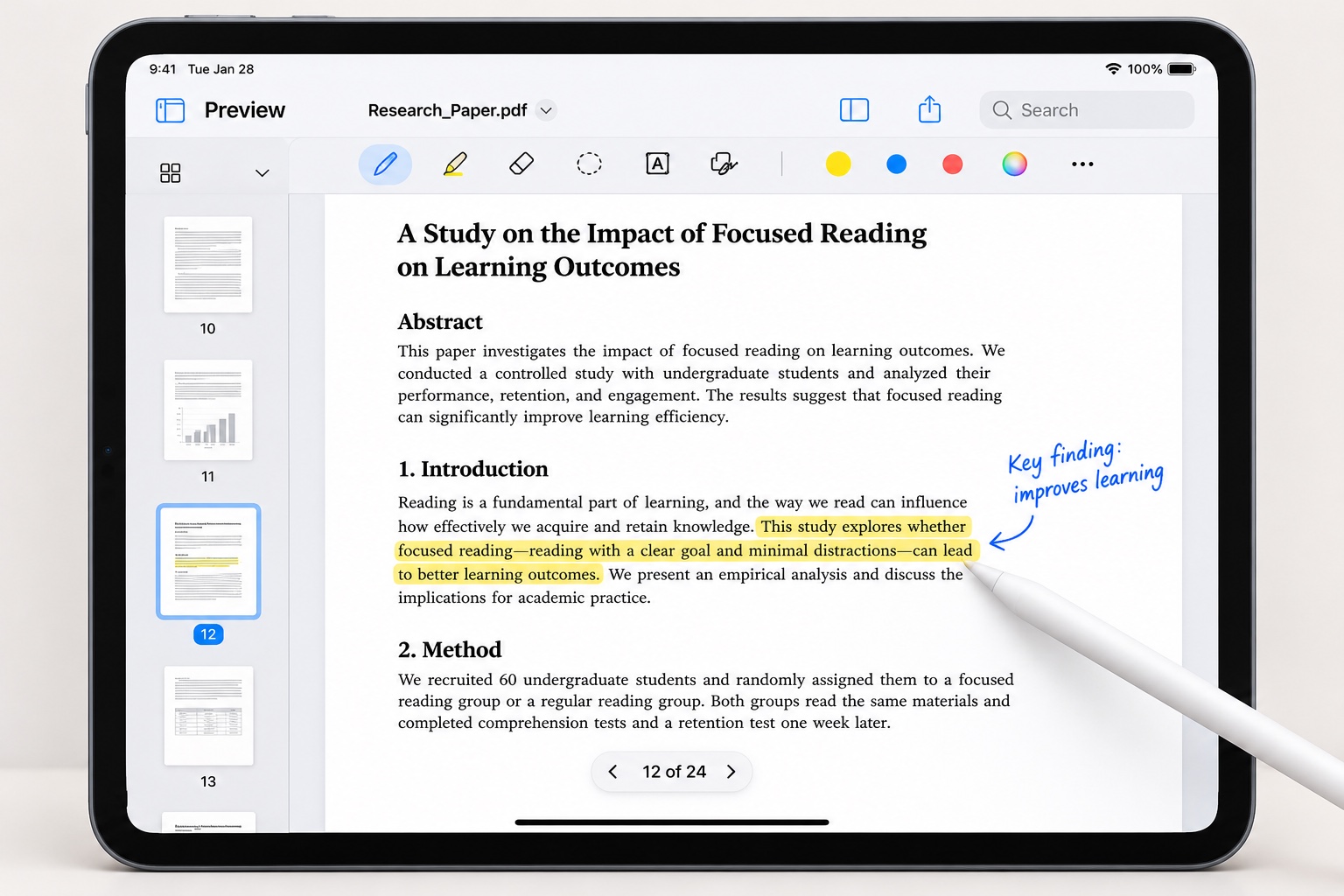
Apple Preview is built into current iPadOS versions and covers the everyday tasks many people expect from a free PDF viewer. You can browse pages, search a document, complete forms, add signatures, and use Markup with a finger or Apple Pencil. It is a sensible second recommendation because it is free, familiar, and immediately available.
Highlights
- Included with iPadOS, with no additional account or subscription required.
- Supports Apple Pencil handwriting, drawing, highlighting, signatures, and common Markup tools.
- Works well for opening attachments, reviewing contracts, filling straightforward forms, and making quick study notes.
- Integrates naturally with Files and other Apple apps.
Limitations
- It is limited to the Apple ecosystem and does not provide the same Windows or Android continuity as UPDF.
- Advanced PDF text and image editing, OCR conversion, batch processing, and broader export workflows are more limited than in a dedicated PDF editor.
- Users managing large document libraries or specialized professional workflows may need stronger organization and automation tools.
3. PDF Viewer by Nutrient - Best for Reading and Annotation
Best for: Users who want a focused iPad reader with strong annotation and form tools, but do not need a complete desktop-and-mobile PDF workflow.
PDF Viewer by Nutrient provides searching, markup, notes, signatures, form filling, document creation, and file handling in its free tier. Pro tools add more advanced document security, annotation, and collaboration controls.

Pros
- Easy and intuitive interface
- Has many features in the free version.
Cons
- Some advanced tools require the Pro upgrade.
- Its tool-rich interface may be more than occasional readers need.
- It does not provide the same complete cross-platform editing workflow as UPDF.
4. Adobe Acrobat Reader for iPad With Versatile Features
Best for: Existing Adobe subscribers and teams already using Adobe Document Cloud.
Adobe Acrobat Reader is a reputed PDF viewer for iPad. It provides all the essential features you need to view PDFs on iPad with ease. You can conveniently read PDFs and use its annotating features to highlight, mark, etc. All of these features are free. Furthermore, its AI features are free to use at the moment.

Pros
- Many features like reading, annotating, sharing, etc in the free version.
- There are many features in the paid version.
- 7-day free trial for all features.
Cons
- Many editing, conversion, organization, and AI tools require a paid Adobe plan.
- The number of tools and Adobe services can feel complex for basic reading.
5. GoodReader for iPad
Best for: Users who manage large local and cloud file libraries and value advanced file organization.
As the name implies, GoodReader for iPad intends to make your reading experience good and pleasant. That's why this PDF opener app for iPhone and iPad provides comprehensive features you need to read and annotate PDFs. Besides that, it serves as a central hub to manage files. Furthermore, it can encrypt files and can connect with many cloud services for easy download and syncing of files. However, most of these features require a subscription.

Pros
- Extensive viewing and annotating features
- File management
- Files encryption (require subscription)
- Cloud services connectivity (require subscription)
- Split-screen mode to read two files at once (require subscription)
Cons
- Minimal features in the free plan (viewing, annotating, and file management)
- Lack of new features updates outside the subscription
6. PDF Expert PDF Reader for iPad
Best for: Apple-only users who want a polished interface, strong annotation, form handling, and premium editing tools.
Last in our list of top PDF viewer iPad apps is PDF Expert. It enhances the PDF viewing experience through its extensive sets of features, such as viewing in a single page or continuous scroll, smooth scrolling and zooming, text searching, etc. Furthermore, it provides many annotating tools, including adding shapes and stickers. You also get to organize PDF pages. It also supports features like form filling, e-signatures, password protection, and others but requires a subscription to access them.

Pros
- Multiple viewing modes, including single-page and continuous scroll
- Advanced annotating features
- Organize PDF pages
- Dark mode
- Form filling and e-signing (require subscription)
- Password protection (require subscription)
Cons
- Advanced features require a subscription plan
- Advanced editing and AI features require Premium.
- The license is centered on Apple devices rather than Windows and Android.
Which iPad PDF Viewer Should You Choose?
Now that we have looked into the key features of all the above six PDF viewer apps for iPad, it is evident that all ensure a smooth readability experience. So, the main question is which one is the best and finest choice among all of them. To come to this conclusion, let's go through the comparison table below.
| Choose This App | When You Need |
|---|---|
| UPDF | Reading, Apple Pencil annotation, editing, OCR, conversion, AI assistance, signing, and cross-platform work in one app. |
| Apple Preview | A free built-in viewer for occasional reading, form filling, signatures, and basic Markup. |
| PDF Viewer by Nutrient | A focused iPad reading and annotation experience. |
| Adobe Acrobat Reader | Compatibility with an existing Adobe subscription or Document Cloud workflow. |
| GoodReader | Strong local and cloud file management for large document collections. |
| PDF Expert | A polished Apple-only experience with premium editing and form tools. |
Apple Preview is the easiest free starting point, but it is not the strongest choice for every workflow. Choose UPDF when your PDFs need to move beyond viewing into editing, OCR, conversion, AI-assisted reading, page management, signing, and work across non-Apple devices. You can download it free first and upgrade only when the advanced workflow is useful.
Windows • macOS • iOS • Android 100% secure
FAQs About PDF Viewers on iPad
Does iPad have a built-in PDF viewer?
Yes. Current iPadOS versions include Apple Preview for opening, searching, filling, signing, and marking up PDFs. The Files app can also open many PDFs, although a dedicated app is more suitable for editing, OCR, conversion, and advanced file management.
What is the best free PDF reader for iPad?
Apple Preview is the best completely free built-in option for basic reading and Markup. UPDF is free for opening and reading PDFs and is a better fit when you also want Apple Pencil annotation, editing, OCR, AI assistance, signing, or cross-platform access.
Which iPad PDF viewer works best with Apple Pencil?
Apple Preview supports convenient built-in Markup, while UPDF adds a broader set of annotation and document-processing tools. The better choice depends on whether you only need handwriting and highlighting or also need editing, OCR, conversion, and signing.
Can I read PDFs offline on an iPad?
Yes. PDFs stored locally can be read offline in Apple Preview, UPDF, Adobe Acrobat Reader, GoodReader, PDF Viewer, and PDF Expert. Cloud-only files should be downloaded before you lose internet access.
Which iPad PDF reader is best for large textbooks?
Look for text search, bookmarks, comfortable page modes, dark or eye-care viewing, annotation tools, and reliable file organization. UPDF is well suited to textbooks because it combines these reading tools with OCR and AI-assisted summaries and explanations.
Can I edit or OCR a scanned PDF on iPad?
Yes, with a capable third-party app. UPDF can OCR supported scanned PDFs and lets you continue editing, annotating, translating, converting, or signing the document in the same workflow.
Conclusion
For occasional PDF reading and simple Apple Pencil Markup, start with Apple Preview. For a fuller workflow, UPDF combines iPad reading with annotation, editing, OCR, conversion, forms, signing, AI assistance, and access across desktop and mobile systems. Download it free and test it with the documents you actually use. For more general reading guidance, see how to read a PDF effectively.
Windows • macOS • iOS • Android 100% secure






 Lizzy Lozano

 Enrica Taylor


 Enola Davis
