UPDF
UPDF
 UPDF for Windows
 UPDF for Mac
 UPDF for iPhone/iPad
 UPDF for Android
 Nomostar
 UPDF AI Online
 UPDF Sign
 IvyCraft
 Edit PDF
 Annotate PDF
 Create PDF
 PDF Form
 Edit links
 Convert PDF
 OCR
OCR PDF to Word
 PDF to Image
 PDF to Excel
 Organize PDF
 Merge PDF
 Split PDF
 Crop PDF
 Rotate PDF
 Protect PDF
 Sign PDF
 Redact PDF
 Sanitize PDF
 Remove Security
 Read PDF
 UPDF Cloud
 Compress PDF
 Print PDF
 Batch Process
 About UPDF AI
 UPDF AI Solutions
 AI User Guide
 FAQ about UPDF AI
 Summarize PDF
 Translate PDF
 Chat with PDF
 Chat with AI
 Chat with image
 PDF to Mind Map
 Explain PDF
 PDF AI Tools
 Image AI Tools
 AI Chat Tools
 AI Writing Tools
 AI Study Tools
 AI Working Tools
 Other AI Tools
 AI Bookmark Generation
 AI Bookmark Summary
 AI Watermark Generation
 AI Background Generation
 AI Sticker Generation
 AI Stamp Generation
 AI Editing Suite
 UPDF Copilot
 AI Page Management
 AI Semantic Search
 PDF to Word
 PDF to Excel
 PDF to PowerPoint
 Enterprise Solution
 Enterprise Sign
 Enterprise AI
 Enterprise Plan
 Enterprise User Guide
 Enterprise Webinar
 IT
IT Education
 Construction
 Financial Service
 Healthcare
 Insurance
 Legal
Legal Manufacturing
 Government
 Researchers & PhDs
 Solopreneurs & Freelancers
 Lawyers & Legal Professionals
 Real Estate Agents & Brokers
 Education Solution
 Customer Stories
 User Guide
 UPDF Tricks
 FAQs
FAQs UPDF Reviews
 Download Center
 Blog
Blog Newsroom
 Tech Spec
 Updates
 UPDF vs. Adobe Acrobat
 UPDF vs. Foxit
 UPDF vs. PDF Expert

Deleting a PDF header or footer should be simple. Yet anyone who has tried knows the frustration: some vanish with one click, while others stubbornly remain no matter what you try.
The issue? Most free tools only hide them visually rather than removing them permanently, causing headers to reappear when printing, re‑editing, or opening the file in another reader.
Scanned documents, Chrome‑saved web pages, and embedded backgrounds make the problem even worse. The fix is not always a simple crop or masking trick.
This guide covers every proven method for every device and PDF type — free online tools, offline editors, batch processing — so you can finally remove any header or footer for good.
Among the tools we'll cover, UPDF stands out as the most practical option for most users — it handles both native removal (one‑click) and flattened content (cropping/redaction). Whether you're cleaning up a single file or batch‑removing headers from dozens of documents, UPDF gives you the flexibility most tools can't match — without the complexity or cost of enterprise solutions.
Windows • macOS • iOS • Android 100% secure
Why Can't Headers and Footers Be Deleted from PDF?
Here's a quick-reference table to help you identify your PDF type at a glance, understand why headers won't delete, and know exactly which solution to use.
| PDF Type | How to Recognize It | Why Headers Won't Delete | The Right Solution |
|---|---|---|---|
| Native Editable PDF | Exported from Word, PPT, or design tools. Text is selectable with a cursor. | Headers are independent objects — they can be selected and deleted. | One-click removal using any standard PDF editor (UPDF, Adobe Acrobat, etc.). |
| Scanned / Image-Based PDF | Created from a scanner or camera. No text is selectable — it's all one flat image. | Headers are physically part of the page image, not separate objects. | OCR first (using a professional PDF editor like UPDF) to recognize text, then crop or redact the header area. |
| Chrome / Web-Printed PDF | Saved from a browser using "Print → Save as PDF." Contains page numbers, URLs, and dates by default. | Headers are embedded during the print render process — they don't exist as editable elements after saving. | Prevention: Disable headers & footers in print settings before generating the PDF. |
| Background-Embedded PDF | Created by designers who merged headers into the page background layer. | Headers are fused with the background — inseparable from the page itself. | Cropping the header area or redacting it with a white box is the only viable workaround. |
Quick Self-Check: Open your PDF and try to select the header text with your mouse. If you can highlight it → Native Editable; any online or desktop PDF editor can solve it. If nothing selects → Scanned; professional desktop software can solve, most online tools just turn a scanned PDF into a searchable, not editable PDF.
Check the repeated information across the document before saving the final version. To explore the document tools further, see the demonstration of editing PDF content in UPDF below.
If it's a saved webpage → Chrome-Printed; change Printing settings. If the header looks like it's part of the page design → Background-Embedded; Most online or desktop tools with cropping or redaction features can solve it. Match your type, follow the solution below, and you're done.
Best 3 Ways to Remove Header and Footer from PDF
Use this comparison table to pick the fastest, safest method based on your priorities: free usage, file privacy, batch processing, and PDF type compatibility.
| Solution | Core Mechanism | Pros | Cons | Best For |
|---|---|---|---|---|
| Free Online PDF Tools | Mostly crop-hiding, partial object removal | No installation, instant access, 100% free for basic use | Privacy risks for sensitive files, size/quantity limits, no true removal for scanned PDFs | Quick edits for non-confidential personal PDFs |
| Desktop PDF Editors | Permanent object deletion | Offline & secure, supports batch processing, works for most editable PDFs | Requires installation, some tools need paid licenses | Business files, batch tasks, high-precision editing |
| Mac Preview / Windows Built-in Tools | Only cropping & visual hiding | Completely free, no third-party software | Cannot delete objects permanently, ineffective for baked-in elements | Temporary visual cleanup for casual use |
Note: Python Scripts have code-based batch object removal features, but it requires coding skills and often fail for variable, dynamic footers.
Way 1. Remove Header and Footer from PDF Online Free
Online PDF tools are ideal for one-time, quick edits without downloading software. Most online tools with editing features can achieve this header and footer removal; we've listed 3 tools to help you.
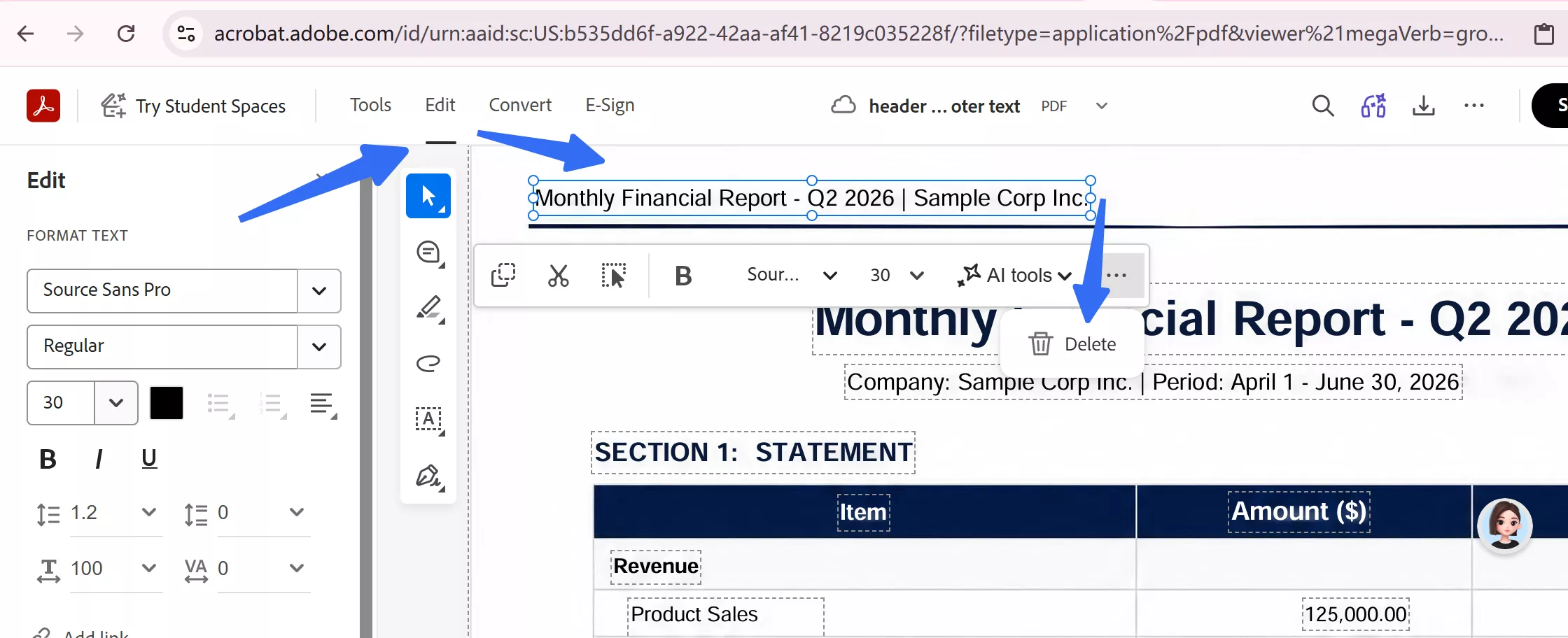
Adobe Acrobat Online offers native header/footer removal directly in your browser. Select Edit > Choose the text Header & Footer > Remove — the same workflow as the desktop version, but the desktop version has one-click removal. It’s free with an Adobe account and gives you access to 25+ tools. However, it requires logging in and processes files on Adobe’s servers.
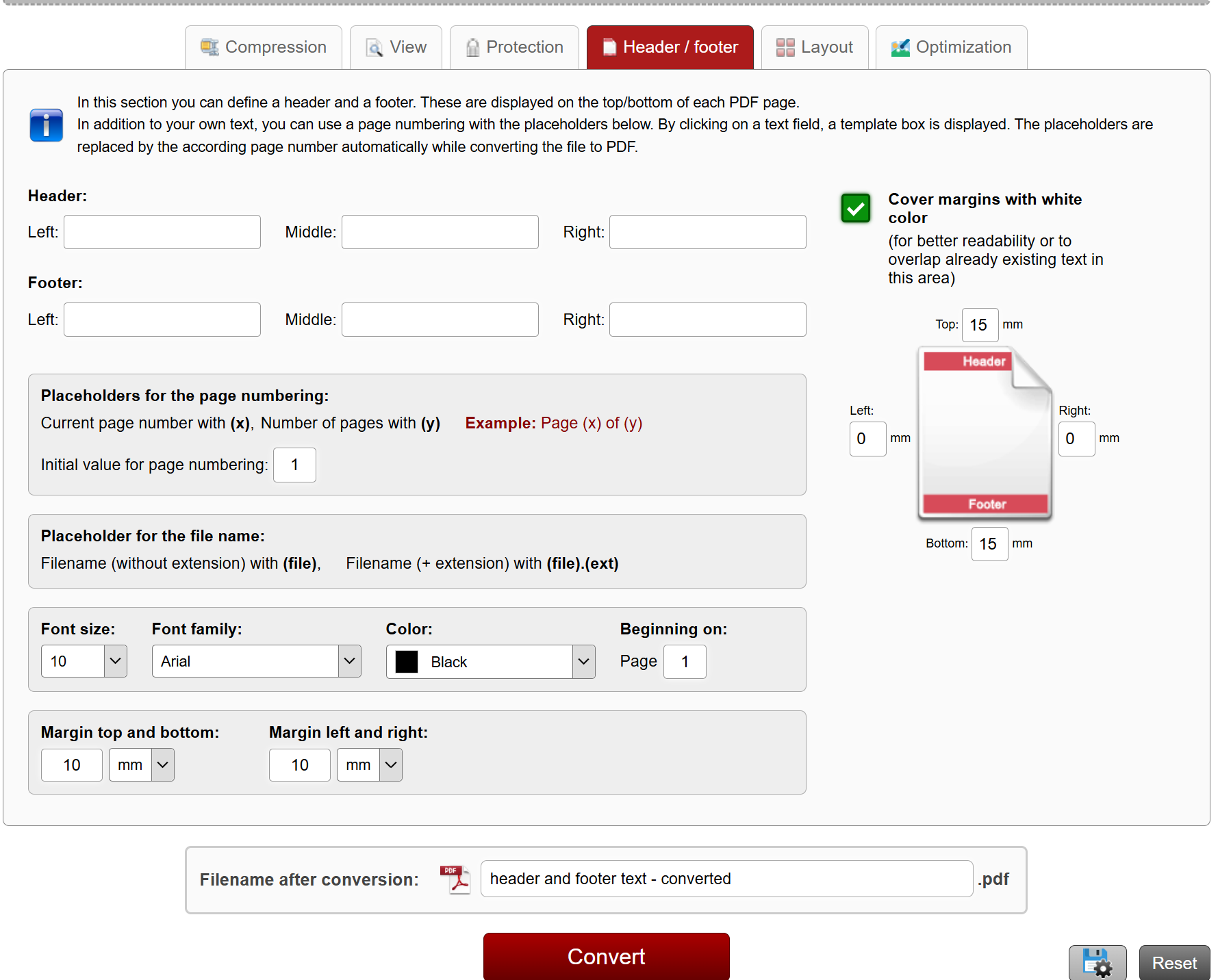
Online2PDF provides header/footer options as part of its layout and format settings. No account is required, making it a quick option for users who don’t want to sign up. However, its header/footer removal is less direct than Adobe’s native command — you may need to adjust layout settings rather than simply clicking “Remove.”
PDFfiller offers header and footer removal through its Edit Module. It’s a comprehensive online PDF editor to solve how to edit a PDF with a drag‑and‑drop interface, custom content options, and formatting tools. However, it requires an account, and the free tier is limited — you’ll need to subscribe for full access.
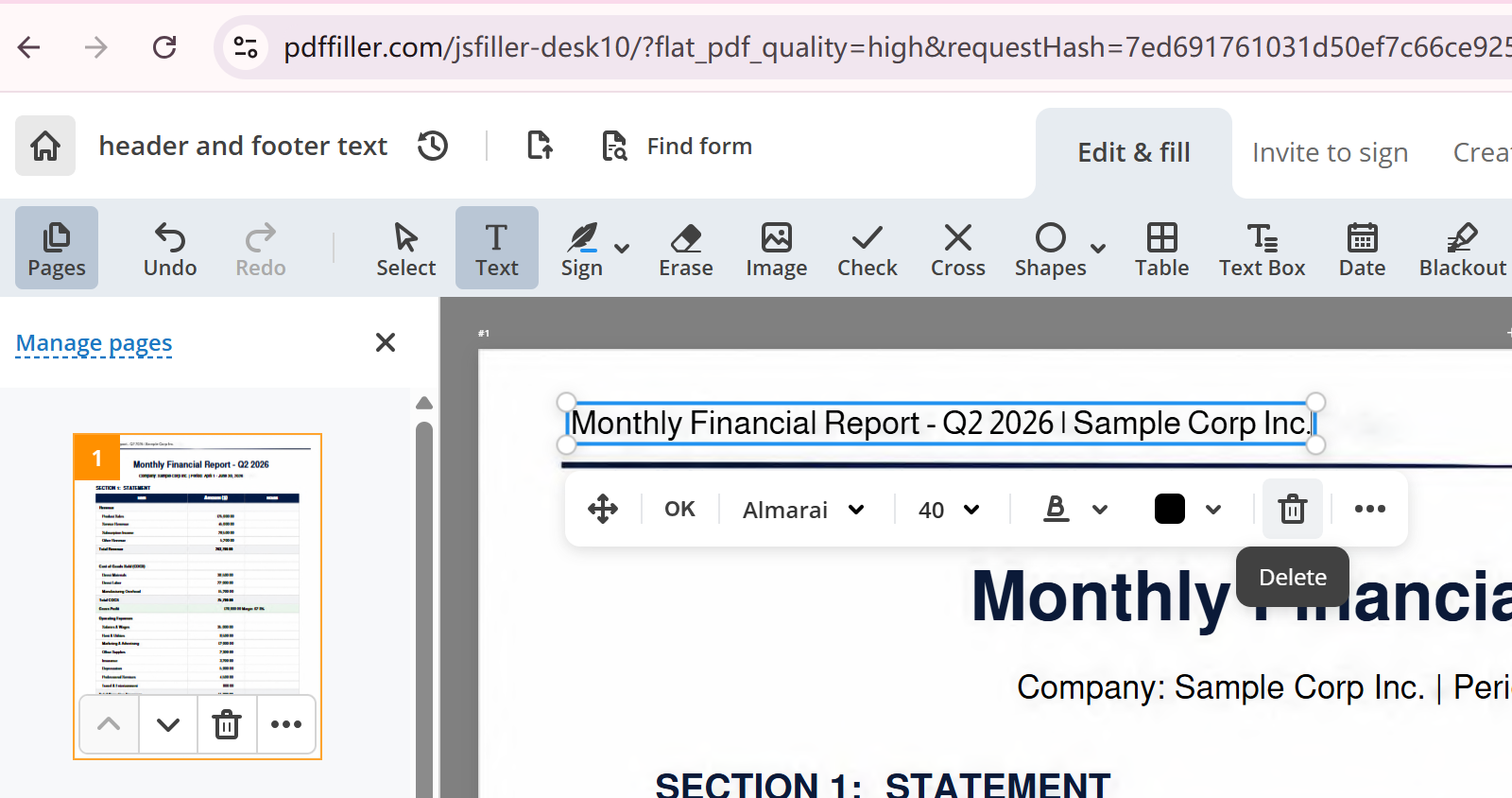
Privacy Reminder: Do not upload confidential business contracts, personal ID documents, or sensitive internal files to online third-party tools. Use offline desktop software for private content to avoid data leakage risks.
Way 2. Remove Header and Footer from PDF Permanently & Securely
Tired of persistent headers and footers cluttering your PDF files? This guide shares practical, secure ways to permanently remove them using trusted tools for diverse PDF‑editing scenarios.
UPDF offers the most balanced solution for most users. One license covers Windows, Mac, iOS, and Android — you’re not locked into a single operating system. It has a one‑click “Remove Header & Footer” for native elements in desktop versions, plus cropping for flattened content for all versions. Enter Edit mode to remove them one by one.
Windows • macOS • iOS • Android 100% secure
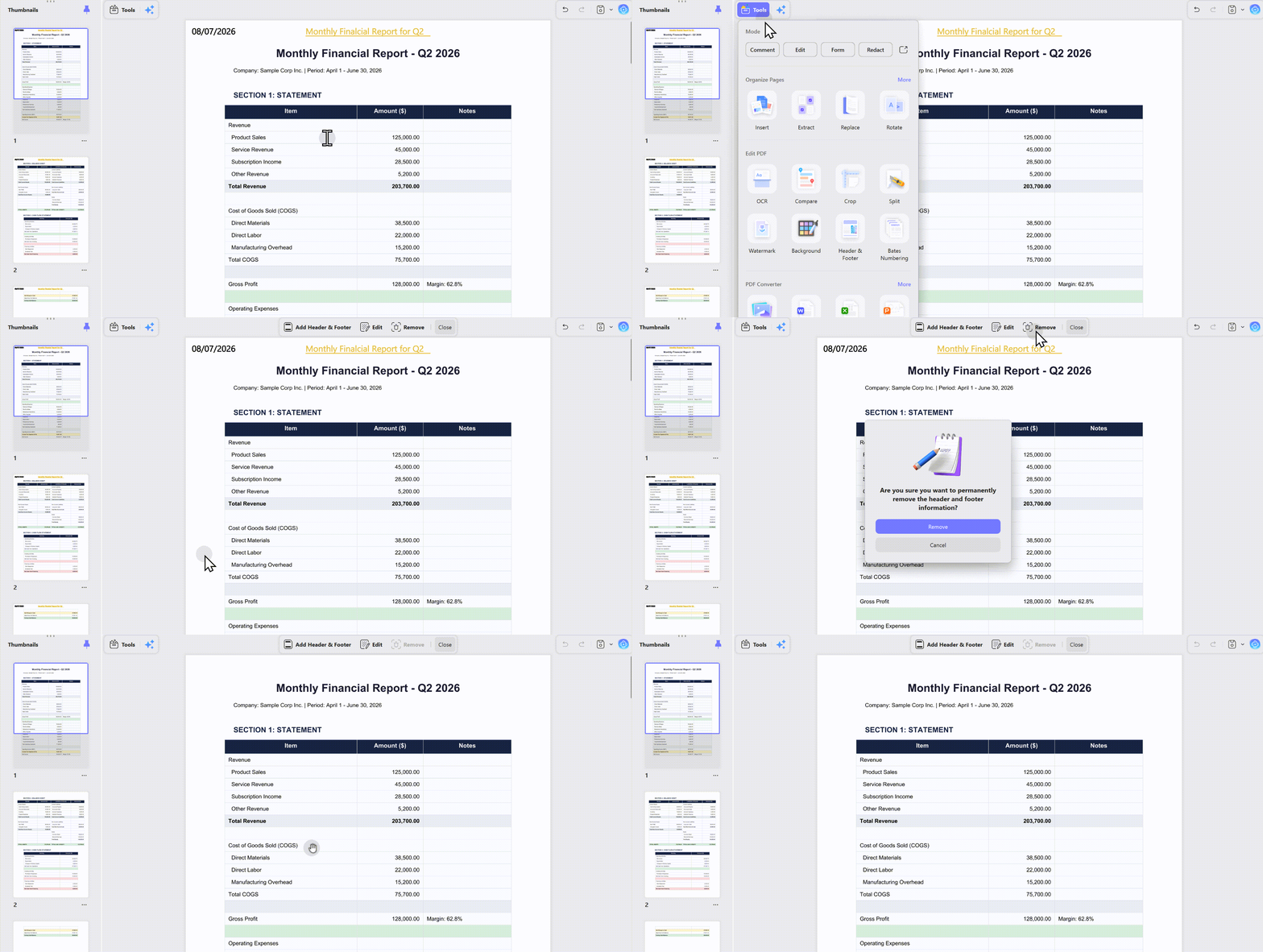
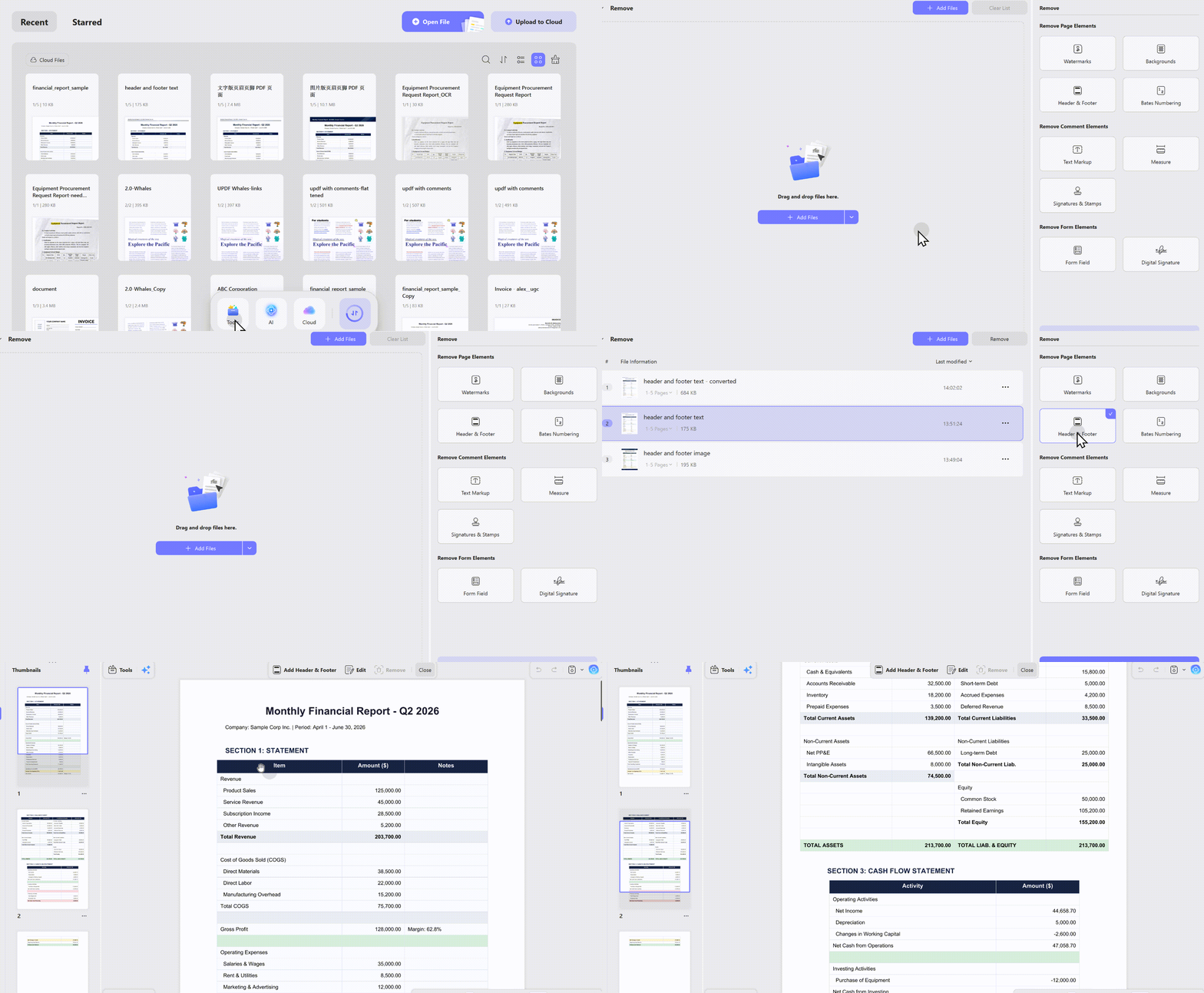
Batch processing lets you remove headers, footers, watermarks, and backgrounds from multiple files at once. Files are processed locally — no uploads, no privacy concerns. And at $79.99 one‑time (or $49.99/year), it’s a fraction of Adobe’s ongoing subscription cost.
As for the image header and footer or you don't want to edit to remove them, then cropping and redaction are good for you to achieve this goal. Choose Crop or Redact on Tools in UPDF; everything's easy and under control.
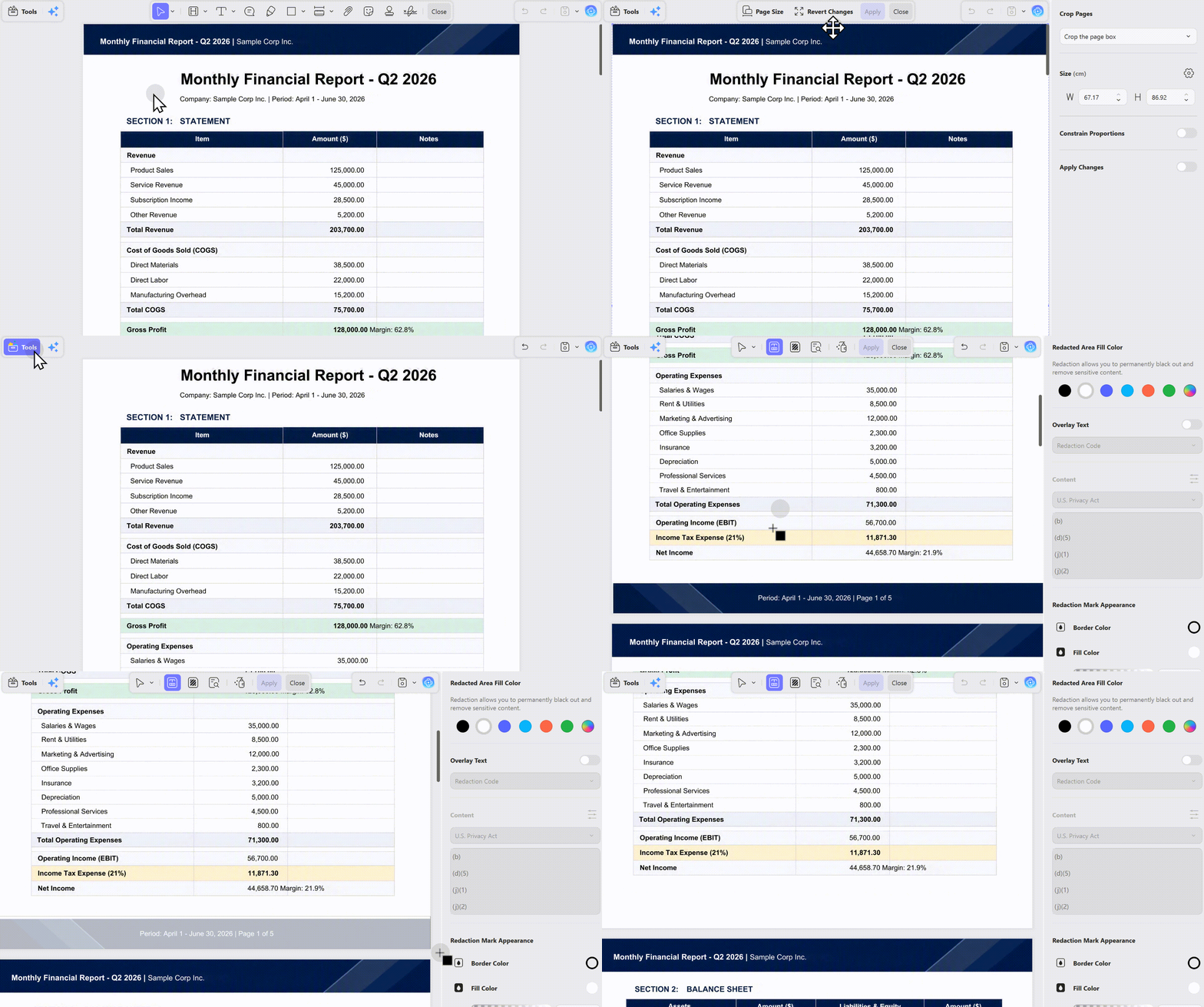
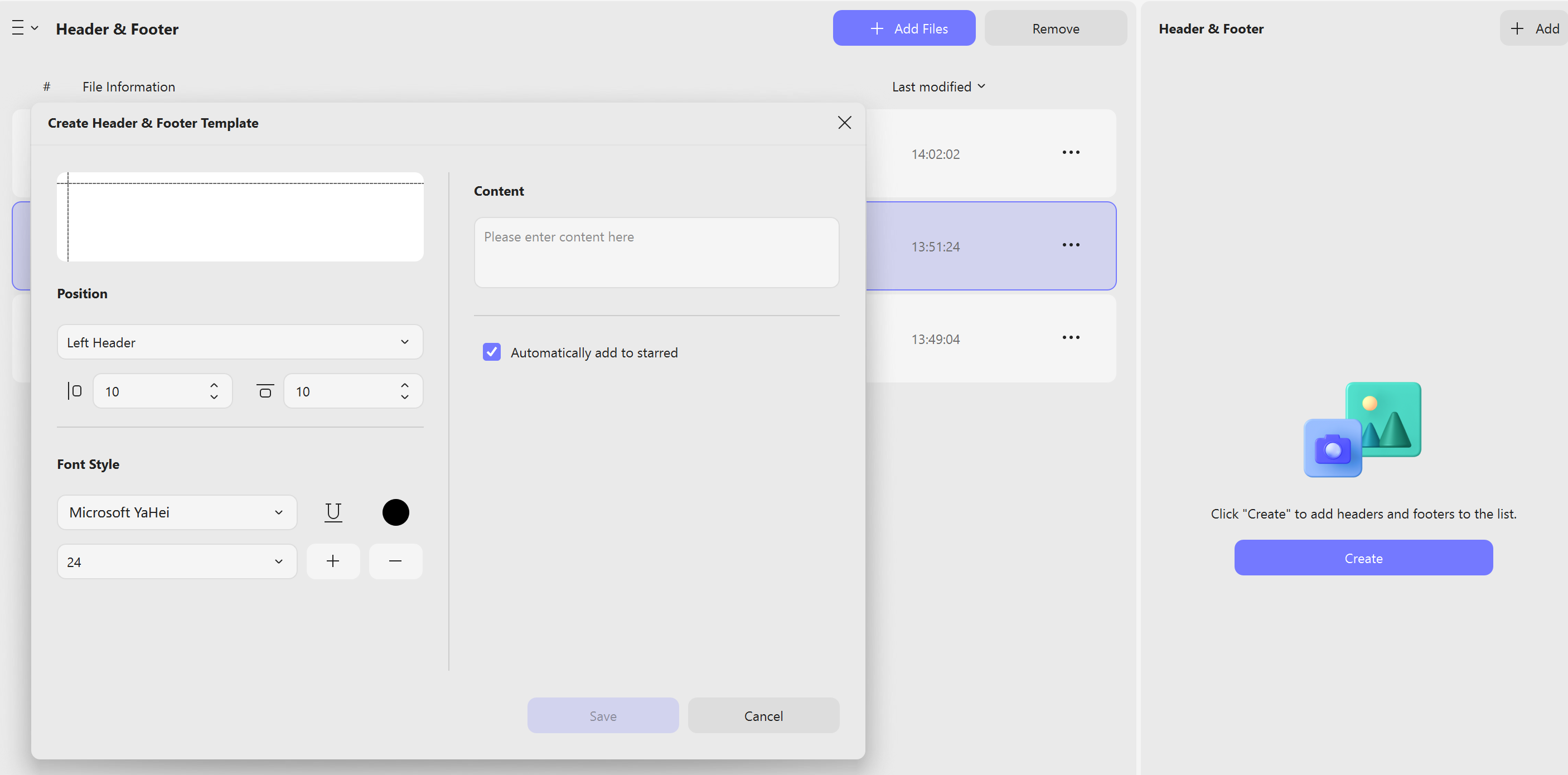
You can even batch add header and footer on UPDF if you want.
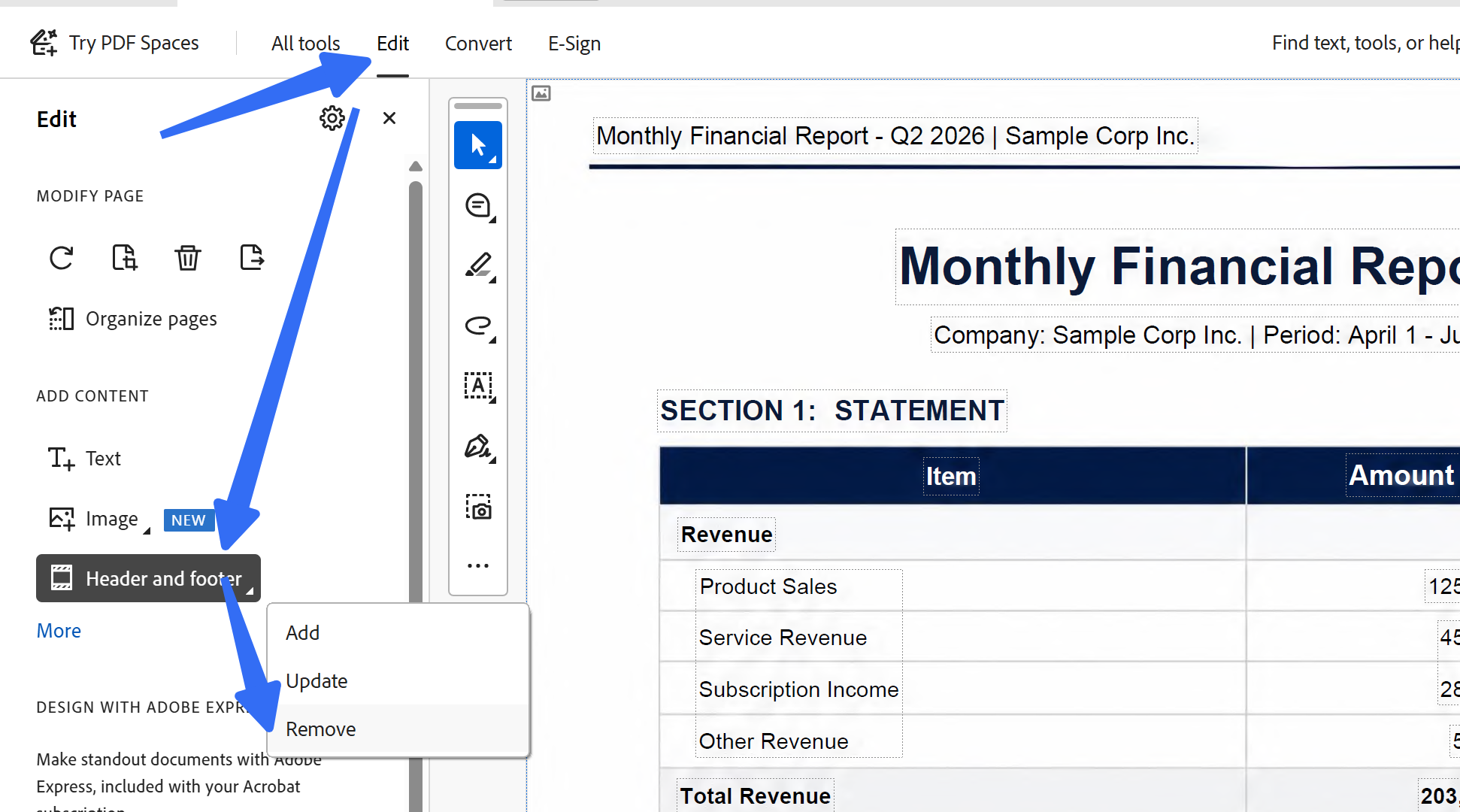
Adobe Acrobat Pro offers the same one‑click removal and batch processing, but it’s subscription‑only at ~$240/year. If you already have an Adobe subscription, it’s a solid choice. But for most individual users, the ongoing cost is hard to justify when UPDF offers the same core functionality for a one‑time payment.
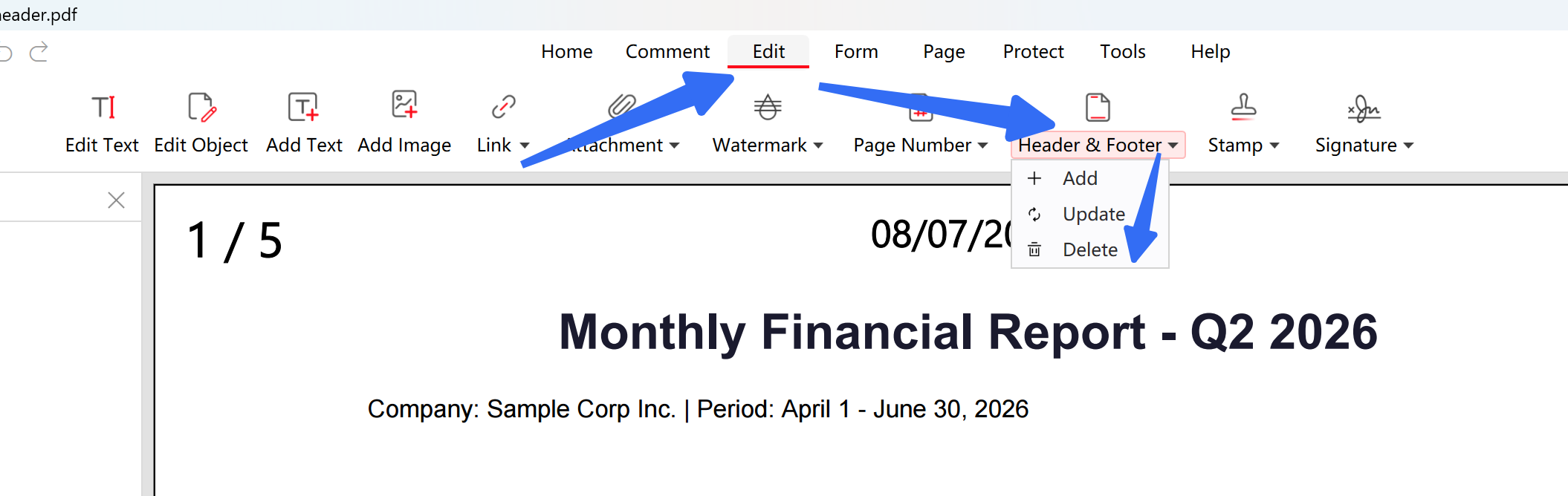
PDFgear is completely free and works offline with no watermarks. However, it lacks native header/footer removal — you’ll need to crop manually — and doesn’t support batch processing. Good for occasional use, but not ideal if you need to remove headers regularly or from multiple files.
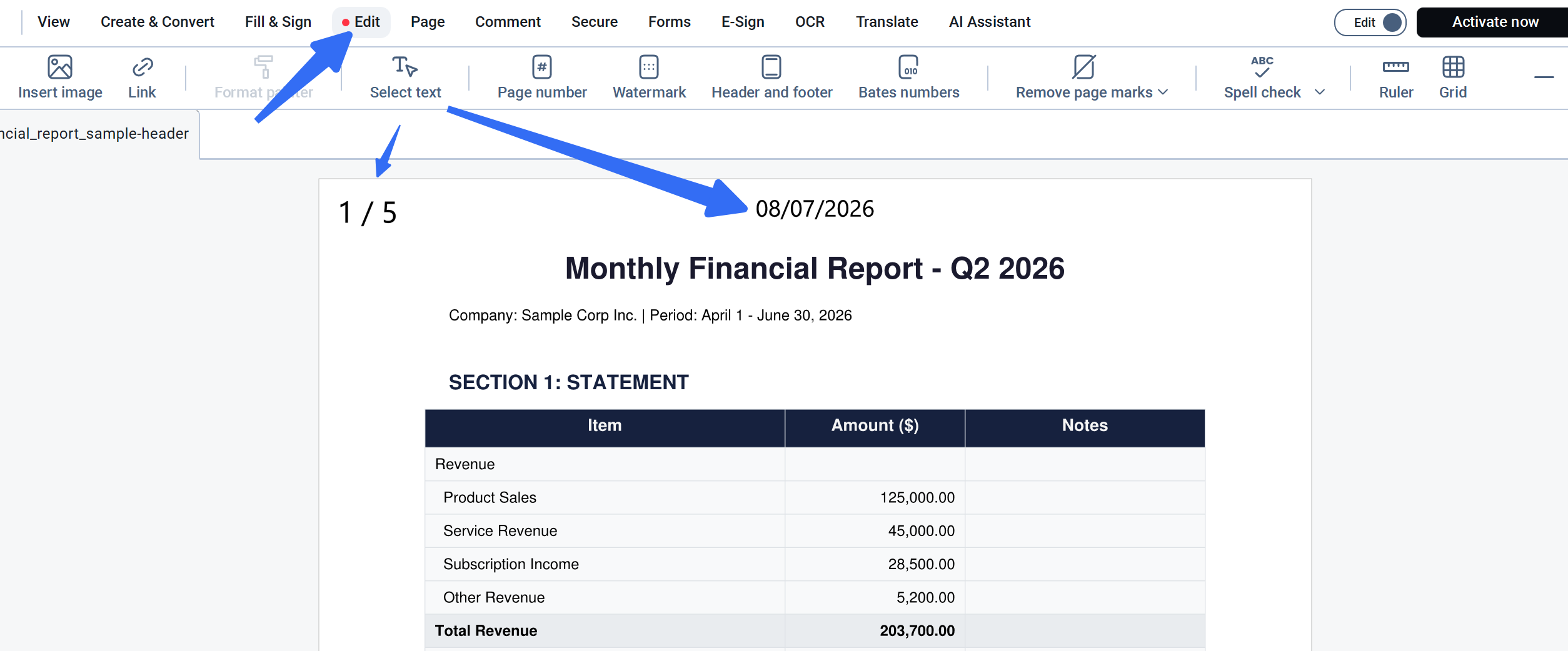
Soda PDF offers removal through the Edit Module. Its Header and Footer function is just for adding or editing them, with no removal. However, it’s platform‑specific licensing (not one license across all devices like UPDF) and comes with a higher price tag.
Way 3. Built-in System Tools (Mac Preview & Windows)
Both Mac and Windows offer free built-in PDF tools, but neither can permanently delete header and footer objects. They only support margin cropping for visual hiding.
Mac Preview Workflow:
1. Open the PDF with Mac Preview.
2. Click Tools > Adjust Size or use the crop tool to cut off top and bottom margins containing headers and footers.
3. Save the file to hide unwanted elements visually.
Windows Workflow:
Windows default PDF readers only support basic viewing. Use the Microsoft Print to PDF function to re-print the file with adjusted margins to cover headers and footers.
Why Do You Have to Remove Header and Footer from PDF?
Do you wish to know why you must remove the header and footer from the PDF? With all the details and discussions of the tools, you might have some thoughts about trying out this function. To get to know the reasons that you might have to face, let's look ahead into them:
- The document that you might be using will have the wrong page numbers on it. You must remove the page numbers to avoid confusion for other readers.
- There is a possibility that the document contains the wrong date in the header or footer. To avoid any misconception, you must change the date of the PDF to make it updated.
- Usually, many documents contain the company name as the document's header. If it has been changed for some purpose, you must remove the header and footer and replace them with a new one.
- You will have to replace the header and footer of a complete document with another one that would suit your requirements. You will have to replace the previous one by removing it.
Also Read: How to Remove Page Numbers from PDF
FAQS About Removing Header and Footer from PDF
Q1. How to Remove Header and Footer When Printing PDFs?
You need to use Firefox to remove the header and footer from the PDF when printing. Right-click on the PDF file to open with Firefox, click on the print icon, click on "More Settings" and uncheck the "Headers and Footers" to print.
Q2. How to Remove Header and Footer in Foxit PDF Editor?
To remove the header and footer in Foxit PDF Editor, you need to open PDF, click "Organize" > "Header&Footer" > "Remove All" to remove all header and footers in PDF.
Q3. How to Remove Header and Footer from PDF Using Acrobat
Open PDF on Adobe Acrobat, click "Tools" > "Header & Footer" and click "Remove" to remove header and footer from PDF using Acrobat.
Conclusion
This article has provided an overview of how to remove the header and footer from PDF documents with the help of online and offline tools.
Offline tools like UPDF are pretty extensive and diverse in functionality, which makes them one of the best options in the market for this purpose. If you like UPDF, you can download UPDF today and experience a remarkable journey!
To learn more tips and tricks on PDF editing, check this How to Edit PDF complete guide.
Windows • macOS • iOS • Android 100% secure








 Lizzy Lozano
 Enola Miller