 UPDF
UPDF
 UPDF for Windows
 UPDF for Mac
 UPDF for iPhone/iPad
 UPDF for Android
 Nomostar
 UPDF AI Online
 UPDF Sign
 IvyCraft
 Edit PDF
 Annotate PDF
 Create PDF
 PDF Form
 Edit links
 Convert PDF
 OCR
OCR PDF to Word
 PDF to Image
 PDF to Excel
 Organize PDF
 Merge PDF
 Split PDF
 Crop PDF
 Rotate PDF
 Protect PDF
 Sign PDF
 Redact PDF
 Sanitize PDF
 Remove Security
 Read PDF
 UPDF Cloud
 Compress PDF
 Print PDF
 Batch Process
 About UPDF AI
 UPDF AI Solutions
 AI User Guide
 FAQ about UPDF AI
 Summarize PDF
 Translate PDF
 Chat with PDF
 Chat with AI
 Chat with image
 PDF to Mind Map
 Explain PDF
 PDF AI Tools
 Image AI Tools
 AI Chat Tools
 AI Writing Tools
 AI Study Tools
 AI Working Tools
 Other AI Tools
 AI Bookmark Generation
 AI Bookmark Summary
 AI Watermark Generation
 AI Background Generation
 AI Sticker Generation
 AI Stamp Generation
 AI Editing Suite
 UPDF Copilot
 AI Page Management
 AI Semantic Search
 PDF to Word
 PDF to Excel
 PDF to PowerPoint
 Enterprise Solution
 Enterprise Sign
 Enterprise AI
 Enterprise Plan
 Enterprise User Guide
 Enterprise Webinar
 IT
IT Education
 Construction
 Financial Service
 Healthcare
 Insurance
 Legal
Legal Manufacturing
 Government
 Researchers & PhDs
 Solopreneurs & Freelancers
 Lawyers & Legal Professionals
 Real Estate Agents & Brokers
 Education Solution
 Customer Stories
 User Guide
 UPDF Tricks
 FAQs
FAQs UPDF Reviews
 Download Center
 Blog
Blog Newsroom
 Tech Spec
 Updates
 UPDF vs. Adobe Acrobat
 UPDF vs. Foxit
 UPDF vs. PDF Expert

You opened the Scanner app on Windows 11, fed a stack of paper into your printer, and hit scan. Then you saw the FILE TYPE dropdown: TIFF, PNG, JPEG, Bitmap. No PDF.
That's not your fault. It's a wall a lot of people have hit, and there's a stranger detail behind it: according to a thread on Microsoft Q&A, Windows 11 Scan can technically produce PDFs — but if you have Acrobat Reader installed, it throws an error on the last page. Double-sided scanning? Not supported, even if your printer is. "You need to download the software from your printer manufacturer to do this," the reply says.
So you searched scan2pdf. And what you actually meant was: I just want to turn paper into a PDF. Why is this so hard on Windows 11?
This article is about what happens after that search. It covers why the built-in scan-to-PDF path fails, what scan2pdf freeware and online tools actually deliver, and where UPDF fits in when the scanned PDF needs to be searched, edited, compressed, or understood. By the end, you'll have a clear workflow for turning paper into a PDF you can actually use — not just a file that exists.
Part 1: Scan2PDF on Windows 11: The Built-In Path Is a Dead End
The Microsoft Q&A thread is worth reading in full because it captures the exact frustration. A user with an HP printer and an HP laptop opens Scanner app, sees only image formats, and writes: "I need to be able to save to pdf." Another user upgraded from Windows 10 to 11, found that the old Scan 2 app was incompatible, installed Windows Scan, and discovered the same missing PDF option.
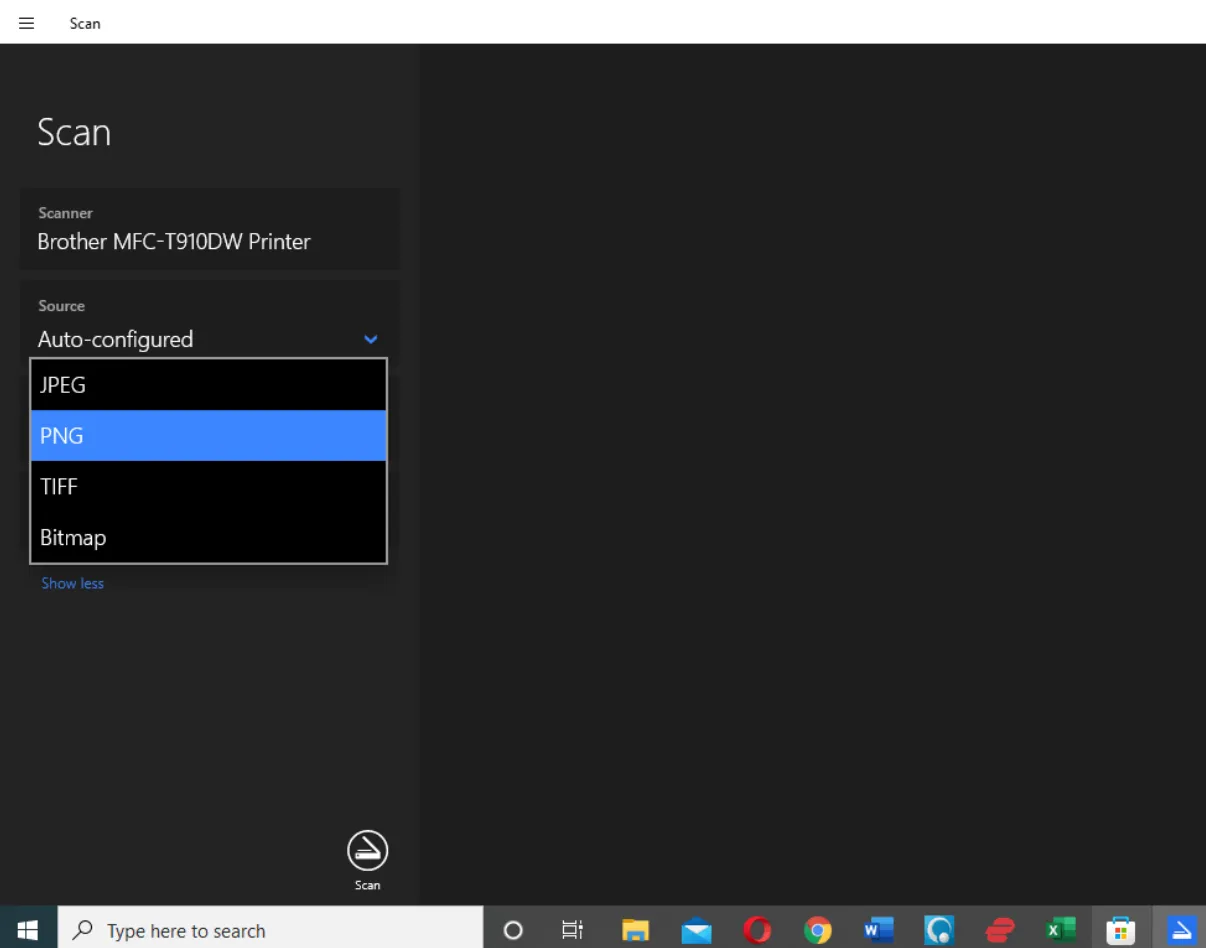
The official workaround is to scan as an image, then run it through Microsoft Print to PDF. It works. It's also two steps for something that should be one. If you scan a receipt once a month, fine. If you're turning paper documents into shareable PDFs regularly, you're crossing that obstacle every single day.
That's why people go looking for scan2pdf freeware. And that's where the picture gets more interesting.
Part 2: Scan2PDF Freeware: It Scans, But Can You Actually Use the Result?
Two names come up repeatedly in Reddit threads and roundups: NAPS2 and WinScan2PDF.
NAPS2 is the one people recommend when they want something that actually works. It's open source, supports OCR in over 100 languages, and can produce searchable PDFs. WinScan2PDF is the minimalist option — pick your scanner, hit Scan, save as PDF. No frills, no OCR, no editing. Horland's Scan2PDF light is another old freeware name with OCR options, though the free version chops functionality into pieces.
Here's the gap nobody mentions in those recommendation threads: these tools solve the "generate a PDF" step. They don't solve the "is this PDF usable" step.
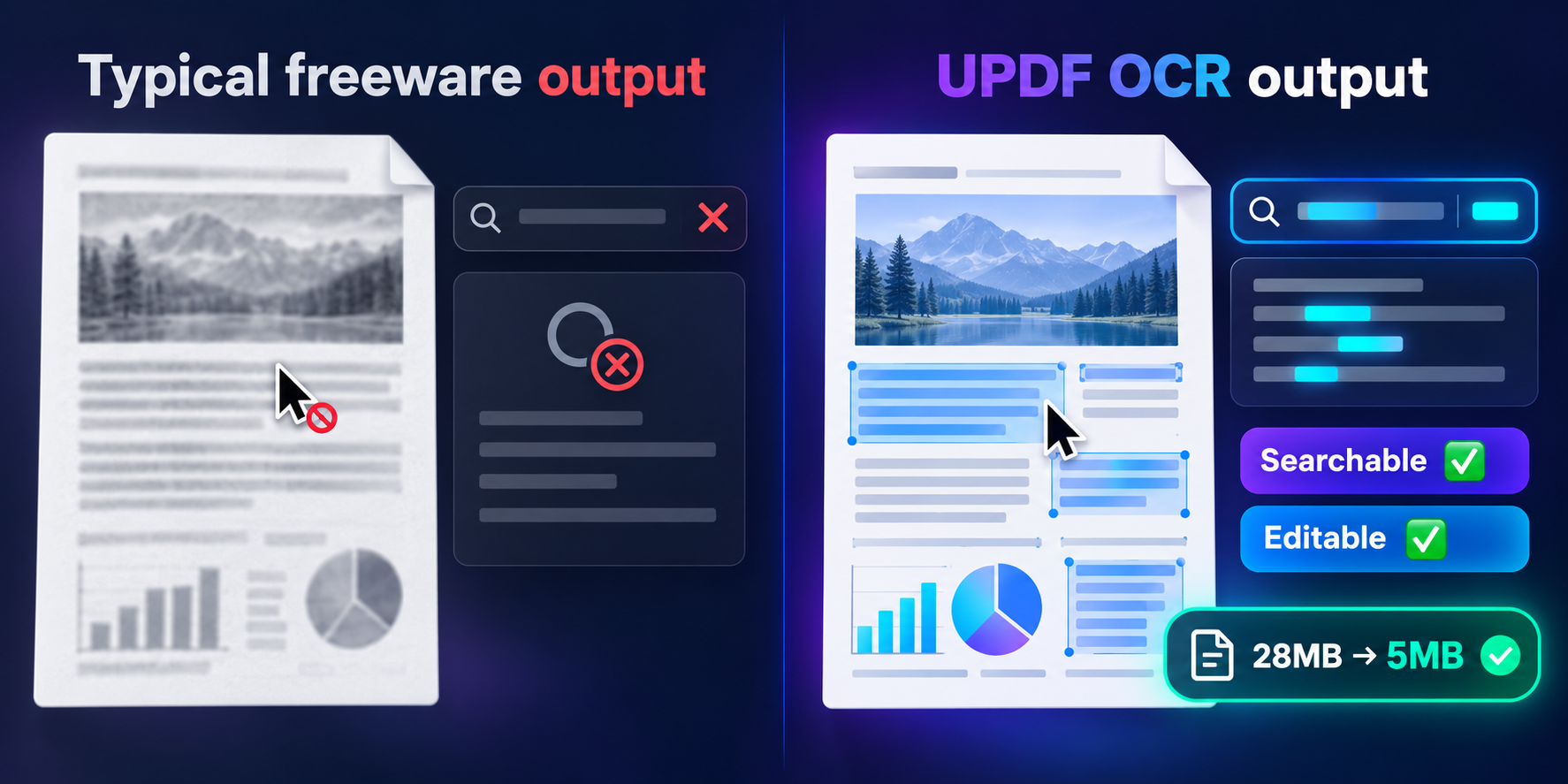
A lot of free scan2pdf tools output what is essentially an image wrapped in a PDF shell. You can look at it. You can't search it. You can't select text. You can't edit a single word. NAPS2 does offer OCR, which is a real difference — but once the OCR is done, the workflow often dead-ends. If you need to edit the text, compress the file, or extract structured information from that scanned document, you're back to switching tools.
That's the point where scan2pdf freeware stops being enough — not because it failed, but because it finished its job and handed you a file that needs another job done.
Part 3: Scan2PDF Online: Convenient Until the File Gets Too Big
Online scan2pdf tools make a different trade. No installation, no driver headaches. FeelPDF and PDF Tools Base both emphasize that files are processed in the browser and not uploaded to a server. That privacy framing is legitimate, and for a one-page form or a short receipt, the browser route is genuinely faster than installing anything.
But scanned documents are heavy. A color page at 300dpi, a dozen pages, and you're looking at a file that can easily exceed the limits of a free online tool. FeelPDF's free tier caps at 50MB per file and 10 tasks per day. PDF Tools Base notes that "large files may be limited by your browser's memory." The browser isn't a processing engine — it's a tab. When the scanned PDF gets big, the tab gets slow.
So scan2pdf online solves the "I don't want to install software" problem. It doesn't solve the "scanned files are inherently large" problem. Those are different problems, and conflating them is why people end up frustrated after the third attempt.
Part 4: Where UPDF Fits in the Scan2PDF Workflow
UPDF is not a scanner driver. It doesn't compete with NAPS2 for the act of capturing paper. What it does is pick up the PDF after the scan is done and make it into something you can actually work with.
First: make the text alive.
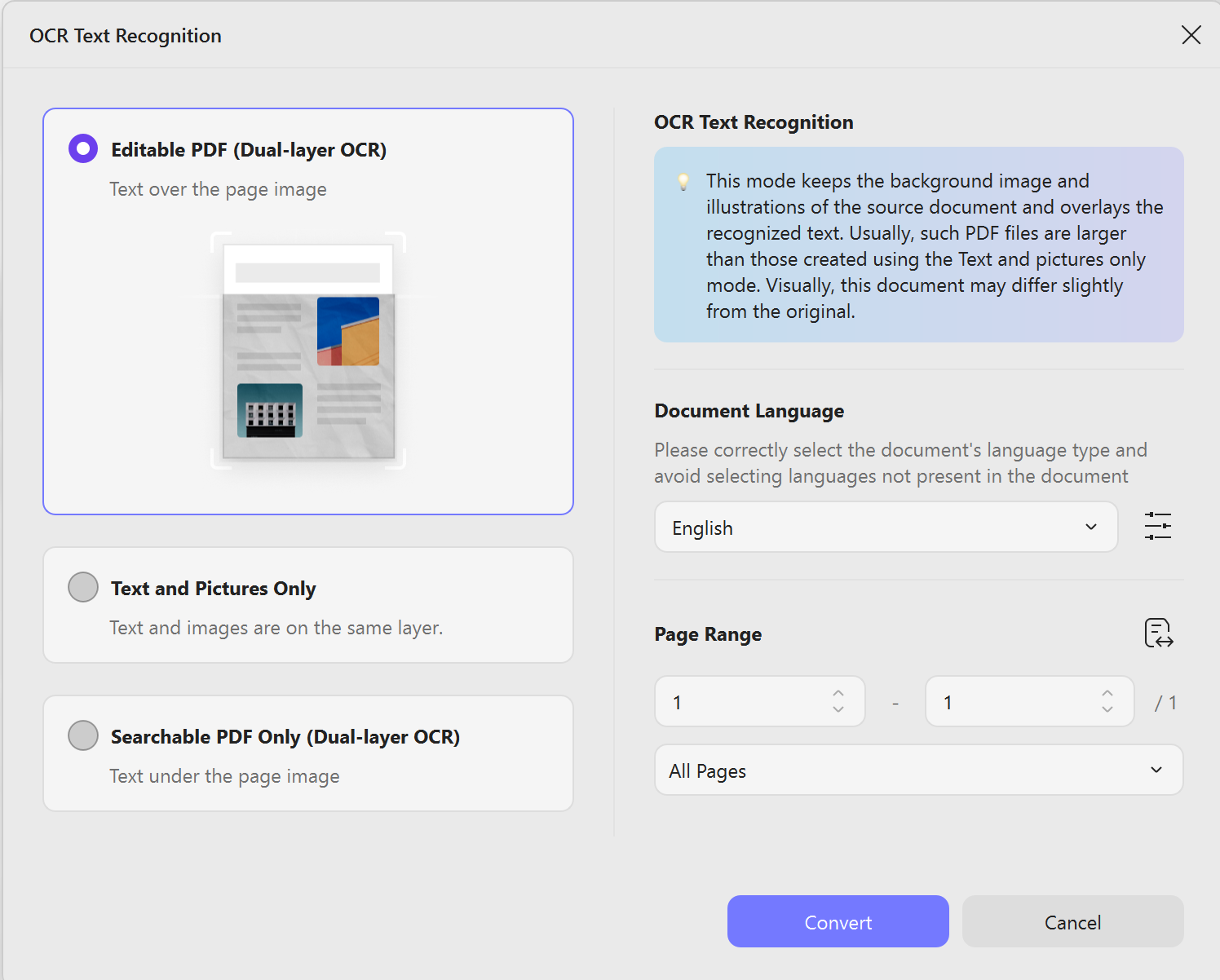
UPDF's OCR converts a scanned image into selectable, searchable, editable content. The output options matter here because different situations need different things. If you're editing a contract, you want an editable PDF. If you're archiving for search, a searchable-only PDF is smaller and sufficient. If you're extracting content into another system, text-and-images-only is the right format. UPDF supports 38 languages and claims 99.9% accuracy while preserving the original layout — which matters when a scanned table or form needs to stay visually intact.
Second: make the file shareable.
Scanned PDFs are heavy. UPDF's compression brings a 28MB scanned document down to a size you can actually email, without turning the text into mush. The baseline most scanning guides recommend is 300dpi for color and grayscale, 600dpi for black-and-white — UPDF's compression logic works within that range rather than crushing everything to unreadable.
Third: make the content understandable, not just stored.
This is where UPDF AI does something no scan2pdf tool attempts. A scanned academic paper, a report, a contract — you can run AI summarization, translation, and mind-map generation on it without reading page by page as images. Scanning solves "paper becomes a file." AI solves "file becomes understanding." Those are two different jobs, and most scan2pdf tools only do the first.
Windows • macOS • iOS • Android 100% secure
Best for:
Part 5: Scan2PDF Pros, Cons, and a Warning
Pros of using UPDF downstream of a scan2pdf tool:
- OCR with three output modes (editable PDF, searchable PDF, text-and-images) covers different real-world needs instead of forcing one format
- Editing, compression, conversion, and AI processing happen in one application — no bouncing between a scanner tool and a separate PDF editor
- Local processing means file size isn't capped by browser memory
Cons you should know:
- UPDF's scanning entry point is on mobile (camera-based). On desktop, the scan2pdf step still happens through your scanner software or a freeware tool. UPDF is not a replacement for your scanner driver.
- OCR accuracy depends on scan quality. Low-resolution or high-contrast scans will lose characters, and no OCR engine fully escapes that.
⚠️ Warning:
Final Thought
Search scan2pdf and you'll find converters, command-line scripts, and freeware download pages. They all stop at the moment the PDF is created. But a scanned PDF's actual life begins after that moment — it needs to be searched, edited, compressed, and understood.
UPDF isn't trying to win the "scan" action against NAPS2 or an online converter. It's picking up the part nobody else handles: the PDF that exists but isn't usable yet.
You already scanned it. Now make it work.
Windows • macOS • iOS • Android 100% secure




 Enid Brown
 Enola Miller
 Delia Meyer
 Bruna Almeida