 UPDF
UPDF
 UPDF for Windows
 UPDF for Mac
 UPDF for iPhone/iPad
 UPDF for Android
 UPDF AI Online
 UPDF Sign
 Edit PDF
 Annotate PDF
 Create PDF
 PDF Form
 Edit links
 Convert PDF
 OCR
OCR PDF to Word
 PDF to Image
 PDF to Excel
 Organize PDF
 Merge PDF
 Split PDF
 Crop PDF
 Rotate PDF
 Protect PDF
 Sign PDF
 Redact PDF
 Sanitize PDF
 Remove Security
 Read PDF
 UPDF Cloud
 Compress PDF
 Print PDF
 Batch Process
 About UPDF AI
 UPDF AI Solutions
 AI User Guide
 FAQ about UPDF AI
 Summarize PDF
 Translate PDF
 Chat with PDF
 Chat with AI
 Chat with image
 PDF to Mind Map
 Explain PDF
 PDF AI Tools
 Image AI Tools
 AI Chat Tools
 AI Writing Tools
 AI Study Tools
 AI Working Tools
 Other AI Tools
 AI Bookmark Generation
 AI Bookmark Summary
 AI Watermark Generation
 AI Background Generation
 AI Sticker Generation
 AI Stamp Generation
 AI Editing Suite
 UPDF Copilot
 AI Page Management
 AI Semantic Search
 PDF to Word
 PDF to Excel
 PDF to PowerPoint
 Enterprise Solution
 Enterprise Sign
 Enterprise AI
 Enterprise Plan
 Enterprise User Guide
 Enterprise Webinar
 Banking
 Healthcare
 Insurance
 Legal
Legal Manufacturing
 Government
 Education Solution
 Customer Stories
 User Guide
 UPDF Tricks
 FAQs
FAQs UPDF Reviews
 Download Center
 Blog
Blog Newsroom
 Tech Spec
 Updates
 UPDF vs. Adobe Acrobat
 UPDF vs. Foxit
 UPDF vs. PDF Expert

Before We Begin
Windows • macOS • iOS • Android 100% secure
If you've been searching for an efficient way to read PDFs aloud, you might have come across the Microsoft Edge Read Aloud PDF feature. It’s built right into the Edge, which means you can open and read PDFs directly in your browser. However, many users don’t know how to use it or why it is not working.
To help you out, I’ve tested the feature myself and put together this complete, step-by-step guide. In this article, I’ll show you how to use Microsoft Edge to read PDFs aloud, explain why it might not be working, and introduce an excellent alternative - UPDF to read PDFs smoothly. It's a powerful and accurate PDF voice reader with advanced features like OCR and full-text read aloud.
So, let’s get right to it and click the button below to download UPDF.
Windows • macOS • iOS • Android 100% secure
Part 1. How to Read Aloud PDF in Microsoft Edge?
Microsoft Edge offers a built-in Read Aloud feature that lets you listen to PDFs without needing extensions or downloads. Moreover, it offers many voice customization options. Using these, you can adjust the speed of the narration as well as choose from a wide range of voices. These include both male and female voices as well as region-specific dialects.
Here’s how to read aloud PDFs in Microsoft Edge.
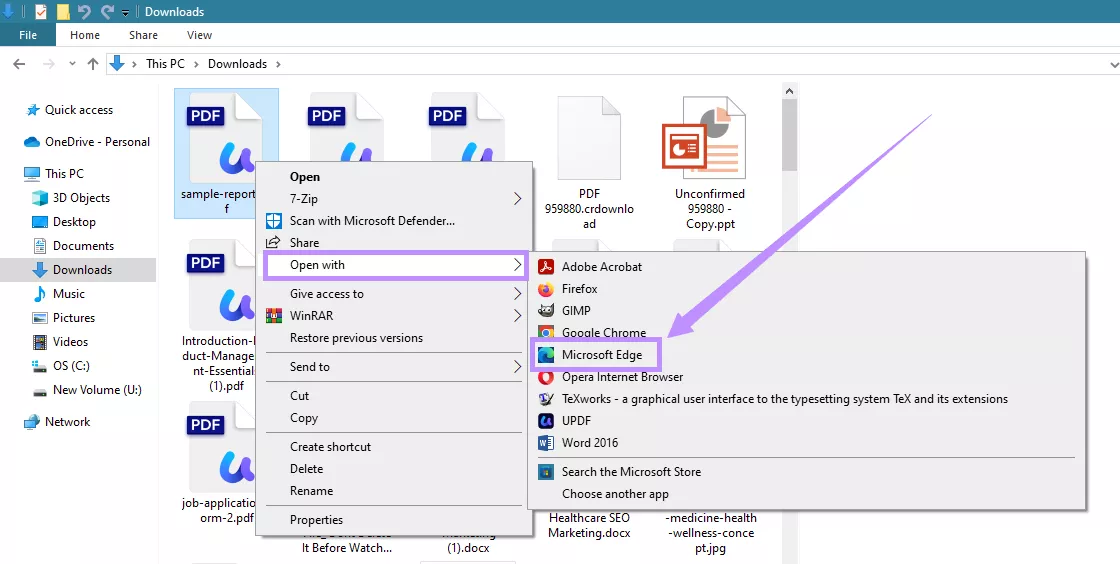
- Right-click on the PDF file you want to read. Select “Open with” and choose Microsoft Edge.
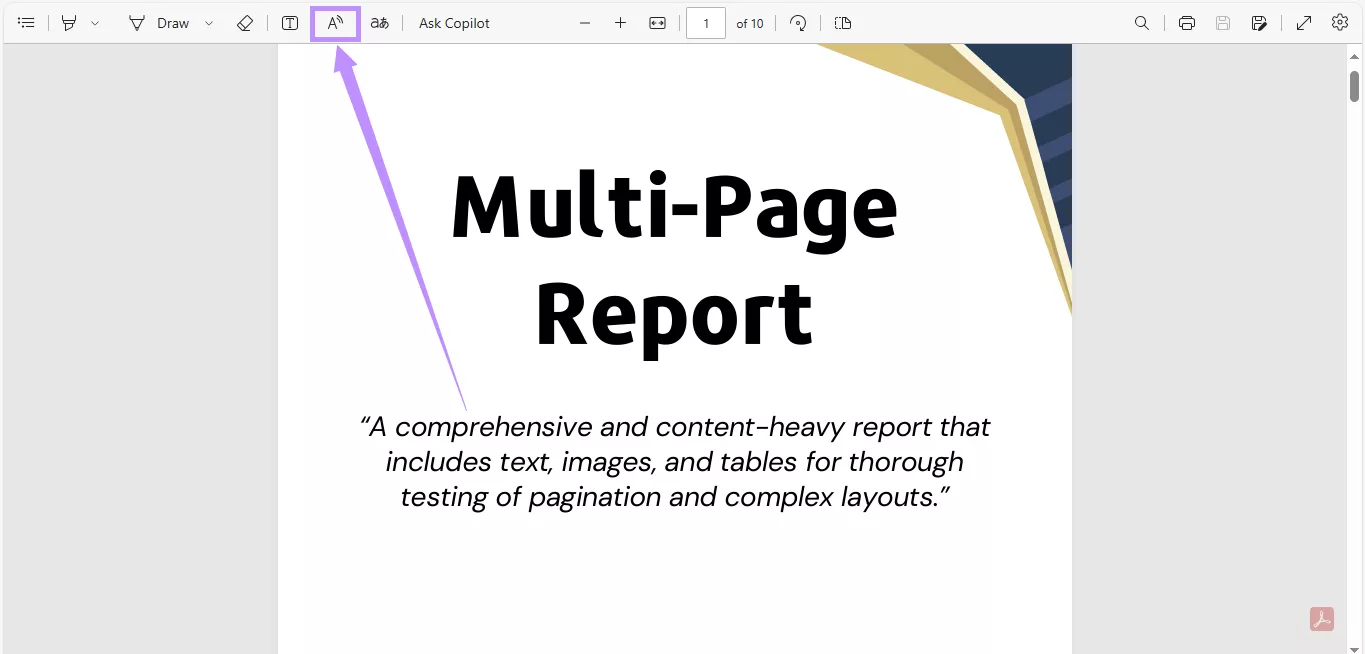
- Click on the “Read Aloud” icon (a speaker symbol) in the top toolbar.
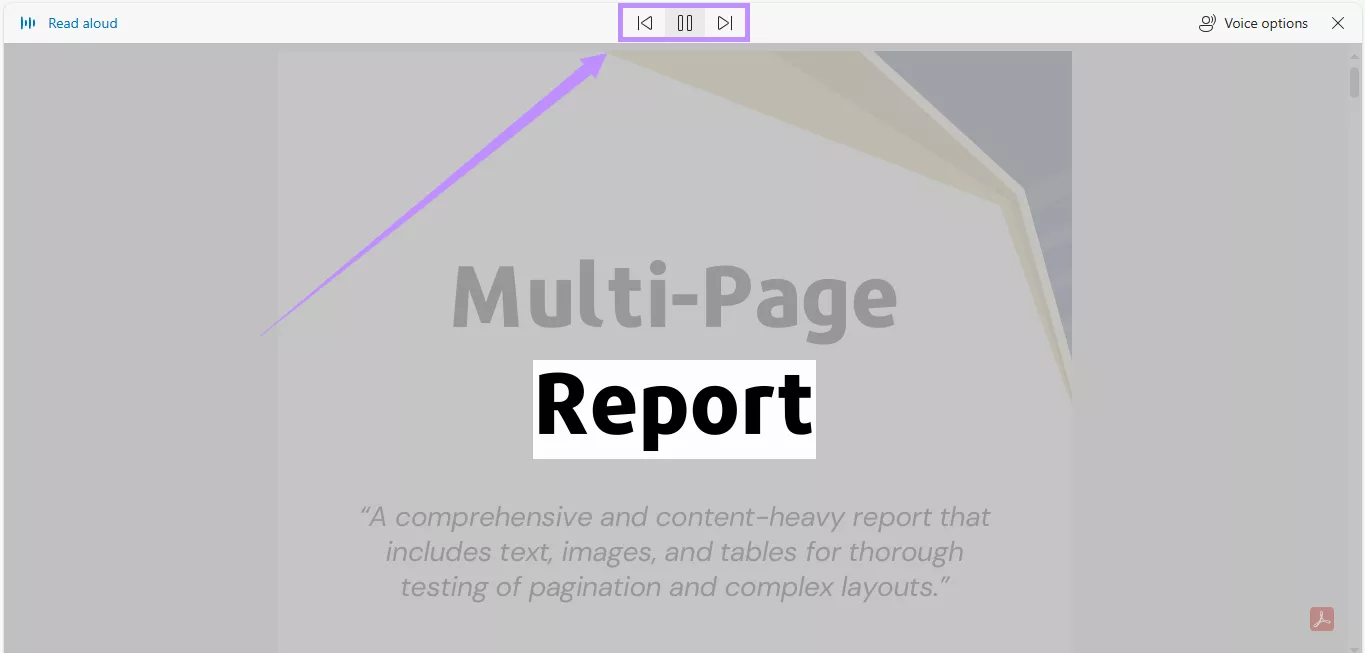
- PDF narration will start automatically. Use the play/pause button at the top to start or stop the narration.
- Use the arrow buttons in the control bar to skip to the next or previous paragraph.
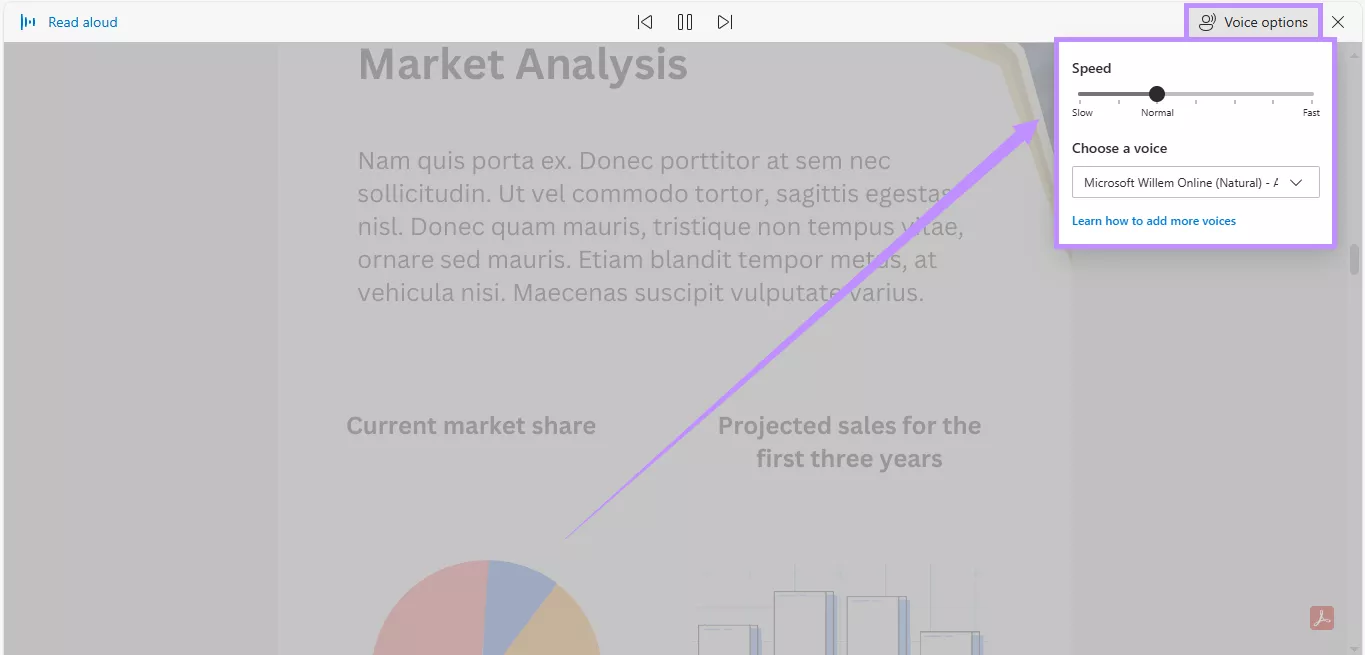
- To adjust the narration, click the “Voice options” button in the top right.
- Drag the reading speed slider to slow down or speed up the narration.
- Click the “Choose a voice” dropdown and select from different voices as needed.
Also Read: Chrome Freezing Up When Downloading/Printing/Saving PDF? Fixed!
Part 2. Why is Microsoft Edge PDF Read Aloud Not Working?
While the Microsoft Edge Read Aloud PDF feature is helpful, it is not the most reliable. Many users have faced issues where this tool doesn’t work as expected. Below, I’ve listed the most common reasons behind it and how to resolve them easily.
Reasons:
- Incompatible with Mobile Devices: The Read Aloud feature in Microsoft Edge does not work on mobile devices. The option is grayed out and unusable.
- Scanned or Image-Based PDFs: If your PDF is made of scanned pages or image-based content, Edge cannot detect text and read it aloud.
- Accessibility Settings Are Turned Off: If you have accessibility or voice features turned off at the system level, Edge cannot activate the Read Aloud function.
- Improperly Formatted PDFs: Files created by tools like “Microsoft Print to PDF” don’t have editable text layers, which makes it difficult for Edge to recognize and read text.
- Outdated Browser: If you're running an outdated version of Edge, it can cause temporary errors and compatibility issues. These interfere with the Read Aloud feature.
Solutions:
- Use Edge on Desktop: If you’re trying to read a PDF aloud using Edge’s mobile app, switch to its browser on Windows or Mac.
- Make the PDF Text-Based: Use an OCR tool to turn scanned or image-based PDFs into searchable and readable text that Edge can recognize.
- Enable Accessibility Settings: Check your system’s text-to-speech and accessibility settings. Make sure they’re turned on and properly configured.
- Recreate the PDF: Instead of using “Microsoft Print to PDF,” try creating the PDF using a reputable PDF editor that can preserve the text layers.
- Update Microsoft Edge: Update Edge to the latest version from its settings. Then, restart the browser to refresh and apply the new update.
Part 3. How to Read Aloud PDF with UPDF on Desktop and iOS
If Microsoft Edge Read Aloud PDF isn’t working for you, you can use UPDF on desktop and iOS. It can read your PDFs aloud in three simple steps, completely free of cost.
Beyond this feature, UPDF offers many advanced PDF reading and editing tools that make it effortless to manage your documents more productively.
If you want to make the most of these features, you can upgrade to UPDF Pro here. The pricing plans are cheap and diverse. Plus, you can use one license on any platform you work on!
Ready to try it? Download UPDF via the button below or get it from the App Store for iOS.
Windows • macOS • iOS • Android 100% secure
Steps to Read PDFs Aloud on Desktop (Win/Mac) with UPDF
Step 1: Launch UPDF on PC and Access File
First, click the "Free Download" button to install UPDF on your computer, launch it on your Mac or Win and hit the "Open File" option to import the required PDF file you want to read aloud.

Step 2: Select the Text in Read Mode to Read Aloud
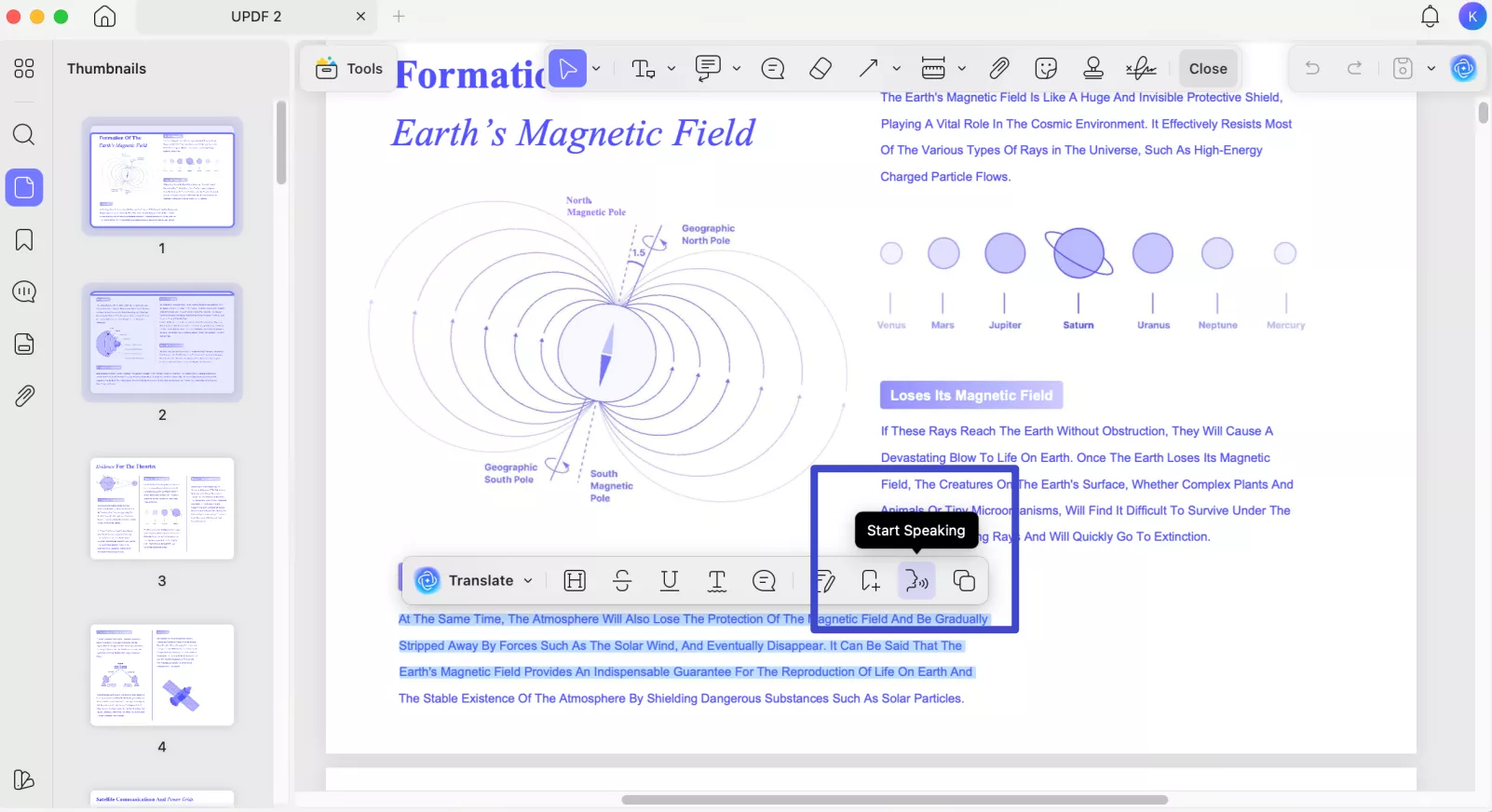
Next, select the specific content you wish to have read aloud. Perform a right-click on the chosen text, and from the ensuing dropdown menu, opt for "Start Speaking."
Steps to Read PDFs Aloud on iOS
Step 1: Launch UPDF on iOS and Access File
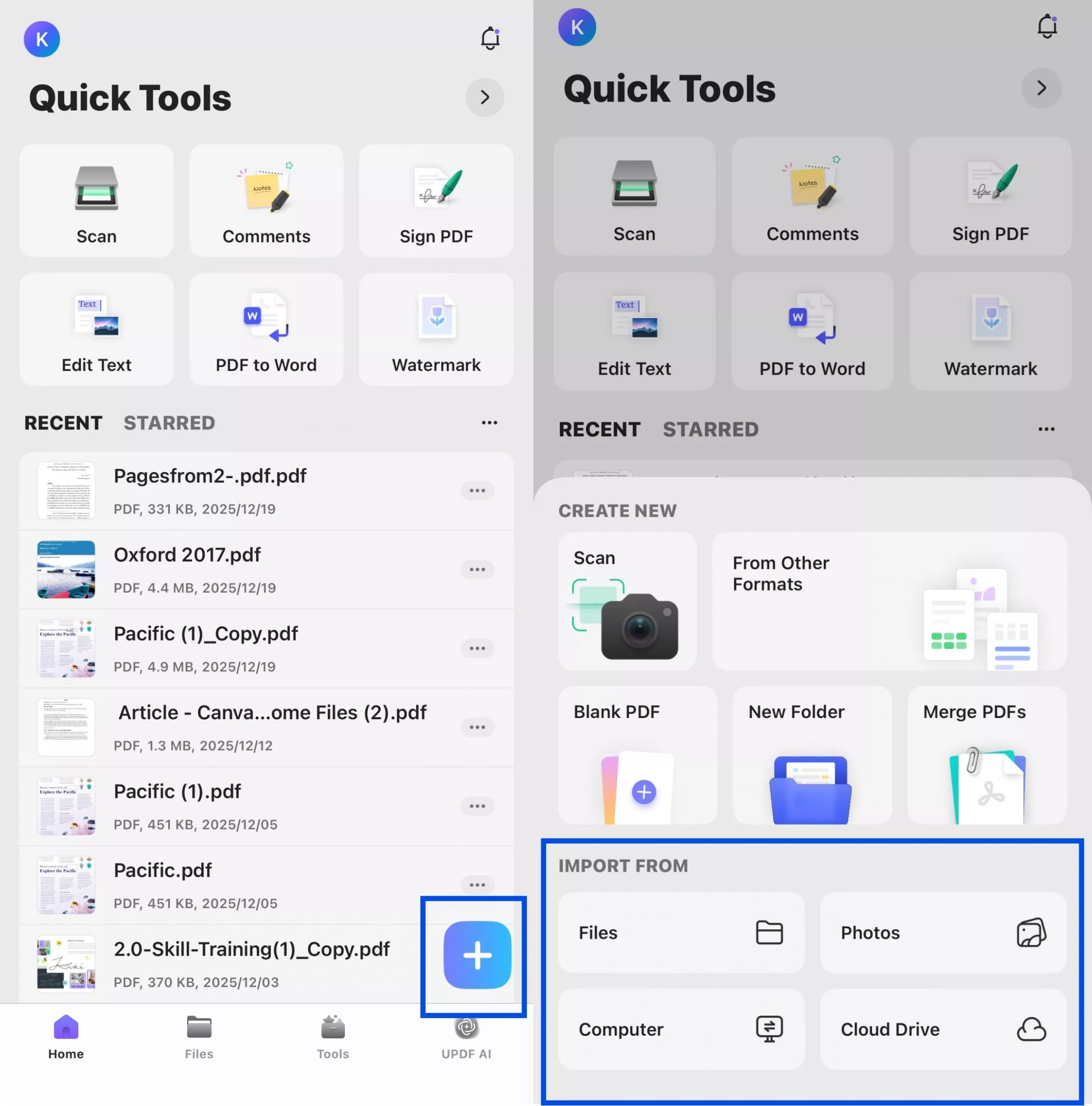
First, go to App store to install UPDF on your iPhone or iPad, launch it and hit the "+" option to import the required PDF file you want to read aloud.
Step 2: Select the Text to Read Aloud
Next, select the specific content you wish to have read aloud. Select Listen Here from the floating toolbar, and UPDF will start reading aloud.
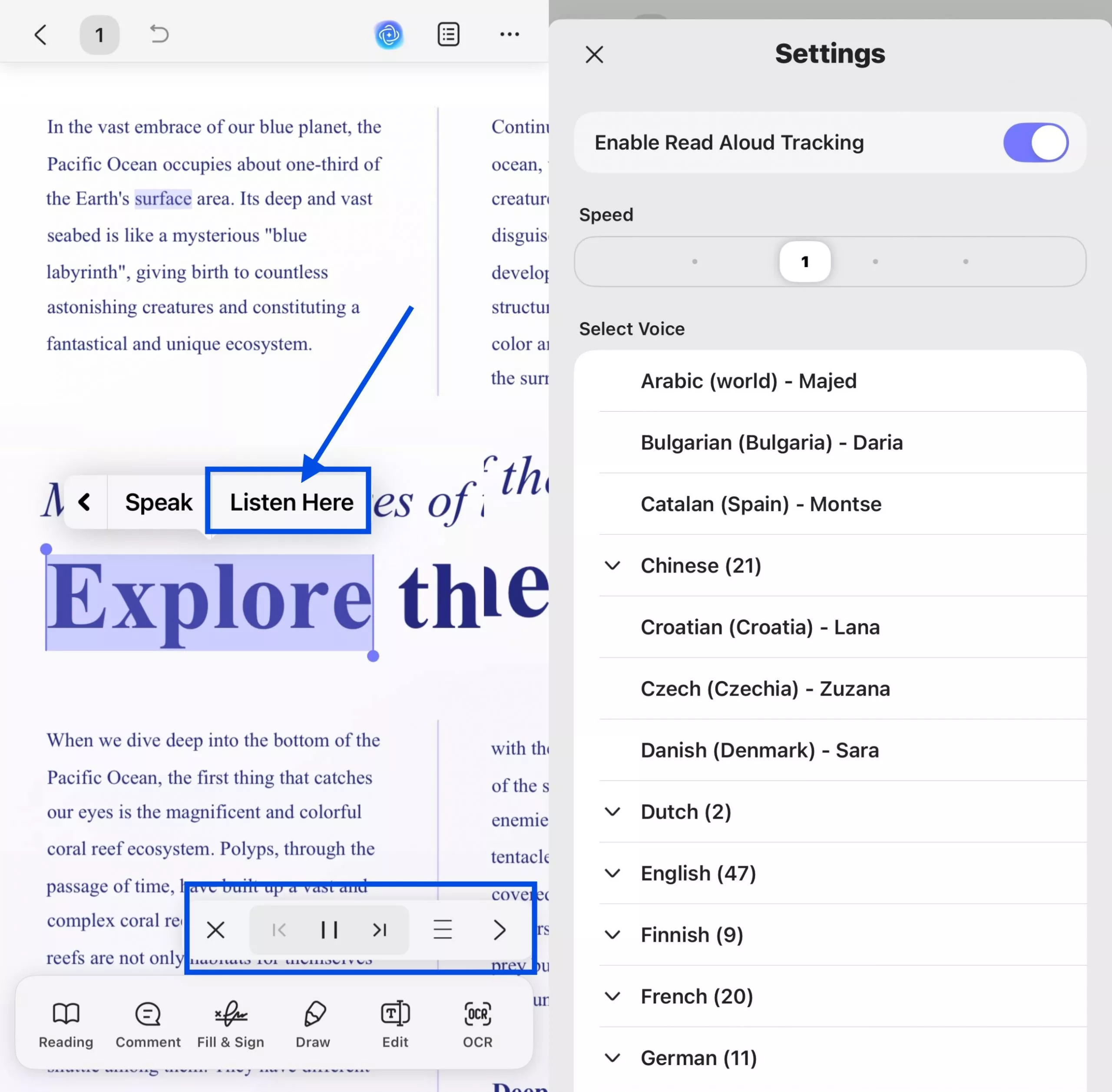
In the pop-up toolbar, you can click X to stop reading, click |< to start reading from the beginning of the previous page, click || to pause the reading and ▶ to resume, and click >| to start reading from the beginning of the next page. By clicking the ≡ icon, users can enable the Read Aloud Tracking feature, adjust the reading speed, and choose a preferred voice from a wide range of languages, including various regional accents (such as Arabic, Bulgarian, Chinese, English, French, German, and more).
During reading, the corresponding text will be highlighted, making it easier for you to locate the current content being read aloud.
Read Scanned PDF aloud on Desktop and iOS
UPDF's OCR feature can help you convert scanned documents into searchable and selectable text. UPDF OCR supports recognition of over 38 languages in scanned documents, covering most of your document needs. However, to activate this feature, you will need to upgrade to UPDF‘s Pro plan. You can consider purchasing UPDF’s exclusive plan and get an official 10% discount with the coupon code “ENARTICLE” upon purchasing.
Step 1: Launch UPDF on PC or iOS and Access File
Based on the steps mentioned above, launch UPDF on your computer or iOS device and open your scanned document.
Windows • macOS • iOS • Android 100% secure
Step 2: Perform OCR on PC or iOS
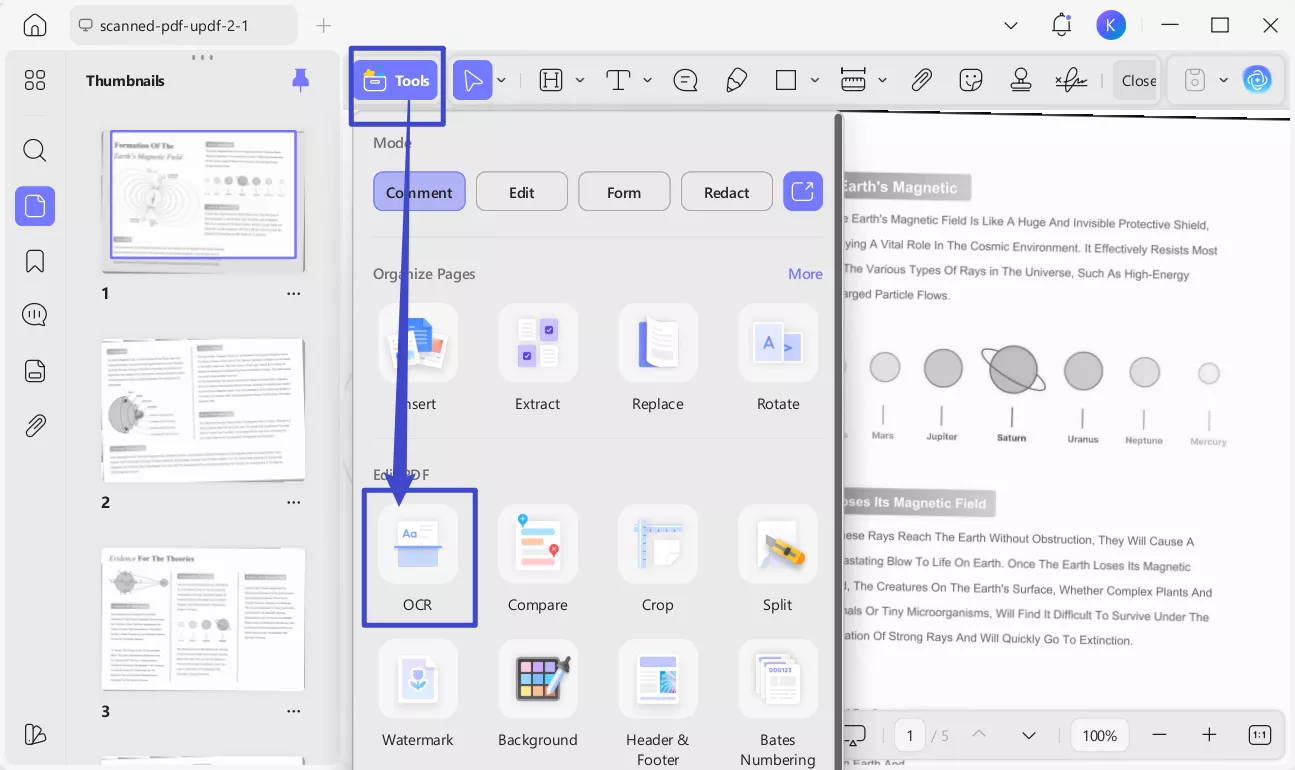
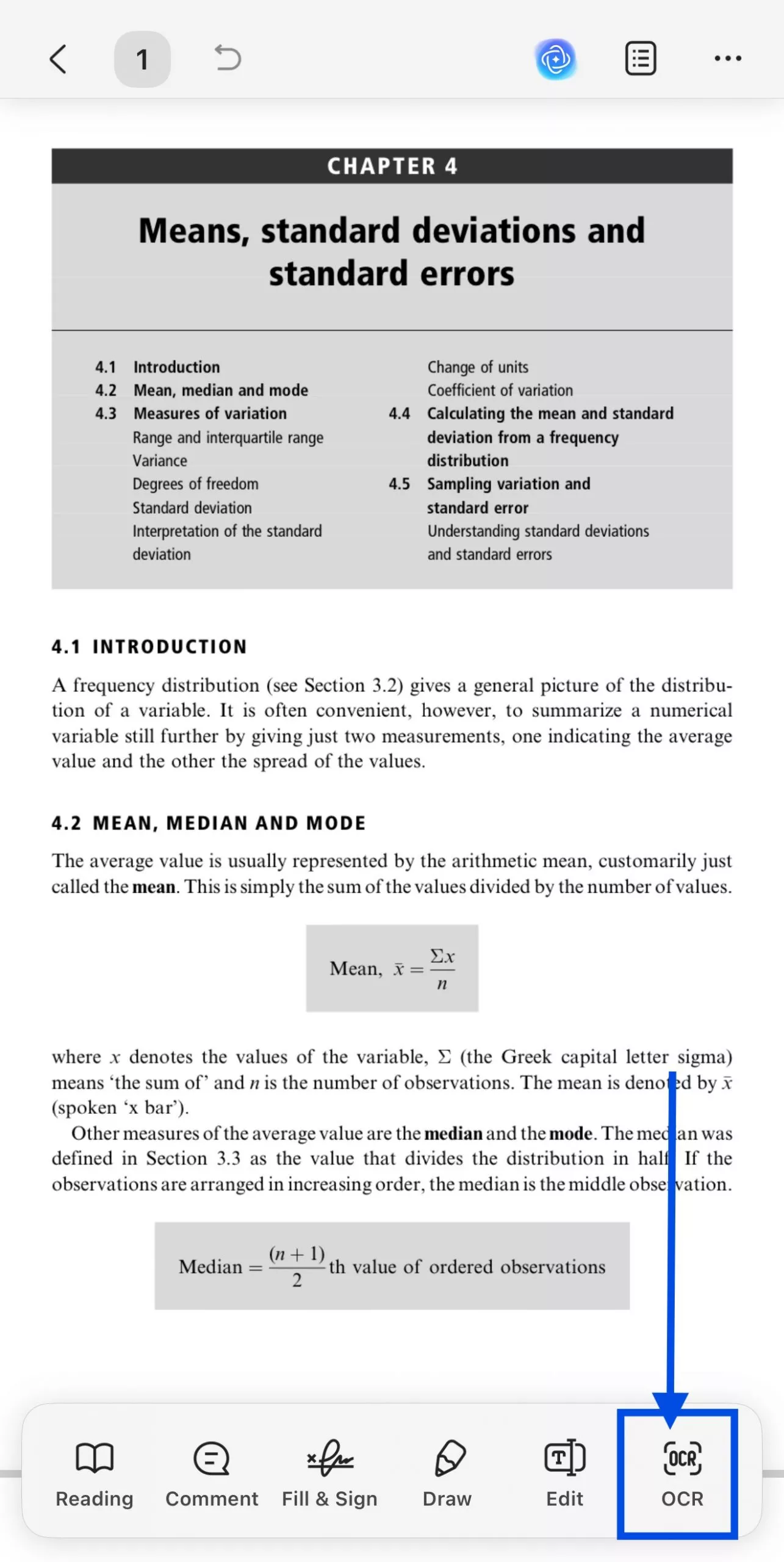
For computer users, click OCR in Tools.
For iOS users, select OCR from the bottom toolbar.
Step 3. Customize OCR settings (Mode, Language, Page Range)
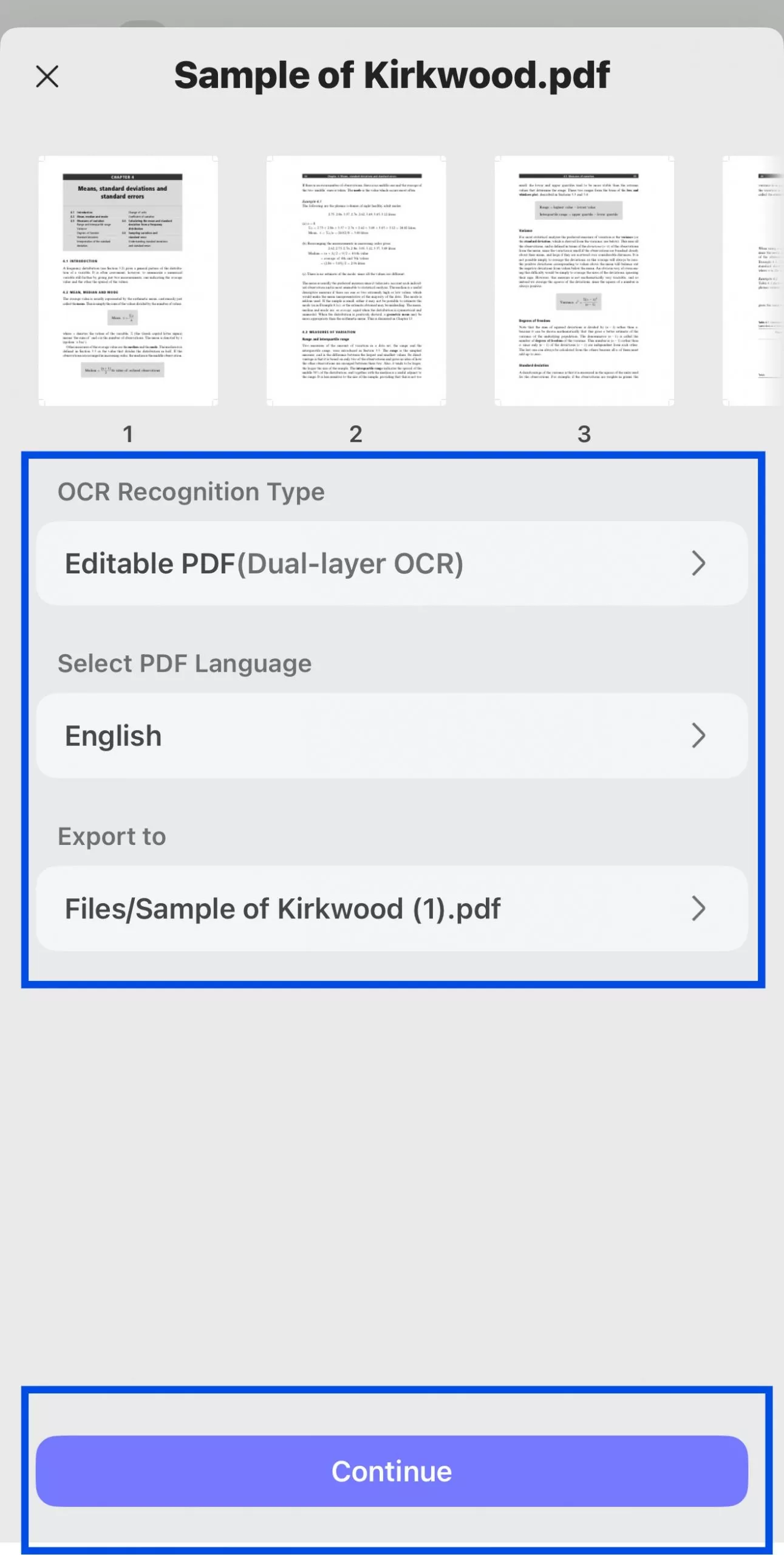
As it opens up, it will provide you with 3 different options of Document Type, which include Editable PDF, Text and Picture Only, and Searchable PDF Only.
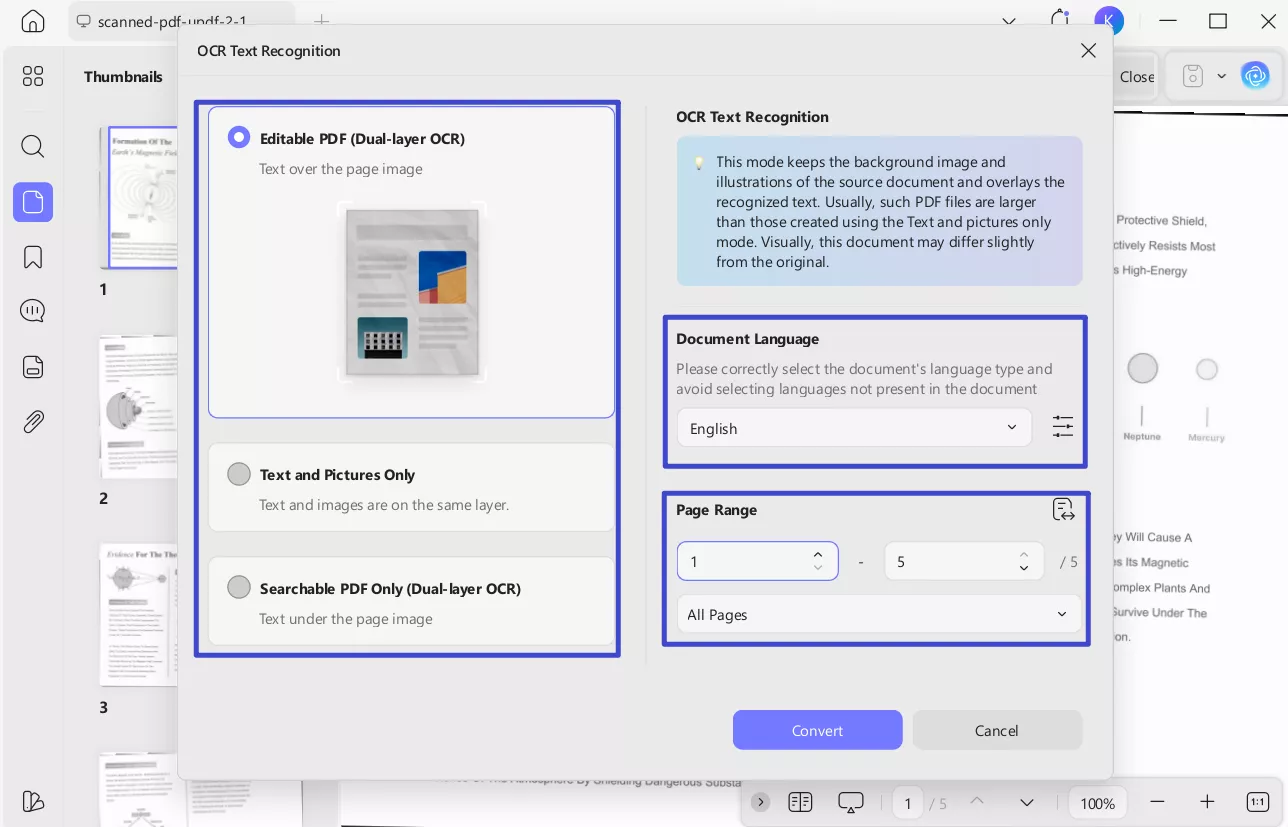
Define a proper Document Language with the option of 38 different languages across the extended menu and choose the page range. Once done, press the Convert/Continue button to execute OCR across.
Step 4. Open the OCRed File and Select Text to Read Aloud
Once the OCR is completed, open the newly-generated OCR
More Key Features UPDF Offers
- View PDF Multiple Ways: Switch between single-page, two-page, or scrolling views. Use dark mode and custom backgrounds for comfortable reading.
- Read Faster with AI: UPDF AI can summarize, translate, explain, and chat with content in PDFs or images. It also creates visual mind maps from long text for better understanding.
- Edit Everything: Edit text, images, links, watermarks, headers, footers, and any other PDF element.
- Markup and Annotate: Highlight, underline, strikethrough, add squiggly lines, sticky notes, stamps, stickers, and more.
- Convert to Multiple Formats: Convert PDFs to Word, Excel, PowerPoint, HTML, XML, images, and more.
- Perform OCR: Turn scanned PDFs or images into editable, searchable text in over 38 languages.
- Secure Your PDFs: Protect files with passwords, set permissions, redact sensitive info, and remove metadata.
If you want to learn more about these features, you can read this detailed review of UPDF or watch the video below.
Final Words
You can use the Microsoft Edge Read Aloud PDF feature right within your browser. The options to customize the narration make it easy to listen in your preferred language and at your desired pace. While being useful, it is not reliable. If you’re having trouble getting it to work, UPDF for Desktop and iOS offer an excellent alternative. It’s lightweight but packed with advanced PDF tools. Plus, you can get started for free. Download UPDF and try it now!
Windows • macOS • iOS • Android 100% secure





 Enola Miller
 Enrica Taylor
 Grace Curry
 Lizzy Lozano