 UPDF
UPDF
 UPDF for Windows
 UPDF for Mac
 UPDF for iPhone/iPad
 UPDF for Android
 Nomostar
 UPDF AI Online
 UPDF Sign
 IvyCraft
 Edit PDF
 Annotate PDF
 Create PDF
 PDF Form
 Edit links
 Convert PDF
 OCR
OCR PDF to Word
 PDF to Image
 PDF to Excel
 Organize PDF
 Merge PDF
 Split PDF
 Crop PDF
 Rotate PDF
 Protect PDF
 Sign PDF
 Redact PDF
 Sanitize PDF
 Remove Security
 Read PDF
 UPDF Cloud
 Compress PDF
 Print PDF
 Batch Process
 About UPDF AI
 UPDF AI Solutions
 AI User Guide
 FAQ about UPDF AI
 Summarize PDF
 Translate PDF
 Chat with PDF
 Chat with AI
 Chat with image
 PDF to Mind Map
 Explain PDF
 PDF AI Tools
 Image AI Tools
 AI Chat Tools
 AI Writing Tools
 AI Study Tools
 AI Working Tools
 Other AI Tools
 AI Bookmark Generation
 AI Bookmark Summary
 AI Watermark Generation
 AI Background Generation
 AI Sticker Generation
 AI Stamp Generation
 AI Editing Suite
 UPDF Copilot
 AI Page Management
 AI Semantic Search
 PDF to Word
 PDF to Excel
 PDF to PowerPoint
 Enterprise Solution
 Enterprise Sign
 Enterprise AI
 Enterprise Plan
 Enterprise User Guide
 Enterprise Webinar
 Banking
 Healthcare
 Insurance
 Legal
Legal Manufacturing
 Government
 Education Solution
 Customer Stories
 User Guide
 UPDF Tricks
 FAQs
FAQs UPDF Reviews
 Download Center
 Blog
Blog Newsroom
 Tech Spec
 Updates
 UPDF vs. Adobe Acrobat
 UPDF vs. Foxit
 UPDF vs. PDF Expert

Quick answer:
I ran into this with a five-page scanned report: every page came in landscape, and on my phone I had to tilt my head to read it. Rotating the pages straightened the scan. But a colleague had the opposite problem — a wide chart that needed to print on a portrait sheet without turning the words on their side. Same search term, two completely different fixes. This guide covers both, on Windows, Mac, and your phone, plus where each method hits its limit.
Rotate the page vs. reflow to portrait — which do you need?
The table below separates both cases, so you can choose the correct UPDF option without changing the PDF in the wrong way:
| Your Situation | What I Want | Method |
| Scanned or sideways page with text rotated 90° | Turn the whole page upright | Organize Pages > Rotate |
| A wide chart or table needs a vertical sheet | Keep text upright on the portrait page | Print dialog > Orientation: Portrait |
If your text is currently sideways, you want Part 1. If your text reads fine but the page is the wrong shape for printing, you want Part 2. Get this right and you'll never produce a sideways-text PDF by accident.
Part 1: Rotate a PDF From Landscape to Portrait (Fixes Sideways & Scanned Pages)
This method works when the page is physically turned the wrong way, often after scanning. I use it when I need to convert a PDF from landscape to portraitwithout changing the actual layout. The whole page turns, so headings, images, and text all move together. Follow these steps on Windows and Mac to rotate a PDF from landscape to portrait:
On Windows & Mac (Organize Pages)
Step 1. Open the PDF in UPDF. If you don't have it yet, download UPDF for free and install it in about a minute.
Windows • macOS • iOS • Android 100% secure
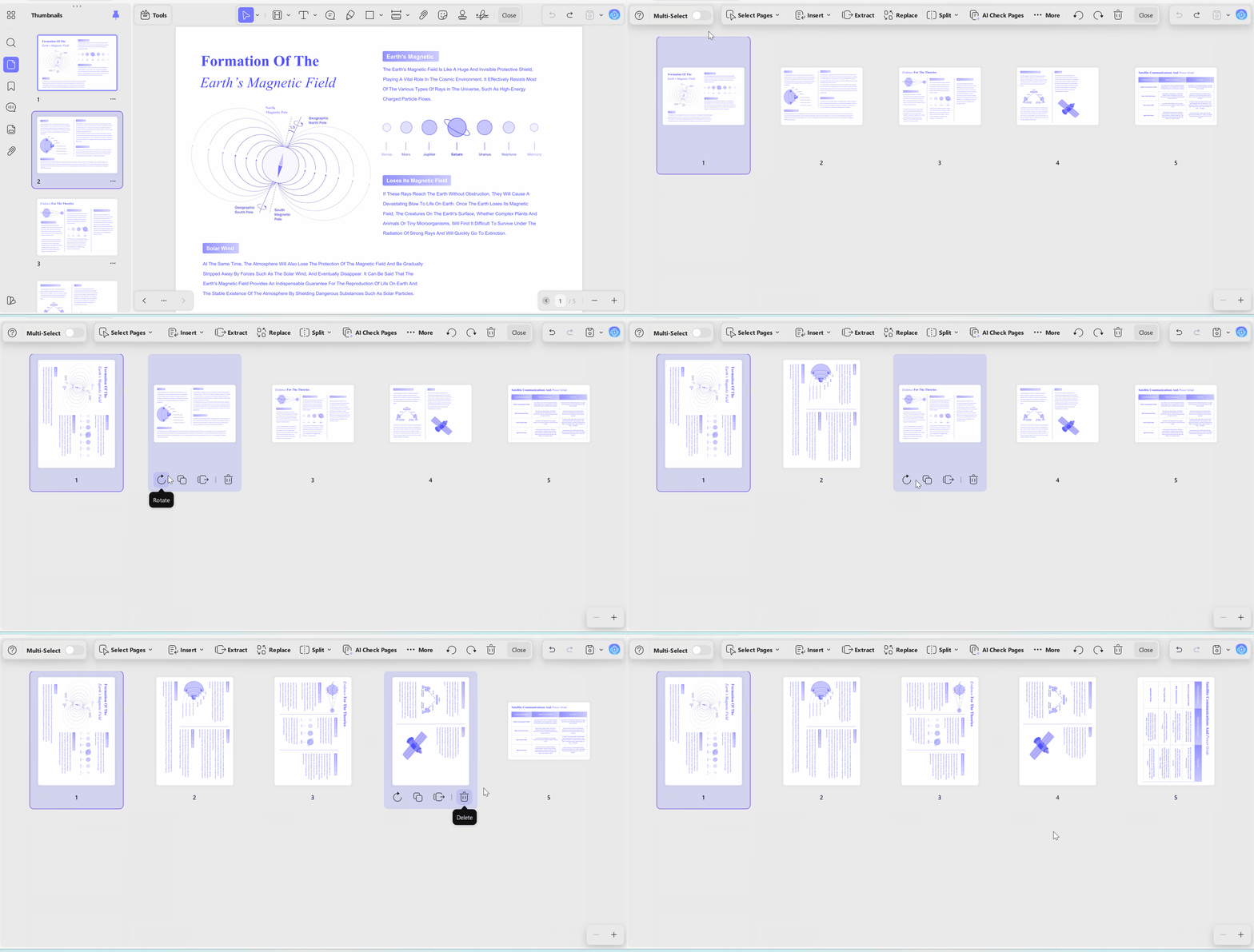
Step 2. Launch UPDF on my Windows or Mac computer, then import the PDF that appears sideways. After that, go to the left toolbar and choose Organize Pages to view every page as a thumbnail.
Step 3. Next, select the landscape page that needs correction. For several pages, hold Ctrl (Windows) / Cmd (Mac) and choose all sideways pages together, so you do not have to repeat the process manually.
Step 4. Click Rotate Clockwise or Rotate Counterclockwise in the top toolbar. Each click turns the selection 90°.
Step 5. Lastly, save the PDF after confirming that the text is upright. This keeps the corrected orientation for the next time you open, share, or print the file.
Faster Single-Page Route
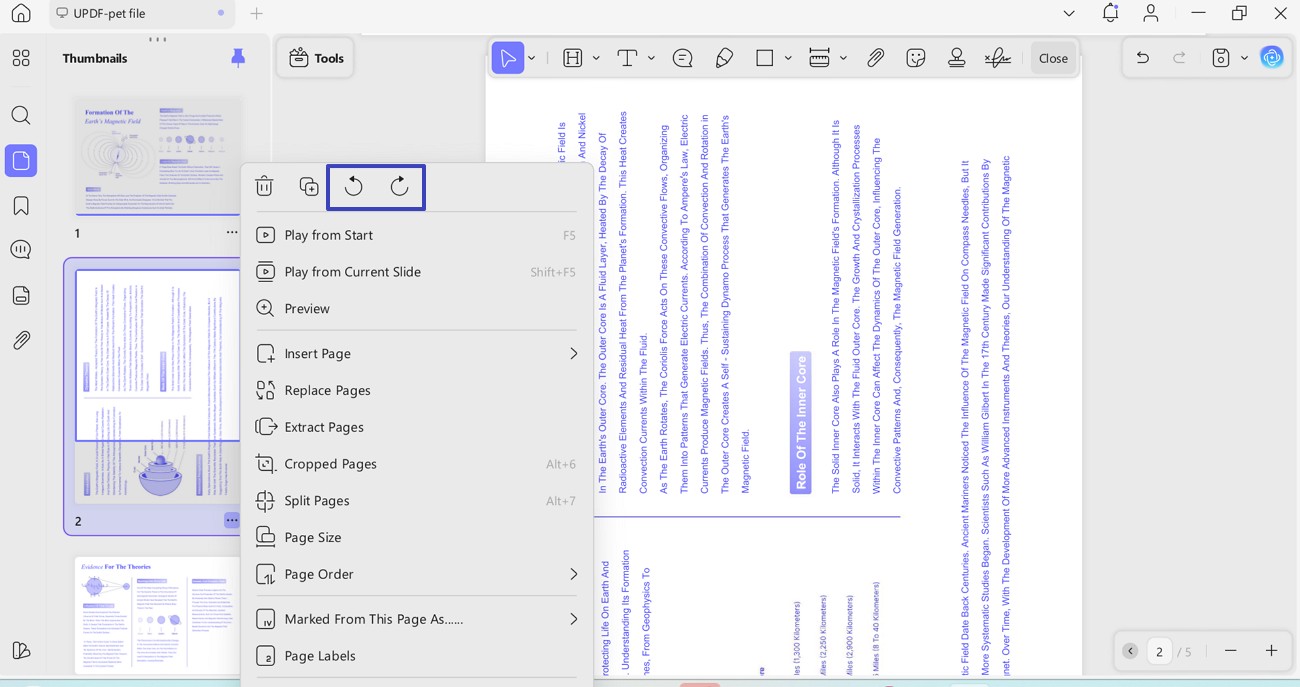
Sometimes I only need to fix one page, so I use the thumbnail shortcut instead of opening the full page organizer. This route is quicker when a scanned page appears sideways inside a longer file. Adhere to the instructions below to try this faster single-page rotate:
Instructions. Start by opening the PDF in UPDF and looking at the page thumbnails on the left side. Then right-click the sideways page thumbnail to open the page menu. Afterward, picked the Rotate Clockwise / Counterclockwise option from the menu and repeated it until the page stood upright. Once it looks correct, save the file to keep the change.
On iPhone, iPad & Android
The mobile app is helpful when I notice the wrong direction after opening a PDF on my phone. I use it for quick scanned-page fixes, especially when I only need to turn pages upright before reading or sharing. Follow the steps below to try to change the PDF from landscape to portrait on mobile:
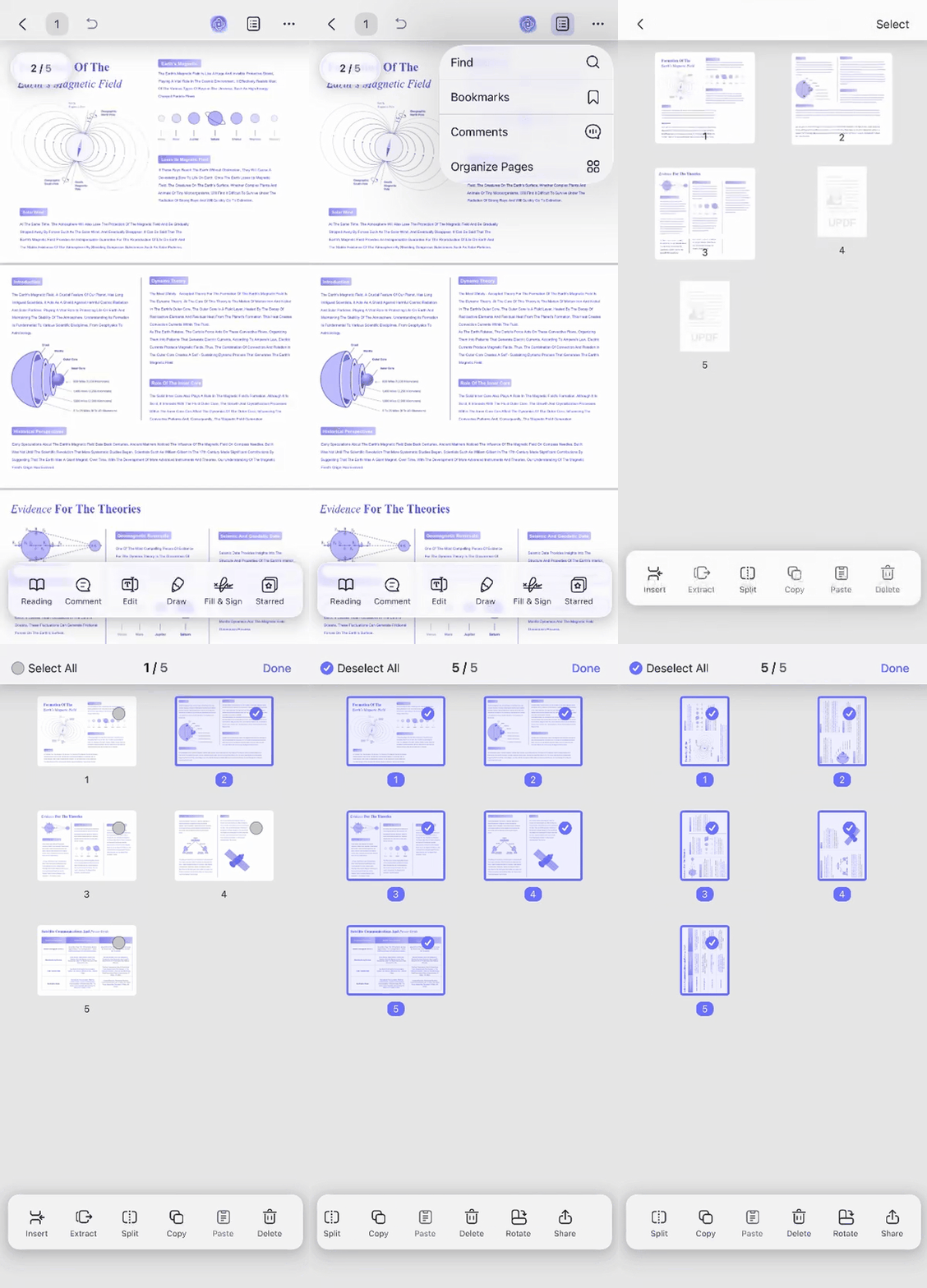
Step 1. Open the PDF in the UPDF mobile app and go to the Page icon at the top to select Organize Page.
Step 2. Afterward, select the page that appears sideways. If several pages are wrong, choose each one that needs the same rotation. Then tap the Rotate option until the text becomes readable in portrait orientation.
Step 3. Tap Done in the top-right to apply. Once the result is confirmed, navigate to the Save option to finalize all changes.
What the phone can't do:
Part 2: Reflow a PDF to Portrait Without Rotating the Text (Windows & Mac)
If the text already reads fine, but the page is too wide, I do not rotate it. For example, a wide chart may be landscape but still readable from left to right. If I rotate that page, the words will turn sideways.
Instead, I convert a PDF from landscape to portrait by using the Print dialog and saving the reshaped output as a new PDF. This method does not require a physical printer. I use it when I want a portrait page size while keeping text upright. Follow the steps below to reflow a PDF to portrait without rotating text:
Step 1. Open the PDF in UPDF and check the page that needs reshaping. Before changing print settings, confirm that the text itself is not sideways.
Step 2. Click the small arrow next to the Save icon and choose Print, or press Ctrl + P (Windows) / Cmd + P (Mac).
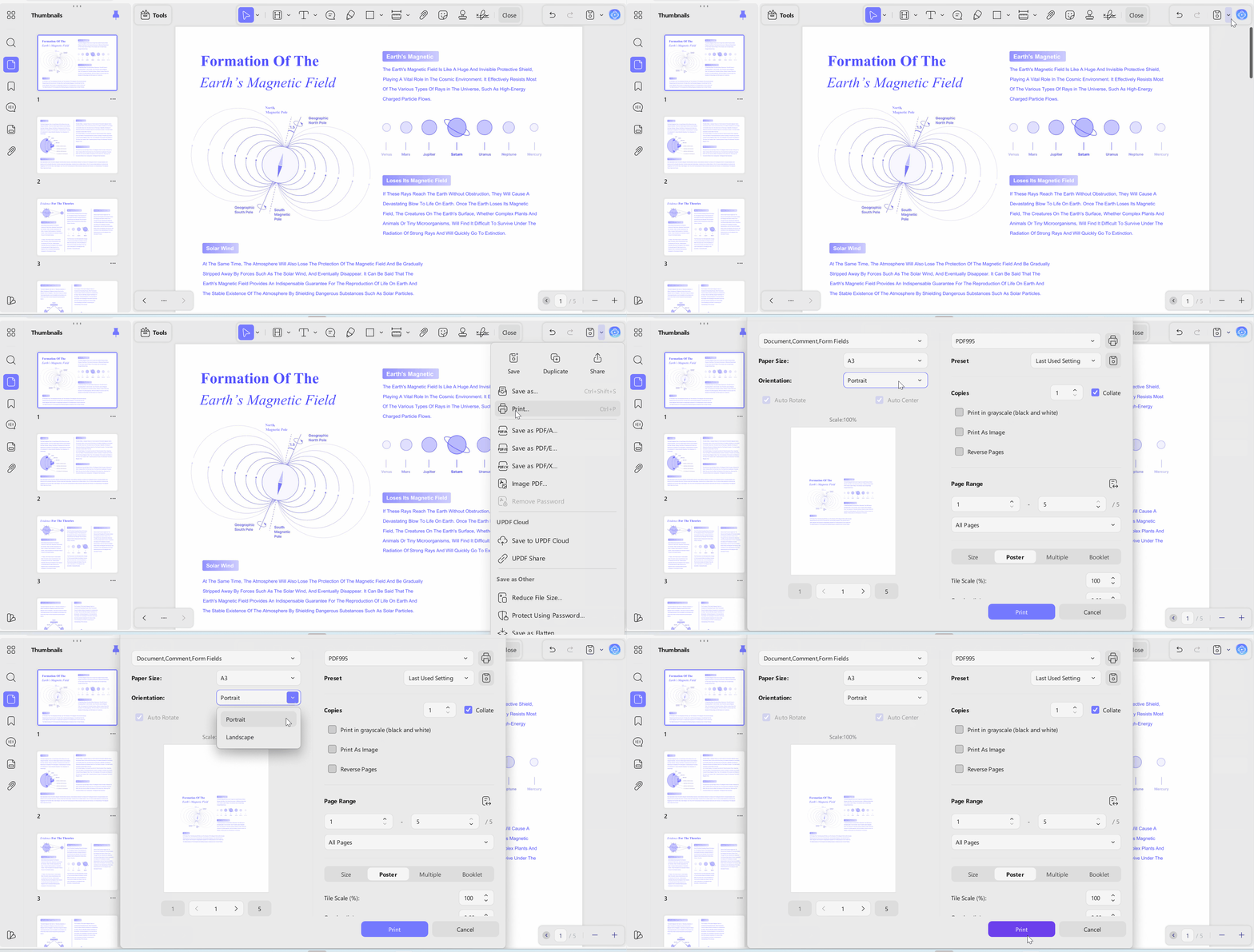
Step 3. Now, set the orientation to Portrait and review the preview area carefully, because it shows whether the content still fits the page.
On Mac, the interface looks slightly different, and the layout options may be grouped under a dropdown or preview panel. So locate the Orientation setting and choose Portrait.
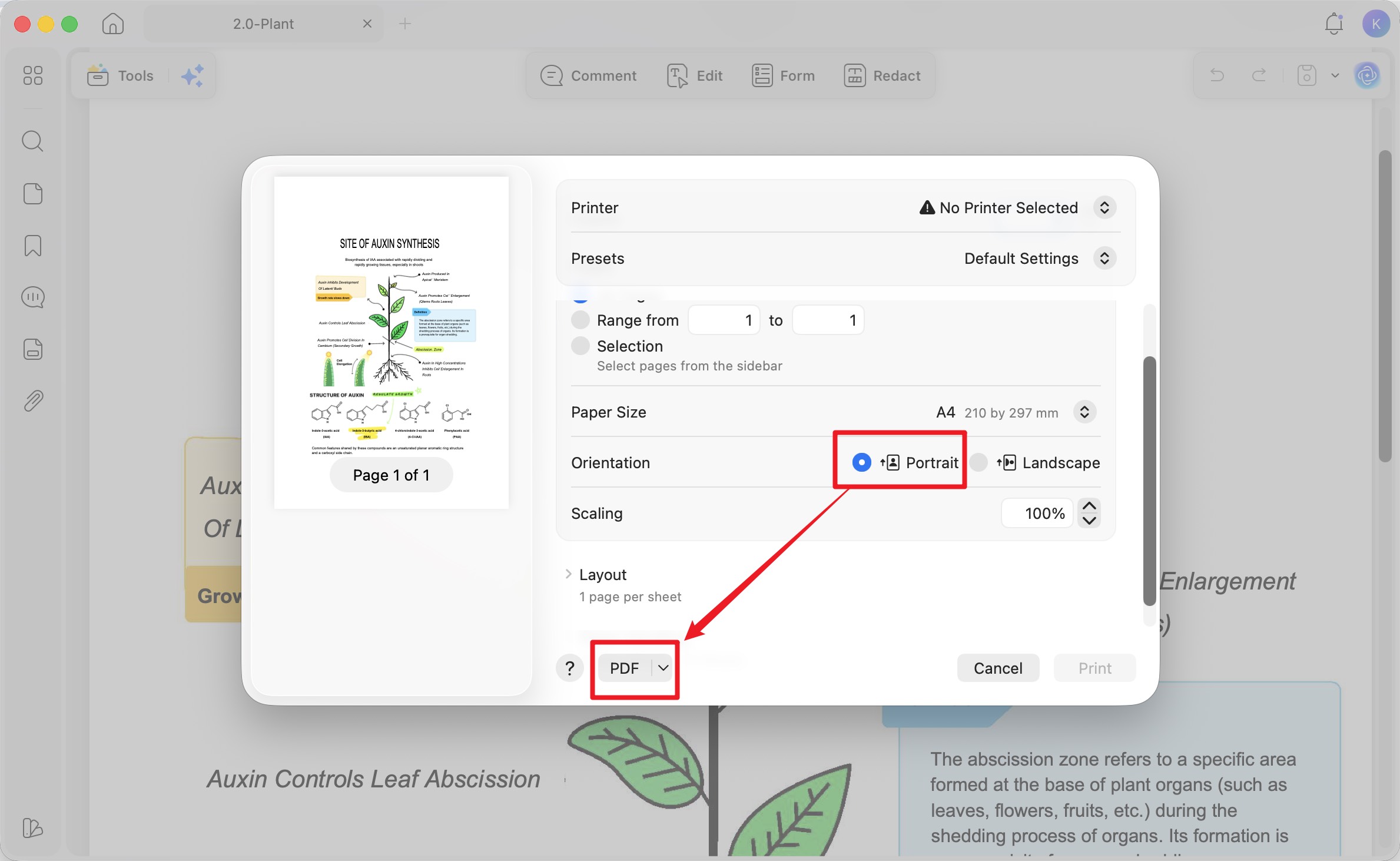
Step 4. Check the preview to confirm the text stays upright and nothing important is cut off. If content runs off the edge, adjust Scaling (e.g. 90%) or change Paper Size.
Step 5. Instead of a physical printer, save the result as a PDF: on Windows pick Microsoft Print to PDF as the printer; on Mac use the PDF drop-down at the bottom-left and choose Save as PDF. Pick a location and save.
Tip:
When the Layout Needs Real Editing
Reflowing changes how the page fits, but it does not fully redesign the document. It will not rewrite paragraphs, move every image perfectly, or rebuild a table. I use it when I only need a clean portrait version for reading, saving, or printing.
For light fixes, I switch to Edit mode in UPDF. I may edit a line, move an image slightly, or adjust a small object after changing the orientation in PDF. When the whole design needs restructuring, I treat it as a layout-editing task, not only an orientation change.
Part 3. Edge Cases — When Orientation Won't Change
Even after I change the orientation in PDF, some files may still behave differently because of restrictions, printer settings, or page scaling. In these cases, I first identify the exact problem and then apply the appropriate fix.
- "I can't rotate or change the file — the options are greyed out." The PDF likely has editing restrictions (a permissions password). Remove the restriction first with Protect > Remove Security (only on files you own or are authorized to change), then change the orientation.
- "It looks portrait in UPDF but prints landscape." Your printer is auto-rotating at print time. Re-open the Print dialog, uncheck Auto-Rotate, and set Portrait explicitly before sending to the printer.
- "After reflowing to portrait, my content is tiny." Wide content shrank to fit a narrow page. Increase Scaling or move up a paper size (e.g. A4 to A3) before saving.
Part 4. FAQs
1. Does rotating a PDF in UPDF save the change permanently?
Yes. Once you rotate in Organize Pages and save the file, the new orientation is stored. Closing UPDF without saving may leave the PDF in its earlier position again.
2. Why is my PDF text sideways after I changed the orientation?
It's the single most common mix-up: rotating a page turns the text with it, so a reflow problem "fixed" by rotating ends up sideways. Quick check — if the words were already upright before you started, you needed Print > Portrait, not Rotate. Undo the rotation and use the Print method instead.
3. Can I change orientation for just one page in a multi-page PDF?
Yes — select only that page in Organize Pages before applying the change, and the rest of the document stays as it is. This is what you want for a single sideways scan or one wide chart inside an otherwise upright file.
4. Will changing orientation reduce my PDF's quality?
Rotating doesn't touch image quality. Reflowing through the Print dialog can shrink content to fit; if sharpness matters, keep Scaling at 100% and choose a paper size that fits the content instead.
Conclusion
Changing a PDF from landscape to portrait comes down to one decision: are you straightening a sideways page, or reshaping an upright one? Rotate in Organize Pages for the first (and it's the one you can also do on your phone); use Print > Portrait for the second, on Windows or Mac. UPDF covers both across every platform — Windows, Mac, iPhone, and Android — with a one-time license option.
Download UPDF for free to try rotating and reshaping your own PDFs — installation is free, and Pro features are available when you need export without the trial watermark.
Windows • macOS • iOS • Android 100% secure





 Lizzy Lozano

 Enya Moore