UPDF
UPDF
 UPDF for Windows
 UPDF for Mac
 UPDF for iPhone/iPad
 UPDF for Android
 Nomostar
 UPDF AI Online
 UPDF Sign
 IvyCraft
 Edit PDF
 Annotate PDF
 Create PDF
 PDF Form
 Edit links
 Convert PDF
 OCR
OCR PDF to Word
 PDF to Image
 PDF to Excel
 Organize PDF
 Merge PDF
 Split PDF
 Crop PDF
 Rotate PDF
 Protect PDF
 Sign PDF
 Redact PDF
 Sanitize PDF
 Remove Security
 Read PDF
 UPDF Cloud
 Compress PDF
 Print PDF
 Batch Process
 About UPDF AI
 UPDF AI Solutions
 AI User Guide
 FAQ about UPDF AI
 Summarize PDF
 Translate PDF
 Chat with PDF
 Chat with AI
 Chat with image
 PDF to Mind Map
 Explain PDF
 PDF AI Tools
 Image AI Tools
 AI Chat Tools
 AI Writing Tools
 AI Study Tools
 AI Working Tools
 Other AI Tools
 AI Bookmark Generation
 AI Bookmark Summary
 AI Watermark Generation
 AI Background Generation
 AI Sticker Generation
 AI Stamp Generation
 AI Editing Suite
 UPDF Copilot
 AI Page Management
 AI Semantic Search
 PDF to Word
 PDF to Excel
 PDF to PowerPoint
 Enterprise Solution
 Enterprise Sign
 Enterprise AI
 Enterprise Plan
 Enterprise User Guide
 Enterprise Webinar
 IT
IT Education
 Construction
 Financial Service
 Healthcare
 Insurance
 Legal
Legal Manufacturing
 Government
 Researchers & PhDs
 Solopreneurs & Freelancers
 Lawyers & Legal Professionals
 Real Estate Agents & Brokers
 Education Solution
 Customer Stories
 User Guide
 UPDF Tricks
 FAQs
FAQs UPDF Reviews
 Download Center
 Blog
Blog Newsroom
 Tech Spec
 Updates
 UPDF vs. Adobe Acrobat
 UPDF vs. Foxit
 UPDF vs. PDF Expert

Quick Answer
Windows • macOS • iOS • Android 100% secure
Printing a mirrored — or flipped — PDF is essential for T-shirt transfers, iron-on decals, sublimation printing, craft projects, and reverse text layouts. Most standard PDF viewers do not offer a direct mirror print option, but you can achieve it in minutes with the method below that matches your setup.
- If you have a printer with mirror settings → Use Method 1 (fastest, no software needed)
- If you need to mirror the entire PDF file → Use Method 2 (UPDF, works on any printer)
- If you only need to mirror one image → Use Method 3 (UPDF, preserves other content)
- If you want a quick online fix → Use Method 4 (free, no install)
Can You Print a Mirror Image of a PDF?
Yes, you can mirror PDF and print it. Mirroring a PDF means flipping the content horizontally (like a reflection in a mirror) so that left becomes right. When you print the mirrored file, the output is a reversed image — exactly what you need for iron-on transfers, window decals, and sublimation printing.
Tip
Most PDF viewers — including Adobe Acrobat Reader and browser-based viewers — do not include a built-in mirror print option. That is why users often think it is impossible. In reality, you just need to either flip the PDF before printing, or use a printer that supports mirror printing directly.
Method 1. How to Mirror Print a PDF Using Your Printer Settings (No Software Needed)
Before downloading any software, check if your printer supports mirror printing directly. Many inkjet printers — especially those designed for craft, photo, and T-shirt printing — include a "Mirror Image" or "Flip Horizontal" option in the print dialog.
Best for
How to enable mirror printing in your printer settings:
Step 1. Open the PDF in any viewer (Adobe Acrobat Reader, browser, or UPDF). Press Ctrl + P (Windows) or Cmd + P (Mac) to open the Print dialog.
Step 2. Click Properties, Preferences, or Printer Settings next to the printer name.
Step 3. Look for one of these options:
- Mirror Image or Mirror Print (Epson, Canon)
- Flip Horizontal (HP)
- T-Shirt Transfer or Iron-On mode (automatically mirrors)
Step 4. Enable the option, then click OK and Print.
Warning: Remember to disable the mirror setting after printing. If left on, all future print jobs will be mirrored until you turn it off.
Tip: If you cannot find a mirror option, your printer likely does not support it. In that case, use Method 2 (UPDF) or Method 4 (online tool) instead.
Method 2. How to Mirror a PDF for Printing (Full Document Method)
If your printer does not have a built-in mirror print option, you can flip the entire PDF file first and then print it normally. This method works with any printer. UPDF provides a straightforward way to convert the PDF to an image, flip it horizontally, and print.
Best for
Step 1. Download UPDF here. Launch UPDF and access the PDF file. Go to “Export PDF” in the top right corner and select “Image PDF.”
Windows • macOS • iOS • Android 100% secure
Tip
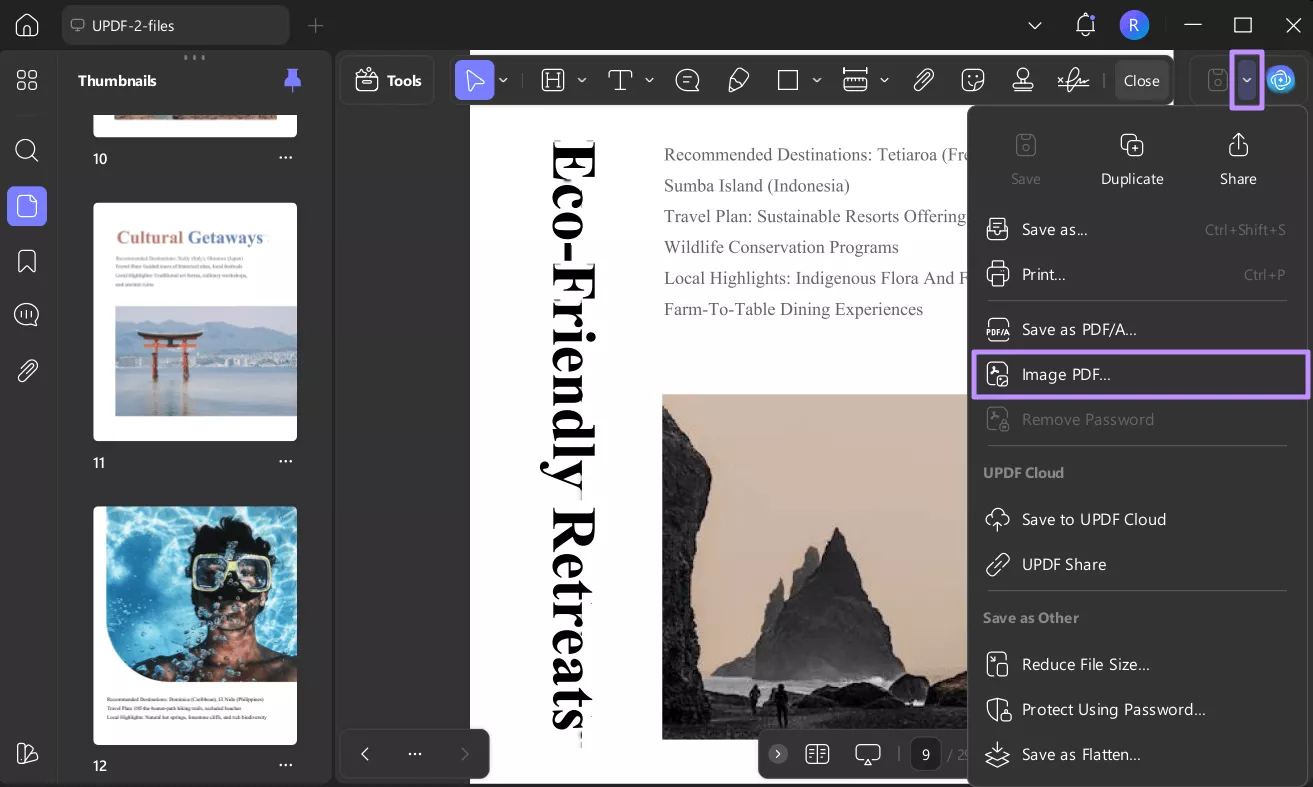
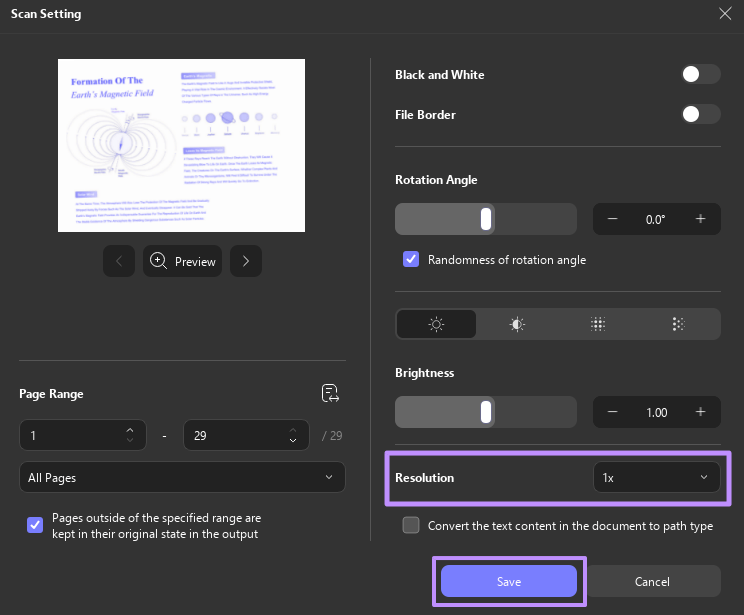
Step 2. Once the “Scan Setting” window open, choose the highest “Resolution” available. Make sure not to apply “Rotation Angle” or any other changes. Hit the “Save” button to save it as an image-only PDF.
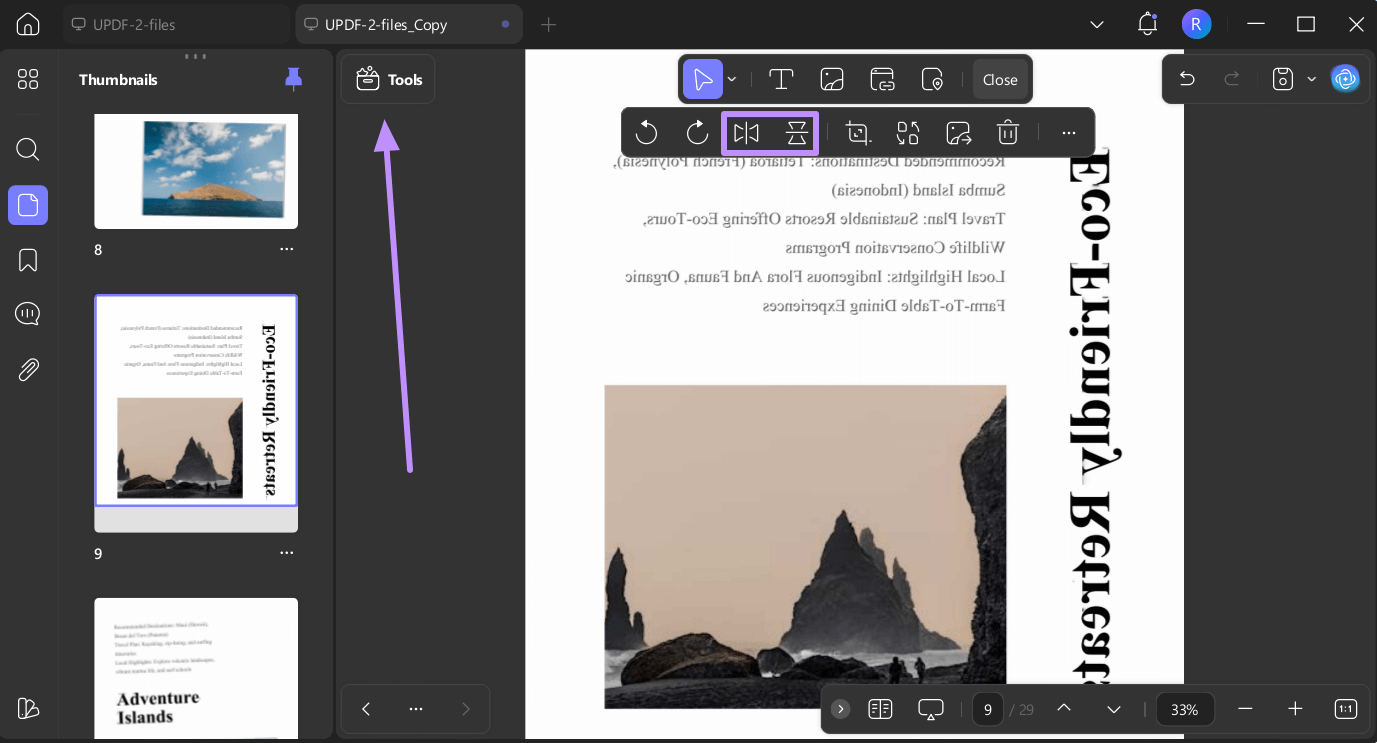
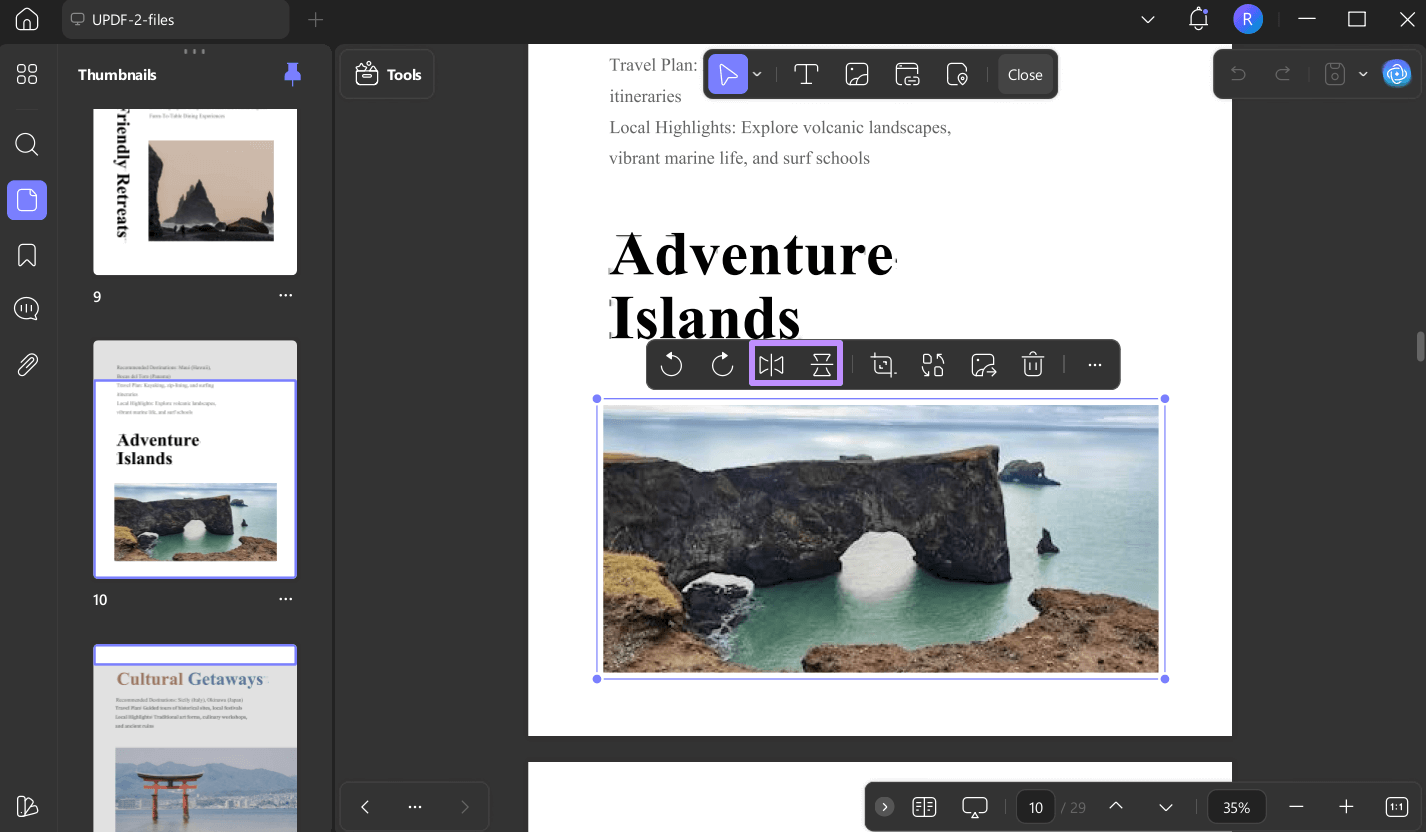
Step 3. Reopen the image-only PDF in UPDF and switch to “Edit” mode via “Tools.” Click on the page you want to mirror and hover the cursor on the top bar. Hit the “Flip Horizontal” or “Flip Vertical” option to mirror the image.
Warning
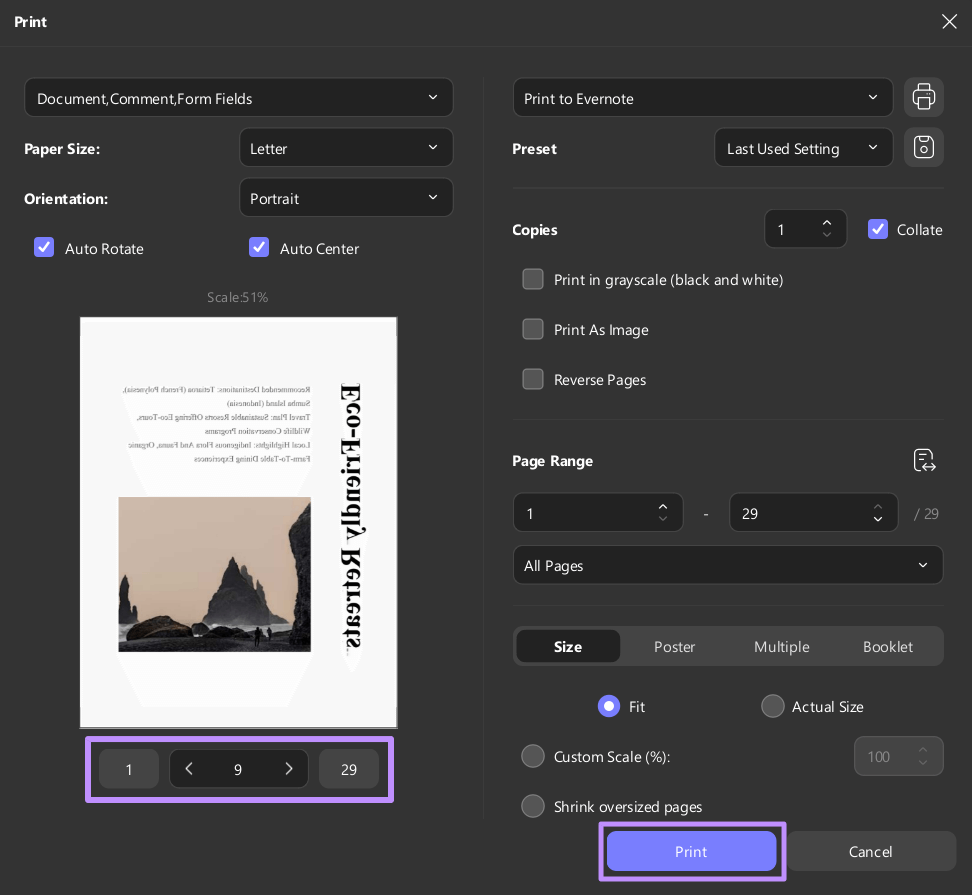
Step 4. Once flipped, go to “Export PDF” and select the “Print” option. Choose the page that you have flipped, make any required changes, and hit the “Print” button.
Best for
UPDF provides a big set of features to make working with PDFs effective: editing, converting, and printing the documents is easy and fast. Alongside it offers:
- Compress PDFs without losing quality for easier storage and sharing
- Sign PDF documents electronically or digitally with ease
- Convert PDFs to multiple formats that include Word, Excel, and PowerPoint
- Use UPDF AI to chat with PDFs for instant insights
- Annotate PDFs by highlighting content and adding comments and notes
- Process multiple PDFs at once using batch tools for conversion, merging, or printing
Check out UPDF in action by watching this video, or explore the AppleInsider review to see how its features make managing PDFs faster and easier.
Method 3. How to Mirror a PDF Image for Printing
Sometimes you only need to flip one image inside a PDF — not the entire document. This is common when you have a multi-page PDF with one logo, sticker, or design that needs mirroring, while the rest of the content stays normal.
Best for
Windows • macOS • iOS • Android 100% secure
Here is a step-by-step guide on how to print mirror image PDF:
Step 1. Launch UPDF and open the PDF that contains the image you want to mirror. Switch to edit PDF mode by clicking the “Tools” button and then selecting “Edit.”
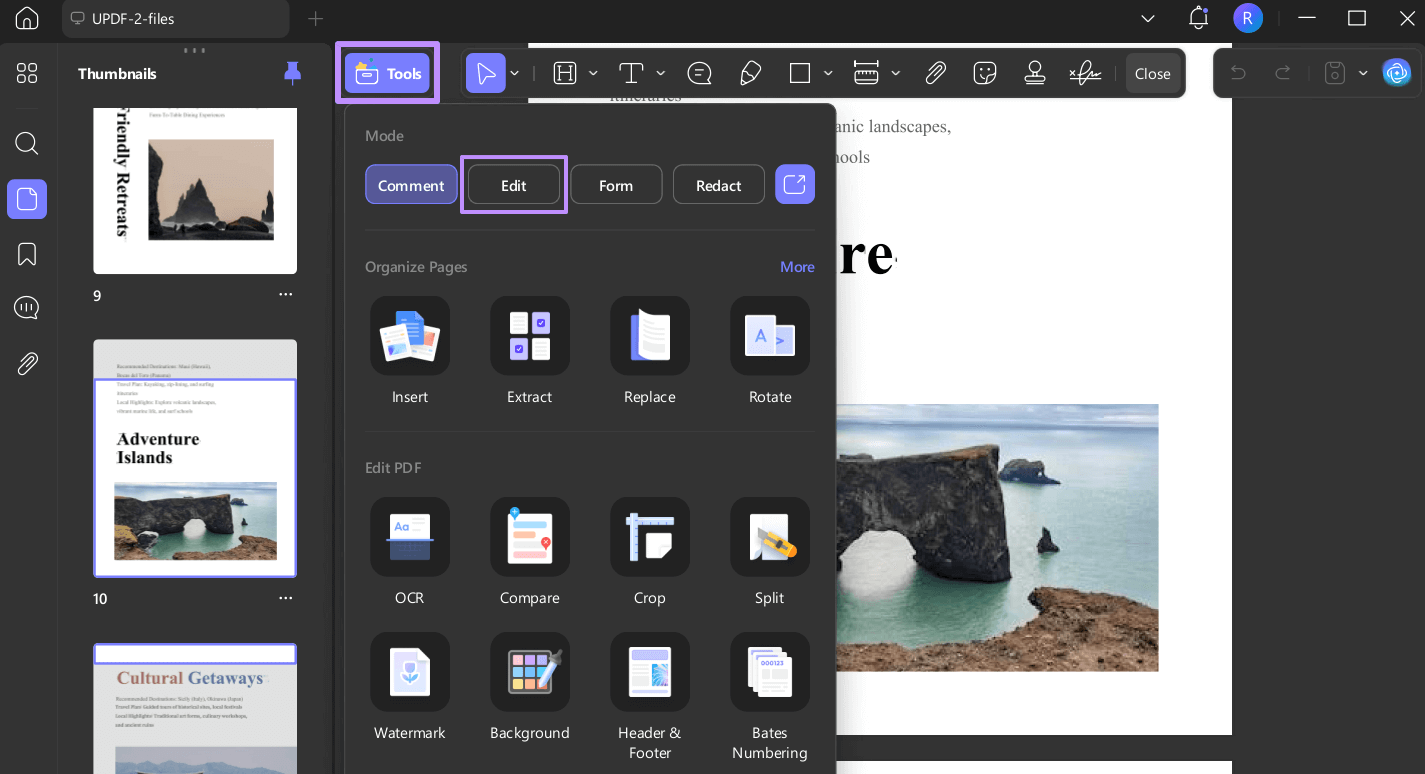
Step 2. Then, select the image you want to mirror by clicking on it. Use the “Flip Horizontal” or “Flip Vertical” option to flip the image. Once done, head on to print the PDF.
Tip: If you accidentally select "Flip Vertical," the image will turn upside down instead of mirrored. Click "Undo" (Ctrl + Z) and select "Flip Horizontal" instead.
Method 4. How to Mirror a PDF Online for Free (No Install)
If you only need to mirror a PDF once and do not want to install software, free online tools can flip your PDF horizontally in seconds.
Best for
How to mirror a PDF online:
Step 1. Visit a free online PDF mirroring tool such as PDFux or PDF2Go.
Step 2. Upload your PDF file.
Step 3. Select Flip Horizontal (mirror) or Flip Vertical.
Step 4. Download the mirrored PDF and print it normally.
Warning: Do not upload confidential documents to online tools. Your file is sent to a remote server for processing. For sensitive files, use Method 2 (UPDF offline) instead.
FAQ: Mirror PDF for Printing
How do I mirror a PDF for T-shirt printing?
For T-shirt printing (iron-on transfers), the easiest method is to enable "Mirror Image" or "T-Shirt Transfer" mode in your printer settings (Method 1). If your printer does not support this, use UPDF to flip the entire PDF horizontally (Method 2) and then print normally.
What is the difference between flipping and mirroring a PDF?
Flipping horizontally creates a mirror image (left becomes right). Flipping vertically turns the page upside down. For mirror printing, always choose horizontal flip.
Is it safe to use online tools to mirror a PDF?
For non-confidential files, yes. However, online tools upload your PDF to a remote server. Do not use them for contracts, medical records, or sensitive documents. Use an offline tool like UPDF for confidential files.
Why is my mirrored PDF printing upside down?
You likely selected "Flip Vertical" instead of "Flip Horizontal." Vertical flip turns the page upside down. For a mirror effect, always use horizontal flip.
Final Words
Yes, you can print a mirror image of a PDF — and you have four ways to do it. If your printer supports it, use the built-in mirror print setting (Method 1) for the fastest results with no extra software. If your printer lacks this feature, flip the entire PDF with UPDF (Method 2) or use a free online tool (Method 4) for one-off jobs. If you only need to mirror one image inside a PDF, UPDF's Edit mode handles it in two clicks (Method 3).
Windows • macOS • iOS • Android 100% secure






 Enid Brown
 Enrica Taylor
  Enola Davis