 UPDF
UPDF
 UPDF for Windows
 UPDF for Mac
 UPDF for iPhone/iPad
 UPDF for Android
 Nomostar
 UPDF AI Online
 UPDF Sign
 IvyCraft
 Edit PDF
 Annotate PDF
 Create PDF
 PDF Form
 Edit links
 Convert PDF
 OCR
OCR PDF to Word
 PDF to Image
 PDF to Excel
 Organize PDF
 Merge PDF
 Split PDF
 Crop PDF
 Rotate PDF
 Protect PDF
 Sign PDF
 Redact PDF
 Sanitize PDF
 Remove Security
 Read PDF
 UPDF Cloud
 Compress PDF
 Print PDF
 Batch Process
 About UPDF AI
 UPDF AI Solutions
 AI User Guide
 FAQ about UPDF AI
 Summarize PDF
 Translate PDF
 Chat with PDF
 Chat with AI
 Chat with image
 PDF to Mind Map
 Explain PDF
 PDF AI Tools
 Image AI Tools
 AI Chat Tools
 AI Writing Tools
 AI Study Tools
 AI Working Tools
 Other AI Tools
 AI Bookmark Generation
 AI Bookmark Summary
 AI Watermark Generation
 AI Background Generation
 AI Sticker Generation
 AI Stamp Generation
 AI Editing Suite
 UPDF Copilot
 AI Page Management
 AI Semantic Search
 PDF to Word
 PDF to Excel
 PDF to PowerPoint
 Enterprise Solution
 Enterprise Sign
 Enterprise AI
 Enterprise Plan
 Enterprise User Guide
 Enterprise Webinar
 IT
IT Education
 Construction
 Financial Service
 Healthcare
 Insurance
 Legal
Legal Manufacturing
 Government
 Researchers & PhDs
 Solopreneurs & Freelancers
 Lawyers & Legal Professionals
 Real Estate Agents & Brokers
 Education Solution
 Customer Stories
 User Guide
 UPDF Tricks
 FAQs
FAQs UPDF Reviews
 Download Center
 Blog
Blog Newsroom
 Tech Spec
 Updates
 UPDF vs. Adobe Acrobat
 UPDF vs. Foxit
 UPDF vs. PDF Expert

Printing contracts, signing manually, scanning, and emailing them creates a slow and inefficient workflow. This still happens across HR onboarding, client agreements, and finance approvals every single day. Learning how to make a PDF signable covers 2 different signing tasks for users. Interactive signature fields prepare documents for someone else to complete and sign electronically with ease.
Your own drawn, typed, or uploaded signature completes documents that others have sent you. Desktop editors, web platforms, Word conversion, and permission locks support different signing needs effectively. This guide explains 6 practical methods for creating, signing, sharing, and protecting PDF documents.
Need to create custom signable PDF forms with advanced signature field properties? Download UPDF for free to build interactive PDFs today!
Windows • macOS • iOS • Android 100% secure
Method 1: How to Make a PDF Signable with UPDF (Desktop)
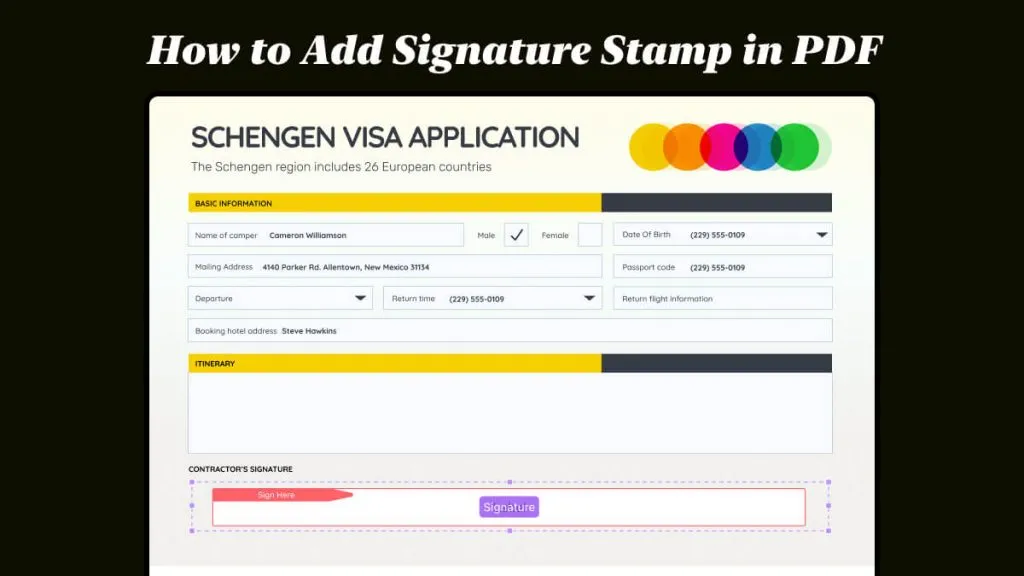
Working locally gives you total control over how interactive documents behave. Standard PDFs are static and do not allow users to insert secure signatures easily. By adding dedicated Digital Signature Fields in UPDF, you convert flat pages into interactive forms that prompt recipients where to sign electronically. You can set field properties, require mandatory inputs, adjust visual borders, and apply post-signature locking rules. Additionally, UPDF allows you to create and apply your own personal drawn, typed, or image signatures when self-signing.
These desktop controls help you make PDF signable for personal or business workflows. So, follow the steps below to configure signature fields and sign documents:
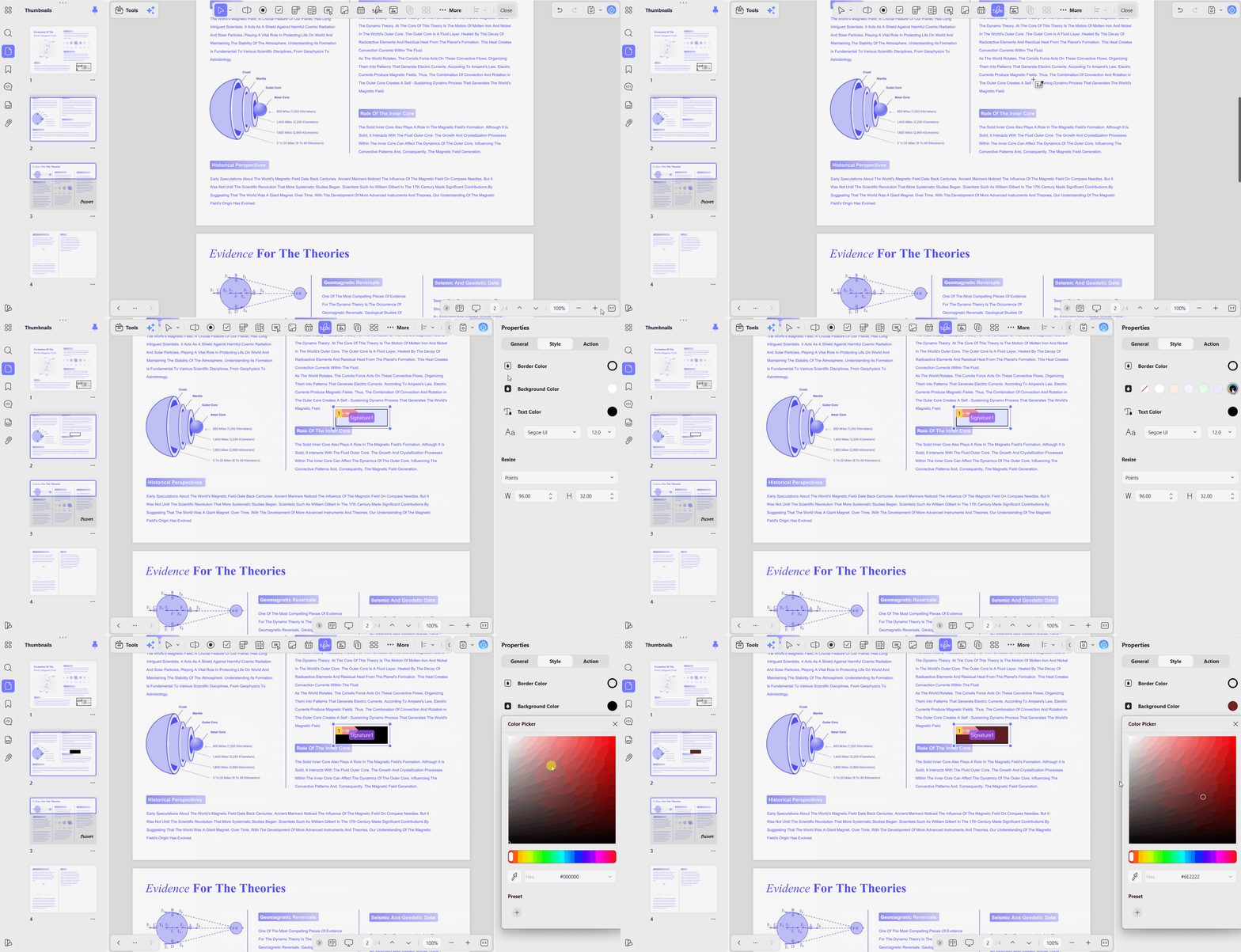
Step 1. Open UPDF, click "Open File" or drag and drop your PDF into the workspace. Next, click "Tools" from the left toolbar and enter "Form" mode.
Step 2. Select the "Digital Signature" tool from the top menu and click anywhere on the page to place the field. Double-click the newly added field to open its "Properties" panel and adjust these settings:
- General: Give the field a clear Field Name, add Tooltip text that appears on hover, and check Required so the document cannot be returned unsigned.
- Style: Set Border Color, Fill Color, Line Thickness, and Font Size so the field sits properly within your existing layout rather than floating over it.
- Action and Lock Rules: Enable Lock document after signing to freeze inputs once a signature lands. Save the file afterward, and it is ready to distribute.
Step 3. For self-signing, switch to "Comment" mode, choose the "Signature" tool, and click "Create". Design your signature using Keyboard (type with stylized fonts), Mouse/Trackpad (draw with adjustable stroke thickness), or Image (upload a transparent PNG). Adjust opacity and position before placing it onto the page.
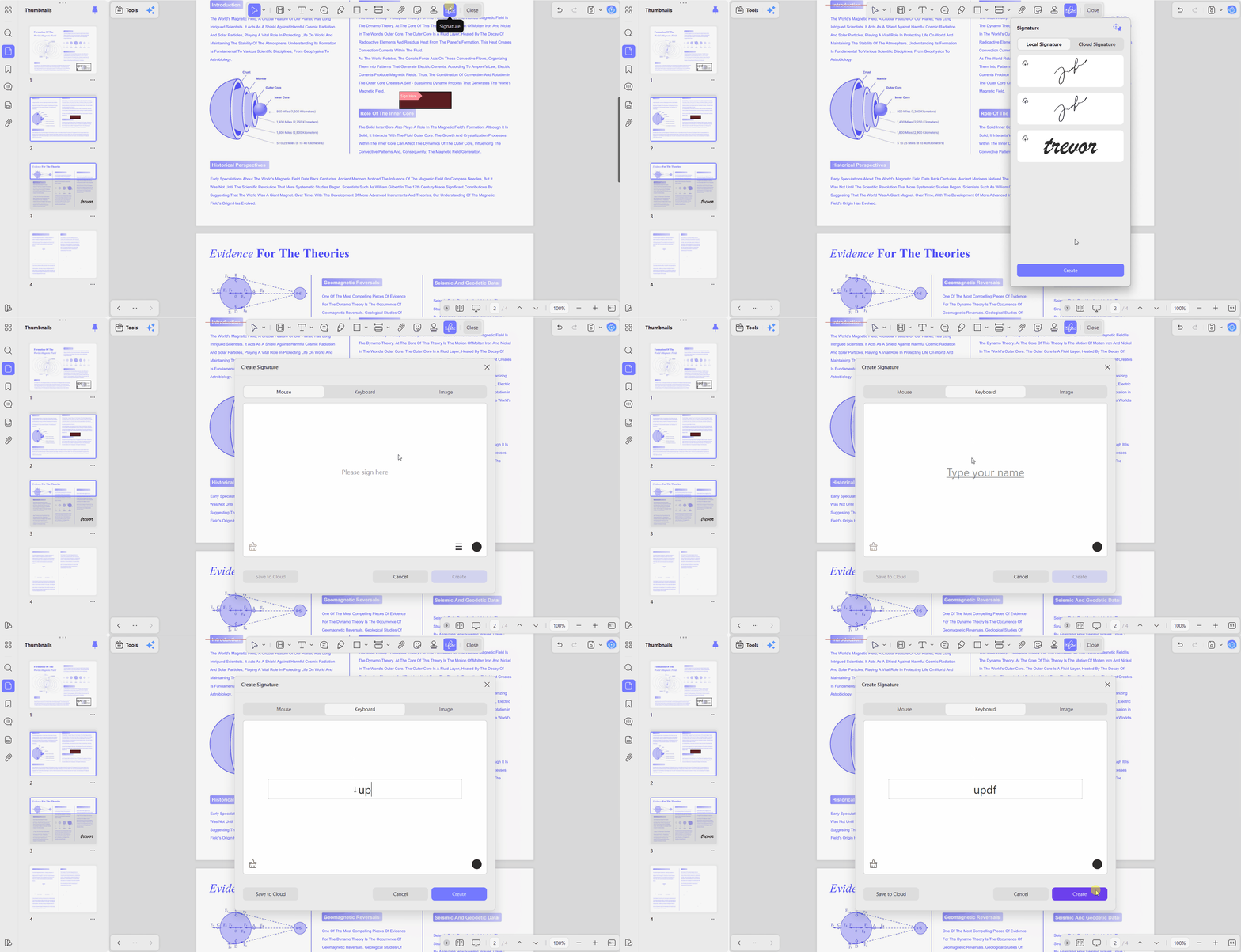
Opacity, size, and position remain adjustable before you save the signature for reuse. Our guide on how to sign PDF walks through each of the three creation options.
Tip
Method 2: How to Make an Adobe PDF Signable Using Adobe Acrobat
Acrobat remains common in organizations that standardized on Adobe and offers capable form tools. Learning how to create a signable PDF requires accessing its separate form tools panel. Follow the steps below to add signature fields and configure your document for signing:
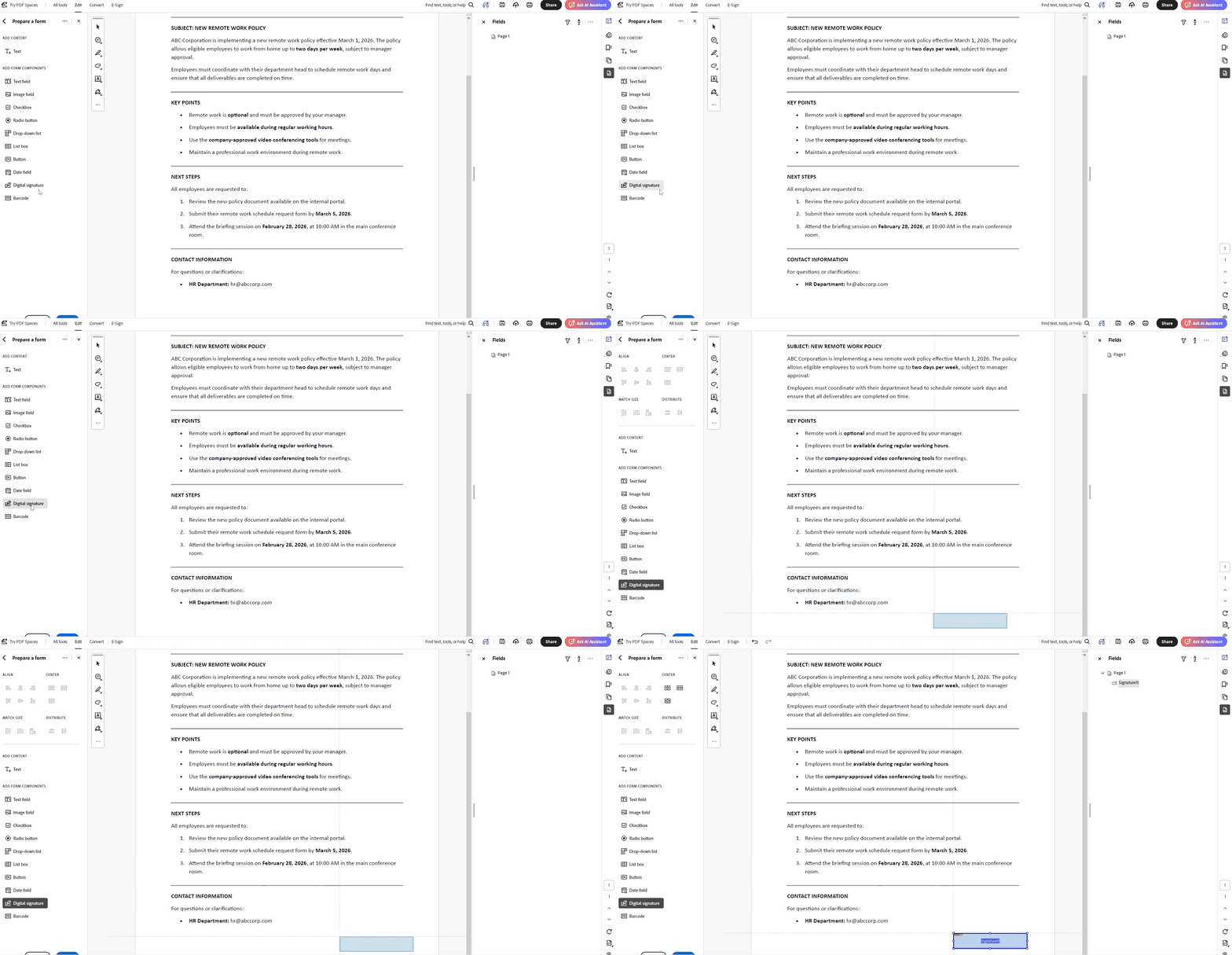
Step 1. First, open a PDF in Acrobat Pro and press "Prepare a Form." Then, pick the "Digital Signature" field and drag it over the PDF page.
Step 2. Next, right-click the field and open "Properties." Then, give it a name and save the signature field.
Acrobat Pro costs $239.88/year, making occasional signature creation expensive to justify. Its cluttered, multi-tiered menu interface can also slow down everyday users looking for a fast, straightforward editor. For a feature-by-feature breakdown of performance and pricing alternatives, see our detailed Adobe Acrobat vs UPDF comparison.
Method 3: How to Send a Signable PDF Document Online via UPDF Sign
Collecting signatures from others requires more than simply preparing a document for electronic signing. UPDF Sign helps with how to make a PDF signable without installing software. Here is how to send documents, collect signatures, and track every recipient's signing progress:
Step 1. First, click the "UPDF Sign" icon in the Form mode or directly access the UPDF Sign site using the URL provided above. Next, log in to your account and press the "Use New Document" option to upload a new contract or other PDF document.
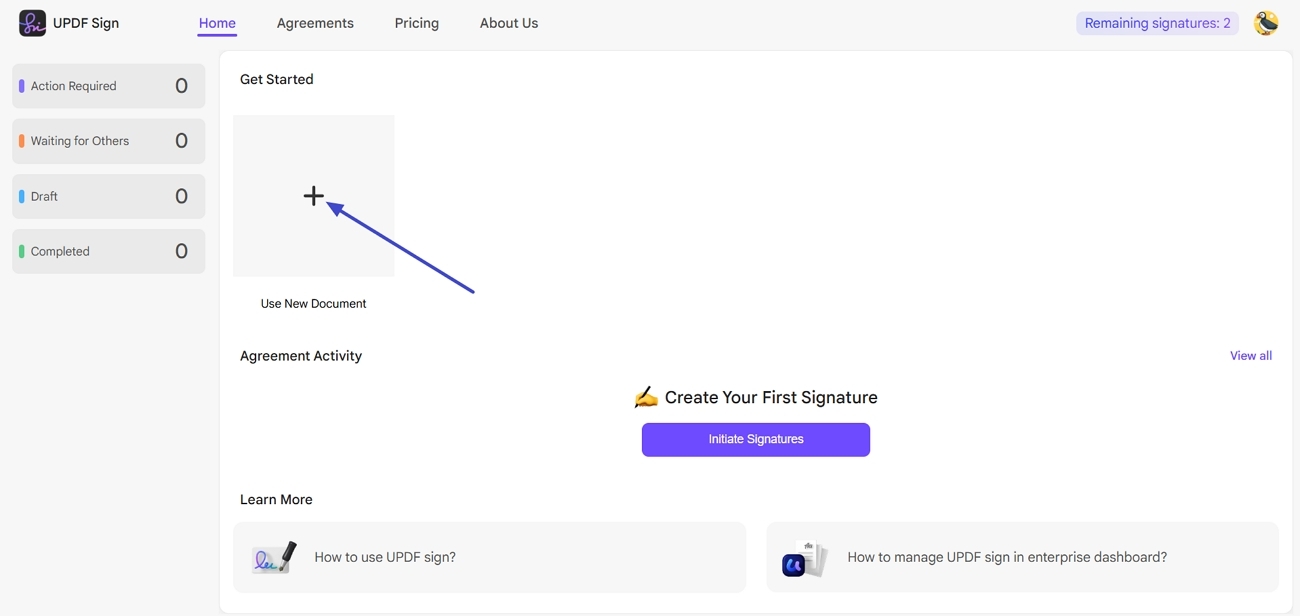
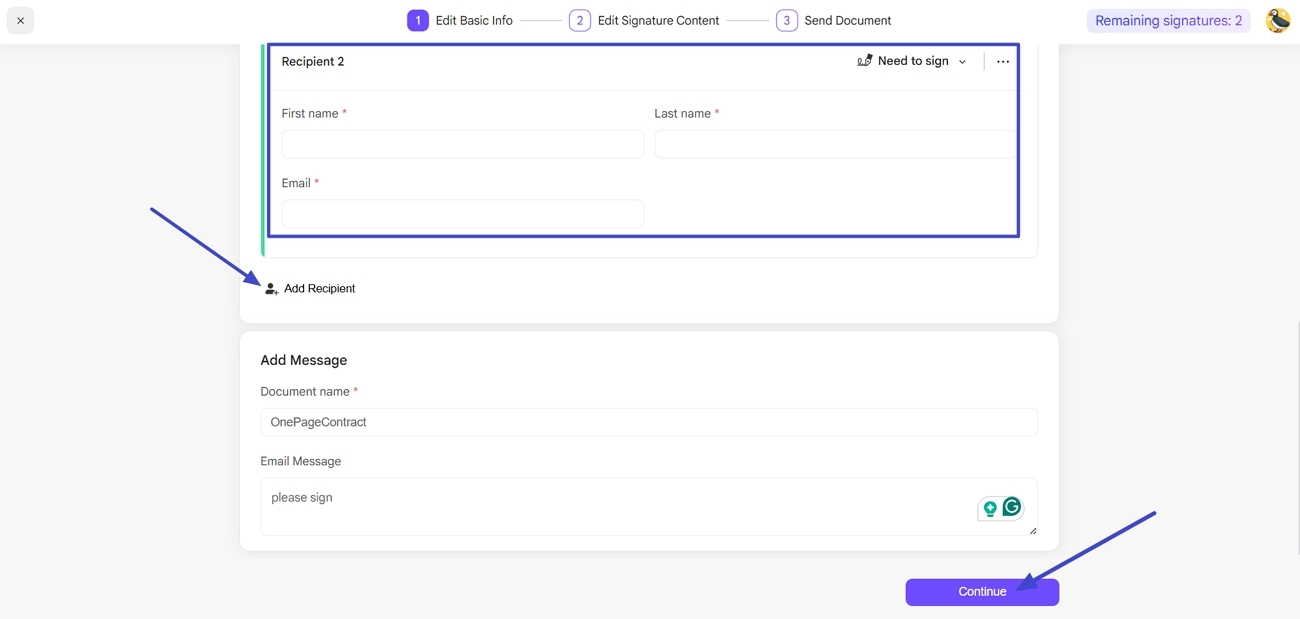
Step 2. After that, enter the full name and email address of the recipients. Use the "Add Recipients" option to add new individuals. After, create a document name and a message along with the contract. Then, press the "Continue" button.
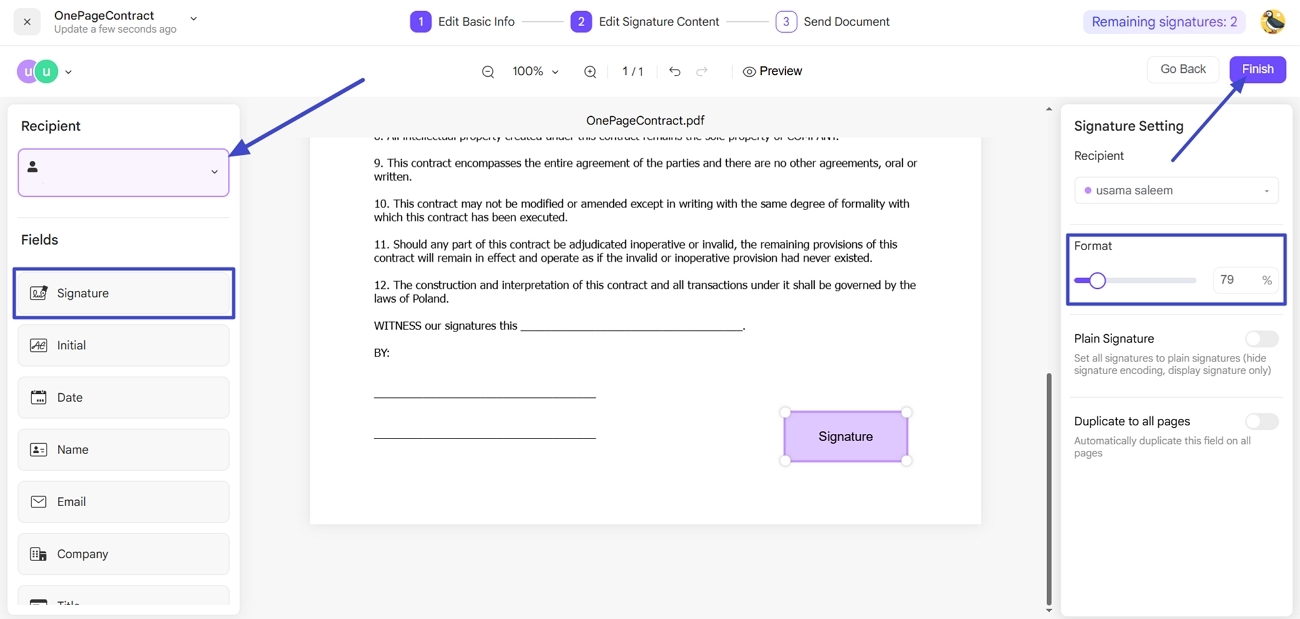
Step 3. Next, choose a recipient, select a "Signature" field, and drag it over the PDF page. Adjust the signature field size from the right side panel.
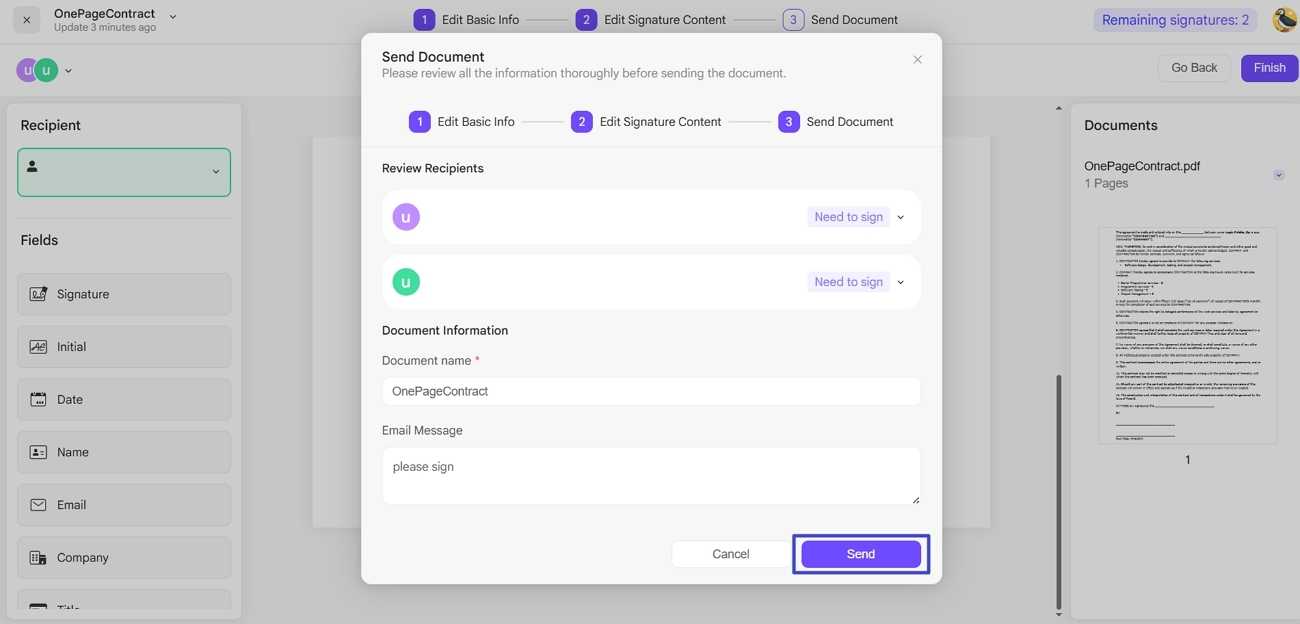
Step 4. Review the document name and message and press "Send" to send the signature request. Your recipients can sign from their devices, and the platform keeps an audit trail.
Moreover, our guide on how to sign PDF online explains the recipient side of the same workflow.
Method 4: How to Create a Signable Document Online with Smallpdf
Smallpdf suits occasional signing when installing desktop software is unavailable or simply inconvenient. Its browser tools quickly create a signable PDF, though free usage runs out. Follow the steps below to prepare and send your document for electronic signing online:
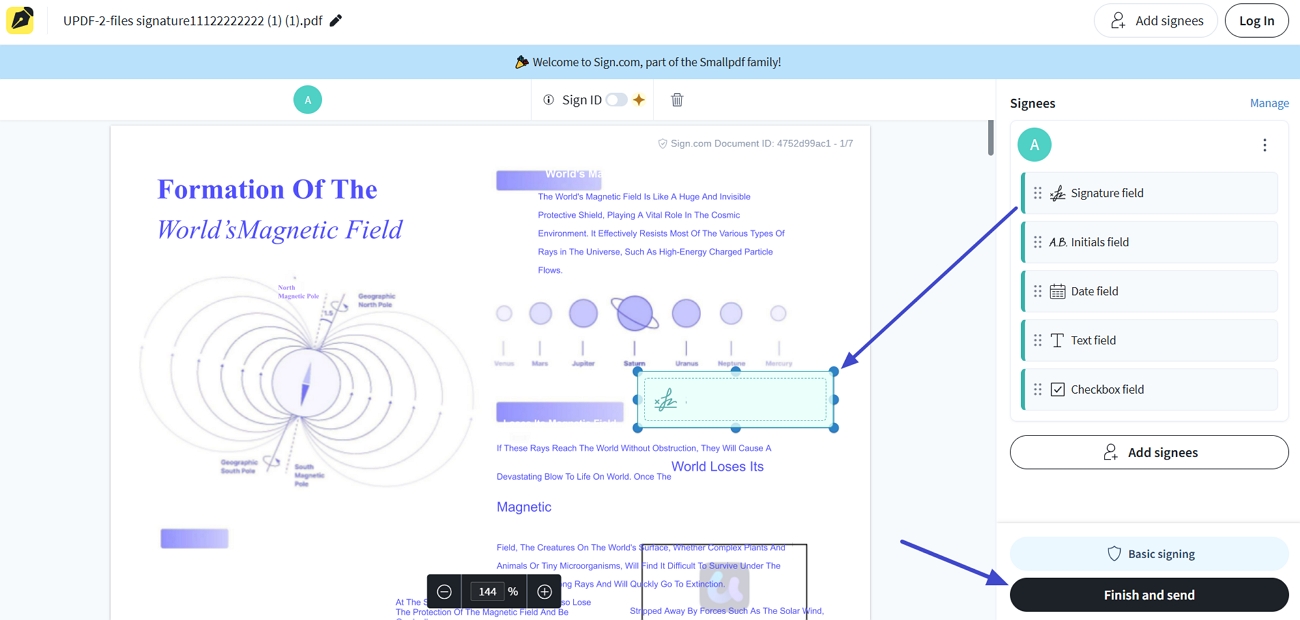
Step 1. Once you open the Smallpdf eSign tool, upload your PDF and choose the "Get Signatures from Others" option. The platform will redirect you to the connected "sign.com" platform.
Step 2. Choose the "Only Others" option and enter the email and name of the signees. Then, press "Continue."
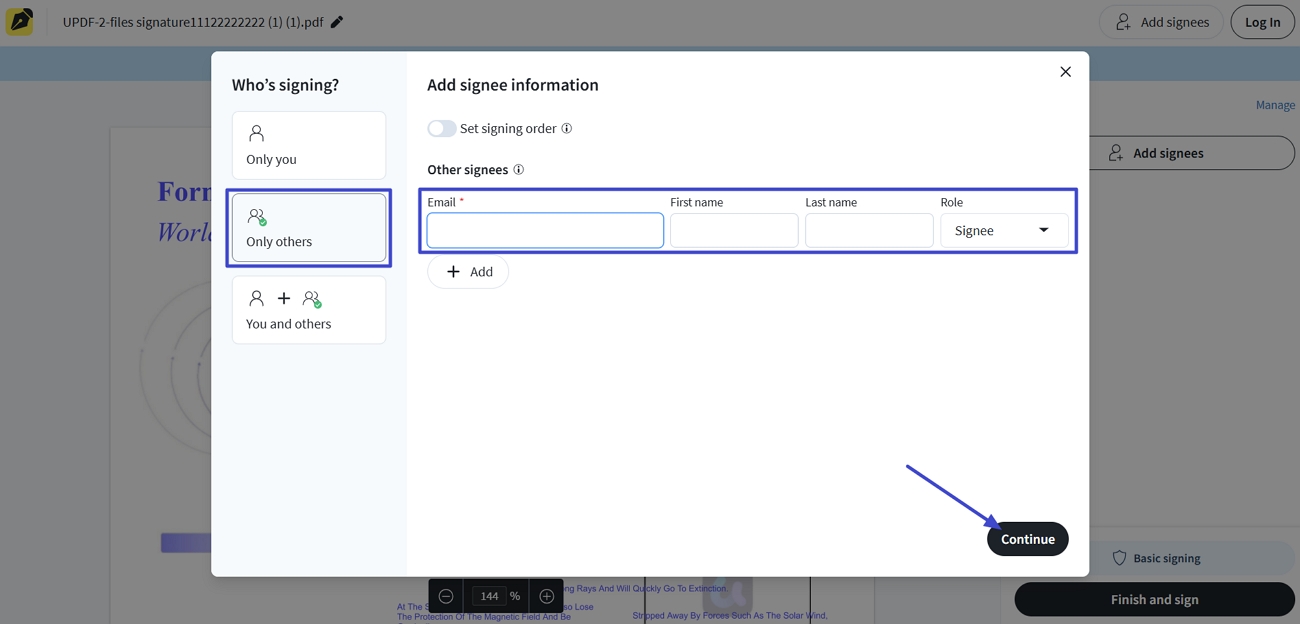
Step 3. Next, drag the "Signature Field" over the PDF page and press the "Finish and Send" button.
For more detailed guidance, our comparison of how to electronically sign PDF methods lays out how the online routes differ.
Free-tier restrictions are worth knowing before you commit to this route. Smallpdf caps free accounts at 2 tasks per day across all its tools combined, adds branding to some outputs, and reserves full eSign functionality for Pro. The linked Sign.com free plan allows only a small number of documents per month.
Method 5: How to Turn a Word Document into a Signable PDF
Most contracts and HR forms begin in Word without interactive signature fields. Converting them first preserves the original layout while making documents properly signable. Adhere to the simple steps below to convert and add signature fields:
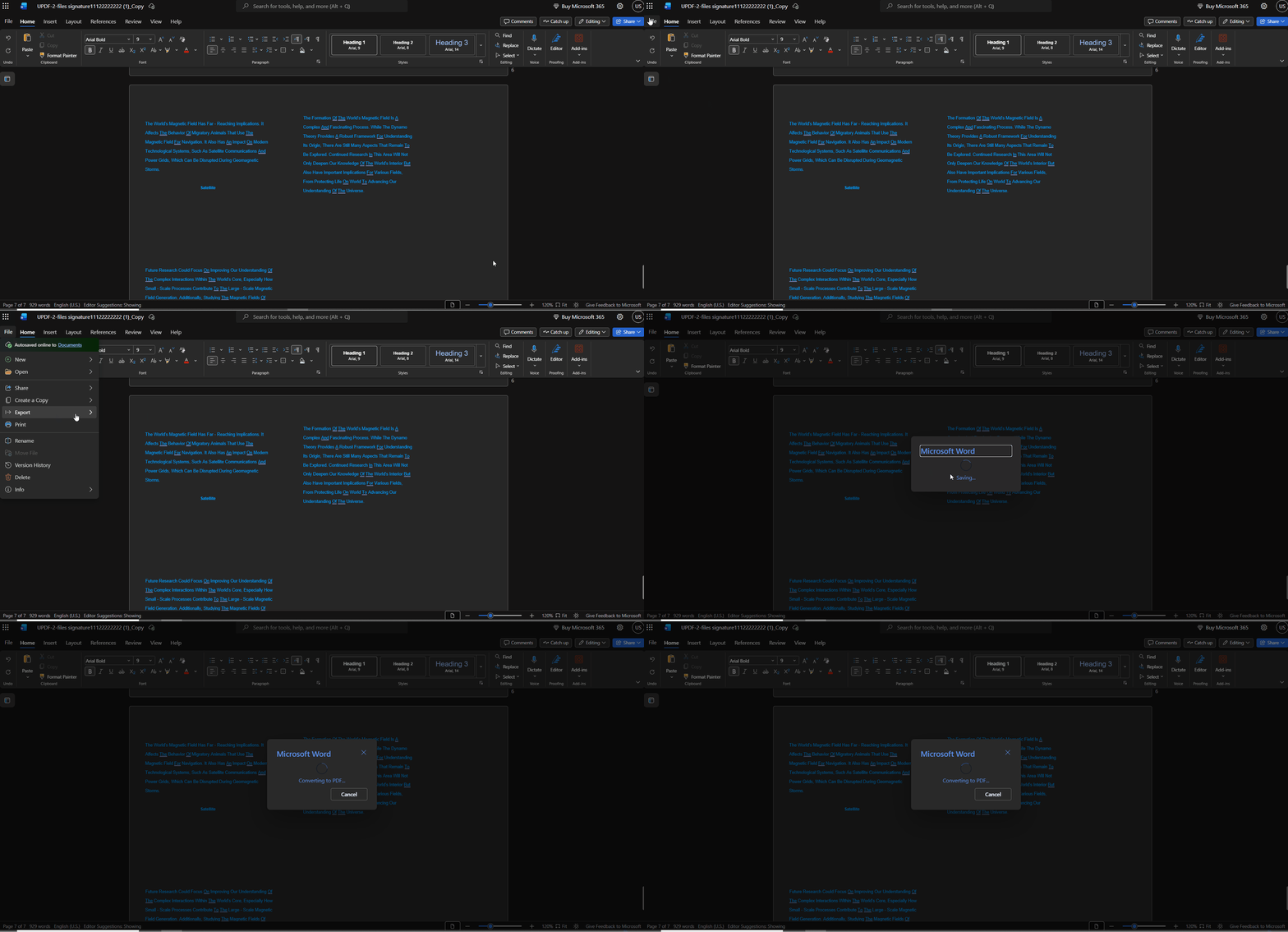
Instructions. Open a doc in Word and press the "File" option, then choose the "Save As" or "Export" button. After that, choose "Download as PDF" or "Save as PDF." Then, open the PDF and create a "Digital Signature" field as shown in Method 1.
Method 6: How to Make a PDF Signable but Not Editable
A signable document still needs protection against unauthorized changes after preparing it for signing. Permission passwords make a PDF signable while restricting unwanted editing, copying, or document modifications afterward. Go through the steps below to protect your PDF with a permission password:
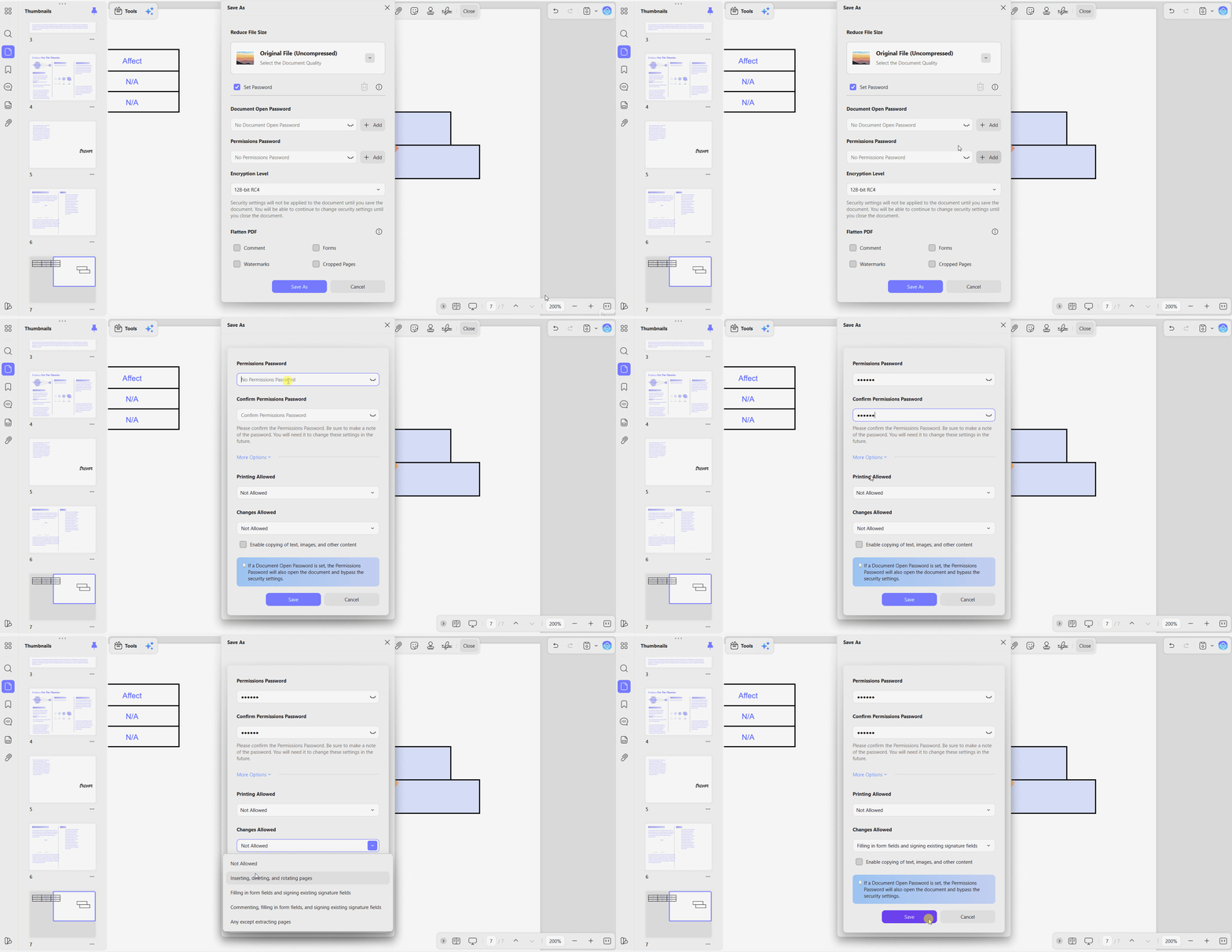
Step 1. After you add a Digital Signature field, choose the "Protect Using Password" option and click "Add" in front of "Permissions Password."
Step 2. Next, add your password in both fields and choose "Filling in Form Field and Signing Existing Signature Fields." Then, press "Save."
Files secured this way stay viewable and signable in UPDF Mobile. Our guide on how to sign PDF Android explains signing on a phone in detail.
Signature fields rarely travel alone, since most documents also carry name, date, and address fields that recipients must complete. Setting those up alongside the signature appears under how to fill in a PDF form.
Complete the document carefully and check the fields before saving the final copy. For a visual introduction to the tools, see the video on working with PDF forms in UPDF below.
Want to customize interactive signature fields, set permission locks, and sign PDFs across desktop and mobile? Download UPDF for free!
Windows • macOS • iOS • Android 100% secure
Feature & Parameter Comparison: Online vs. Offline Methods
The table below compares field-level controls, signing features, and free-tier limits across these methods:
| Method/Tool | Best Scenario | Key Field Parameters Supported | Free Tier Limits/Cost |
| UPDF (Desktop) | Local form building, custom field properties, and self-signing | Full properties: lock after signing, border and fill style, tooltip, required status, custom draw, image, or type | Free trial available |
| UPDF Sign (Web) | Online multi-signer routing and legal e-signature collection | Per-signer field assignment, signing order, roles, audit trail | Free trial with a UPDF account |
| Adobe Acrobat | Teams already standardized on Adobe | Advanced form controls | $239.88/year |
| Smallpdf eSign | Quick single-file web signing | Basic signature and text tags | 2 tasks per day; requests route through Sign.com |
| MS Word to PDF | Converting draft contracts into signable PDFs | Static text becomes interactive form fields | Requires Word plus a PDF tool |
Frequently Asked Questions
How do I make a PDF fillable and signable for free?
Open your document in UPDF and select Prepare Form to access form creation tools. Add Text Fields for information and Digital Signature Fields where recipients must sign electronically. Customize each field's properties, save the document, and use UPDF's free trial features easily.
How do I send someone a PDF they can sign?
Create digital signature fields in UPDF and save the document before sharing with others. You can email the prepared PDF directly to anyone who needs to sign it. Alternatively, UPDF Sign sends signature requests with review links directly to recipients' email inboxes.
Can another person edit a PDF after it is made signable?
Permission locks can prevent another person from editing your PDF after they have signed. Lock document after signing freezes completed fields immediately when the recipient adds their signature. A permission password also restricts editing while still allowing recipients to sign the document.
Conclusion
Learning how to make a PDF signable starts with choosing tools for specific needs. Desktop tools provide detailed field controls, while online platforms simplify collecting multiple signatures. UPDF supports interactive forms and self-signing with useful controls for managing signature fields easily. Moreover, UPDF Sign handles multiple signers, while permission locks protect completed documents from unwanted changes.
Ready to create fully customized signable PDFs with advanced properties? Download UPDF for free or try UPDF Sign online today!
Windows • macOS • iOS • Android 100% secure






 Enrica Taylor

 Enid Brown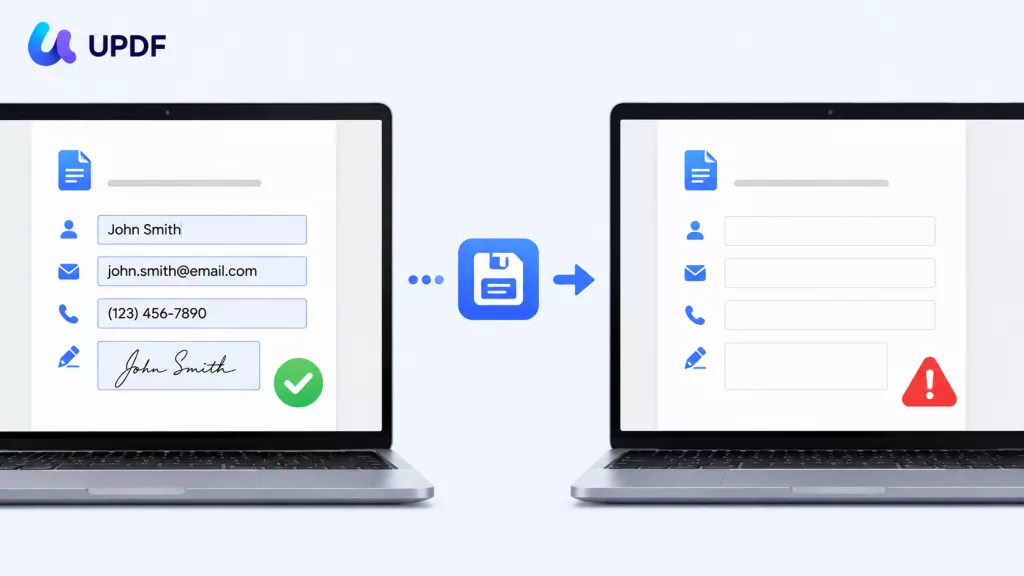
 Enola Miller