UPDF
UPDF
 UPDF for Windows
 UPDF for Mac
 UPDF for iPhone/iPad
 UPDF for Android
 Nomostar
 UPDF AI Online
 UPDF Sign
 IvyCraft
 Edit PDF
 Annotate PDF
 Create PDF
 PDF Form
 Edit links
 Convert PDF
 OCR
OCR PDF to Word
 PDF to Image
 PDF to Excel
 Organize PDF
 Merge PDF
 Split PDF
 Crop PDF
 Rotate PDF
 Protect PDF
 Sign PDF
 Redact PDF
 Sanitize PDF
 Remove Security
 Read PDF
 UPDF Cloud
 Compress PDF
 Print PDF
 Batch Process
 About UPDF AI
 UPDF AI Solutions
 AI User Guide
 FAQ about UPDF AI
 Summarize PDF
 Translate PDF
 Chat with PDF
 Chat with AI
 Chat with image
 PDF to Mind Map
 Explain PDF
 PDF AI Tools
 Image AI Tools
 AI Chat Tools
 AI Writing Tools
 AI Study Tools
 AI Working Tools
 Other AI Tools
 AI Bookmark Generation
 AI Bookmark Summary
 AI Watermark Generation
 AI Background Generation
 AI Sticker Generation
 AI Stamp Generation
 AI Editing Suite
 UPDF Copilot
 AI Page Management
 AI Semantic Search
 PDF to Word
 PDF to Excel
 PDF to PowerPoint
 Enterprise Solution
 Enterprise Sign
 Enterprise AI
 Enterprise Plan
 Enterprise User Guide
 Enterprise Webinar
 IT
IT Education
 Construction
 Financial Service
 Healthcare
 Insurance
 Legal
Legal Manufacturing
 Government
 Researchers & PhDs
 Solopreneurs & Freelancers
 Lawyers & Legal Professionals
 Real Estate Agents & Brokers
 Education Solution
 Customer Stories
 User Guide
 UPDF Tricks
 FAQs
FAQs UPDF Reviews
 Download Center
 Blog
Blog Newsroom
 Tech Spec
 Updates
 UPDF vs. Adobe Acrobat
 UPDF vs. Foxit
 UPDF vs. PDF Expert

Quick Answer
You saved or received a signed PDF, but the signature is no longer visible. This can be a viewer-rendering problem, an invisible cryptographic signature, an incomplete signing process, or a changed file. The checks below help you identify which situation you have before you re-sign anything.
When a digital signature is not showing up in a saved PDF, start with the Signatures panel rather than the page appearance. A drawn or typed signature is only a visual mark; a certificate-based digital signature also records signer and document-integrity information.
This guide covers three practical fixes: open the file in a compatible reader, create a new certificate-based signature correctly when the original was never embedded, and update or repair the PDF software. If you only need a handwritten or typed mark, see how to sign a PDF; that is different from certificate-based signing.
Part 1. Why Digital Signature Not Showing Up in Saved PDF?
There are a few reasons that your digital signature can disappear after saving. It could be a display issue or any issue with the software. Let's go through the most common reasons and how they affect our signed PDF.
First: Is Your Signature Actually Lost — or Just Invisible?
Before troubleshooting, check whether your signature exists but isn't rendered. A digital signature has two parts: the cryptographic signature (verifies document integrity) and the visual appearance (shows the signed name and date on the page). Some signing tools embed the cryptographic data without the visual appearance — the signature is legally valid but invisible.
How to check in 10 seconds:
| Viewer | Where to look | What you'll see |
|---|---|---|
| Adobe Acrobat | View → Show/Hide → Navigation Panes → Signatures | Signature listed in panel even if invisible on page |
| UPDF | Signatures panel (left sidebar) | Signature listed with signer name and timestamp |
| Chrome/Edge | Not supported | No signature data shown — use a full PDF reader |
⚠️ WARNING:
If the signature appears in the Signatures panel but not on the page, it's an invisible signature. This is by design — many signing workflows use invisible signatures for security without cluttering the document. You can add a visible appearance by re-signing with a tool that supports visual signatures.
Reason 1: The PDF Viewer You Use Doesn’t Support Digital Signature
Not all PDF viewers can display digital signatures. There are some basic or outdated viewers who don't recognize them at all.
If your browser or basic viewer does not show the signature, do not assume it was deleted. Open the same saved file in UPDF or Adobe Acrobat and inspect the Signatures panel. UPDF lets you view the signed field and check the signature information without changing the document. For related creation options, see this guide to a digital signature creator.
Reason 2: The PDF Editor You Used to Add the Digital Signature Doesn’t Work Well
If the software you used to sign a PDF with an e-signature workflow isn’t reliable, the signature might not save properly. There are a lot of software and PDF viewers that don't embed the signature properly. This eventually makes them disappear after saving. Always use trusted software to sign your documents. If the issue continues, try signing the PDF with another editor.
Reason 3: Software Issues
There is a chance that the software you are using to sign or view the PDF is not working well. Occasionally, the software itself can be outdated or buggy, which ruins the way the PDF processes the signature. If that's what's happening, you might need to update or even reinstall it. And if that doesn't work, using a different software program might be the solution.
Now that we know the common reasons for digital signature not showing up in saved PDF, let’s move to the solutions.
Part 2. How to Fix Digital Signature Not Showing Up in PDF?
If you have the digital signature not showing up in PDF file issue, you can follow the below 3 guides to fix it.
Way 1. Use A Tool That Supports Digital Signature
Best for
Users whose signature appears in the Signatures panel but not on the page.
You've confirmed the signature exists (via the Signatures panel) but your current viewer isn't rendering the visual appearance. This is the fastest fix — no re-signing needed.
Some basic or outdated viewers don't recognize digital signatures at all. They may show the PDF but hide the signature layer, making it look like the signature is missing. UPDF and Adobe Acrobat both fully support signature rendering.
Try it first with UPDF — it's free to view PDFs and supports digital signature display without any limitations.
Give it a try! Download UPDF now and see if your signature appears correctly.
Windows • macOS • iOS • Android 100% secure
Here is how you can open your PDFs in UPDF:
Step 1: Once the UPDF software is installed on your desktop, launch it. Then, click "Open File," and a new window will appear.
Step 2: Select the PDF with the digital signature you want to view and click "Open."
Step 3: Your PDF file will be opened in UPDF. Here, you can see your digital signature.
If this solution does not work, you can try the next one!
Way 2. Use Another Tool to Create Digital Signature
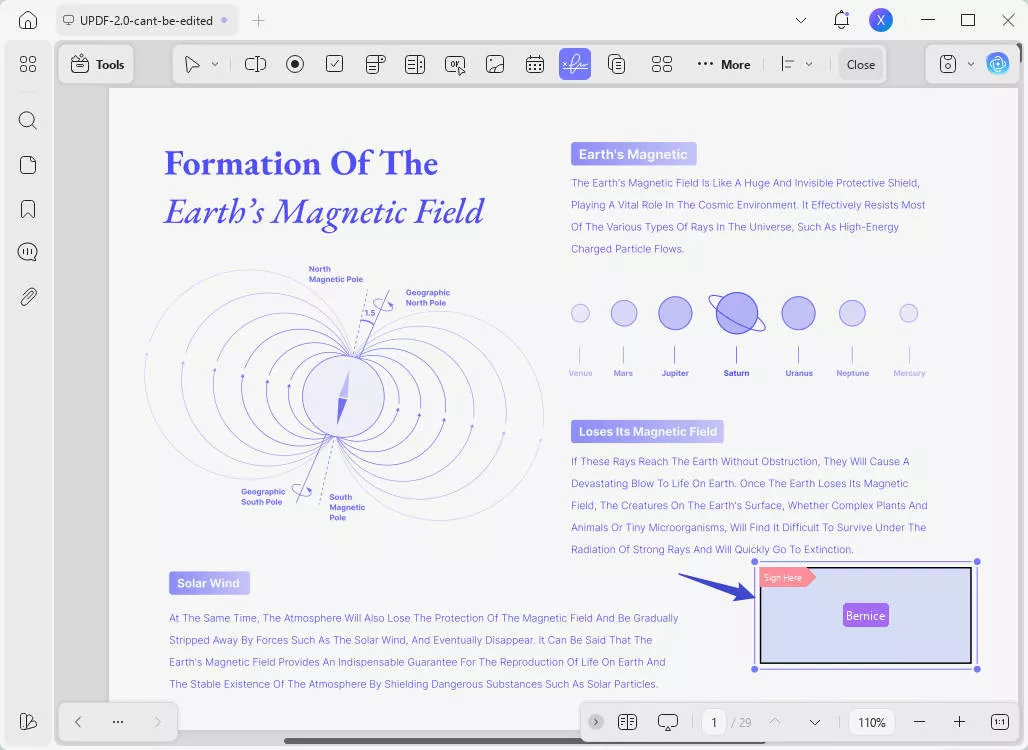
If the Signatures panel contains no signature, the original signing process may not have completed or the wrong copy may have been saved. Return to the unsigned source and sign a fresh copy with a tool that supports certificate-based digital signatures. UPDF can create a signature field, import or create a digital ID, apply a visible appearance, and save the newly signed PDF. You can also review the broader process for creating a digital signature.
Here is how you can add and create a digital signature using UPDF:
Step 1: Open the PDF file in UPDF. Click "Form" in "Tools" on the left menu and select "Digital Signature" from the top ribbon.
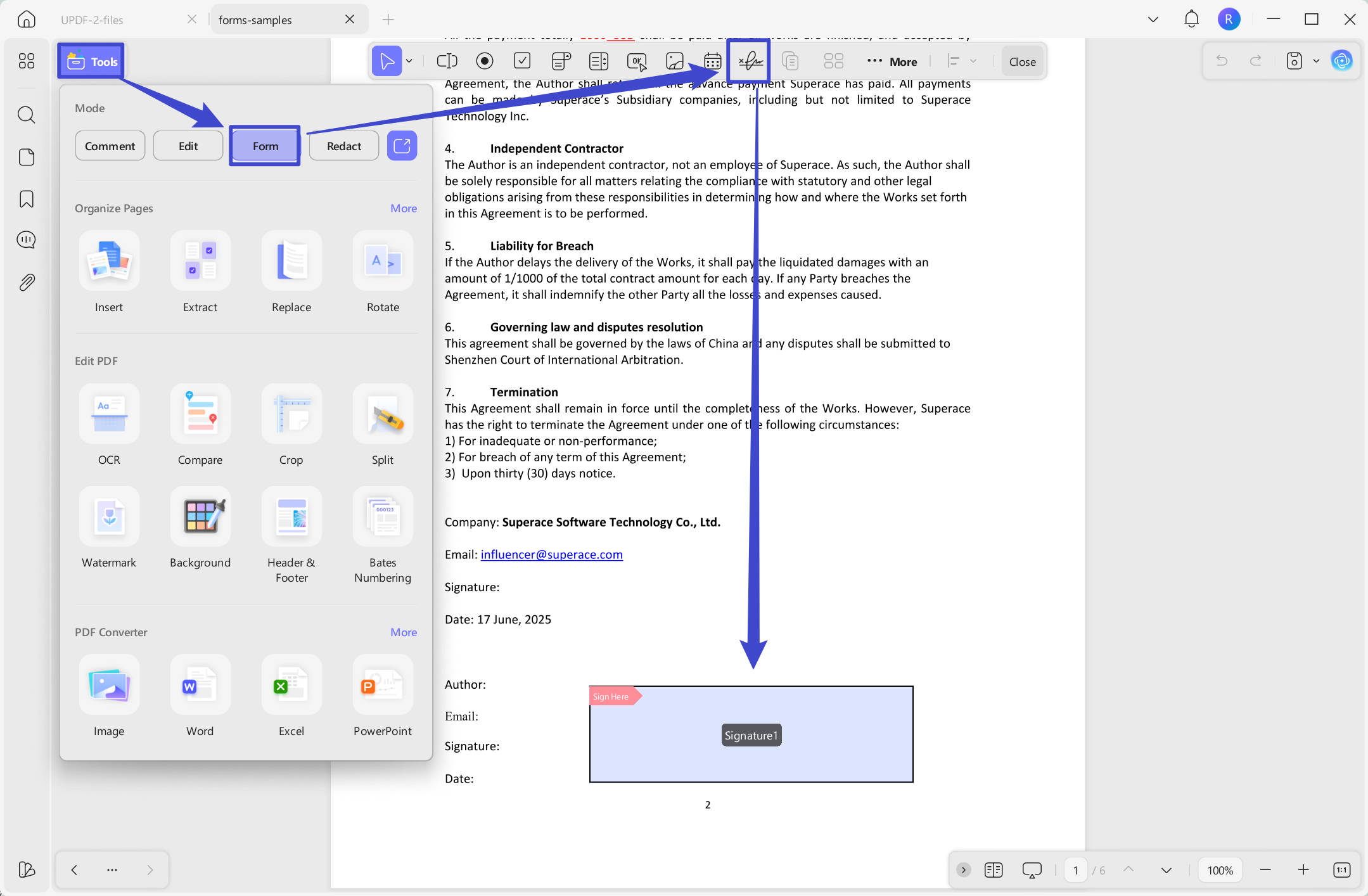
Step 2: Use your mouse to draw a signature box anywhere on the form. Come to "Comment" in "Tools".
Step 3: Then, tap on the signature box, and you will have a pop-up. You can tap on the "Create" button to create a new signature or "Import" to import the current one.
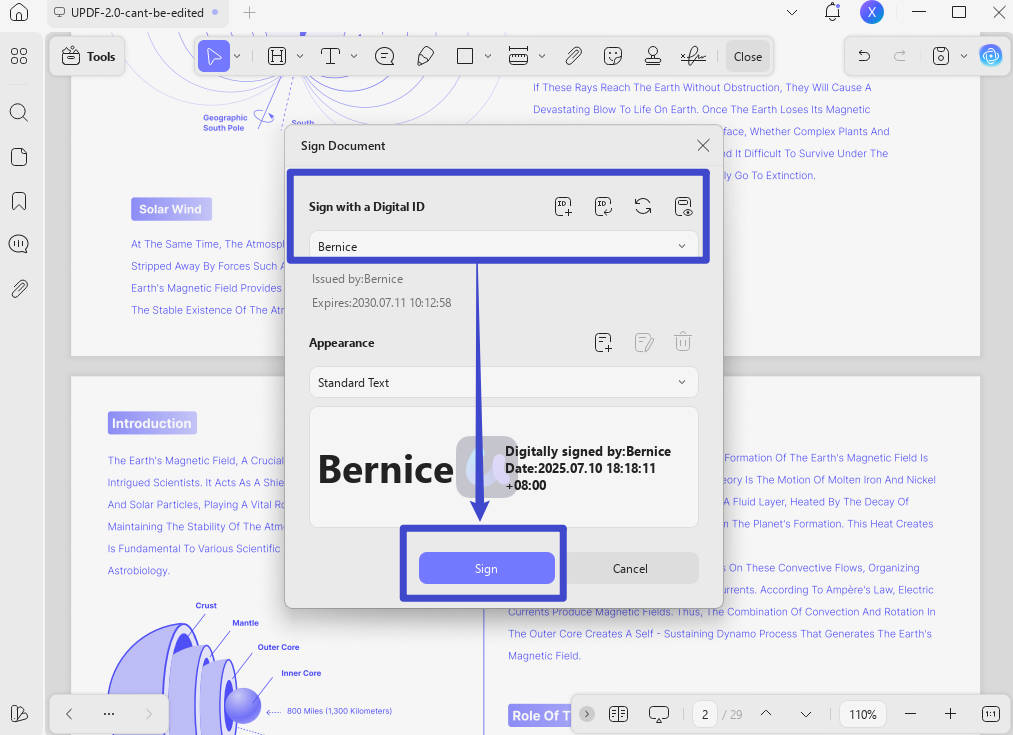
You can also change the appearance of the signature. Once done, click "Sign" and save the PDF file with digital signatures.
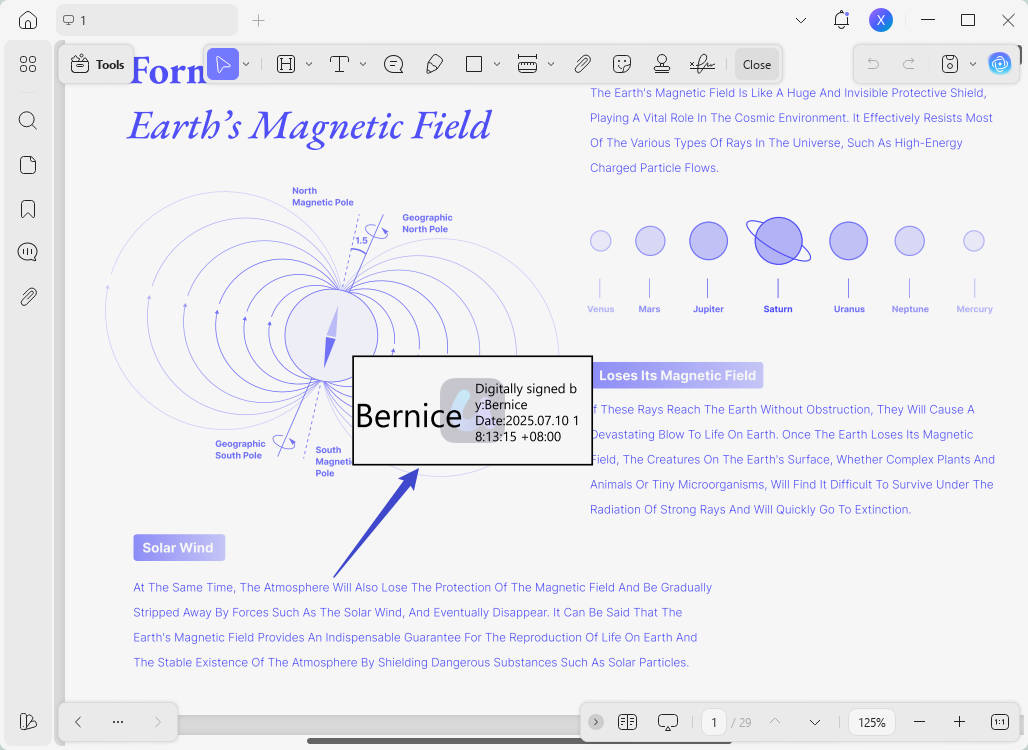
Step 4: Open the PDF file with the new signature and see if it appears in the PDF.
You may feel confused about why to use UPDF to create digital signature instead of other tools. Here are the reasons.
Why Use UPDF for Digital Signatures?
- Flexible licensing – Try the signing workflow free, then compare the current plans if you need ongoing PDF editing and form tools.
- Powerful Features – Includes great digital signature and PDF form tools.
- More than signatures – Edit, annotate, organize, convert, and protect the same PDF without moving it between separate apps.
Download UPDF free and test the workflow on a copy of your document. Keep the original signed file unchanged until you have confirmed that the signature appears and validates correctly.
Windows • macOS • iOS • Android 100% secure
If you prefer a browser-based workflow for requesting signatures from other people, compare it with a tool to create a digital signature online. For a certificate-based signature inside the desktop PDF itself, continue with the UPDF steps above.
If this solution doesn't fix the digital signature not showing up in the saved PDF issue, there is a last resort. Let’s explore it!
Way 3. Update or Reinstall the Software
One main reason digital signatures do not appear is that the software is outdated or failing. Many people use Adobe Acrobat to view PDFs. However, older versions may create display problems. Updating or installing the app might sometimes resolve the issue.
Here is how you can do that:
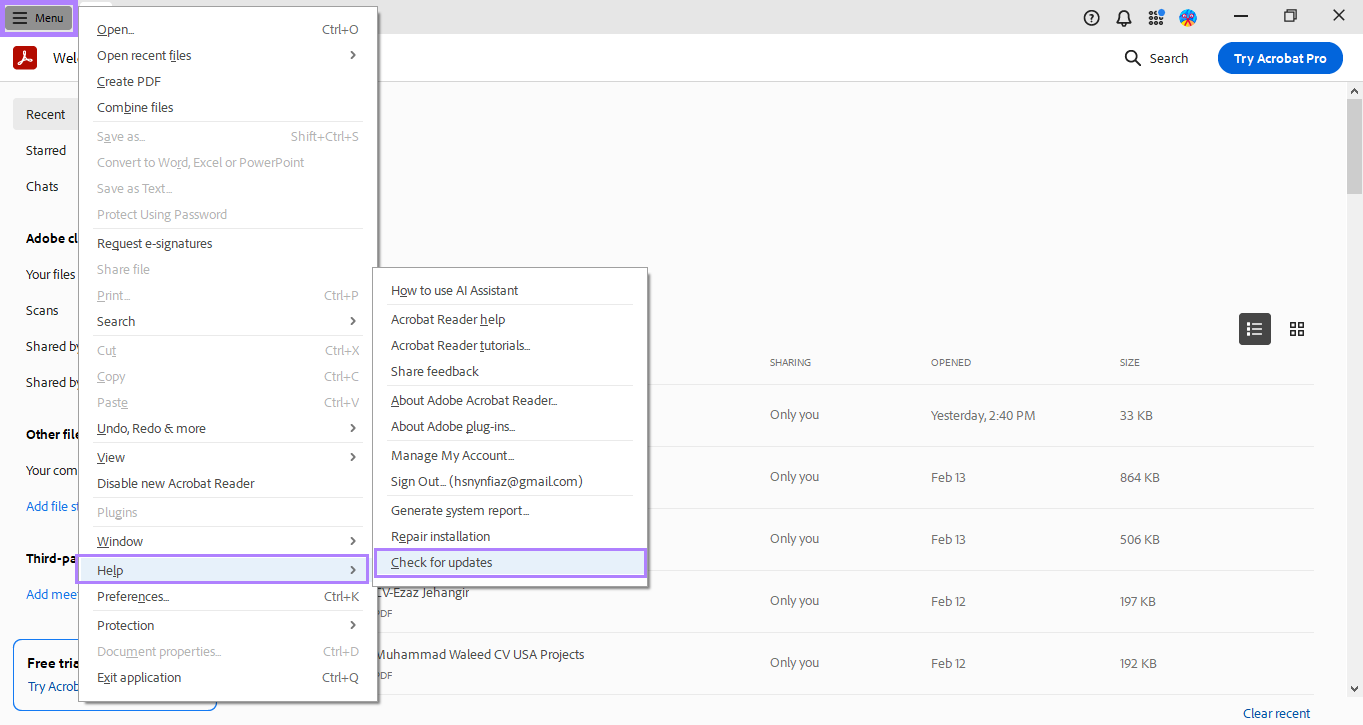
Step 1: Open the Adobe Acrobat app, go to the "Menu." Click "Help" > "Check for Updates."
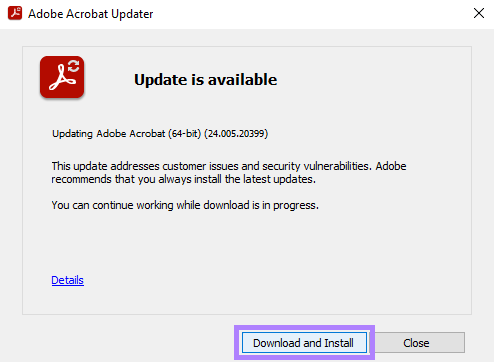
Step 2: If you see an update, you should press "Download and Install" and wait for it to install.
Step 3: Then, simply restart the Adobe Acrobat program and launch your PDF again to see if the signature appears.
If you cannot see any signature even after updating the app, reinstall it.
Step 1: Navigate to the "Control Panel" > "Programs and Features."
Step 2: Find Adobe Acrobat in the list. Simply right-click on it and select "Uninstall."
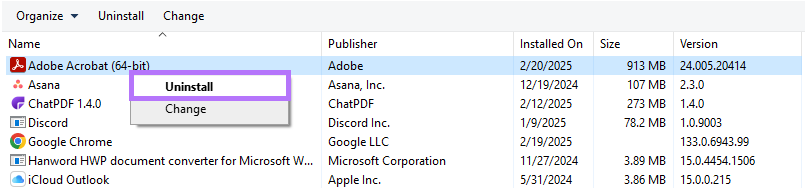
Step 3: Then, just download the most current version of Adobe Acrobat from their website.
Step 4: Install it and open your PDF. This time, you will see the signatures there.
If You're Using Microsoft Edge
Edge's built-in PDF viewer does not fully support digital signatures. Microsoft's own documentation confirms: “Printing to PDF is not a valid workaround, because it strips all digital signatures.” If your signed PDF opens in Edge, the signature may not render at all.
Fix: Right-click the PDF → Open with → select UPDF or Adobe Acrobat. Do not use Edge for signed PDFs.
If You're Using Adobe Acrobat and the Signature Disappears
If the signature is visible in another compatible reader but not in Adobe Acrobat, update Acrobat and use Help > Repair Installation. Also test a local copy of the PDF and confirm that you opened the newly saved file rather than an older attachment. Do not weaken Acrobat security settings simply to display a signature.
- Open the same file in UPDF or another compatible reader to separate a file problem from an Acrobat problem.
- In Acrobat, choose Help > Check for Updates, restart the app, and test again.
- Choose Help > Repair Installation on Windows if the issue persists.
- If the signature is invalid rather than invisible, inspect the certificate details instead of changing the document. The guide to Adobe digital signatures explains the signing and validation workflow.
Part 3. FAQs About Digital Signatures
1. How to retrieve digital signature in PDF?
You can retrieve a digital signature in a PDF by opening the file in a PDF editor that supports signature validation. Navigate to the Signatures or Properties panel to view details such as the signer's name, signing time, and certificate information. If the PDF contains multiple signatures, you can select each one to review its validity and related metadata.
2. Why does the signature disappear in PDF when printing?
A signature may disappear when printing a PDF if it is added as a non-flattened annotation, placed on a hidden or non-printable layer, or if the printer or PDF viewer does not fully support digital signatures. In some cases, print settings such as "Print as Image" being disabled or outdated printer drivers can also cause the signature not to appear.
Q3: I signed a PDF and emailed it — the recipient can't see the signature. Why?
The recipient is likely opening the PDF in a viewer that doesn't support digital signatures (browser, basic mobile app). Ask them to open it in UPDF or Adobe Acrobat. If the signature still doesn't appear, the signing tool may not have embedded the visual appearance — re-sign with UPDF using the Digital Signature tool to ensure a visible appearance.
Q4: Why does my signature disappear when I print the PDF?
This usually happens when the signature is a non-flattened annotation or placed on a hidden layer. In Acrobat's print dialog, enable "Print as Image" — this forces the printer to render all visible layers including signatures.
Q5: The certificate expired — is that why the signature disappeared?
An expired certificate doesn't make the signature disappear — it makes it invalid. The signature will still render visually, but the Signatures panel will show a warning. Check the certificate validity date and renew or replace it before re-signing.
Q6: Can I make an invisible signature visible without re-signing?
No — the visual appearance must be embedded during the signing process. If you need a visible signature, use a tool like UPDF that embeds both the cryptographic signature and the visual appearance. Re-sign the document using UPDF's Digital Signature tool (Form → Digital Signature).
Conclusion
Wrapping it up! So, this article has explored the reasons and fixes of why digital signature not showing up in a saved PDF. Have you noticed most of the time, it’s because of the software?
Use a compatible reader to confirm whether the signature still exists before creating a replacement. UPDF can display signature information and create a new certificate-based digital signature when the previous signing process did not save one. If you are repairing a reusable form, learn how to remove a signature field from a PDF before rebuilding it.
Keep the original file unchanged, work on a copy, and re-check the Signatures panel after saving. This protects the evidence in the original document and makes it easier to determine whether the problem is the viewer, the signature appearance, or the signing process.
So, don’t waste time messing with broken tools— download UPDF now and make digital signing simple!
Windows • macOS • iOS • Android 100% secure







 Enola Miller

 Enrica Taylor