 UPDF
UPDF
 UPDF for Windows
 UPDF for Mac
 UPDF for iPhone/iPad
 UPDF for Android
 Nomostar
 UPDF AI Online
 UPDF Sign
 IvyCraft
 Edit PDF
 Annotate PDF
 Create PDF
 PDF Form
 Edit links
 Convert PDF
 OCR
OCR PDF to Word
 PDF to Image
 PDF to Excel
 Organize PDF
 Merge PDF
 Split PDF
 Crop PDF
 Rotate PDF
 Protect PDF
 Sign PDF
 Redact PDF
 Sanitize PDF
 Remove Security
 Read PDF
 UPDF Cloud
 Compress PDF
 Print PDF
 Batch Process
 About UPDF AI
 UPDF AI Solutions
 AI User Guide
 FAQ about UPDF AI
 Summarize PDF
 Translate PDF
 Chat with PDF
 Chat with AI
 Chat with image
 PDF to Mind Map
 Explain PDF
 PDF AI Tools
 Image AI Tools
 AI Chat Tools
 AI Writing Tools
 AI Study Tools
 AI Working Tools
 Other AI Tools
 AI Bookmark Generation
 AI Bookmark Summary
 AI Watermark Generation
 AI Background Generation
 AI Sticker Generation
 AI Stamp Generation
 AI Editing Suite
 UPDF Copilot
 AI Page Management
 AI Semantic Search
 PDF to Word
 PDF to Excel
 PDF to PowerPoint
 Enterprise Solution
 Enterprise Sign
 Enterprise AI
 Enterprise Plan
 Enterprise User Guide
 Enterprise Webinar
 Banking
 Healthcare
 Insurance
 Legal
Legal Manufacturing
 Government
 Education Solution
 Customer Stories
 User Guide
 UPDF Tricks
 FAQs
FAQs UPDF Reviews
 Download Center
 Blog
Blog Newsroom
 Tech Spec
 Updates
 UPDF vs. Adobe Acrobat
 UPDF vs. Foxit
 UPDF vs. PDF Expert

Quick verdict:
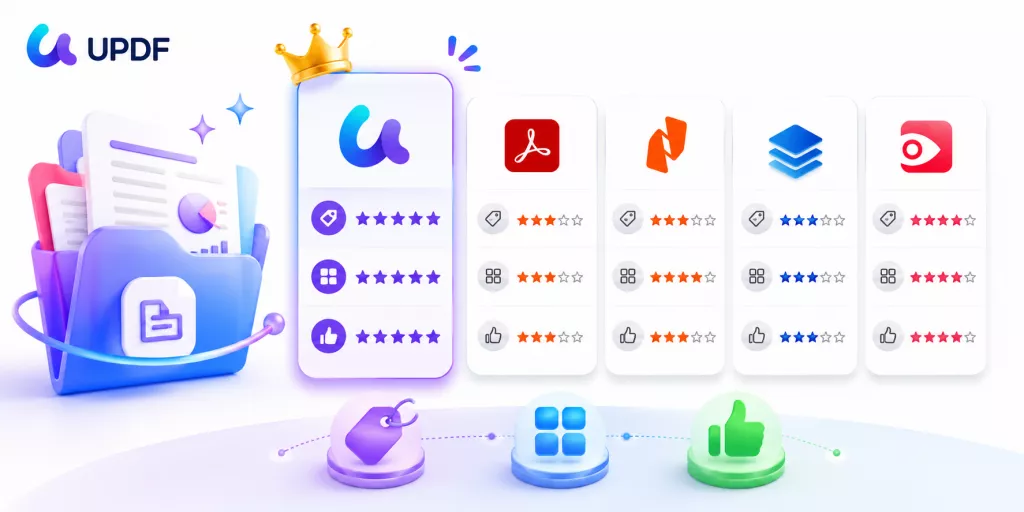
How we ranked them: a “PDF organizer” should do more than rotate a page. We scored each tool on five things that actually decide daily use — range of page tools (reorder, insert, replace, extract, split, rotate, delete), platform coverage, ease of use, price, and any standout extra (like AI page checks). If you already know which tool you want and just need the steps, jump straight to our step-by-step guide to organizing PDF pages.
PDF Organizer Comparison at a Glance
Every tool here can reorder, rotate, insert, and delete pages — that’s table stakes. The table below shows where they differ: platforms, ease of use, standout extras, and current price.
| Tool | Platforms | Ease of use | Standout extra | Price (2026) |
| UPDF | Win, Mac, iOS, Android | Easy | AI Check Pages (auto-detects blank/reversed pages) | Pro:$49.99/yr or $79.99 lifetime |
| Adobe Acrobat | Win, Mac, iOS, Android, Web | Complex | Deep enterprise & print-production tools | $239.88/yr (no lifetime) |
| Nitro PDF Pro | Win, Mac, iOS | Medium | MS Office-style UI, e-signing | Subscription (~$15+/mo) or 3-yr Classic license; no true lifetime |
| PDF Complete | Windows only | Dated | Right-click “Move Pages” dialog | Corporate Edition: $29.95 (lifetime); Office Edition: $69.95 (lifetime) |
| PDF Expert | Mac, iOS | Easy | Native, polished Mac experience | $79.99/yr or $139.99 lifetime |
Bottom line from the table: UPDF is the only pick that combines all four platforms, an easy UI, an AI extra, and the lowest entry price — which is why it tops the ranking below.
1. UPDF — Best PDF Organizer Overall
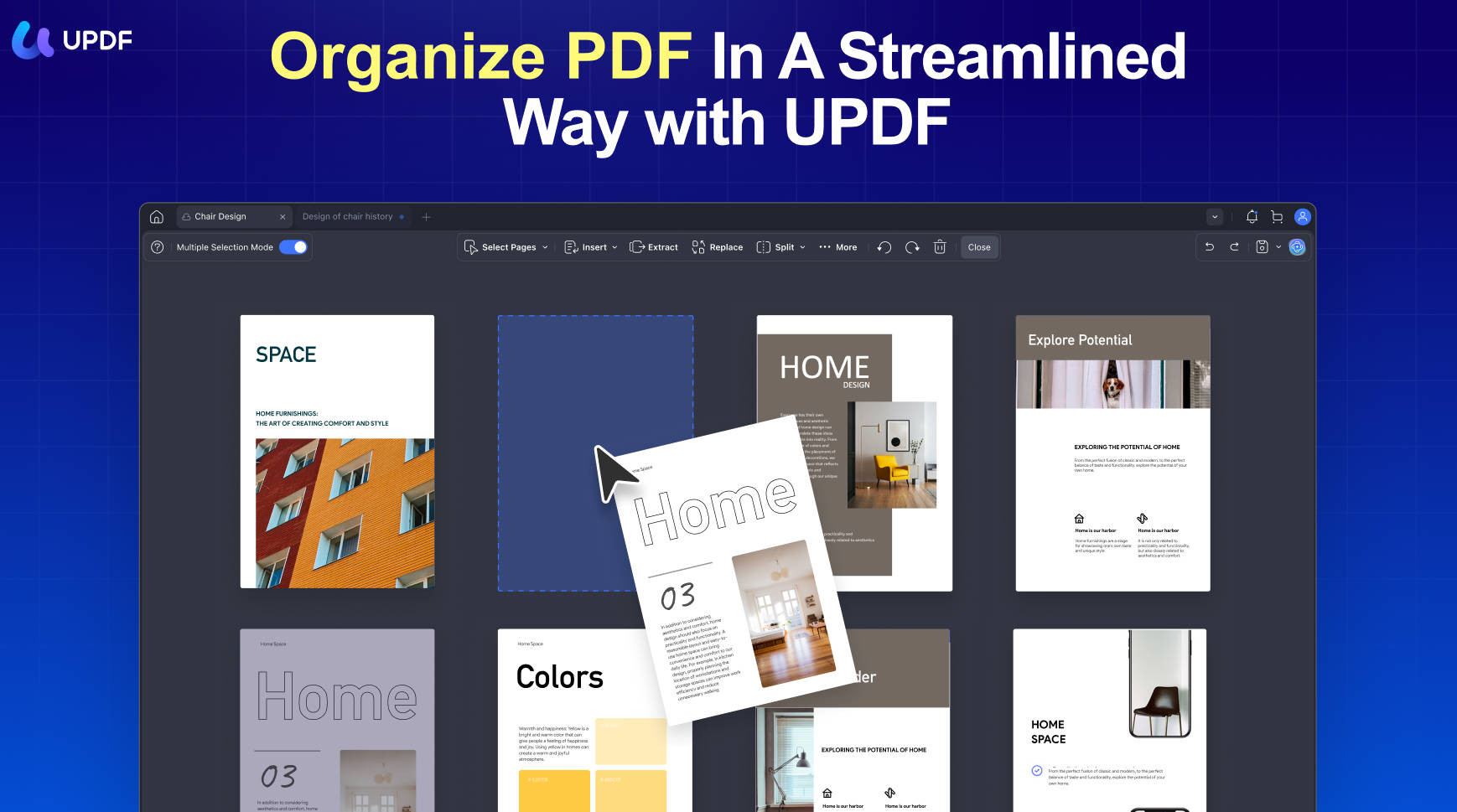
UPDF is a lightweight PDF editor whose page tools cover the full range — reorder, split, crop, rotate, delete, insert, replace, and extract — across Windows, Mac, iOS, and Android on a single license. The thumbnail grid stays fast even on very large documents, and its standout is AI Check Pages, which scans a file and flags blank, reversed, scanned, or odd-sized pages automatically — no rival here offers a one-click page audit. Beyond organizing, it also edits, converts, OCRs, and protects PDFs.
Pros:
- Every page tool plus AI Check Pages
- One license covers all four platforms
- Lowest entry price; lifetime option
- Beginner-friendly thumbnail UI
Cons:
- Watermark-free export needs Pro
- AI features run on AI credits (100 free)
Best for: anyone who wants full page control on any device without an Adobe-level bill.
Skip if: you need heavy enterprise print-production tooling.
New to the tool? Follow our step-by-step guide to organizing PDF pages in UPDF to reorder, split, and extract pages in a few clicks.
Download UPDF for free and try the full set of page tools on your own file before deciding.
Windows • macOS • iOS • Android 100% secure
Video Tutorial on How to Organize PDF - UPDF
2. Adobe Acrobat — Best for Enterprise & Adobe Users
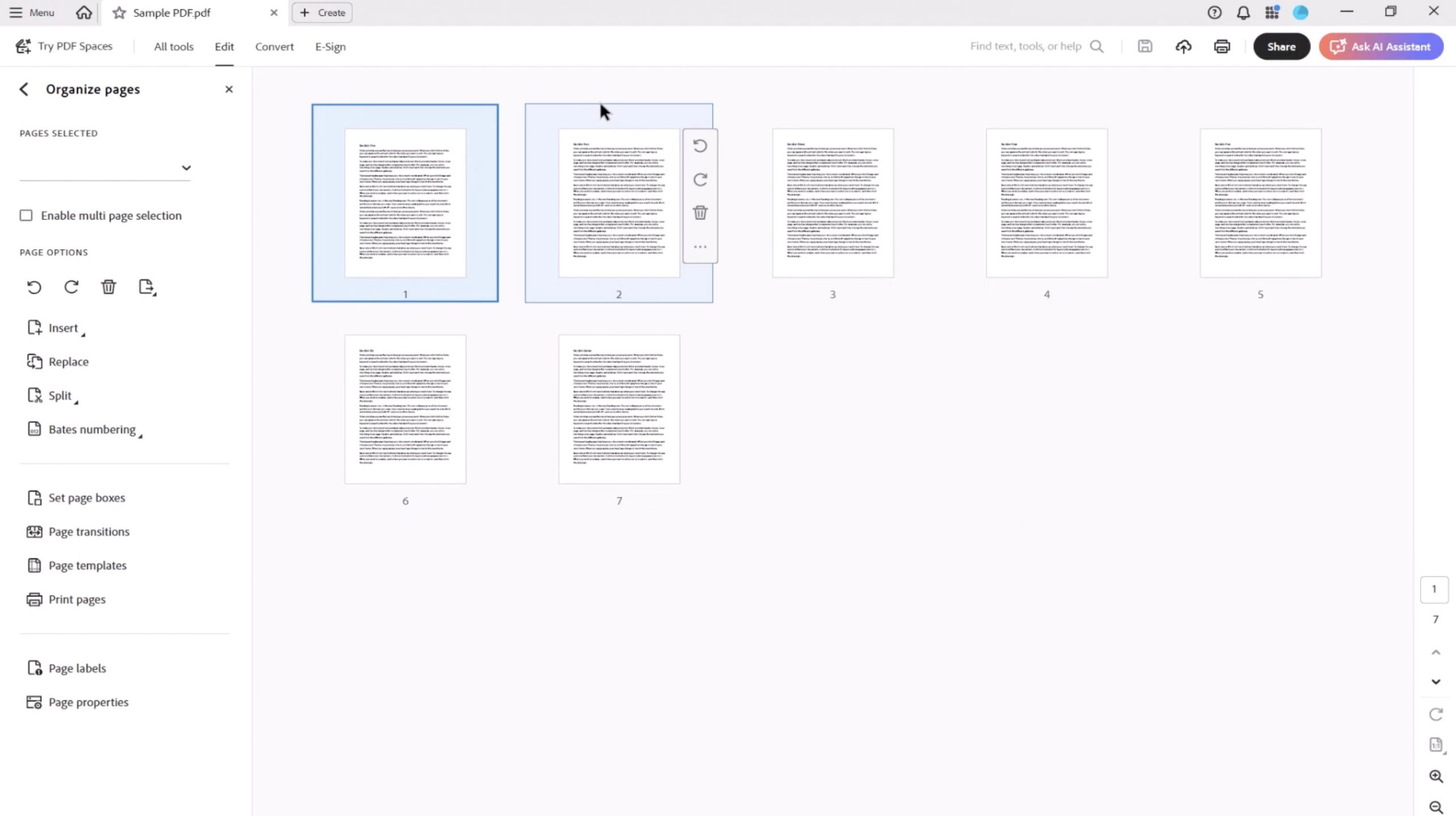
Acrobat’s Organize Pages tools handle rotate, reorder, insert, extract, replace, and split competently, and it integrates tightly with the rest of Adobe’s ecosystem. The trade-offs are a steeper learning curve and a subscription that dwarfs every other tool here, with no perpetual-license option.
Pros:
- Mature, complete page toolset
- Deep print-production & preflight tools
- Tight Adobe ecosystem integrationn
Cons:
- By far the most expensive (~$239.88/yr)
- No lifetime license
- Complex UI for casual users
Best for: enterprises and creative teams already standardized on Adobe.
Skip if: you only organize pages occasionally — you’d overpay heavily.
3. Nitro PDF Pro — Best for an Office-Style Workflow
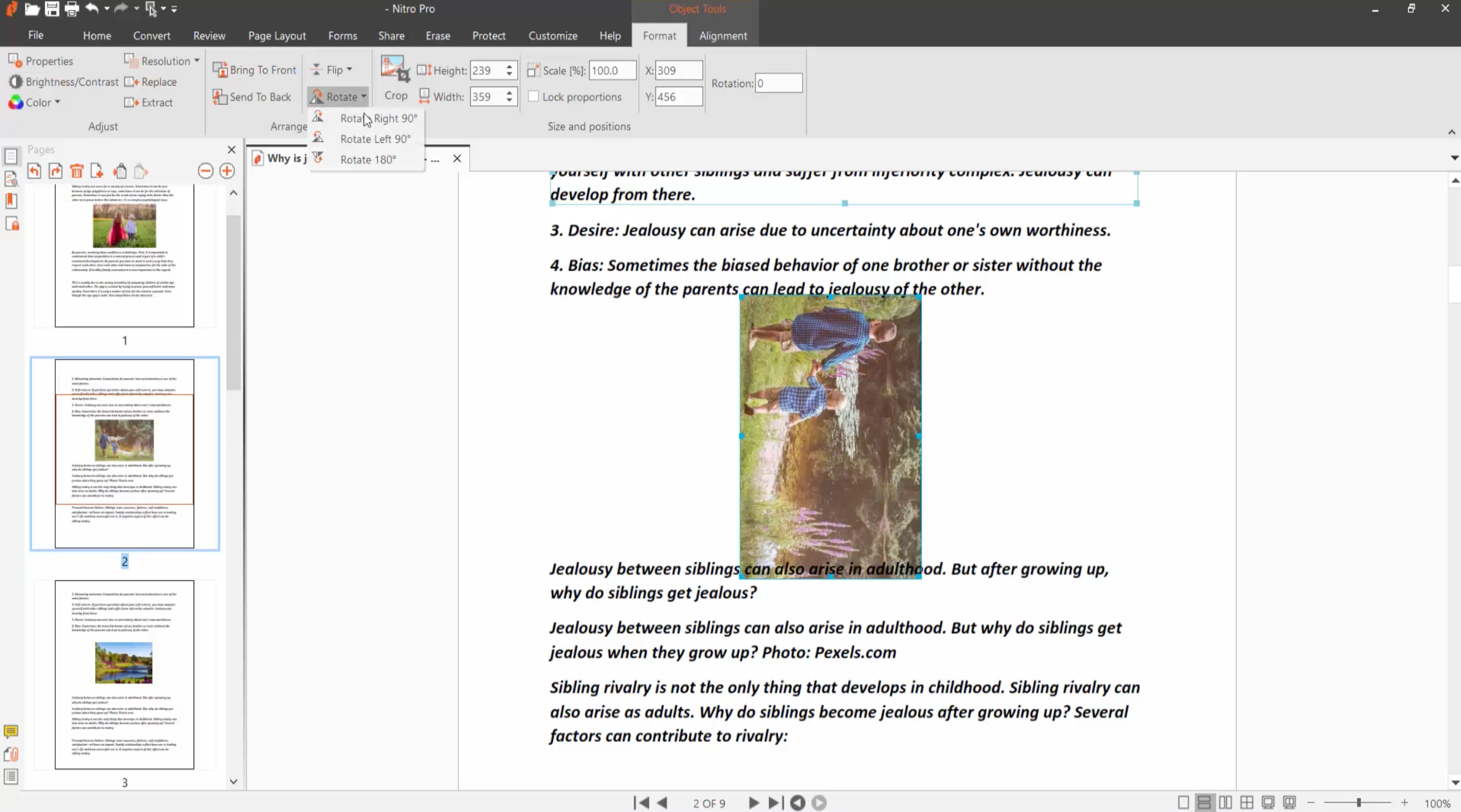
Nitro pairs solid page management with a familiar Microsoft Office-style ribbon, so Windows users feel at home quickly. Reordering is drag-and-drop in the Page Layout pane. Note that Nitro has moved away from true perpetual licenses — it now sells a subscription or a non-renewing 3-year "Classic" license — so weigh the long-term cost. Mac support arrived via its PDFpen acquisition rather than a native build.
Pros:
- Office-style UI, gentle learning curve
- Strong e-signing & forms
- Mature editing toolset
Cons:
- No genuine lifetime license anymore
- Pricier than UPDF over time
- Mac experience less native than rivals
Best for: Windows-first teams who prefer buying once.
Skip if: you need a polished cross-platform mobile app.
4. PDF Complete — Basic Windows-Only Option
PDF Complete is another Windows-only application that comes with a built-in PDF organizer function. The software is available in two editions - Corporate and Office - and both of them have the PDF page changer utility included in them. This function allows you to insert, delete, reorder, rotate, and extract pages, as well as combine PDF documents. Let's look at some of the key features of the advanced Office edition of PDF Complete:
PDF Complete Office Edition Key Features
- Create PDF: Generate PDF files from other applications, a scanner, or other file types
- Edit PDF: Edit images and text in an editable PDF file
- Annotate PDF: Add text boxes, comments, and other markups
- PDF Organizer: Combine files, manipulate pages, extract pages, etc.
- PDF Protection: Passwords, e-signing, redaction, etc.
How to Move Pages with PDF Complete
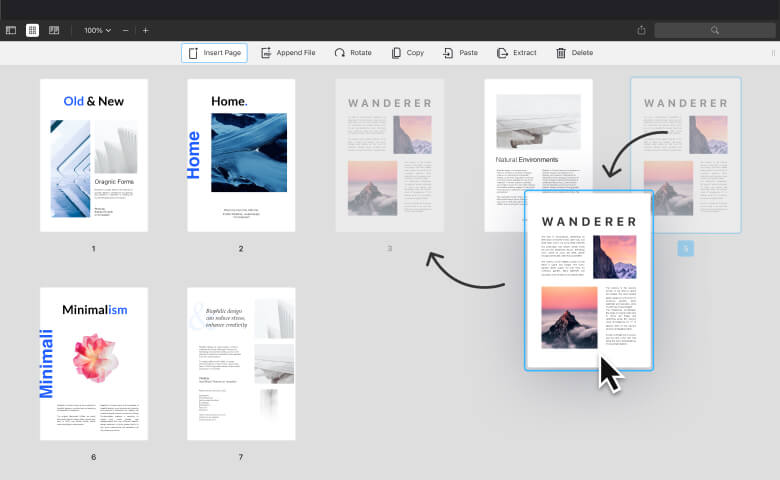
- Open the PDF file
- Scroll to the page you want to move and right-click it
- In the contextual menu, select Move Pages
- Select the page or a page range using the radio buttons in the Move Pages dialog
- Input the destination page number where you want the selected page or pages to be moved to
- Click OK to save your changes, then save the file
5. PDF Expert — Best for Mac-Only Users
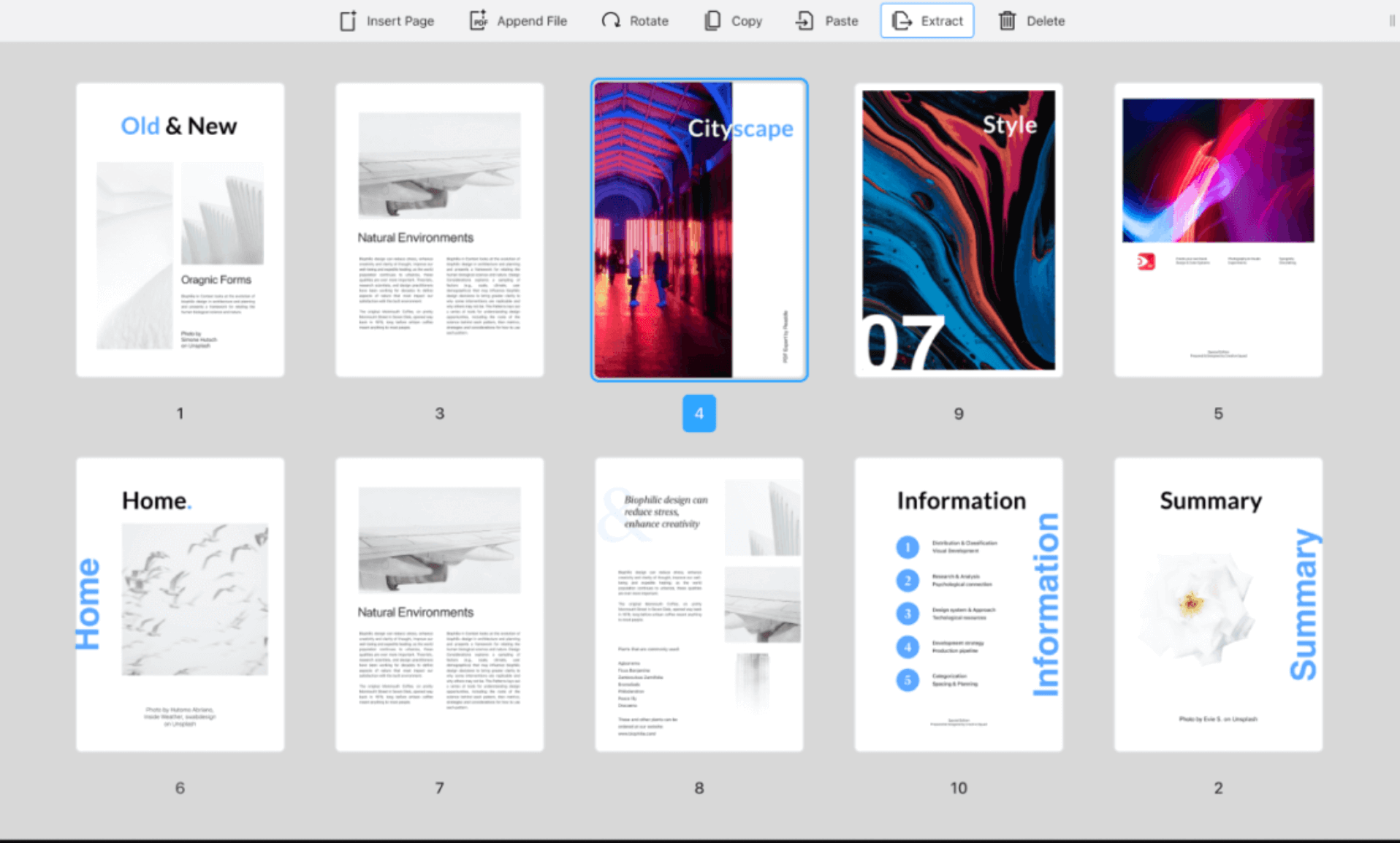
After showcasing two Windows-only PDF organizer tools, it's only fair that we review a Mac-only utility. There's also an iOS version, but we'll focus on the macOS variant of PDF Expert for the purpose of this article. PDF Expert is a versatile PDF editor with loads of functions and a very native Mac interface that makes it easy for Mac users to sink into the PDF experience seamlessly and naturally.
Other Features of PDF Expert
- PDF Creation
- PDF Editing
- Annotate PDF
- Merge/Combine PDFs
- Fill and Sign Forms
- PDF Optimization
- Extract PDF Pages
How to Use the PDF Organizer Feature in PDF Expert
- Open the document in PDF Expert for Mac
- Go to the grid view by clicking the appropriate icon on the top left
- Choose the page you want to move (use Shift to select multiple pages)
- Drag and drop the page(s) to the new location in the document
- Save the PDF to the desired folder location
Conclusion
All five tools organize PDF pages, but they’re built for different people: Adobe for enterprise Adobe shops, Nitro for buy-once Windows users, PDF Complete for basic single-PC needs, and PDF Expert for Mac purists. UPDF is the best all-round PDF organizer — it does every page action, adds AI Check Pages, runs on all four platforms, and costs a fraction of Adobe.
Download UPDF for free to test it on your own documents, then follow our step-by-step organizing guide to put it to work.
Windows • macOS • iOS • Android 100% secure





 Enola Miller
 Engelbert White
 Lizzy Lozano
