UPDF
UPDF
 UPDF for Windows
 UPDF for Mac
 UPDF for iPhone/iPad
 UPDF for Android
 Nomostar
 UPDF AI Online
 UPDF Sign
 IvyCraft
 Edit PDF
 Annotate PDF
 Create PDF
 PDF Form
 Edit links
 Convert PDF
 OCR
OCR PDF to Word
 PDF to Image
 PDF to Excel
 Organize PDF
 Merge PDF
 Split PDF
 Crop PDF
 Rotate PDF
 Protect PDF
 Sign PDF
 Redact PDF
 Sanitize PDF
 Remove Security
 Read PDF
 UPDF Cloud
 Compress PDF
 Print PDF
 Batch Process
 About UPDF AI
 UPDF AI Solutions
 AI User Guide
 FAQ about UPDF AI
 Summarize PDF
 Translate PDF
 Chat with PDF
 Chat with AI
 Chat with image
 PDF to Mind Map
 Explain PDF
 PDF AI Tools
 Image AI Tools
 AI Chat Tools
 AI Writing Tools
 AI Study Tools
 AI Working Tools
 Other AI Tools
 AI Bookmark Generation
 AI Bookmark Summary
 AI Watermark Generation
 AI Background Generation
 AI Sticker Generation
 AI Stamp Generation
 AI Editing Suite
 UPDF Copilot
 AI Page Management
 AI Semantic Search
 PDF to Word
 PDF to Excel
 PDF to PowerPoint
 Enterprise Solution
 Enterprise Sign
 Enterprise AI
 Enterprise Plan
 Enterprise User Guide
 Enterprise Webinar
 IT
IT Education
 Construction
 Financial Service
 Healthcare
 Insurance
 Legal
Legal Manufacturing
 Government
 Researchers & PhDs
 Solopreneurs & Freelancers
 Lawyers & Legal Professionals
 Real Estate Agents & Brokers
 Education Solution
 Customer Stories
 User Guide
 UPDF Tricks
 FAQs
FAQs UPDF Reviews
 Download Center
 Blog
Blog Newsroom
 Tech Spec
 Updates
 UPDF vs. Adobe Acrobat
 UPDF vs. Foxit
 UPDF vs. PDF Expert

You've been there: highlighting a key paragraph in Preview, closing the file, and returning to find your highlights vanished. Or trying to draw a circle with your trackpad – only to get a jagged mess. Searching "annotate pdf mac" throws up endless tool lists, but that's not what you need.
Example: When reviewing a 30-page design specification on a Mac, add comments and highlights to a duplicate file, reopen it, and confirm that every annotation remains editable before sharing it. For a related workflow, see compare PDF annotators for Windows.
You need a clear answer: which tool fits your specific workflow, and how do you actually use it? This guide cuts through the noise. We classify tools into 5 real-world categories – free offline, online, native Mac, cross‑platform, and research‑focused – compare their annotation toolkits, and give you step‑by‑step how‑tos for every top pick. No more guessing – just annotating with confidence.
🎯Advance Notice: UPDF is the only Mac PDF annotator that offers a full annotation toolkit, built‑in AI assistance, seamless cross‑platform sync, and a one‑time purchase – making it the best value choice.
Windows • macOS • iOS • Android 100% secure
How to Choose the Right Tools for Annotating PDF on Mac
Choosing a PDF annotator on Mac means balancing ecosystem integration, feature depth, and budget—here are five categories for every need.
| Category | Recommended Tools | Price | Platform | Annotation Toolset on Mac | ✅Key Strengths | ⚠️ Watch for |
|---|---|---|---|---|---|---|
| ① Free / Offline | Apple Preview (built‑in) | Free | macOS only | Basic Set | Good for casual use only | Highlights may disappear if the file is moved |
| Okular (open‑source) | Free | macOS, Linux, Win | Full Set | Export annotations as XML/text | Crash risk, Annotation quirks, File bloat | |
| Skim (open‑source) | Free | macOS only | Full Set, Export notes as text/RTF | Built specifically for PDF reading/annotation | Annotations are NOT portable, Crash risks, Bugs & quirks | |
| ② Free / Online | Smallpdf | Free (2 tasks/hour) | Browser (any OS) | Basic Set | Online free choice | File size limit (50MB). Requires internet. No offline use. |
| Sejda | Free (3 tasks/hour) | Browser (any OS) | Full Set | Clean interface. Supports large files up to 200MB | No OCR, fewer annotation features | |
| iLovePDF | Free (2 tasks/day) | Browser (any OS) | Basic Set | Online free option | Daily limit. No shape tools. Good for quick jobs | |
| ③ Native Mac (Paid) | PDF Expert | ~$80/yr subscription | macOS, iOS | Full Set + Exclusive Pressure‑sensitive Freehand, Audio note | Trackpad drawing on any Mac app. Seamless iCloud sync | Forced account sign‑in, mixed pricing, missing advanced features |
| ④ Cross‑Platform (Paid) | UPDF | $94.99 one‑time | macOS, Win, iOS, Android | Full Set | Identical UI on Windows and Mac. One‑time purchase covers all platforms. Best value for hybrid users. | - |
| Adobe Acrobat Pro | ~$240/yr subscription | macOS, Win | Full Professional Set + Advanced redaction, Bates numbering, Accessibility | Industry standard for compliance/print | Very expensive, heavy, overkill for 95% of users | |
| Foxit PDF Editor | ~$140/yr subscription | macOS, Win | Full Set | Lightweight compared to Acrobat. Good for business teams | Mac version less polished than Windows | |
| ⑤ Research‑Focused | LiquidText | ~$30/yr subscription | macOS, Win, iPad | Basic Set + Visual Workspace | Unmatched for connecting ideas across pages. Export as structured outline/mind‑map. | Long learning curve, Limited import/export |
| MarginNote | ~$50 one‑time or subscription | macOS, iPad | Basic Set + Mind‑Map & Flashcards | Designed for academic reading and active recall. Transforms annotations into study materials automatically. | Annotations are not portable, Steep learning curve |
Quick summary:
- Casual & free offline? → Preview (risk) or Okular/Skim (safe but curve learning).
- No installation? → Sejda / Smallpdf (risk for sensitive files, limited free quotes)
- Mac‑only pro? → PDF Expert (best trackpad) or PDFpen (best OCR).
- Windows + Mac + iOS + Android? → UPDF (best value).
- Academic deep reading? → LiquidText or MarginNote.
After analyzing the chart above, UPDF - a single license covers Windows, Mac, iOS, and Android; offers full annotation, OCR, conversion, batch processing, and AI chat/mindmap – all with a one‑time purchase. Its intuitive UI, offline privacy, and regular updates outperform Mac‑only or subscription‑heavy alternatives, making it the best value for most users. Let's check these 5 types of Mac annotators together.
Windows • macOS • iOS • Android 100% secure
How to Annotate PDF on Mac Online Free
Top picks: Sejda (more generous limits) or Smallpdf (simpler interface).
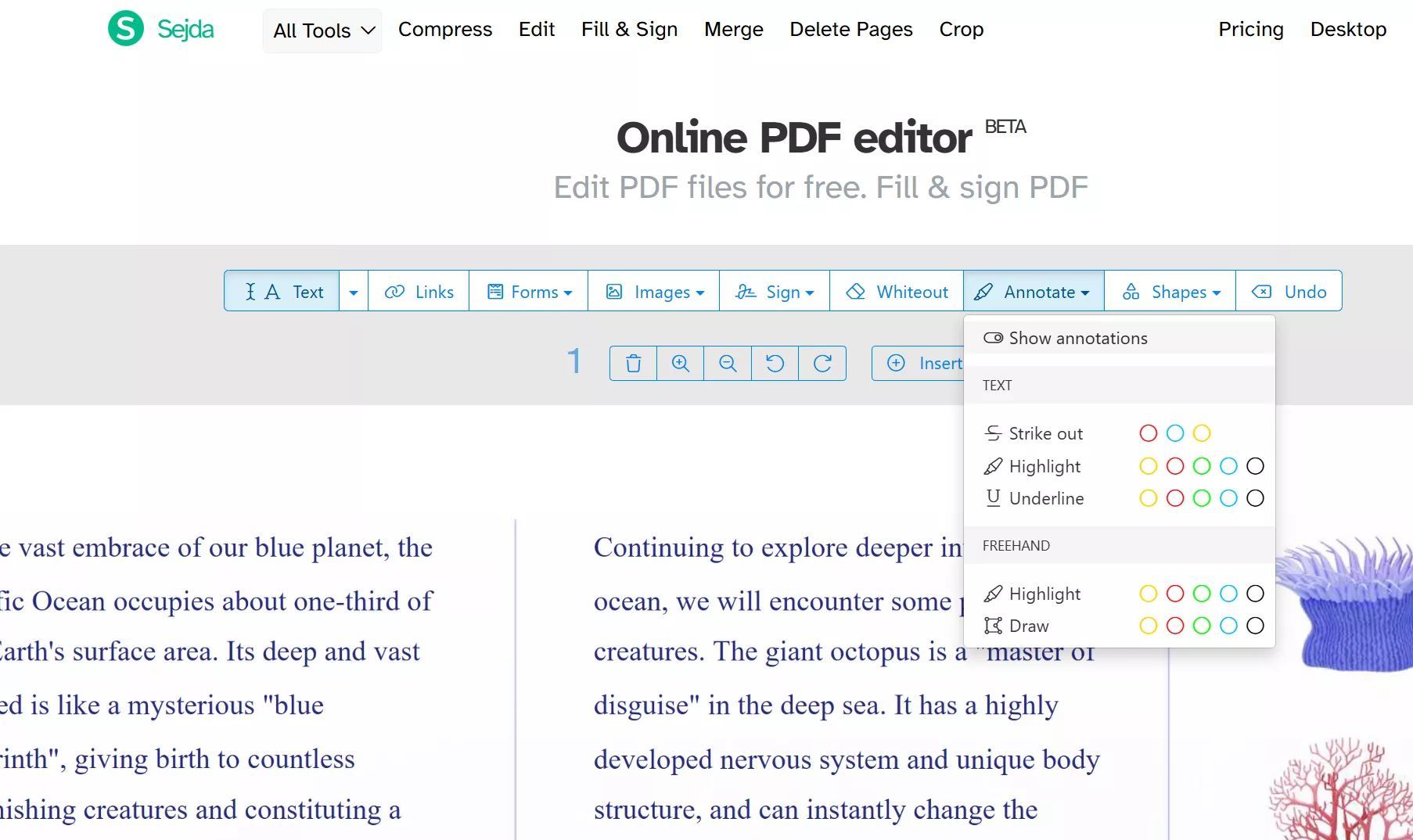
How to annotate with Sejda (online):
- Go to Sejda.com > Edit PDF.
- Upload your file (up to 200MB free).
- Use the toolbar: Highlight, Underline, Strikeout, Sticky note, Text box, Freehand (mouse), Shapes, Signature.
- Click “Apply changes” → download your annotated PDF.
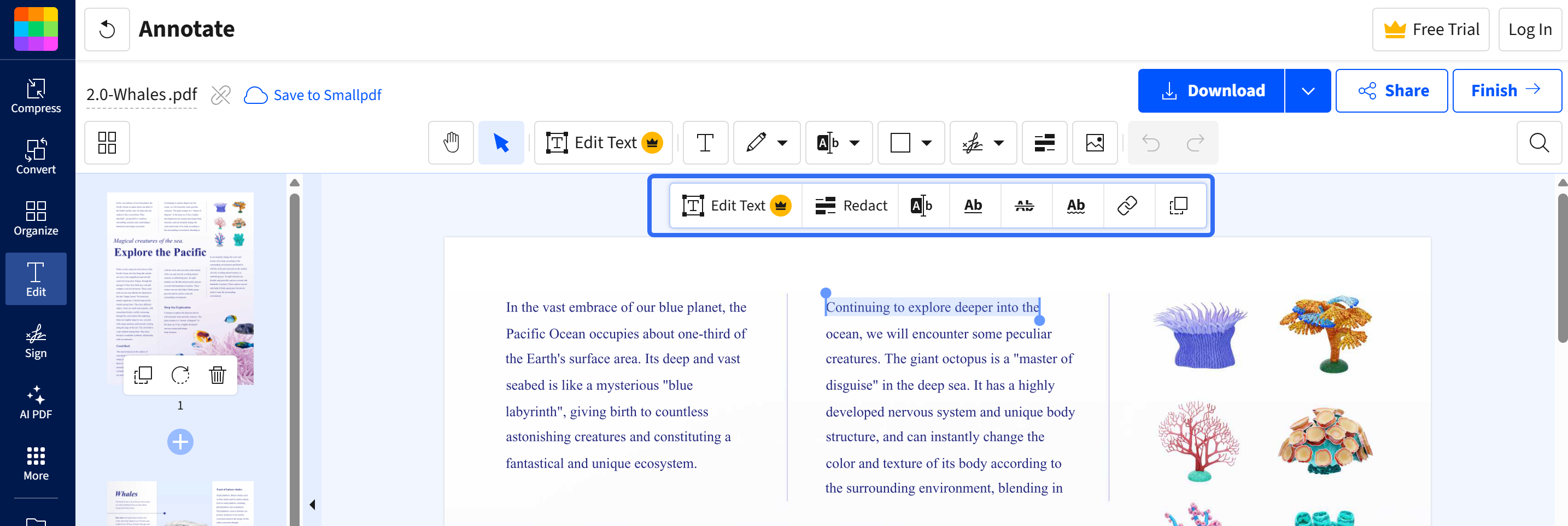
How to annotate with Smallpdf:
- Go to Smallpdf.com > Annotate PDF.
- Upload (up to 50MB).
- Tools: Highlight, Sticky note, Text box, Draw (mouse), Underline, Strikeout.
- Click “Apply” → download.
Note: Online tools are great for quick jobs, but never upload sensitive/confidential documents.
How to Annotate PDF on Mac Offline Free
Top picks: Okular (cross‑platform) or Skim (Mac‑native) – both free, open‑source, and stable.
Avoid Preview for important work – use it only for casual viewing.
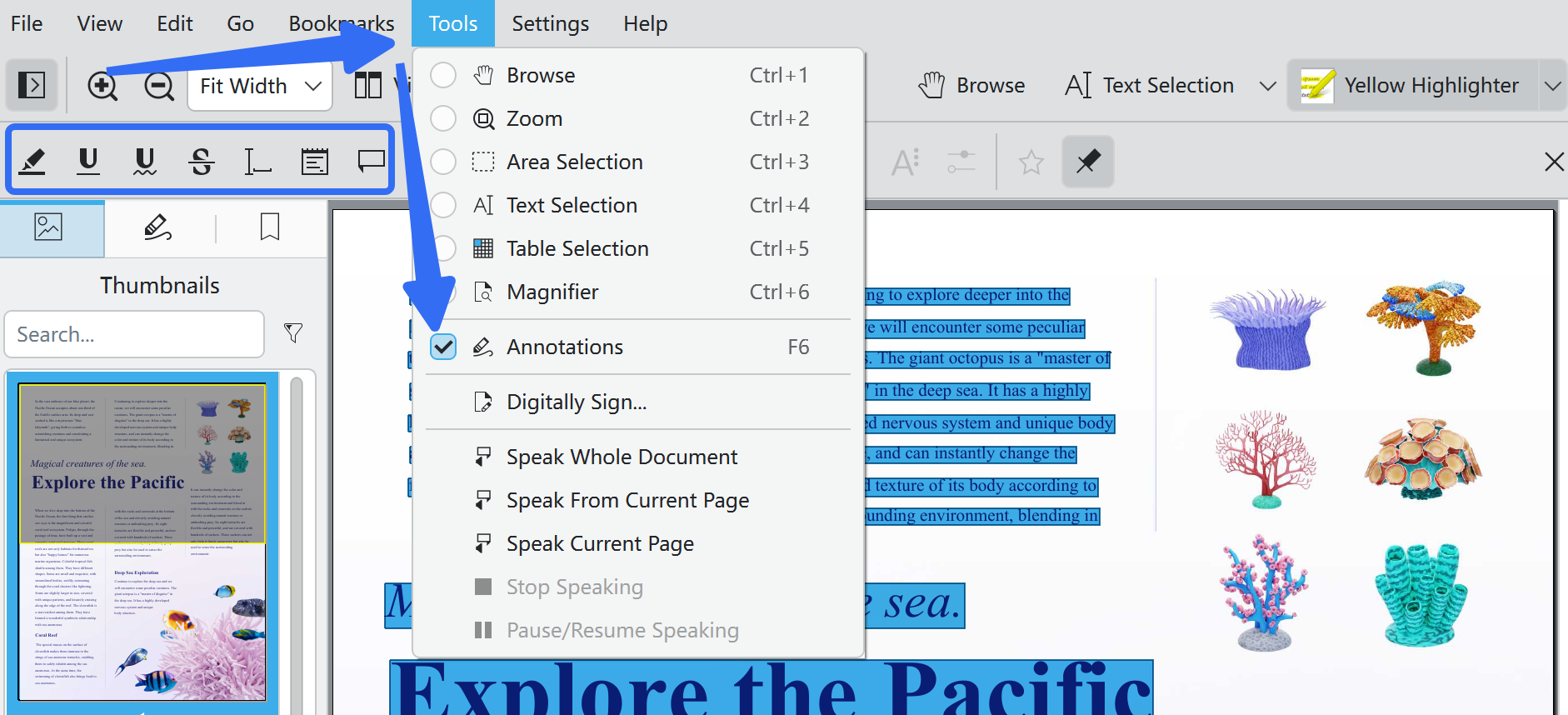
How to annotate with Okular on Mac:
- Install via Homebrew: brew install --cask okular (or download from okular.kde.org).
- Open your PDF.
- Highlight: Click the highlight icon (or
Ctrl+H), drag over text. - Sticky note: Click the note icon → click on page → type.
- Freehand drawing: Click the pencil icon – basic drawing (no smoothing).
- Export annotations: File > Export As > Annotations – choose plain text or XML.
How to Annotate PDF on Mac (Native Software)
Top pick: PDF Expert – unmatched for trackpad drawing and iCloud sync. But after the free trial, without purchasing plans, basic editing or annotating is not allowed. But UPDF allows free editing and annotating features even if you're not upgrade your account.
How to annotate with PDF Expert on Mac:
- Open the PDF in PDF Expert.
- Highlight: Select text → right‑click > Highlight, or
⌘+H. - Underline / Strikeout:
⌘+U/⌘+Shift+S. - Sticky note: Click note icon → click page → type (
⌘+Nfor new note). - Draw with trackpad: Click the pencil icon – now draw. Pressure‑sensitive smoothing makes your lines crisp – press lightly for thin lines, harder for thick.
- Shape: Click the shape icon → add rectangle, oval, arrow, line – resize with handles.
- Annotation sidebar: Click the sidebar (left panel) > “Annotations” – see all highlights, notes, and drawings grouped by colour and type.
- Export summary: File > Export > Annotation Summary – choose text or Word. All comments extracted with page numbers.
How to Annotate PDF on Mac (Cross-platform Software)
Top pick: UPDF – identical UI on both platforms, one‑time payment ($94.99).
Alternatives: Adobe Acrobat (for industry compliance) or Foxit (for team collaboration).
How to annotate with UPDF on Mac (or Windows – identical):
- Highlight: Select text → click Highlight in the floating toolbar, or
⌘+H.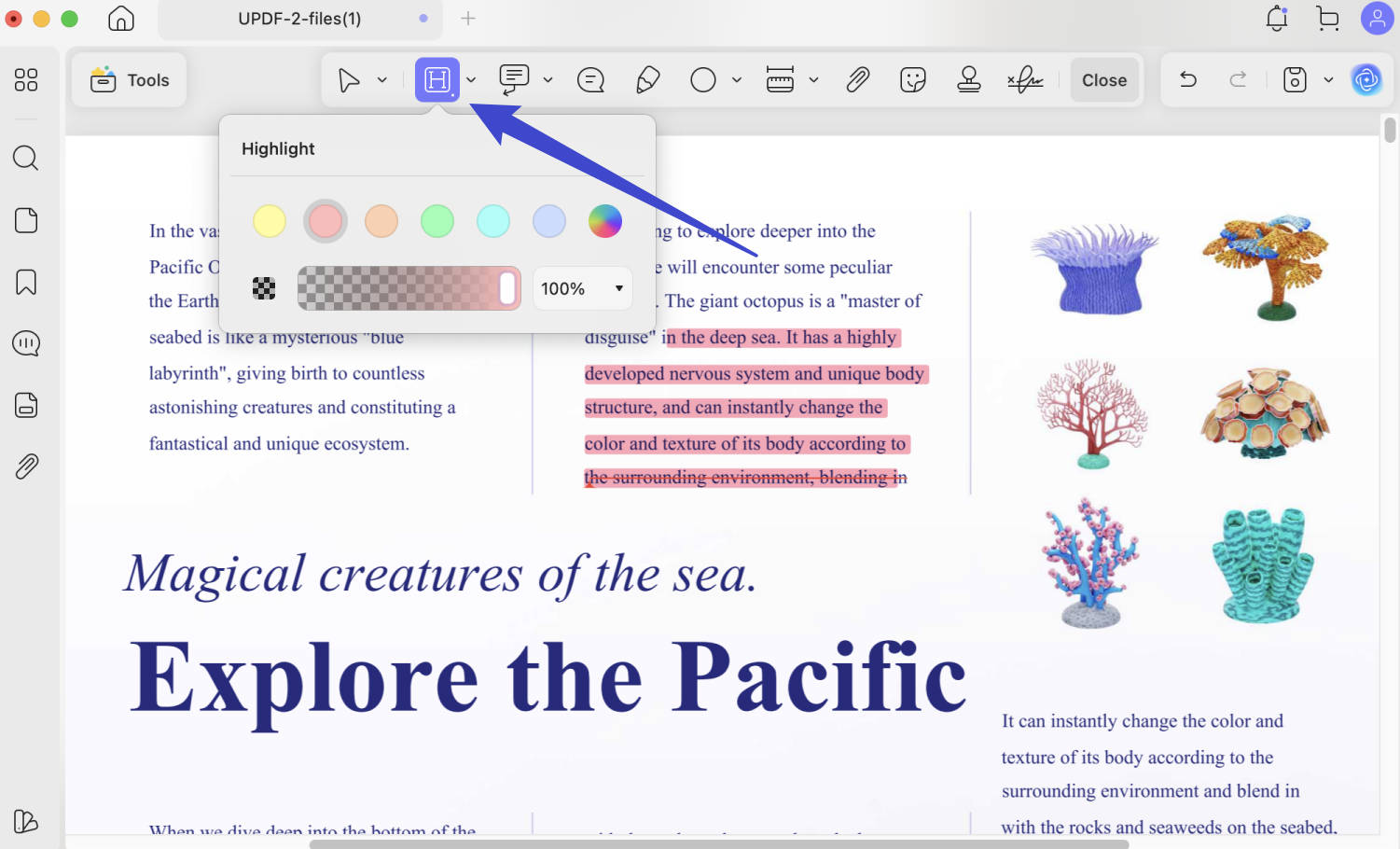
- Underline/Strikeout: Select text → choose from toolbar, or use shortcuts (
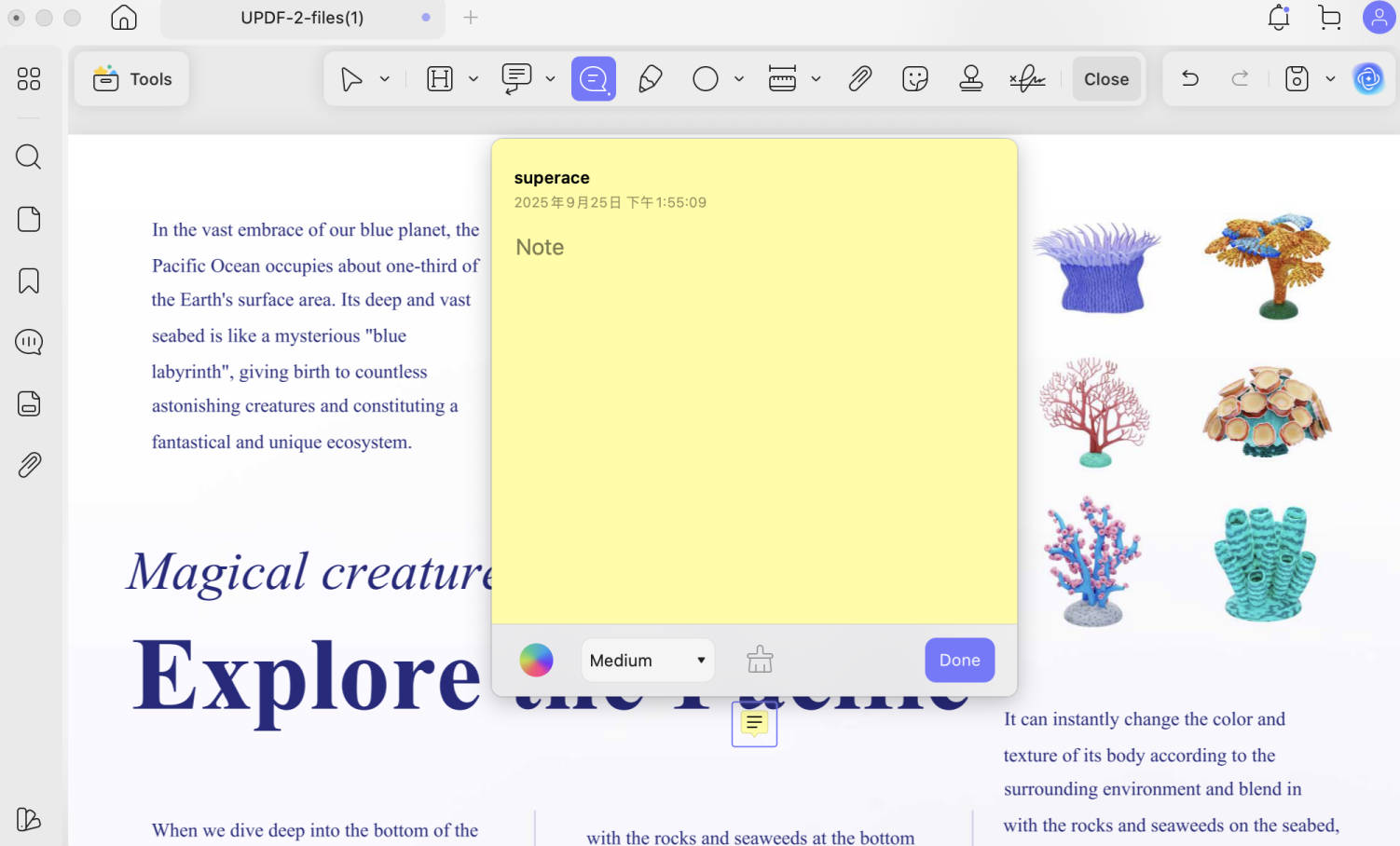
⌘+U/⌘+Shift+S). - Sticky note: Click note icon → click page → type.
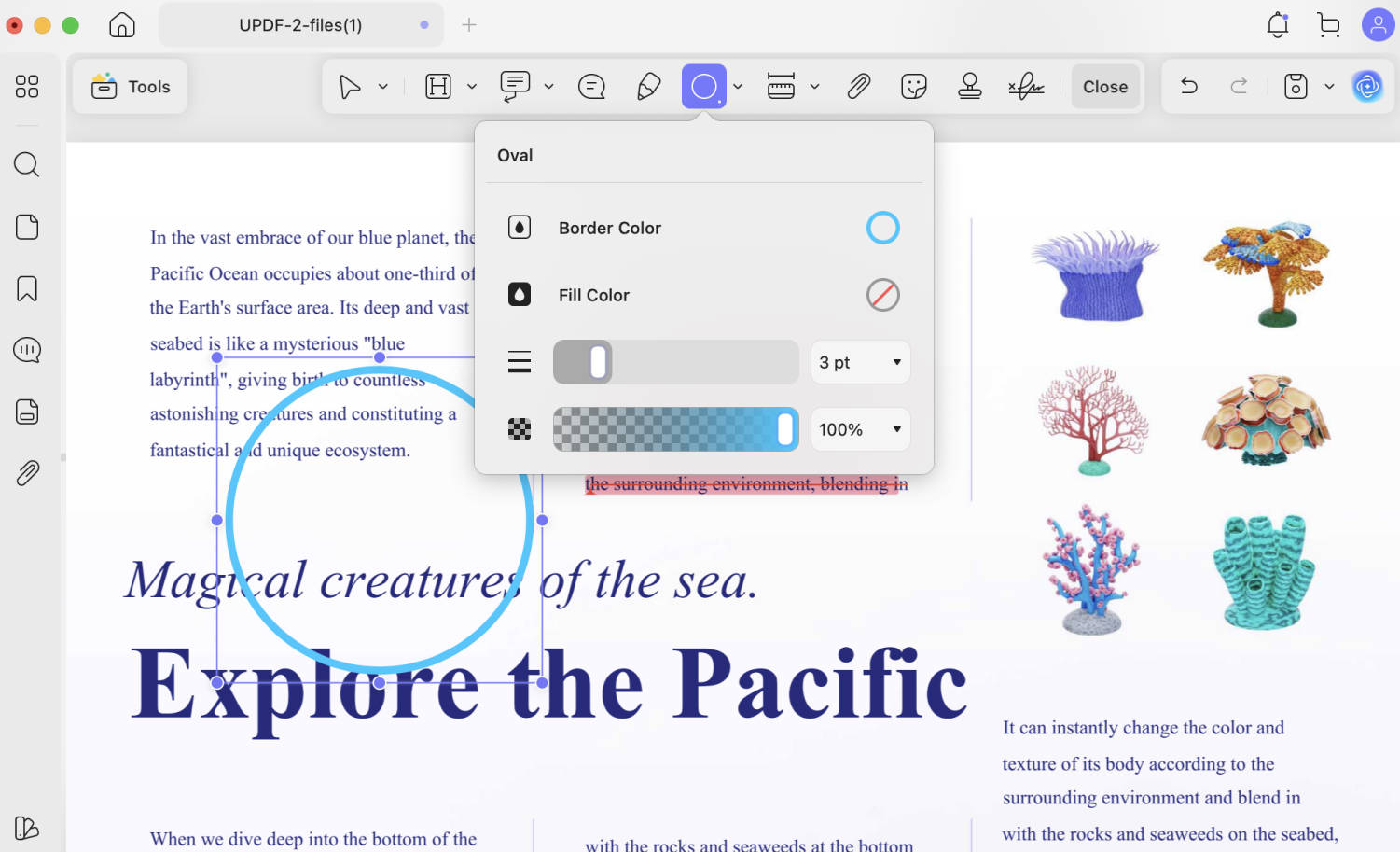
- Draw / shape: Click the pen tool – draw with trackpad (good smoothing). Click the shape icon for rectangle, oval, line, arrow.
- Signature: Click “Sign” – create using trackpad, camera, or upload image.
- Annotation sidebar: Click sidebar > “Comments” – filter by type or colour.
- Export summary: Click “Export” > “Extract Comments” – choose text or Word.
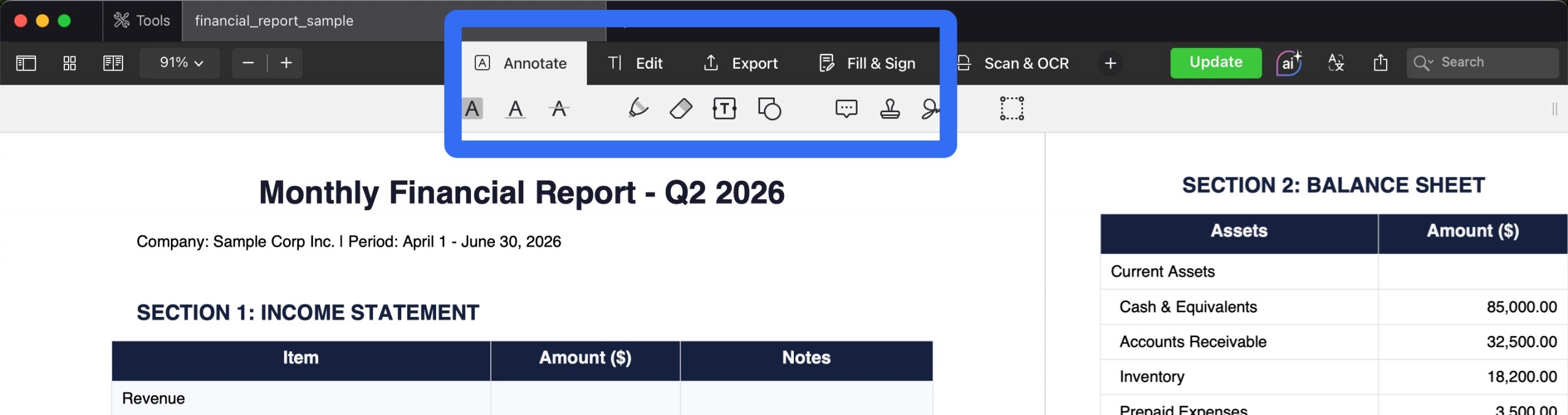
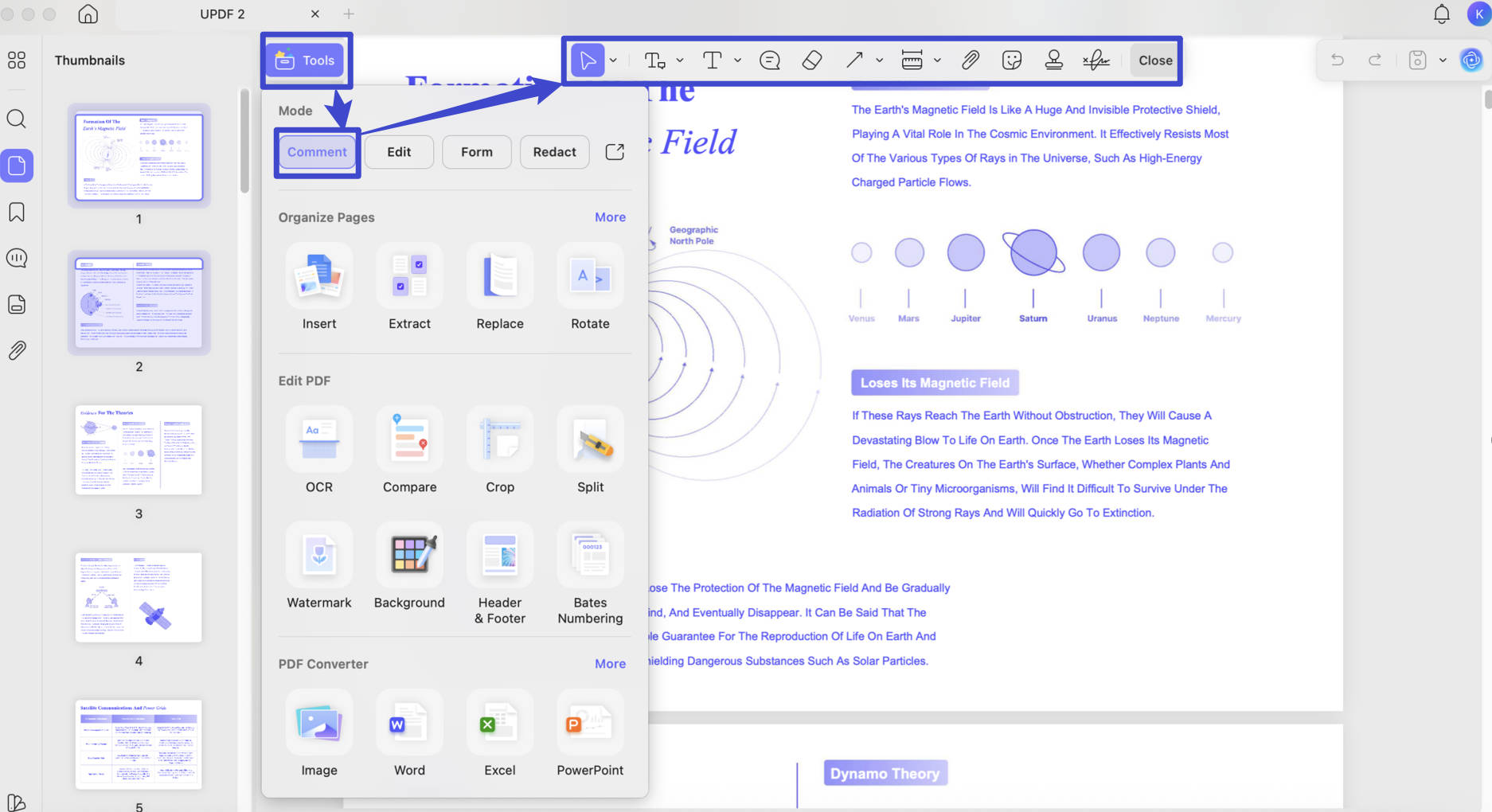
UPDF for Mac - the best PDF annotator provides the user with a complete set of annotation tools like highlights, underlines, pencils, shapes, notes, stickers, text boxes, erasers, etc.
Besides the solution to annotate PDF on Mac, if you want to know about the Windows solution, you can also learn the guidelines on how to annotate PDF on Windows from here.
Windows • macOS • iOS • Android 100% secure
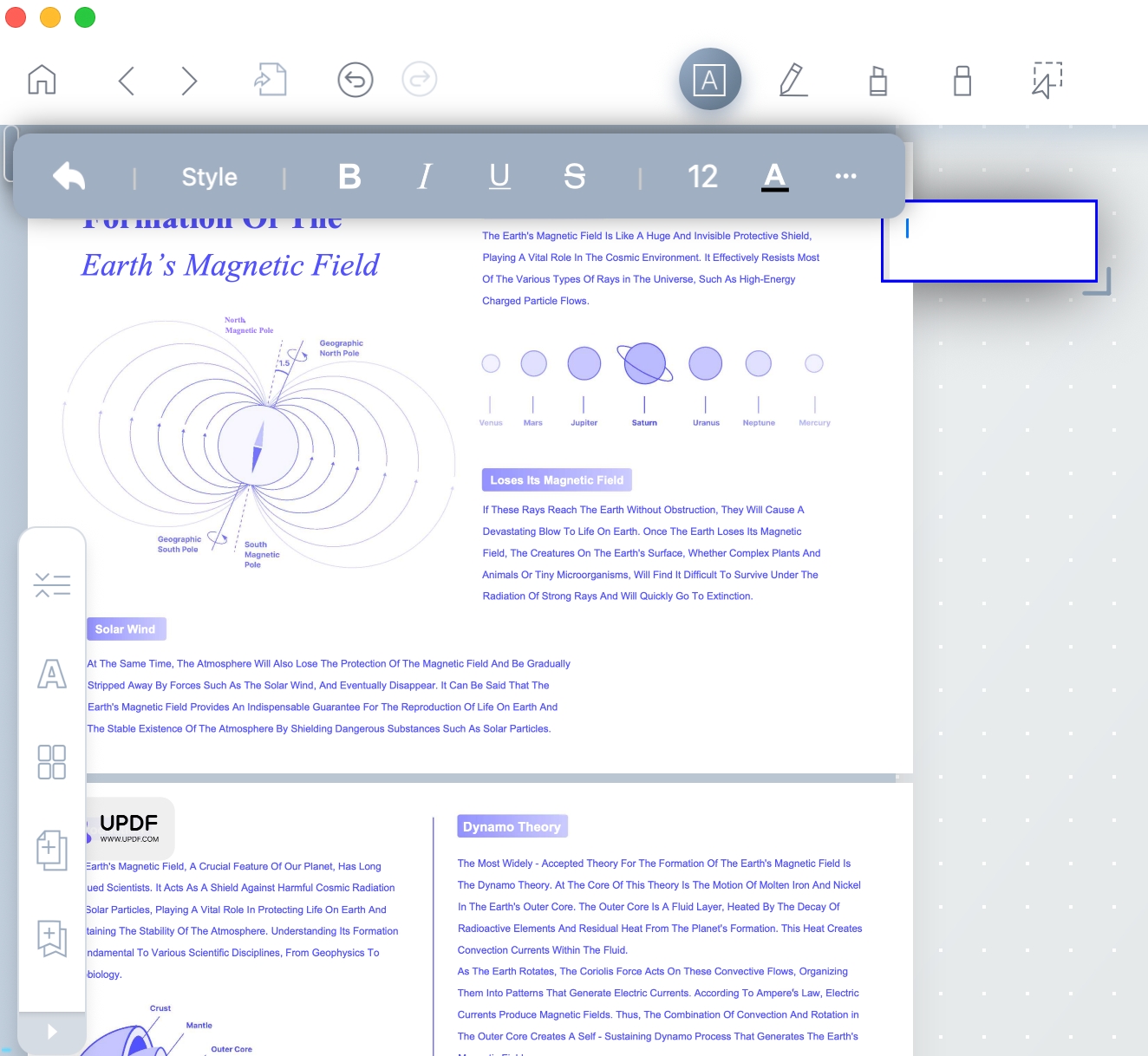
How to Annotate PDF on Mac (Research‑Focused Software)
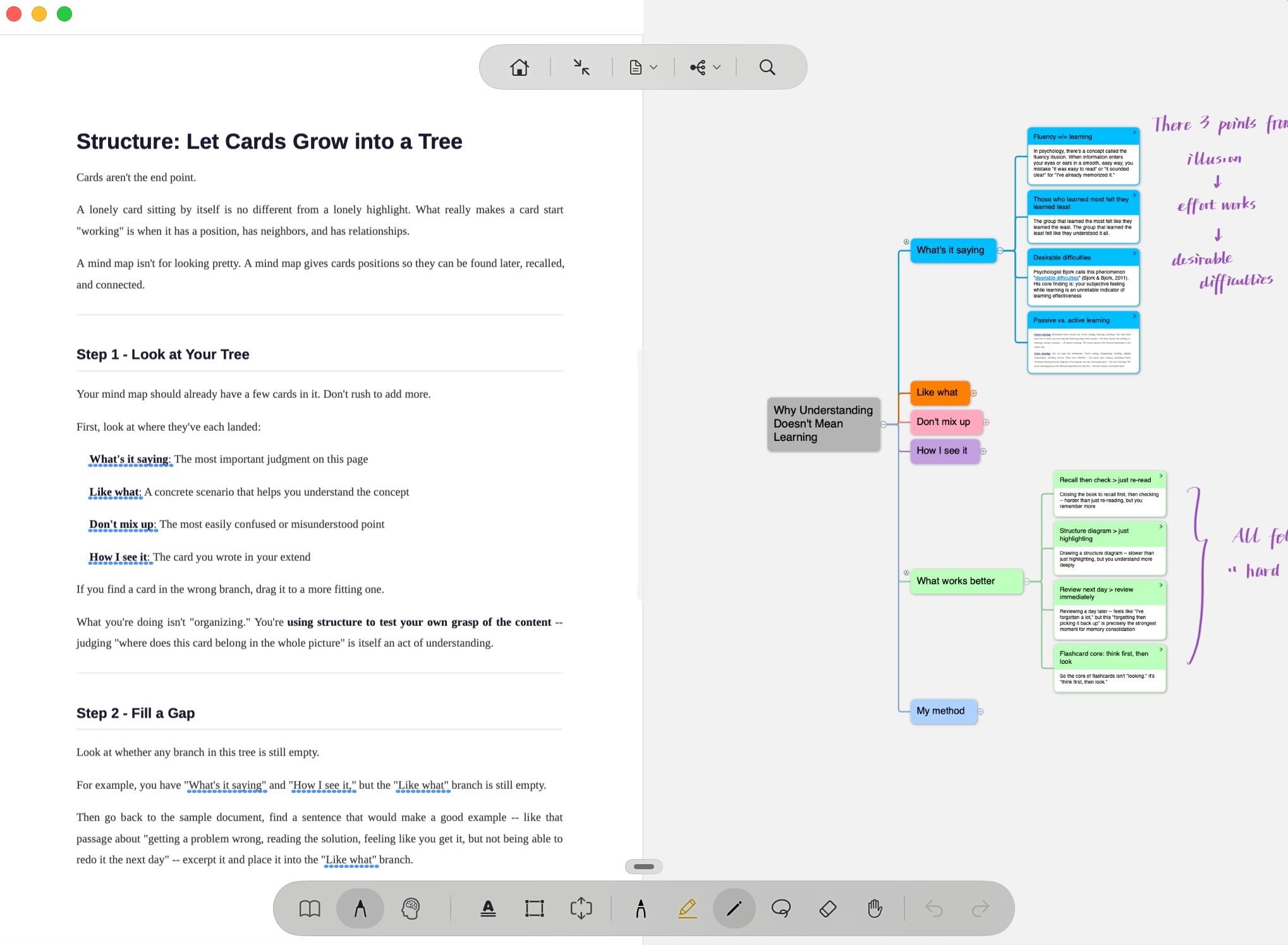
Top pick: LiquidText – unique visual workspace for linking ideas.
Alternative: MarginNote – if you also want mind‑maps and flashcards.
How to annotate with LiquidText on Mac:
- Open PDF – right‑side workspace appears.
- Highlight: Select text → click Highlight – the excerpt appears in your workspace.
- Pull excerpts: Drag any highlighted text into the workspace – stack them side‑by‑side.
- Link ideas: In the workspace, draw lines between excerpts to show relationships.
- Add notes: Click the note icon in the workspace.
- Export: Export > Outline – your linked notes become a structured summary.
How to annotate with MarginNote:
- Open PDF – you see the document + mind‑map canvas.
- Highlight: Select text – it appears on the mind‑map canvas automatically.
- Add note: Click the note icon → type – it attaches to the highlighted snippet.
- Create flashcards: Right‑click any highlight → “Create Flashcard” – perfect for studying.
- Export: Export mind‑map as PDF, image, or to Anki flashcards.
FAQ
Can Preview annotate a PDF on Mac?
Yes. Preview supports highlights, notes, shapes, text, and signatures, but a dedicated editor offers more advanced annotation tools.
Why are my PDF annotations not visible to someone else?
The recipient’s viewer may not support every annotation type. Reopen the file in another viewer or flatten a sharing copy after keeping an editable original.
Can I print a PDF with comments on Mac?
Yes, if the print dialog or PDF app includes markup or annotation output. Check the print preview before printing.
Conclusion
In this article, we have mentioned the best annotation tool on Mac that provides the desired type of work. The tool we have discussed to annotate PDFs on Mac is UPDF, and if you want to learn other PDF annotating programs, here are 5 PDF annotators for Mac. Generally, people prefer working on UPDF for its huge range of annotation tools. It also works great on the Mac M1 and M2 series, which makes it a preferable choice in the market.
If you switch between working on a Mac and an iPad, the synchronization and management of annotations are crucial. How to Annotate PDF offers workflow recommendations for cross-device annotation, helping you maintain efficiency and consistency across different platforms.
The aim is to make your feedback clear without crowding the page. The demonstration below gives some context for using the PDF annotation tools in UPDF.
Windows • macOS • iOS • Android 100% secure





 Enola Miller
 Enola Davis