UPDF
UPDF
 UPDF for Windows
 UPDF for Mac
 UPDF for iPhone/iPad
 UPDF for Android
 Nomostar
 UPDF AI Online
 UPDF Sign
 IvyCraft
 Edit PDF
 Annotate PDF
 Create PDF
 PDF Form
 Edit links
 Convert PDF
 OCR
OCR PDF to Word
 PDF to Image
 PDF to Excel
 Organize PDF
 Merge PDF
 Split PDF
 Crop PDF
 Rotate PDF
 Protect PDF
 Sign PDF
 Redact PDF
 Sanitize PDF
 Remove Security
 Read PDF
 UPDF Cloud
 Compress PDF
 Print PDF
 Batch Process
 About UPDF AI
 UPDF AI Solutions
 AI User Guide
 FAQ about UPDF AI
 Summarize PDF
 Translate PDF
 Chat with PDF
 Chat with AI
 Chat with image
 PDF to Mind Map
 Explain PDF
 PDF AI Tools
 Image AI Tools
 AI Chat Tools
 AI Writing Tools
 AI Study Tools
 AI Working Tools
 Other AI Tools
 AI Bookmark Generation
 AI Bookmark Summary
 AI Watermark Generation
 AI Background Generation
 AI Sticker Generation
 AI Stamp Generation
 AI Editing Suite
 UPDF Copilot
 AI Page Management
 AI Semantic Search
 PDF to Word
 PDF to Excel
 PDF to PowerPoint
 Enterprise Solution
 Enterprise Sign
 Enterprise AI
 Enterprise Plan
 Enterprise User Guide
 Enterprise Webinar
 IT
IT Education
 Construction
 Financial Service
 Healthcare
 Insurance
 Legal
Legal Manufacturing
 Government
 Researchers & PhDs
 Solopreneurs & Freelancers
 Lawyers & Legal Professionals
 Real Estate Agents & Brokers
 Education Solution
 Customer Stories
 User Guide
 UPDF Tricks
 FAQs
FAQs UPDF Reviews
 Download Center
 Blog
Blog Newsroom
 Tech Spec
 Updates
 UPDF vs. Adobe Acrobat
 UPDF vs. Foxit
 UPDF vs. PDF Expert

Quick Answer:
You just finished the "final" version of a contract, a signed form, or a report, and now you're one accidental edit away from someone quietly changing a number, a clause, or a signature field before it lands in the wrong inbox. UPDF gives you four different ways to lock that down, and which one you need depends on what you're actually worried about — casual edits, unauthorized copying, or a form field someone shouldn't be able to touch. Download UPDF for free below, then follow along with whichever method matches your situation, on Windows, Mac, or mobile. For example, before emailing a completed employee form, flatten its fields so the answers cannot be changed by clicking them. If the form contains details the recipient must not see, use true PDF redaction before making the final copy.
Windows • macOS • iOS • Android 100% secure
Part 1. Which Method Do You Need? (Quick Routing Table)
| What you're worried about | Method | Best for |
|---|---|---|
| People selecting or editing text, and you're on Windows | Print as Image | Free, quick, batch-friendly locking |
| People editing, copying, or printing without your OK | Permissions Password | Sharing a file you still control access to |
| Fillable forms, comments, or stamps that must stay put | Flatten | Distributing a completed form or annotated PDF |
| The strongest possible lock, no password to manage | Export as Images | Sharing widely, on desktop or mobile |
Part 2. Method 1: Print a PDF as an Image (Windows)
UPDF's Windows app can "print" your PDF into a new file, flattening the text and images into a single picture per page. Anyone who opens it afterward can view the page but can't select or edit the underlying content.
Print a Single PDF as an Image
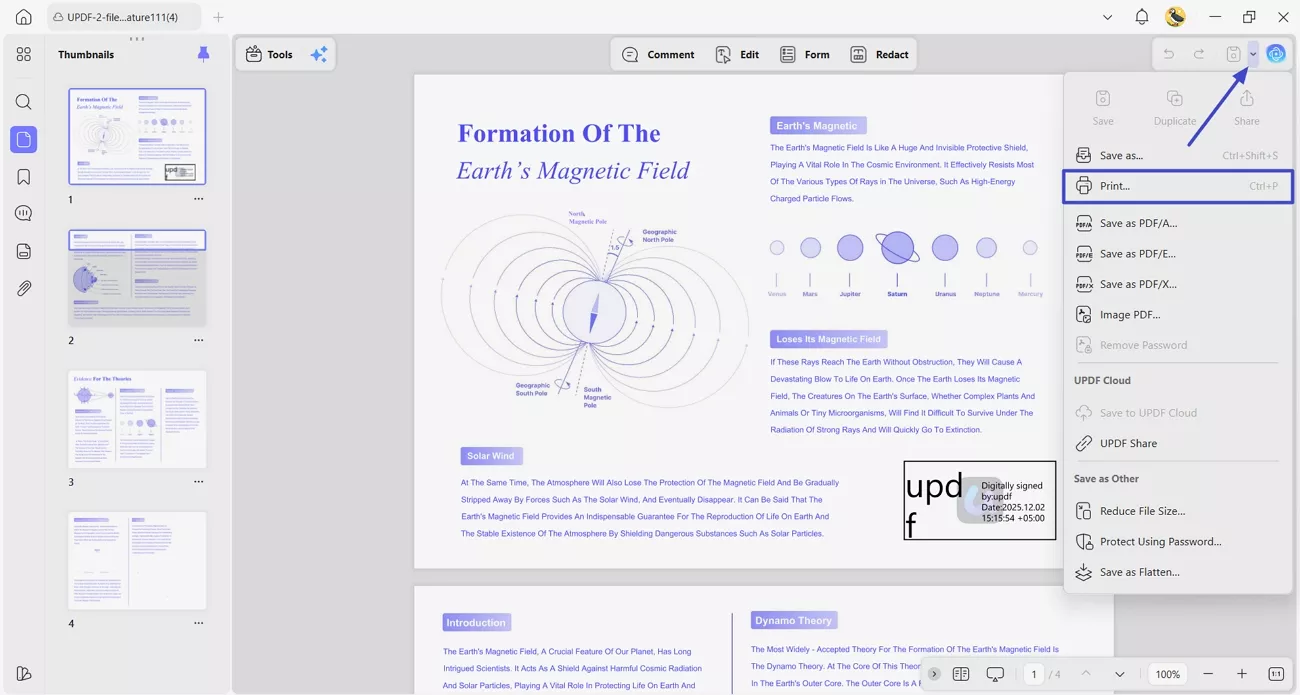
Step 1. Open the PDF in UPDF and click the dropdown arrow next to Save, or press Ctrl+P.
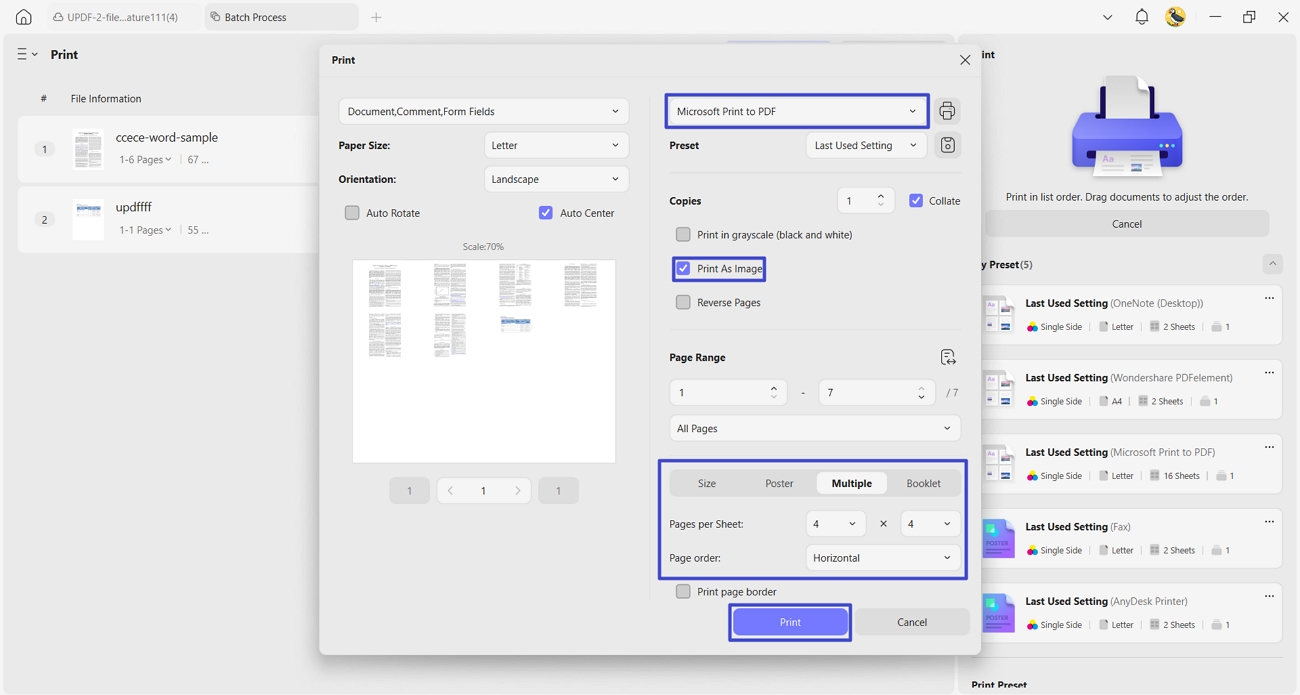
Step 2. In the Print window, choose Microsoft Print to PDF as the printer and check Print as Image.
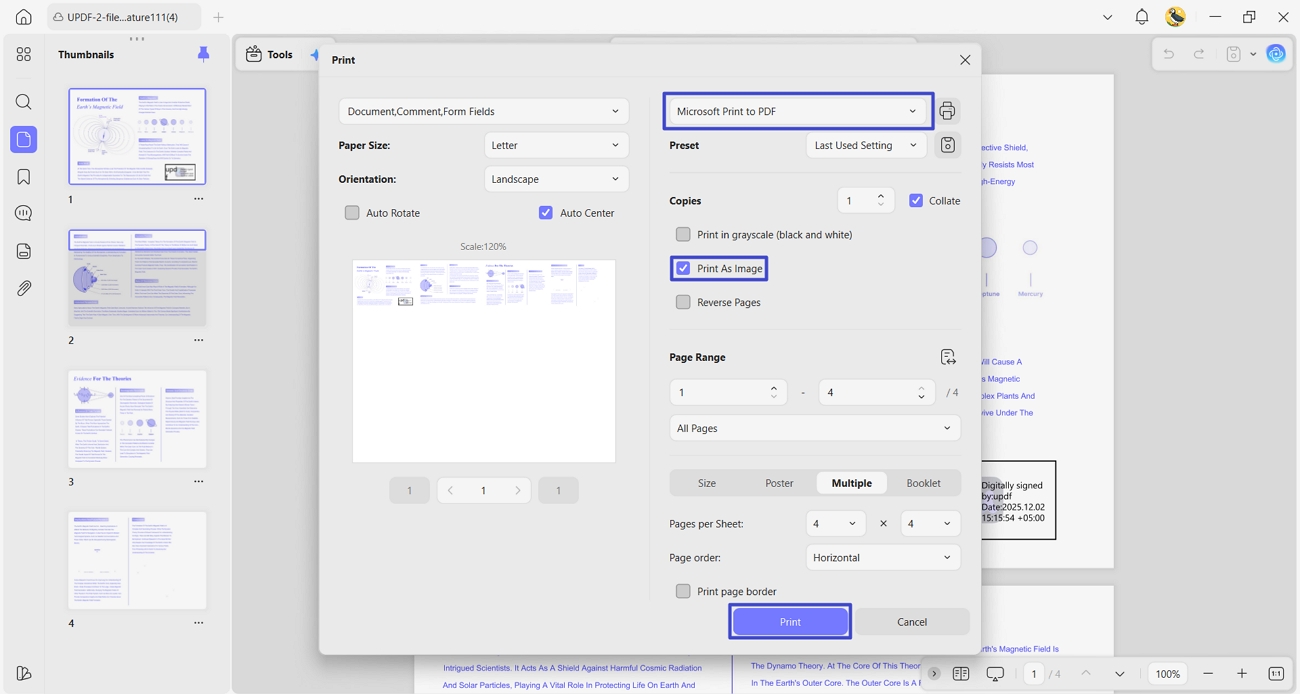
Step 3. Set the paper size, orientation, and page range, then click Print and choose where to save the file.
Batch (multiple PDFs at once)
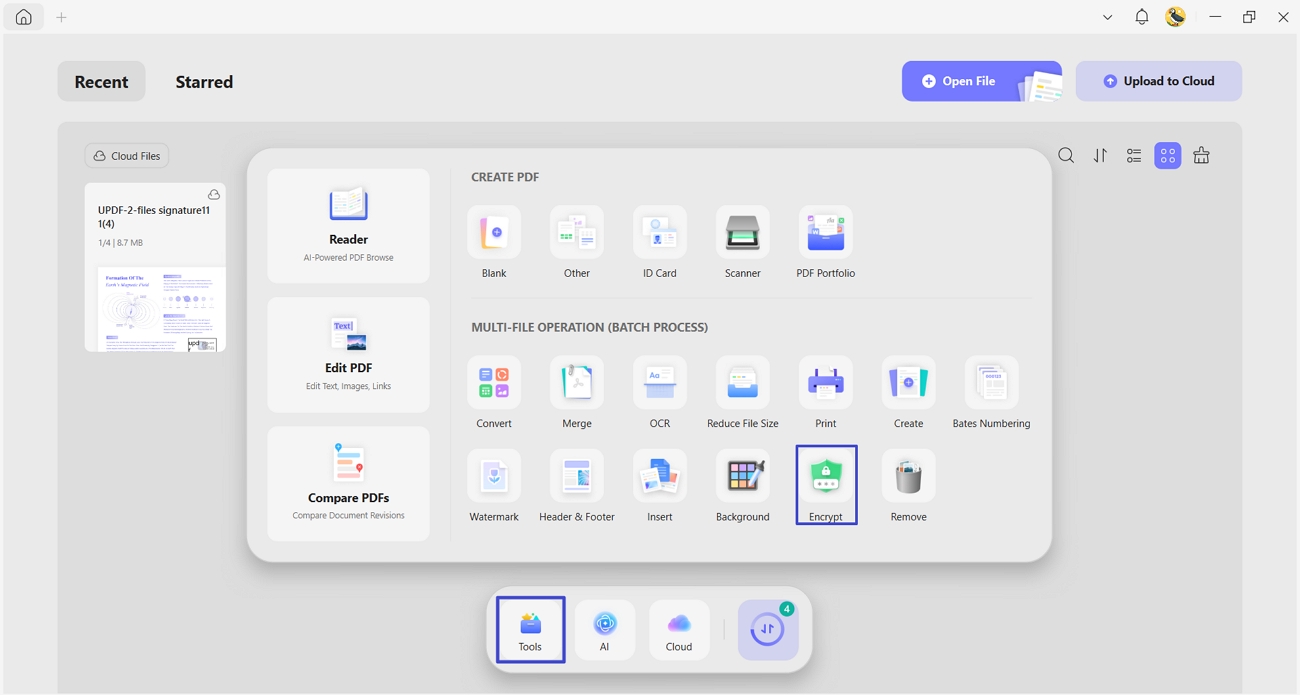
Step 1. From the UPDF homepage, click Tools > Print.
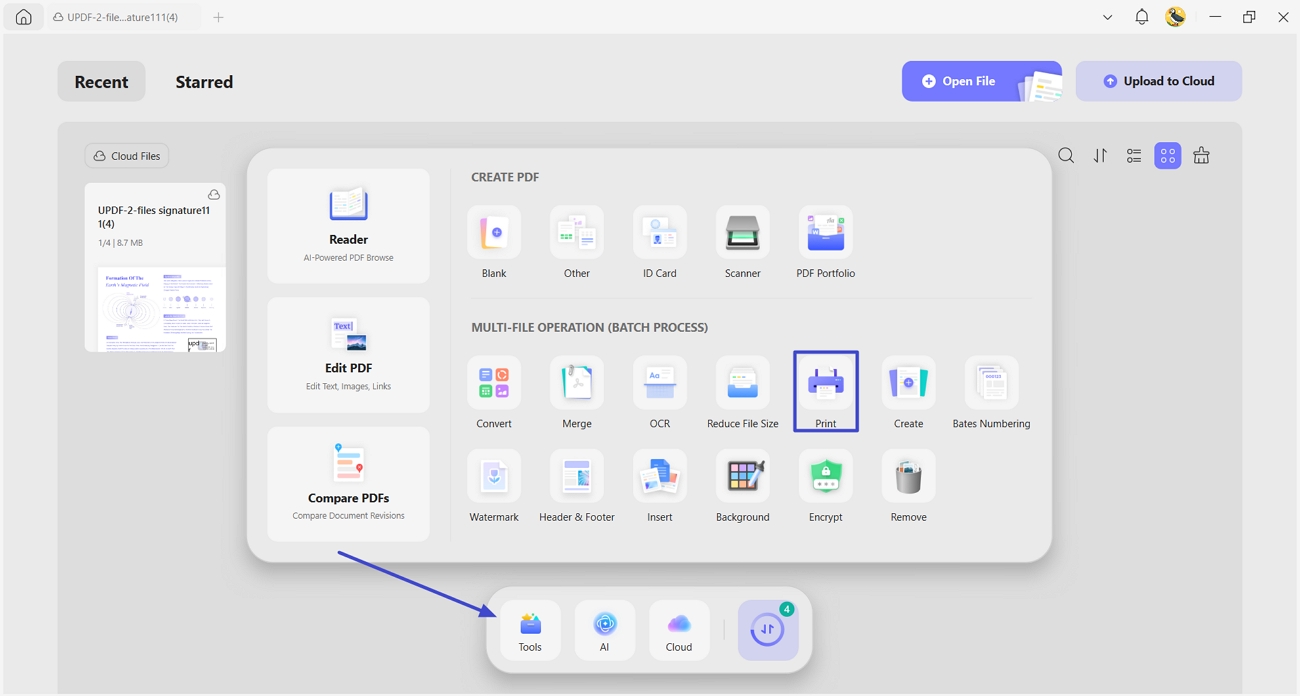
Step 2. Click Add Files to import every PDF you want to convert.
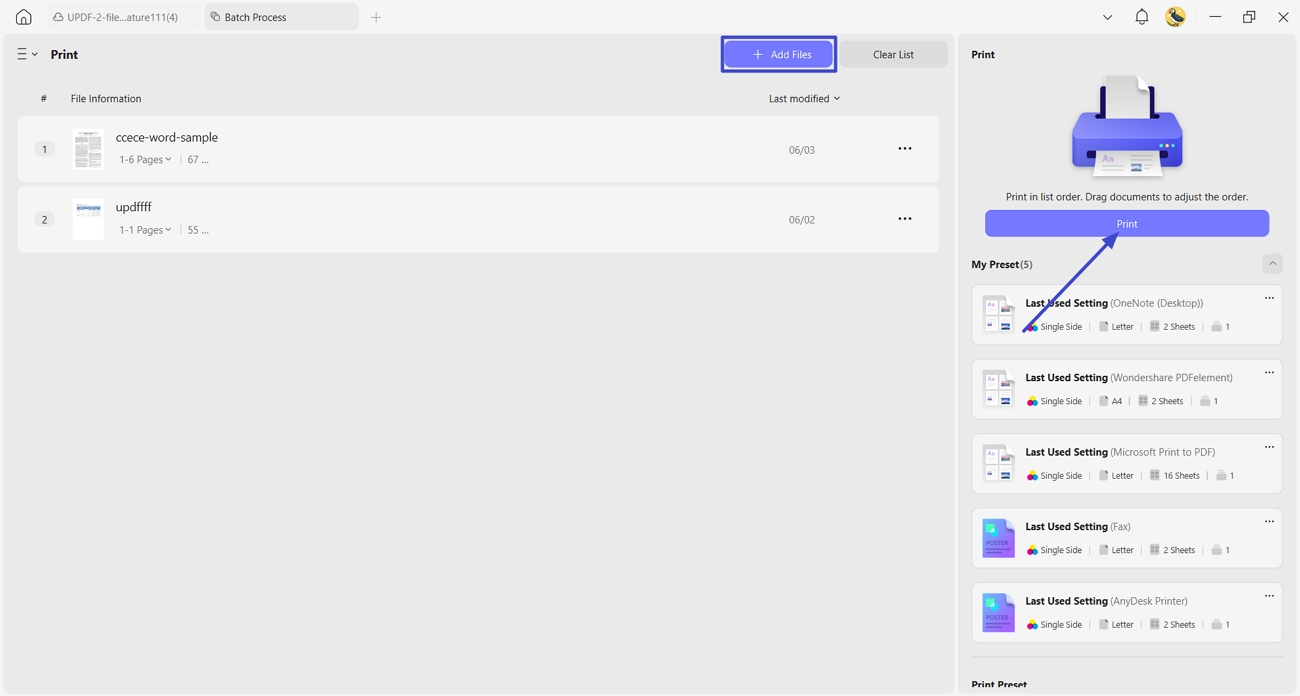
Step 3. Choose Microsoft Print to PDF, check Print as Image, and click Apply. To combine several pages onto a single image, switch to the Multiple tab first and set your layout.
Best for:
- Windows users who want a free, quick, batch-friendly way to stop text-level edits.
Not for:
- Mac — Microsoft Print to PDF is a Windows-only printer driver, so this method isn't available on macOS. Use Method 2, 3, or 4 instead.
Part 3. Method 2: Add a Permissions Password (Desktop & Mobile)
A permissions password lets people open and read your PDF but blocks editing, copying, or printing unless they know the password. It's the right call when you want to control who can change the file, not just make it visually static.
Add a Permissions Password to A Single PDF (Windows & Mac)
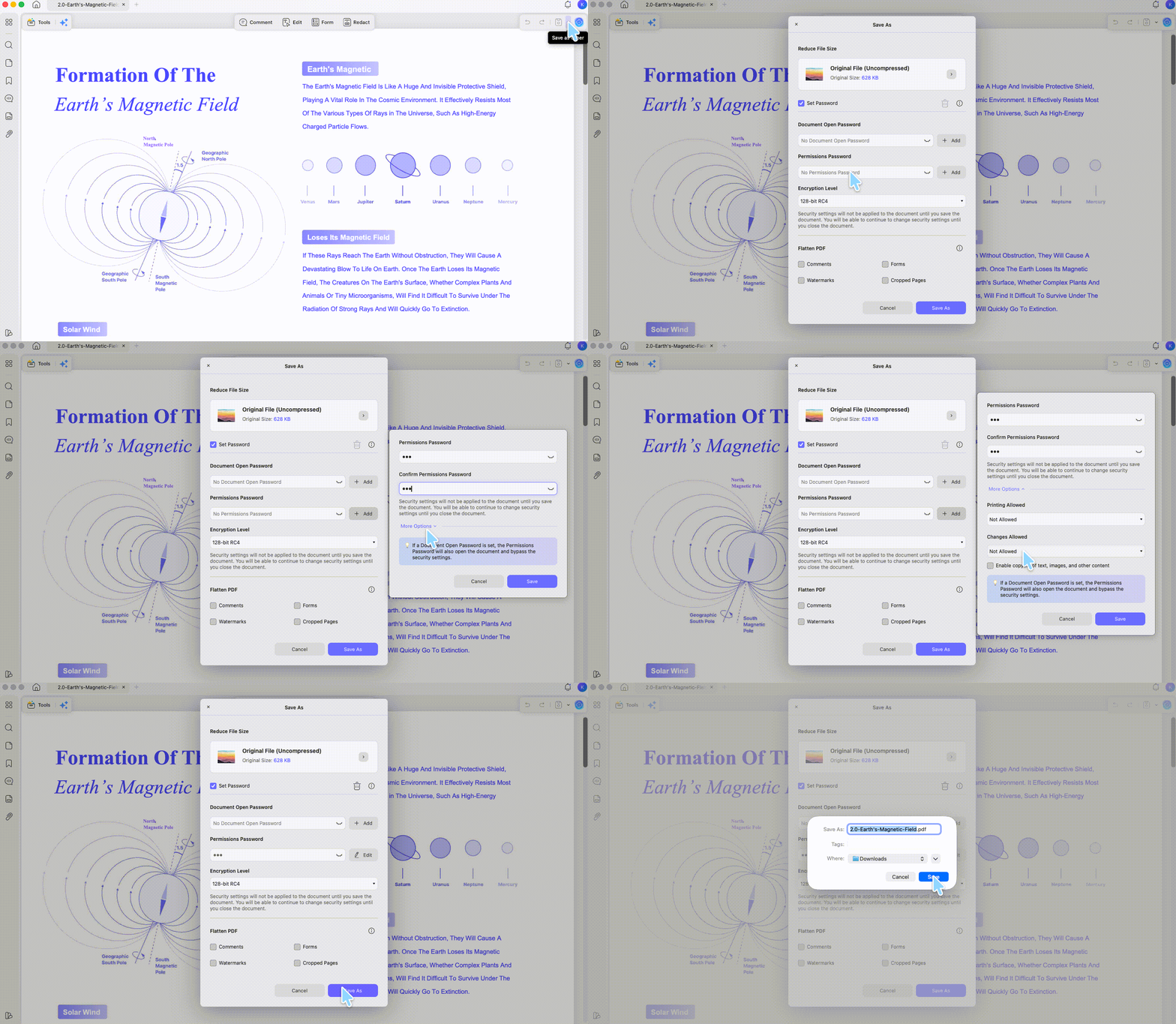
Step 1. Open the PDF, click the dropdown arrow next to Save, and choose Protect Using Password.
Step 2. Click Add under Permissions Password.
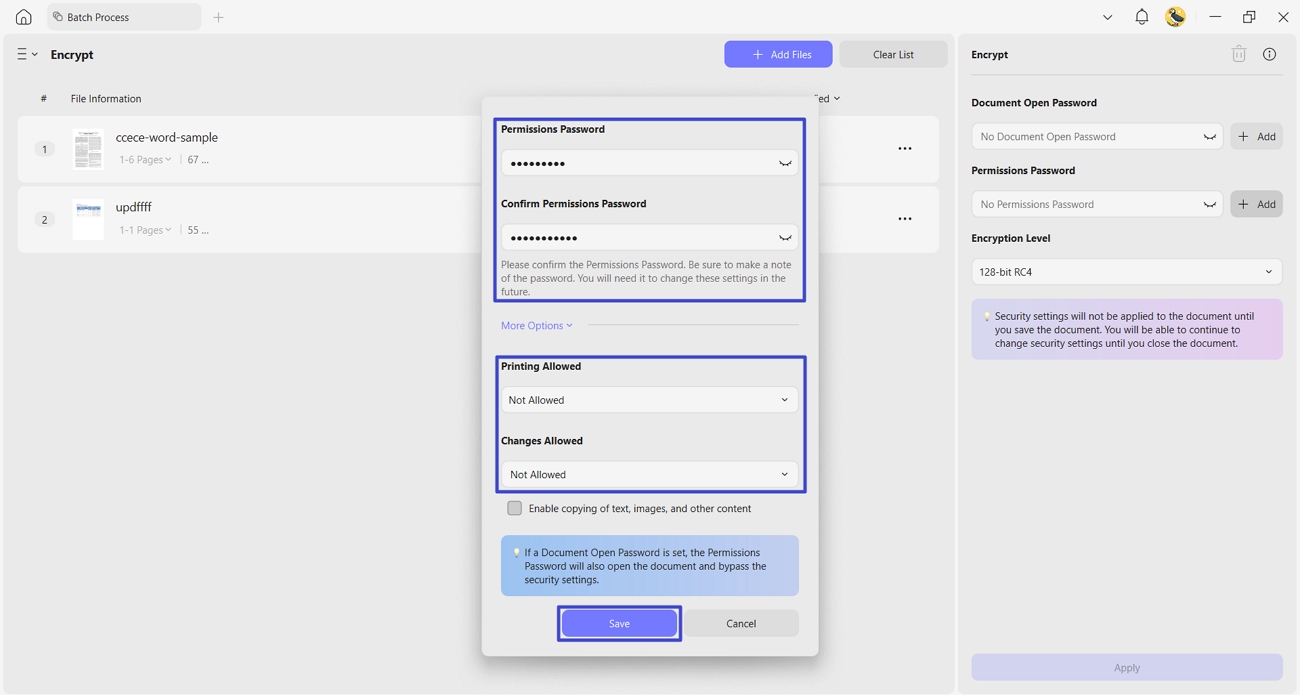
Step 3. Enter your password in both fields, then set Printing and Changes to Not Allowed.
Step 4. Click Save and choose where to store the protected file.
On UPDF Mobile (iOS & Android):
The mobile app currently locks the whole file rather than setting the same open-to-view-but-not-edit permissions as desktop:
Step 1. Open the PDF in UPDF for iOS or Android.
Step 2. Tap the three-dot icon and select Password.
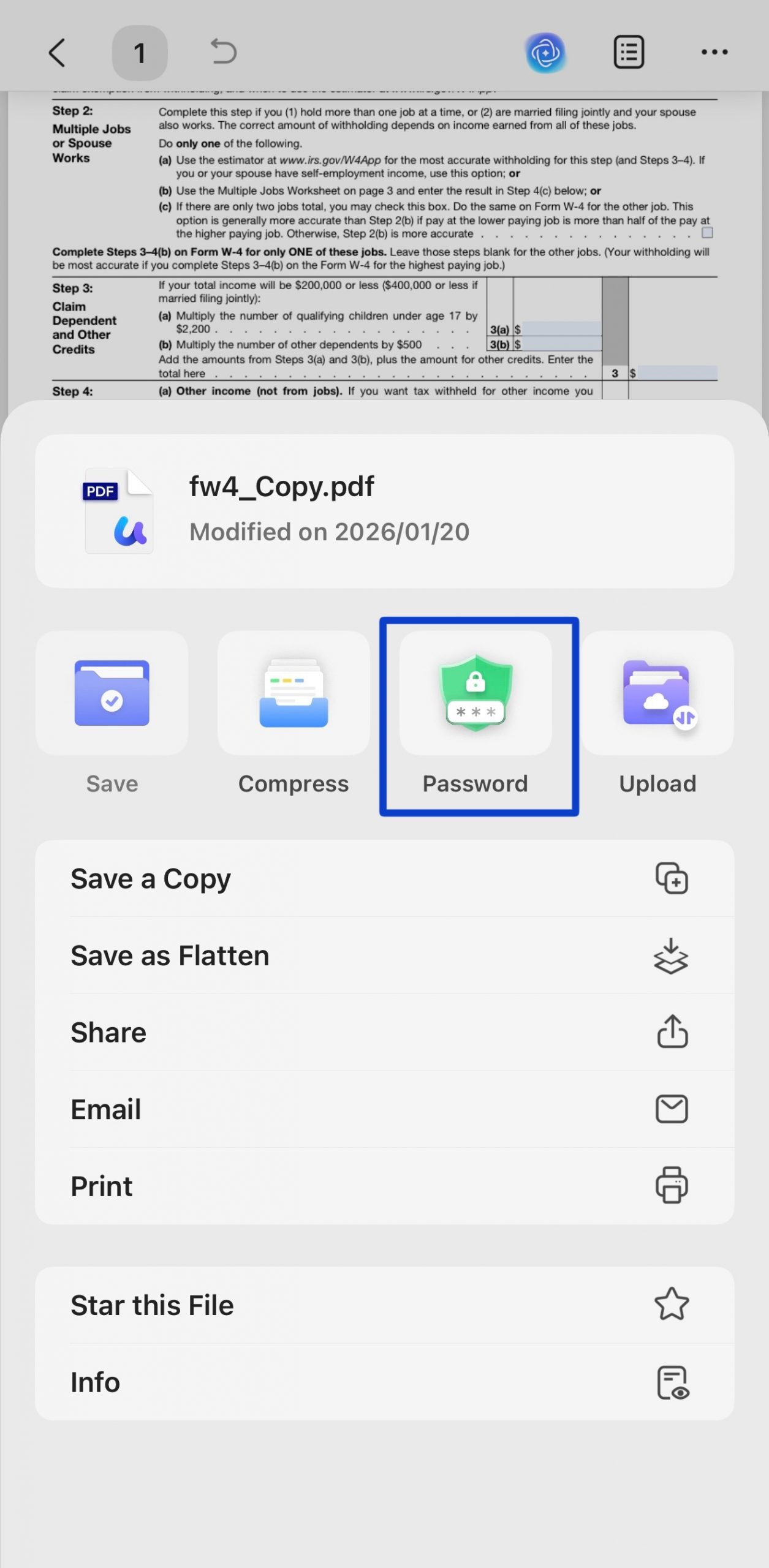
Step 3. Enter your password and tap Confirm, then save the protected file.
Add a Permissions Password to Batch PDFs (Windows & Mac)
Step 1. From the homepage, go to Tools > Encrypt.
Step 2. Click Add Files to import the PDFs, then click Add under Permissions Password and set your restrictions once.
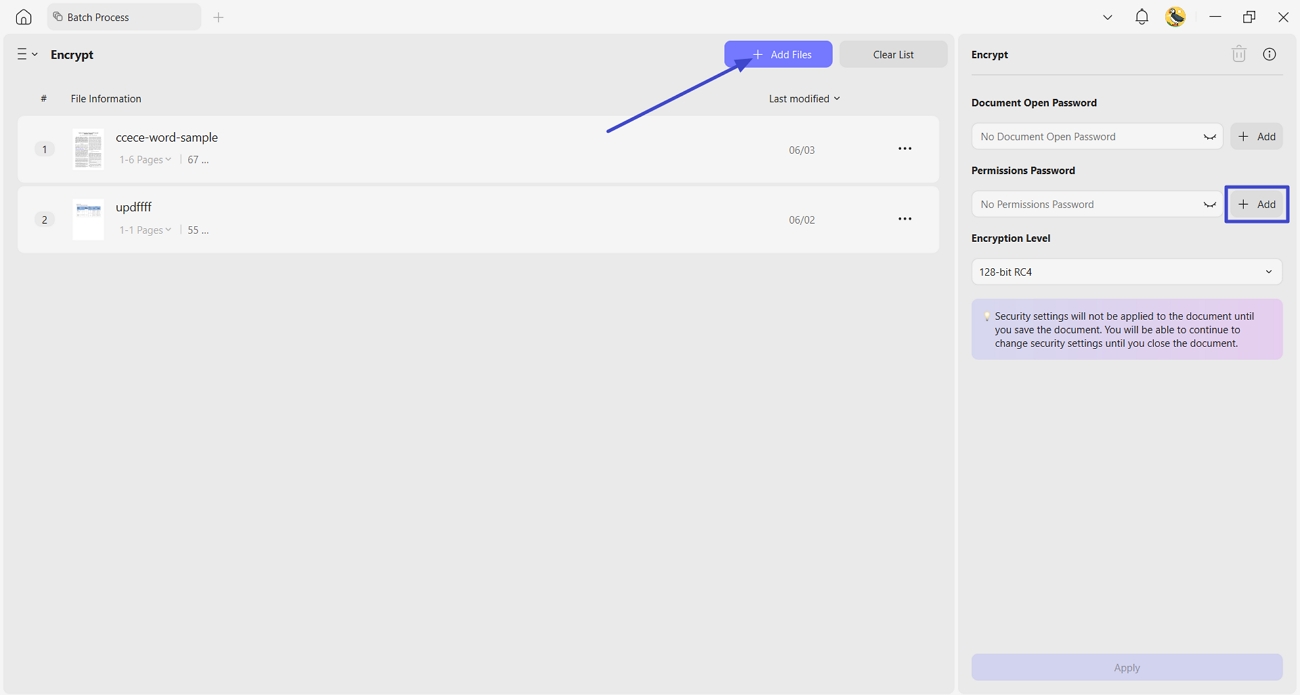
Step 3. UPDF applies the same password and restrictions to every file in the batch.
Mac-only alternative — the system Print dialog:
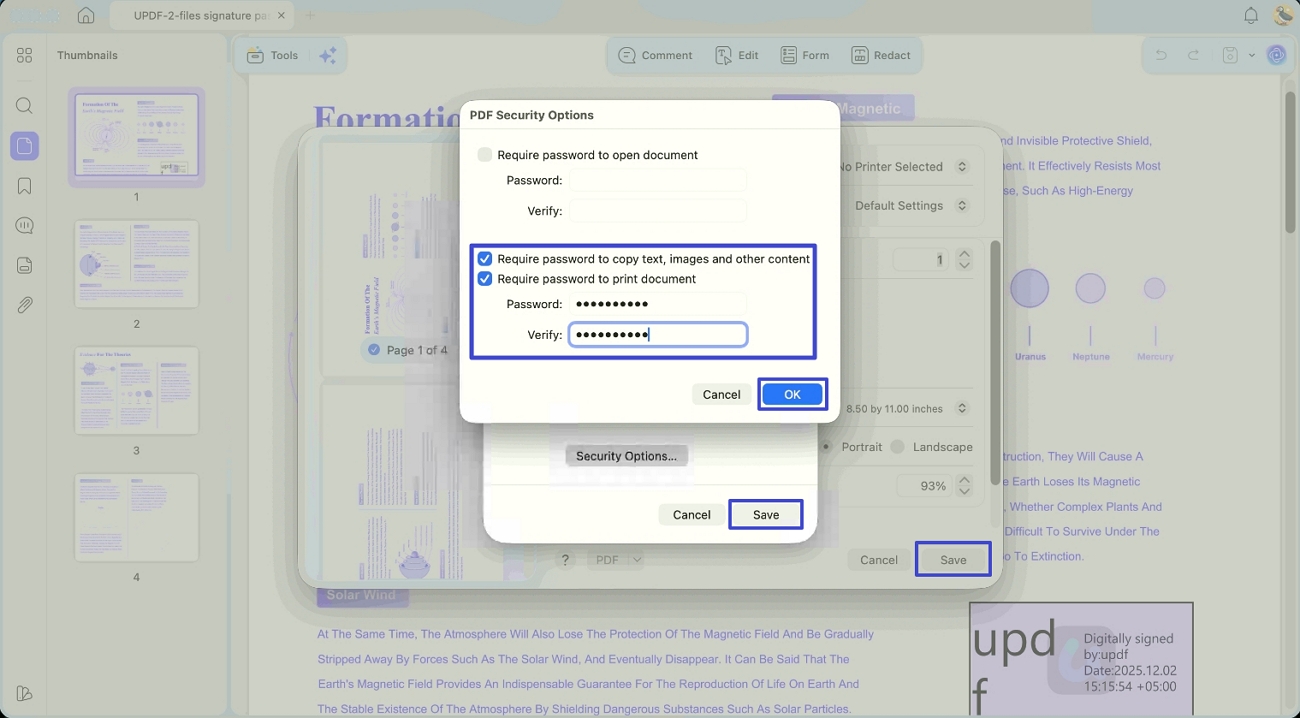
If you'd rather not open UPDF's protection panel, macOS itself can add a permissions password when printing:
Step 1. Open the PDF and press Command+P.
Step 2. Click the PDF button at the bottom of the print window and choose Security Options.
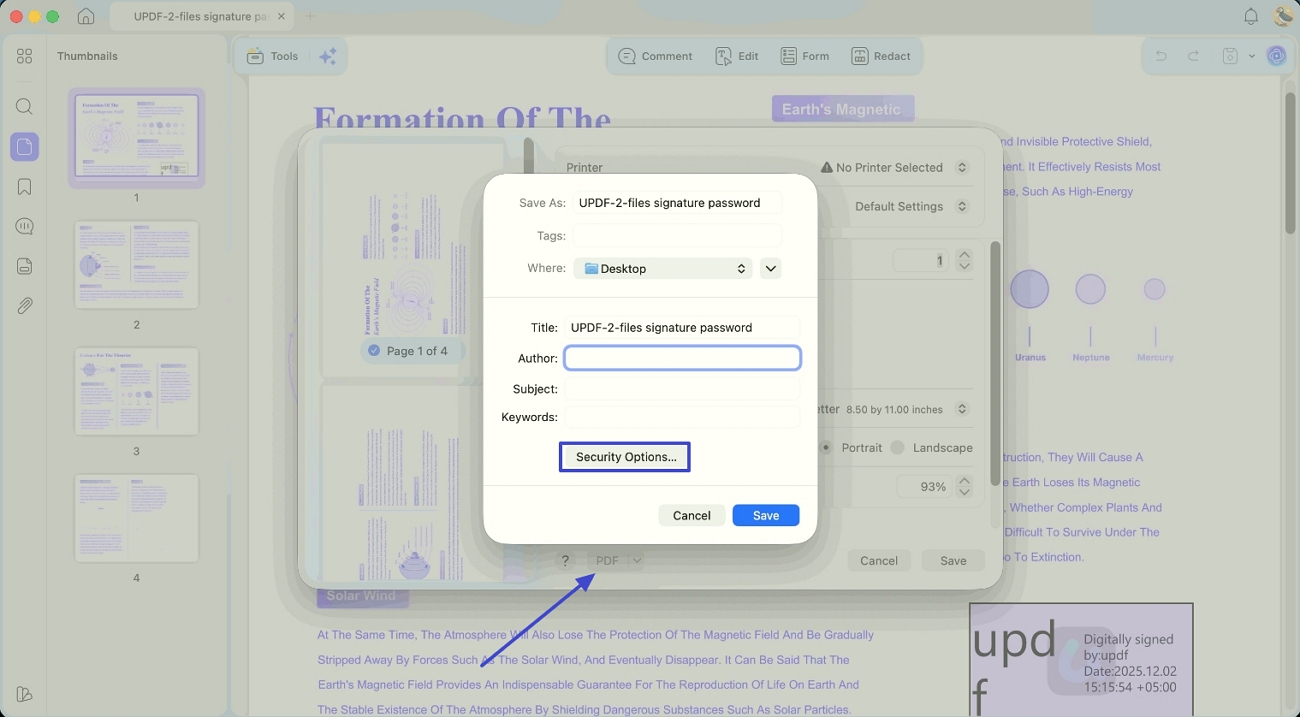
Step 3. Check the options to require a password for opening or for printing and copying, enter your password in both fields, then save the protected copy.
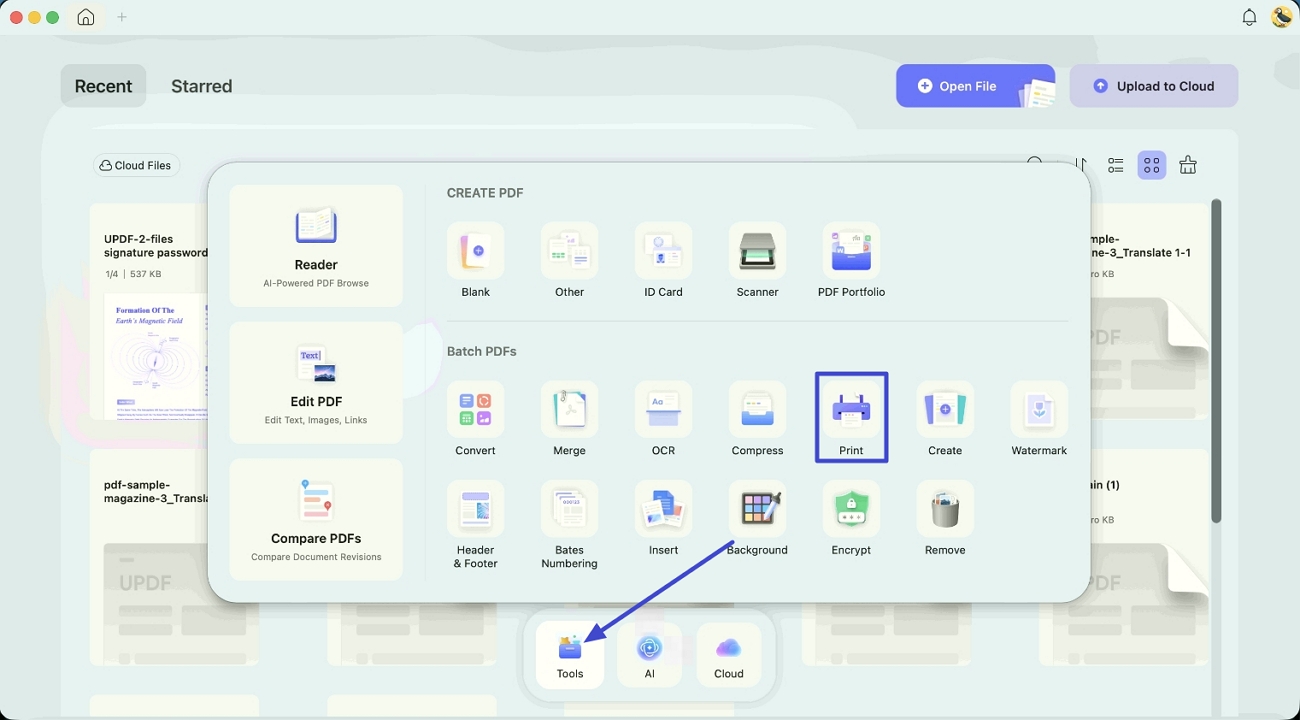
Alternate Mac Method For Batch PDFs
Step 1. First, in the “Tools” section, click the “Print” option under the Batch PDFs category.
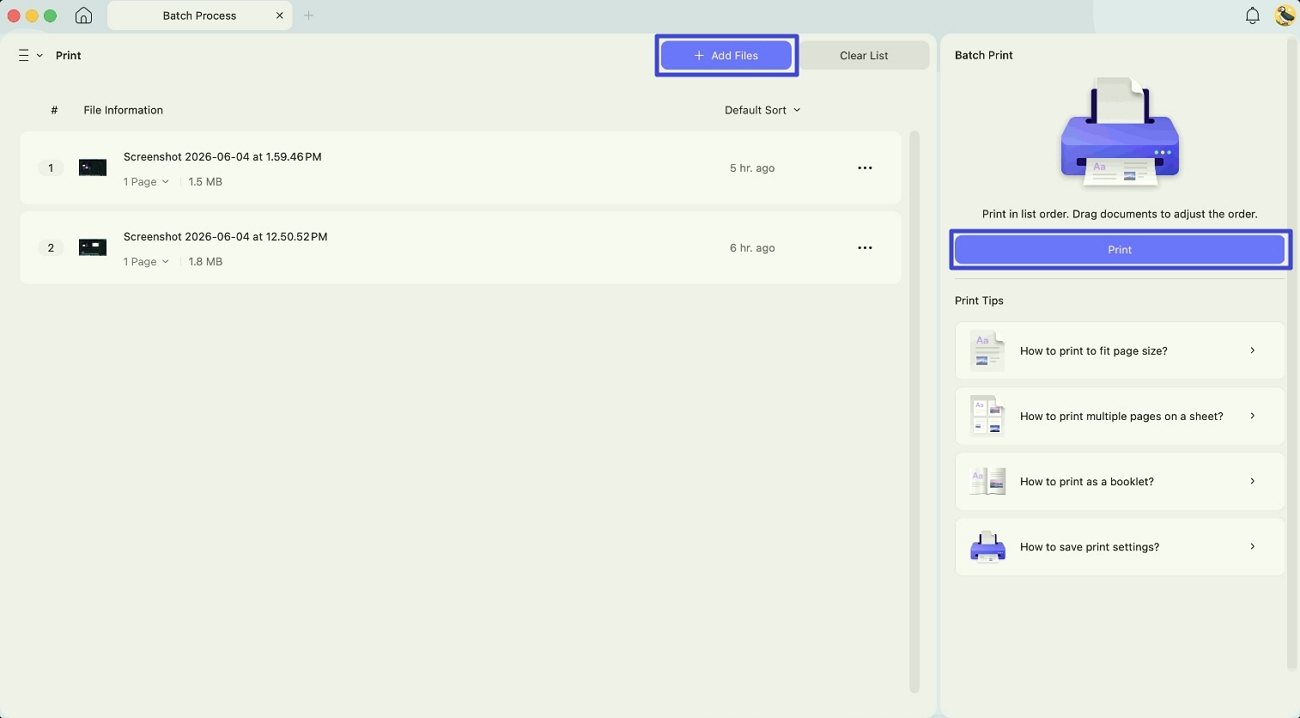
Step 2. After that, you need to import your PDFs by clicking the “Add Files” option. Then, press the “Print” option to access the printing interface.
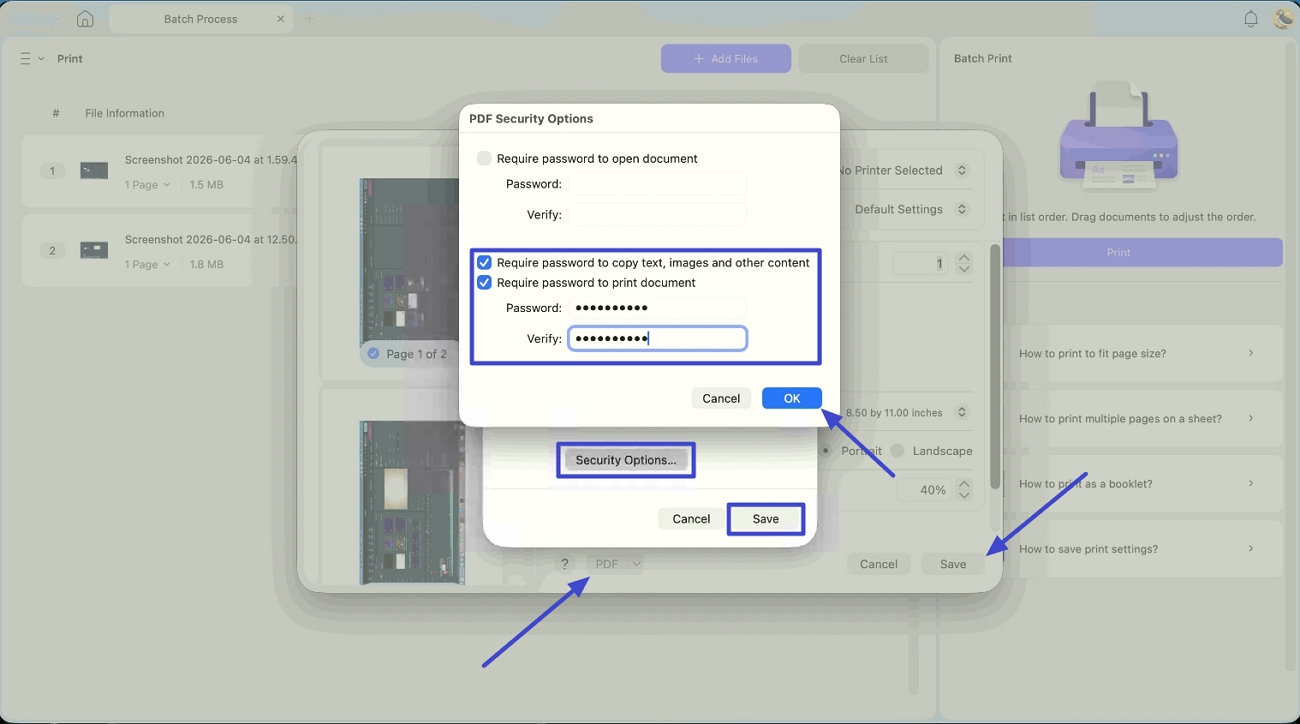
Step 3. Now, follow the same process that we did for a single PDF and save a copy of the protected PDF. This way, no one can edit or print your set of PDFs without the permissions password.
Best for:
- sharing a file where you want to allow viewing but keep editing, copying, or printing under your control.
Not for:
- situations where the password itself might leak or where you need a lock that doesn't depend on anyone honoring it — pair this with flattening or an image export for that.
Windows • macOS • iOS • Android 100% secure
Part 4. Method 3: Flatten the PDF (Windows & Mac)
Flattening merges form fields, annotations, and stamps into the page itself, so they stay visible but stop being interactive. It's built for documents where the content of a form or comment matters, not just the plain text.
Step 1. Open the fillable or annotated PDF, click the dropdown arrow next to Save, and choose Save as Flatten.
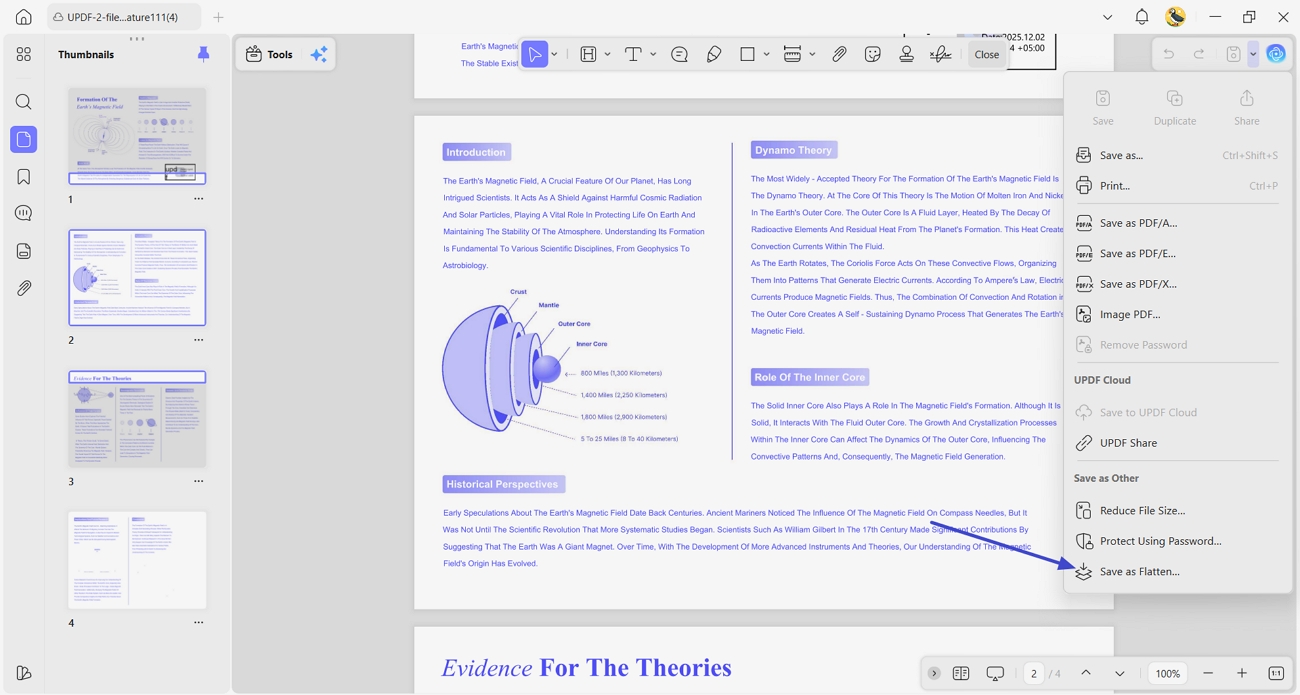
Step 2. In the Flatten Settings window, pick which elements to lock — Forms, Watermarks, Comments, or Cropped Pages. Select all of them if you want everything frozen at once.
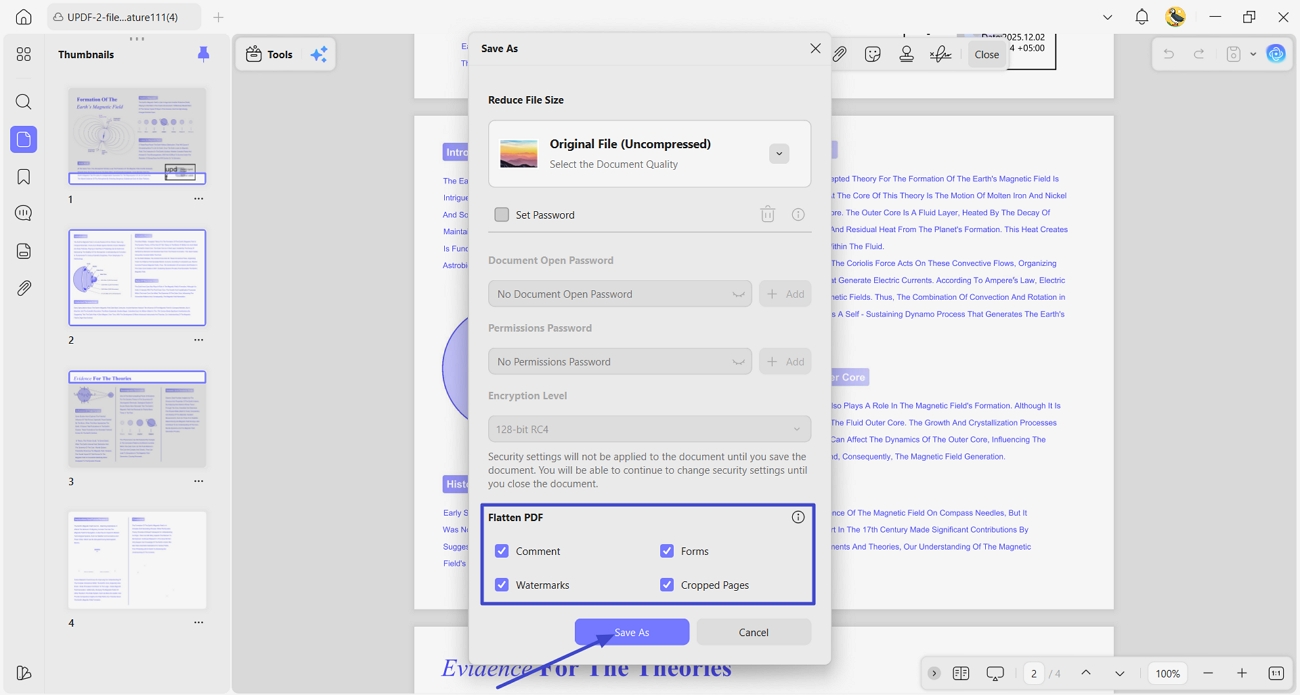
Step 3. Click Save As, choose a location, and click Save.
Best for:
- completed fillable forms, stamped documents, or PDFs with comments you want locked exactly where they are before distributing a "final" copy.
Not for:
- plain-text documents with no forms, comments, or stamps — flattening won't add anything a permissions password or Print as Image doesn't already cover faster.
Part 5. Method 4: Export the PDF as Images (Desktop & Mobile)
This is the most complete lock: the PDF becomes a set of image files, so there's no text layer left to select, copy, or edit — with or without a password.
Desktop:
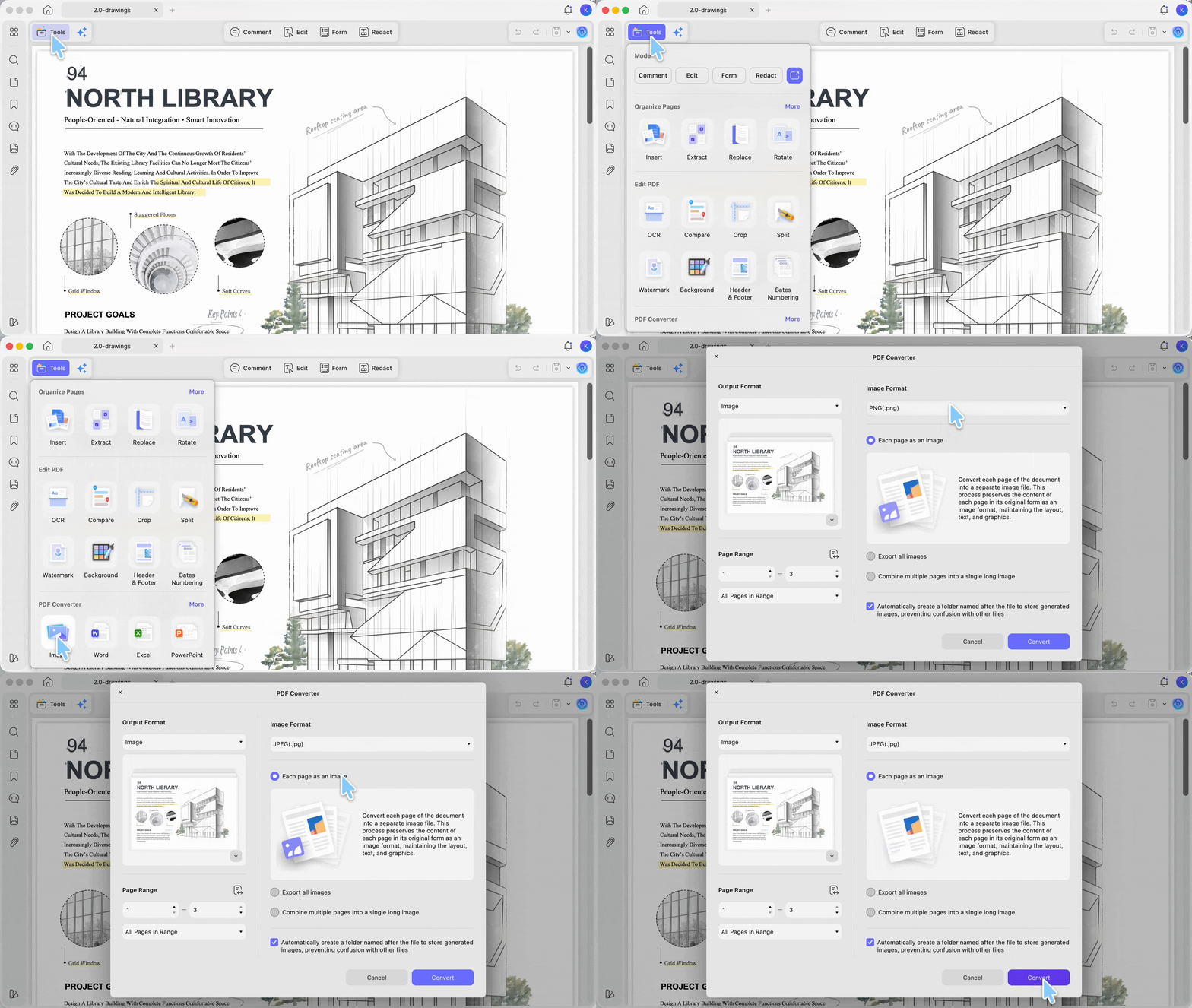
Step 1. Open the PDF, click Tools, and choose Image under the PDF Converter section.
Step 2. Pick your output format, set the page range, and choose whether to combine pages into one image or export each page separately.
Step 3. Click Convert and choose where to save the image files.
Mobile (iOS & Android):
Step 1. In UPDF Mobile, tap Tools, then tap PDF to Image in the converter section.
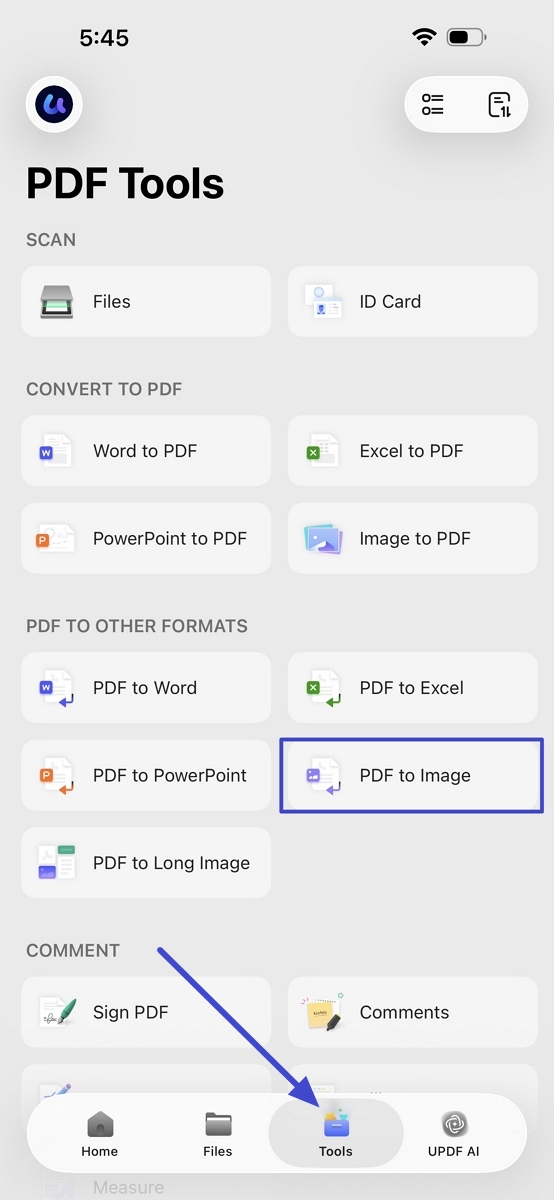
Step 2. Import the PDF from your phone or cloud storage, then choose the image format and save location.
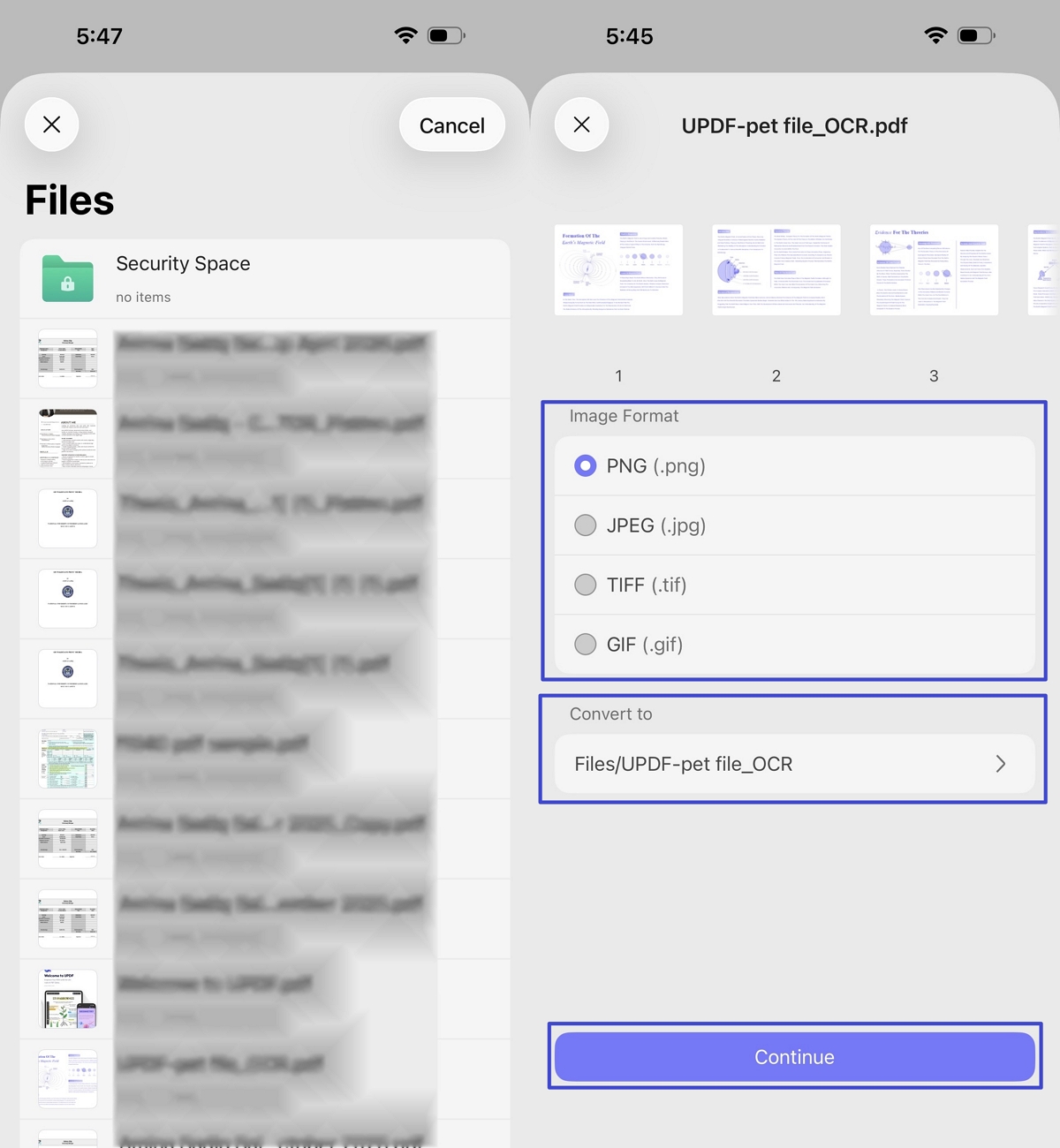
Step 3. Tap Continue — the image version saves to your device.
Best for:
- the strongest lockdown available, with nothing to manage afterward — good for wide distribution where you can't control who opens the file or with what software.
Not for:
- anyone who still needs to search, copy, or reuse the text — once exported, it's a picture of your document, not the document itself.
Part 6. Password vs. Flatten vs. Image-Only: What's Actually Different?
These three non-editable methods sound similar but lock a PDF in very different ways:
- A permissions password is a locked drawer. The contents inside are completely normal PDF text and objects — you just need the key (the password) to open the drawer for editing, copying, or printing.
- Flattening is laminating a printed page. The content shows through exactly as it did before, and you can hand it to anyone without a key, but nothing on the page can be peeled up and rearranged anymore.
- Exporting as an image is photographing the page. The "text" isn't text at all anymore — it's a picture of text, so there's nothing left to select or extract in the first place.
Part 7. Method Comparison
| Method | Platform | Needs a password | Text still selectable | Best for |
|---|---|---|---|---|
| Print as Image | Windows only | ✗ | ✗ | Free, batch-friendly locking |
| Permissions Password | Windows & Mac (mobile: open password only) | ✓ | Yes, until unlocked | Controlled sharing where you manage access |
| Flatten | Windows & Mac | ✗ | ✗ for flattened elements | Forms, comments, and stamps that must stay put |
| Export as Images | Desktop & Mobile | ✗ | ✗ | Maximum lockdown for wide distribution |
Part 8. If Something Still Goes Wrong (Edge Cases)
- "I flattened my form, but when I reopened it in a different PDF reader, the fields looked editable again." Some viewers render flattened content inconsistently. Check the flattened file in the actual app your recipient will use — like Adobe Reader — not just inside UPDF, before you send it.
- "I added a permissions password, but the recipient just screenshotted it and ran OCR to get the text out." A permissions password blocks copy/paste and editing inside a compliant reader, but it can't stop a screenshot-and-OCR workaround. If that's the real risk, an image-only export doesn't remove that risk either — no method fully prevents someone from re-typing what they can see — but flattening or printing as image at least means there's no text layer to lift directly.
- "I need this PDF non-editable now, but I might have to update it myself in six months." If you used a permissions password, you can remove it later with the same password and edit normally. Flattening and image export are different — both destroy the original editable layer for good, even for you, so keep your original file somewhere safe if you chose either of those two methods.
- "My flattened PDFs came out noticeably larger than the originals." Flattening embeds rendered comments, stamps, and form fields as fixed content instead of lightweight interactive objects, which can add file size. Compress the file afterward if size matters for emailing.
Part 9. FAQ
1. Can someone remove a permissions password without knowing it?
Yes, with dedicated tools. A permissions password is enforced by the PDF reader's cooperation rather than strong encryption alone, so it deters casual editing more than it blocks a determined, technical attempt. For documents that truly can't be altered, pair it with flattening or an image export.
2. Does making a PDF non-editable also stop people from copying the text?
Depends on the method. Print as Image and Export as Images remove the actual text layer, so there's nothing to copy. A permissions password can restrict copying inside compliant readers but doesn't guarantee it in every app.
3. Is a flattened or image-only PDF enough for compliance needs like contracts or audits?
These methods stop casual tampering but aren't a substitute for a digital signature or an audit trail. Check what your specific regulation or client actually requires before relying on flattening or an image export alone.
4. I need the opposite — how do I make a locked or scanned PDF editable again?
If you're the one who needs to edit or make a PDF editable later, that guide covers editing a regular PDF directly and running OCR on a scanned one.
Conclusion
Four methods, four different jobs: Print as Image for a free, Windows-only lock; a permissions password when you want to control who can edit or copy; flattening when forms, comments, or stamps need to stay exactly where you put them; and exporting as images when you want the strongest lock available, on desktop or mobile. Match the method to what you're actually protecting against, and your "final" PDF stays final — on Windows, Mac, iOS, and Android.
Windows • macOS • iOS • Android 100% secure







 Enid Brown
 Lizzy Lozano
 Engelbert White
 Grace Curry