 UPDF
UPDF
 UPDF for Windows
 UPDF for Mac
 UPDF for iPhone/iPad
 UPDF for Android
 Nomostar
 UPDF AI Online
 UPDF Sign
 IvyCraft
 Edit PDF
 Annotate PDF
 Create PDF
 PDF Form
 Edit links
 Convert PDF
 OCR
OCR PDF to Word
 PDF to Image
 PDF to Excel
 Organize PDF
 Merge PDF
 Split PDF
 Crop PDF
 Rotate PDF
 Protect PDF
 Sign PDF
 Redact PDF
 Sanitize PDF
 Remove Security
 Read PDF
 UPDF Cloud
 Compress PDF
 Print PDF
 Batch Process
 About UPDF AI
 UPDF AI Solutions
 AI User Guide
 FAQ about UPDF AI
 Summarize PDF
 Translate PDF
 Chat with PDF
 Chat with AI
 Chat with image
 PDF to Mind Map
 Explain PDF
 PDF AI Tools
 Image AI Tools
 AI Chat Tools
 AI Writing Tools
 AI Study Tools
 AI Working Tools
 Other AI Tools
 AI Bookmark Generation
 AI Bookmark Summary
 AI Watermark Generation
 AI Background Generation
 AI Sticker Generation
 AI Stamp Generation
 AI Editing Suite
 UPDF Copilot
 AI Page Management
 AI Semantic Search
 PDF to Word
 PDF to Excel
 PDF to PowerPoint
 Enterprise Solution
 Enterprise Sign
 Enterprise AI
 Enterprise Plan
 Enterprise User Guide
 Enterprise Webinar
 IT
IT Education
 Construction
 Financial Service
 Healthcare
 Insurance
 Legal
Legal Manufacturing
 Government
 Researchers & PhDs
 Solopreneurs & Freelancers
 Lawyers & Legal Professionals
 Real Estate Agents & Brokers
 Education Solution
 Customer Stories
 User Guide
 UPDF Tricks
 FAQs
FAQs UPDF Reviews
 Download Center
 Blog
Blog Newsroom
 Tech Spec
 Updates
 UPDF vs. Adobe Acrobat
 UPDF vs. Foxit
 UPDF vs. PDF Expert

Have you ever needed to send a digital copy of a document to a client while you're away from your PDF scanner software? This can be a tricky situation, where you can only rely on your phone to scan the paper document into a digital PDF.
Google Drive Scanner is built into your Google Workspace, which makes it easy to digitize documents on the go without installing a dedicated app.
But is it a reliable tool to scan professional documents? This article will share a complete review of Scanner in Google Drive, including its features, steps for using, and a better alternative - UPDF for dedicated OCR with 99% accuracy, batch process and AI page management.
Windows • macOS • iOS • Android 100% secure
Part 1: Google Drive Scanner Overview: Function, Usage Steps & Comparison
If you’re new to Google Drive Scanner, here’s a complete rundown of its features, scanning steps, and how it compares to professional PDF scanners.
What is Google Drive Scanner?
Google Drive is a free cloud storage platform that allows you to create, scan, and share documents online. It's built-in scanner for Google Drive allows you to use your smartphone camera to capture paper documents and save them directly to your Drive. Moreover, you can access these documents across other platforms and devices using the same Google account.
Google Drive is automatically available to all Google Workspace users and those with a personal Google account. While the app is mostly free, you may need to subscribe to a paid plan if you need more storage space.
Here’s a look at its key features for document scanning
1. Editing and Optimization
The scanner in Google Drive allows you to adjust your scanned images using filters, cropping, rotating, and erasing unwanted marks for a cleaner look. The new beta document scanning mode can automatically scan and optimize multiple pages in the camera view.
2. OCR and AI Features
While Google Drive does not have a dedicated OCR tool, it lets you open your scans in Google Docs. This automatically converts the scanned content into editable text. As for AI tools, the scanner can use AI to enhance the image quality and improve the text’s readability.
3. File Management and Paperless Workflows
Once scanned, your documents land directly in Google Drive, where you can organize them into folders, share them with others, and access them from any device. By instantly scanning documents and managing them in the cloud, you can easily maintain a paperless workflow without switching between apps.
How to Scan a Document with Google Drive?
Now that you know the core functions of the scanner in Drive, let’s see how you can put them into practice. Follow these steps to scan a document with Google Drive.
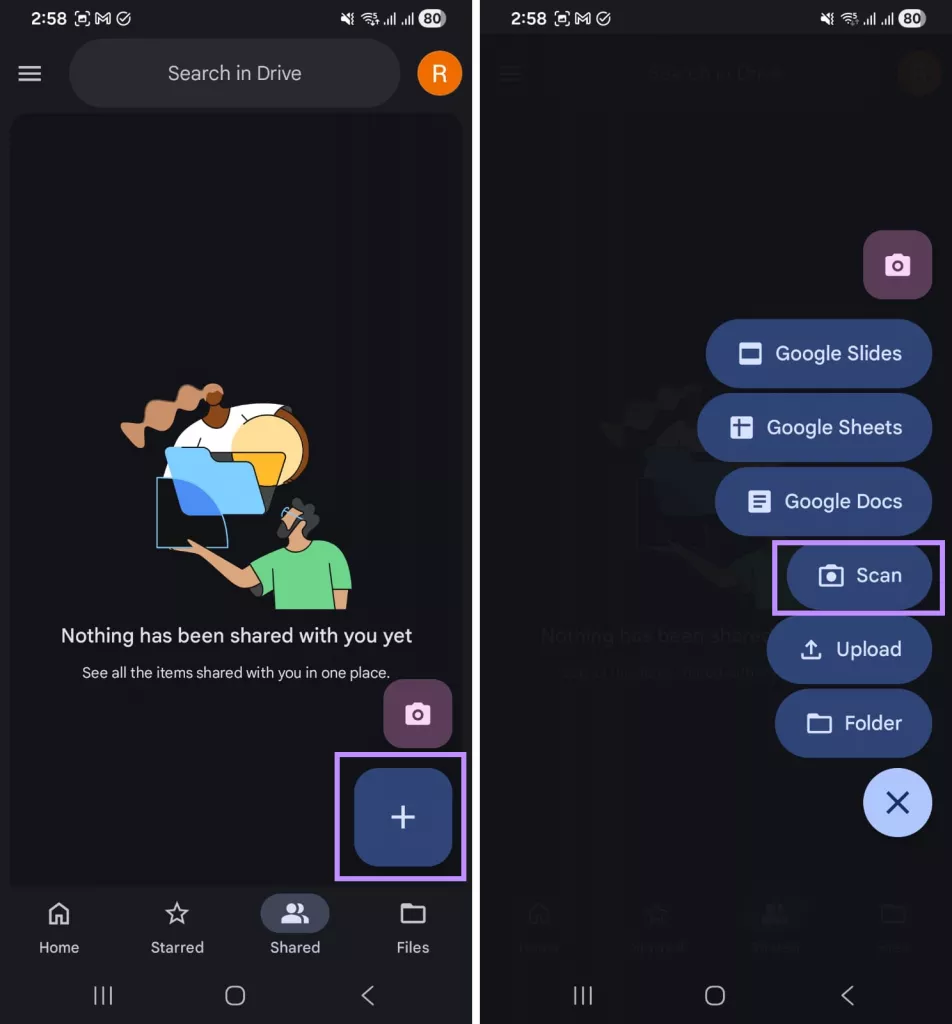
Step 1. Open the Google Drive app on your phone and tap the “+” button on the bottom right.
Step 2. Select “Scan” from the list of options. Then, point your camera at the document.
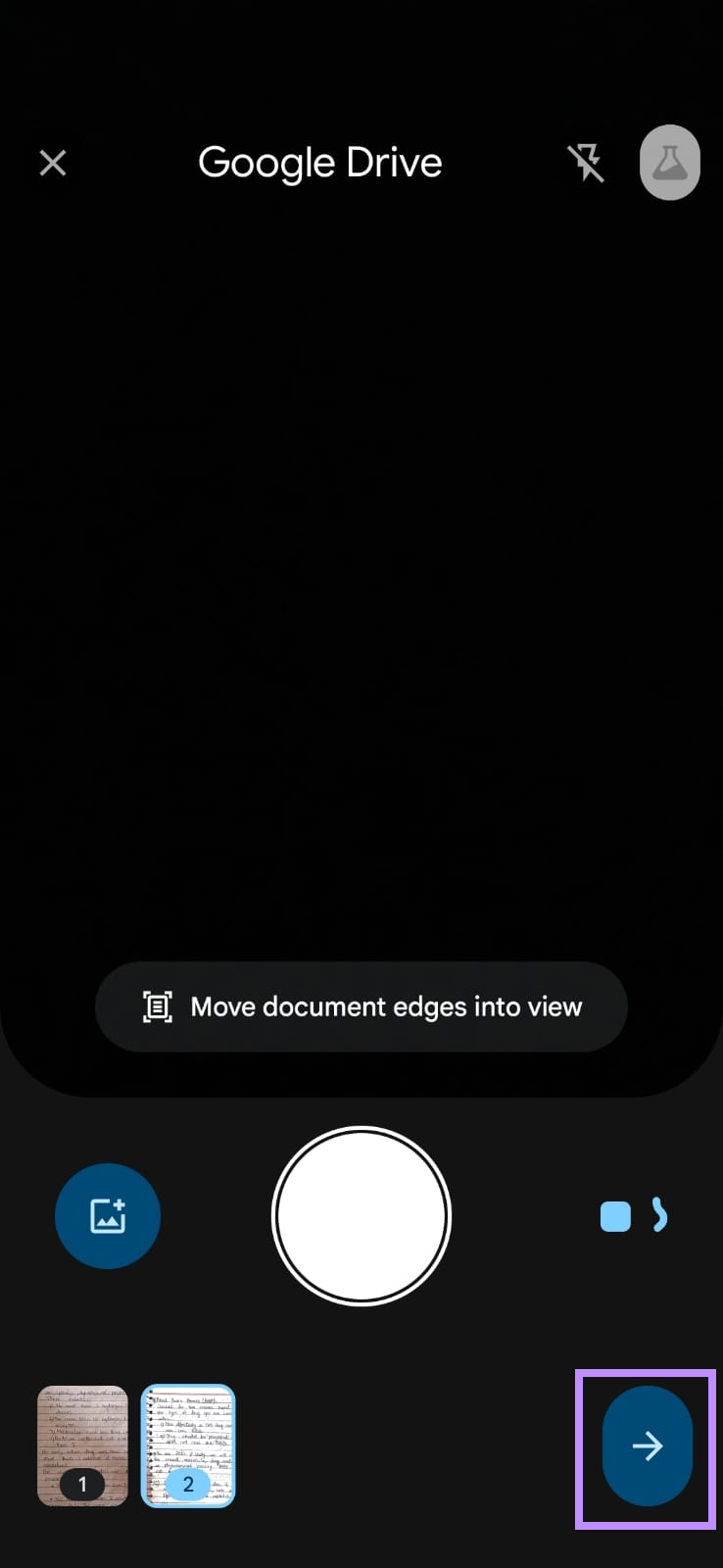
Step 3. Google Drive will auto-detect the edges and capture the page. Tap the arrow on the right to continue.
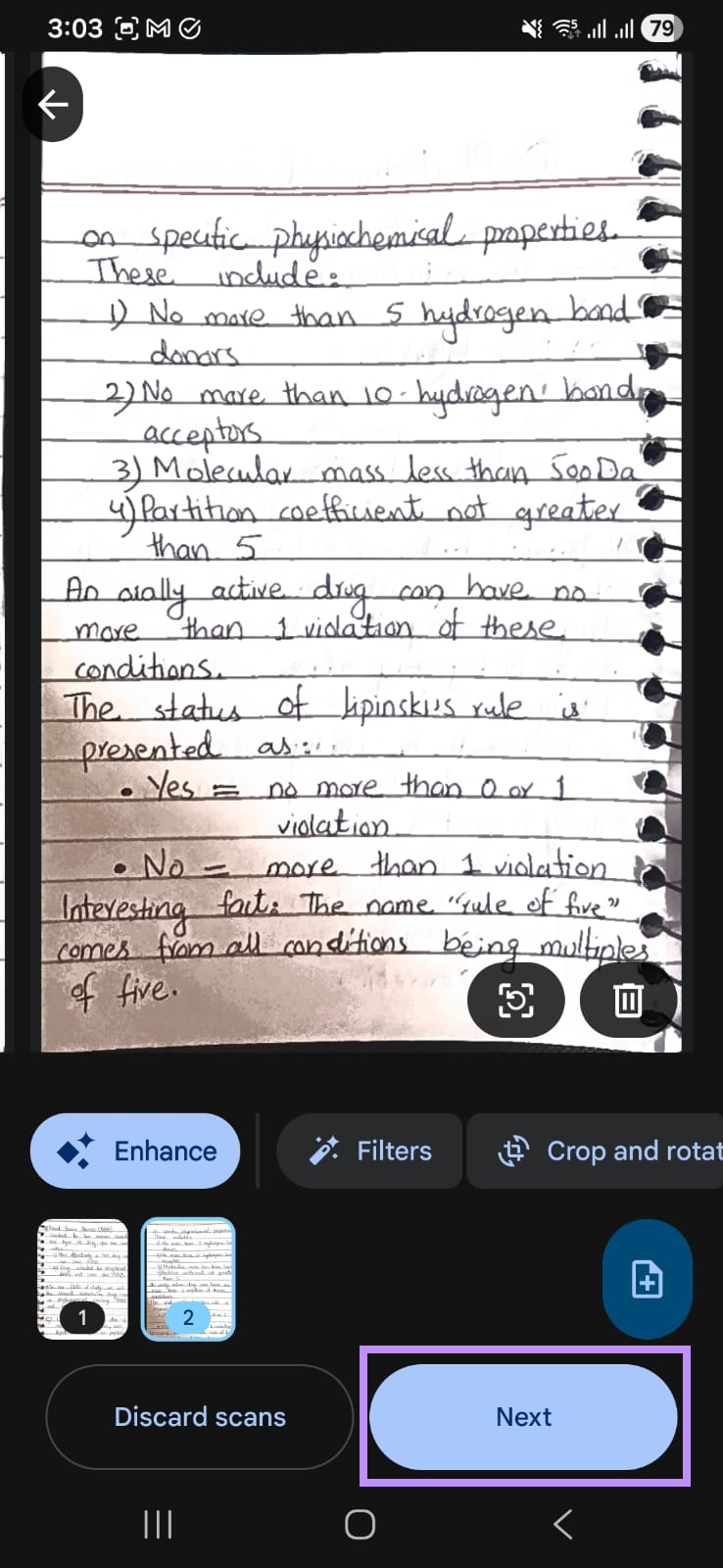
Step 4. Review the scans and adjust if needed. You can auto-enhance, apply filters, crop, rotate, and erase marks or stains. Once done, click “Next.”
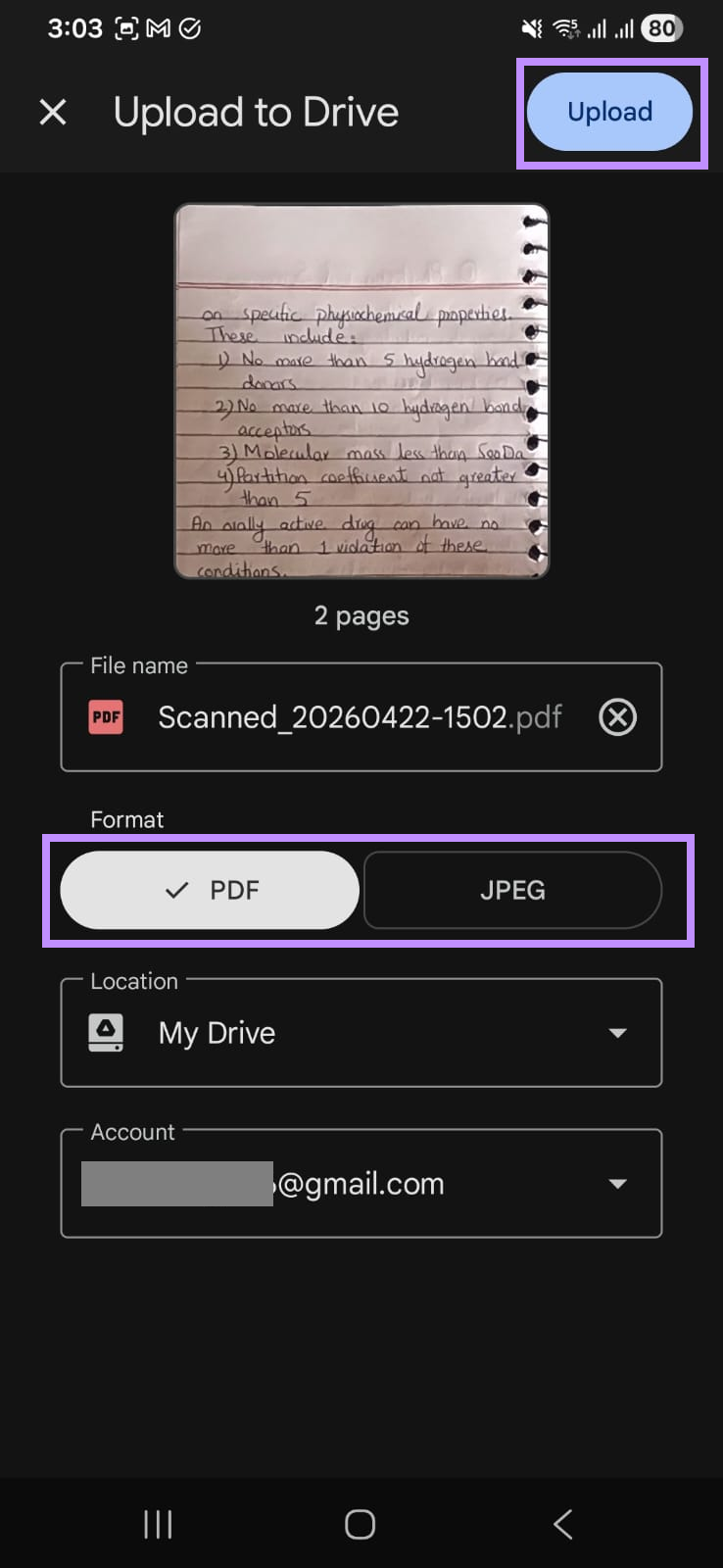
Step 5. Choose “PDF” or “JPEG” as the output format. Then tap “Upload” to save the scanned document to your Drive.
Scanner for Google Drive VS Professional Scanner
Google Doc scanner works well for simple tasks. However, it has clear limitations when you need more advanced features, such as editing text, batch processing, or more flexible export options.
If you’re looking for these features, the following table shows a direct comparison between Google Drive’s scanner and UPDF, a professional tool to scan, edit, and manage PDFs in one place.
| Google Drive Scanner | UPDF | |
| Pricing | Free (15 GB shared storage) | Free Trial UPDF Pro: $49.99/year, $79.99/lifetime UPDF AI: $79/year |
| OCR Accuracy | Basic (via Google Docs conversion) | Dedicated OCR with 99% accuracy |
| PDF Editing | × | ✔ |
| Batch Process | × | ✔ (batch OCR, compression, adding watermarks, and more) |
| Format Conversion | PDF, JPEG | Word, Excel, PPT, standard image (PNG, JPG, BMP, TIFF, GIF), Long Image |
| AI Assistant (Summarization / Translation / Q&A) | × | ✔ |
| AI-Generated Mind Map | × | ✔ (online, desktop) |
As you can see, UPDF offers far more features for scanning and editing your PDFs. Below, you’ll find a detailed review of its features and workflow steps.
GOOD NEWS!!!
And the release of UPDF 2.5 also brings a $10 discount till May 7th, take an additional $10 off the price mentioned above—buy early and enjoy sooner!.
Part 2: Best Alternative for Scanner Google Drive
Unlike the basic scan in Google Drive, a professional scanner like UPDF allows you to scan, edit, convert, and organize your documents all in one platform. UPDF offers dedicated scanning modes for ID cards and documents (on iOS) to help you capture more accurate images.
Once you scan, you can use a powerful OCR tool to make your scans editable and searchable. Then, you can analyze them with a built-in AI assistant and convert them into Word, Excel, PowerPoint, and images. All these functions are available in one tool across Windows, Mac, iOS, and Android.
Windows • macOS • iOS • Android 100% secure
How to Scan Documents with UPDF
While UPDF lets you scan documents on both desktop and mobile, here I’ll show you the steps using its mobile app. So, make sure to download and install it on your device. Then follow the steps below to get started.
Step 1. Open the UPDF app and tap the “+” button on the bottom right. Then, select “Scan” from the menu.
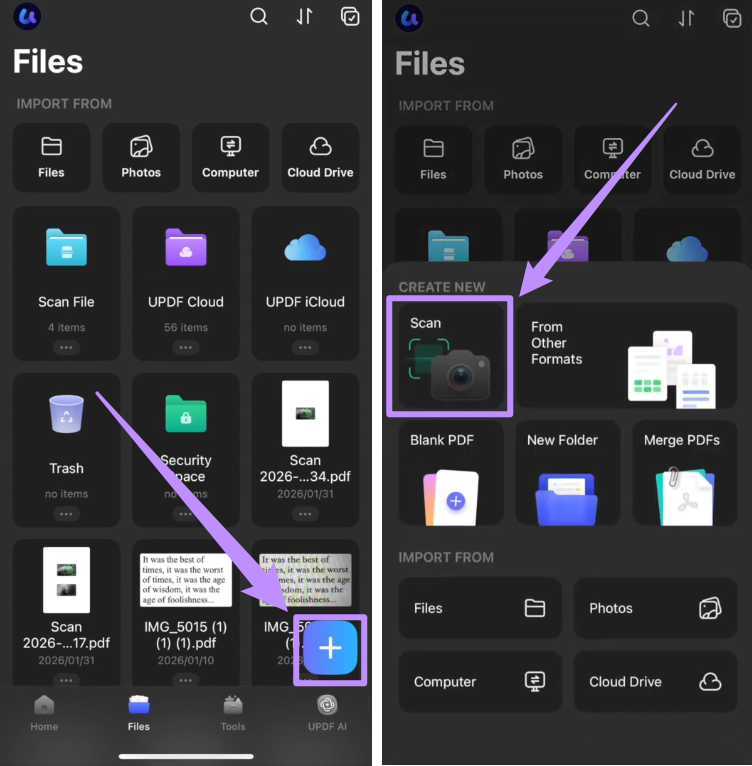
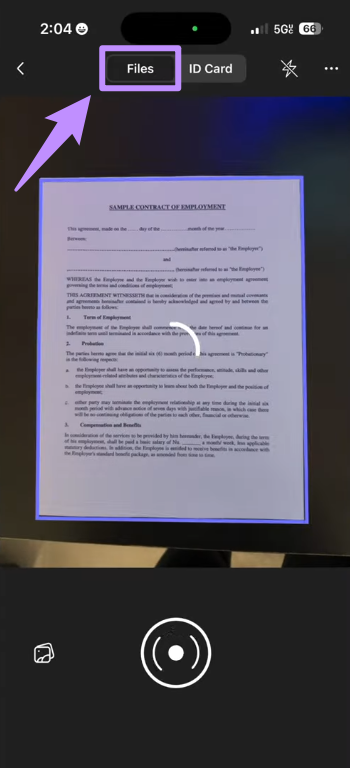
Step 2. Select the “Files” mode from the top and point your camera at the document you want to scan. Then tap the capture button to scan the image.
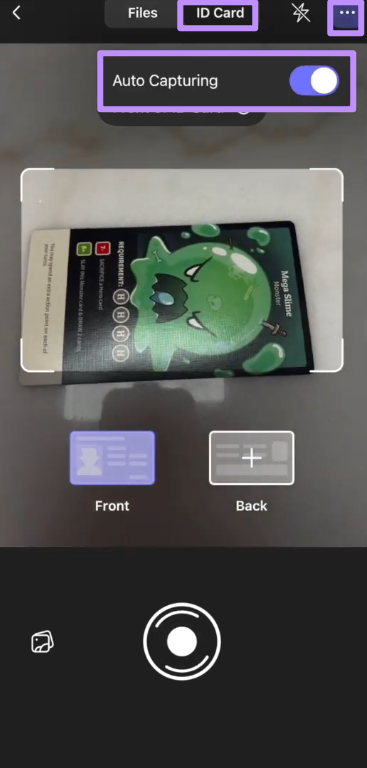
Step 3. To scan an identity document, select the “ID Card” mode from the top. Then tap the three-dot icon in the top right to enable auto-capturing.
Step 4. Now, point your camera at the card’s front and back, one by one. UPDF will capture both sides automatically.
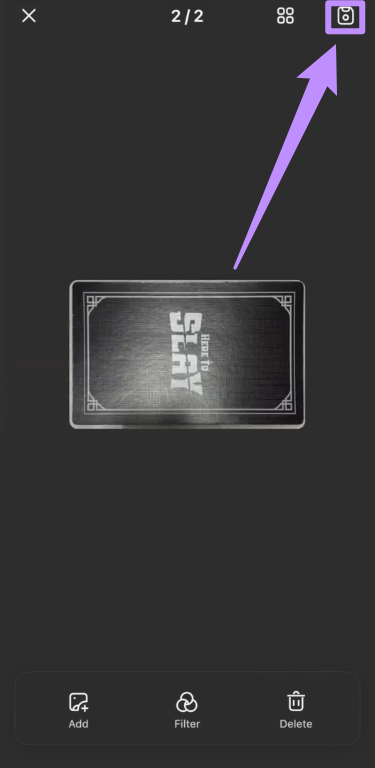
Step 5. Once you’re done scanning, you can use the options at the bottom to adjust the images if needed. Then, tap the “Save” icon in the top right.
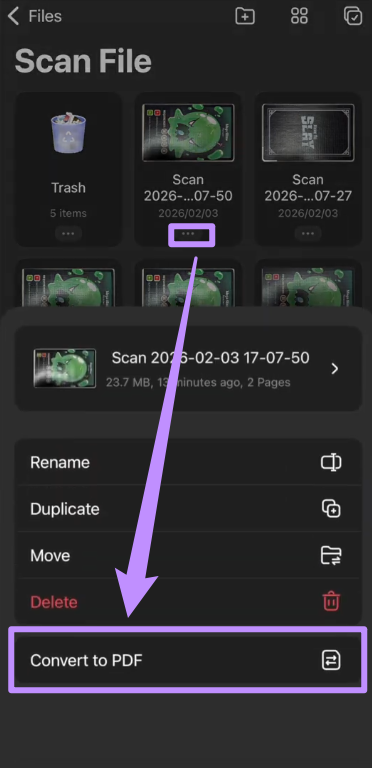
Step 6. From the Scan PDF interface, tap the three dots below the image and choose “Convert to PDF.” Then, choose a location to store the file.
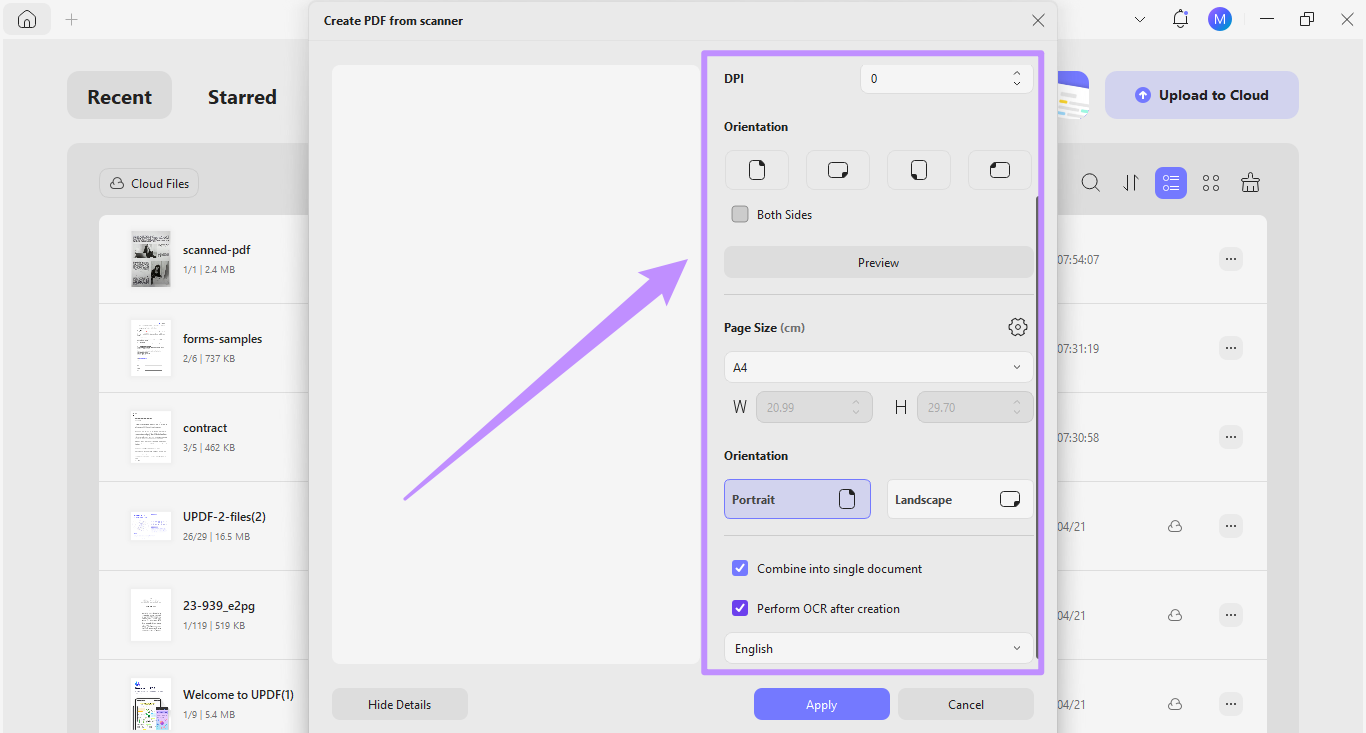
Tip: Apart from the mobile app, UPDF also offers a dedicated desktop scanner software. It allows you to adjust quality, size, and layout, preview results, and scan double-sided pages. You can also apply OCR directly, so your documents become searchable and editable right after scanning.
FAQs
Q1: Is the Google Drive scanning feature free?
Yes, the Google Drive scanning feature is completely free. It is available to anyone with a personal Google account, as well as Google Workspace subscribers, at no extra cost.
Q2: Do scanned documents take up storage space on Google Drive?
Yes, scanned documents do count toward your Google Drive storage. Google provides 15 GB of free storage shared across Drive, Gmail, and Google Photos. If you scan frequently, you may need to manage your storage or upgrade to a Google One plan for more space.
Q3: Is there any difference between the scanning features on iOS and Android?
Yes, there are some minor differences between Google Drive Scanner for Android and iOS. Both platforms support basic scanning, cropping, filtering, and multi-page documents. However, Android currently has more advanced features, including AI auto-enhancements and a redesigned interface. These have not been confirmed for the Google Drive Scanner for iPhone.
Q4: Are there any file size or page count limits for Google Drive scanning?
No. Google does not specify a strict page count or file size limit for scanned documents. The practical limit is your available storage space, as each scanned file counts toward your 15 GB free Google account storage.
Final Words
Google Drive Scanner is a reliable free tool to scan documents and save directly to its cloud. However, it does not offer dedicated scanning modes, text recognition, and advanced tools to edit and manage your scanned documents.
UPDF covers all of these features in one platform, across all your devices, and at a fraction of the cost of traditional PDF software. If you want a smarter, more complete scanning and document management experience, try UPDF today.
Windows • macOS • iOS • Android 100% secure





 Enya Moore
 Enola Miller
 Lizzy Lozano

 Enola Davis