 UPDF
UPDF
 UPDF for Windows
 UPDF for Mac
 UPDF for iPhone/iPad
 UPDF for Android
 Nomostar
 UPDF AI Online
 UPDF Sign
 IvyCraft
 Edit PDF
 Annotate PDF
 Create PDF
 PDF Form
 Edit links
 Convert PDF
 OCR
OCR PDF to Word
 PDF to Image
 PDF to Excel
 Organize PDF
 Merge PDF
 Split PDF
 Crop PDF
 Rotate PDF
 Protect PDF
 Sign PDF
 Redact PDF
 Sanitize PDF
 Remove Security
 Read PDF
 UPDF Cloud
 Compress PDF
 Print PDF
 Batch Process
 About UPDF AI
 UPDF AI Solutions
 AI User Guide
 FAQ about UPDF AI
 Summarize PDF
 Translate PDF
 Chat with PDF
 Chat with AI
 Chat with image
 PDF to Mind Map
 Explain PDF
 PDF AI Tools
 Image AI Tools
 AI Chat Tools
 AI Writing Tools
 AI Study Tools
 AI Working Tools
 Other AI Tools
 AI Bookmark Generation
 AI Bookmark Summary
 AI Watermark Generation
 AI Background Generation
 AI Sticker Generation
 AI Stamp Generation
 AI Editing Suite
 UPDF Copilot
 AI Page Management
 AI Semantic Search
 PDF to Word
 PDF to Excel
 PDF to PowerPoint
 Enterprise Solution
 Enterprise Sign
 Enterprise AI
 Enterprise Plan
 Enterprise User Guide
 Enterprise Webinar
 IT
IT Education
 Construction
 Financial Service
 Healthcare
 Insurance
 Legal
Legal Manufacturing
 Government
 Researchers & PhDs
 Solopreneurs & Freelancers
 Lawyers & Legal Professionals
 Real Estate Agents & Brokers
 Education Solution
 Customer Stories
 User Guide
 UPDF Tricks
 FAQs
FAQs UPDF Reviews
 Download Center
 Blog
Blog Newsroom
 Tech Spec
 Updates
 UPDF vs. Adobe Acrobat
 UPDF vs. Foxit
 UPDF vs. PDF Expert

When you search for how to convert a PDF from landscape to portrait, you have likely run into conflicting advice. Many guides recommend rotating pages, while others suggest adjusting print‑dialog paper orientation, and both are presented as correct solutions.
Example: If one landscape chart appears inside a portrait report, rotate that page first; only crop or resize it when the page dimensions themselves must become portrait. For a related workflow, see rotate only one PDF page.
This confusion stems from two distinct real‑world issues: pages simply rotated sideways and wide landscape‑formatted content that needs to fit onto portrait pages. Using the wrong approach creates messy output, such as sideways text or unchanged scanned documents.
This guide clarifies these two common scenarios. It covers online tools, desktop programs, and native Windows and Mac built‑in methods, helping you select the right fix for your specific PDF problem.
Important Pre‑Note
Windows • macOS • iOS • Android 100% secure
Part 1. Figure Out Your Situation First before Converting
Before you do anything, take 10 seconds to figure out one critical question: What's actually wrong with your PDF?
| What You See | The Real Problem | The Right Method | What Happens If You Pick Wrong |
|---|---|---|---|
| Everything on the page is rotated 90° — text is sideways, you have to tilt your head to read it | Page orientation is wrong — the page is landscape, but the content should be portrait | Rotate the page (using the Organize Pages tool, 90° rotation) | Reflow won't change anything — the page stays sideways |
| Text is upright and readable, but the page is landscape (wider than tall), and you need it portrait for printing or binding | Page shape is wrong — content is oriented correctly, but the page dimensions don't fit | Reflow the content (using Print dialog with Orientation: Portrait) | Rotate makes all the text sideways — now it's unreadable |
The simple rule:
- If your text is sideways → use Rotate the page, Part 2
- If your text is upright but the page shape is wrong → use Reflow the content, Part 3
Get this wrong, and your PDF will only get worse.
Part 2. How to Convert PDF from Landscape to Portrait Permanently
This approach works by modifying the page's rotation metadata — turning the entire page (text, images, and everything else) by 90° to organize PDF pages. It's for fixing pages that were scanned or exported sideways.
Why "Rotate View" Doesn't Stick
Many users have experienced this: you click "Rotate View" in Adobe Reader, the page looks correct, you save it, and when you reopen it, it's back to landscape. That's because "Rotate View" only changes how the page appears on your screen — it doesn't modify the file itself. You need a tool that actually modifies the page's rotation metadata — not just a temporary view change.
Section 1: Convert PDF from Landscape to Portrait Online Free
Web‑based PDF tools offer quick, no‑installation fixes for PDF orientation tasks. We weigh their strengths, limitations, and key trade‑offs for your landscape‑to‑portrait workflow.
How they work: The process is essentially the same across all these tools — upload your PDF, select the pages you want to rotate (or choose "all pages"), click the rotate button (clockwise or counterclockwise) until the pages are upright, then download the rotated file.
The key is choosing the right tool for your situation:
- Adobe Acrobat Online — best if you already use Adobe products and don't mind creating an account
- iLovePDF — best if you want visual thumbnails and an intuitive interface
- Smallpdf — best if you want a clean, modern dashboard with multiple tools
- Online2PDF — best if you need to change page format along with rotation
- Sejda — best if you need reliable, straightforward rotation
- PDF24 — best if you want completely free, unlimited use with no account
If you're rotating a single small file once in a while, any of these tools will work. If you need to rotate multiple files, work with documents over 50MB, or need to do this regularly, the daily/hourly caps on most free tools will quickly become frustrating — and you'll either wait hours or need to upgrade to a paid plan. Then professional desktop software is a better choice; let's check next.
Section 2: Convert PDF from Landscape to Portrait Securely
Offline desktop PDF apps deliver stable processing for orientation conversion to organize PDF pages. This section evaluates their performance, pricing, and suitability for different PDF‑editing demands.
| Tool | Platform | Rotation Method | Price | Best For |
|---|---|---|---|---|
| UPDF | Win/Mac/iOS/Android | Organize Pages → Rotate, plus AI Page Management | $49.99 for annual plan, $79.99 for lifetime license (free trial) | Users who need cross-platform access + AI-powered page detection |
| Adobe Acrobat Pro | Win/Mac | Organize Pages → Rotate | Subscription, ~$240 per year | Enterprise users who already have Acrobat |
| Foxit PDF Editor | Win/Mac | Organize Pages → Rotate | Paid, starts from $130 per year | Windows users who want a familiar interface like Word |
| PDFgear | Win/Mac | Page rotation | Free | Users who want a completely free desktop option |
UPDF stands out in this category for two reasons:
First, the standard rotation workflow:
- Open your PDF in UPDF
- Click the Organize Pages icon in the top‑left corner
- Select the landscape page(s) you want to rotate (hold Ctrl/Cmd to select multiple)
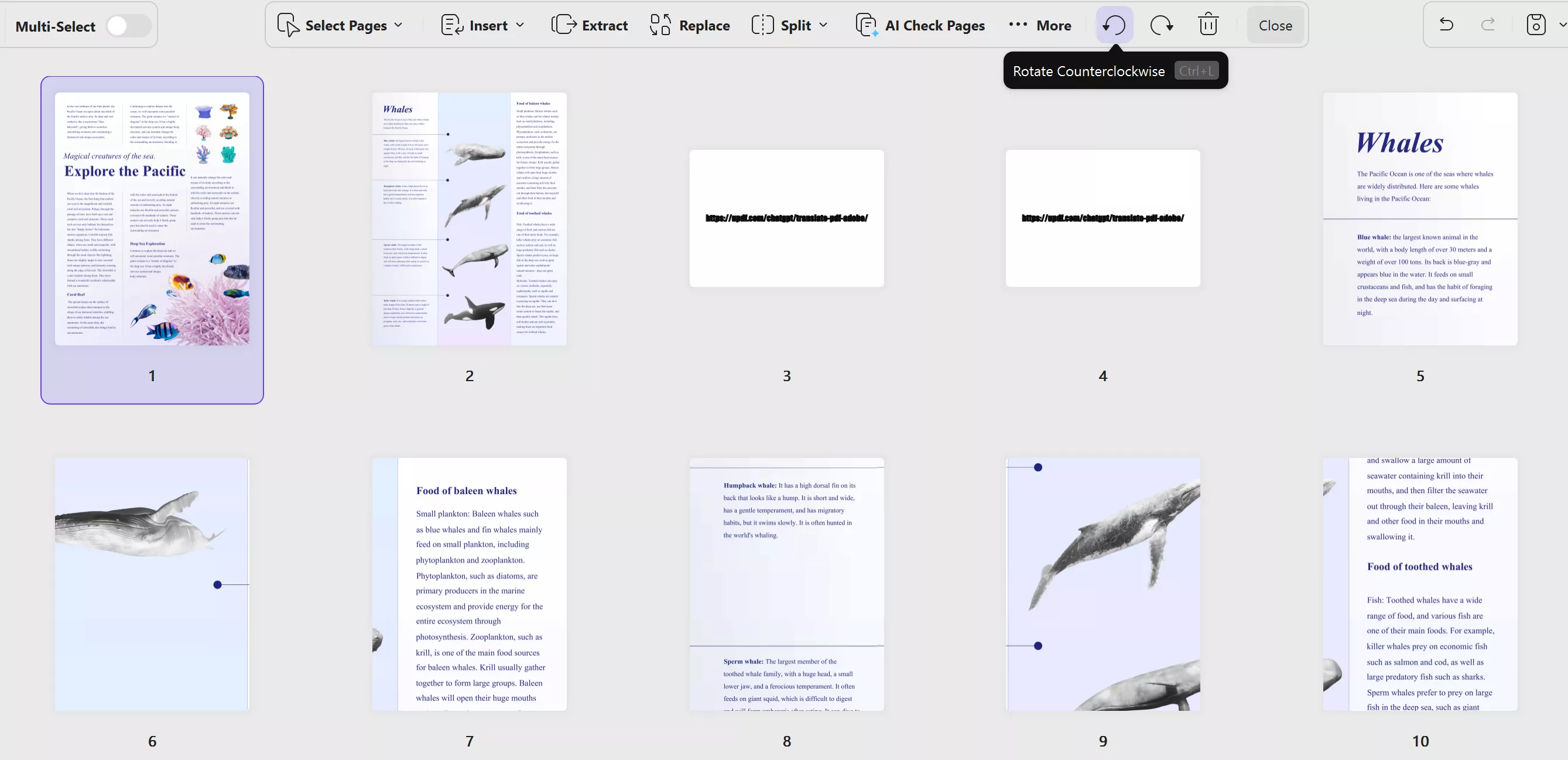
- Click Rotate Clockwise or Rotate Counterclockwise — each click turns the selection 90°
- Save the PDF — the corrected orientation stays
Second, the AI Page Management Agent — a feature no other tool in this category offers.
UPDF is the only PDF tool with a built‑in AI Agent that autonomously analyzes document structure, flags issues, and lets you fix them in one click. When you're dealing with mixed‑orientation documents — especially scanned PDFs where you're not sure which pages are actually sideways — this feature is a game‑changer.
How AI Page Management works:
- Open your PDF in UPDF and enter page management mode
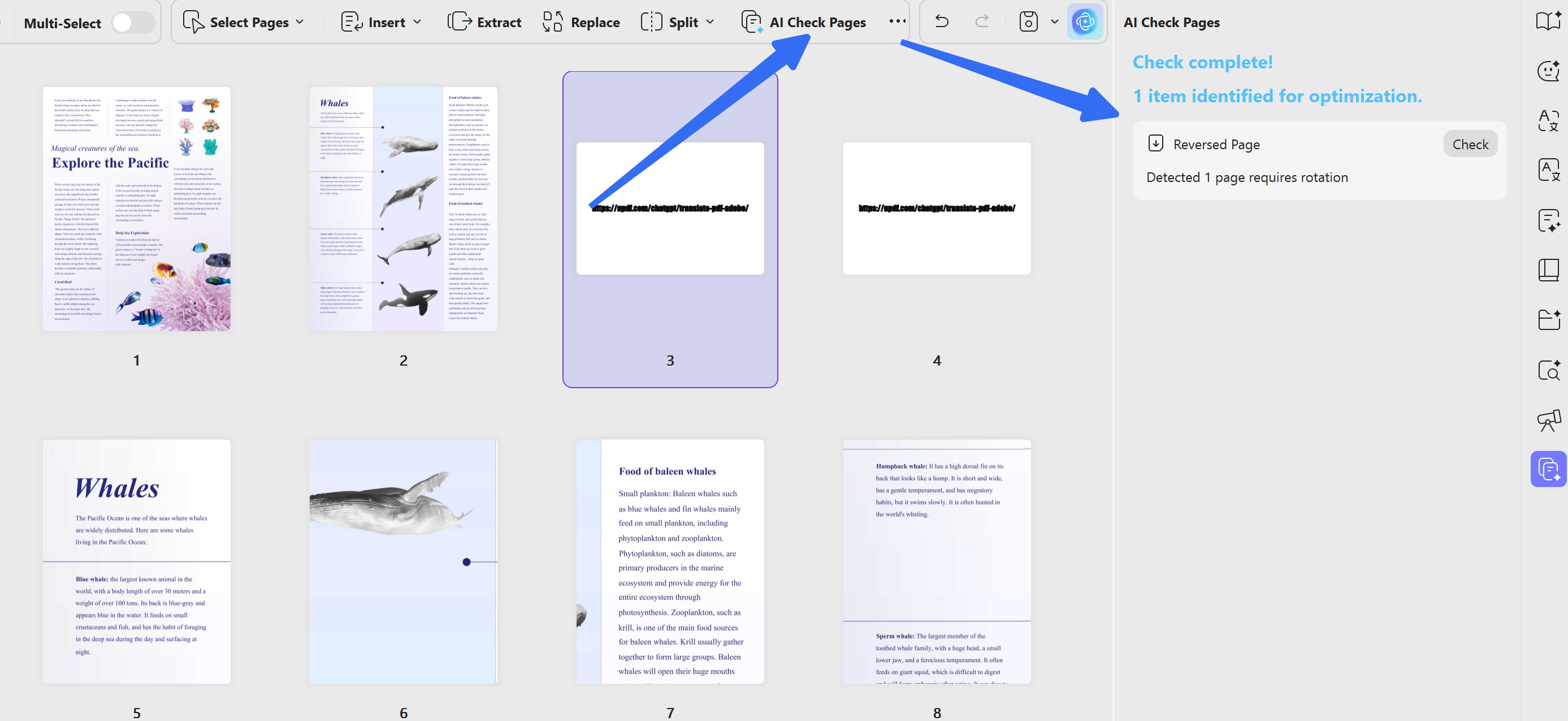
- Click “AI Check Pages” to let the AI Agent analyze your document
- The AI automatically scans your document and highlights pages that need to be optimized
- It identifies: blank pages, reversed pages, inconsistent page sizes, OCR issues, pages with comments, and formatting problems
- All issues are compiled into a clear list for quick review and one‑click fixes
- For scanned documents, the AI detects non‑searchable pages and prompts OCR
For users who frequently work with scanned documents or mixed‑orientation PDFs, this AI‑powered detection saves hours of manual page‑by‑page checking.
Beyond rotation: UPDF also handles reflow (without changing text direction)
One advantage UPDF has over online tools is flexibility — the same tool that rotates pages can also handle the second type of landscape-to-portrait conversion: reflowing content onto a portrait page without making the text sideways.
- Open your PDF on UPDF like the steps above
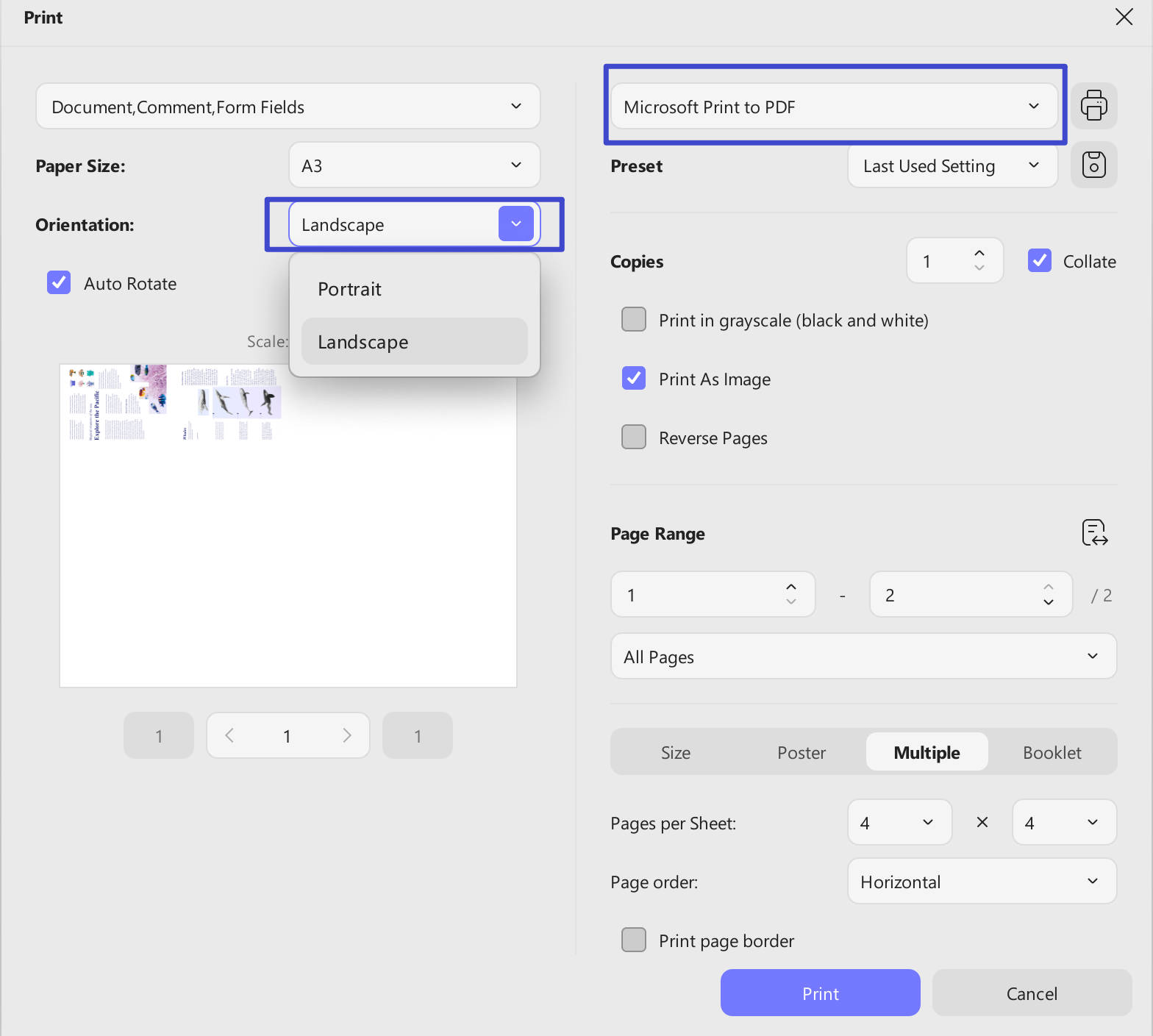
- Go to File > Print
- Set Orientation to Portrait
- Choose a Printer; the default printer for Windows is Microsoft Print to PDF, or you can choose "Save as PDF" on Mac
- Save a new PDF where the content is reflowed onto portrait pages — text stays upright, page shape changes
UPDF goes a step further: it supports batch printing, so you can apply this reflow conversion to multiple PDFs at once. For users who need to convert a folder of landscape PDFs to portrait without manually opening each one, this saves significant time.
Sometimes you need to convert multiple PDF documents from landscape orientation to portrait. UPDF has this batch converting feature that you can use. The best part is that it is completely free to use. You can check how to use it with the guide below:
Step 1: Run the UPDF application with its desktop icon on your Windows computer and click “Tools”. Now, select “Print” and in the batch printing interface click “Add Files” to select your landscape PDF documents.
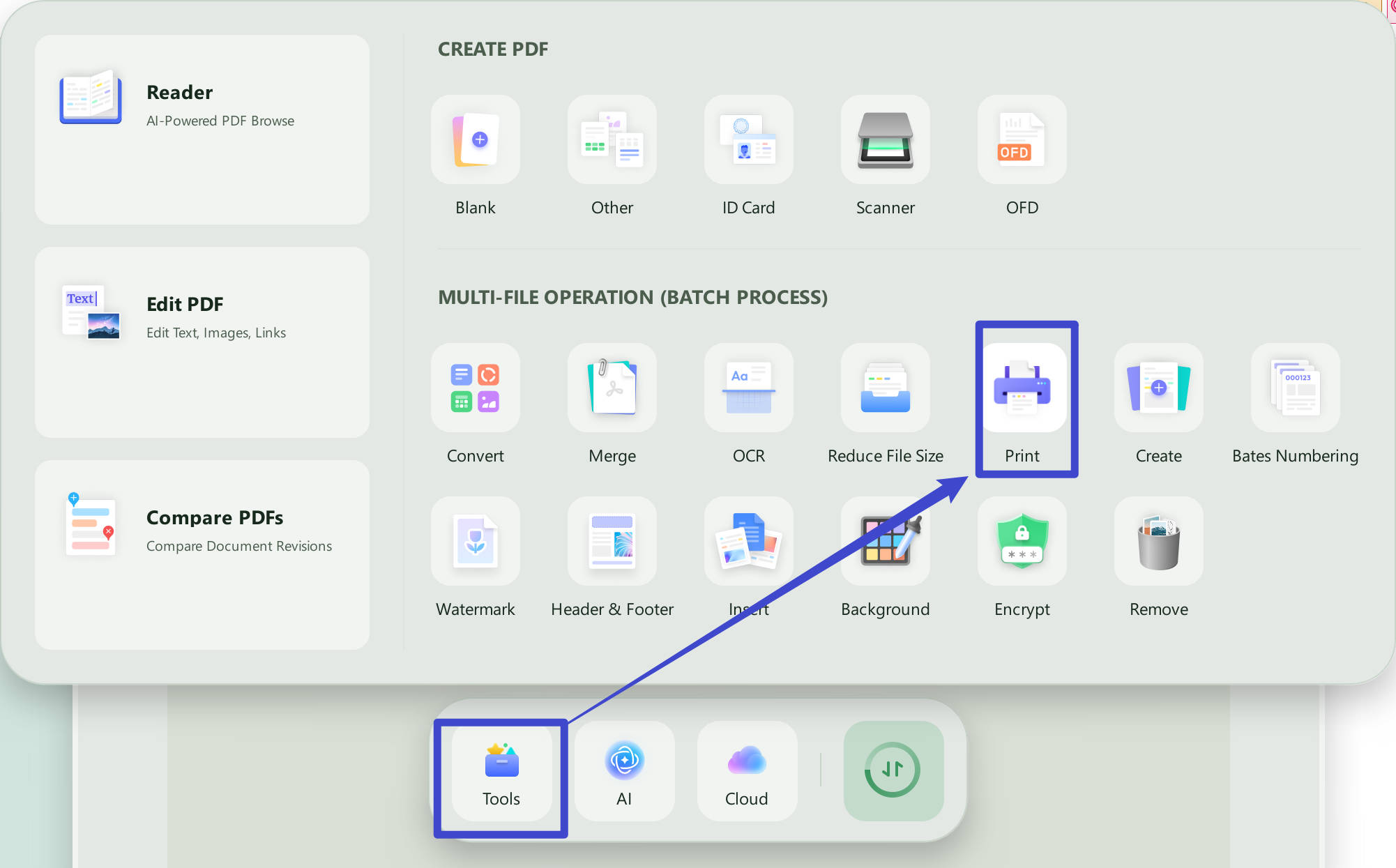
Step 2: Select your printer as “Microsoft Print to PDF” rather than any actual printer. For the “Orientation” option select “Portrait” and click “Apply”. Now, select a location on your local storage to save the portrait PDFs and click "Save”.
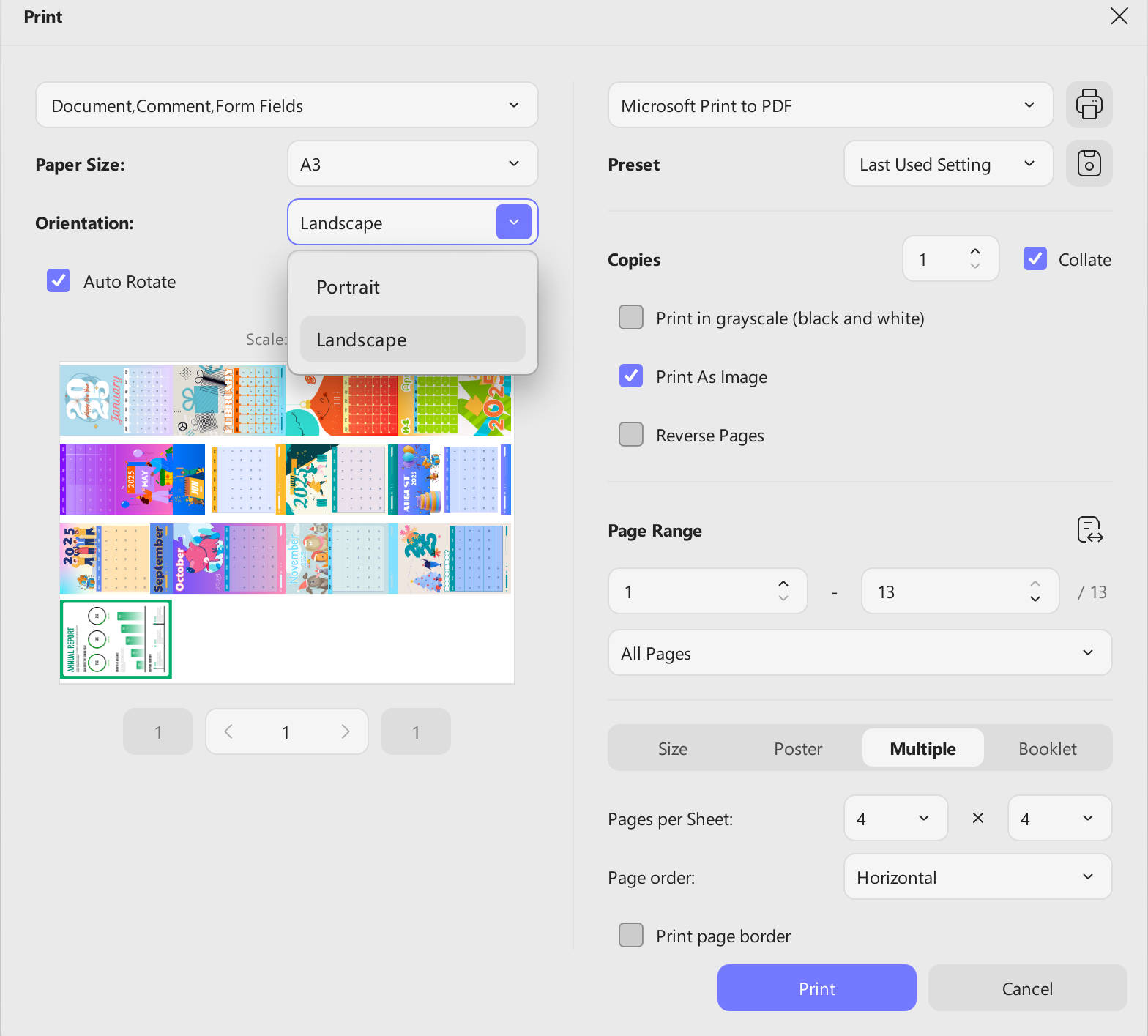
Note: This feature is currently available on Windows PCs only and not on the macOS version of the UPDF app.
Windows • macOS • iOS • Android 100% secure
Section 3: Convert PDF from Landscape to Portrait with Built-in Options
Native Windows and Mac functions let you adjust PDF orientation without third‑party software. Review their practical capabilities and notable functional restrictions here.
| Tool | Platform | How It Works | Best For |
|---|---|---|---|
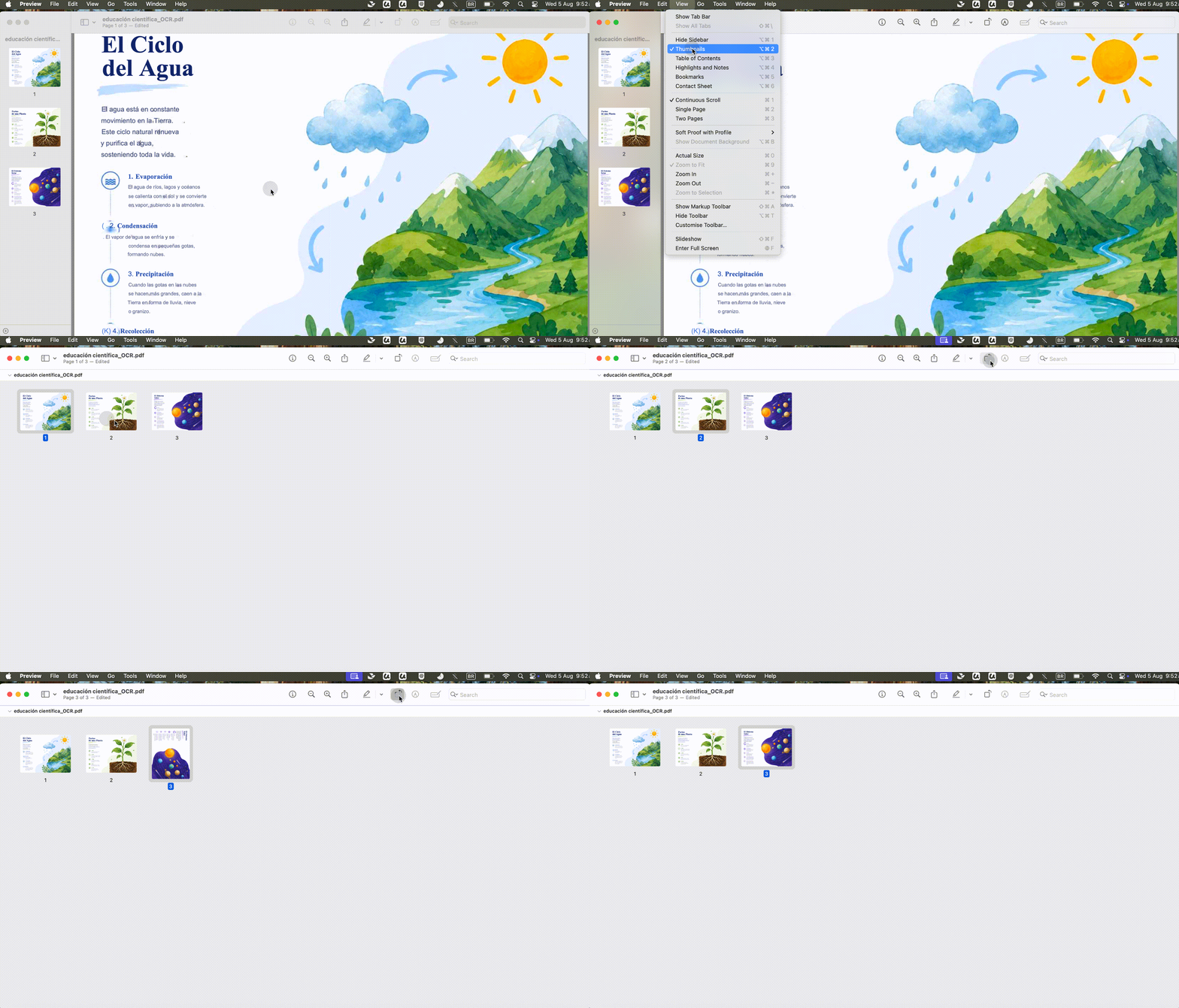
| Mac Preview | Mac | Open PDF → View > Thumbnails → select pages → click Rotate button | Mac users who need a quick, free rotation of a few pages |
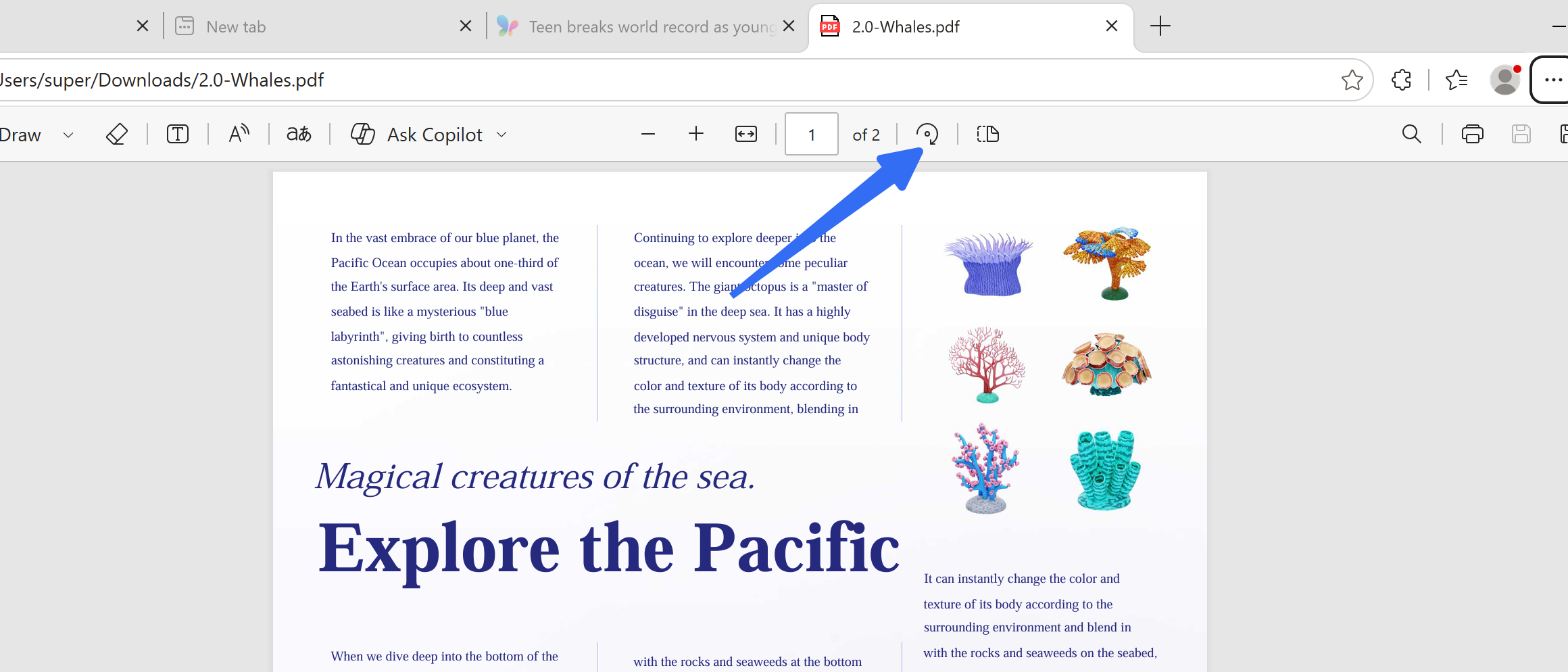
| Microsoft Edge | Windows | Right‑click PDF → Open with → Microsoft Edge → toolbar rotation controls | Windows users who need a quick, free rotation |
Important: Both Preview (Mac) and Edge (Windows) can permanently rotate pages if you use the right method.
Mac Preview — Already on every Mac. Open your PDF, choose View > Thumbnails or View > Contact Sheet, select the pages you want to rotate, and click the Rotate button. Each click rotates 90°. Then go to File > Export as PDF (not just Save — Export writes the rotation to the file permanently). This is the most reliable free built‑in option on Mac.
Check the whole document so one rotated page does not interrupt the reading flow. For a visual introduction to the tools, see the video on converting PDFs in UPDF below.
Microsoft Edge — Already on every Windows machine. Right‑click the PDF, select “Open with” → Microsoft Edge, and use the rotation controls in the toolbar. However, Edge's rotation is display‑only — it flips the page on screen but doesn't save the rotation when you save the file. To make it permanent, you'll need to use the Print to PDF method described in Part 3, or use a dedicated tool like UPDF.
Part 3. How to Convert PDF from Landscape to Portrait without Rotating Texts
If your text is upright but the page is landscape (wider than tall), you need to reflow the content — fit it onto a portrait page without rotating the text sideways.
This method doesn't require a physical printer — you're using the print function to “re‑generate” a PDF with the correct orientation.
Windows (Microsoft Print to PDF) :
- Open your PDF in any PDF viewer (Edge, Chrome, Adobe Reader, etc.)
- Go to File > Print (or press Ctrl+P)
- In the printer list, select Microsoft Print to PDF
- In the Orientation settings, select Portrait
- If you see an “Auto‑Rotate” option, uncheck it
- Click Print and save the new PDF
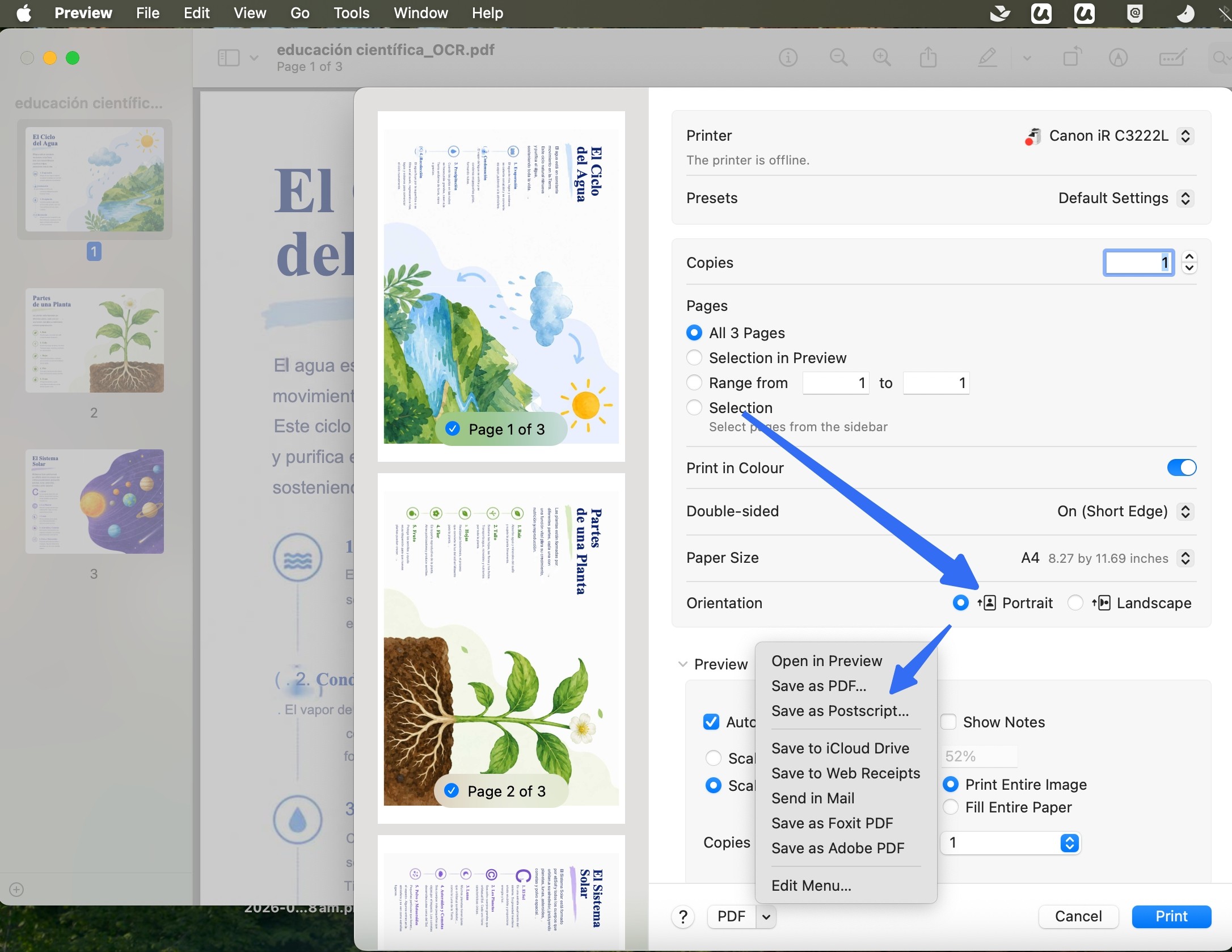
Mac (Preview) :
- Open your PDF in Preview
- Press Command+P to open the print dialog
- Click “Show Details” to expand the settings
- In Orientation, select Portrait
- Click the “PDF” button in the bottom‑left corner
- Select “Save as PDF”
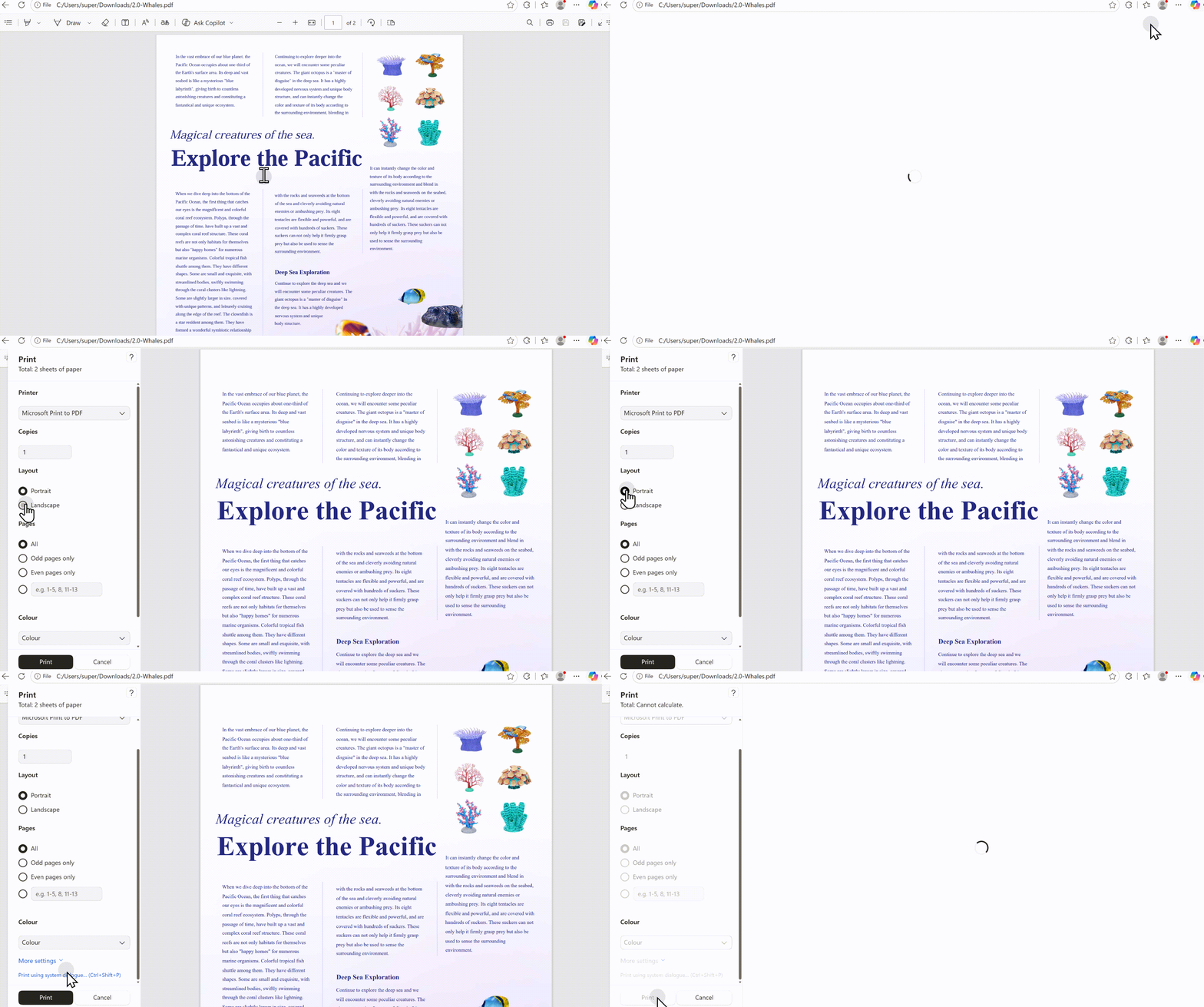
UPDF also supports this method — open your PDF, go to File > Print, set Orientation to Portrait, and choose “Save as PDF.” This gives you the same reflow capability within a single, unified tool.
Windows • macOS • iOS • Android 100% secure
Common Issues and Fixes
| Issue | Cause | Fix |
|---|---|---|
| Content becomes very small | Landscape content compressed into a portrait page | Check “Scale to Fit” or “Shrink to Fit” settings |
| Content gets cut off | Content is too wide for the portrait page | Adjust scaling, or accept that content will be smaller |
| Printer auto‑rotates | Print driver automatically detects orientation | Uncheck “Auto‑Rotate and Center” |
| Content misaligns after rotation | Print driver incompatibility with PDF renderer | Try a different PDF viewer (e.g., switch from Edge to Chrome) |
FAQ
Is rotating a PDF the same as converting it to portrait?
No. Rotation changes viewing orientation, while converting page dimensions may require resizing, cropping, or reflowing the content.
Why is PDF content cut off after changing to portrait?
The new page box may be smaller than the original content. Scale the page proportionally or increase the margins before saving.
Can I change only selected PDF pages to portrait?
Yes. Use a page organizer that supports page selection, then verify mixed page sizes and orientation in the saved file.
Final Words
Before you do anything, ask yourself — “Is the text sideways, or is the page just the wrong shape?” Your answer determines your method. Get it right, and you'll have properly oriented pages every time.
Ready to fix your PDF orientation? Try UPDF's free trial — experience the AI Page Management Agent that automatically detects and fixes page issues, plus full rotation and reflow capabilities, all in one cross‑platform tool. No credit card required to start.
Windows • macOS • iOS • Android 100% secure




 Lizzy Lozano
 Enya Moore
