UPDF
UPDF
 UPDF for Windows
 UPDF for Mac
 UPDF for iPhone/iPad
 UPDF for Android
 Nomostar
 UPDF AI Online
 UPDF Sign
 IvyCraft
 Edit PDF
 Annotate PDF
 Create PDF
 PDF Form
 Edit links
 Convert PDF
 OCR
OCR PDF to Word
 PDF to Image
 PDF to Excel
 Organize PDF
 Merge PDF
 Split PDF
 Crop PDF
 Rotate PDF
 Protect PDF
 Sign PDF
 Redact PDF
 Sanitize PDF
 Remove Security
 Read PDF
 UPDF Cloud
 Compress PDF
 Print PDF
 Batch Process
 About UPDF AI
 UPDF AI Solutions
 AI User Guide
 FAQ about UPDF AI
 Summarize PDF
 Translate PDF
 Chat with PDF
 Chat with AI
 Chat with image
 PDF to Mind Map
 Explain PDF
 PDF AI Tools
 Image AI Tools
 AI Chat Tools
 AI Writing Tools
 AI Study Tools
 AI Working Tools
 Other AI Tools
 AI Bookmark Generation
 AI Bookmark Summary
 AI Watermark Generation
 AI Background Generation
 AI Sticker Generation
 AI Stamp Generation
 AI Editing Suite
 UPDF Copilot
 AI Page Management
 AI Semantic Search
 PDF to Word
 PDF to Excel
 PDF to PowerPoint
 Enterprise Solution
 Enterprise Sign
 Enterprise AI
 Enterprise Plan
 Enterprise User Guide
 Enterprise Webinar
 IT
IT Education
 Construction
 Financial Service
 Healthcare
 Insurance
 Legal
Legal Manufacturing
 Government
 Researchers & PhDs
 Solopreneurs & Freelancers
 Lawyers & Legal Professionals
 Real Estate Agents & Brokers
 Education Solution
 Customer Stories
 User Guide
 UPDF Tricks
 FAQs
FAQs UPDF Reviews
 Download Center
 Blog
Blog Newsroom
 Tech Spec
 Updates
 UPDF vs. Adobe Acrobat
 UPDF vs. Foxit
 UPDF vs. PDF Expert

View PDF with UPDF
- 1. Page Display Modes
- 2. View Multiple PDFs
- 3. Navigating a PDF
- 4. PDF Slide Show
- 5. View PDF in Dark or Light Mode
- 6. Search Text When Reading PDF
1. Page Display Modes
UPDF offers a suite of Page Display modes for viewing your PDFs.
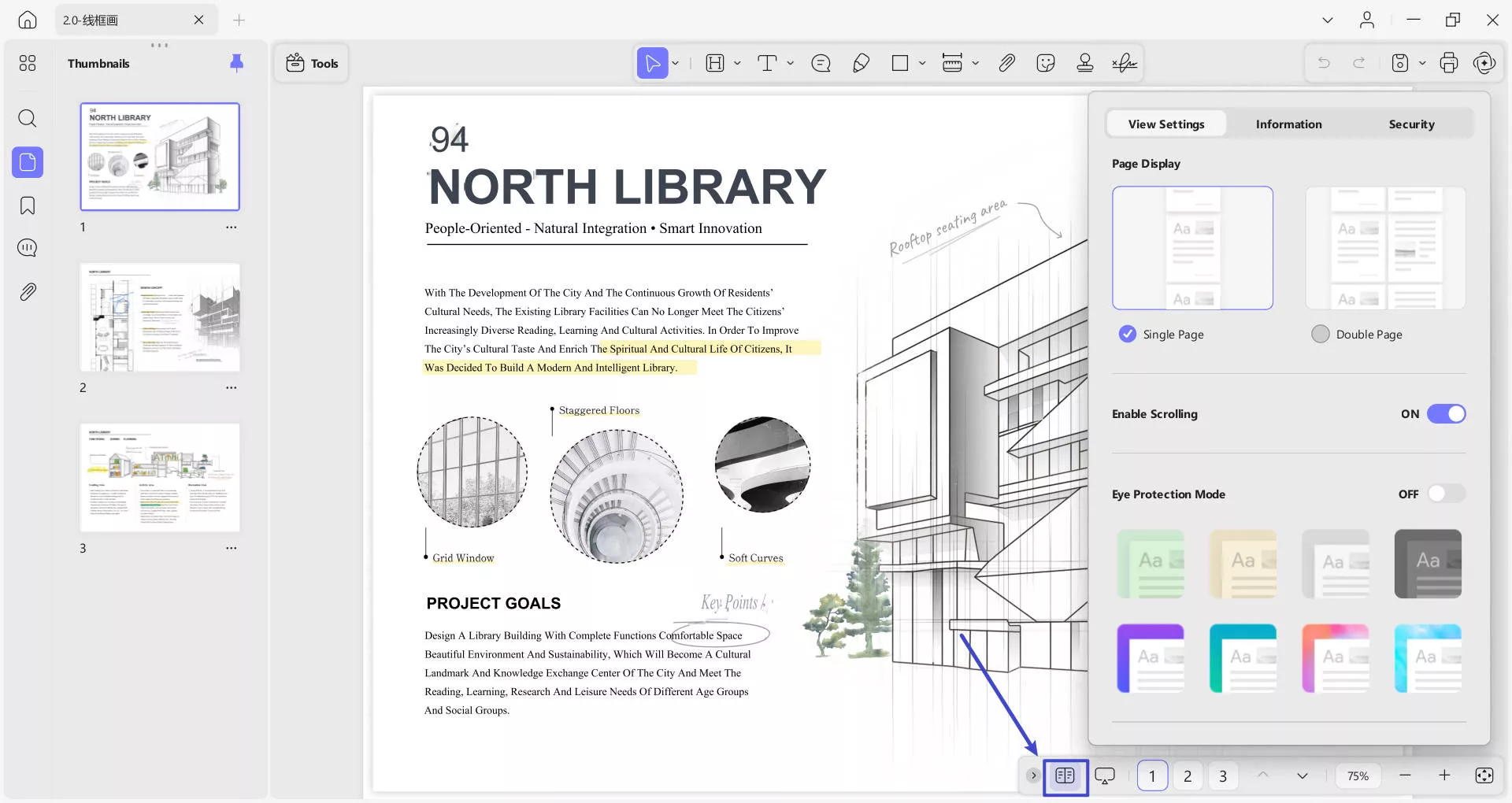
To alter the Page Display mode, navigate to the bar at the bottom and press the View Settings option. After this, choose from the following provided options:
- Page Display: It gives 2 options, namely, Single Page (you can view a single page at a time) and Double Page (provides side-by-side views).
- Enable Scrolling: You can scroll through your PDF smoothly when turned on.
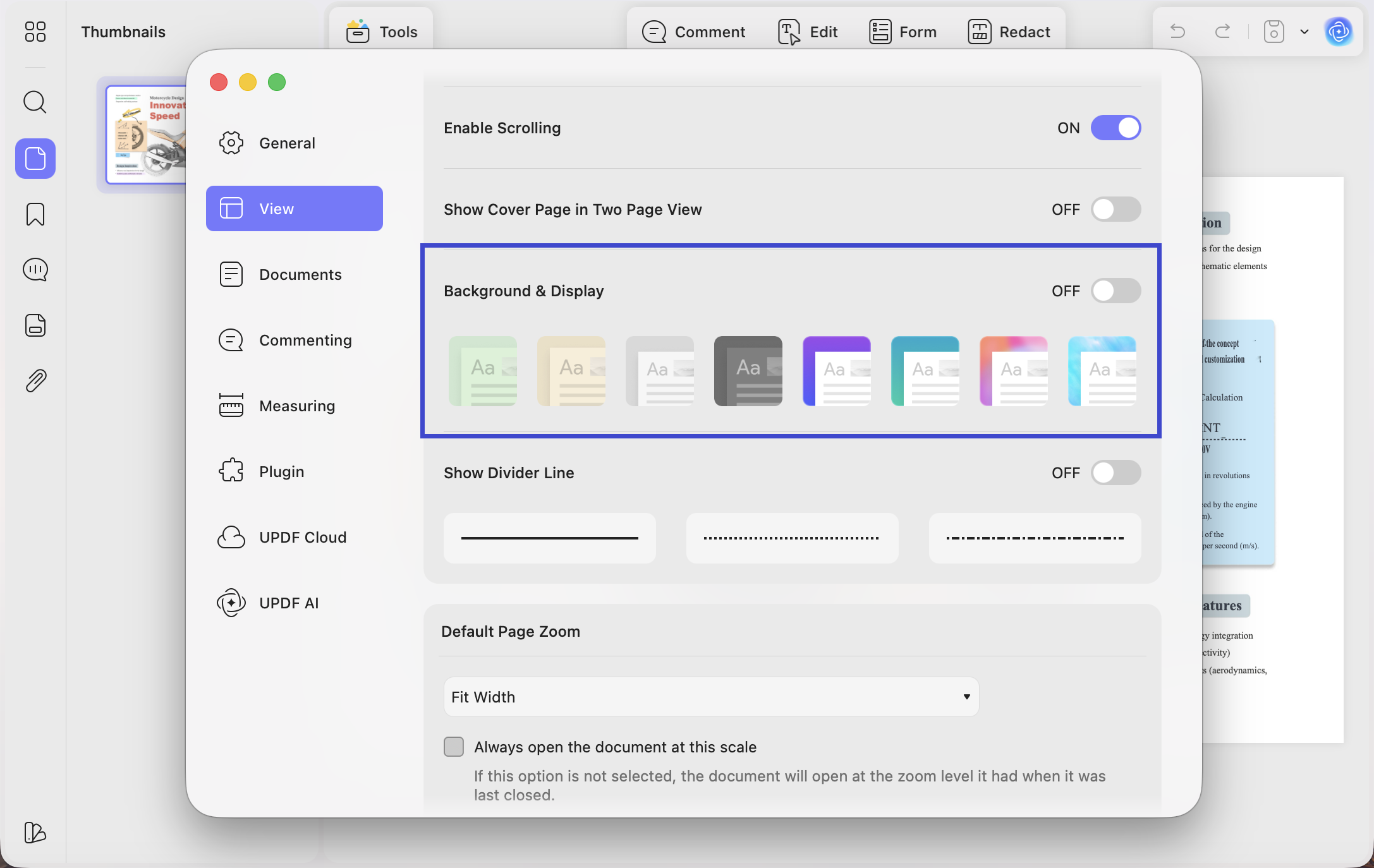
- Eye Protection Mode: With this option switched on, you can choose various themes to improve your readability.
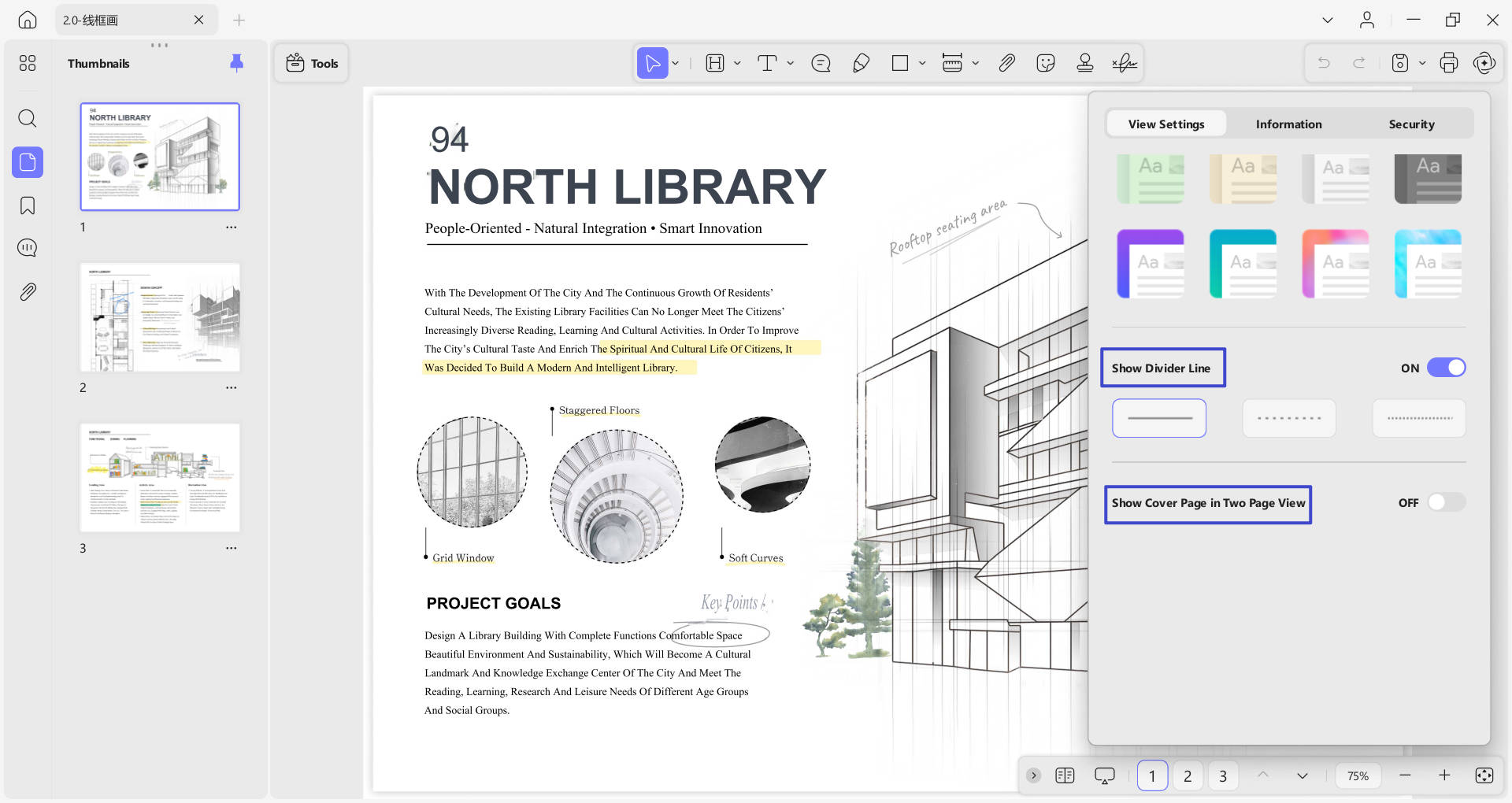
- Show Divider Line: Divider lines separate PDF pages from your chosen line.
- Show Cover Page in Two-Page View: This option allows you to view the cover page in two-page view.
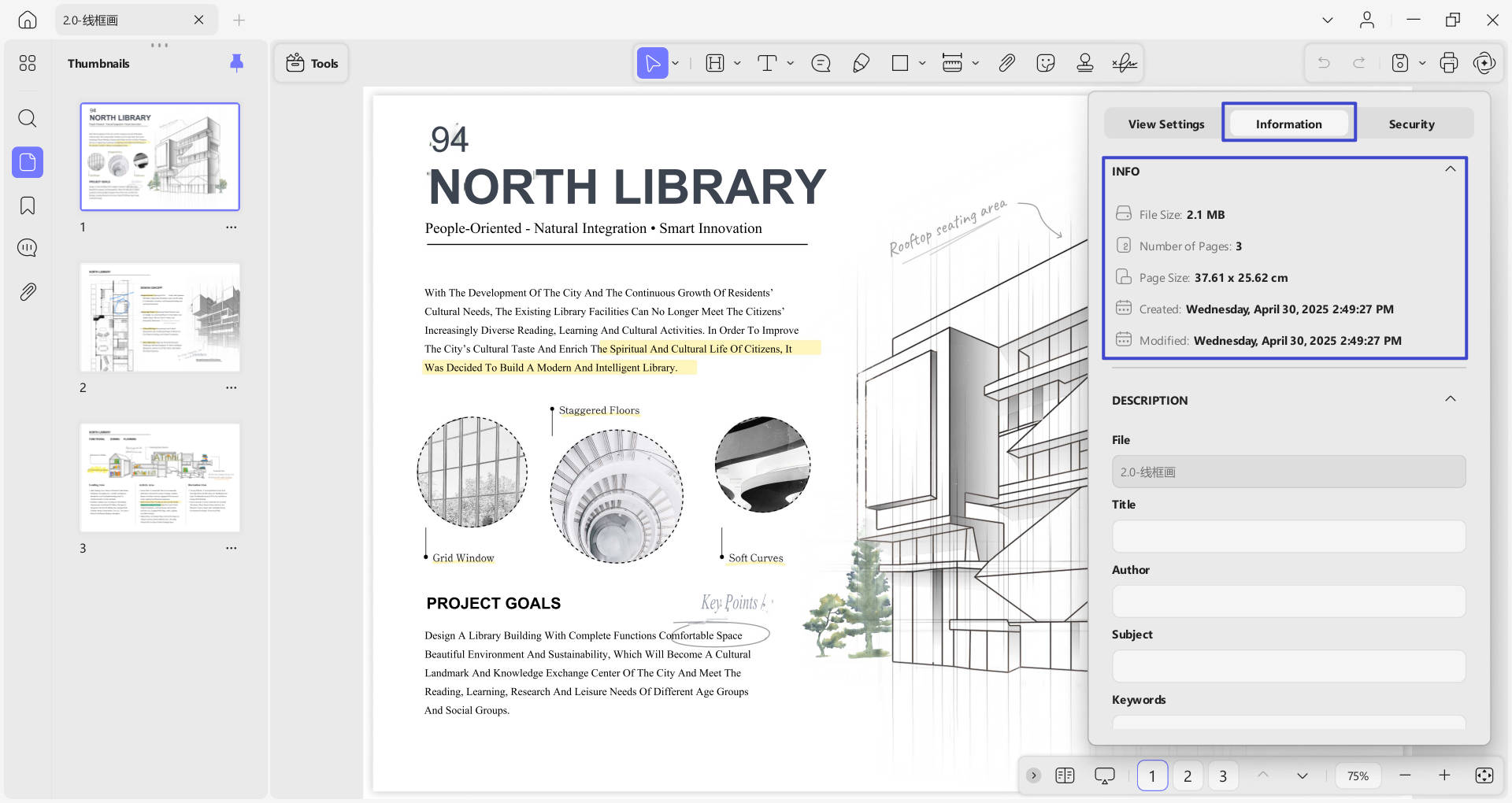
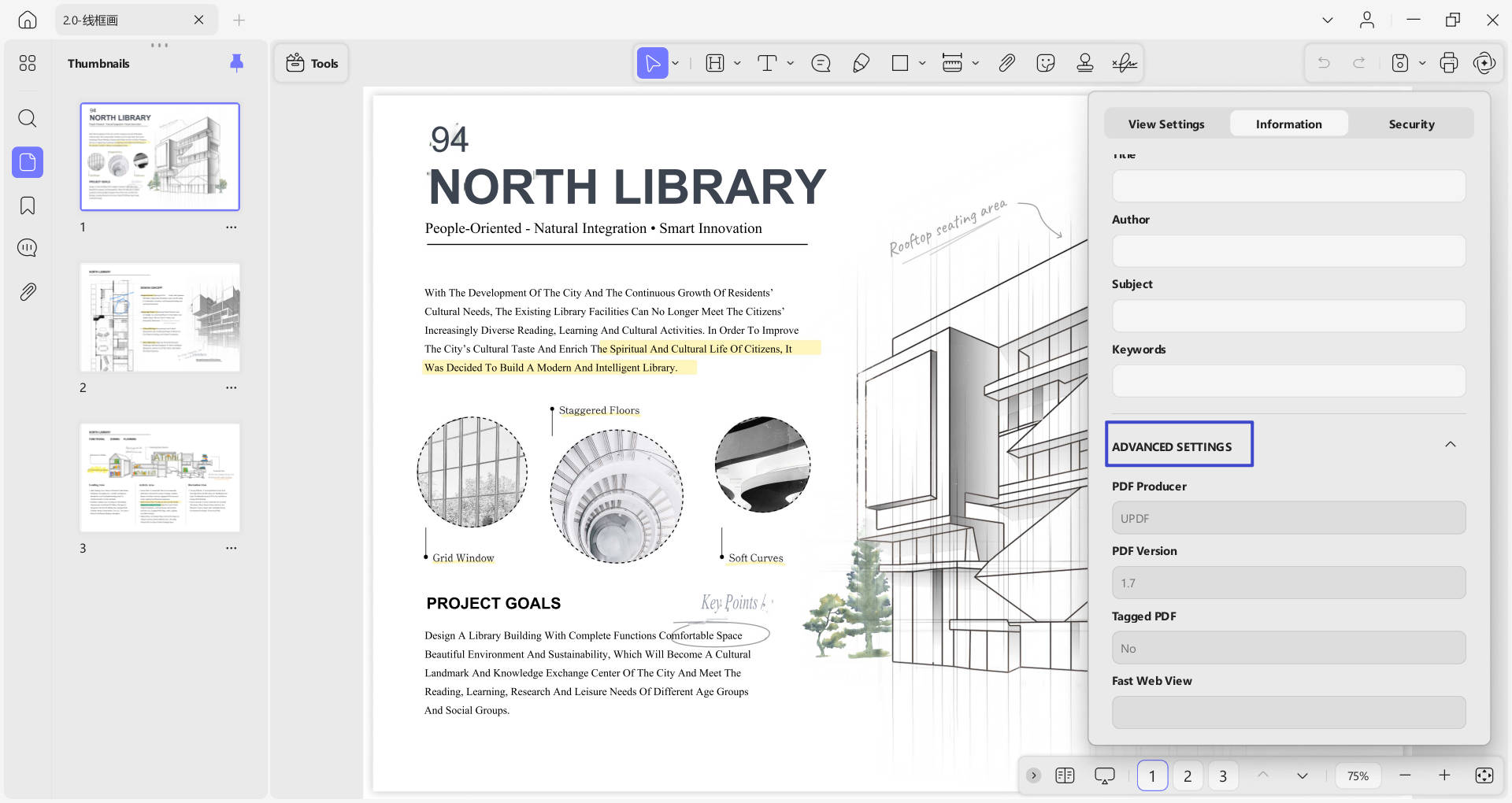
- Besides View Settings, you’ll notice the Information section where you can enter information regarding your PDF.
- The first part is Info, which contains details about File Size, Number of Pages, Page Size, Created, and Modified information.
- Under Info, there is a Description part, where you can add File name, Title, Author, Subject, and Keywords.
- Just below Description, you’ll see Advanced Settings, which require PDF Producer, PDF Version, Tagged PDF, and Fast Web View.
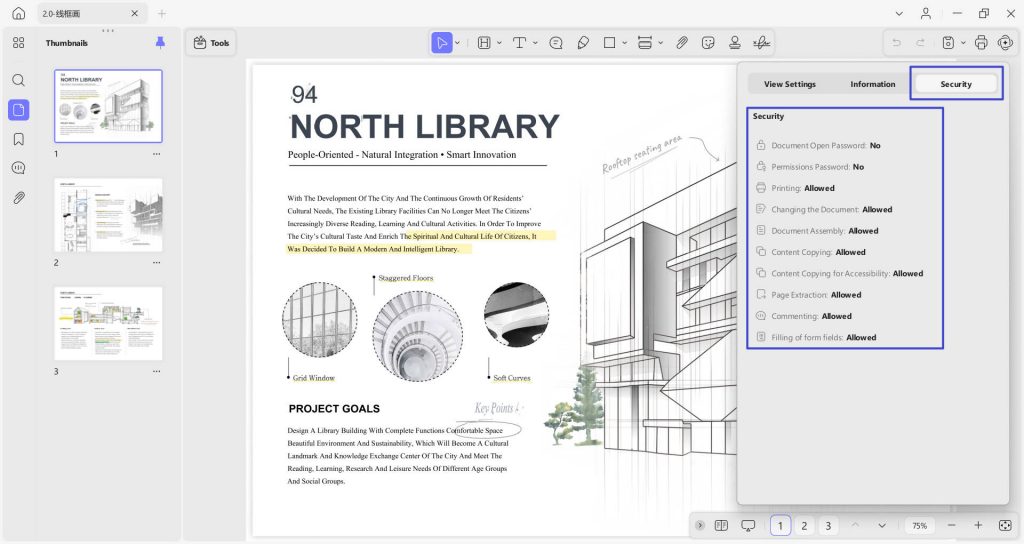
- Next to Information, we have the Security section that reveals the security aspects of the PDF, shown in the following screenshot.
2. View Multiple PDFs
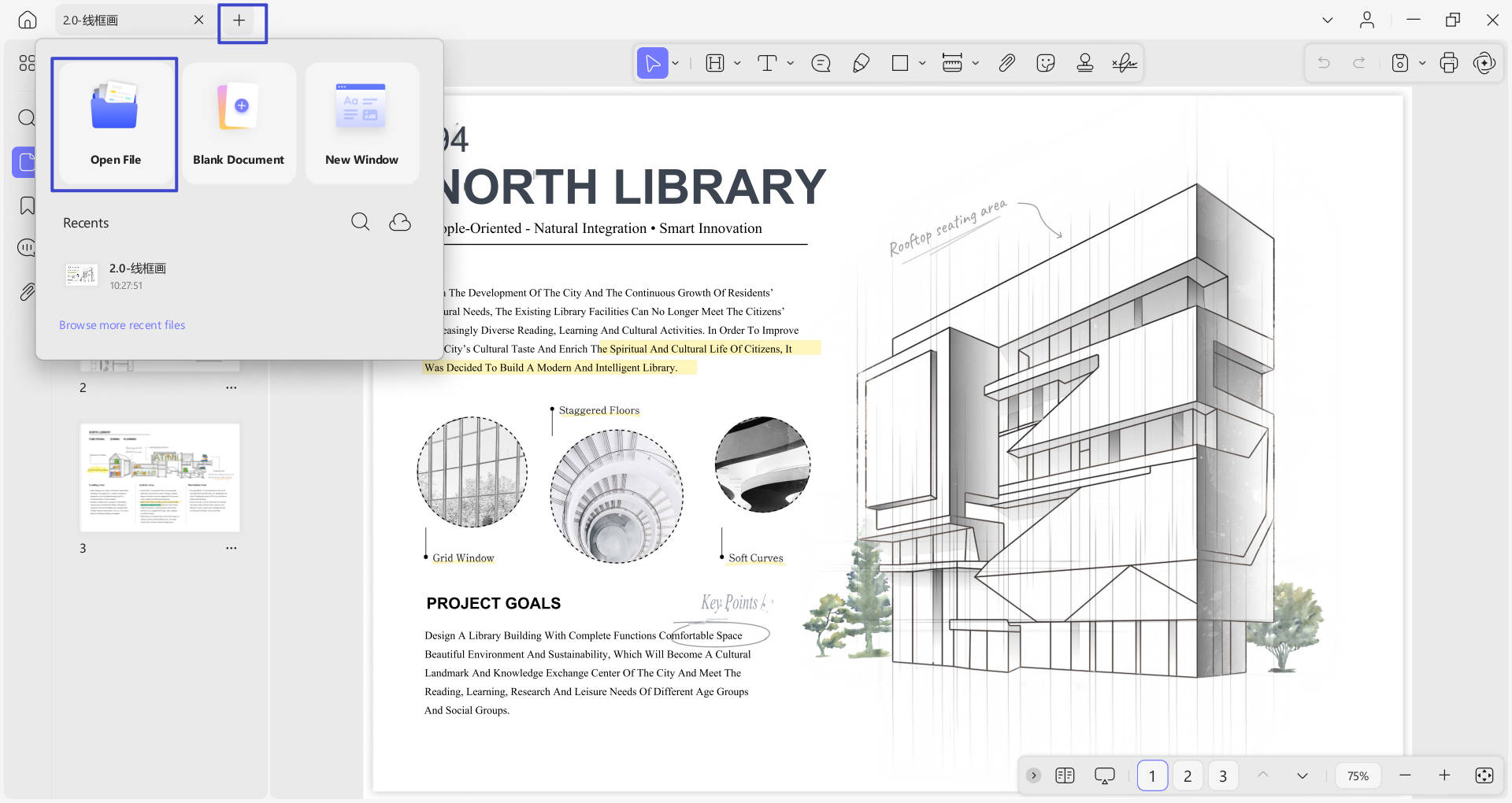
This new version, UPDF , lets you open and view multiple PDF files simultaneously. To learn how to do it, follow the given step-by-step guide:
- To access more PDFs, head to the “+” icon on the top toolbar. Select “Open File” to select the file you want to open on your device and click “Open”, then you can access another PDF in a new tab and view it accordingly.
3. Navigating a PDF
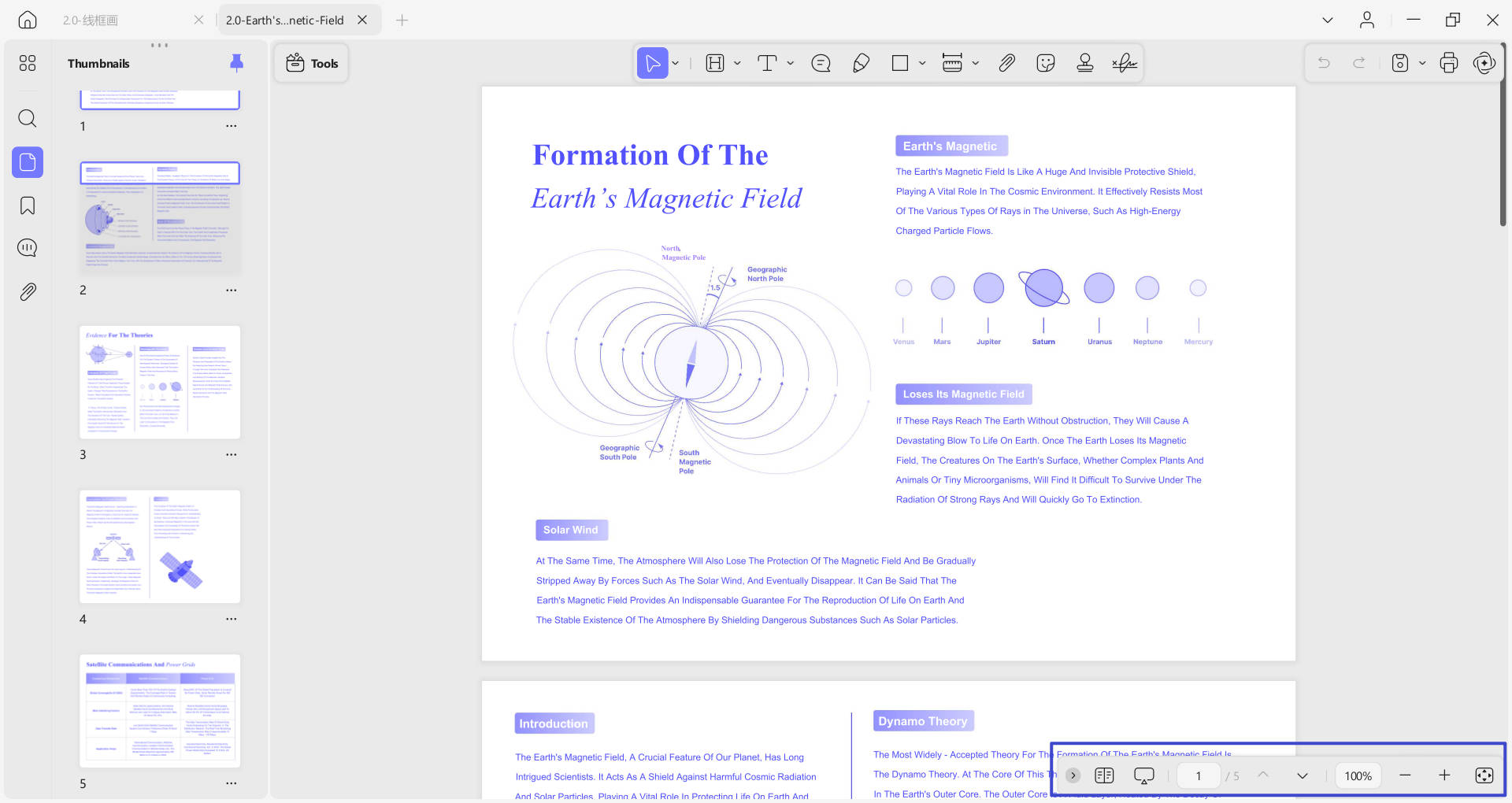
As soon as you open a PDF on UPDF , you'll see a navigation bar at the bottom of the PDF. To know what features it offers, explore the list provided below:
- Go to the Next Page and Previous Page icons.
- Page view settings options.
- Slide show option for presentations.
- Page Setup icon: Provides options like Page Fit, Fit Height, Fit Width, and Actual Size.
4. Slide Show PDF
For an improved page viewing experience, you can present the PDF file in a slide show mode. For this, read the given stepwise tutorial thoroughly:
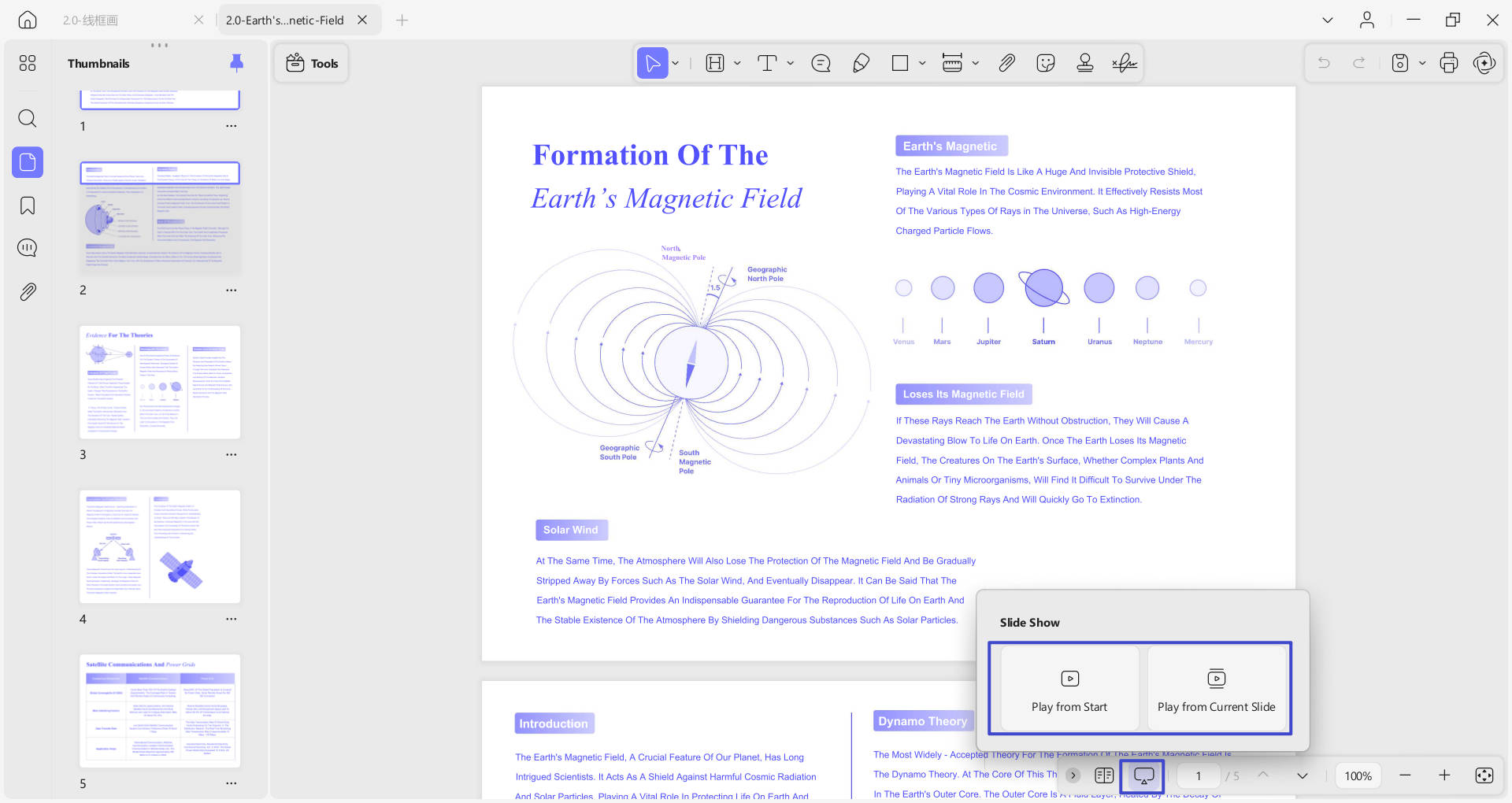
- Once you’ve accessed a PDF, proceed to the navigation bar at the bottom and press the Slide Show option. Doing this will give two options: Play from Start and Play from Current Slide. Choose the one that suits your needs.
- Now, you’ll enter the Presenter View, where you’ll notice the toolbar with Edit, Mouse, Previous, and Next options. The Edit mode will provide a Pen, Eraser, and a Laser Pointer to emphasize specific points while presenting.
- At the top right corner, there are 2 options: Use Slide Show and Layout option (with possibilities including next slide and slide navigator). The Slide Show option will reveal the PDF in a complete slide show mode.
- On the top left side, you’ll notice Pause and Replay options with timings of the slide show.
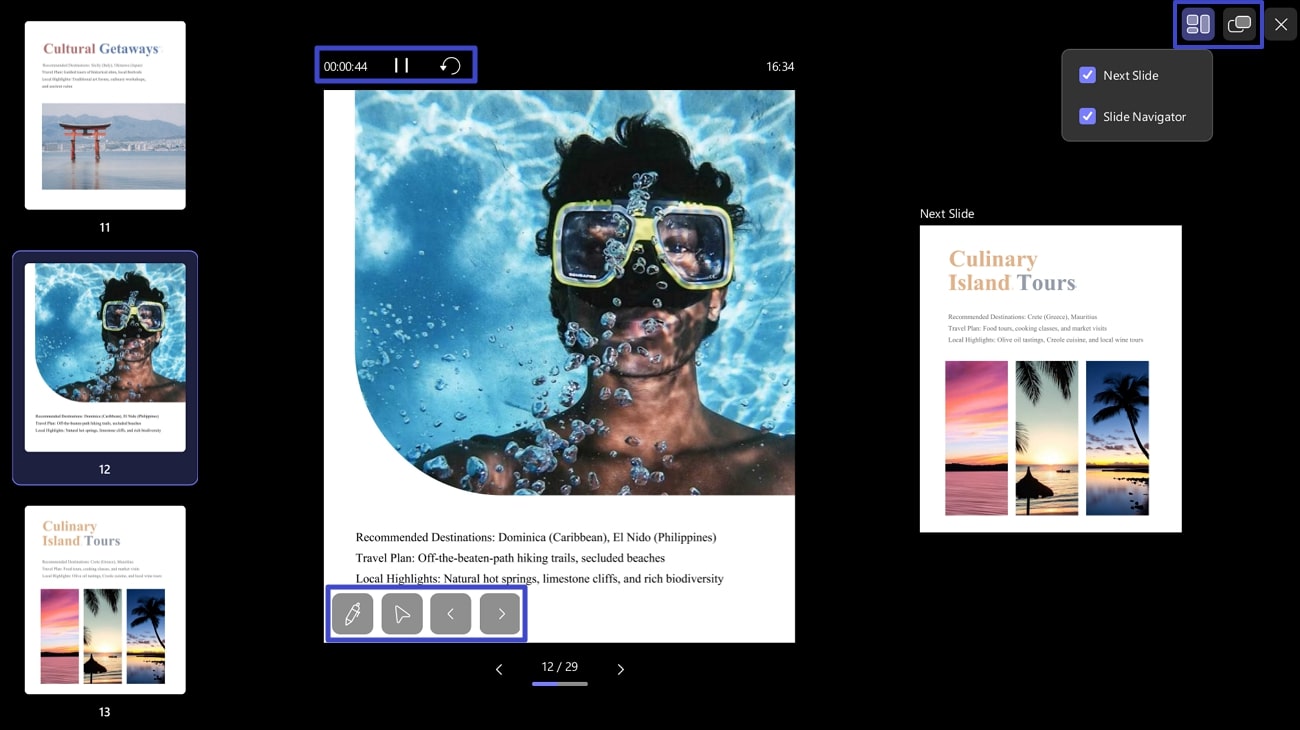
There are two viewing modes—Presenter View and Slide Show View—that you can switch between using the button in the top-right corner of the screen. In Presenter View, you can also customize the layout by enabling or disabling options like 'Next Slide' and 'Slide Navigator'.
5. View PDF in Dark or Light Mode
You can change to read PDF in dark mode or light mode per your needs. Here is the guide.
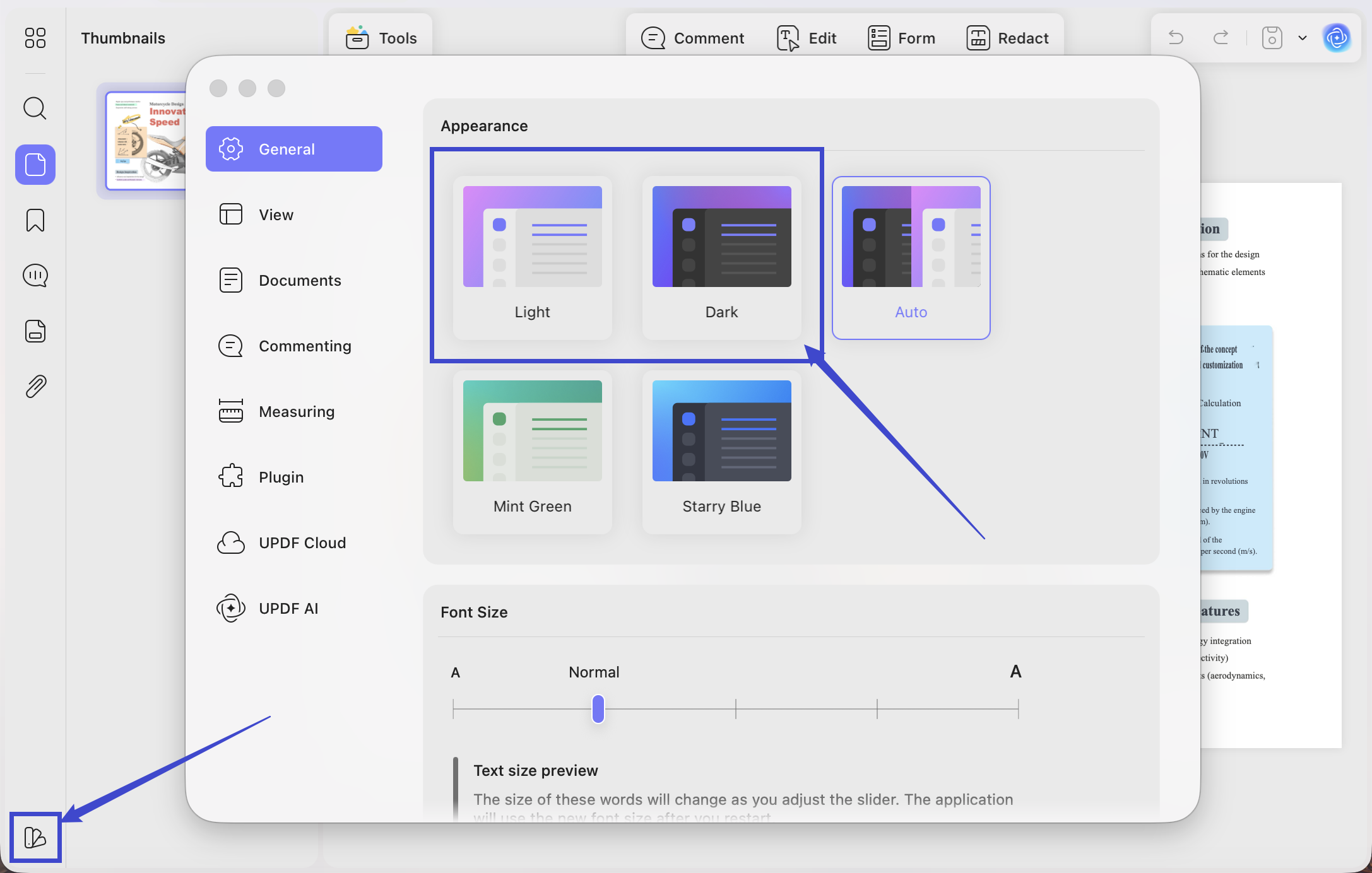
Click on the "Appearance" icon on the bottom, select "General", choose "Light" or "Dark" mode to change your UPDF appearance. Mint Green and Starry Blue modes are also available, if you feel like bringing a change to your UPDF interface. Auto theme will auto-select the UPDF theme based on the theme of your computer.
Additionally, you can move to the View section to enable Eye Protection Mode. Reading in this mode will put less strain on your eyes.
6. Search Text When Reading PDF
If you need to find some specific words quickly, you can use UPDF on Mac to do it.
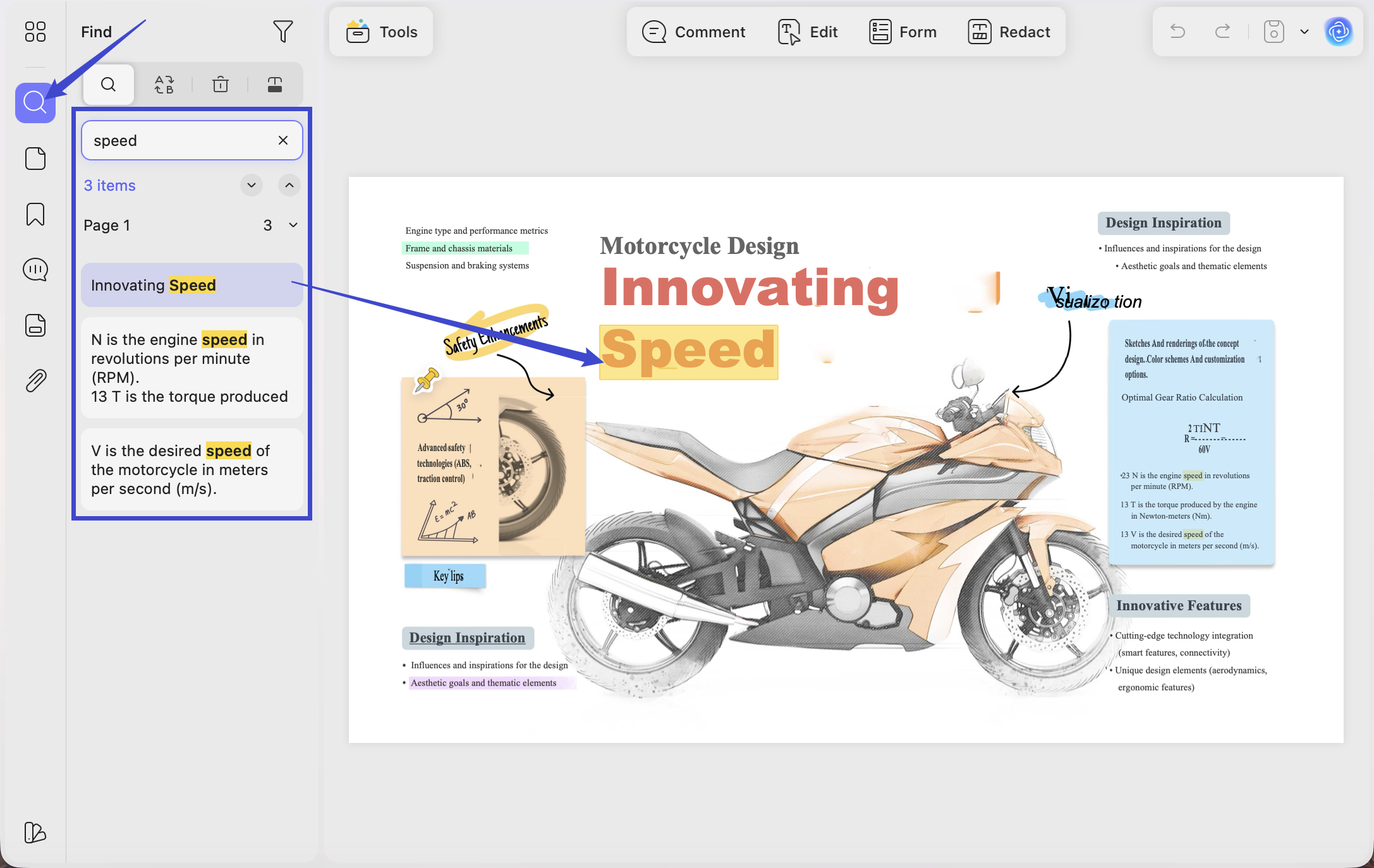
Click on the “Find” icon at the right side toolbar, and enter the keyword "library" for example here. You can find a list of results. You can click on any one to navigate quickly to the part with this word.