 UPDF
UPDF
 UPDF for Windows
 UPDF for Mac
 UPDF for iPhone/iPad
 UPDF for Android
 Nomostar
 UPDF AI Online
 UPDF Sign
 IvyCraft
 Edit PDF
 Annotate PDF
 Create PDF
 PDF Form
 Edit links
 Convert PDF
 OCR
OCR PDF to Word
 PDF to Image
 PDF to Excel
 Organize PDF
 Merge PDF
 Split PDF
 Crop PDF
 Rotate PDF
 Protect PDF
 Sign PDF
 Redact PDF
 Sanitize PDF
 Remove Security
 Read PDF
 UPDF Cloud
 Compress PDF
 Print PDF
 Batch Process
 About UPDF AI
 UPDF AI Solutions
 AI User Guide
 FAQ about UPDF AI
 Summarize PDF
 Translate PDF
 Chat with PDF
 Chat with AI
 Chat with image
 PDF to Mind Map
 Explain PDF
 PDF AI Tools
 Image AI Tools
 AI Chat Tools
 AI Writing Tools
 AI Study Tools
 AI Working Tools
 Other AI Tools
 AI Bookmark Generation
 AI Bookmark Summary
 AI Watermark Generation
 AI Background Generation
 AI Sticker Generation
 AI Stamp Generation
 AI Editing Suite
 UPDF Copilot
 AI Page Management
 AI Semantic Search
 PDF to Word
 PDF to Excel
 PDF to PowerPoint
 Enterprise Solution
 Enterprise Sign
 Enterprise AI
 Enterprise Plan
 Enterprise User Guide
 Enterprise Webinar
 IT
IT Education
 Construction
 Financial Service
 Healthcare
 Insurance
 Legal
Legal Manufacturing
 Government
 Researchers & PhDs
 Solopreneurs & Freelancers
 Lawyers & Legal Professionals
 Real Estate Agents & Brokers
 Education Solution
 Customer Stories
 User Guide
 UPDF Tricks
 FAQs
FAQs UPDF Reviews
 Download Center
 Blog
Blog Newsroom
 Tech Spec
 Updates
 UPDF vs. Adobe Acrobat
 UPDF vs. Foxit
 UPDF vs. PDF Expert

Are you struggling with PDFs that seem like secret code puzzles rather than readable documents? Or the PDF you received turns out to be filled with tiny text, blurry images, and text that cannot be selected? If so, you're not alone — and more importantly, there's a fix that doesn't require retyping the entire document.
Many people face the same challenge: a contract, invoice, or report arrives as a scanned image, and suddenly you can't search a single word, copy a clause, or even highlight text to annotate. The file looks fine on screen, but underneath it's just a photograph of a page. This guide shows you exactly how to create readable PDFs from those scans — using offline software - UPDF for privacy and control, or online tools when you're in a hurry.
Before we start, here's a 30-second check to confirm your file actually needs OCR, plus what to do when the conversion goes wrong.
Does Your PDF Actually Need OCR? (30-Second Check)
Before you download any tool, confirm your PDF is actually an image and not already text-based. Open the PDF and try these two tests:
Test 1: Text Selection Click and drag your cursor across a line of text. If you can highlight individual words or letters, your PDF is already text-based. You do not need OCR — you need a PDF reader or annotation tool. If the cursor draws a box around the entire page or nothing happens, it's a scanned image and needs OCR to become readable.
Test 2: Search (Ctrl+F or Cmd+F) Press Ctrl+F (Windows) or Cmd+F (Mac) and type a word you can see on the page. If the search finds it, the PDF is already readable and searchable. If it returns "0/0" or "Not found," the text layer is missing.
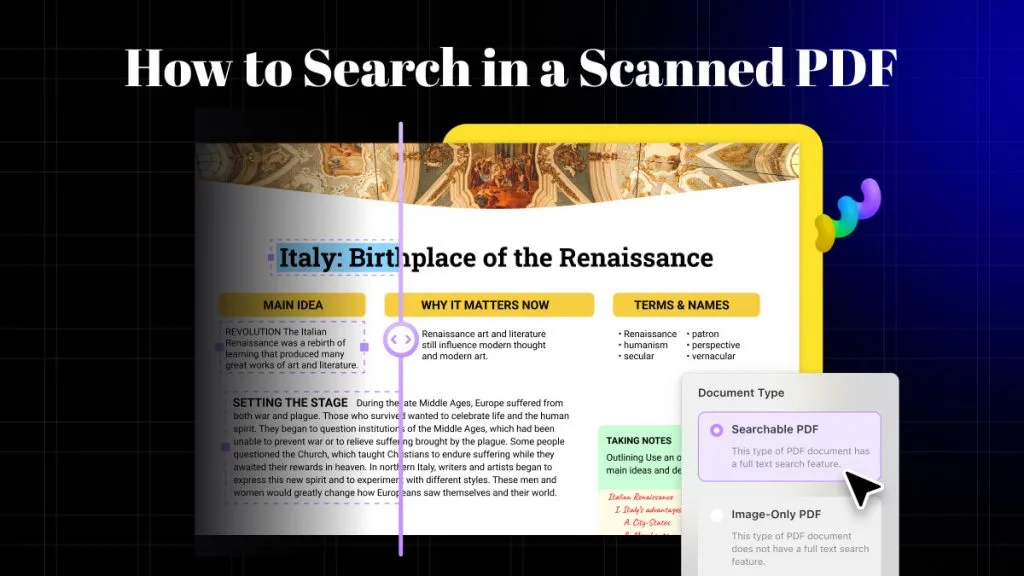
What "Creating a Readable PDF" Actually Means In this guide, "creating a readable PDF" means converting an image-based scan into a PDF with a hidden text layer underneath. The page looks identical to your original, but you can now search, select, copy, and highlight text. This is different from simply "opening a PDF" or "making text bigger" — it's about adding machine-readable text to a photograph of a page.
Important distinction:
Windows • macOS • iOS • Android 100% secure
How to Make a Scanned PDF Searchable Using UPDF (Offline)
UPDF is a desktop PDF editor and OCR software that processes files locally on your computer — your document never leaves your machine. Its OCR engine converts image-based pages into a hidden text layer while keeping the original visual appearance intact. It supports 38 languages and offers three output modes, which is critical because choosing the wrong mode is the most common reason people fail to create readable PDFs.
The three modes you need to know:
- Searchable PDF Only: The page looks exactly like your original scan, but a hidden text layer is added underneath. Use this when you only need to search, copy, or highlight text, and the visual layout must stay untouched. Best for: legal contracts, archived documents, shared review files.
- Editable PDF: The scan becomes a fully editable document where fonts, paragraphs, and images can be modified. Use this when you need to update old forms or correct scanned reports. Note: this mode reconstructs the page and may slightly alter spacing.
- Text Only: Extracts plain text into a .txt file, stripping all images and formatting. Use this when you only need the words for pasting into Word or another document.
Language tip:
Step-by-Step Guide on Creating Readable PDF
Method A: Direct OCR (Best for Entirely Scanned Documents)
Use this when the entire PDF is an image, or when you already know every page needs OCR.
Windows • macOS • iOS • Android 100% secure
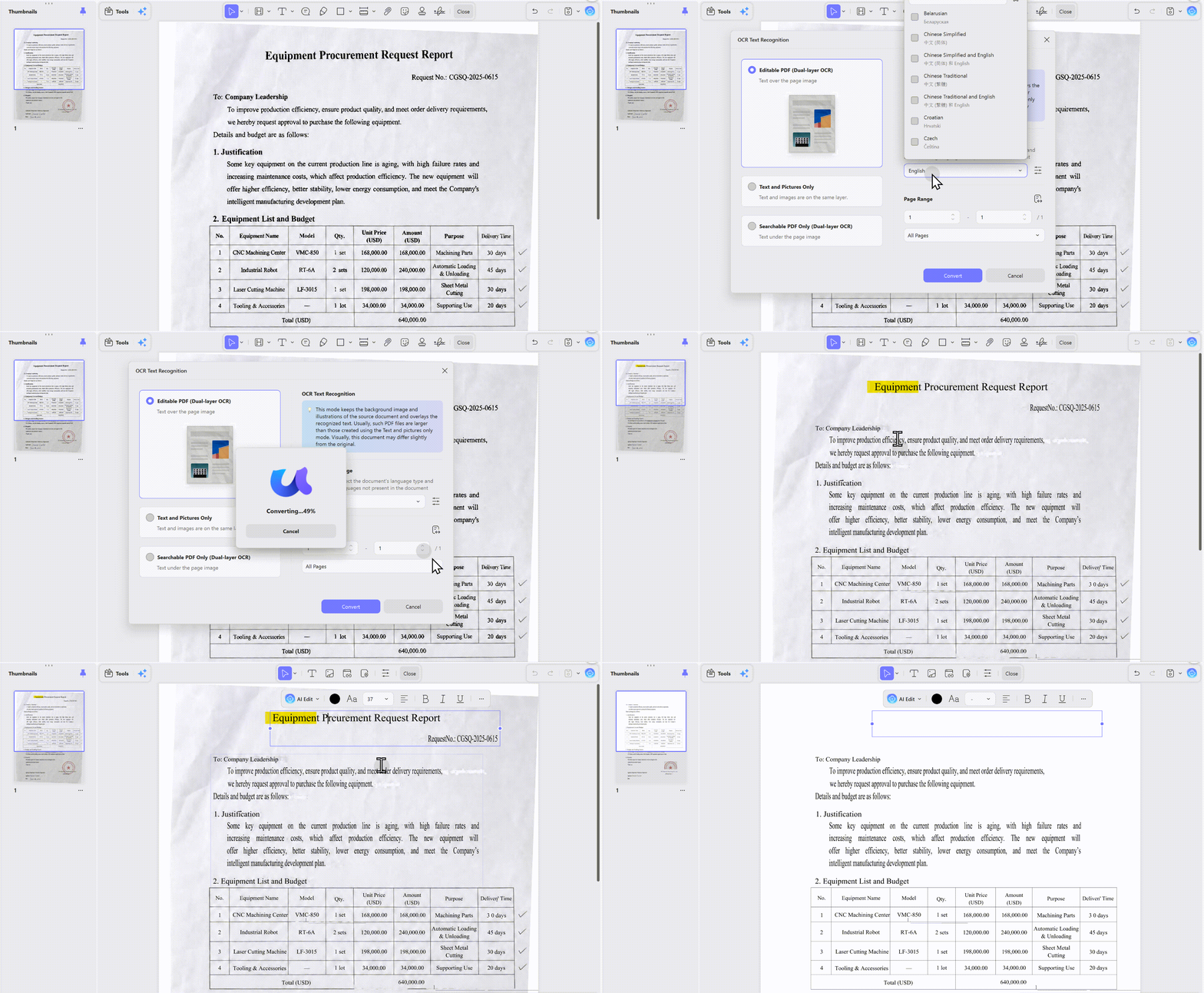
Step 1: Open UPDF and click "Open File" to load your scanned PDF.
Step 2: Click the "OCR" button in the top toolbar (or go to Tools > OCR). If the button is grayed out, your PDF may already be text-based — go back to the 30-second check above.
Step 3: In the OCR settings window:
- Document Type: Choose "Searchable PDF" if you only need to search and copy text. Choose "Editable PDF" if you need to change the actual text content.
- Language: Select the primary language of your document. For mixed-language documents, choose the dominant language first.
- Layout: Choose "Retain layout" for documents with tables, columns, or footnotes. Choose "Flowing text" if you plan to paste the content into Word and reformat it anyway.
Step 4: Click "Convert." Choose a save location. UPDF will process the file and automatically open the result.
Step 5: Verify immediately. Press Ctrl+F and search for a word visible on page 1. Try to highlight a paragraph. If highlighting snaps to word boundaries, the OCR succeeded. If not, see the troubleshooting section below.
Method B: Selective OCR Using AI Check Pages (Best for Mixed Documents)
Use this when your PDF contains both text pages and scanned image pages, and you only want to OCR the image pages.
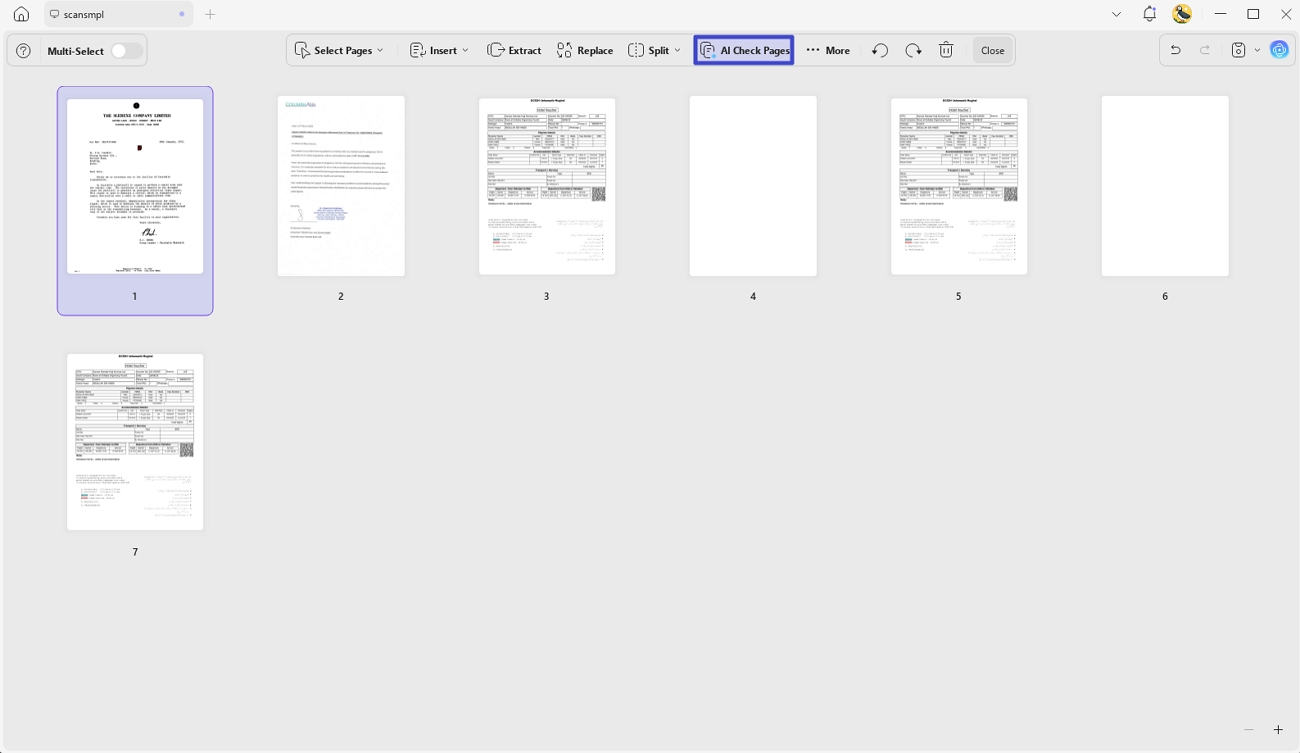
Step 1: Open your PDF in UPDF and click "Organize Pages" in the left sidebar.
Step 2: Click "AI Check Pages." UPDF will scan the document and flag which pages are image-based.
Step 3: In the results panel, you'll see detected OCR pages listed. Click the "OCR" button next to the flagged pages.
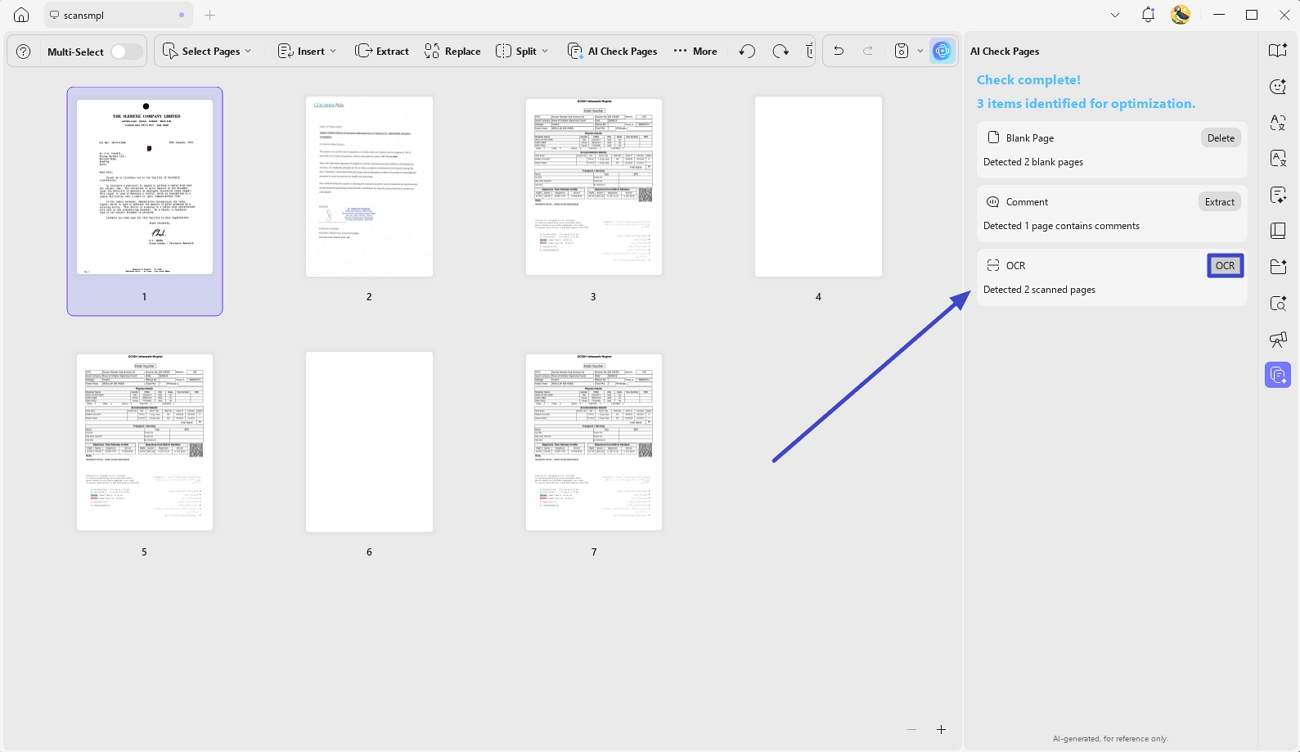
Step 4: Choose your output mode. For mixed documents, "Searchable PDF" is usually the safest choice — it preserves the original text pages while adding a text layer only to the image pages.
Step 5: Save and verify. Check both a previously text-based page (to ensure it wasn't altered) and a newly OCR'd page (to ensure text is selectable).
Windows • macOS • iOS • Android 100% secure
How to Convert PDF to Readable Text Online
Online OCR tools work in a browser without installation, which is convenient for one-off tasks on public computers. However, they come with hard limits that desktop software doesn't have.
If you must use an online tool, follow these safety rules:
- Never upload contracts, medical records, financial statements, or ID documents to free online converters. Most free services scan uploaded files for "service improvement" and may retain copies indefinitely.
- Check the file size limit before uploading. Many free tools cap at 10-15MB, which is roughly 20-30 scanned pages at 150 DPI.
- Verify the output immediately. Online tools often strip fonts or misalign columns during conversion.
Generic Online OCR Steps (Any Provider):
- Go to the provider's website.
- Upload your file (watch for size limits).
- Select the document language and output format (usually Word, Excel, or Plain Text).
- Click Convert and wait for processing.
- Download the result and check page 1, a middle page, and the last page for accuracy before deleting your local copy.

Why Free Online OCR Tools Let You Down (Real-World Scenarios)
The file size wall: That 200-page technical manual? Most free online tools reject it at 15MB. You're forced to split the PDF into chunks, OCR each separately, and then merge them back together — assuming you have a PDF merger tool.
The formatting massacre: Tables become jumbled text blocks. Footnotes merge into body paragraphs. Multi-column layouts collapse into a single stream of text. You spend more time reformatting the output than you would have spent retyping it.
The export paywall: You upload the file, wait three minutes for processing, hit download, and the site demands an account or payment to remove a watermark. Your original file is now stuck on someone else's server.
The privacy gamble: Once you upload a document to a free online service, you lose control. You cannot verify if the file is actually deleted after one hour, and you have no legal recourse if the document leaks.
The offline blackout: No Wi-Fi on the plane or at a client's site? Your OCR tool is useless. Desktop software like UPDF works entirely offline, with no file size limits and no formatting surprises.
A better online alternative: If you need browser-based OCR but want enterprise-grade security, UPDF AI Online processes files through encrypted cloud infrastructure with automatic deletion after conversion. [See the full online OCR guide →]
Which Tool Fits Your Actual Situation for Creating Readable PDF?
In order to help you decide which of the 2 methods discussed above is better to make pdf searchable, we are going to compare them. The factors that we will judge are pricing, stability, OCR results, and more.
| Decision Factor | UPDF Desktop | Free Online OCR |
|---|---|---|
| File size limit | None | ~15MB |
| Privacy | Local processing; file never leaves your computer | Uploaded to unknown servers |
| Format retention | Preserves tables, columns, fonts | Often strips or misaligns formatting |
| Output formats | Searchable PDF, Editable PDF, Word, Excel, PowerPoint, TXT, images | Usually Word, Excel, TXT only |
| Batch processing | Yes (multiple files at once) | No |
| Works offline | Yes | No |
| Cost | One-time purchase | Free (with hidden limitations) |
Don't compare features — match the tool to your constraints.
Choose UPDF (Desktop) if:
- The document contains sensitive information (contracts, medical records, financial data)
- The file is larger than 15MB or has more than 50 pages
- You need to preserve exact table layouts, columns, or footnotes
- You work without reliable internet (travel, client sites, secure facilities)
- You need batch processing for multiple files
Choose an Online Tool only if:
- The file is small (under 15MB), non-sensitive, and single-purpose
- You're on a public computer where you cannot install software
- You only need a one-time conversion and don't care about exact formatting
When Creating Readable PDF Goes Wrong: 5 Common Failures and Fixes
Problem 1: "OCR finished, but I still can't search the text"
- Cause 1: You saved as "Image-only" instead of "Searchable PDF." Some users accidentally select the reverse-OCR option.
- Fix: Re-run OCR and verify the output mode is set to "Searchable PDF" or "Editable PDF."
- Cause 2: The text layer was created but your PDF viewer doesn't support hidden text. This happens with old versions of Chrome PDF viewer or some mobile apps.
- Fix: Open the file in Adobe Reader, Preview (Mac), or UPDF itself to test searchability.
Problem 2: "The text is searchable, but highlights are misaligned"
- Cause: The OCR engine detected text in the correct order but mapped coordinates inaccurately, usually due to skewed scanning or curved pages (book scans).
- Fix: Before OCR, use UPDF's "Straighten" or "Deskew" tool to correct page alignment. For severely curved book pages, split the scan into flat segments first.
Windows • macOS • iOS • Android 100% secure
Problem 3: "Tables became a jumbled mess"
- Cause: The layout engine interpreted table borders as text lines or failed to recognize column structures.
- Fix: In UPDF, select "Retain layout" option. If still broken, OCR to Excel format instead of PDF — spreadsheet output often reconstructs tables more accurately than PDF text layers.
Problem 4: "OCR is extremely slow or crashes on large files"
- Cause: Files over 500 pages or with high-resolution images (300+ DPI) consume excessive memory.
- Fix: Split the PDF into 50-page chunks before OCR. Alternatively, reduce image resolution to 150 DPI first — text recognition accuracy remains high at 150-200 DPI, and processing time drops by 60%.
Problem 5: "Accented characters or special symbols are wrong"
- Cause: The language pack doesn't include the specific diacritics or symbols (e.g., ñ, ü, Ø, ©, §).
- Fix: Ensure you selected the exact language variant (e.g., "German" vs "German (New Spelling)"). For symbols, run OCR as "Editable PDF" and manually correct symbols in post-processing.
Frequently Asked Questions
What is the difference between a "readable PDF" and a "searchable PDF"?
In most contexts, they are the same thing: a scanned document with a hidden text layer added underneath the image. "Readable PDF" sometimes refers to accessibility formatting for screen readers, which is a different process.
Will OCR destroy my original scan image?
No, if you choose "Searchable PDF Only." The original image stays visible, and the text layer is invisible underneath. If you choose "Editable PDF," the original image is replaced with reconstructed text and may look slightly different.
Can I OCR a password-protected PDF?
You must remove the open password first. UPDF can decrypt password-protected PDFs if you have the password. After decryption, run OCR normally.
Can I search across multiple OCR'd PDFs at once?
UPDF desktop supports batch search across open documents. For searching an entire folder, use your OS search: on Windows, ensure PDF iFilter is installed; on Mac, Spotlight automatically indexes searchable PDFs.
Can UPDF OCR handwriting?
UPDF's standard OCR is optimized for printed text. Handwritten notes in margins may be skipped or misread. For heavy handwriting, use UPDF's mobile scan feature with handwriting recognition mode, or transcribe manually.
Conclusion
The right OCR approach isn't about finding the cheapest tool — it's about not losing formatting, not gambling with confidential files on a stranger's server, and not discovering three hours later that your "converted" document is still just an image.
Start with the 30-second check to confirm your PDF actually needs OCR. If it does, choose your output mode based on your end goal: Searchable PDF for archiving and review, Editable PDF for content updates, or Text Only for quick extraction. Always verify the result with Ctrl+F before considering the job done.
For documents that matter — contracts, research papers, financial records, or anything with tables — desktop OCR software like UPDF eliminates file size limits, preserves layout, and keeps your data on your machine.
For a full overview of UPDF's OCR capabilities across all platforms, see: [OCR PDF: Complete Feature Guide]
Windows • macOS • iOS • Android 100% secure



 Lizzy Lozano
  Enola Davis
 Enid Brown
 Enrica Taylor