 UPDF
UPDF
 UPDF for Windows
 UPDF for Mac
 UPDF for iPhone/iPad
 UPDF for Android
 Nomostar
 UPDF AI Online
 UPDF Sign
 IvyCraft
 Edit PDF
 Annotate PDF
 Create PDF
 PDF Form
 Edit links
 Convert PDF
 OCR
OCR PDF to Word
 PDF to Image
 PDF to Excel
 Organize PDF
 Merge PDF
 Split PDF
 Crop PDF
 Rotate PDF
 Protect PDF
 Sign PDF
 Redact PDF
 Sanitize PDF
 Remove Security
 Read PDF
 UPDF Cloud
 Compress PDF
 Print PDF
 Batch Process
 About UPDF AI
 UPDF AI Solutions
 AI User Guide
 FAQ about UPDF AI
 Summarize PDF
 Translate PDF
 Chat with PDF
 Chat with AI
 Chat with image
 PDF to Mind Map
 Explain PDF
 PDF AI Tools
 Image AI Tools
 AI Chat Tools
 AI Writing Tools
 AI Study Tools
 AI Working Tools
 Other AI Tools
 AI Bookmark Generation
 AI Bookmark Summary
 AI Watermark Generation
 AI Background Generation
 AI Sticker Generation
 AI Stamp Generation
 AI Editing Suite
 UPDF Copilot
 AI Page Management
 AI Semantic Search
 PDF to Word
 PDF to Excel
 PDF to PowerPoint
 Enterprise Solution
 Enterprise Sign
 Enterprise AI
 Enterprise Plan
 Enterprise User Guide
 Enterprise Webinar
 IT
IT Education
 Construction
 Financial Service
 Healthcare
 Insurance
 Legal
Legal Manufacturing
 Government
 Researchers & PhDs
 Solopreneurs & Freelancers
 Lawyers & Legal Professionals
 Real Estate Agents & Brokers
 Education Solution
 Customer Stories
 User Guide
 UPDF Tricks
 FAQs
FAQs UPDF Reviews
 Download Center
 Blog
Blog Newsroom
 Tech Spec
 Updates
 UPDF vs. Adobe Acrobat
 UPDF vs. Foxit
 UPDF vs. PDF Expert

Quick answer:
The four routes below each solve a different goal: an invisible reference attachment, an image placed inside the page content, a signature image, or a picture added as a whole new page. The routing table tells you which one you actually need so you don't redo the work.
If you also need to resize text or move other elements around the image, the full how to edit a PDF guide covers the rest of the editing workflow.
Part 1. Which Method Do You Need?
| What you're trying to do | Method | Best for |
|---|---|---|
| Add a reference file readers click to open | Comment mode → Attach File (invisible icon) | Research docs, supporting charts, source files |
| Place a visible image inside the page | Edit mode → Image | Forms, reports, ID photos, embedded graphics |
| Insert a scanned signature image | Comment mode → Create Signature → Photo | Contracts, agreements, signed letters |
| Add a picture as its own full page | Drag and drop | Appending a scan or photo without touching existing pages |
Attachment vs. Embedded Image vs. Signature — What's the Difference?
- Attachment: an invisible clickable icon; the image opens in a separate viewer, never covering the page.
- Embedded image: a visible picture placed inside the page content, fully movable and resizable.
- Signature: a black-and-white signature object placed via the Sign feature.
In short: attachment = a file readers open, embedded image = a graphic on the page, signature = a sign-off mark.
All four methods use UPDF, which works on Windows, Mac, iOS, and Android with one license. Open the document in UPDF — if you don't have it yet, download UPDF for free and install it in under a minute — then pick the method that matches your goal.
Windows • macOS • iOS • Android 100% secure
Part 2. Method 1. Add an Invisible Attachment
Use this when you want to attach a supporting image — a reference chart, a source photo — without it covering the page content. The image sits behind a small clickable icon; readers click to open or save it.
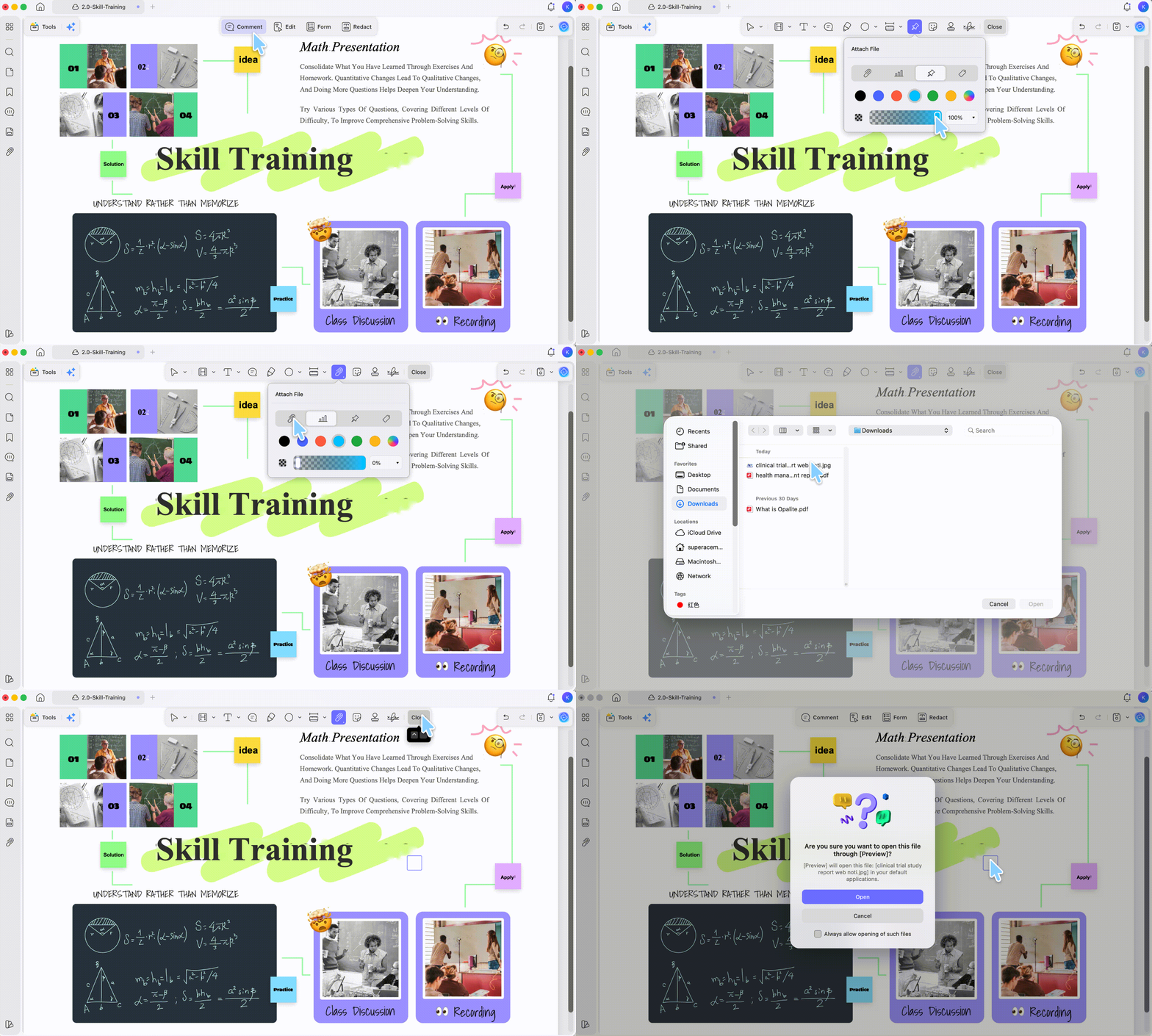
Here's how to attach picture to PDF through UPDF's attachment feature:
Step 1. Install and launch UPDF on your Windows/Mac computer and open the PDF file.
Step 2. Click Edit in the top toolbar, then click the Attach file icon and choose the icon style, color, and opacity.
Step 3. Click where you want the icon on the page, then select the image file to attach.
Best for:
- keeping the original layout clean while still carrying a reference image.
Not for:
- when the image needs to be seen on the page — use Method 2.
Part 3. Method 2. Insert a Visible Image in the Page
This is what most people mean by "attach a picture to a PDF": placing a visible image directly into the page content, where you can move, resize, crop, or rotate it.
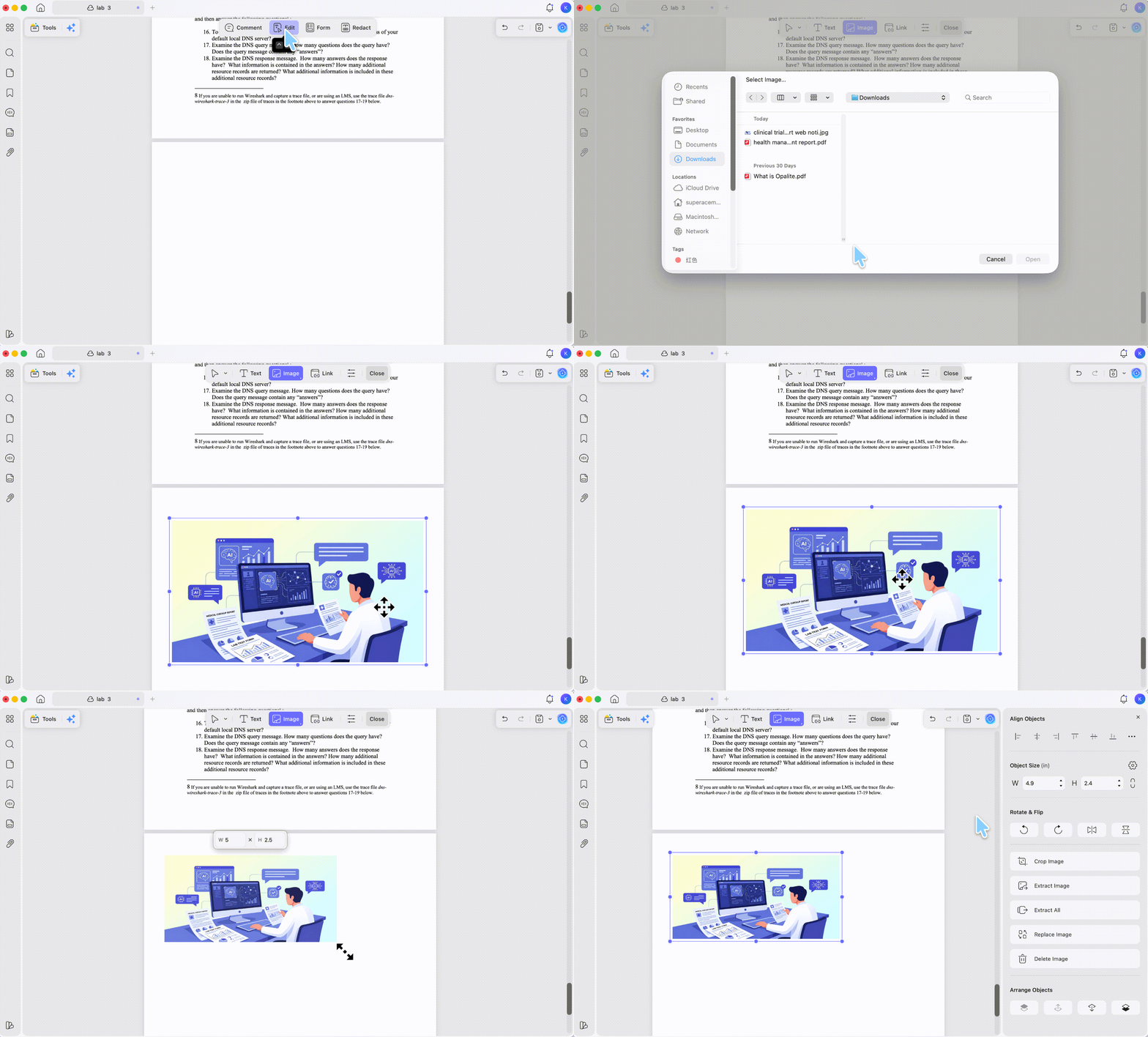
Follow the below steps to learn how to attach picture in PDF file:
Step 1. Open the PDF in UPDF and click Edit in the top toolbar, then click the Image icon.
Step 2. Click the spot where you want the picture, then select the image file. Once it lands, drag to reposition, pull a corner to resize, or double-click the image and use the side panel to rotate and crop.
Best for:
- application forms, reports, ID photos, and any image that belongs in the body.
Not for:
- signatures, which need transparency handling — use Method 3.
Part 4. Method 3. Insert a Signature Image
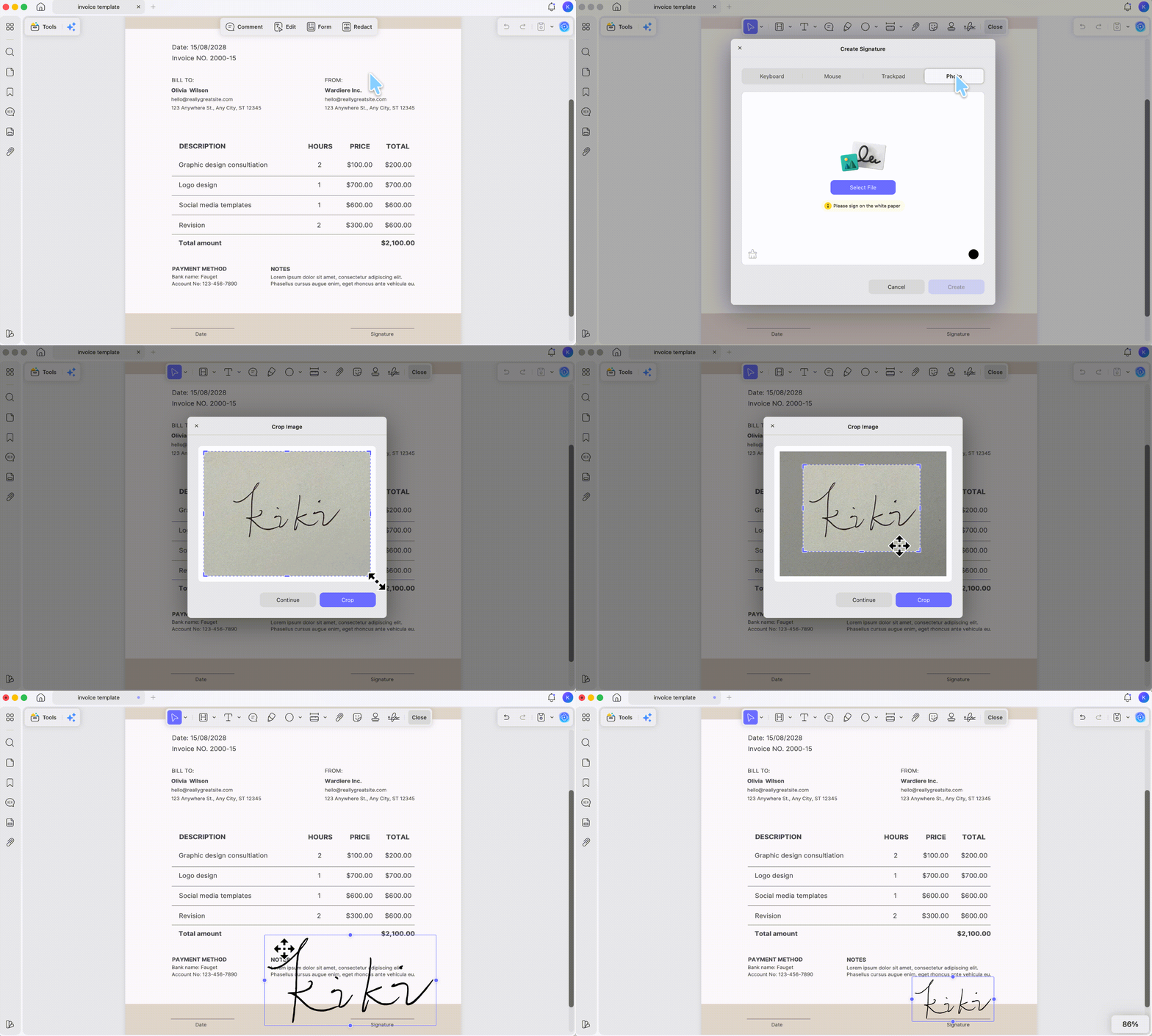
When the picture is a signature, the Create Signature feature places it as a clean signature object rather than a raw photo. You can use UPDF to render a signature image in black and white to keep it crisp.
Step 1. Click the Comment icon in the left sidebar, click the Signature icon, then click Create Signature.
Step 2. Choose Image and upload your signature photo.
Step 3. Crop to the signature area, adjust color and contrast, then click Create.
Step 4. Click where the signature goes on the page to place it.
Best for:
- signing contracts and agreements with a scanned signature.
Not for:
- placing a regular photo or graphic in the page body — use Method 2.
Part 5. Method 4. Add a Picture as a Full Page
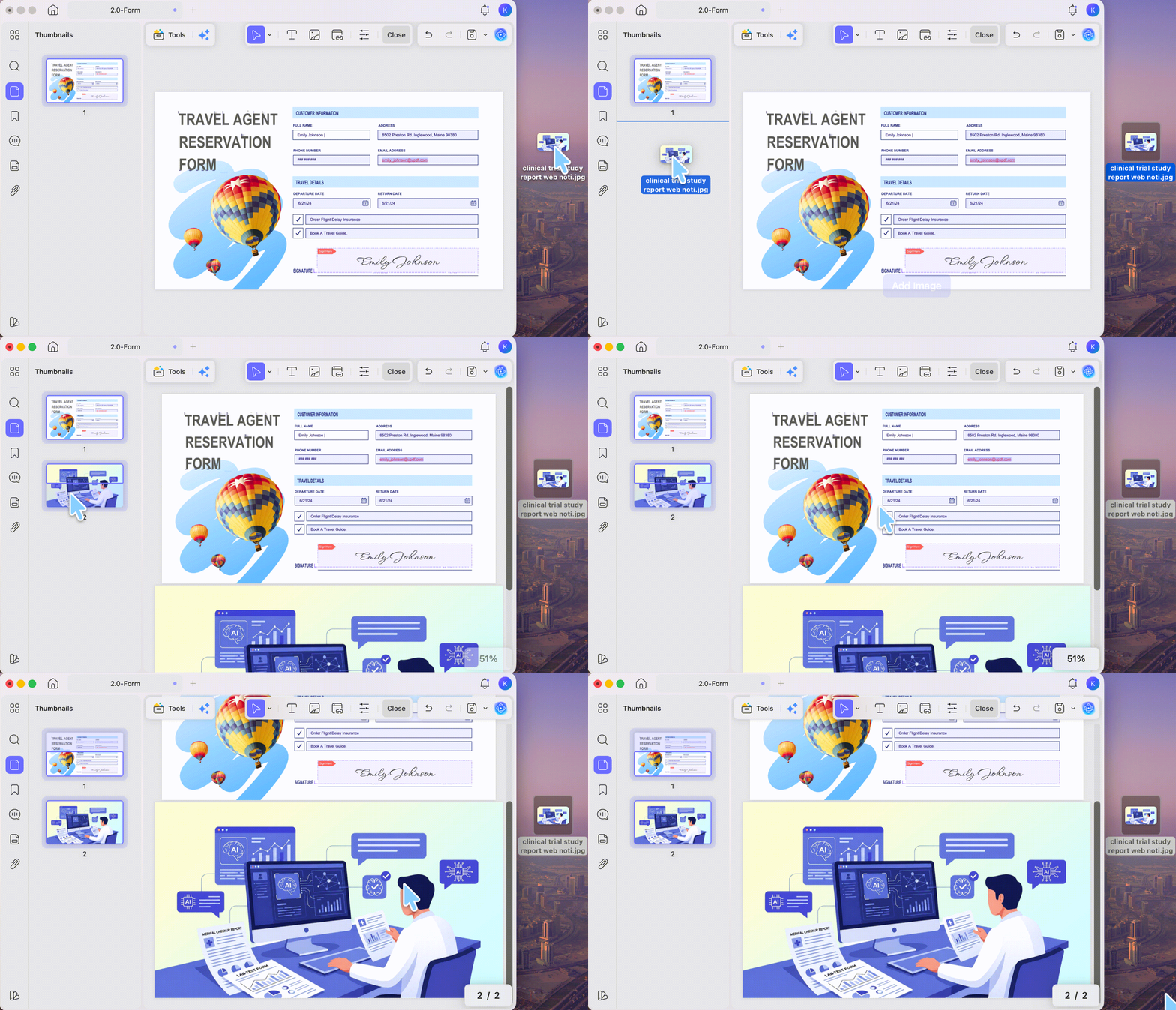
Use this when you want the image to be a whole page on its own rather than an element inside an existing page. Drag the image file into UPDF and it becomes a separate PDF page — and you can drop it at any position in the document, not only at the end.
Step 1. Open the PDF in UPDF.
Step 2. Drag the image file into the thumbnail panel and drop it at the position where you want the new page. UPDF inserts the image as its own page there.
Best for:
- adding a scan or photo as a standalone page at any point in the document.
Not for:
- placing an image inside an existing page as one element — use Method 2.
Download UPDF for free to try inserting an image on your own file. You can export for free with a trial watermark, and upgrading to Pro removes the watermark on export.
If the Image Won't Insert or Looks Wrong
Part 6. How to Attach a Picture to a PDF on iPhone & Android
UPDF works on phones too, and the steps below are identical on iOS and Android — so you can place an image into a PDF straight from your iPhone or Android device using the same flow.
Step 1. Download the UPDF app on App Store or Play Store. Then, open the PDF in the UPDF app.
Windows • macOS • iOS • Android 100% secure
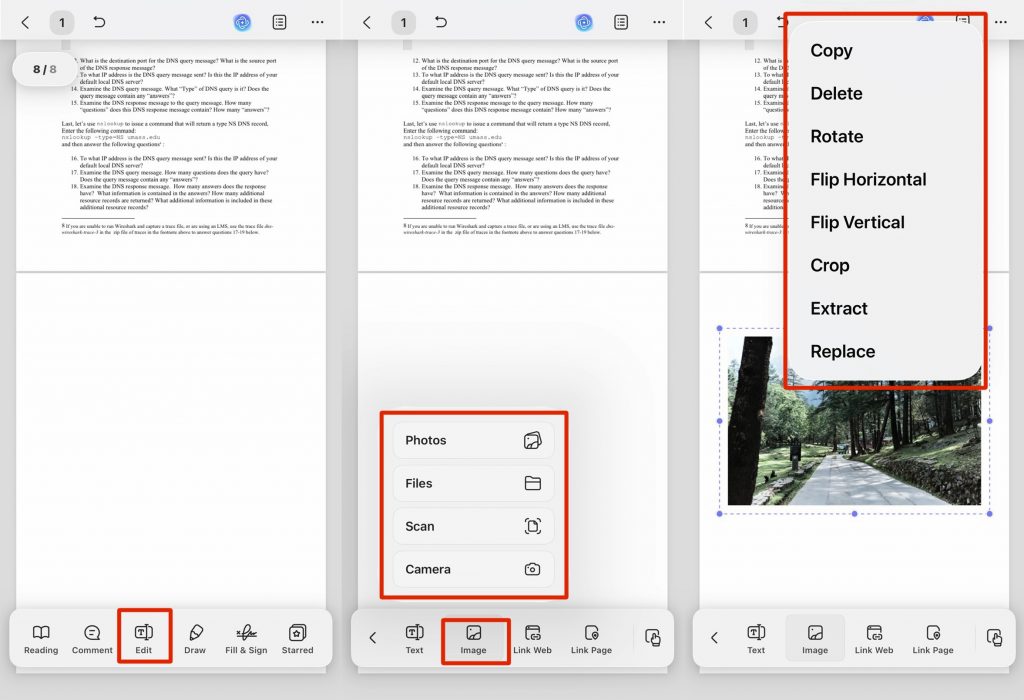
Step 2. Tap the page where you want the picture, then tap the Edit icon in the bottom-right corner.
Step 3. Tap the image icon in the pop-up bar. You can import from Photos, Files, Camera, or Scan.
Step 4. Choose the image, then drag to reposition and pinch to resize.
To edit an image already in the PDF, tap Edit, tap the image, and use the bar to copy, delete, rotate, flip, crop, extract, or replace it.
What Else UPDF Handles Beyond Images
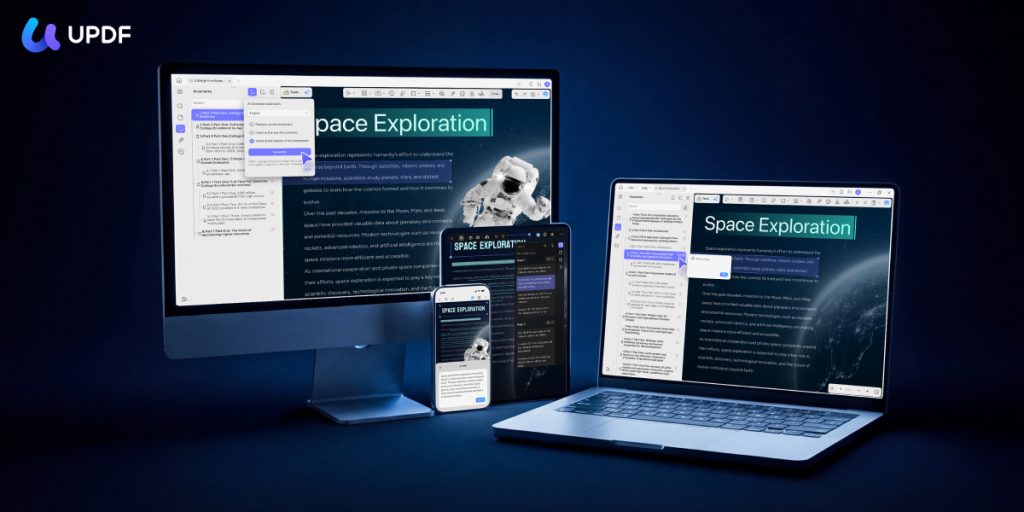
Once a picture is in place, UPDF covers the rest of the PDF workflow in one app:
- Edit PDF: change text, images, links, and backgrounds directly on the page.
- AI Assistant: chat with a PDF to summarize, translate, or explain it, and turn it into a mind map.
- OCR: make scanned pages and image text searchable and editable in 38 languages.
- Organize: add, rotate, replace, crop, split, or rearrange pages.
- Convert: turn PDFs into Word, Excel, PowerPoint, or image files.
Part 7. FAQs About Attaching Pictures to PDFs
1. How do I attach a picture to a PDF in an email?
Insert the picture into the PDF first (Method 2 above), save the file, then attach the updated PDF to your email. The image travels inside the PDF, so the recipient sees it without a separate attachment.
2. Can I attach a Word or Excel file to a PDF the same way?
Yes. Use the Comment → Attach file option (Method 1) and select a Word, Excel, or another PDF instead of an image — it appears as the same clickable icon.
3. Will attaching a large picture increase the PDF file size?
Yes. Adding an image can increase the PDF file size, especially when it is a high-resolution photo. If sharing size matters, save the PDF and check its file size before emailing it.
Conclusion
Attaching a picture to a PDF comes down to matching the method to your goal: an invisible attachment for reference files, Edit mode for visible in-page images, the Sign feature for signatures, and drag-and-drop for full-page inserts. UPDF handles all four across Windows, Mac, iPhone, and Android, plus OCR, conversion, and its AI Assistant when you need more.
Download UPDF for free to try attaching a picture on your own file. Free export adds a trial watermark, and upgrading to Pro removes it.
Windows • macOS • iOS • Android 100% secure






 Enola Miller
 Engelbert White
 Italo Rossi

 Enrica Taylor