 UPDF
UPDF
 UPDF for Windows
 UPDF for Mac
 UPDF for iPhone/iPad
 UPDF for Android
 Nomostar
 UPDF AI Online
 UPDF Sign
 IvyCraft
 Edit PDF
 Annotate PDF
 Create PDF
 PDF Form
 Edit links
 Convert PDF
 OCR
OCR PDF to Word
 PDF to Image
 PDF to Excel
 Organize PDF
 Merge PDF
 Split PDF
 Crop PDF
 Rotate PDF
 Protect PDF
 Sign PDF
 Redact PDF
 Sanitize PDF
 Remove Security
 Read PDF
 UPDF Cloud
 Compress PDF
 Print PDF
 Batch Process
 About UPDF AI
 UPDF AI Solutions
 AI User Guide
 FAQ about UPDF AI
 Summarize PDF
 Translate PDF
 Chat with PDF
 Chat with AI
 Chat with image
 PDF to Mind Map
 Explain PDF
 PDF AI Tools
 Image AI Tools
 AI Chat Tools
 AI Writing Tools
 AI Study Tools
 AI Working Tools
 Other AI Tools
 AI Bookmark Generation
 AI Bookmark Summary
 AI Watermark Generation
 AI Background Generation
 AI Sticker Generation
 AI Stamp Generation
 AI Editing Suite
 UPDF Copilot
 AI Page Management
 AI Semantic Search
 PDF to Word
 PDF to Excel
 PDF to PowerPoint
 Enterprise Solution
 Enterprise Sign
 Enterprise AI
 Enterprise Plan
 Enterprise User Guide
 Enterprise Webinar
 IT
IT Education
 Construction
 Financial Service
 Healthcare
 Insurance
 Legal
Legal Manufacturing
 Government
 Researchers & PhDs
 Solopreneurs & Freelancers
 Lawyers & Legal Professionals
 Real Estate Agents & Brokers
 Education Solution
 Customer Stories
 User Guide
 UPDF Tricks
 FAQs
FAQs UPDF Reviews
 Download Center
 Blog
Blog Newsroom
 Tech Spec
 Updates
 UPDF vs. Adobe Acrobat
 UPDF vs. Foxit
 UPDF vs. PDF Expert

When I first tried connecting my iPhone to SFTP servers, everything looked confusing. I know many beginners feel the same when they first try to link their phone to a remote server. This guide shows every step, from finding your server details to entering them.
Along the way, I’ll share the simple checks I use to avoid connection errors and login issues. Most importantly, I’ll show how UPDF for iOS lets me open and annotate PDFs directly from my server. I don’t need to download files locally, so my iPhone stays light while my important documents are always reachable.
Windows • macOS • iOS • Android 100% secure
Part 1. What Is SFTP — and How Is It Different from FTP?
I think of SFTP as a secure, locked tunnel between my device and server. When I send files through this tunnel, nobody can easily peek or change them. It still feels simple to use, but the security layer quietly does the hard work. That’s why I rely on SFTP iOS tools when I’m handling anything even slightly sensitive.
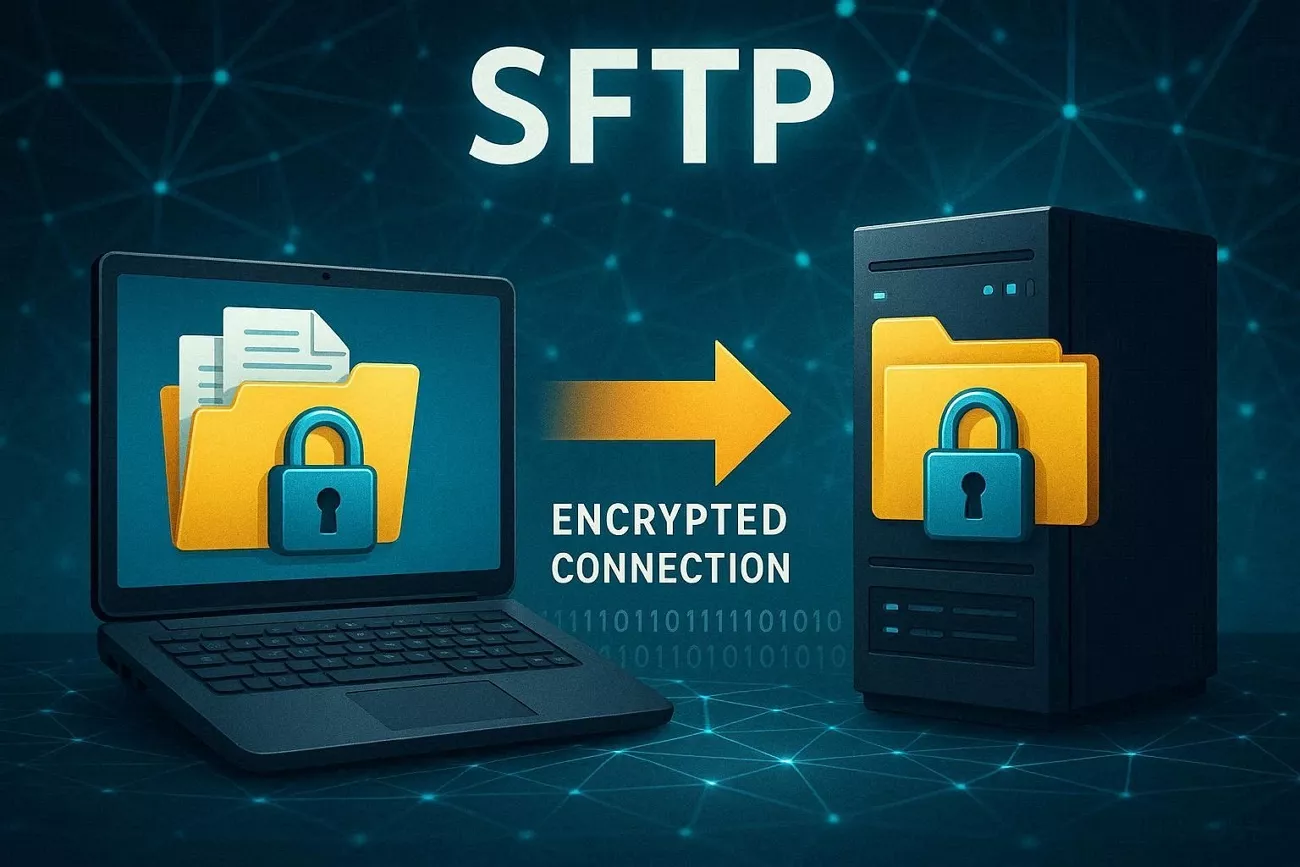
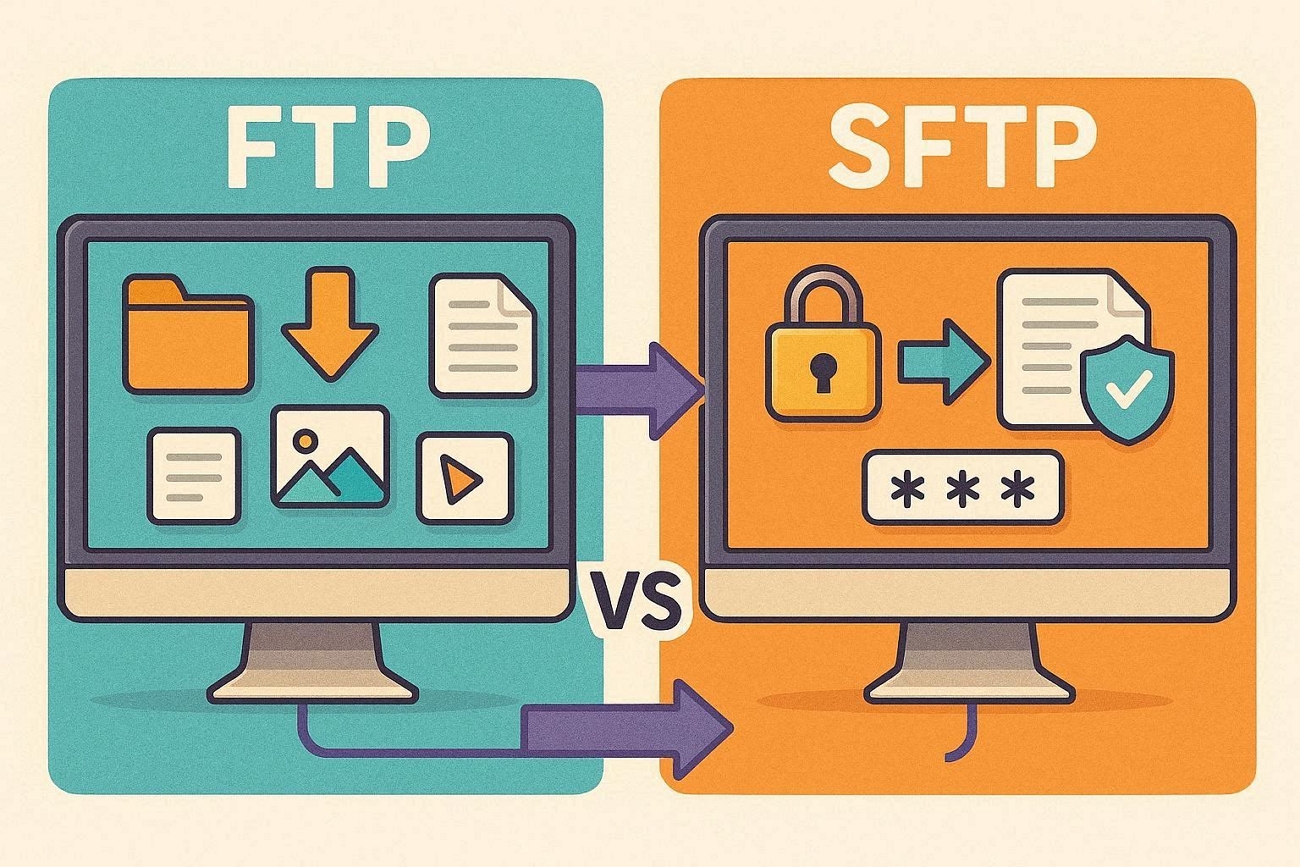
FTP vs SFTP
At first sight, FTP and SFTP sound similar and can confuse many new users. They both move files between devices, and it is easy to assume they are equal. Now, look at the table below to see how their behavior and risks differ:
| Aspect | FTP | SFTP |
| Default Port | 21 | 22 |
| Encryption | None | Encrypted tunnel |
| Login Credentials | Sent in plain text | Sent inside secure channel |
| Typical Use Today | Legacy systems, non‑sensitive | Modern servers, sensitive data |
| Firewall Friendliness | Harder to secure and manage | Easier to secure and lock down |
If someone offers me FTP or SFTP, I always pick SFTP for better protection. Even when files seem harmless, I prefer SFTP, so my logins and content stay private.
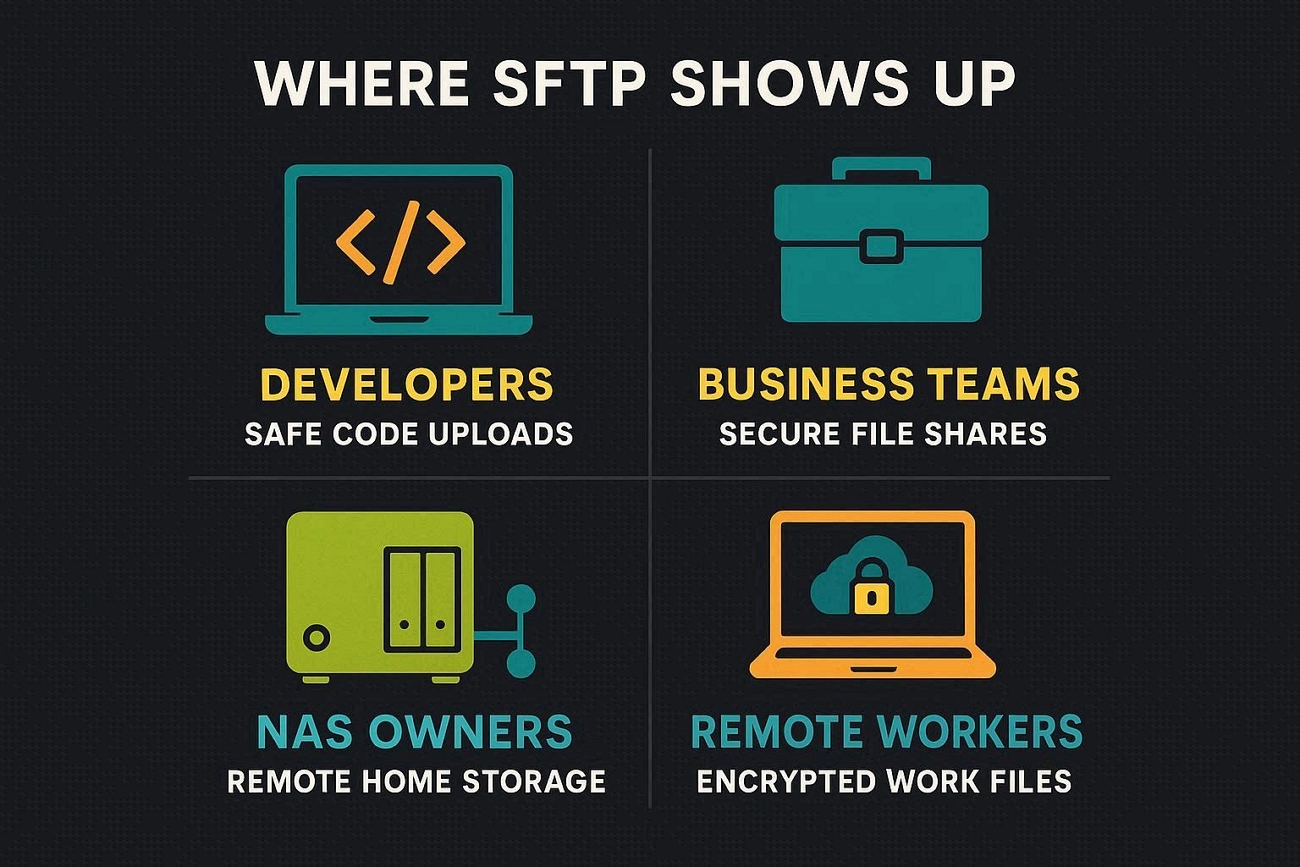
Where SFTP Shows Up
- Developers pull website files from servers, update code safely, and avoid exposing anything during transfers.
- Business teams move contracts and reports between offices without leaking salaries, client data, or internal notes.
- NAS owners reach their home storage from anywhere, streaming or grabbing files over secure connections.
- Remote workers sync documents from company servers, keeping everything updated without emailing attachments or zips.
Why SFTP Matters on iPhone
With an SFTP‑compatible app, my iPhone connects straight to the server and lists folders. I can open or download files from there, instead of first copying everything to a computer. This direct access saves time, cuts extra steps, and keeps my mobile workflow lean and simple.
Part 2. SFTP Server Types — and Where Does Your Host Address Come From?
The Host is simply the exact address where my SFTP server lives on the network. Sometimes that Host is a clean domain name, like sftp.example.com from my provider. Other times, the Host is a plain IP address, such as 192.168.1.10 on my network.
Where I actually find this Host value depends entirely on which SFTP server setup I’m using. Once I know that address, every later connection step feels simpler and much less stressful.
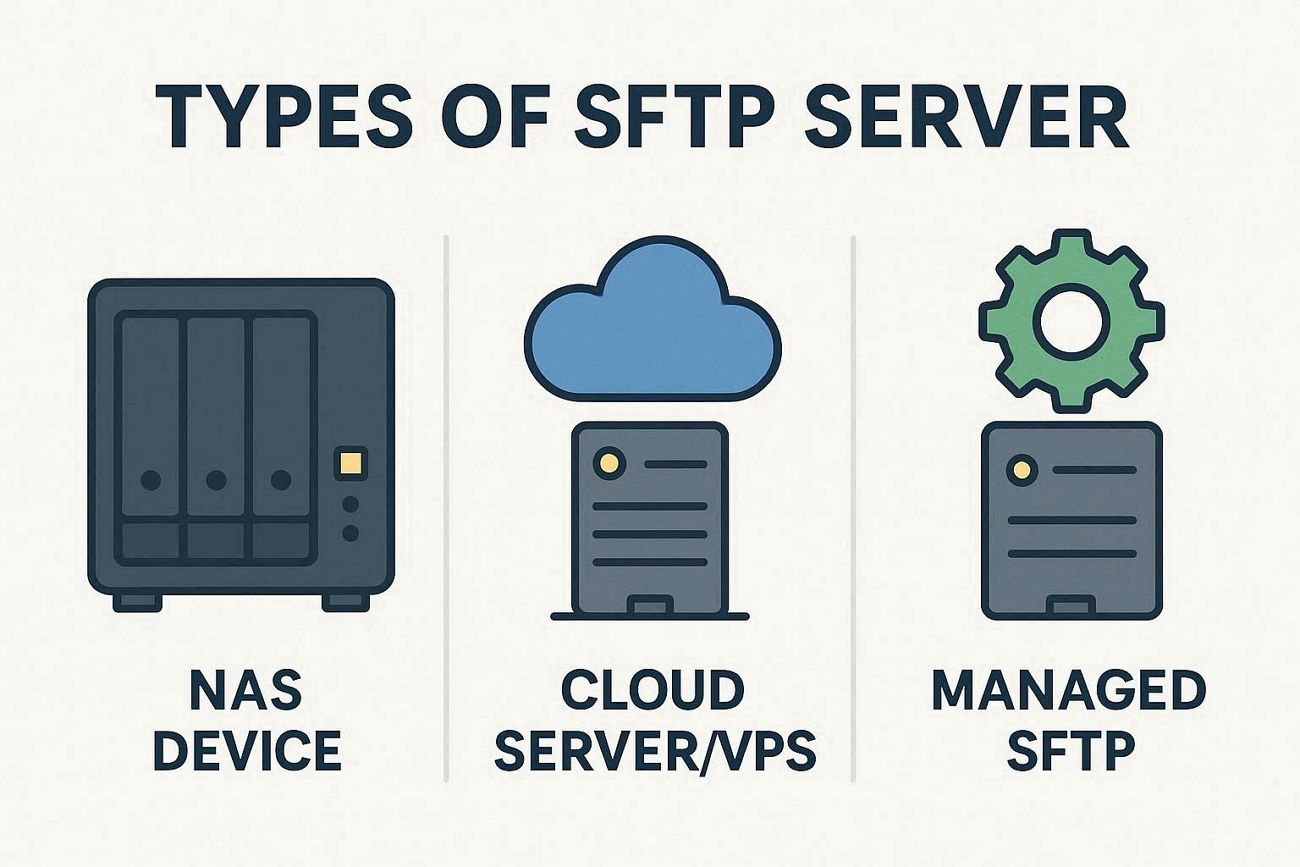
Types of SFTP Server
Next, I’ll share where different SFTP server types reveal your Host details in the table below:
| Type | Examples | Where Your Host Comes From | Best For |
| NAS device | Synology, QNAP, TerraMaster | IP or domain shown inside the NAS admin panel | Home users and small local teams |
| Cloud server/VPS | DigitalOcean, Linode, AWS EC2 | Public IP assigned automatically when creating the server instance | Users with some technical background |
| Managed SFTP | ExaVault, Files.com | Host value displayed in your account dashboard | Business users avoiding server maintenance |
Part 3. SFTP vs. WebDAV vs. SMB — Which Should You Use?
SFTP is usually safest, while WebDAV and SMB focus more on convenience and local sharing. Look at the table below to compare security, setup difficulty, and best everyday uses.
| Feature | SFTP | WebDAV | SMB |
| Security | Strongest (SSH) | Good (HTTPS) | Moderate, trusted networks |
| Reach | Internet | Internet | Local network, same WiFi |
| Source | Server, NAS, VPS | Cloud-style services | PC or home/office NAS |
| Setup | More technical | Easiest | Medium complexity |
| Best for | Secure remote access | Everyday document access | Home/office file sharing |
Verdicts: When Each One Fits
- Choose SFTP if strong encryption and safe remote server access matter more than simplicity.
- Choose WebDAV if easy cloud-style access and smooth document editing across apps are priorities.
- Choose SMB if fast sharing on one home or office network is the main requirement.
Part 4. Connecting to SFTP on iPhone with UPDF — and Downloading Your Files
When I first tried managing server PDFs on my iPhone, everything felt clunky and broken. This is where UPDF stepped in and turned that messy workflow into something clear and controlled. Instead of juggling different apps, I finally had one place to browse my server’s folders and files.
I could open PDFs directly from the server, mark them up, and stay focused on the actual content. Even when I needed to download from SFTP for offline reading, the process stayed smooth and predictable. Moreover, UPDF for iOS also lets me do all of this over encrypted SSH, without touching a computer. All file transfers use SSH encryption for strong security, but SFTP connections cannot authenticate with Microsoft accounts.
Windows • macOS • iOS • Android 100% secure
What Do You Need Before Starting?
Before connecting your iPhone to any SFTP server, always prepare everything first. It keeps the setup simple and avoids those annoying “login failed” or timeout errors. I have listed the four exact details you have to grab before opening UPDF:
- Host: Server IP address or domain name.
- Port: Usually the secure SFTP port 22.
- Login: SSH or SFTP account username,
- Password: The correct password for that username.
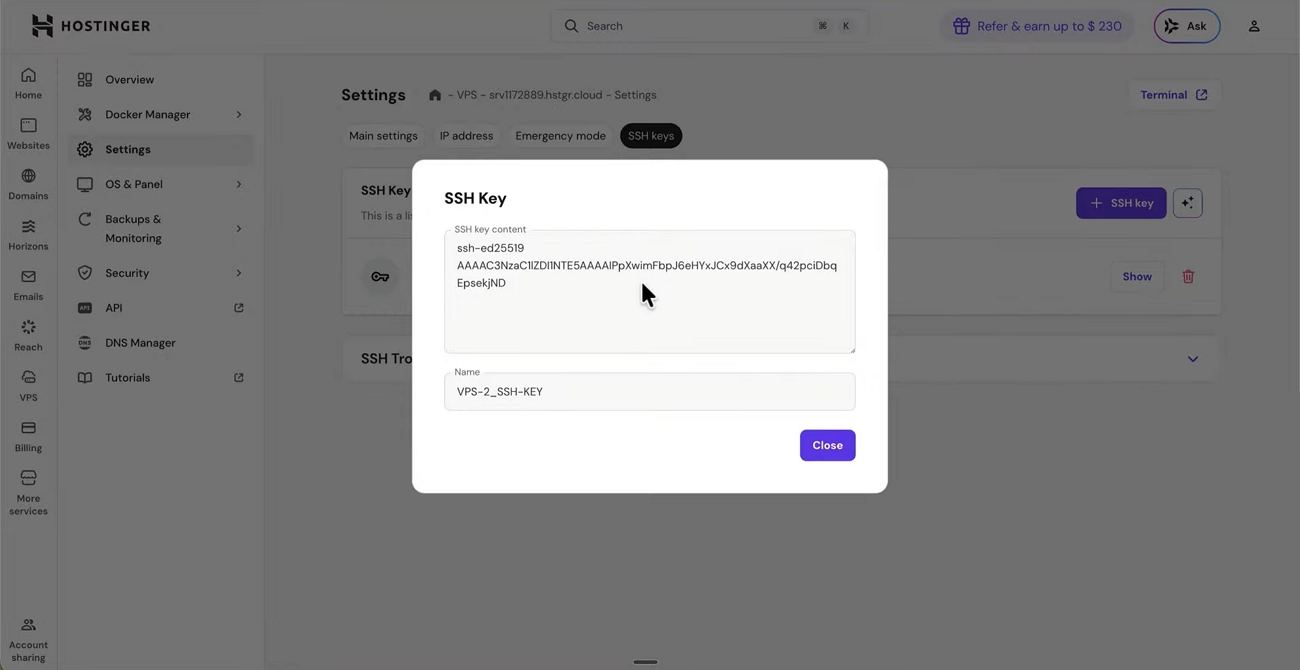
To get these four details, open your Hostinger VPS control panel and check the SSH/SFTP section. There you’ll find the IP, port, username, and either the password or SSH key settings to reuse in UPDF.
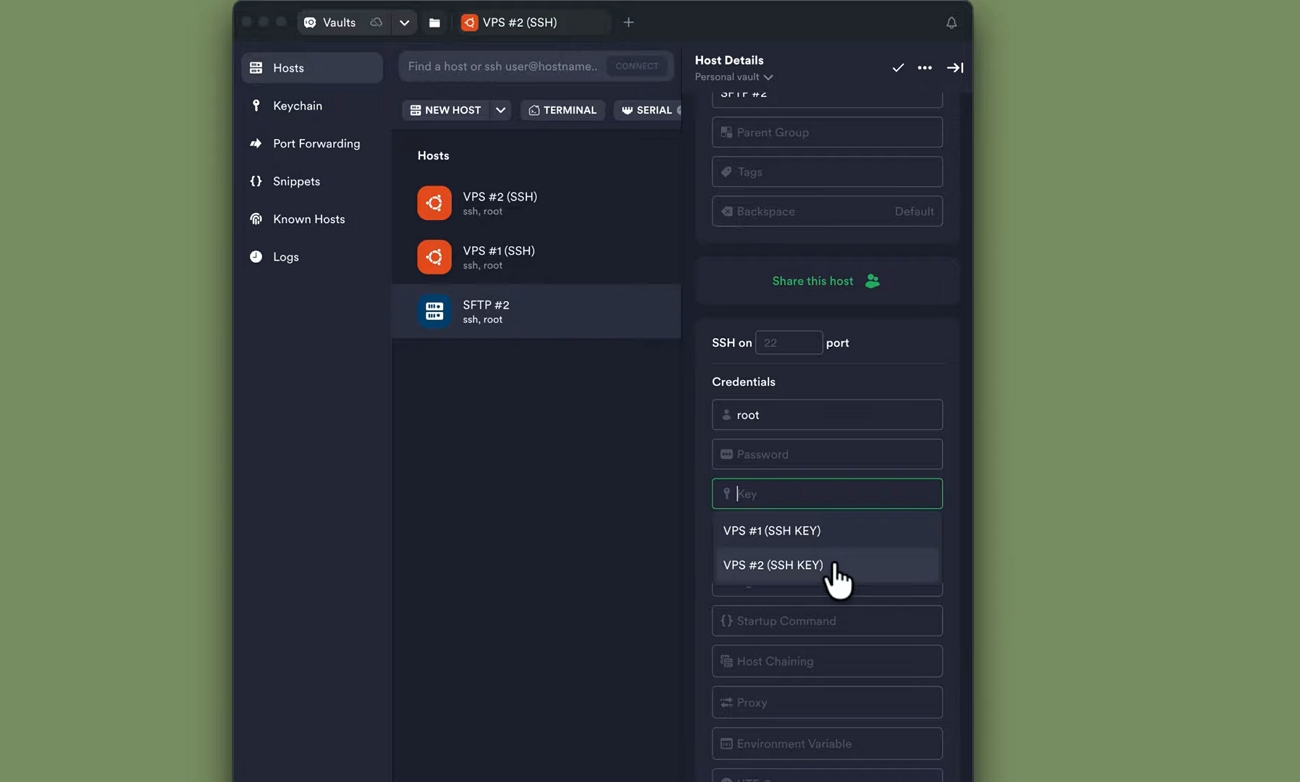
For uploading PDF files beforehand, Termius is often the easiest option with its built‑in SFTP browser.
How To Add Your SFTP Server In UPDF
Now, go through the steps below to add your SFTP server inside UPDF:
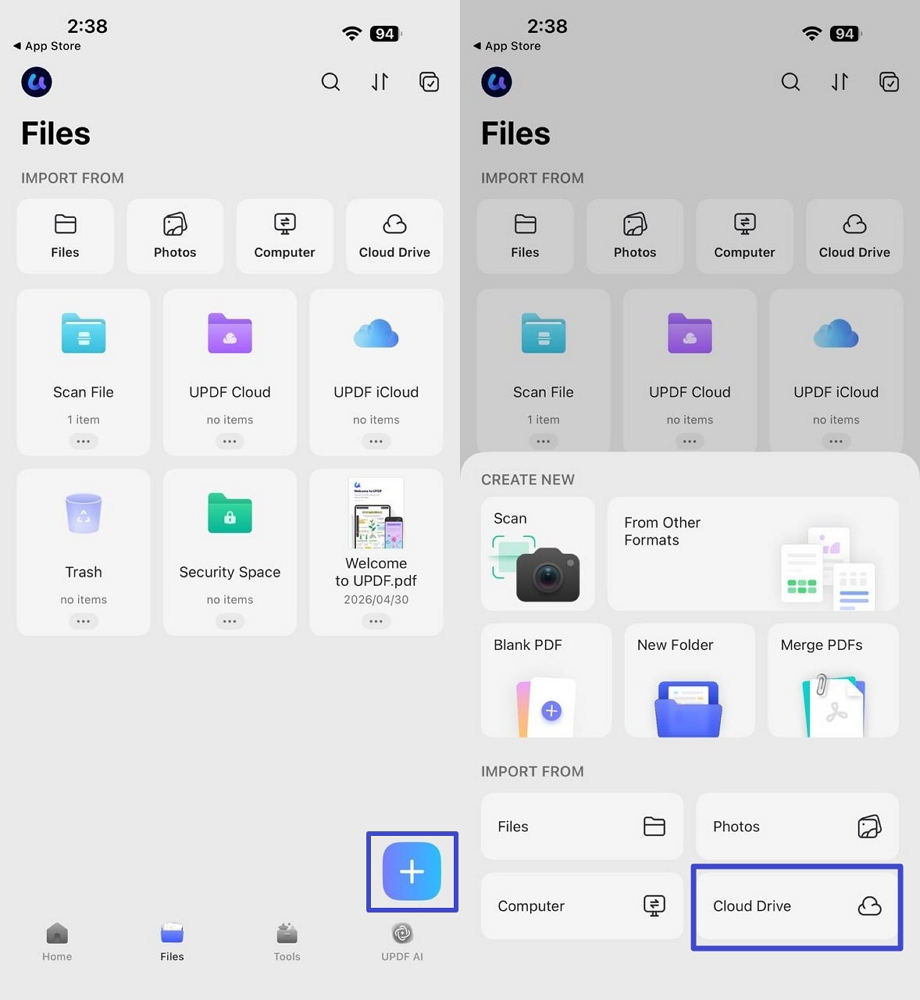
Step 1. Access Your Cloud Drive in UPDF
vFirst, tap on the “+” icon on the main screen and press the “Cloud Drive” option.
Windows • macOS • iOS • Android 100% secure
Step 2. Enter the SFTP Server Details
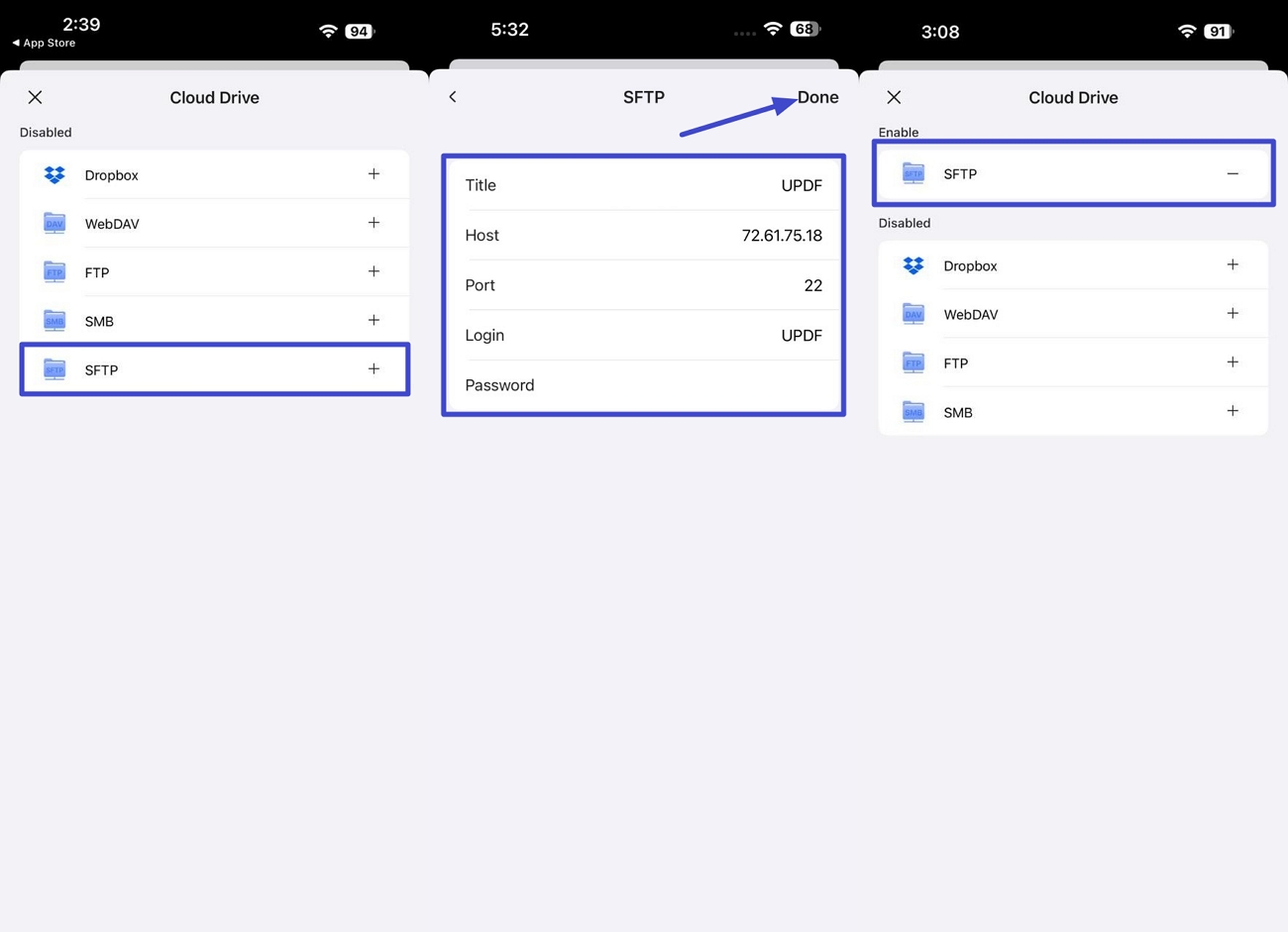
Next, choose the “SFTP” server and enter the “Title” and “Server Address.” Enter the “22” number in the “Port” section along with your “SFTP Username” and “SFTP Password.” Once done, tap on the “Done” option. This will enable your SFTP server access.
Step 3. View the Shared Folder
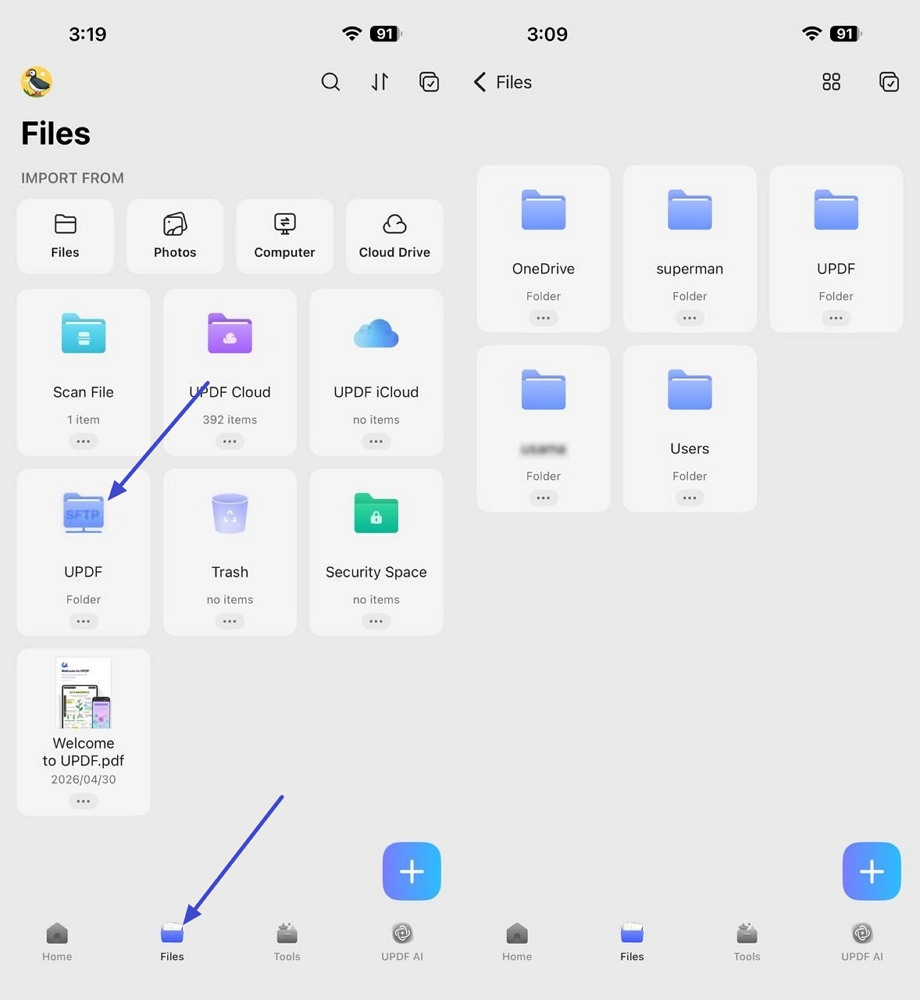
Afterward, press the “Files” option and choose the “SFTP” shared folder. Here you can access the saved PDFs directly.
How To Browse And Download Files On iPhone
Once the connection is ready, you can open PDFs directly or download from SFTP for offline access. Follow the steps below to see how to do it:
Step 1. Access PDF File From SFTP Server
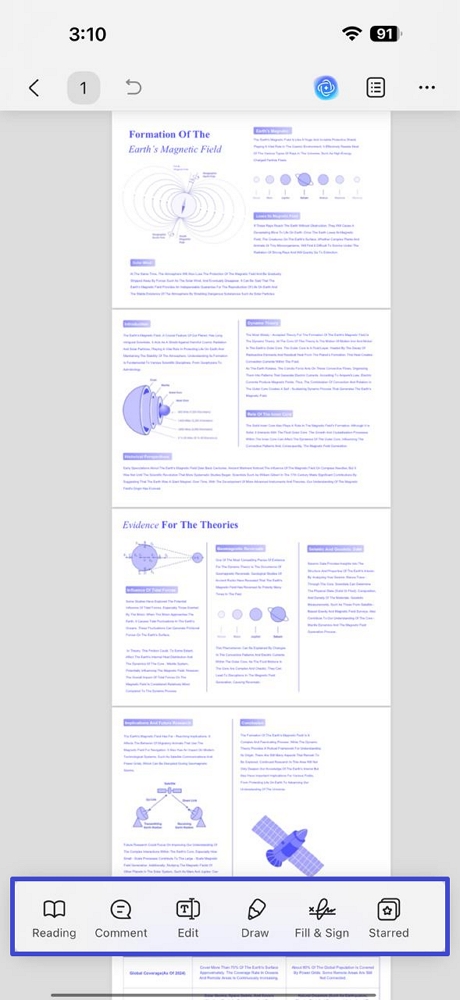
After accessing the server, open a PDF file and make some edits, like text adjustments and annotations. The updated version will be automatically saved on the server without duplicate copies.
Windows • macOS • iOS • Android 100% secure
Step 2. Download PDF to iPhone
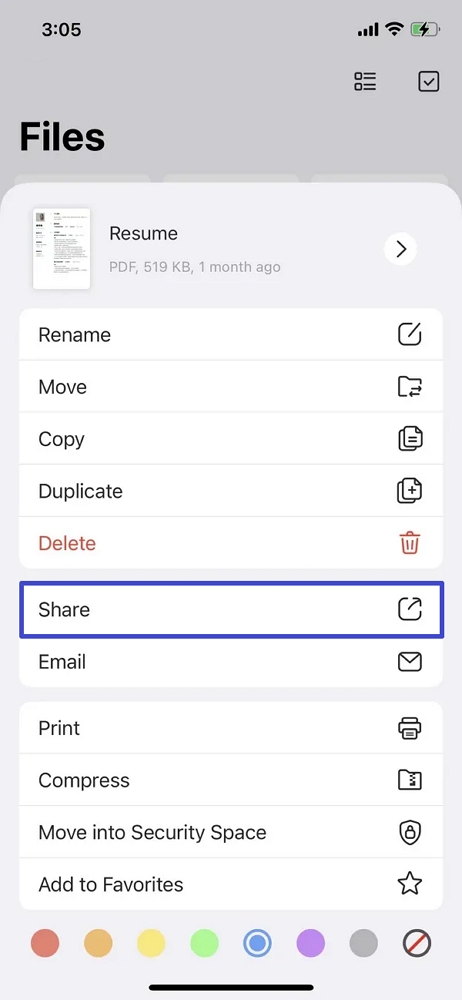
Afterward, press the “Three-Dots” icon. Next, tap on the “Share” option and choose the “Save to Files” option to save the files to iPhone storage.
Conclusion
To conclude, connecting an iPhone to SFTP servers can feel complex, but clear steps make everything manageable. UPDF for iOS simplifies the whole process by letting you open, annotate, and organize PDFs directly from your server. If you care about secure, flexible access to your documents on the go like me, I recommend using UPDF for iOS.
Windows • macOS • iOS • Android 100% secure




 Lizzy Lozano
 Enola Miller
 Enrica Taylor

- smdifansmfjsmsnd