UPDF
UPDF
 UPDF for Windows
 UPDF for Mac
 UPDF for iPhone/iPad
 UPDF for Android
 Nomostar
 UPDF AI Online
 UPDF Sign
 IvyCraft
 Edit PDF
 Annotate PDF
 Create PDF
 PDF Form
 Edit links
 Convert PDF
 OCR
OCR PDF to Word
 PDF to Image
 PDF to Excel
 Organize PDF
 Merge PDF
 Split PDF
 Crop PDF
 Rotate PDF
 Protect PDF
 Sign PDF
 Redact PDF
 Sanitize PDF
 Remove Security
 Read PDF
 UPDF Cloud
 Compress PDF
 Print PDF
 Batch Process
 About UPDF AI
 UPDF AI Solutions
 AI User Guide
 FAQ about UPDF AI
 Summarize PDF
 Translate PDF
 Chat with PDF
 Chat with AI
 Chat with image
 PDF to Mind Map
 Explain PDF
 PDF AI Tools
 Image AI Tools
 AI Chat Tools
 AI Writing Tools
 AI Study Tools
 AI Working Tools
 Other AI Tools
 AI Bookmark Generation
 AI Bookmark Summary
 AI Watermark Generation
 AI Background Generation
 AI Sticker Generation
 AI Stamp Generation
 AI Editing Suite
 UPDF Copilot
 AI Page Management
 AI Semantic Search
 PDF to Word
 PDF to Excel
 PDF to PowerPoint
 Enterprise Solution
 Enterprise Sign
 Enterprise AI
 Enterprise Plan
 Enterprise User Guide
 Enterprise Webinar
 IT
IT Education
 Construction
 Financial Service
 Healthcare
 Insurance
 Legal
Legal Manufacturing
 Government
 Researchers & PhDs
 Solopreneurs & Freelancers
 Lawyers & Legal Professionals
 Real Estate Agents & Brokers
 Education Solution
 Customer Stories
 User Guide
 UPDF Tricks
 FAQs
FAQs UPDF Reviews
 Download Center
 Blog
Blog Newsroom
 Tech Spec
 Updates
 UPDF vs. Adobe Acrobat
 UPDF vs. Foxit
 UPDF vs. PDF Expert

Quick Answer:
Technology has greatly improved the way we create and edit PDF documents for both professional and personal use. Many online and offline tools now offer features for creating and managing these files. One online tool that offers various PDF management functionalities is PDFzorro. Read this article till the end to learn about the characteristics of PDFzorro and the best alternative - UPDF.
Part 1. Is PDFzorro the Right Fit for Your PDF?
| What you need to do | Better fit | Why |
|---|---|---|
| Add a note, signature, shape, or highlight to a non-sensitive file | PDFzorro | It works in a browser and requires no installation |
| Delete, rotate, reorder, crop, split, or merge pages | PDFzorro | These are among the tools listed on PDFzorro's official site |
| Replace existing text, edit an image, or repair a link | UPDF | A full editor can work with existing PDF objects instead of merely covering them |
| Recognize text in a scanned PDF | UPDF | UPDF officially documents OCR; PDFzorro's current main tool list and plan page do not clearly document OCR |
| Edit a contract, ID, medical form, or confidential report | UPDF offline | PDFzorro processes files in the cloud, while UPDF's desktop PDF tools can work locally |
| Permanently remove sensitive information | Verify before choosing | PDFzorro advertises irreversible whiteout/blacken, but a historical PDFzorro redaction vulnerability makes a recovery test essential |
PDFzorro deserves credit for a useful niche: a user can open a browser, upload a file, make light markups, change pages, and download the result without installing an app. The mistake is expecting that convenience layer to behave like a full object-level PDF editor.
Part 2. Is PDFzorro Worth It?
To gain a detailed insight into the PDFzorro PDF editor, let us explore the steps for editing a document using this online platform. Below is the step-by-step guide on how to edit a PDF document with PDFzorro:
Step 1. To start, visit the official PDFzorro website and upload your file document using the "Upload" button.
Step 2. After the document is uploaded, click the "Start PDF Editor" button to proceed forward with the editing process.
Step 3. If you want to add text, select the "Write" option from the toolbar and place the cursor where you want to add the text.

Step 4. To erase the unwanted text within the document, click on the "Erase" option from the same toolbar. Once done, click the "Save" option located at the top left corner, and finally, press the "Finish / Download" button to save the edited document to your device.
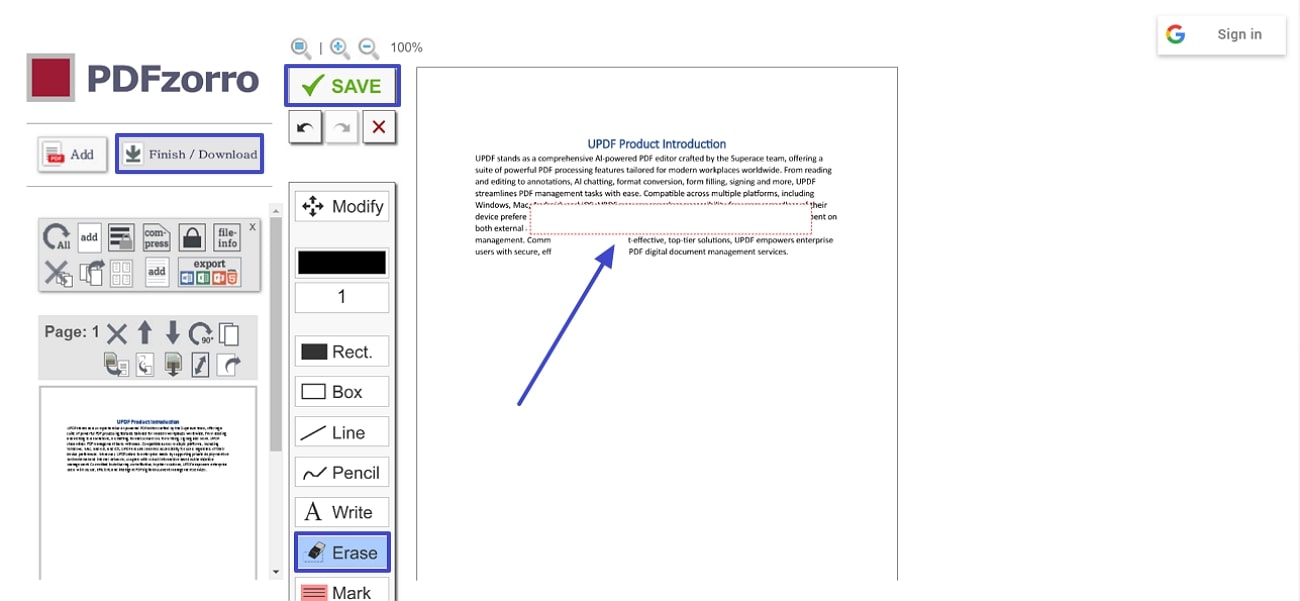
Based on our experience, the platform fails to provide high-quality PDF editing. The interface of the online tool is pretty outdated, making the PDF editing experience unpleasant. Moreover, the editing process was being disrupted by the unwanted ads popping up on the screen.
User Reviews For PDFzorro
Alexander: "This online document editor keeps me bugging with the ads frequently. A few minutes of my work was dragged to an hour because useless ads keep popping up."
Hannah: "I love the fact that it let you add text to your document, but I want it to also let me edit the images in my PDF document. I need to create a report and cannot edit images with PDFzorro."
Emily: "Even though the interface is pretty boring, the tool does its job. You can add text and even hide the confidential information in your research papers. I love this tool as it works best for me."
Thomas: "I was looking for an online solution that can compress my large PDf files instantly and I found this gem. Now I use this tool every day to compress my large files before sending them as emails."
Pros:
- This online PDF editor allows you to add documents from your device storage as well as from cloud storage, such as Google Drive.
- Users can utilize this tool to encrypt their PDF documents or add password protection.
- If the file size is too large, you can compress the document conveniently using this platform.
Cons:
- The tool misses the functionality of editing the already existing text in a PDF.
- User interface of PDFzorro is outdated compared to other PDF editors like UPDF.
Part 3. PDFzorro Pricing and Plan Limits
PDFzorro's official plan page currently shows the following:
| PDFzorro plan | Official price | Included | Important limit or uncertainty |
|---|---|---|---|
| Free | €0/month | Standard PDF tools, unlimited daily downloads, 15 MB cloud space | Ads remain; the page does not say that 15 MB is the maximum upload size |
| Professional | €2.50/month | Standard tools, unlimited daily downloads, no ads, online saving for later editing, 100 MB cloud space, and exports to Word, Excel, PowerPoint, and other formats | "No notice period" is stated, but billing cadence and cancellation should still be checked at checkout |
Part 4. Discovering the Best PDFzorro Alternative That You Must Try
As discussed above, PDFzorro is an extensive PDF editor, but it also has some limitations that do not make it the number one choice. However, one of the most reliable tools that offer incredible functionalities with an intuitive interface is UPDF. The tool offers a better user interface along with offline availability for users to edit their documents with ease.
The tool enables users to edit all elements of a PDF, including text, images, links, backgrounds, watermarks, and more. It also offers extensive features like annotations, allowing users to add stamps, sticky notes, and callouts to their documents. As a dedicated desktop and mobile application, UPDF delivers fast and smooth performance. Additionally, it provides advanced security options to ensure the protection of confidential documents. The integrated AI assistant further sets it apart from other PDF editors, enhancing its functionality and user experience.
Users can click the button below to try it for free. If you're curious about what others are saying about UPDF, watch the video below.
Windows • macOS • iOS • Android 100% secure
Comparison Table Between PDFzorro and UPDF
After a detailed discussion of the PDFzorro review and the alternative, UPDF, let's now look at the tabular comparison between the tools:
| PDFzorro | UPDF | |
| Desktop & Mobile App | ||
| Text Editing | Basic | Advanced |
| Image Editing | ||
| Optical Character Recognition (OCR) | ||
| Batch Processing | ||
| AI PDF |
When it comes to managing PDF documents, UPDF excels with features like OCR (Optical Character Recognition) that convert scanned PDF documents into editable text. Moreover, the batch processing functionality lets you simultaneously apply the same action to multiple documents.
While PDFzorro lets users delete or remove pages, UPDF offers more extensive page management options like inserting new pages and extracting specific pages. These functionalities make the UPDF a better option when it comes to PDF editing.
FAQs
Q1: What's the best free online PDF editor?
There is no single best choice. PDFzorro suits quick, low-risk browser tasks such as adding text boxes, signatures, highlights, or changing pages. If you need to replace existing text, recognize scanned pages, or keep sensitive documents offline, a desktop editor such as UPDF is a better fit.
Q2: Is it safe to use online PDF editors?
It depends on the document. Online editors require uploading the PDF to a remote server, so avoid using them for IDs, medical records, contracts, and confidential reports unless the retention and deletion policies meet your requirements. For sensitive files, local PDF editing reduces the exposure created by cloud uploads.
Q3: How do I convert a PDF into an editable format?
Use editing or OCR. If individual words are already selectable, open the PDF in an editor and modify the existing text. If the page behaves like a single image, run OCR first to create a searchable or editable text layer. PDFzorro does not clearly document OCR on its current main tool and pricing pages.
Conclusion
PDFzorro is worth trying for low-risk, occasional browser tasks: add a signature, annotate a handout, reorder pages, or make a visible correction. Its Free plan is genuinely useful, and Professional removes ads while adding cloud space, saved projects, and export tools for €2.50/month.
PDFzorro is not the default recommendation for confidential files, verified redaction, scanned documents that need OCR, or precise changes to existing text and images. Those jobs benefit from a full local editor and a documented OCR workflow.
If your PDF contains private data or needs more than a quick overlay, test the local workflow before uploading the file anywhere.
Download UPDF for free to edit text, images, links, or scanned PDFs locally—installation is free, and Pro removes the trial watermark from exported files.
Windows • macOS • iOS • Android 100% secure






 Enrica Taylor
 Enid Brown
 Lizzy Lozano