 UPDF
UPDF
 UPDF for Windows
 UPDF for Mac
 UPDF for iPhone/iPad
 UPDF for Android
 Nomostar
 UPDF AI Online
 UPDF Sign
 IvyCraft
 Edit PDF
 Annotate PDF
 Create PDF
 PDF Form
 Edit links
 Convert PDF
 OCR
OCR PDF to Word
 PDF to Image
 PDF to Excel
 Organize PDF
 Merge PDF
 Split PDF
 Crop PDF
 Rotate PDF
 Protect PDF
 Sign PDF
 Redact PDF
 Sanitize PDF
 Remove Security
 Read PDF
 UPDF Cloud
 Compress PDF
 Print PDF
 Batch Process
 About UPDF AI
 UPDF AI Solutions
 AI User Guide
 FAQ about UPDF AI
 Summarize PDF
 Translate PDF
 Chat with PDF
 Chat with AI
 Chat with image
 PDF to Mind Map
 Explain PDF
 PDF AI Tools
 Image AI Tools
 AI Chat Tools
 AI Writing Tools
 AI Study Tools
 AI Working Tools
 Other AI Tools
 AI Bookmark Generation
 AI Bookmark Summary
 AI Watermark Generation
 AI Background Generation
 AI Sticker Generation
 AI Stamp Generation
 AI Editing Suite
 UPDF Copilot
 AI Page Management
 AI Semantic Search
 PDF to Word
 PDF to Excel
 PDF to PowerPoint
 Enterprise Solution
 Enterprise Sign
 Enterprise AI
 Enterprise Plan
 Enterprise User Guide
 Enterprise Webinar
 IT
IT Education
 Construction
 Financial Service
 Healthcare
 Insurance
 Legal
Legal Manufacturing
 Government
 Researchers & PhDs
 Solopreneurs & Freelancers
 Lawyers & Legal Professionals
 Real Estate Agents & Brokers
 Education Solution
 Customer Stories
 User Guide
 UPDF Tricks
 FAQs
FAQs UPDF Reviews
 Download Center
 Blog
Blog Newsroom
 Tech Spec
 Updates
 UPDF vs. Adobe Acrobat
 UPDF vs. Foxit
 UPDF vs. PDF Expert

Converting a WhatsApp image to PDF is useful for work, school, reimbursement, or record-keeping. WhatsApp can send an existing PDF, but it cannot turn a photo into PDF by itself—you need to save the image first and convert it on your phone or computer.
If you want a ready-to-use option, UPDF is a cross-platform PDF editor that can create a PDF from one or multiple saved WhatsApp photos, arrange the pages, and prepare the file for sharing. Download it below and follow the device-specific steps in Part 4. If you only need to convert one photo quickly, Part 3 also covers built-in iPhone and Android options.
Windows • macOS • iOS • Android 100% secure
Part 1. Can WhatsApp Convert Images to PDF Directly?
No. WhatsApp lets you send photos, videos, and documents, including PDF files, but it does not turn a photo into a PDF during sending. If you choose Document and select an image file, the recipient still receives an image—not a PDF. To make a WhatsApp image a PDF, download or save the photo first, convert it on your phone or computer, and then send the resulting PDF as a document.
For a single photo, an iPhone or some Android phones may have a built-in option. For multiple photos, page ordering, consistent sizing, or further editing, a dedicated image-to-PDF converter is more reliable. For the shortest route, go to Part 3 for one photo, Part 5 for several photos, or Part 6 if your PDF is already ready to send.
Part 2. Save WhatsApp Images to Your Device First
Before using any of the methods below, save the received WhatsApp image locally.
- On iPhone: Open the chat and photo, tap the Share icon, and choose Save. The image will appear in Photos.
- On Android: Open the image and use the Download or Save option if it is not already stored in your WhatsApp media folder.
- On WhatsApp Web or Desktop: Open the photo, click the Download icon, and save it to a folder you can find easily.
If several photos belong in the same PDF, download all of them before starting. This makes it easier to arrange them in the correct order.
Part 3. Convert One WhatsApp Image to PDF with Built-In Tools
On iPhone or iPad with Preview
On a recent iPhone or iPad, Apple Preview can export a saved image as PDF:
- Open the saved WhatsApp image in Preview.
- Tap the Actions menu and choose Export.
- Select PDF, choose any available options, and save the file.
This method is convenient for one image. For Apple’s current instructions, see the iPhone Preview guide.
On Android with Print to PDF
Some Android gallery or photo apps provide a print command. Open the saved image, tap More or Share, choose Print, select Save as PDF, and save the file. Menu names vary by phone brand and Android version, and the Print option may not appear on every device.
Built-in methods are fast for a one-page PDF, but they may not let you combine many saved images, reorder pages, control page size, or edit the result. If you need those options—or your Android phone has no Print command—use the UPDF method below.
Part 4. Convert WhatsApp Images to PDF with UPDF on Any Device
Use UPDF when the built-in option is missing or when you need more than a basic one-page PDF. It works across iPhone, iPad, Android, Windows, and Mac, and gives you control over multiple images, page order, page size, editing, and OCR after conversion. Choose your device below.
Convert WhatsApp Images on iPhone or iPad
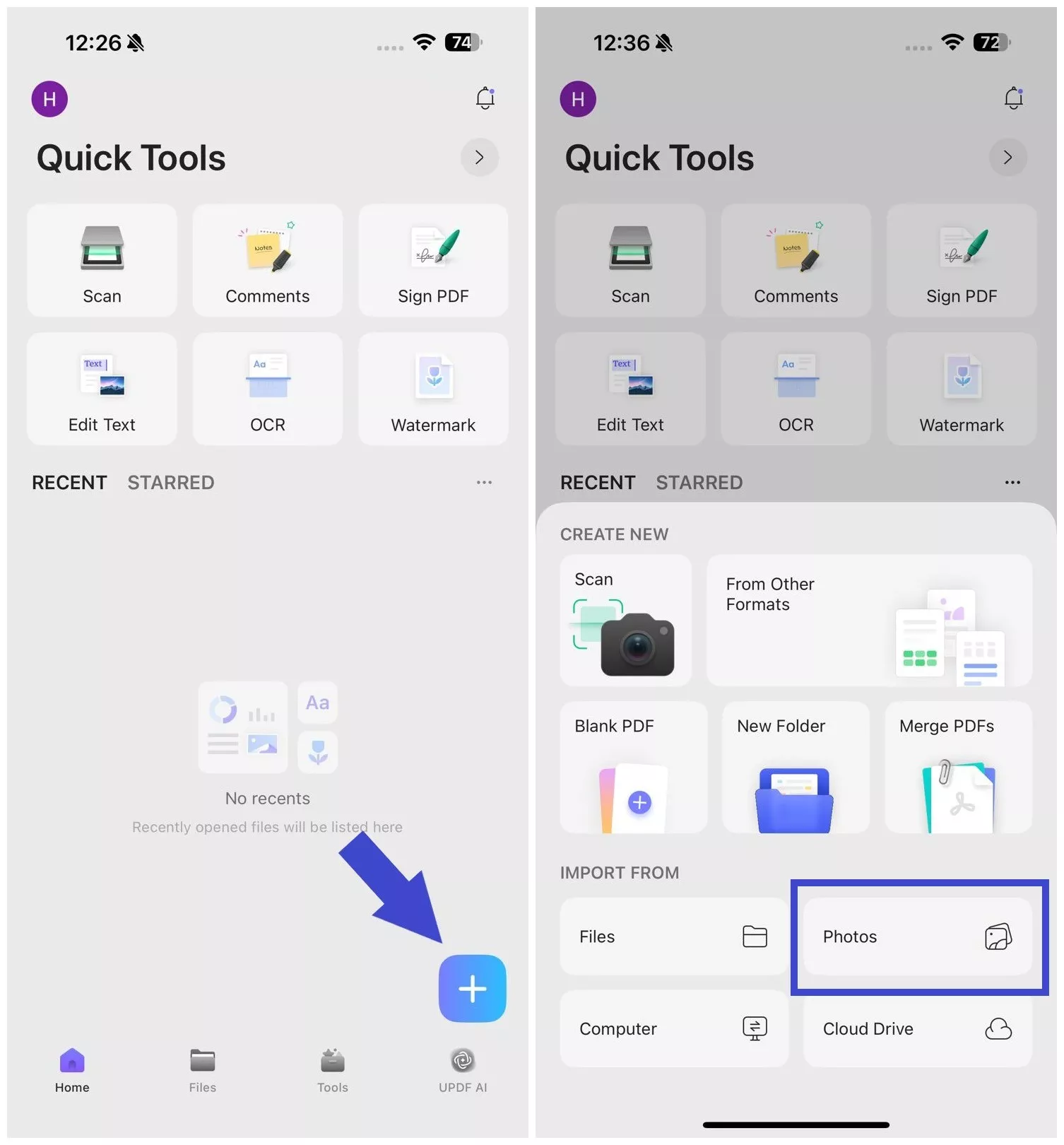
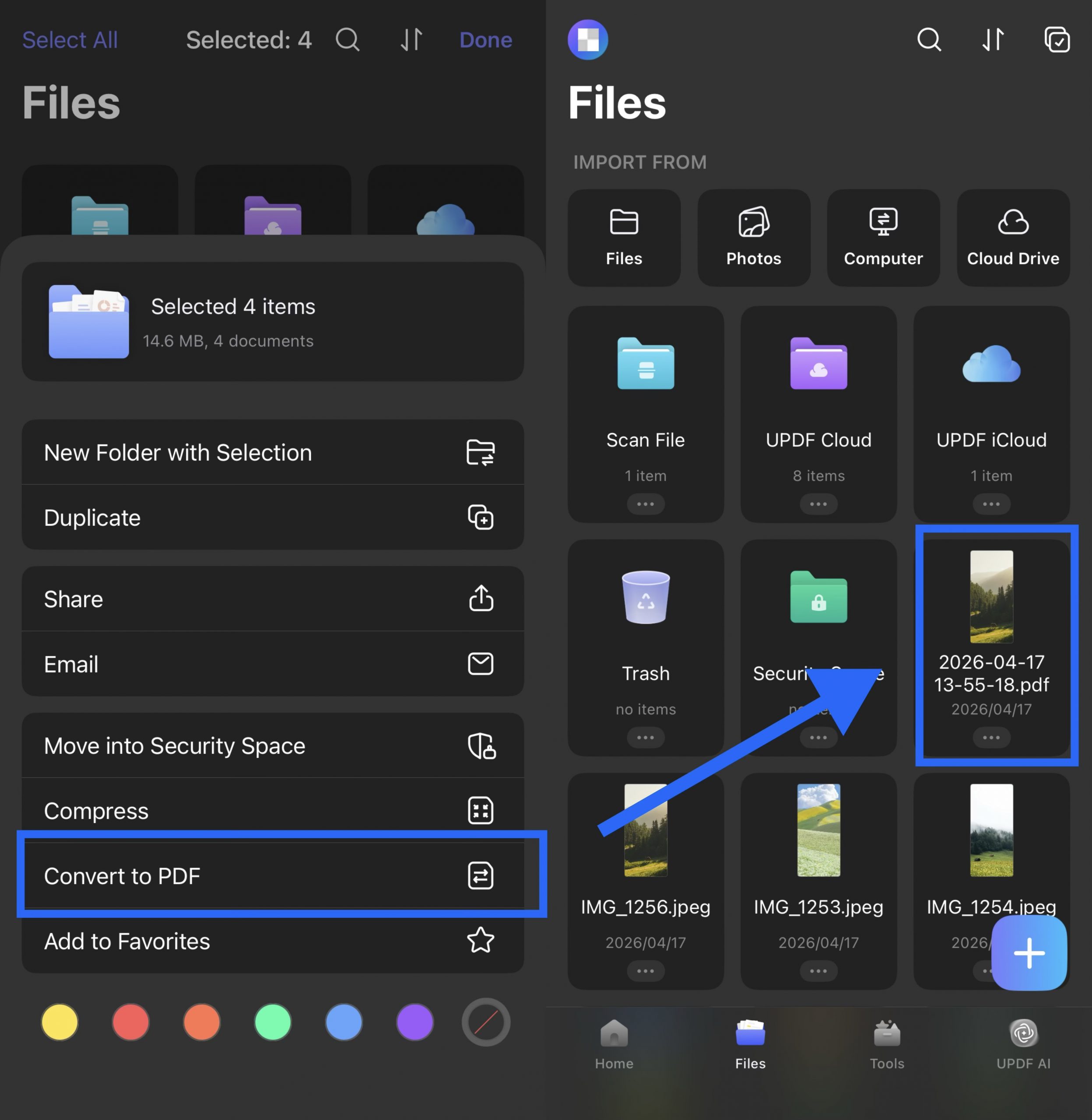
- Open UPDF and tap +, then choose Photos under Import From.
- Select the WhatsApp photo from your library and tap Add.
- In the Files tab, tap … beside the imported image and select Convert to PDF.
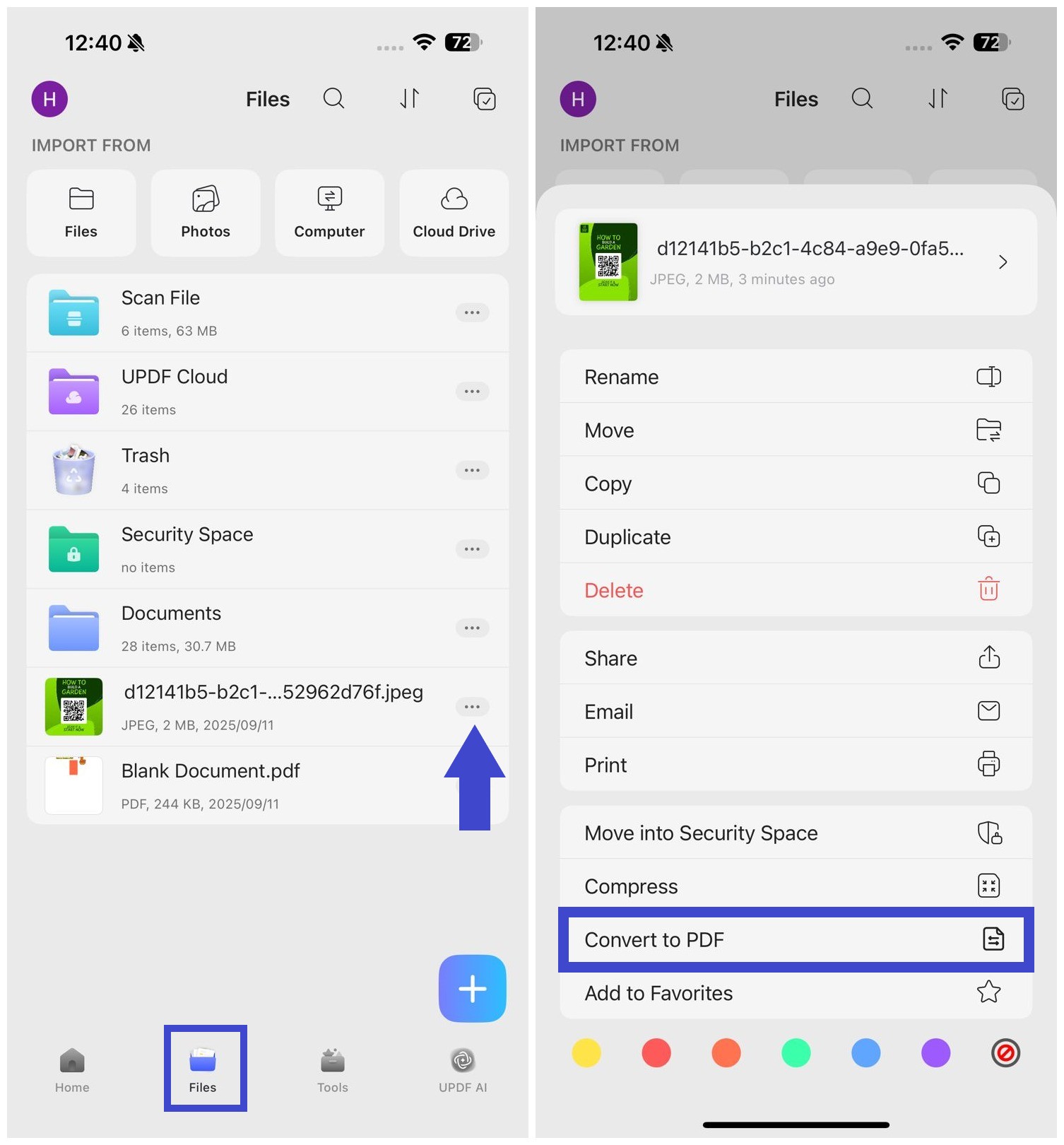
The PDF remains available in UPDF for reading, sharing, or further work. You can also follow the official UPDF iOS create-PDF guide.
Convert WhatsApp Images on Android
Open UPDF on Android and create a blank PDF with the page size and page count you need. Add each saved WhatsApp image from Album or Files, then resize and position it on the page. UPDF saves the document automatically. This is especially helpful when Android’s Gallery app does not offer Print to PDF or when you want several images in one organized document.
See the detailed JPG-to-PDF steps for Android if the menus on your phone look different.
Convert WhatsApp Images on Windows or Mac
- Download the WhatsApp image from WhatsApp Web/Desktop or transfer it from your phone.
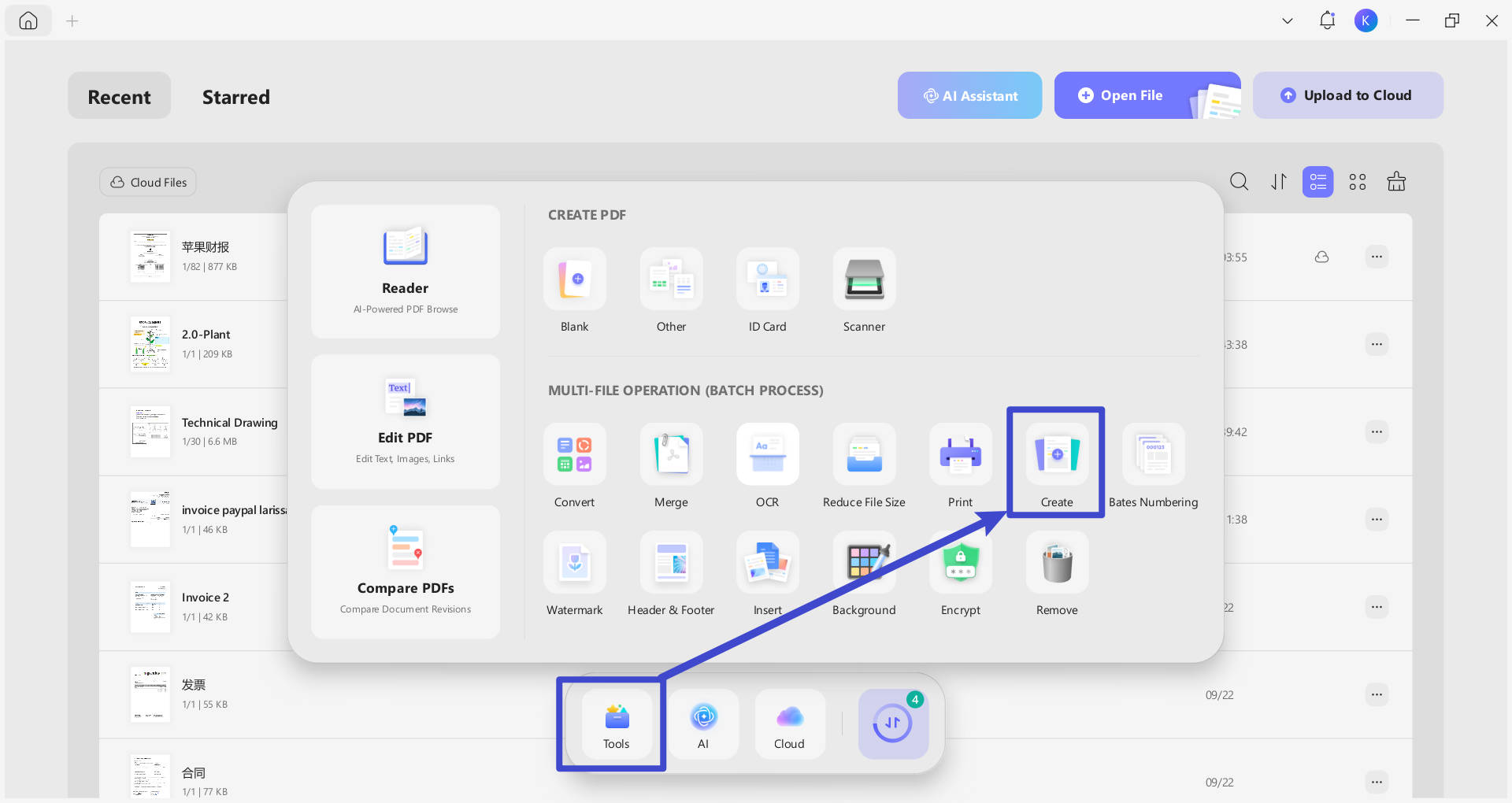
- Open UPDF and go to Tools > Other > PDF from Image.
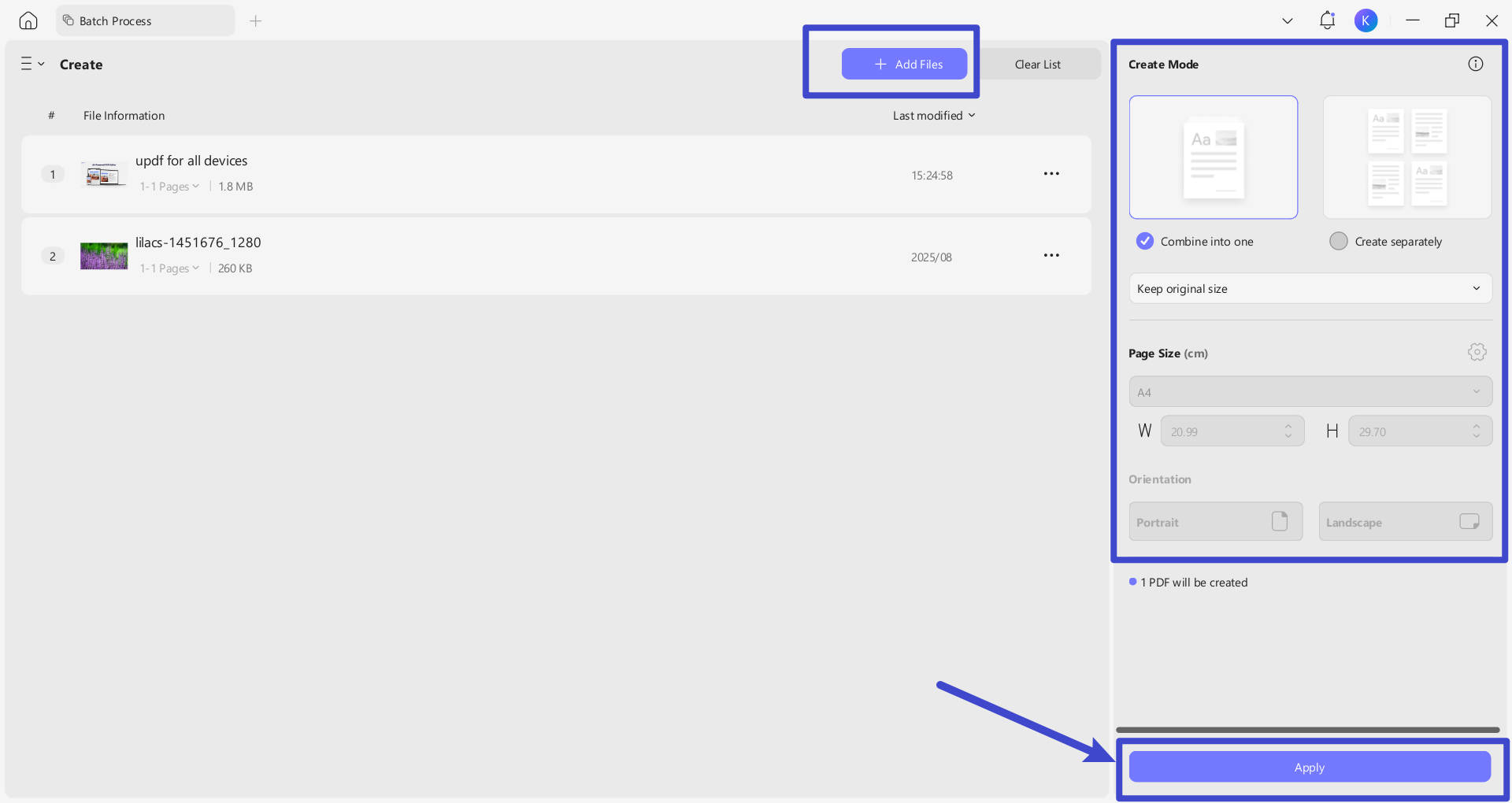
- Add one or more images. When adding several, choose Combine into Single Document, arrange the order, select a page size, and click Apply.
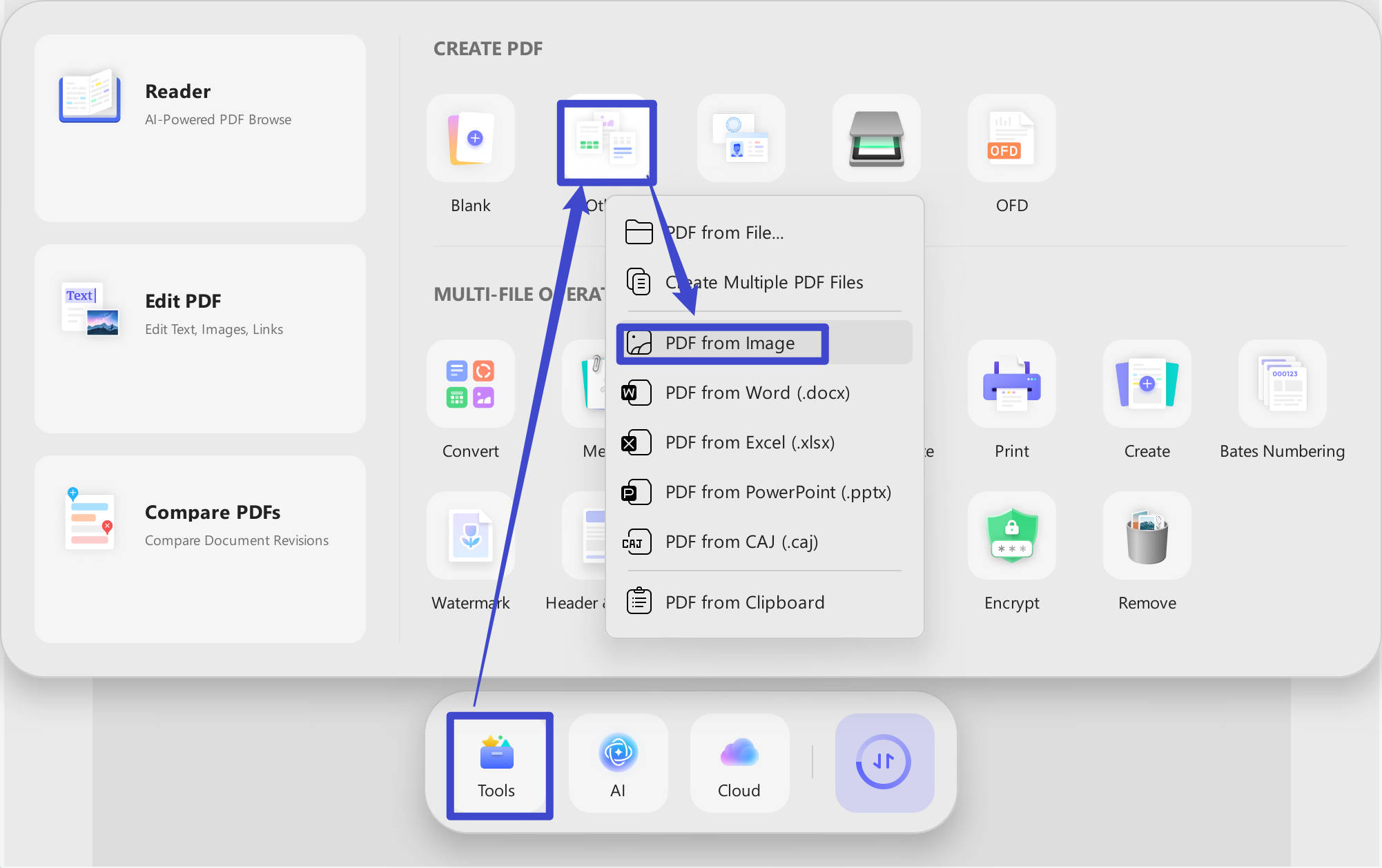
If you mainly work on a PC, this dedicated guide explains more ways to convert images to PDF on Windows. Download UPDF below if you want to follow these steps now; the same license can be used across the supported desktop and mobile platforms.
Windows • macOS • iOS • Android 100% secure
Part 5. Combine Multiple WhatsApp Photos into One PDF
Combining related images into one PDF keeps receipts, forms, class notes, product photos, or project records in a single file. Download all WhatsApp photos first, then use one of these UPDF workflows.
On iPhone or iPad
- Import the photos into UPDF.
- Tap Select and choose all the images you need.
- Tap More > Convert to PDF. UPDF combines the selected photos into one PDF.
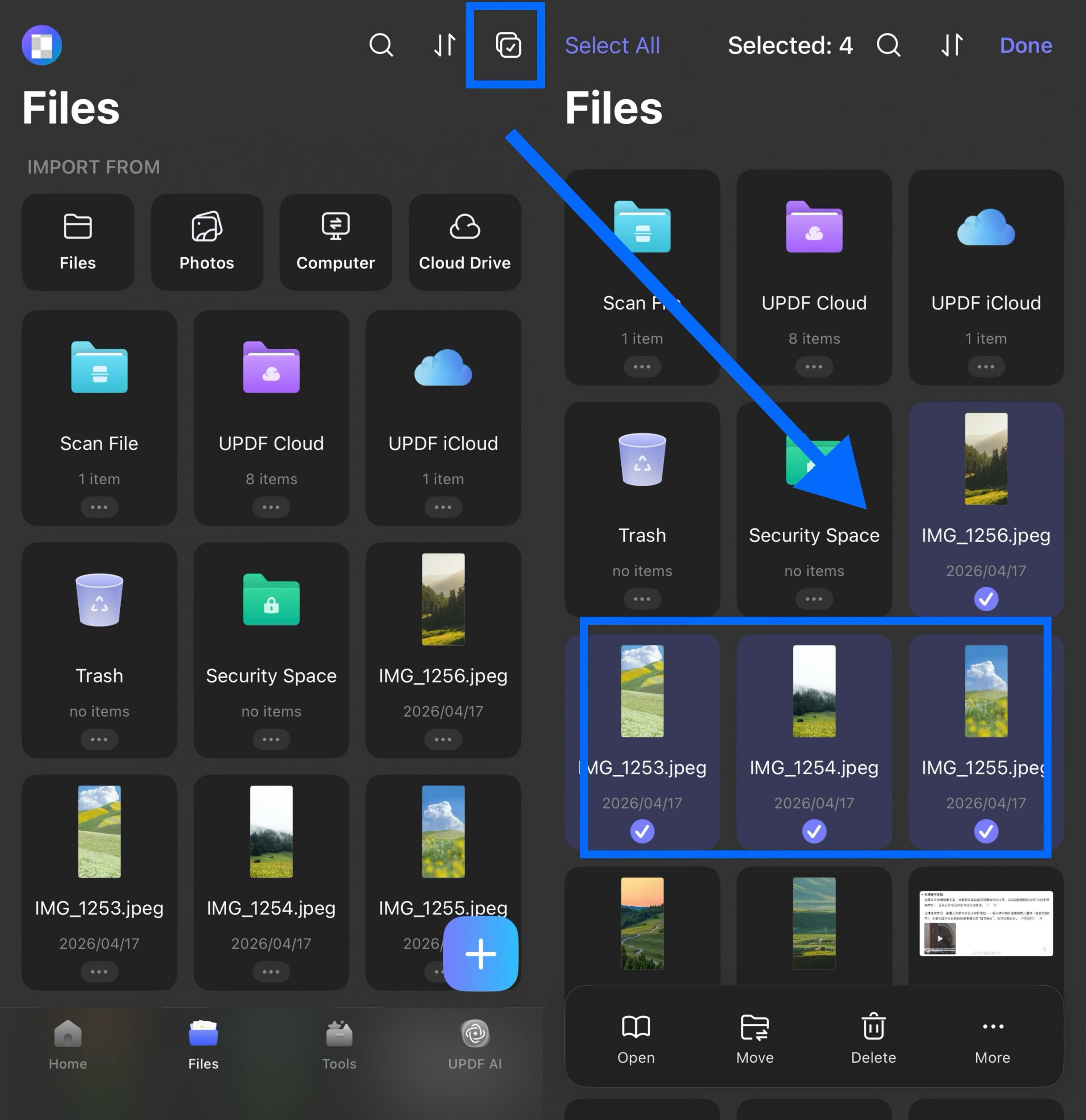
On Android
Create a blank PDF in UPDF with enough pages for your photos. Add the saved WhatsApp images from Album or Files, place one or more images on each page, and organize the pages in the order you want. This takes a few more taps than the iOS multi-select workflow, but it works when your Android gallery cannot combine several images as one PDF.
On Windows or Mac
Use PDF from Image for a normal set of photos. For a much larger collection, UPDF’s batch creation tool can process many files and output them As One PDF or As Multiple PDFs. Before applying, drag the images into the correct order and check the page-size settings.
Want two photos on the same sheet instead of one image per page? See how to place two images on one PDF page.
Part 6. How to Send Photos as a PDF in WhatsApp
Once the photo has been converted, send the PDF through WhatsApp as a document:
- Open the WhatsApp chat.
- Tap + on iPhone or the paperclip icon on Android/WhatsApp Web.
- Choose Document, locate the PDF, and select it.
- Add a caption if needed and tap Send.
WhatsApp’s official guidance says document attachments can include PDFs and can be up to 2 GB. See how to send media, documents, locations, and contacts. Remember: selecting Document only sends the file you already have; it does not convert an image file into PDF.
Part 7. What You Can Do After Conversion
After creating the PDF, UPDF lets you crop or replace images, reorder and rotate pages, add text or annotations, and protect sensitive files with a password. If the WhatsApp photos contain printed text—such as receipts, worksheets, or scanned forms—OCR can make that text searchable and editable. These options are useful when the PDF needs more than simple sharing, without turning this conversion into a complicated workflow. For a broader overview, see how to create a PDF from different sources.
Part 8. FAQs About WhatsApp Image to PDF Conversion
Can WhatsApp convert an image to PDF directly?
No. WhatsApp can send an existing PDF as a document, but it does not convert a JPG, PNG, or other image into PDF. Save the photo first and convert it with a built-in tool or UPDF.
How do I turn multiple WhatsApp images into one PDF?
Download all the images, import or select them in UPDF, arrange them in the correct order, and create or combine them as one PDF. UPDF supports multi-image workflows on iOS and desktop, while Android users can add saved images to pages in a PDF.
How do I send a photo as a PDF in WhatsApp?
Convert the photo to PDF first. Then open the chat, tap the plus or paperclip icon, choose Document, select the PDF, and send it.
What is the best way to convert a WhatsApp photo to PDF?
For one photo, Apple Preview or Android's Print to PDF option may be enough. For multiple photos, page ordering, editing, OCR, or consistent results across devices, UPDF is the more flexible choice.
Conclusion
To convert a WhatsApp image to PDF, save the image first. A built-in iPhone or Android option can handle a quick one-page file, while UPDF is better suited to combining multiple WhatsApp photos, controlling page order and size, or editing and OCR after conversion. Once the PDF is ready, attach it in WhatsApp as a document. Download UPDF below to try the workflow on your phone or computer.
Windows • macOS • iOS • Android 100% secure







 Enrica Taylor
 Enid Brown

 Engelbert White