 UPDF
UPDF
 UPDF for Windows
 UPDF for Mac
 UPDF for iPhone/iPad
 UPDF for Android
 Nomostar
 UPDF AI Online
 UPDF Sign
 IvyCraft
 Edit PDF
 Annotate PDF
 Create PDF
 PDF Form
 Edit links
 Convert PDF
 OCR
OCR PDF to Word
 PDF to Image
 PDF to Excel
 Organize PDF
 Merge PDF
 Split PDF
 Crop PDF
 Rotate PDF
 Protect PDF
 Sign PDF
 Redact PDF
 Sanitize PDF
 Remove Security
 Read PDF
 UPDF Cloud
 Compress PDF
 Print PDF
 Batch Process
 About UPDF AI
 UPDF AI Solutions
 AI User Guide
 FAQ about UPDF AI
 Summarize PDF
 Translate PDF
 Chat with PDF
 Chat with AI
 Chat with image
 PDF to Mind Map
 Explain PDF
 PDF AI Tools
 Image AI Tools
 AI Chat Tools
 AI Writing Tools
 AI Study Tools
 AI Working Tools
 Other AI Tools
 AI Bookmark Generation
 AI Bookmark Summary
 AI Watermark Generation
 AI Background Generation
 AI Sticker Generation
 AI Stamp Generation
 AI Editing Suite
 UPDF Copilot
 AI Page Management
 AI Semantic Search
 PDF to Word
 PDF to Excel
 PDF to PowerPoint
 Enterprise Solution
 Enterprise Sign
 Enterprise AI
 Enterprise Plan
 Enterprise User Guide
 Enterprise Webinar
 IT
IT Education
 Construction
 Financial Service
 Healthcare
 Insurance
 Legal
Legal Manufacturing
 Government
 Researchers & PhDs
 Solopreneurs & Freelancers
 Lawyers & Legal Professionals
 Real Estate Agents & Brokers
 Education Solution
 Customer Stories
 User Guide
 UPDF Tricks
 FAQs
FAQs UPDF Reviews
 Download Center
 Blog
Blog Newsroom
 Tech Spec
 Updates
 UPDF vs. Adobe Acrobat
 UPDF vs. Foxit
 UPDF vs. PDF Expert

PDF files are editable with PDF editors, but many users tend to edit them as ODT (OpenDocument Text). They find OpenOffice or Microsoft Word the best platforms for making edits to the PDF after converting it to ODT.
There are many ways to convert PDF to ODT format while preserving the content, layout, and formatting. So, stick around to learn the top five online converters for easy conversion.
Part 1. Can I Convert PDF to ODT?
Yes, you can easily convert PDF to ODT. All you need is an online/offline converter that can convert the file from PDF to ODT format without compromising the layout and formatting. In fact, if you use an online converter, the process is as simple as uploading the PDF > converting > downloading the converted ODT.
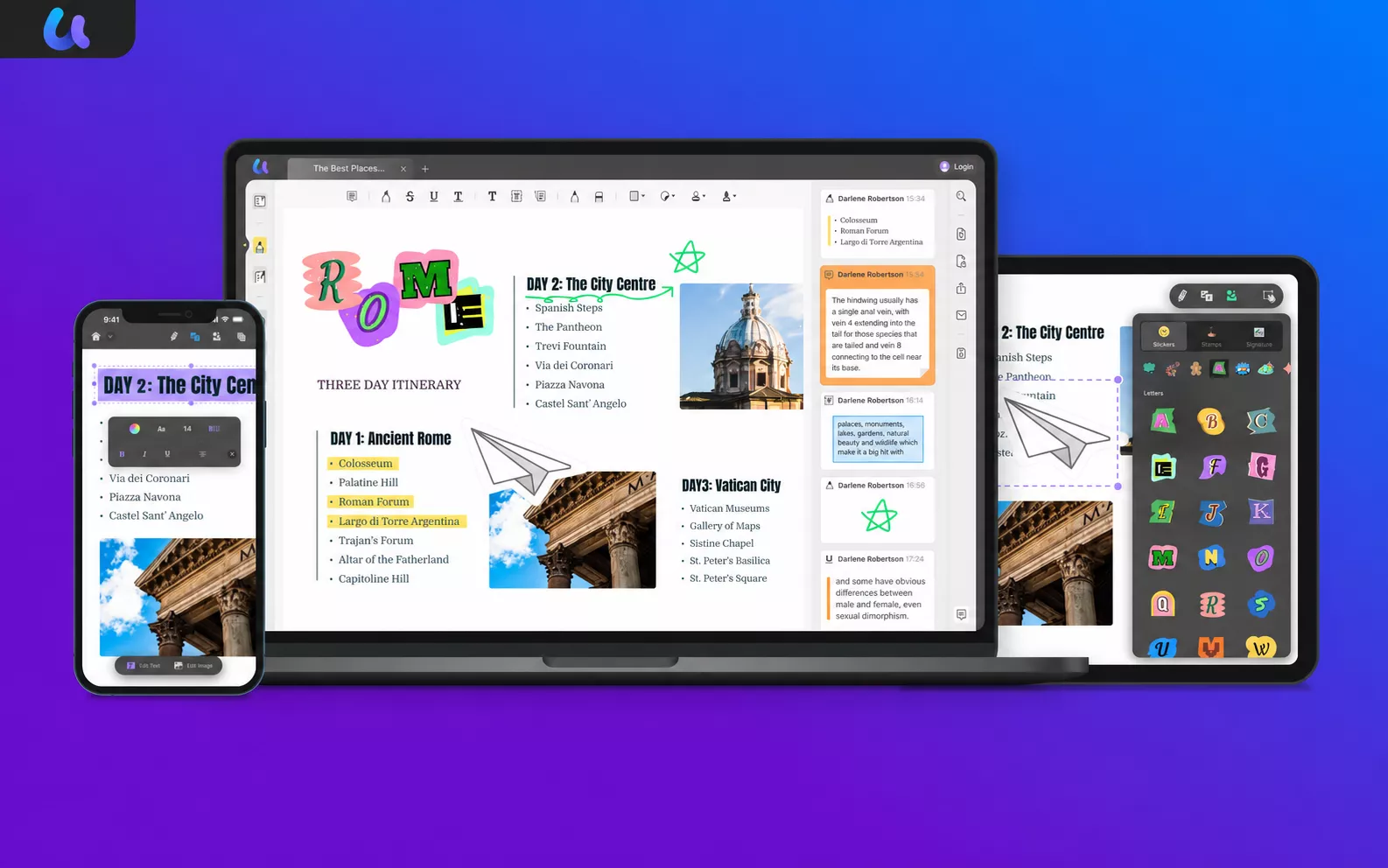
However, you can do a lot more with PDF before converting. You can use UPDF–the best PDF editor–to make edits to PDF text, images, and links before conversion. Alternatively, you can also use UPDF to annotate PDF content, such as highlighting, marking, underlining, drawing, and more.
Install UPDF and check out its PDF editing/annotating features yourself before conversion.
Windows • macOS • iOS • Android 100% secure
Part 2. How Do I Convert a PDF to ODT?
As mentioned above, there are plenty of ways to convert PDF to ODT. So, let's discuss a few of the best online and fast ways to get the conversion done within minutes:
1. Using Convertio
Best for:
- Users who want a straightforward PDF-to-ODT converter with support for files stored on a computer, Google Drive, Dropbox, or a URL.
Not for:
- Scanned PDFs that have not undergone OCR or documents whose complex, fixed layout must be preserved exactly.
Convertio is a web-based PDF to ODT converter that allows you to upload the PDF from your device, Google Drive, or Dropbox. Afterward, it can convert PDF to ODT in one click and let you download the converted ODT instantly.
Here's how to convert PDF to ODT with Convertio:
Step 1. Go to the Convertio website. Click "Choose Files" and upload the PDF to convert.
Step 2. Click "Convert" and wait for the conversion to complete.
Step 3. Once converted, click the "Download" button to save the converted ODT file back to your device.
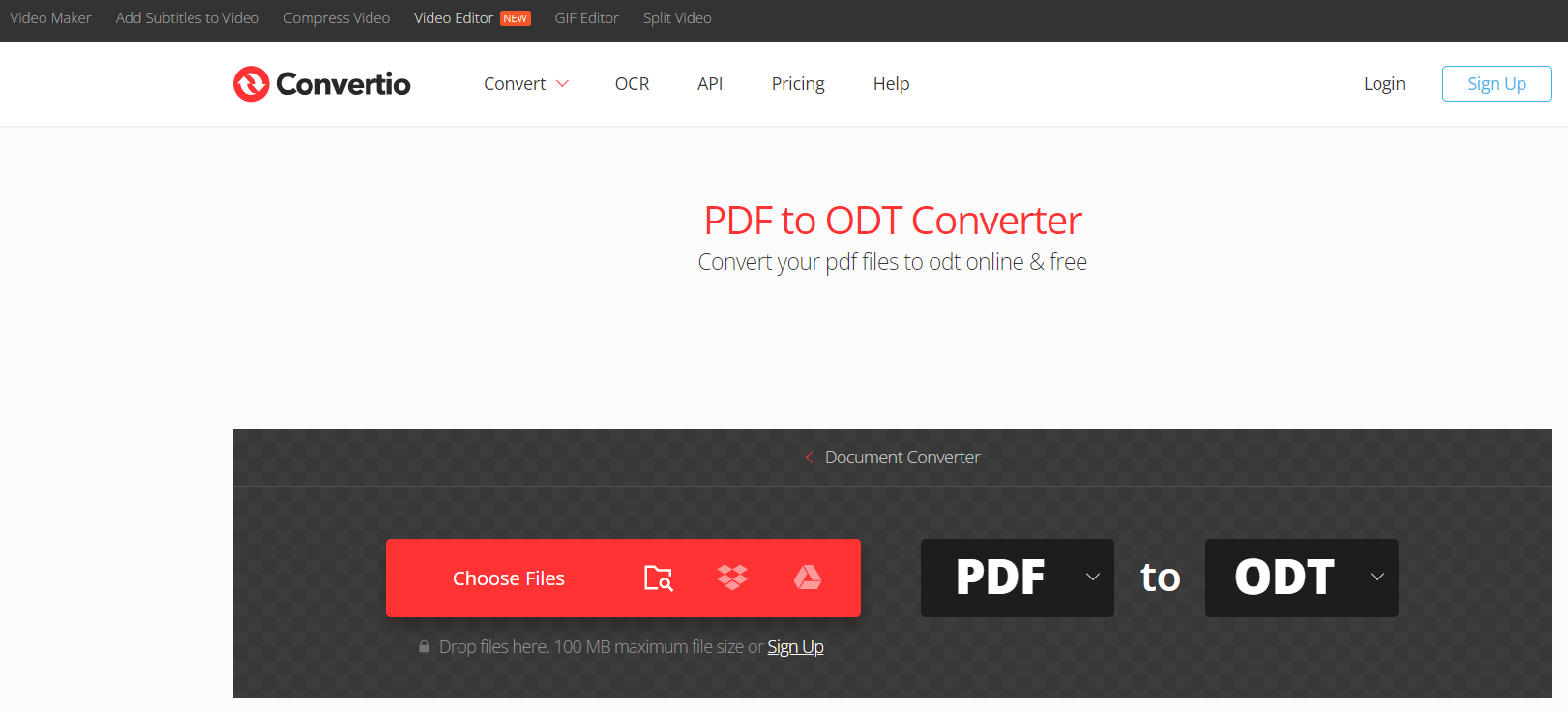
This way, you get a straightforward way to select, convert, and download ODT from PDF with Convertio.
2. Using Online2PDF
Pros:
- Users who need to convert multiple PDFs while also selecting, rotating, reordering, splitting, or applying OCR to specific pages.
Cons:
- Users looking for a minimal one-click converter without additional page and conversion settings.
Online2PDF is very similar to Convertio. It also provides a web-based interface for uploading and converting PDF to ODT. It allows you to upload up to 30 PDF files at once and batch-convert them to ODT. Individual files can be up to 150 MB, but the total for all files must stay under 200 MB.
Follow the below steps to use Online2PDF:
Step 1. Go to the Online2PDF website and tap "Select files" to upload PDFs.
Step 2. Click "Convert".
Step 3. Once the PDF is converted to ODT, the converted file will be downloaded automatically.
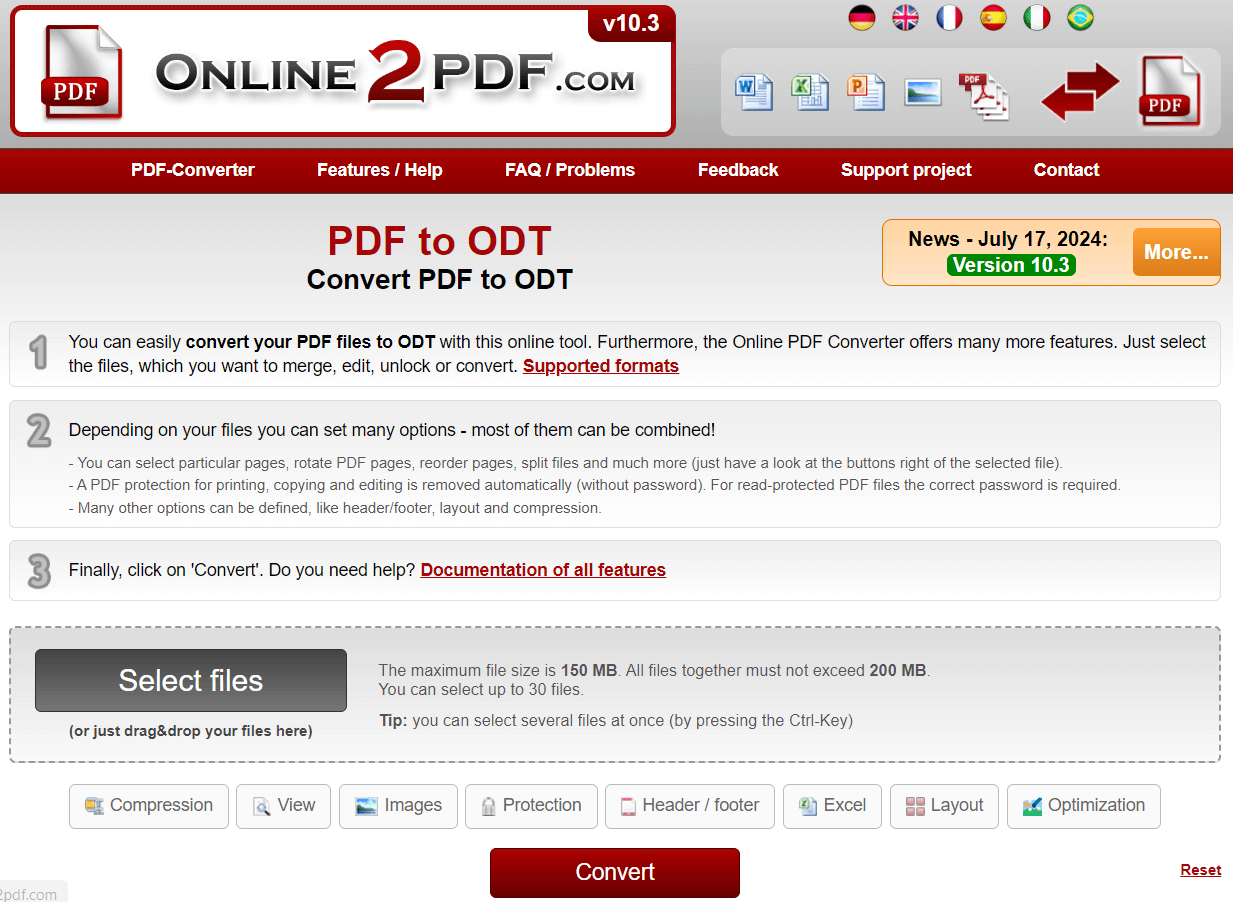
This way, you can convert single or multiple PDFs to ODT using Online2PDF.
3. Using FreeConvert
Best for:
- Large PDF files or files stored in Google Drive, Dropbox, OneDrive, or at a direct URL.
Not for:
- Users who need unlimited free conversions or guaranteed preservation of complex tables, columns, and graphics.
If you have a large PDF file that takes up to 1GB to convert, FreeConvert is the best online tool to use. FreeConvert allows you to upload multiple PDFs from the device, Dropbox, Google Drive, OneDrive, and URL. Afterward, it can convert PDF to ODT with the best quality.
Here's how to use FreeConvert to get ODT from PDF:
Step 1. Go to the FreeConvert website, click "Choose Files", and upload your PDFs.
Step 2. Click "Convert to ODT" to begin the conversion.
Step 3. After conversion, click the "Download ODT" button.
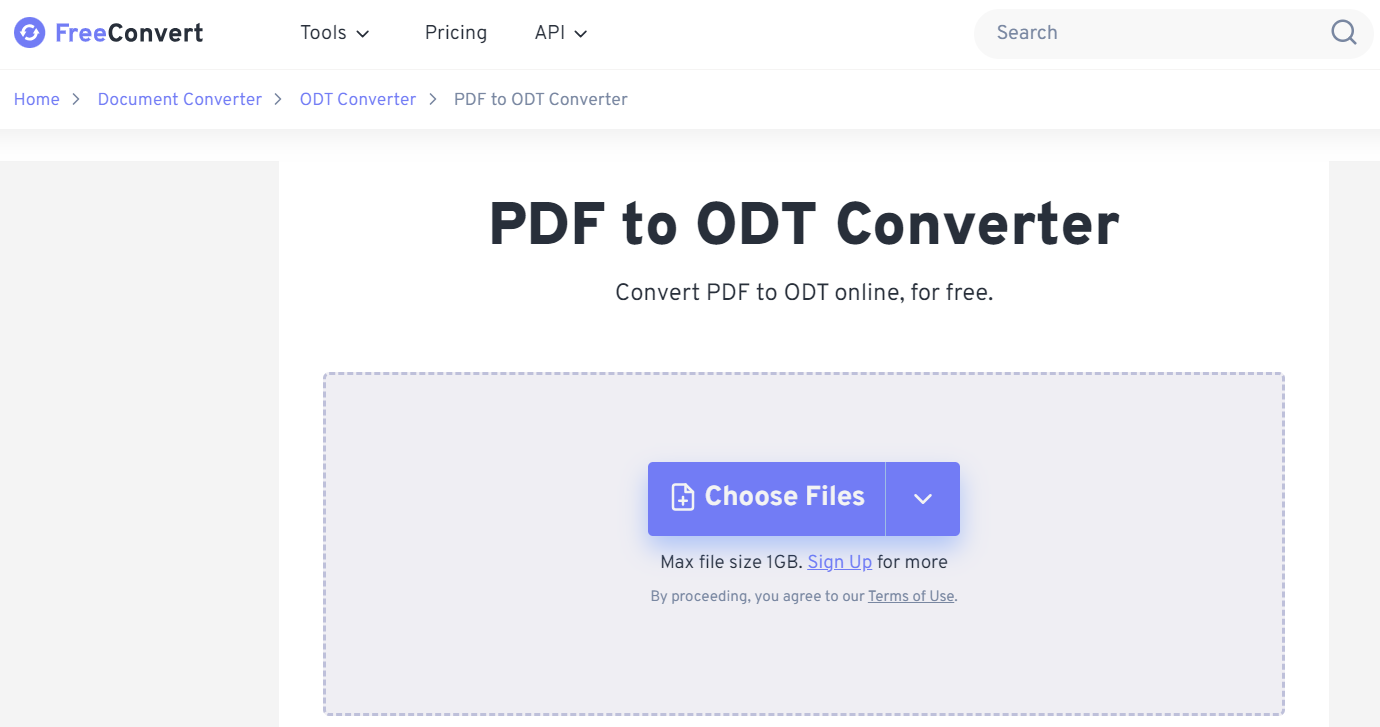
This way, FreeConvert offers another intuitive way to convert PDF to ODT.
4. Using Zamzar
Best for:
- Occasional users who want a simple three-step conversion process and access to files from multiple cloud-storage services.
Not for:
- Free users converting PDFs larger than 50MB or users who need extensive output and OCR settings.
Zamzar is a well-known online file conversion tool that also supports PDF to ODT conversion. You can upload PDFs from your device or different cloud services. Afterward, it can convert PDFs in seconds without compromising the quality.
To use Zamzar, follow the below steps:
Step 1. Go to the Zamzar website and choose "Choose Files" to upload PDFs.
Step 2. Click "Convert Now".
Step 3. After conversion, click the "Download" button to save the ODT file.
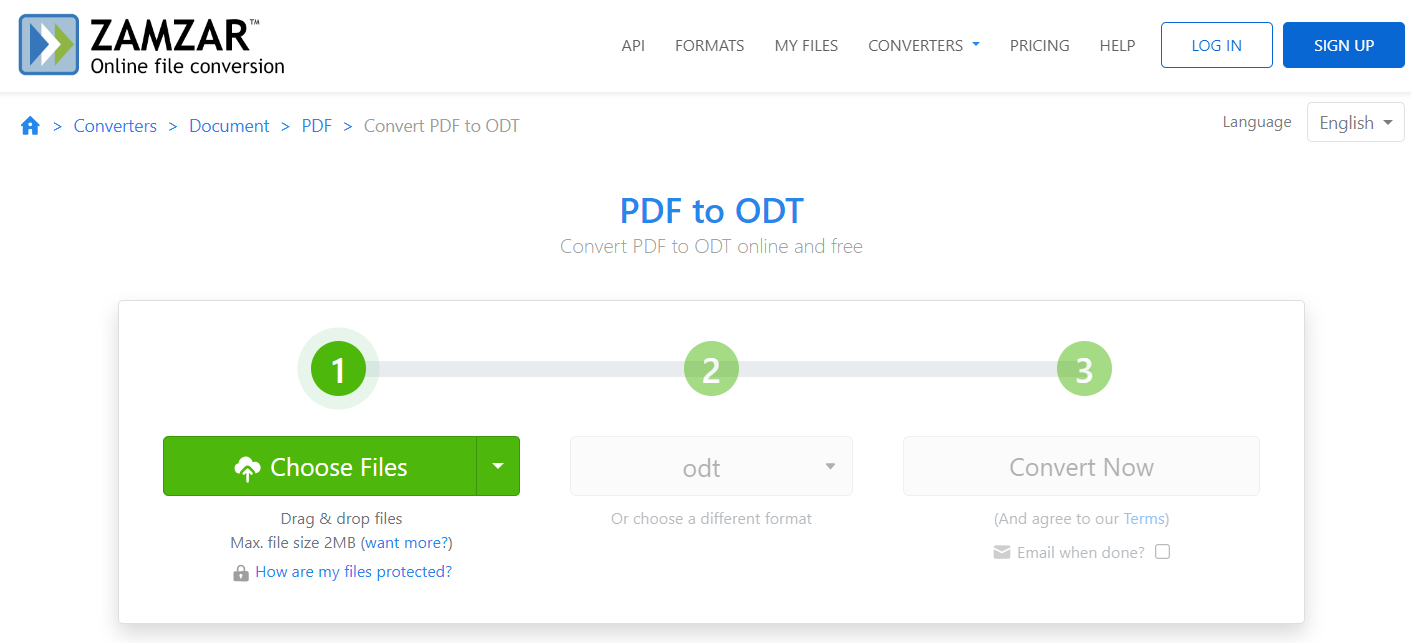
This way, Zamzar provides an intuitive way to select and convert PDFs to ODT and other formats.
5. Using Document Online Convert
Best for:
- Scanned or image-based PDFs that require built-in OCR language and recognition settings during conversion.
Not for:
- Users who only need a basic text-based PDF conversion or want to avoid configuring OCR and document settings.
The last PDF to ODT converter we would like to discuss is Document Online Convert. It is also an online PDF to ODT converter that can convert multiple files at once. Here's how to use Document Online Convert:
Step 1. Go to the Document Online Convert website and click "Choose File" to select and upload PDFs.
Step 2. Once uploaded, click "Start" to begin the conversion.
Step 3. Once converted, click "Download" to save the converted files back to your device.
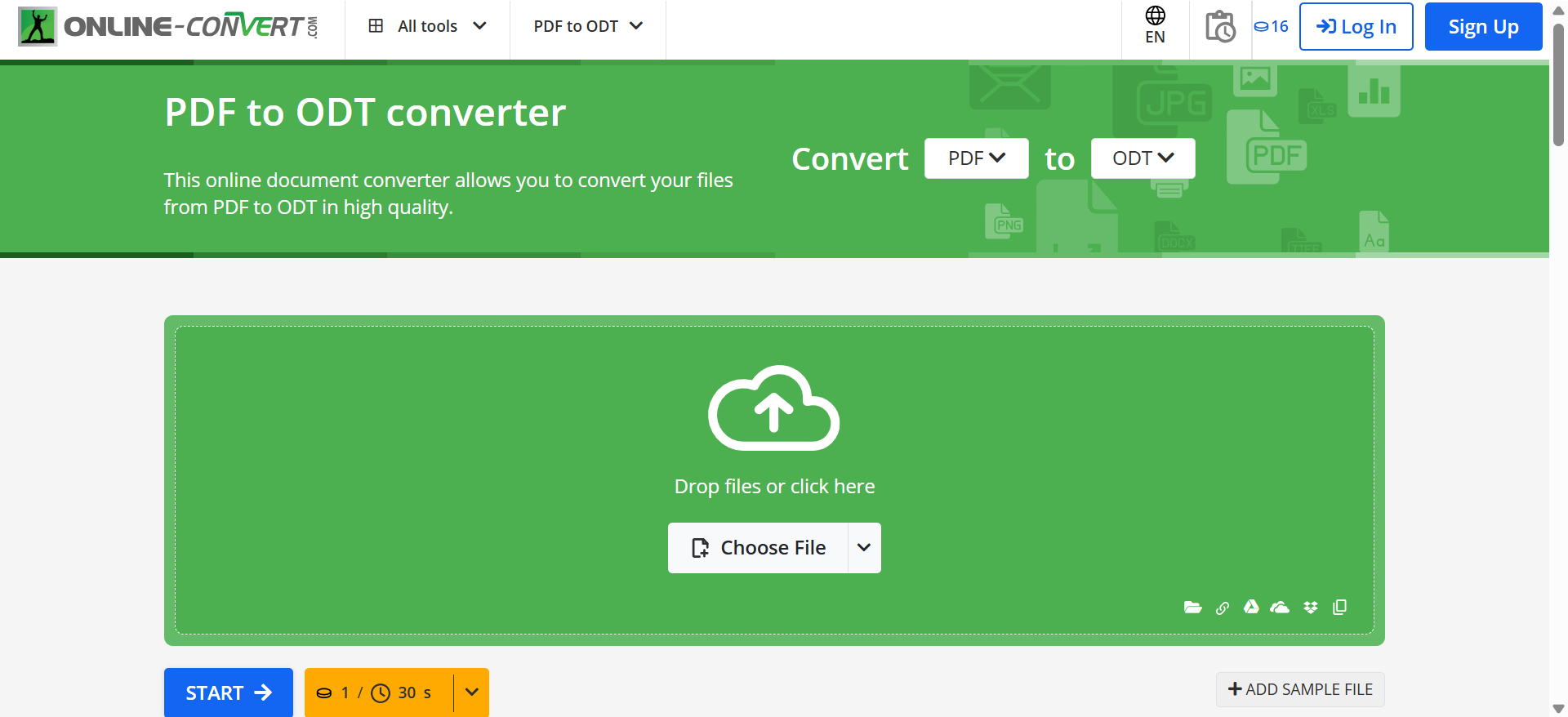
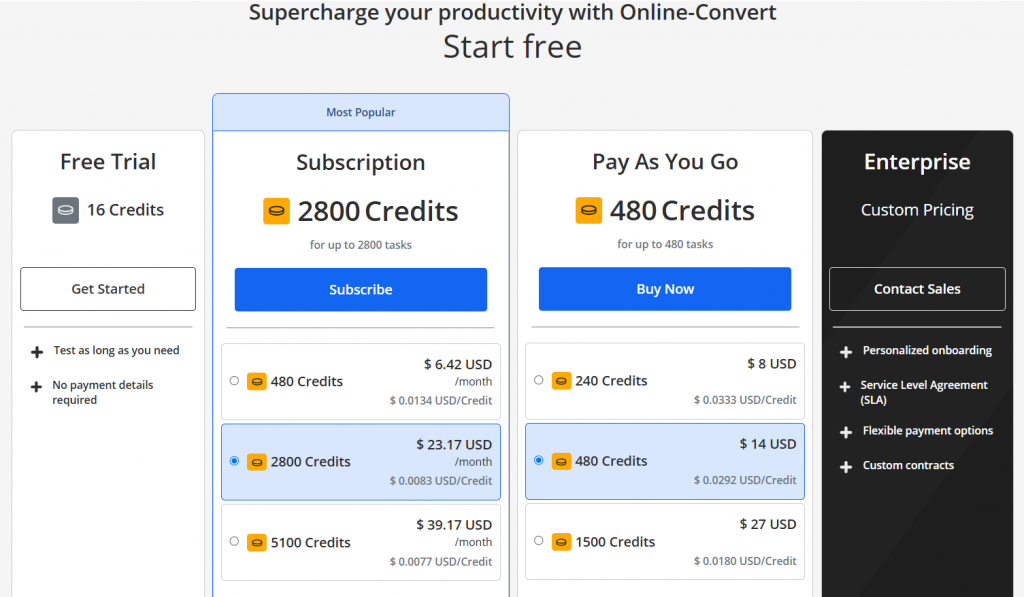
This way, Document Online Convert provides a seamless way to convert PDF to ODT. However, Free trial just offers 16 credits, and the credit consumption is determined by task duration, reducing 1 credit for every 30 seconds processed. To get more credits, you must subscribe to use it.
Part 3. Bonus Tips About PDF to ODT
1. How to edit PDFs without converting them to ODT files?
UPDF is a powerful PDF editor that provides a seamless way to edit PDFs without converting them to ODT files. Here are the simple steps to edit PDFs using UPDF:
Step 1. Install and launch UPDF and open the PDF file.
Windows • macOS • iOS • Android 100% secure
Step 2. Click the "Edit PDF" icon from the left sidebar.
Step 3. Once you have entered the editing mode, you can select the text and image content of the PDF and make the required edits. You can also add new text, images, and links.
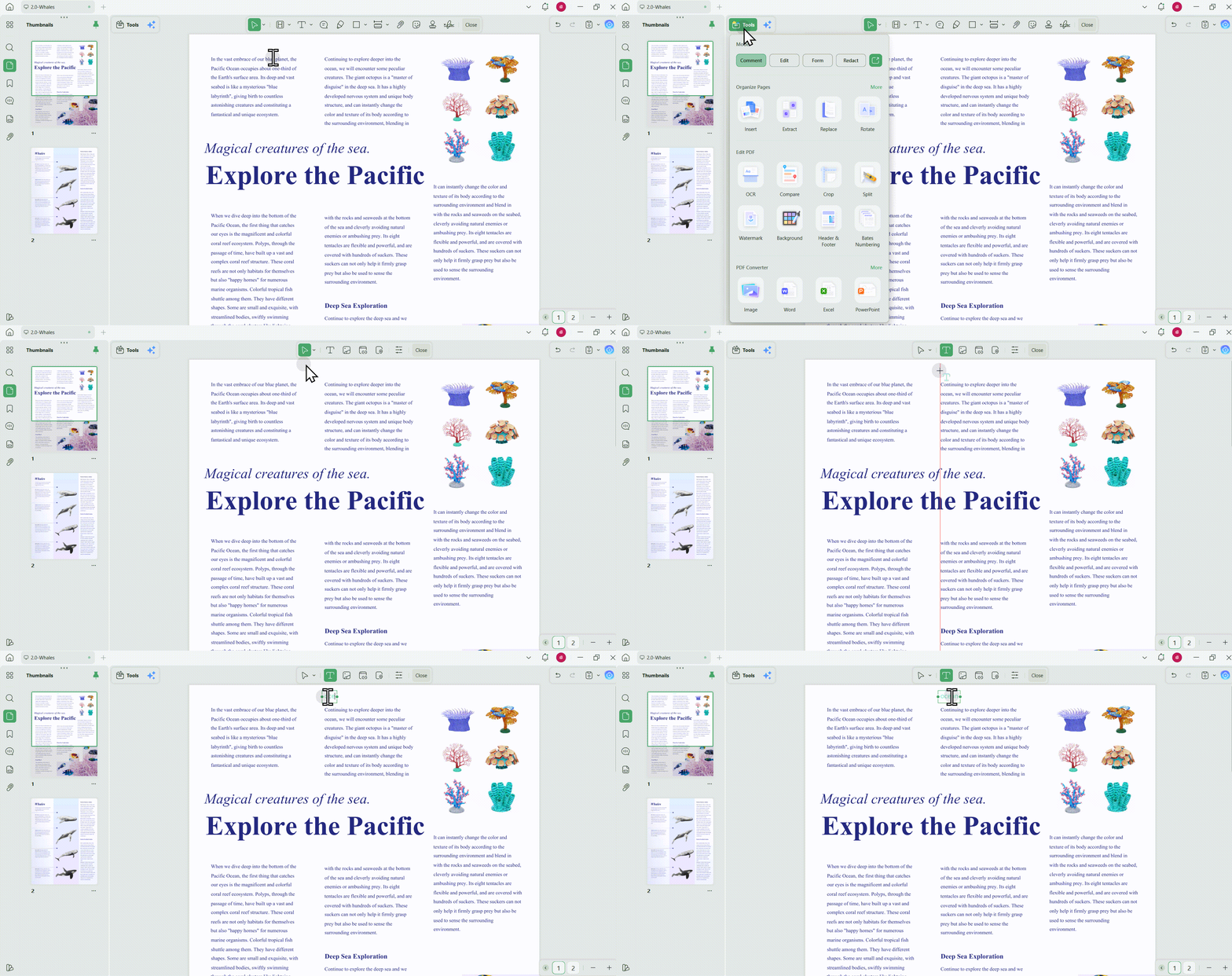
This way, UPDF offers the easiest yet reliable way to edit PDFs without converting them to ODT files.
2. How to edit PDFs before converting them to ODT files?
Using a reliable PDF editor, you can easily edit PDFs before converting. UPDF is one such highly capable editor. It can edit PDF text, images, links, headers/footers, backgrounds, pages, and more. It supports both desktop-based and mobile-based PDF editing.
You can learn more about UPDF for iOS and Android. Alternatively, watch the review video below:
3. How do I convert an ODT file back to PDF?
You can easily convert an ODT file back to PDF using the below steps:
Step 1. Launch Apache OpenOffice Writer and open the ODT file.
Step 2. Click the "File" menu from the top and select "Export or Save as".
Step 3. Select the PDF format.
You can also convert ODT files back to PDF using LibreOffice Writer or any online converter.
FAQs
Q1: Is UPDF suitable for working with confidential PDFs?
UPDF’s desktop editing features process PDF documents locally, so you do not need to upload the file to an online converter when you only want to edit, annotate, organize, or OCR it. An internet connection may still be required for account activation, updates, cloud features, or online AI services. For confidential documents, review your organization’s security policy before using any online PDF-to-ODT service.
Q2: Does the free version of UPDF add a watermark?
The free version lets users open and test PDF editing features, but a trial watermark may be added when an edited document is saved. Free conversion, OCR, and batch-processing features also have usage limits. Check the current UPDF pricing page before starting a large project.
Q3: Can I use one UPDF license on different operating systems?
A UPDF license can unlock supported UPDF applications across Windows, macOS, iOS, and Android under the same account, subject to the current device limits of the selected plan. Check the license terms before activating several devices.
Conclusion
Converting PDF to ODT is useful when you need an editable OpenDocument file for extensive rewriting or collaboration in an ODT-compatible word processor. The five online tools above can handle the conversion, although complex layouts and scanned pages may require extra preparation and post-conversion cleanup.
If you only need to correct the original PDF, converting it to ODT may be unnecessary. UPDF lets you edit text, images, and links directly, while its OCR feature can prepare scanned PDFs for editing or later conversion. Choose the workflow based on your final deliverable: use an ODT converter when ODT is required, or use UPDF when you want to keep working in PDF format.
Windows • macOS • iOS • Android 100% secure





 Enid Brown
 Lizzy Lozano
 Enola Davis
  رغداء محمد
 Enola Miller