UPDF
UPDF
 UPDF for Windows
 UPDF for Mac
 UPDF for iPhone/iPad
 UPDF for Android
 UPDF AI Online
 UPDF Sign
 Edit PDF
 Annotate PDF
 Create PDF
 PDF Form
 Edit links
 Convert PDF
 OCR
OCR PDF to Word
 PDF to Image
 PDF to Excel
 Organize PDF
 Merge PDF
 Split PDF
 Crop PDF
 Rotate PDF
 Protect PDF
 Sign PDF
 Redact PDF
 Sanitize PDF
 Remove Security
 Read PDF
 UPDF Cloud
 Compress PDF
 Print PDF
 Batch Process
 About UPDF AI
 UPDF AI Solutions
 AI User Guide
 FAQ about UPDF AI
 Summarize PDF
 Translate PDF
 Chat with PDF
 Chat with AI
 Chat with image
 PDF to Mind Map
 Explain PDF
 PDF AI Tools
 Image AI Tools
 AI Chat Tools
 AI Writing Tools
 AI Study Tools
 AI Working Tools
 Other AI Tools
 AI Bookmark Generation
 AI Bookmark Summary
 AI Watermark Generation
 AI Background Generation
 AI Sticker Generation
 AI Stamp Generation
 AI Editing Suite
 UPDF Copilot
 AI Page Management
 AI Semantic Search
 PDF to Word
 PDF to Excel
 PDF to PowerPoint
 Enterprise Solution
 Enterprise Sign
 Enterprise AI
 Enterprise Plan
 Enterprise User Guide
 Enterprise Webinar
 Banking
 Healthcare
 Insurance
 Legal
Legal Manufacturing
 Government
 Education Solution
 Customer Stories
 User Guide
 UPDF Tricks
 FAQs
FAQs UPDF Reviews
 Download Center
 Blog
Blog Newsroom
 Tech Spec
 Updates
 UPDF vs. Adobe Acrobat
 UPDF vs. Foxit
 UPDF vs. PDF Expert

The concept of flipbooks has recently risen in trend, given its exceptional workings. We mean, who doesn't want to scroll through their online documents while working, and every time you switch to a new page, the standard page-turning visual effect and sound come through? This, for sure, makes reading and working much more fun.
However, if you are someone who converted their PDF into flipbooks previously and now want to switch it back again. Then we are sure you must search for simple ways to convert Flipbook to PDF, right? If this is the case, hop on below!
Part 1: Easy Ways to Convert Flipbooks to PDF
If you're here because you need to convert a flipbook back to a standard PDF, you've come to the right place. We'll show you the best ways to do it.
However, once you have your PDF, what's next? You'll likely need to read, edit, or analyze it. That's why we recommend using UPDF to manage all your post-conversion tasks. The latest UPDF 2.5 update transforms it into an AI-powered document hub, featuring:
- AI Semantic Search: Find information by meaning, not just matching words.
- AI Page Organizer: Clean up messy layouts with one click.
- AI Bookmarking: Automatically generate a smart table of contents.
- UPDF Copilot: Control the software with natural language commands.
Whether you need to make a quick edit, understand a complex report, or convert your PDF to another format, UPDF 2.5 makes the entire process smoother and smarter. Click the button below to download a free trial and experience the future of document interaction.
Windows • macOS • iOS • Android 100% secure
The software has some exceptional tools and will help you in many ways. With this said, let's hop into learning about the ways you can convert flipbooks to PDF with ease:
Method 1. Download Flipbook as PDF
Multiple flipbooks, which you can find on the internet, have a download as PDF button present on the side. Hence, when you come across a flipbook online, it is essential to search for this button as it quickly helps you convert a flipbook into a PDF. Here is how you can do this:
Step 1: Open your Flipbook on the browser.
Step 2: Now, tap on the download as PDF icon that is present on the side of the Flipbook.
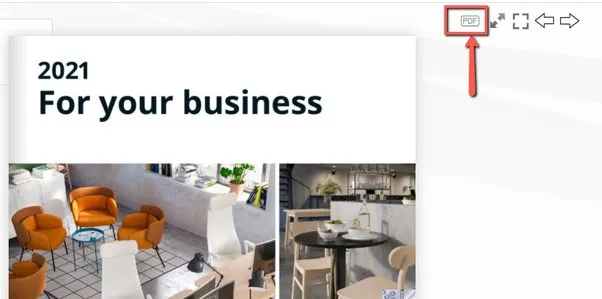
Step 3: When done, you can view the PDF on your PC easily.
Downloading files from online services can, at times, open your system to a bunch of malwares. Hence, always be cautious of such malware and ensure you download from authentic websites only.
Method 2. Print Flipbook as PDF
While downloading your Flipbook as a PDF is a great way to convert it into a PDF form, there is another exceptional method. What is it? Well, users can also use the print feature present on the online flipbooks. This particular feature helps users convert the Flipbook online into PDFs with ease. Here is how you can do this:
Step 1: First, open the Flipbook which you want to convert to PDF in your browser.
Step 2: Tap on the print icon that is present beside it.
Step 3: Adjust the print range and settings according to your preference, and then click Print.
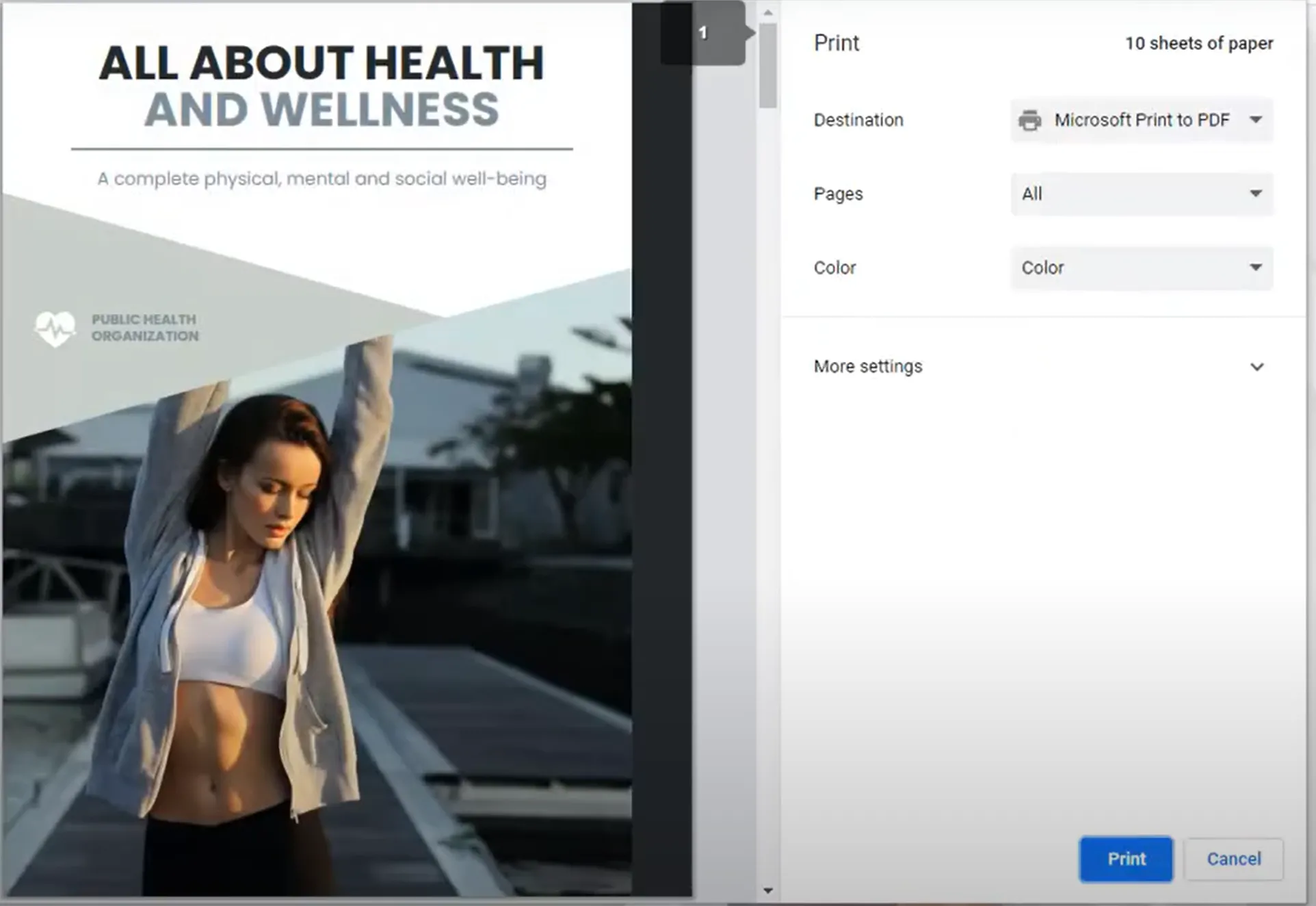
Step 4: Choose the location where you want to save the PDF file and reset its name if you want.
Step 5: Once done, tap on the save button to save online Flipbook to PDF. Your document will now be saved in a PDF form.
While it does allow users to convert flipbooks to PDF effortlessly, what one should know is that it is a relatively slow method. This means users will have to wait for a single page to print before moving on to the next one, which can be highly time-consuming.
Method 3. Convert Flipbook to PDF with Microsoft XPS Document Writer
Apart from the Flipbook print and download feature, there are several other exceptional tools that help you work through converting the Flipbook into a PDF form. Want to know how can you convert flipbooks to PDF using tools like Microsoft XPS Document Writer? We have the steps covered for you below:
Step 1: Open the OPF file with the standard application on your computer.
Step 2: Then go to 'Files' and then Select the 'Print' option.
Step 3: Now, select "Microsoft XPS Document Writer" as your printer.
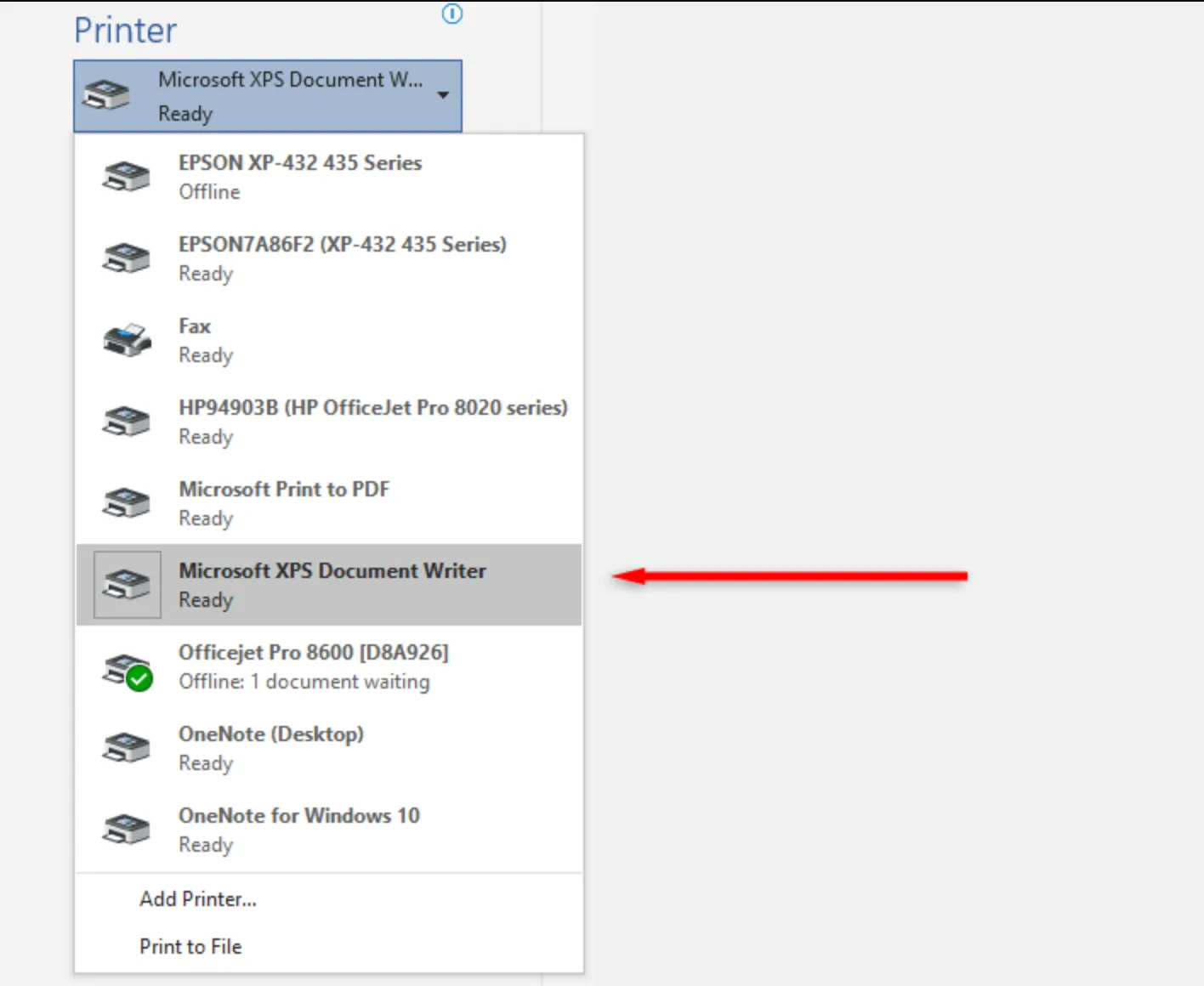
Step 4: When done, click OK and then proceed to print.
Step 5: You can now save OPF file as PDF.
Method 4. Convert Flipbook to PDF with Chrome Extension
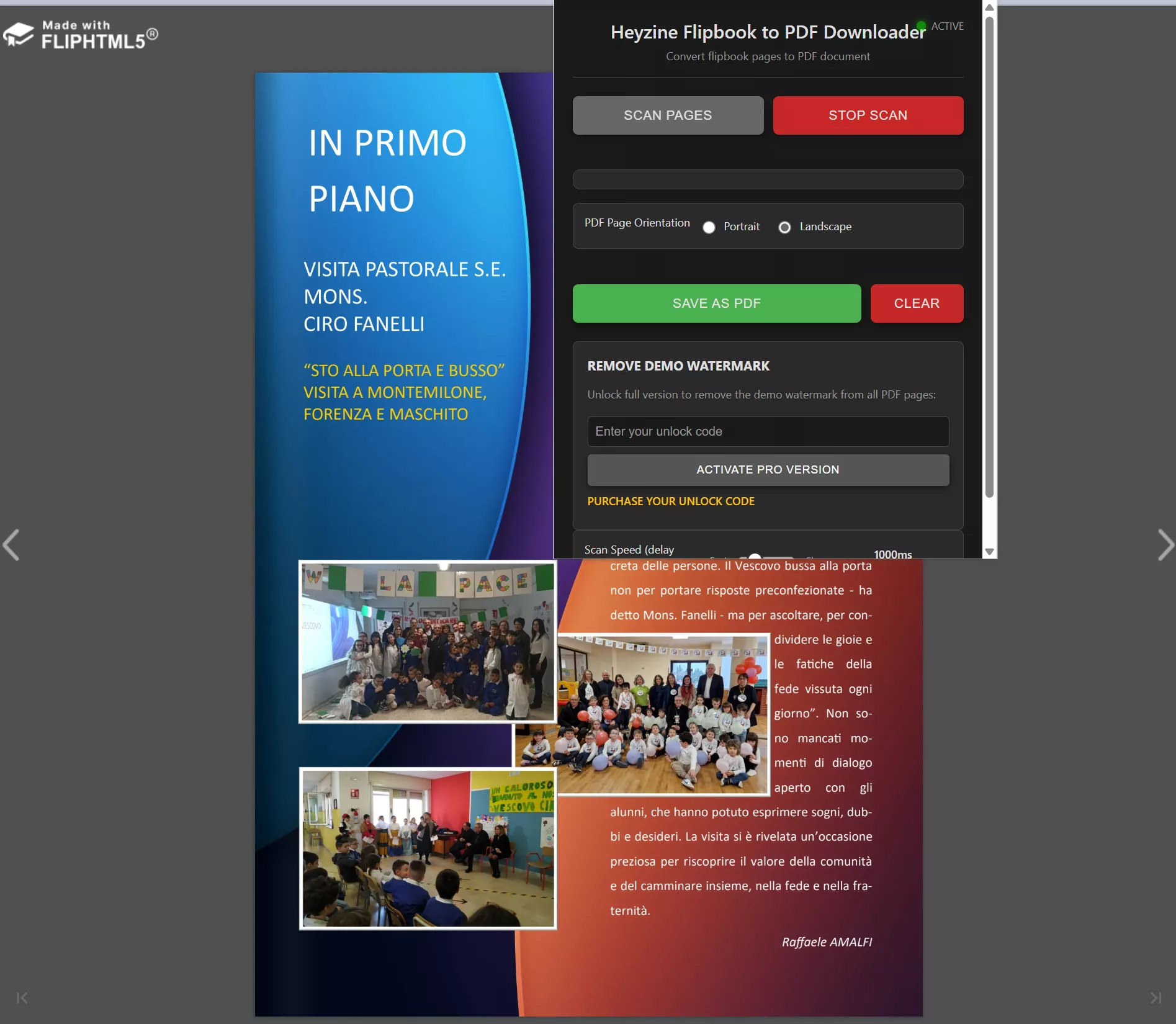
If you want to convert a flipbook to a PDF directly in your browser, you can try the Flipbook Converter extension for Chrome. Just add it to your browser with no software download required, and you can easily complete the conversion. You can follow the steps here:
Step 1: Install a Flipbook to PDF Converter Chrome Extension
Step 2: Open the flipbook you want to convert.
Step 3: Select the Flipbook to PDF Converter Chrome Extension
Step 4: Save the flipbook as PDF and download it to your computer.
Part 2: Bonus: How to Handle Your PDF after Conversion
While we do know that PDF is an excellent document format due to its ease of sharing and accurate formatting, what we also know is that this particular document cannot be edited directly.
So, what will you do when the need to make some changes arises when you have converted it? Well, you are inclined towards a PDF editing software like UPDF. Launched by Superace, UPDF is a PDF editing tool that is available on Windows, macOS, Android, and iOS. This particular tool provides users with the ease to edit, read, and convert PDF documents through the exceptional tools it possesses.
Not only this, but with UPDF, you get to enjoy the following perks, too:
- Open any PDF file and read through it without any trouble or delay. You can also change PDF background color and even can custom the background or wallpaper as you like.
- The new AI integration can assist in reading and consuming PDF content by providing summaries and translations. It can even search academic papers for you. One-click bookmark generation and summarizing is easy for you now.
- OCR feature can convert scanned files to editable and searchable PDFs without changing their layout. One-click to detect OCR pages and convert them at once!
- Simultaneously batch convert, combine, print, insert, and encrypt two or multiple PDFs.
- With it, you can also fill out PDF-based forms with utter ease and add digital signature to the digital contracts. You can even create your own stamps.
- It allows you access your files on Windows, Mac, iOS and Android anytime.
- You can upload it to UPDF Cloud and save them easily.
Additional Tip: New Functions Based on AI
In the new UPDF 2.5 version, you will experience even more AI-powered features, such as AI-generated backgrounds, stamps, and stickers. It can even recognize bookmarks and automatically summarize the content of bookmarked pages.
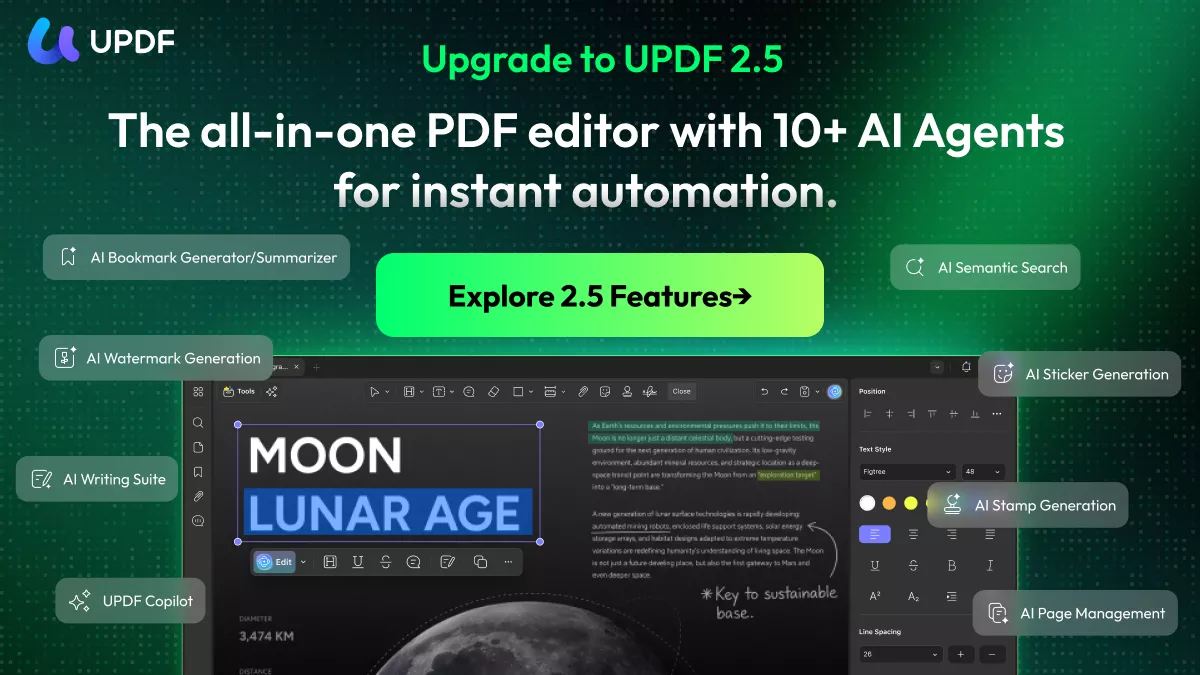
- AI Bookmark Feature:
Automatically scans documents to generate a hierarchical outline and summarize bookmarked sections for easier navigation. - AI Watermark Generation:
Create customized AI-generated watermarks directly in UPDF without searching for resources or using Photoshop. - AI Background & Sticker Generation:
Generate decorative backgrounds or stickers with AI by choosing from 20 preset styles.
Watch the video below to learn more about this best tool:
So, if you are someone who recently converted a flipbook to PDF or someone who encounters multiple PDFs on a daily basis, then we highly urge you to download and use this particular software for sure.
Windows • macOS • iOS • Android 100% secure
🚀UPDF 2.5 has dropped on March 26. UPDF is offering a $10 discount coupon, making UPDF Pro Lifetime + AI only $138.99, including our new 10 AI Agents and Semantic Search. The deadline is May 7th, don’t wait for the price increase—secure your lifetime access now.
Part 3: Extended Reading About Flipbook
With the conversions out of the way, do you want to gain a little extra insight on Flipbook? We have a few questions covered for you.
Q1. What is a Flipbook?
A flipbook is an interactive digital publication that holds a realistic page-flip effect. This particular effect makes the digital publication look like a digital copy. A flipbook is created from a PDF through a one-click process, and it can also be shared as a direct link or can be embedded into a website.
Q2. Why Need to Convert Flipbook to PDF?
The Flipbook starts as a PDF initially and is then converted into a page-flipping effect using online tools or software. However, at times, converting a flipbook to PDF is necessary because, through PDF, users can easily preserve the authentic document formatting and also enable easy file sharing.
Q3. Is there a Free Flipbook Maker?
There are multiple flipbook makers online that work for free. The best one in the business happens to be Flipbook PDF, for sure.
Conclusion
If you are someone who has encountered a flipbook online and wanted to know how to convert it back into PDF form, then we hope this article helped solve your issue. In case you have converted a flipbook to PDF but now want to edit it, then we suggest you use the UPDF PDF editing tool. The service is undeniably the best in business and will be a handy use with the exceptional tools it possesses. Download it now for a free trial!
Windows • macOS • iOS • Android 100% secure




 Enya Moore
 Enrica Taylor
 Enola Davis