 UPDF
UPDF
 UPDF for Windows
 UPDF for Mac
 UPDF for iPhone/iPad
 UPDF for Android
 Nomostar
 UPDF AI Online
 UPDF Sign
 IvyCraft
 Edit PDF
 Annotate PDF
 Create PDF
 PDF Form
 Edit links
 Convert PDF
 OCR
OCR PDF to Word
 PDF to Image
 PDF to Excel
 Organize PDF
 Merge PDF
 Split PDF
 Crop PDF
 Rotate PDF
 Protect PDF
 Sign PDF
 Redact PDF
 Sanitize PDF
 Remove Security
 Read PDF
 UPDF Cloud
 Compress PDF
 Print PDF
 Batch Process
 About UPDF AI
 UPDF AI Solutions
 AI User Guide
 FAQ about UPDF AI
 Summarize PDF
 Translate PDF
 Chat with PDF
 Chat with AI
 Chat with image
 PDF to Mind Map
 Explain PDF
 PDF AI Tools
 Image AI Tools
 AI Chat Tools
 AI Writing Tools
 AI Study Tools
 AI Working Tools
 Other AI Tools
 AI Bookmark Generation
 AI Bookmark Summary
 AI Watermark Generation
 AI Background Generation
 AI Sticker Generation
 AI Stamp Generation
 AI Editing Suite
 UPDF Copilot
 AI Page Management
 AI Semantic Search
 PDF to Word
 PDF to Excel
 PDF to PowerPoint
 Enterprise Solution
 Enterprise Sign
 Enterprise AI
 Enterprise Plan
 Enterprise User Guide
 Enterprise Webinar
 IT
IT Education
 Construction
 Financial Service
 Healthcare
 Insurance
 Legal
Legal Manufacturing
 Government
 Researchers & PhDs
 Solopreneurs & Freelancers
 Lawyers & Legal Professionals
 Real Estate Agents & Brokers
 Education Solution
 Customer Stories
 User Guide
 UPDF Tricks
 FAQs
FAQs UPDF Reviews
 Download Center
 Blog
Blog Newsroom
 Tech Spec
 Updates
 UPDF vs. Adobe Acrobat
 UPDF vs. Foxit
 UPDF vs. PDF Expert

Quick Navigation:
- Batch Add Elements → Bates Numbering, Watermarks, Headers/Footers, Pages, Backgrounds
- Batch Remove Elements → Watermarks, Backgrounds, Headers/Footers, Bates Numbers, Markups
- Batch Find & Replace Text → Update text across multiple PDFs at once
Managing multiple PDF files can be frustrating, especially when you need to make the same changes across all of them. Whether it’s adding watermarks, inserting Bates numbers, or updating headers and footers, doing it one by one is time-consuming and inefficient.
With UPDF's batch edit PDF feature, you can apply changes to dozens or hundreds of PDFs at once — watermarks, Bates numbering, headers, footers, backgrounds, page insertions, and even text find-and-replace — all from a single interface. This keeps your documents consistent and saves hours of manual work.
Below is a complete guide to batch editing PDFs with UPDF. Each section covers a specific batch task with step-by-step instructions and screenshots. Choose the section that matches your needs and follow along.
Windows • macOS • iOS • Android 100% secure
Part 1. How to Batch Add Elements to Multiple PDFs
If you regularly need to add Bates numbering, watermarks, headers, footers, pages, or backgrounds to multiple PDFs, manual editing can waste hours. UPDF batches these operations in a single workflow — add files, choose the element, configure once, and apply to all.
Best for
Below are step-by-step guides for each batch add feature.
Batch Add Bates Numbering to PDFs
Bates numbering assigns unique identifiers to each page in a document set — essential for legal discovery, medical records, and compliance documentation. UPDF lets you apply sequential Bates numbers across multiple PDFs in one operation.
Best for
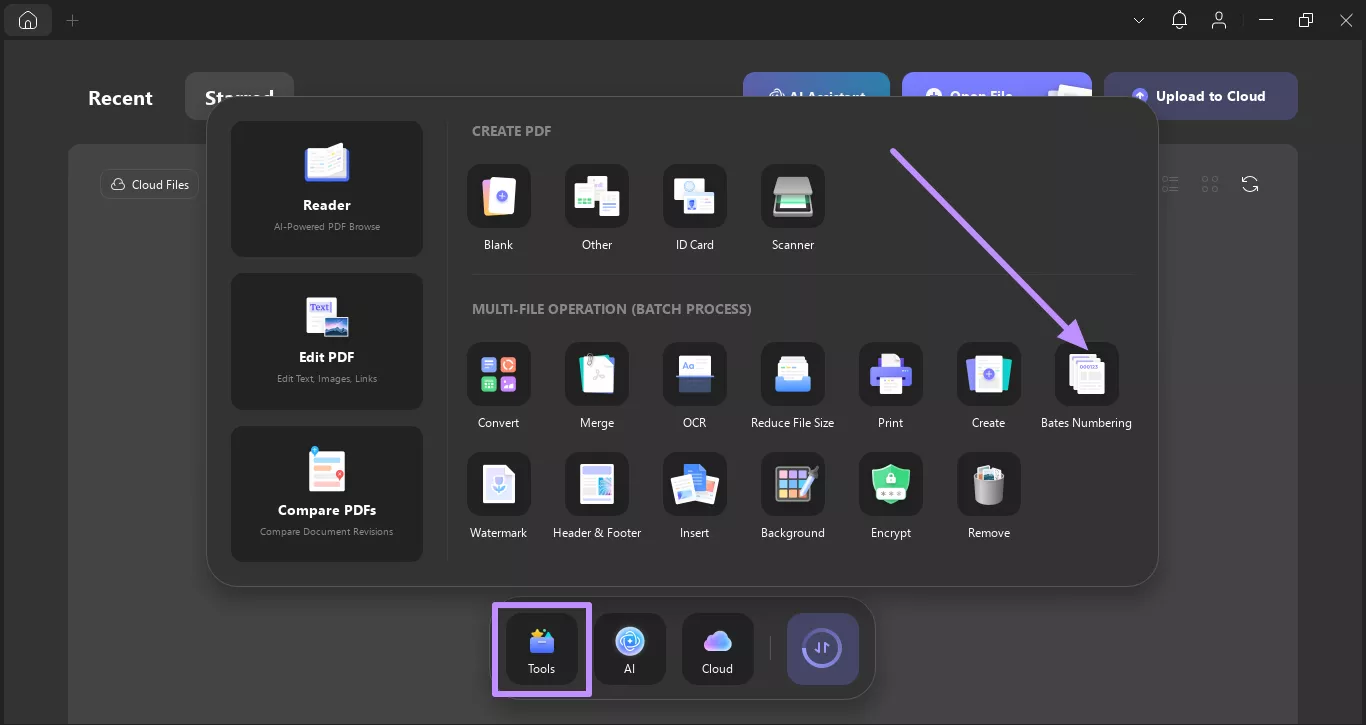
Step 1. Launch UPDF and go to the Tools tab. Select Bates Numbering.
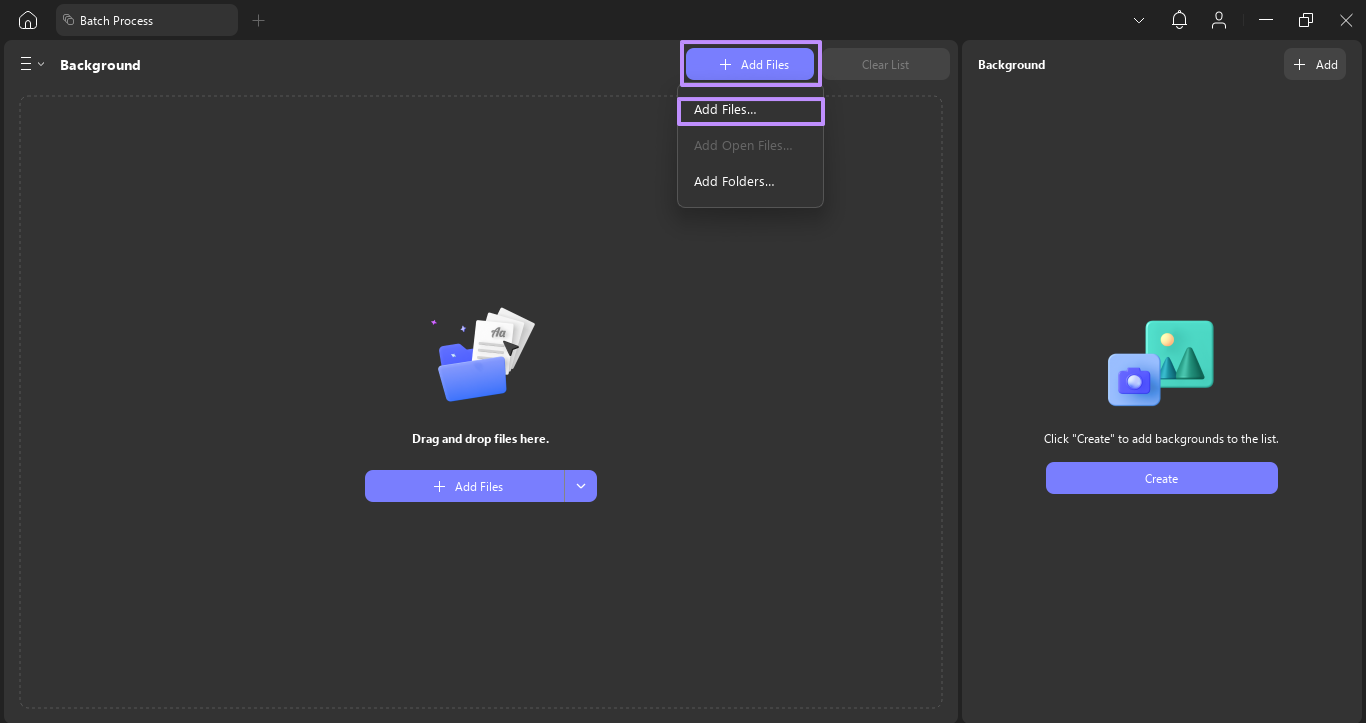
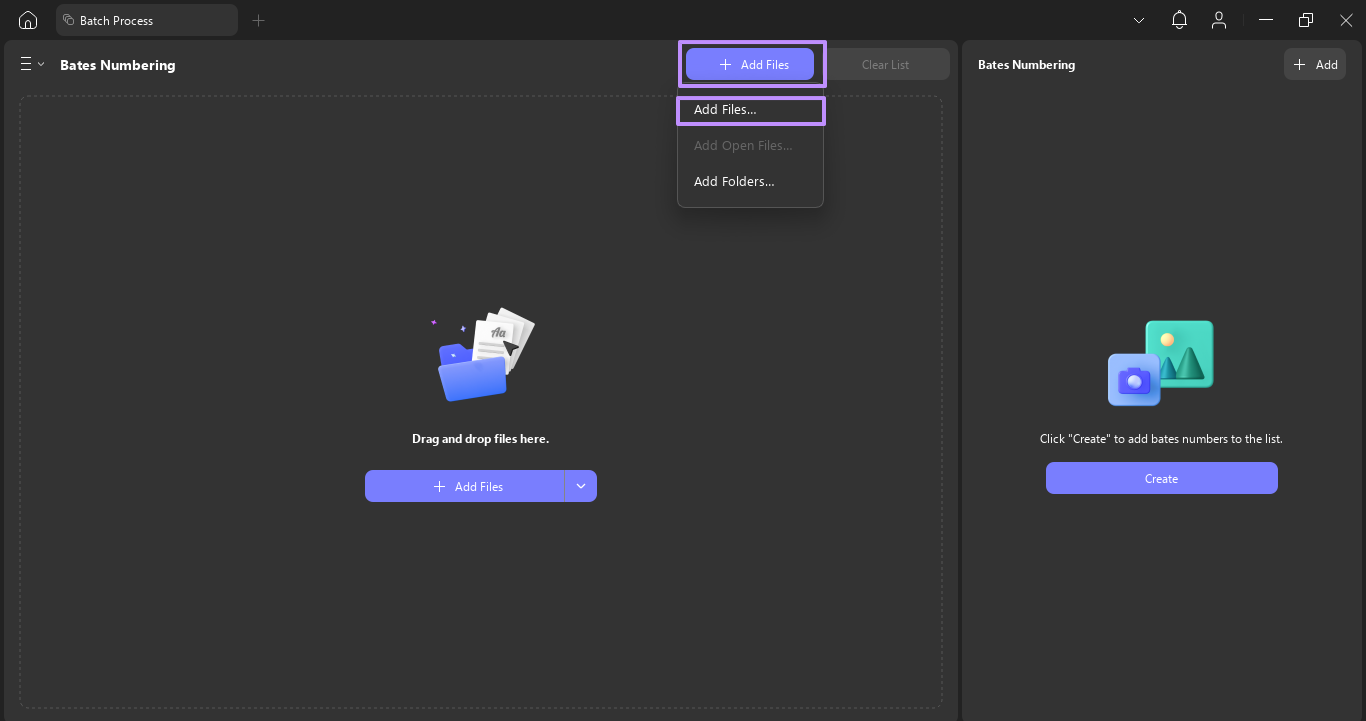
Step 2. Click +Add Files and choose the PDFs you want to number.
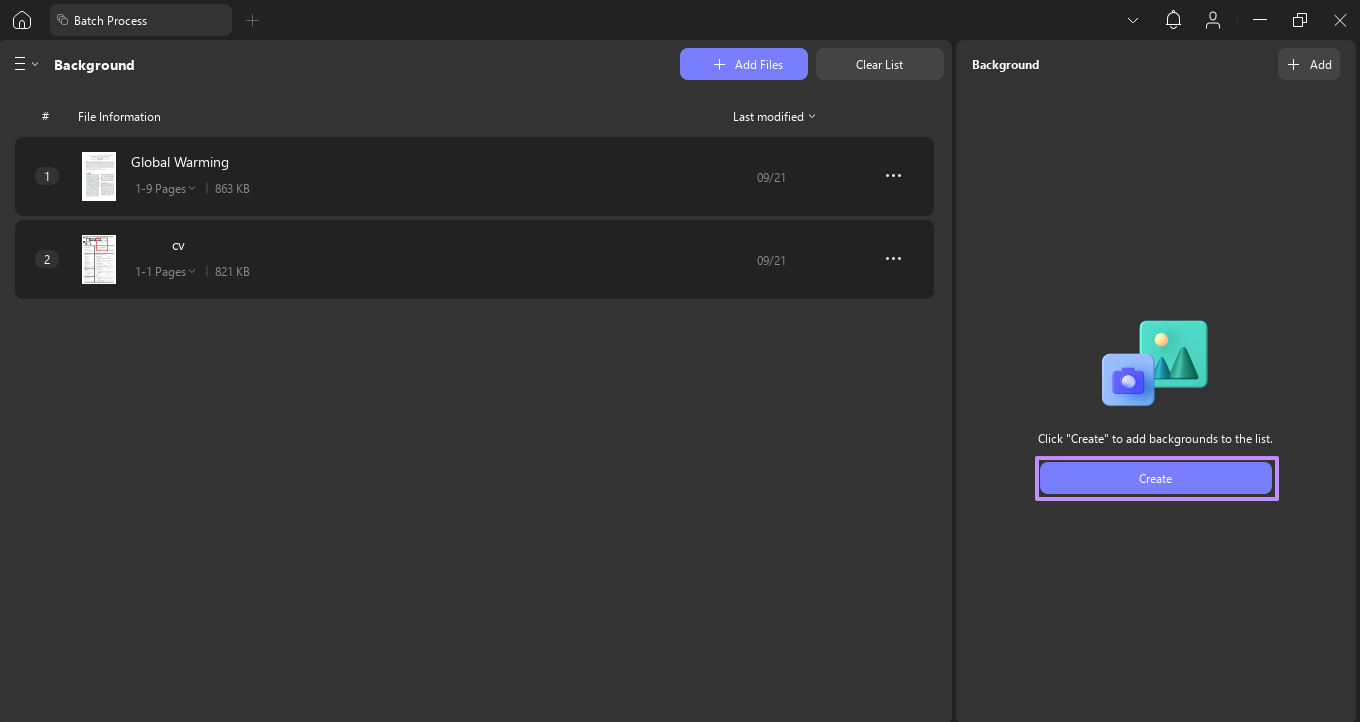
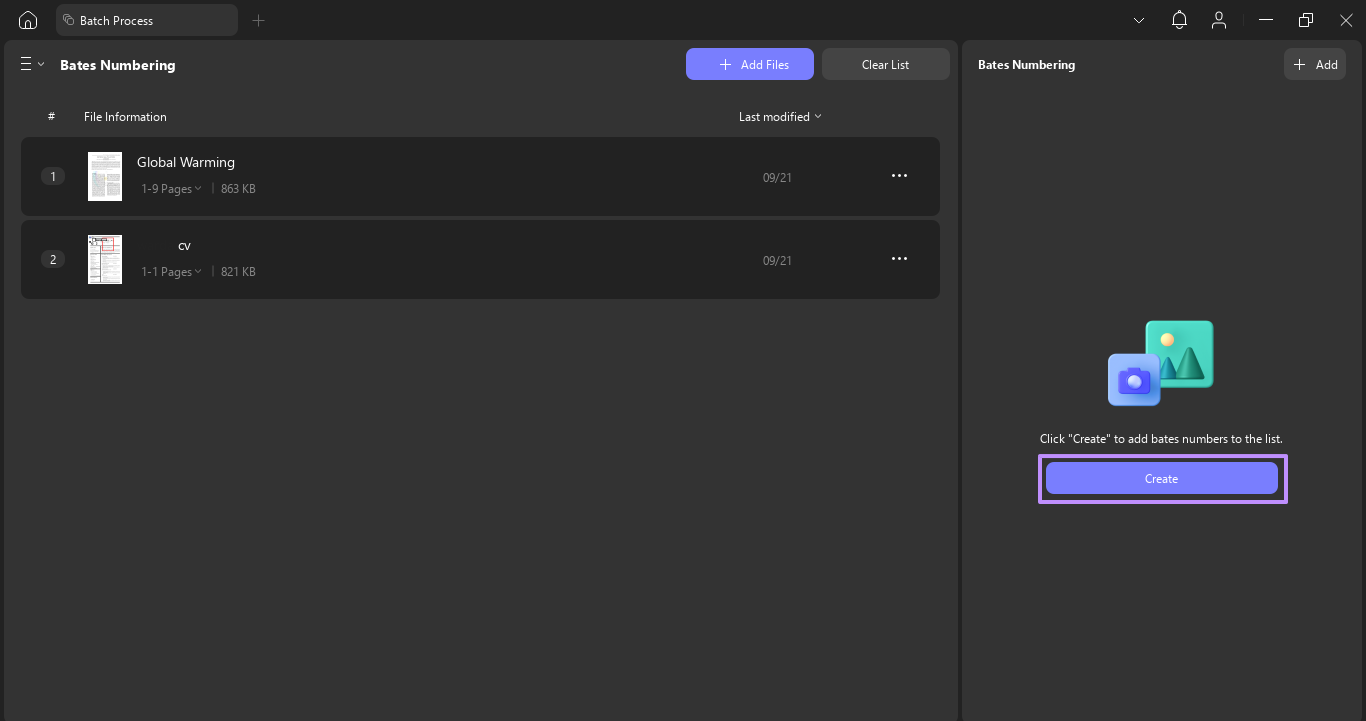
Step 3. Click Create in the right-side panel.
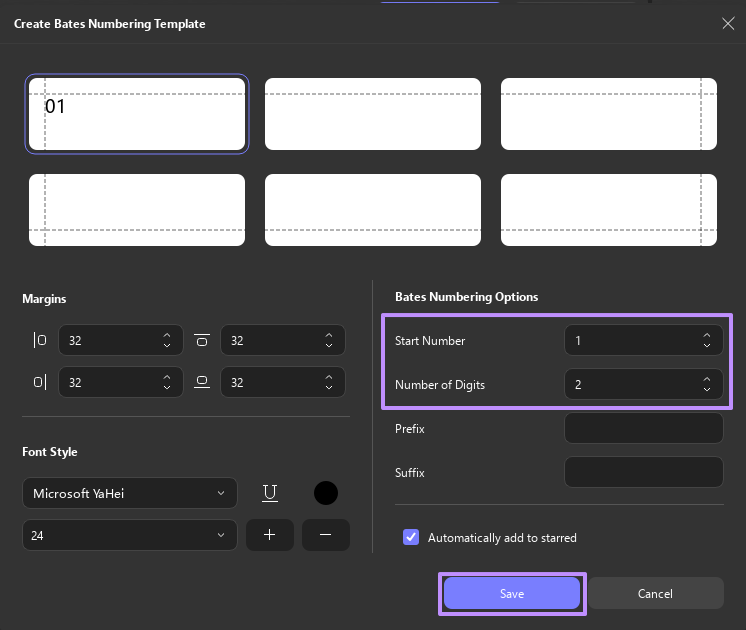
Step 4. Set the Start Number and Number of Digits (e.g., 000001). Click Save.
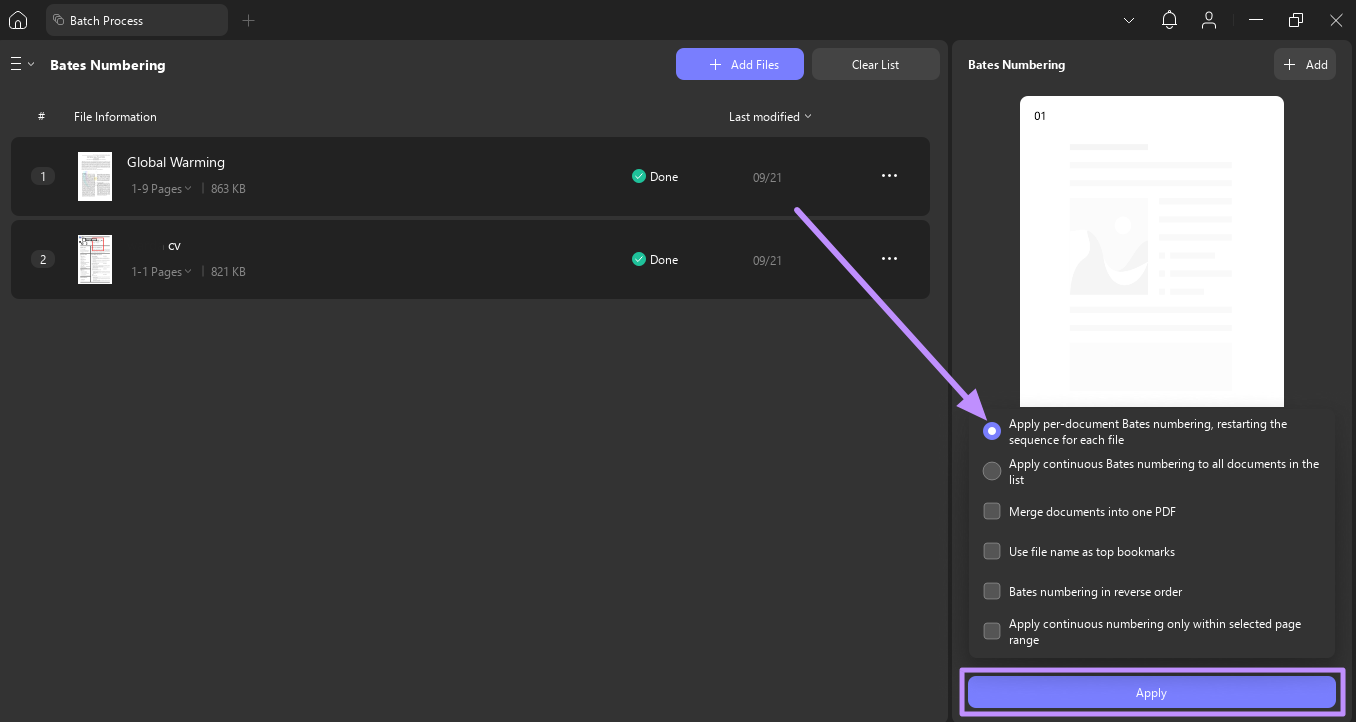
Step 5. Enable Apply per-document Bates numbering, restarting the sequence for each file if you want each PDF to start fresh. Click Apply to process all files.
Tip
Batch Add Watermark to PDFs
Watermarks protect document confidentiality and reinforce branding across multiple files. UPDF lets you apply text or image watermarks to dozens of PDFs simultaneously.
Best for
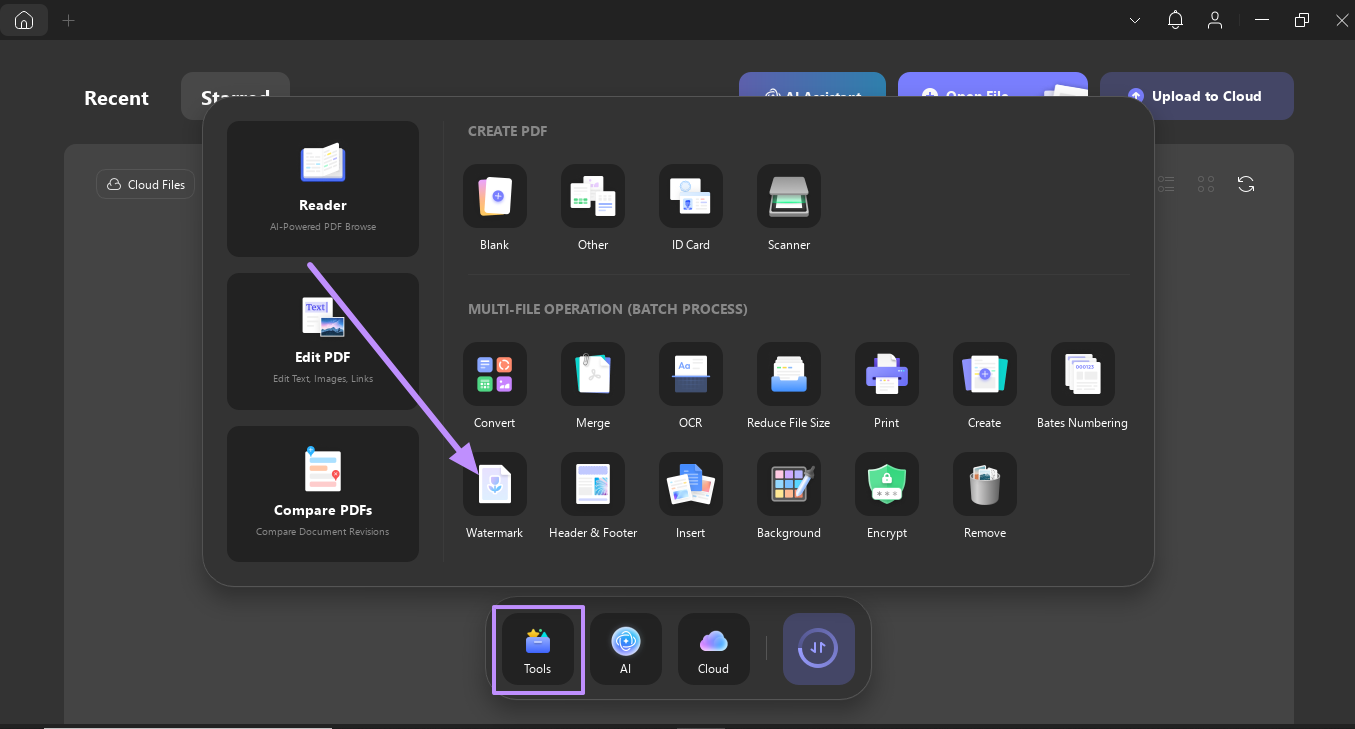
Step 1. Go to Tools → Watermark.
Step 2. Click +Add Files and select the PDFs.
Step 3. Click Create and choose Text or Image watermark.
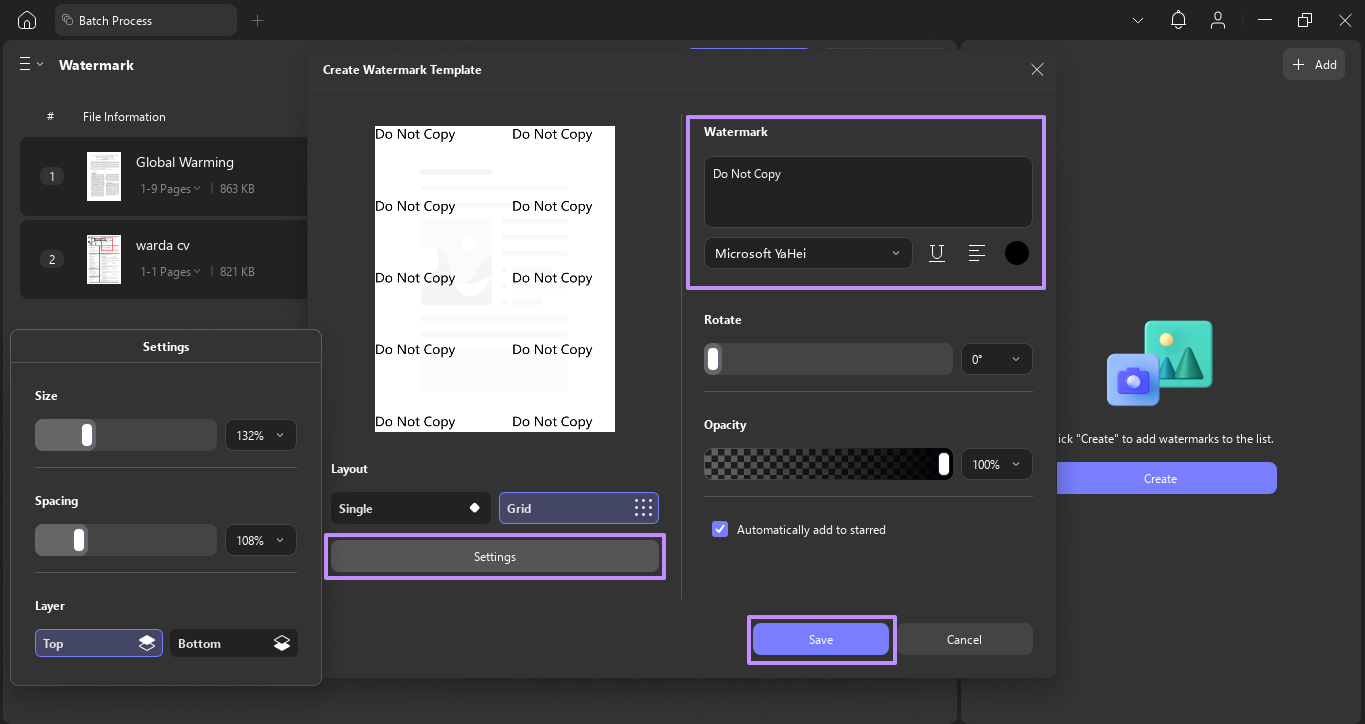
Step 4. Enter the watermark text (or upload an image). Adjust font, color, size, spacing, and layer. Click Save.
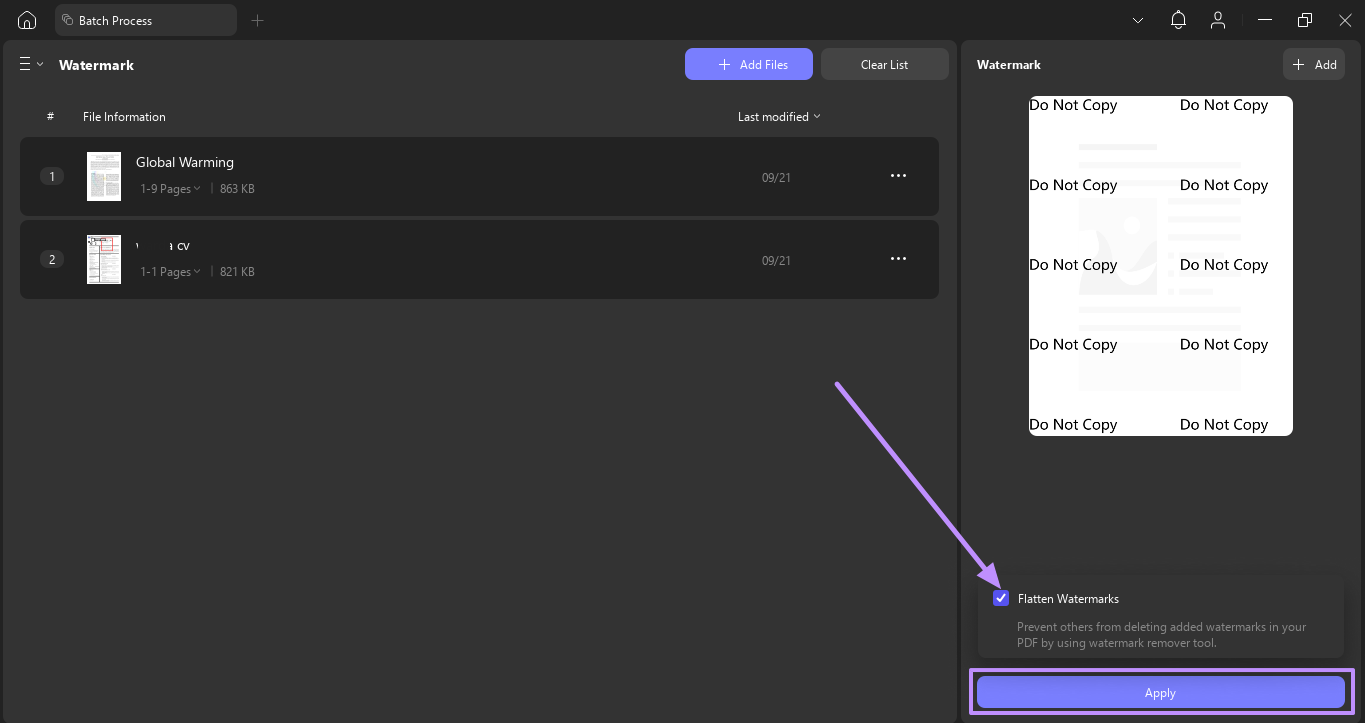
Step 5. Check Flatten Watermarks to make the watermark permanent. Click Apply to process all files.
Warning
Batch Add Headers and Footers to PDFs
Headers and footers add page numbers, document titles, dates, and company information consistently across multiple files.
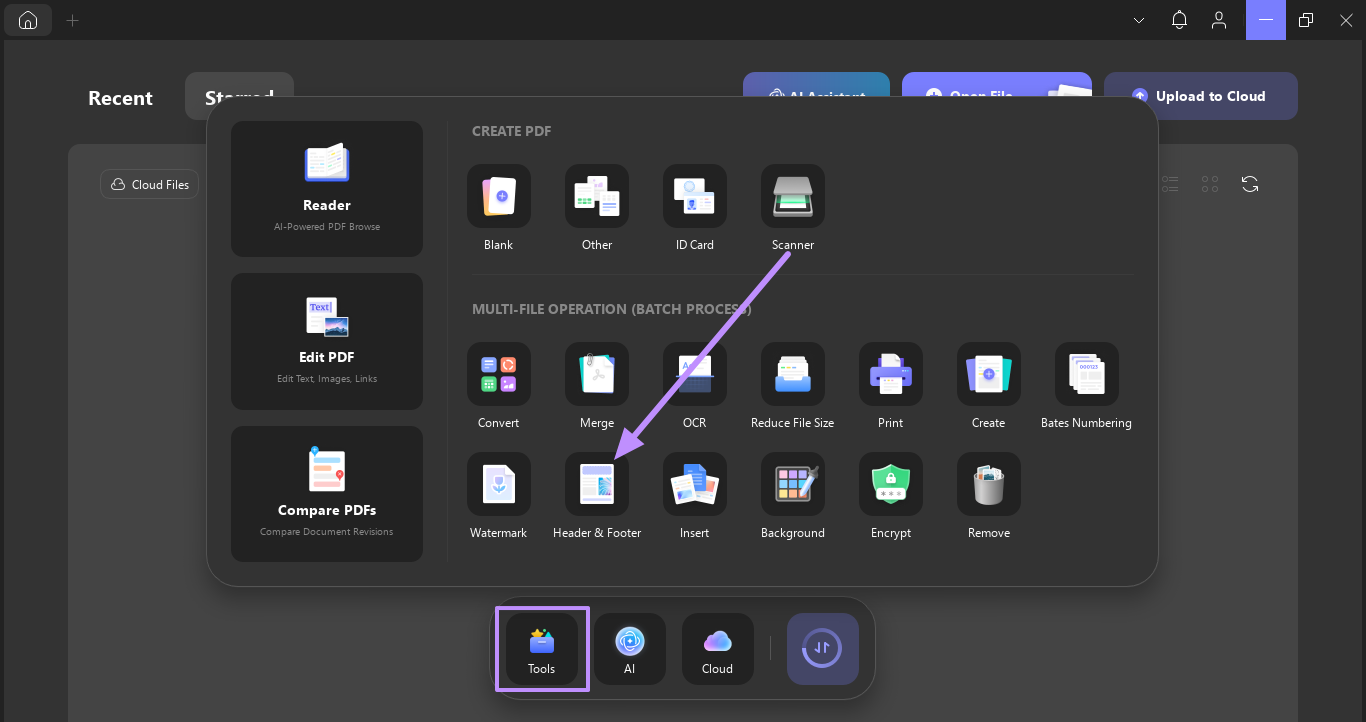
Step 1. Go to Tools → Header & Footer.
Step 2. Click +Add Files and select your PDFs.
Step 3. Click Create and choose a style (Text, Image, or Page Number).
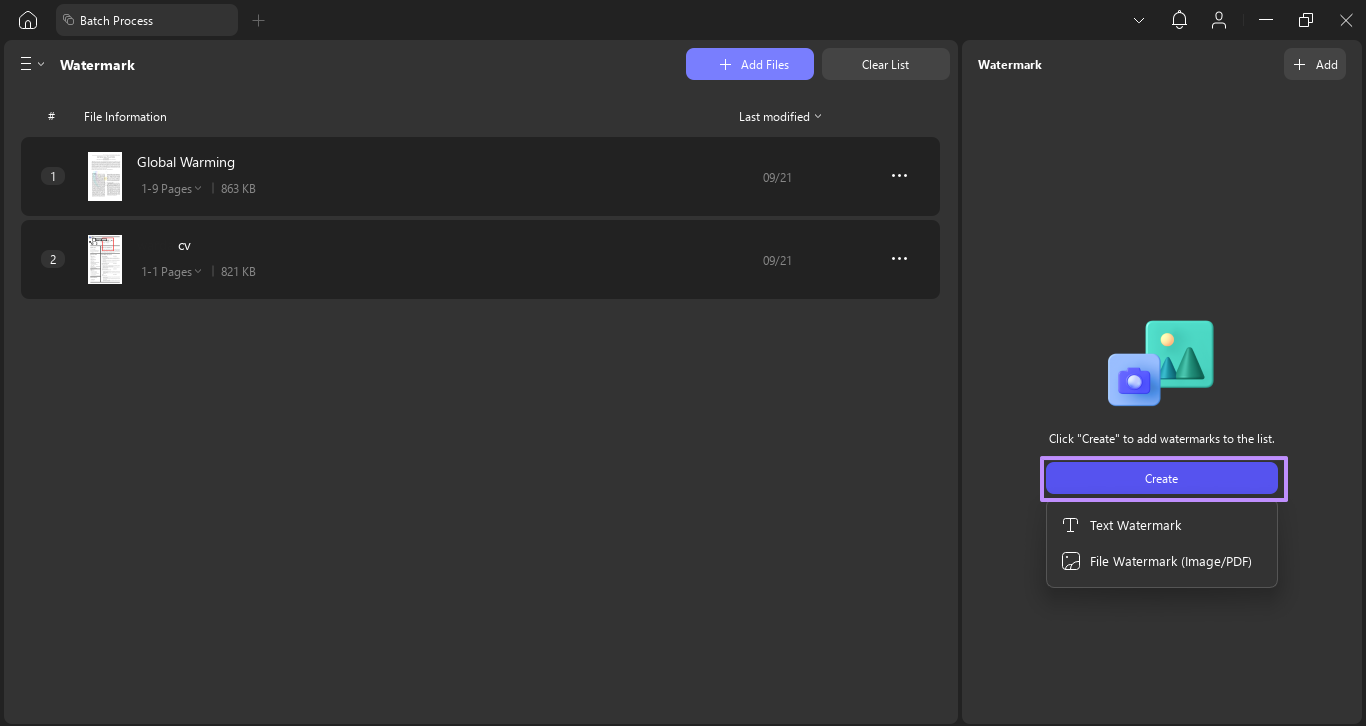
Step 4. In the Position dropdown, select Header or Footer.
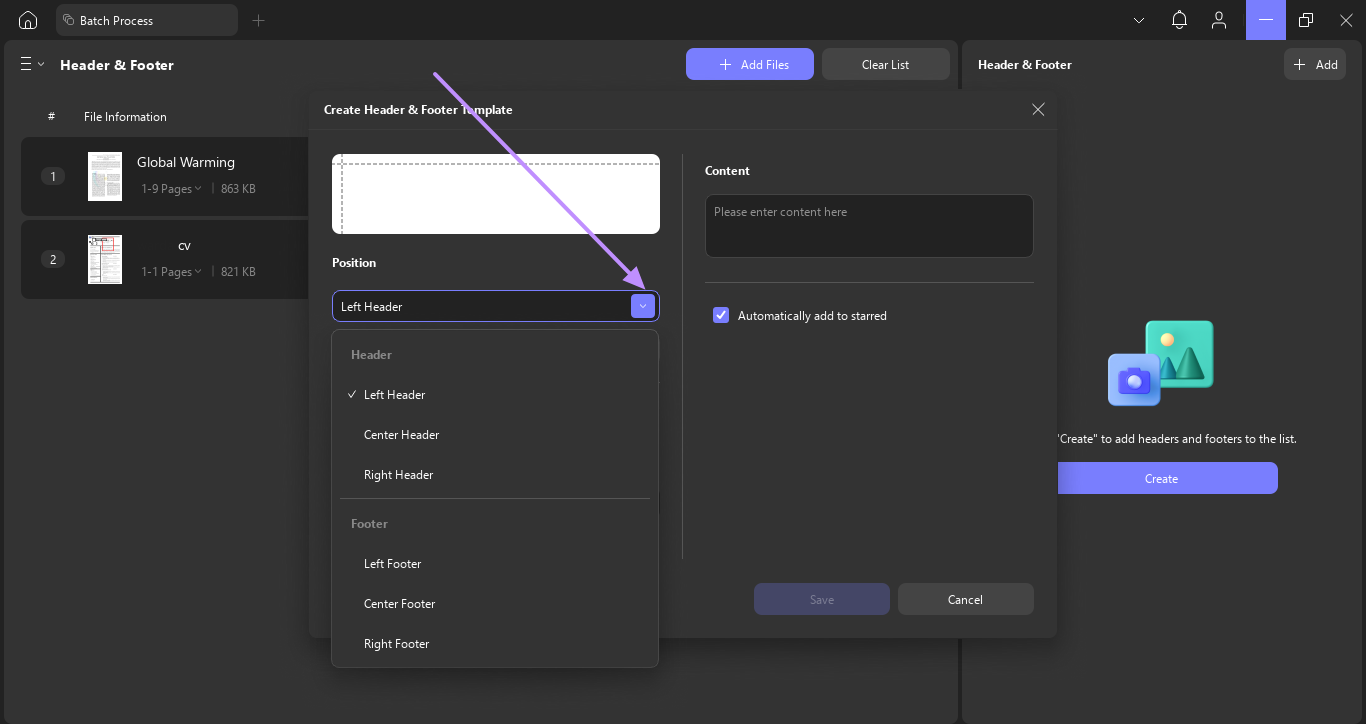
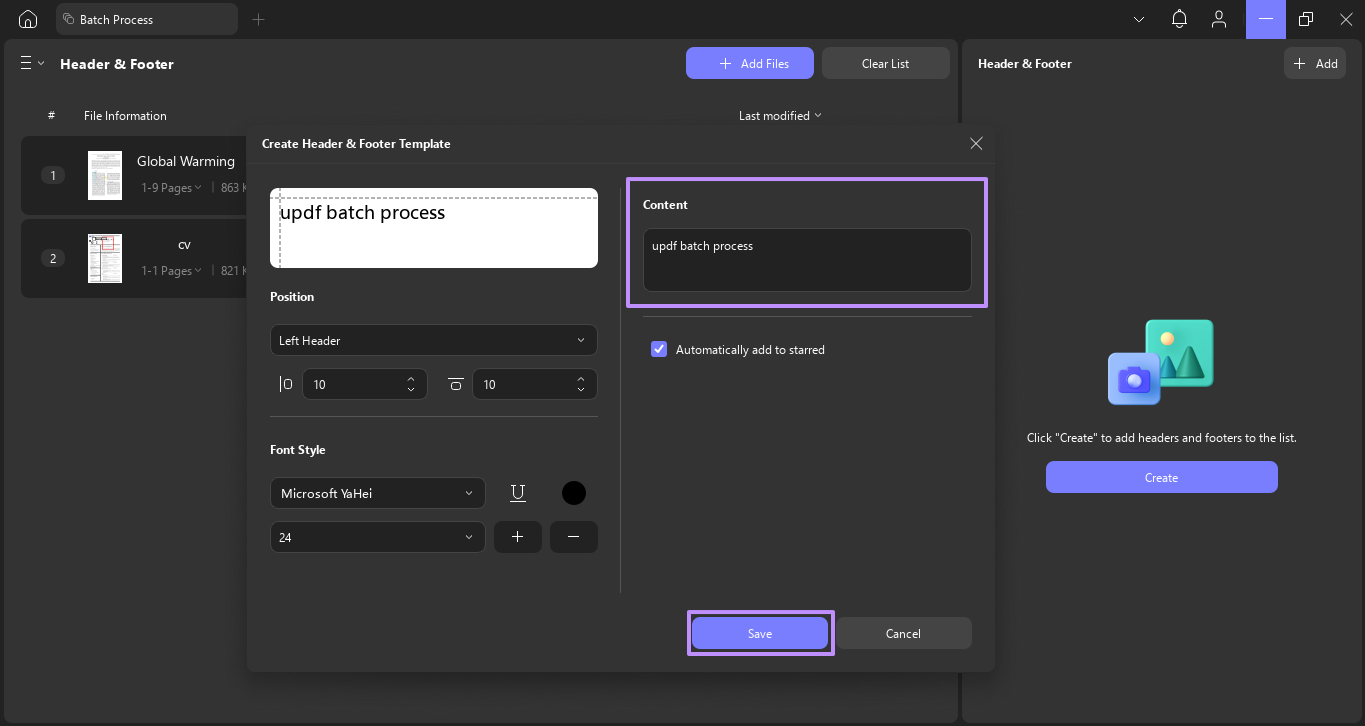
Step 5. Enter your text in the Content box. Click Save.
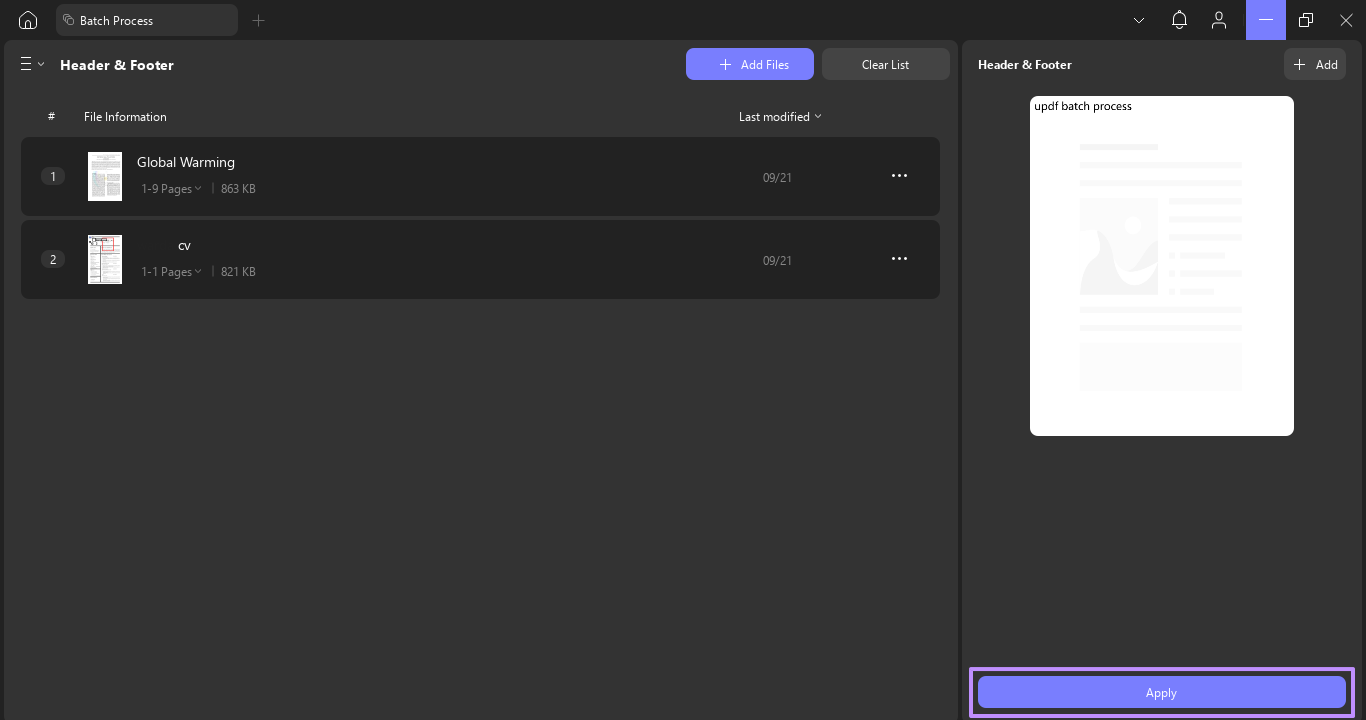
Step 6. Click Apply to add headers/footers to all selected PDFs.
Tip
Batch Add Pages to PDFs
Insert pages — such as cover sheets, disclaimers, or appendixes — into multiple PDFs at once.
Best for
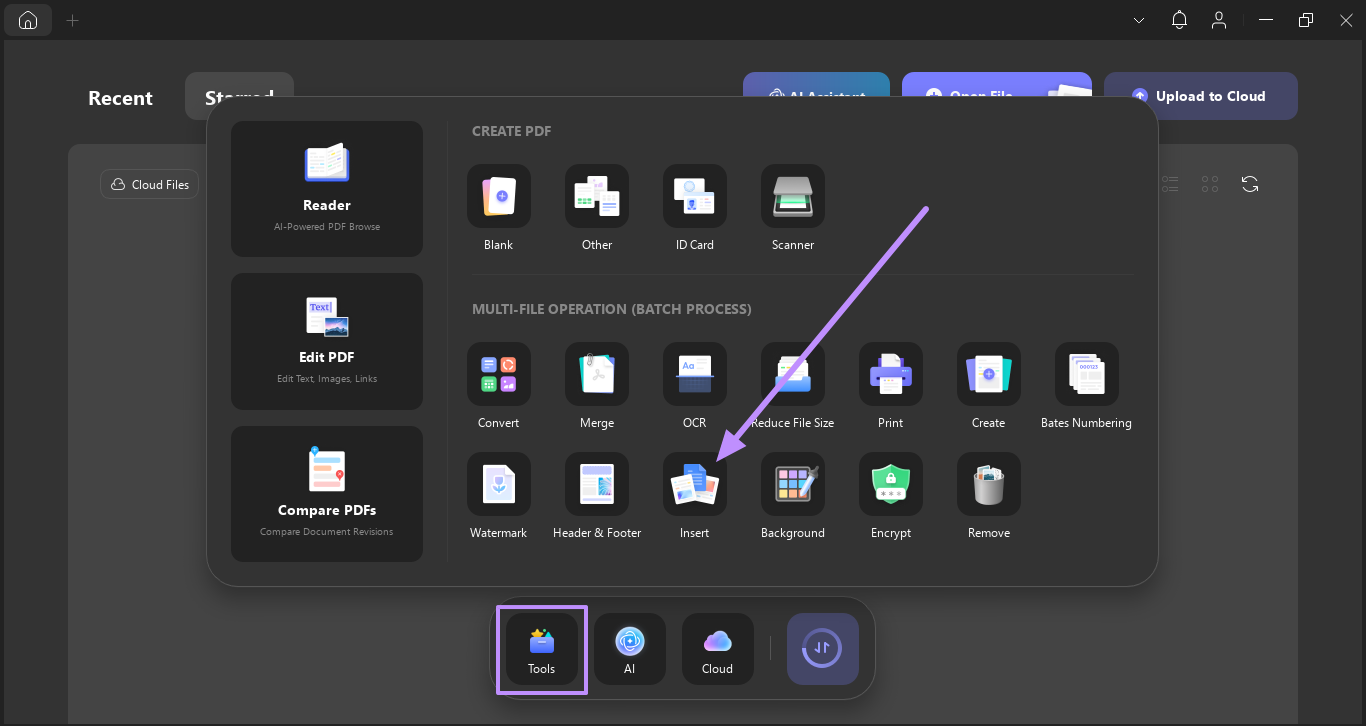
Step 1. Open the Tools section on UPDF’s main interface and select the Insert feature.
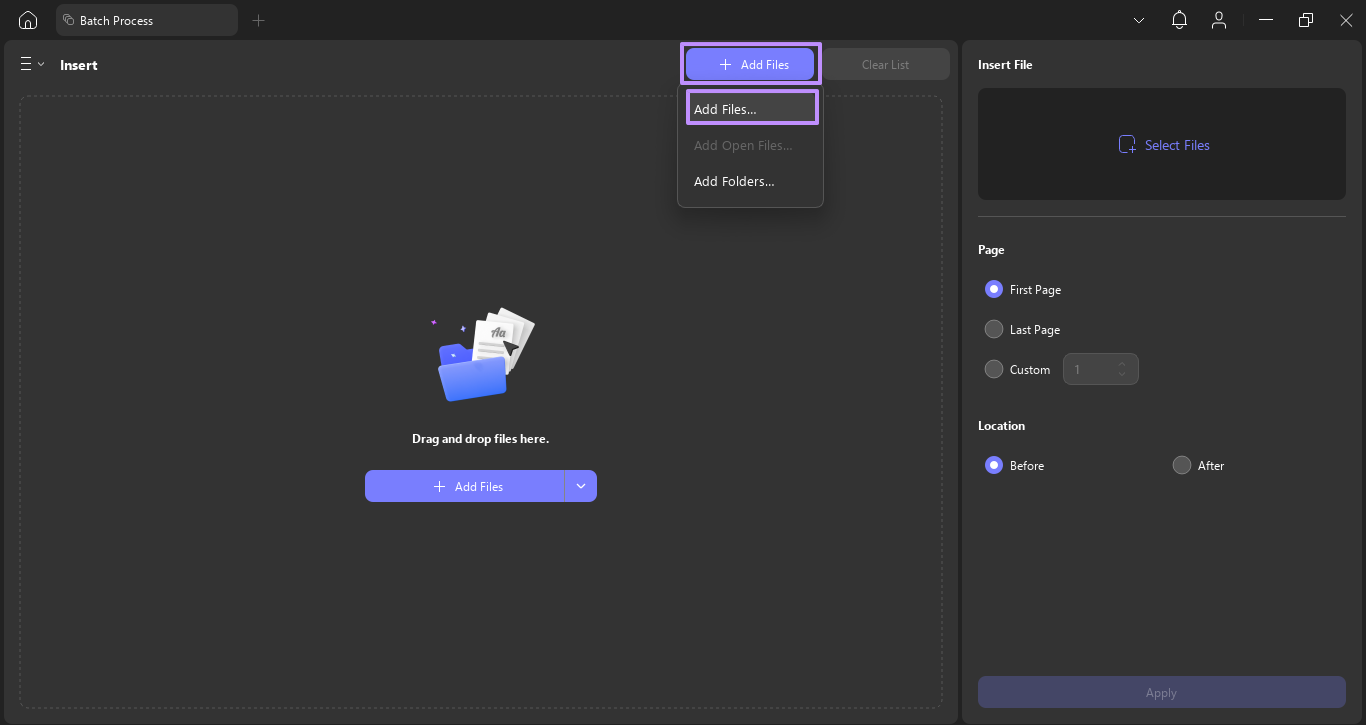
Step 2. Now, click on the +Add Files button and choose the Add Files option.
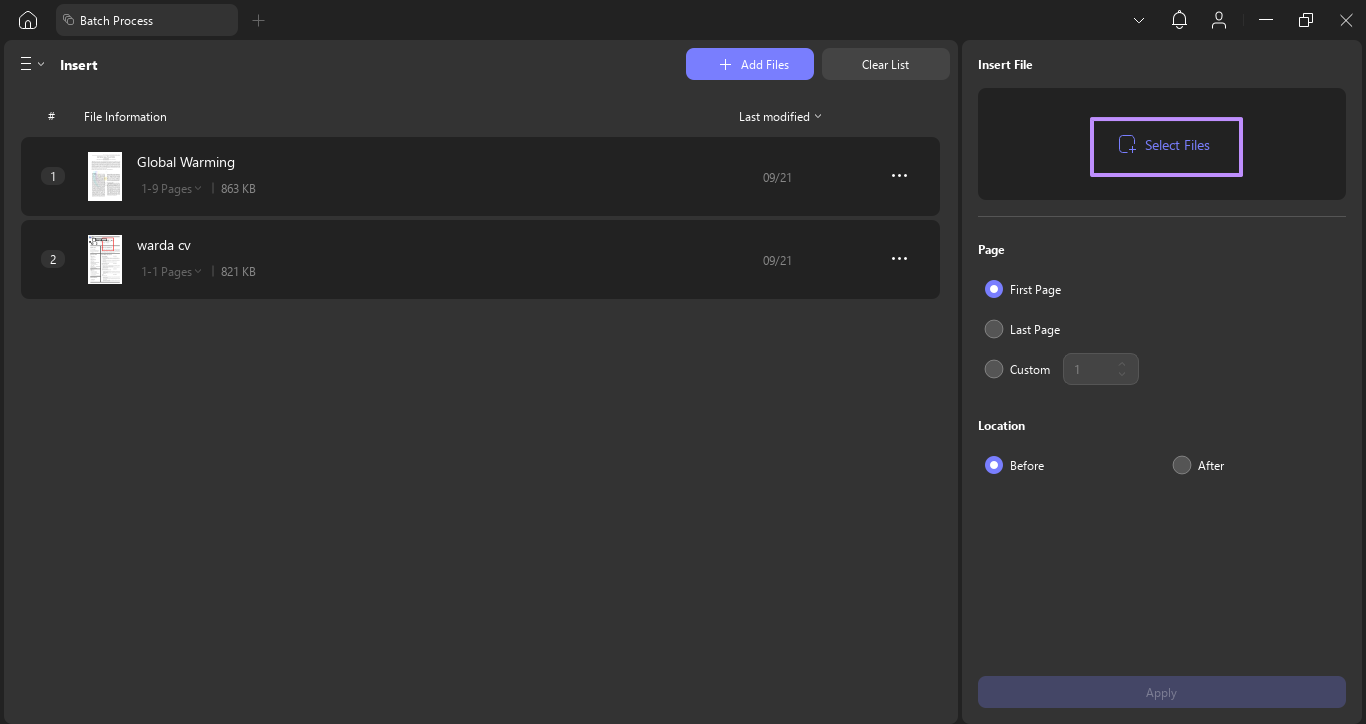
Step 3. In the Insert window, click on the Select Files button and choose the PDF or image file you want to insert as a page into the selected PDFs.
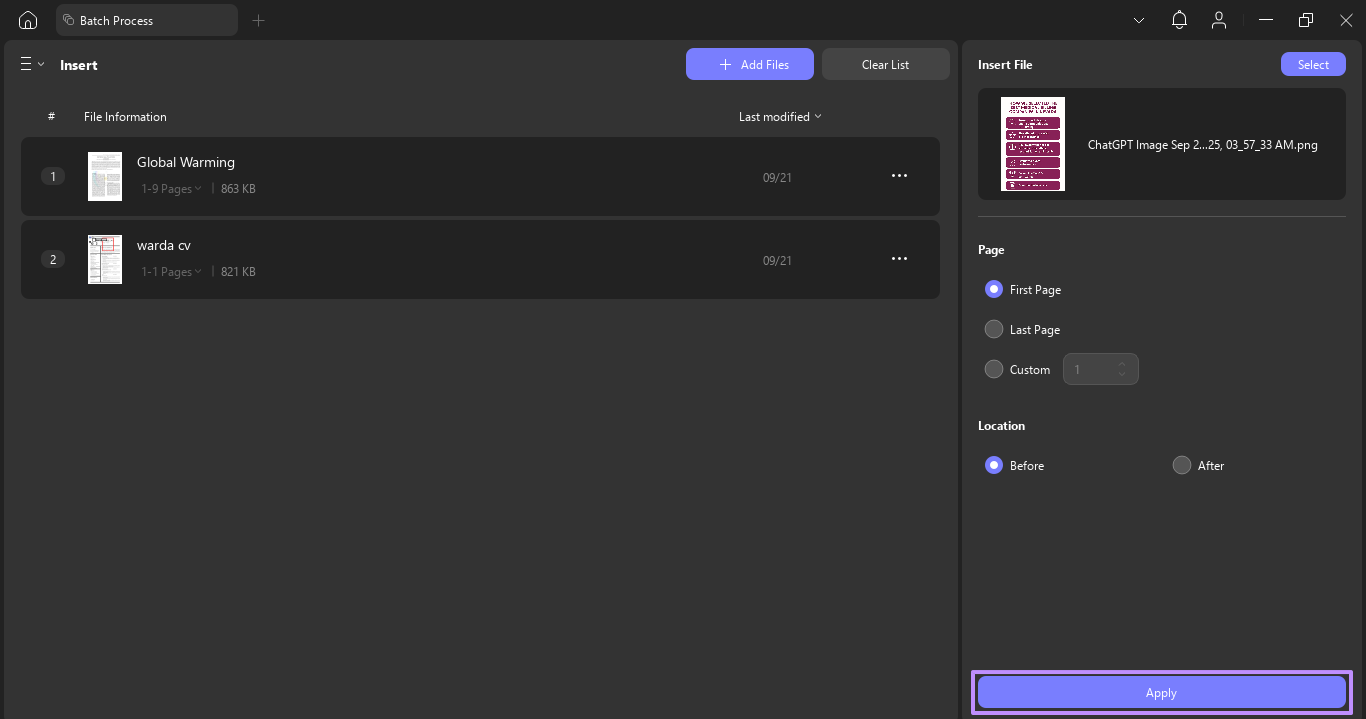
Step 4. After selecting the files, adjust the placement settings, such as inserting pages before or after specific pages in your documents. At last, hit the Apply button to confirm.
Batch Add Backgrounds to PDFs
Apply a consistent background color or image across multiple PDFs for branding or readability.
Best for
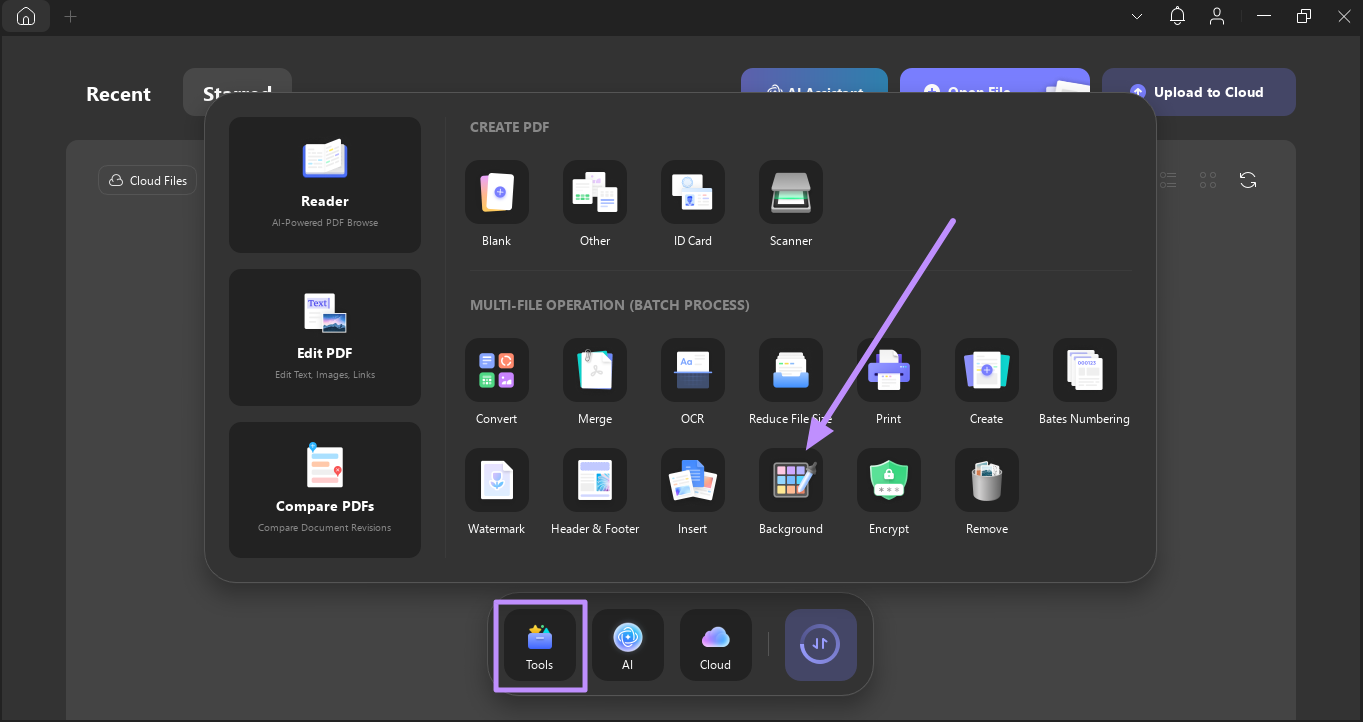
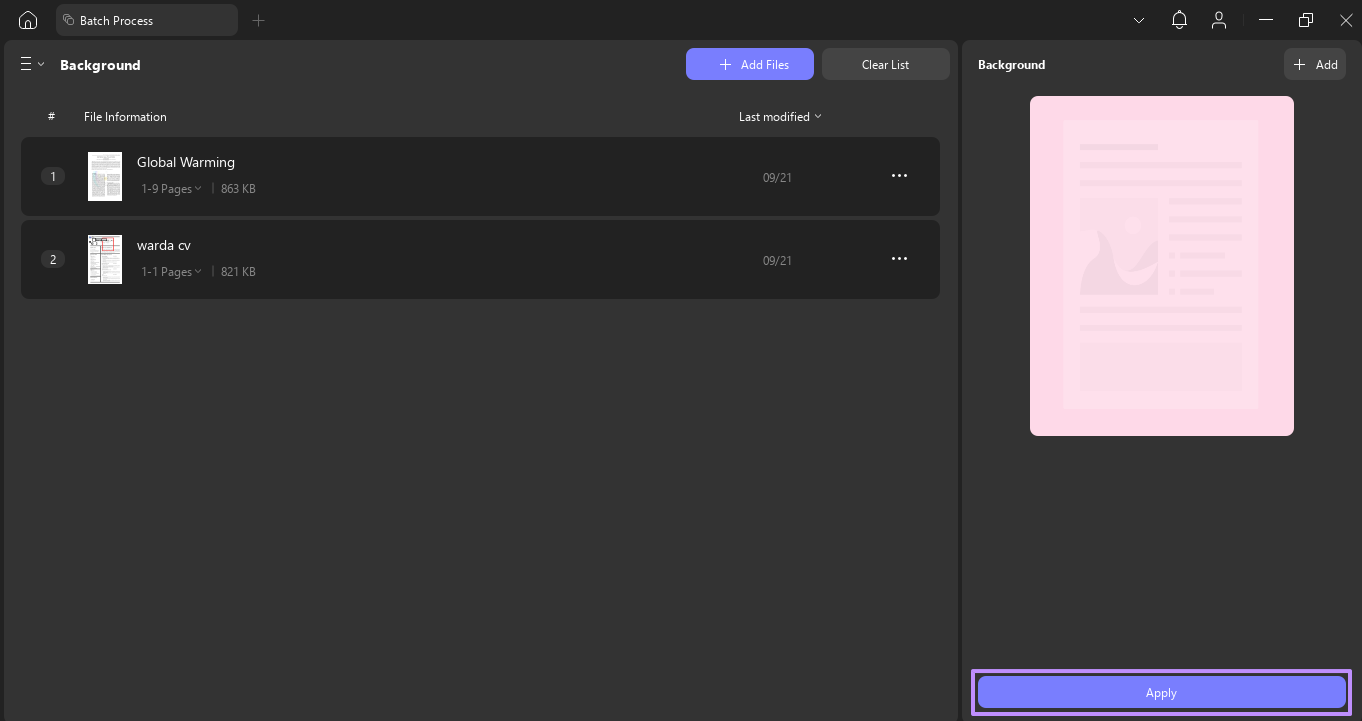
Step 1. In the Tools section, pick the Background option to move to the next window.
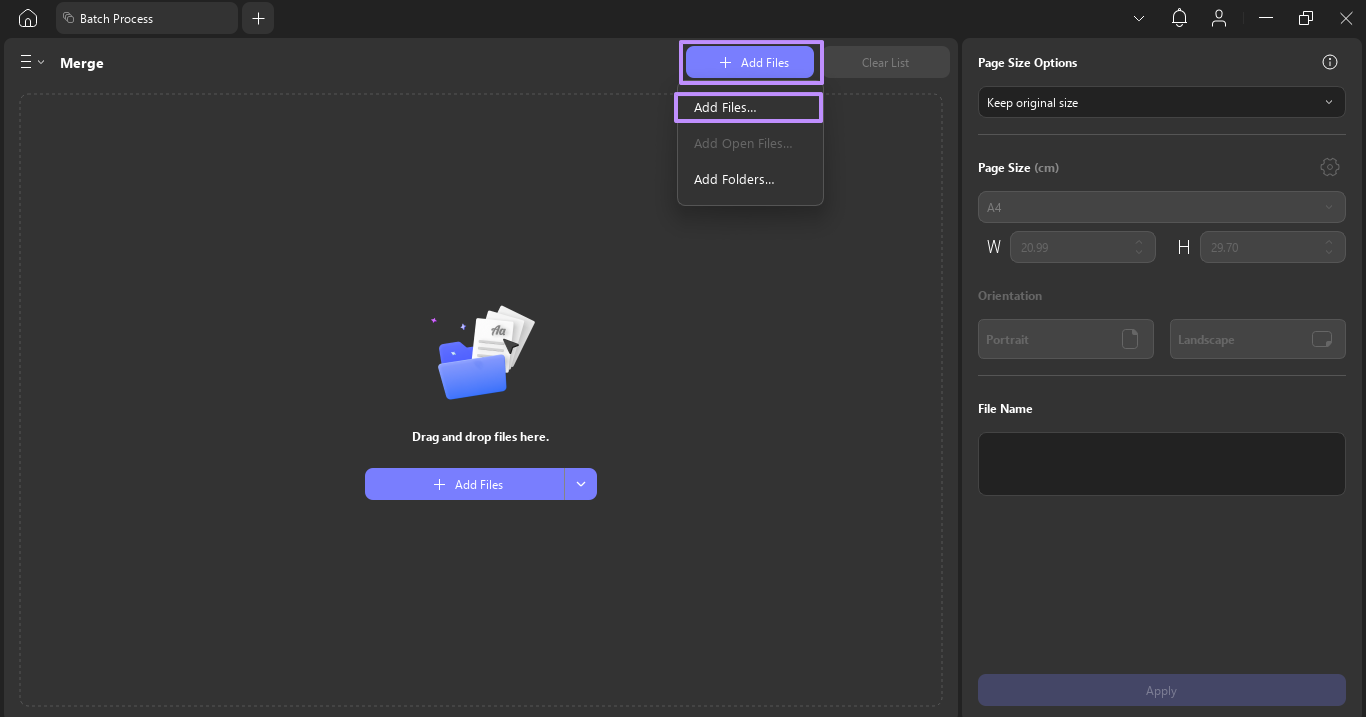
Step 2. Now, hit the +Add Files button and choose the Add Files option to import the files you want to add a background to.
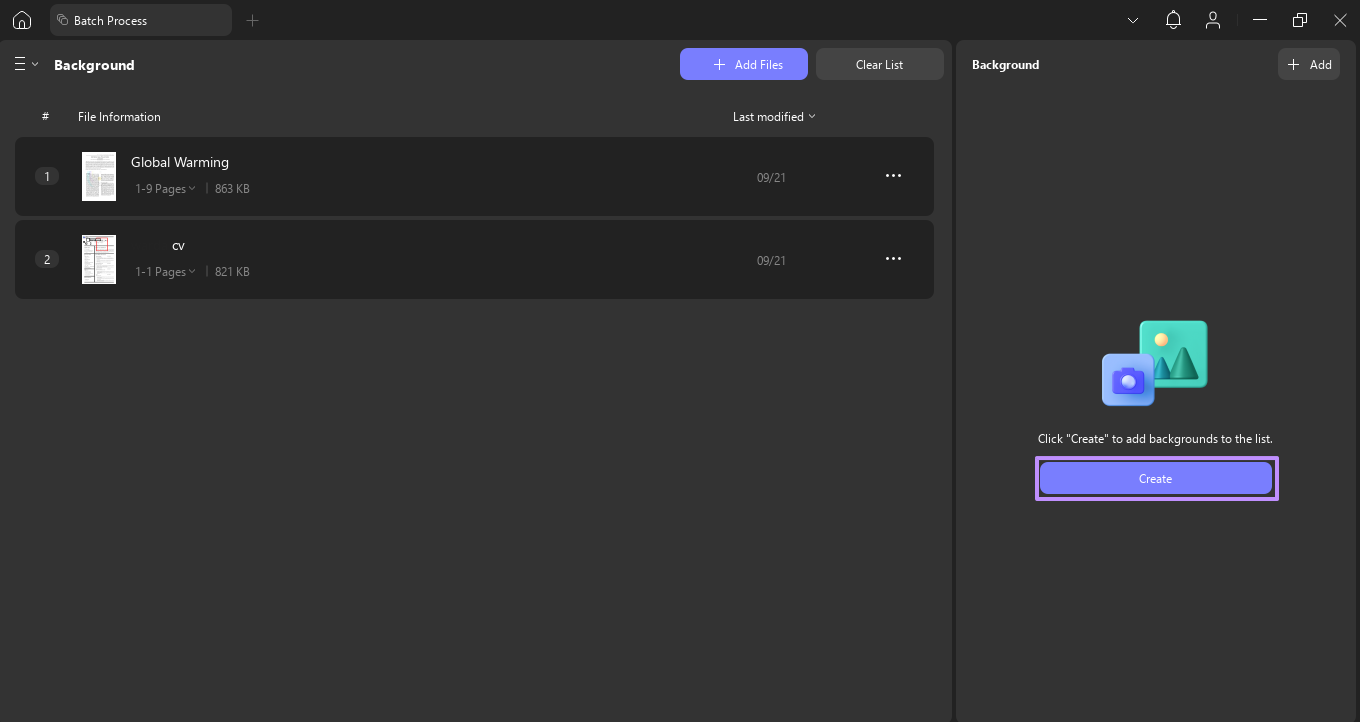
Step 3. After importing the files, press the Create button to access the Create Background Template.
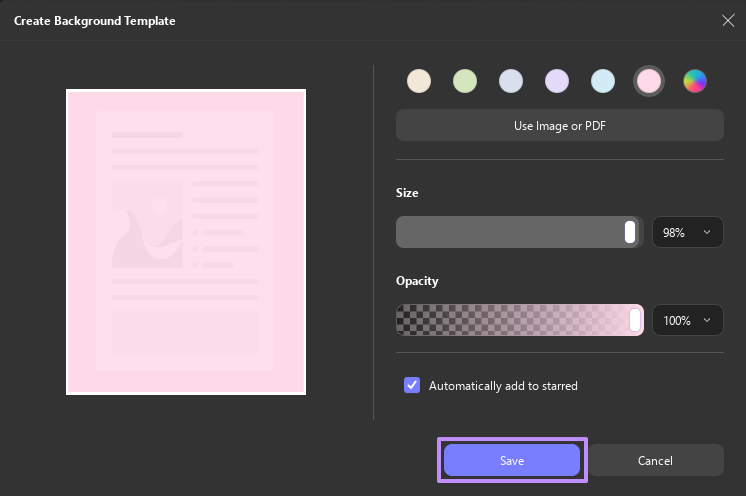
Step 4. Move on by choosing your desired color, Size, and Opacity for the background. Upon doing so, hit the Save button.
Step 5. After you choose the background, press the Apply button on the right-side panel to save the PDFs with backgrounds.
Part 2. How to Batch Remove Elements from Multiple PDFs
Sometimes you need to clean up PDFs — remove old watermarks, delete outdated headers, or strip Bates numbers from archived files. UPDF's Batch Remove feature handles all of these in one operation.
Best for
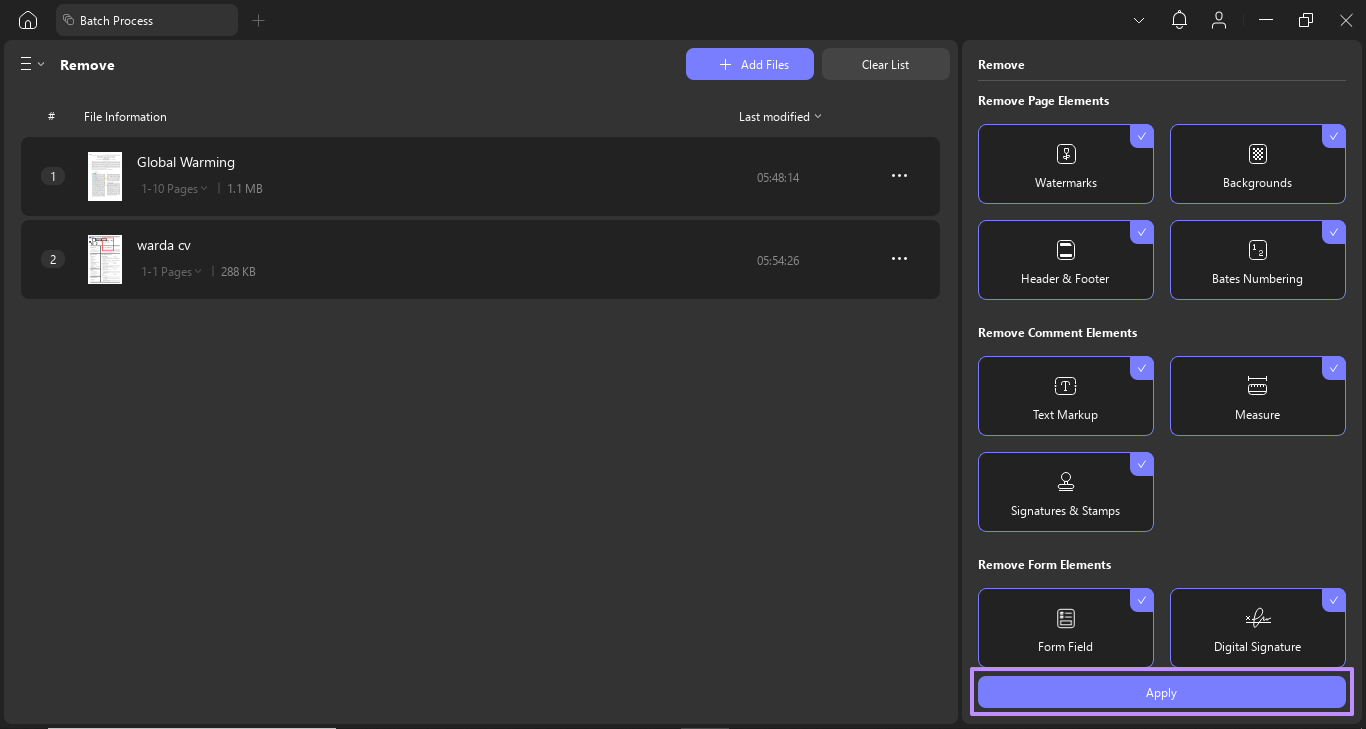
You can batch remove the following elements:
- Watermarks
- Backgrounds
- Headers & Footers
- Bates Numbering
- Text Markups
- Measurements
- Signatures & Stamps
- Form Fields
- Digital Signatures
Warning
Therefore, you must download UPDF and use its Batch Remove feature to delete multiple elements within your PDFs simultaneously. Follow the provided step guide to remove elements from multiple files at once using UPDF’s Batch Remove feature.
Windows • macOS • iOS • Android 100% secure
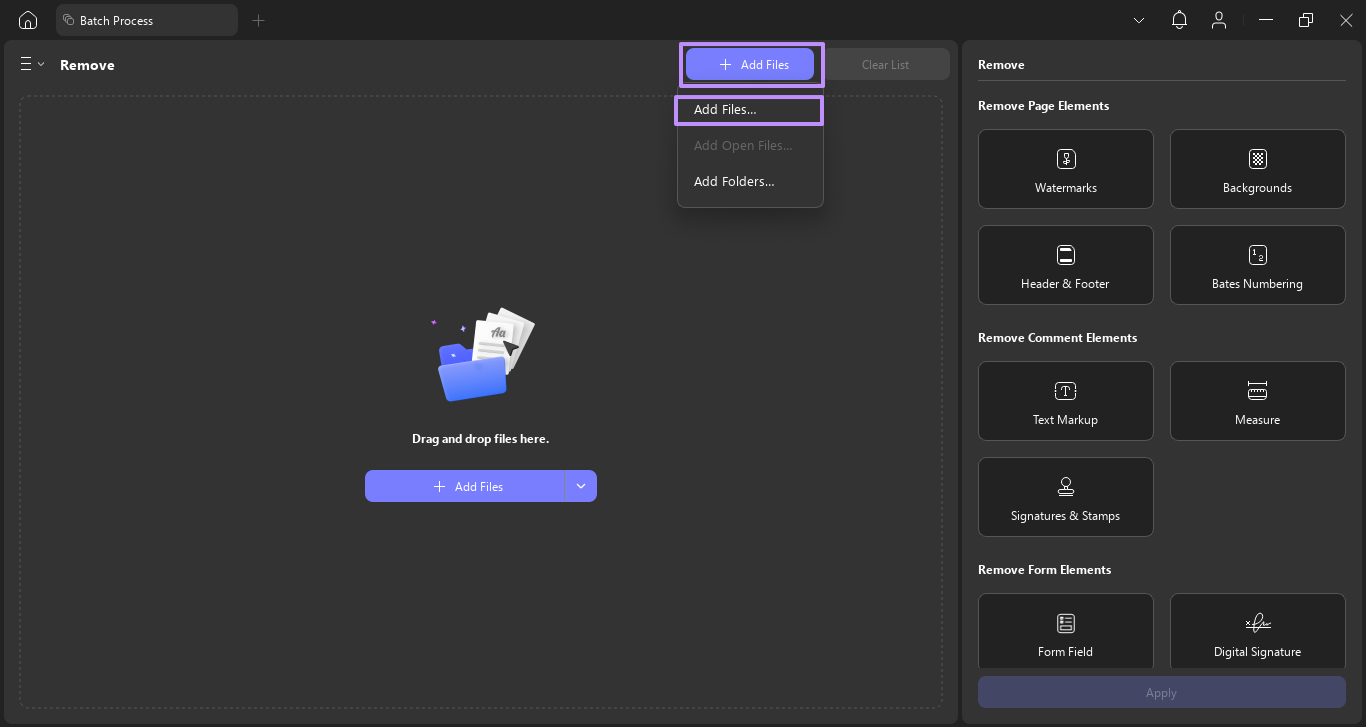
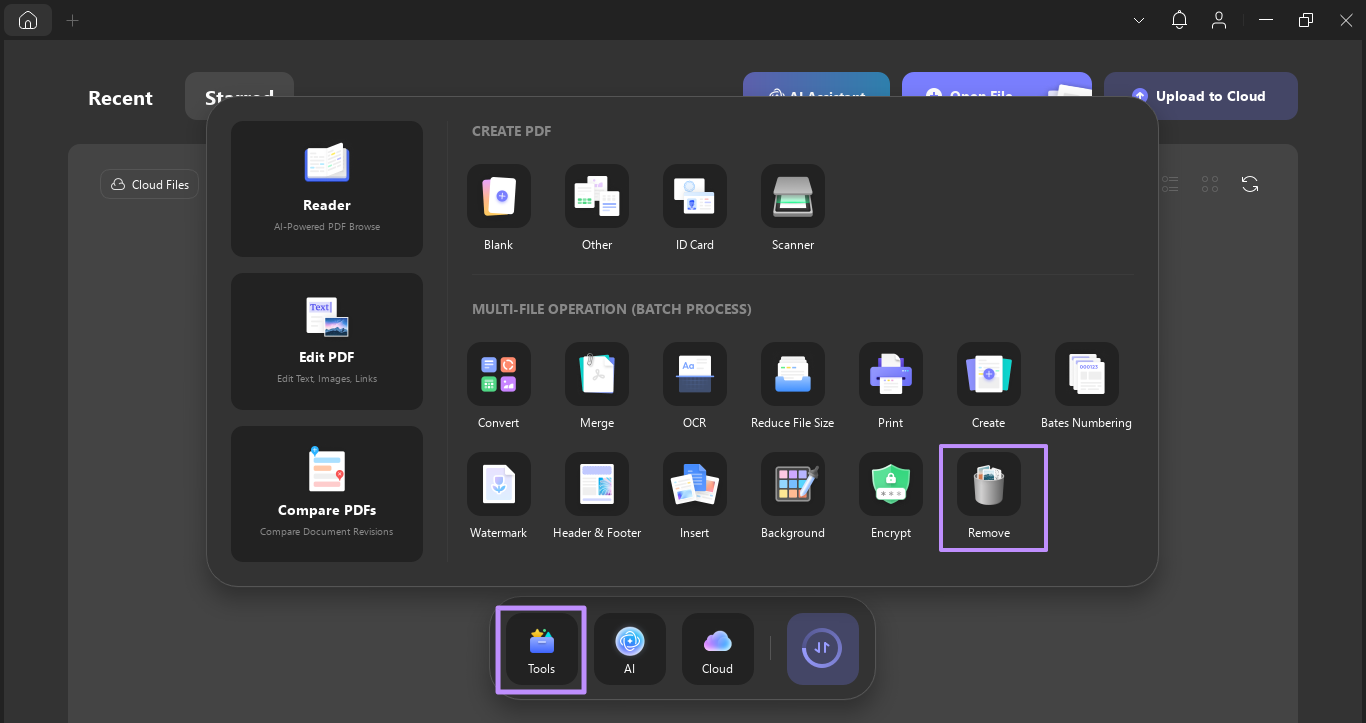
Step 1. Go to Tools → Remove (under Batch Process).
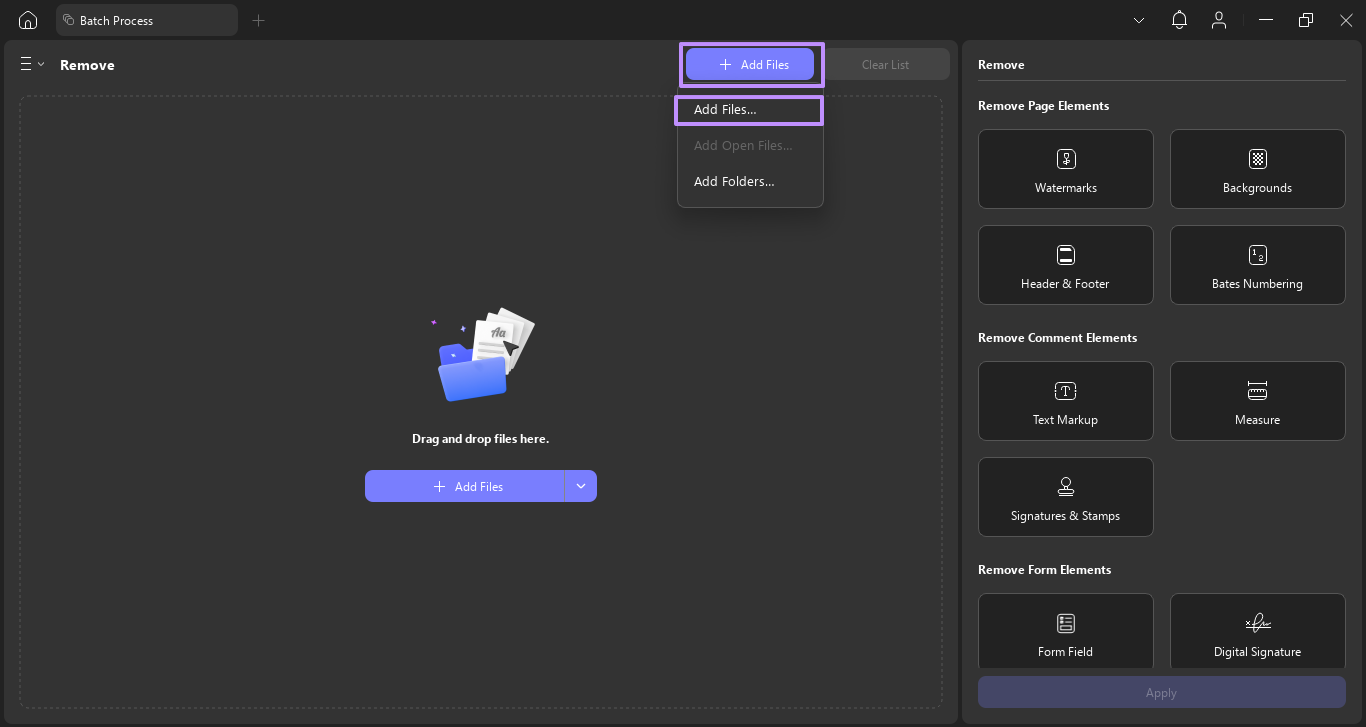
Step 2. Click +Add Files and select your PDFs.
Step 3. In the right-side panel, check the elements you want to remove. Click Apply.
Part 3. How to Batch Find and Replace Text Across Multiple PDFs
Updating a company name, address, or product name across hundreds of PDFs is one of the most common — and tedious — document management tasks. Adobe Acrobat Standard does not support batch text replacement, and Acrobat Pro requires complex Action Wizard scripts.
Best for
UPDF handles this with a three-stage workflow: merge all PDFs into one, use Find & Replace to update text globally, then split back into individual files with original names preserved.
Tip
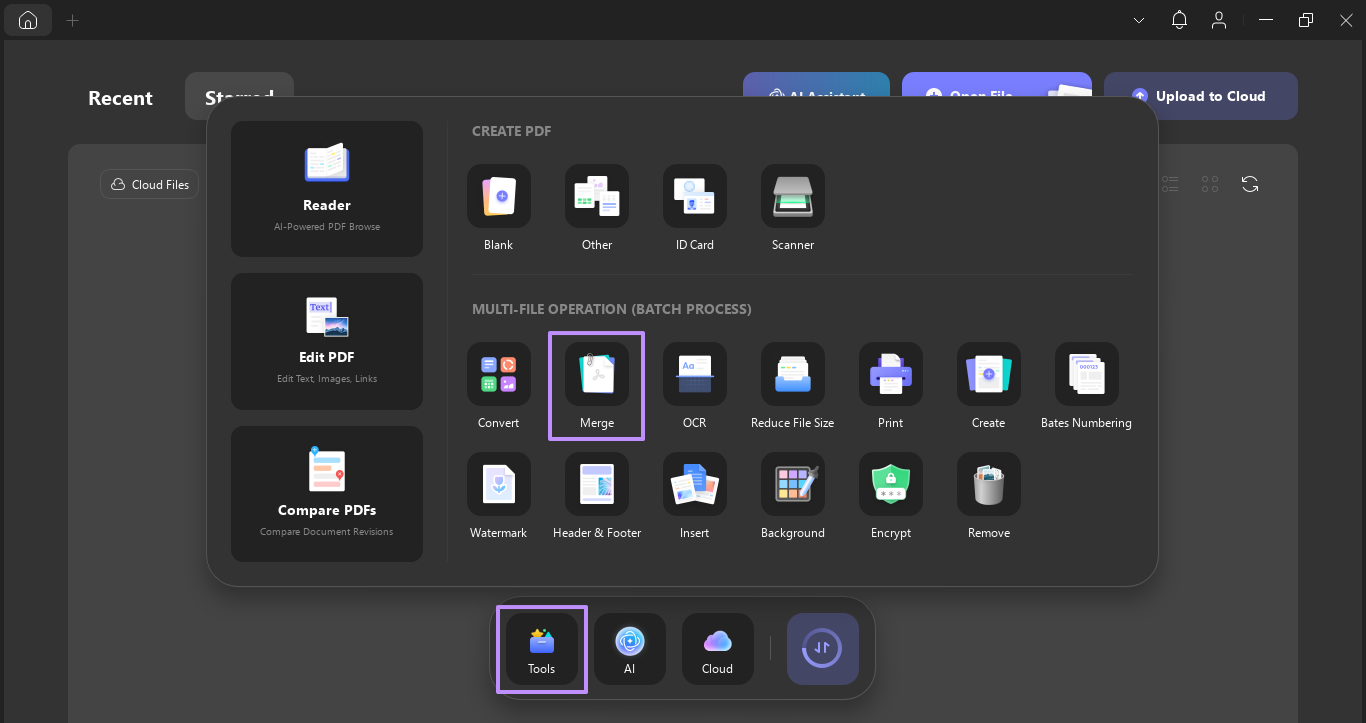
Step 1. Go to Tools → Merge (under Batch Process).
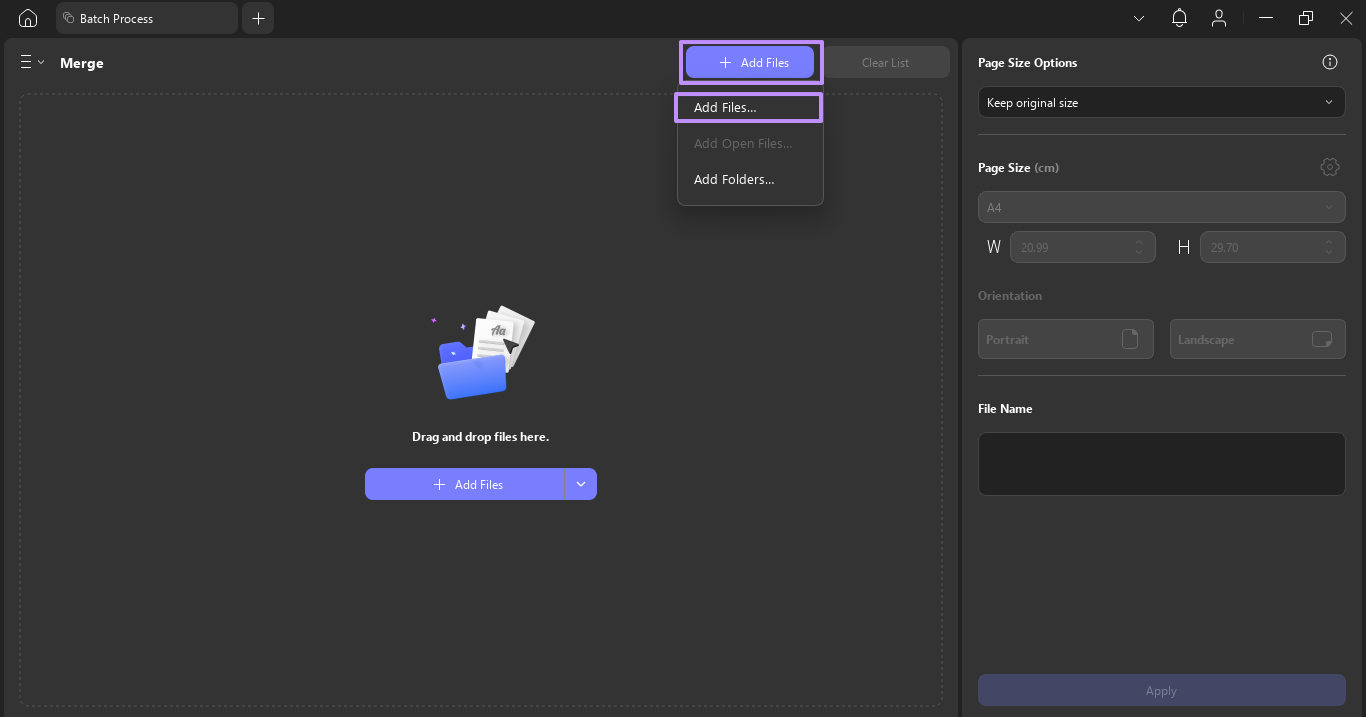
Step 2. Click +Add Files and select all PDFs.
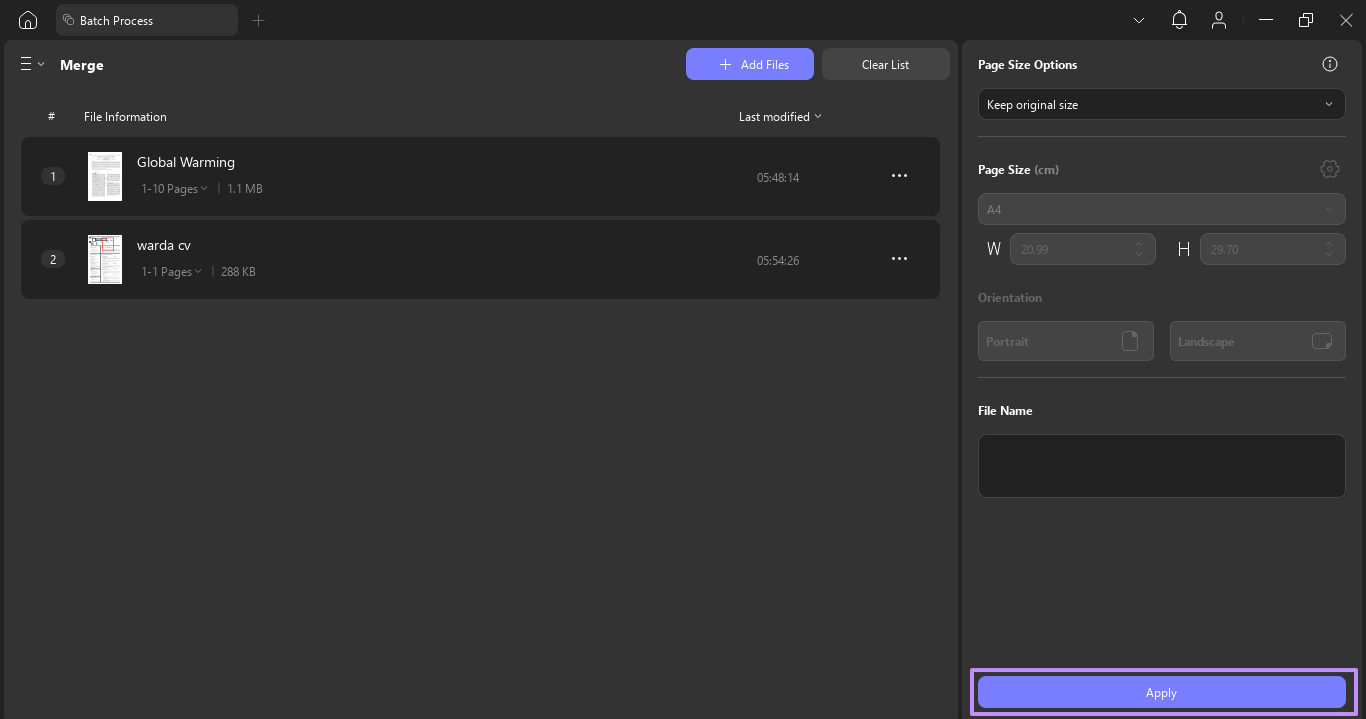
Step 3. Click Apply to merge into a single file.
Step 4. Open the merged PDF. Click the Search icon → Find Text & Replace.
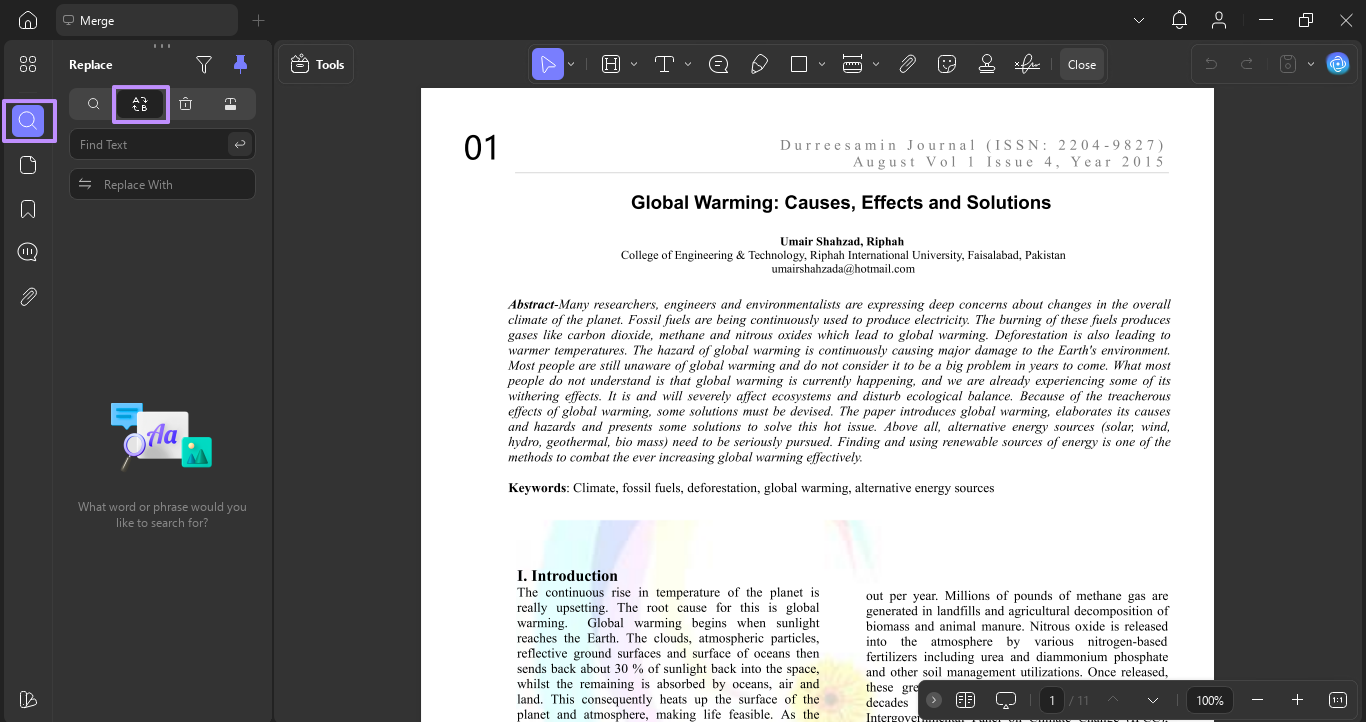
Step 5. Enter the text to find and the replacement text. Click Select All → Replace.
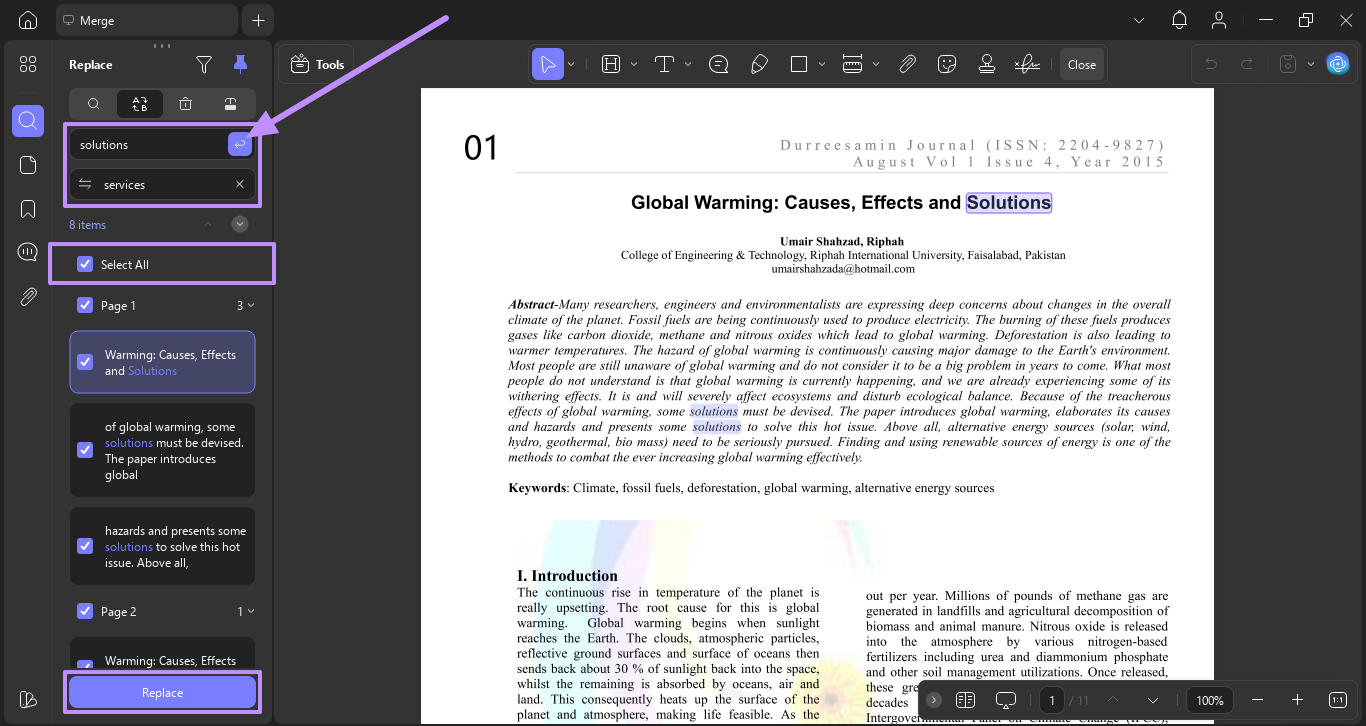
Step 6. Go to Tools → More → Organize Pages → Split.
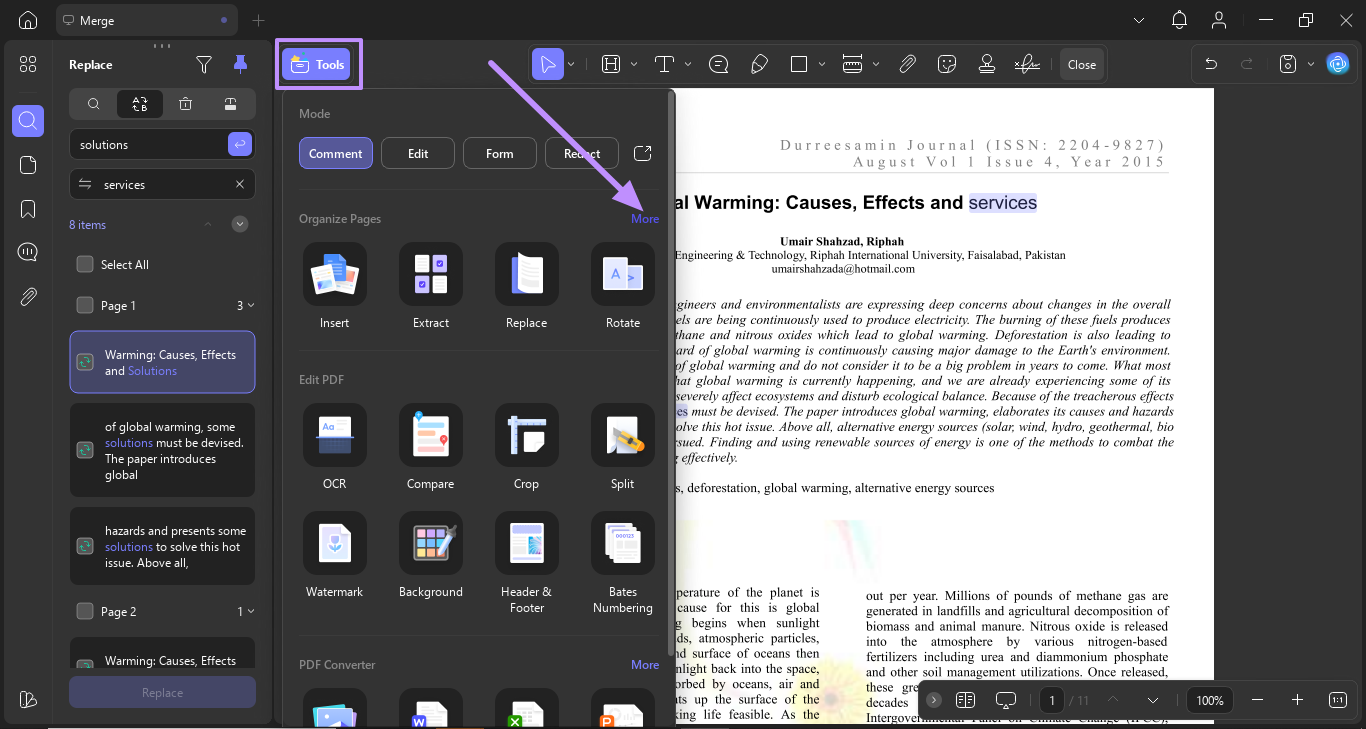
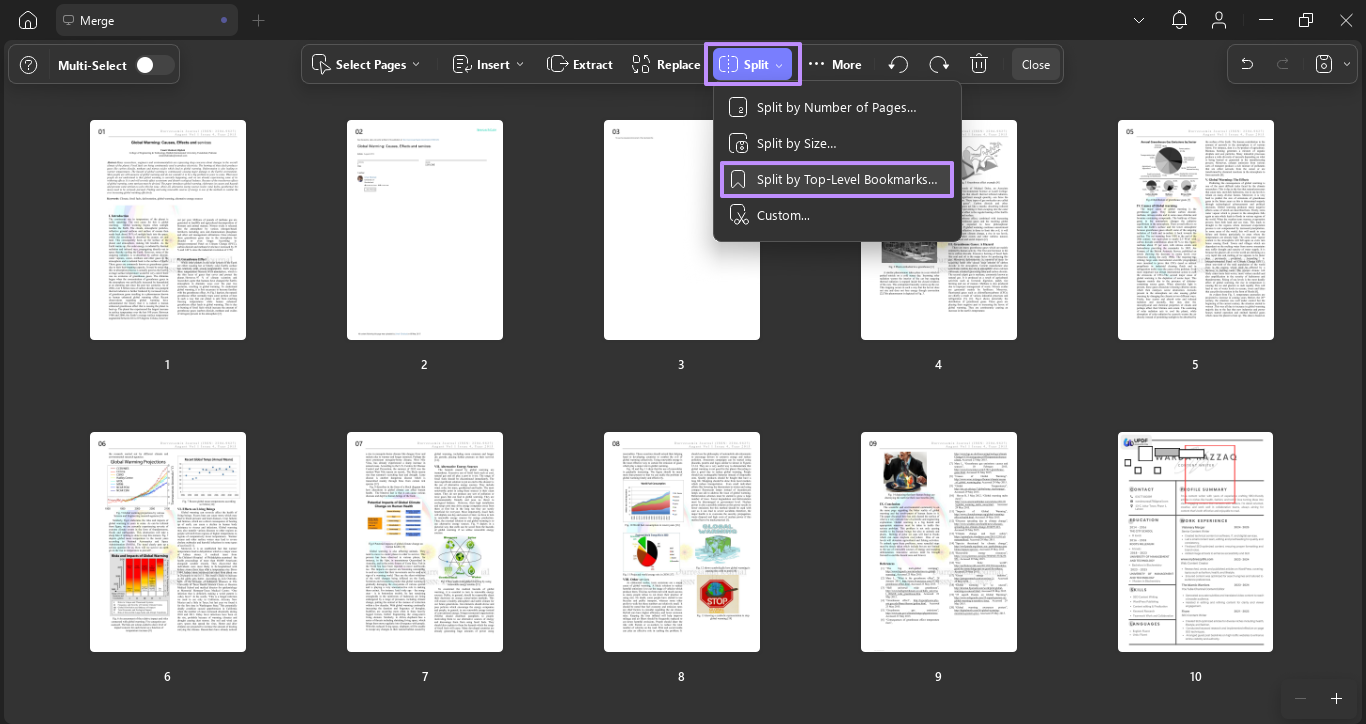
Step 7. Choose Split by Top-Level Bookmarks.
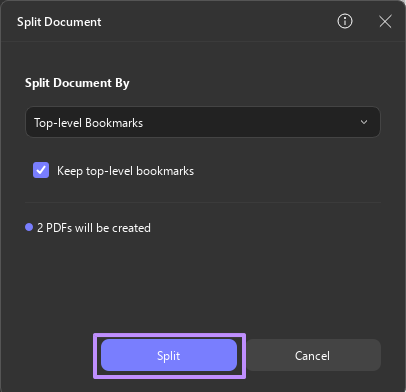
Step 8. Click Split to restore individual PDFs.
Warning
Apart from the batch edit PDF feature, UPDF offers many other powerful tools that make it a complete PDF solution. Next is a detailed breakdown of its 7 top features:
- Convert: Using the Convert feature, you get the option to transform PDFs into different file formats, including PPT, Word, and others.
- Create: You can convert Word, Excel, PowerPoint, images, and other formats into high-quality PDFs with just a few clicks.
- Reader: UPDF offers a PDF reader with multiple viewing modes, such as single-page, two-page scrolling, and fit-to-window.
- AI Assistant: UPDF’s built-in AI assistant can generate summaries, translations, and even answer your queries about the content regarding explanation.
- Compare PDFs: This compare feature allows you to open PDFs side by side and highlight differences between them.
- OCR: With the OCR feature, you get the ability to convert scanned or image-based PDFs into an editable and searchable format.
- Encrypt: UPDF lets you protect your documents by setting open passwords or restricting access to certain features like printing or editing.
To learn more about UPDF features in detail, read this article by Apple Insider or watch the video.
FAQ
Can I batch edit PDFs for free?
UPDF offers a free trial that includes batch processing features. For unlimited batch editing, UPDF Pro is available at a one-time or subscription price — significantly less than Adobe Acrobat Pro. Free alternatives like PDFsam Basic handle merging and splitting but do not support batch watermarking, Bates numbering, or text replacement.
Can I batch process scanned PDFs?
Yes. UPDF includes batch OCR that converts scanned or image-based PDFs into searchable, editable text in 38 languages. After OCR, you can batch edit text, add watermarks, or apply headers and footers.
How does UPDF compare to Adobe Acrobat for batch editing?
Adobe Acrobat Pro supports batch processing via Action Wizard, but it requires technical expertise to set up. Acrobat Standard does not support batch text replacement at all. UPDF provides the same batch capabilities through a visual interface — no scripting required — at a lower cost.
Conclusion
Batch editing PDFs is essential for anyone who works with documents at scale. Whether you are adding Bates numbers to legal discovery, watermarking reports for confidentiality, or updating company names across an archive, doing it one file at a time is not practical.
UPDF handles all major batch PDF tasks — add, remove, and replace — through a visual interface that does not require scripting or technical expertise. Compared to Adobe Acrobat Pro's Action Wizard, UPDF is faster to set up and more affordable. Compared to free tools like PDFsam, UPDF offers far more batch editing depth.
Windows • macOS • iOS • Android 100% secure








 Enya Moore
 Estrella López
 Enrica Taylor

 Enid Brown