 UPDF
UPDF
 UPDF for Windows
 UPDF for Mac
 UPDF for iPhone/iPad
 UPDF for Android
 Nomostar
 UPDF AI Online
 UPDF Sign
 IvyCraft
 Edit PDF
 Annotate PDF
 Create PDF
 PDF Form
 Edit links
 Convert PDF
 OCR
OCR PDF to Word
 PDF to Image
 PDF to Excel
 Organize PDF
 Merge PDF
 Split PDF
 Crop PDF
 Rotate PDF
 Protect PDF
 Sign PDF
 Redact PDF
 Sanitize PDF
 Remove Security
 Read PDF
 UPDF Cloud
 Compress PDF
 Print PDF
 Batch Process
 About UPDF AI
 UPDF AI Solutions
 AI User Guide
 FAQ about UPDF AI
 Summarize PDF
 Translate PDF
 Chat with PDF
 Chat with AI
 Chat with image
 PDF to Mind Map
 Explain PDF
 PDF AI Tools
 Image AI Tools
 AI Chat Tools
 AI Writing Tools
 AI Study Tools
 AI Working Tools
 Other AI Tools
 AI Bookmark Generation
 AI Bookmark Summary
 AI Watermark Generation
 AI Background Generation
 AI Sticker Generation
 AI Stamp Generation
 AI Editing Suite
 UPDF Copilot
 AI Page Management
 AI Semantic Search
 PDF to Word
 PDF to Excel
 PDF to PowerPoint
 Enterprise Solution
 Enterprise Sign
 Enterprise AI
 Enterprise Plan
 Enterprise User Guide
 Enterprise Webinar
 IT
IT Education
 Construction
 Financial Service
 Healthcare
 Insurance
 Legal
Legal Manufacturing
 Government
 Researchers & PhDs
 Solopreneurs & Freelancers
 Lawyers & Legal Professionals
 Real Estate Agents & Brokers
 Education Solution
 Customer Stories
 User Guide
 UPDF Tricks
 FAQs
FAQs UPDF Reviews
 Download Center
 Blog
Blog Newsroom
 Tech Spec
 Updates
 UPDF vs. Adobe Acrobat
 UPDF vs. Foxit
 UPDF vs. PDF Expert

Quick answer:
A PDF can look like a text document while containing only pictures of its pages. Another PDF may let you copy words without letting you change the visible wording. Identify what is preventing editing before converting the file: image-only pages, the viewing app, document permissions, or the type of form.
Part 1. Check What Kind of PDF You Have
Selecting or searching text is a useful clue, but it does not prove that the visible text can be edited.
| What you find | What it may mean | What to do |
|---|---|---|
| Existing text opens in an editor’s text-editing mode | The PDF contains text objects the editor can modify | Edit directly; skip OCR |
| You cannot select individual words and the page behaves like an image | The PDF may contain scanned or image-only pages | Use OCR with editable output |
| Words can be copied, but the visible wording cannot be changed | The app may be recognizing text live, or the PDF may have a hidden OCR text layer | Check the file in your intended editor and choose editable OCR output if needed |
| A password or permissions message blocks changes | Access or editing is restricted | Request permission and an editable copy from the owner |
| You only need to enter information in form fields | Form filling is a separate task | Fill existing fields instead of processing the document with OCR |
If your PDF already contains editable text, follow our guide to editing a PDF on Mac. The workflow below focuses on scanned pages that need recognition first.
Part 2. Make a Scanned PDF Editable on Mac with UPDF
Before You Start
Work on a copy. UPDF’s current Mac compatibility guidance requires an Apple silicon Mac and the version downloaded from its website for OCR. Intel Macs and the Mac App Store build do not support this feature. The free trial includes five OCR uses, and saved output carries a trial watermark.
Windows • macOS • iOS • Android 100% secure
Step 1. Open the PDF and Start OCR
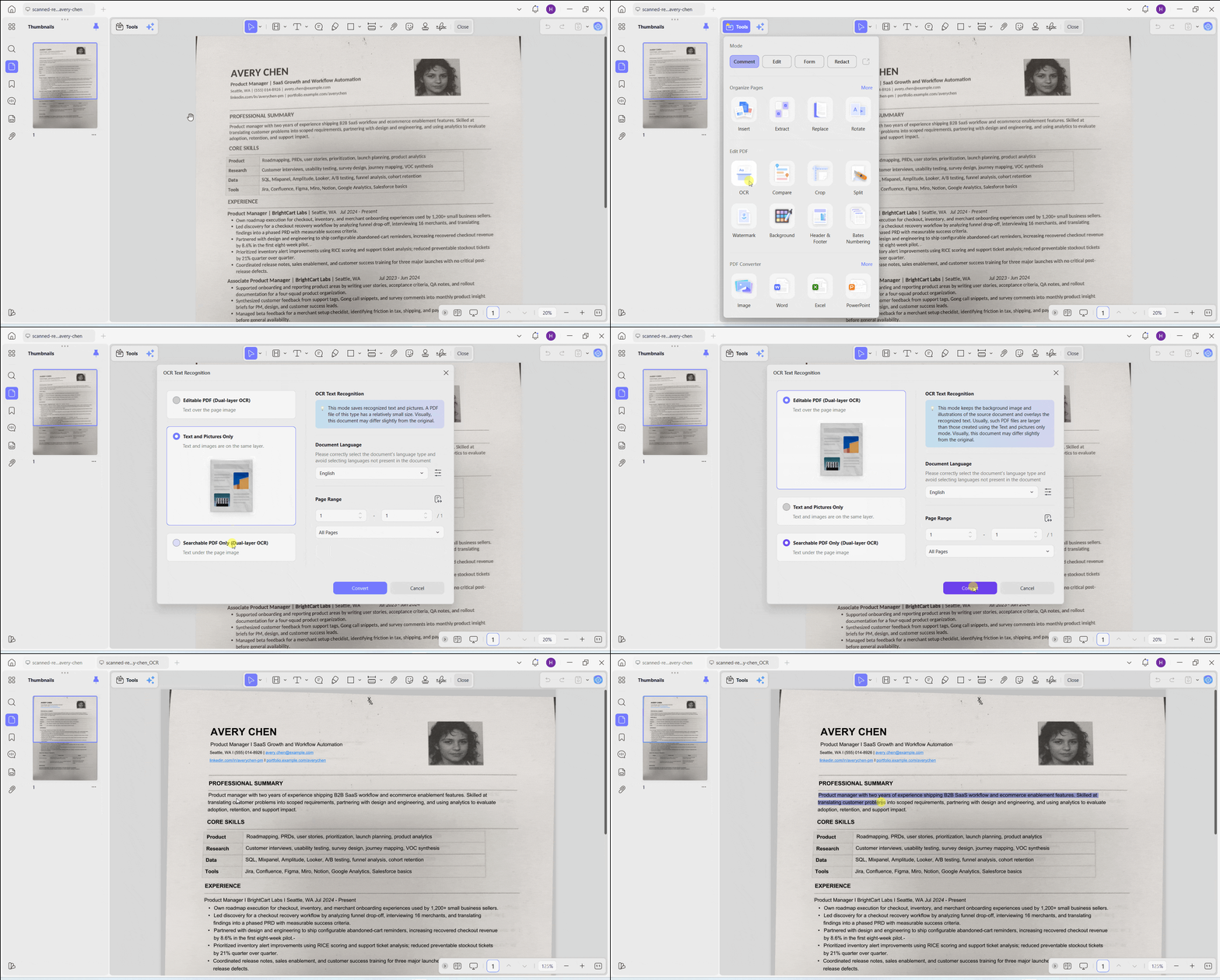
Open the scan in UPDF and select Tools > OCR. Install the OCR component if prompted.
Step 2. Choose Editable Output
Select Editable PDF, the document language or languages, and the page range. Review the layout and image-quality settings. Searchable PDF Only retains the page image with an invisible text layer; choose editable output to change visible wording.
Step 3. Convert the Selected Pages
Click Convert, choose an output location, and open the processed file. Keep the original for comparison.
Step 4. Edit the Recognized Text
Choose Tools > Edit in the output. Click a recognized line or paragraph and change the wording. Adjust font, size, spacing, or position as necessary. Test one short sentence first: confirm that the visible wording changes, rather than adding a text box over the scan.
Step 5. Proofread, Save, and Reopen
Check names, dates, amounts, punctuation, 0/O, and 1/l against the original. Review tables, line breaks, colors, and page edges. Save and reopen the edited copy. Recognition and layout still need human review.
Need to change wording in a scan? Start with one representative page before processing the rest.
Windows • macOS • iOS • Android 100% secure
Pro removes the trial watermark from saved output. For more settings, see how to OCR a PDF on Mac.
Watch the UPDF OCR demonstration below.
Part 3. What Preview Can—and Cannot—Make Editable
Preview can fill forms, add text boxes, and recognize text in images. These capabilities are different from rewriting the PDF’s original wording. Apple’s Preview guide confirms that its markup tools do not edit existing PDF text.
Fill a Form or Add a Text Annotation
- Open the PDF in Preview.
- Click an interactive form field and enter your information, if fields are available.
- To add a text annotation, open the Markup toolbar and use Text.
- Save a copy and review it before sharing.
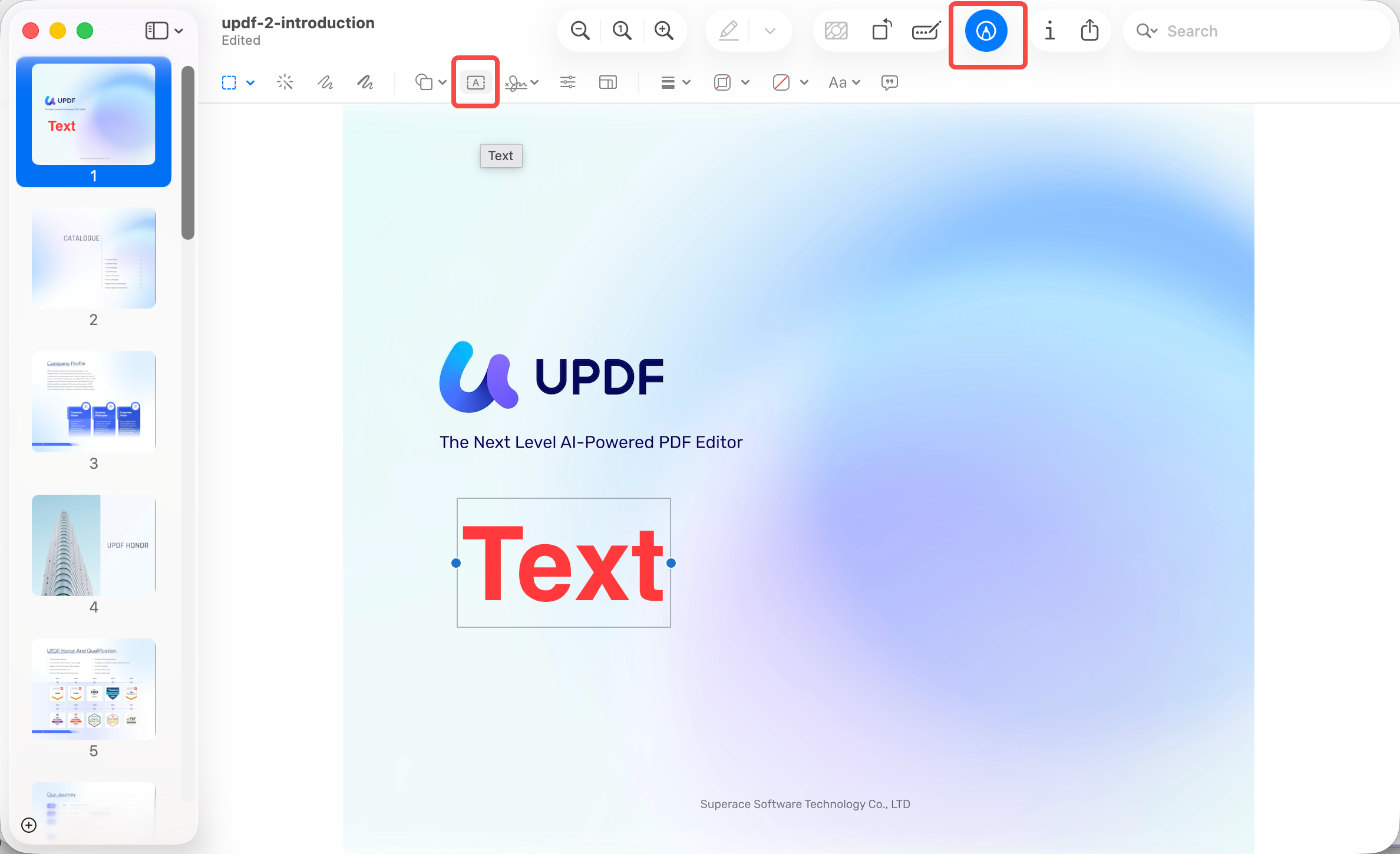
A text box adds content; it does not replace the original wording underneath. A white rectangle only covers text visually. Do not use an overlay to remove confidential information; that requires a proper permanent-redaction workflow.
Try the HEIC-to-PDF/A Workaround for Text Selection
In the Mac test supplied for this article, exporting a PDF to HEIC made text selectable in Preview. Exporting that HEIC back to PDF with Create PDF/A selected also produced a PDF from which text could be copied in Preview.
To reproduce that tested sequence on a copy:
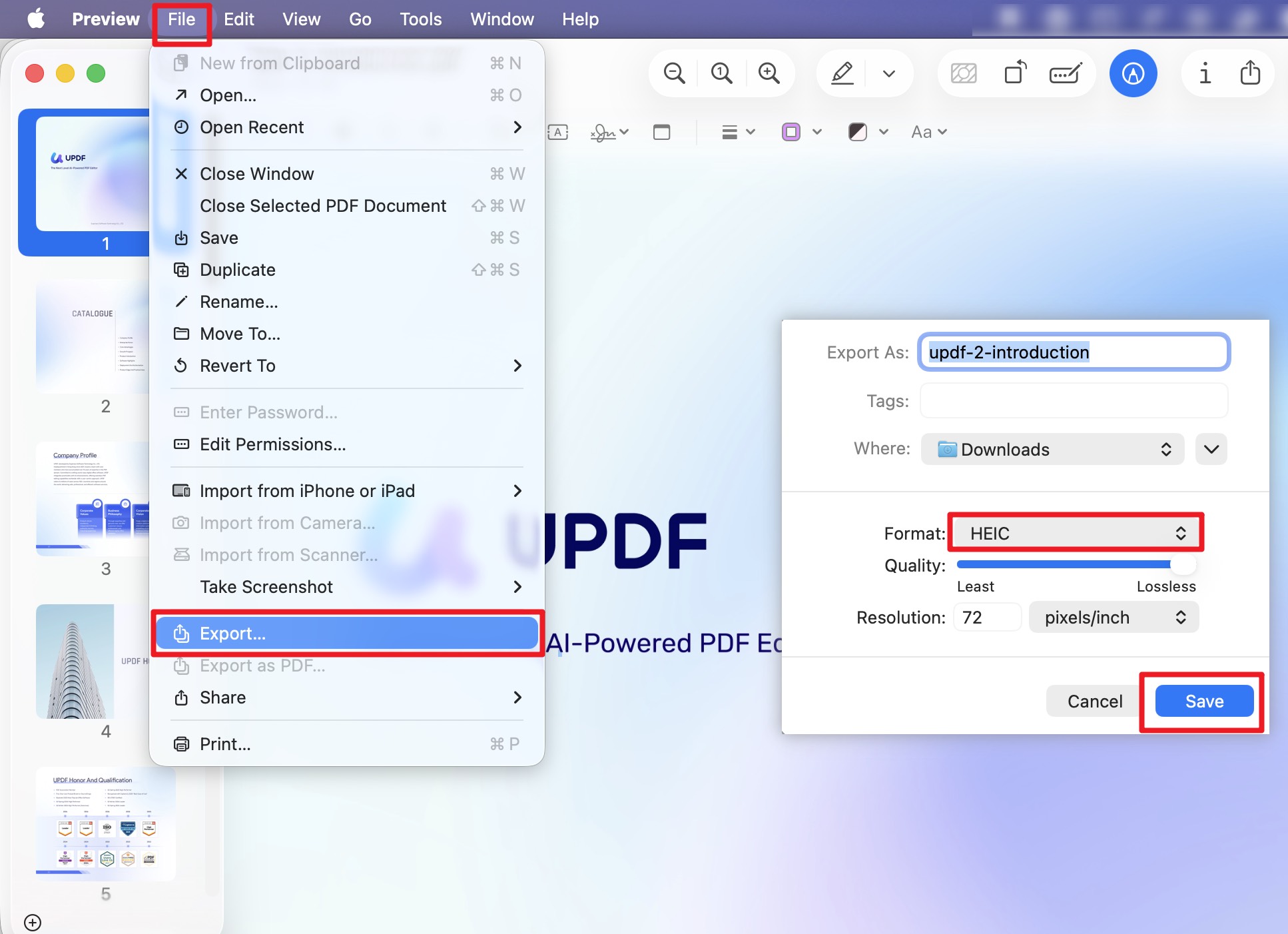
- Open the PDF in Preview and choose File > Export.
- Select HEIC, review quality and resolution, and save.
- Open the exported HEIC in Preview. Choose File > Export, select PDF, and enable Create PDF/A.
- Save under a new name. Compare page count, legibility, colors, and file size with the original, then check the result in the PDF editor you intend to use.
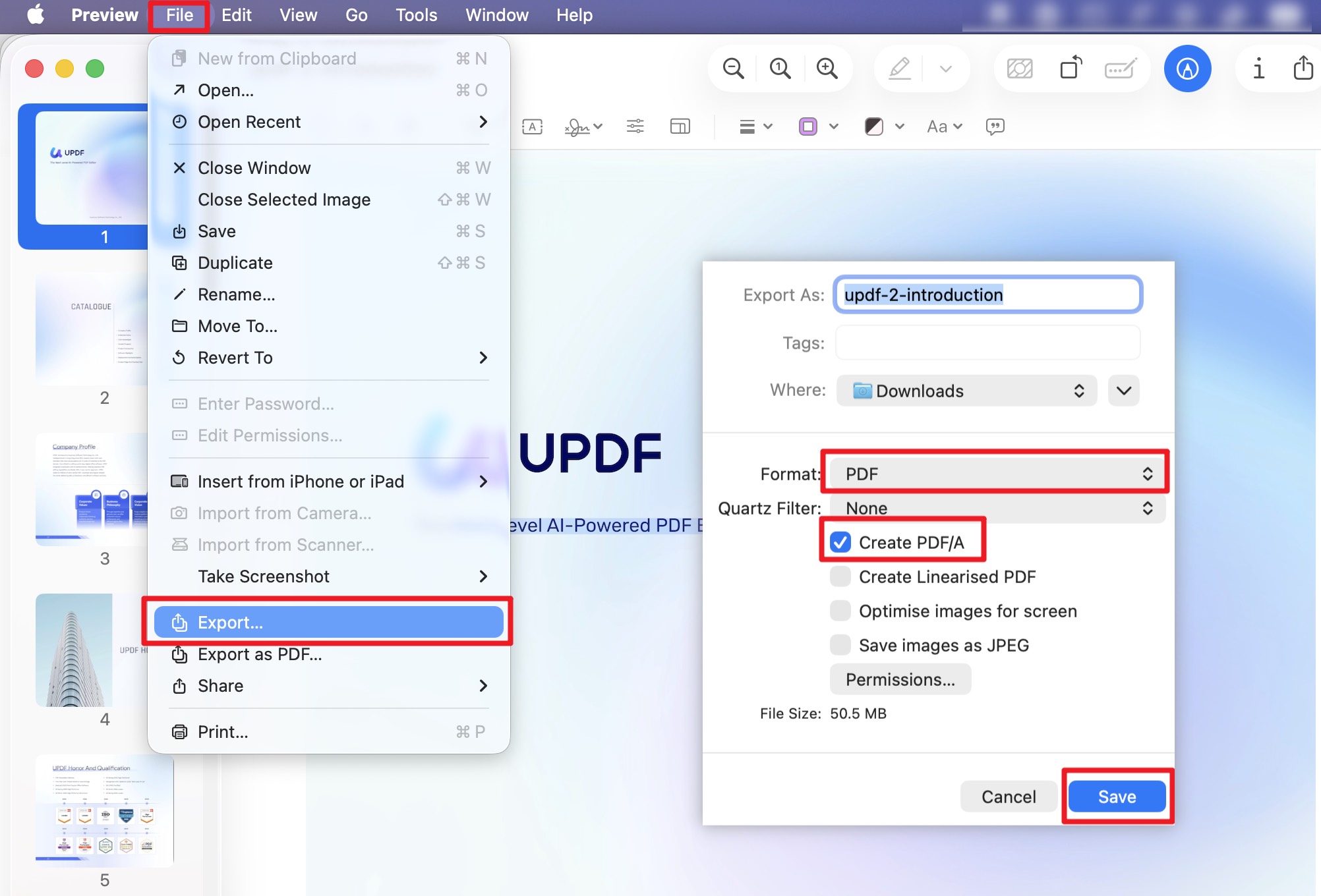
This is a tested workaround, not a guarantee for every macOS version or PDF. Verify that all expected pages survived the conversion.
Understand the File-Size, Editing, and Color Trade-Offs
The supplied test revealed three limitations:
| Limitation | Observed result or practical boundary |
|---|---|
| The PDF can become substantially larger | The original PDF we used to test was 38.4 MB, the HEIC was 5.8 MB, and the exported PDF was 50.5 MB—about 32% larger than the original PDF. These are sample results, not a fixed conversion ratio. |
| Selectable text does not guarantee direct editing | The result is not guaranteed to support direct changes to visible wording in every PDF editor. An editor may require additional recognition or conversion. |
| Color appearance can change | When opening the original PDF and the converted PDF in some PDF editors, you may notice visible differences in the converted file, including more pronounced bands and patches. Review backgrounds, gradients, and brand colors before using the output. |
The small HEIC size does not carry over automatically: the image may be decoded and re-encoded when creating the PDF. The exact source of the observed color change has not been isolated, so do not assume PDF/A alone caused it. Export resolution also matters; the tested HEIC dialog showed 72 pixels/inch, which can limit small-text detail when a page is rasterized at that setting.
If Embed Text appears in your Preview export dialog, Apple documents it as a direct way to recognize and save text in an image-based PDF. The option only appears when no text has previously been recognized in the document. It supports text selection, rather than guaranteeing direct editing of visible wording.
For changes to the actual wording, use an editable OCR workflow and check its output instead of assuming the HEIC conversion has finished the job. UPDF also requires proofreading and layout review after recognition.
To test editable output on your scan, process a representative page in UPDF and make a short correction before proceeding.
Windows • macOS • iOS • Android 100% secure
Part 4. If Editing Is Restricted, Contact the Owner
A document-opening password or editing restriction is different from an image-only scan. OCR is not a substitute for authorization.
If you do not have permission to change the file, contact the owner and request an editable copy. If you are authorized but still cannot edit, ask for the required password or a version with the appropriate permissions.
FAQs About Making PDFs Editable on Mac
1. Does OCR recover the original document’s comments and hyperlinks?
No. OCR recognizes visible text in page images; it does not recover comment history, working links, or other interactive information that was not preserved in those images. Ask for the original source document if you need those elements.
2. Does making a PDF editable also make it accessible?
Not automatically. OCR can provide machine-readable text, but an accessible PDF may also need document tags, a logical reading order, meaningful headings, and alternative text for images. Check accessibility separately from whether the wording can be edited.
Conclusion
To make a PDF editable on Mac, identify what is blocking the change. Edit native text directly, use editable OCR output for scanned pages, and use form fields or annotations when you only need to add information.
Preview’s PDF-to-HEIC-to-PDF/A workaround made text copyable in the supplied test, but increased the PDF size and changed the file’s color appearance. It also does not guarantee direct text editing across PDF editors. Keep the original and judge the converted file by the task you need to complete.
For scanned text you need to rewrite, try UPDF’s Editable PDF mode on a copy, make a short edit, and compare the saved result with the original.
Windows • macOS • iOS • Android 100% secure




 Enrica Taylor
 Enola Miller
 Engelbert White
 Grace Curry