 UPDF
 UPDF for Windows
 UPDF for Mac
 UPDF for iPhone/iPad
 UPDF for Android
 Nomostar
 UPDF AI Online
 UPDF Sign
 IvyCraft
 Edit PDF
 Annotate PDF
 Create PDF
 PDF Form
 Edit links
 Convert PDF
 OCR
 PDF to Word
 PDF to Image
 PDF to Excel
 Organize PDF
 Merge PDF
 Split PDF
 Crop PDF
 Rotate PDF
 Protect PDF
 Sign PDF
 Redact PDF
 Sanitize PDF
 Remove Security
 Read PDF
 UPDF Cloud
 Compress PDF
 Print PDF
 Batch Process

 About UPDF AI
 UPDF AI Solutions
 AI User Guide
 FAQ about UPDF AI
 Summarize PDF
 Translate PDF
 Chat with PDF
 Chat with AI
 Chat with image
 PDF to Mind Map
 Explain PDF
 PDF AI Tools
 Image AI Tools
 AI Chat Tools
 AI Writing Tools
 AI Study Tools
 AI Working Tools
 Other AI Tools
 AI Bookmark Generation
 AI Bookmark Summary
 AI Watermark Generation
 AI Background Generation
 AI Sticker Generation
 AI Stamp Generation
 AI Editing Suite
 UPDF Copilot
 AI Page Management
 AI Semantic Search
 PDF to Word
 PDF to Excel
 PDF to PowerPoint
 Enterprise Solution
 Enterprise Sign
 Enterprise AI
 Enterprise Plan
 Enterprise User Guide
 Enterprise Webinar
 IT
 Education
 Construction
 Financial Service
 Healthcare
 Insurance
 Legal
 Manufacturing
 Government
 Researchers & PhDs
 Solopreneurs & Freelancers
 Lawyers & Legal Professionals
 Real Estate Agents & Brokers
 Education Solution
 Customer Stories
 User Guide
 UPDF Tricks
 FAQs
 UPDF Reviews
 Download Center
 Blog
 Newsroom
 Tech Spec
 Updates
 UPDF vs. Adobe Acrobat
 UPDF vs. Foxit
 UPDF vs. PDF Expert


Is your PDF too large to email, upload, or share? Or does it take too long to load when someone opens it online?
A PDF optimizer can help with more than just reducing file size. It can compress images, remove unnecessary document data, adjust embedded fonts, and prepare a PDF for faster web viewing. The right optimization settings depend on what you want to do with the file.
PDF compression is one part of PDF optimization, but the two aren't exactly the same. If you only need a smaller file, a regular compression tool may be enough. If you need more control over image quality, fonts, document elements, or web performance, you'll want a tool with additional optimization options.
In this guide, we'll compare six PDF optimizer tools, explain what you can actually optimize in a PDF, and show you how to reduce file size without unnecessarily sacrificing document quality.
6 of the Best PDF Optimizers with Comparison
If you're a writer, artist, or any other kind of content creator, you know that PDF optimizers are a must. The process of rendering your work into a high-quality PDF can be tedious and time-consuming, but it's also critical if you want to make sure that the quality of your work is unchanged during file sharing.
If you're looking for an offline or online PDF optimizer tool, here are our top 6 picks:
| Tool | Best For | Compression Options | Advanced Optimization | Platform |
|---|---|---|---|---|
| UPDF | Everyday PDF compression | 4 compression levels | Focus on file-size reduction | Windows, Mac, iOS, Android |
| Adobe Acrobat | More control over PDF content | Image compression and downsampling | Fonts, objects, metadata, cleanup, Fast Web View | Desktop |
| Foxit PDF Editor | PDF editing and document workflows | Verify current version's optimizer settings | List only the controls supported by the current edition | Desktop |
| Nitro PDF Pro | Desktop PDF workflows | PDF compression and optimization | Verify current version's available controls | Windows, Mac |
| iLovePDF | Quick online compression | Multiple compression levels | Primarily user-friendly compression workflows | Web, Desktop |
| Soda PDF | Online and desktop PDF tasks | Verify current compression options | Specify only verified optimizer controls | Verify current edition |
1. UPDF – Best for Flexible PDF Compression Across Devices
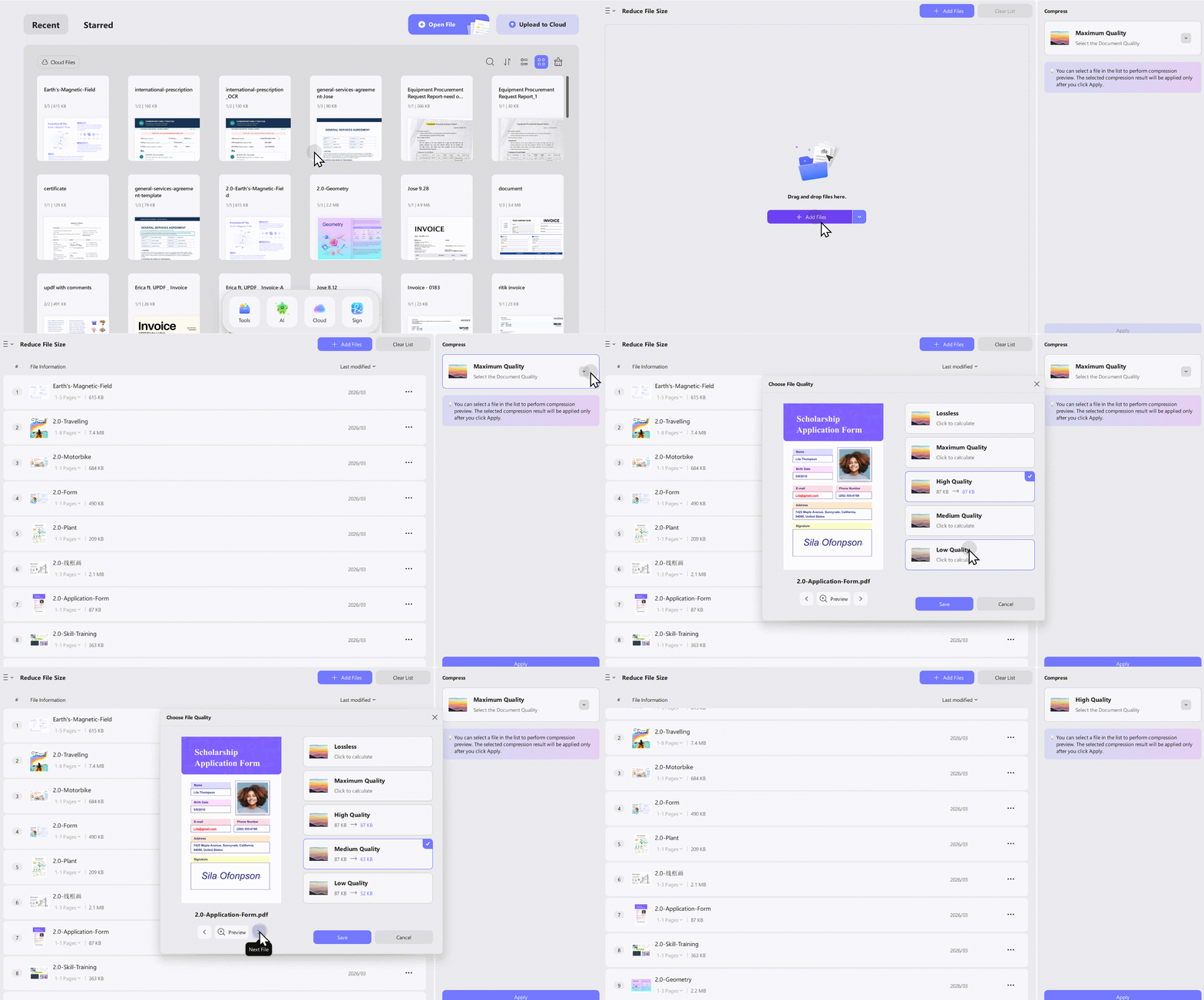
UPDF is a practical choice if you want to reduce PDF file size without dealing with complicated optimization settings. It offers four compression levels—Maximum, High, Medium, and Low—so you can choose how much to prioritize file size versus output quality.
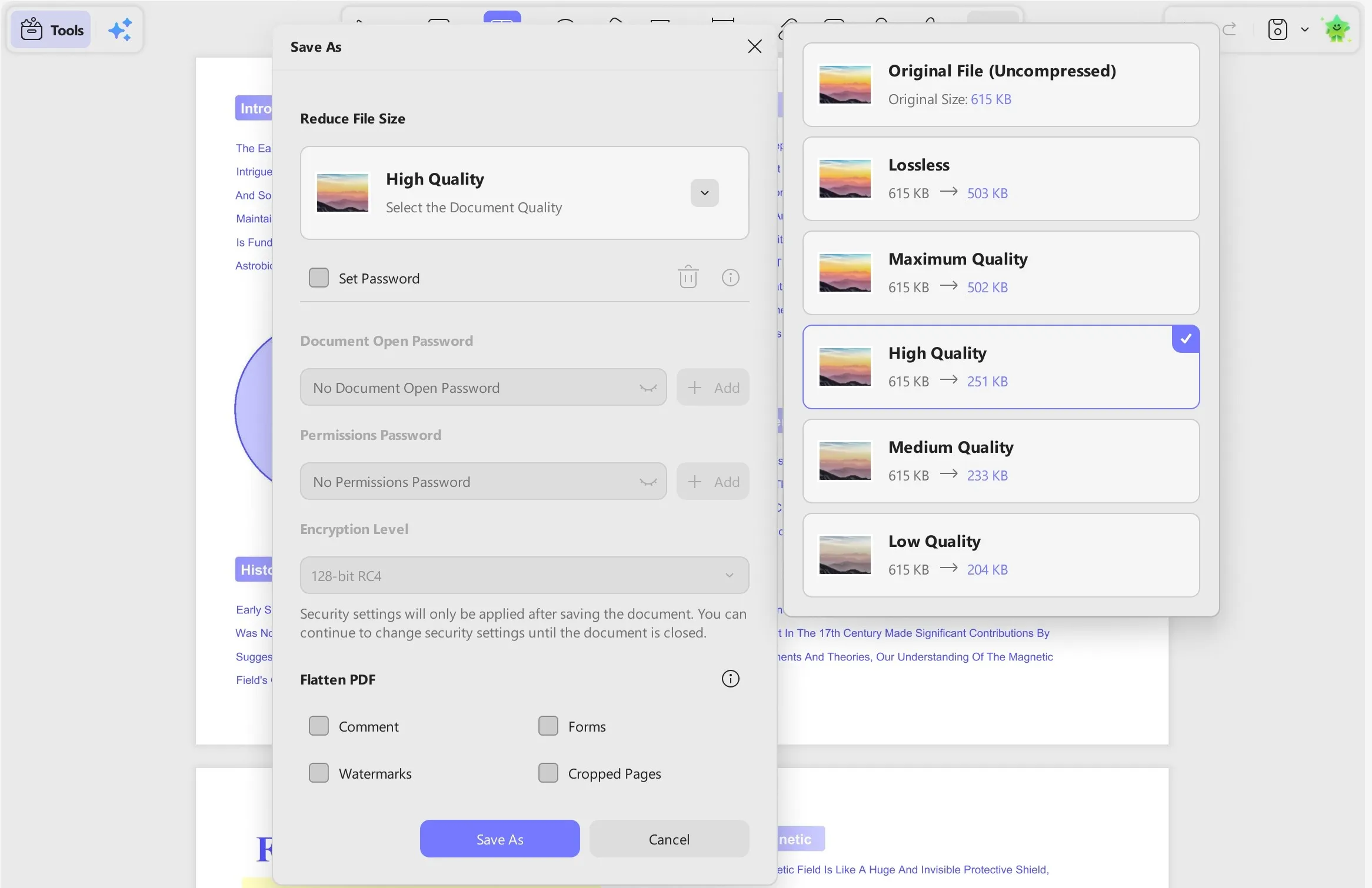
You can also compress multiple files in batches and work across Windows, Mac, iOS, and Android. This makes UPDF useful for people who regularly prepare PDFs for email, file uploads, or sharing across devices.
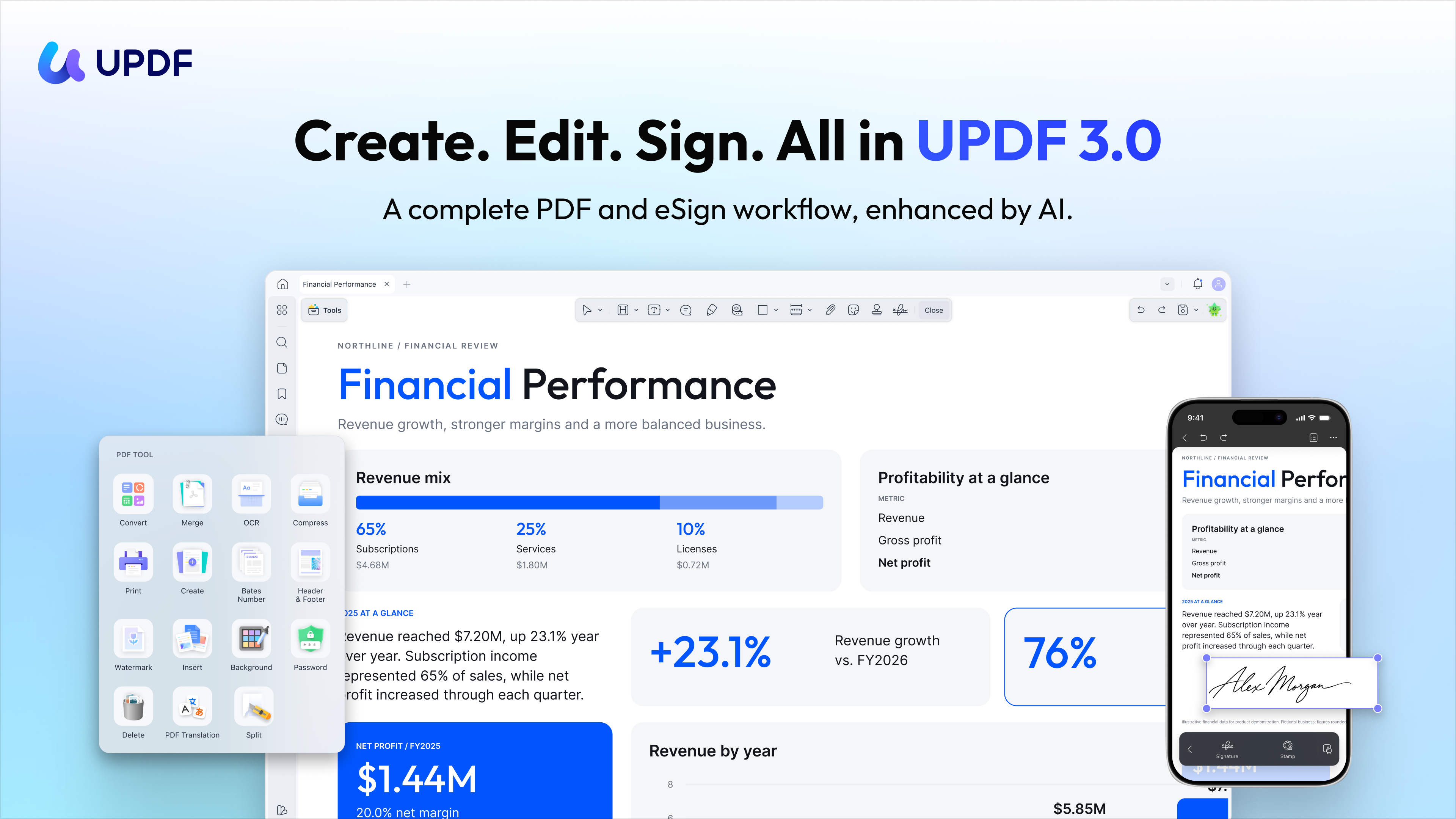
Beyond compression, UPDF includes tools for editing, annotating, converting, and organizing PDFs. If you need an everyday PDF workflow in addition to file-size reduction, these extra tools may be useful.
Windows • macOS • iOS • Android 100% secure
This all-in-one PDF solution also allows you to read, edit, annotate, convert, OCR, and organize PDF files. It is the perfect solution for everyone who needs to work with PDF documents, like realtors, students, graphic designers, or publishers, etc.
Let's introduce the key features of UPDF:
- It comes with a built-in PDF editor that lets you add and edit text, images, and other content to your documents without having to leave the application.
- It is a good PDF annotator which makes it easy to add highlights, notes, text boxes, comments, shapes, and stamps to your documents. You can also add electronic signatures to your PDF documents.
- Organizing the pages in a PDF document is easy. You can rotate, insert, delete, replace, crop, split, and extract pages from PDF.
- Open, view, add bookmarks to PDF, and print PDF documents.
- The OCR text recognition feature allows you to convert scanned PDFs into editable PDFs.
- It is also a fast and good PDF converter that enables you to turn PDF into Word, Excel, PowerPoint, Text, HTML, etc.
- The learning curve for this software is easy. Anyone can use it- from school students to professionals working in corporate offices.
Windows • macOS • iOS • Android 100% secure
2. Adobe Acrobat - Best for Advanced PDF Optimization
Adobe Acrobat is a strong option when you need more control over how a PDF is optimized. Its PDF Optimizer provides settings for image compression and downsampling, font handling, transparency, document objects, user data, and PDF cleanup.
For example, you can reduce image resolution for screen viewing, remove selected unused or unnecessary elements, or prepare a document for Fast Web View. These options are useful when a PDF needs more than a simple reduction in file size.
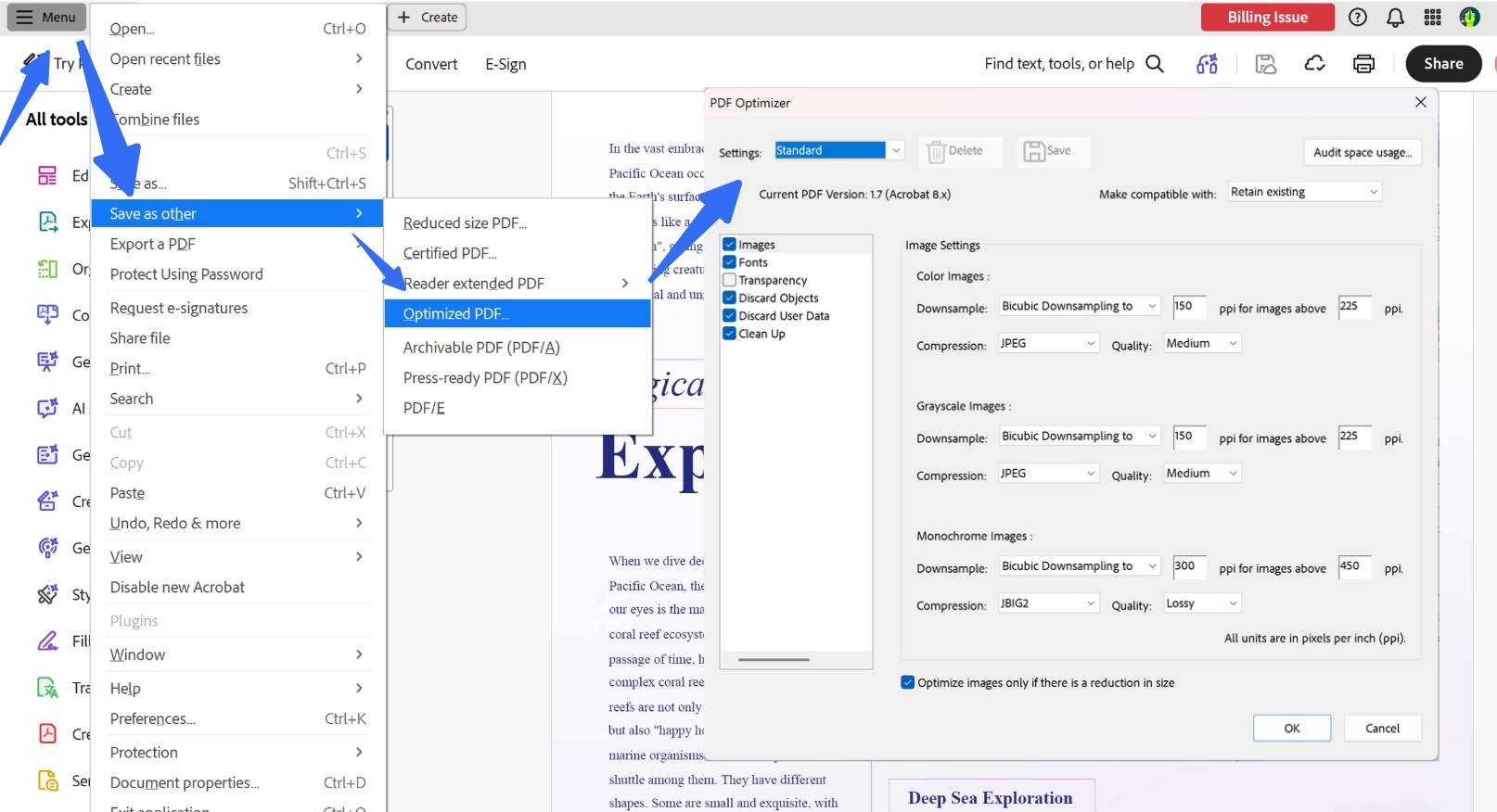
The trade-off is that you need to understand what each setting does. Removing comments, attachments, form fields, bookmarks, or document tags may affect how the PDF works. Some advanced optimization options are available only in Acrobat's eligible desktop editions.
You can also compress PDF with Adobe PDF optimizer, but it doesn't show you the compression result unless you open the new PDF files. Please note that the free version of Adobe Reader doesn't support optimizing PDF. You will have to upgrade to the Standard or the Pro version of Adobe Acrobat to use this feature, and all of us know that the Pro version costs you US$239.88 per year.
This Adobe PDF optimizer is available for Mac and Windows operating systems, and it offers a wide range of features for managing documents, including:
- Creating PDF forms that can be filled out online
- Working with scanned documents, which can then be edited and saved as PDFs
- Adding annotations to existing PDF documents
- Adding comments to existing PDF documents
- Reduce PDF file size as a good PDF optimizer
After introducing the main features of Adobe, please also be aware of that this tool has a very slow speed to load your PDF documents as it has a complex interface. Many users switch to UPDF which has a faster speed and cost-effective price. It also has many advanced features such as OCR, convert, edit, etc. Give it a try now. You can also check the detailed comparisons between Adobe Acrobat and UPDF.
Windows • macOS • iOS • Android 100% secure
3. Foxit PDF Editor - Best for Existing Foxit Workflows
Foxit PDF Editor, formerly known as Foxit PhantomPDF, is another desktop PDF solution to consider. It combines PDF editing and document management tools, making it relevant for users who already rely on Foxit for their PDF workflows.
When comparing it as a PDF optimizer, pay attention to the compression and cleanup options available in the specific edition you're considering. Check whether it lets you adjust image quality, manage embedded fonts, or remove unnecessary document data. These details matter more than the general PDF editing feature list.
Except for being a PDF optimizer, Foxit also has many other features, and below are some of its main features.
- It can create a PDF from any document type, including Microsoft Word (.docx), Excel (.xlsx), PowerPoint (.pptx), PowerPoint Show (.pps), Web Page (.htm), Text (.txt), Rich Text Format (.rtf), Open Office Format (.odt).
- In addition to being able to create PDFs from any document type, Foxit PhantomPDF is also able to edit existing PDF files.
- You can add annotations to existing pages, add links between pages of your document, or add text boxes anywhere on the page.
- Foxit PhantomPDF also supports Optical Character Recognition (OCR).
When we compare Foxit with UPDF, we will find that Foxit's interface is old-fashioned and a little complex. Although Foxit supports the Mac version, the Mac version is not that good to use. In the contrast, UPDF's Mac version is polished with faster speed and better performance.
4. Nitro Pro- Best for Desktop PDF Compression
Nitro PDF Pro is a desktop PDF solution for users who want to handle document editing, conversion, and compression in one application.
Its recent product updates include improvements to PDF compression and file-size optimization. When evaluating Nitro, compare the results using the same source PDF and check whether the reduced file still preserves the image detail and document elements you need.
Nitro is worth considering if you prefer a desktop workflow rather than relying entirely on online compression tools.
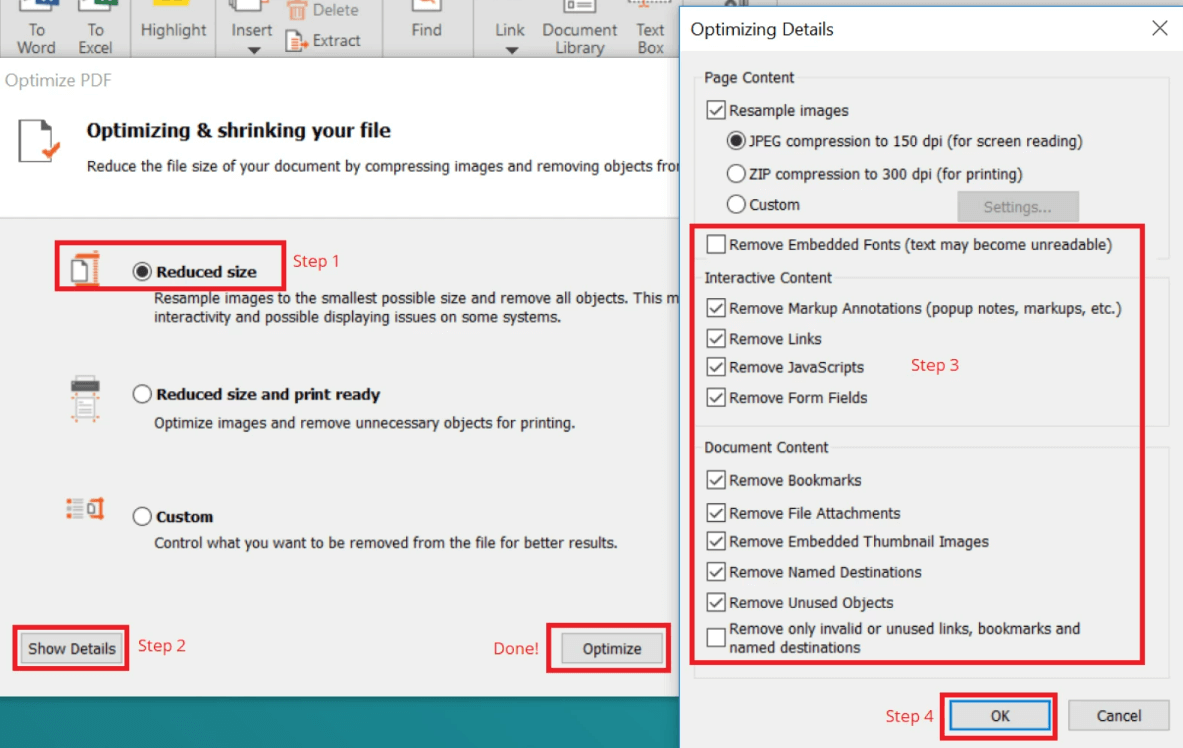
The main features of Nitro Pro are:
- The same as UPDF, Nitro Pro's advanced OCR technology lets you convert scanned PDF documents into editable files.
- It also comes with a 30-day trial version so you can try it out before buying it.
- Sign documents electronically with your mouse or finger.
5. iLovePDF - Best for Quick Online PDF Compression
iLovePDF is a convenient option when you want to compress a PDF online without installing desktop software. Its compression tool offers different levels for balancing file size and document quality.
The more aggressive the compression, the smaller the output may become, but image clarity can also decrease. For documents containing charts, screenshots, scanned text, or detailed images, it's worth checking the result before sharing it.
If you use the desktop app, also check how the selected compression level handles PDF accessibility tags. Some of iLovePDF's desktop compression options can remove these tags, which may affect accessibility.

iLovePDF's features include:
- Convert PDF to Word, Excel, PowerPoint, and vice versa.
- Merge PDF files
- Compress PDF files
- Organize PDF pages
The features of iLovepdf are very limited, for example, there are no options to highlight PDF, add bookmarks to PDF, edit text in PDF, etc. Online tools are also not a good choice if you want to have a stable experience. Many people choose UPDF as it has more advanced features with an easy-to-use interface. If you want to learn more, please check the comparison between iLovePDF and UPDF.
Windows • macOS • iOS • Android 100% secure
6. Soda PDF - Best for Simple PDF Compression
Soda PDF offers an online PDF compression tool for users who want to reduce file size without working through a long list of manual settings.
Its compression workflow is designed to identify elements that can be optimized, including large images and document data. This makes it suitable for routine file-size reduction, such as preparing a PDF for email or online sharing.
As with any compression tool, the result should be checked before replacing the original file, especially when the document contains detailed images or interactive elements.

- The program also has the ability to convert files from one format to another, and it can be used as a standalone tool or as part of a larger suite of applications.
- Soda PDF also offers an optional cloud storage service that allows users to save their files in the cloud rather than on their local computer's hard drive. This can be especially helpful if you're working with large files or if you're working remotely and don't want your work stored locally on someone else's machine.
When comparing Soda PDF with UPDF, you will find that UPDF has a much more user friendly and elegant interface. It is also faster to open and load PDF files with higher performance.
PDF Optimization vs. PDF Compression: What's the Difference?
PDF compression and PDF optimization are closely related, but they don't always mean the same thing.
PDF compression focuses mainly on reducing file size. It usually works by compressing image data, reducing image resolution, or making stored data more compact. It's the option to consider when a PDF is too large to email, upload, or store.
PDF optimization has a broader purpose. In addition to compression, it can involve removing unnecessary objects, managing embedded fonts, cleaning document data, adjusting transparency, or preparing a PDF for faster web viewing.
The distinction matters because a smaller PDF isn't automatically a better PDF. A document prepared for online reading may need different settings from one intended for professional printing or long-term archiving.
Some PDF tools use the words "compress" and "optimize" almost interchangeably. What matters is which operations the tool actually performs.
| Comparison | PDF Compression | PDF Optimization |
|---|---|---|
| Main goal | Reduce file size | Improve the PDF for a specific use |
| Image handling | Compress image data or reduce resolution | Adjust image quality and resolution for the intended output |
| Fonts | May leave embedded fonts unchanged | May subset, remove, or adjust embedded fonts |
| Document objects | Usually limited cleanup | May remove selected redundant objects or data |
| Metadata | Not always addressed | May allow metadata cleanup |
| Web viewing | Smaller downloads | May include Fast Web View preparation |
| Best for | Email, uploads, storage | Web delivery, document cleanup, printing, or archiving |
Not every PDF optimizer supports all of these operations. Some tools focus on straightforward compression, while others provide more detailed controls over a document's internal structure. Check the available features before choosing a tool.
What Can You Optimize in a PDF?
PDF optimization can involve several parts of a document, not just its images. The best settings depend on what's taking up space and how the PDF will be used.
Here are some common elements you may be able to optimize.
| PDF Element | What You Can Do | What to Watch Out For |
|---|---|---|
| Images | Compress images or reduce their resolution | Aggressive compression may make photos, charts, and scanned text blurry |
| Fonts | Subset or remove embedded fonts when appropriate | Missing fonts may be substituted on other devices |
| Unnecessary objects | Remove unused thumbnails, redundant objects, or unneeded attachments | Some objects may support links, forms, or other functions |
| Metadata | Remove author details or other private document information | Check whether the information needs to remain for records |
| Comments and forms | Remove them from a final distribution copy if they are no longer needed | Removing them may make review history or interactive fields unavailable |
| Transparency | Flatten transparency when the target workflow requires it | Flattening can affect how complex graphics are rendered |
| Web viewing | Enable Fast Web View when supported | This is different from simply reducing the file size |
Be careful when using options that remove document data. Deleting comments, form fields, attachments, bookmarks, or accessibility tags can change how a PDF works, even if the pages still look the same.
For example, removing document tags can affect accessibility and text reflow. Before applying cleanup settings, check whether the PDF still needs its forms, links, bookmarks, comments, or accessibility features.
How to Optimize a PDF for Different Purposes
There isn't one ideal optimization setting for every PDF. A file intended for email doesn't need the same settings as one prepared for professional printing or online viewing.
Before changing anything, decide what the PDF is for. Then choose the least aggressive settings that solve the problem.
| Your Goal | What to Optimize | What to Avoid |
|---|---|---|
| Send a PDF by email | Compress large images and remove unnecessary data | Reducing image quality more than necessary |
| Upload a PDF to a website | Reduce file size and consider Fast Web View | Keeping oversized images that slow downloads |
| View a PDF online | Optimize images and prepare the file for page-by-page viewing | Assuming smaller file size alone guarantees faster rendering |
| Print a PDF | Preserve sufficient image resolution, fonts, and color information | Applying aggressive image compression |
| Share a PDF externally | Review metadata and remove private information if appropriate | Accidentally deleting comments, attachments, or required form data |
| Archive a PDF | Check whether PDF/A or another archival requirement applies | Treating ordinary compression as archival compliance |
How to Optimize a PDF Without Losing Quality
You don't need to apply every available optimization setting to get a better PDF. A more reliable approach is to identify what's making the file large and change only what is necessary.
Step 1. Keep a copy of the original PDF.
Save a separate copy before applying compression or cleanup settings. This gives you a way back if the result loses image quality or document functionality.
Step 2. Check what's taking up space.
Large scanned pages and high-resolution images are common reasons for oversized PDFs. Embedded fonts, attachments, comments, and other stored data may also contribute to file size.
Step 3. Choose settings based on the intended use.
For screen viewing and email, moderate image compression may be sufficient. For printing, preserve the resolution needed for clear output. Avoid using the most aggressive compression setting by default.
Step 4. Keep the document elements you still need.
Before removing metadata, comments, form fields, bookmarks, or accessibility tags, check whether they are required by the person who will receive the PDF.
Step 5. Review the optimized PDF.
Open the new file and inspect small text, images, charts, and other detailed areas. Check links, bookmarks, forms, and searchable text if your workflow depends on them.
The goal isn't to create the smallest PDF possible. It's to create a file that's easier to use, share, or open without losing information that matters.
FAQ
1. What is the difference between PDF optimization and PDF compression?
PDF compression mainly focuses on reducing file size by compressing images or making stored data more compact. PDF optimization is broader and may also include font management, removing unnecessary objects, cleaning metadata, and preparing a PDF for faster web viewing. Compression is one part of optimization, but not every PDF optimization operation is intended to reduce file size.
2. How can I optimize a PDF without losing quality?
Start with moderate compression settings and avoid reducing image resolution more than necessary. Keep the original file, then compare the optimized version with it. Check small text, photographs, diagrams, and other detailed elements before using the new PDF.
3. Why is my PDF still large after compression?
Your PDF may contain high-resolution scans, large images, embedded fonts, attachments, or other stored data. If the file is already compressed or most of its content is vector text, changing the compression level may produce only a small reduction. Identify what's taking up space before applying more aggressive settings.
4. Can a PDF optimizer remove metadata and comments?
Some advanced PDF optimization tools can remove document metadata, comments, attachments, form data, and other elements. These options are useful when preparing a clean sharing copy, but check what you are removing first. Comments, forms, bookmarks, and accessibility tags may still be needed.
5. How do I optimize a PDF for web viewing?
Reduce unnecessarily large images and consider enabling Fast Web View if your PDF tool supports it. Fast Web View restructures the PDF to support page-by-page downloading, so viewers may be able to start reading before the entire file has downloaded.
6. Should I compress a PDF before printing?
Not necessarily. A PDF intended for professional printing may need high-resolution images, embedded fonts, and specific color settings. Avoid aggressive compression unless you have checked the printer's requirements. It's usually better to keep a high-quality original and create a separate, smaller copy for sharing.
Conclusion
A PDF optimizer is used to compress and optimize PDF files. It can be used to compress large files into smaller, more manageable sizes.
The main benefit of using a PDF optimizer is that it can reduce the size of your documents enough for you to easily email them or store them on your computer's hard drive.
PDF optimization software also automates many common tasks related to compressing your PDFs, such as removing unnecessary elements such as unused layers or fonts. It will also automatically rename them so they are easier for users to find when they are looking through their folders or email inboxes. In this article, we have introduced 6 of the best choices for you and UPDF is definitely the best one for you. Try it now by clicking the button below:
Windows • macOS • iOS • Android 100% secure


 Lizzy Lozano
 Enid Brown
 Enya Moore