UPDF
UPDF
 UPDF for Windows
 UPDF for Mac
 UPDF for iPhone/iPad
 UPDF for Android
 Nomostar
 UPDF AI Online
 UPDF Sign
 IvyCraft
 Edit PDF
 Annotate PDF
 Create PDF
 PDF Form
 Edit links
 Convert PDF
 OCR
OCR PDF to Word
 PDF to Image
 PDF to Excel
 Organize PDF
 Merge PDF
 Split PDF
 Crop PDF
 Rotate PDF
 Protect PDF
 Sign PDF
 Redact PDF
 Sanitize PDF
 Remove Security
 Read PDF
 UPDF Cloud
 Compress PDF
 Print PDF
 Batch Process
 About UPDF AI
 UPDF AI Solutions
 AI User Guide
 FAQ about UPDF AI
 Summarize PDF
 Translate PDF
 Chat with PDF
 Chat with AI
 Chat with image
 PDF to Mind Map
 Explain PDF
 PDF AI Tools
 Image AI Tools
 AI Chat Tools
 AI Writing Tools
 AI Study Tools
 AI Working Tools
 Other AI Tools
 AI Bookmark Generation
 AI Bookmark Summary
 AI Watermark Generation
 AI Background Generation
 AI Sticker Generation
 AI Stamp Generation
 AI Editing Suite
 UPDF Copilot
 AI Page Management
 AI Semantic Search
 PDF to Word
 PDF to Excel
 PDF to PowerPoint
 Enterprise Solution
 Enterprise Sign
 Enterprise AI
 Enterprise Plan
 Enterprise User Guide
 Enterprise Webinar
 IT
IT Education
 Construction
 Financial Service
 Healthcare
 Insurance
 Legal
Legal Manufacturing
 Government
 Researchers & PhDs
 Solopreneurs & Freelancers
 Lawyers & Legal Professionals
 Real Estate Agents & Brokers
 Education Solution
 Customer Stories
 User Guide
 UPDF Tricks
 FAQs
FAQs UPDF Reviews
 Download Center
 Blog
Blog Newsroom
 Tech Spec
 Updates
 UPDF vs. Adobe Acrobat
 UPDF vs. Foxit
 UPDF vs. PDF Expert

Zipping a PDF creates a ZIP archive that can contain one or multiple PDF files. It is especially useful when you want to send several documents as a single attachment, keep related files together, or protect an archive with a password. However, because many PDFs already contain compressed data, placing them in a ZIP file may not reduce their size significantly.
This guide explains how to package PDF files in a ZIP archive using Windows’ built-in compression feature. It also shows you how to reduce or share large PDFs with UPDF when creating a ZIP archive does not make them small enough.
Part 1. What Does It Mean to ZIP a PDF File?
Zipping a PDF means placing the PDF inside a ZIP archive. A ZIP archive can contain one PDF or multiple files, making it useful for packaging related documents together. ZIP uses lossless compression, so the original PDFs remain unchanged after extraction. However, because many PDFs already contain compressed images, fonts, and document data, zipping them may produce only a small reduction in file size.
Besides easing shareability, ZIP files can be password-protected to add a layer of security when sharing sensitive or confidential PDF files. Thanks to the reduced file size of ZIP files, they can be easily shared across emails and cloud storage platforms.
If your goal is to reduce the size of the PDF itself rather than package files together, UPDF provides dedicated PDF compression with several quality levels.
Windows • macOS • iOS • Android 100% secure
However, If the PDFs need to remain as separate files, create a ZIP archive with Windows File Explorer. If they belong in one continuous document, you can merge them with UPDF before sharing.
Part 2. How to ZIP PDF Files
Understanding the benefits of creating a PDF ZIP folder is the first step; knowing how to implement this process is essential. The process of zipping PDFs is simple and can be done using various tools and methods. Windows includes a built-in feature for packaging one or multiple PDFs into a ZIP archive, so you do not need to install additional software. Follow the instructions below to learn the simplest method to ZIP PDF documents into one.
Instructions. If you want to create a ZIP folder, start by locating the desired PDF documents on your device. Right-click on them and hover the "Send To" option to select "Compressed (zipped) Folder." This will take a few moments and effectively convert your PDF files into a compressed folder.

Part 3. Reduce PDF File Size Instead of Zipping: Discovering An Alternative
When the how do you ZIP a PDF file does not suffice, you can use other ways of shareability. If you are zipping files for size optimization, look into other file size reduction platforms. UPDF is a robust PDF-related platform that offers a file compression feature to share small-sized, lossless PDFs. Depending on your desired file size, you can select the compression quality from low to maximum. To cater to a maximum number of your documents, this tool offers a batch-compression feature.
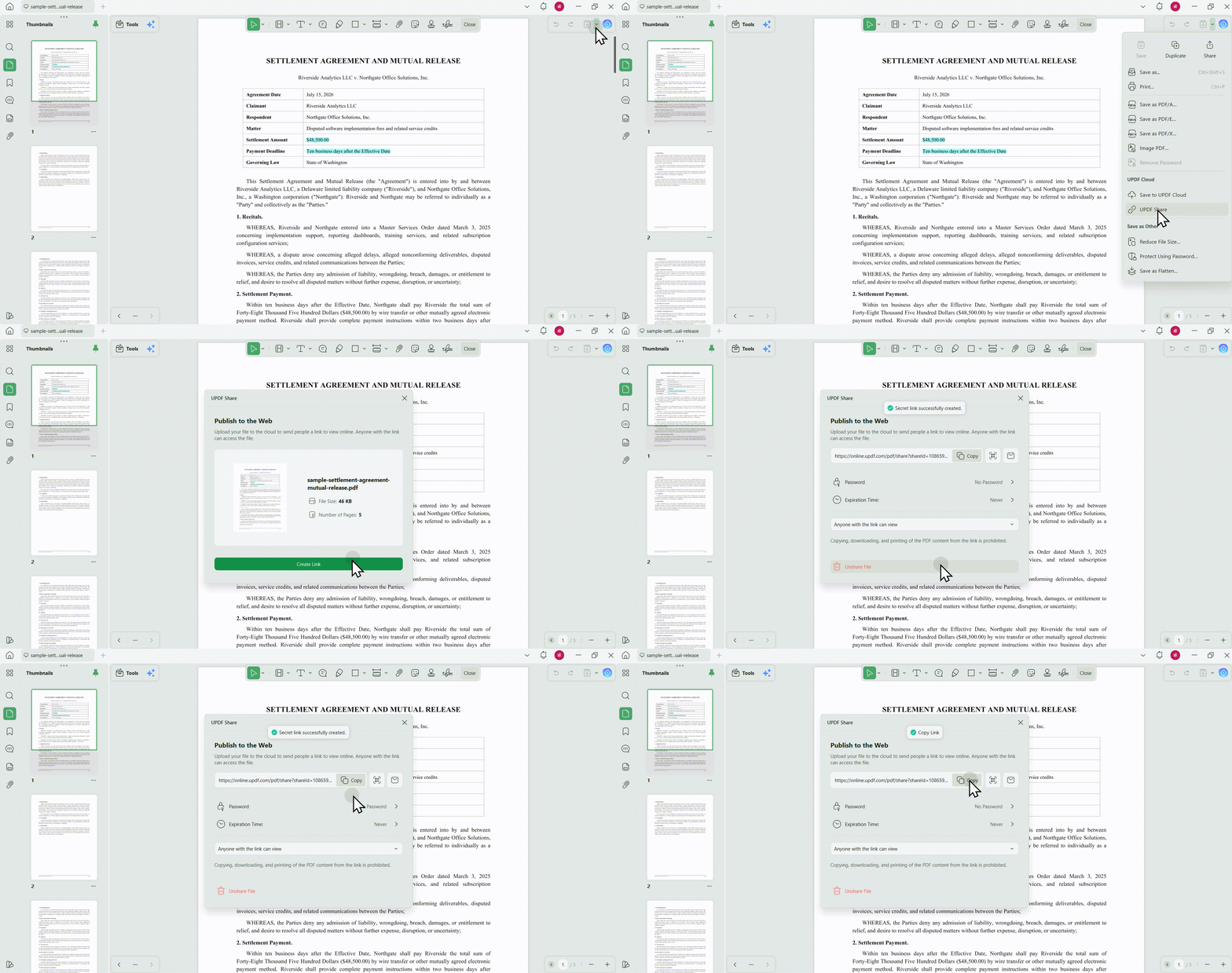
Moreover, you can share your PDFs through UPDF via email or a link without zipping or compressing them.
Beyond these, you can also save the documents in UPDF Cloud for easy sharing. You can then access the stored PDFs from Windows/Mac computers and iOS/Android mobile devices. So, why not downloading UPDF and give it a try for free?
Windows • macOS • iOS • Android 100% secure
1. Compress PDF Files without Zipping Them
UPDF reduces the size of the PDF itself, so the output remains a standard PDF that recipients can open without extracting a ZIP archive. Follow the steps below to compress a PDF on Windows.
The final file should be easy to read at the size you plan to use. If a visual example would help, take a look at the official UPDF compression video below.
Step 1: Open the PDF Document You Want to Compress
Launch UPDF and open the PDF you want to compress. You can click Open File or drag and drop the PDF onto the UPDF home screen.
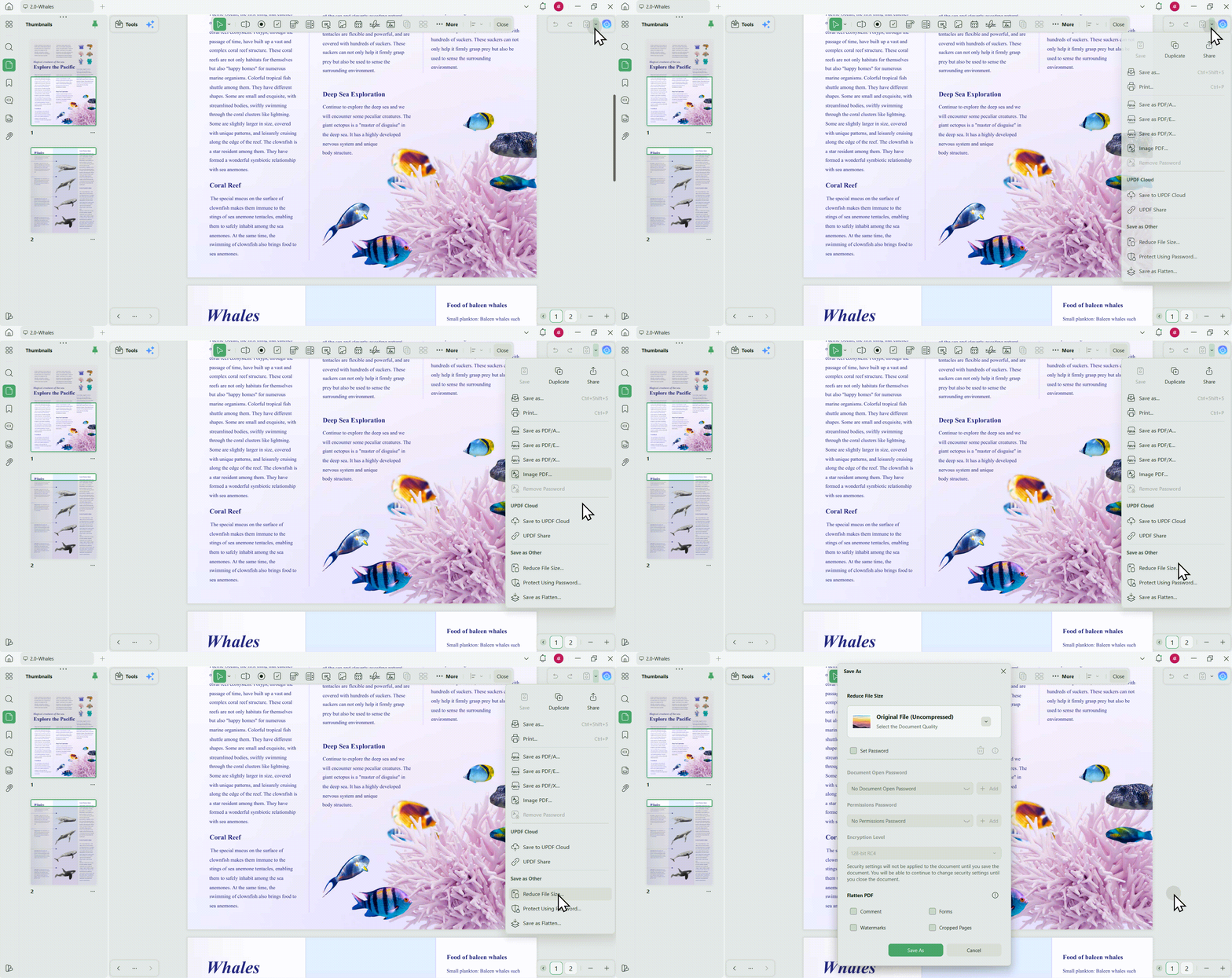
Step 2: Find Reduce File Size
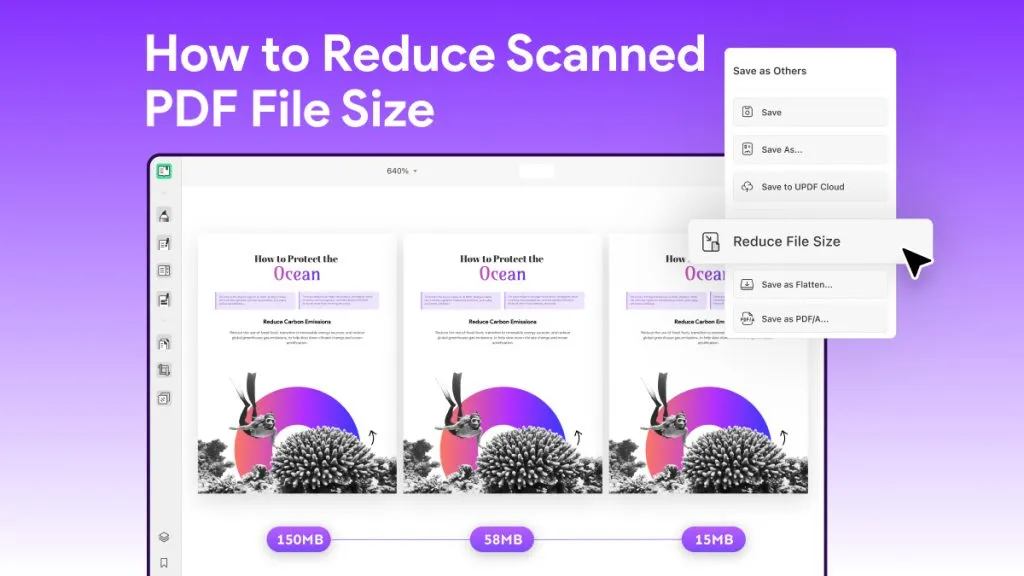
Click the drop-down arrow next to the "Save" icon in the upper right corner, expand the drop-down list, and select "Reduce File Size".
Step 3: Select Compression Quality
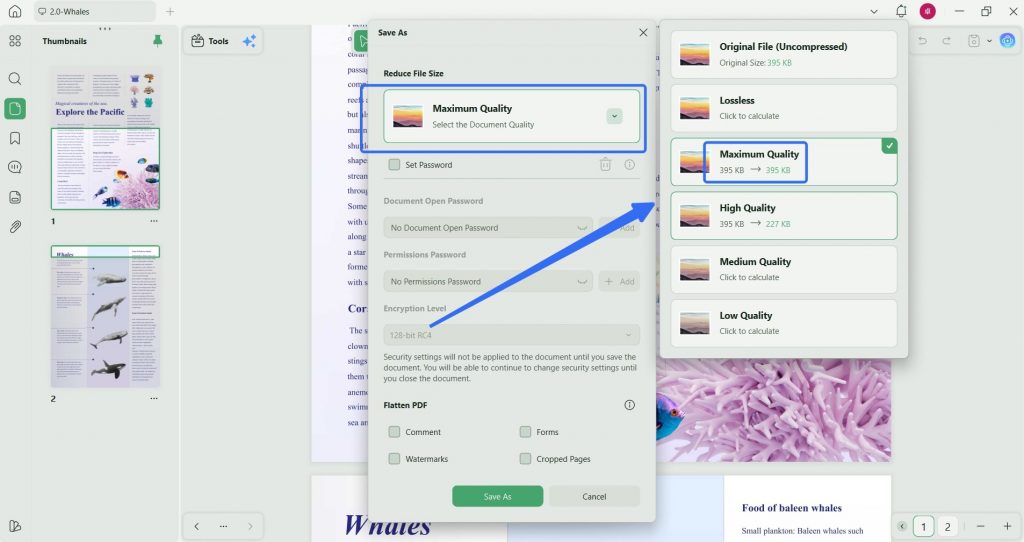
Select Lossless, Maximum Quality, High Quality, Medium Quality, or Low Quality based on your needs. Click Click to calculate to preview the estimated output size, then click Save As after selecting the preferred option.
Step 4. Save the Compressed Document
Now you will see another pop-up window where you can rename the compressed PDF document. Here you also get to select the destination folder for saving the new compressed file. Click "Save," and UPDF will instantly compress your document and save it to the offline storage of your Windows PC. Now you can share the PDF document with others more easily.
2. Sharing PDF Easily without Concerning the File Size
If you need to zip PDFs for email sharing, UPDF offers a better alternative. You can share them directly via links or email within UPDF.
Step 1. Combine Those PDFs into One
Open the main interface and select "Tools" > "Reduce file size"
Add the PDFs you want to share, click "Apply," and choose a location to save the merged file. Once the process is complete, open the combined file.
Step 2. Share the File Through Email
Once the document is open, navigate to the right panel and select the "Share This File with Others" button. Then, choose "Share with Others," enter the recipient's email address, and click "Send." This way, your PDF will be sent without worrying about file size.
Bonus
FAQs
Q1: Why can’t I open a ZIP file containing PDFs?
The archive may be incomplete, corrupted, password-protected, or created with a compression method your current app does not support. Download the file again and try opening it with your device’s built-in extraction tool or a compatible ZIP utility. If it requires a password, request it from the sender through a separate secure channel.
Q2: When Should I Use UPDF Instead of Zipping a PDF?
Use UPDF when your main goal is to reduce the size of the PDF itself, keep the output in PDF format, or share the document without sending a large attachment. Use a ZIP archive when you need to package multiple PDFs while keeping them as separate files.
Q3: Can UPDF Compress Multiple PDF Files at Once?
Yes. UPDF supports batch compression on desktop, allowing you to add multiple PDFs and reduce their file sizes in one process. You can select an appropriate quality level based on whether you prioritize document clarity or a smaller output size.
Conclusion
In summary, we have discussed the significance and a complete guide on how do you ZIP a PDF file to share it easily across any platform. After having an overview of this, we delved into UPDF to compress the size of your PDF documents without impacting the file quality. In addition to sharing compressed files, this tool also has the capability of sending uncompressed files via email and links. Therefore, you can use UPDF to enjoy the diverse PDF file-sharing options.
Windows • macOS • iOS • Android 100% secure



 Enrica Taylor
 Enola Miller
 Enid Brown