 UPDF
UPDF
 UPDF for Windows
 UPDF for Mac
 UPDF for iPhone/iPad
 UPDF for Android
 Nomostar
 UPDF AI Online
 UPDF Sign
 IvyCraft
 Edit PDF
 Annotate PDF
 Create PDF
 PDF Form
 Edit links
 Convert PDF
 OCR
OCR PDF to Word
 PDF to Image
 PDF to Excel
 Organize PDF
 Merge PDF
 Split PDF
 Crop PDF
 Rotate PDF
 Protect PDF
 Sign PDF
 Redact PDF
 Sanitize PDF
 Remove Security
 Read PDF
 UPDF Cloud
 Compress PDF
 Print PDF
 Batch Process
 About UPDF AI
 UPDF AI Solutions
 AI User Guide
 FAQ about UPDF AI
 Summarize PDF
 Translate PDF
 Chat with PDF
 Chat with AI
 Chat with image
 PDF to Mind Map
 Explain PDF
 PDF AI Tools
 Image AI Tools
 AI Chat Tools
 AI Writing Tools
 AI Study Tools
 AI Working Tools
 Other AI Tools
 AI Bookmark Generation
 AI Bookmark Summary
 AI Watermark Generation
 AI Background Generation
 AI Sticker Generation
 AI Stamp Generation
 AI Editing Suite
 UPDF Copilot
 AI Page Management
 AI Semantic Search
 PDF to Word
 PDF to Excel
 PDF to PowerPoint
 Enterprise Solution
 Enterprise Sign
 Enterprise AI
 Enterprise Plan
 Enterprise User Guide
 Enterprise Webinar
 IT
IT Education
 Construction
 Financial Service
 Healthcare
 Insurance
 Legal
Legal Manufacturing
 Government
 Researchers & PhDs
 Solopreneurs & Freelancers
 Lawyers & Legal Professionals
 Real Estate Agents & Brokers
 Education Solution
 Customer Stories
 User Guide
 UPDF Tricks
 FAQs
FAQs UPDF Reviews
 Download Center
 Blog
Blog Newsroom
 Tech Spec
 Updates
 UPDF vs. Adobe Acrobat
 UPDF vs. Foxit
 UPDF vs. PDF Expert

You've just spotted a typo in a contract you signed an hour ago. You open the PDF to fix it — and hit a wall: “This document is signed and cannot be modified.” Most people assume a signature is just an image they can delete. The reality: PDF signatures are cryptographic integrity checks built into the document’s security structure.
This guide helps you find the right solution for your situation — whether you’re the signer, working with a locked document, or need to clean up a file.
Example: If a contract was signed in the wrong signature field, first check whether the signature is an editable annotation, a certificate-based digital signature, or flattened page content before attempting removal. For a related workflow, see compare DocuSign alternatives.
Tip
Windows • macOS • iOS • Android 100% secure
Which Solution Fits You to Remove Signature from PDF?
Before diving into tools to remove signatures, clarify the three types of PDF Signatures and identify your scenario first:
- Signature Image – simple image; delete like any picture. (Any PDF editor supports image deletion)
- Electronic Signature – editable field; clear or delete the field. (Professional tools support clearing electronic signatures or signatures that were added within Preview)
- Digital Signature – cryptographic lock; may be unremovable; only the signer can clear it (if not locked)
| Your Situation | What You Can Do | Recommended Tool |
|---|---|---|
| You are the only signer, and the document isn’t locked | Right-click → Clear Signature | Any PDF editor |
| You signed in Apple Preview and want to remove it | Use Markup toolbar → Select signature → Delete | Apple Preview (built‑in) |
| You need a quick fix without installing software | Upload and delete the signature image | Online tool (Smallpdf, Sejda) |
| The signature is a scanned image (not a digital signature) | Edit the PDF and delete the image object | Any PDF editor with image editing |
| The document is locked or certified | You cannot remove it — request an unsigned copy | Contact the signer/owner |
| You want a reliable, cross‑platform solution with one‑time payment | Full-featured PDF editor with signature management | UPDF (recommended) |
Depending on the type of signature and the specific requirements of the situation, let’s look at five tools and methods for removing signatures from PDFs.
Tip: After printing to PDF, you can use editing tools to remove signatures (including digital signatures); however, the resulting file is not the original, and other viewers can see the document creation date in the document properties.
Best 5 Ways to Remove a Signature from PDF
Discover practical methods to safely erase image and digital signatures from your PDF files.
| Tool | Platform | Price | Removes Signature Image? | Removes Digital Signature? | Best For |
|---|---|---|---|---|---|
| UPDF | Win, Mac, iOS, Android | $94.99 one‑time | ✅ Yes | ✅ Yes (if permitted) | Cross‑platform users, best value |
| Adobe Acrobat Pro | Win, Mac | ~$240/yr | ✅ Yes | ✅ Yes (if permitted) | Professionals, compliance |
| Apple Preview | Mac only | Free | ✅ Yes (signatures added in Preview) | ❌ No | Casual Mac users |
| Smallpdf / Online Tools | Browser | Free (with limits) | ✅ Yes (images only) | ❌ No | Quick, one‑off fixes |
| Foxit PDF Editor | Win, Mac | ~$140/yr | ✅ Yes | ✅ Yes (if permitted) | Business teams |
Tool 1: UPDF – Best All‑Around Choice
You will need to rely on PDF editing tools to remove a signature. Though plenty of PDF editors are available in the market, we suggest trying out UPDF! It's the ultimate solution and a complete package for easing PDF management. It features a user-friendly and intuitive interface that allows editing, annotating, converting, compressing, sharing, protecting, and performing multiple PDF-related tasks. Furthermore, its price is relatively lower than that of competitive PDF editing tools.
UPDF allows creating a signature via mouse, trackpad, or keyboard and adding it to the PDF file to validate your authorship. However, it also comes in handy to explore how to delete signatures in PDFs. Just stick to the below-mentioned steps, and you are done!
- Download and launch UPDF with the button below. Then open the PDF file with the signature to remove.
Windows • macOS • iOS • Android 100% secure
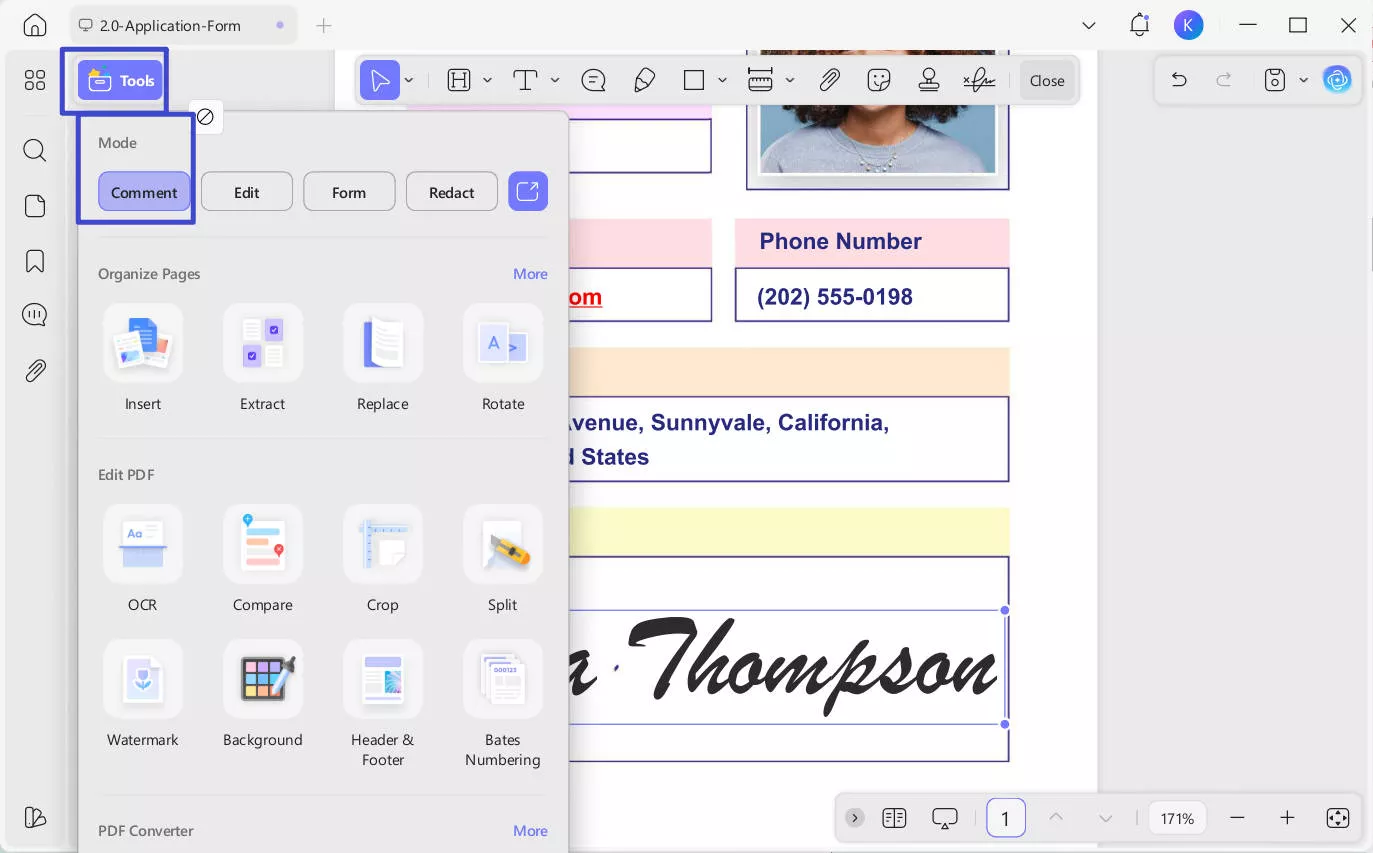
- Once opened, click the "Tools" option to enter "Comment" mode. You can delete signatures in "Comment" mode.
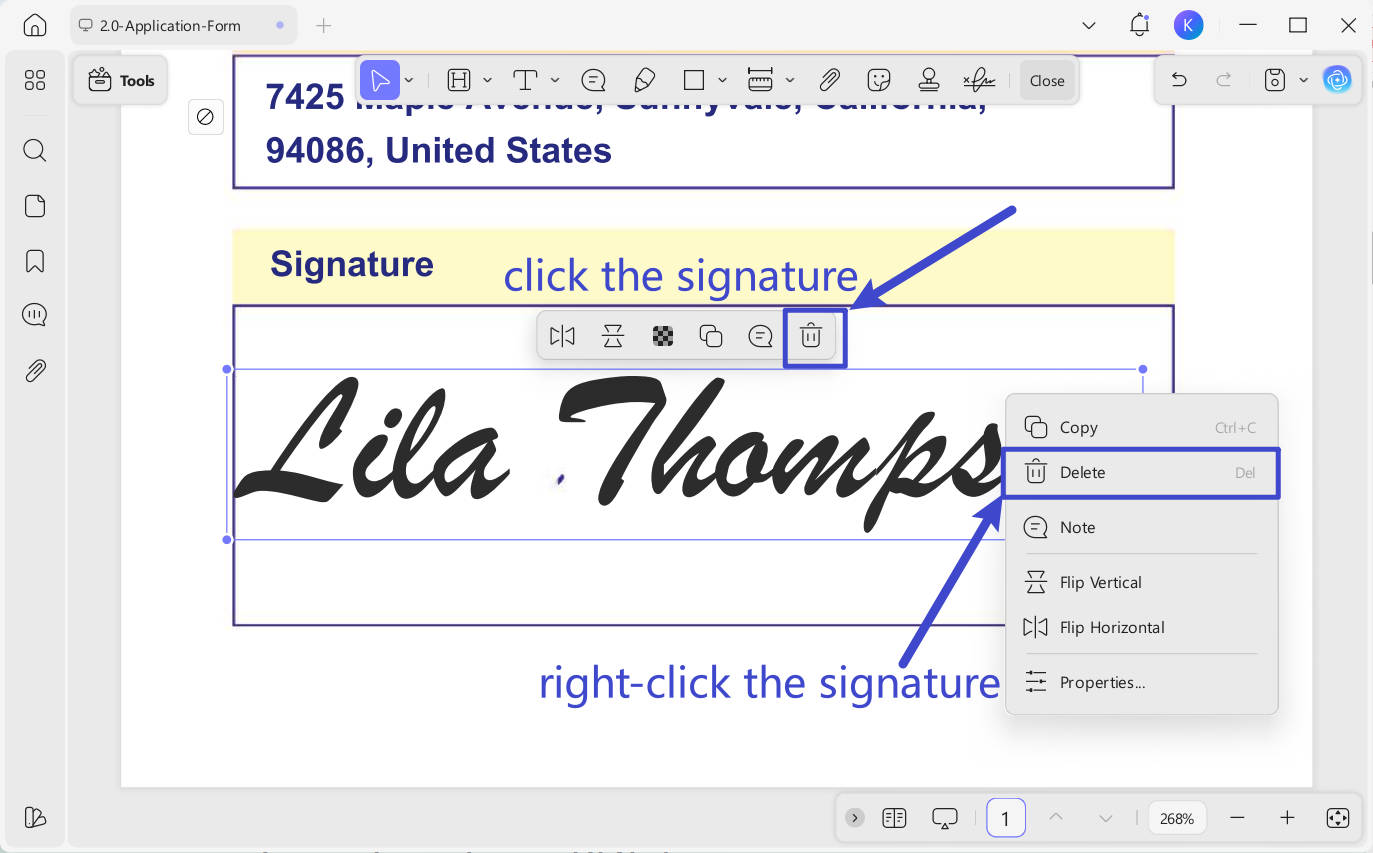
- Click on the signature you need to remove and hit the "Delete" icon. Alternatively, right-click on the signature and select the Delete option. (You can also use the shortcut method: Select the signature and hit the Del key!)
That's it! You have answered the query on how to clear the signature from a PDF.
Is the way to unsign a PDF not working for you? No worries, you can still remove signatures by adding a rectangle covering the signature. Here is how UPDF will help you do that:
- Launch UPDF and open your desired PDF.
- Hit the "Comment" icon in "Tools".
- Navigate to the "Rectangle" icon on the top toolbar and click on it.
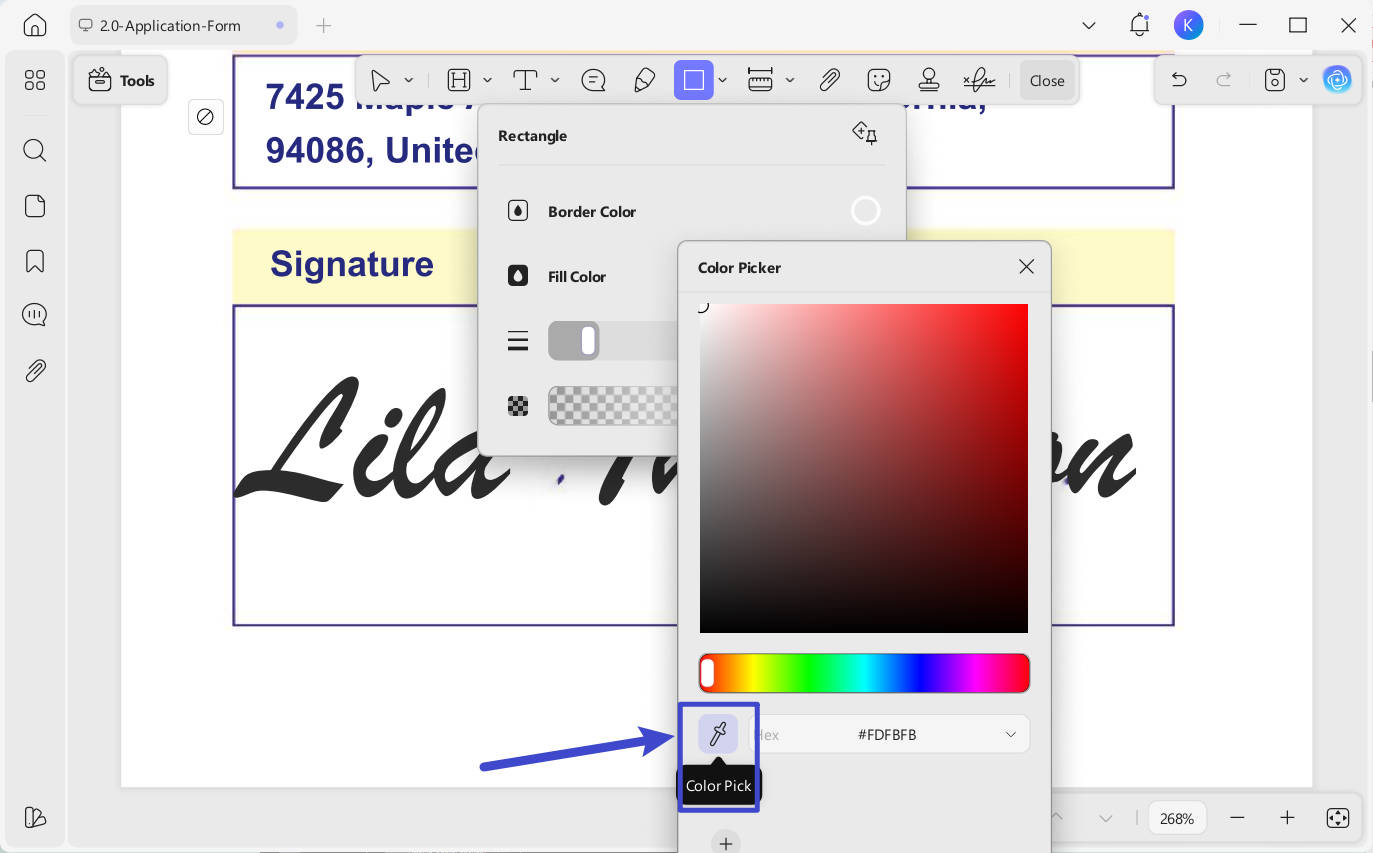
- A small menu will pop up. You can use the "Color Pick" function to set the "Fill Color" and the "Border Color" the same as your document background. Remember to change the "Opacity" to 100% if you want to fully cover the signature.
- Now drag to cover the signature using the shape. If you want to draw a proportional shape, you can hold the "Shift" key while drawing it.
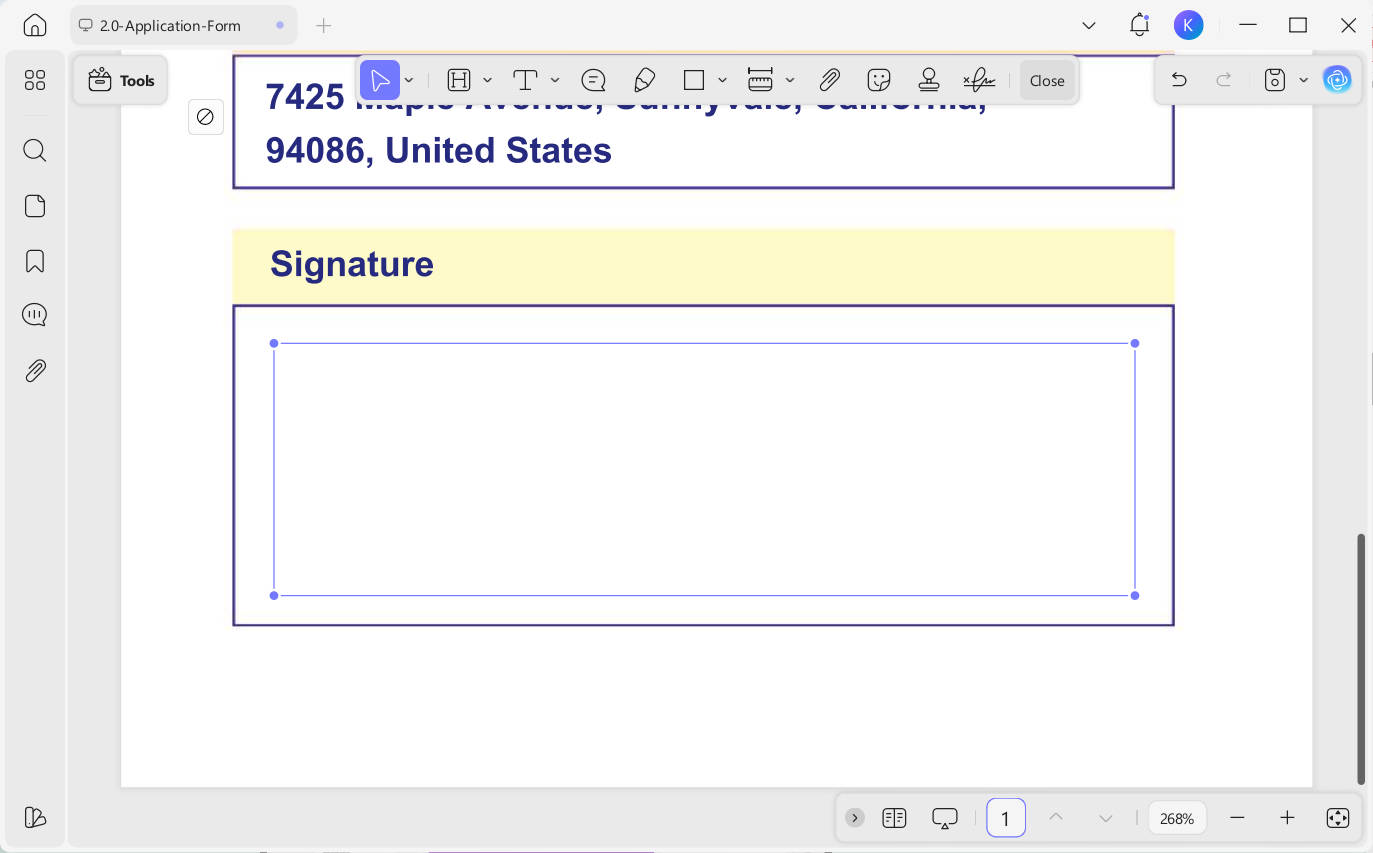
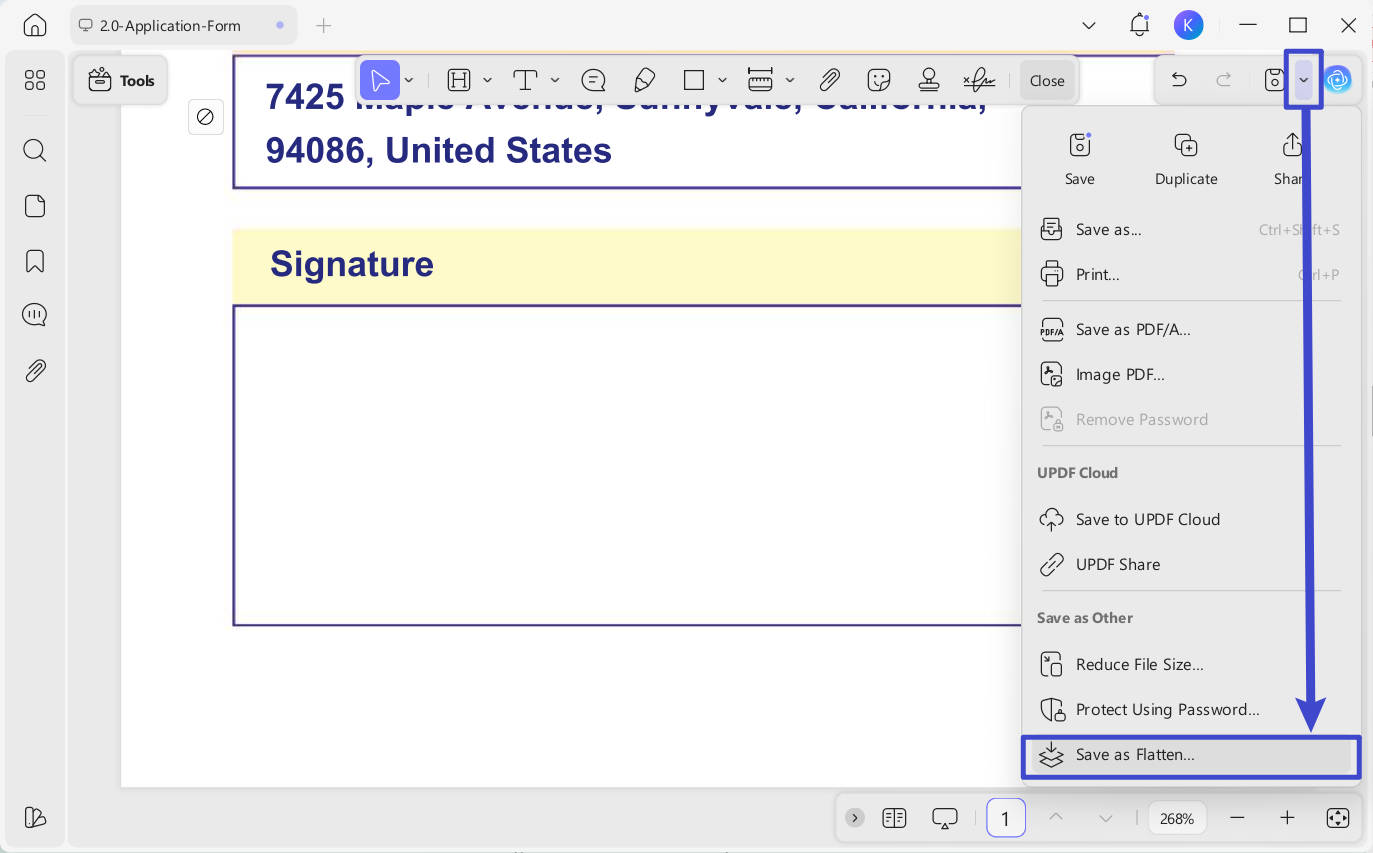
Now, flatten the area to cover the signature permanently, and no one can edit it again. To do so, click the downward arrow next to the "Save" icon on the top-right menu bar and select "Save as Flatten". By flattening the PDF, the section becomes the background, and you can't edit the rectangle at all.
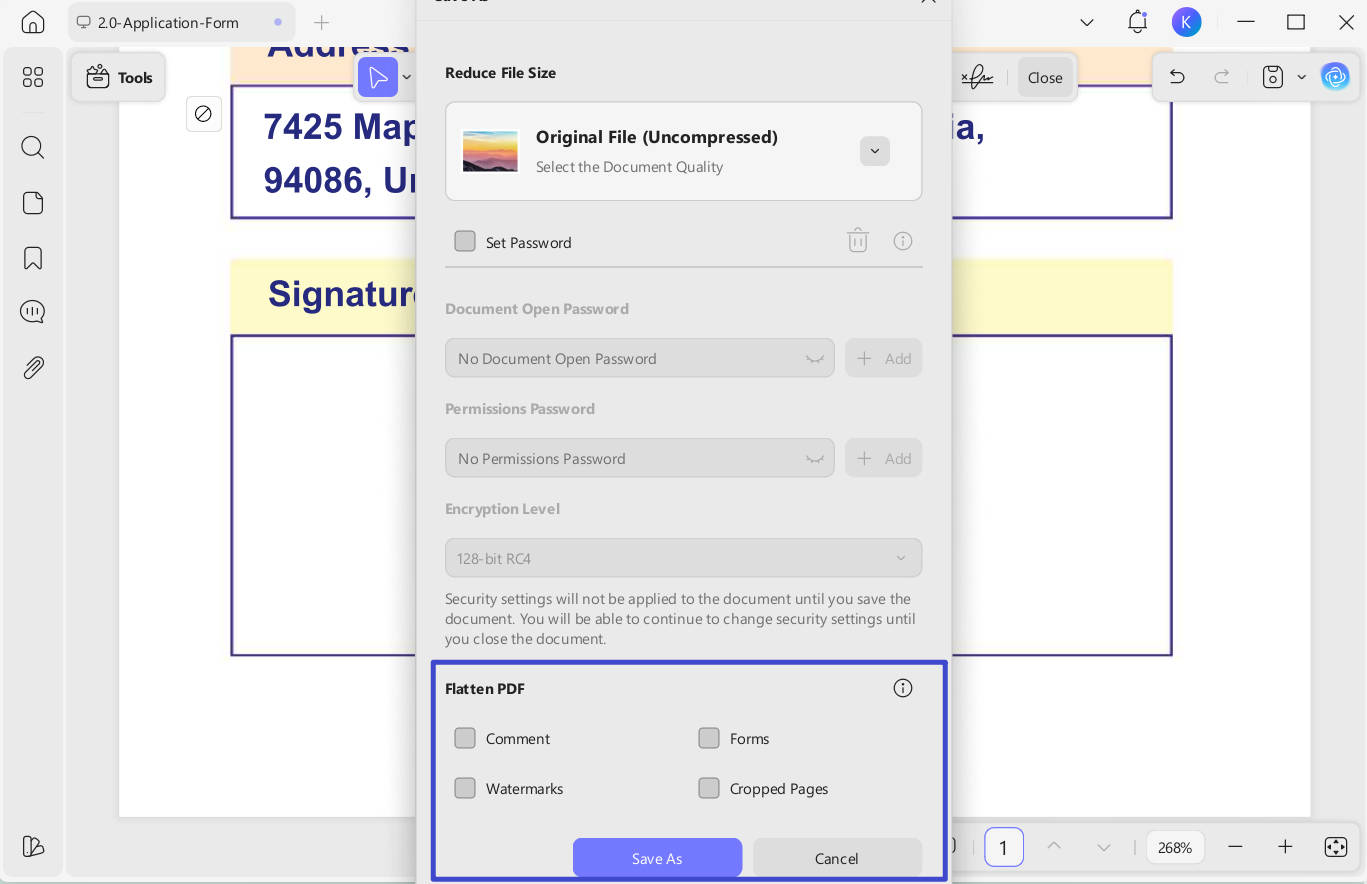
In the following dialogue box, tick "Comments" and hit "Save As". Lastly, select a destination for your PDF file and hit "Save".
Dive into enhanced document management. Download UPDF today! Moreover, there is an objective review of UPDF available on the PDF association site, allowing you to gain insight into UPDF.
Windows • macOS • iOS • Android 100% secure
You can also use UPDF to remove digital signatures. Follow these steps:
Launch UPDF and open your PDF file with UPDF. Navigate to the specific page containing the signature you want to remove.
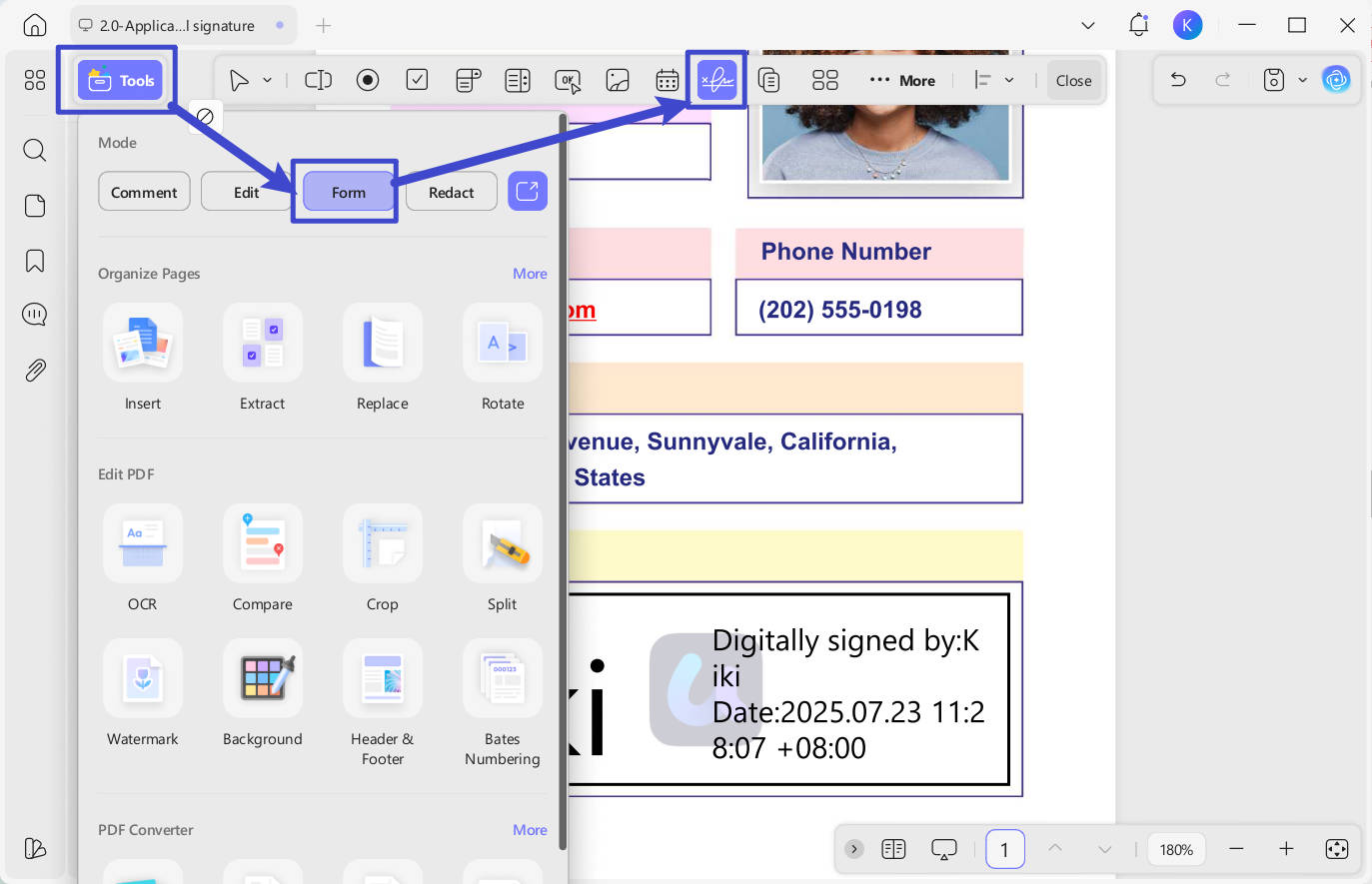
Access the "Tools" menu and switch to "Form" editing mode (this is where signature fields can be modified). Then locate the "Digital Signature" button in the top toolbar.
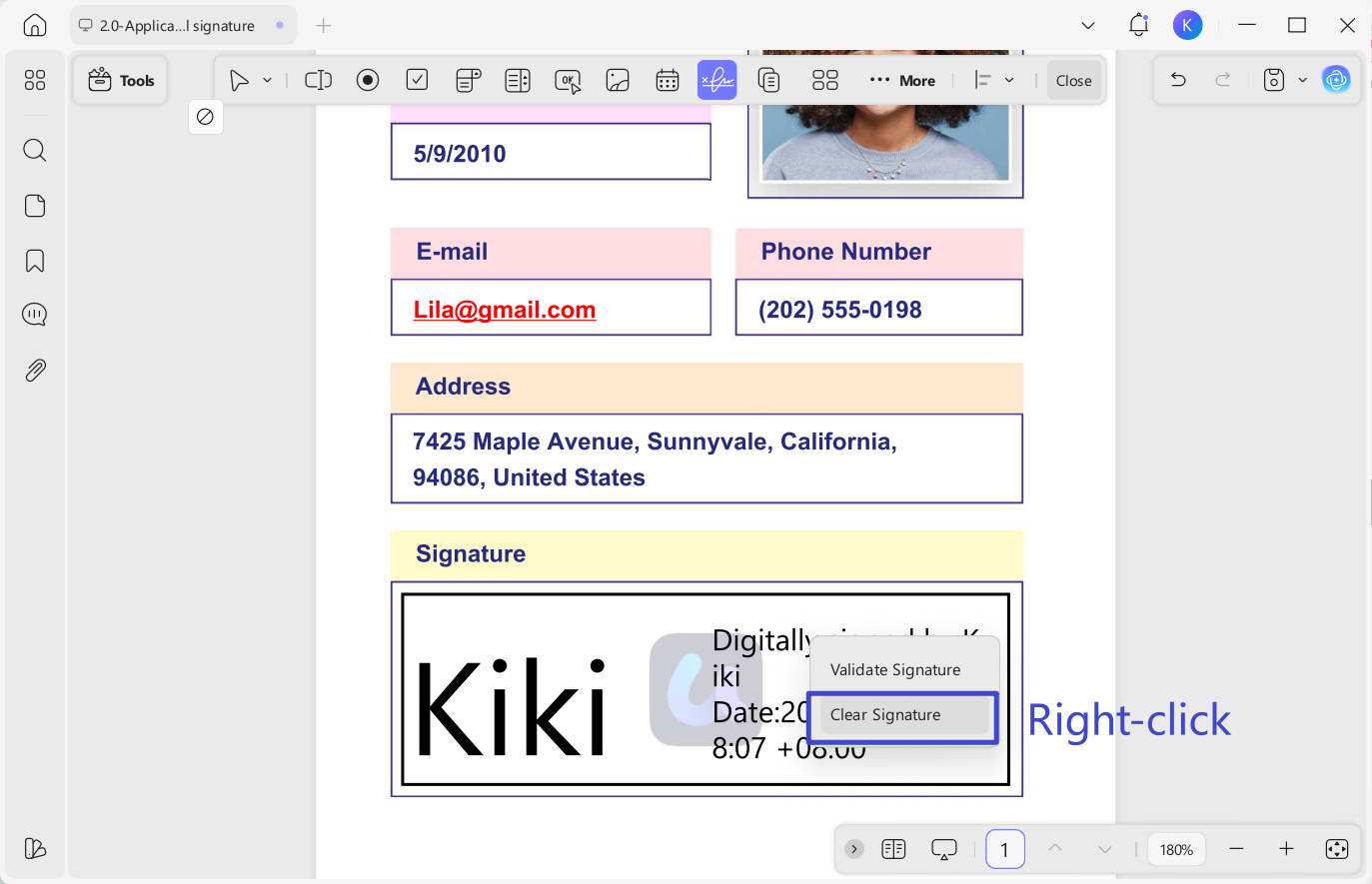
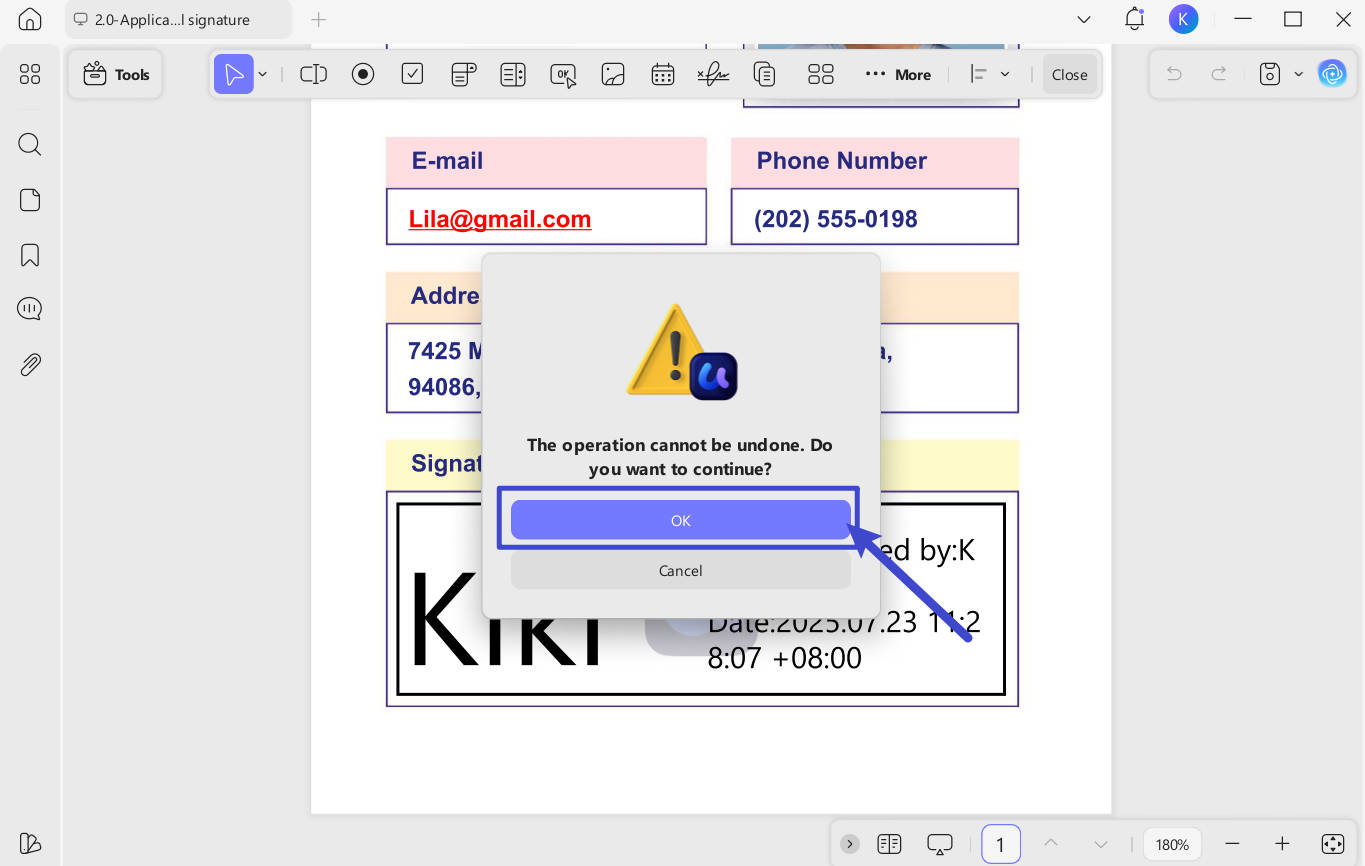
Right-click on the signature field and select "Clear Signature" to remove it.
From the pop-up dialog, click "OK" to successfully remove the digital signature.
Also read: How to Remove Signature Field—Right Methods Explained
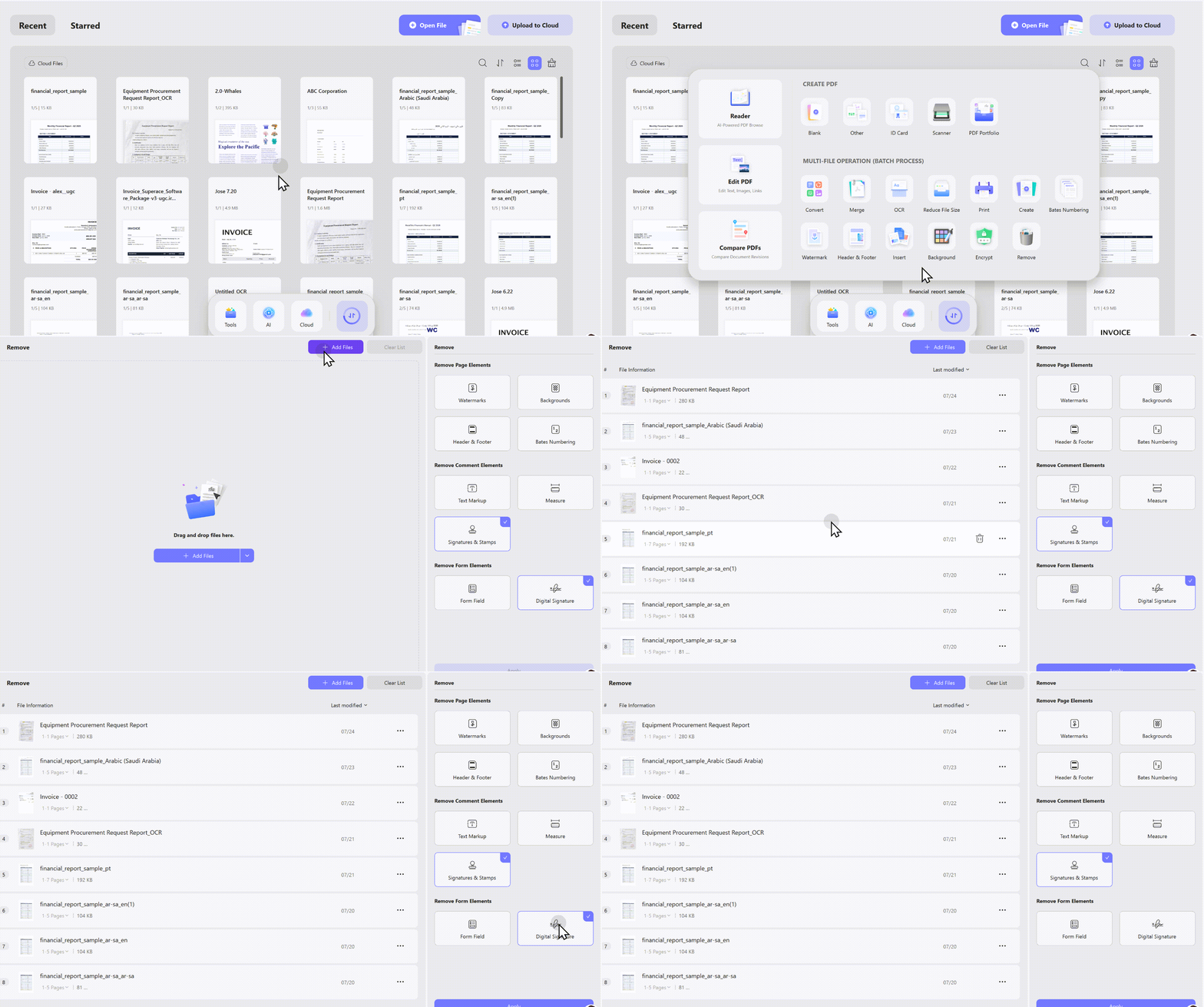
Pro tip: If you need to remove multiple signatures, UPDF lets you select and delete them in batch.
Windows • macOS • iOS • Android 100% secure
Beyond signature removal, UPDF offers a complete annotation toolkit – highlights, sticky notes, drawing, OCR, and more. Want to see how it stacks up against other annotation tools? Read our complete guide on how to annotate PDF for side‑by‑side comparisons and step‑by‑step tutorials.
Beyond signature removal, the video below demonstrates UPDF's broader annotation workspace, including highlights, comments, and drawing tools.
Tool 2: Adobe Acrobat Pro – Industry Standard
If you are an Adobe Acrobat user, below is the step-by-step guide on how to remove digital signatures from PDFs with Adobe Acrobat.
- Open your PDF document in Adobe Acrobat.
- Go to the page where the digital signature is located.
- Right-click the signature, or hold the Control key while clicking the signature field, and then choose "Clear Signature".
What if it doesn't work? The following guide is useful if you cannot remove digital signatures by right-clicking and selecting the Clear Signature option. By following the steps below, you will remove the digital ID used to add that particular signature. This way, that signature will already get deleted.
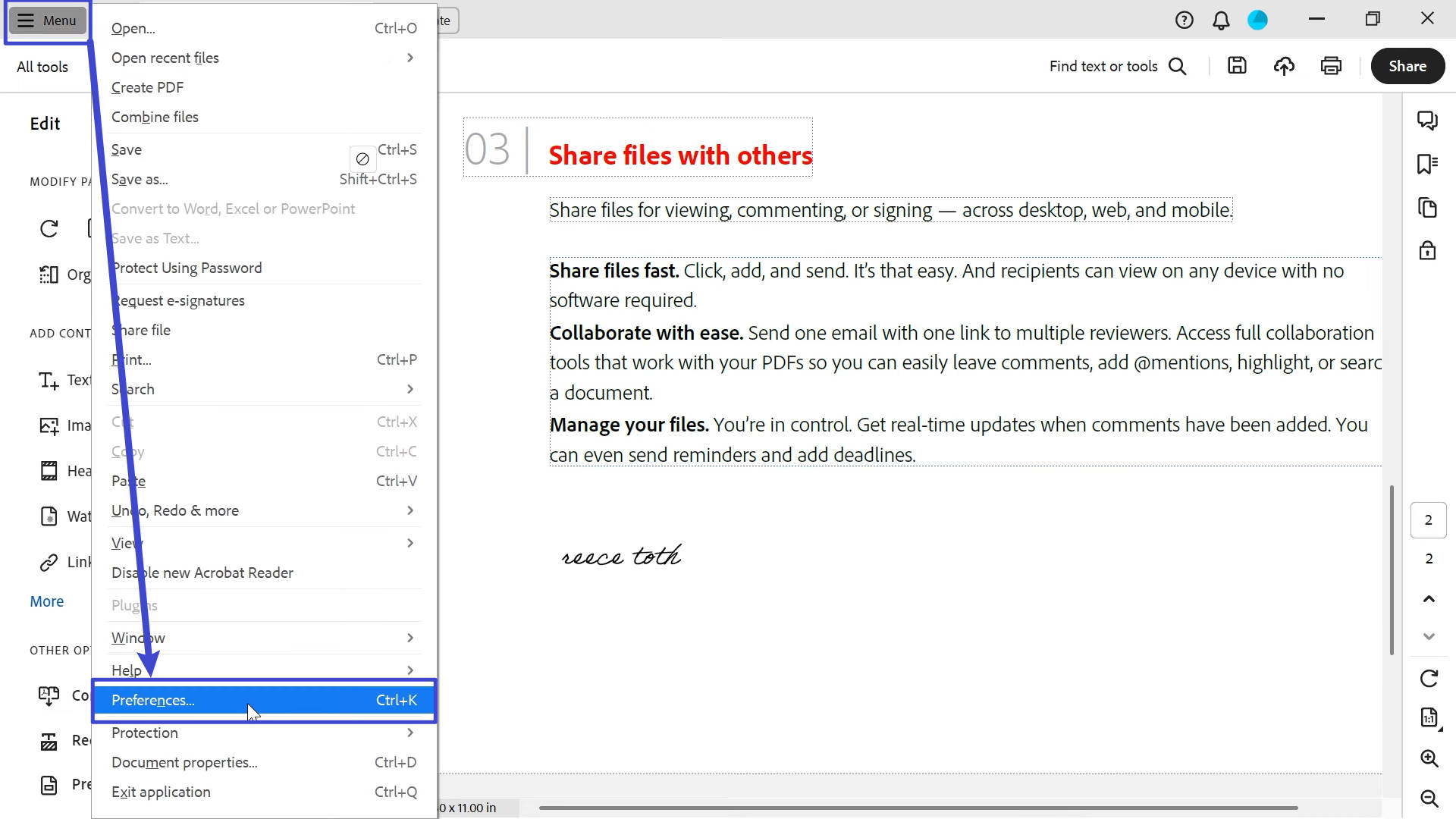
- Click on "Menu" in the top left-hand side and select "Preferences".
- Choose "Signatures" > "Identities & Trusted Certificates" > "More".
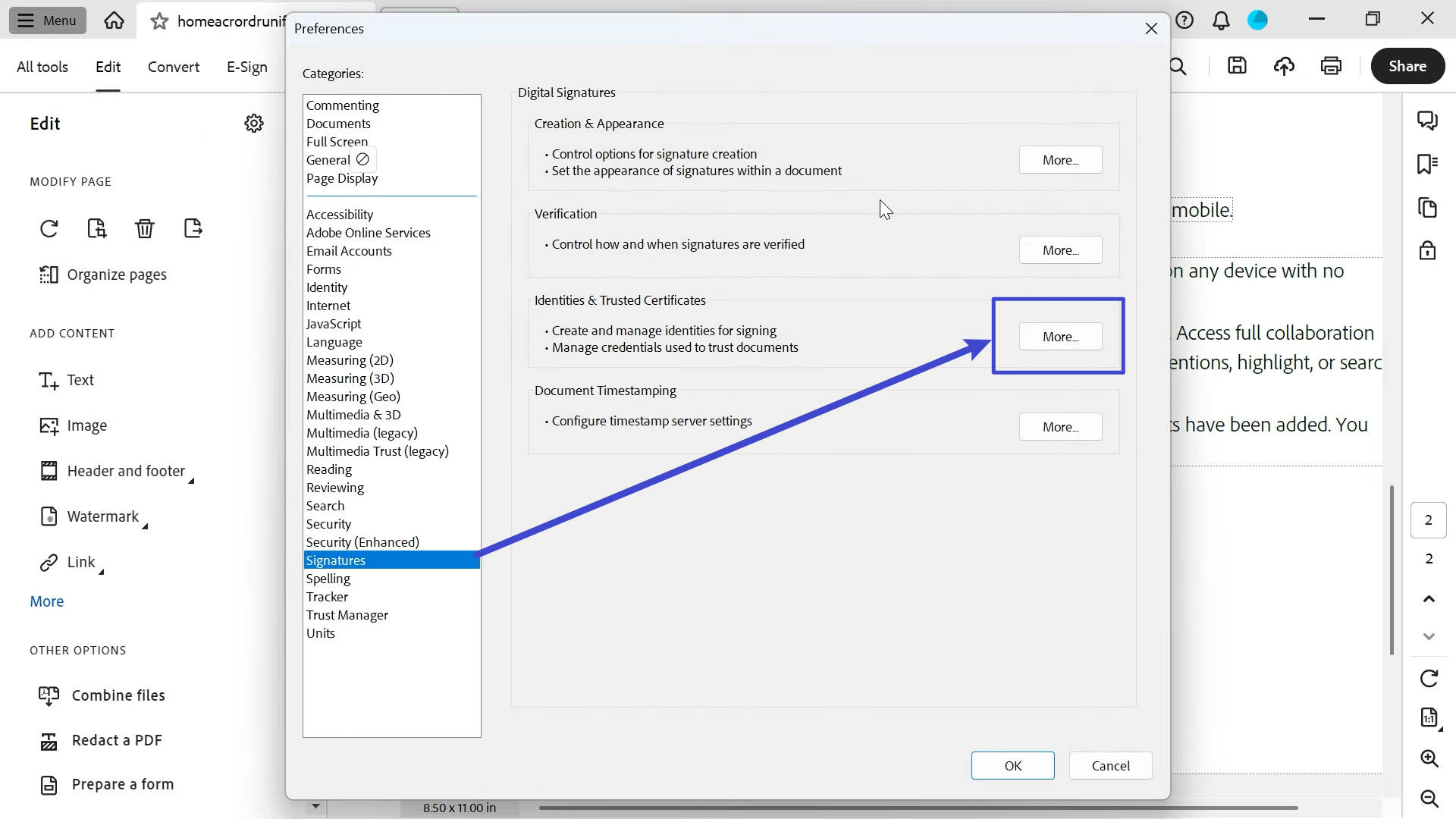
- Now, hit Digital ID, select the ones you want to detach, and hit Detach File.
- Following that, you can also delete the .pfx file.
Note: You can only delete those self-signed digital IDs you created in Adobe Acrobat. It won't let you delete your digital ID from any other provider.
Tool 3: Apple Preview – Built‑in but Limited
Apple Preview is a free built-in Mac utility requiring no installation and suitable for casual PDF tasks. Still, it only deletes signatures created inside Preview, lacking support for digital signatures and certificates. It also has no batch processing or advanced export functions, and annotations might vanish when the file is relocated.
- Open the PDF in Preview.
- If the Markup toolbar isn't showing, click the Show Markup Toolbar button.
- Click the Signature button (cursive‑style icon).
- Click the X to the right of the signature you want to delete.
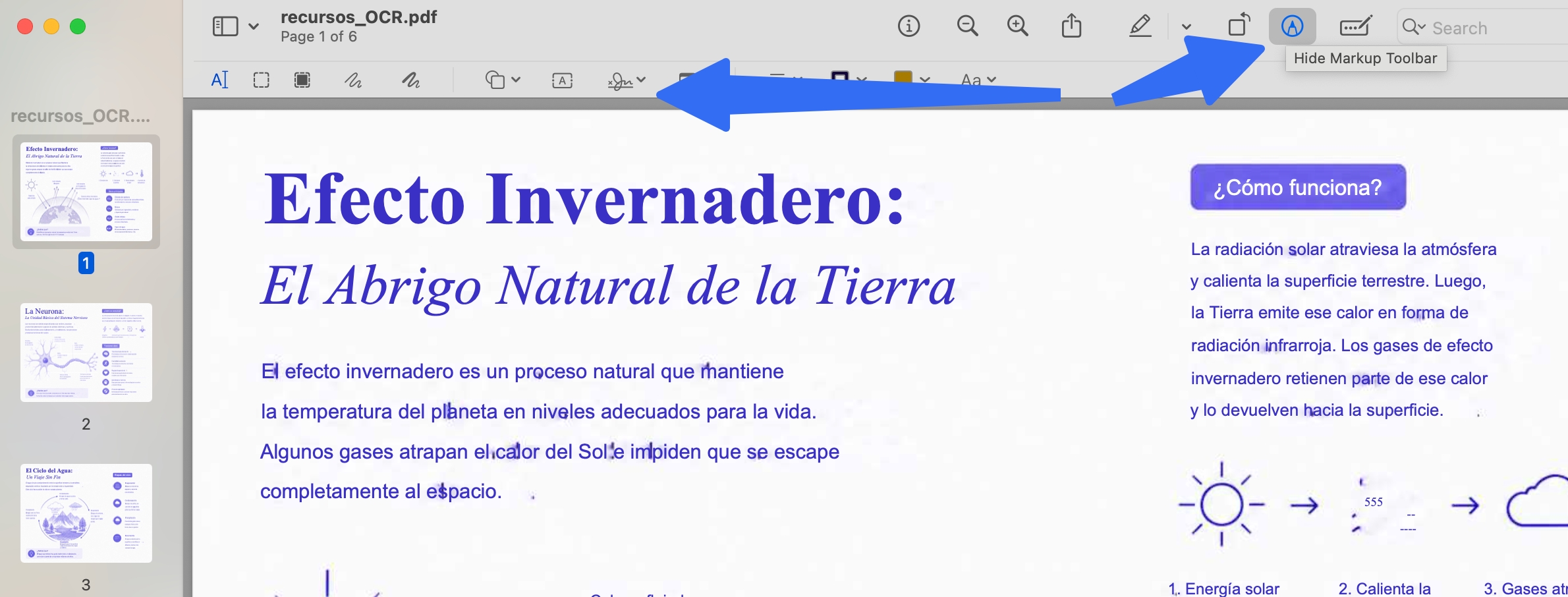
Note: If you signed the file outside of Preview, you may need to use Tools > Redact to redact the signature from the document.
Tool 4: Online Tools (Smallpdf, Sejda, iLovePDF) – Quick & Easy
Most online tools have the same process for removing signatures from PDFs:
- Go to the official website > Edit PDF.
- Upload your PDF from your device. ( or from Google Drive or Dropbox).
- Click the signature image to select it.
- Press “Delete” on your keyboard, or click the trash icon.
⚠️ Warning: Never upload confidential or legally binding documents to online tools. Files are stored on external servers — even if “auto‑deleted,” you lose control over your data.
Tool 5: Foxit PDF Editor – Solid Business Alternative
Foxit PDF Editor serves as a reliable business alternative. It runs more lightweight than Adobe Acrobat, supports smooth team collaboration, and delivers robust signature management. However, its Mac version is not as refined as the Windows build, and it adopts an annual subscription model priced at around $140 per year.
Let's check how to remove a signature from a PDF on Foxit.
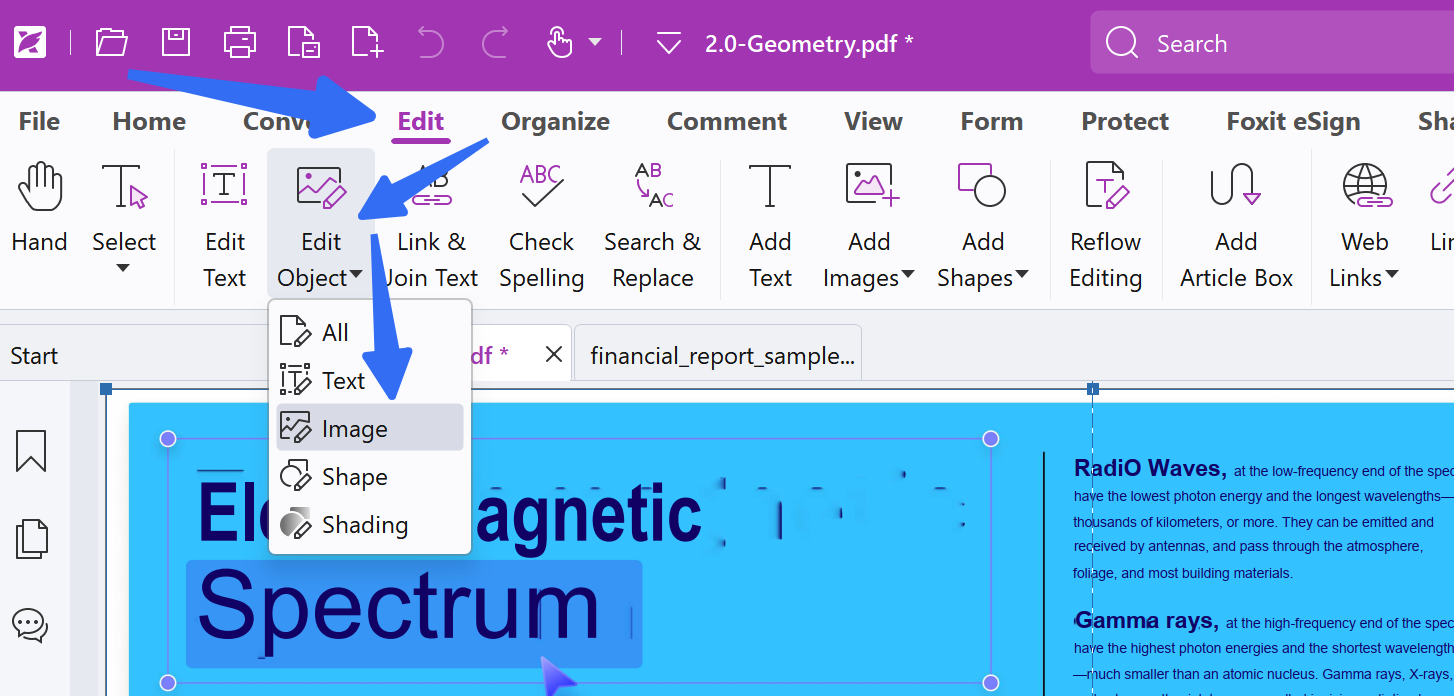
- Open the PDF in Foxit PDF Editor.
- Click “Edit” > select “Edit Object” > “Image”.
- Right‑click on the PDF signature and click “Delete” to remove it.
Among PDF tools, UPDF delivers the optimal overall value. Unlike Adobe’s costly annual subscription, UPDF provides a one-time purchase at roughly $94.99. It supports Windows and Mac, handles image and permitted digital signature removal, OCR, and batch processing offline for better privacy.
While Preview is free but Mac-exclusive and lacks advanced functions, free online tools carry privacy risks and feature limits. For users seeking a dependable, cost-effective cross-platform PDF solution, UPDF is the most sensible pick.
Windows • macOS • iOS • Android 100% secure
What to Do When You CAN'T Remove a Signature?
Sometimes, no tool will work. Here's why — and what to do.
Why Signatures Become “Unremovable”
Practical Solutions
If you are the only signer but the document is locked:
- You cannot remove the signature
- You must recreate the document or request a new copy from the owner
If others have signed:
- You cannot remove their signatures
- You must request the original, unsigned copy or ask the signer to remove their signature
If the signature is flattened (merged into the page):
- The signature is now part of the page image
- You cannot “remove” it — but you can redact (black out) the signature area
- Or: start from the original unsigned version
If you need to edit a signed document:
- Best practice: Remove the signature first (if permitted), make your edits, then re‑sign
- Alternative: Start from the original unsigned document, make edits, then sign again
If you frequently work with signed or complex PDFs, mastering annotation tools will save you hours. Learn how to highlight, comment, draw, and organise your PDFs efficiently in our Complete Guide to Annotating PDFs – the go‑to resource for students, professionals, and researchers.
FAQs on Removing Signature from PDFs
Let's now have a look at the answers to some of the most Frequently Asked Questions!
Can you remove a digital signature from any PDF?
No. A certificate-based signature may lock the document, and only the signer or an authorized workflow may be able to clear it.
Why can’t I select a signature in a PDF?
The signature may be flattened into the page image or protected by document permissions rather than stored as a removable annotation.
Does removing a signature invalidate the PDF?
Removing or changing signed content can invalidate signature status. Keep the original signed copy and create a separate version for corrections.
Wrapping It Up!
Removing a signature is an easy task if you are the signer. You can opt for any of the ways mentioned above to eliminate the query, "How to delete signature from PDF?" However, if someone else has signed the document, you must ask them to remove it; there's no other way you can do it your way.
In all this, UPDF will remain your best buddy by helping you remove the signature from the PDF, edit the content the way you want, and re-sign the PDF. If you haven't got this software yet, you should get it now. To your surprise, you can use one UPDF license on any device, be it Windows, Mac, iOS, or Android!
Windows • macOS • iOS • Android 100% secure





 Enya Moore
 Enid Brown

 Enola Davis
 Enola Miller