 UPDF
UPDF
 UPDF for Windows
 UPDF for Mac
 UPDF for iPhone/iPad
 UPDF for Android
 Nomostar
 UPDF AI Online
 UPDF Sign
 IvyCraft
 Edit PDF
 Annotate PDF
 Create PDF
 PDF Form
 Edit links
 Convert PDF
 OCR
OCR PDF to Word
 PDF to Image
 PDF to Excel
 Organize PDF
 Merge PDF
 Split PDF
 Crop PDF
 Rotate PDF
 Protect PDF
 Sign PDF
 Redact PDF
 Sanitize PDF
 Remove Security
 Read PDF
 UPDF Cloud
 Compress PDF
 Print PDF
 Batch Process
 About UPDF AI
 UPDF AI Solutions
 AI User Guide
 FAQ about UPDF AI
 Summarize PDF
 Translate PDF
 Chat with PDF
 Chat with AI
 Chat with image
 PDF to Mind Map
 Explain PDF
 PDF AI Tools
 Image AI Tools
 AI Chat Tools
 AI Writing Tools
 AI Study Tools
 AI Working Tools
 Other AI Tools
 AI Bookmark Generation
 AI Bookmark Summary
 AI Watermark Generation
 AI Background Generation
 AI Sticker Generation
 AI Stamp Generation
 AI Editing Suite
 UPDF Copilot
 AI Page Management
 AI Semantic Search
 PDF to Word
 PDF to Excel
 PDF to PowerPoint
 Enterprise Solution
 Enterprise Sign
 Enterprise AI
 Enterprise Plan
 Enterprise User Guide
 Enterprise Webinar
 Banking
 Healthcare
 Insurance
 Legal
Legal Manufacturing
 Government
 Researchers & PhDs
 Solopreneurs & Freelancers
 Lawyers & Legal Professionals
 Real Estate Agents & Brokers
 Education Solution
 Customer Stories
 User Guide
 UPDF Tricks
 FAQs
FAQs UPDF Reviews
 Download Center
 Blog
Blog Newsroom
 Tech Spec
 Updates
 UPDF vs. Adobe Acrobat
 UPDF vs. Foxit
 UPDF vs. PDF Expert

When you are trying to read scanned PDFs or complex papers on Android, EbookDroid fixes the constant zooming and dragging. It makes academic papers, historical scans, and special formats like DjVu or CBR/CBZ much easier to open and view.
In this article, you’ll see how EbookDroid works, what it offers, and where it still feels limited today. If you want a smoother reading experience, smarter tools, and value across devices, we've also provided a one-stop solution in the form of your upgraded document reader.
Part 1. What is EbookDroid?
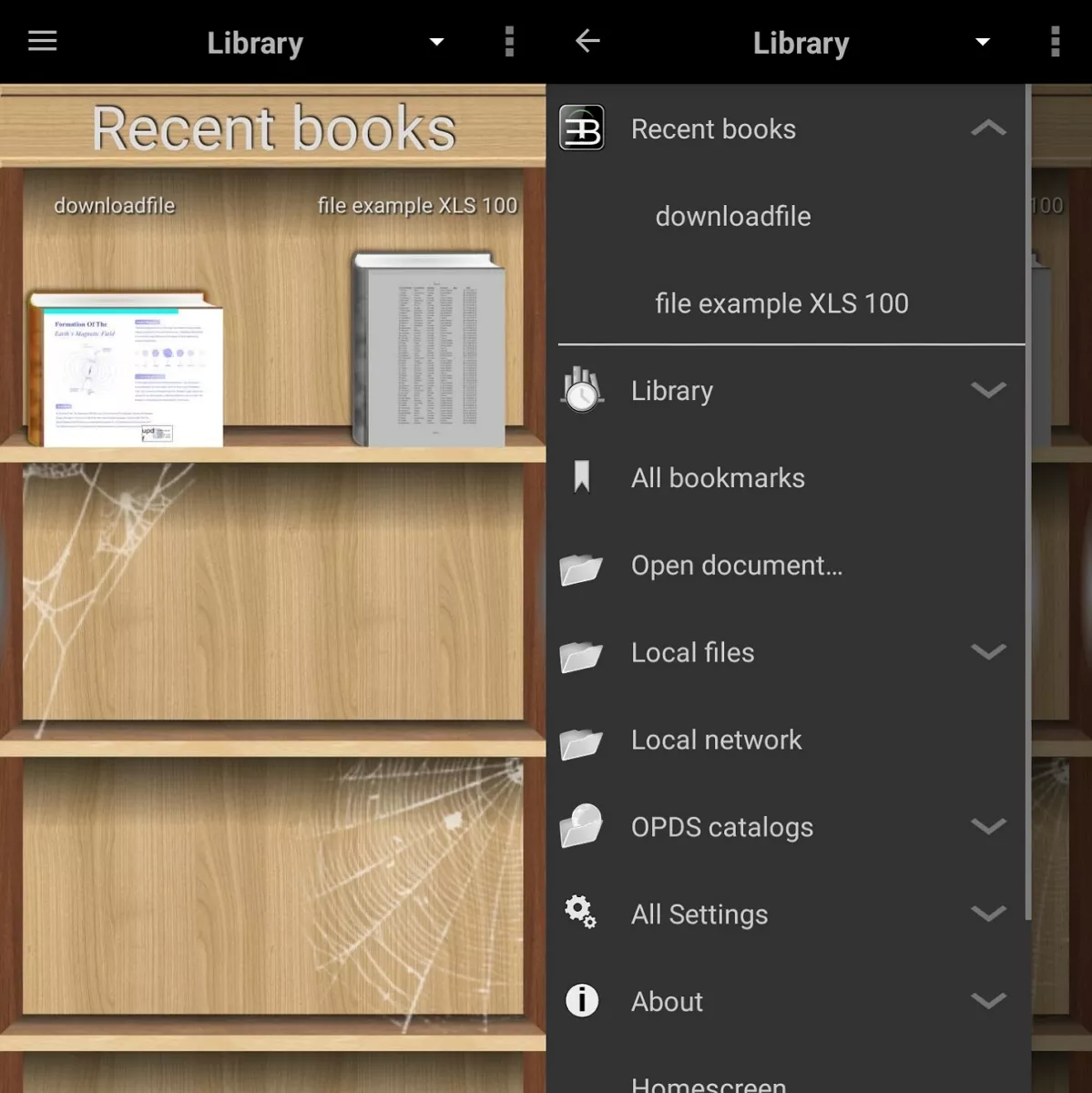
The EbookDroid app is a free, open‑source document reader designed for Android devices. It focuses on giving users control over how pages look and fit on the screen while reading. You can open many document types, including regular ebooks and more advanced technical files.
The app lets you adjust layouts, remember page positions, and manage your library in a flexible way. It is popular with people who often read long documents and want more control than basic readers offer.
Current Status of EbookDroid
The original EbookDroid has some compatibility problems on newer Android versions and devices today. As an open‑source project, its code has been used by other developers to create improved versions. Apps like Document Viewer, Librera Reader, and KOReader continue their main design ideas. These forks stay more up to date and keep the core reading philosophy that many EbookDroid users like.
Part 2. What Can EbookDroid Do?
EbookDroid helps Android users handle a wide range of document types more comfortably. It focuses on fixing common reading problems with complex files on small screens. You can use it for study, work, or casual reading across several tricky formats. Look at the table below to see situations, issues, and how EbookDroid helps:
| Situation | Issue | EbookDroid Solution |
| Academic Papers/Research Reports | Small text, complex page layouts | Better zoom, layout handling |
| Ancient Texts/Scanned Copies | Faded scans, awkward page framing | Improved viewing, smarter page display |
| Comic Books | Panels hard to see and follow | Smoother page navigation, clear images |
| Professional DjVu Documents | Not supported by many basic readers | Native DjVu support and viewing |
| Scanned PDF | Crooked pages, large empty margins | Cleaner display, improved readability |
Core Features of EbookDroid
The features in this reader focus on making complex documents easier to see, follow, and control on Android. The EbookDroid APK offers several focused tools that handle layout, scans, special formats, and library management.
- Document Layout Memory: EbookDroid remembers your page position and viewing mode for each document. When you return later, the same view loads instantly.
- Automatic Cropping and Skew Correction: It trims wide margins from scanned pages to let text fill more of the screen area. Slightly crooked scans are straightened to make lines look cleaner.
- Multi-Column Layout Splitting: The reader can treat each column as a separate reading area on complex academic pages. You move through columns in order, reducing side‑to‑side scrolling across very dense layouts.
- Precise MIME Type Identification: It checks file MIME types carefully, so PDFs, DjVu, and comic archives open in the right mode. Mislabelled or uncommon files are still recognized more reliably than in many basic readers.
- Bookmarks, Notes, and OPDS Integration: Users can place bookmarks, add quick notes, and return to important pages whenever needed. OPDS catalog support lets you browse and download books from compatible online libraries.
Limitations of the Original EBookDroid
- Interface feels dated compared with newer Android reading applications.
- Compatibility issues appear on recent Android versions and certain devices.
- Development has slowed, so bug fixes often arrive very late.
- Lacks advanced editing tools found in modern PDF reader apps.
- Cloud sync and cross‑device workflow features are mostly missing today.
Following these growing limits in the original design and maintenance, alternatives that carry its ideas forward have become important. Apps like Document Viewer, Librera Reader, KOReader, and UPDF build on similar strengths while offering more active development.
In particular, UPDF is a professional, lightweight PDF reader and editor. It is compatible not only with Android devices but also with iOS, Windows, and Mac. To learn more, please continue reading below.
Windows • macOS • iOS • Android 100% secure
Part 3. How to Use EbookDroid?
Many Android readers look powerful, but many users do not really know how to use them. This is why some people install EBookDroid but never explore its helpful viewing and control options fully. Go through the steps below to learn the basics and feel more confident using it:
Step 1. Once you download and install the EBookDroid app on Android, open the app. You’ll see the “Library” section on the main screen.
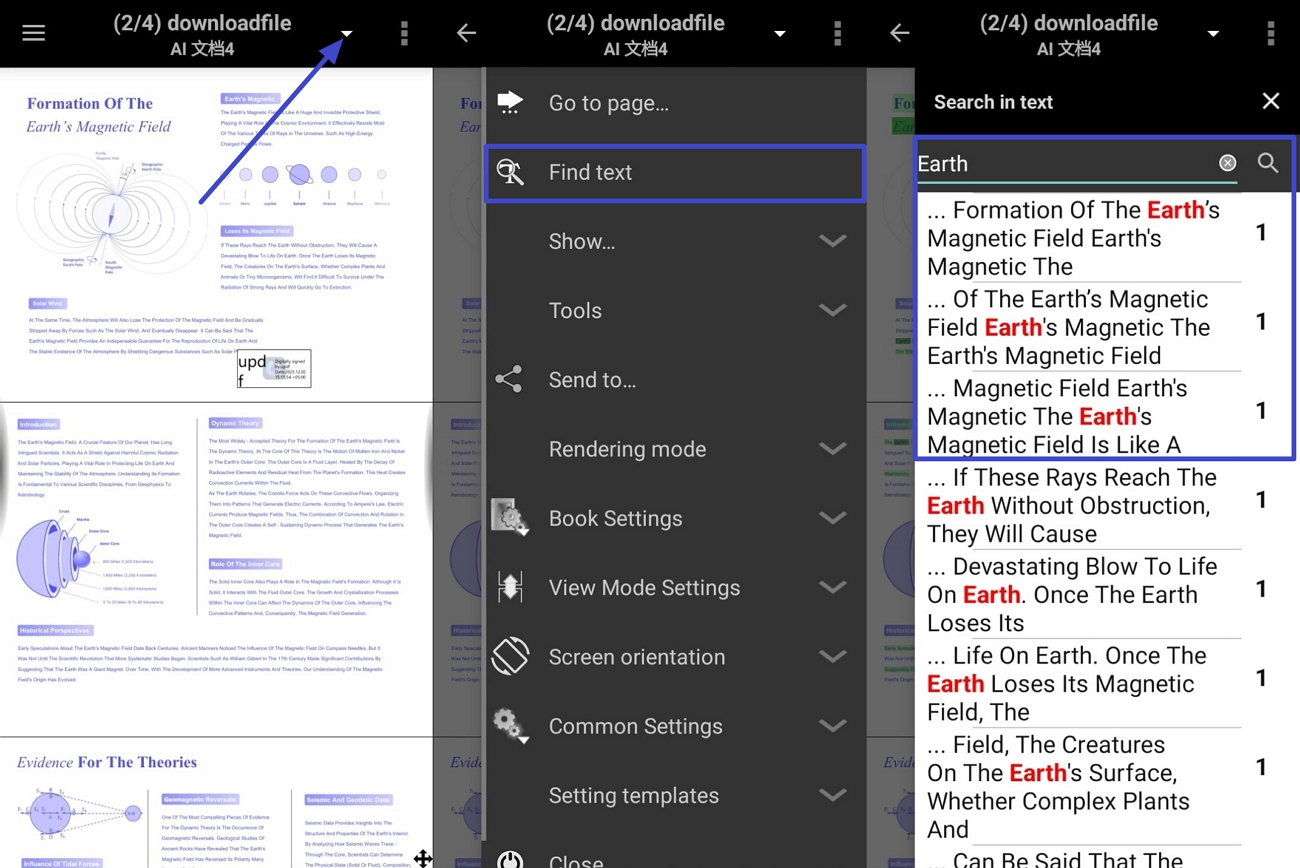
Step 2. Find and open the PDF file saved on your phone’s internal storage. Then, if you need to find any text in the PDF, tap on the “Three-Dots” icon and press the “Find Text” option. Next, enter the text in the search bar to find the exact matches.
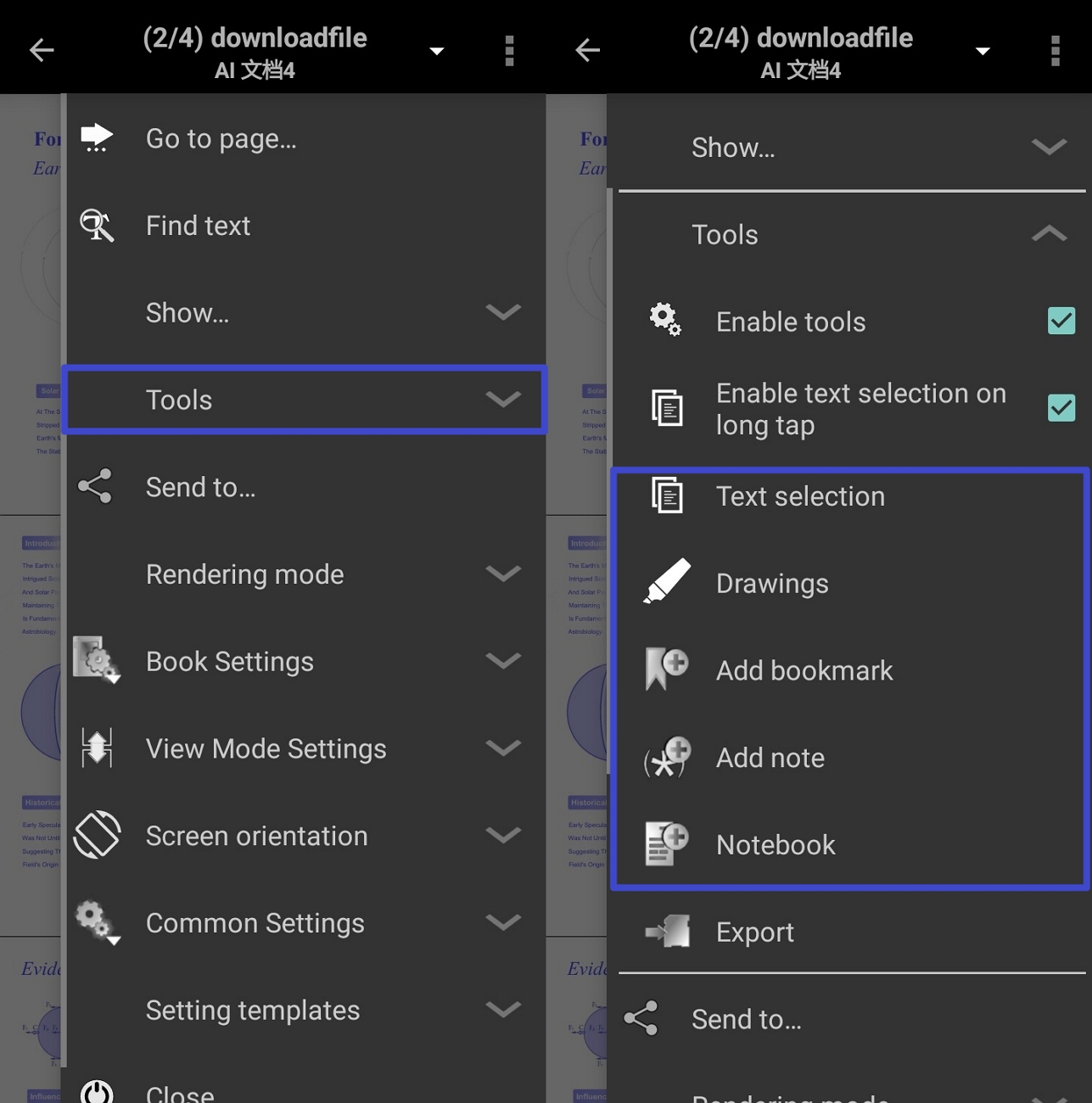
Step 3. Afterward, tap on the “Tools” option to expand it and view other tools. Use the “Text Selection,” “Add Notes, ” and other tools to o highlight key points, leave comments, and make your reading easier to review later.
Step 4. To read the PDF in the way you want, expand the “View Mode Settings” option and tick the scrolling or page layout style that feels most comfortable for you.
Step 5. After making edits to the PDF, choose the “Export” option to directly save the edited PDF. It will be automatically saved at the original location with a changed name.
Part 4. Best E-reader for Android Alternative to EbookDroid
Many readers still like the EbookDroid app, but some feel stuck with crashes, an old design, and confusing controls. Others want smoother updates and better support on newer Android phones, so reading does not feel like a workaround. This is where UPDF comes in, with an Android app that provides a more modern reading experience.
It helps Android users read comfortably without worrying about old compatibility problems or missing quality‑of‑life improvements. People can focus on their books and documents instead of fighting with layout issues or awkward menus. For many users, UPDF feels like a natural next step when EbookDroid no longer meets daily needs.
Windows • macOS • iOS • Android 100% secure
Core Features of UPDF
- Fit Modes: Pages are automatically adjusted to match your screen’s shape and size. That way, layouts stay balanced and readable without repeated manual zooming and panning.
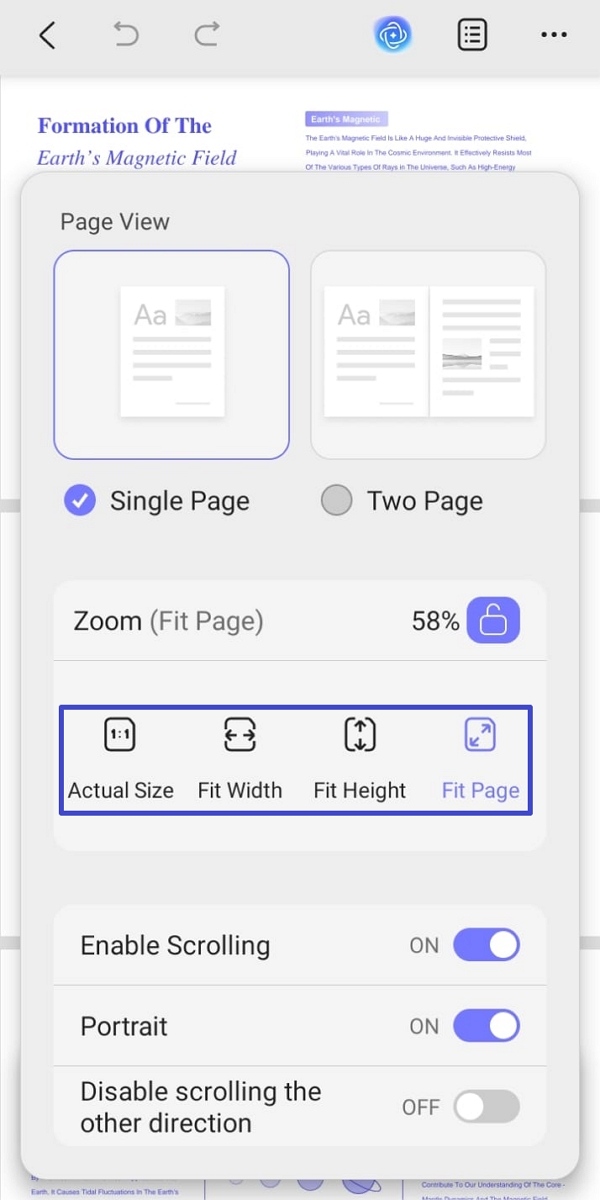
- Page Display Modes: Different views, like single, facing, and scrolling, let you control how pages appear. This lets you choose a reading style that feels natural and reduces eye strain.
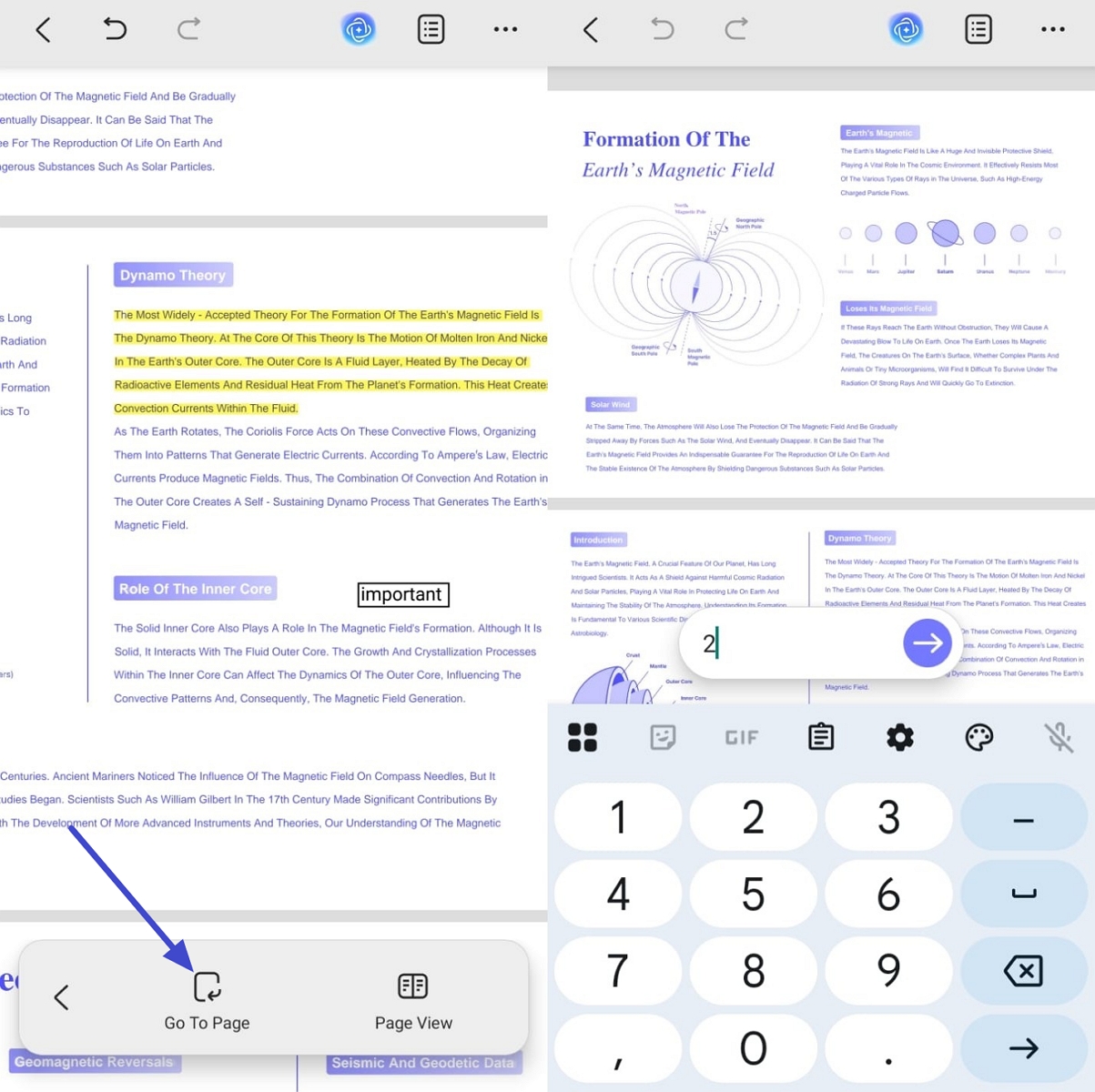
- Go to Page Mode: Multiple navigation styles make it easier to jump to specific pages in long documents. As a result, you can reach sections faster rather than swiping through pages.
- Annotate while Reading: Highlighting text and adding comments can all happen directly on the page. That means your important thoughts and study notes stay in one place.
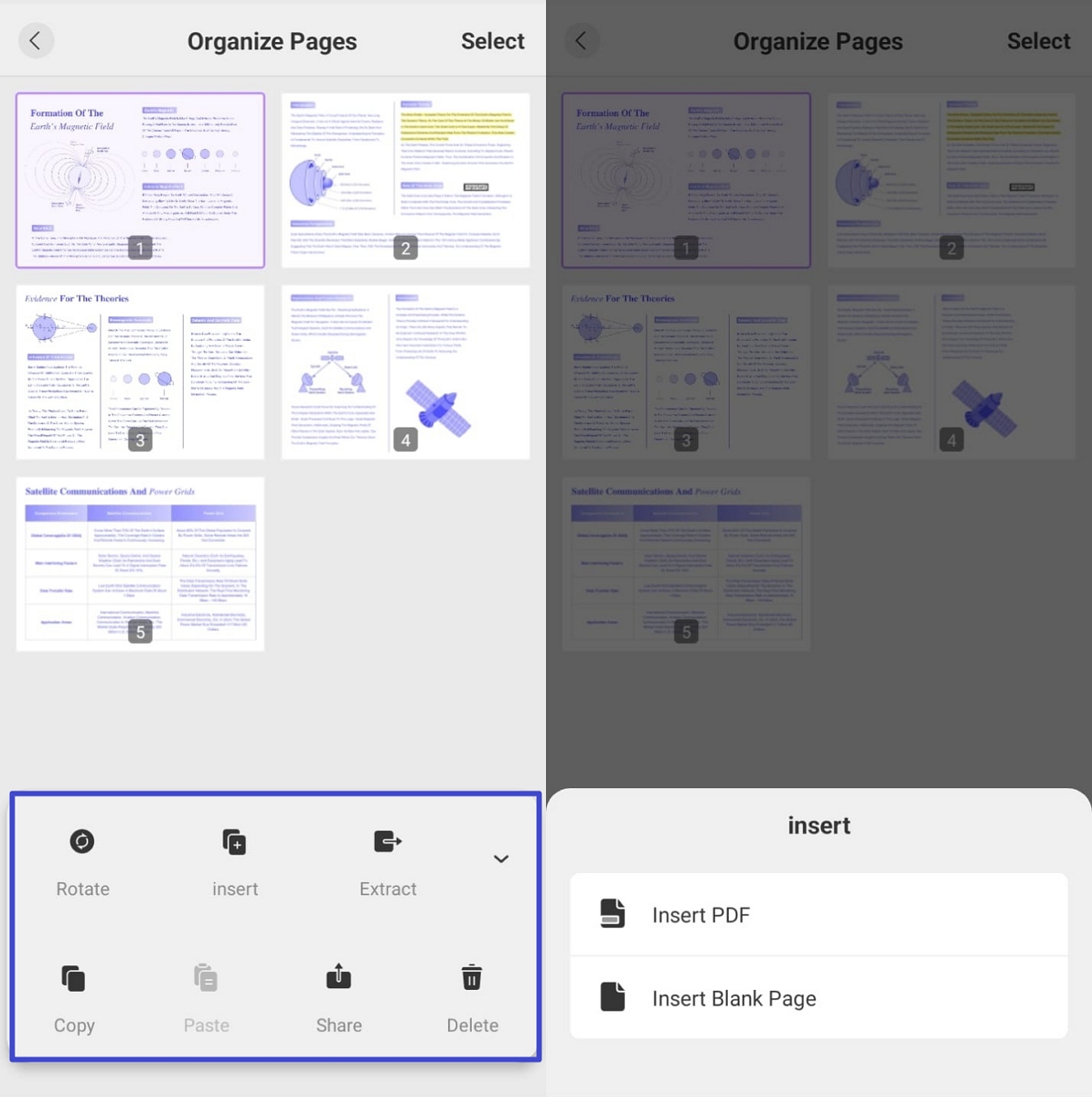
- Organize Pages: Extracting, inserting, and rotating pages lets you rearrange documents without using separate tools. This makes it easier to reshape PDFs for classes and sharing in a clean way.
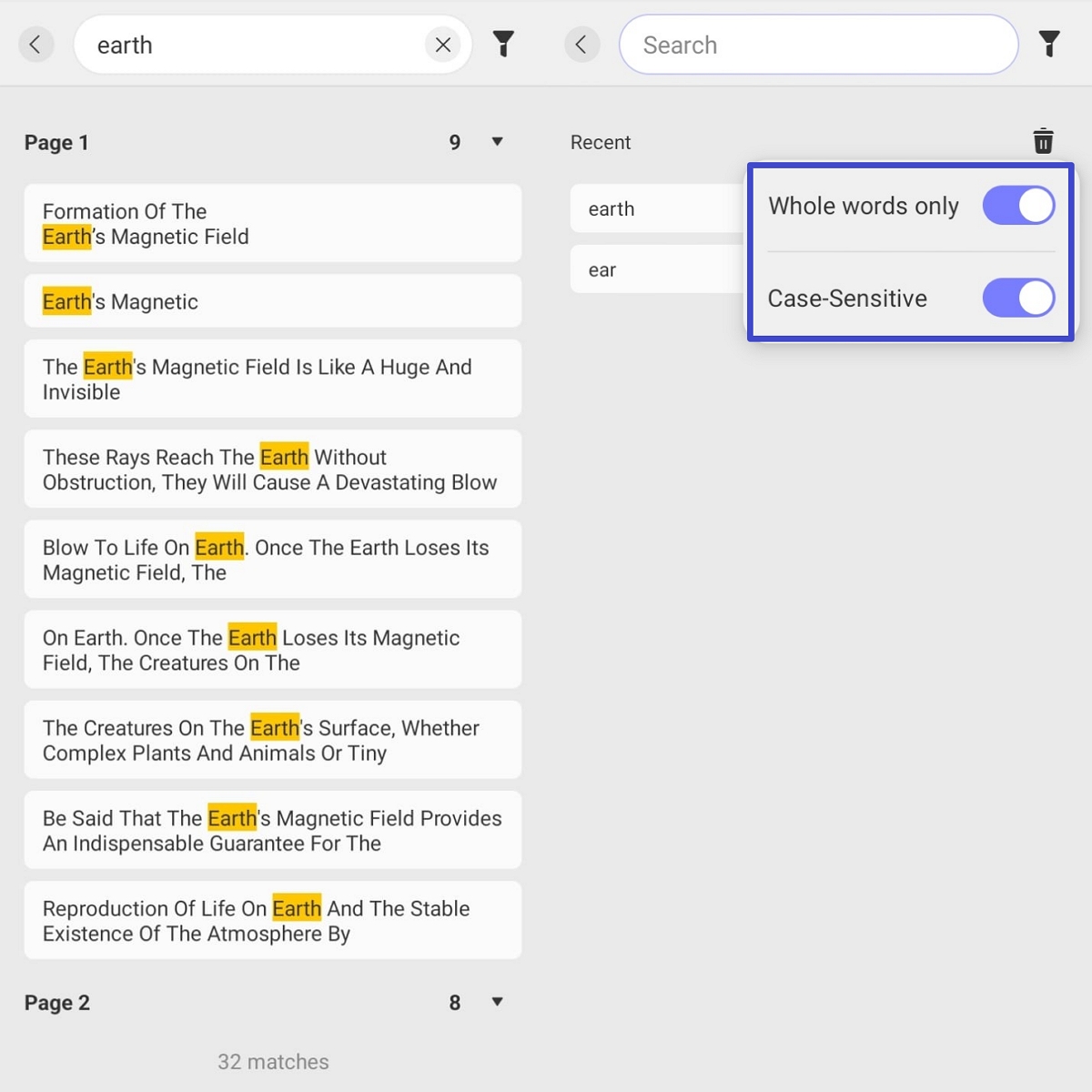
- Find Text: The find tool lets you search for specific words and phrases in the PDF. With Whole Words Only and Case Sensitive filters, you can run accurate searches.
Windows • macOS • iOS • Android 100% secure
FAQs
1: What is the difference between Document Viewer and the original EBookDroid?
Document Viewer is a newer fork with better compatibility on recent Android versions and active maintenance. The original app feels older, updates slowly, and may crash more often on modern phones.
2: Do the EBookDroid series readers support audiobooks or TTS narration?
Most EbookDroid-based readers focus on visual document viewing and lack built-in audiobook playback features. For text-to-speech and richer voice tools, a modern EbookDroid alternative like UPDF is usually a better choice.
3: Can Document Viewer modify PDF content like a professional PDF editor?
Document Viewer mainly supports viewing, navigating, and light annotation rather than deep content editing. For tasks like editing text, images, and layout, you will need a dedicated PDF editor such as UPDF.
4: Why can't Document Viewer open some of my CBR comic files?
Some CBR files have unusual compression or are corrupted, and the app cannot unpack their pages correctly. Converting those comics to another format, like CBZ and PDF, often fixes the opening problem.
Conclusion
This guide showed where EbookDroid helps and where it now feels limited. You also saw how newer Android phones handle documents. Many people want one simple app to read, organize, and review documents without confusing steps. If you want easier reading and document control across devices, you should pick UPDF as your reader.
Windows • macOS • iOS • Android 100% secure




 Enid Brown
 Enrica Taylor
 Enola Miller
 Delia Meyer