 UPDF
UPDF
 UPDF for Windows
 UPDF for Mac
 UPDF for iPhone/iPad
 UPDF for Android
 Nomostar
 UPDF AI Online
 UPDF Sign
 IvyCraft
 Edit PDF
 Annotate PDF
 Create PDF
 PDF Form
 Edit links
 Convert PDF
 OCR
OCR PDF to Word
 PDF to Image
 PDF to Excel
 Organize PDF
 Merge PDF
 Split PDF
 Crop PDF
 Rotate PDF
 Protect PDF
 Sign PDF
 Redact PDF
 Sanitize PDF
 Remove Security
 Read PDF
 UPDF Cloud
 Compress PDF
 Print PDF
 Batch Process
 About UPDF AI
 UPDF AI Solutions
 AI User Guide
 FAQ about UPDF AI
 Summarize PDF
 Translate PDF
 Chat with PDF
 Chat with AI
 Chat with image
 PDF to Mind Map
 Explain PDF
 PDF AI Tools
 Image AI Tools
 AI Chat Tools
 AI Writing Tools
 AI Study Tools
 AI Working Tools
 Other AI Tools
 AI Bookmark Generation
 AI Bookmark Summary
 AI Watermark Generation
 AI Background Generation
 AI Sticker Generation
 AI Stamp Generation
 AI Editing Suite
 UPDF Copilot
 AI Page Management
 AI Semantic Search
 PDF to Word
 PDF to Excel
 PDF to PowerPoint
 Enterprise Solution
 Enterprise Sign
 Enterprise AI
 Enterprise Plan
 Enterprise User Guide
 Enterprise Webinar
 IT
IT Education
 Construction
 Financial Service
 Healthcare
 Insurance
 Legal
Legal Manufacturing
 Government
 Researchers & PhDs
 Solopreneurs & Freelancers
 Lawyers & Legal Professionals
 Real Estate Agents & Brokers
 Education Solution
 Customer Stories
 User Guide
 UPDF Tricks
 FAQs
FAQs UPDF Reviews
 Download Center
 Blog
Blog Newsroom
 Tech Spec
 Updates
 UPDF vs. Adobe Acrobat
 UPDF vs. Foxit
 UPDF vs. PDF Expert

Need to correct, remove, or replace a signature in a PDF? UPDF provides a convenient way to manage electronic signatures created by typing, drawing, or uploading an image.
If the electronic signature is still selectable, you can move, resize, delete, or replace it. However, a certificate-based digital signature works differently and cannot be edited like ordinary PDF content. Changing a digitally signed document may invalidate the signature.
This easy-to-follow guide explains how to edit an electronic signature in a PDF with UPDF, why UPDF is a practical choice for signature management, and what to do if your signature is no longer editable.
Part 1. How Do I Edit My Signature in PDF?
UPDF supports both electronic signatures and digital signatures.
An electronic signature is a visible signature created with a mouse, keyboard, or image. If it is still selectable as an individual object, you can adjust or replace it.
A digital signature uses a Digital ID or certificate to authenticate the signer and help verify document integrity. It should not be edited like an electronic signature.
This section focuses on editing and replacing electronic signatures. Download UPDF and follow the steps below.
Windows • macOS • iOS • Android 100% secure
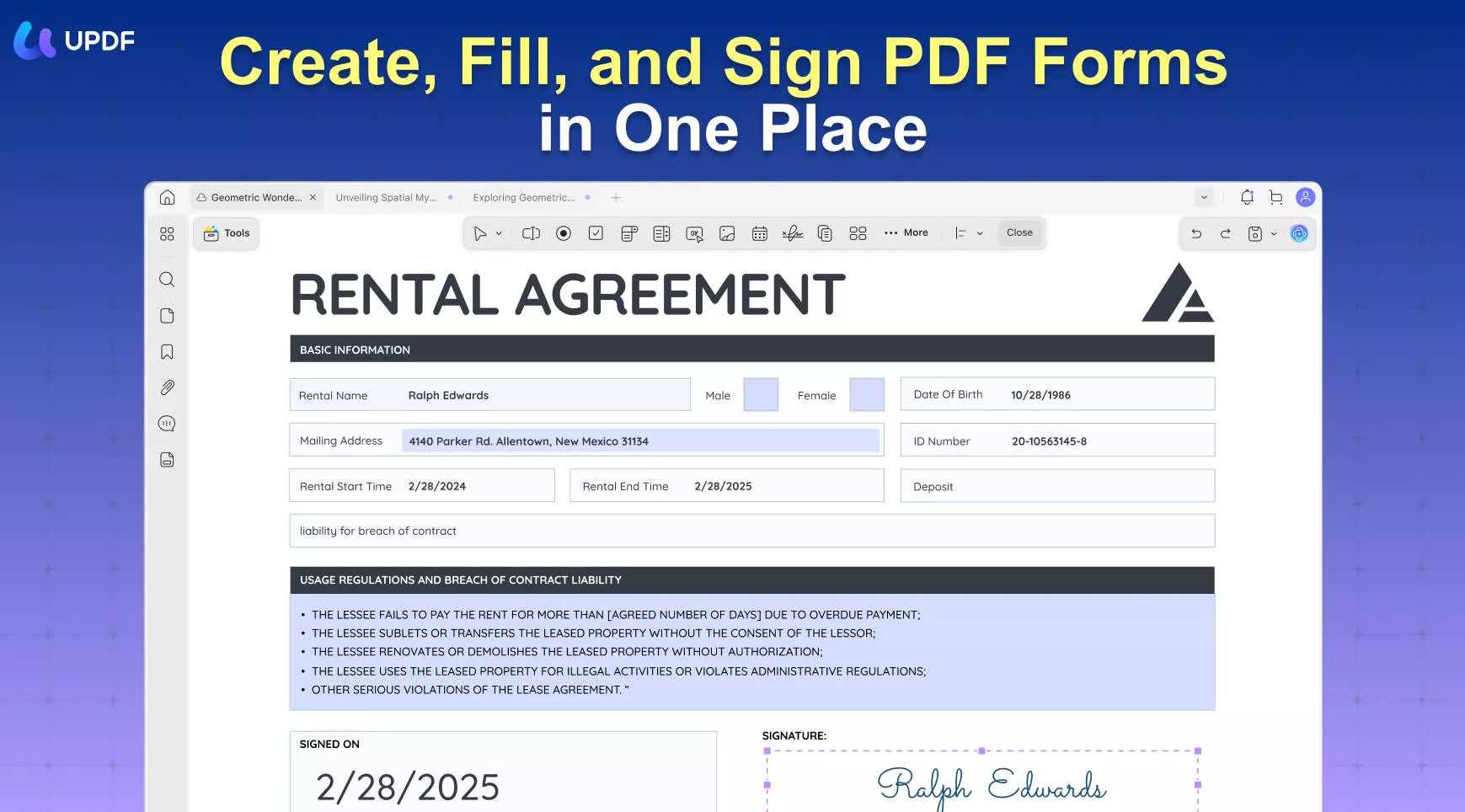
Step 1. Start by launching UPDF on your device. Click on the "Open File" button on the main interface and select the PDF document that contains the signature you want to edit.
Windows • macOS • iOS • Android 100% secure
Step 2. Select the Edit PDF mode from the left toolbar, locate the signature you wish to edit. Click on the signature to select it.
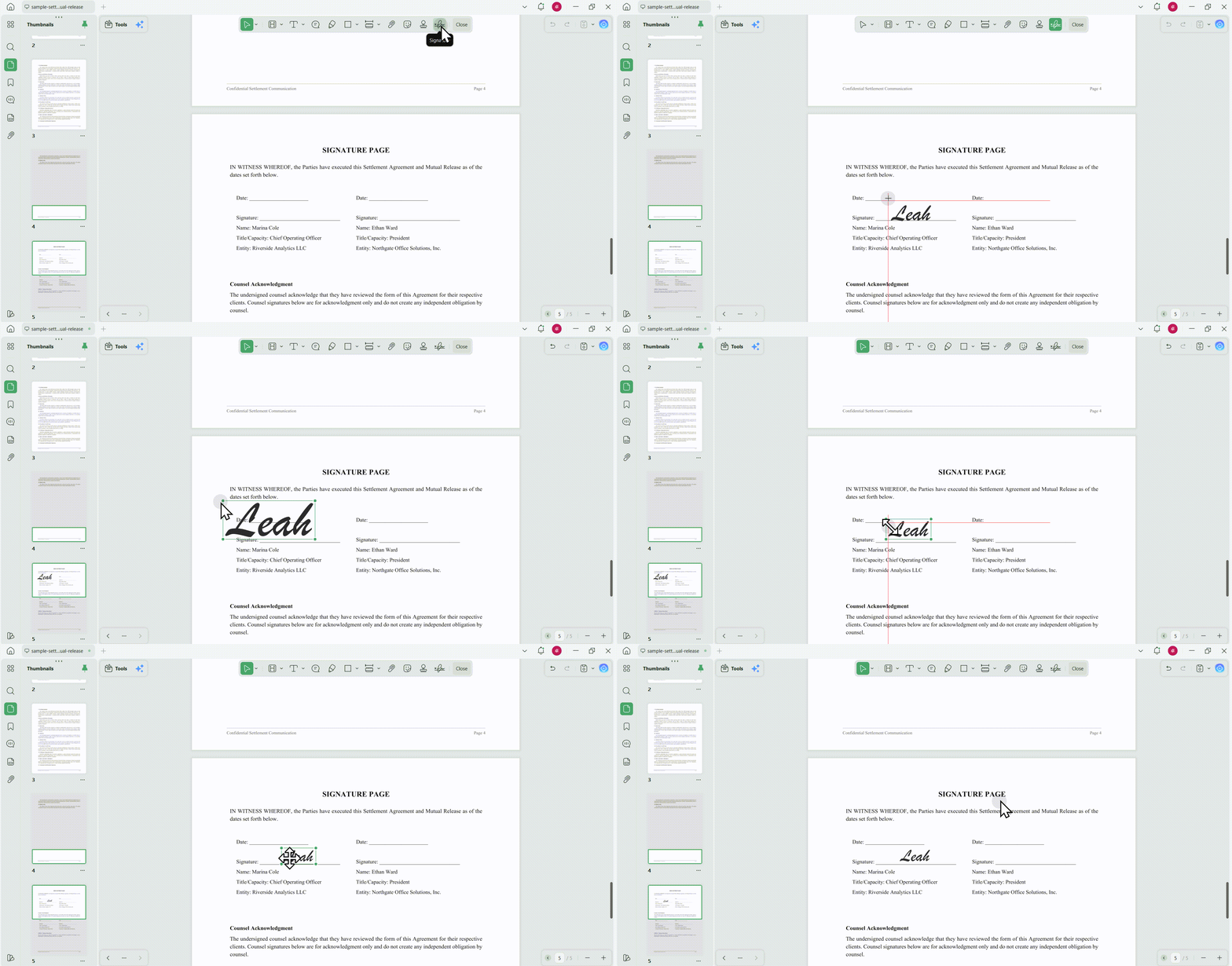
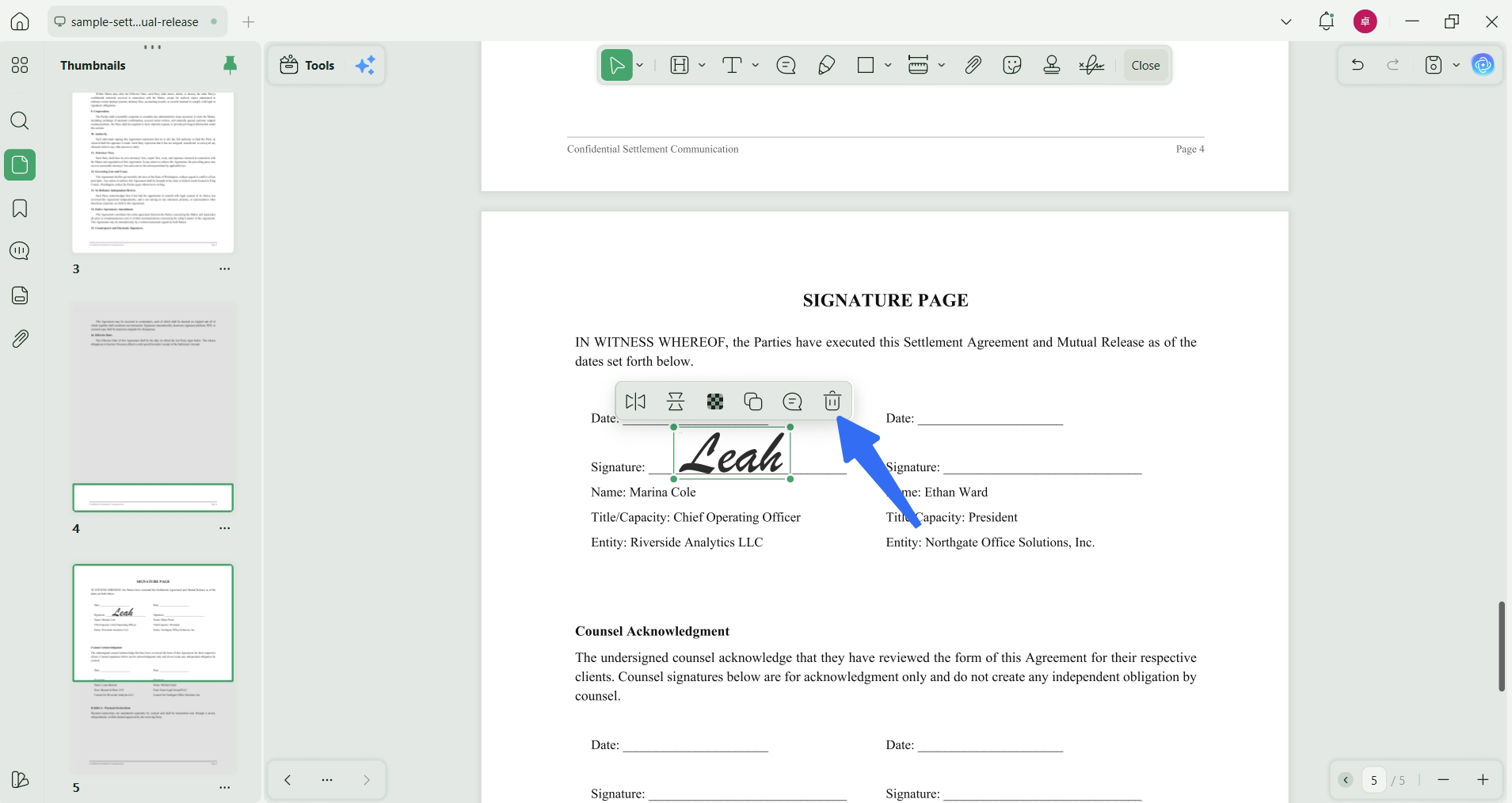
Step 3. If you want to delete the signature, simply right-click on it and choose Delete.
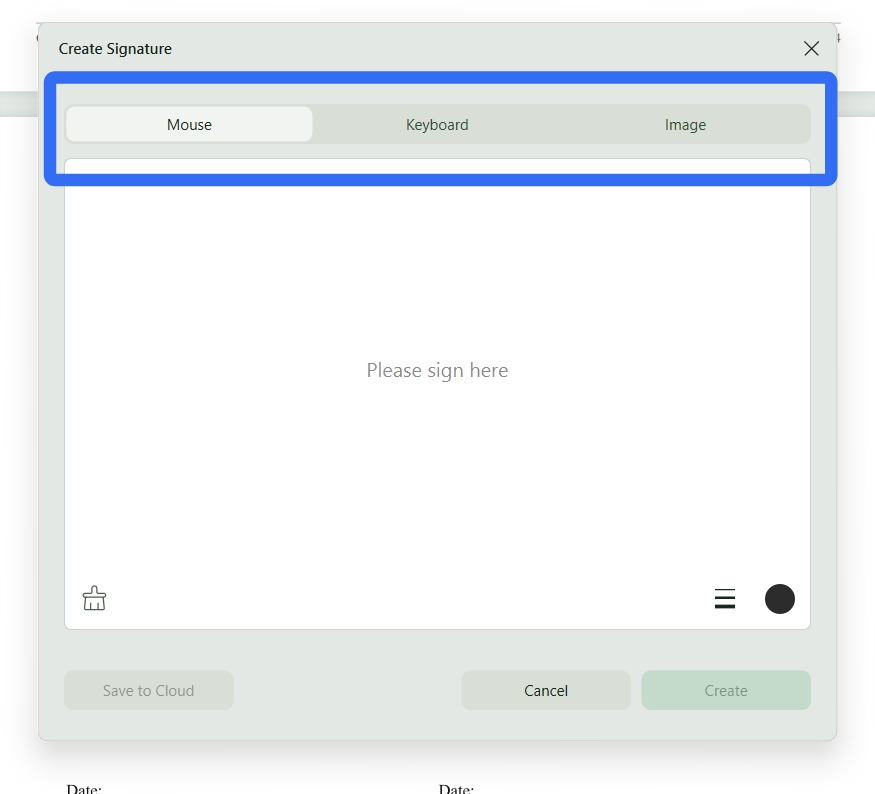
Step 4. Besides signature deletion, UPDF also offers multiple methods for creating or adding new signature.
- Draw: Use your mouse, trackpad, or touchscreen to draw a new signature directly onto the document.
- Type: Enter your name or any text as a signature. You can choose from different fonts to best match your style.
- Image: This method is especially useful if you already have a scanned or photographed version of your handwritten signature. Click on the "Image" option and upload the image file from your device.
Step 5. After selecting or creating your signature, you can customize its appearance to better fit the document including color, size, and thickness.
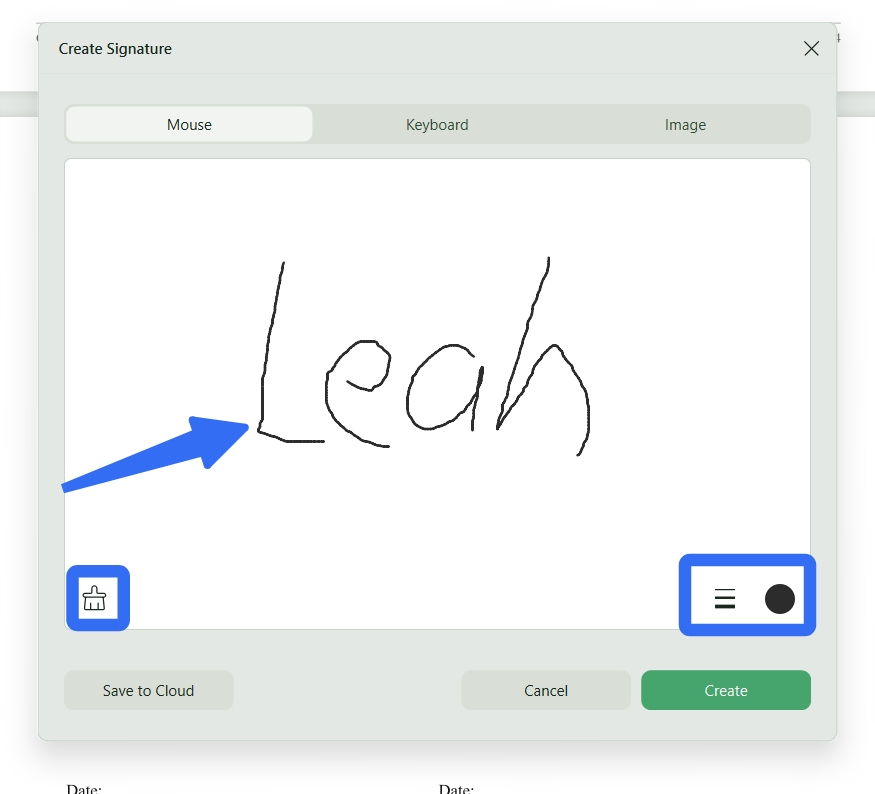
Step 6. One of the standout features of UPDF is the ability to save your signature to the cloud. By doing this, your signature becomes available across all platforms where UPDF is installed, including Windows, Mac, iOS, and Android. To save the signature to the cloud, look for the "Save to Cloud" option after you've customized your signature. This will make sure that you can easily access and insert your signature in future documents, regardless of the device you're using.
Step 7. Once you've customized your signature, click "Create" or "Apply" to finalize it.
Step 8. After you've positioned and finalized your signature, click on the "File" menu and select "Save" to preserve your changes.
Step 9. You can share the document via email, generate a secure link, or print it.
For those who need more guidance, check out the following video. By following these steps, you can efficiently edit your signature in any PDF document using UPDF.
Part 2. More Ways to Manage PDF Signatures with UPDF
UPDF supports both electronic and digital signatures.
For everyday signing, you can create an electronic signature by drawing it, typing your name, or uploading an image. If the signature remains selectable, you can reposition, resize, delete, or replace it.
For documents that require certificate-based verification, you can use UPDF to add a digital signature field and sign it with a new or imported Digital ID.
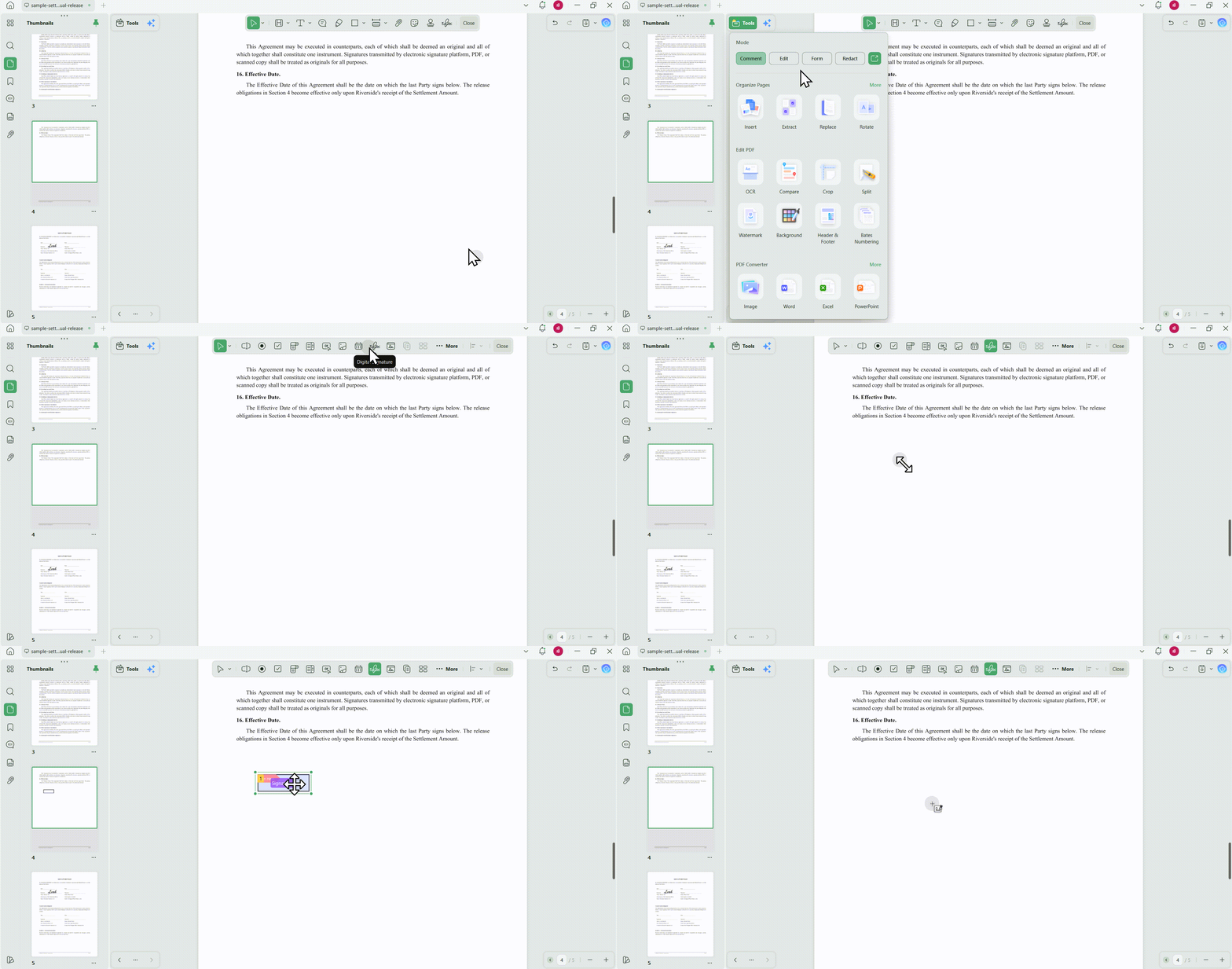
UPDF also includes tools for editing PDF text and images, filling forms, adding annotations, applying redactions, organizing pages, converting files, and using OCR on scanned PDFs. This allows you to prepare and sign a document in the same application.
A visual example can make the move from reviewing a document to signing it less confusing. The next video takes a practical look at editing PDF content in UPDF.
Windows • macOS • iOS • Android 100% secure
Part3: FAQs About Editing Signatures in PDFs
Q1. How do I redact a signature in PDF?
To redact PDF's signature using UPDF, open the document and navigate to the "Redact" tool. Select the signature area and apply the redaction. This will permanently remove the visible signature from the document, ensuring that it cannot be seen or recovered.
Q2. How do I make a PDF editable after digital signature?
You can and cannot edit a digitally signed PDF. If the PDF is signed via digital ID or certificate, it is locked to avoid changes in the document. However, if you are the only signer, you can remove the signature and edit the PDF.
Q3. How do I edit a DocuSign PDF after signing?
Once a PDF is signed using DocuSign, it is usually locked to prevent further edits. To make changes, you must either use a new version of the document or remove the signature if allowed. UPDF can help unlock form fields or redact elements for further editing.
Conclusion
Editing signatures in PDFs doesn't have to be a daunting task. With UPDF, you can easily unlock fields, update signatures, and make necessary changes without hassle. This powerful tool not only simplifies the process but also offers a range of features that set it apart from other PDF editors. If you're looking for an efficient, cost-effective way to manage your PDF documents, UPDF is the solution you need. Try it today and experience seamless PDF editing like never before.
Windows • macOS • iOS • Android 100% secure







 Enola Davis
 Enola Miller
 Enya Moore
 Enrica Taylor