UPDF
UPDF
 UPDF for Windows
 UPDF for Mac
 UPDF for iPhone/iPad
 UPDF for Android
 Nomostar
 UPDF AI Online
 UPDF Sign
 IvyCraft
 Edit PDF
 Annotate PDF
 Create PDF
 PDF Form
 Edit links
 Convert PDF
 OCR
OCR PDF to Word
 PDF to Image
 PDF to Excel
 Organize PDF
 Merge PDF
 Split PDF
 Crop PDF
 Rotate PDF
 Protect PDF
 Sign PDF
 Redact PDF
 Sanitize PDF
 Remove Security
 Read PDF
 UPDF Cloud
 Compress PDF
 Print PDF
 Batch Process
 About UPDF AI
 UPDF AI Solutions
 AI User Guide
 FAQ about UPDF AI
 Summarize PDF
 Translate PDF
 Chat with PDF
 Chat with AI
 Chat with image
 PDF to Mind Map
 Explain PDF
 PDF AI Tools
 Image AI Tools
 AI Chat Tools
 AI Writing Tools
 AI Study Tools
 AI Working Tools
 Other AI Tools
 AI Bookmark Generation
 AI Bookmark Summary
 AI Watermark Generation
 AI Background Generation
 AI Sticker Generation
 AI Stamp Generation
 AI Editing Suite
 UPDF Copilot
 AI Page Management
 AI Semantic Search
 PDF to Word
 PDF to Excel
 PDF to PowerPoint
 Enterprise Solution
 Enterprise Sign
 Enterprise AI
 Enterprise Plan
 Enterprise User Guide
 Enterprise Webinar
 IT
IT Education
 Construction
 Financial Service
 Healthcare
 Insurance
 Legal
Legal Manufacturing
 Government
 Researchers & PhDs
 Solopreneurs & Freelancers
 Lawyers & Legal Professionals
 Real Estate Agents & Brokers
 Education Solution
 Customer Stories
 User Guide
 UPDF Tricks
 FAQs
FAQs UPDF Reviews
 Download Center
 Blog
Blog Newsroom
 Tech Spec
 Updates
 UPDF vs. Adobe Acrobat
 UPDF vs. Foxit
 UPDF vs. PDF Expert

Search “PDF to JPG converter”, and dozens of tools claim top performance, yet they ignore your actual needs. They skip key context: when converting to JPG makes sense versus keeping PDFs intact, and cram pages with biased affiliate links instead of real advice.
Example: For a 12-page photo portfolio going on a website, export every page as a separate JPG, then compare text sharpness, color, file size, and page order before uploading. For a related workflow, see compare PDF-to-PNG conversion.
This guide cuts through confusion and features UPDF, a reliable all-in-one PDF converter, alongside other solid options. It delivers three core perks: a quick scenario table to match your workflow, clear use-case breakdowns, and a full roundup of free, paid, online, and offline trustworthy conversion methods.
How to Choose the Right Converter for PDF to JPG?
Picking a proper PDF to JPG converter balances quality, file safety and practical needs for personal and professional document tasks.
PDF preserves formatting perfectly but is inflexible. JPG is universally accepted but loses text layers and can degrade in quality.
Check How PDF to JPG Converters Work in Your Scenario
Test converters across online, desktop offline and built-in tools to match your PDF conversion needs perfectly.
Online PDF to JPG Converters (Free Included)
Tool 1. iLovePDF – Fast, Secure, Free (With Limits)
iLovePDF, a free PDF converter, prioritizes user privacy: it auto-deletes all uploaded files within two hours, demands no account registration, and complies with GDPR while holding ISO/IEC 27001 security certification.
Its highlights include fast processing speeds, an uncluttered interface and secure file removal, with a free tier supporting files up to 25 MB. However, the free version carries this 25 MB size cap, the tool relies entirely on internet access, and it is unsuitable for processing highly confidential files, making it ideal for students and freelancers handling casual, one-time PDF-to-JPG conversions.
Step-by-step:
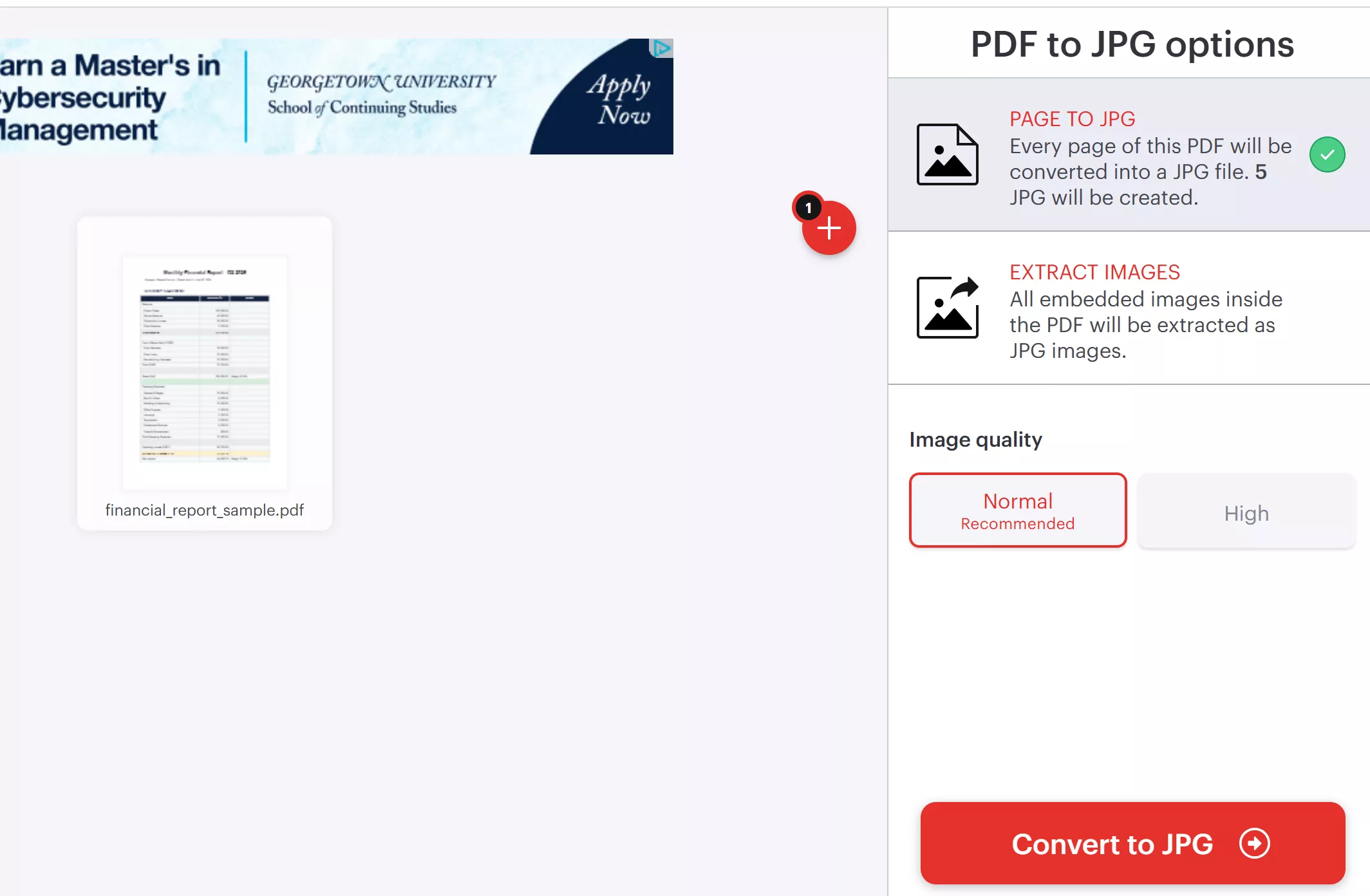
- Go to iLovePDF's PDF to JPG tool
- Click “Select PDF file” or drag and drop
- Choose between “Page to JPG” (full pages) or “Extract Images” (embedded images only)
- Select image quality (“Normal” or “High”)
- Click “Convert to JPG”
- Download the JPG files
Tool 2. Smallpdf – Popular Online Free PDF Converter
Smallpdf offers a usable free tier, seamless cloud storage connection and a tidy, intuitive user interface. Still, its free plan comes with strict usage caps, and all uploaded files will be stored on its cloud server. It works perfectly for casual users who frequently rely on cloud integration for their PDF conversion tasks.
Step-by-step:
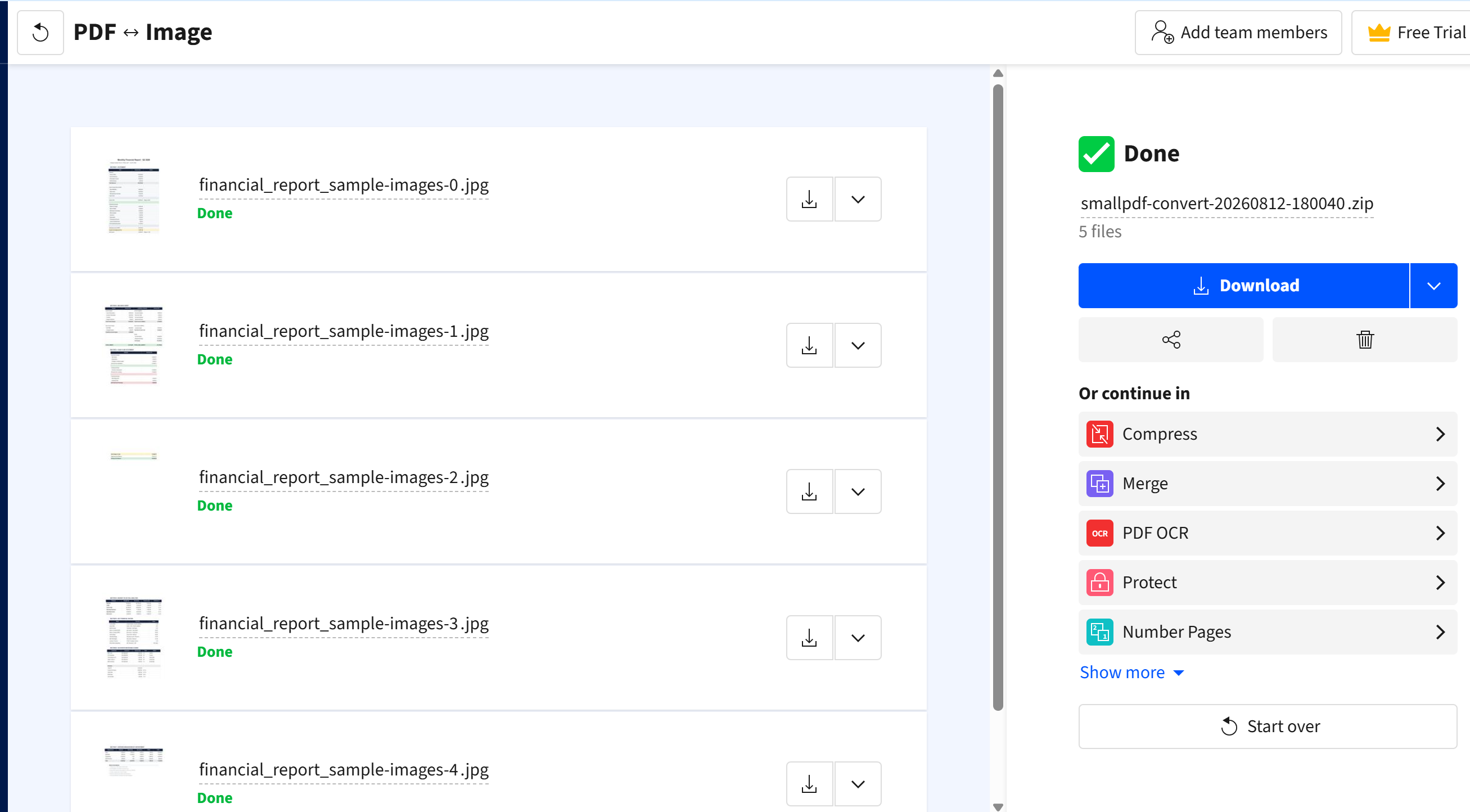
- Go to Smallpdf's PDF to JPG tool
- Upload your PDF (from device, Google Drive, or Dropbox)
- Choose between “Convert entire pages” or “Extract images”
- Click “Convert”
- Download the JPG files
Professional PDF to JPG Converters with High-Quality Output
Tool 3. UPDF – Best Cross-Platform Value
UPDF is ideal for anyone seeking a cross-platform professional PDF converter compatible with Windows, Mac, iOS and Android without recurring subscription fees.
What sets UPDF apart is its single universal license that works seamlessly across all desktop and mobile devices; it delivers adjustable DPI and JPEG quality settings, batch conversion functionality, and a sleek, easy-to-navigate interface at a far lower price point than Adobe.
Tips: You have only two conversion opportunities per day, but you can process up to two PDF files in a batch each time.
Windows • macOS • iOS • Android 100% secure
Step-by-step (Desktop – Windows/Mac):
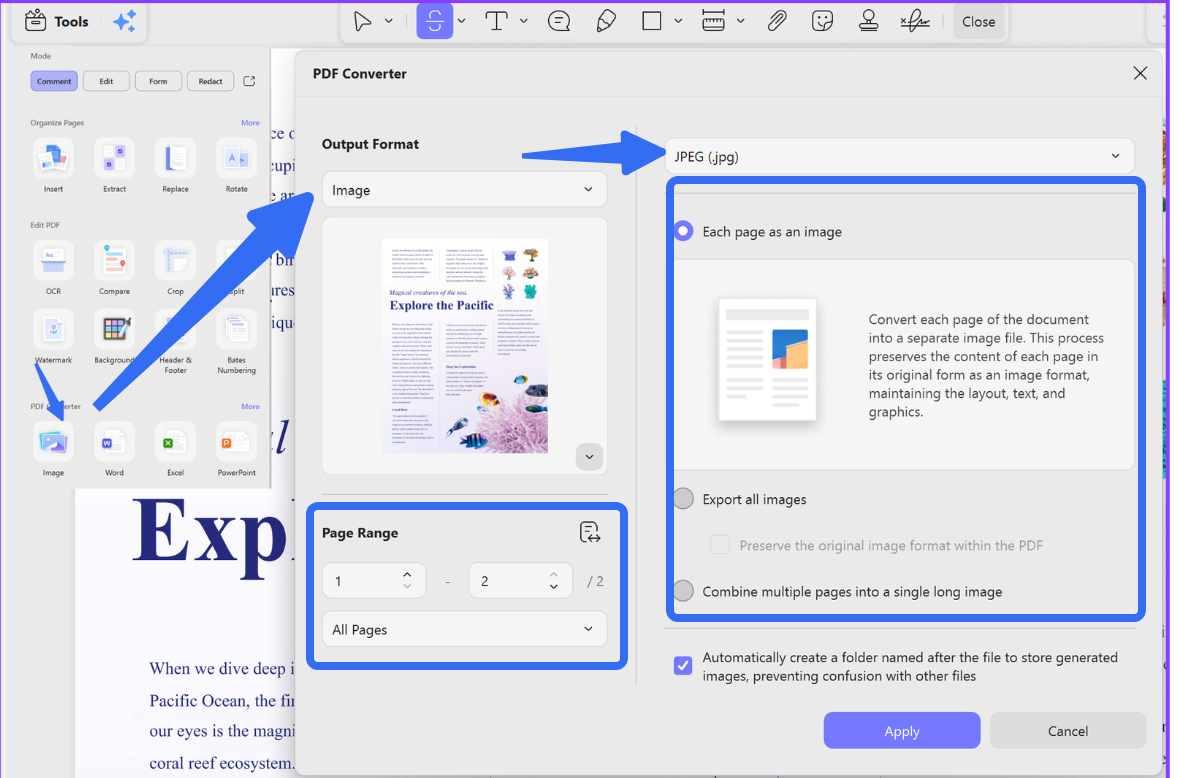
- Open UPDF and click “Open File” to import your PDF
- Click “Convert” in the top menu
- Select “Image” > “JPG” from the output options
- Choose your settings:
- Image quality: Slider from 1-100 (80-85% is the sweet spot)
- Resolution (DPI): 72 for web, 150-300 for print
- Page range: All pages, specific pages, or a range
- Click “Convert” and choose your save location
- Your JPG images will be saved as separate files (page-01.jpg, page-02.jpg, etc.)
Step-by-step (Mobile – iOS/Android):
- Open your PDF in the UPDF mobile app
- Tap the “Convert” icon
- Select “JPG” as the output format
- Choose quality settings
- Tap “Convert” – images save directly to your camera roll
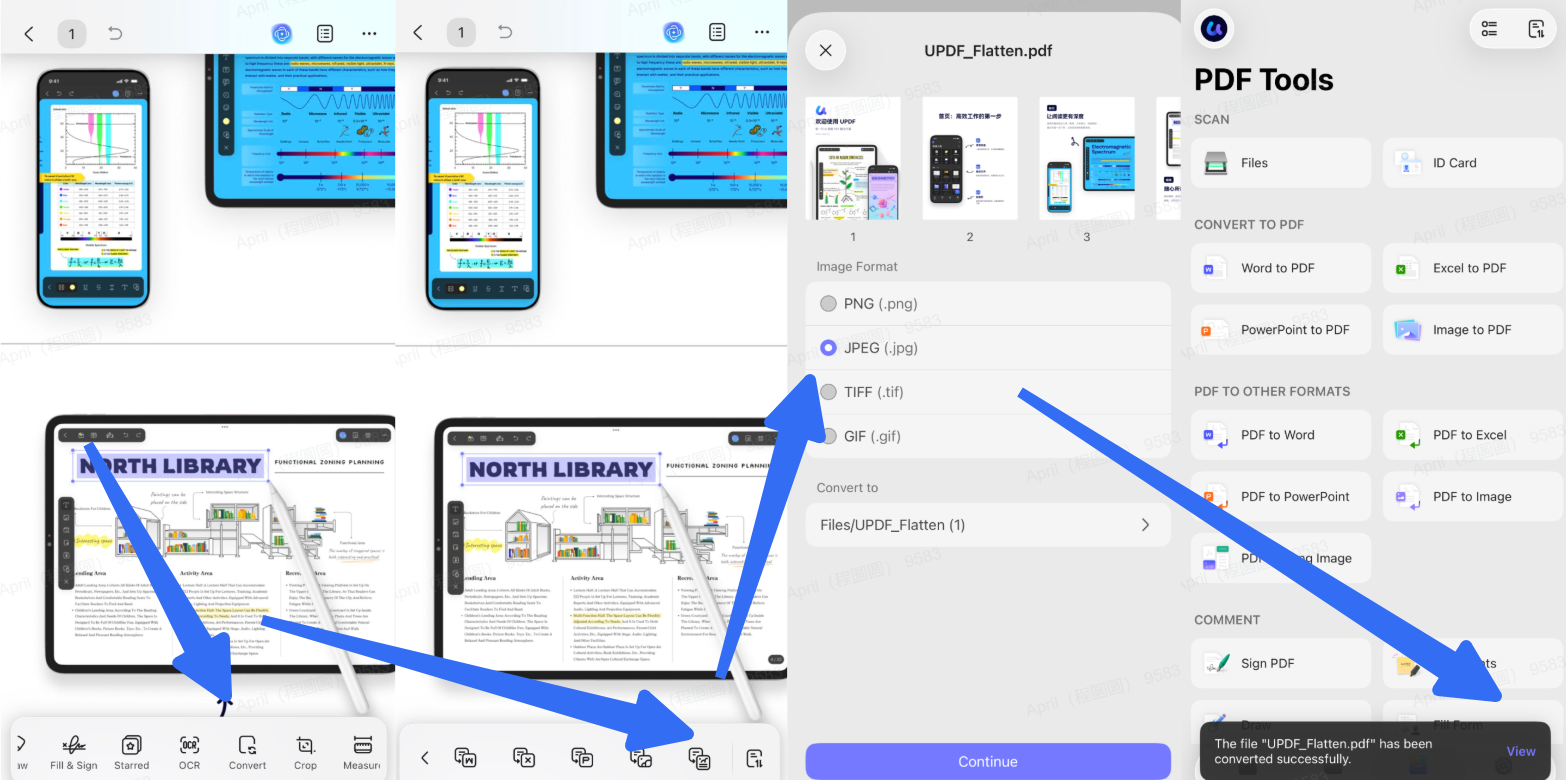
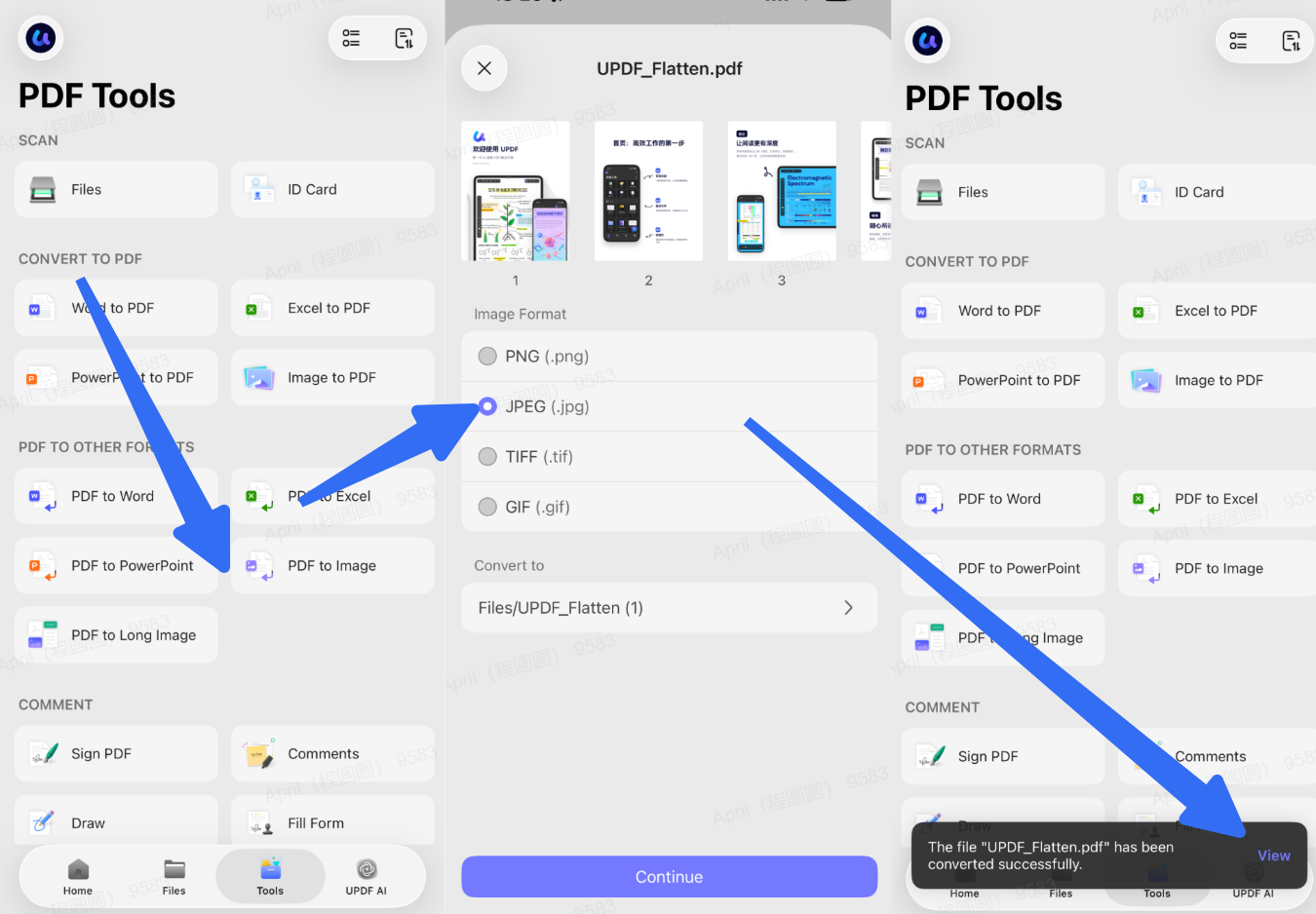
Or you can enter the Tools interface and then choose PDF to Image option, then you can choose the PDF file you want to convert to JPG by selecting or uploading.
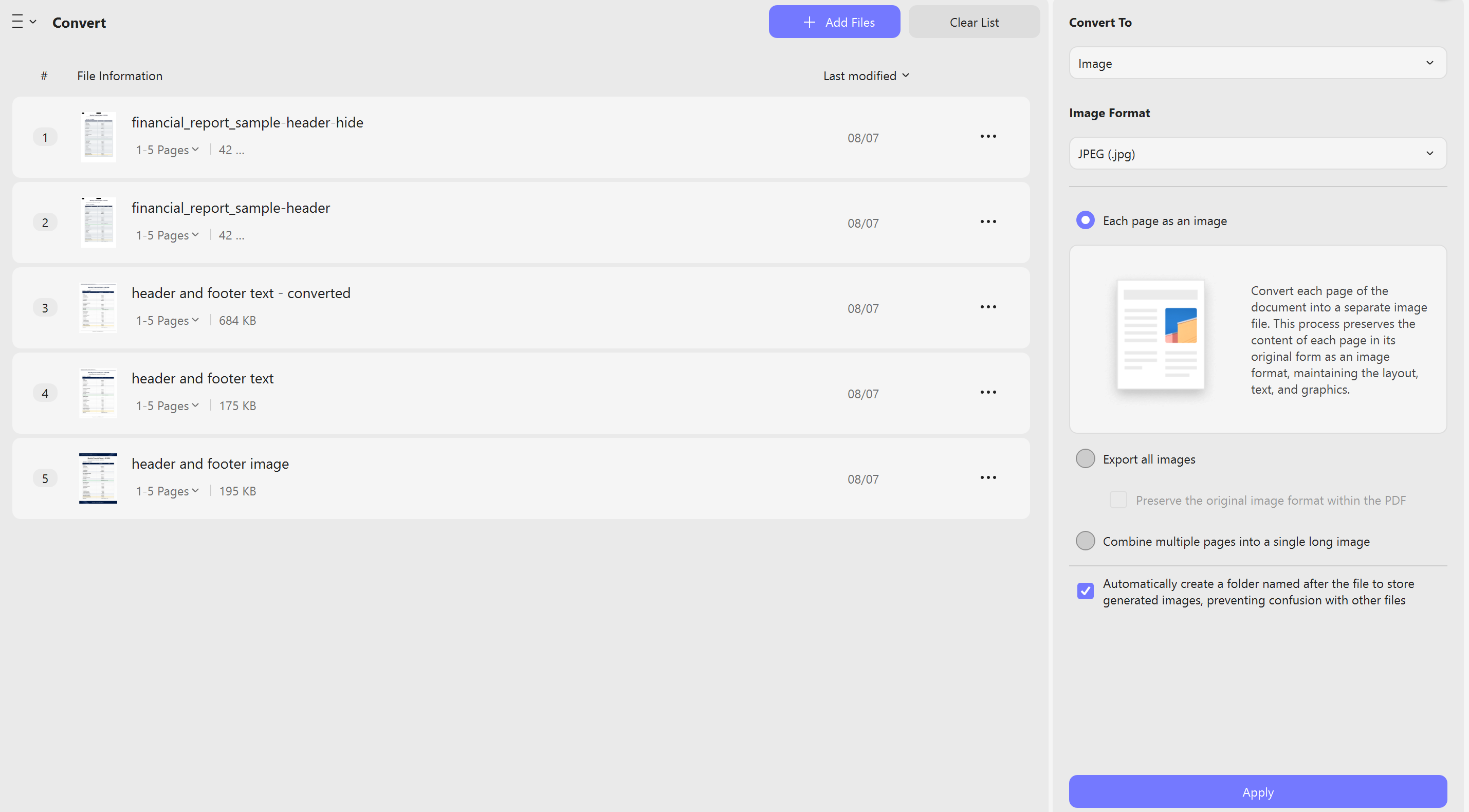
Batch conversion: Add multiple PDFs and convert them all at once, only for desktop versions. Go to Tools and then choose "Convert", add all the PDF files you want and choose Convert To JPG, then everything's done.
- True cross-platform – one license covers Windows, Mac, iOS, and Android
- Excellent value – one-time purchase option, no ongoing subscription
- Full quality control – DPI and JPEG quality sliders
- Batch conversion – handle multiple documents at once
- Modern, intuitive UI – easier to find tools than Adobe
- Mobile support – convert on the go, not just on desktop
- Privacy-first – desktop version processes files locally
Windows • macOS • iOS • Android 100% secure
Tool 4. Adobe Acrobat Pro – Industry Standard
As an industry-standard tool packed with extensive format support and adjustable DPI and output quality settings, this software supports batch processing to convert multiple PDFs simultaneously. However, it comes with notable downsides: it operates on a costly subscription model and takes up substantial device storage. It is best suited for enterprise teams and professionals who already hold active Acrobat subscriptions.
Step-by-step:
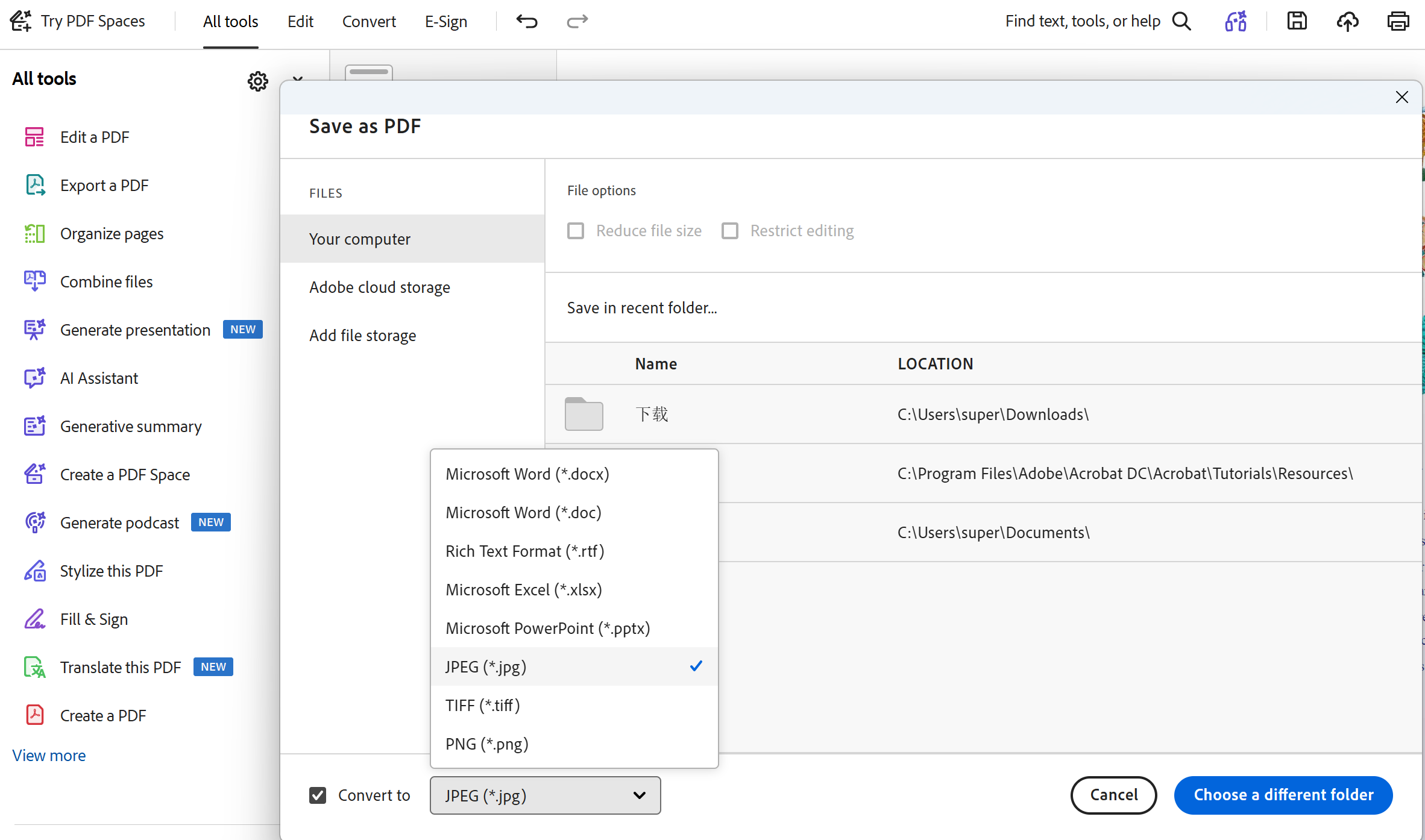
- Open your PDF in Adobe Acrobat
- Select File > Export To > Image > JPEG
- Choose your settings (quality, DPI, color space)
- Click Export
- Select a save location
Tool 5. PDF24 Creator – Free Desktop Suite
This fully offline converter runs all file processing locally on your device for strong privacy and supports batch conversion of multiple files with zero charges. Its only drawbacks are Windows-only compatibility and a purely functional, unrefined interface, making it a perfect pick for Windows users hunting for a free offline PDF conversion tool.
Step-by-step:
- Download and install PDF24 Creator
- Open the PDF to JPG tool
- Upload your PDF
- Choose output settings (quality, DPI)
- Click “Convert”
- Save your JPG files
Built-in PDF to JPG Converters on Windows/Mac
Tool 6. Mac Preview (macOS Built-in)
This native Mac tool is entirely free, pre-installed on devices and usable offline without extra setup. On the downside, it only handles single-file conversion at a time and lacks adjustable DPI settings.
Step-by-step:
- Open your PDF in the Preview app
- Go to File > Export
- Choose JPEG from the Format dropdown
- Adjust the Quality slider (higher = better quality, larger file)
- Click Save
Tool 7. Microsoft Edge
This native Microsoft utility comes completely free and requires no extra installation, yet it cannot perform genuine batch conversions, as users must capture every single page separately.
Step-by-step:
- Open your PDF in Microsoft Edge
- Edge doesn't natively save as JPG – use the “Capture” tool or screenshot each page
What Actually Happens When You Convert PDF to JPG?
Understanding this prevents disappointment. The conversion isn't magic – there are trade-offs. PDF ≠ JPG – they're fundamentally different.
| Feature | JPG | |
|---|---|---|
| Text layer | ✅ Searchable, selectable | ❌ Text becomes pixels (not selectable) |
| Vector graphics | ✅ Scalable without quality loss | ❌ Rasterized – loses quality when scaled up |
| File size | Often larger | Can be smaller with compression |
| Universal compatibility | Requires PDF reader | ✅ Any device, any browser |
| Multiple pages | ✅ Single file, many pages | ❌ One image per page |
Critical insight: Once you convert a PDF to JPG, you lose the text layer. Recipients cannot search, copy, or select text from the JPG. If they need searchable text, keep the PDF.
There are two types of PDF-to-JPG conversion: page-to-JPG conversion turns every page of a PDF into an individual JPG file, which works best when you need complete page visuals for scenarios like social media posting or presentations; by contrast, image extraction only pulls out embedded photos within the PDF instead of exporting full pages, ideal for reusing the original pictures stored in the document.
When converting, two settings control quality:
💡 UPDF makes this easy: You can adjust both DPI and JPEG quality with simple sliders, so you don't need to guess the right settings.
Windows • macOS • iOS • Android 100% secure
Why Isn't Your Conversion Working?
Below is a breakdown of frequent conversion errors, their root triggers, and targeted solutions for smooth PDF-to-JPG exporting, sorted by practical troubleshooting priority:
- Blurry exported JPG files. Reason: Insufficient DPI value or low image quality parameter. Fix: Boost DPI to 300 for printing use or 150 for web sharing; set image quality to 85%.
- Excessively large output file size. Reason: Overly high DPI or quality value. Fix: Reduce JPEG quality to 80–85%. Quality settings over 90% greatly inflate file size with no noticeable visual upgrade.
- Blank pages appearing in converted results. Reason: Damaged PDF file structure, especially documents generated by ChatGPT. Fix: Modify resolution parameters or switch to another conversion tool.
- All output images turn black. Reason: Source PDF made via Simple Scan with embedded pictures. Fix: Change conversion software, or export files in PNG format as an alternative.
- Lost fonts or blank form fields after conversion. Reason: The original PDF lacks complete font appearance streams. Fix: Embed all fonts within the PDF before starting conversion.
- Failed export in Adobe Acrobat. Reason: The built-in Protected Mode function is activated. Fix: Navigate to Edit > Preferences > Security (Enhanced), then untick the “Enable Protected Mode at startup” option.
- Fuzzy visuals or mismatched image dimensions. Reason: Improper parameter setup mismatched with your usage purpose. Fix: Preview conversion effects on the most complex PDF page first, instead of simple pages.
- Unsearchable text in finished JPG images. Explanation: This is an inherent limitation of JPG, a pure image format with no editable text layer. Tip: Retain the original PDF file if you need searchable text content.
- Security risks from online conversion platforms. Reminder: Official warnings note that fraudulent online converters may steal confidential document data. Solution: Choose well-established, trustworthy tools, or use offline converters when processing sensitive files.
🔐 FBI Warning on Online Converters
In March 2025, the FBI issued a warning about criminals using free online document converters to install malware and steal personal data. Malwarebytes confirmed that specific fake converter sites distributed ransomware through Google Ads. Even MIT's IT department advises against using online file conversion websites for institutional documents.
If your document is sensitive – contracts, financial reports, medical records, legal documents – use an offline tool like UPDF. Never upload sensitive files to any online converter.
Frequently Asked Questions
Does converting PDF to JPG reduce quality?
It can. JPG uses lossy compression, so choose a suitable resolution and quality setting, especially for small text and line art.
Can I convert every PDF page into a separate JPG?
Yes. Most converters create one JPG per page and package multiple outputs in a folder or ZIP file.
Should I use JPG or PNG for PDF pages?
Use JPG for photographs and smaller files; use PNG for diagrams, screenshots, transparency, or text that needs sharper edges.
Conclusion
Choosing the right PDF to JPG converter can be a game-changer. It can save you a lot of time and effort.
UPDF encompasses all the essential elements for a top-notch experience. Whether you're a student, professional, or business owner, UPDF caters to your needs perfectly.
Windows • macOS • iOS • Android 100% secure


 Enrica Taylor
 Enya Moore
 Enola Davis
 Enid Brown