 UPDF
UPDF
 UPDF for Windows
 UPDF for Mac
 UPDF for iPhone/iPad
 UPDF for Android
 UPDF AI Online
 UPDF Sign
 Edit PDF
 Annotate PDF
 Create PDF
 PDF Form
 Edit links
 Convert PDF
 OCR
OCR PDF to Word
 PDF to Image
 PDF to Excel
 Organize PDF
 Merge PDF
 Split PDF
 Crop PDF
 Rotate PDF
 Protect PDF
 Sign PDF
 Redact PDF
 Sanitize PDF
 Remove Security
 Read PDF
 UPDF Cloud
 Compress PDF
 Print PDF
 Batch Process
 About UPDF AI
 UPDF AI Solutions
 AI User Guide
 FAQ about UPDF AI
 Summarize PDF
 Translate PDF
 Chat with PDF
 Chat with AI
 Chat with image
 PDF to Mind Map
 Explain PDF
 Scholar Research
 Paper Search
 AI Proofreader
 AI Writer
 AI Homework Helper
 AI Quiz Generator
 AI Math Solver
 PDF to Word
 PDF to Excel
 PDF to PowerPoint
 Enterprise Solution
 Enterprise Sign
 Enterprise AI
 Enterprise Plan
 Enterprise User Guide
 Enterprise Webinar
 Banking
 Healthcare
 Insurance
 Legal
Legal Manufacturing
 Government
 Education Solution
 Customer Stories
 User Guide
 UPDF Tricks
 FAQs
FAQs UPDF Reviews
 Download Center
 Blog
Blog Newsroom
 Tech Spec
 Updates
 UPDF vs. Adobe Acrobat
 UPDF vs. Foxit
 UPDF vs. PDF Expert


Can't figure out how to search in a scanned PDF that says, 'This page contains only images'? Or you've tried to search for words using the Windows Find feature or CTRL + F, but nothing worked? You must have been searching in a scanned PDF. If you're wondering how to search in scanned PDF documents, we've got you covered! Let’s walk through the most effective ways to make scanned PDFs searchable using UPDF.
Windows • macOS • iOS • Android 100% secure
How to Search for Words in a Scanned PDF?
The thing is, scanned documents don't have any text in them! Since it's just a picture of the document, there's no actual text for Windows to index.
To make your PDF searchable, you have to run text recognition to make the content on the page searchable and editable. You can use any OCR (Optical Character Recognition) function software. It goes through the scanned document, identifies anything resembling a letter or a word, and turns it into actual text.
Multiple PDF editors offer this ability, but we recommend UPDF - your all-in-one PDF solution! It's an AI-powered OCR feature that converts your scanned PDFs, paper documents, and images to searchable and editable PDFs with three output layouts to make it interactive and fulfill all your needs. Get to know more about UPDF's OCR feature by reading this article. Download UPDF first before we get started to introduce the instructions.
Windows • macOS • iOS • Android 100% secure
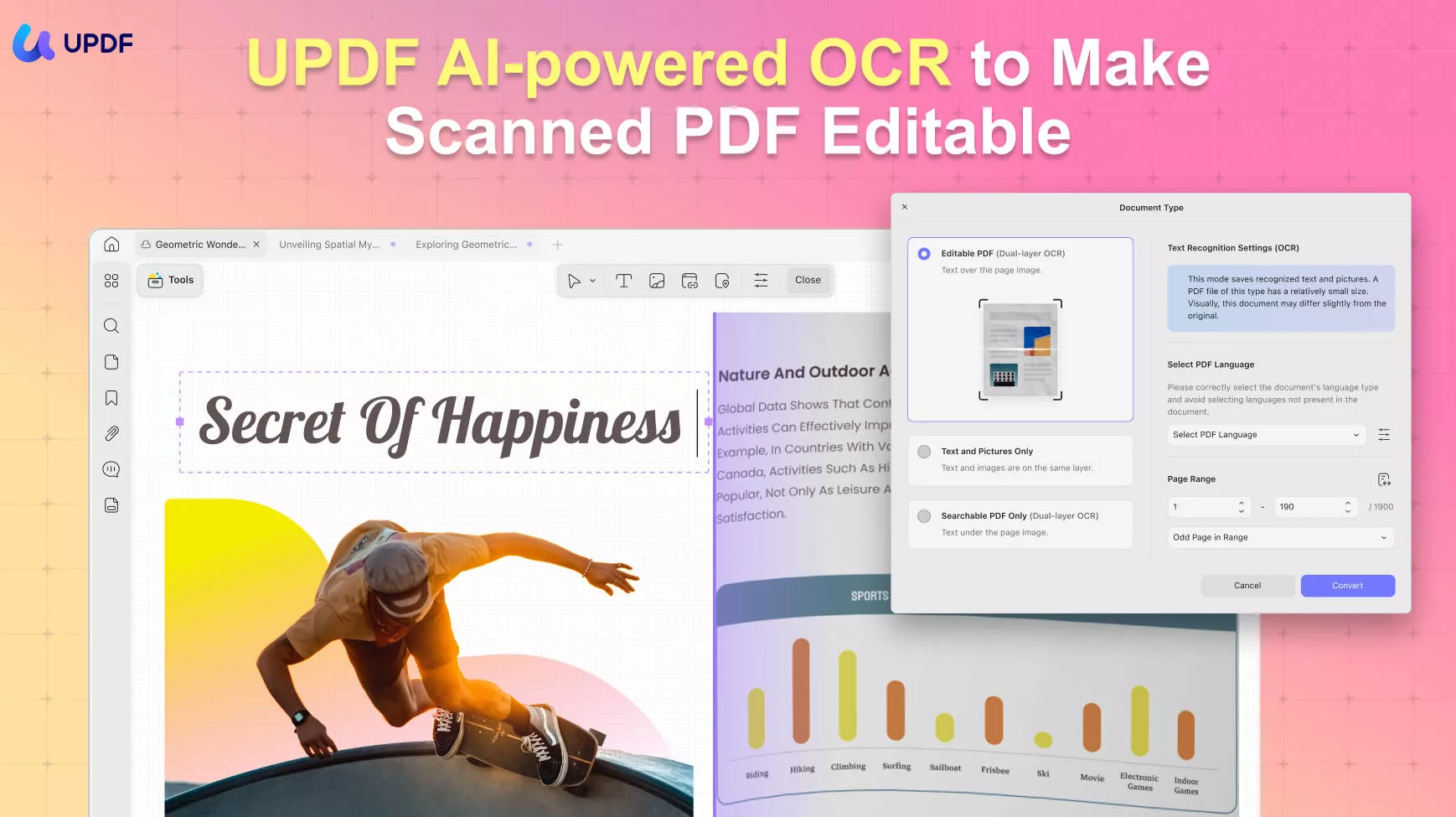
Here are some impressive features of this OCR software:
- Up to 99% Accuracy: UPDF's advanced OCR technology offers high-accuracy results!
- The Highest OCR Speed: Who doesn't want to save time? UPDF understands this; thus, its conversion is super swift relative to the competitors.
- Small Size Output with High Quality: The size of the converted PDF document is much smaller than its original!
- Supports 38 Languages: It also supports bilingual documents and allows you to select multiple language sets.
Apart from all this, it also reads, organizes, and annotates your PDF and can convert scanned PDFs of any size! So, what are you waiting for? Follow the simple steps below on how to search words in scanned PDFs and get your issue resolved now! All it takes is a few simple steps, and you'll be done quickly!
Make a PDF Searchable on Desktop
Step 1: Open PDF and Access to the OCR Icon
Click on "Open File" to import the PDF. You can also use the shortcut Ctrl + or Cmd + O.
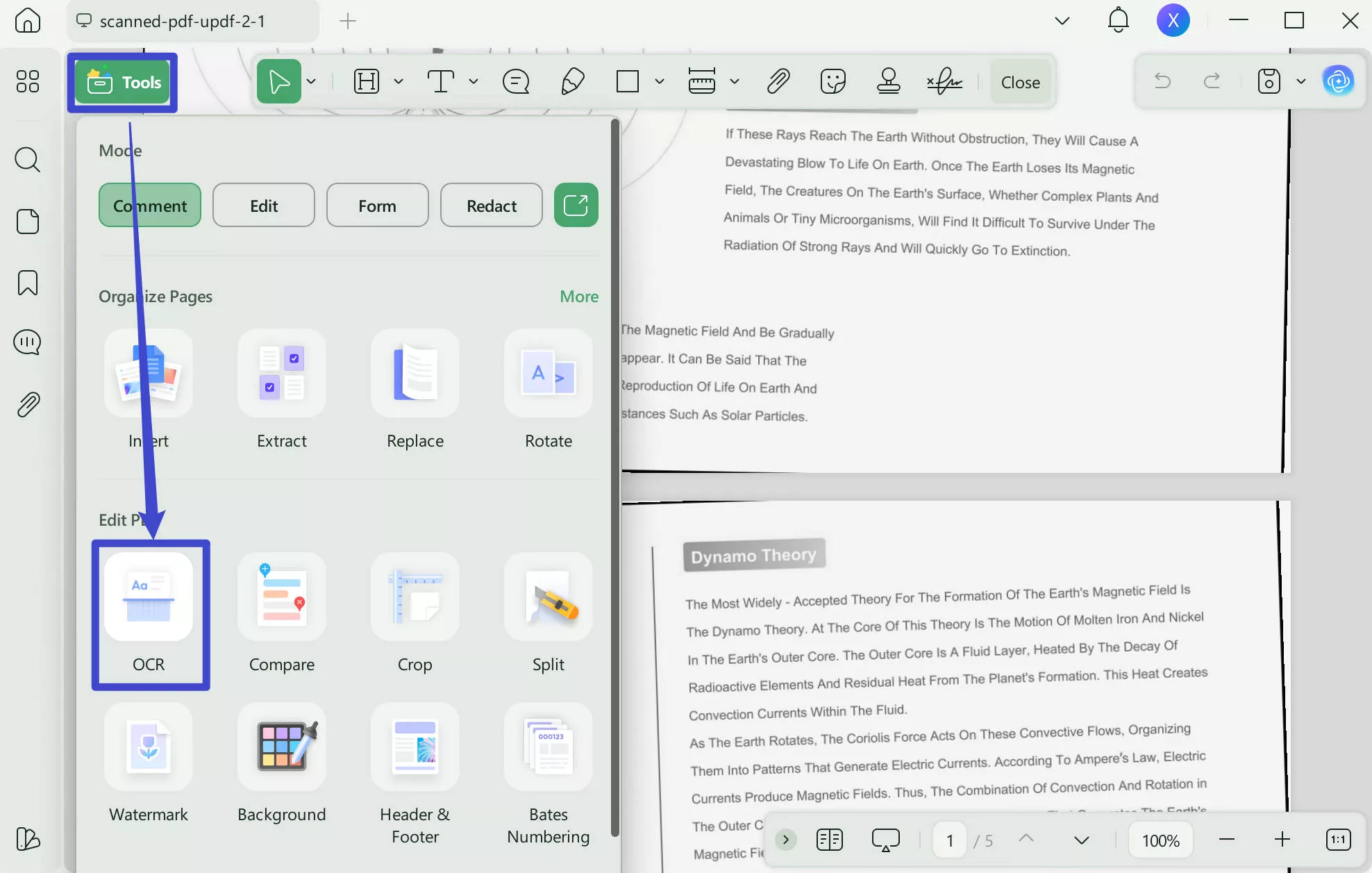
Click the "OCR" option in "Tools" on the left toolbar. (If this is your first time using this feature, it will lead you to download a plugin. Download in the following window, and wait for it to install.)
Step 2: Turn the Scanned PDF into Searchable
You can choose Editable PDF, Text and Picture Only, Searchable PDF Only. If you want to edit the scanned pdf, you need to choose the "Editable PDF", as this converts scanned documents into editable.
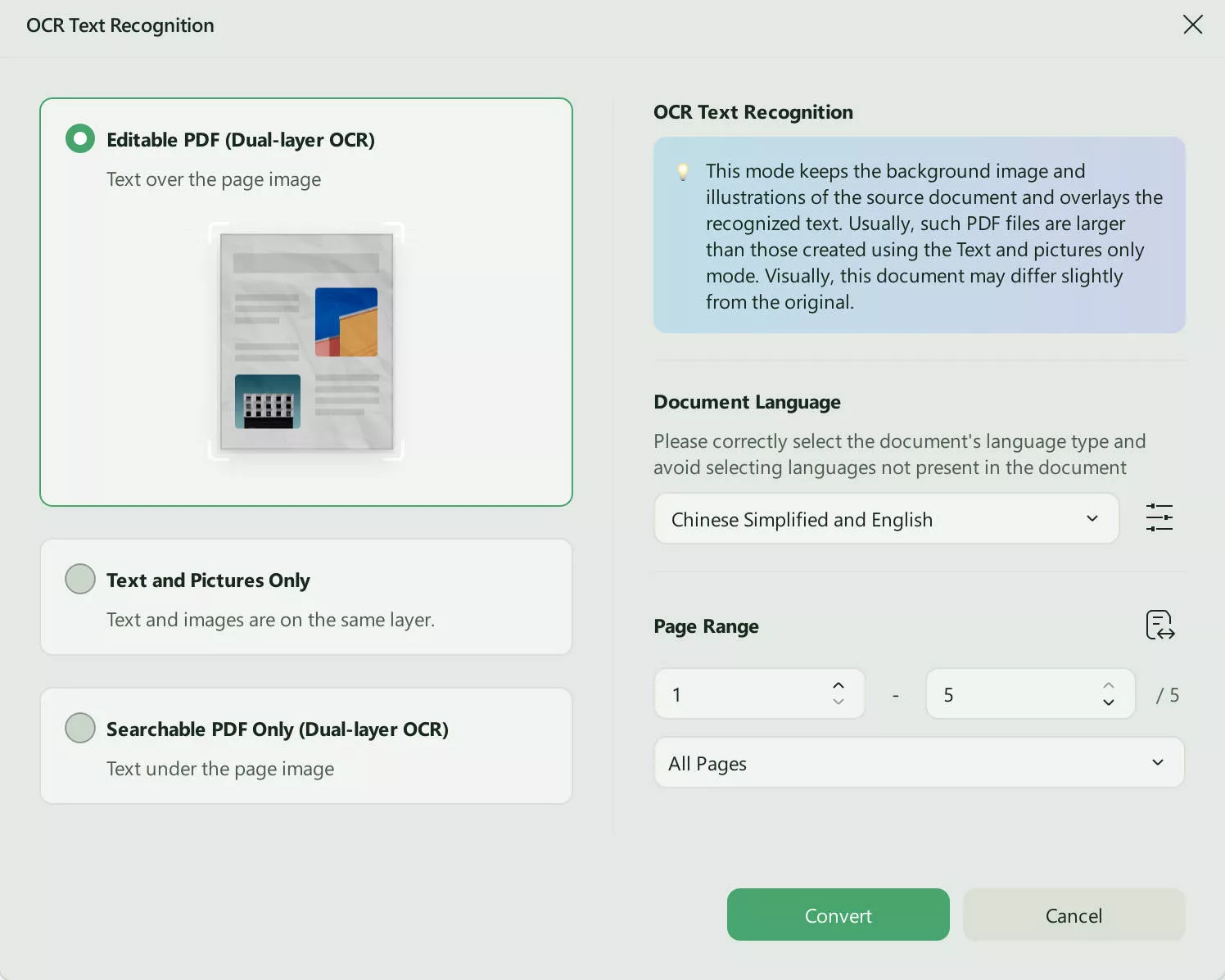
You must also decide on Document Language that matches your source language, and select the Pape Range.
Click on the "Convert" option, then select a location where you want to save the file and click "Save".
Step 3: Search Words in the Scanned PDF
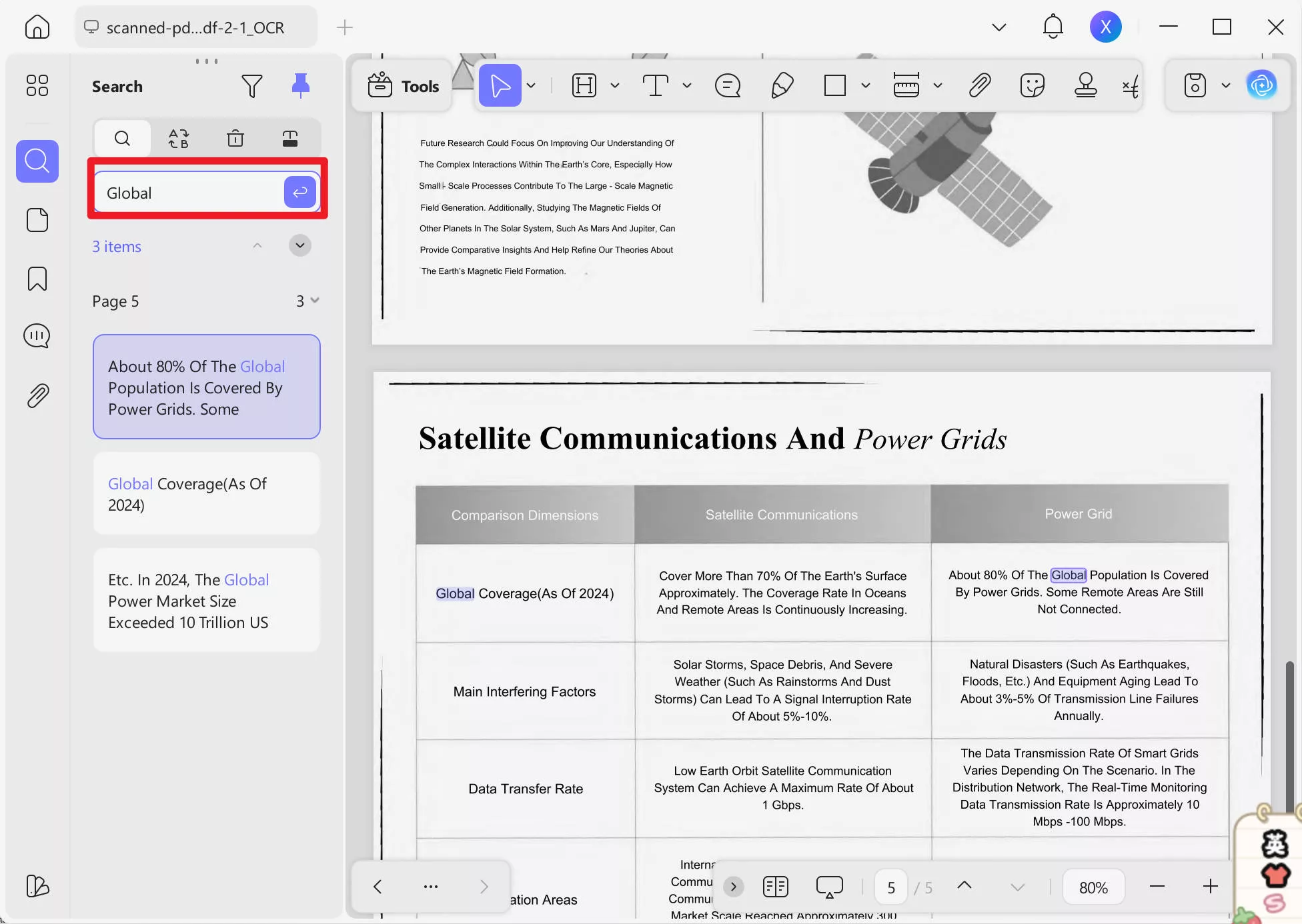
After performing OCR, the searchable PDF file will be open automatically in UPDF. Now, you can search in the scanned PDF for your desired words by clicking Ctrl + F or the Search icon in the top right corner.
Enter the word you want to search and it will show all the results on this document. You can click any result to jump to the page directly. This is how you find words in PDF with ease.
Note
You can transform multiple scanned PDFs into searchable documents with UPDF's batch OCR feature. Simply go to "Tools" in UPDF interface and choose "OCR", add all the files you want to convert to searchable PDF formats, choose the right document language and click "Apply". Now you can use the method mention above to search PDF on UPDF.
Make a PDF Searchable with UPDF Mobile
With UPDF’s mobile app, you don’t need a desktop to access this power: the OCR tool is built right in, letting you search word from your scanned PDF. In the steps below, we’ll show you the steps.
Step 1: Download UPDF app from App Store or Google Play. Open your scanned document in UPDF app, and select OCR from the bottom menu.
Step 2: As it opens up, it will provide you with three different document options of "Editable PDF", "Text and Pictures Only", "Searchable PDF Only". Select your desired mode and the correct document language to ensure accurate OCR results. Afterward, click "Continue" to proceed.
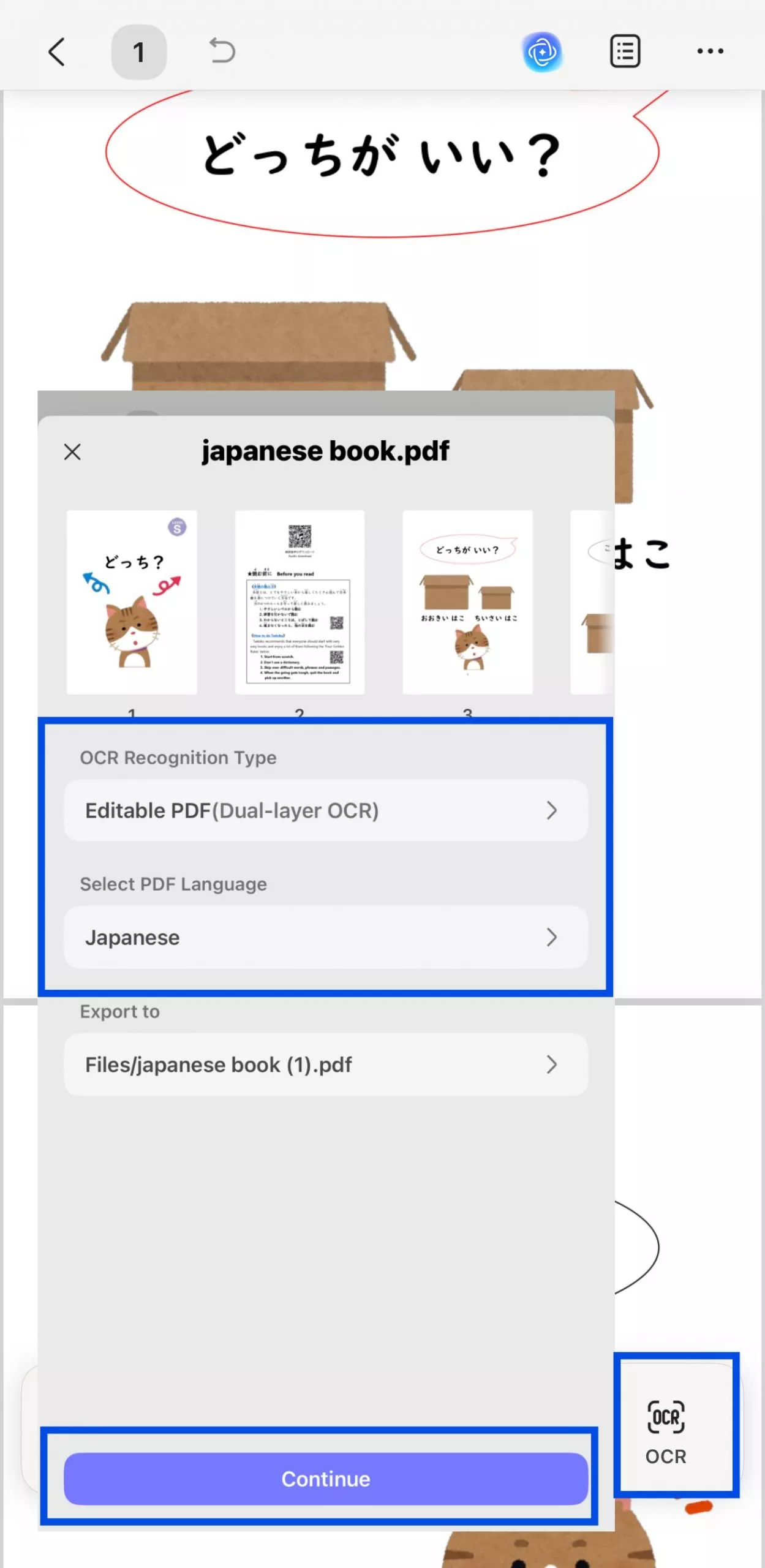
Step 3: Then, click "Done" to make your scanned document searchable and open the new file on UPDF mobile.
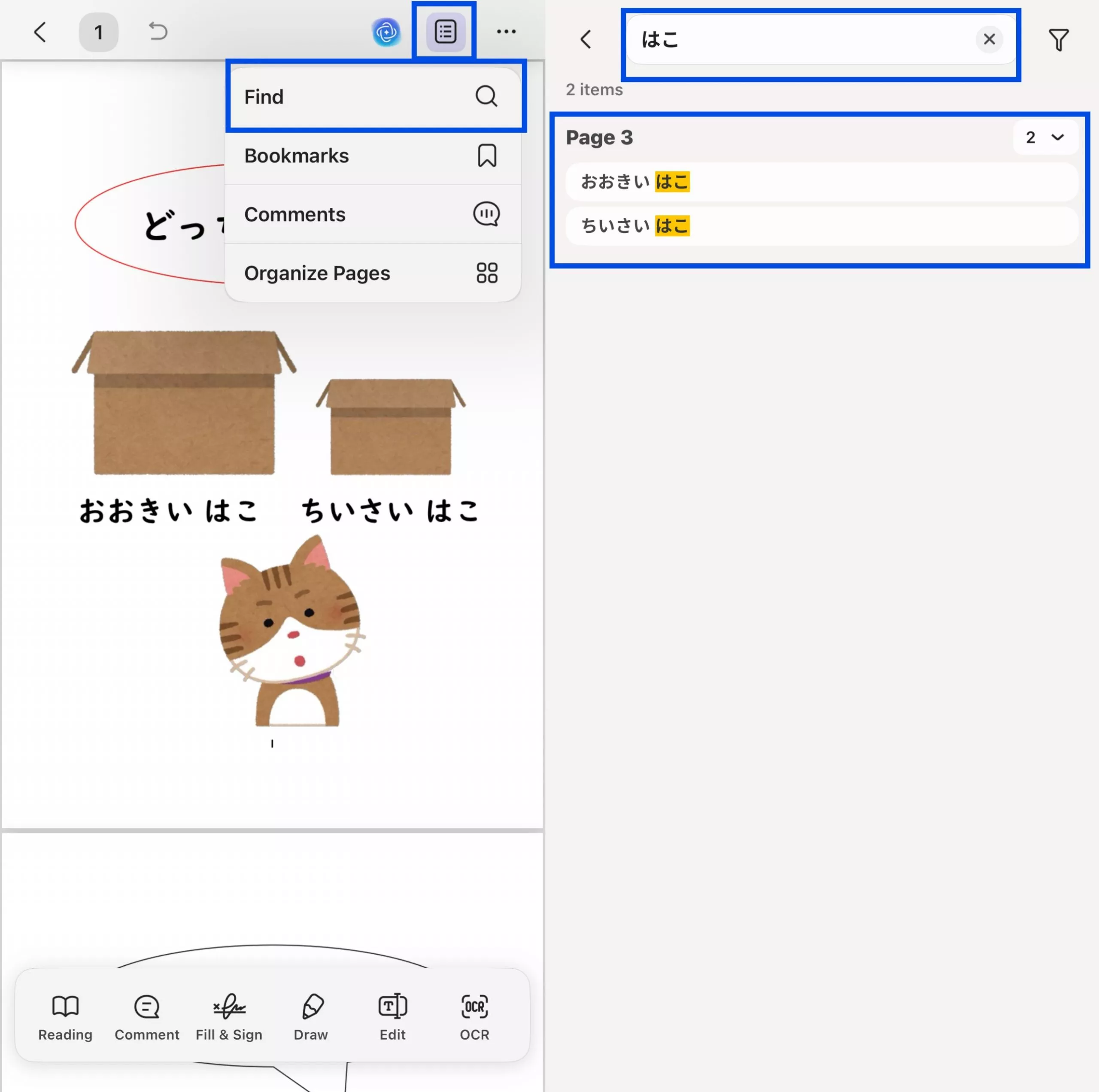
Step 4: Next, click the "Menu" icon from the top and click "Find". Enter the keyword in the input area to search words in the scanned PDF.
Make a Scanned PDF searchable with UPDF AI
If you don’t want to download the software, you can also use UPDF AI Online to convert your scanned documents to Word/Excel/PPT online and then search words in your Microsoft Word, PowerPoint or Excel software. UPDF AI will perform automatic OCR during this process. The UPDF AI free plan includes 100 prompts. You can click the button below to try it out for free and let the AI extract scanned text from your document.
Step 1. Initiate the procedure by getting access to the main interface of UPDF AI’s “New Chat” feature. Then upload the PDF that you want to convert.
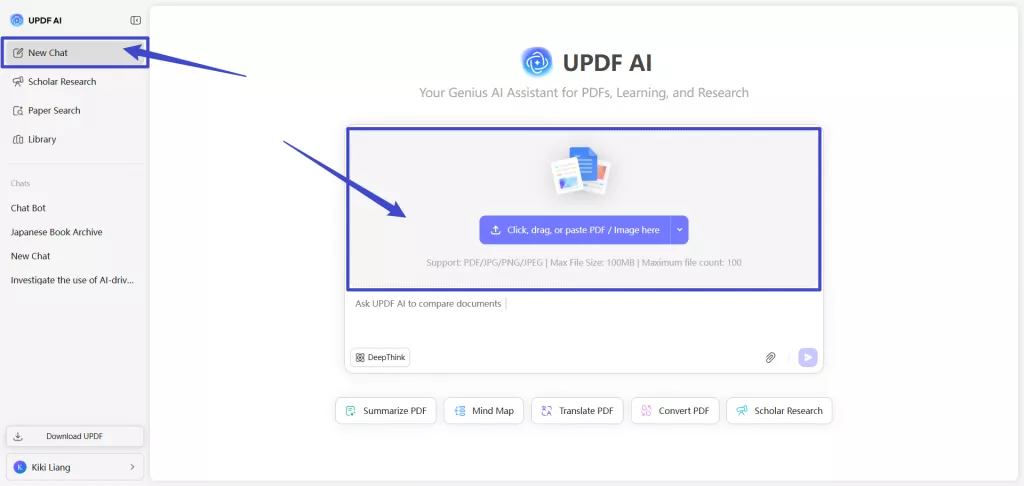
Step 2. Once the PDF is uploaded, pick the “Convert this file to Word format” prompt or simply write “Convert this file to PPT/Excel format” prompt and hit the “Send” icon.

Step 3. Now, UPDF AI will give you the converted file which you can save by tapping the “Download” icon. Using the “Convert PDF” icon, convert the uploaded file into other desired file formats as well. For this, pick the desired conversion format, such as PDF to Excel.
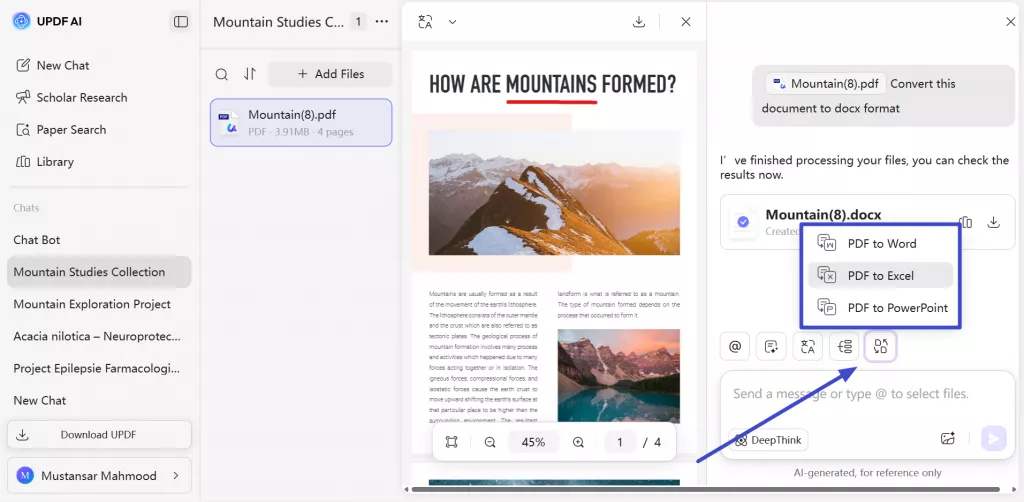
Step 4. Afterwards, you just have to select the uploaded file and hit the Convert PDF button to get the converted document.
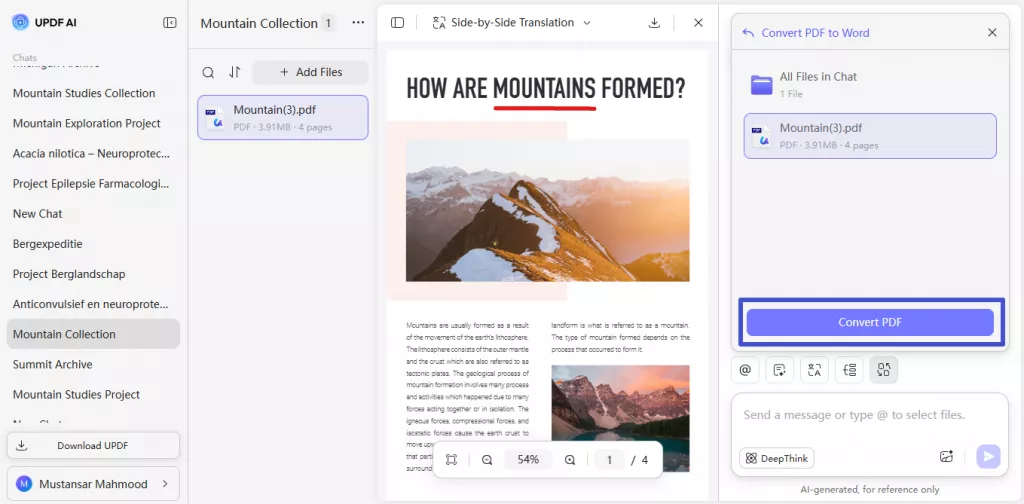
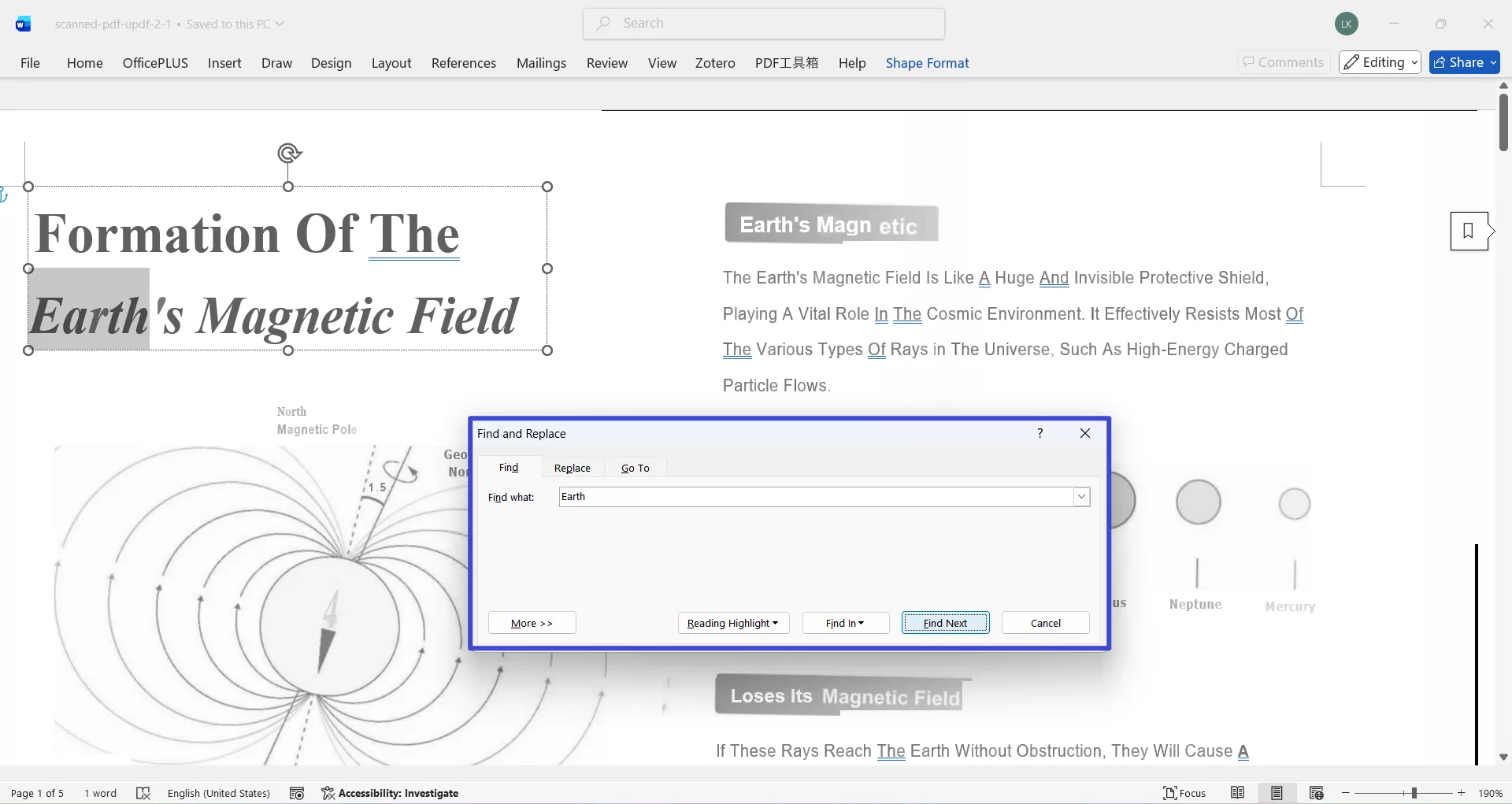
Step 5. Now, UPDF AI will give you the converted file for download. Simply tap the Download icon to download and open it on your Microsoft Word, PowerPoint or Excel software.
Step 6. Once opened, press CTRL (/CMD) + F to search words.
To learn more about how to OCR a pdf, watch the below video guide.
Bonus
Tip: Which Layout Should I Choose When Performing OCR?
For Searchable PDFs, you have to choose a proper layout depending on which purpose or situation you're using the layout for. By using the available options, you can choose either of the following:
Editable PDF
This mode keeps both the text it figures out and the pictures, then packs them into a PDF that’s usually way smaller. Just heads-up, though—when you look at it, it might not look exactly like the original page, there could be tiny layout or color shifts here and there.
Text and Picture Only
This mode hangs on to every background picture and illustration from the original file and then just slaps the recognized text right on top. Because of that, the PDFs you get are usually chunkier—bigger file sizes—than the ones made with the Text-and-pictures-only option. And if you look closely, the final doc might look a teeny bit different from the original, nothing huge, but you’ll notice it.
Searchable PDF Only
With this setting, the actual page picture sticks around, and the text that got recognized just slips into a see-through layer right under that picture. To your eyes, the file looks almost exactly like the original one—no big difference at all.
FAQs on How to Search in a Scanned PDF
Still, have some questions on how to search for words on a scanned PDF. Don't worry. We've got you covered.
Why Can't I Search for a Scanned PDF?
When you scan a document, your scanner captures the pages as a flat image, which means there's no text that Windows can index or any PDF viewer can read. You'll have to use UPDF's OCR feature to convert your scanned document to a readable format as we explained above in this article.
Can I Use Ctrl F on Scanned Documents?
No. This Windows Find feature only works on documents that have readable text. You can only use this feature by downloading an OCR technology-supporting software, like UPDF, that converts the scan into a searchable PDF.
Why Can't I Use Ctrl F on my PDF?
The Find feature does not work on documents or PDFs with images only, like in the case of scanned documents. These images do not have text that Windows can recognize.
Conclusion
So, you can't figure out how to search for a word in a scanned PDF document? No problem - UPDF is your ultimate solution. Its OCR function is easily accessible and straightforward to use, and it can even detect text in a blurry scanned document, something that even other software struggles with! You can convert any image into detectable text with its advanced MRC-based image compression algorithm or change the PDF to an image-only doc!
What are you waiting for? Download UPDF now so you can effortlessly interact with your PDFs and have a much smoother experience with its brilliant AI tools. You can also upgrade to the premium version to unlock all the features without any limitations. This completes our guidelines on how to search in a scanned PDF.
Windows • macOS • iOS • Android 100% secure






 Enola Miller
 Enola Davis
 Delia Meyer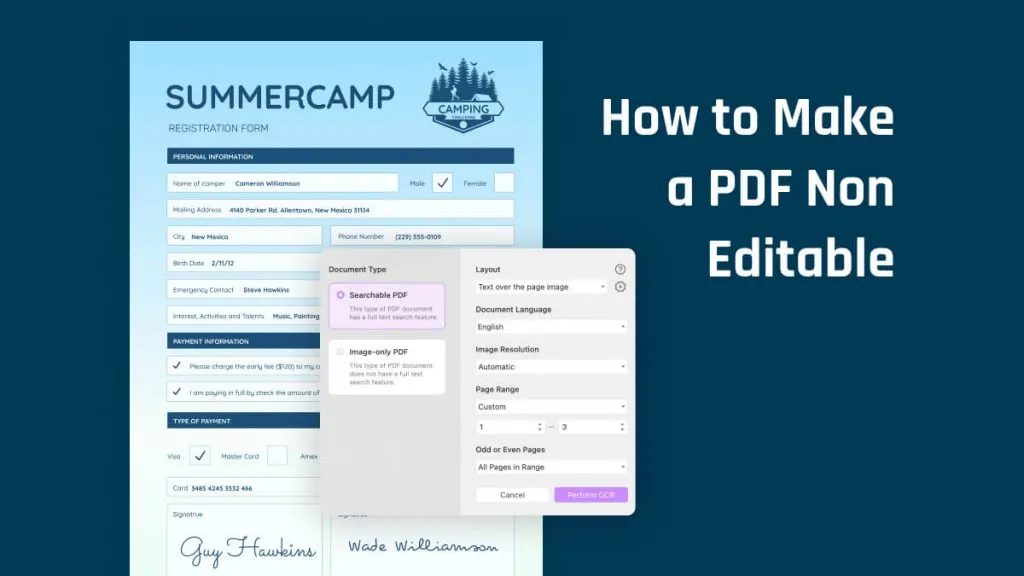
 Engelbert White