 UPDF
UPDF
 UPDF for Windows
 UPDF for Mac
 UPDF for iPhone/iPad
 UPDF for Android
 Nomostar
 UPDF AI Online
 UPDF Sign
 IvyCraft
 Edit PDF
 Annotate PDF
 Create PDF
 PDF Form
 Edit links
 Convert PDF
 OCR
OCR PDF to Word
 PDF to Image
 PDF to Excel
 Organize PDF
 Merge PDF
 Split PDF
 Crop PDF
 Rotate PDF
 Protect PDF
 Sign PDF
 Redact PDF
 Sanitize PDF
 Remove Security
 Read PDF
 UPDF Cloud
 Compress PDF
 Print PDF
 Batch Process
 About UPDF AI
 UPDF AI Solutions
 AI User Guide
 FAQ about UPDF AI
 Summarize PDF
 Translate PDF
 Chat with PDF
 Chat with AI
 Chat with image
 PDF to Mind Map
 Explain PDF
 PDF AI Tools
 Image AI Tools
 AI Chat Tools
 AI Writing Tools
 AI Study Tools
 AI Working Tools
 Other AI Tools
 AI Bookmark Generation
 AI Bookmark Summary
 AI Watermark Generation
 AI Background Generation
 AI Sticker Generation
 AI Stamp Generation
 AI Editing Suite
 UPDF Copilot
 AI Page Management
 AI Semantic Search
 PDF to Word
 PDF to Excel
 PDF to PowerPoint
 Enterprise Solution
 Enterprise Sign
 Enterprise AI
 Enterprise Plan
 Enterprise User Guide
 Enterprise Webinar
 IT
IT Education
 Construction
 Financial Service
 Healthcare
 Insurance
 Legal
Legal Manufacturing
 Government
 Researchers & PhDs
 Solopreneurs & Freelancers
 Lawyers & Legal Professionals
 Real Estate Agents & Brokers
 Education Solution
 Customer Stories
 User Guide
 UPDF Tricks
 FAQs
FAQs UPDF Reviews
 Download Center
 Blog
Blog Newsroom
 Tech Spec
 Updates
 UPDF vs. Adobe Acrobat
 UPDF vs. Foxit
 UPDF vs. PDF Expert

Windows lacks a native dedicated PDF‑splitting utility. You may struggle with extracting custom page ranges, splitting large files for email limits, handling confidential documents, or retaining bookmarks and fillable forms after separation.
Example: For an 80-page project packet, split one chapter range first, apply clear filenames, and verify bookmarks, page order, and the first and last page before creating the remaining files. For a related workflow, see split a single PDF page in half.
While several online and built‑in workarounds exist, they often carry privacy risks or damage original PDF structure. UPDF emerges as a well‑rounded offline desktop solution for Windows users seeking reliable split performance.
This guide matches your exact scenario to suitable methods, covering browser workarounds, online services, and offline desktop software for Windows 10 / 11.
Windows • macOS • iOS • Android 100% secure
Part 1: Match Your Scenario to the Right Windows Solutions
Not every PDF split is the same. Quick one‑offs, batch jobs, bookmarks, or privacy‑first offline tools — match your Windows scenario to the right solution below.
| Scenario & Problem | Recommended Solution | Reason |
|---|---|---|
| One‑off quick split, non‑sensitive PDF, no software install | Edge / Microsoft Print to PDF workaround | Zero installation, built‑in Windows; limited to manual repeated operations |
| Quick simple split, okay to upload files to cloud | Online PDF splitter | Fast, cross‑browser; avoid for contracts, internal confidential data |
| Sensitive/financial/ legal documents, no file upload | Offline desktop tool | Files stay local on your Windows PC, better data privacy |
| Need advanced split: by bookmarks, by file size, batch‑split multiple PDFs | Desktop PDF software | Workaround & most free online tools cannot support these advanced split modes |
| Password‑locked PDF needs splitting | Desktop splitter with password unlock support | Many online tools reject protected PDFs; print workaround often fails on secured files |
Important note: 7‑Zip cannot split PDF files. It is an archive tool and will corrupt PDF content if you attempt to use it for this task.
Part 2: Split PDF on Windows Built‑in Workaround (Microsoft Print to PDF via Edge)
You can split PDFs without downloading any app using Microsoft Edge browser and the system virtual printer Microsoft Print to PDF.
Step‑by‑step:
- Right‑click your PDF file → Open with → Microsoft Edge
- Press Ctrl + P to open print dialog
- Under Printer, select Microsoft Print to PDF
- In Pages field, input your target page range e.g. 1‑7
- Click Print, name your new output file and save it locally
- Repeat for every other page range you need to separate
Key limitations you must know:
- You must repeat the whole process for each separate output file; no batch multi‑range split in one run
- This is a print‑based workaround: it may flatten fillable forms, break digital signatures, convert selectable text into image‑only content, and increase file size for image‑heavy documents
- Will not work for password‑protected PDFs with print restrictions
Part 3. Top 5 Online PDF Split Tools for Windows
Online tools work inside your browser, no local installation. Best for non‑confidential one‑time tasks. Reviewed tools: Adobe Acrobat Online, PDF24, Smallpdf, iLovePDF, PDF2Go.
| Tool | Free Tier Limits | Privacy Note | Best For |
|---|---|---|---|
| Adobe Acrobat Online | Limited tasks; requires Adobe account | Files stored on Adobe cloud | Users already inside Adobe ecosystem |
| PDF24 | Generous free limits, no mandatory sign‑up | Files auto‑deleted after download | Casual users wanting zero‑cost web PDF toolkit |
| Smallpdf | 2 tasks/day (free) | Files auto‑deleted after ~1 hour | Clean UI, quick single‑file split |
| iLovePDF | 1 task/hour (free) | Files removed after processing | Fast bulk simple split / extract pages |
| PDF2Go | Free tier includes ads, file‑size restrictions | Uploads processed on remote servers | Quick ad‑supported emergency split |
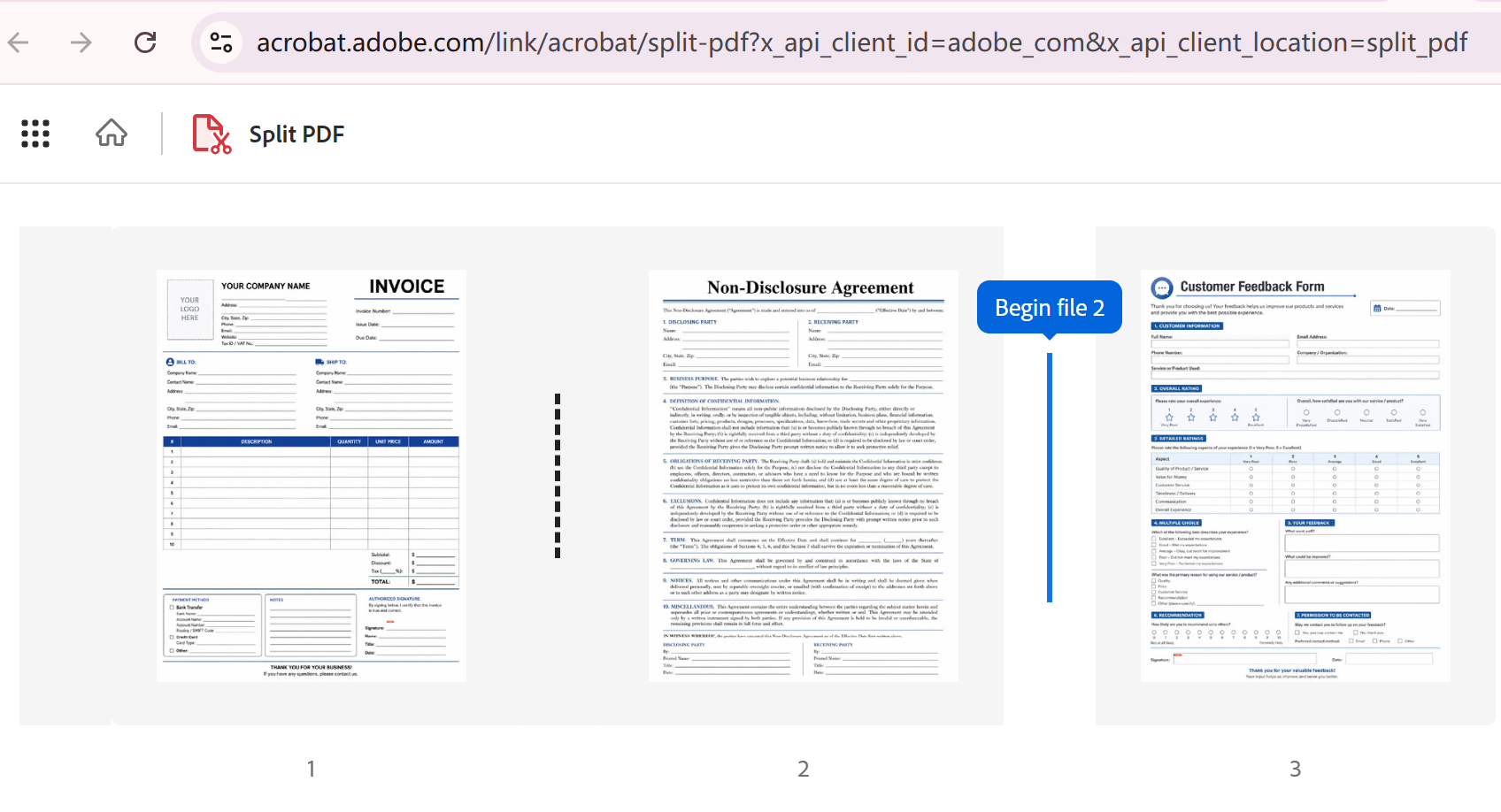
Adobe Acrobat Online: Industry‑standard reliability; split by page ranges; supports up to 22 split lines per document; integrates with SharePoint and OneDrive. Best for users who want a polished, trusted interface.
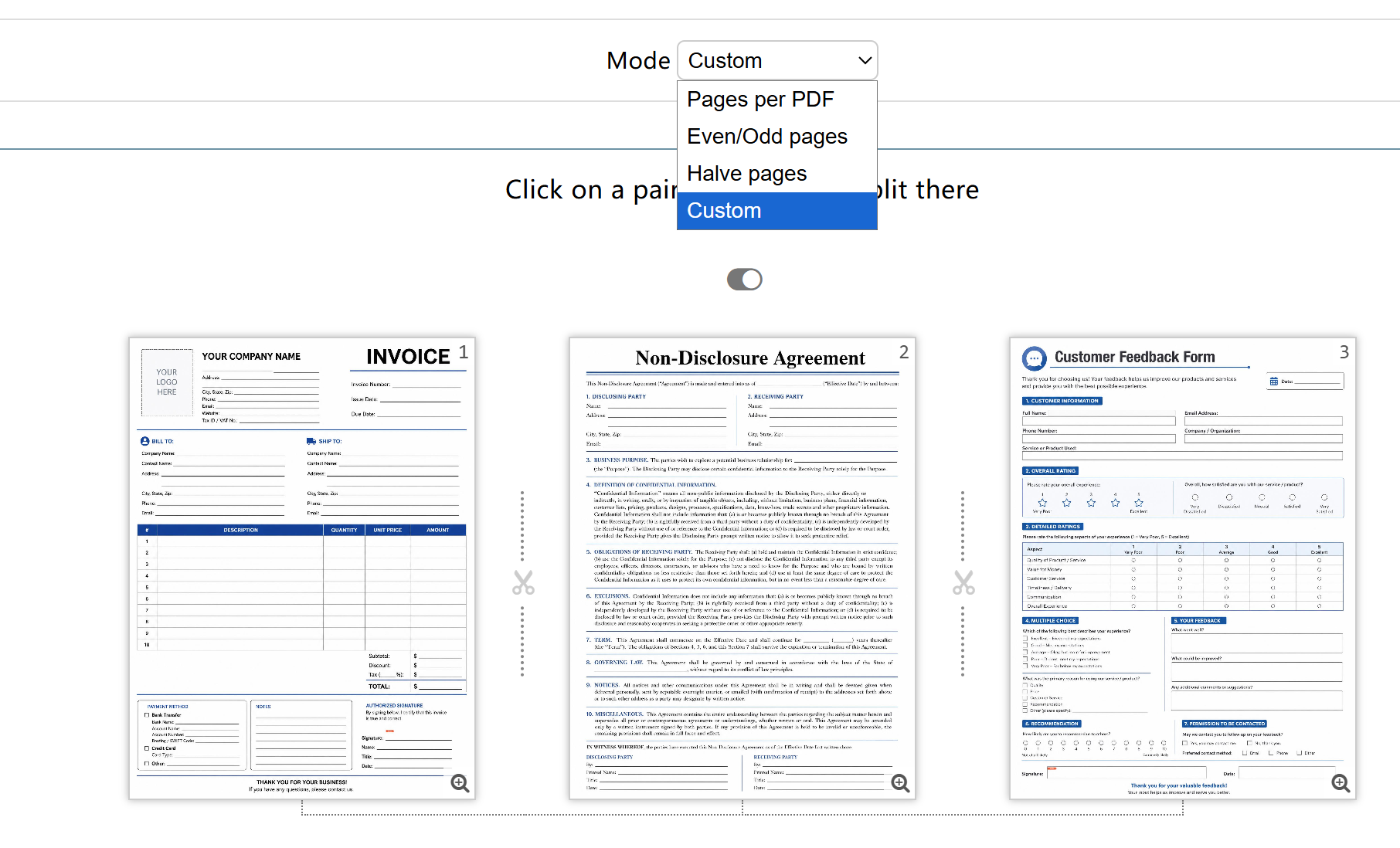
PDF24: 100% free, no sign‑up; split by page ranges, bookmarks, or size; files deleted from servers shortly after processing. Best for privacy‑conscious users who still want online convenience.
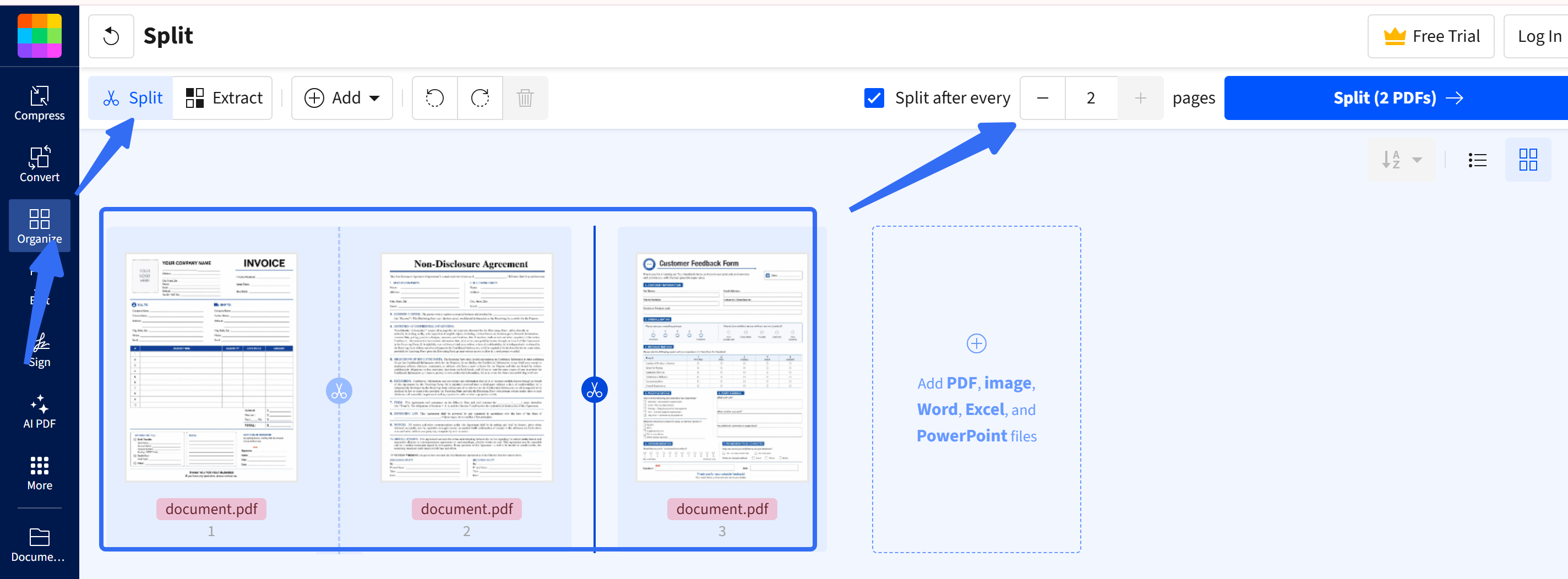
Smallpdf: Simple, fast interface; split every few pages or create custom ranges; TLS‑encrypted uploads; files auto‑deleted after 1 hour. Best for quick, one‑off splits with a clean UI.
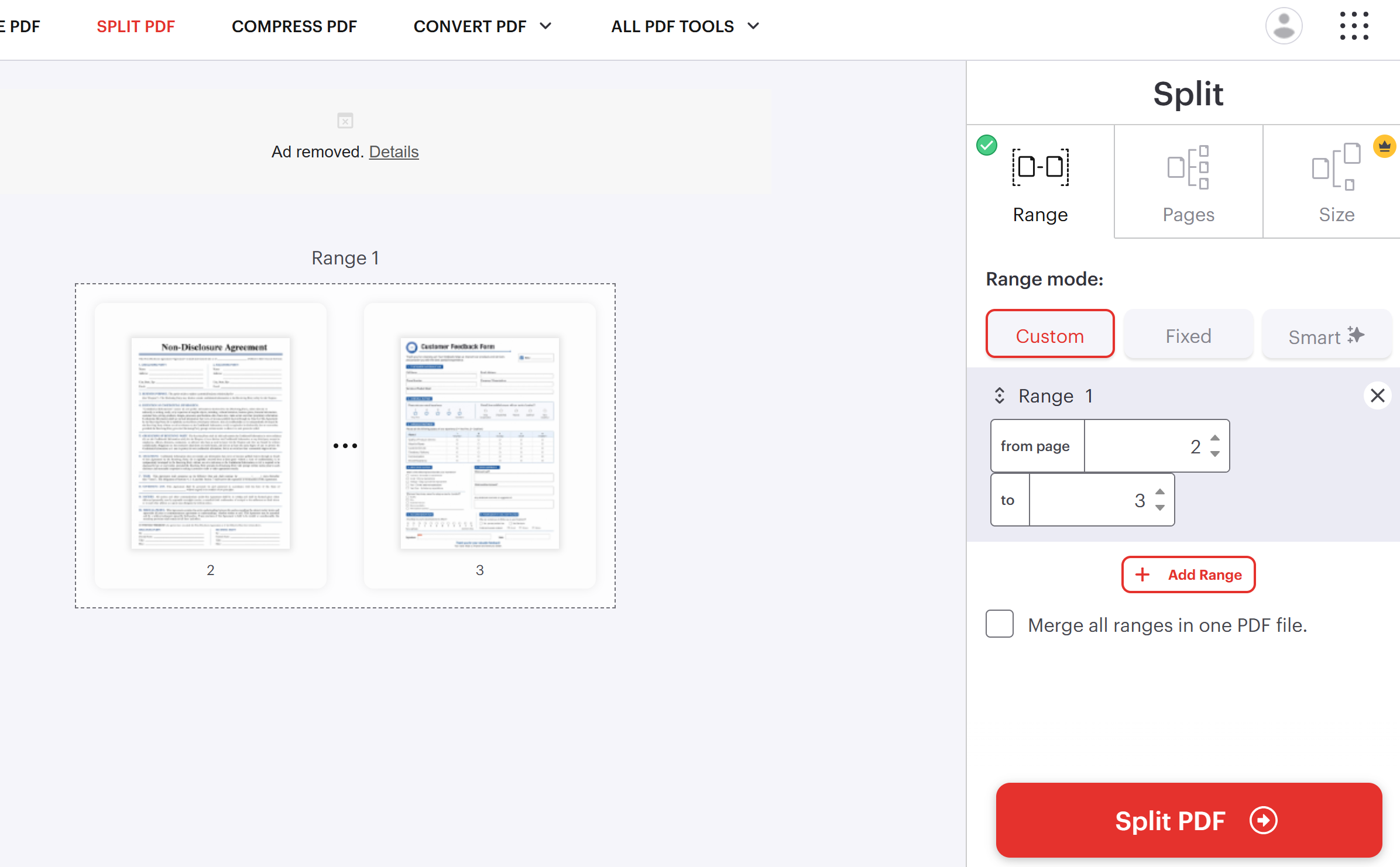
iLovePDF: AI‑powered "Smart range" mode that splits by document type and intent, not just page numbers; offers presets for invoices, medical records, and more. Best for users who want intelligent splitting based on document content.
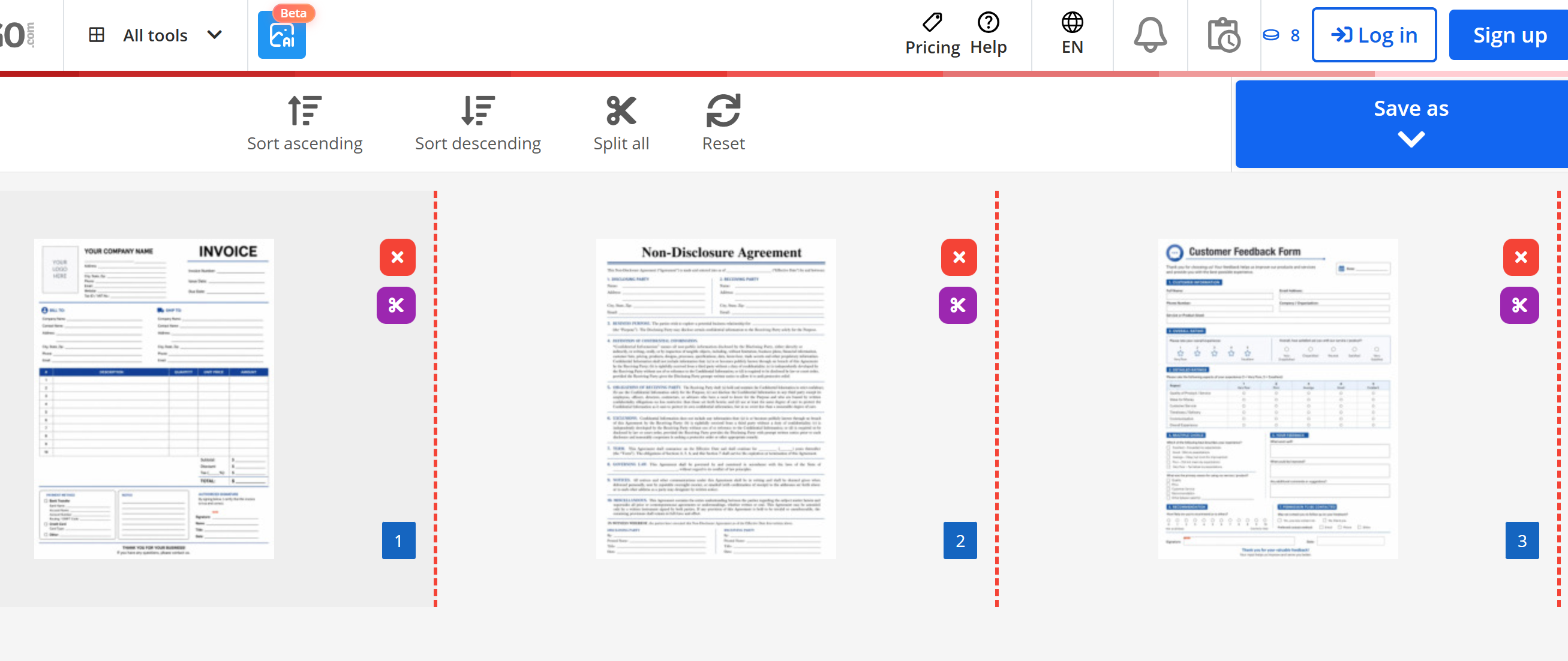
PDF2Go: Straightforward split tool; click a scissor icon on the page after which you want to split; "Split All" option to save every page individually. Best for quick, no‑frills splitting.
General drawbacks for all online splitters:
- Confidential business, contract or internal documents get uploaded to third‑party servers, creating privacy risk
- Large PDFs may hit upload timeouts or free‑plan caps
- Internet connection is mandatory; no offline mode
- Advanced split modes (split by bookmark, split‑by‑size) are rarely available on free tiers
Part 4. Top 5 Desktop PDF Split Software for Windows
Desktop tools process files locally on your Windows machine. Great for sensitive documents, batch workflows and advanced split options. Reviewed tools: UPDF, Adobe Acrobat Pro, Foxit PDF Editor, PDFsam, 7‑PDF.
| Tool | Offline Split | Key Split Features | Pricing | Best For |
|---|---|---|---|---|
| UPDF (Winner) | ✅ Full offline | Split by page count, custom ranges, file size; preserve bookmarks, forms, hyperlinks; clean modern UI | One‑time purchase, far lower cost than Adobe subscription | Most Windows users: balance of performance, privacy and affordable licensing |
| Adobe Acrobat Pro | ✅ | Split by page, size, top‑level bookmarks, batch processing | Expensive annual subscription ~$240 per year | Enterprise teams already invested in Adobe stack |
| Foxit PDF Editor | ✅ | Page‑range & bookmark split, batch operations | Yearly subscription ~$130 per year | Business‑oriented Windows desktop workflows |
| PDFsam Basic | ✅ Open‑source | Page‑range split, burst to single pages; advanced features locked in paid version | Free open‑source; enhanced paid tier available | Technical‑minded users comfortable with dated UI |
| 7‑PDF | ✅ | Core page‑split functions, lightweight footprint | Freemium ~$33.42 for lifetime use only on Splitting/Merging | Light‑weight simple PDF tasks on Windows |
Among these desktop options, UPDF - the best PDF organizer delivers well‑rounded split capabilities fully offline on Windows. It supports splitting by custom ranges, page count or target file size while keeping bookmarks, links and form fields intact. It avoids high recurring subscription costs, with an intuitive interface that lowers learning curve for casual and power users alike. You will find full step‑by‑split instructions right below.
Windows • macOS • iOS • Android 100% secure
Step‑by‑Step: Split PDF with UPDF on Windows
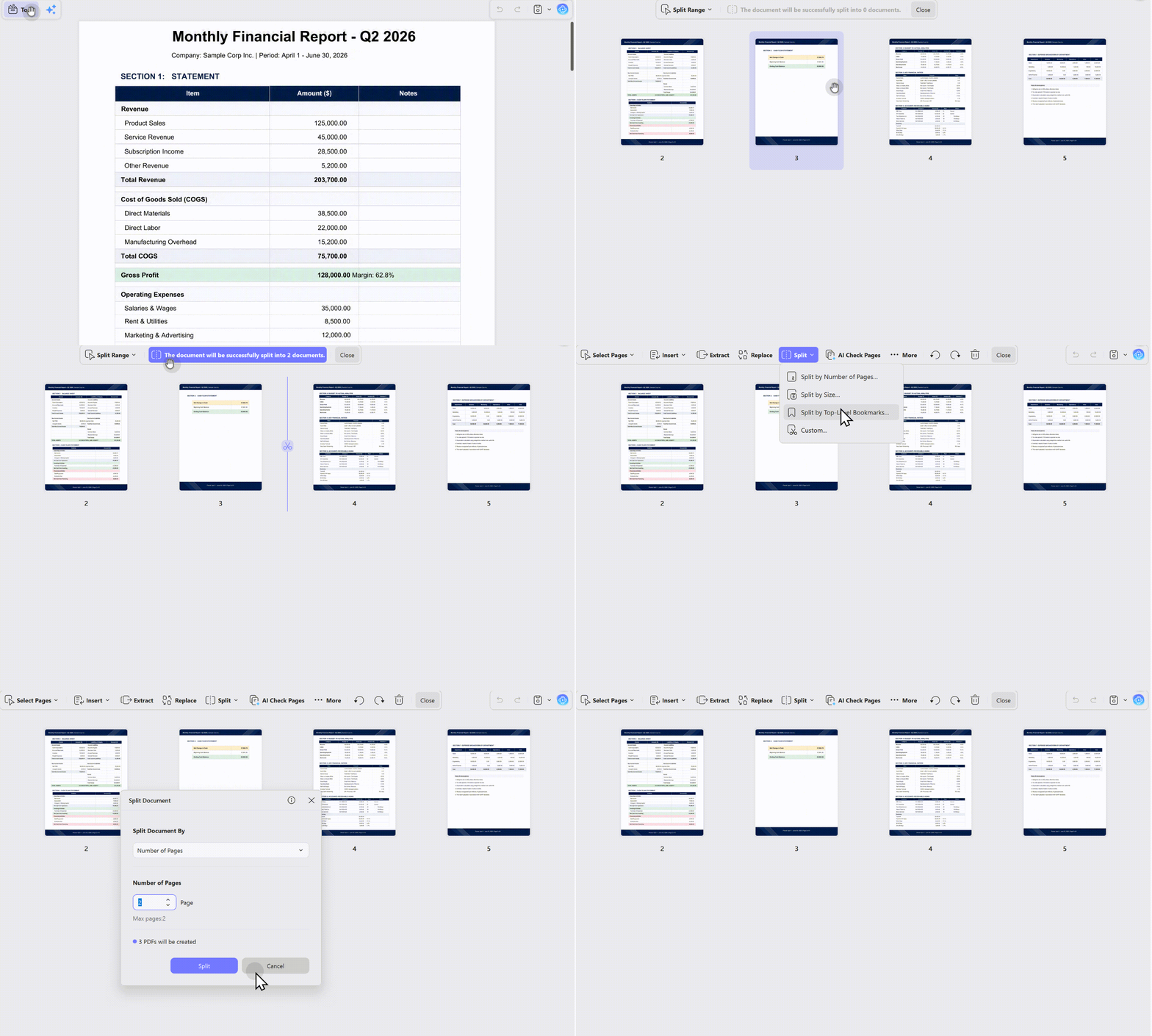
- Launch UPDF and open your source PDF file
- Navigate to Organize Pages on the left sidebar
- Click the Split button from the top toolbar
- Choose your split rule: split by number of pages, split by file size, or define custom page ranges
- Select your output folder, confirm and run split. New separate PDF files generate locally on your PC.
Quick notes for other desktop tools
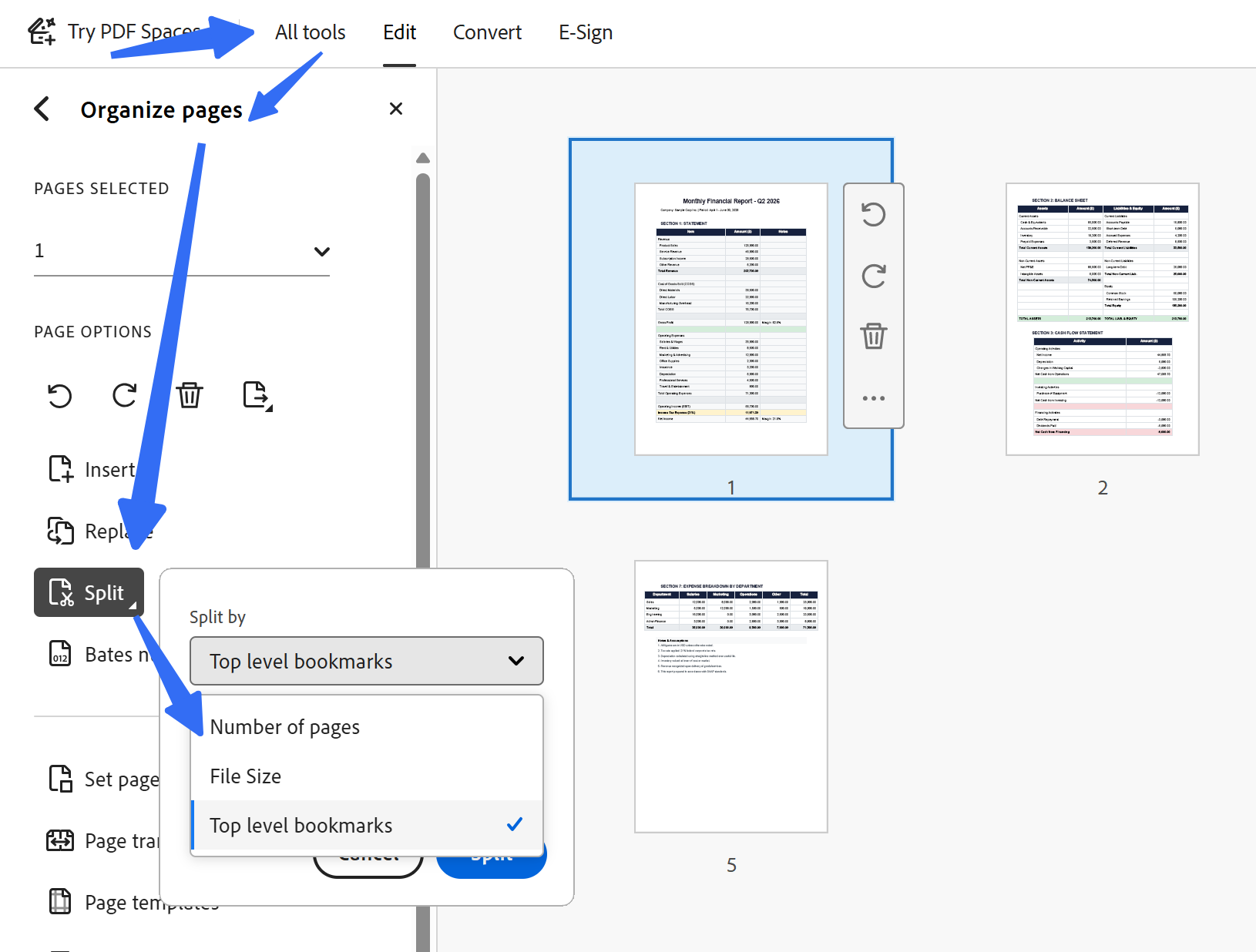
Adobe Acrobat Pro: Open PDF → Organize Pages → Split; supports split by bookmarks, page count or file size; requires active paid subscription.
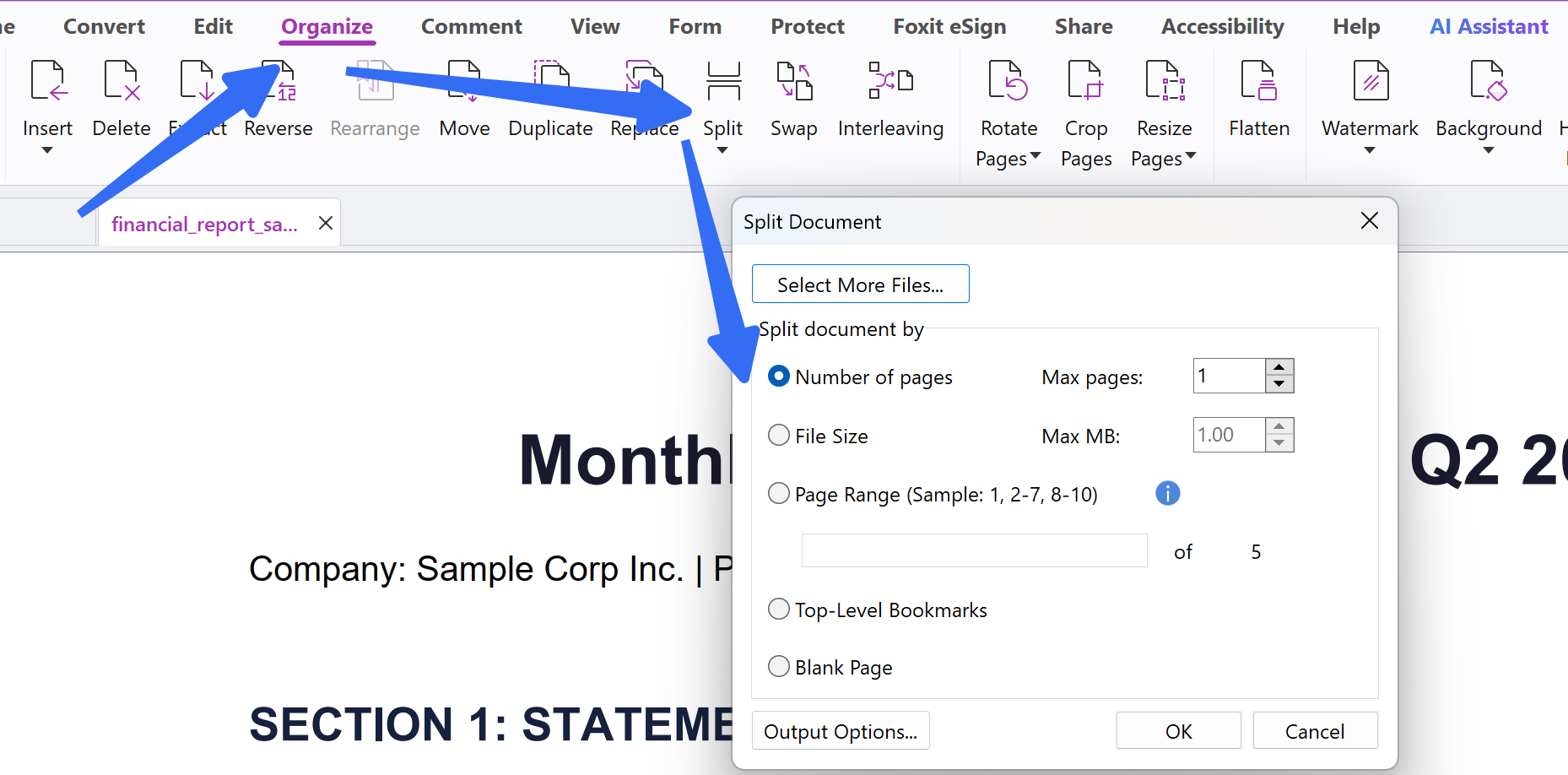
Foxit PDF Editor: Open document → Organize → Split Pages; strong for business workflows under subscription.
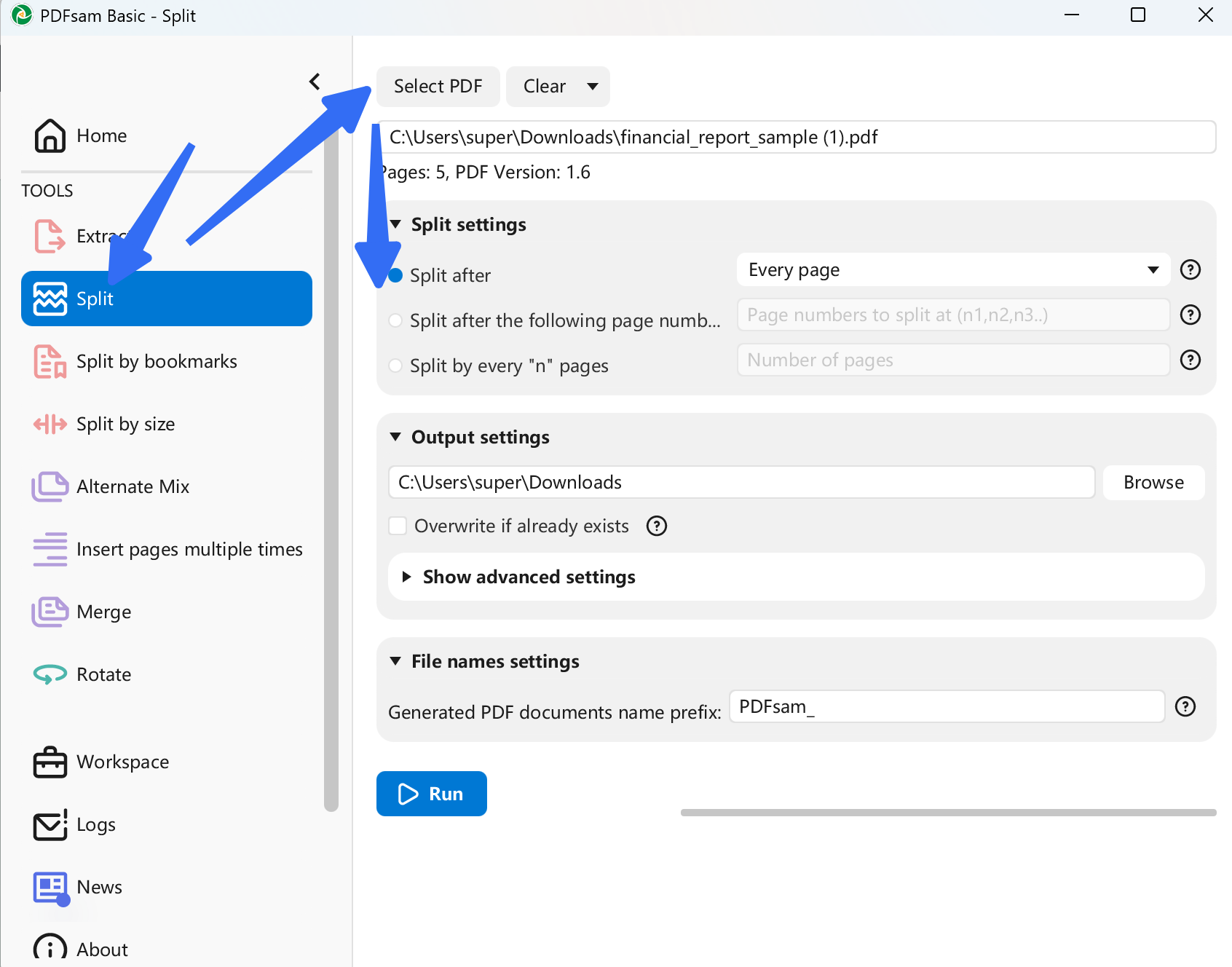
PDFsam Basic: Launch application, import PDF, define split rules and run offline split; UI looks old but core split functions are free and open‑source.
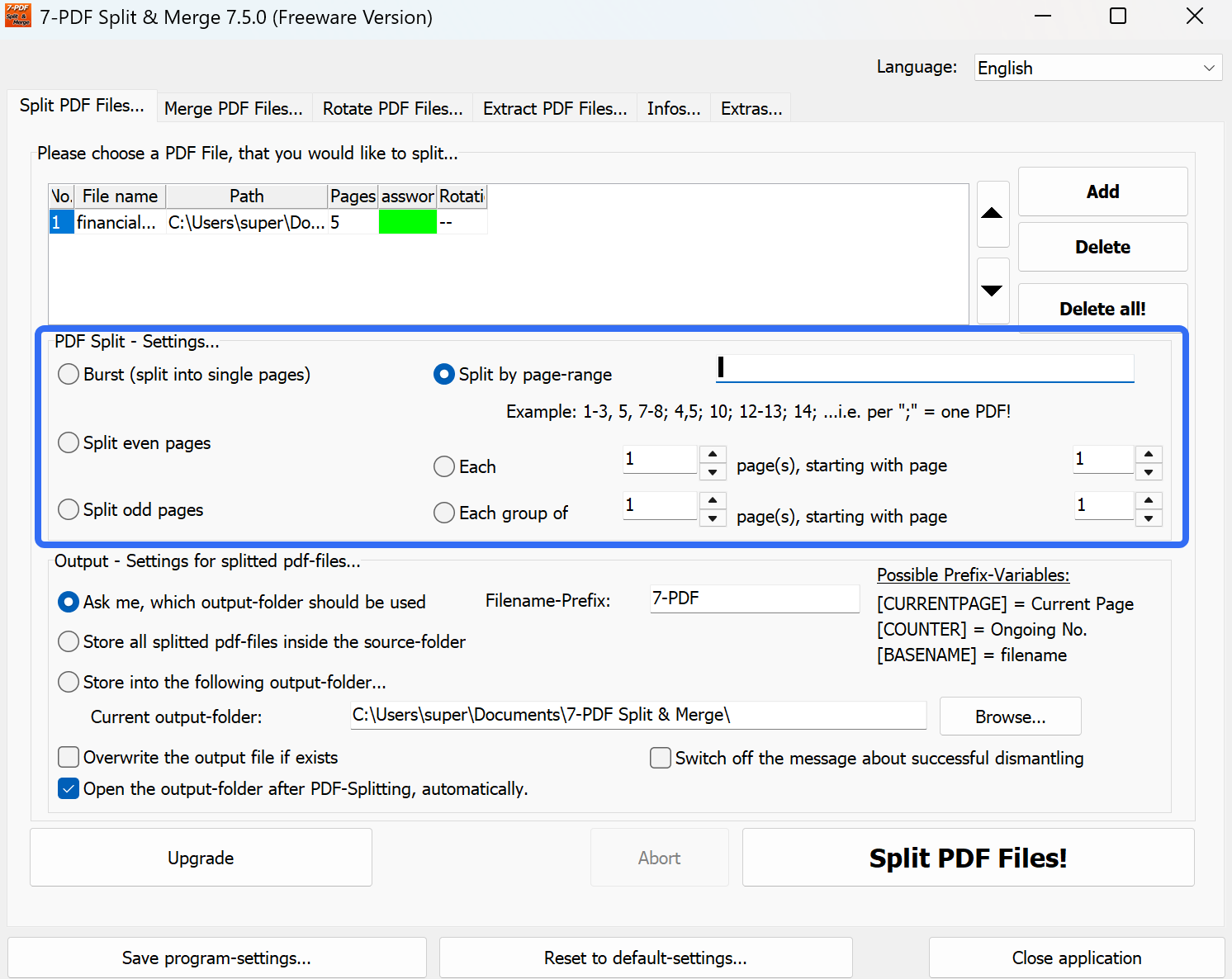
7‑PDF Split and Merge: Light‑weight utility; load PDF and set page‑split parameters for basic separation tasks.
FAQ
How do I split a PDF by page range on Windows?
Open the page organization or split tool, enter the required ranges, choose an output folder, and preview the resulting files.
Does splitting a PDF reduce its quality?
Normally no, because pages are extracted without rendering. Quality may change only if the app recompresses or converts page content.
Can I split a password-protected PDF?
You need permission and the correct password to open or modify it. Restrictions may prevent splitting even after the file opens.
Conclusion
If you only need to quickly extract a few pages from a non‑sensitive PDF, the Microsoft Edge print‑to‑PDF workaround gets the job done without installing anything. For casual non‑confidential jobs, trusted online tools like PDF24 or iLovePDF offer browser‑based convenience.
For regular PDF‑splitting work, confidential documents, or advanced requirements including bookmark‑based split, split‑by‑file‑size and batch processing, local desktop software is the most reliable choice. UPDF stands out as a balanced Windows‑focused option to organize PDF pages, delivering offline privacy, rich split functionality and reasonable one‑time licensing instead of costly subscriptions. Download and test it to streamline your PDF document workflows.
Separating the relevant pages can make a long document easier to share. For a visual introduction to the tools, see the video on organizing PDF pages in UPDF below.
Windows • macOS • iOS • Android 100% secure




 Lizzy Lozano

 Enola Miller