 UPDF
UPDF
 UPDF for Windows
 UPDF for Mac
 UPDF for iPhone/iPad
 UPDF for Android
 Nomostar
 UPDF AI Online
 UPDF Sign
 IvyCraft
 Edit PDF
 Annotate PDF
 Create PDF
 PDF Form
 Edit links
 Convert PDF
 OCR
OCR PDF to Word
 PDF to Image
 PDF to Excel
 Organize PDF
 Merge PDF
 Split PDF
 Crop PDF
 Rotate PDF
 Protect PDF
 Sign PDF
 Redact PDF
 Sanitize PDF
 Remove Security
 Read PDF
 UPDF Cloud
 Compress PDF
 Print PDF
 Batch Process
 About UPDF AI
 UPDF AI Solutions
 AI User Guide
 FAQ about UPDF AI
 Summarize PDF
 Translate PDF
 Chat with PDF
 Chat with AI
 Chat with image
 PDF to Mind Map
 Explain PDF
 PDF AI Tools
 Image AI Tools
 AI Chat Tools
 AI Writing Tools
 AI Study Tools
 AI Working Tools
 Other AI Tools
 AI Bookmark Generation
 AI Bookmark Summary
 AI Watermark Generation
 AI Background Generation
 AI Sticker Generation
 AI Stamp Generation
 AI Editing Suite
 UPDF Copilot
 AI Page Management
 AI Semantic Search
 PDF to Word
 PDF to Excel
 PDF to PowerPoint
 Enterprise Solution
 Enterprise Sign
 Enterprise AI
 Enterprise Plan
 Enterprise User Guide
 Enterprise Webinar
 IT
IT Education
 Construction
 Financial Service
 Healthcare
 Insurance
 Legal
Legal Manufacturing
 Government
 Researchers & PhDs
 Solopreneurs & Freelancers
 Lawyers & Legal Professionals
 Real Estate Agents & Brokers
 Education Solution
 Customer Stories
 User Guide
 UPDF Tricks
 FAQs
FAQs UPDF Reviews
 Download Center
 Blog
Blog Newsroom
 Tech Spec
 Updates
 UPDF vs. Adobe Acrobat
 UPDF vs. Foxit
 UPDF vs. PDF Expert

PDF stores content with precise X/Y coordinates — not as flowing paragraphs like Word. Splitting a page essentially means “cropping and reformatting” the page content. Understanding this explains why some tools produce pages with blank space on one side — they simply mask the unwanted half with a white overlay rather than actually resizing the page dimensions to fit the content.
Example: For a scanned book spread that contains two pages on one sheet, split at the center gutter and check page order, overlap, and clipped text before processing the rest. For a related workflow, see split a PDF on Windows.
What's more, many PDF tools use “split” to mean splitting the document into multiple files (page‑level splitting), not cutting individual pages in half. When you're looking for a tool, make sure it specifically supports page‑level splitting — the ability to divide one page into two — not just document splitting.
In this guide, we will show you two practical ways to split a PDF page in half. You can use desktop software UPDF (the only offline professional tool that can handle this task) to divide pages securely and precisely on your device or use an online tool when you do not want to install software.
Windows • macOS • iOS • Android 100% secure
Part 1. How to Split a PDF Page in Half Online Free
Many people assume common PDF tools can split a page in half to organize PDF pages. But the truth is, most of them cannot.
Separating the relevant pages can make a long document easier to share. A helpful next reference is the following demonstration of organizing PDF pages in UPDF.
After testing the most popular online PDF tools, here's what we found:
Adobe Acrobat (including the online version) — its split function splits a document by page range into multiple files. It does not cut individual pages in half.
Smallpdf — its split function splits documents by pages. No page‑level halving.
iLovePDF — its split function splits by page range or AI‑based intelligent splitting. No dedicated “halve pages” mode.
The tools that actually support halving pages are very few. Based on testing, only the following online tools genuinely support splitting a single page into two:
DeftPDF — Dedicated Split in Half Tool
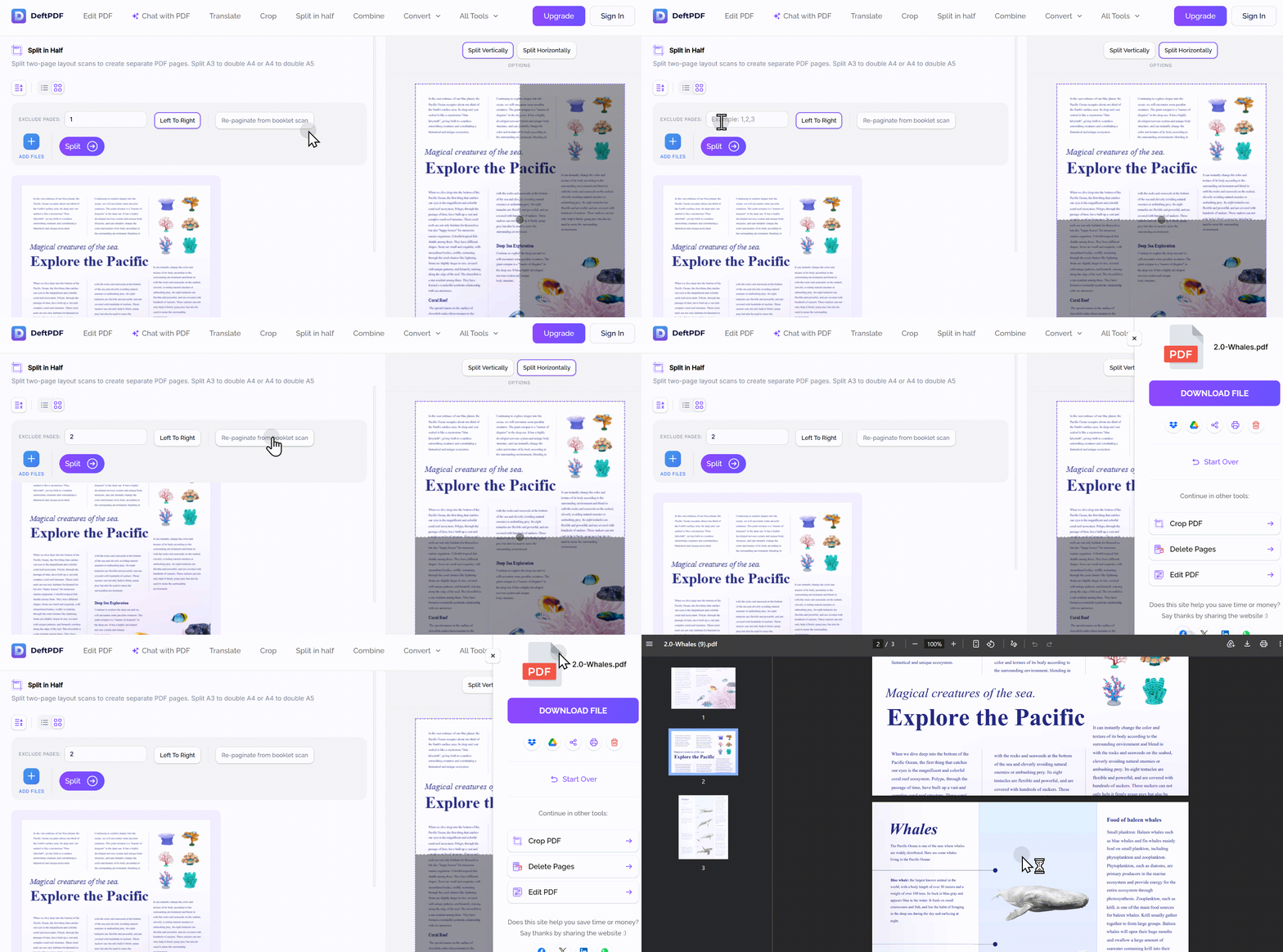
DeftPDF offers a dedicated “Split in Half” tool that allows you to split pages vertically or horizontally.
How it works:
- Go to DeftPDF.com and select Split in Half from all tools
- Upload your PDF file — a preview appears with a line on top
- Drag the line to set exactly where the split should be made
- Choose horizontal or vertical split
- Click Split to process and download the result
Pros:
- Dedicated halving tool with visual preview
- Drag line to adjust split position
- Can split many pages simultaneously
- Can exclude specific pages from splitting
Cons:
- Files uploaded to servers
- Free limitation for one file within 10 MB
Best for: Users who need a quick, free halving tool and don't mind uploading files.
Online2PDF — Split Multi-Page Layout
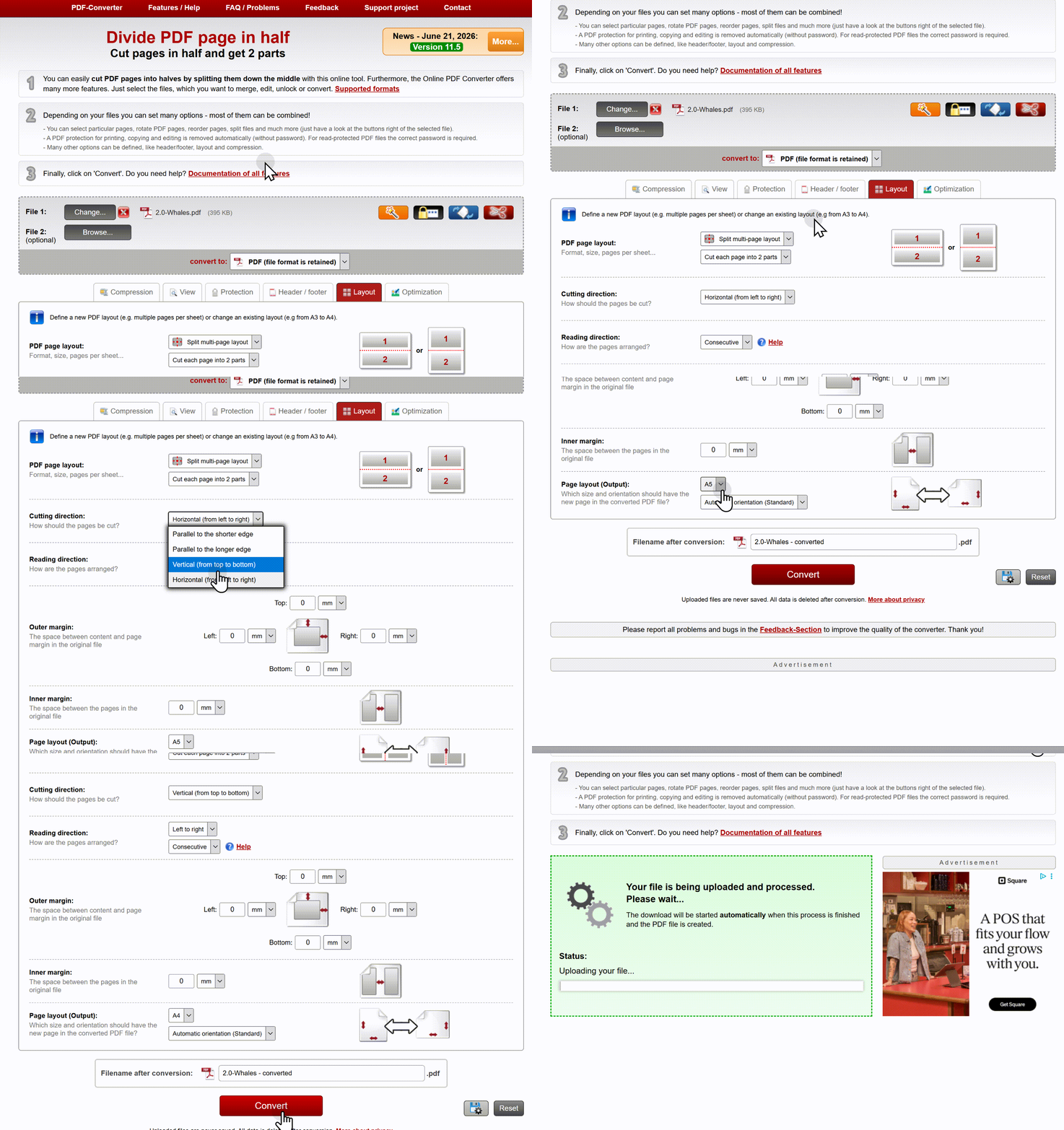
Online2PDF handles page halving through its “Split multi-page layout” option.
How it works:
- Go to Online2PDF.com
- Upload your PDF file
- Click on the Layout tab
- Choose “Split multi-page layout” from the dropdown
- Additional layout options will appear
- Select your splitting preference (e.g., A4 → 2×A5)
Pros:
- Specifically designed for splitting scanned booklet double pages
- Files are never saved — deleted after conversion
- Supports converting double-sided to single-sided PDFs
Cons:
- Interface is less intuitive than DeftPDF
- Free usage limits apply
Best for: Users with scanned booklet pages or double-page layouts.
Sejda — Split in Half Option
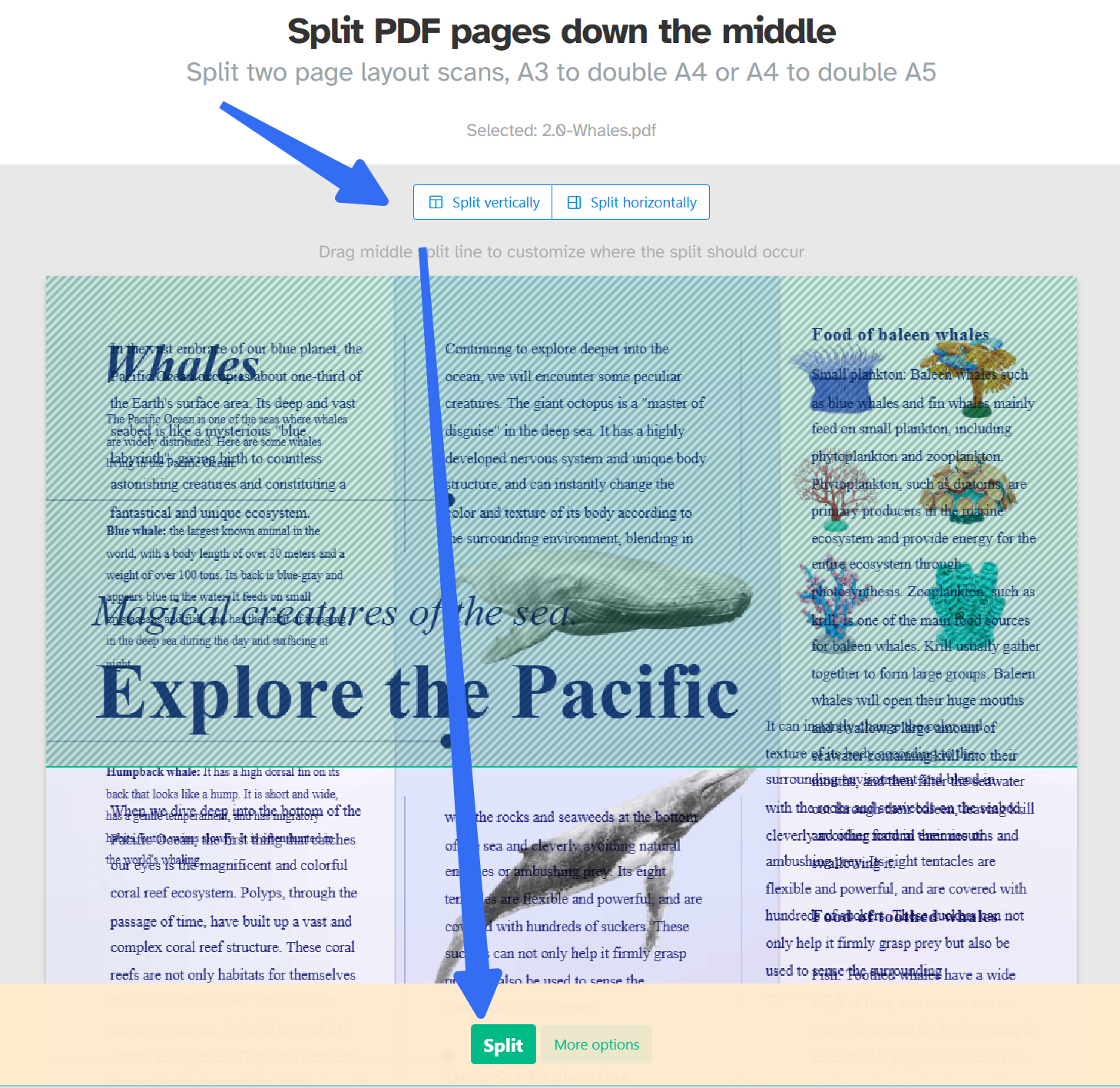
Sejda offers an explicit “Split in half” option in its split menu.
How it works:
- Go to Sejda.com
- Select Split from the tools menu
- Choose “Split in half” from the split options
- Upload your PDF
- Download the split result
Pros:
- Clear, explicit “Split in half” option
- Well-established, reliable tool
- Also offers a desktop version for offline use
Cons:
- Free tier: 50MB/200 pages, 3 tasks per hour
- Files uploaded to servers
Best for: Users who need occasional halving and can work within the free limits.
While online tools offer convenience, it's crucial to be aware of their drawbacks. The following are some of the downsides to consider when using this online tool:
- The tool may not be very flexible when dividing a page in half, potentially causing issues with paragraphs or images. This limitation might lead to uneven splits that impact the look of the content.
- Online tools like this one can pose security and stability risks. Using them may expose your sensitive documents to potential privacy and security threats.
- The tool's interface is complex, which makes the process of splitting PDF pages more challenging and time-consuming for users.
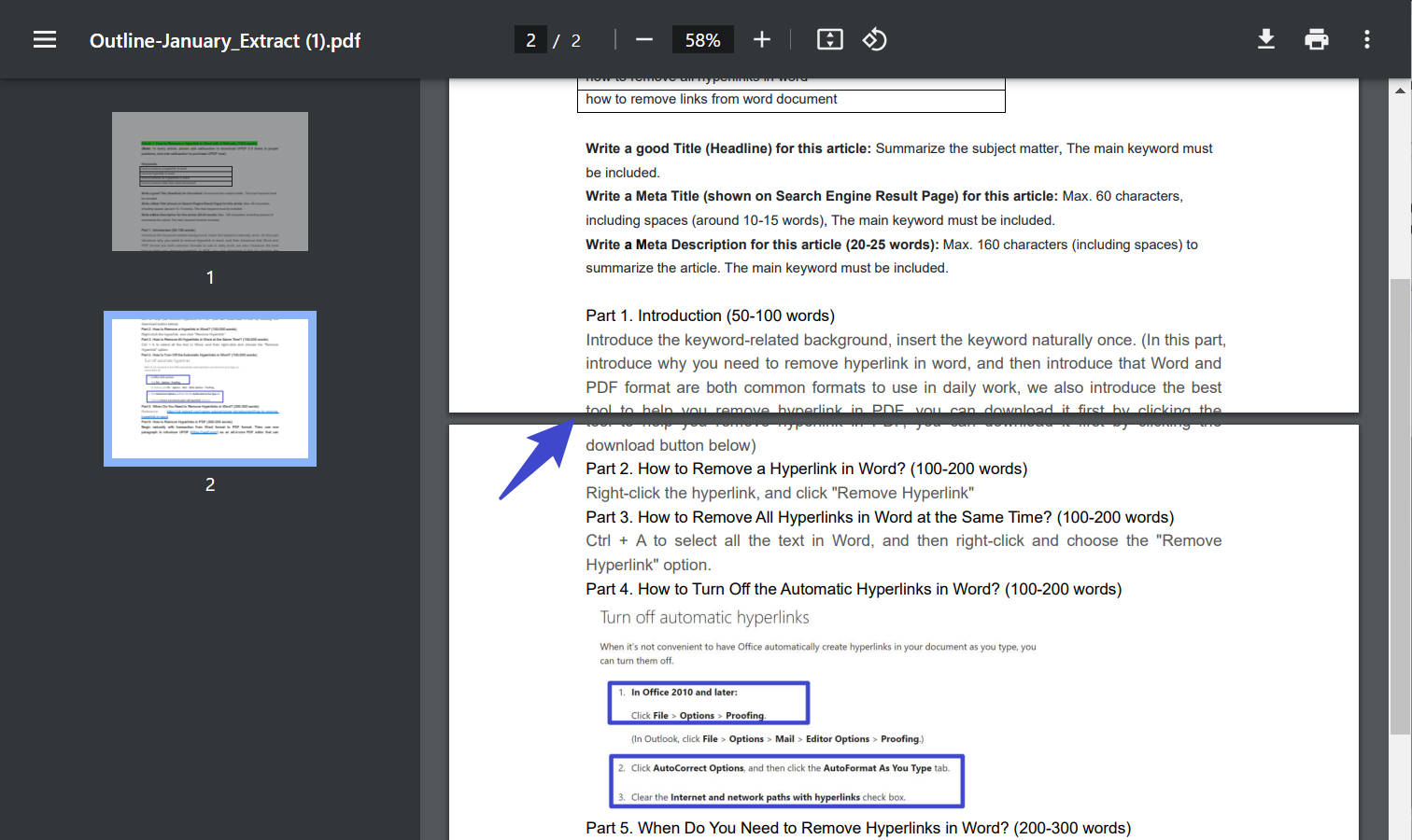
Given these limitations, desktop software emerges as a more reliable alternative for consistent, secure PDF processing to organize PDF pages. Check next now!
Part 2. How to Split a PDF Page in Half on Desktop Software
If online tools are too limiting, or you're working with sensitive documents, desktop software is the better choice. All processing happens locally — files never leave your machine. After checking and testing, UPDF is the only one that supports splitting a PDF page in half offline on desktop.
UPDF — The Most Flexible Splitting Tool
UPDF's split feature allows you to freely add vertical or horizontal split lines to divide one page into two or even four sections.
How to split a page in half with UPDF:
Step 1: Download and install UPDF (Windows, macOS)
Windows • macOS • iOS • Android 100% secure
Step 2: Open your PDF file in UPDF, click Tools in the top menu, then select Split
Step 3: Choose Grid Split (Vertical / Horizontal) or Exact Split
There are 2 ways to split a PDF page in half: Click the "+" button to add a Split Line, and you can use your mouse to drag the line freely to decide where you want to slice into half.
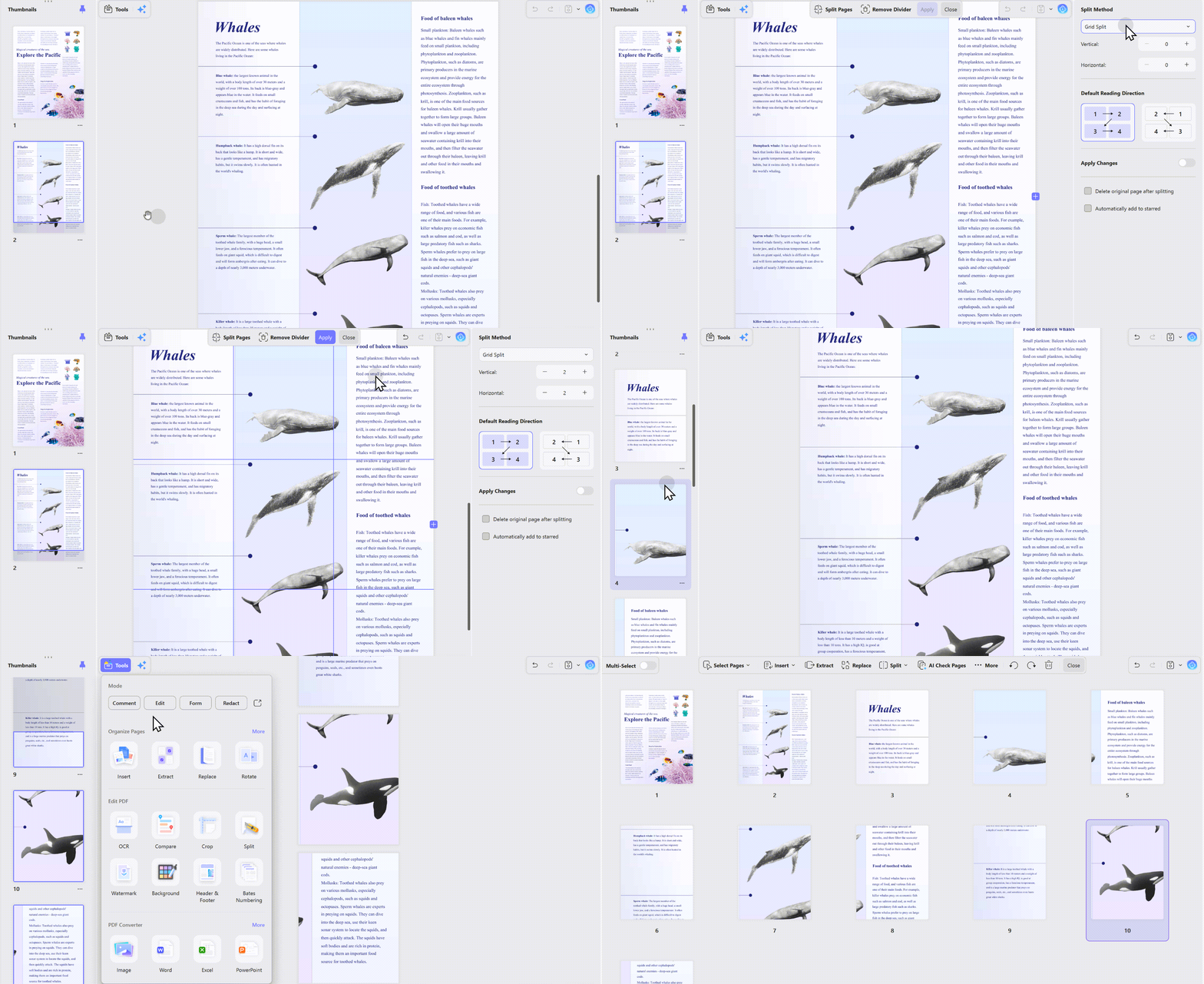
Tip: Not sure where to cut? Think about your end goal. If you're separating two scanned receipts, drag the line to the exact gap between them. If you're preparing a booklet, place the line precisely in the middle so each half becomes a standard A5 page. Afterward, decide whether to split a single page or all pages...
Why you might need precise control: Not all PDFs are perfectly symmetrical. Sometimes you need to split an A3 into A4, but the split line isn't necessarily in the exact center. UPDF's drag‑and‑drop design lets you adjust freely.
UPDF offers a dedicated page-splitting feature that turns one PDF page into two or more separate pages. Compared with manually duplicating, cropping, or editing pages, it provides a faster and more precise way to divide page content while preserving the original quality.
Key advantages include:
- Horizontal and Vertical Splitting: Add a horizontal line to separate the upper and lower sections of a page or a vertical line to divide side-by-side content.
- Customizable Split Position: Drag the split line to match the actual boundary between the two sections instead of cutting the page exactly through the center.
- Multiple Split Lines: Add more split lines when one PDF page contains several distinct sections that need to become individual pages.
- Single-Page and Batch Processing: Split only the current page or apply the same setting to selected pages or all pages with a consistent layout.
- Flexible Original-Page Settings: Decide whether to retain or remove the original page after creating the new pages.
- Quality-Preserving Results: Divide the page without converting it into a lower-resolution image, helping keep text and graphics clear.
- Offline and Secure Processing: Process PDFs locally on your device without uploading confidential documents to a third-party website.
- Cross-Platform Support: Use the feature on Windows, macOS, iOS, and Android.
Beyond page splitting, UPDF also provides PDF editing, annotation, conversion, OCR, organization, protection, and AI-assisted document tools in one application.
Download UPDF to split oversized, scanned, or combined PDF pages with greater precision and control.
Windows • macOS • iOS • Android 100% secure
One Feature for Many Workflows with UPDF
Still wondering when you'll actually use page splitting? Bookmark this cheat sheet:
| Your Goal | How to Use Split |
| Print a half-page flyer | Split horizontally, keep only the half you need |
| Make a pocket travel guide | Split an A4 guide into two A5 pages, re-order, and print as a booklet |
| Compare two design mockups | Place both on one page, split, then add comments to each version |
| Archive business cards | Scan 2 cards per page, split into individual pages for your CRM |
| Build a bilingual reader | Place original text on the left and translation on the right, split for side-by-side reading |
What Else Can You Do with Splitting a PDF Page in Half?
While splitting a scanned book or an A3 document is the most common reason, the feature is essentially a spatial reorganization tool—it lets you treat one page as two independent information modules. Here are some less obvious but highly practical ways to put it to work:
1. Turn Your PDF into a Printable Zine or Pocket Notebook
Design your content in an A5 layout, place two pages side-by-side on one A4 sheet, then split them after printing. Fold and saddle-stitch, and you have a professional-looking booklet without any desktop publishing software.
2. Build a Side-by-Side Review Panel
Place a contract draft on the left half and the revised version on the right half of one page. After splitting, you get two sequential pages that make A/B comparison effortless—no more toggling between windows.
3. Create Printable Flashcards or Knowledge Cards
Design two "concept cards" on a single page (term on the front, explanation on the back). Split the page, print, and cut them out. You now have physical Anki-style flashcards generated entirely from a PDF editor.
4. Archive Two Receipts or Invoices per Page
Instead of printing one receipt per sheet, place two on a single page. Split them after scanning or merging, and each receipt becomes its own properly sized page for your expense reports.
5. Design a Tear-Off Flyer
Create an A4 poster where the top half is the event poster and the bottom half is a detachable coupon or signup form. Split the page so the bottom half can be printed separately as a handout.
FAQs
Is splitting one PDF page in half the same as splitting a PDF file?
No. Dividing a page creates two pages from one sheet, while splitting a file separates selected page ranges into different PDFs.
Does splitting a PDF page reduce quality?
It should not when the tool changes page boundaries without recompressing images. Compare zoomed text before and after export.
How do I keep the correct page order after splitting spreads?
Choose left-to-right or right-to-left output to match the source, then review the first few resulting pages before batch processing.
Conclusion
In conclusion, splitting a PDF page in half is a great way to make document management more flexible and precise. It assists in seamless sharing, collaboration, or content organization to meet all users' requirements. Throughout the article, we discussed detailed instructions on how to split one page into two pages in a PDF with UPDF and an online tool.
However, online tools pose challenges and direct users to opt for UPDF. UPDF is an all-in-one tool that makes splitting and managing PDFs easy. With an easy-to-use interface and strong features, it simplifies everything to make the whole process efficient. So, we recommend downloading UPDF and giving it a try to experience its upgraded benefits of document customization.
Windows • macOS • iOS • Android 100% secure





 Grace Curry
 Enrica Taylor
 Lizzy Lozano
 Enola Davis