UPDF
UPDF
 UPDF for Windows
 UPDF for Mac
 UPDF for iPhone/iPad
 UPDF for Android
 Nomostar
 UPDF AI Online
 UPDF Sign
 IvyCraft
 Edit PDF
 Annotate PDF
 Create PDF
 PDF Form
 Edit links
 Convert PDF
 OCR
OCR PDF to Word
 PDF to Image
 PDF to Excel
 Organize PDF
 Merge PDF
 Split PDF
 Crop PDF
 Rotate PDF
 Protect PDF
 Sign PDF
 Redact PDF
 Sanitize PDF
 Remove Security
 Read PDF
 UPDF Cloud
 Compress PDF
 Print PDF
 Batch Process
 About UPDF AI
 UPDF AI Solutions
 AI User Guide
 FAQ about UPDF AI
 Summarize PDF
 Translate PDF
 Chat with PDF
 Chat with AI
 Chat with image
 PDF to Mind Map
 Explain PDF
 PDF AI Tools
 Image AI Tools
 AI Chat Tools
 AI Writing Tools
 AI Study Tools
 AI Working Tools
 Other AI Tools
 AI Bookmark Generation
 AI Bookmark Summary
 AI Watermark Generation
 AI Background Generation
 AI Sticker Generation
 AI Stamp Generation
 AI Editing Suite
 UPDF Copilot
 AI Page Management
 AI Semantic Search
 PDF to Word
 PDF to Excel
 PDF to PowerPoint
 Enterprise Solution
 Enterprise Sign
 Enterprise AI
 Enterprise Plan
 Enterprise User Guide
 Enterprise Webinar
 IT
IT Education
 Construction
 Financial Service
 Healthcare
 Insurance
 Legal
Legal Manufacturing
 Government
 Researchers & PhDs
 Solopreneurs & Freelancers
 Lawyers & Legal Professionals
 Real Estate Agents & Brokers
 Education Solution
 Customer Stories
 User Guide
 UPDF Tricks
 FAQs
FAQs UPDF Reviews
 Download Center
 Blog
Blog Newsroom
 Tech Spec
 Updates
 UPDF vs. Adobe Acrobat
 UPDF vs. Foxit
 UPDF vs. PDF Expert

Quick Answer:
Need to add a date, caption, or short paragraph to a PDF on your Mac? First decide whether the words should become page content or remain a text annotation. UPDF supports both; Preview provides a built-in way to place text-box annotations.
This guide focuses on adding new text. If you need to change words already printed in the document, see our guide to editing existing PDF text on Mac.
Part 1. Choose the Right Way to Add Text
| Your task | Use this option | What it adds or changes |
|---|---|---|
| Add a heading, date, or caption as page content | UPDF: Edit > Text | A new text object on the page |
| Add a review label or visible note | UPDF: Comment; or Preview: Markup > Text | A text annotation |
| Correct words in an existing paragraph | UPDF: Edit | The existing text object |
| Enter an answer in an interactive form | Click the existing form field | A field value |
Part 2. Add New Page Text with UPDF
Use this method when you want a separate text object, such as “Revised 27 October 2026” in an empty area of a report. The new object does not automatically reflow the surrounding page content.
Windows • macOS • iOS • Android 100% secure
- Open your PDF in UPDF on your Mac. Keep an unchanged copy if you will need the original.
- Select Edit from the top, then choose Text in the top toolbar.
- Click the position where the new text should appear and start typing.
- Adjust the font, size, color, and alignment. Reposition or resize the text object so it does not overlap nearby content.
- Choose Save. Reopen the saved PDF to check the result.
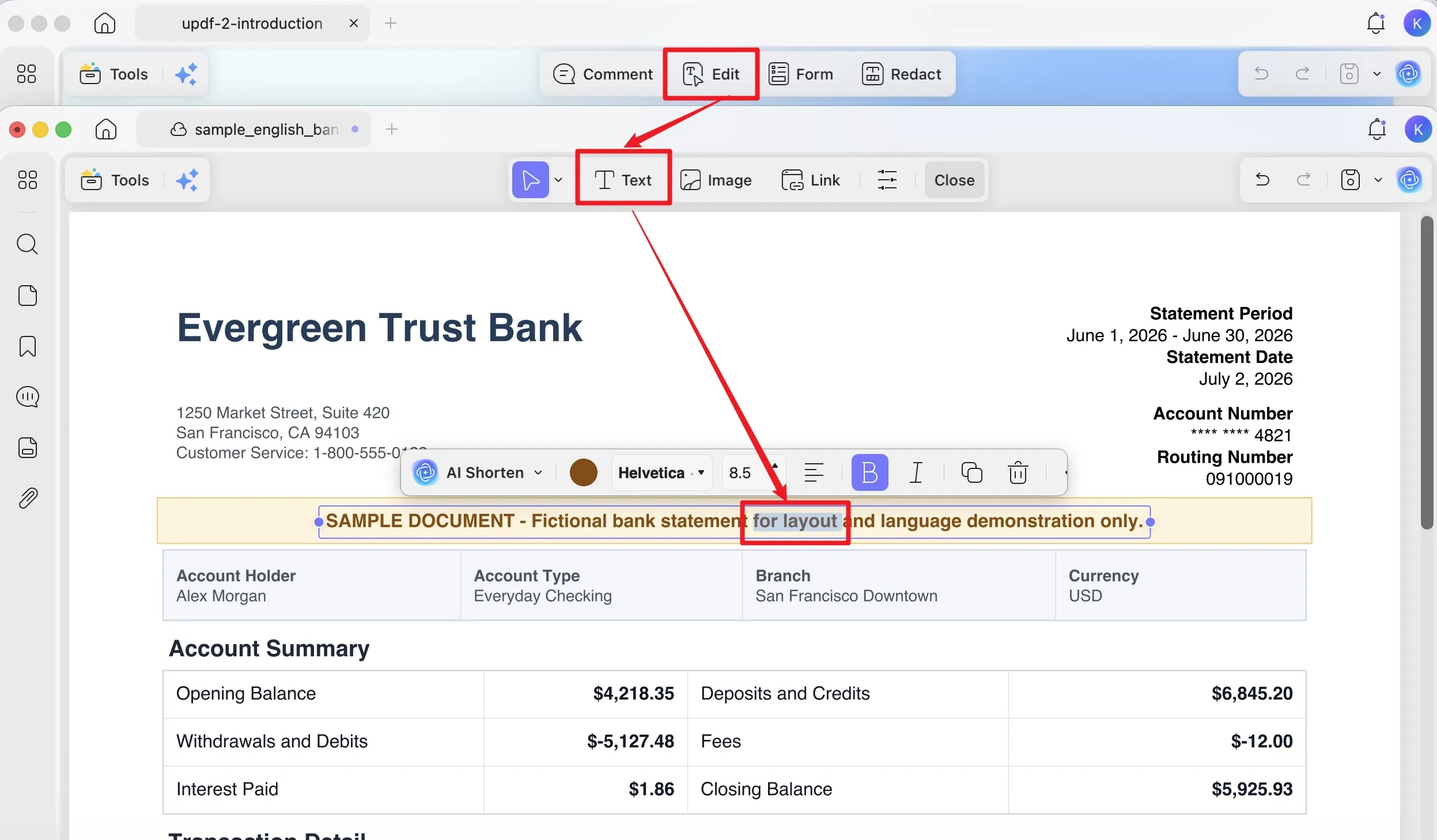
Try the new-text workflow with UPDF. The free trial adds a watermark when you save; use a licensed version for watermark-free output.
Windows • macOS • iOS • Android 100% secure
Part 3. Add a Text Box or Text Comment with UPDF
For a review note or a label that should remain an annotation, open Comment from the top with UPDF. Choose Text Box for a container with border and background options, or Text Comment for a text annotation without a boxed callout style.
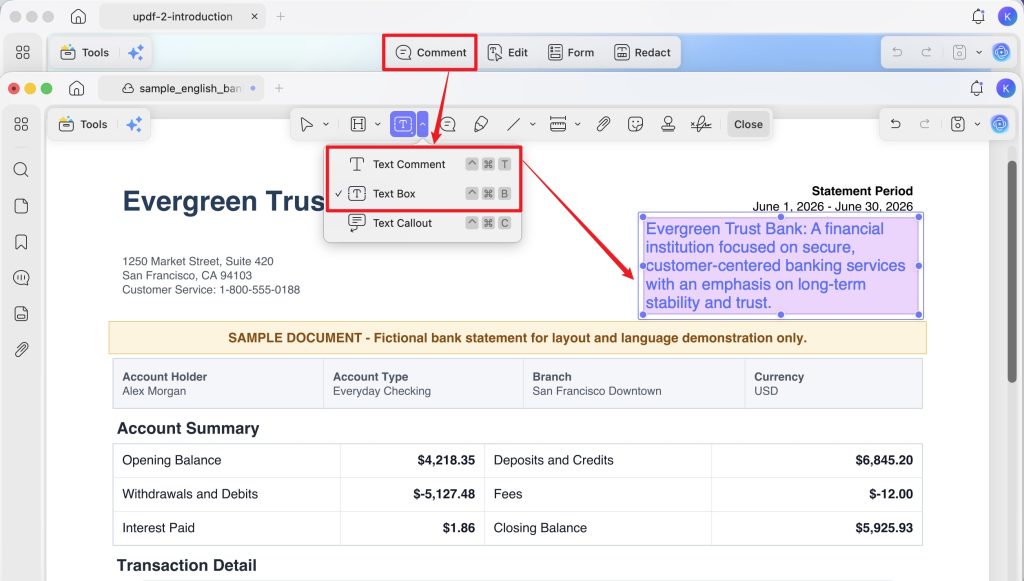
- Select Text Box or Text Comment and choose the available text style settings.
- Click the page, type your text, and position it beside the relevant content.
- Adjust the font, color, size, and—when using Text Box—the border and background.
- Choose File > Save, then check the annotation in the PDF viewer your recipient will use.
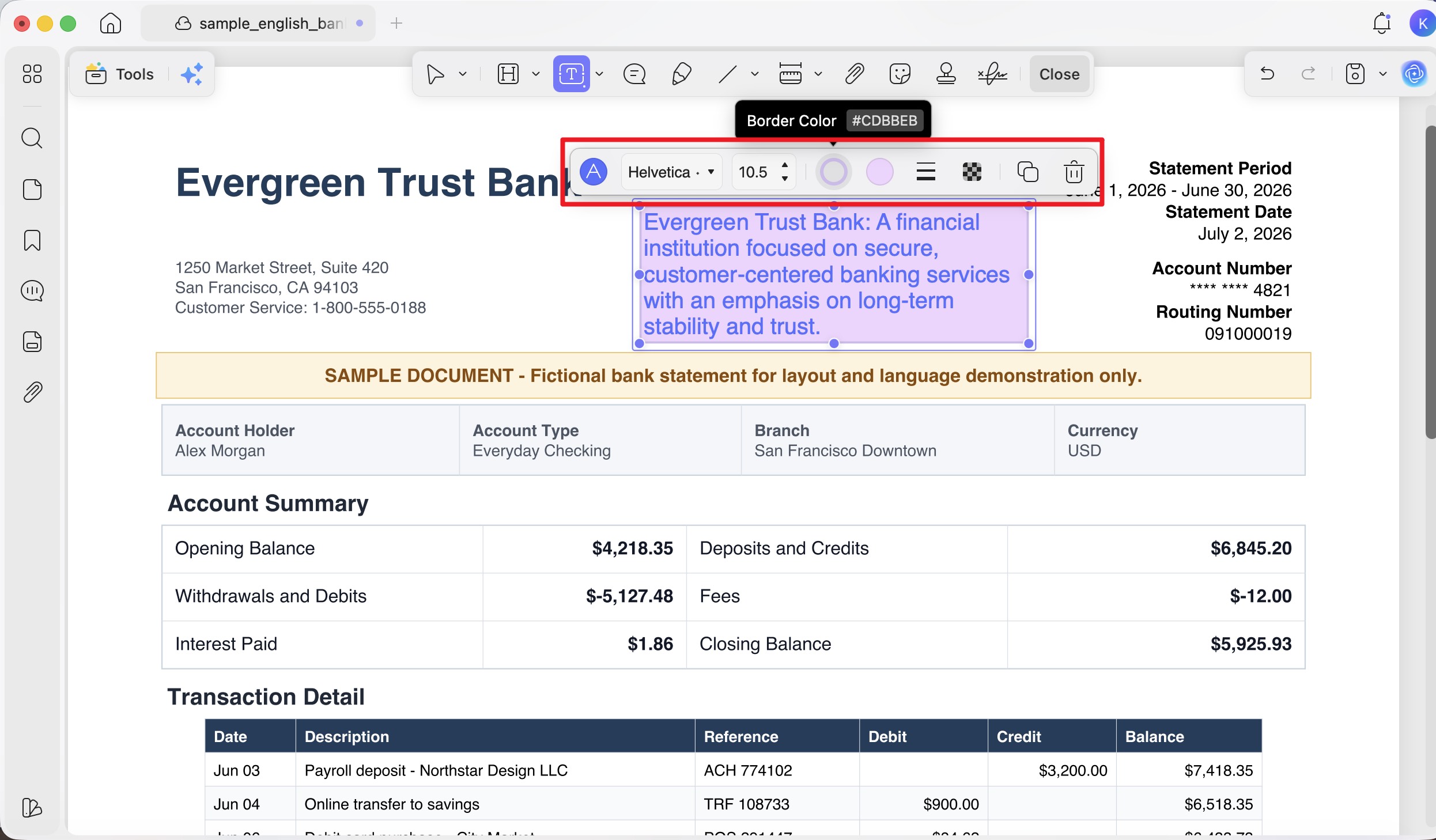
These tools add annotations; they do not replace the original paragraph underneath. For handwriting and other markups, see how to write on a PDF on Mac.
Part 4. Add Text for Free with Preview
For an occasional text-box annotation, Apple’s Preview is a free option already included with macOS. Its Markup tools add text over the page, but do not edit the PDF’s existing body text.
- In Finder, Control-click the PDF and choose Open With > Preview.
- Click Show Markup Toolbar, then select Text.
- Replace the placeholder in the inserted text box with your words, then drag the box to the required position.
- Use the text style controls to adjust the font, size, color, and alignment. Resize the box if necessary.
- Choose File > Save and reopen the file to confirm the text appears correctly.
Preview inserts a text box when you select Text; you then move it into place. Do not expect to click an original sentence and rewrite it. If the PDF contains interactive form fields, click the field first instead of placing a text annotation over it. See how to type on a PDF on Mac for the form-filling workflow.
Part 5. Check Your PDF Before Sharing
- Reopen the saved file and check spelling, line breaks, font appearance, and overlap at a readable zoom level.
- If you added an annotation, check it in the recipient’s viewer before sending a document that depends on its placement.
- Retain the original PDF so you can return to it if the layout changes.
Scanned PDFs: You can place new text or a text box over a scanned page without first recognizing the image’s text. OCR is relevant when you need to recognize and edit the words already captured in the scan. Use the existing-text editing guide for that task.
FAQs About Adding Text to PDFs on Mac
1. Does adding a text box securely hide the words underneath?
No. A text box, including one with an opaque background, is not a substitute for redaction. Use a redaction workflow when you need to remove sensitive content from a PDF.
2. Should I add text before or after digitally signing a PDF?
Complete the text changes before applying a digital signature. Later changes can affect signature validation; if a document is already signed, ask the sender for an unsigned copy or instructions for an approved revision.
3. Can I edit a PDF that restricts changes?
Check the document’s permissions and obtain an unrestricted copy or the required password from its owner. Adding annotations and editing page content may be governed by different permissions.
Conclusion
Choose UPDF’s editing tool for a new page-text object, or a comment tool for a visible note. For a simple free annotation, use Preview’s Text tool. Once the addition is saved and checked, explore UPDF PDF editing tools if you also need to revise existing page content.
Windows • macOS • iOS • Android 100% secure





 Enid Brown
 Enrica Taylor