UPDF
UPDF
 UPDF for Windows
 UPDF for Mac
 UPDF for iPhone/iPad
 UPDF for Android
 UPDF AI Online
 UPDF Sign
 Edit PDF
 Annotate PDF
 Create PDF
 PDF Form
 Edit links
 Convert PDF
 OCR
OCR PDF to Word
 PDF to Image
 PDF to Excel
 Organize PDF
 Merge PDF
 Split PDF
 Crop PDF
 Rotate PDF
 Protect PDF
 Sign PDF
 Redact PDF
 Sanitize PDF
 Remove Security
 Read PDF
 UPDF Cloud
 Compress PDF
 Print PDF
 Batch Process
 About UPDF AI
 UPDF AI Solutions
 AI User Guide
 FAQ about UPDF AI
 Summarize PDF
 Translate PDF
 Chat with PDF
 Chat with AI
 Chat with image
 PDF to Mind Map
 Explain PDF
 PDF AI Tools
 Image AI Tools
 AI Chat Tools
 AI Writing Tools
 AI Study Tools
 AI Working Tools
 Other AI Tools
 PDF to Word
 PDF to Excel
 PDF to PowerPoint
 Enterprise Solution
 Enterprise Sign
 Enterprise AI
 Enterprise Plan
 Enterprise User Guide
 Enterprise Webinar
 Banking
 Healthcare
 Insurance
 Legal
Legal Manufacturing
 Government
 Education Solution
 Customer Stories
 User Guide
 UPDF Tricks
 FAQs
FAQs UPDF Reviews
 Download Center
 Blog
Blog Newsroom
 Tech Spec
 Updates
 UPDF vs. Adobe Acrobat
 UPDF vs. Foxit
 UPDF vs. PDF Expert

Online PDF editing tools have emerged to address this need when you want to modify PDF files in various ways but don't need to install any desktop software. No software installation is required; open a browser to perform editing, merging, compression, and signing operations.
But are you overwhelmed by the sheer number of features? Is file uploading secure? Is the free version sufficient?
This article will categorize and introduce common features of online PDF editing tools, compare mainstream tools, provide operation guidelines, privacy and security considerations, and if you are editing a PDF with many pages or containing private information, then UPDF offline PDF editor is the best choice.
Windows • macOS • iOS • Android 100% secure
Basic Concepts: What Can Online PDF Modifying Do?
Online PDF editing services cover a variety of operations and can be categorized as follows based on user needs:
| Functional Categories | Common Operations |
| Content Editing | Add text, images, highlighting, annotations, and watermarks |
| Page Operations | Merge, split, rotate, delete, and rearrange pages |
| Format Conversion | Convert PDF to Word/Excel/PPT/images, and vice versa |
| Compression and Optimization | Reduce file size |
| Signatures and Forms | Electronic signatures and form filling |
| Security Protection | Add passwords and set permissions |
Comparison of Mainstream Online PDF Modifying Tools
Next, let's take a look at the top 5 mainstream online PDF tools and what needs they can meet.
| Online Toos | Content Editing | Page Operations | Comments/Signature | Merge/Split | compression | Conversion | Free Quota |
| Smallpdf | ✅ | ✅ | ✅ | ✅ | ✅ | ✅ | 2 free times/day |
| iLovePDF | ❌ | ✅ | ✅ | ✅ | ✅ | ✅ | 3 free times/day |
| Sejda | ✅ | ✅ | ✅ | ✅ | ❌ | ❌ | 3 times/day/document within 50 pages |
| PDFescape | ✅ | ✅ | ✅ | ❌ | ❌ | ❌ | File size 10MB/100 pages |
| Adobe Acrobat Online | ✅ | ✅ | ✅ | ✅ | ✅ | ✅ | Subscription required |
Common Limitations of Online Modifying Tools
Free tools have limitations: file size limits (e.g., 10MB), page limits (e.g., the first 5 pages), daily operation limits (e.g., twice a day), and watermarked output.
Privacy concerns: Uploading sensitive documents such as contracts, ID cards, and company secrets to online tools raises concerns about data leakage or third-party use.
Limited editing capabilities: Online tools are far less capable of editing complex layouts, special fonts, tables, and scanned documents than desktop software (e.g., UPDF).
Poor user experience: Web-based tools experience slow upload and download speeds when handling large files, and are prone to interruptions when the network is unstable.
Disorganized functionality: Different online tools have different strengths (some excel at merging, others at editing text), requiring users to use multiple tools in combination.
Save format issues: Edited PDFs often have formatting errors and misaligned text when opened with other software.
How to Modify PDF Online With Adobe Acrobat
For modifying the content of the PDF documents online, you can get help from Adobe Acrobat Online. This powerful online tool has a lot of tools that enable users to combine files and perform different editing functions on them.
Moreover, while using this online tool, you can add e-signatures on the PDFs and organize pages in multiple ways as per their requirements. However, to understand how you can use this tool to edit the PDF, let's dive into the steps given below:
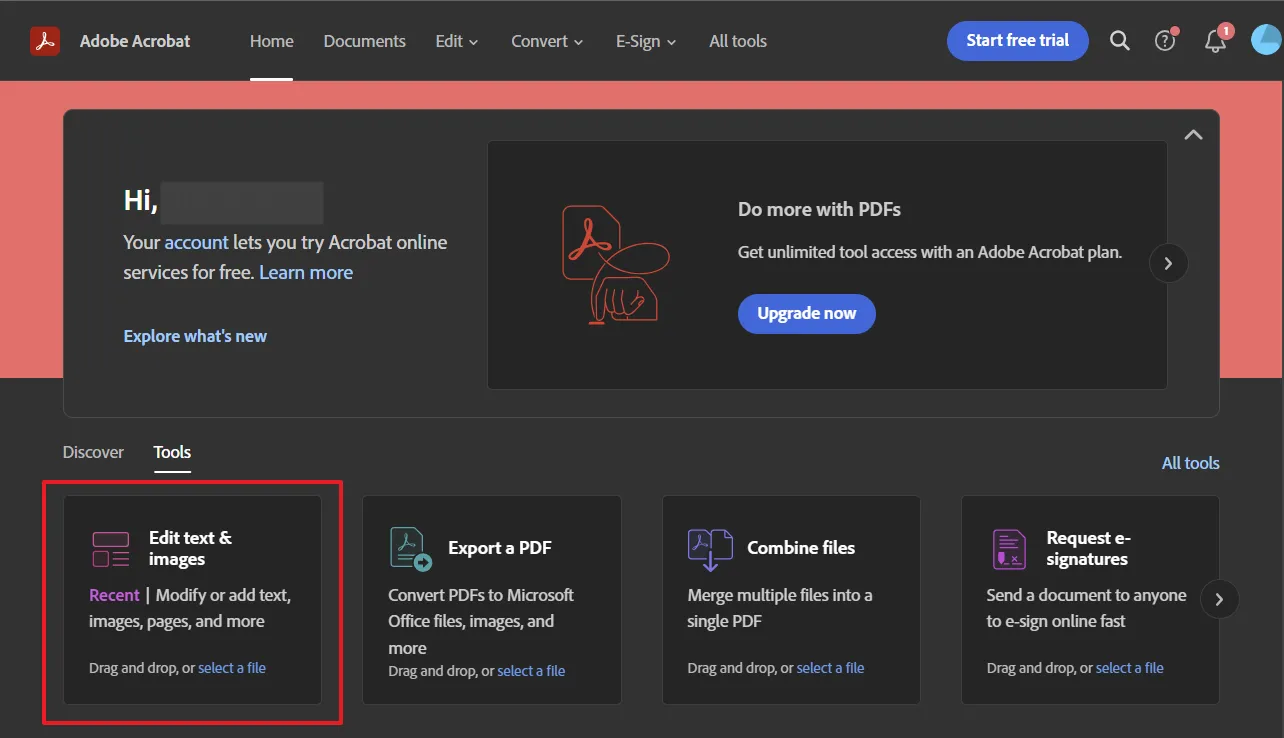
Step 1: Access Adobe Acrobat Online for PDF editing on your computer's browser, and from its main interface, click on the "Edit Text & Images" option. A new window will pop up where you can upload the respective file that you want to edit from your computer by using the drag-and-drop feature.
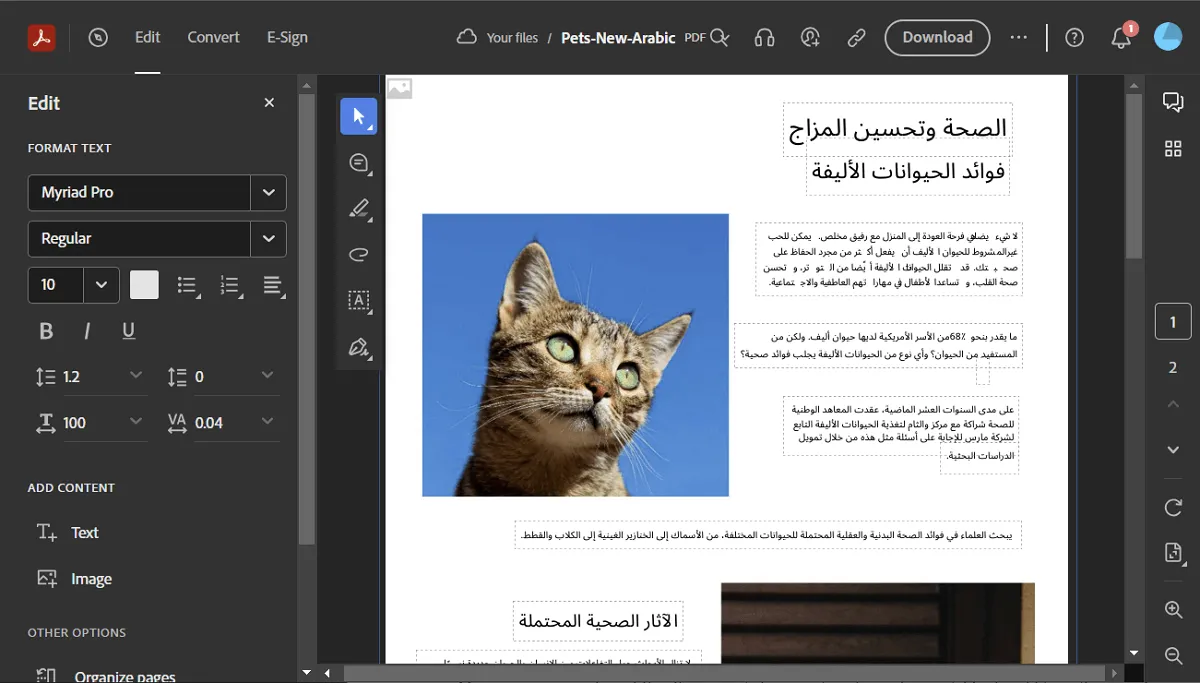
Step 2: Once the file is uploaded, using the settings panel available on the left side of the editing window, you can make the necessary adjustments. Afterward, when you are done editing your PDF, hit the "Download" button to save the PDF on your device in the required PDF format.
As using online PDF tools comes up with various restrictions and risk factors, you should opt for an offline PDF editor. One of the famous offline PDF tools that you can use is UPDF. It is a compatible software you can instantly launch on Windows, Mac, iOS, and Android platforms. Using this tool, you can effectively edit your existing text in the PDF document. Moreover, it does not restrict the user from uploading large PDF files.
The latest AI features go beyond traditional editing. It can generate text according to your requirements for you to choose from and edit, and can also polish, expand, simplify, and rewrite your existing text.
Windows • macOS • iOS • Android 100% secure
Part 4: How to Modify a PDF Offline?
Do you want to use UPDF to modify your PDF files offline? Here are the detailed instructions that you can use to flawlessly edit your PDF file in the friendly interface of UPDF:
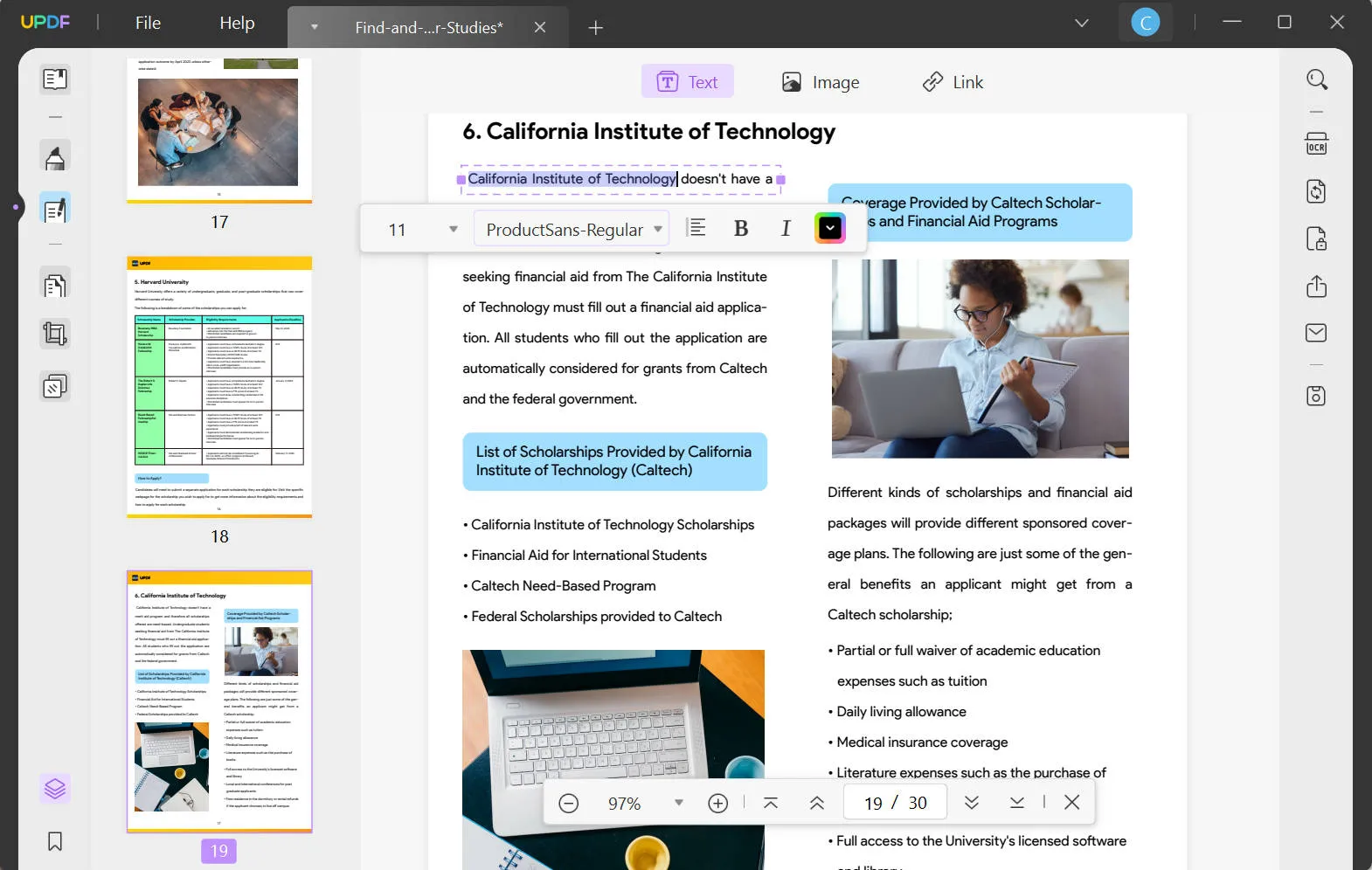
2. Modify PDF Text Offline Manually
For Modifying PDF Text : Once you have launched UPDF, hit the "Open File" button to import your file. After opening the desired file, click on "Edit PDF" from the left section. After opening the editing mode, you can modify your text style, size, and alignment. With this PDF tool, you can also bold and italicize the text with a single tap. You can also change the color of the text in this tool. Moreover, you can add or delete the textual content in its interface without difficulty.
3. Modify PDF Image Offline
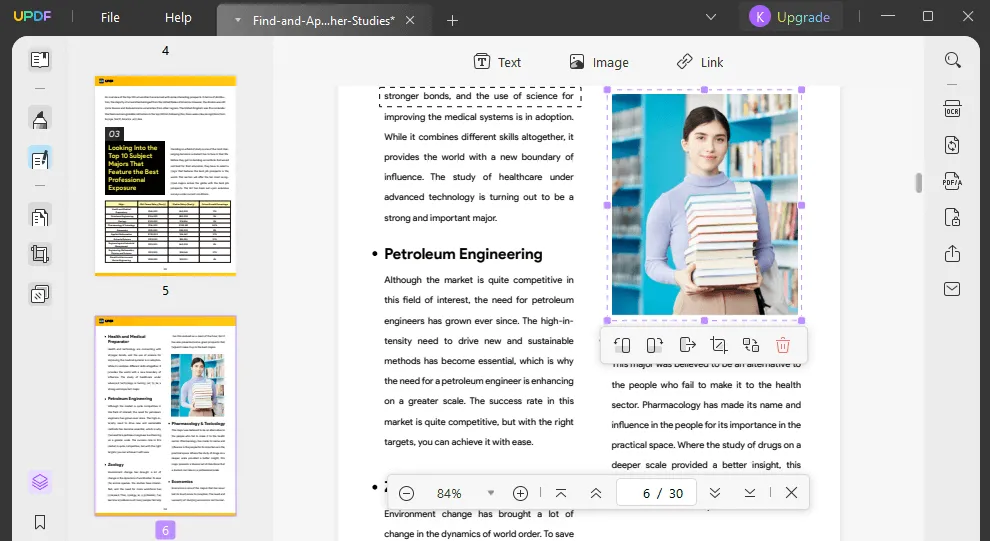
UPDF also allows you to edit the images in a PDF file offline. To do so, open your PDF file and navigate to the editing mode.
- From there, click on the "Image" option given on top to insert an image into PDF.
- Just double-click on the desired image through which you can perform certain functions. For example, you can easily rotate, crop, and replace the image. Moreover, you can also extract and delete the image on this tool.
4. Modify PDF Annotations Offline
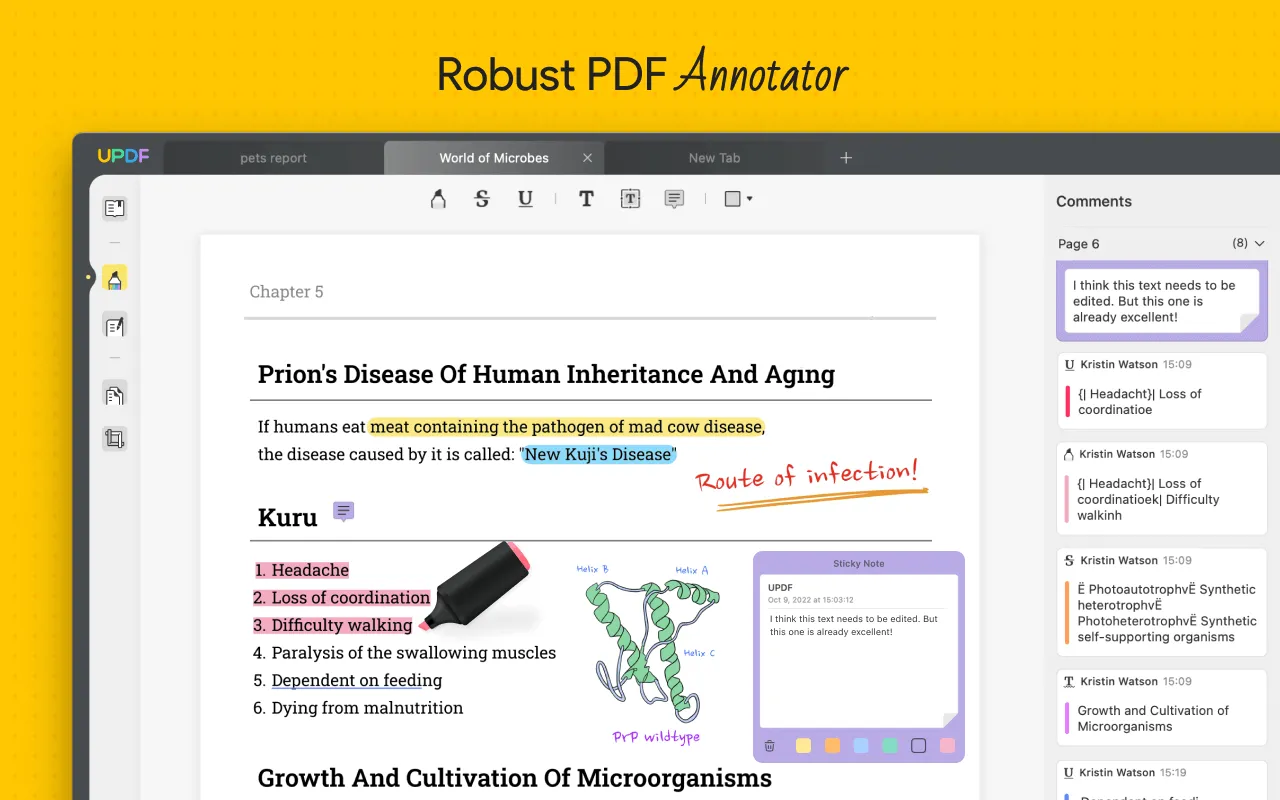
To modify the annotations in your PDF, go to the "Comment" tab after importing the PDF file. From the above options, you can highlight the desired text content by adding an underline or squiggly lines. You can also strikethrough the text. Furthermore, you can add text comments, sticky notes, and text boxes with a single click. The annotation feature also allows you to insert shapes and use a pencil to draw on the PDF file.
5. Modify PDF Links, Watermarks, Backgrounds, Header & Footers Offline
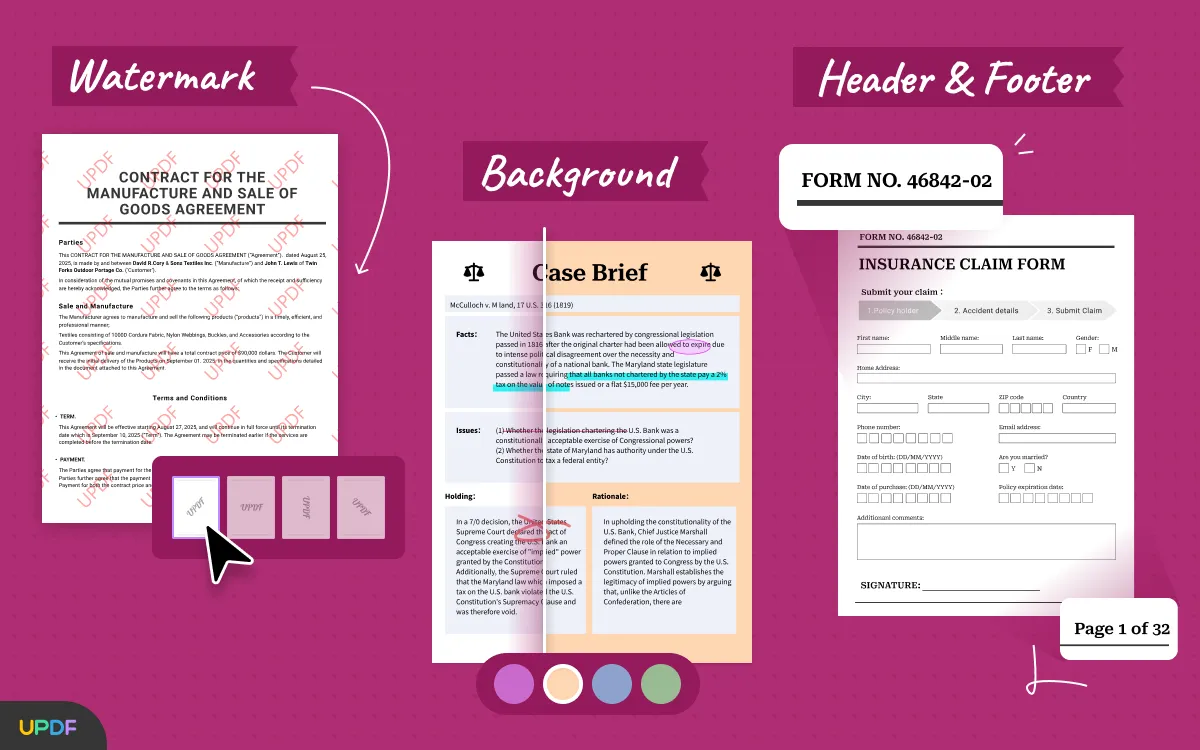
UPDF also allows you to add and modify the links in a PDF file. To insert the link, you can go to the editing mode and click on the "Link" option displayed on top.
It also provides "Page Tools" through which you can change the background of your PDF pages efficiently. Moreover, you can insert header and footers, and watermarks to your PDF document for more modifications.
Conclusion
Modifying a PDF file online may sound easy, but it has various restrictions that can interrupt your workflow. In this article, we have shed light on the disadvantages of modifying PDF text online. Thus, to help you choose the perfect offline tool for modifying your PDF file, we recommend you use UPDF. It has a clean interface and provides all the beneficial features for editing and modifying PDF files effortlessly. You can download it for a trial.
Windows • macOS • iOS • Android 100% secure





 Enrica Taylor
 Enola Miller