 UPDF
UPDF
 UPDF for Windows
 UPDF for Mac
 UPDF for iPhone/iPad
 UPDF for Android
 Nomostar
 UPDF AI Online
 UPDF Sign
 IvyCraft
 Edit PDF
 Annotate PDF
 Create PDF
 PDF Form
 Edit links
 Convert PDF
 OCR
OCR PDF to Word
 PDF to Image
 PDF to Excel
 Organize PDF
 Merge PDF
 Split PDF
 Crop PDF
 Rotate PDF
 Protect PDF
 Sign PDF
 Redact PDF
 Sanitize PDF
 Remove Security
 Read PDF
 UPDF Cloud
 Compress PDF
 Print PDF
 Batch Process
 About UPDF AI
 UPDF AI Solutions
 AI User Guide
 FAQ about UPDF AI
 Summarize PDF
 Translate PDF
 Chat with PDF
 Chat with AI
 Chat with image
 PDF to Mind Map
 Explain PDF
 PDF AI Tools
 Image AI Tools
 AI Chat Tools
 AI Writing Tools
 AI Study Tools
 AI Working Tools
 Other AI Tools
 AI Bookmark Generation
 AI Bookmark Summary
 AI Watermark Generation
 AI Background Generation
 AI Sticker Generation
 AI Stamp Generation
 AI Editing Suite
 UPDF Copilot
 AI Page Management
 AI Semantic Search
 PDF to Word
 PDF to Excel
 PDF to PowerPoint
 Enterprise Solution
 Enterprise Sign
 Enterprise AI
 Enterprise Plan
 Enterprise User Guide
 Enterprise Webinar
 IT
IT Education
 Construction
 Financial Service
 Healthcare
 Insurance
 Legal
Legal Manufacturing
 Government
 Researchers & PhDs
 Solopreneurs & Freelancers
 Lawyers & Legal Professionals
 Real Estate Agents & Brokers
 Education Solution
 Customer Stories
 User Guide
 UPDF Tricks
 FAQs
FAQs UPDF Reviews
 Download Center
 Blog
Blog Newsroom
 Tech Spec
 Updates
 UPDF vs. Adobe Acrobat
 UPDF vs. Foxit
 UPDF vs. PDF Expert

Quick Answer:
Keynote is excellent for creating presentations but sharing them can be tricky if the recipient doesn't have an Apple device. Converting your Keynote presentation to PDF ensures compatibility, making it accessible across all devices while preserving formatting. For this purpose, you can easily convert Key to PDF using the Keynote app or iCloud.
This article will walk you through both methods, ensuring your presentation is ready to share effortlessly. Once converted, managing your newly created PDF is just as important. Thus, it is suggested that UPDF, a powerful tool, be used to edit, annotate, and organize PDFs seamlessly. Continue reading this guide till the end to learn how to simplify your PDF workflow!
Windows • macOS • iOS • Android 100% secure
Part 1. Which KEY-to-PDF Route Should You Use?
| Your situation | Best route | Why | Main limitation |
|---|---|---|---|
| You created the file on a Mac | Export from Keynote | Uses Apple’s native export controls | Motion and media become static |
| You have the file on an iPhone or iPad | Export and Send as PDF | No computer is required | Large presentations may be slower to export |
A Windows recipient received your .key file | Ask you to resend it as PDF | Avoids account, upload, font, and version problems | Requires the sender to respond |
| You only have Windows and cannot reach the sender | Use Keynote for iCloud | Apple supports Keynote conversion in a PC browser | The file must be uploaded to iCloud |
| The PDF contains confidential or unnecessary material | Clean it locally in UPDF | Lets you remove pages, redact content, and sanitize hidden data | Review the saved copy before sending |
Best for:
- export from the original Keynote file on an Apple device.
Not for:
- a presentation whose builds, narration, or video are essential. A PDF is a fixed-page handout, not a playable Keynote show.
Part 2. How to Convert Keynote to PDF files Using a Mac?
Using the built-in Keynote app on your Mac is the best option for Key to PDF conversion. Keynote offers the ability to export your presentation as a PDF in just a few clicks without needing additional software. This method ensures that your presentation's design, animation, and layout are exactly preserved as the original file. Explore the guide provided next to understand how to convert Keynote to PDF across a Mac:
Step 1. First, open the Keynote presentation on your Mac and head to the "File" menu at the top. From the drop-down menu, access the "Export To" extended option and then select "PDF."
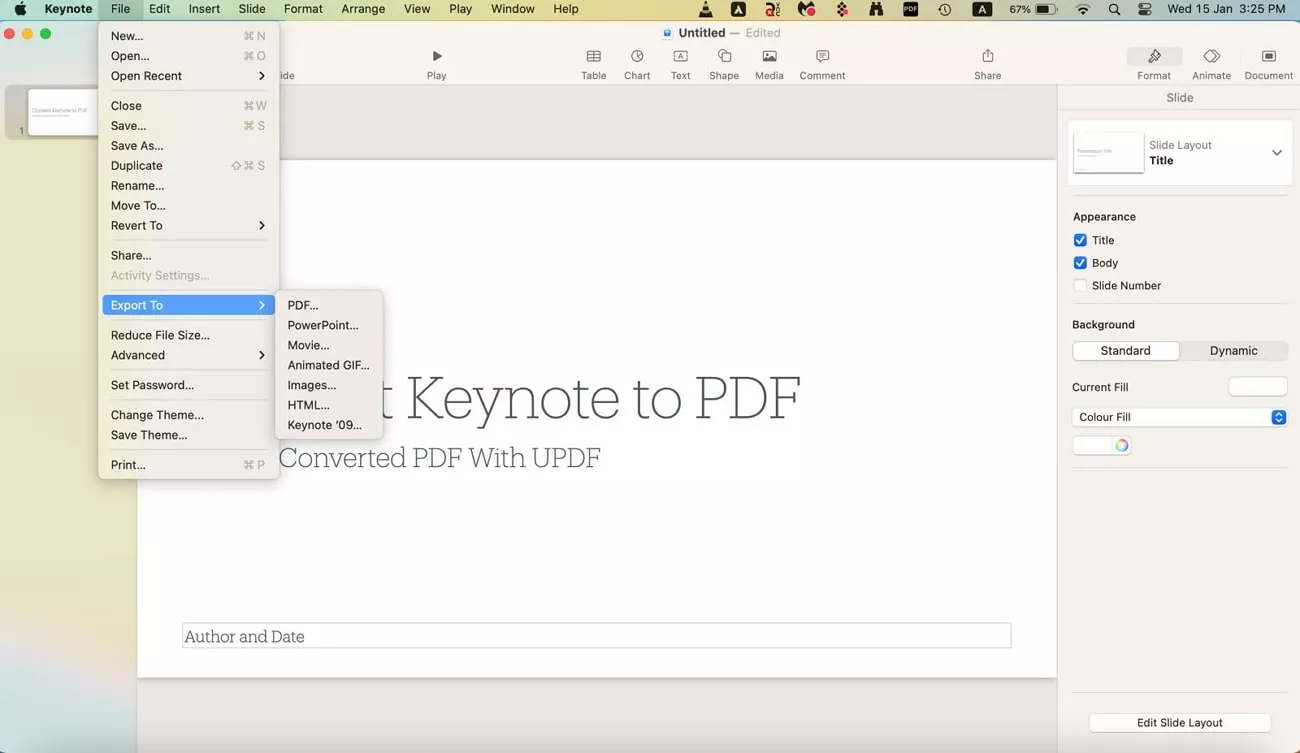
Step 2. This will initiate the export process and open a dialogue box with various PDF options. Here, choose the "Image Quality" and adjust other settings. After doing so, click the "Save" button and choose a name for the converted file before hitting the "Export" button.
If the output only needs page cleanup after export, open the PDF in UPDF and keep the Keynote file as the editable source.
Part 3. How to Convert Keynote to PDF files Using a PC with iCloud?
For users who don't have access to the Keynote app, iCloud offers a convenient solution for converting Key to PDF directly from a web browser. Using iCloud, you can easily open, edit, and convert your Keynote presentations into PDF format while maintaining their original design and layout. Follow the guidelines below to learn how to perform this conversion on a PC.
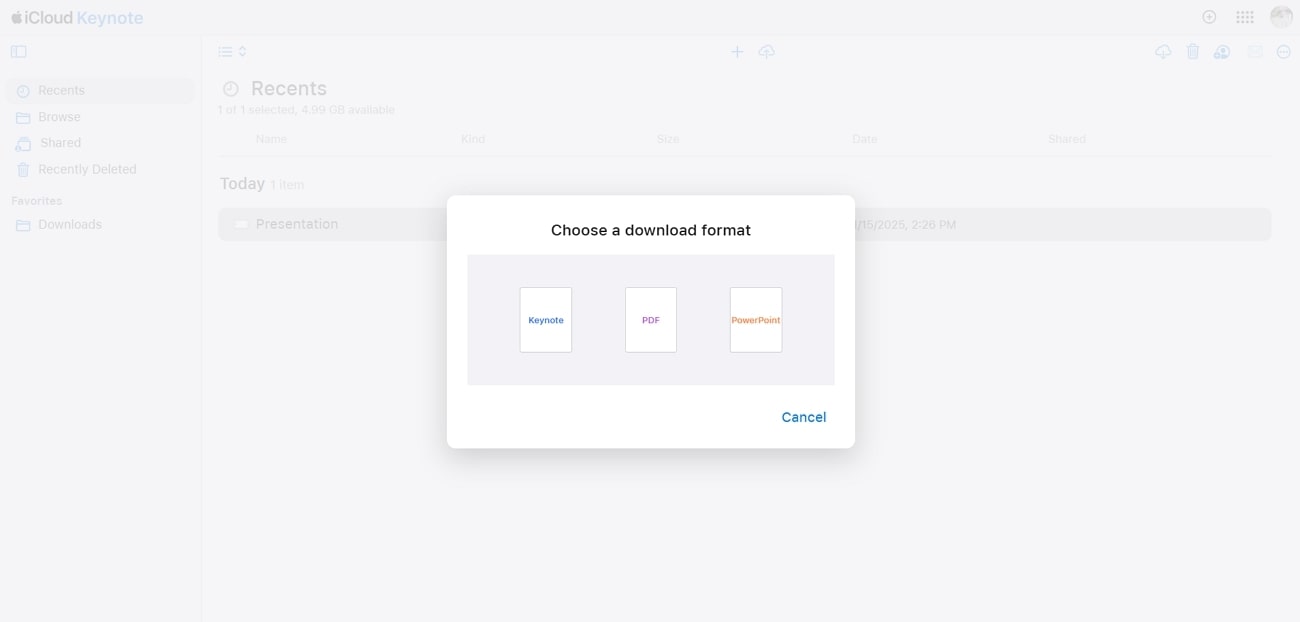
Instructions. Go to icloud.com on your web browser and enter your account credentials to log in. Once logged in, enter the "iCloud Keynote" page and click the "Three-dotted" icon next to the presentation you want to convert. A pop-up menu will appear, where you have to choose the "Download as Copy" option and select "PDF" as the conversion format from the "Choose a Download Format" window.
Part 4. Clean the Converted Keynote PDF Before Sharing
As you convert Key to PDF, managing and editing the PDF is the next step in effective information handling. An efficient way to handle these files is through an all-in-one PDF editor like UPDF. This advanced document editing software provides powerful editing tools, allowing users to modify the font color, style, and text alignment. In addition to text editing, UPDF even lets you adjust images, annotate the document, and rearrange pages.
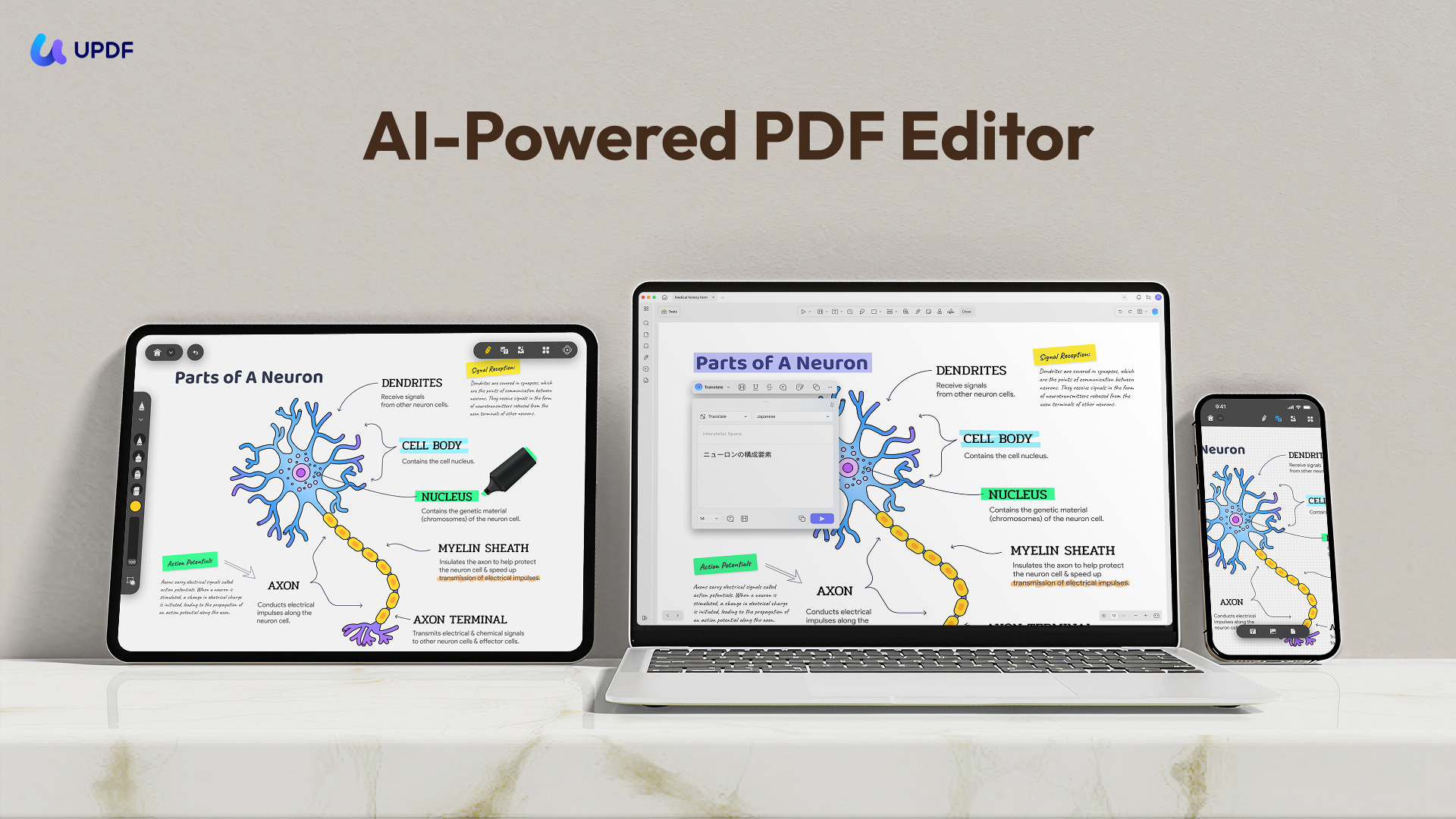
Open the exported PDF in UPDF and use this order:
- Review the presentation as a recipient. Use page thumbnails to find blank pages, unintended build-stage duplicates, skipped slides, and slides that should stay internal.
- Organize the pages. Delete internal slides, reorder pages, rotate pages if needed, and crop excess margins. Save a new copy instead of overwriting the first export.
- Fix minor PDF content only. Correct a final typo, replace an outdated image, or repair a link in the PDF. If the design needs major changes, return to Keynote and export again; the
.keyfile remains the source of truth. - Redact sensitive content. Use UPDF’s Redact tool and apply the redaction when a name, price, account number, or confidential paragraph must be permanently removed. Drawing a black rectangle or changing the text color only hides content visually.
- Sanitize hidden data. Use Sanitize PDF, review the listed data to be removed, confirm, and save a sanitized copy. This step targets hidden data and metadata that page-by-page visual review may miss.
- Verify the final copy. Search for redacted terms, reopen the PDF, test links, check document properties, and confirm that the filename itself reveals nothing sensitive.
UPDF brings page organization, editing, redaction, and sanitization into one desktop review. Download UPDF for free to clean your exported Keynote PDF — installation is free, and Pro removes the trial watermark from exported files.
Windows • macOS • iOS • Android 100% secure
FAQs
Q1: Can Windows convert a KEY file to PDF without Keynote installed?
Yes, through Keynote for iCloud. A Windows user can upload or open the presentation in Apple’s web app and download a PDF copy. For private files, asking the owner to export the PDF locally is safer than uploading the .key file.
Q2: Does converting Keynote to PDF keep animations and video?
No, a normal PDF is static. Build stages can be printed as separate pages, but transitions, animated GIF motion, audio, and video playback do not remain a Keynote-style presentation.
Q3: Why is the converted Keynote PDF so large?
Images and build stages add size. High image quality and printing every build stage can multiply the file size. Re-export with only the pages and build states the recipient needs, then compress the finished PDF if necessary.
Conclusion
The most reliable way to convert KEY to PDF is to export the original presentation from Keynote on Mac, iPhone, or iPad. A Windows recipient should request that PDF from the sender first and use Keynote for iCloud only when sender-side export is unavailable.
Before delivery, treat the PDF as a new document: remove unintended pages, verify links and fonts, permanently redact sensitive content, and sanitize hidden data. If the presentation depends on motion or sound, send a movie or the original Keynote file alongside the static PDF.
For the final recipient check, download UPDF for free to organize, redact, and sanitize the converted PDF — installation is free, and Pro removes the trial watermark from exported files.
Windows • macOS • iOS • Android 100% secure




 Delia Meyer
 Enola Davis
 Enid Brown