UPDF
UPDF
 UPDF for Windows
 UPDF for Mac
 UPDF for iPhone/iPad
 UPDF for Android
 UPDF AI Online
 UPDF Sign
 Edit PDF
 Annotate PDF
 Create PDF
 PDF Form
 Edit links
 Convert PDF
 OCR
OCR PDF to Word
 PDF to Image
 PDF to Excel
 Organize PDF
 Merge PDF
 Split PDF
 Crop PDF
 Rotate PDF
 Protect PDF
 Sign PDF
 Redact PDF
 Sanitize PDF
 Remove Security
 Read PDF
 UPDF Cloud
 Compress PDF
 Print PDF
 Batch Process
 About UPDF AI
 UPDF AI Solutions
 AI User Guide
 FAQ about UPDF AI
 Summarize PDF
 Translate PDF
 Chat with PDF
 Chat with AI
 Chat with image
 PDF to Mind Map
 Explain PDF
 PDF AI Tools
 Image AI Tools
 AI Chat Tools
 AI Writing Tools
 AI Study Tools
 AI Working Tools
 Other AI Tools
 PDF to Word
 PDF to Excel
 PDF to PowerPoint
 Enterprise Solution
 Enterprise Sign
 Enterprise AI
 Enterprise Plan
 Enterprise User Guide
 Enterprise Webinar
 Banking
 Healthcare
 Insurance
 Legal
Legal Manufacturing
 Government
 Education Solution
 Customer Stories
 User Guide
 UPDF Tricks
 FAQs
FAQs UPDF Reviews
 Download Center
 Blog
Blog Newsroom
 Tech Spec
 Updates
 UPDF vs. Adobe Acrobat
 UPDF vs. Foxit
 UPDF vs. PDF Expert

While working with important documents, presentations, and reports, you may often see or need to add a label called an Adobe Exhibit Stamp. Many people don’t know what it is or how to add it to their legal PDF files. Well, an Adobe Exhibit Stamp is a simple label or sticker that you can place on your PDF documents using PDF editing tools such as Adobe Acrobat. This label helps keep your files organized and makes them easier to identify.
In this article, I will tell you how to add Exhibit Stamp in Adobe. Along with that, you will learn how to add or even AI-generate an exhibit stamp using UPDF. It is the best Adobe alternative for adding Exhibit Stamp to your PDF files. With this tool, you can also merge PDFs, organize files, convert PDFs to other formats, and more.
Windows • macOS • iOS • Android 100% secure
Part 1. What Exactly is a PDF Exhibit Stamp?
PDF Exhibit Stamp is a digital label added to your PDF files to show that it is an important file used for evidence or reference. This stamp usually contains a text like Exhibit A, Exhibit B, or Exhibit 1. With these texts, you can easily check your documents and organize them as well.
In fact, Exhibit Stamp were also used in legal dramas where lawyers place a bright yellow or blue Exhibit A sticker on a paper before submitting them in court. But nowadays, instead of using physical stickers, you can quickly add labels directly to your PDF files using different third-party tools. You can download sample exhibit stamps from the following websites.
- https://www.utd.uscourts.gov/pdf-exhibit-stamps
- https://www.ohnd.uscourts.gov/sites/ohnd/files/Exhibit-Stamp.pdf
Part 2. Who Needs This and Why?
Exhibit Stickers are used everywhere to keep digital PDF files organized. Let’s discuss who uses and add Exhibit labels to their documents.
- Legal Professionals: Lawyers and court reporters use these stamps for managing digital case files. By adding these labels they can easily find evidence and keep their files organized.
- Audit & Finance: Auditors and finance teams use these Exhibit labels for marking specific financial vouchers and records during corporate audits.
- Government & Compliance Personnel: Government officers use exhibit stickers for official document and evidence submission.
- For Ordinary Individuals: Exhibit stickers are not used very often for ordinary people, but in professional fields like law, finance, and real estate, these stamps are very important for organizing the important files.
Part 3. Why Is It So Often Associated With Adobe?
Exhibit stickers are often associated with Adobe Acrobat because this software helps move important work from papers to digital files. In fact, many law offices use Adobe’s PDF tools to organize their work.
Apart from organizing data, it supports dynamic stamps. With these stamps, you don’t have to type the numbers by hand instead the stamps can automatically change numbers each time you use them. For example, while labeling your evidence, the stamp will automatically create Exhibit 1, Exhibit 2, Exhibit 3, and more with just one click.
If you want to learn how to add an exhibit stamp in Adobe Acrobat, here is a step-by-step video guide that you should definitely watch:
In the video, you will see several steps, such as opening the Stamp Tool, creating or importing a custom stamp, and how to create and use dynamic stamps that automatically change numbers like Exhibit 1, Exhibit 2, Exhibit 3.
However, for beginners, these steps can be daunting and complex as you need to work with different folders, stamp templates and so on.
Part 4. Where to Create Your Own Exhibit Stamp
If you plan to create your own Exhibit Stamp, here is a step-by-step guide that you can follow. In this section I have discussed how to create PDF Exhibit Stamp using two different ways.
Way 1: Use Canva to Create Your Custom Stamp
You can use Canva to create a simple Stamp design. Once the exhibit label is created, you can easily upload it to Adobe Acrobat. Here is how you can design the Exhibit label.
1. Open Canva and click the “Create” icon to create a blank design as shown below.

2. Now, on the blank page add a text box and type EXHIBIT ____ to create your own stamp.
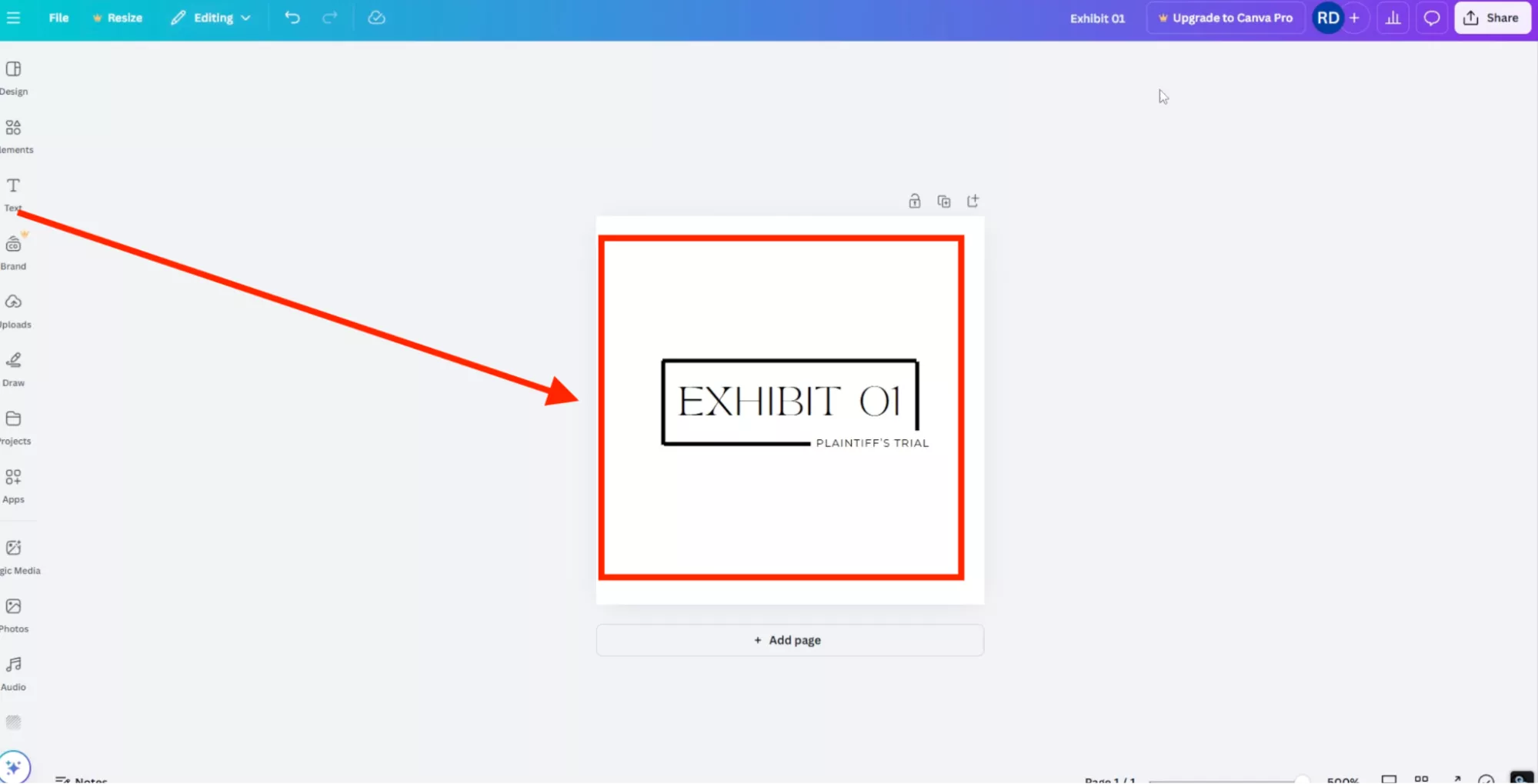
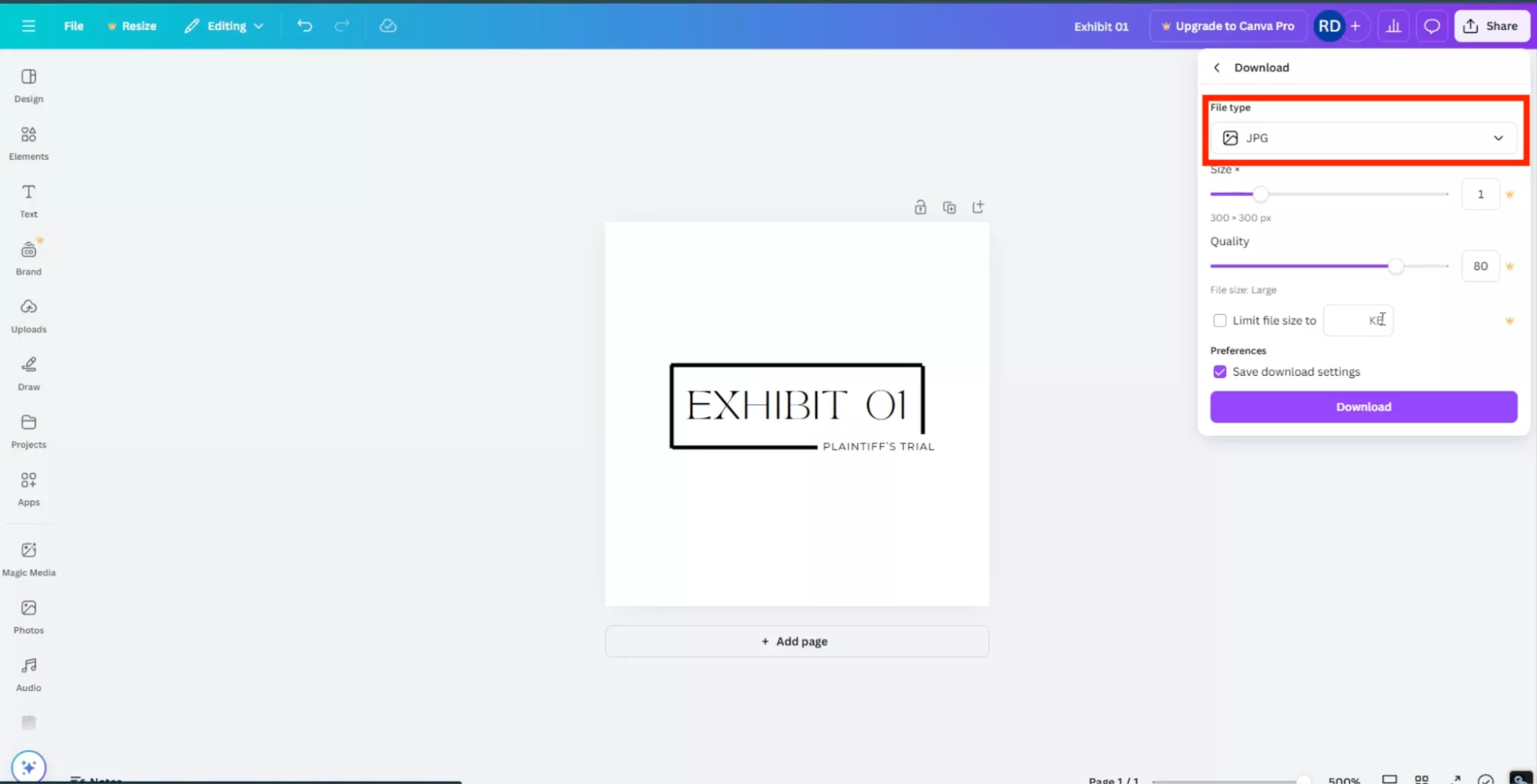
3. Once you are done, save your file by clicking the download button.

4. Make sure to choose it in PNG or PDF format.
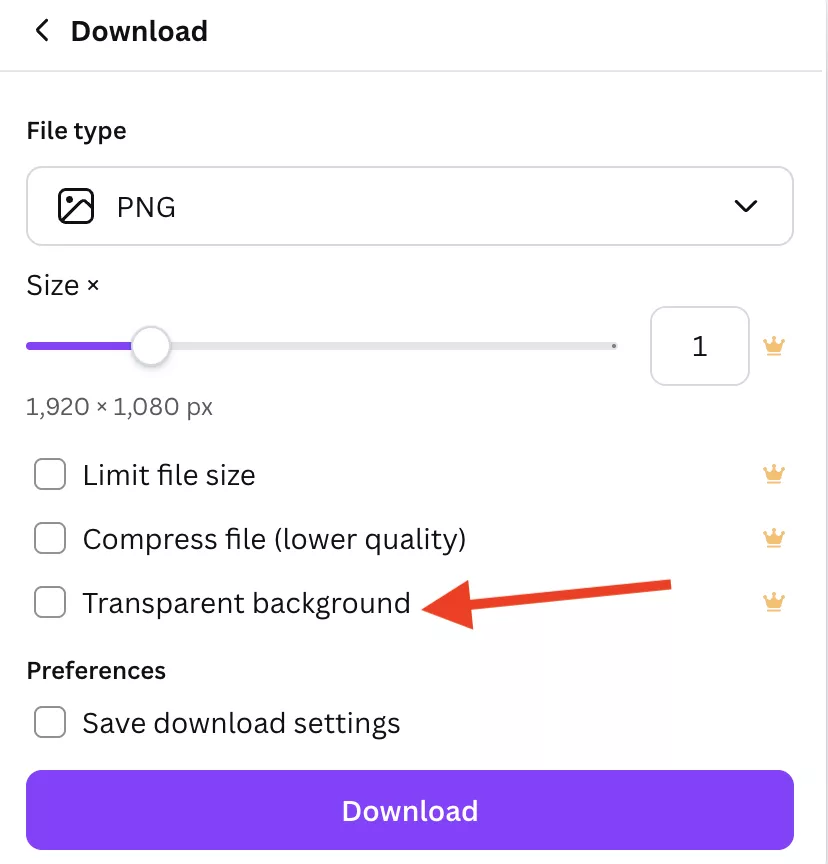
5. Don’t forget to turn on the Transparent Background option.
Once you have created Exhibit stickers, you can follow the steps below to put them on PDF using UPDF (UPDF offers Acrobat Pro's essential features at a fraction of the cost). You can click the button below to have a free download.
Windows • macOS • iOS • Android 100% secure
1. First import your PDF file where you want to add the exhibit labels. You can also drag-and-drop the file.
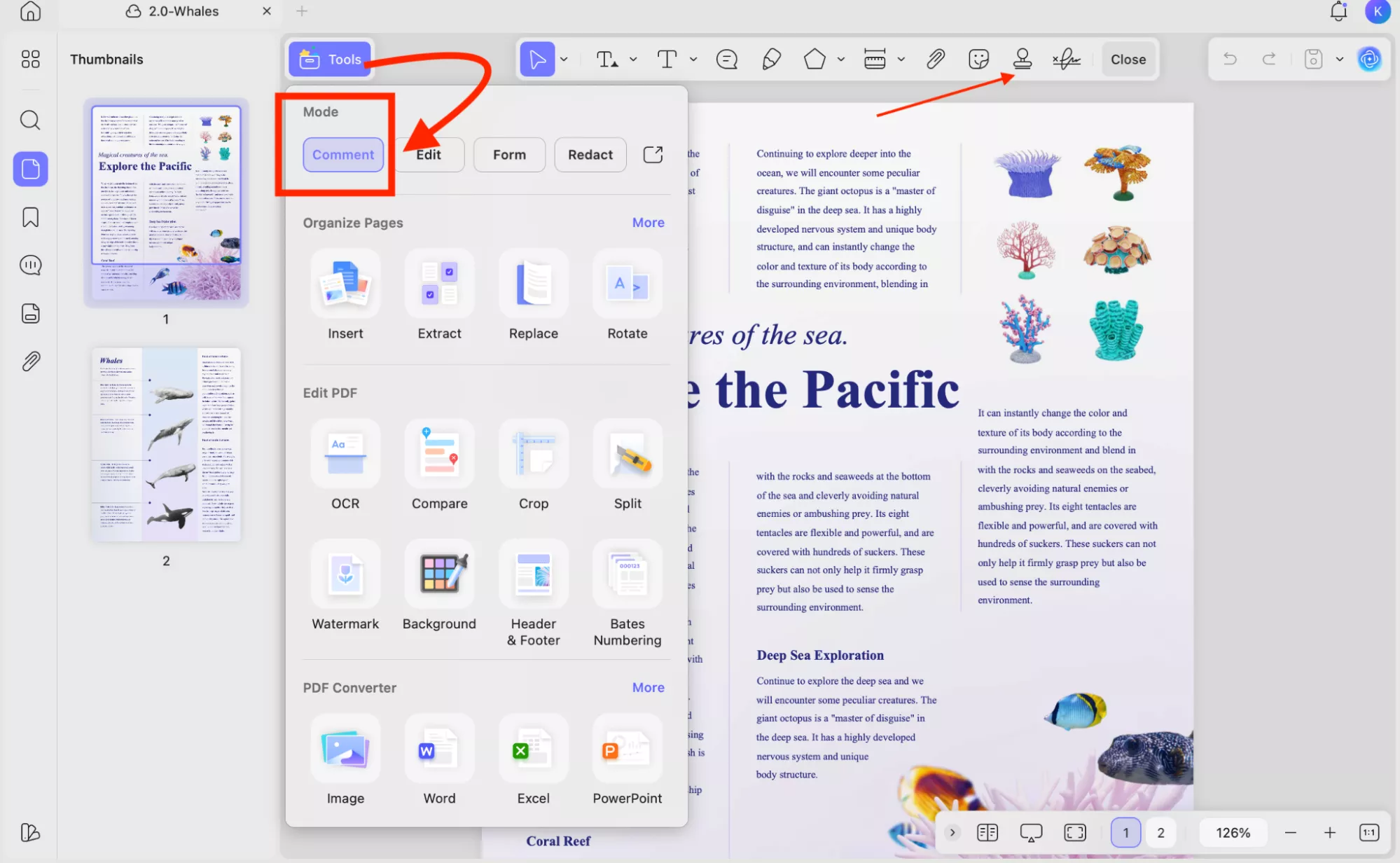
2. Now, open the document, click the Comment option and choose Stamp.
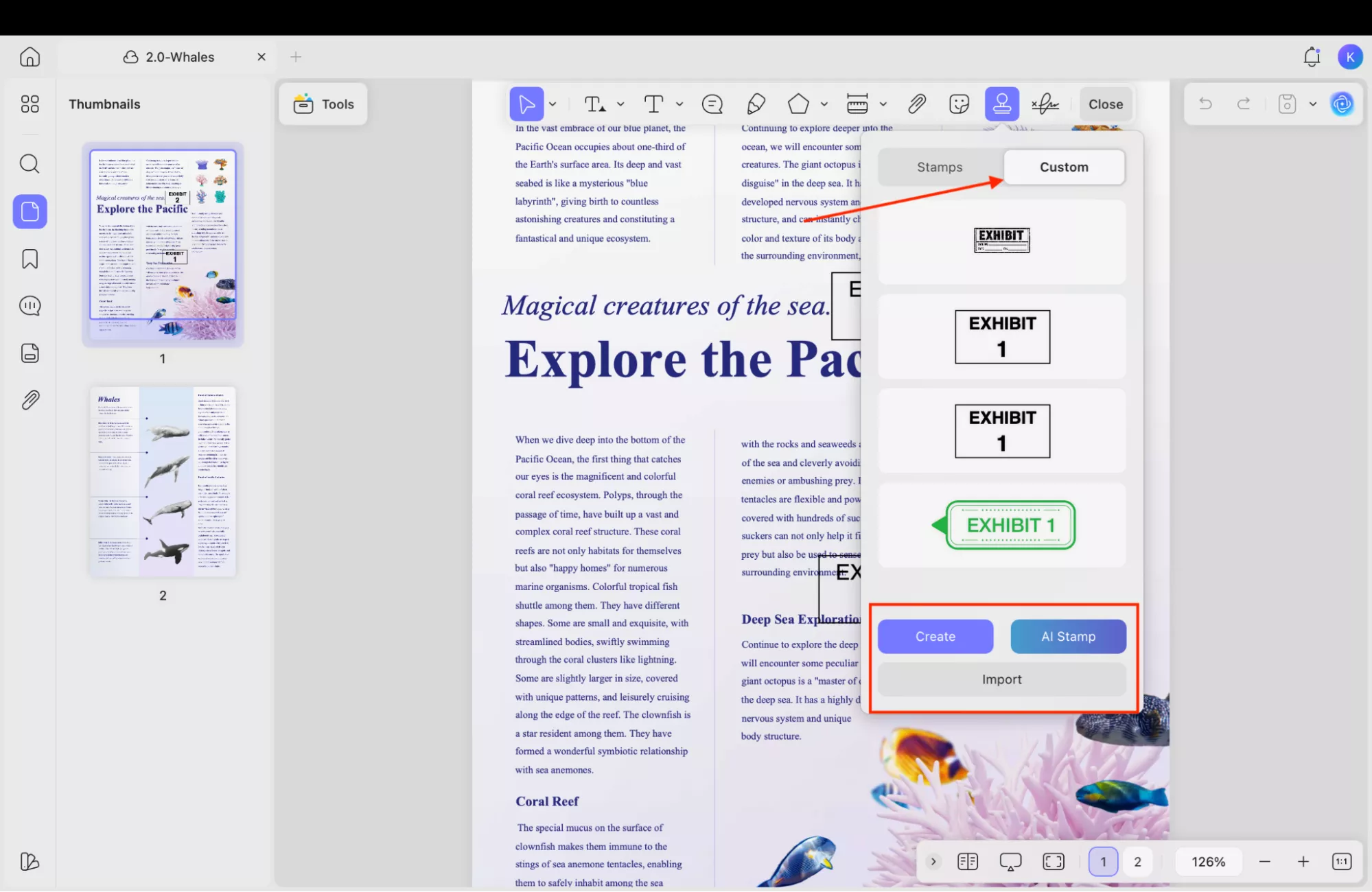
3. Next, click Custom and choose either “Create” or “Import” options to create or upload Exhibit stickers to your PDF.
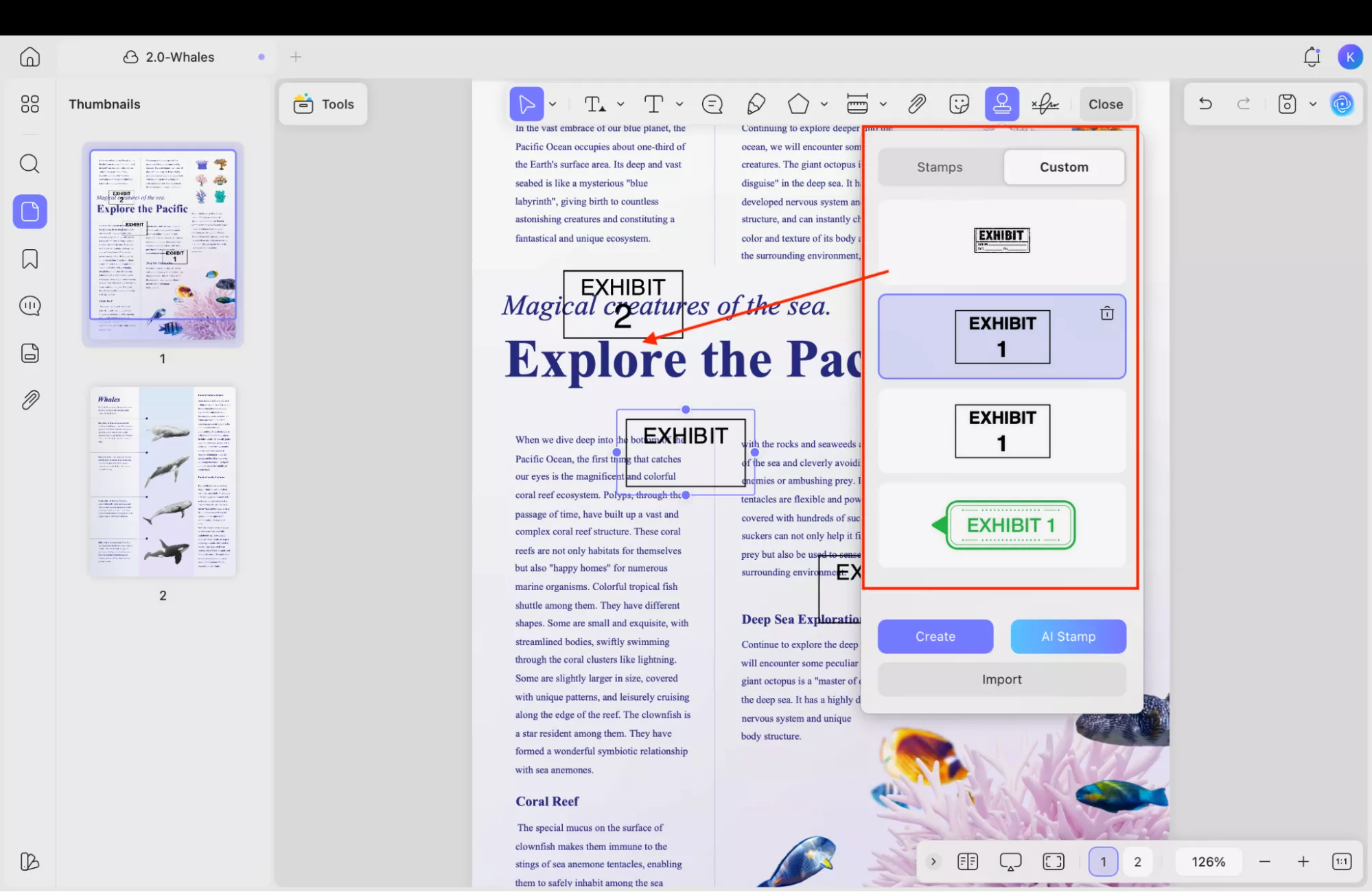
4. After creating your own Exhibit stickers, click anywhere on the PDF to place them.
Way 2: Generating Your Exhibit Stamp with UPDF’s AI Agent
You can also use UPDF’s AI agent to create your own Exhibit Stamp. Here is how it's done.
Windows • macOS • iOS • Android 100% secure
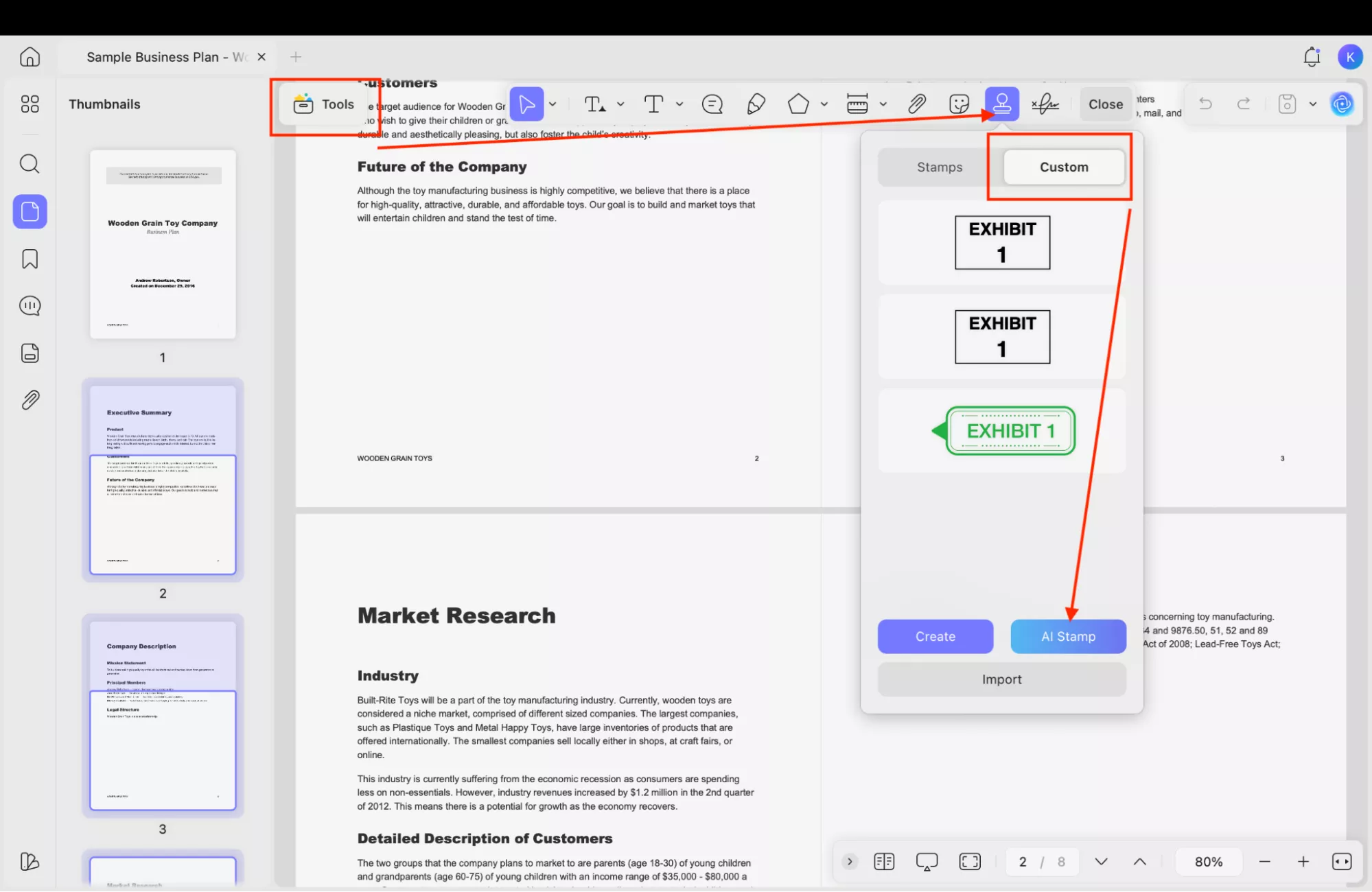
1. Open your PDF in UPDF and click the “Tools” option from the top menu.
2. Next, click “Comments” and choose “Custom.” From there, select the “AI Stamp” option.
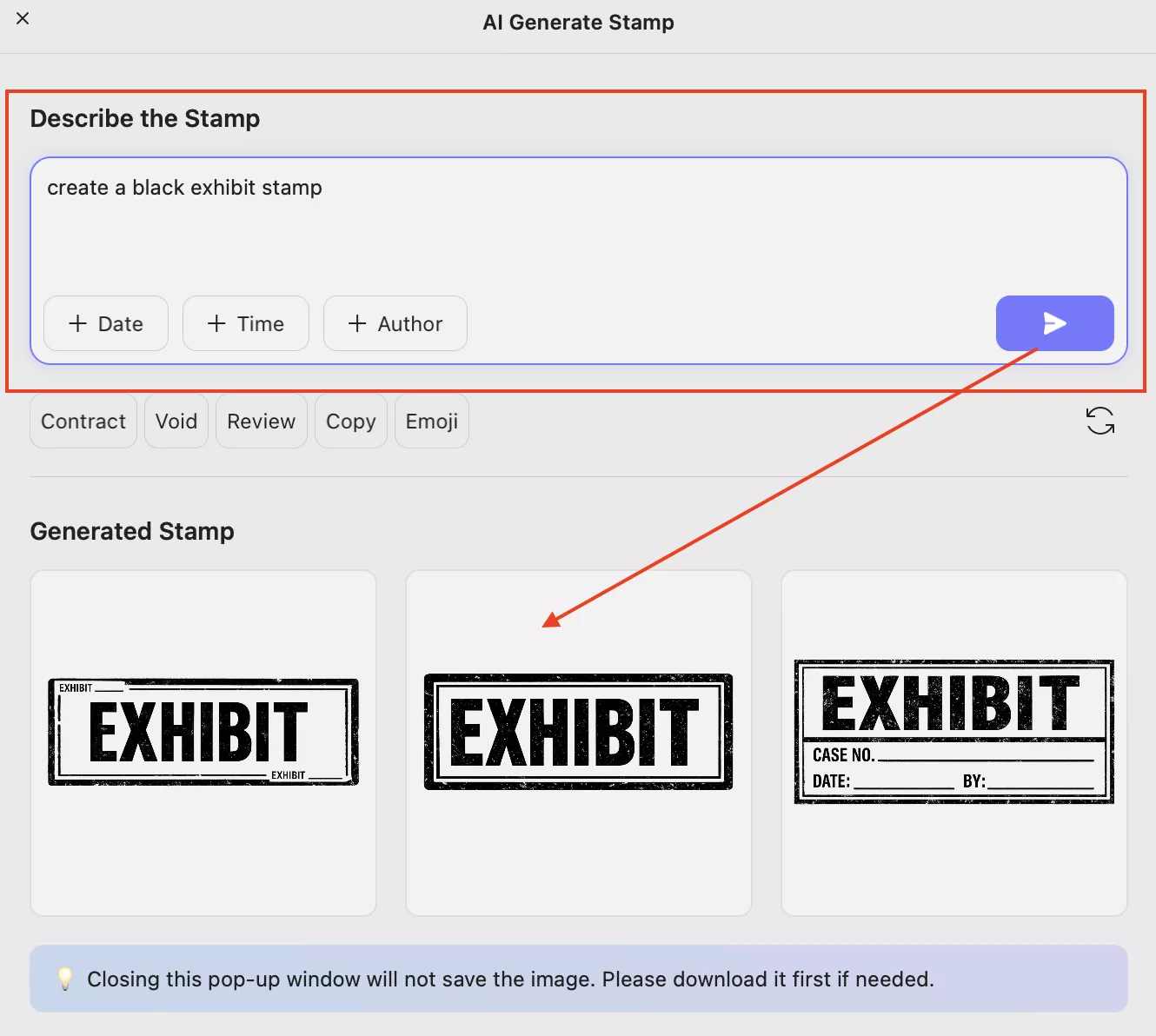
3. Now, describe the stamp by adding a text as shown below. Once done, click the “Send” icon to start generating the stamp.
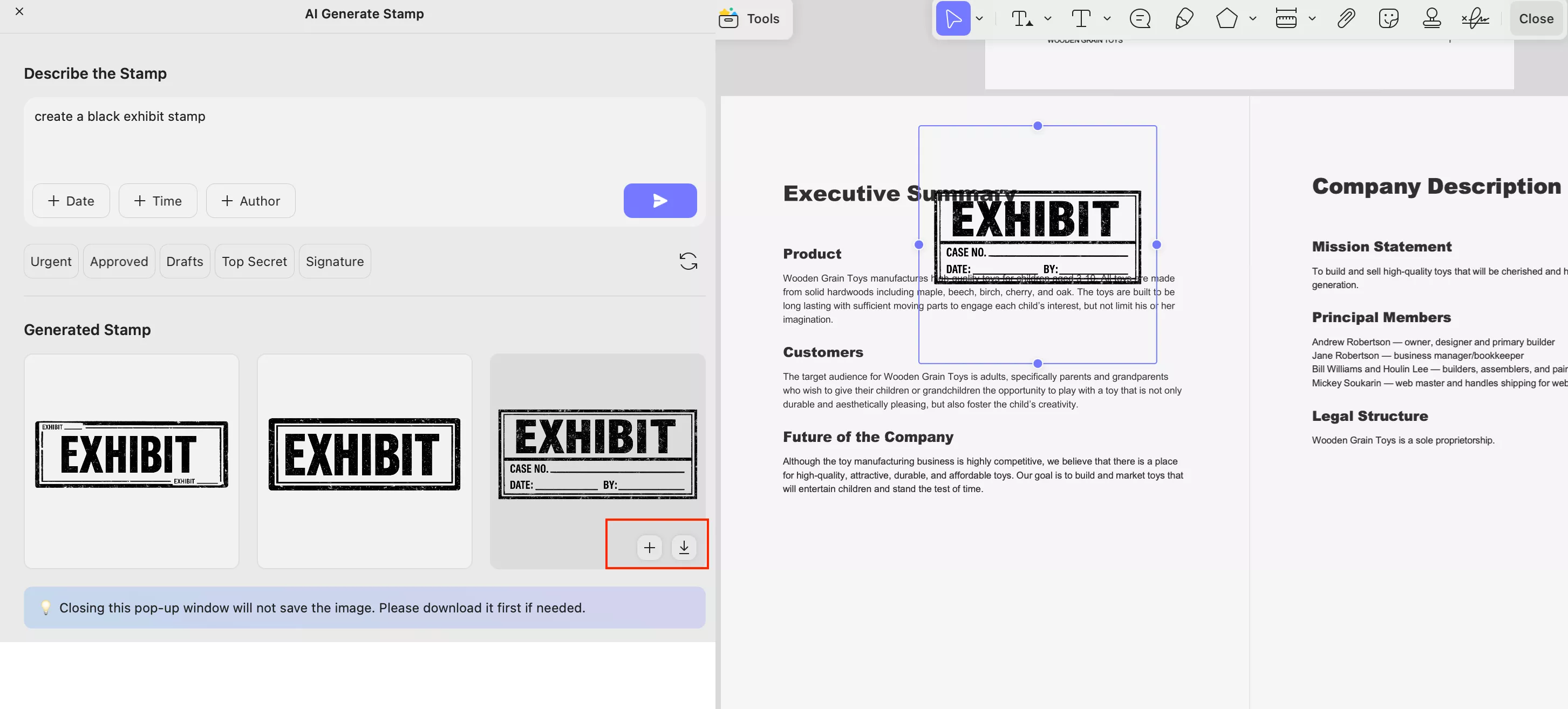
4. On the screen, you will see a few options, so choose your Exhibit label and click either “Add” or "Download" button to try it.
Important Note:
So, you have finally learned how to create Exhibit stamps using UPDF. It is an AI-powered, all-in-one PDF editor designed to handle every PDF task with ease. With this tool, you can read, convert, edit, annotate, organize, protect, and OCR PDFs in one place. Some of the other top features of UPDF are as follows:
Windows • macOS • iOS • Android 100% secure
- You can use the powerful AI assistant to summarize documents, translate text, explain content, generate mind maps, create literature reviews, and more.
- Both UPDF and UPDF AI provide free access. You can use UPDF free version to try all features with trial watermarks, while UPDF AI provides 100 free uses.
- UPDF works on all your devices including Windows, Mac, iOS, and Android, so you can manage documents on almost any device.
- As compared to other tools, it is easy to use for beginners.
Part 5. FAQs
Q1. How Do I Mark an Exhibit?
Marking an exhibit in a document is important if you want to submit the evidence in court. To label your document, all you have to do is add a number (Exhibit 1) or letter at the right side or lower-right corner of the document. Once labeled, the exhibits can be easily tracked and referenced later.
Q2. How to Add Exhibit Sticker in Kofax PDF?
To add Exhibit stickers in Kofax Power PDF, you can follow the below steps.
• Open your PDF where you want to add the Exhibit sticker.
• Now, click “Comment” and choose the “Stamp” option.
• You can either choose Create a new stamp or select from the existing stamp.
• Click anywhere on the page to place the exhibit sticker.
Q3. How Do I Add a Sticker to a PDF?
To add stickers to a PDF using UPDF, you can follow the below steps.
• Open your PDF file where you want to add the sticker.
• Now, click “Comment” and choose the “Sticker” icon.
• Next, select the stickers from the list to add it to your PDF.
• You can also click the “AI Stamp” button to create new stickers.
Conclusion
Undoubtedly, Exhibit stickers are the best way to organize and track your important documents, including legal cases, audits, or official records. You can use different third party apps like UPDF to add Exhibit stickers to your PDF files. It lets you create, import, and place exhibit stickers quickly. What’s more, you can also use this tool to read PDF, edit documents, annotate and markup PDFs without any hassle.
Windows • macOS • iOS • Android 100% secure








 Enola Davis
 Enrica Taylor
 Lizzy Lozano