 UPDF
UPDF
 UPDF for Windows
 UPDF for Mac
 UPDF for iPhone/iPad
 UPDF for Android
 Nomostar
 UPDF AI Online
 UPDF Sign
 IvyCraft
 Edit PDF
 Annotate PDF
 Create PDF
 PDF Form
 Edit links
 Convert PDF
 OCR
OCR PDF to Word
 PDF to Image
 PDF to Excel
 Organize PDF
 Merge PDF
 Split PDF
 Crop PDF
 Rotate PDF
 Protect PDF
 Sign PDF
 Redact PDF
 Sanitize PDF
 Remove Security
 Read PDF
 UPDF Cloud
 Compress PDF
 Print PDF
 Batch Process
 About UPDF AI
 UPDF AI Solutions
 AI User Guide
 FAQ about UPDF AI
 Summarize PDF
 Translate PDF
 Chat with PDF
 Chat with AI
 Chat with image
 PDF to Mind Map
 Explain PDF
 PDF AI Tools
 Image AI Tools
 AI Chat Tools
 AI Writing Tools
 AI Study Tools
 AI Working Tools
 Other AI Tools
 AI Bookmark Generation
 AI Bookmark Summary
 AI Watermark Generation
 AI Background Generation
 AI Sticker Generation
 AI Stamp Generation
 AI Editing Suite
 UPDF Copilot
 AI Page Management
 AI Semantic Search
 PDF to Word
 PDF to Excel
 PDF to PowerPoint
 Enterprise Solution
 Enterprise Sign
 Enterprise AI
 Enterprise Plan
 Enterprise User Guide
 Enterprise Webinar
 Banking
 Healthcare
 Insurance
 Legal
Legal Manufacturing
 Government
 Education Solution
 Customer Stories
 User Guide
 UPDF Tricks
 FAQs
FAQs UPDF Reviews
 Download Center
 Blog
Blog Newsroom
 Tech Spec
 Updates
 UPDF vs. Adobe Acrobat
 UPDF vs. Foxit
 UPDF vs. PDF Expert

Inserting an image into a PDF sounds simple enough until you actually try to do it. Many basic document viewers distort the image's original aspect ratio, drop the resolution, or offer no way to align the graphic cleanly with your existing text blocks.
If your goal goes beyond simply placing a picture, and you want to completely customize your document—such as fixing typos, altering text flows, or rewriting paragraphs alongside your new graphic—feel free to explore our comprehensive guide on how to edit a pdf. Alternatively, if you only need to modify, rotate, or swap graphics that are already embedded in your current files, you can check out our dedicated tutorial on how to edit images in pdf.
Choose the Best Way to Add an Image to Your PDF Instantly
Different projects call for different workflows. If you are handling a highly confidential contract at your desktop, your requirements will be completely different from someone trying to upload a quick receipt from a smartphone while commuting. To help you find the right tool for your specific file size and device setup immediately, we have mapped out the top solutions in the quick reference guide below.
| Your Current Scenario / Goal | Recommended Method | Core Technical Edge / Key Constraint |
| 💻 Need exact alignment, locked proportions, and native cropping | Proceed to: Part 1 - Method 1 (UPDF Desktop) | ✓ Real-time dimension tags / Aspect ratio lock ✓ Pro alignment controls |
| 🌐 Only 1 image to add, cannot install software on your current machine | Proceed to: Part 2 - Method 3 (Smallpdf Web) | ✓ Browser instant access ✕ Visual distortions, potential data compliance risks |
| 📱 Working on a train or plane and only have your smartphone available | Proceed to: Part 1 - Method 2 (UPDF Mobile) | ✓ Highly portable workflow ✕ Reduced screen size limits complex multi-layered edits |
How to Insert Images into PDFs Using Professional Desktop and Mobile Apps
1. Use UPDF Desktop App (Windows & Mac)
Best for: Desktop users handling formal business reports, legal contracts, or brand portfolios where stretched logos, messy alignments, or distorted graphics are completely unacceptable.
Why Choose UPDF Desktop App?
Most free programs treat an added image like a flat sticker, giving you zero control over margins or exact dimensions. UPDF handles images as independent, editable objects. UPDF keeps your files local and secure on your hard drive while providing granular layout options, ensuring your graphics align perfectly with the surrounding text paragraphs.
Step-by-Step Instructions:
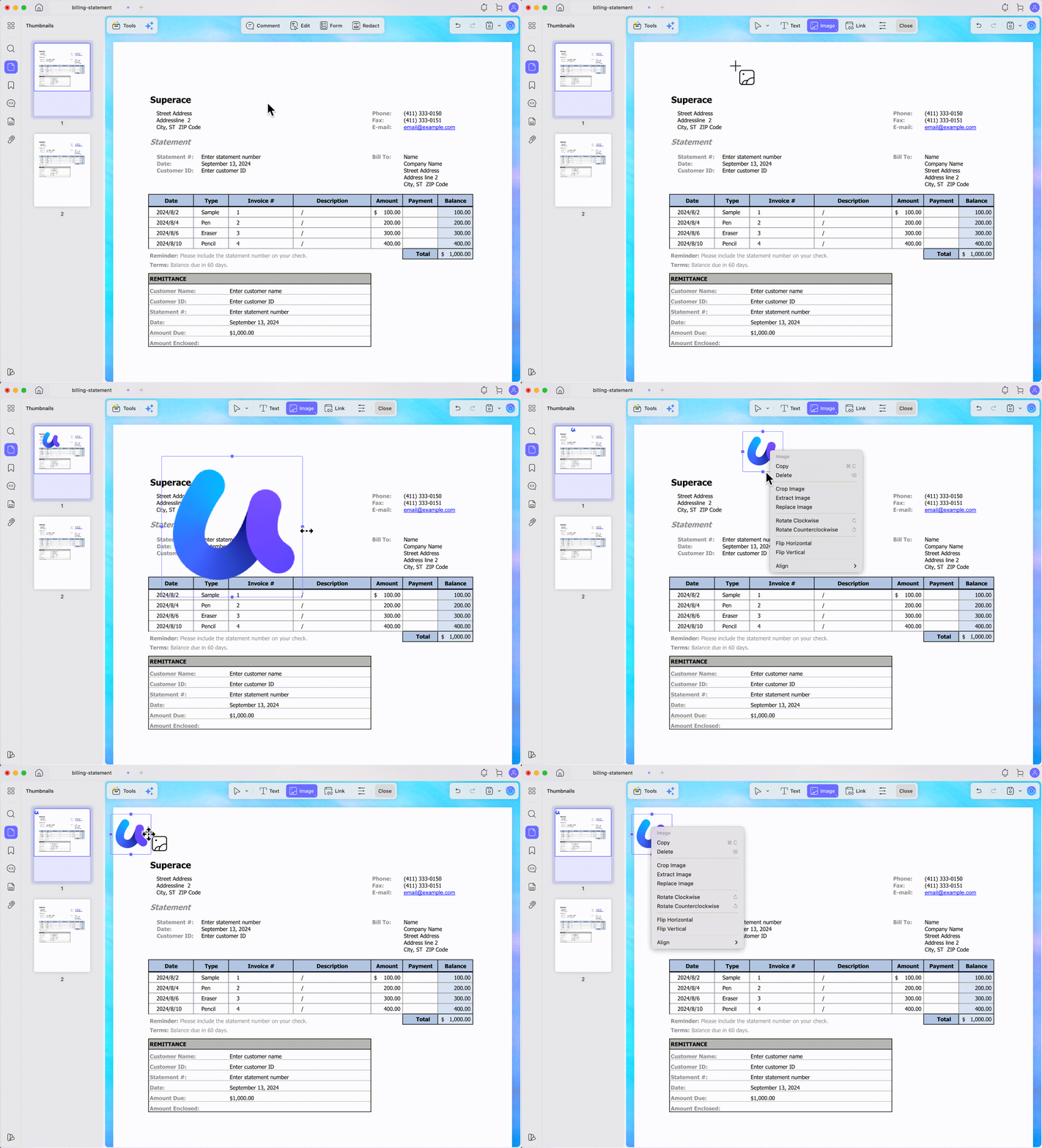
1. Open your document inside UPDF and click the Edit icon at the top of the interface to open the editing workspace.
Windows • macOS • iOS • Android 100% secure
2. Select the Image tool from the top toolbar, move your cursor to the exact spot where you want the graphic to sit, and click once.
3. In the file explorer window that pops up, choose the image file from your local drive and click Open to place the picture onto the page.
4. Refine Your Layout Settings:
- Real-Time Metrics: Drag the border handles to scale your graphic. Live width and height measurements will display directly above the image as you move your mouse.
- Proportions & Trimming: Check the option to lock the aspect ratio so your graphics never stretch out of shape. If your picture has extra whitespace, you can trim the borders instantly using the built-in Crop image tool.
- Snapping & Positioning: Use the one-click Align matrix to instantly snap the graphic to the Left, Right, Vertical Center, Horizontal Center, Top, or Bottom. You can also right-click the image to replace the graphic entirely, rotate the file, flip the orientation, or copy and paste the asset across multiple pages.
Limitations:
- The entire image placement toolset is completely free to use without requiring any credit card sign-ups. However, files saved under the free tier will include a small product watermark in the upper-left corner of the PDF.
💡 Layout Tip: If your added picture needs custom boundary trimming to blend into your text paragraphs cleanly, you can skip external photo editors entirely. Learn the exact process by reading our quick guide on how to crop pdf image.
Visual learners or busy professionals who want to skip reading technical steps and see the entire workflow in action.
Alternative Ways to Insert Graphics Using UPDF
Beyond standard layout editing, UPDF offers specialized workflows depending on the purpose of your graphic. If you are handling formal contracts or approvals, you can use the Signature feature to place a digitized signature image onto your document instantly, skipping manual resizing entirely. Alternatively, if you need to apply a corporate watermark or a full-page design layout behind your text paragraphs, you can use the Background feature to lock a graphic safely into the document's baseline layer. Finally, if you need to include large supporting files—like high-resolution raw photos or spreadsheet charts—without crowding the page layout, you can use the Attachment tool. This embeds the graphic as a secure file package represented by a clean attachment icon, allowing readers to click and open the full-sized image only when they need it.
2. Use UPDF Mobile App (iOS & Android)
Best for: On-the-go professionals, field technicians, or students who need to insert on-site photos, physical receipts, or visual notes into a document using a phone or tablet.
Why Choose UPDF Mobile App?
Mobile workflows are all about speed. Instead of transferring a PDF to a computer just to paste a quick photo, UPDF Mobile App connects directly to your device's native camera and local photo storage. This application adapts heavy desktop features into touch-friendly shortcuts optimized for smaller screens.
Step-by-Step Instructions:
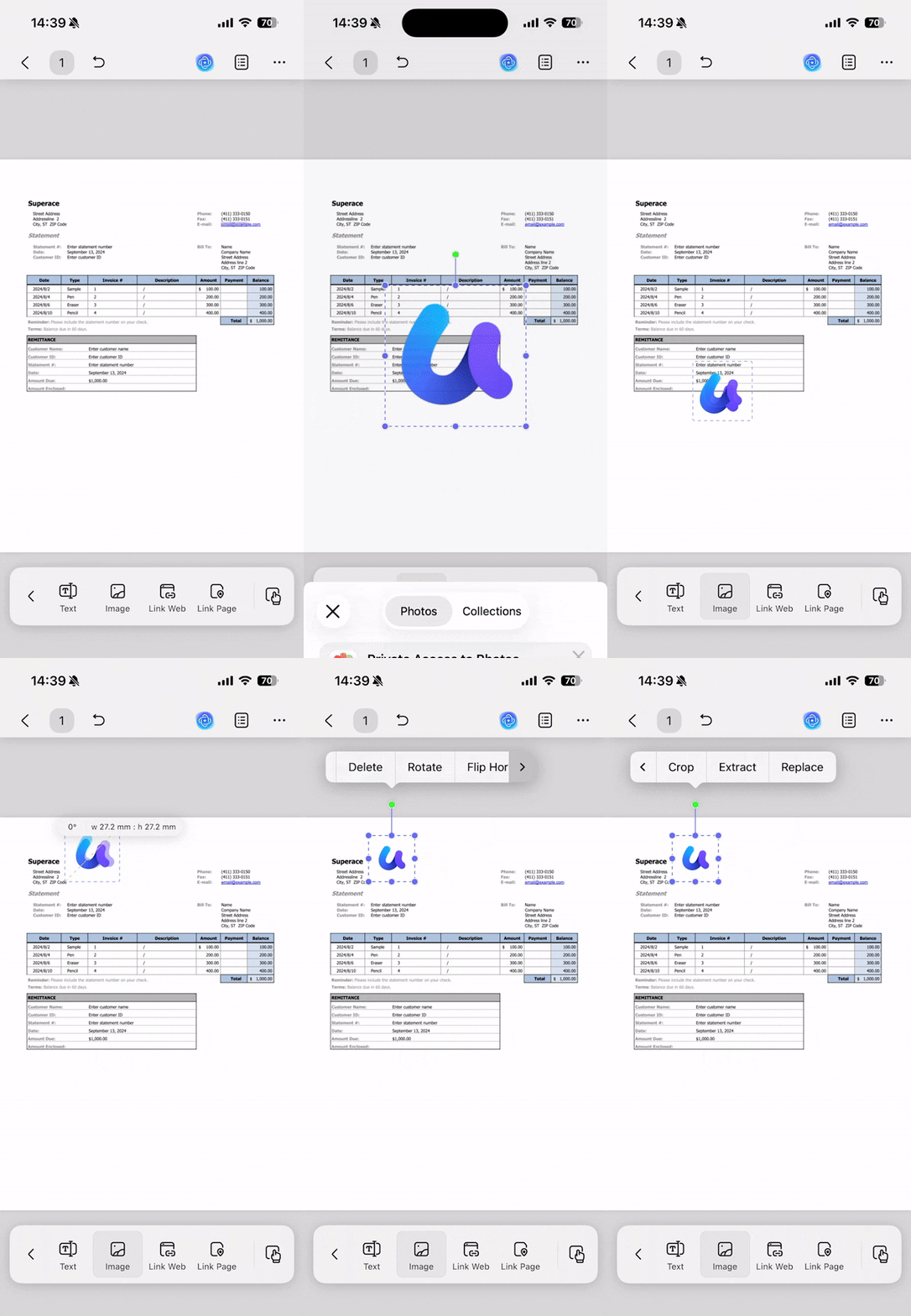
- For iOS Devices (iPhone/iPad): Open your document in UPDF for iOS, select the Image tool from the lower toolbar. Tap your target location on the screen, choose whether to import a picture from your Photos app or take a fresh shot with your camera, and use the touch corner handles to position the image.
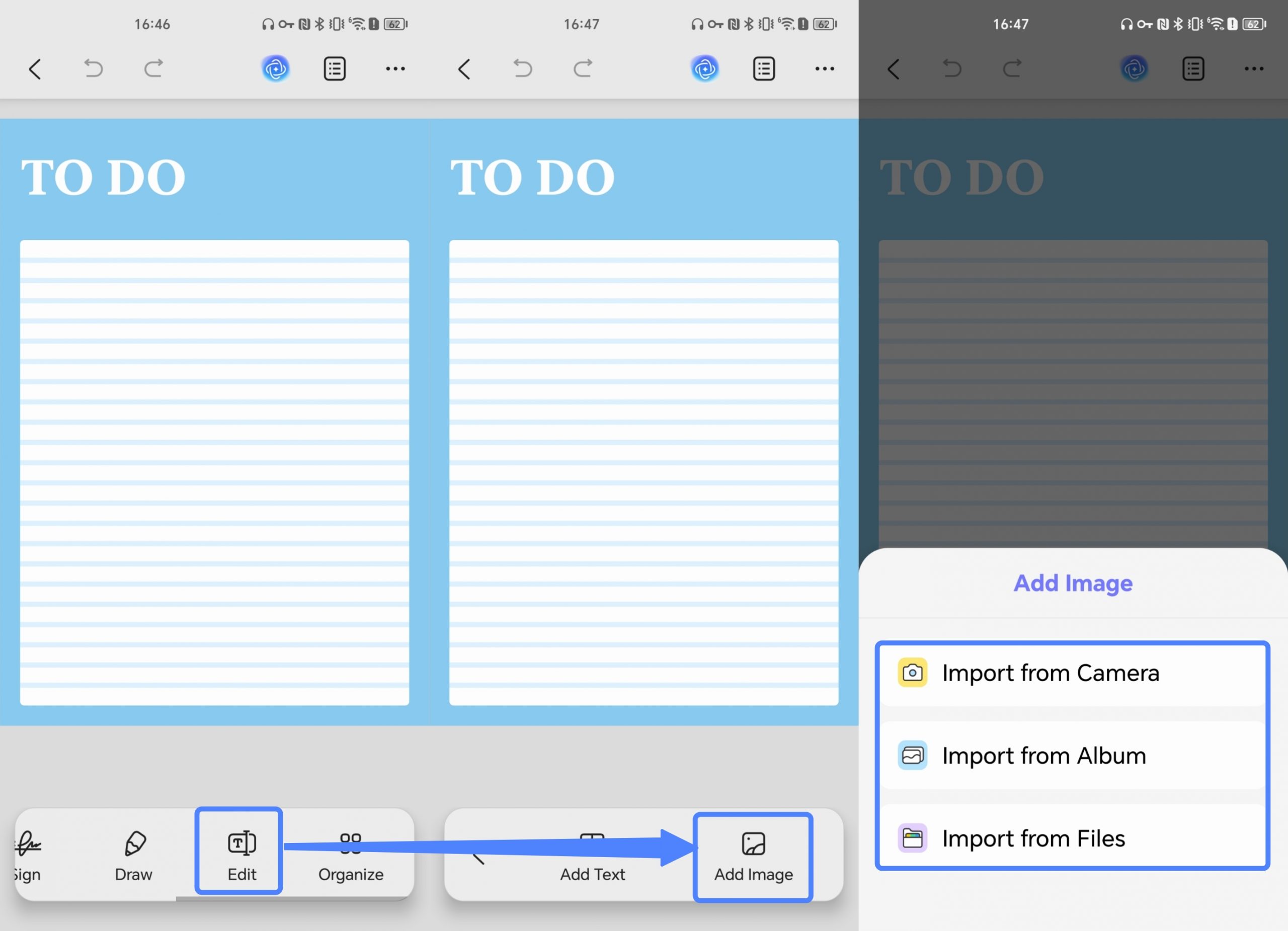
- For Android Devices: Open your file in UPDF for Android, tap the Edit PDF tool on the bottom menu, and select the Add Image icon from the bottom option bar. Tap anywhere on your document page to select a graphic from your system directories, and tap to place the file.
Limitations:
-
UPDF Mobile App does not feature advanced alignment matrices, precise numerical dimension displays, or aspect-ratio locking constraints. The mobile app is built for speed and convenience rather than intricate, multi-layered desktop publishing.
💡 The Clipboard Shortcut: What if the image you want to insert isn't saved as a file on your device? If you just took a quick screenshot or copied a chart from a messaging app, you don't need to save it first. Check out our walkthrough on how to paste an image into pdf directly from your device's active RAM.
How to Insert Images into PDFs Using Free Web Tools and Built-In OS Options
Use Smallpdf Online PDF Editor
Best for: Quick edits on public computers or secondary devices where you only need to insert a single, non-confidential graphic and cannot install local software applications.
Why Choose Smallpdf?
Smallpdf runs entirely inside your web browser. There are no accounts to configure or installation packages to deploy, making Smallpdf a viable fallback option for basic, low-stakes editing tasks.
Step-by-Step Instructions:
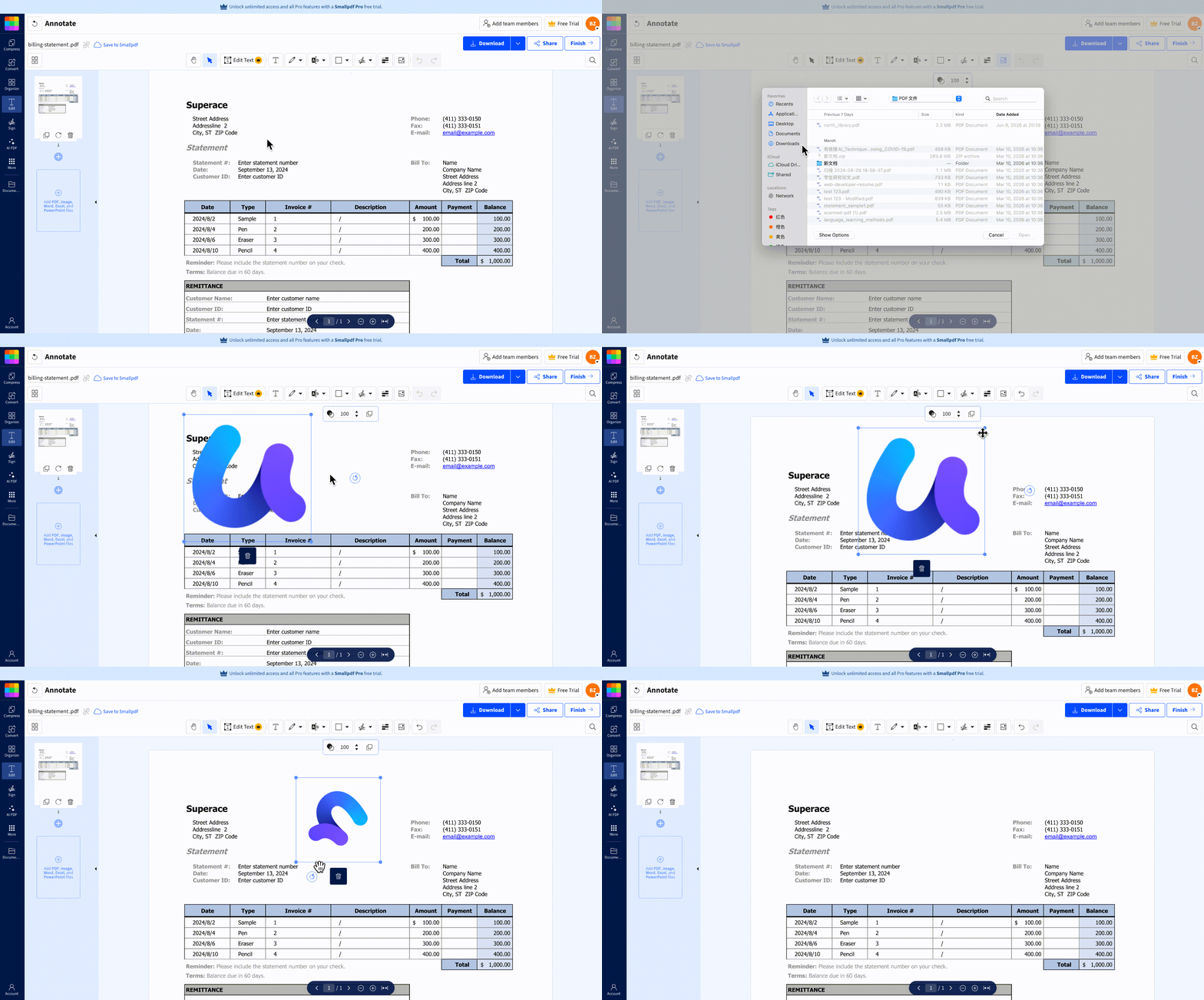
- Navigate to the online PDF Editor tool page on the Smallpdf website.
- Drop your PDF file directly into the web interface upload zone.
- Click the Add Image icon on the top floating tool tray, select your graphic from your hard drive, and use your mouse to move the image into position. Download the finished file once the cloud script completes the save.
Limitations:
- The free web version of Smallpdf limits how many documents you can process per day.
- Smallpdf cannot lock image aspect ratios, meaning it is very easy to distort corporate logos by pulling the handles unevenly.
- Smallpdf also lacks alignment snapping tools or dimension readouts.
- Additionally, uploading corporate files to third-party web servers introduces data privacy risks.
A Note on Adobe Online: While Adobe Acrobat offers a similar online web tool, the Adobe free tier often requires you to link a credit card and sign up for a recurring trial subscription. Smallpdf remains an easier, contract-free web alternative.
💡 Image Properties: If you notice that an image you've placed online looks pixelated or is scaled incorrectly, you can easily correct its physical footprint. Read our step-by-step instructions on how to resize image in pdf.
Use Built-In OS Applications (Mac Preview & Windows Edge)
Best for: Emergency, completely offline situations where you want to paste a basic graphic using nothing but the pre-installed software that came with your computer.
Step-by-Step Instructions:
- On macOS (Preview App): Open your PDF in Preview. Open your image file in a separate window, press Cmd + C to copy the picture to your system clipboard, switch back to the PDF window, and press Cmd + V to paste the image onto the page as an overlay.
- On Windows (Microsoft Edge Browser): Right-click your PDF file and choose to open the document with Microsoft Edge. Use the native Add Image drawing tool located on the top PDF toolbar to locate and place your graphic file.
Limitations:
-
These built-in viewers are document readers, not native design editors. When you paste an image through Preview or Edge, the operating system saves the graphic as a floating annotation layer rather than embedding the graphic as a true PDF object. This often causes your images to shift positions unexpectedly, block nearby text, or fail to print entirely when the file is opened on a different computer.
Answers to Frequently Asked Questions About Adding Images to PDFs
Why does my company logo look blurry or pixelated after adding it to a PDF online?
This happens because web-based tools compress and downsample your images during the upload process to save bandwidth. To preserve the clean vector lines of signatures or high-resolution logos, you need to use a desktop engine like UPDF that embeds your assets natively without altering their original quality.
How can I ensure that an added image stays in its exact position across all devices?
Avoid using built-in web browsers or basic reader apps that paste your images as floating annotations. You must use a dedicated PDF editor that writes the image directly into the file's structural source code, permanently locking its coordinates.
Can I replace an existing image in a PDF without deleting it and breaking the layout?
Yes, you can swap graphics instantly by right-clicking the original image inside a professional tool like UPDF and selecting the "Replace" function. This allows you to replace a logo or chart while automatically retaining the exact dimensions, borders, and alignments you already configured.
💡 Reverse Engineering: Document design is a two-way street. If you find an excellent high-resolution graphic trapped inside an old report and want to save it as a standalone file for your own projects, check out our guide on how to copy image from pdf, or automate the process across multiple pages with a dedicated pdf image extractor.
To Wrap Up
Adding an image to a PDF doesn't have to result in warped logos, blurry graphics, or messy alignments. While quick browser tools and native operating system viewers work well for a sudden emergency or a basic, low-stakes edit, they often fall short when you need to maintain crisp resolutions and precise page layouts.
If you want absolute control over your document's presentation—with real-time dimension tracking, locked aspect ratios, and native alignment tools—a dedicated editor like UPDF makes the entire process seamless. To ensure your visuals look crisp, professional, and exactly where they belong on every screen, feel free to download UPDF for free and start customizing your PDF layouts right away.
Windows • macOS • iOS • Android 100% secure





 Delia Meyer

 Engelbert White
 Enola Davis
 Enid Brown