 UPDF
 UPDF for Windows
 UPDF for Mac
 UPDF for iPhone/iPad
 UPDF for Android
 Nomostar
 UPDF AI Online
 UPDF Sign
 IvyCraft
 Edit PDF
 Annotate PDF
 Create PDF
 PDF Form
 Edit links
 Convert PDF
 OCR
 PDF to Word
 PDF to Image
 PDF to Excel
 Organize PDF
 Merge PDF
 Split PDF
 Crop PDF
 Rotate PDF
 Protect PDF
 Sign PDF
 Redact PDF
 Sanitize PDF
 Remove Security
 Read PDF
 UPDF Cloud
 Compress PDF
 Print PDF
 Batch Process

 About UPDF AI
 UPDF AI Solutions
 AI User Guide
 FAQ about UPDF AI
 Summarize PDF
 Translate PDF
 Chat with PDF
 Chat with AI
 Chat with image
 PDF to Mind Map
 Explain PDF
 PDF AI Tools
 Image AI Tools
 AI Chat Tools
 AI Writing Tools
 AI Study Tools
 AI Working Tools
 Other AI Tools
 AI Bookmark Generation
 AI Bookmark Summary
 AI Watermark Generation
 AI Background Generation
 AI Sticker Generation
 AI Stamp Generation
 AI Editing Suite
 UPDF Copilot
 AI Page Management
 AI Semantic Search
 PDF to Word
 PDF to Excel
 PDF to PowerPoint
 Enterprise Solution
 Enterprise Sign
 Enterprise AI
 Enterprise Plan
 Enterprise User Guide
 Enterprise Webinar
 IT
 Education
 Construction
 Financial Service
 Healthcare
 Insurance
 Legal
 Manufacturing
 Government
 Researchers & PhDs
 Solopreneurs & Freelancers
 Lawyers & Legal Professionals
 Real Estate Agents & Brokers
 Education Solution
 Customer Stories
 User Guide
 UPDF Tricks
 FAQs
 UPDF Reviews
 Download Center
 Blog
 Newsroom
 Tech Spec
 Updates
 UPDF vs. Adobe Acrobat
 UPDF vs. Foxit
 UPDF vs. PDF Expert


Quick answer:
To convert a PDF to Word on Mac, open it in UPDF, select Word from Tools, and convert it to a .docx file. For several PDFs, use Tools > Convert from the home screen. UPDF Online and Google Docs offer browser-based alternatives. Preview can help you copy text, but it does not directly export a Word document.
Start by checking whether you can select the text in your PDF. A text-based PDF can be converted directly, while an image-only scan needs text recognition. After conversion, compare the Word document with the PDF before editing or sharing it—especially if the original contains tables, columns, or small print.
This guide covers desktop and online conversion, batch processing, and a Preview text-copying workaround. It also explains the difference between DOCX and DOC and how to check that the output is ready to share.
Part 1. Convert PDF to Word with UPDF on Mac
Use UPDF for Mac to export a PDF as an editable Word document. The output format is Word (.docx). Conversion can change the layout, so treat the exported file as a document to review, not a guaranteed exact copy.
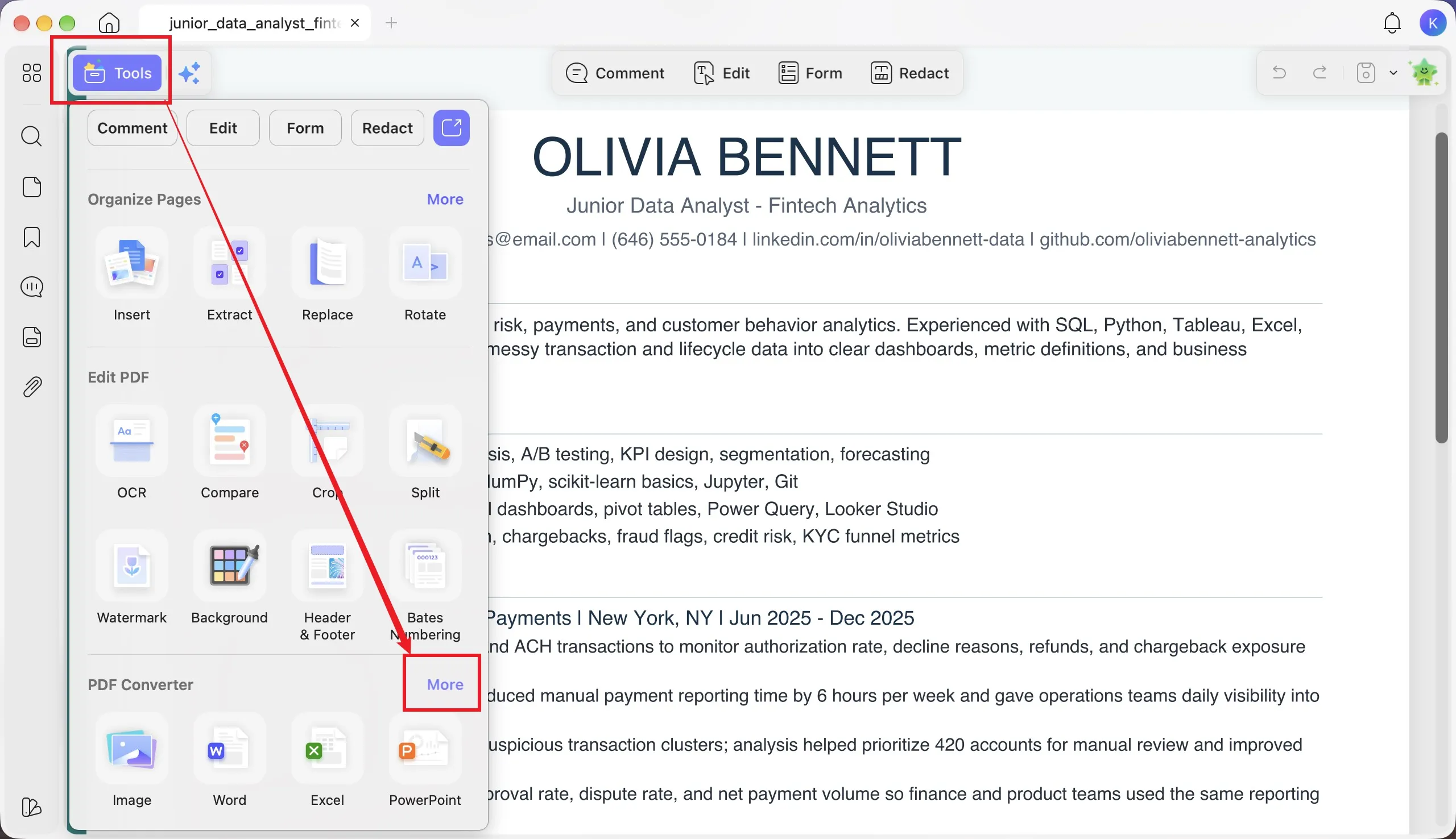
Step 1. Open the PDF and choose Word
Open the PDF in UPDF, click Tools at the top left, and choose Word from the conversion formats.
Step 2. Set the page range and Word content style
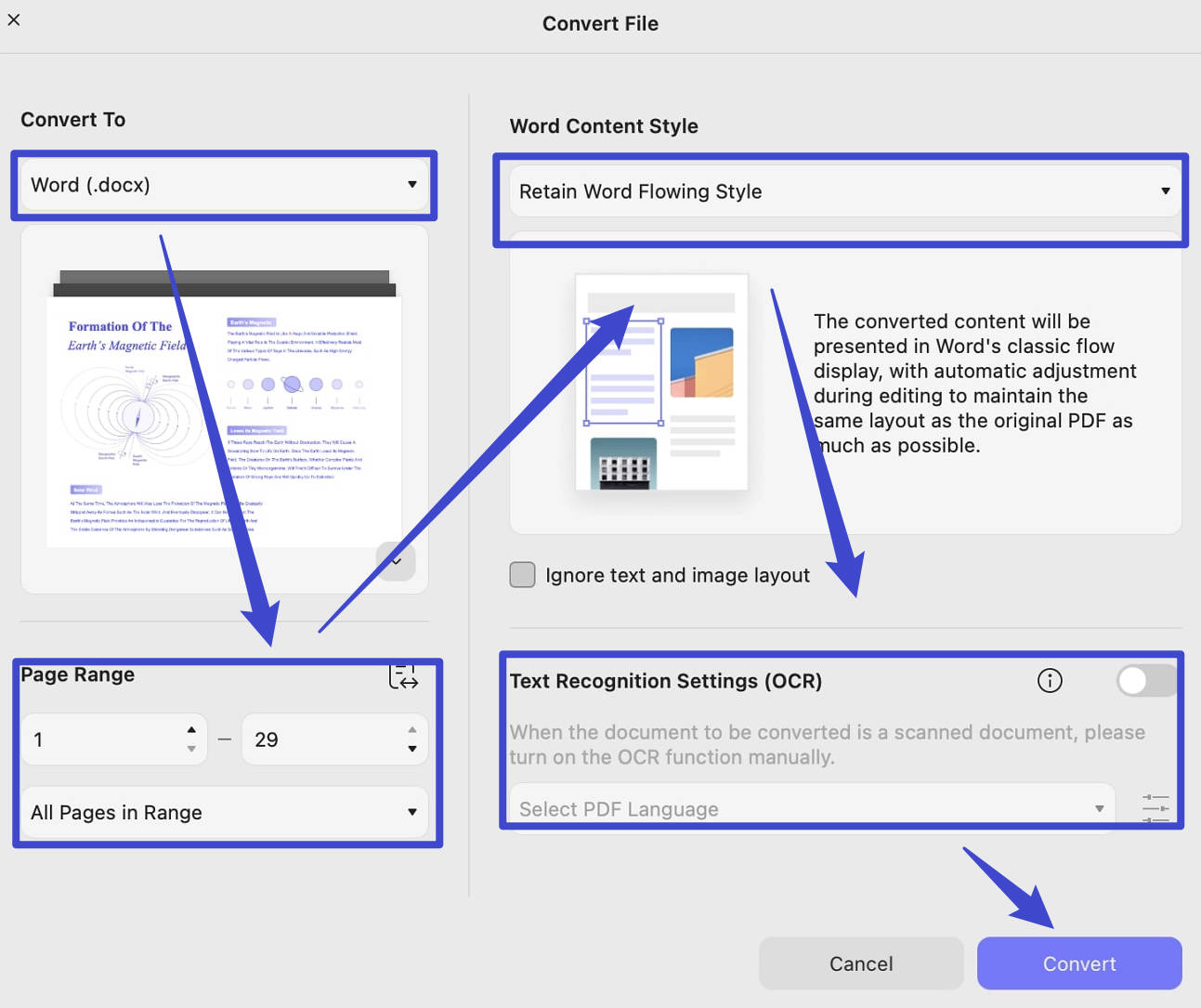
Choose the pages to convert and a Word Content Style. Retain Word Flowing Style allows text to reflow during editing. Retain Word Textbox Style uses text boxes to help preserve positioning. Choose according to whether easier rewriting or page positioning matters more, then check the result.
If the PDF is a scan
Enable the OCR option in the same conversion window and select the document language. There is no need to make a separate OCR PDF first for this workflow. Check recognized names, dates, and numbers carefully.
Step 3. Convert and review
Click Convert, save the .docx file, and open it in Word or another compatible editor. Compare the output with the original PDF before editing or sending it.
Try a representative document in UPDF to check whether the converted text and layout meet your editing needs.
Windows • macOS • iOS • Android 100% secure
The existing video below demonstrates PDF conversion in UPDF.
Part 2. Batch Convert PDFs to Word on Mac
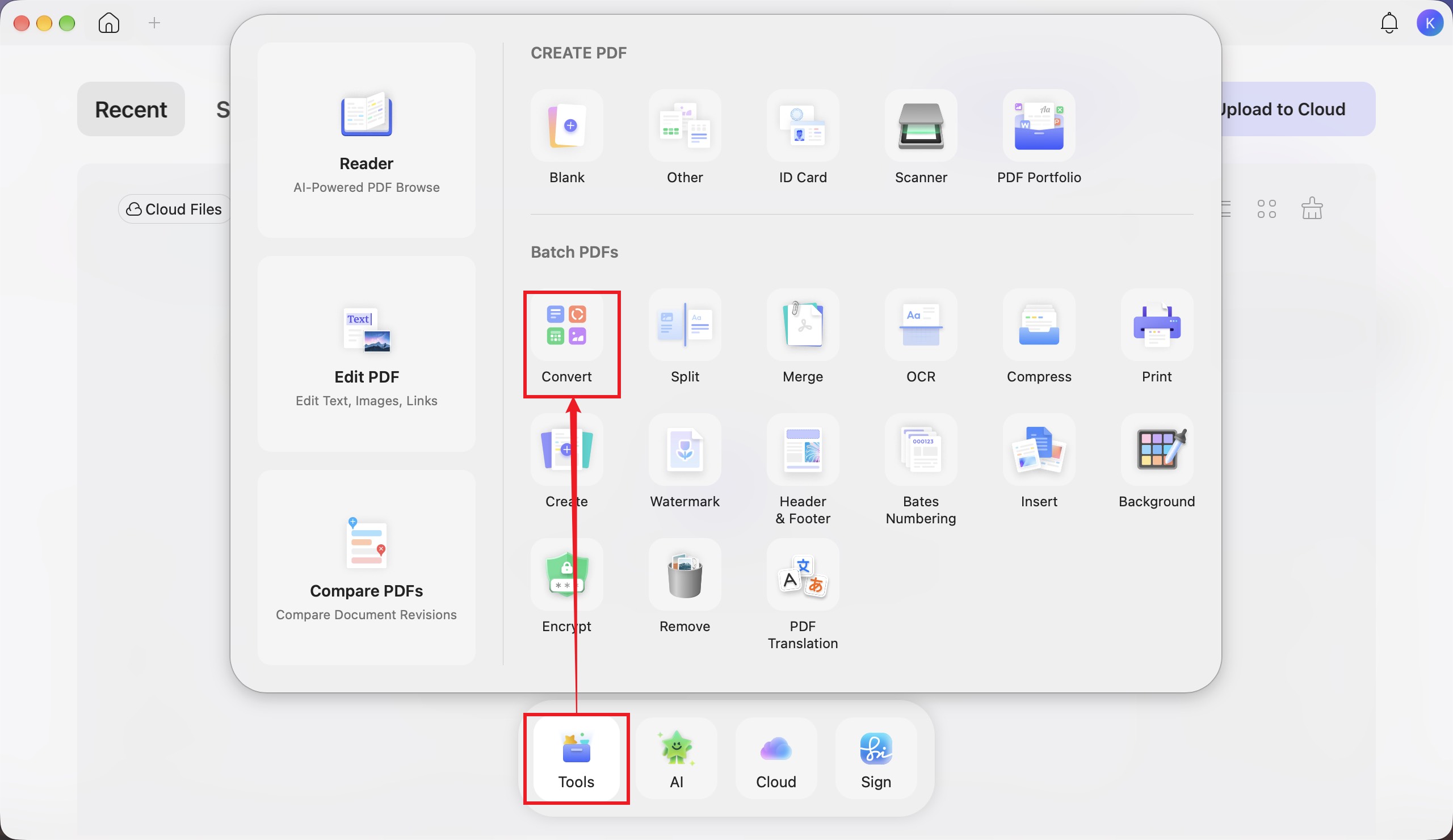
Step 1. From the UPDF home screen, click Tools, then choose Convert under Batch PDFs.
Step 2. Click Add Files and select the PDFs. Set Word (.docx) as the output format and choose the Word content style. Enable text recognition and select the language when converting scanned pages.
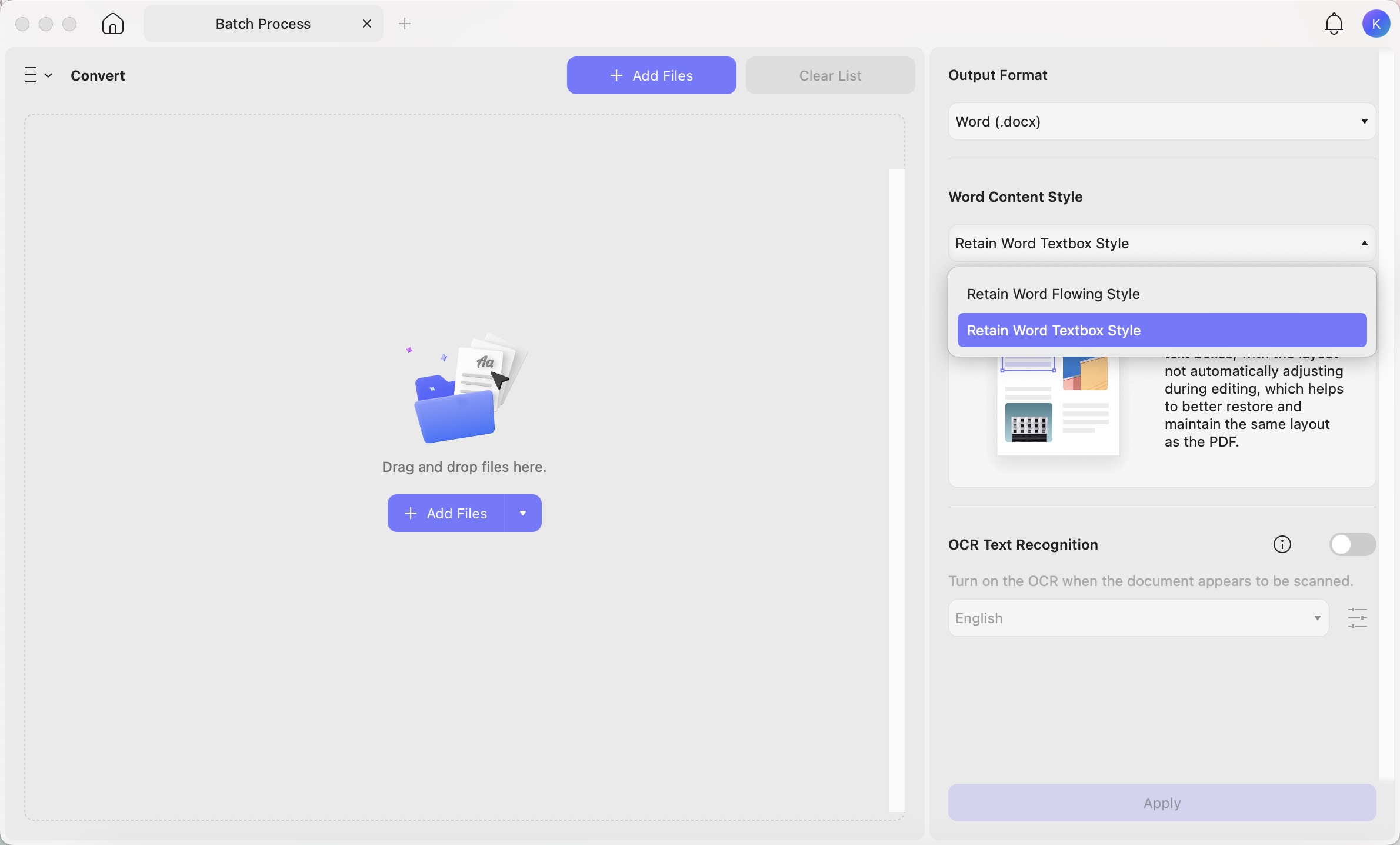
Step 3. Click Apply and choose an output folder. Review the converted documents before distributing them.
Free conversion limits
For recurring multi-file work, try UPDF’s batch conversion on a small set before processing the rest of your documents.
Windows • macOS • iOS • Android 100% secure
Part 3. Copy Text with Preview When You Do Not Need the Original Layout
Preview does not directly export PDFs to .docx. For a short passage, you can copy selectable text and rebuild the document in Word or Pages. This is a text-copying workaround, not full-document layout conversion.
Step 1. In Finder, Control-click the PDF and choose Open With > Preview.

Step 2. Select the text, press Command-C, then paste it into a new Word or Pages document with Command-V.

Step 3. Rebuild the formatting and save the Word document as .docx. In Pages, choose File > Export To > Word.

Part 4. Convert PDF to Word on Mac Using Google Docs
Google Docs is useful when recovering text matters more than preserving the page design. This method uploads the document to Google Drive; use it only when that is appropriate for the file.
Step 1. Open Google Drive in your browser. Choose New > File upload and select the PDF.

Step 2. Right-click the uploaded PDF and choose Open with > Google Docs. Review the recognized text.
Step 3. Choose File > Download > Microsoft Word (.docx).

For this conversion workflow, Google recommends files of 2 MB or less and notes that tables, columns, footnotes, and endnotes may not be detected correctly. This is conversion guidance, not Google Drive’s general file-upload limit.
Part 5. Convert PDF to Word on Mac with UPDF Online
Use UPDF Online PDF to Word in your Mac browser when you do not want to install an app. This workflow uploads the PDF to a server, so check that online processing is appropriate for your document.
Step 1. Upload the PDF. Open the online converter, click Upload File, or drag your PDF onto the page.
Step 2. Convert to Word. After uploading, select Convert to Word (or PDF to Word in the conversion menu). The service supports OCR for scanned PDFs.
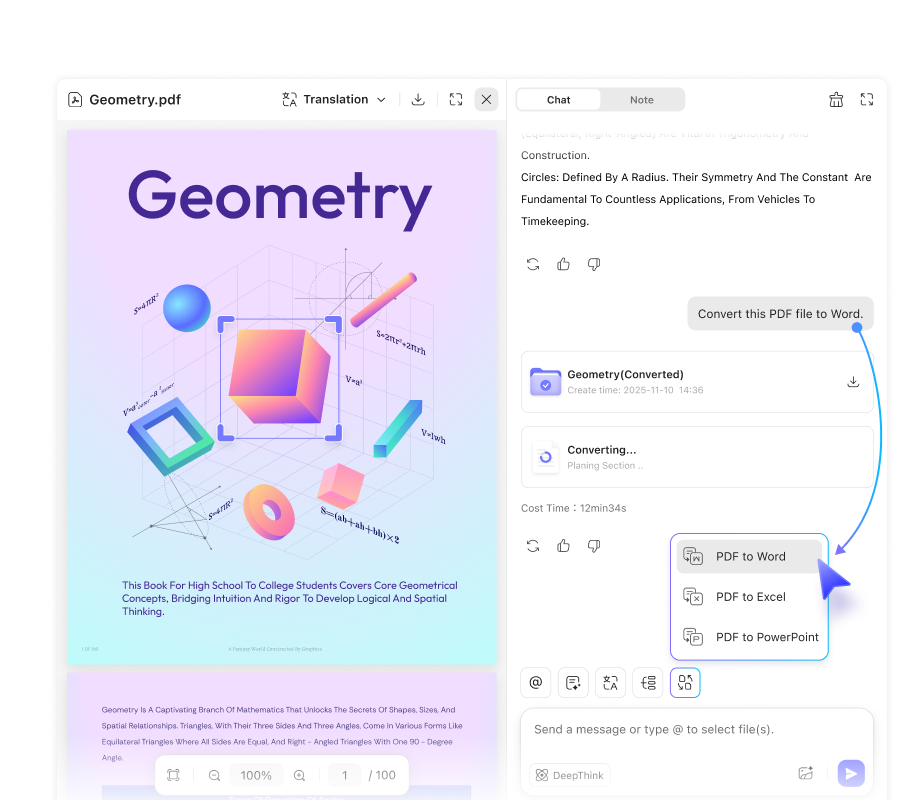
Step 3. Download and check. Click Download when conversion finishes. Open the Word file and compare the text, tables, and page layout with the PDF.
Online limits: The tool page lists 10 MB and 100 pages per PDF for free use, and 100 MB and 300 pages per PDF for paid use. Password-protected PDFs are not supported; obtain an authorized, unprotected copy first.
Part 6. Do You Need DOCX or the Older DOC Format?
DOCX is the default Word document format. “Convert PDF to Word” and “convert PDF to DOCX” usually describe the same goal. Choose .docx unless the recipient or submission system specifically requires a different format.
If an older system requires .doc, open the converted DOCX in Word for Mac and choose File > Save As. Select Word 97–2004 Document (.doc) from the format options, save a separate copy, and review it again. Renaming a .docx extension to .doc does not convert the file.
Part 7. Check the Word Output Before Sharing
| Check | What to verify |
|---|---|
| Editable text | Click inside a sentence and edit a word. Selecting only a page image is not the same as editing text. |
| Reading order | Check that paragraphs and columns follow the intended sequence. |
| Tables | Verify that text remains in the correct rows and columns. |
| Fonts and symbols | Look for substituted fonts, missing characters, and altered mathematical symbols. |
| Page layout | Compare headings, page breaks, headers, and footers with the PDF. |
| Recipient compatibility | Open the file in the application the recipient plans to use, where possible. |
If a password or permission restriction blocks conversion
If the PDF requires a password to open, enter the password supplied by the owner. If copying or conversion is restricted, obtain permission and an unrestricted copy before proceeding. Opening a document does not automatically mean you have permission to reuse its contents. See the guide to converting an authorized protected PDF to Word.
Part 8. FAQs About Converting PDF to Word on Mac
1. Does converting a PDF to Word translate the document?
No. Conversion changes the document format, not its language. Translate the content separately if you need another language, then check the translated text against the original.
2. Will converting a PDF overwrite my original file?
Conversion creates a separate Word document. Keep the original PDF as your reference, and use a distinct filename for the editable copy so you can compare or restore the source later.
3. Do I need to convert a PDF to Word just to add a comment?
No. If you only need to highlight a passage or add a note, annotate the PDF directly. Convert to Word when you need to rewrite or restructure the document rather than simply review it.
Conclusion
Use UPDF for desktop conversion and batch jobs, or UPDF Online and Google Docs when uploading the document is appropriate. Use Preview when copying a short passage is enough. Export to DOCX for most Word workflows, and review the text and layout before sharing.
To work with Word and other output formats in one app, explore UPDF PDF conversion and test your document with the free allowance.
Windows • macOS • iOS • Android 100% secure




 Enola Miller

 Delia Meyer

 Grace Curry