 UPDF
UPDF
 UPDF for Windows
 UPDF for Mac
 UPDF for iPhone/iPad
 UPDF for Android
 Nomostar
 UPDF AI Online
 UPDF Sign
 IvyCraft
 Edit PDF
 Annotate PDF
 Create PDF
 PDF Form
 Edit links
 Convert PDF
 OCR
OCR PDF to Word
 PDF to Image
 PDF to Excel
 Organize PDF
 Merge PDF
 Split PDF
 Crop PDF
 Rotate PDF
 Protect PDF
 Sign PDF
 Redact PDF
 Sanitize PDF
 Remove Security
 Read PDF
 UPDF Cloud
 Compress PDF
 Print PDF
 Batch Process
 About UPDF AI
 UPDF AI Solutions
 AI User Guide
 FAQ about UPDF AI
 Summarize PDF
 Translate PDF
 Chat with PDF
 Chat with AI
 Chat with image
 PDF to Mind Map
 Explain PDF
 PDF AI Tools
 Image AI Tools
 AI Chat Tools
 AI Writing Tools
 AI Study Tools
 AI Working Tools
 Other AI Tools
 AI Bookmark Generation
 AI Bookmark Summary
 AI Watermark Generation
 AI Background Generation
 AI Sticker Generation
 AI Stamp Generation
 AI Editing Suite
 UPDF Copilot
 AI Page Management
 AI Semantic Search
 PDF to Word
 PDF to Excel
 PDF to PowerPoint
 Enterprise Solution
 Enterprise Sign
 Enterprise AI
 Enterprise Plan
 Enterprise User Guide
 Enterprise Webinar
 IT
IT Education
 Construction
 Financial Service
 Healthcare
 Insurance
 Legal
Legal Manufacturing
 Government
 Researchers & PhDs
 Solopreneurs & Freelancers
 Lawyers & Legal Professionals
 Real Estate Agents & Brokers
 Education Solution
 Customer Stories
 User Guide
 UPDF Tricks
 FAQs
FAQs UPDF Reviews
 Download Center
 Blog
Blog Newsroom
 Tech Spec
 Updates
 UPDF vs. Adobe Acrobat
 UPDF vs. Foxit
 UPDF vs. PDF Expert

You just received a PDF — and there it is. A typo. An outdated price. A bank account number that should never have been there in the first place.
You try to delete it. But nothing happens. The text won't select. Or worse — you draw a black box over it, hit save, and hope no one notices.
Here's the hard truth: covering text with a black box is not the same as removing it. The underlying content can often still be copied, searched, or recovered.
The right solution depends on three things:
- What kind of PDF you have (selectable text, scanned image, or password‑protected)
- What you're trying to remove (a typo, or sensitive data that must disappear forever)
- How you want to work (in a browser, on your desktop)
This guide breaks down every scenario. Use the 30‑second decision table below to find your match, then follow the step‑by‑step instructions for your chosen tool — online or on your desktop.
Part 1: Quickly Find Solution to Remove Text from PDF in 10 Seconds
Once you have selected the solution that best suits your needs, removing PDF text is a very simple task—taking just ten seconds—and you can then skip to the relevant section to see how to use the tool to get it done.
| Your Situation | Recommended Solution Type | Jump to |
|---|---|---|
| Only one PDF, occasional edits, no sensitive content | Online Solution | Part 2 |
| Only one PDF, but contains private info, don't want to upload to cloud | Desktop Solution | Part 3 |
| Frequent PDF editing, need to fix typos or delete text | Desktop Solution | Part 3 |
| Need to remove sensitive data (bank accounts, ID numbers) permanently | Desktop Solution (local processing, no cloud upload) | Part 3 |
| Need to edit scanned PDFs (text can't be selected) | Desktop Solution (requires OCR) | Part 3 |
| Need to batch delete the same text from 100 PDFs | Desktop Solution (requires batch processing) | Part 3 |
- Online Solution → Occasional use, non-sensitive files → browser-based, no installation, but files uploaded to cloud
- Desktop Solution → Frequent use, sensitive files, need OCR or batch → download and install, process locally
Why desktop solutions stand out:
Most users end up with desktop solutions for three core reasons: privacy (files stay local), scanned-document handling (OCR is required), and batch operations (multi-page or multi-file processing).
UPDF covers all three – built-in OCR with 38 languages, batch removal of watermarks/headers/footers/annotations, 100% local processing with zero cloud upload, and one-time payment for lifetime use. It's the best value among desktop solutions. You can download and use UPDF to remove text from PDF directly.
Windows • macOS • iOS • Android 100% secure
Part 2: Remove Text from PDF Online Free (No Sign Up)
Erase text from PDFs online for free — no account, no sign-up required. We tested and compared 7 leading tools for removing PDF text, covering basic visual whitening and secure permanent redaction alike. Read on to compare their free quotas, operation steps, and data privacy policies to find the perfect tool for your quick PDF edits.
| Tool | Free Quota | Registration Required | File Size Limit | Redact Support | Pros | Cons |
|---|---|---|---|---|---|---|
| Smallpdf | Free (2x/hour) | No | 5MB | ✅ Yes | Easiest drag‑and‑drop, covers both editing and Redact | Limited free uses, cloud upload |
| LocalPDF | Completely free | No | Browser‑dependent | ❌ No | 100% local, no data uploaded, most private | Basic features only, no permanent removal |
| iLovePDF | Free (limited) | No | 10MB | ✅ Desktop version | Comprehensive online editing, add/remove text boxes | Limited free uses, cloud upload |
| PDF Candy | Free | No | 50MB | ❌ Whiteout only | Large free quota (50MB), AI‑assisted | Whiteout is visual only (not permanent), cloud upload |
| Sejda | Free (3x/hour) | No | 50MB | ❌ No | Auto‑matches original fonts, large free quota | No Redact, cloud upload |
| Xodo | Free | No | Browser‑dependent | ✅ Yes | Supports online Redact, also has desktop version | Cloud upload |
| Aspose | Free (limited) | No | Browser‑dependent | ✅ Yes | Offers online editing and Redact tools | Limited free version, cloud upload |
Smallpdf stands as the top pick for most casual users. It boasts the most streamlined workflow and supports both standard content removal and permanent redaction workflows. Its free quota of two tasks per hour fully accommodates occasional usage needs.
LocalPDF serves as an alternative for privacy-focused users. While its feature set is less comprehensive than Smallpdf, its zero-data-upload architecture is an essential requirement for professionals handling internal confidential documents.
⚠️ Important Note: The whitening tool in PDF Candy only provides visual masking; the underlying text data remains intact within the file. For irreversible permanent deletion of sensitive information, select tools equipped with dedicated redaction functionality, including Smallpdf, Xodo, and Aspose.
So let's see how to remove text from a PDF online for free and no sign up! But if your PDF document is a scanned PDF, then you need to choose desktop software.
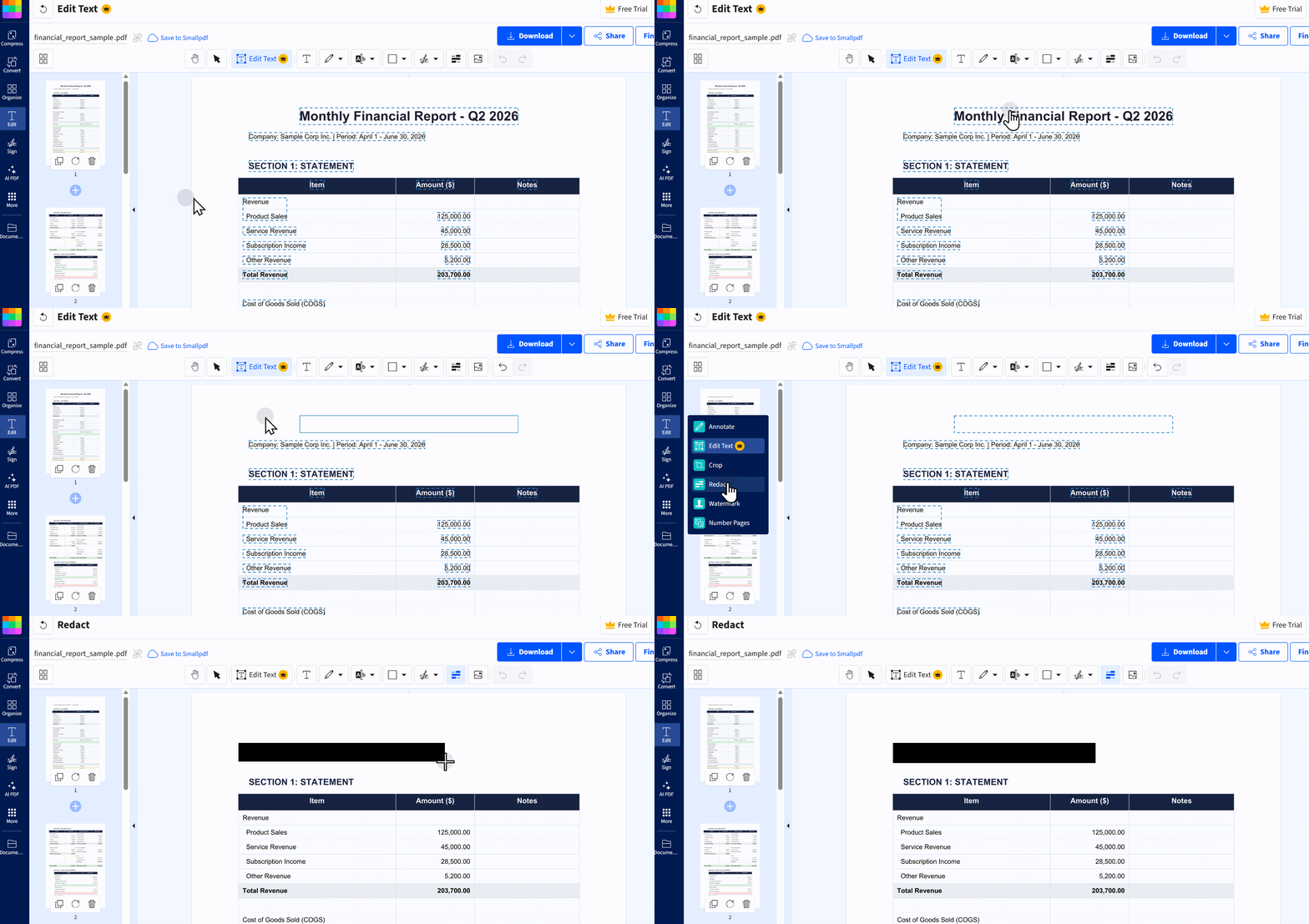
⚠️ Security Reminder: All online tools require uploading files to cloud servers. If your documents contain commercial confidential information or personal private data, desktop solutions listed below are strongly recommended.
This guide focuses on removing text. For a broader walkthrough covering text editing, image replacement, page management, and annotation, visit our How to Edit a PDF pillar page.
Part 3. Remove Text from PDF Offline (Local Process)
Online PDF text erasers force cloud uploads, which poses major privacy risks for documents containing trade secrets or personally identifiable information. For full data control, offline local processing tools are the safer alternative. Below we analyze 8 desktop PDF programs that process files locally only.
| Tool | Price | Platform | Redact | OCR | Batch | Pros | Cons |
|---|---|---|---|---|---|---|---|
| PDFgear | Completely free | Windows | ✅ | ✅ | Basic | Free, no registration, OCR+Redact, offline | Advanced AI may become paid later |
| PDF Shaper | Free + Paid | Windows | ❌ | ✅ (paid) | ✅ | Low CPU usage, good for older PCs | Free version limited, no Redact |
| UPDF | Free trial + one‑time | Win/Mac/iOS/Android | ✅ | ✅ (38 langs) | ✅ | One‑time payment, built‑in OCR/AI/batch removal | Paid for full features |
| Adobe Acrobat Pro | Subscription ($20+/mo) | Win/Mac | ✅ | ✅ | ✅ | Most complete, search‑and‑mark redaction, sanitize, AI | Expensive subscription |
| Foxit PDF Editor | Free trial + paid | Win/Mac | ✅ | ✅ | ✅ | Word‑like UI, easy to learn, feature‑rich | Paid for full features |
| Sejda Desktop | Free + paid | Win/Mac/Linux | ❌ | ❌ | ❌ | Auto‑matches fonts, intuitive | No Redact or OCR |
| Xodo PDF Studio | Paid | Win/Mac/Linux | ✅ | ✅ | ✅ | Cross‑platform, full‑featured | Paid |
| iLovePDF Desktop | Free trial + paid | Win/Mac | ✅ | ❌ | ❌ | Supports Redact, clean interface | No OCR |
PDFgear is the top choice for zero-budget users: completely free, no sign-up required, with built-in OCR and redaction tools to satisfy most daily PDF editing demands. But only for Windows users.
UPDF is ideal for users who prefer a one-time purchase over recurring subscriptions. It outperforms PDFgear with advanced features including 38-language OCR, AI content cleanup and batch element removal. Its one-time payment model ($79.99) is also more cost-effective for individuals compared to Adobe Acrobat’s monthly subscription.
Adobe Acrobat Pro caters to enterprise users with sufficient budgets. As the de facto industry standard, it features search-and-redact to automatically locate and irreversibly erase all sensitive content in bulk. Its document sanitization function further eliminates residual data such as metadata and hidden layers.
UPDF delivers the best value among desktop PDF tools with its one-time purchase model, unlike Adobe Acrobat’s subscription plan. It features built-in OCR supporting 38 languages without extra plugins, and handles four core use cases: basic editing, secure redaction, scanned document OCR, and cross-page batch processing. It is perfect for individuals and small teams seeking professional capabilities without recurring subscription fees.
Windows • macOS • iOS • Android 100% secure
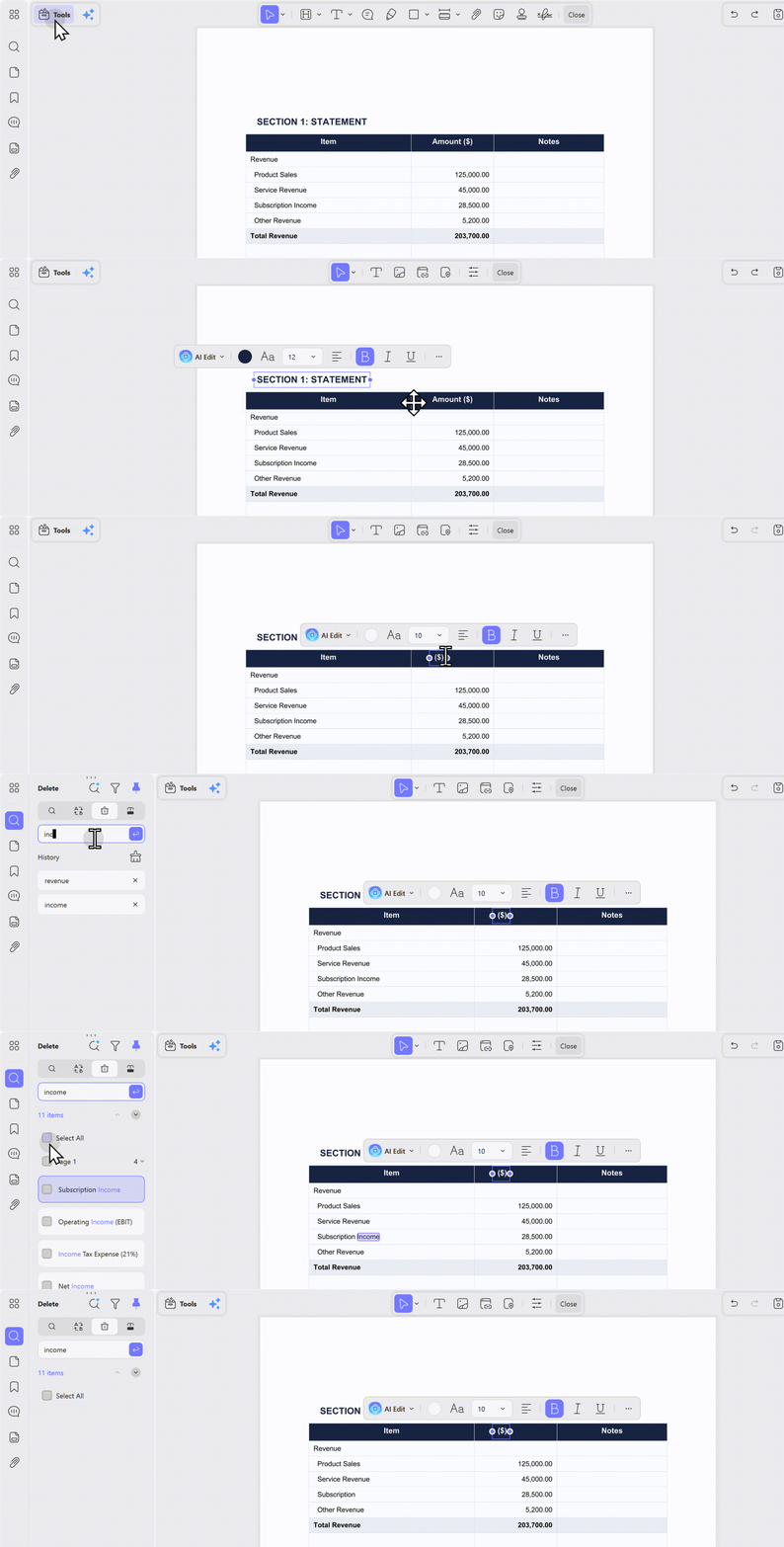
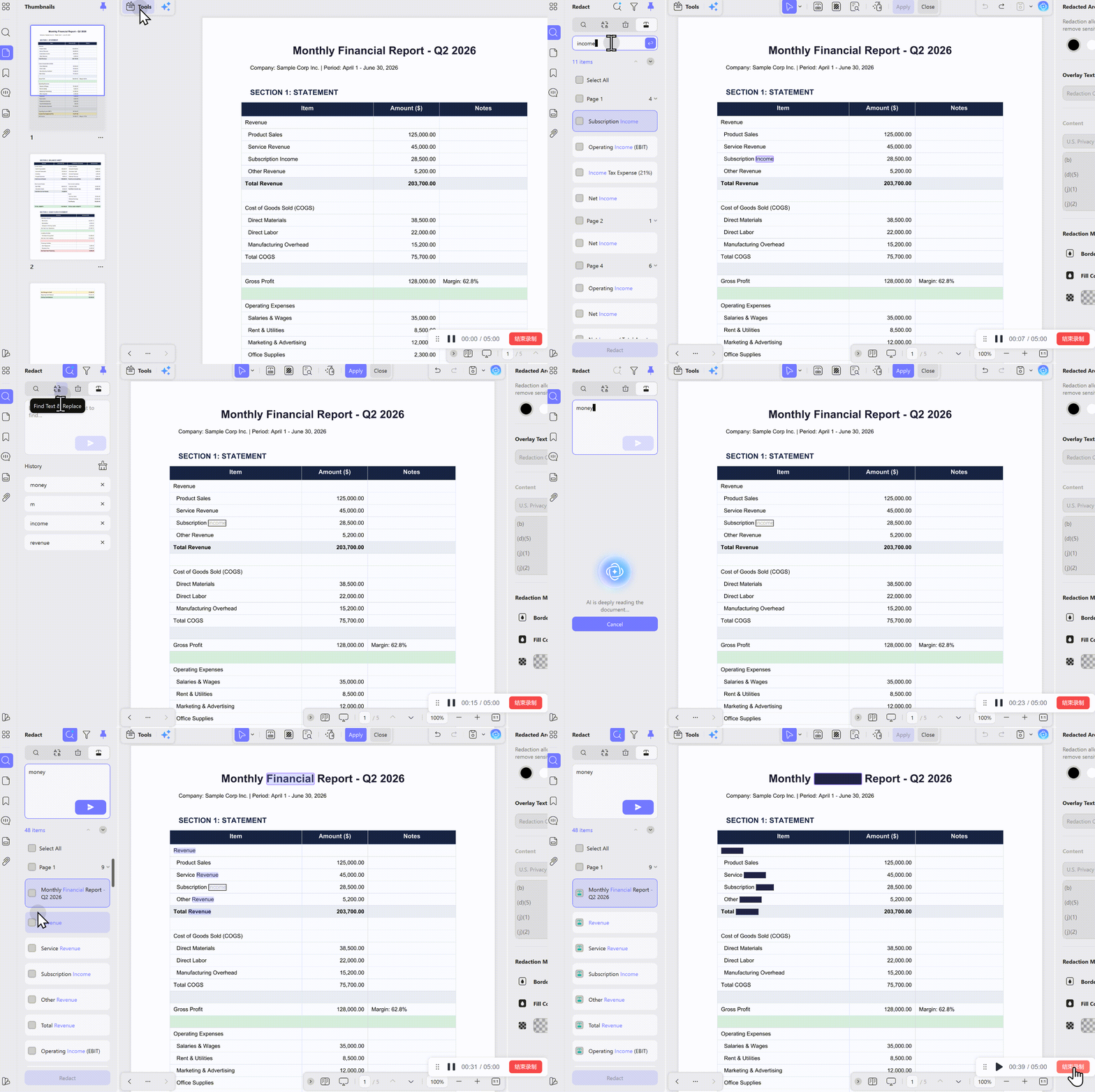
Now, let's dive into how to remove text from a PDF. To remove a specific word from your PDF using UPDF, of course, you can use edit mode to find and delete manually like other normal tools, but with UPDF, you can use "Find Text & Delete"; AI will detect the text and allow you to delete in seconds! Follow these detailed steps:
UPDF also boasts an even more powerful feature: AI search. You can locate a target item by entering its synonyms or a description and remove it with a single click. It also allows you to categorize different types of words and selectively delete them in batches with a single click.
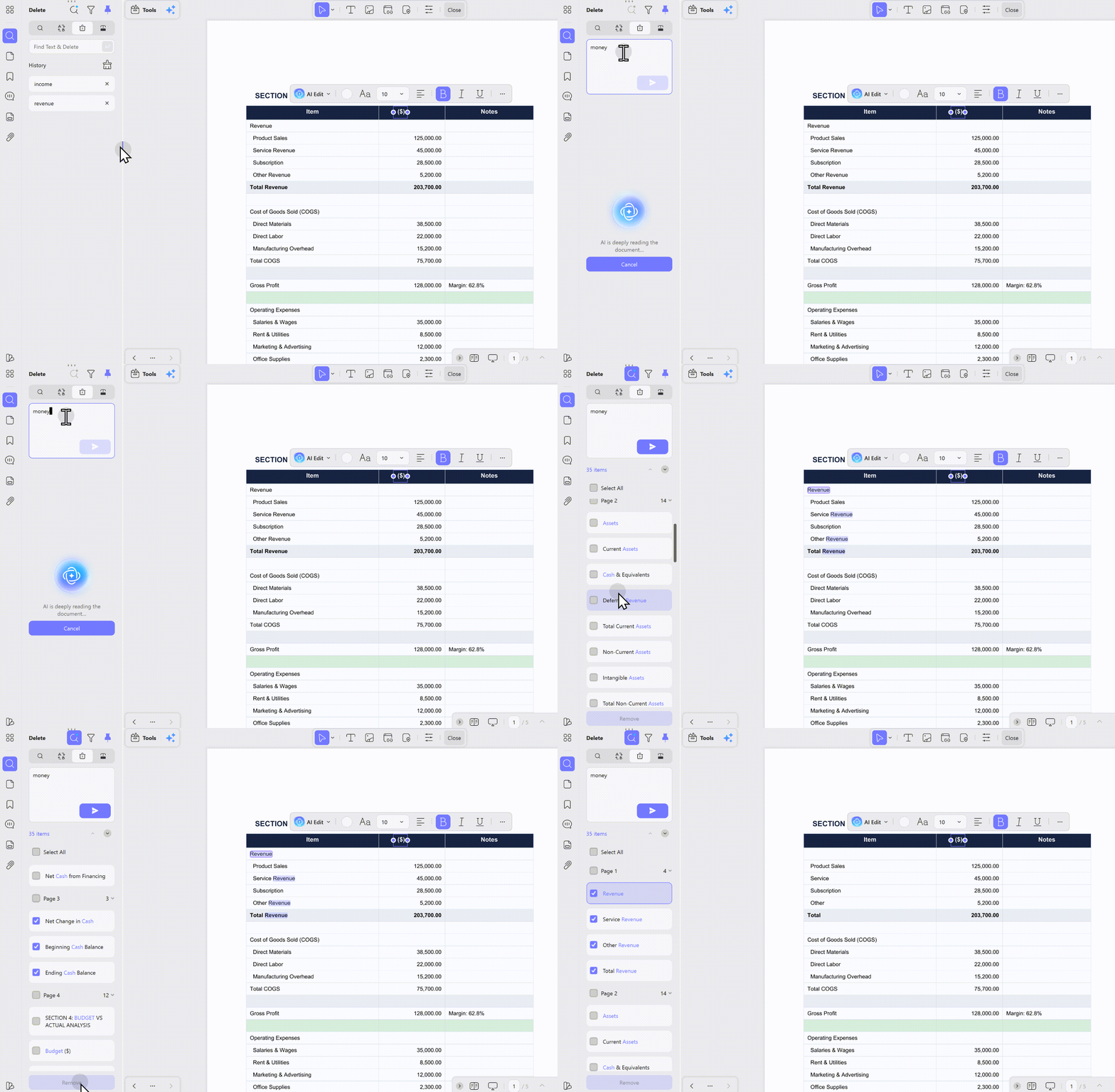
These steps ensure that you can efficiently remove any unwanted text without disrupting the layout or formatting of your PDF.
Also Read: How to Remove OCR from PDF? (3 Ways)
As for redaction, UPDF also has powerful features. You can redact text, and also redact pages.
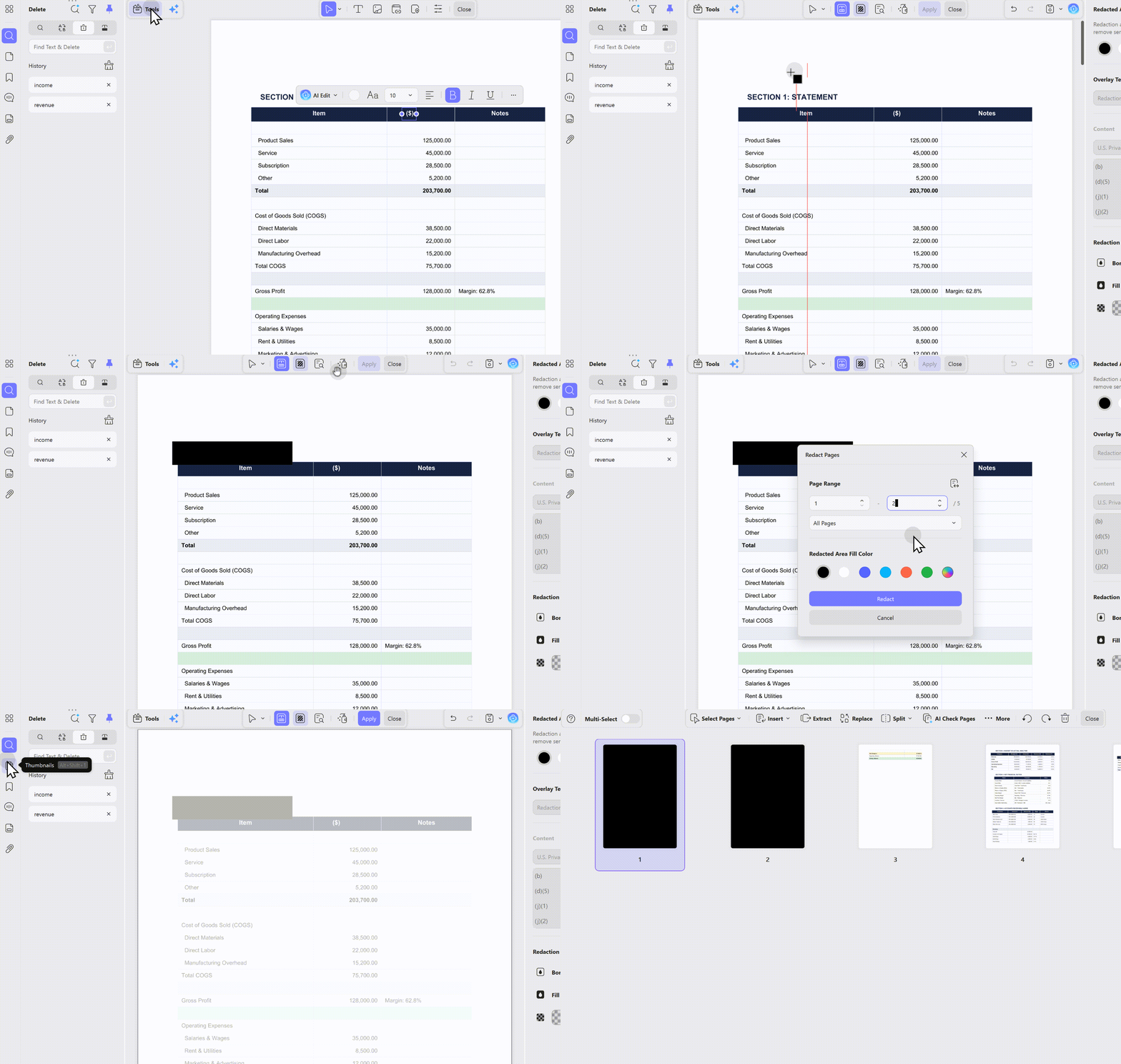
Check how to redact text from PDF by finding the text via typing the exact words or the meaning of the target word, or its synonyms with UPDF AI Search, follow the steps below.
If your PDF document is a scanned file, UPDF can enable OCR feature and convert a scanned file into editable text in seconds.
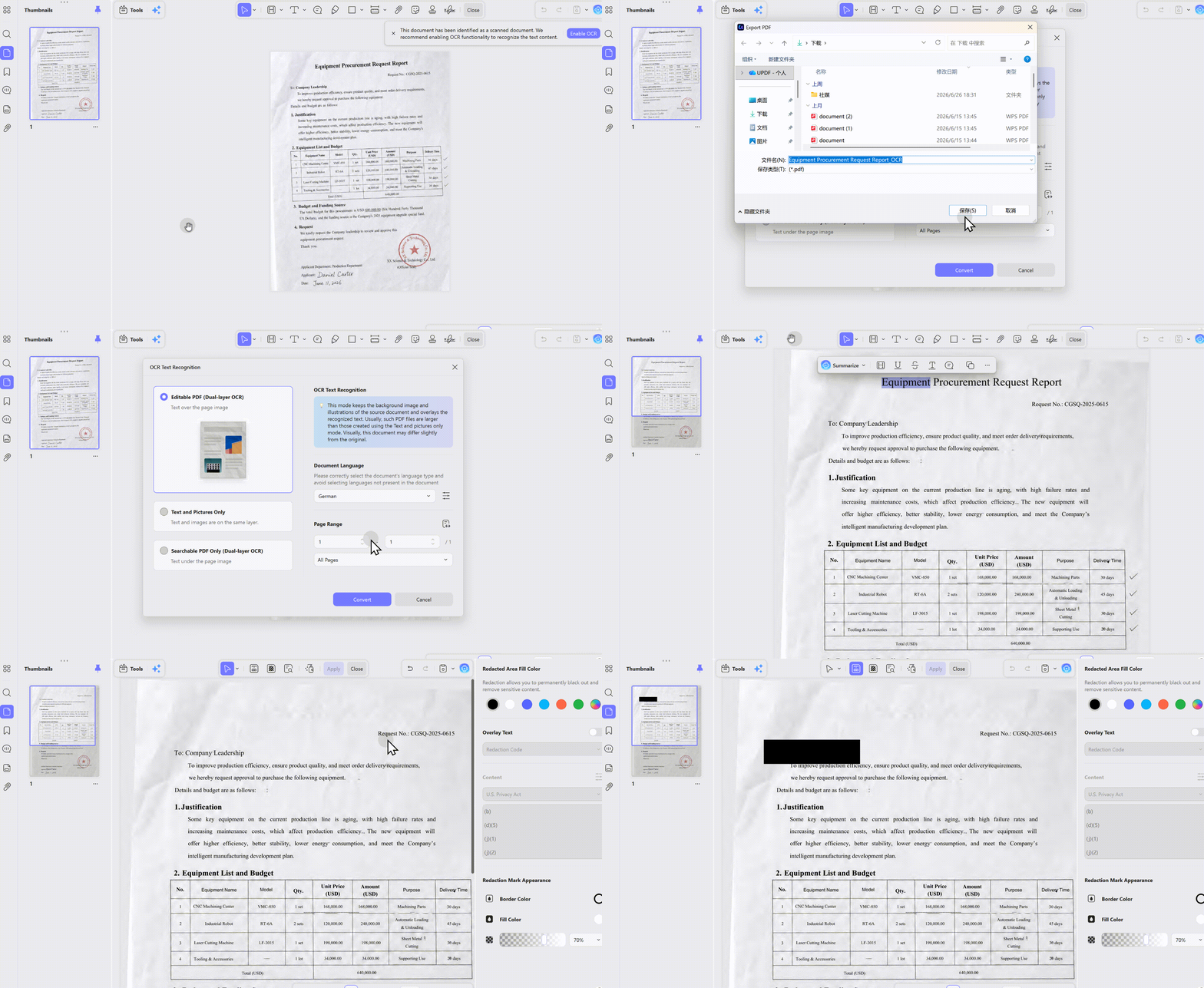
As you can see, UPDF stands out for its powerful, all-in-one PDF text removal capabilities, combining robust permanent redaction, multi-language OCR, and cross-page batch processing under a cost-effective one-time license. Free from recurring subscription charges and extra plugin downloads, it fully meets both individual and small-team demands for secure, high-efficiency PDF editing. If you’re ready to erase unwanted text or wipe sensitive confidential content from PDFs offline without privacy risks, download UPDF now to test all its premium features on your local device.
Windows • macOS • iOS • Android 100% secure
Using Adobe Acrobat DC
Adobe Acrobat DC is a well-known tool for editing text in PDF files, including removing specific words or phrases. Here are the steps to erase words using Adobe Acrobat DC:
- Open your PDF with Adobe Acrobat DC.
- Navigate to the "Edit PDF" tool in the right-hand toolbar.
- Click on the text or word you want to remove; Acrobat will highlight editable text boxes.
- Select the word or phrase and press the delete key to remove it. Alternatively, you can right-click on the text and choose Delete from the given options.
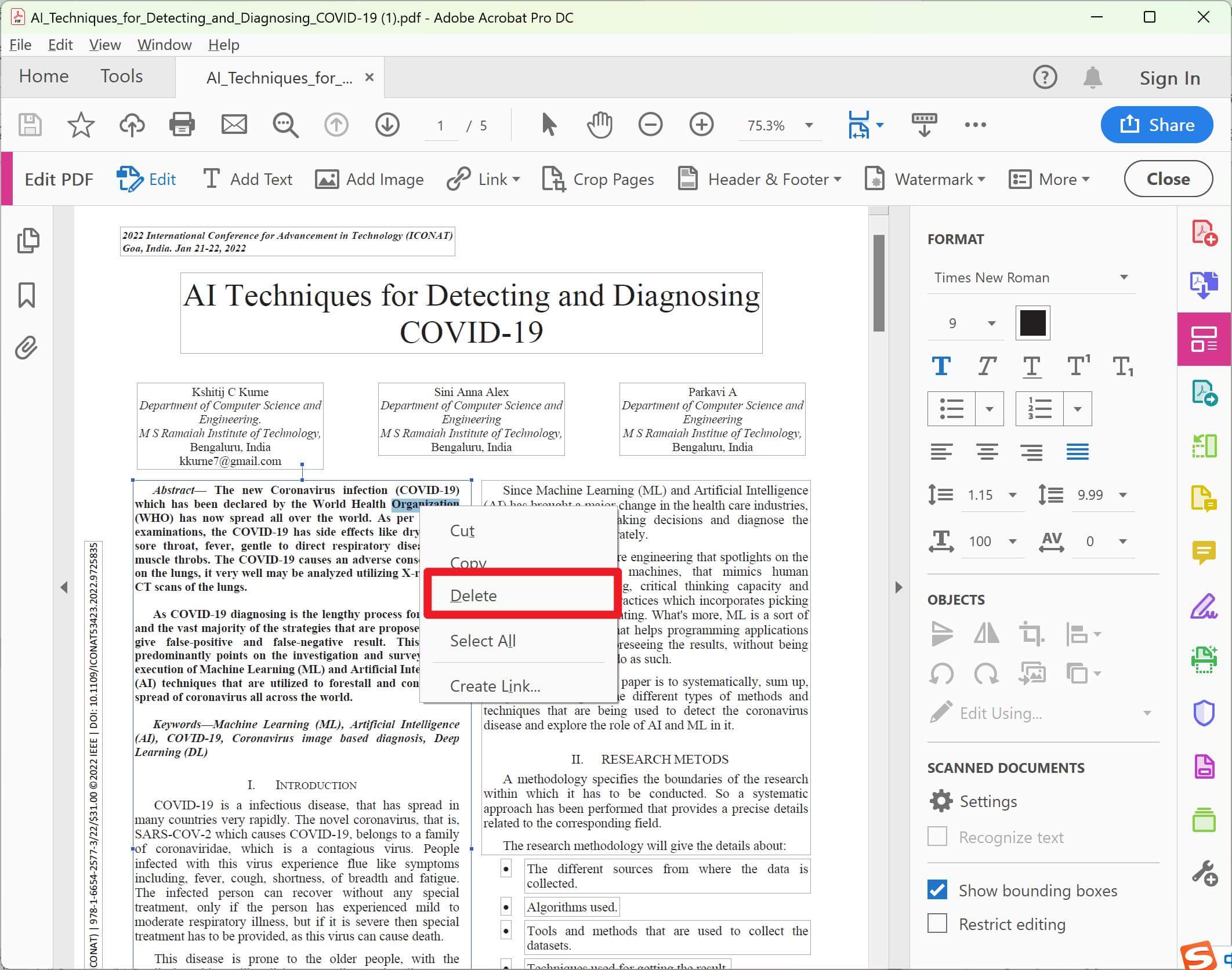
- Save your document or file to ensure that the changes are applied.
Cons of using Adobe Acrobat DC:
- Cost: Adobe Acrobat DC is a premium software that requires a subscription, which may not be cost-effective for all users.
- Complexity: It has a comprehensive set of features which can be overwhelming for users who need simple edits.
- Resource Intensive: The software can be heavy on system resources, especially for older computers.
These factors make Adobe Acrobat DC suitable for professional users who need extensive PDF editing capabilities but might be less accessible for casual or occasional users.
Bonus
Part 4. FAQs About Deleting Text from PDF
What is the difference between deleting and redacting text in a PDF?
Deleting is appropriate for ordinary content edits, while redaction permanently removes sensitive information so it cannot be searched, copied, or recovered.
Can I remove text from a scanned PDF?
Yes. Run OCR first to make the scanned text searchable and editable, then delete ordinary text or use redaction for confidential information.
Is covering text with a white or black box secure?
No. A shape only hides what is visible and may leave the underlying text searchable or recoverable. Use a true redaction tool for sensitive data.
Conclusion
In conclusion, mastering the skill to remove text from PDFs is invaluable, whether for professional document management, updating personal files, or ensuring confidentiality. Among the various tools available, UPDF stands out for its user-friendly interface, robust editing capabilities, and versatile features.
Whether you are dealing with short or lengthy documents, or need to remove specific words or entire paragraphs, UPDF provides a reliable and efficient solution. Enhance your PDF editing experience by downloading UPDF today, and take control of your document management with precision and ease.
Windows • macOS • iOS • Android 100% secure
If you're looking for a complete guide on editing PDFs — including modifying text, replacing images, adding annotations, and more — check out our full How to Edit a PDF guide.
The aim is to make the correction while keeping the document easy to read. If a visual example would help, take a look at the video on editing PDF content in UPDF below.






 Enid Brown
 Enrica Taylor

 Enola Davis