 UPDF
 UPDF for Windows
 UPDF for Mac
 UPDF for iPhone/iPad
 UPDF for Android
 Nomostar
 UPDF AI Online
 UPDF Sign
 IvyCraft
 Edit PDF
 Annotate PDF
 Create PDF
 PDF Form
 Edit links
 Convert PDF
 OCR
 PDF to Word
 PDF to Image
 PDF to Excel
 Organize PDF
 Merge PDF
 Split PDF
 Crop PDF
 Rotate PDF
 Protect PDF
 Sign PDF
 Redact PDF
 Sanitize PDF
 Remove Security
 Read PDF
 UPDF Cloud
 Compress PDF
 Print PDF
 Batch Process

 About UPDF AI
 UPDF AI Solutions
 AI User Guide
 FAQ about UPDF AI
 Summarize PDF
 Translate PDF
 Chat with PDF
 Chat with AI
 Chat with image
 PDF to Mind Map
 Explain PDF
 PDF AI Tools
 Image AI Tools
 AI Chat Tools
 AI Writing Tools
 AI Study Tools
 AI Working Tools
 Other AI Tools
 AI Bookmark Generation
 AI Bookmark Summary
 AI Watermark Generation
 AI Background Generation
 AI Sticker Generation
 AI Stamp Generation
 AI Editing Suite
 UPDF Copilot
 AI Page Management
 AI Semantic Search
 PDF to Word
 PDF to Excel
 PDF to PowerPoint
 Enterprise Solution
 Enterprise Sign
 Enterprise AI
 Enterprise Plan
 Enterprise User Guide
 Enterprise Webinar
 IT
 Education
 Construction
 Financial Service
 Healthcare
 Insurance
 Legal
 Manufacturing
 Government
 Researchers & PhDs
 Solopreneurs & Freelancers
 Lawyers & Legal Professionals
 Real Estate Agents & Brokers
 Education Solution
 Customer Stories
 User Guide
 UPDF Tricks
 FAQs
 UPDF Reviews
 Download Center
 Blog
 Newsroom
 Tech Spec
 Updates
 UPDF vs. Adobe Acrobat
 UPDF vs. Foxit
 UPDF vs. PDF Expert


Quick verdict: NAPS2 (Not Another PDF Scanner 2) is a free, open-source desktop scanner for Windows, macOS, and Linux. It is a strong choice when you need to capture paper documents through a flatbed scanner or automatic document feeder, apply OCR, and save the result as PDF or an image. If your next step is to edit, annotate, convert, organize, sign, or continue working with the scanned PDF across desktop and mobile devices, UPDF provides the broader post-scan workflow. This review explains where each tool fits so you can choose without paying for functions you do not need.
Windows • macOS • iOS • Android 100% secure
What is NAPS2 Scanner, and What are its Features?
NAPS2—short for “Not Another PDF Scanner 2”—is free, open-source scanning software for Windows, macOS, and Linux. It connects to physical scanners and saves captured pages as PDF, TIFF, JPEG, or PNG. NAPS2 is free for individuals and businesses, with no ads or feature restrictions.
On Windows, you can choose WIA or TWAIN, set the DPI, page size, and bit depth, and scan from a flatbed or automatic document feeder (ADF), including duplex jobs. NAPS2 can also deskew, crop, rotate, reorder, adjust brightness and contrast, and create searchable PDFs with OCR in more than 100 languages. Its interface is available in more than 40 languages, and supported scanners can be shared over a local network.
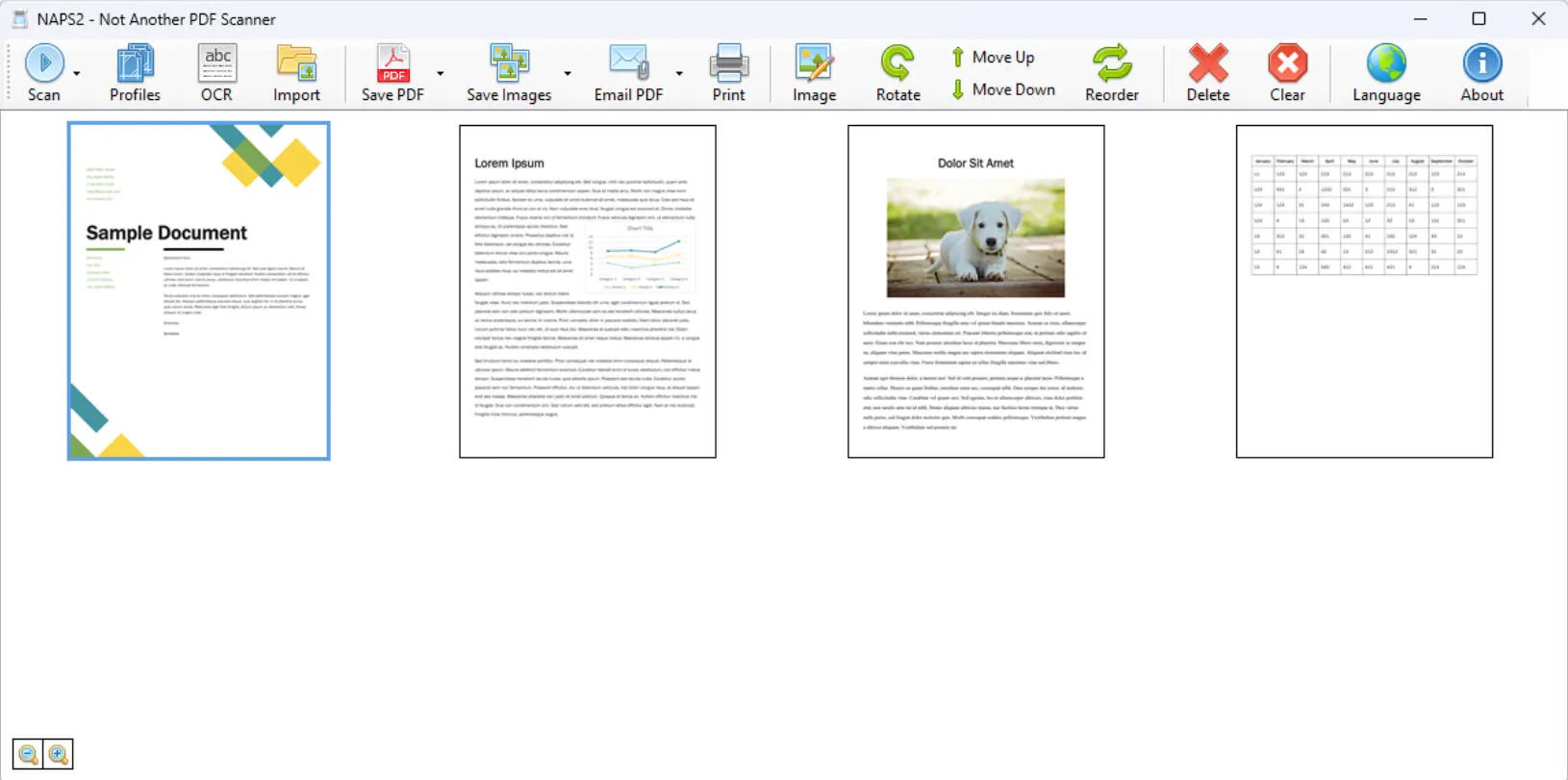
Key NAPS2 features include:
- Flexible scanner control: use a flatbed or ADF, configure resolution and page settings, and scan one or both sides when the hardware supports duplex scanning.
- Page cleanup: rotate, crop, deskew, reorder, interleave, and adjust brightness or contrast before exporting.
- Searchable PDFs: use OCR in more than 100 languages so scanned text can be searched and copied.
- Business deployment: use the optional CLI, .NET SDK, MSI installer, group-policy settings, and portable builds.
How to Use the NAPS2 Scanner
Follow this current workflow to scan a document with NAPS2:
- Download NAPS2 from its official site and install the version for Windows, macOS, or Linux. Windows users can also choose a portable build.
- Connect and power on the scanner. Install the manufacturer’s driver first if the operating system cannot detect it.
- Create a scan profile. Open Profiles, choose New, select the scanner and driver, and set the paper source, DPI, page size, color mode, and duplex option.
- Scan the pages. Load the flatbed or ADF and select Scan. Reorder, crop, rotate, deskew, or adjust the captured pages if needed.
- Run OCR when required and save the finished document as PDF, TIFF, JPEG, or PNG.
What Scanners are Compatible with NAPS2?
NAPS2 works with many Canon, Brother, HP, Epson, Fujitsu, and other scanners. Compatibility depends more on the available driver than the logo on the device: Windows commonly uses WIA or TWAIN, while macOS and Linux use the scanning interfaces supported by those systems. Flatbeds and ADF devices are supported, including duplex scanning when both the scanner and driver expose that option.
You can also send your PDF in an email with just one click; select the pages that you'd like to attach, select them using the dropdown arrow next to the "Email PDF" button and click "Selected". Then, choose the email provider you'd like to send them with.
How do I Add a Scanner to NAPS2?
Do not look for a separate “Add Device” screen. NAPS2 associates a scanner with a profile:
- Connect the scanner, turn it on, and confirm that the operating system can see it.
- In NAPS2, select Profiles and create a new profile.
- Choose the scanner, then select the available driver or interface. On Windows, try WIA first for a simple setup or TWAIN when you need manufacturer-specific controls.
- Set the source, resolution, paper size, color mode, and duplex options, save the profile, and run a test scan.
If the scanner is missing, reconnect it, restart the scanner and computer, update the manufacturer’s driver, and try the other supported driver. Network scanning also requires the host computer and shared scanner service to be available.
Pros, Cons, and User Reviews of NAPS2 Scanner
We've delved deep into real user reviews of NAPS2, which has given us a great understanding of its positive and negative aspects.
Pros:
- The NAPS2 interface is very user-friendly and intuitive
- It is very quick and efficient when scanning with a streamlined interface
- It is very versatile in its scanning abilities and can batch-scan
- Plenty of customisable file-naming and saving options
Cons:
- It is focused on scanning and basic page cleanup rather than full PDF editing
- Scanner availability and advanced controls depend on the installed driver
- There is no native mobile app for capturing documents with a phone camera

SourceForge users have rated NAPS2 an excellent 4.8/5.
A real NAPS2 user left the following review on SourceForge:
"This program simply just works. I had a long document that my printer software would not fully scan. I tried several other programs that also did not work. I fired up this program, ran it through the scanner, and voila...perfect scan. GREAT job software writers. This should be on EVERY computer!" - Pctyson, SourceForge
NAPS2 vs. UPDF: Which One Fits Your Workflow?
NAPS2 and UPDF solve different parts of a paper-to-digital workflow. Choose NAPS2 when your priority is controlling a physical scanner. Choose UPDF when you need to capture pages on a phone or continue working with the PDF after it has been scanned—editing text and images, adding annotations, rearranging pages, converting formats, signing, protecting, and sharing the finished file. You can also use both: scan with NAPS2, then open the PDF in UPDF for the remaining document work.
Windows • macOS • iOS • Android 100% secure
| Comparison | NAPS2 | UPDF |
|---|---|---|
| Best for | Capturing paper through a physical scanner | Managing and finishing scanned PDFs |
| Physical scanners | WIA/TWAIN, flatbed, ADF, and duplex support | Not its primary scanner workflow |
| Mobile capture | No native mobile app | Scan with an iPhone/iPad camera or create PDFs from photos |
| OCR | Creates searchable PDFs in 100+ languages | Turns image-only PDFs into searchable or editable PDFs in supported languages |
| PDF work after scanning | Crop, rotate, reorder, and basic image adjustment | Edit, annotate, organize, convert, compress, protect, fill, and sign PDFs |
| Platforms | Windows, macOS, Linux | Windows, macOS, iOS, Android |
| Price | Free and open source | Free trial; Pro plans unlock the complete PDF workflow |
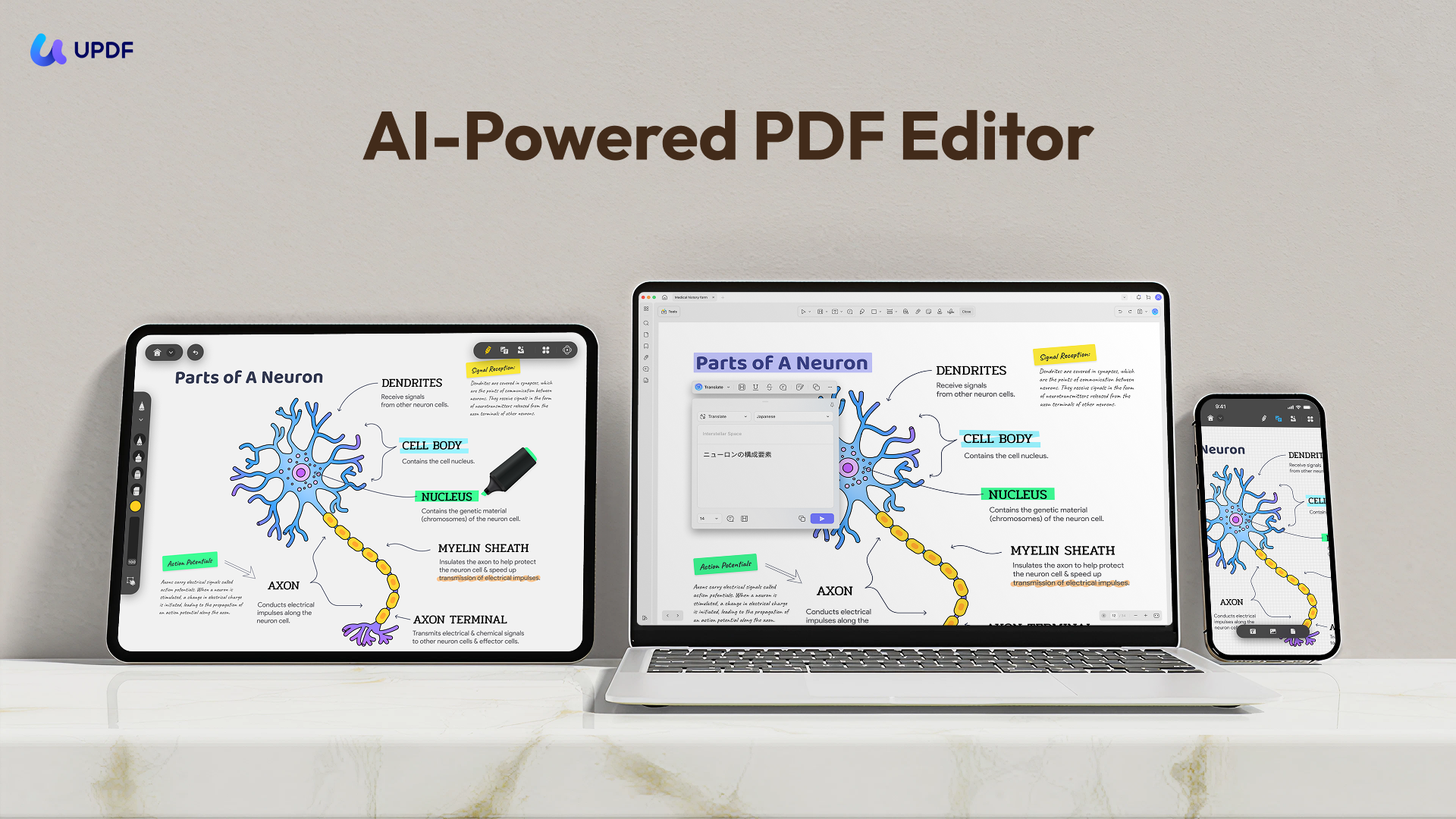
A Practical Scan-to-Finished-PDF Workflow
- Capture the document. Use NAPS2 with a desktop scanner, or scan to PDF on an iPhone with UPDF when a phone camera is more convenient.
- Make the file searchable or editable. Open the scanned PDF in UPDF for Windows or Mac, select OCR in Tools, choose an output mode and document language, and run recognition. For background, see what OCR is and how it works.
- Finish the document. Edit the scanned PDF, organize PDF pages, or convert the PDF to the format required by your workflow.

FAQs About NAPS2 Scanner
Is NAPS2 Scanner completely free?
Yes. NAPS2 is free and open source for both personal and business use, with no ads or feature restrictions.
Is NAPS2 safe to download?
Download NAPS2 from its official website or linked official release repository. Avoid unrelated download portals that may bundle their own installers.
Does NAPS2 work on Mac and Linux?
Yes. Official builds are available for Windows, macOS, and Linux, although scanner-driver availability can vary by operating system and device.
Does NAPS2 support OCR?
Yes. NAPS2 can add searchable text to scanned PDFs using OCR in more than 100 languages.
Can NAPS2 scan multiple pages or both sides?
Yes. It supports automatic document feeders and duplex scanning when those capabilities are available through the scanner and its driver.
Why is my scanner not showing in NAPS2?
Check the connection and power, install or update the manufacturer’s driver, restart the devices, and try another supported driver or interface. On Windows, switching between WIA and TWAIN often resolves detection or control issues.
Can NAPS2 edit an existing PDF?
NAPS2 can import and adjust pages, but it is not a full PDF editor. Use a PDF editor such as UPDF when you need to change existing text or images, annotate, convert, fill, protect, or sign the document.
Conclusion
NAPS2 is an excellent free choice for users who need detailed control over a physical scanner, ADF, duplex settings, page cleanup, and searchable PDF output. Its open-source license also makes it practical for individuals, businesses, and managed desktop deployments.
UPDF is the better fit when scanning is only the first step. It lets you continue from captured pages to an edited, organized, converted, protected, or signed PDF across Windows, macOS, iOS, and Android. You do not have to treat the tools as mutually exclusive: use NAPS2 for scanner capture and UPDF for the complete document workflow that follows.
Windows • macOS • iOS • Android 100% secure



 Enid Brown