 UPDF
UPDF
 UPDF for Windows
 UPDF for Mac
 UPDF for iPhone/iPad
 UPDF for Android
 UPDF AI Online
 UPDF Sign
 Edit PDF
 Annotate PDF
 Create PDF
 PDF Form
 Edit links
 Convert PDF
 OCR
OCR PDF to Word
 PDF to Image
 PDF to Excel
 Organize PDF
 Merge PDF
 Split PDF
 Crop PDF
 Rotate PDF
 Protect PDF
 Sign PDF
 Redact PDF
 Sanitize PDF
 Remove Security
 Read PDF
 UPDF Cloud
 Compress PDF
 Print PDF
 Batch Process
 About UPDF AI
 UPDF AI Solutions
 AI User Guide
 FAQ about UPDF AI
 Summarize PDF
 Translate PDF
 Chat with PDF
 Chat with AI
 Chat with image
 PDF to Mind Map
 Explain PDF
 Scholar Research
 Paper Search
 AI Proofreader
 AI Writer
 AI Homework Helper
 AI Quiz Generator
 AI Math Solver
 PDF to Word
 PDF to Excel
 PDF to PowerPoint
 Enterprise Solution
 Enterprise Sign
 Enterprise AI
 Enterprise Plan
 Enterprise User Guide
 Enterprise Webinar
 Banking
 Healthcare
 Insurance
 Legal
Legal Manufacturing
 Government
 Education Solution
 Customer Stories
 User Guide
 UPDF Tricks
 FAQs
FAQs UPDF Reviews
 Download Center
 Blog
Blog Newsroom
 Tech Spec
 Updates
 UPDF vs. Adobe Acrobat
 UPDF vs. Foxit
 UPDF vs. PDF Expert

Even though PDF documents are already very easy to share. You may want to make the sharing process much easier by having the PDF document in the form of a URL link. With a URL link that represents the whole document, it is much easier to share it using cloud storage services like Dropbox and Google Drive, via email, or even on social media apps like WhatsApp.
But how do you convert a PDF document to a URL? You may think that the process is very hard, but with the right conversion tool, you can convert PDF to URL easily within seconds. Here, we will share with you the 4 best ways that you can use it and show you how to use it. The tools we use include the all‑in‑one PDF tool UPDF (for desktop and mobile), which lets you control link permissions and sharing options. Simply click the button below to download.
Windows • macOS • iOS • Android 100% secure
Method 1. How to Convert PDF to URL Via Generating a Link
To effectively convert a PDF file to a URL, you will need to use a PDF tool that is not only designed to make the process easy but one that will also convert the file effectively. The only converter that embodies these qualities and more is UPDF. This tool can help you convert PDF to URL quickly. Download it via the below button and follow the below guide to convert PDF to URL now.
Windows • macOS • iOS • Android 100% secure
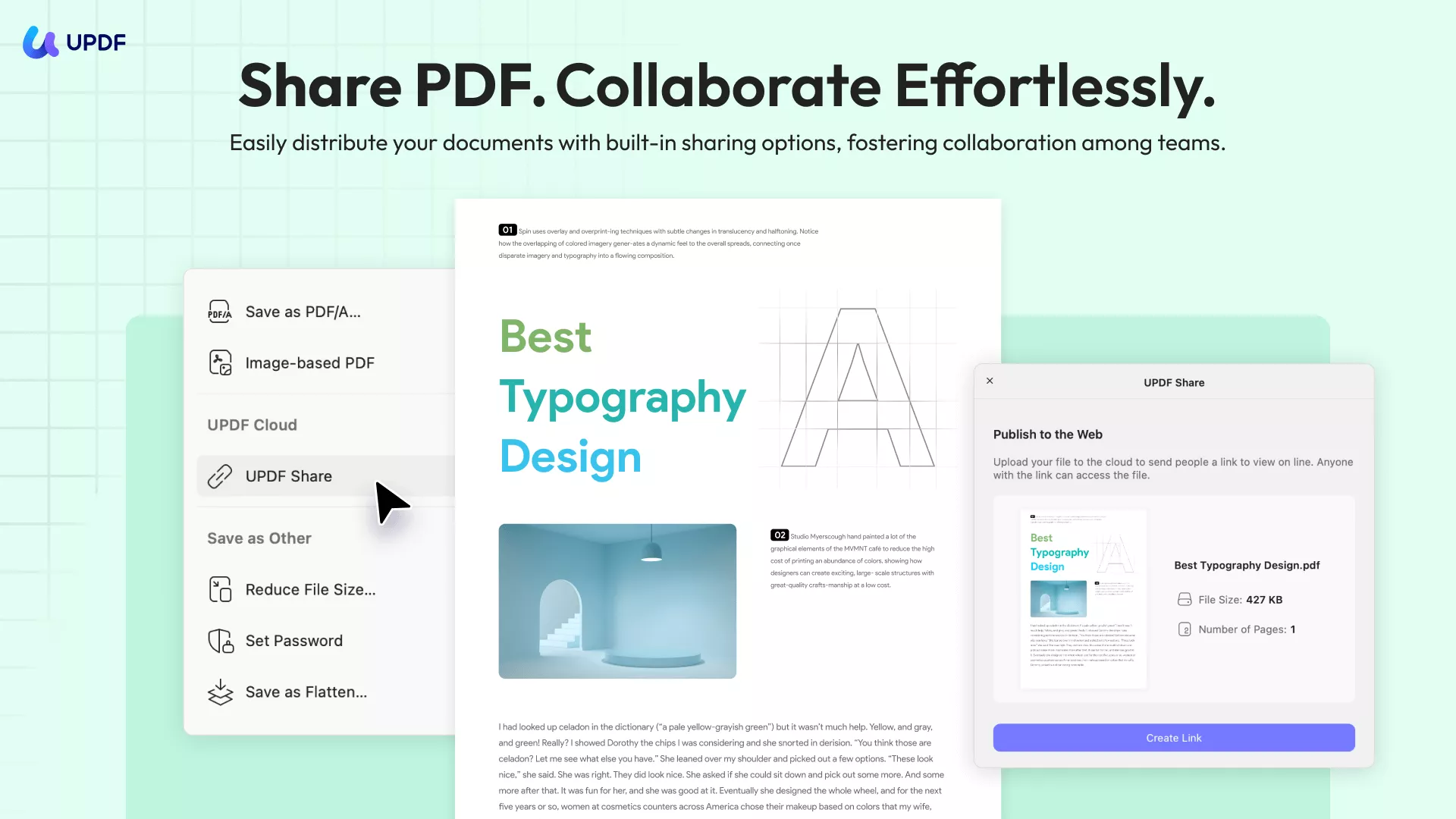
Follow these simple steps to learn how to convert PDF to URL:
Step 1: Import the PDF File
Open UPDF on your computer and then either drag and drop the PDF file that you want to convert into the main window, or click on "Open File" to select the file and import the PDF to the program.
Step 2: Select the Share Icon
Now you can tap on the narrow next to "Save" and click the "UPDF Share" icon on the right bar.
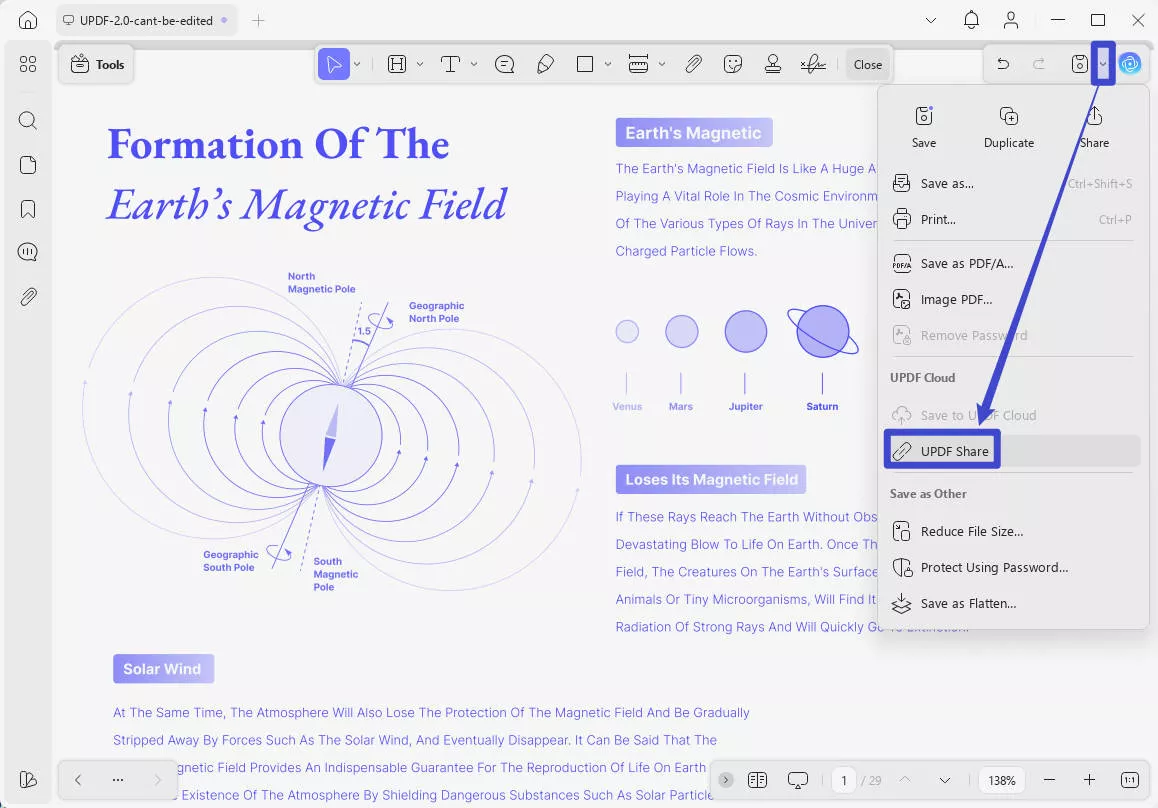
Step 3: Create URL for PDF
A new window pops up, you need to click the purple "Create Link" button to generate a URL for your PDF file. This option will change the PDF file into a URL link.
After generating the URL, now you can click the "Copy" icon or the QR code icon to share it.
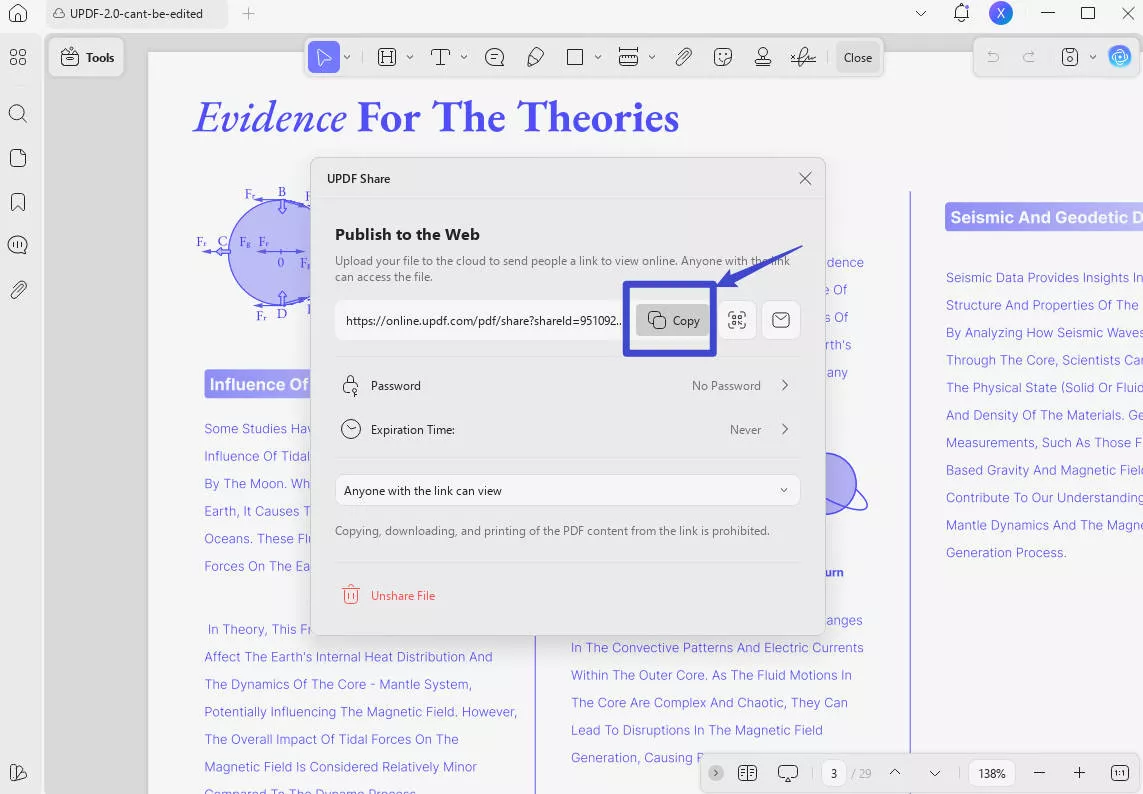
The best part of this method is that you can set the expiration time of the URL, and you can also disable the Copy/Download/Print permissions if you want to protect your PDF file.
Step 4: Open the PDF File Online
After copying the link, you can open the link in your browser. Then you will see that the PDF file can be opened online as a link.
If you want to share this PDF file with others, you can send the URL. That's quite easy and convenient.
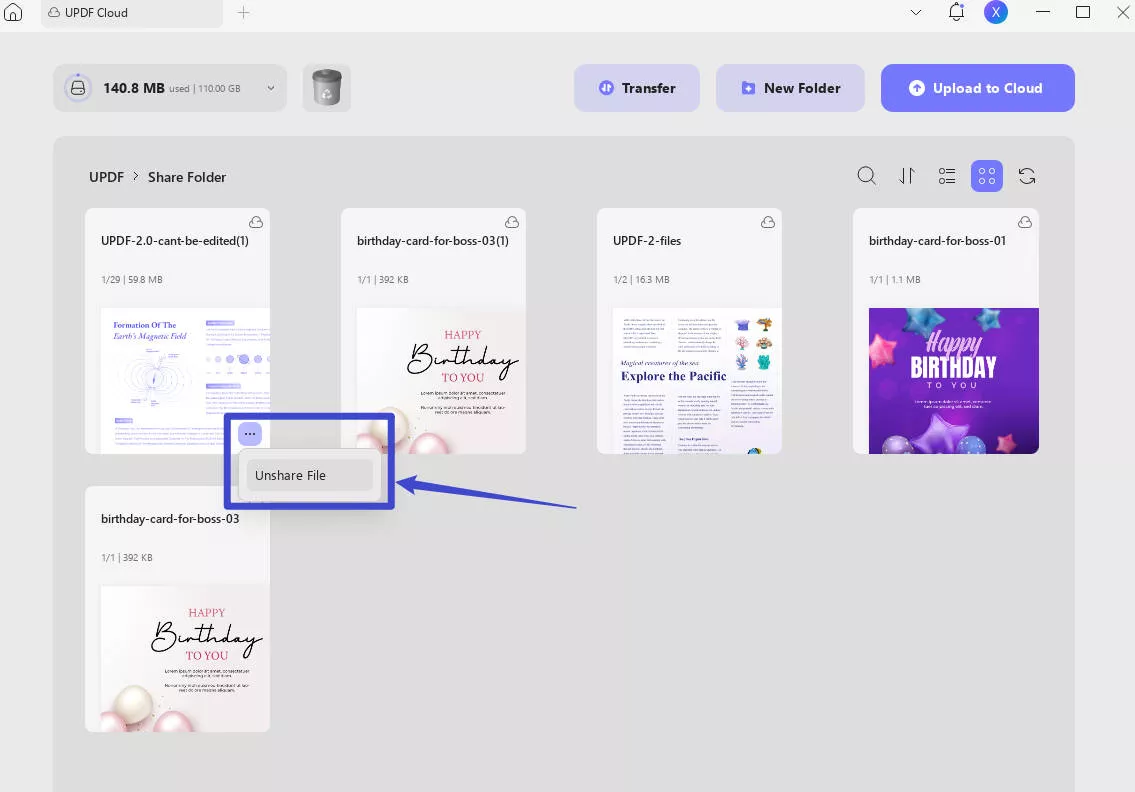
Step 5. Unshare the Shared PDF (Optional)
If you've shared a PDF with someone and they’ve finished reviewing it, but you no longer want others to access it, you can easily unshare it.
Simply go to the home screen of UPDF, click on "Cloud" > "Share Folder", find the shared file, click on the three dots next to it, and select "Unshare File." Now, the shared line cannot be accessed any more.
Windows • macOS • iOS • Android 100% secure
You may feel very confused about why you should choose UPDF to convert PDF to URL instead of using other tools. There are many reasons and here are some of them:
- It is not only a tool to help you convert PDF to URL. You can also use it to edit PDFs, annotate PDFs, and di anything for your PDF files. It stands out because UPDF has AI features that can help you summarize, write, rewrite, translate, and explain the contents.
- UPDF can work on Windows, Mac, Android, and iOS with one account. Moreover, its AI features can work online. You can try is online AI Assistant by clicking the below button.
- The price is very cheap when compared with other tools.
- It is completely free to test all features. And if you want to get all the features without a watermark, you can purchase it at a very low price here.
And to have a better understanding of UPDF, you can read the review article from PDF Association here. If you want to test it on your own, you can download it on your computer via the below button.
Windows • macOS • iOS • Android 100% secure
Also Read: How to Convert PDF to Link (Easy Ways)
Method 2. How to Convert PDF to URL Via Converting to HTML
You can also choose to convert PDF to HTML in order to convert it to URL because the web page is built with HTML. So you can save the PDF file as an HTML file and publish it in your website or other place to get a URL. You can also use UPDF here.
Here are the steps for you to follow.
Step 1. Open PDF File
Download UPDF from the button below first. Then you need to open your PDF file by clicking the "Open File" button or drag and drop your file into UPDF.
Windows • macOS • iOS • Android 100% secure
Step 2. Choose HTML Option
Now you can click the "Tools" icon on the left toolbar and choose the "More" under the "PDF Converter". Then select the "HTML" option in "Output Format".
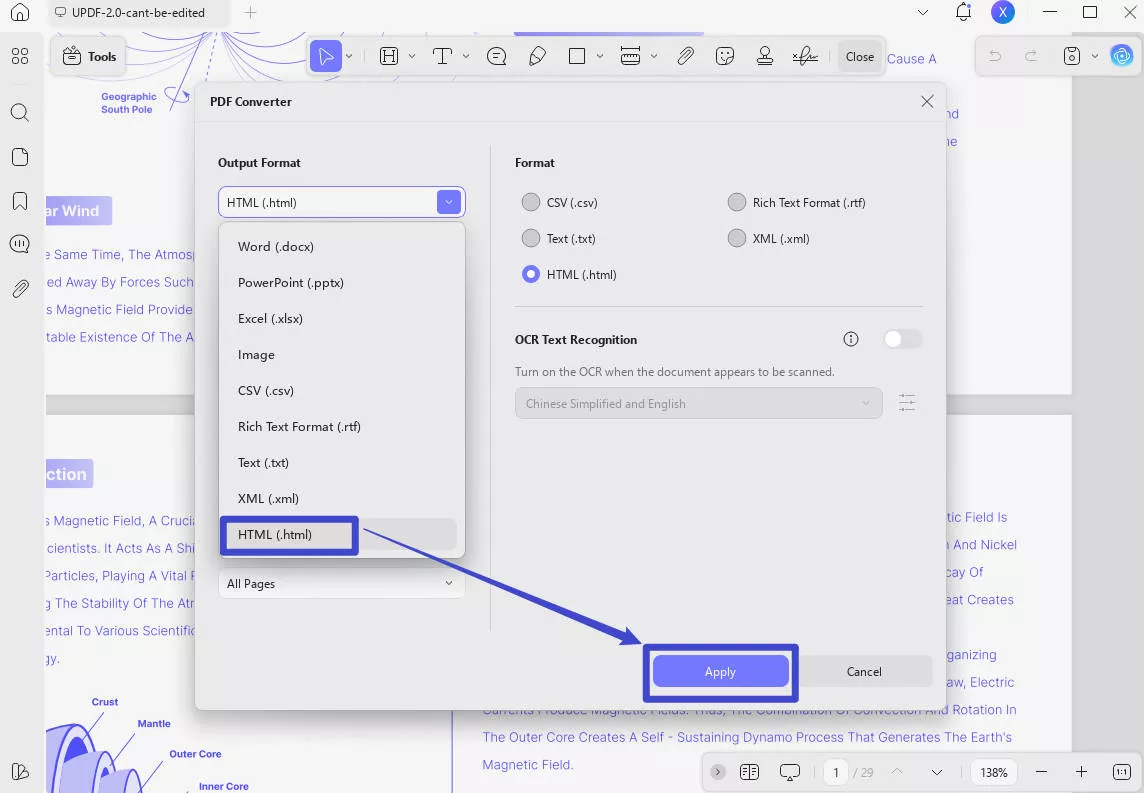
Step 3. Convert PDF to HTML
In the pop-up window, you can select the page range. Finally, click the "Apply" button and choose a local folder to save the converted file.
Step 4. Turn It into a Webpage URL
After you convert the PDF file into HTML format, you can upload the file to your website via FTP. To use this method, you will need to have some web-building knowledge. And you can turn the PDF content into a webpage.
Method 3. How to Create URL from PDF with Google Drive
You can also get a URL version of the PDF document by uploading the file to Google Drive. Doing this will convert the PDF into a read-only file that will have a URL that you can share. Here's how to do it;
Step 1: Log in to your Google Drive on any browser.
Step 2: Import the PDF file into Google Drive. You can do that by either dragging and dropping the PDF file into your Google Drive home page or clicking on "Upload Files" and choosing the file you'd like to upload.
Step 3: Wait for the document to be uploaded to Google Drive. Once the upload is successful, right-click on it and choose "Share."
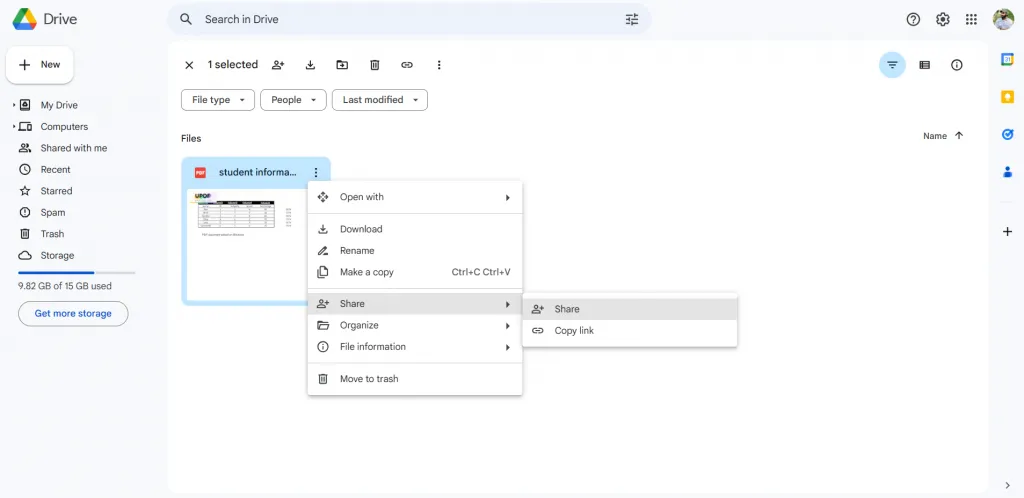
Step 4: Google Drive will give various options to share the document along with a URL link that you can use to share it.
Note: This method only allows you to upload and share your PDF file. But it will be not enough if you want to make further changes to your PDF file. If you want to make a perfect PDF document and improve your work efficiency, choose UPDF. It is an all-in-one PDF solution, helping you to read, convert, edit, annotate, OCR, protect, and share PDF Files effortlessly. It is compatible with Windows, Mac, iOS, and Android. So you can use it to process your PDF files wherever you go. Try it now.
Windows • macOS • iOS • Android 100% secure
Method 4. Upload Your PDF to Dropbox and Share Its Link
Another common way to turn a PDF into a shareable URL is to upload the file to Dropbox using UPDF’s cloud integration feature on mobile and then share the link that Dropbox generates for it. Once the file is stored in your Dropbox cloud storage, you can create a link that others can open to view and download the PDF — even if they don’t have a Dropbox account. You can download UPDF for mobile on App Store and Play Store.
How it works:
Step 1. Open the UPDF app on your iOS or Android and go to the Files section. Tap Cloud Drive → Dropbox and sign in to your Dropbox account.
Windows • macOS • iOS • Android 100% secure
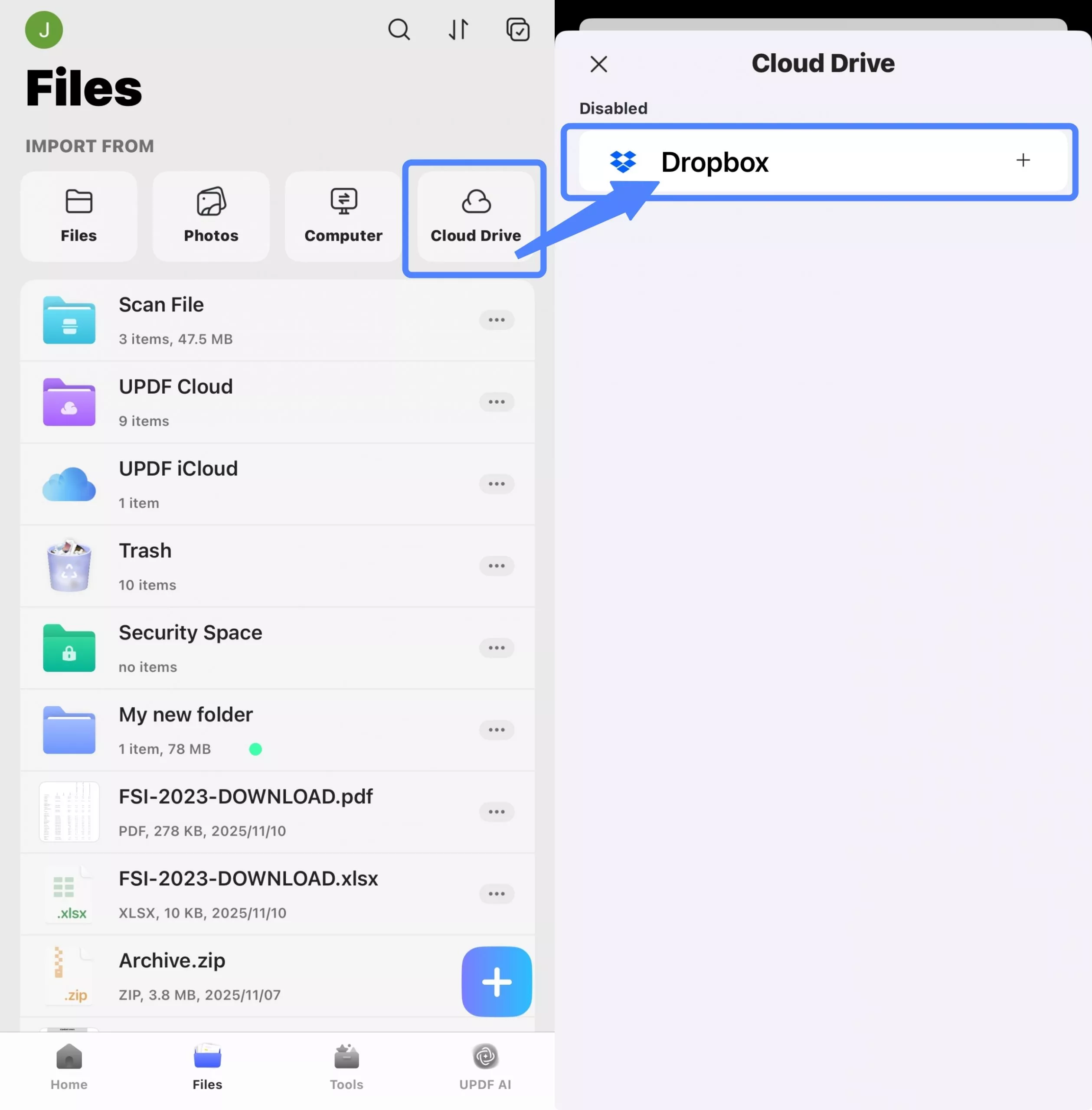
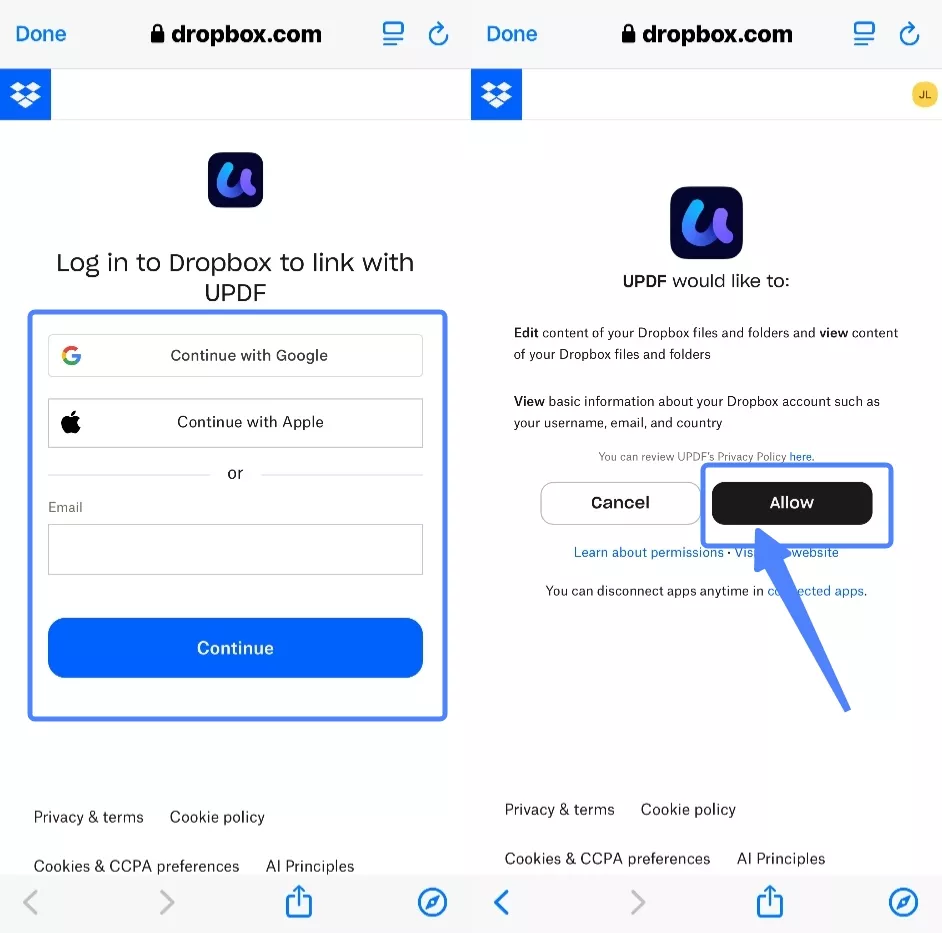
Step 2. After logging in, please click "Allow" to grant UPDF edit and view permissions for your Dropbox files and folders.
Step 3. Tap the “+” button to upload or sync your PDF files from your device to Dropbox.
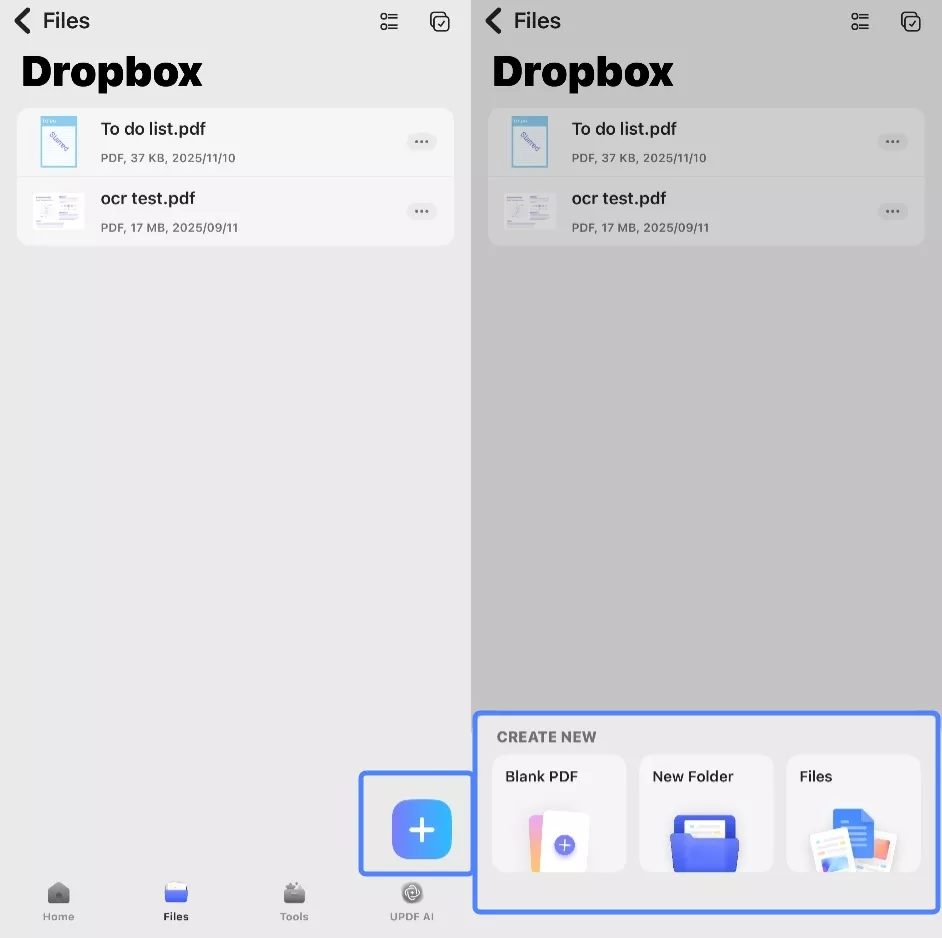
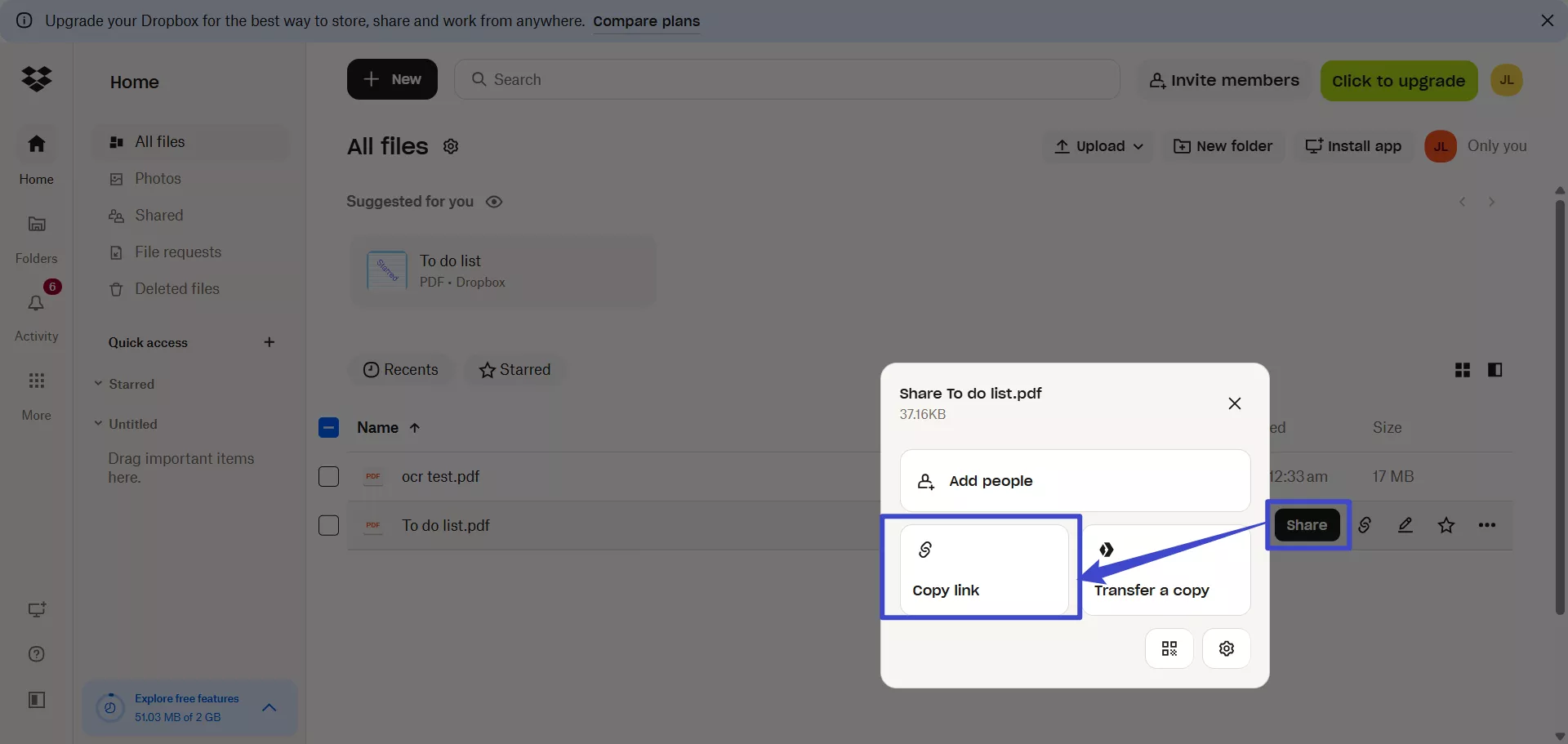
Step 4. Once your PDF is in Dropbox, you can find the PDF in your Dropbox file list. Click the Share button next to the file and choose Copy link. Then, paste the link wherever you want to share it.
FAQs About Converting PDF to URL
Can You Make a PDF a URL Link?
Yes — you can turn a PDF into a shareable URL either using tools like UPDF (which creates a hosted link you can copy and share) or by uploading the PDF to cloud platforms such as Dropbox or Google Drive and then copying the link that these services generates.
Will the link expire or stay active forever?
It depends on the tool you use. With UPDF, you can set an expiration time for the link if you want it to be temporary. With some cloud services like Dropbox or Google Drive, links typically stay active unless you manually revoke them or adjust sharing permissions.
How Do I Share a File Path as a URL Link?
To share a file path as a link, you generally need to upload the file to a web‑accessible location first — local file paths (like C:\Users\file.pdf or network paths) aren’t reliable web URLs because browsers and apps often block them for security reasons. For example, you might format a local path with the file:// scheme (like file:///C:/path/to/file.pdf), but this only works in specific apps and usually only if the recipient has access to the same system or network.
Conclusion
URLs are much easier to share than large files as there is nothing for the recipient to download. With tools like UPDF, converting PDFs to URLs can be simple. You can convert your PDF document into HTML or create a URL link that you can then easily share with others. Download UPDF and try it out today! If you are satisfied with this software, upgrade to Pro now as UPDF is offering discounted prices currently, so it's the best time to own it!
Windows • macOS • iOS • Android 100% secure




 Enola Miller
 Engelbert White
 Lizzy Lozano